You Know Stackposts?

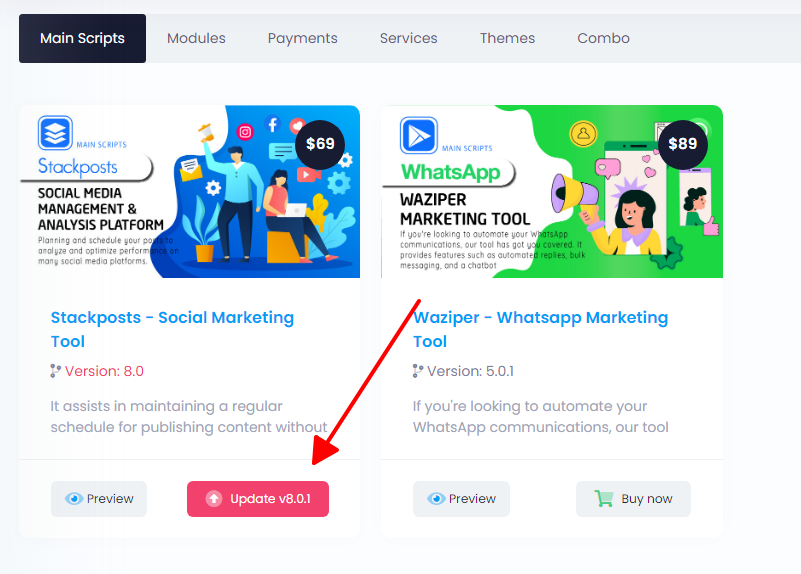
#1 Social Media Management & Analysis Platform

First Things to do

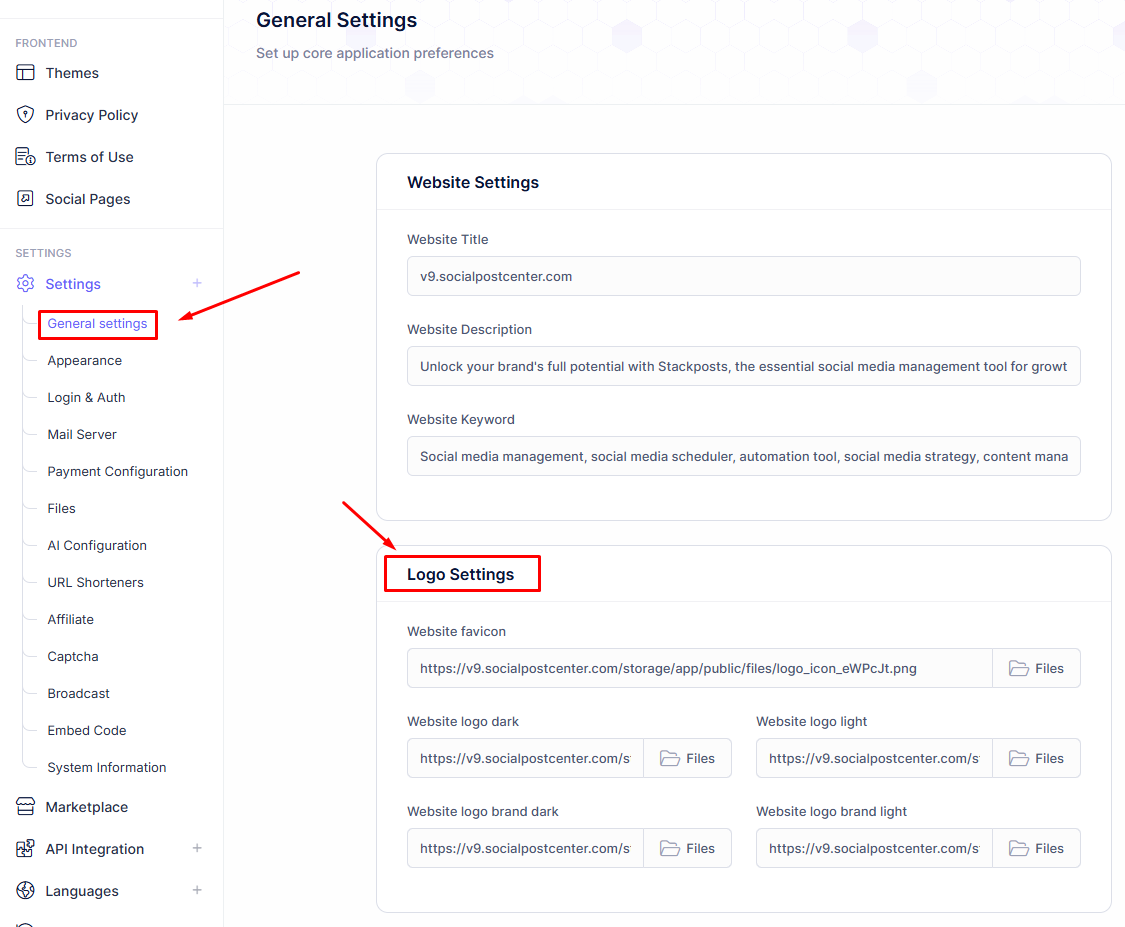
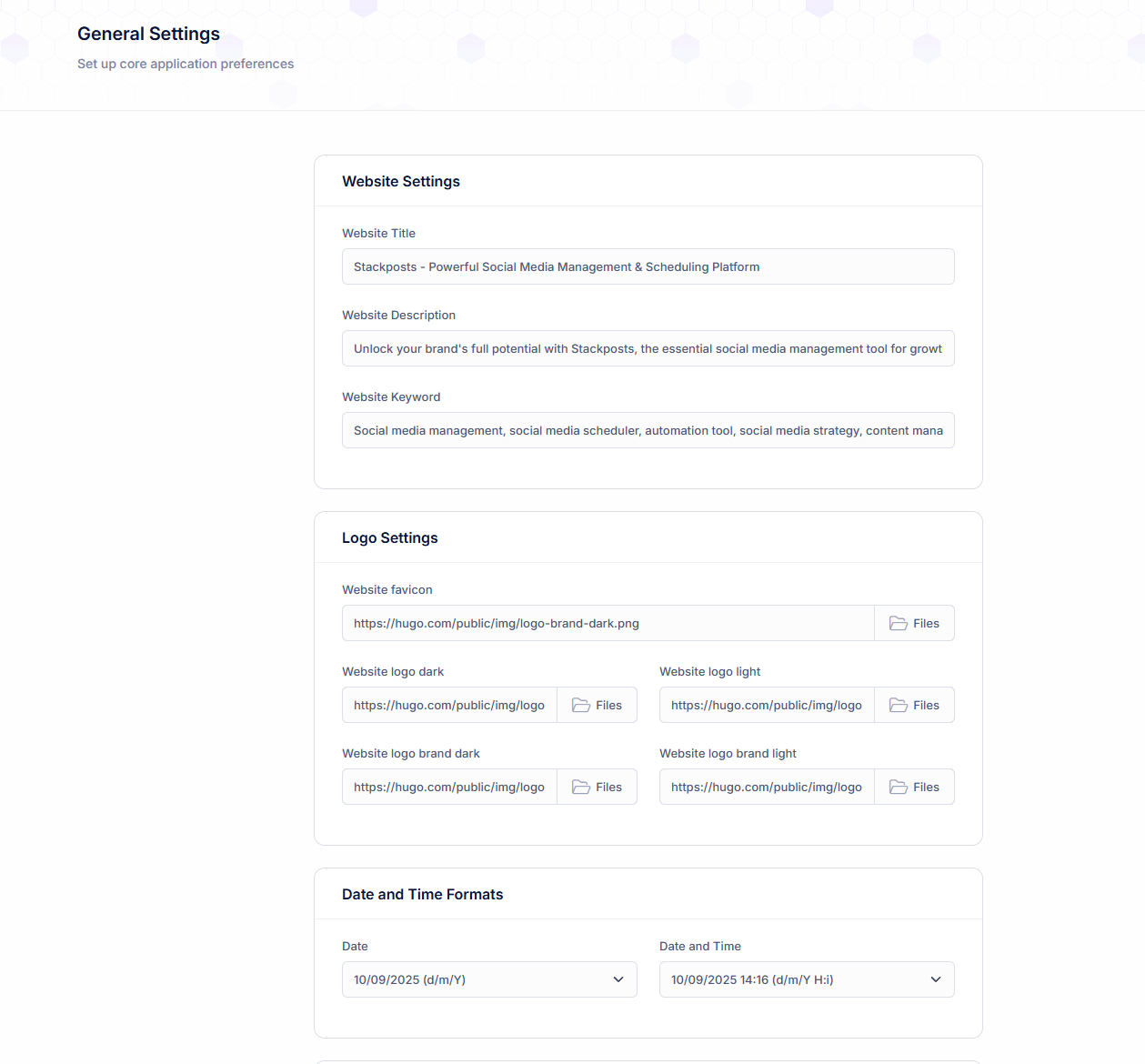
Change your Logo

Before proceeding to the next configuration steps, please initiate the modification of your logo and icon. This action will facilitate easier navigation through subsequent settings.

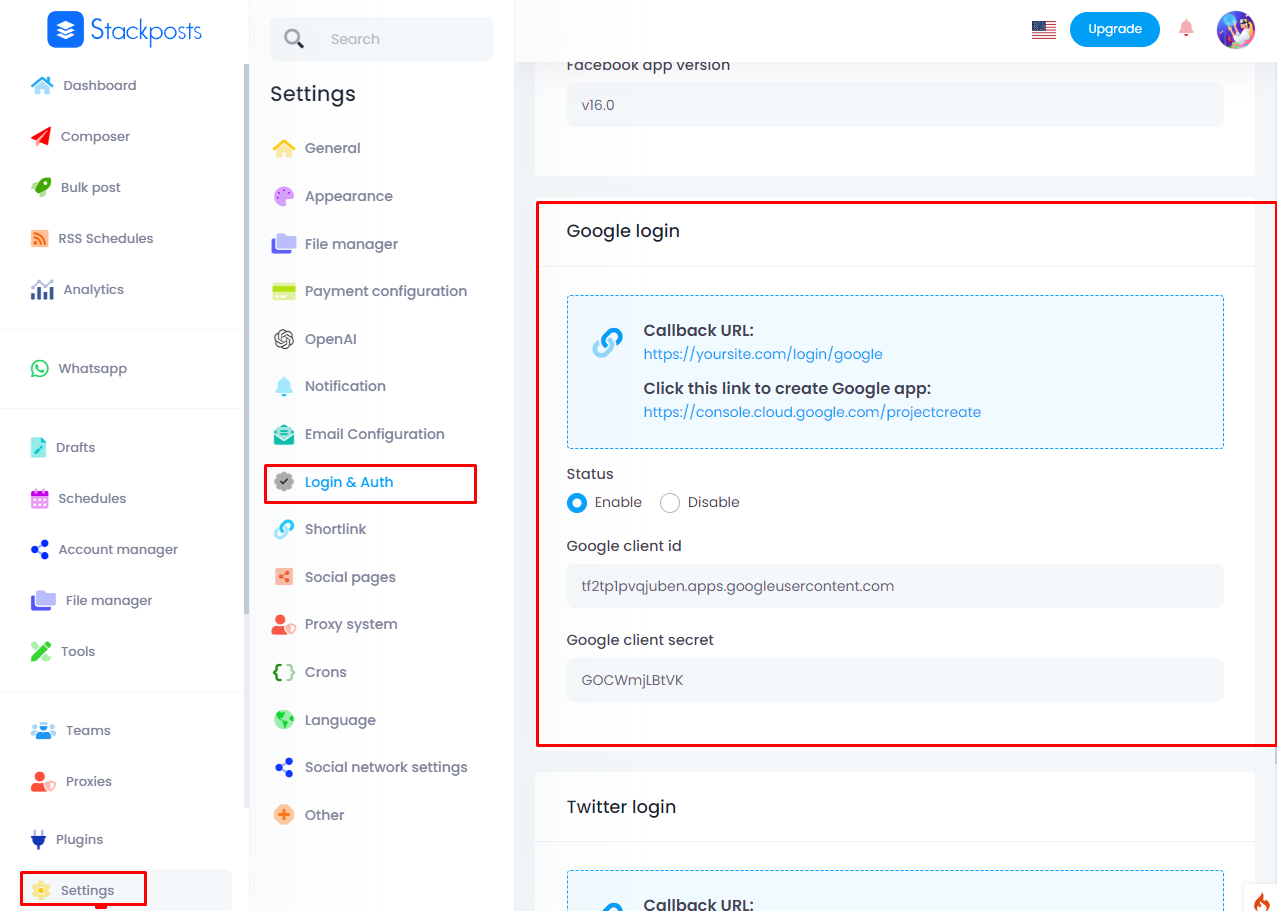
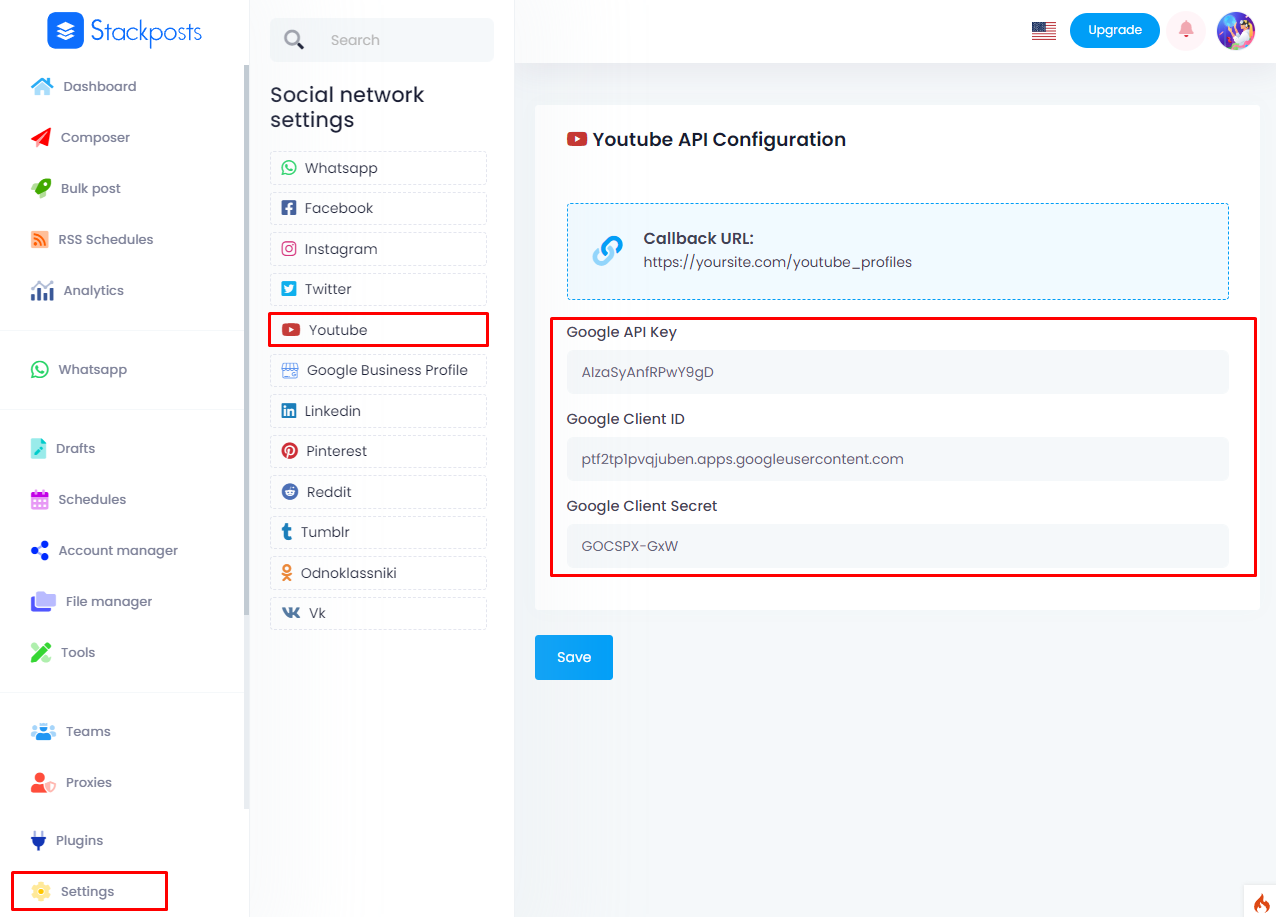
Configure your Social Media API app


Quota exceeded for quota metric 'Requests' and limit ' ...

Quota exceeded for quota metric ‘Requests’ and limit ‘Requests per minute’ of service ‘mybusinessaccountmanagement.googleapis.com’


Google My Business API: Standard Quota Request

Complete the following form to request access for Standard level quota for your project via this form link.

Please only submit this form once for your company. Note that it can take up to 2 weeks to process your request.


Cloud Storage S3

Cloud storage is like having a virtual space on the internet where you can store and access your files. Instead of keeping everything on your computer or phone, you can save it online. Popular examples are services like Amazon S3 or Contabo S3. It’s handy because you can reach your stuff from anywhere with an internet connection.

1. Amazon S3 Cloud Storage Integration

Amazon S3 is like a big online storage space provided by Amazon. You can use it to save and retrieve your files over the internet. It’s good for keeping backups, sharing files, or hosting things like pictures for websites. It’s secure, can store a lot of data, and you only pay for what you use.

2. Contabo S3 Cloud Storage Integration

Contabo S3 is a cheap alternative with unlimited free transfer to AWS S3 and other vendors. Billing is simple and month-to-month at all-inclusive rate, and you can easily migrate from S3


If you have any questions, issues, or suggestions for this feature, please contact us here. We will answer as soon as possible

Where I find my ticket number

Where I find my ticket number?

Livestream

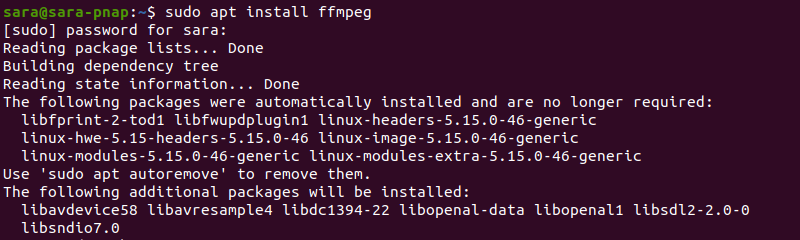
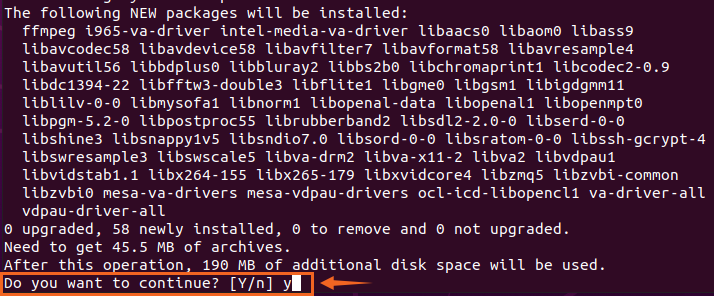
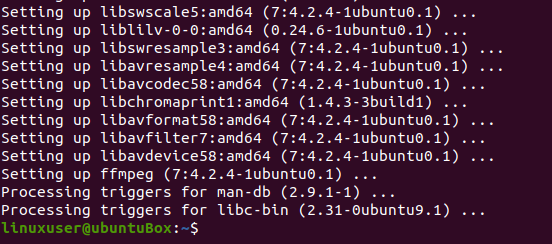
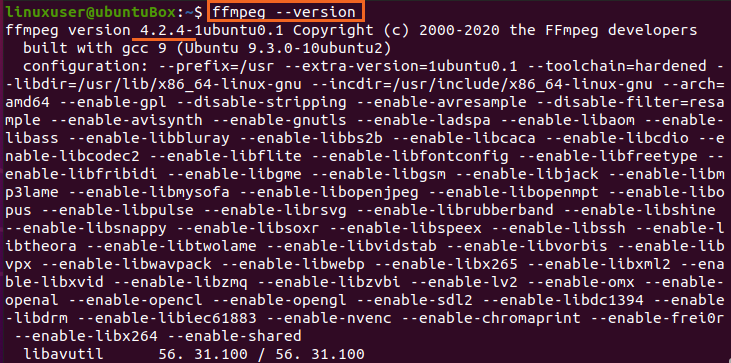
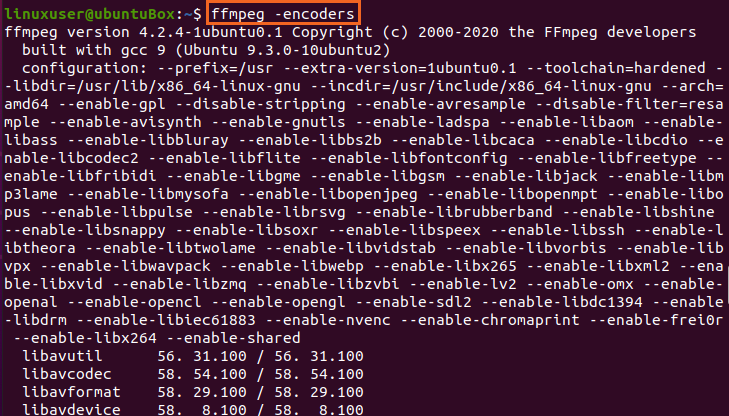
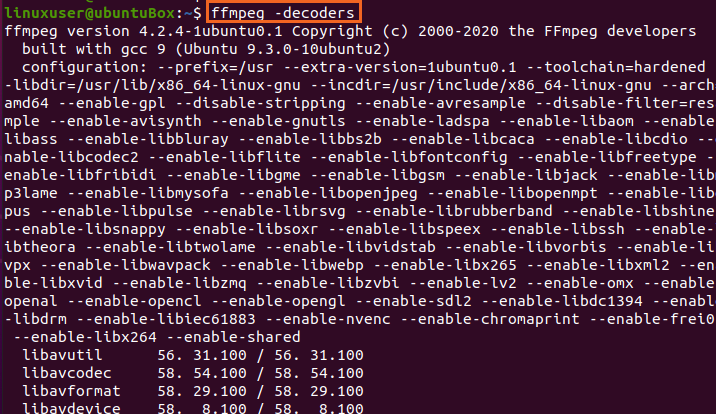
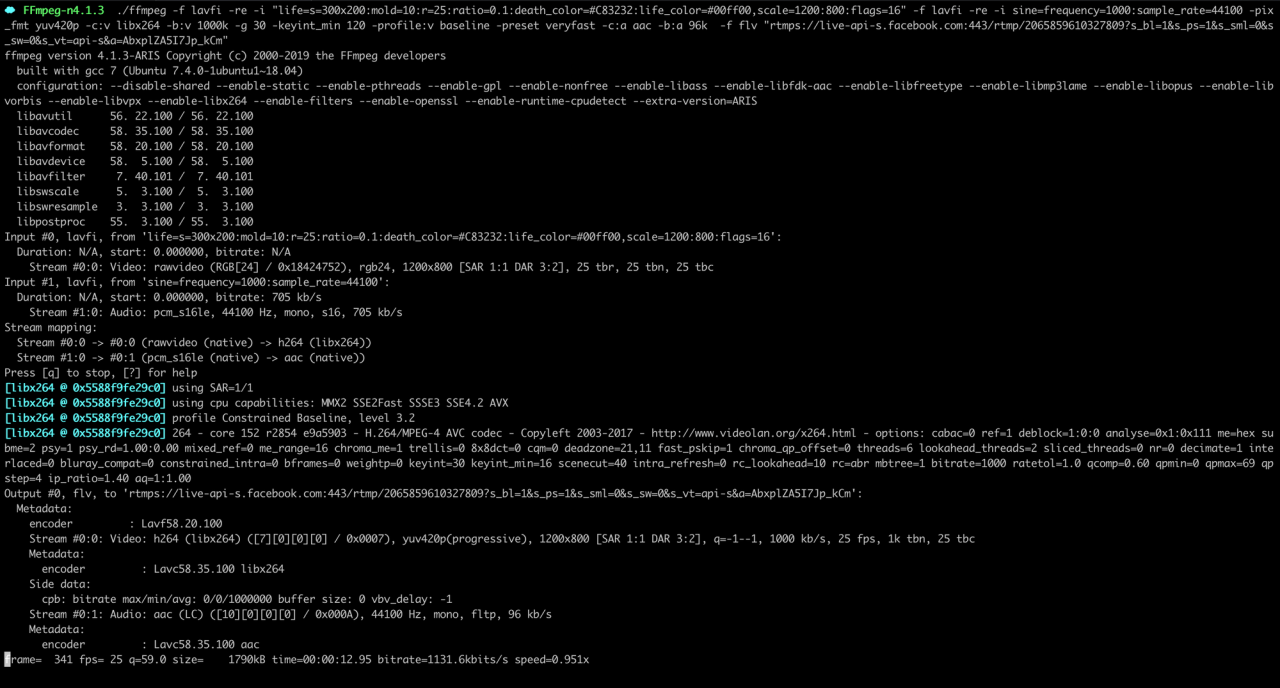
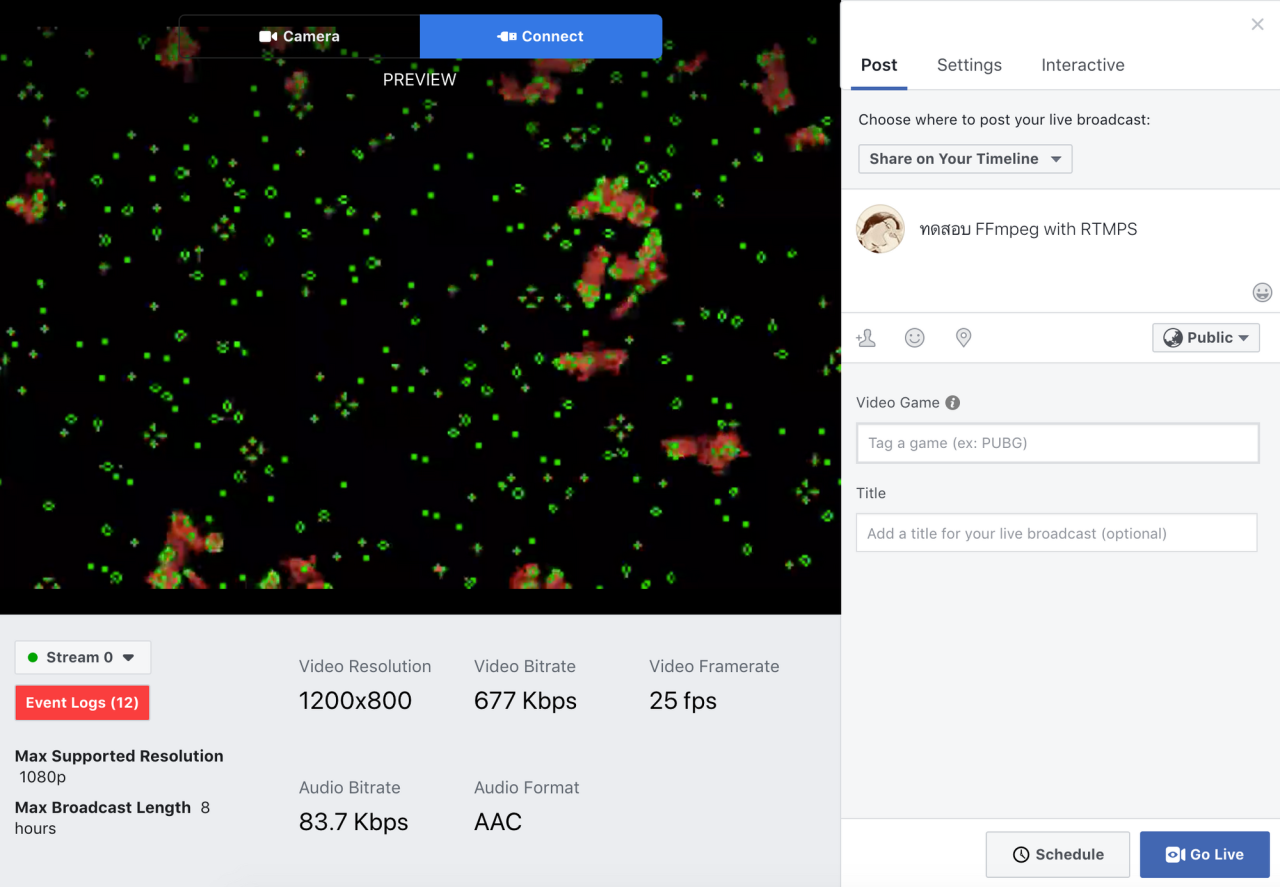
Install FFMPEG first to operate Livestream modules. You can follow this guide to install it.


Refund Policy

Before you ask for a refund

If you have purchased an item on Stackposts.com and you are experiencing a technical issue with the item we recommend that you contact us of that item and seek assistance. Often we will be able to help troubleshoot your problem.

Item is not as described

Item is “not as described” or the item doesn’t work the way it should.

If an item doesn’t work the way it should then the author is required to promptly fix the issue by updating the item. An item is “not as described” if it is materially different from the item description or preview. If the issue can’t be fixed or it turns out that the item is “not as described” then you would be entitled to a refund from Stackposts.

We will refund when items are typically provided in cases where the item significantly differs from what was advertised.


Problems & Solutions

Quota exceeded for quota metric 'Requests' and limit ' ...

Quota exceeded for quota metric ‘Requests’ and limit ‘Requests per minute’ of service ‘mybusinessaccountmanagement.googleapis.com’


Google My Business API: Standard Quota Request

Complete the following form to request access for Standard level quota for your project via this form link.

Please only submit this form once for your company. Note that it can take up to 2 weeks to process your request.


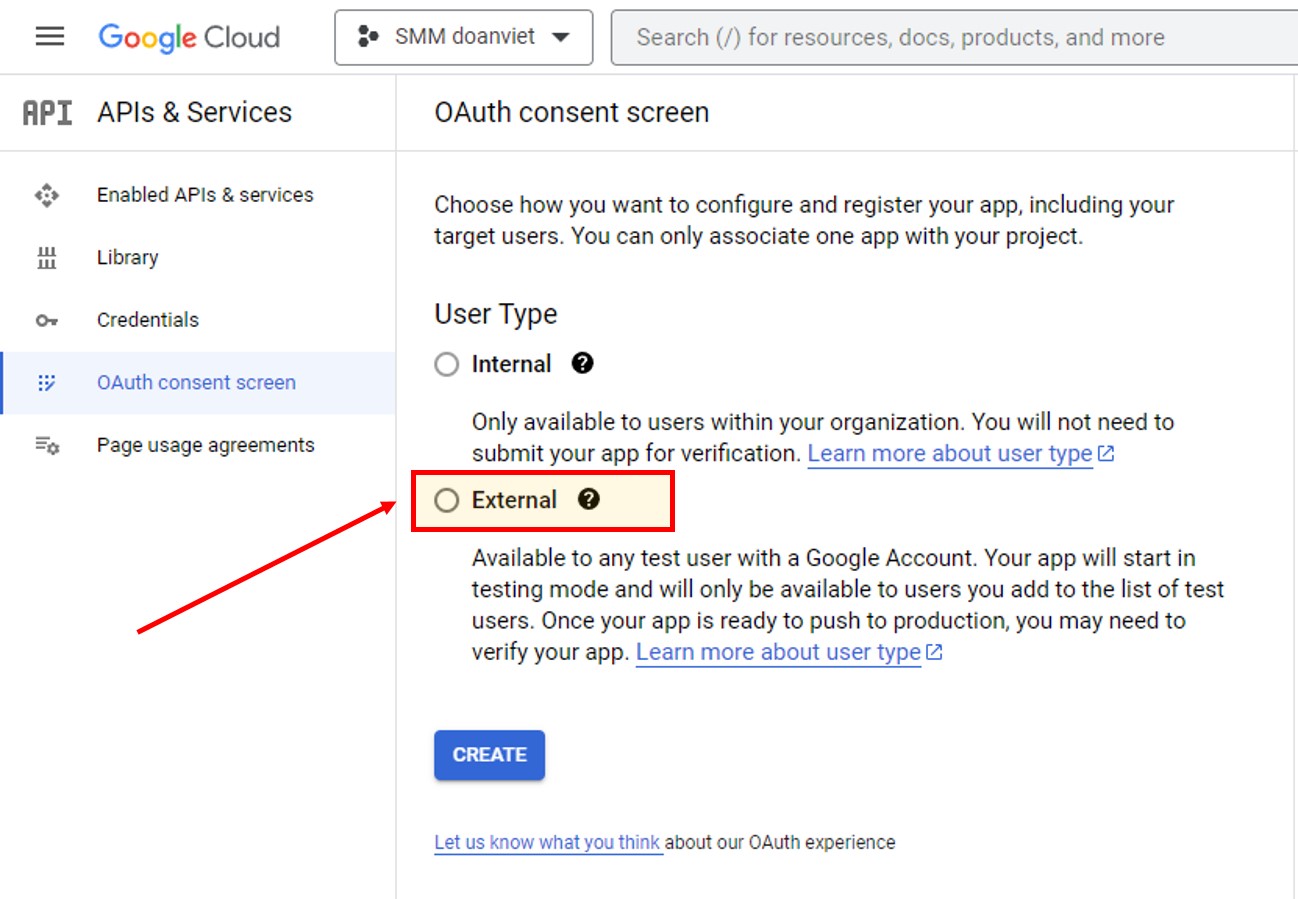
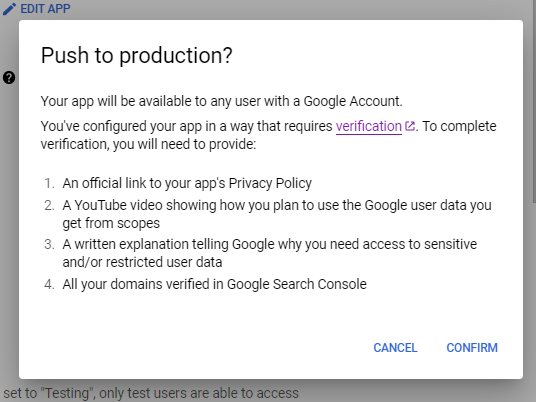
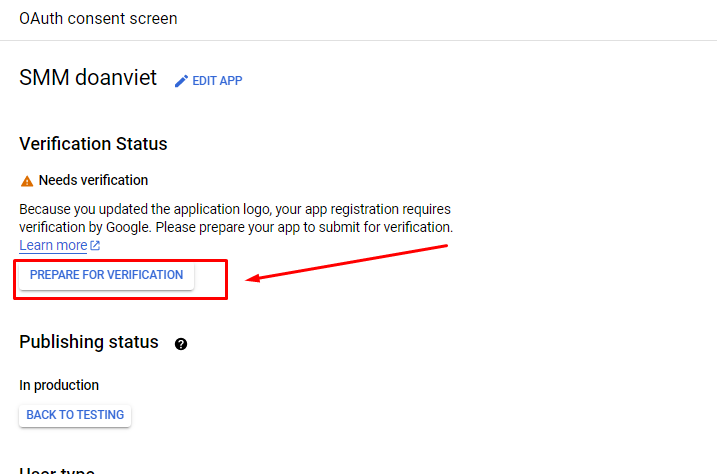
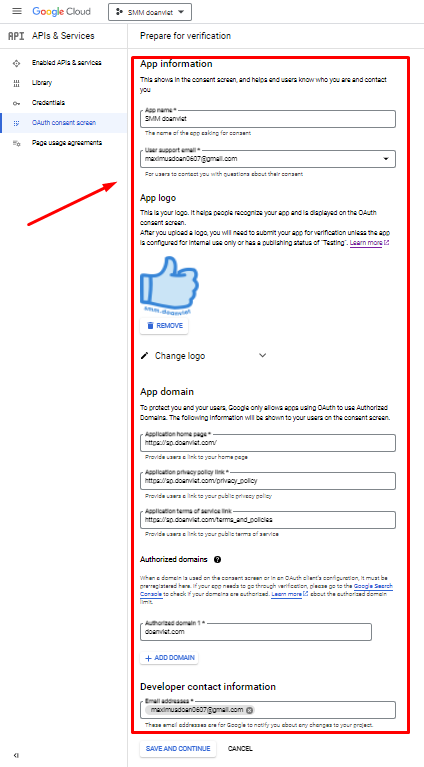
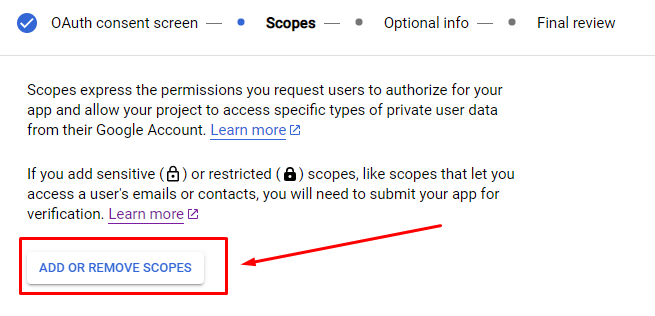
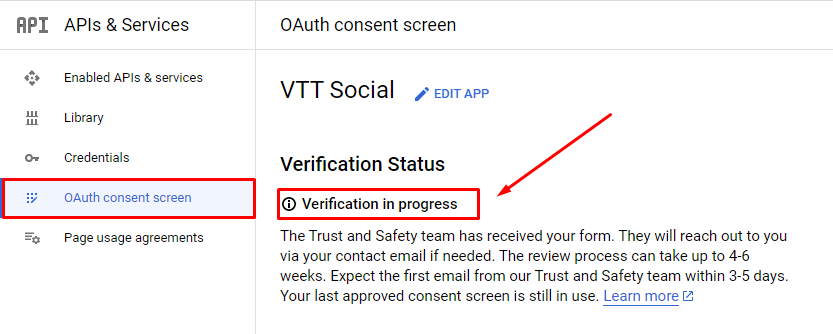
has not completed the Google verification process

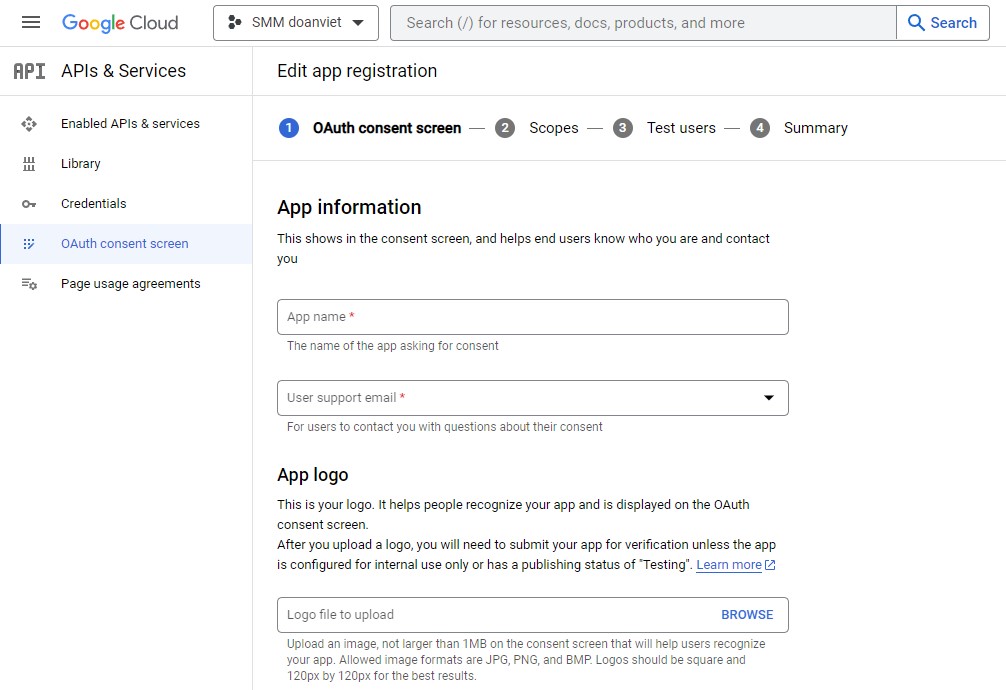
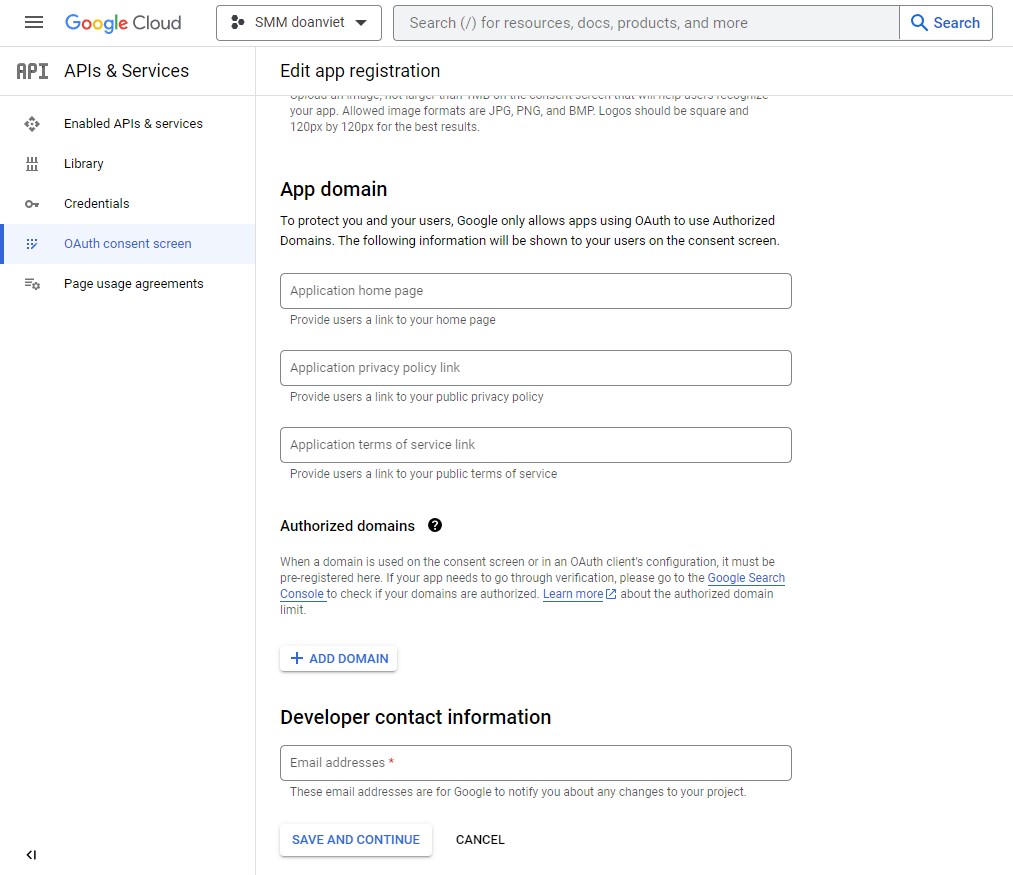
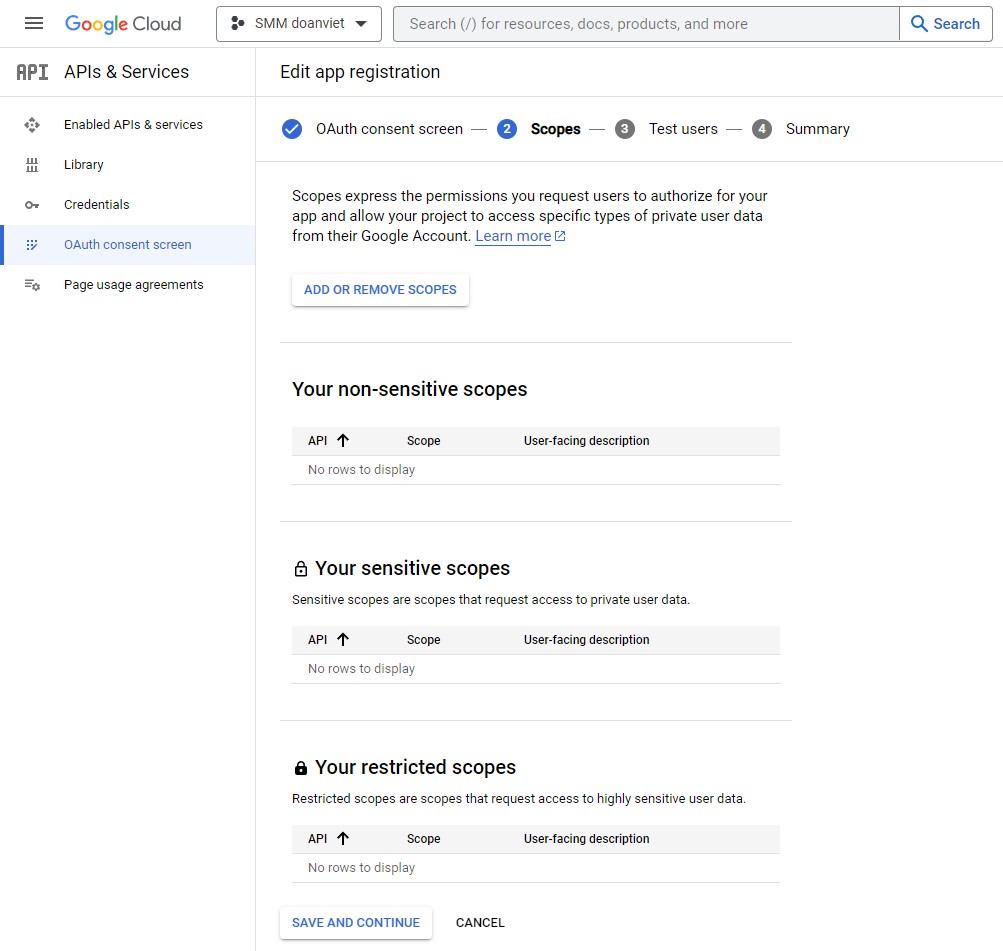
You need to add the account as a test user under the OAuth consent screen:

Follow this guide to get more info.


If you have any questions, issues, or suggestions for this feature, please contact us here. We will answer as soon as possible

Facebook Auto Post

Articles

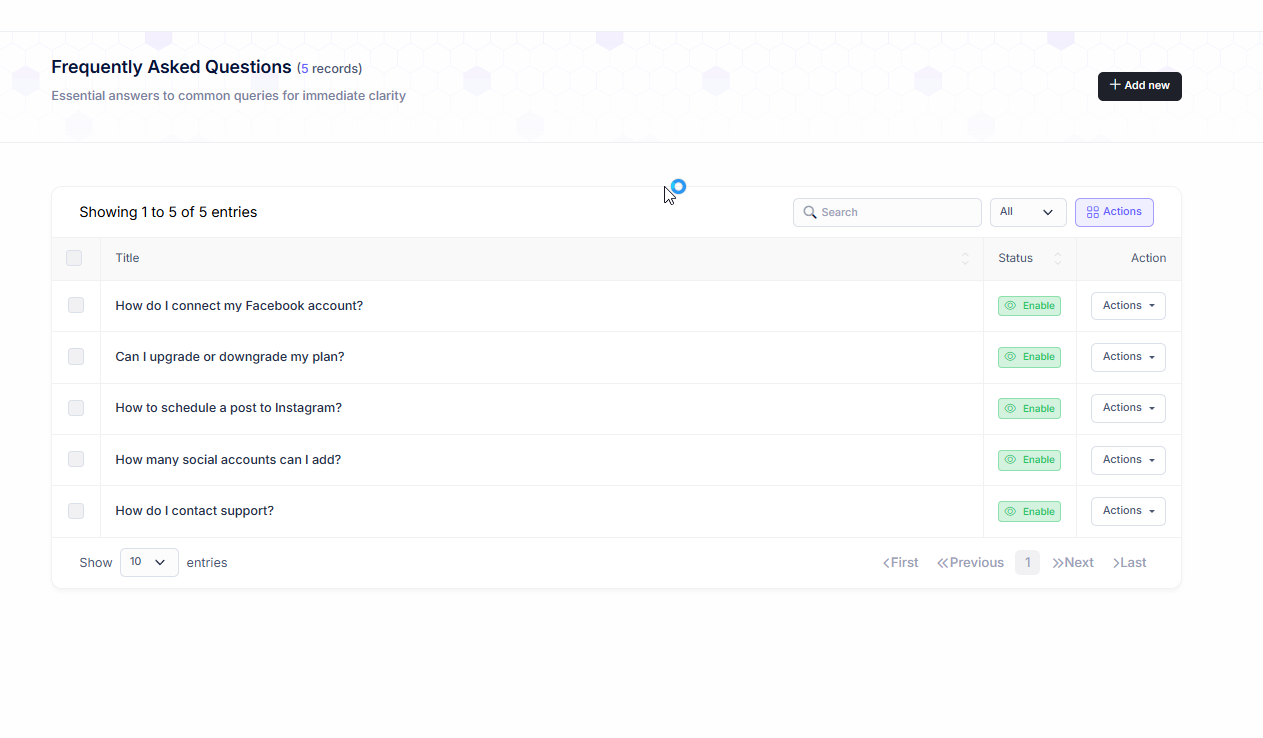
FAQs

Facebook requires either a User data deletion instructions URL

Facebook requires either a User data deletion instructions URL or a User data deletion callback URL.

  • Please check this link for it, you will see it at the back of the content.
  • You also can check it for more details.

FB profile doesn't show in composer

At the moment, Meta does not facilitate the posting of Facebook profiles through Stackposts. However, you can employ Cookie Login with your Facebook profile to schedule and publish your content promptly.

FAQs

Facebook requires either a User data deletion instructions URL

Facebook requires either a User data deletion instructions URL or a User data deletion callback URL.

  • Please check this link for it, you will see it at the back of the content.
  • You also can check it for more details.

FB profile doesn't show in composer

At the moment, Meta does not facilitate the posting of Facebook profiles through Stackposts. However, you can employ Cookie Login with your Facebook profile to schedule and publish your content promptly.

Facebook requires either a User data deletion instructions URL

Facebook requires either a User data deletion instructions URL or a User data deletion callback URL.

  • Please check this link for it, you will see it at the back of the content.
  • You also can check it for more details.

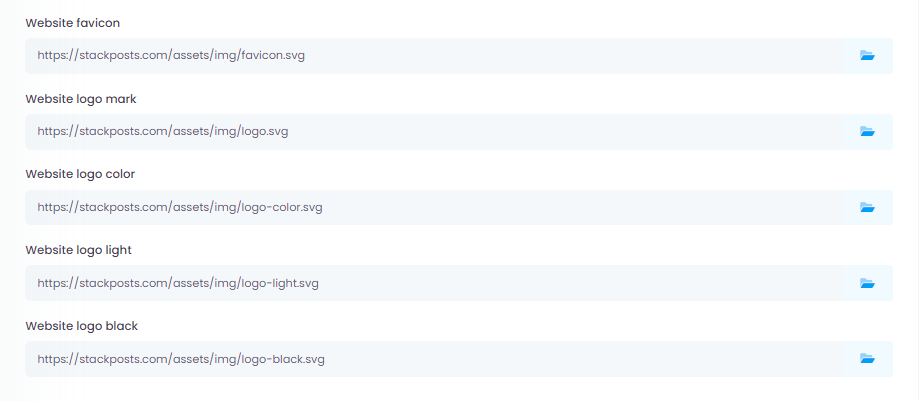
Change Logo/ Icon

Where can I change

URL: https://domain.com/settings/index/settings

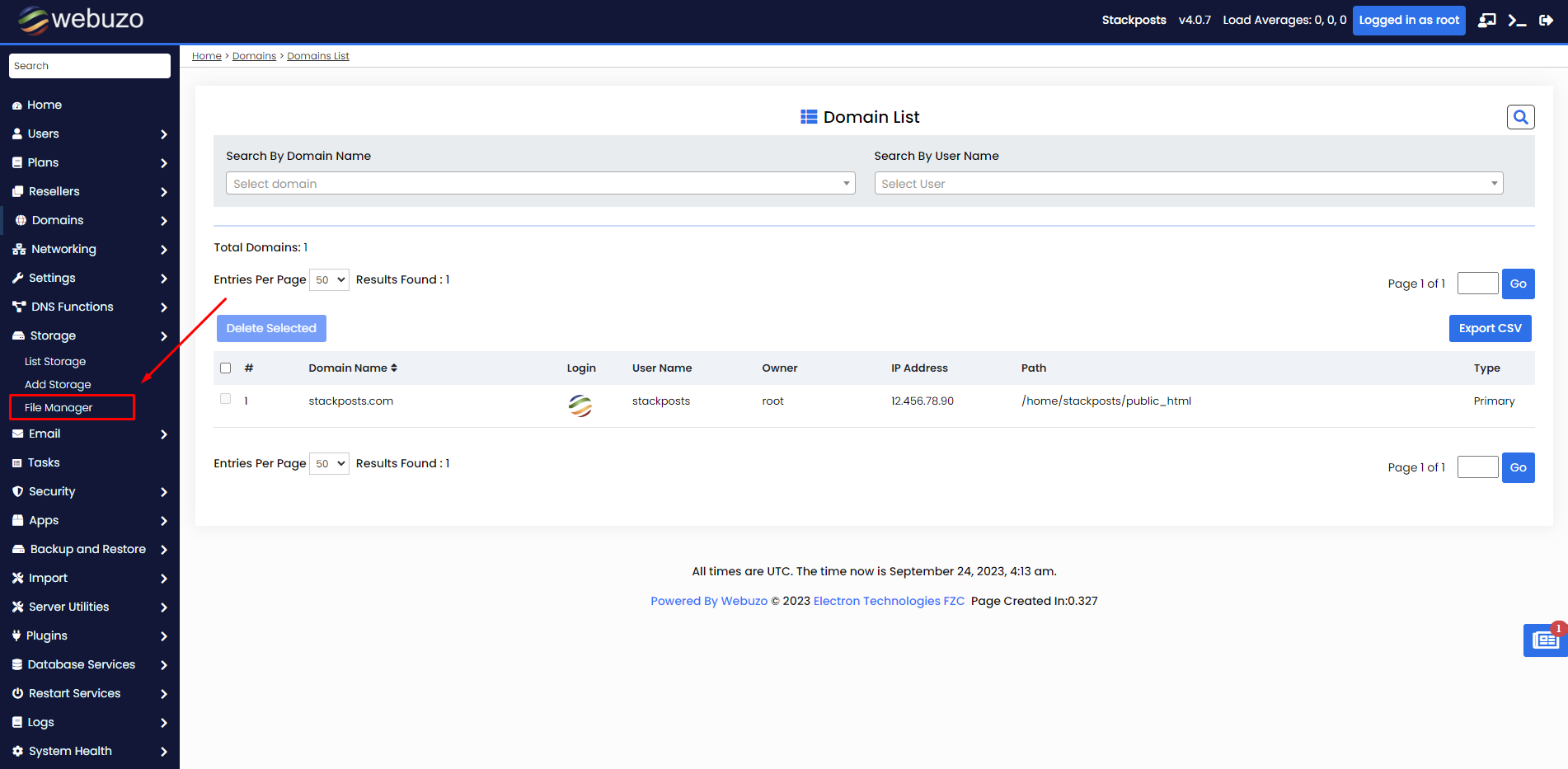
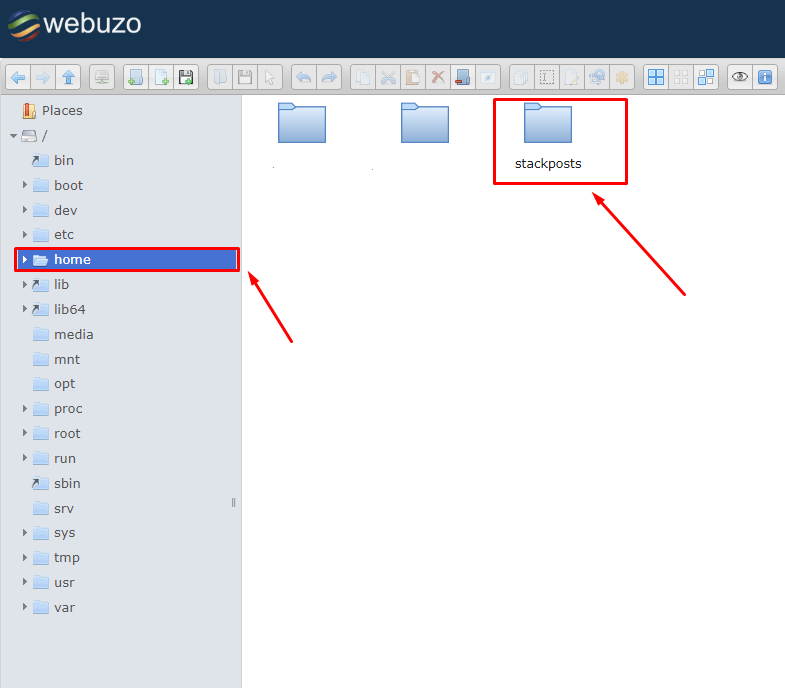
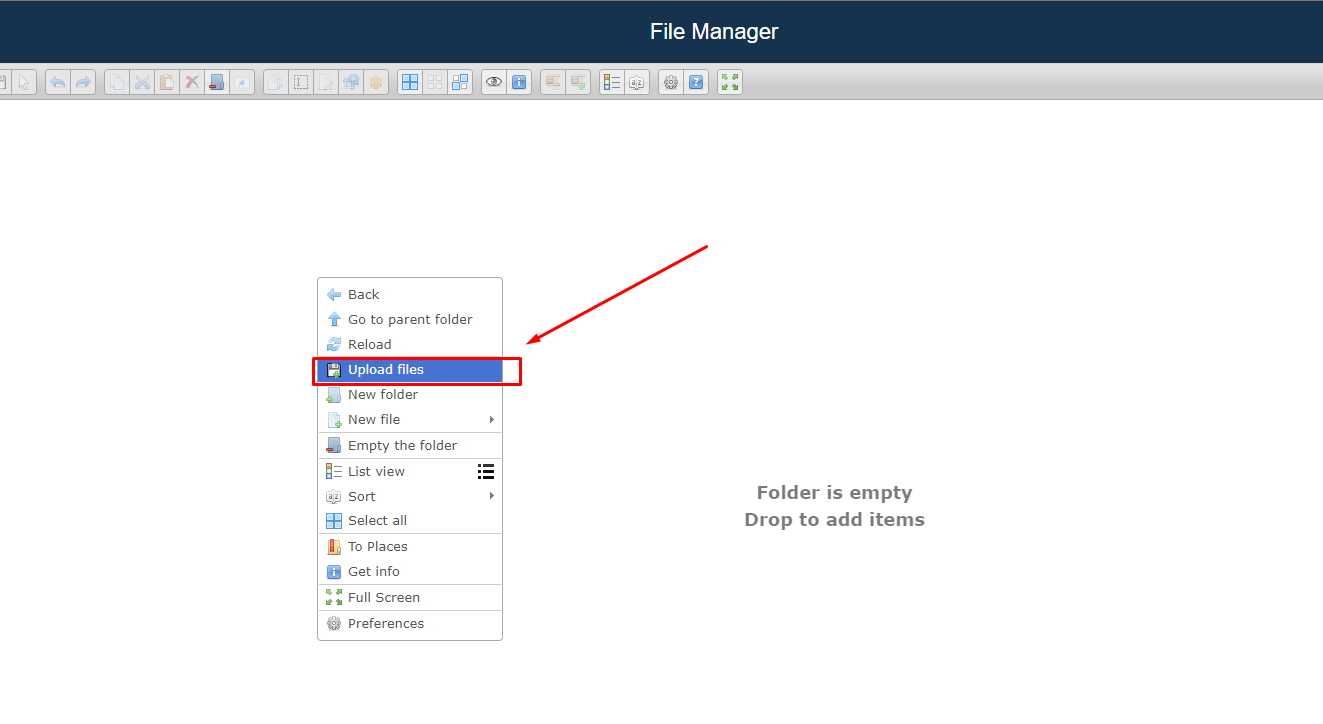
Note: You need to go to the File Manager (https://domain.com/file_manager) first to upload your files and you will see it in the File Manager.

Dimensions

We recommend the sizes for logos and the favicon

  • Website favicon: 500 x 500 or 1080 x 1080pixels
  • Website logo mark: 500 x 500 or 1080 x 1080pixels
  • Website logo color: 790 x 193 pixels
  • Website logo black: 790 x 193 pixels
  • Website logo light: 790 x 193 pixels
If you have any questions, issues, or suggestions for this feature, please contact us here. We will answer as soon as possible

FB profile doesn't show in composer

At the moment, Meta does not facilitate the posting of Facebook profiles through Stackposts. However, you can employ Cookie Login with your Facebook profile to schedule and publish your content promptly.

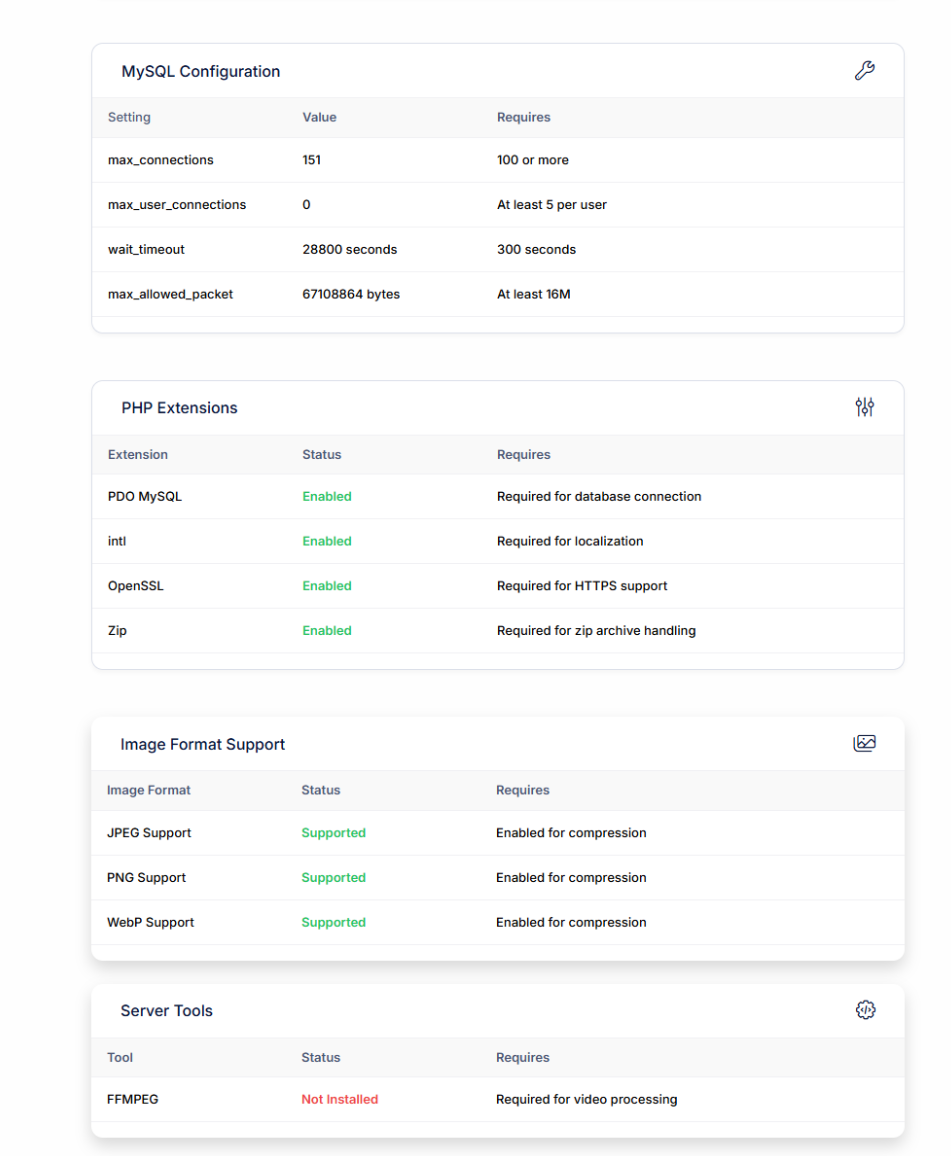
Server Requirements for Installation

Requirements

Server Specifications?

We recommend the UBUNTU Server from CONTABO which will be easier to upgrade later with the minimum specifications for the beginning, our developer team will help you easier to check or support you in detail.

Before installing the Stackposts script on your server/hosting, make sure your server is fully configured for the script

Stackposts Main Script Only

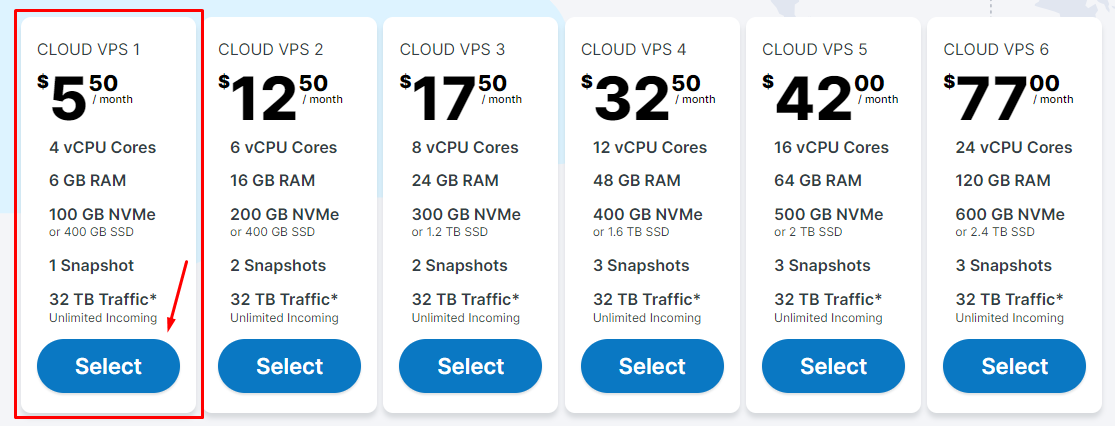
If you only want to use the Stackposts Main Script, you can use the minimum plan Cloud VPS 1

– 4 vCPU Cores
– 6 GB RAM
– 100 GB NVMe or 400 GB SSD
– 1 Snapshot
– 32 TB Traffic* (Unlimited Incoming)

Stackposts Main Script + All modules

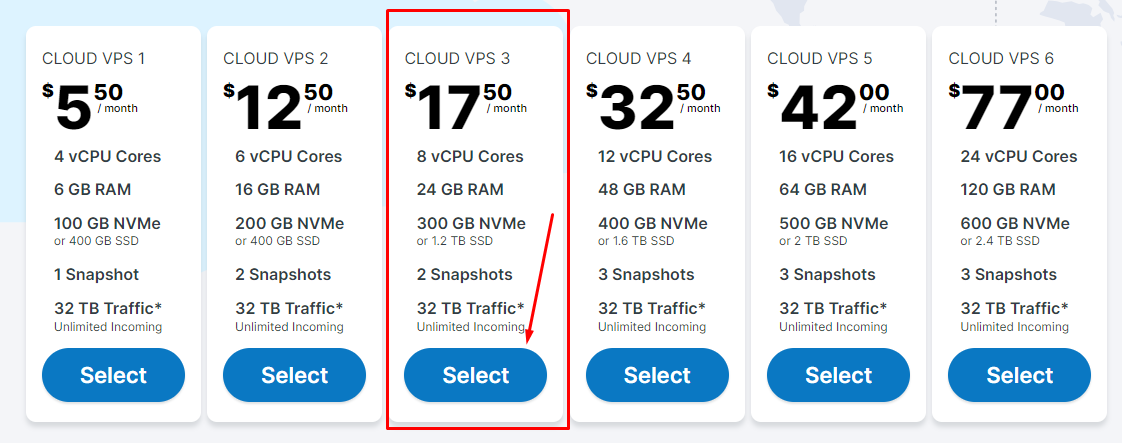
If you plan to use WhatsApp and Tiktok modules we recommend you get at least the v8CPU core  with the Cloud VPS 3

– 8 vCPU Cores
– 24 GB RAM
– 300 GB NVMe or 1.2 TB SSD
– 2 Snapshot
– 32 TB Traffic* (Unlimited Incoming)

Note: Please Do not use CyberPanel, VESTACP and HESTIA because Hestia or Vestacp Server will automatically change file Nginx or APACHE config for about 1 -2 days for default so the API domain will stop working.

Waziper Main Script Only

If you plan to use Waziper WhatsApp Main Scritp Only we recommend you get at least the v8CPU core  with the Cloud VPS 3

– 8 vCPU Cores
– 24 GB RAM
– 300 GB NVMe or 1.2 TB SSD
– 2 Snapshot
– 32 TB Traffic* (Unlimited Incoming)

Note: Please Do not use CyberPanel, VESTACP and HESTIA because Hestia or Vestacp Server will automatically change file Nginx or APACHE config for about 1 -2 days for default so the API domain will stop working.

StackPush Main Script Only

If you only want to use the StackPush Main Script Only, you can use the minimum plan Cloud VPS 1

– 4 vCPU Cores
– 6 GB RAM
– 100 GB NVMe or 400 GB SSD
– 1 Snapshot
– 32 TB Traffic* (Unlimited Incoming)

Server Requirements

Stackposts

Before installing the Stackposts script on your server/hosting, make sure your server is fully configured for the script by following the below requirements:

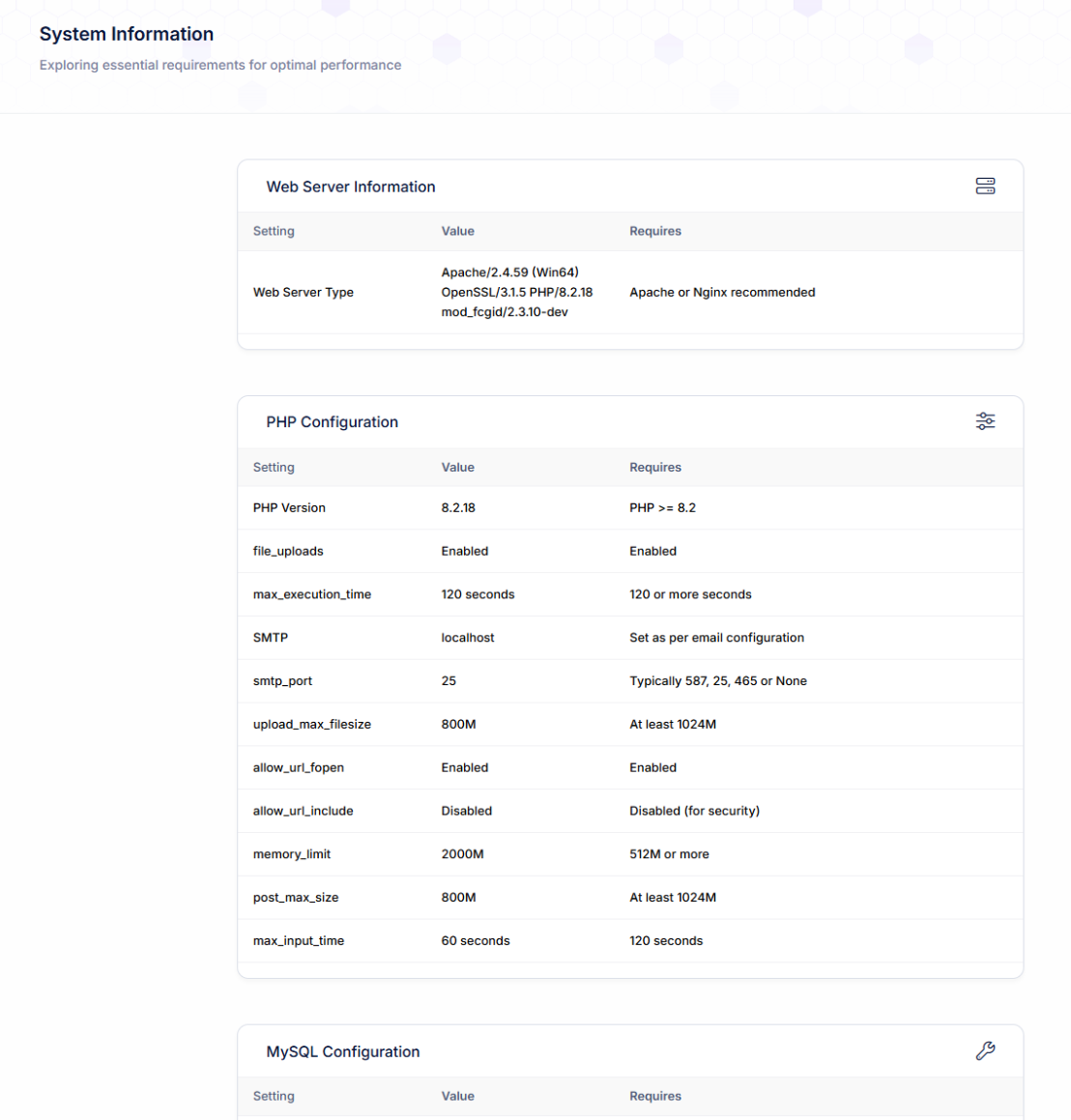
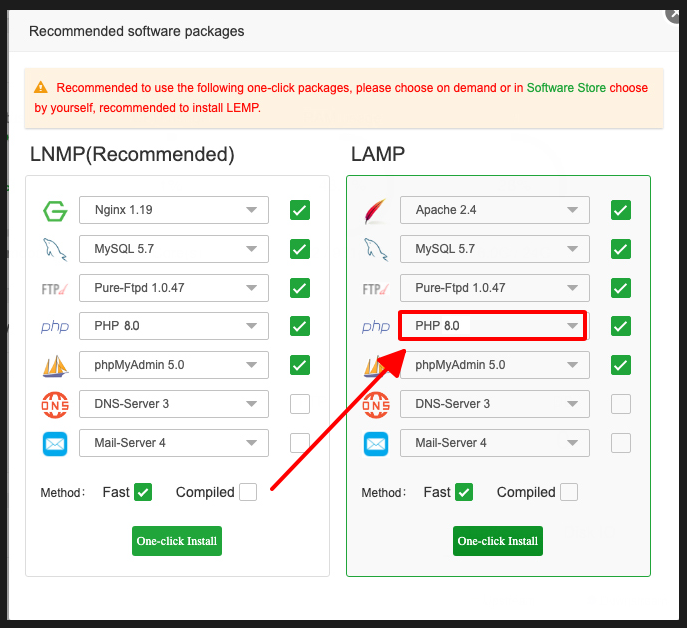
PHP version PHP version 8.0 - 8.1
allow_url_fopen allow_url_fopen=On (php.ini file)
PHP cURL Required. (Curl Library, Curl_init Function, and Curl_exec)
PHP OpenSSL Required. (For secure data encryption.)
PHP PDO Required. (To create a secure connection to MySQL server)
GD Required. (For image processing).
PHP EXIF Required. (For validating JPEG files)
PHP mbstring Required.
Cronjobs Required (The cronjobs must be configured for publishing scheduled posts.)
FFMPEG Required for video posts. (For Video post types.)
Zip PHP zip extension is required (for updating, installing, etc)
zlib.output_compression Required: zlib.output_compression = OFF
Option (Recommended) To make sure that the script working fine. You need to increase the following values in your server:
memory_limit = 1024M
upload_max_size = 256M
post_max_size = 256M
upload_max_filesize = 256M
max_execution_time = 60
max_input_time = 500
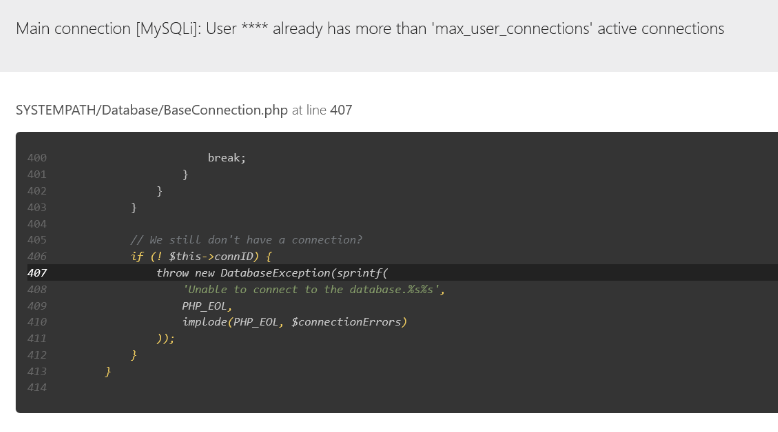
max_connections = 500
max_user_connections = 200
wait_timeout = 180
max_allowed_packet = 1024M

Waziper

Before installing the Waziper script on your server, make sure your server is fully configured for the script by following the below requirements:

PHP version PHP version 8.0 – 8.1
Node.js Required – Version 16.x
allow_url_fopen allow_url_fopen=On (php.ini file)
PHP cURL Required. (Curl Library, Curl_init Function, and Curl_exec)
PHP OpenSSL Required. (For secure data encryption.)
PHP PDO Required. (To create a secure connection to MySQL server)
GD Required. (For image processing).
PHP EXIF Required. (For validating JPEG files)
PHP mbstring Required.
Zip PHP zip extension is required (for updating, installing, etc)
Option (Recommended) To make sure script working fine. You need to increase the following values in your server:
memory_limit = 512M or higher ( Importance)
upload_max_size = 512M
post_max_size = 512M
upload_max_filesize = 512M
max_execution_time = 60
max_input_time = 500
max_connections = 200
max_user_connections = 200
wait_timeout = 180
max_allowed_packet = 512M

Note: We strongly advise against using VESTACP or HESTIA as they have been known to automatically modify the nginx or apache config file within 1-2 days, which may cause the API domain to stop working.

StackPush

Before installing the StackPush script on your server/hosting, make sure your server is fully configured for the script by following the below requirements:

PHP version PHP version 8.0 - 8.1
allow_url_fopen allow_url_fopen=On (php.ini file)
PHP cURL Required. (Curl Library, Curl_init Function, and Curl_exec)
PHP OpenSSL Required. (For secure data encryption.)
PHP PDO Required. (To create a secure connection to MySQL server)
GD Required. (For image processing).
PHP EXIF Required. (For validating JPEG files)
PHP mbstring Required.
Cronjobs Required (The cronjobs must be configured for publishing scheduled posts.)
FFMPEG Required for video posts. (For Video post types.)
Zip PHP zip extension is required (for updating, installing, etc)
zlib.output_compression Required: zlib.output_compression = OFF
Option (Recommended) To make sure that the script working fine. You need to increase the following values in your server:
memory_limit = 1024M
upload_max_size = 256M
post_max_size = 256M
upload_max_filesize = 256M
max_execution_time = 60
max_input_time = 500
max_connections = 500
max_user_connections = 200
wait_timeout = 180
max_allowed_packet = 1024M

If you have any questions, issues, or suggestions for this feature, please contact us here. We will answer as soon as possible

SSL Activation still ongoing and website not appearing

SSL Activation is still ongoing and the website not appearing

If you have activated an SSL certificate on your website and it’s not appearing, there could be a few different reasons why this is happening. Here are some possible causes and solutions:

  1. DNS propagation delay: It may take some time for the DNS changes to propagate throughout the internet. It could take anywhere from a few minutes to a few hours for the changes to take effect.
  2. Incorrect SSL installation: Double-check that your SSL certificate has been installed correctly. Make sure you have installed the SSL certificate on the correct server and the correct domain name. If you’re not sure how to do this, contact your SSL certificate provider or hosting company for assistance.
  3. Mixed content: If you have mixed content on your website (i.e., some resources are loaded over HTTP instead of HTTPS), it can cause SSL issues. Use a tool like the SSL Checker to identify mixed content issues and update the URLs accordingly.
  4. HSTS policy: If you have implemented an HSTS policy, your website may not be accessible over HTTP until the policy expires. Check your HSTS settings to make sure they’re configured correctly

I need to check your script on live demo websites

I require access to assess your script on live demonstration websites.

You can check all our scripts on 2 websites:

1. https://socialpostcenter.com/
(Included: Stackposts Main Script + All modules for Stackposts Main Script. It is the extended license for those who want to build a SaaS)

2. https://waziper.com/ 
(Included: Waziper Main Script + All modules for Waziper Main Script. It is the extended license for those who want to build a SaaS)

500 Internal Server Error


What is a 500 Internal Server Error?

The 500 Internal Server Error happens when the server encounters an unexpected condition that prevents it from fulfilling the request. This is a general message indicating that the server knows something is wrong, but can’t be more specific about the exact problem.

How to Fix the 500 Internal Server Error?

  1. Check Your Server Logs
  2. Check for Permissions Error
  3. Increase PHP Memory Limit
  4. Fix Your .htaccess File
  5. Check With Your Host About Server Issues

You also can check this guide to find the correct cause on your server.

Once we bought the script can we modify or we cant

After purchasing the script, are we allowed to make modifications, or are modifications prohibited?

Certainly, you have the freedom to edit or customize our source code. However, please note that our development team will not provide support for any alterations or customizations made to your website.

If we bought means we need to config all the api or its ready to use?

If we make a purchase, will we need to configure all the APIs ourselves, or are they ready for immediate use?

You are responsible for configuring the official API apps yourself as we provide the source code and ensure its functions operate effectively. Please note that we do not provide support for or include third-party applications such as social media APIs.

Meta API Apps

1. Get Started

The Facebook Graph API is an HTTP-based API that allows developers to extract data and functionality from the Facebook platform. Applications can use this API to programmatically query data, post in pages and groups, and manage ads, among other tasks. The latest Graph API version is v19.0

Get Started

To get started with the Facebook Graph API, you will need:

PLEASE NOTE THAT:  Currently, Meta has stringent approval processes for new API apps on Facebook or Instagram. We’ve made diligent efforts to supply you with the latest forms for submitting to Meta. However, it’s essential to comply with their requests to tailor your content to meet Meta’s standards. While we cannot guarantee that our documentation alone will secure complete approval for your app, it serves as a fundamental guide for navigating the subsequent steps with Meta.


2. Get the App ID & App Secret

Get the App ID & App Secret

If you want to get access to the Facebook API key, you should register or sign up with your existing Facebook account on the developers portal and approve your identity. This will take just some simple following steps:

Step 1. Log in or create an account

Go to the Facebook portal for developers and click “Log in”. You can log in with your existing Facebook account or create a new one

Step 2. Create an App

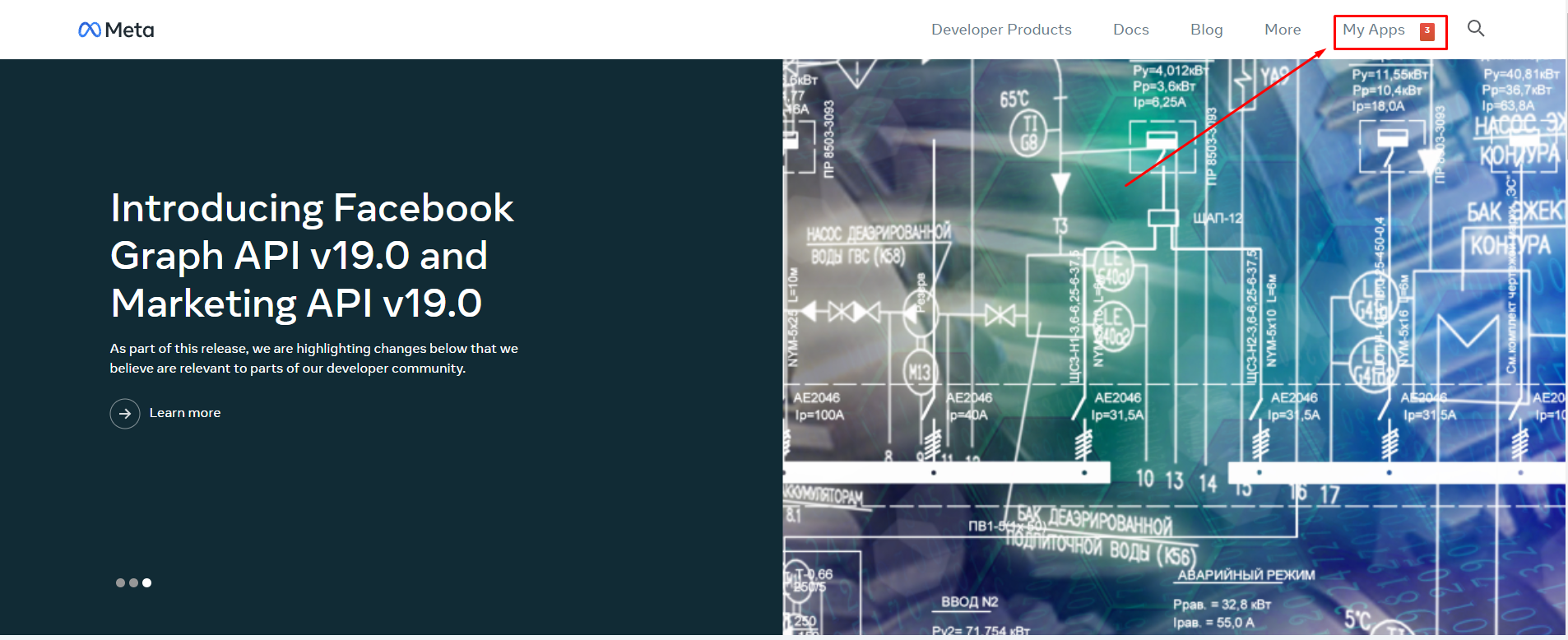
When you find yourself inside the service, press “My App” in the right upper corner of the main page or this link: https://developers.facebook.com/apps/

Step 3. Fill in all basic information App

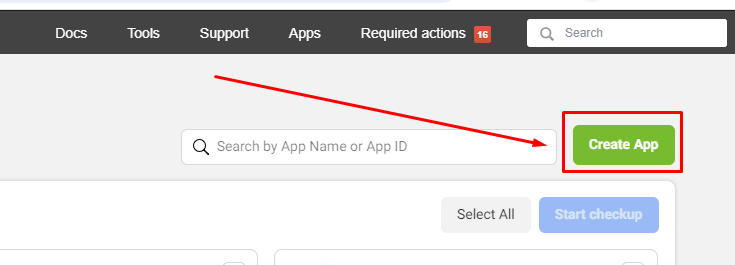
Click Create App: https://developers.facebook.com/apps/create/. Get started by selecting the main use case you’d like to add to your app. You’ll be asked to add permissions to your use case later. Please note that the app type can’t be changed after your app is created. Select None and click Next.

Note: If you don’t see the NONE OPTION, please choose the BUSINESS OPTION

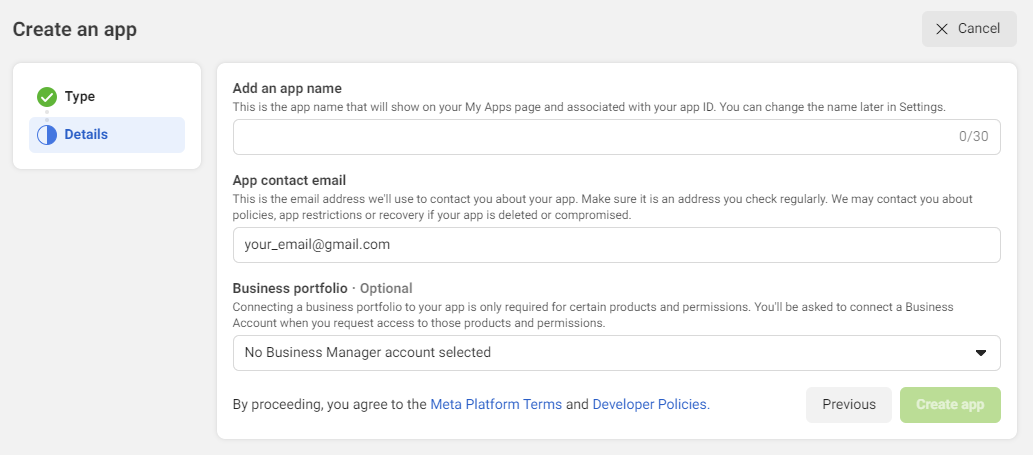
  Input your App Details and click Next.

  • Display name: This is the app name that will show on your My Apps page and associated with your app ID. You can change the name later in Settings.
  • App Contact Email: This is the email address we’ll use to contact you about your app. Make sure it is an address you check regularly. We may contact you about policies, app restrictions or recovery if your app is deleted or compromised.
  • Business Manager accoun(Optional): Connecting a business portfolio to your app is only required for certain products and permissions. You’ll be asked to connect a Business Account when you request access to those products and permissions. (Important: You must have a verified Facebook Bussiness Account to access the advanced permissions)

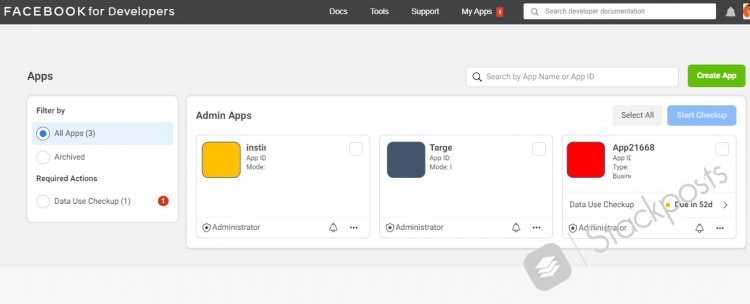
Go back to Dashboard for Apps and select your App

Step 4. Get App ID & App Secret Detail

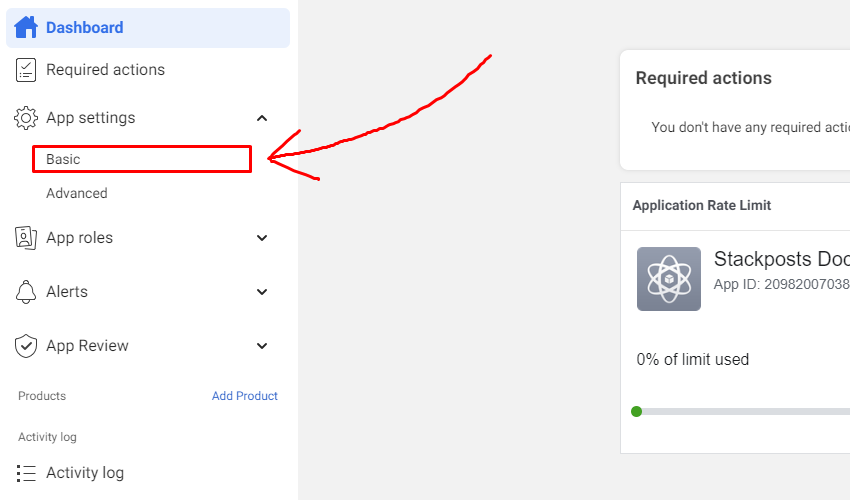
Get App ID and App Secret for Stackposts Configuration Click App Settings/ Basic at the left-side Menu in the Developer Facebook to show the App ID and App Secret Section. Click the “Show” button to display your App Secret Series  It looks like the example below:

  • App ID: 311234693627458
  • App Secret: 5123f75b1234656b3cf34567b321fa12

* Now we have App ID and App Secret for Stackposts Configuration.


3. Enable Facebook Login

A secure, fast, and convenient way for users to log into your app, and for your app to ask for permissions to access data

Step 1. Add products to your app

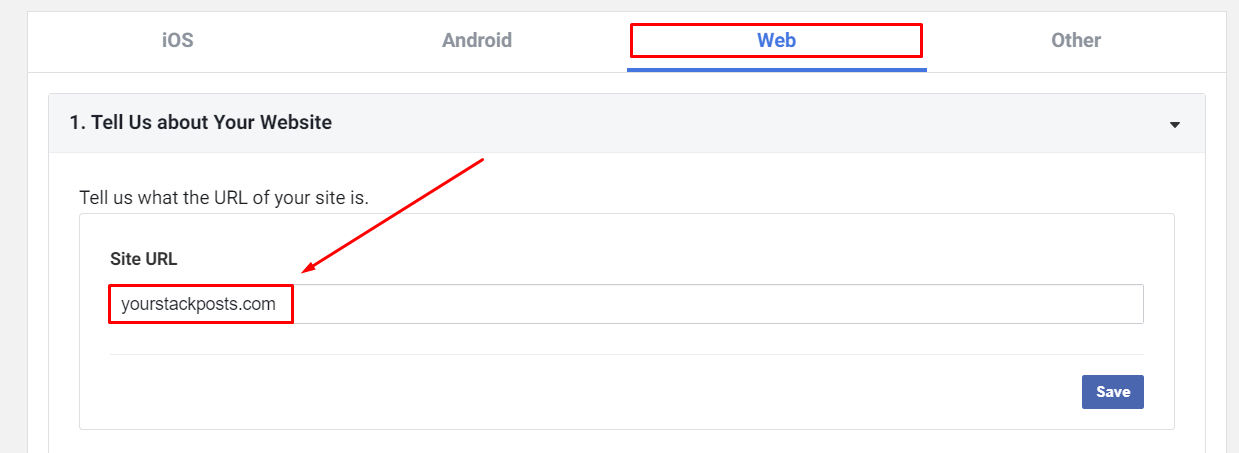
Use the Quickstart to add Facebook Login to your app. To get started, select the platform for this app.

Tell us what the URL of your site is.

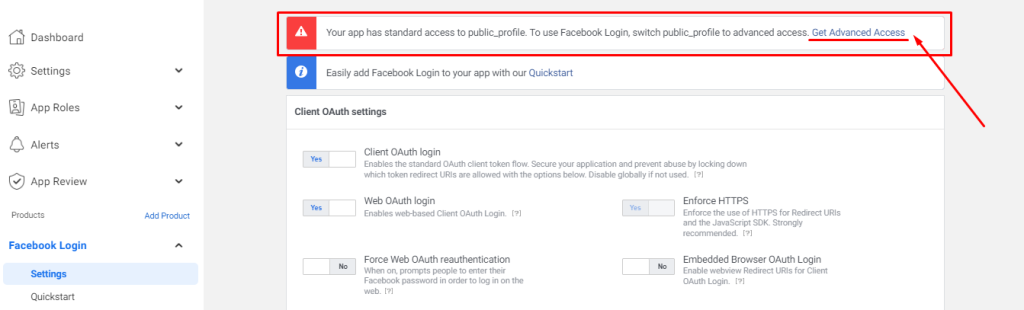
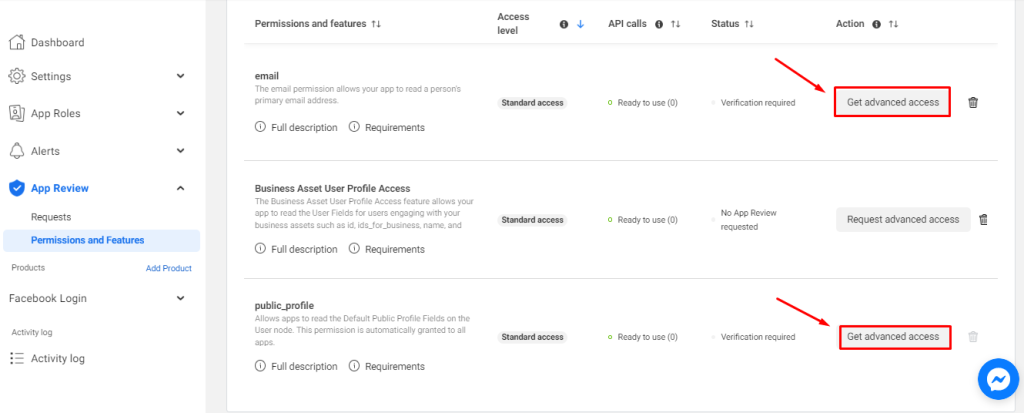
Step 2. Get Advanced Access

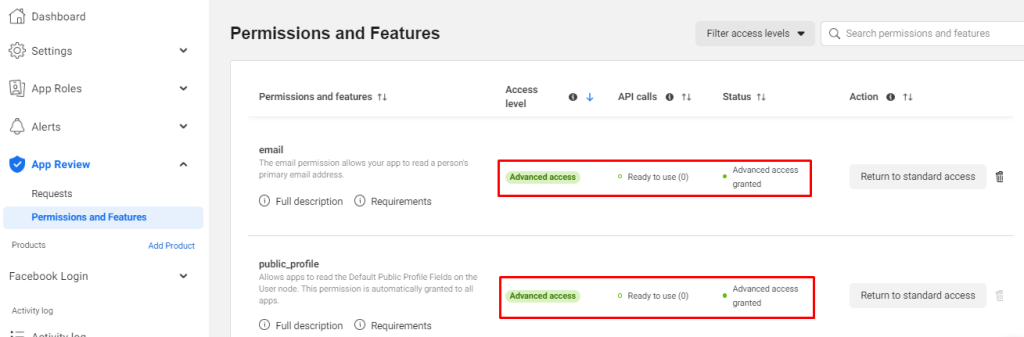
Your app has standard access to public_profile. To use Facebook Login, switch public_profile to advanced access.

Step 3. Verification Required

Meta will now ask developers to verify their businesses to get advanced access for any permission on the Meta Developer Platform

4. Configure Facebook (Meta)

Step 1. Basic Settings

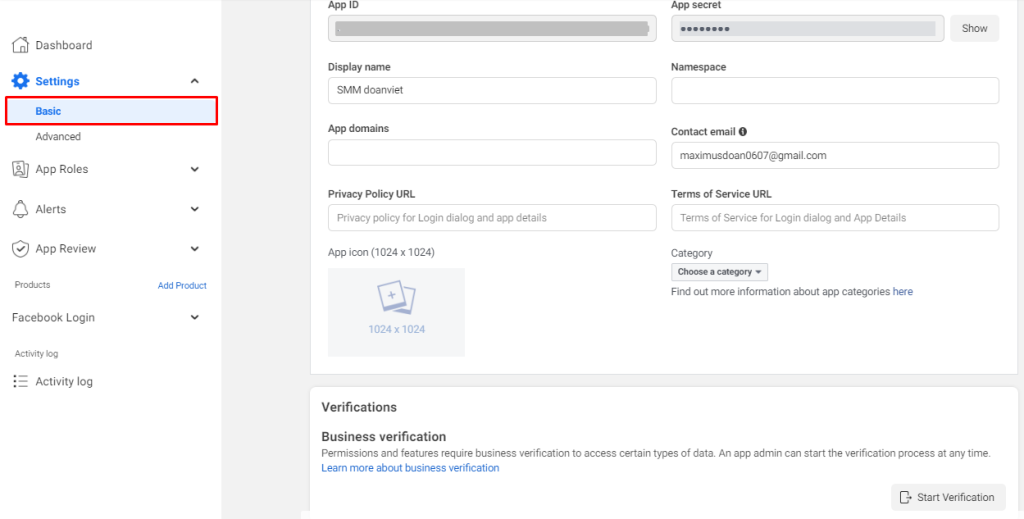
Click Settings/ Basic at the left-side Menu in the Developer Facebook. You need to fill as:

  • Display Name: Your_name_app
  • Namespace: (Empty)
  • App Domains: (Empty)
  • Contact Email[email protected]
  • Privacy Policy URL: www.yoursite.com/privacy_policy (Sample #1)
  • Terms of Service URL: www. yoursite.com/terms_of_service (Sameple #2)
  • App Icon (1024 x 1024): Required logo exactly 1021 x 1024 (PNG)
  • Category: Business and Pages

After all, remember to make sure to click Save to complete.


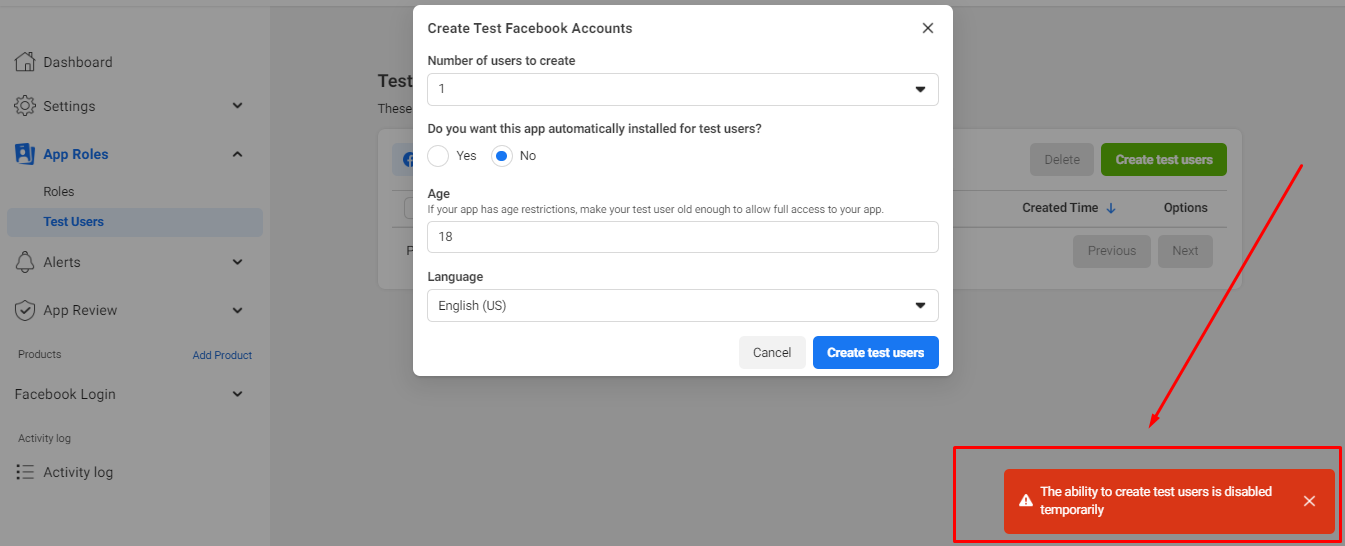
Step 2. Create Test Users on Facebook App

Important: Currently, Version v19.0 Meta doesn’t need Test Users Accounts so you can skip this step

MUST TO DO: You have to create an actual Facebook account with a password for the Meta team to review your app and website

Click Roles/ Test Users at the left-side Menu in the Developer Facebook. Click Add to make a new one.  

    Step 3. Choose Permissions and Features for App Review

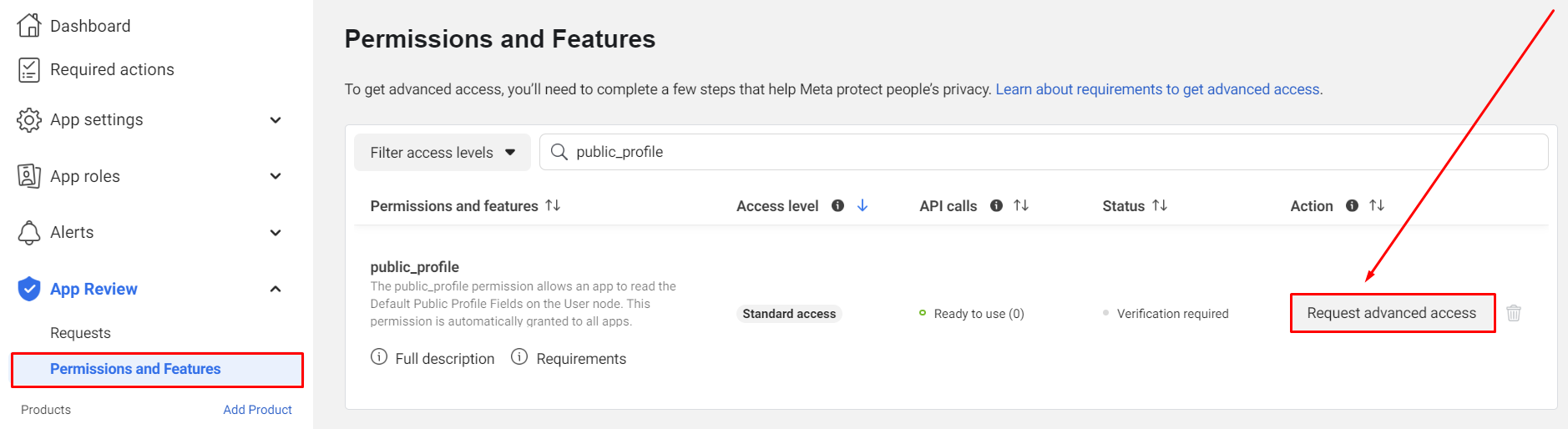
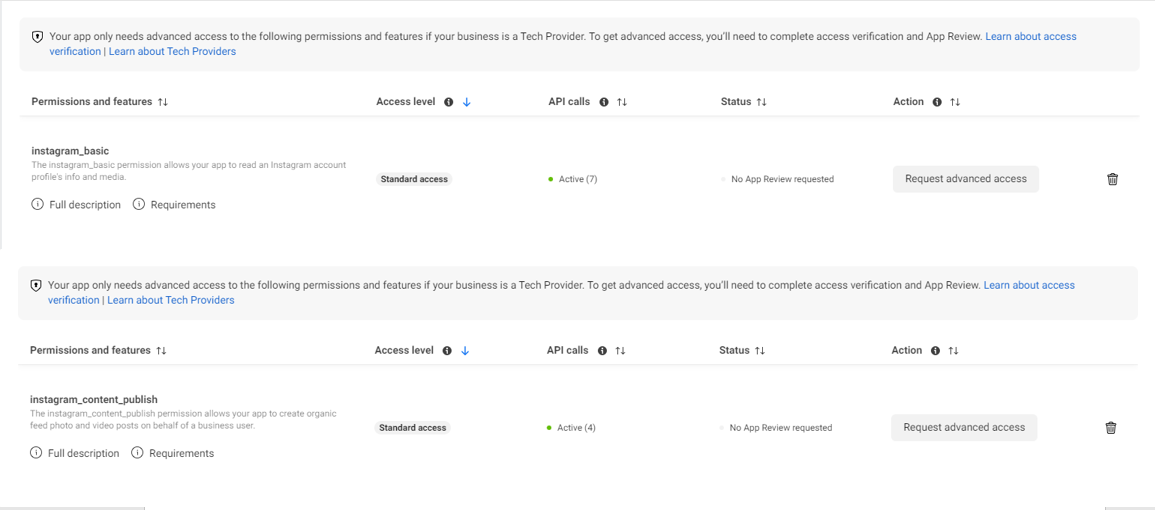
    public_profile and email permissions are needed Business verification is required to get advanced access. Click App Review/ Permissions and Features at the left-side Menu in the Developer Facebook.

    After that you will see this:

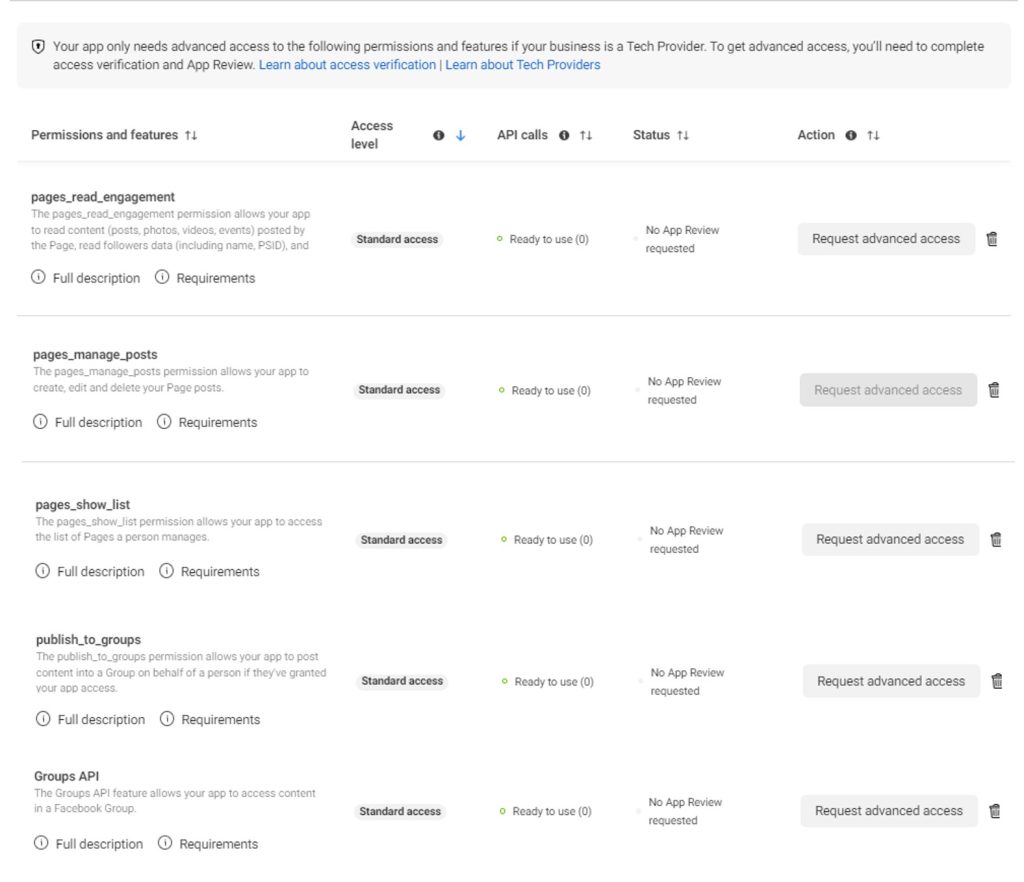
      For all permissions that you need for your Facebook Page feature, you need to search them and click Request Advanced Access Facebook Permissions:

    • email,
    • public_profile,
    • pages_read_engagement,
    • pages_manage_posts,
    • pages_show_list,

    Instagram Permissions:

    • instagram_basic,
    • instagram_content_publish,


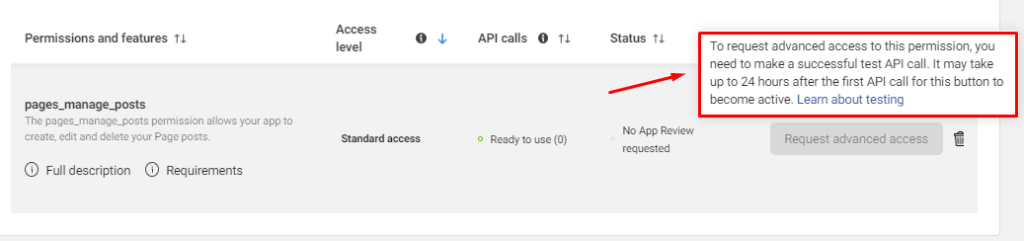
    You will see this notification for some permissions:To request… up to 24 hours...”
    Solution: You need to add your Page to your Stackpsts first, Within 24 hours, this feature will be available for Requesting Advance Access.  

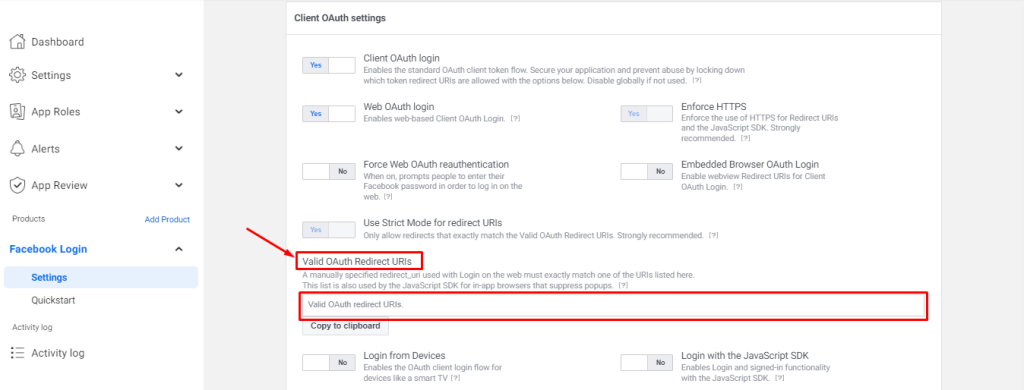
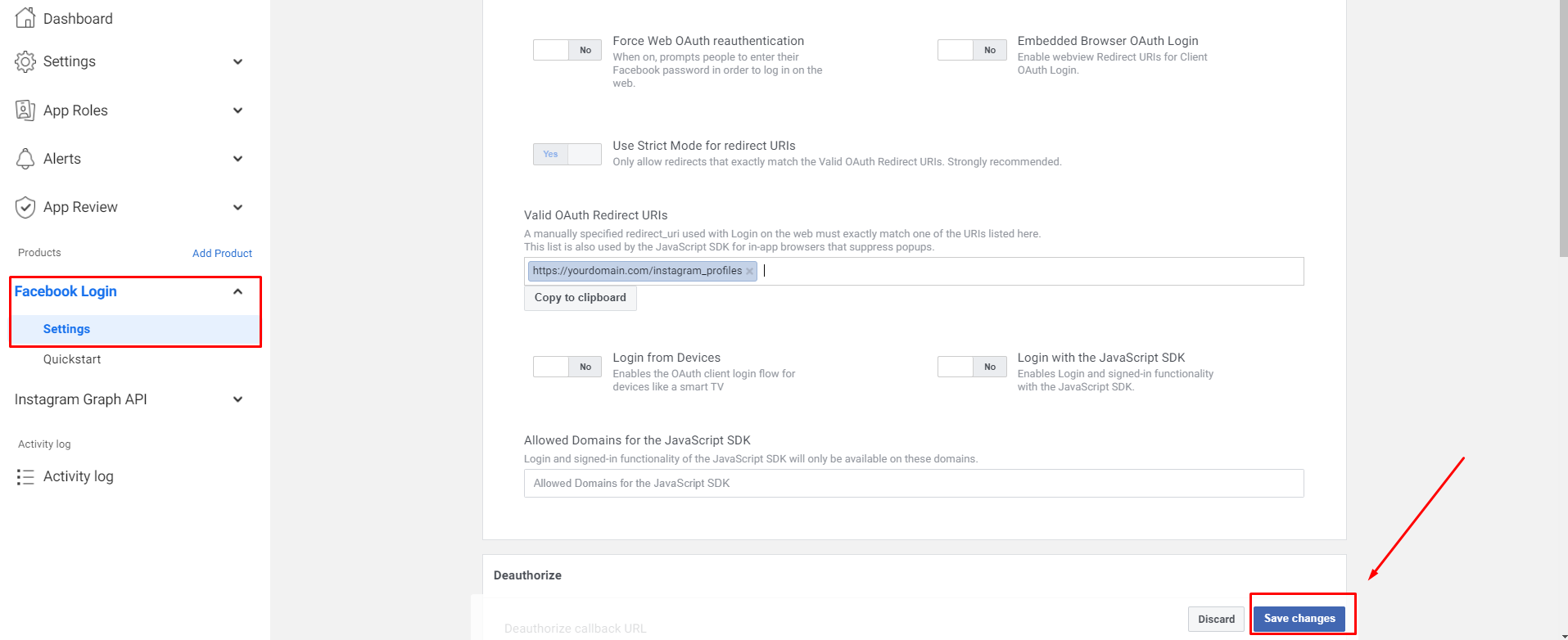
    Step 4. Valid OAuth Redirect URIs

    A manually specified redirect_uri used with Login on the web must exactly match one of the URIs listed here. This list is also used by the JavaScript SDK for in-app browsers that suppress popups.Click Facebook Login/ Settings at the left-side Menu and follow this video to configure:


    5. Configure Stackposts (Your Website)

    Step 1.  General Settings

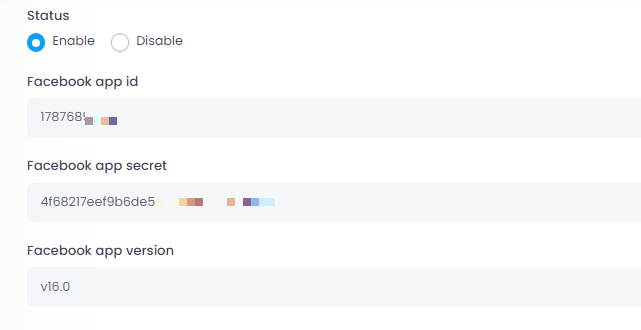
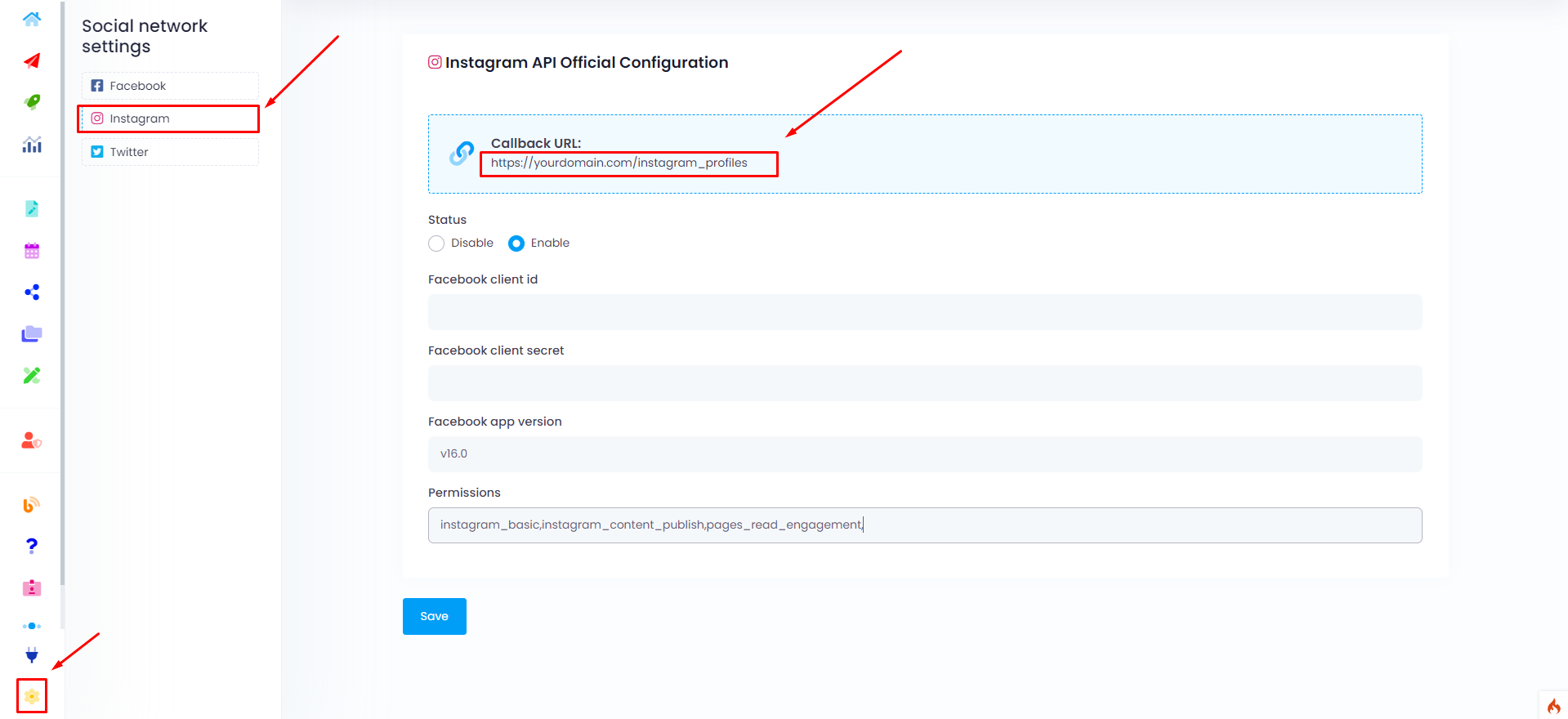
    Click Settings/ Social network settings in your Stackposts. Click Facebook and then Copy and Paste the App ID and App Secret that you got from Meta App

    • Facebook Client ID (Meta App ID): 311234693627458
    • Facebook Client secret: 5123f75b1234656b3cf34567b321fa12
    • Facebook app version: v19.0

    Step 2. Login & Auth Settings

    Click Settings/ Social Network Settings in your Stackposts. Click Facebook and then Copy and Paste the App ID and App Secret that you got from Facebook App. For example below:

    • Facebook app id: 311234693627458
    • Facebook app secret: 5123f75b1234656b3cf34567b321fa12
    • Facebook app version: v19.0

    Step 3. Create a Package for Facebook Review

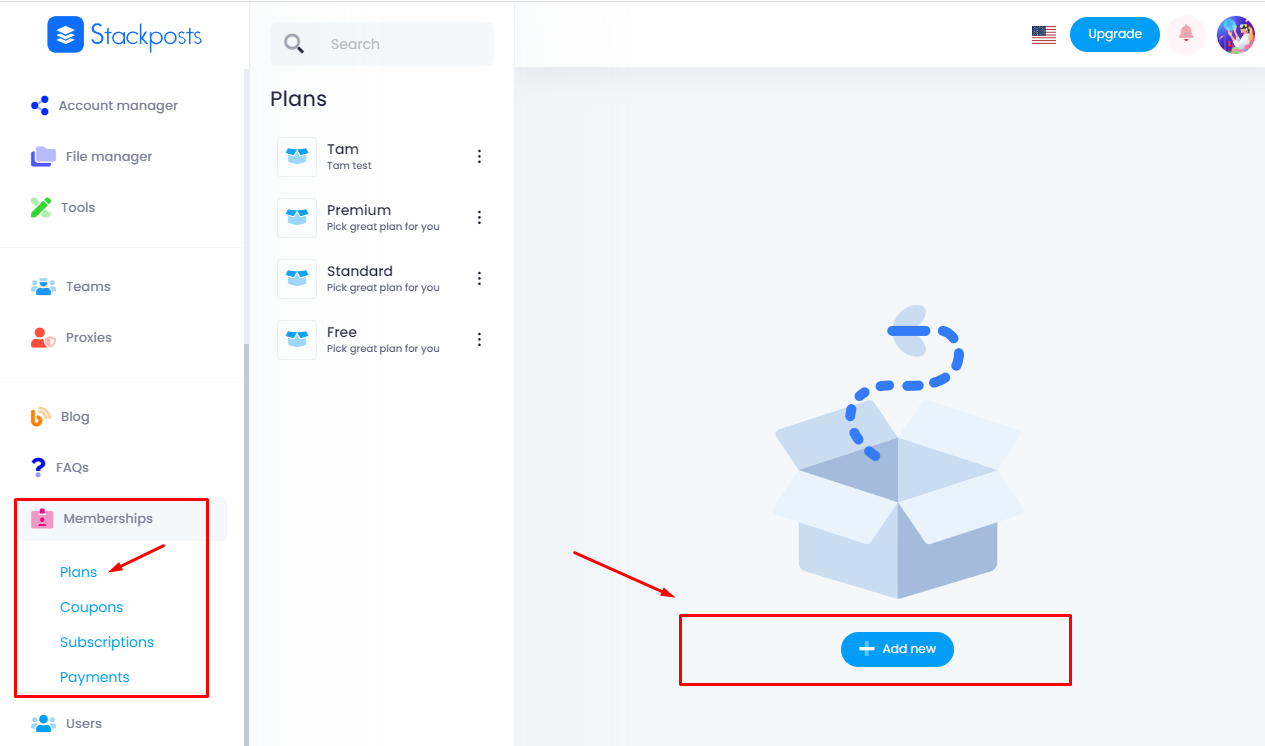
    Click Membership / Plans in your left-side Stackposts menu. Click Add new   

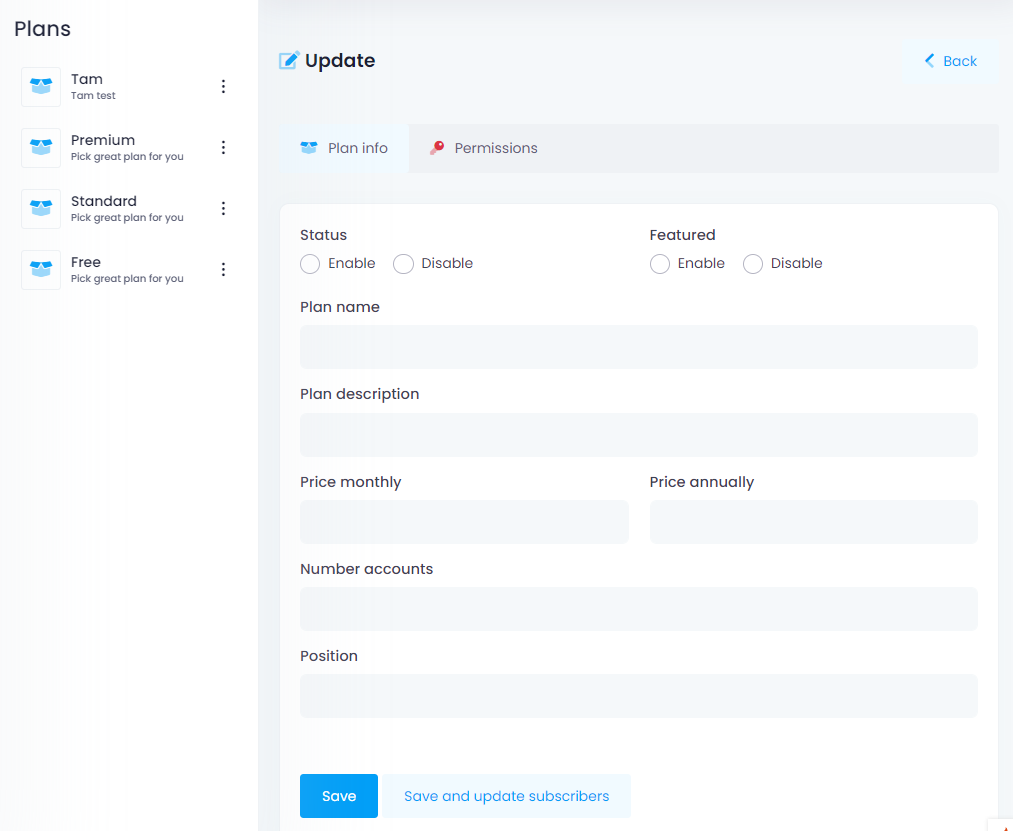
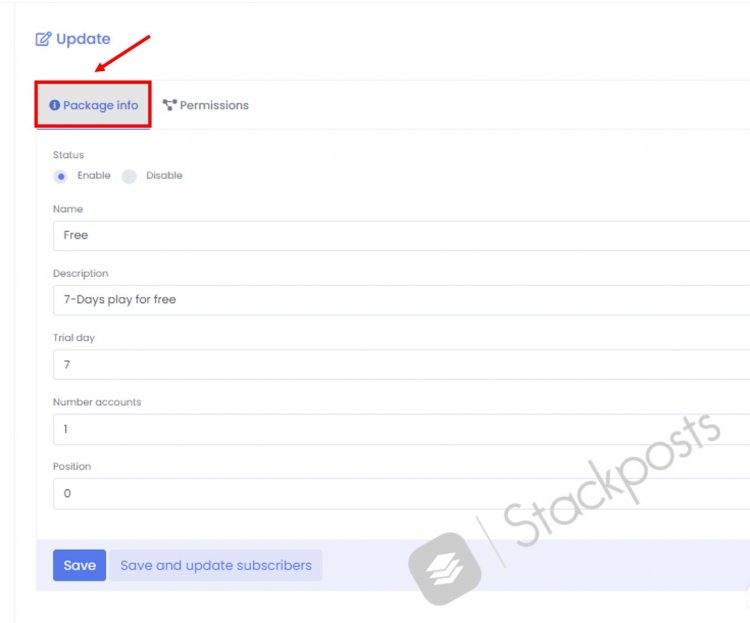
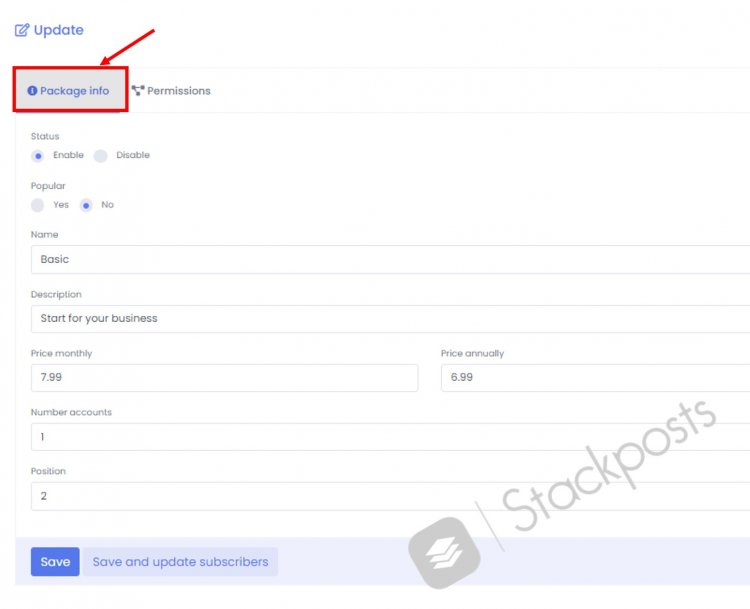
      Fill in the Package Info Tab following these guides below:  

    • Status:  Enable
    • Name: Facebook Review
    • Description:  Facebook Review
    • Price monthly: 22
    • Price annually: 21
    • Position: 1
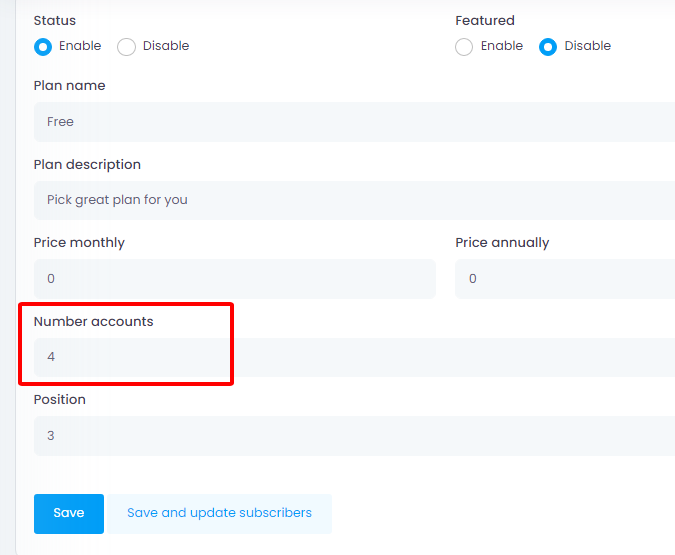
    • The number of accounts is calculated by / Number accounts: 100

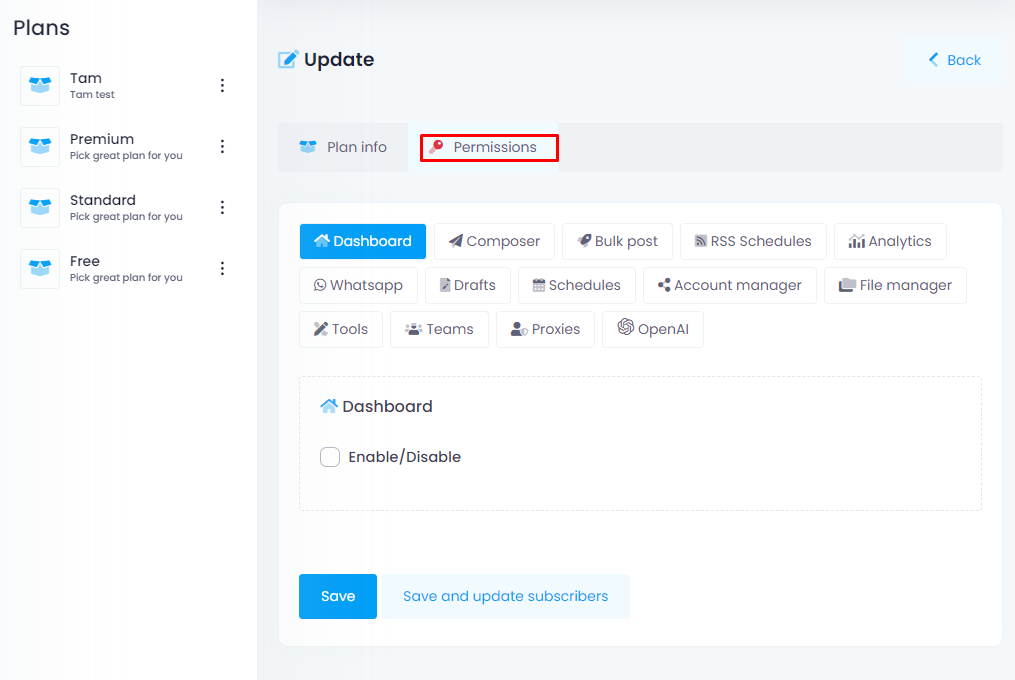
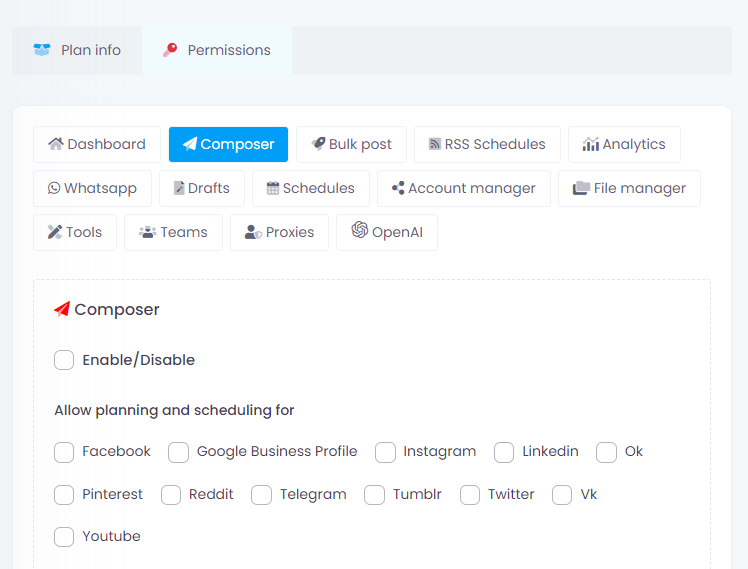
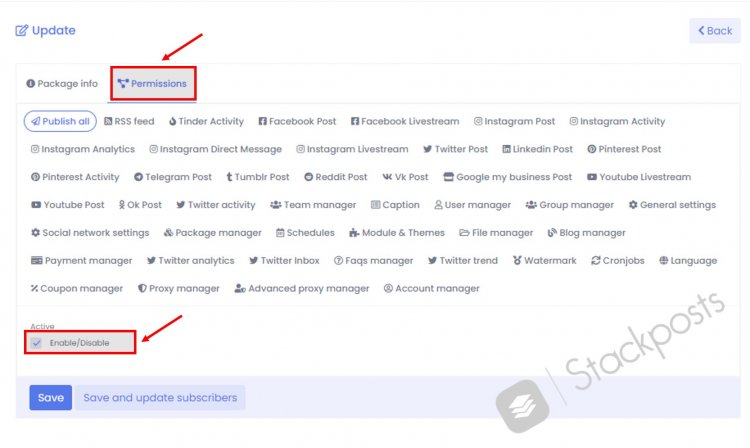
      Fill the Permissions Tab follows these guides below:  Carefully select permissions below and click Enable them for the Facebook Review package.  

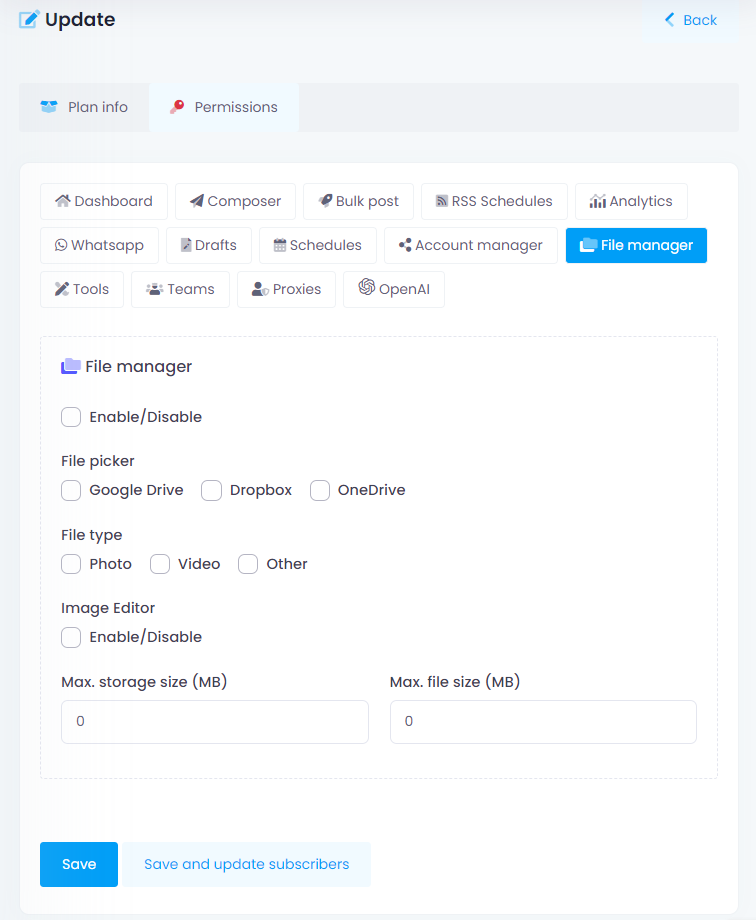
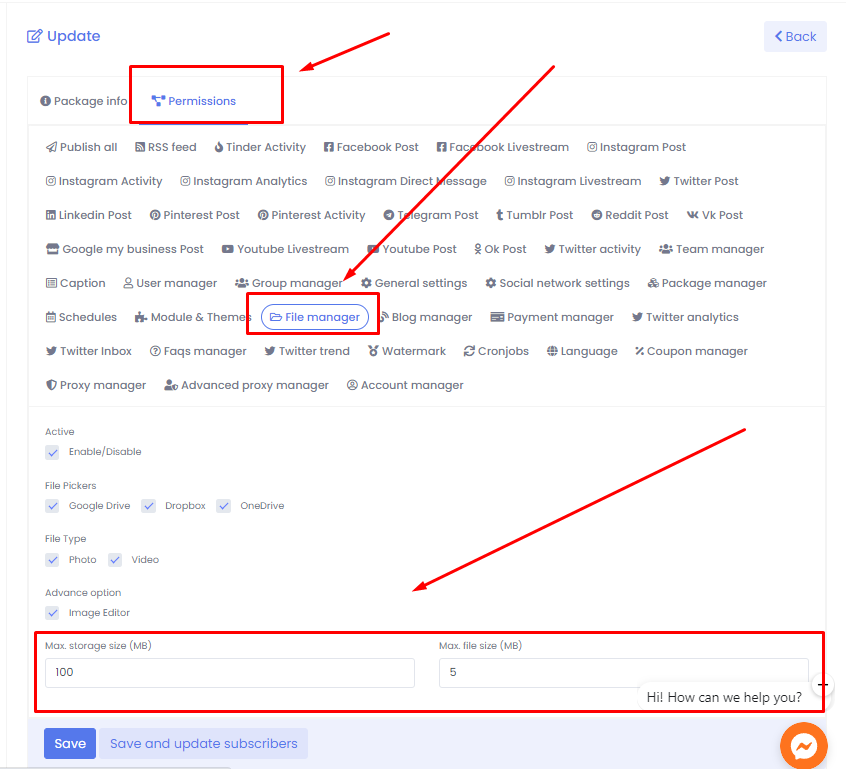
    File Manager: You enable all and set the Max. storage size (MB): 500MB, Max. file size (MB): 500MB

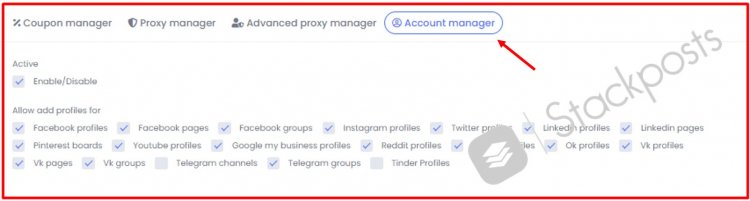
    Account Manager: Select only Facebook Profiles, Pages and Groups, Instagram profiles

    Click Save to create a new package for Facebook Review  

    Step 4. Create a Testing Account for Facebook Review

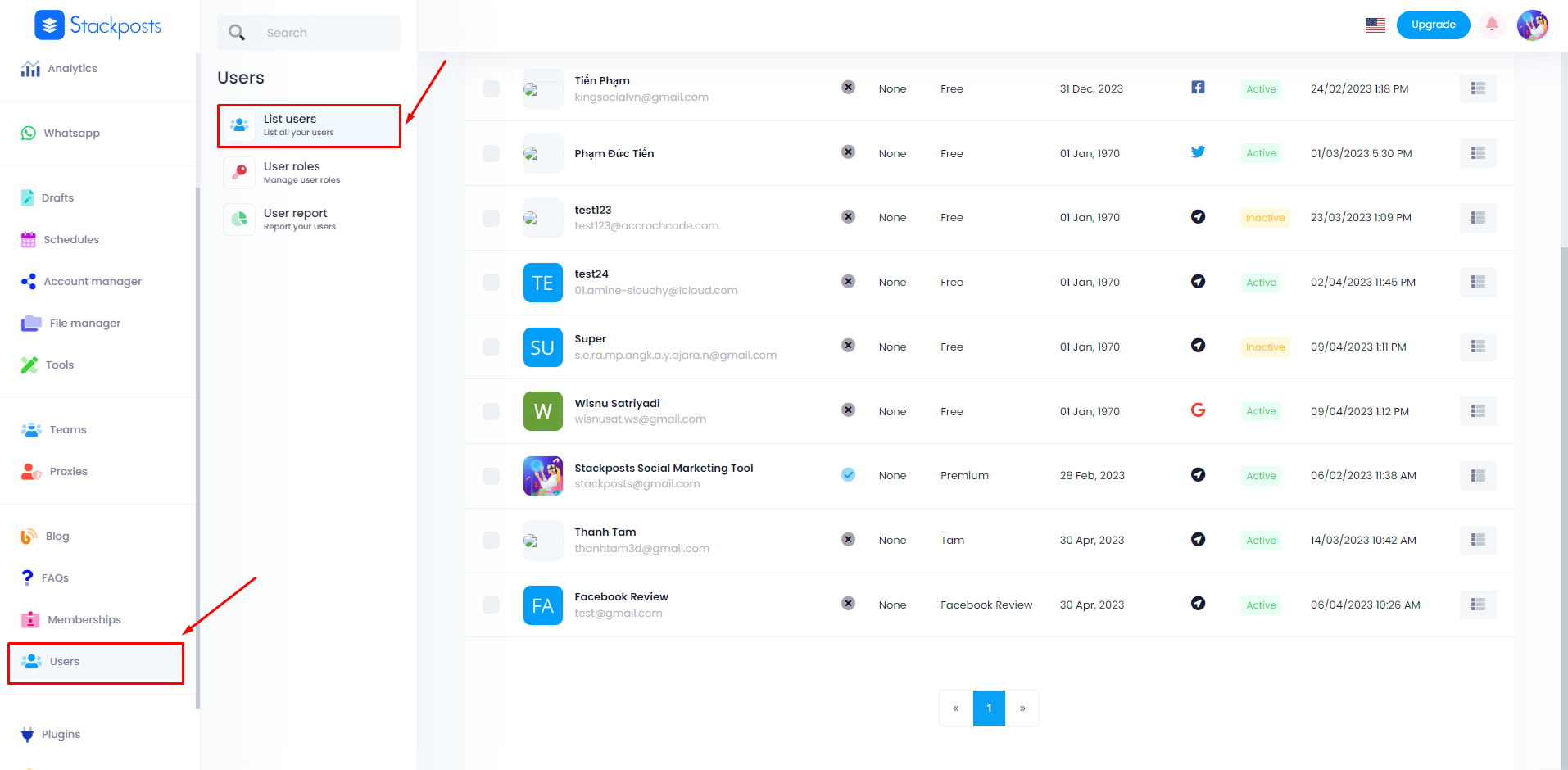
    Click User Manager in your left-side Stackposts menu. Click Add new


    Fill the Update Account follows these guides below and click Save

    1. Role: User 
    2. Status: Active
    3. Fullname: Test
    4. Email: [email protected]
    5. Password: 123456
    6. Confirm password: 123456
    7. Package: Facebook Review
    8. Expiration date: Any date
    9. Timezone: Any timezone

    Step 5: Update your Terms of Services & Privacy Policy

    To submit App you have to fill out your Terms of Services and Privacy policy. You can check your site

    1. Privacy Policy URL: www.yoursite.com/privacy_policy (Sample #1)
    2. Terms of Service URL: www. yoursite.com/terms_of_service (Sameple #2)

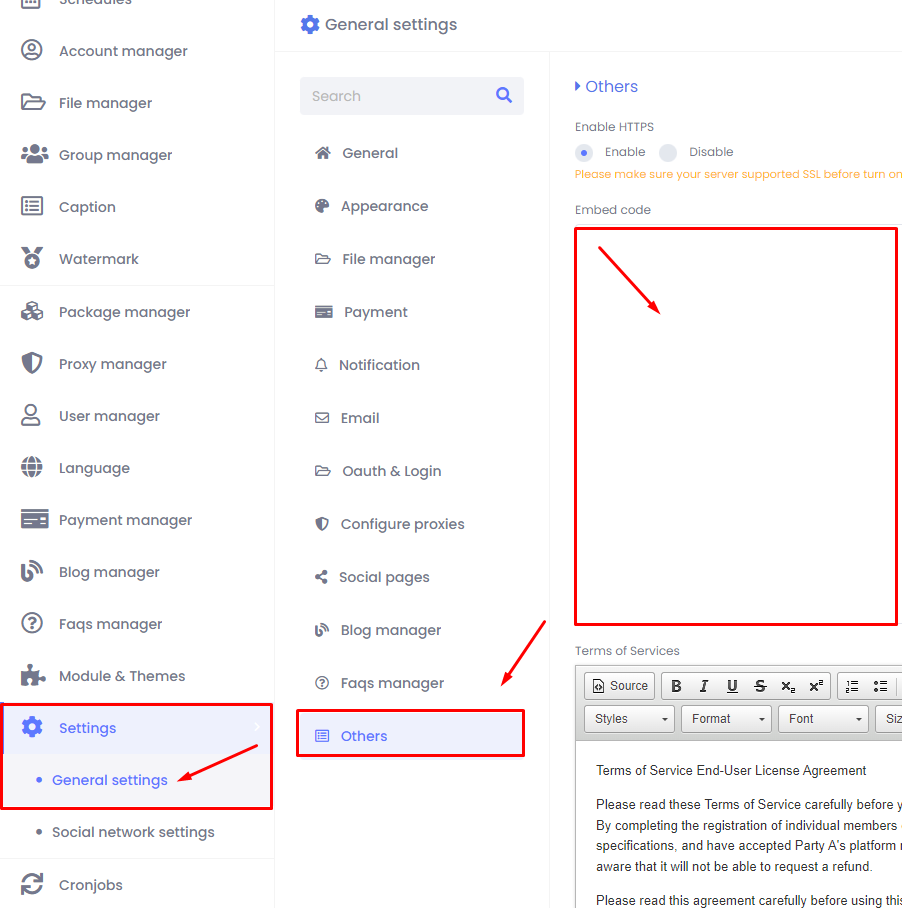
    You can edit them at Settings/ Others in your Stackposts and click Save when you finish.

    6. Record videos for submit review

    First, ensure you establish your own Fanpage. Then, use a test Accounts to record videos. For example:

    Note: As creating a test account on Meta isn’t possible, you’ll need to provide your actual Facebook account details instead.

    Facebook Account Test:
    Email: [email protected]
    Password: 123sdwr***************

    Account Test Website:
    Website: https://yourdomain.com/
    Email: [email protected]
    Password: 123456

    Record Fanpage Video

    Log in to Facebook.com under your Facebook Account Test. Watching this video that shows you how to record a video for Fanpage Test:


    7. Fill Requests App Review

    Step 1: Submit Form Content

    1. How does this permission/feature help my app users?
    2. Why does my app need this permission/feature?
    3. How does my app use the data that this permission/feature provides access to?
    4. Why would my app be less useful if it did not have this permission/feature?

    It is our sample form for all of our clients, you can edit or change to get the approved permssions.

    This permission will help app user access their own pages. It will allow users who use our app to post to their pages. Our app will be disabled when this permission isn’t approved.

    Step by Step for Permissions: pages_read_engagement, pages_manage_posts, pages_show_list,business_management

    Please follow these steps to get how to use this app
    1. Login with an account test on our system or you can login via the Facebook Login Button
    2. Click the button “Account manager” on the sidebar menu ( https://www.yourdomain.com/account_manager)
    3. On the box Facebook Accounts click the button “Add accounts”
    4. When the popup opens continue to click the button “Continue with Facebook”
    5. Authorize permissions to need to system can work fine
    6. On the left sidebar, click the button “Composer”(https://www.yourdomain.com/post)
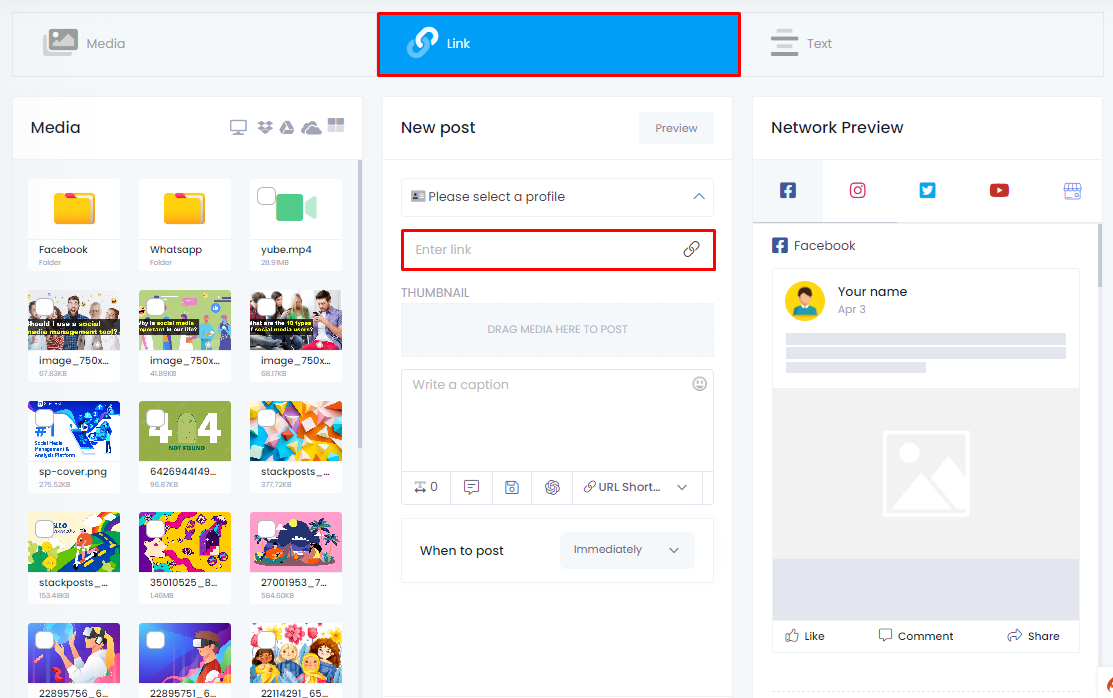
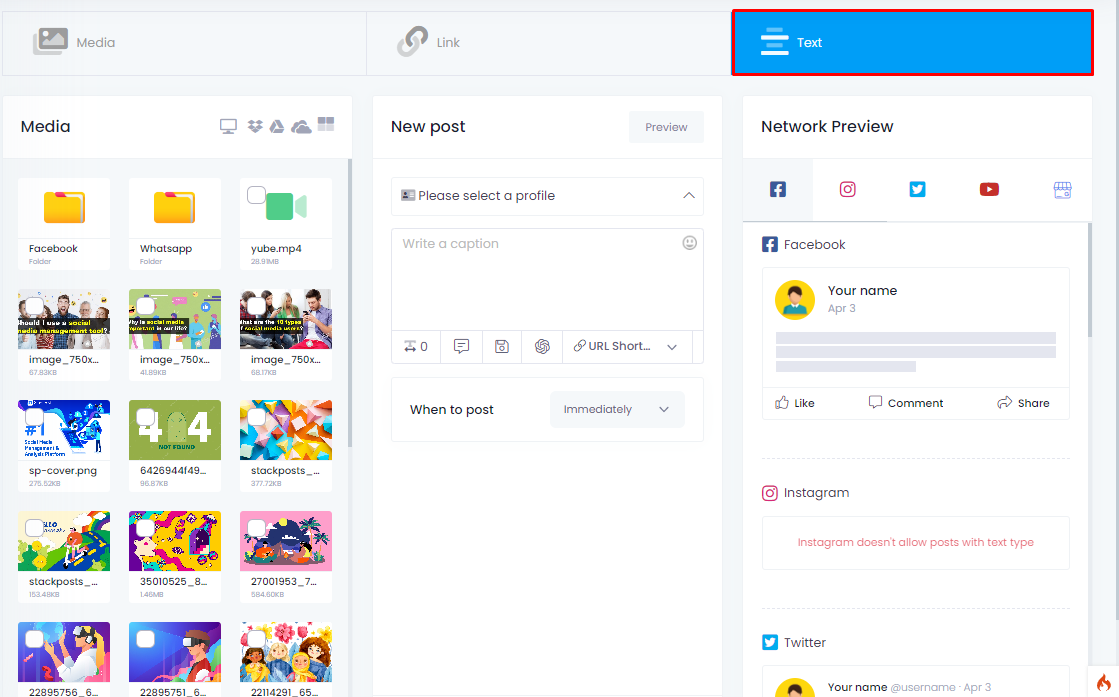
    7. Select a page on the tab “Please select a profile” (Center box). And then select the type of post (Media, Link, Text). For example, with media select a photo or video and then enter captions for the post.
    8. Click the button “Send Now” to post your post to the pages you selected. When post success a box green with the text “Content is being published on 1 profile”
    9. Go to the Facebook pages just posted to check (https://www.yourdomain.com/schedules/index/published/all/)
    Regards,

    Step 2: Content for the following permissions

    Choose the suitable permissions from the options below:

    pages_show_list

    The app uses this permission to Publish a post, photo, or video to your Page. Once the app is authorized to use then we would be able to publish content to Pages owned by the admin from the authorized user’s YourAppName site and track the auto-published post. This will reduce the time required to publish each post content manually to the admin’s Facebook pages

    pages_read_engagement

    The app uses this permission to get the metadata about the page managed by the user (such as page ids, publicly available page content such as post id, content posted by page, page name and PSIDs ). Once the app is authorized to use then we would be able to publish content to Pages owned by the admin from the authorized user’s YourAppName site and track the auto-published post. This will reduce the time required to publish each post content manually to the admin’s Facebook pages

    pages_manage_posts

    The app uses this permission to Publish a post, photo, or video to your Page. Once the app is authorized to use then we would be able to publish content to Pages owned by the admin from the authorized user’s YourAppName site and track the auto-published post. This will reduce the time required to publish each post content manually to the admin’s Facebook pages

    business_management

    By granting this permission, the app empowers users to effectively handle their business assets, including connecting an ad account to our platform. Consequently, the need for manual posting of content to the admin’s Facebook pages is minimized, resulting in time savings.

    instagram_basic,

    Option 1:

    The app uses this permission to read an Instagram account profile’s info and media. Once the app is authorized to use then we will be able to publish content to the Instagram profile owned by the user from the authorized user’s YourAppName site and track the auto-published post. This will reduce the time required to publish each post content manually to the user’s Instagram profiles.

    Option 2:

    Providing Instagram business users with a unique experience of interacting with their content on Instagram, allowing for easy management and analysis of their media files and profile information. We are interested in the capability to read information from business user profiles including username, id, profile photo, and permanent links. This functionality is critically important for the implementation of our key feature—enhancing the convenience of content management and providing analytics on subscriber activity.

    instagram_content_publish,

    Option 1:

    The app uses this permission to Publish a post, photo, or video to your Instagram profile. Once the app is authorized to use then we will be able to publish content to the Instagram profile owned by the user from the authorized user’s YourAppName site and track the auto-published post. This will reduce the time required to publish each post content manually to the user’s Instagram profiles.

    Option 2:

    This app is for Instagram business accounts. To publish a post on the Instagram BUSINESS Account.
    Our app helps allow app users to create, schedule and publish organic Feed posts from our app (ID 1234567890111213) to any Instagram business account they manage.

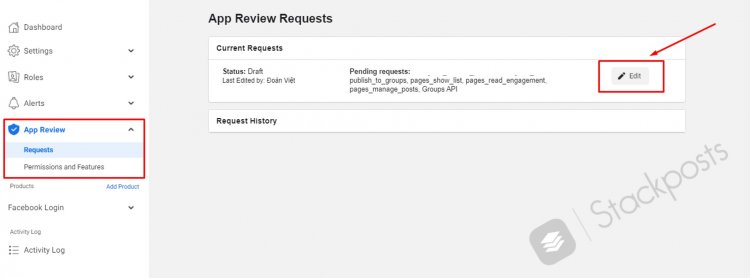
    Step 3: Request for App Review

    Click App Review/ Requests at the left-side Menu in the Developer Facebook. Click Edit

    Watching this video that shows you how to Fill Requests for App Review:


    Step 4: Wait for Approved App in the Inbox App

    Navigate to the “Alert/Inbox” section located in the left-side menu of the Developer Meta interface. Here, you’ll receive notifications regarding the approval or rejection of your app, either within this area or sent to your registered email address.

    If you have any questions, issues, or suggestions for this feature, please contact us here. We will answer as soon as possible

    FAQs - Meta API Apps

    Add people to your app

    How do you add people to your app?

    App roles -> Roles

    Add people to your app

    Register as a Meta Developer

    This document explains how to register as a Meta developer. Once you have registered you will have access to the App Dashboard and all of our products, SDKs, APIs, development tools, and developer documentation.

    Register as a Meta developer to gain access to app development tools at this link: https://developers.facebook.com/docs/development/register

    Required permission still greyed out some permissions

    We can’t manage to add some facebook permissions (the one that are grayed out), although we went through your tutorial. Facebook doesn’t allow creating test users at the moment, and although we did make an API call through the login page to the same data, it is still grayed out some of the required permissions.

    Initially, you only need to configure everything and add your personal accounts for posting. After a 24-hour period, permissions will become accessible for submission.

    Facebook App – Cannot add test users

    From v16.0 Meta is unavailable for Test Users Accounts so you can skip this step.

    Tools for Meta Developers

    https://developers.facebook.com/tools/debug/

    How does the Facebook Crawler work?

    You can use the Sharing Debugger to see the information that is used when your website content is shared on Facebook, Messenger and other places. The Batch Invalidator will let you refresh this information for multiple URLs at the same time. Open Graph markup lets you take control over how your website content appears to others. Learn More

    The Access Token Debugger lets you see the information associated with a particular access token from someone who’s logged into your app with Facebook.

    Add people to your app

    How do you add people to your app?

    App roles -> Roles

    Add people to your app

    Changelog - Google Business Profile

    Changelog

    v5.0.4 – Sep 26, 2024

    – Improved the whole script

    v5.0.3 – Mar 10, 2024

    – Fixed bug: Image bytes too small

    v5.0.2 – Aug 11, 2023

    – Improved the whole script

    v5.0.1 – Jun 28, 2023

    – Fixed Translate Feature
    – Improved script

    Version 5.0.1 – Jun 28, 2023 
    - Fixed Translate Feature
    - Improved script
    Version 5.0.0 – April 19, 2023 
    - New module 
    - Use API Official 
    - Improved script
    Version 1.2 – Oct 27, 2019
        - Added option select all for post
    
    Version 1.1 – Jun 24, 2019
        - Fixed post multi post
        - Added repeat post
        - Fixed small bugs
    
    version 1.0 – May 20, 2018
        - Initial Release

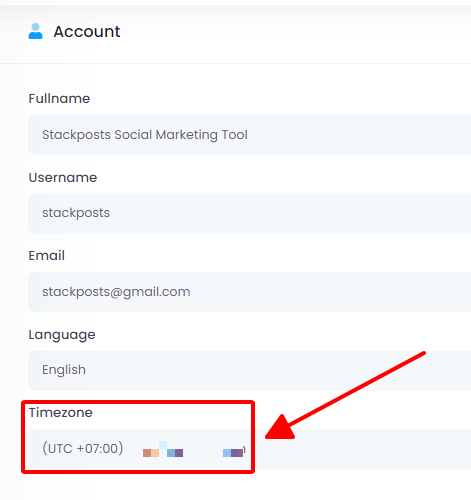
    I need to check my timezone for scheduling

    If you have any questions, issues, or suggestions for this feature, please contact us here. We will answer as soon as possible

    Register as a Meta Developer

    This document explains how to register as a Meta developer. Once you have registered you will have access to the App Dashboard and all of our products, SDKs, APIs, development tools, and developer documentation.

    Register as a Meta developer to gain access to app development tools at this link: https://developers.facebook.com/docs/development/register

    Required permission still greyed out some permissions

    We can’t manage to add some facebook permissions (the one that are grayed out), although we went through your tutorial. Facebook doesn’t allow creating test users at the moment, and although we did make an API call through the login page to the same data, it is still grayed out some of the required permissions.

    Initially, you only need to configure everything and add your personal accounts for posting. After a 24-hour period, permissions will become accessible for submission.

    Facebook App – Cannot add test users

    From v16.0 Meta is unavailable for Test Users Accounts so you can skip this step.

    Tools for Meta Developers

    https://developers.facebook.com/tools/debug/

    How does the Facebook Crawler work?

    You can use the Sharing Debugger to see the information that is used when your website content is shared on Facebook, Messenger and other places. The Batch Invalidator will let you refresh this information for multiple URLs at the same time. Open Graph markup lets you take control over how your website content appears to others. Learn More

    The Access Token Debugger lets you see the information associated with a particular access token from someone who’s logged into your app with Facebook.

    Disable Pinterest Unofficial API

    You can disable or enable the methods of add your Pinterest accounts

    Changelog Facebook Analytics

    Version 5.0.1

    Version 5.0.1 –  April 11, 2024

    – Updated the new Meta Permissions for Facebook Insight features
    – Improved the whole module for performance

    Version 5.0.0

    Version 5.0.0 –  April, 2023

    – New module
    – Use Facebook API Official
    – Improved whole script for performance

    Renew / Extend Support Period

    All your items are expired and will be shown on the right side. Please select the correct item you would like to get support from our development team

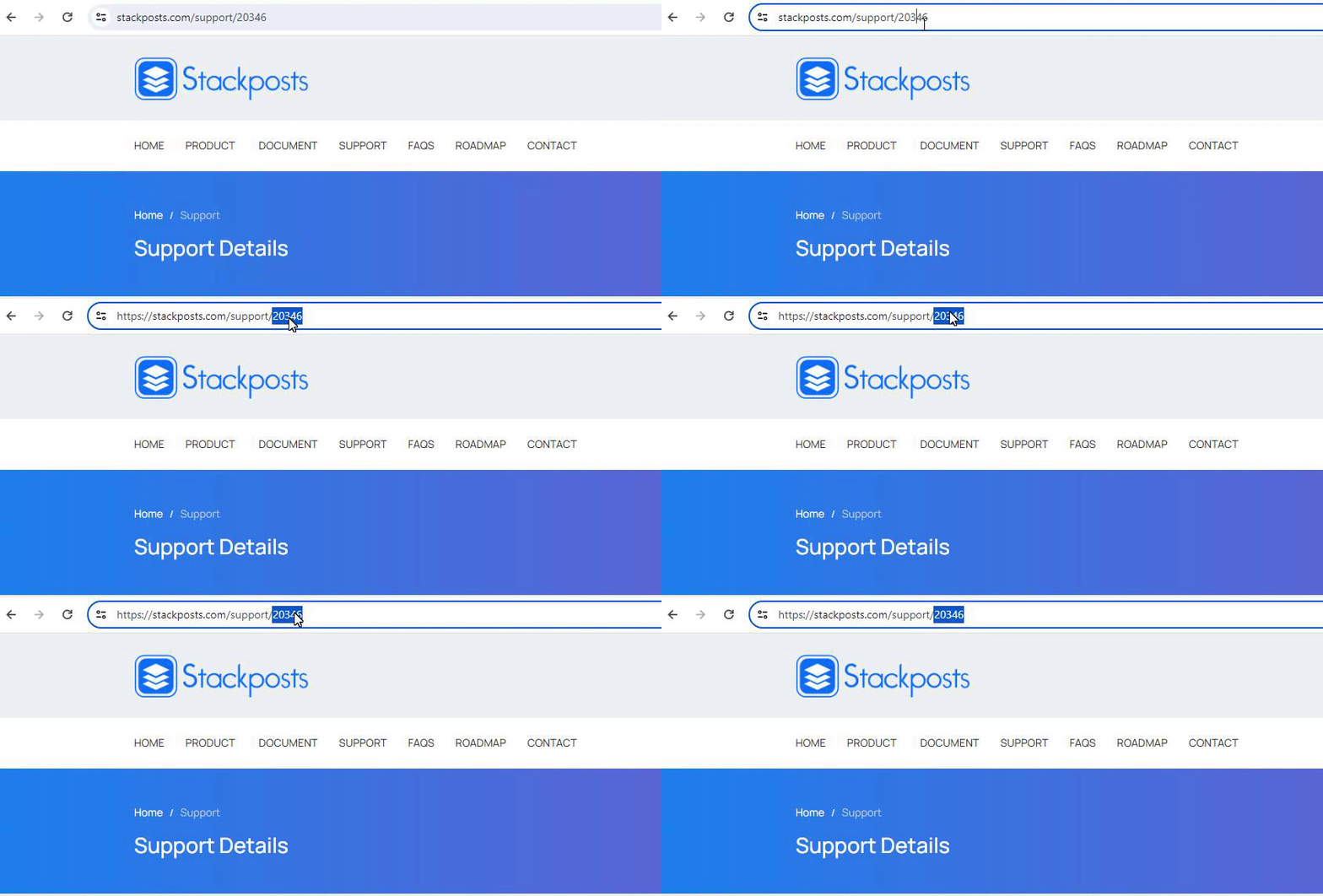
    Go to this link: https://stackposts.com/support 

    has not completed the Google verification process

    You need to add the account as a test user under the OAuth consent screen:

    Follow this guide to get more info.


    If you have any questions, issues, or suggestions for this feature, please contact us here. We will answer as soon as possible

    Step 2: Integrate

    HTTPS Websites

    Web Push for HTTPS Websites

    The sw.js file

    This setup guide is for HTTPS only websites. Please make sure that your website URL starts with https://


    Step 1: Download the sw.js File

    Click on the link to download the sw.js file. Make sure to save it to a location on your computer where you can easily find it later, such as your Downloads folder or a specific project directory.

    Step 2: Upload the sw.js File to the Root Directory of Your Website

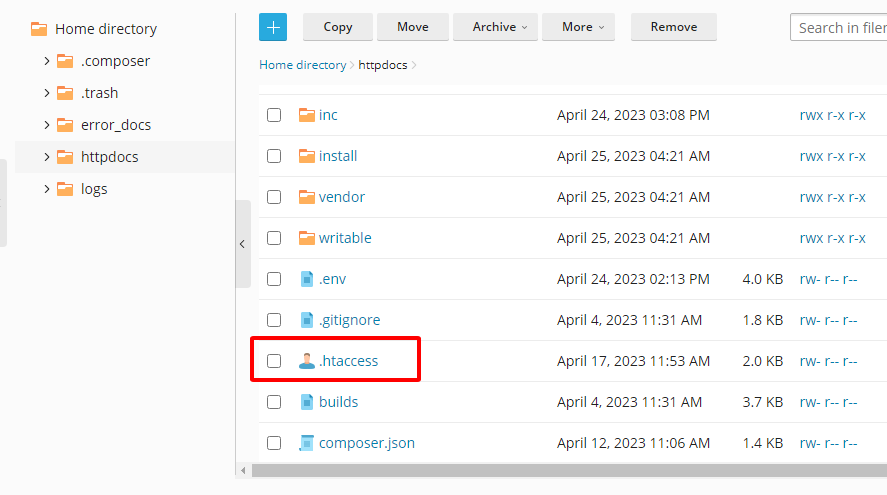
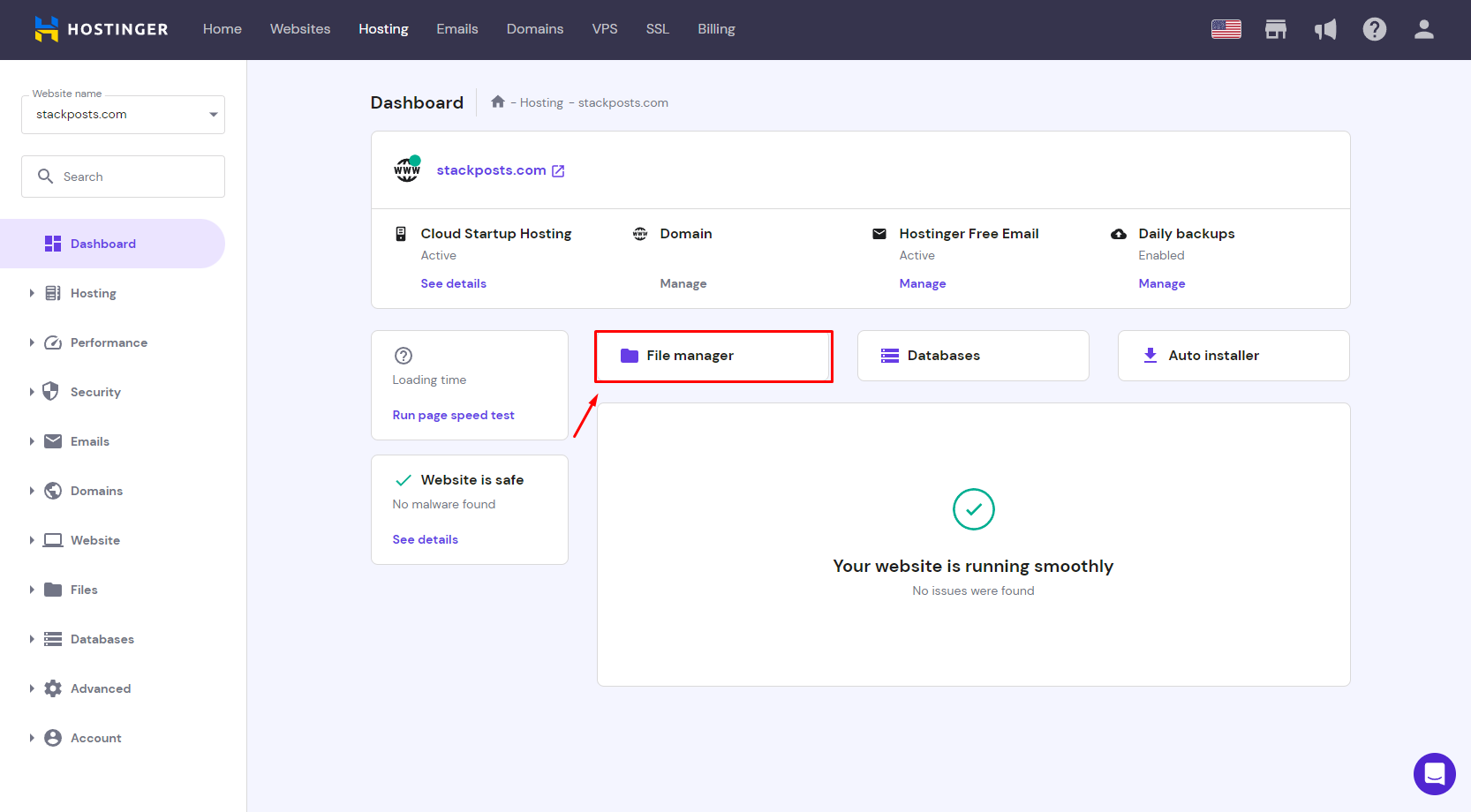
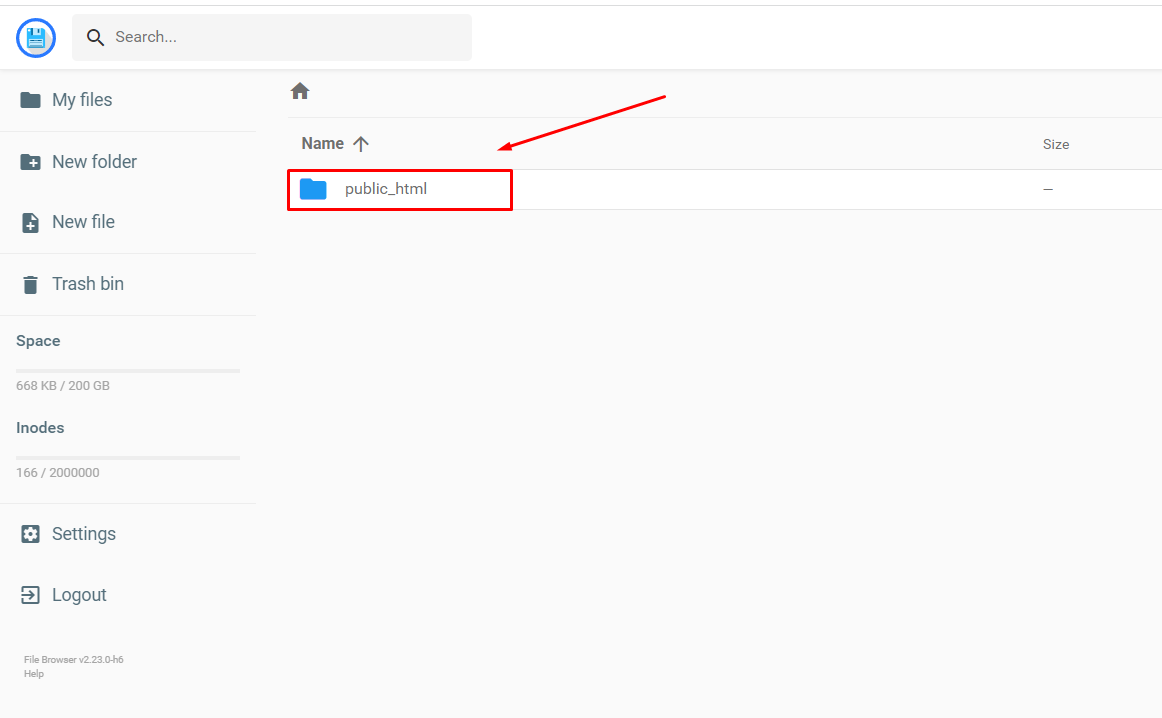
    Log in to your website’s hosting account or access your server via FTP/SFTP or a file manager provided by your hosting service. Once you have access to your website’s files, locate the root directory of your website. The root directory is typically the main folder where your website’s core files are stored, often named public_html, www, or similar.

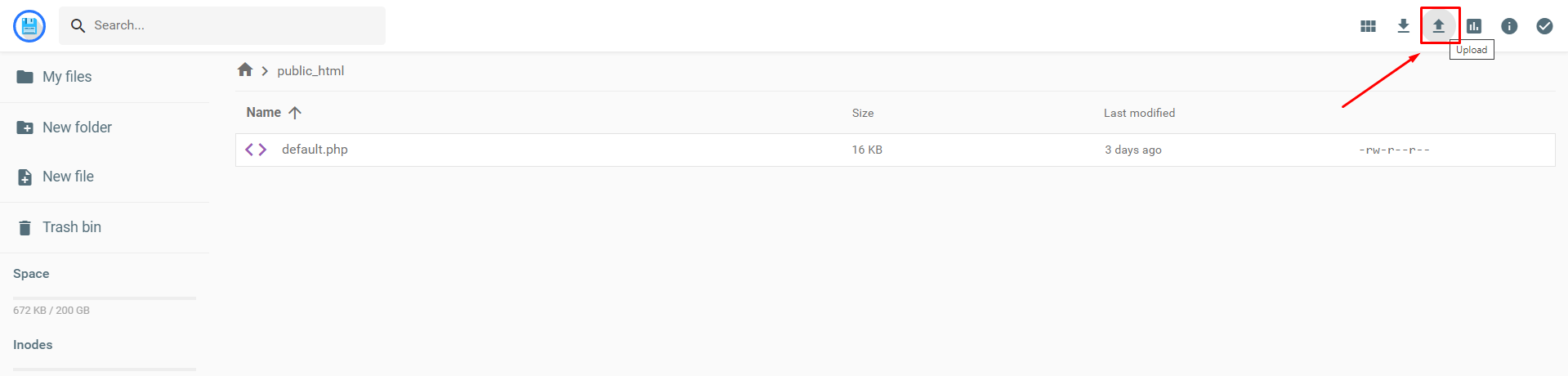
    Use the upload feature in your file manager or drag and drop the sw.js file from your local machine into the root directory of your website. Confirm that the file has been successfully uploaded and appears in the directory.

    Step 3: Insert the Provided Code into Your Website

    Carefully copy the entire code snippet that you’ve been provided. Ensure that there are no extra spaces or missing characters. Paste the copied code into the chosen file at the correct location. If the instructions specify where to place the code, follow those directions closely. For example, it might be inserted just before the closing </body> tag.

    After pasting the code, save the changes to the file. If you’re editing files directly on the server, this may happen automatically. If you’re editing locally, ensure you upload the modified file back to the server, replacing the old version.

    Once the code is added and the files are saved, visit your website in a browser to ensure that everything is working as expected. Clear your browser cache if necessary to see the changes.

    The manifest.json (iOS/iPadOS Configuration)

    First, ensure that you have completed all the required fields below to generate the Manifest.json file. You can follow this guide to know the information that you need to config your manifest.json file.

    Upload the manifest.json to the Root Directory of Your Website like these steps above. Clear your browser cache if necessary to see the changes.


    iOS and iPadOS for Safari

    Apple has released iOS and iPadOS 16.4, which now supports web push notifications for web apps, including those on the home screen. This update allows websites to prompt users to opt-in and send notifications to iPhone and iPad users globally.

    With iOS and iPadOS 16.4, push notifications are now supported on Safari, Google Chrome, and Edge for iPhone and iPad. This feature allows you to engage and target your customers with personalized notifications, even when they aren’t on your website.

    On iOS, web push notifications work differently than on Android and desktop. Users must first add your website to their Home Screen and open the Web App. After doing so, they can grant permission, allowing your web app to function like a native app. It will appear separately in the app switcher, have its own notification settings, and receive notifications just like other apps.

    Create a custom manifest (manifest.json)

    To make your website compatible with iOS, you need a Web Application Manifest, a JSON file that defines how your site should appear when opened from the Home Screen, including metadata like colors, icons, and the app name. You can easily create a custom manifest (manifest.json) using our built-in manifest generator available in your StackPush Dashboard.

    You can generate a custom Web App Manifest using the StackPush Web App Manifest generator, which is located under the “Website > iOS/iPadOS Configuration” section.

    To enable iOS web push notifications, you’ll need to set up a Web App Manifest with these key elements:

    • Short Name: A brief name (max 12 characters) for your web app, used when space is limited.
    • Name: The full name of your web app, typically up to 45 characters.
    • Start URL: A unique identifier for your web app, usually set to ‘/’ to determine where the app loads from.
    • Background Color: A placeholder color shown before your app’s stylesheet loads, ideally matching your website’s background color.
    • Theme Color: The default theme color for your app, influencing how it’s displayed by the OS.
    • Icon: A 512×512 PNG image used as the app’s shortcut icon on the home screen.

    Fill in these fields using the manifest builder, download the manifest.json file, and upload it to the root of your website. Follow this guide if you haven’t known yet how to upload it to your hosting/server.

    If you update any manifest fields, be sure to regenerate the new manifest.json file and re-upload it to your website, replacing the old file.

    Guidance popup for HomeScreen settings

    To help your customers get started with push notifications on Safari, we offer a customizable popup that guides users through saving your web app to their Home Screen and enabling notifications.

    On iOS and iPadOS, users need to save your website to their Home Screen before they can grant notification permission. Our custom popup helps users with this process by guiding them to save your web app using the share option and then allowing notifications within the app. To ensure a seamless experience, we recommend customizing the popup to match your site’s theme and highlighting the benefits of downloading your Web App.

    Integrate StackPush into your website.

    Ensure you’ve generated and uploaded the manifest to your website root and enabled web push for iOS. Then, follow our integration guides to add StackPush , enabling Popup for web push permission.

    For universal integration across all platforms, add a simple JavaScript snippet to the head section of your website and upload the service worker (sw.js) to your website root.

    Web push notifications are supported on iOS 16.4 or later for Safari, Google Chrome, and Edge only. For using, you’ll need an iPhone or iPad with iOS 16.4 or later.

    MacOS for Safari

    Web Push notifications are supported in Safari 16 on macOS 13 (Ventura) or later, using the standard Web Push API, like Chrome and Firefox.

    Apple has released iOS and iPadOS 16.4, which now supports web push notifications for web apps, including those on the home screen. This update allows websites to prompt users to opt-in and send notifications to iPhone and iPad users globally.

    With iOS and iPadOS 16.4, push notifications are now supported on Safari, Google Chrome, and Edge for iPhone and iPad. This feature allows you to engage and target your customers with personalized notifications, even when they aren’t on your website.

    On iOS, web push notifications work differently than on Android and desktop. Users must first add your website to their Home Screen and open the Web App. After doing so, they can grant permission, allowing your web app to function like a native app. It will appear separately in the app switcher, have its own notification settings, and receive notifications just like other apps.

    VAPID Configuration

    You can read more about VAPID in this article from Mozilla.

    which is located under the “Settings > Web Push Config > VAPID Configuration” section.

    Click this link to create VAPID:  https://vapidkeys.com/

    This tool helps you easily generate secure keys for VAPID

    VAPID, which stands for Voluntary Application Server Identity, is a new way to send and receive website push notifications. Your VAPID keys allow you to send web push campaigns without having to send them through a service like Firebase Cloud Messaging (or FCM). Instead, the application server can voluntarily identify itself to your web push provider.

    Step 4: Configure Opt-in Box (Prompts)

    Opt-in is when users actively consent to receive notifications, such as for promotions. It’s best practice, and often legally required, to obtain this consent before adding users to messaging campaigns. Requesting opt-in enhances user engagement by reducing notification blocks and improving click-through and conversion rates.

    In this context, “prompting” means asking users for permission to send push notifications via a browser pop-up, where they must click “Allow” to subscribe.

    Note: Asking users to subscribe to push notifications without customizing the opt-in can seem suspicious. If it doesn’t match your brand, users may ignore it. Personalizing the opt-in is key to gaining their trust.

    You can select different styles for Desktop and Mobile. We’ll guide you through editing the Desktop opt-in, and the same steps apply to Mobile.

    Step 1: Select the Opt-in Box Theme

    Access the StackPush dashboard and go to SettingsOpt-in Box Theme


    Step 2: Editing Opt-in Box message

    Here’s where you need to explain to users why they should subscribe to your push notifications. Use compelling language to boost your subscription rate. By default, the CTA buttons are labeled “Allow” and “Block.”

    Step 3: Style Option

    You can pre-view the Mobile layout here:

    Themes and Background color

    Adjusting the background color. Use your brand’s existing color scheme to customize it and ensure it aligns with your color palette.

    You’ve learned how to design a tailored push notification opt-in for your website. Craft a unique opt-in that reflects your brand’s identity to boost subscription rates.

    Prevent your emails from going to spam

    Despite our best efforts, some questions lack straightforward answers. One of the most challenging issues for any email provider is preventing emails from being marked as spam. Why does this occur, and what can be done to prevent it? If you’re not sending spam yet your messages are still being flagged, this post is for you.

    Check this guide now

    Supported Browsers

    Important:
    Please ensure that your browser allows receiving new notifications by going to the browser settings and enabling notifications. <a href="#" rel="noopener" target="_blank"Learn more

    All major browsers now support web push notifications and here is a list of browsers compatible with web push notifications:

    Browser Windows PC MacOS 13/Later ChromeOS Ubuntu/Linux Android iPhone (iOS) iPad (iPadOS)
    Chrome Yes Yes Yes Yes Yes Yes Yes
    Firefox Yes Yes Yes Yes Yes No No
    Microsoft Edge Yes Yes N/A N/A Yes Yes Yes
    Opera Yes Yes Yes Yes Yes No No
    Safari N/A Yes N/A N/A N/A Yes Yes

     There are a few things to keep in mind:

    • Web Push doesn’t work in Incognito/Private Mode.
    • Web push notifications aren’t supported in in-app browsers like Facebook or Instagram.
    • Web Push doesn’t work in Android WebViews.
    If you have any questions, issues, or suggestions for this feature, please contact us here. We will answer as soon as possible

    Using Images

    What Images Does a Push Notification Have?

    1. Site Icon

    File format: PNG file.

    2. Hero Images

    We recommend that you use these dimensions:

    • Windows: 728px (Width) x 360px (Height)
    • File format: Batch requires a PNG or JPEG file.

    Free Resources for Hero Image Creation

    • Create poster-like hero images easily with Canva. For an advanced design tool, choose Figma.
    • Download editable designs from resource hubs like Freepik or Undraw.
    • If you want to use stock images, download free images from UnsplashPixabay, and Pexels.

    Although there isn’t a one-size-fits-all approach to hero images, by adhering to best practices for push notifications and continuously testing and monitoring their performance, you can identify the most effective hero images that boost your conversions.

    HTTPS Websites

    Web Push for HTTPS Websites

    The sw.js file

    This setup guide is for HTTPS only websites. Please make sure that your website URL starts with https://


    Step 1: Download the sw.js File

    Click on the link to download the sw.js file. Make sure to save it to a location on your computer where you can easily find it later, such as your Downloads folder or a specific project directory.

    Step 2: Upload the sw.js File to the Root Directory of Your Website

    Log in to your website’s hosting account or access your server via FTP/SFTP or a file manager provided by your hosting service. Once you have access to your website’s files, locate the root directory of your website. The root directory is typically the main folder where your website’s core files are stored, often named public_html, www, or similar.

    Use the upload feature in your file manager or drag and drop the sw.js file from your local machine into the root directory of your website. Confirm that the file has been successfully uploaded and appears in the directory.

    Step 3: Insert the Provided Code into Your Website

    Carefully copy the entire code snippet that you’ve been provided. Ensure that there are no extra spaces or missing characters. Paste the copied code into the chosen file at the correct location. If the instructions specify where to place the code, follow those directions closely. For example, it might be inserted just before the closing </body> tag.

    After pasting the code, save the changes to the file. If you’re editing files directly on the server, this may happen automatically. If you’re editing locally, ensure you upload the modified file back to the server, replacing the old version.

    Once the code is added and the files are saved, visit your website in a browser to ensure that everything is working as expected. Clear your browser cache if necessary to see the changes.

    The manifest.json (iOS/iPadOS Configuration)

    First, ensure that you have completed all the required fields below to generate the Manifest.json file. You can follow this guide to know the information that you need to config your manifest.json file.

    Upload the manifest.json to the Root Directory of Your Website like these steps above. Clear your browser cache if necessary to see the changes.


    Website settings

    Website settings where you can customize your default icon, badge icon, and UTM parameters.

    iOS and iPadOS for Safari

    Apple has released iOS and iPadOS 16.4, which now supports web push notifications for web apps, including those on the home screen. This update allows websites to prompt users to opt-in and send notifications to iPhone and iPad users globally.

    With iOS and iPadOS 16.4, push notifications are now supported on Safari, Google Chrome, and Edge for iPhone and iPad. This feature allows you to engage and target your customers with personalized notifications, even when they aren’t on your website.

    On iOS, web push notifications work differently than on Android and desktop. Users must first add your website to their Home Screen and open the Web App. After doing so, they can grant permission, allowing your web app to function like a native app. It will appear separately in the app switcher, have its own notification settings, and receive notifications just like other apps.

    Create a custom manifest (manifest.json)

    To make your website compatible with iOS, you need a Web Application Manifest, a JSON file that defines how your site should appear when opened from the Home Screen, including metadata like colors, icons, and the app name. You can easily create a custom manifest (manifest.json) using our built-in manifest generator available in your StackPush Dashboard.

    You can generate a custom Web App Manifest using the StackPush Web App Manifest generator, which is located under the “Website > iOS/iPadOS Configuration” section.

    To enable iOS web push notifications, you’ll need to set up a Web App Manifest with these key elements:

    • Short Name: A brief name (max 12 characters) for your web app, used when space is limited.
    • Name: The full name of your web app, typically up to 45 characters.
    • Start URL: A unique identifier for your web app, usually set to ‘/’ to determine where the app loads from.
    • Background Color: A placeholder color shown before your app’s stylesheet loads, ideally matching your website’s background color.
    • Theme Color: The default theme color for your app, influencing how it’s displayed by the OS.
    • Icon: A 512×512 PNG image used as the app’s shortcut icon on the home screen.

    Fill in these fields using the manifest builder, download the manifest.json file, and upload it to the root of your website. Follow this guide if you haven’t known yet how to upload it to your hosting/server.

    If you update any manifest fields, be sure to regenerate the new manifest.json file and re-upload it to your website, replacing the old file.

    Guidance popup for HomeScreen settings

    To help your customers get started with push notifications on Safari, we offer a customizable popup that guides users through saving your web app to their Home Screen and enabling notifications.

    On iOS and iPadOS, users need to save your website to their Home Screen before they can grant notification permission. Our custom popup helps users with this process by guiding them to save your web app using the share option and then allowing notifications within the app. To ensure a seamless experience, we recommend customizing the popup to match your site’s theme and highlighting the benefits of downloading your Web App.

    Integrate StackPush into your website.

    Ensure you’ve generated and uploaded the manifest to your website root and enabled web push for iOS. Then, follow our integration guides to add StackPush , enabling Popup for web push permission.

    For universal integration across all platforms, add a simple JavaScript snippet to the head section of your website and upload the service worker (sw.js) to your website root.

    Web push notifications are supported on iOS 16.4 or later for Safari, Google Chrome, and Edge only. For using, you’ll need an iPhone or iPad with iOS 16.4 or later.

    MacOS for Safari

    Web Push notifications are supported in Safari 16 on macOS 13 (Ventura) or later, using the standard Web Push API, like Chrome and Firefox.

    Apple has released iOS and iPadOS 16.4, which now supports web push notifications for web apps, including those on the home screen. This update allows websites to prompt users to opt-in and send notifications to iPhone and iPad users globally.

    With iOS and iPadOS 16.4, push notifications are now supported on Safari, Google Chrome, and Edge for iPhone and iPad. This feature allows you to engage and target your customers with personalized notifications, even when they aren’t on your website.

    On iOS, web push notifications work differently than on Android and desktop. Users must first add your website to their Home Screen and open the Web App. After doing so, they can grant permission, allowing your web app to function like a native app. It will appear separately in the app switcher, have its own notification settings, and receive notifications just like other apps.

    Step 1: Add new Website

    Ensure SSL certification for secure connections.

    To configure other settings you need to add a new website

    To configure additional settings, you’ll first need to add a new website to your account. This will allow you to access and customize a broader range of options tailored to your specific needs.

    Input your website domain here

    Please enter your website domain in the field provided below. This will allow us to accurately connect your site with our services, ensuring seamless integration and optimal performance.

    Step 5: Create a Welcome Notification

    Summary: After configuring the opt-in, your site is ready to start gathering subscribers. But how can you be sure your push notifications are functioning correctly?

    We suggest sending a welcome push notification to verify everything is set up properly. This initial message serves as both a confirmation of the subscription and a warm welcome to your new subscribers.

    Create a Welcome Notification

    A welcome push notification serves two key purposes: it confirms successful subscription, reassuring users they’re subscribed, and it can re-engage users by offering a welcome coupon, encouraging further interaction with your brand.

    Access the StackPush dashboard and go to FeaturesWelcome Notification

    Your web push notifications are now set up on your website. Now, return to your StackPush dashboard and begin creating your push notification campaigns.

    My website is not aligning correctly

    My website is not aligning correctly

    Follow this guide to fix your issue

    Your domain missed http://. You need to correct it to https://

    Changelog

    Installation Guide for Aapanel (Nginx)

    Part 1: Install and configure AApanel Server with Nginx.

    Download PuTTY

    Download the latest version of PuTTY SSH from the official website. After that, install it on your computer. It’s as simple as that.

    Connect PuTTY & Install aaPanel

    Cloud Server Account

    Ex:

    IP: 178.128.84.87
    username: root
    password: XvrJ@pDYux2R5Qd

    Install Aapanel

    wget -O install.sh http://www.aapanel.com/script/install-ubuntu_6.0_en.sh && bash install.sh forum

    Please keep a record of your AApanel login details once the installation is finished.

    EX:

    http://178.128.84.87:7800/5f587cdf
    username: jsilnw8t
    password: 48ea536b

    Install libraries

    sudo apt-get install libnss3-dev libatk-bridge2.0-dev libcups2-dev libxkbcommon-dev libgtk-3-dev


    Please watch the video tutorial

    Set up AApanel Server using Nginx web server

    PHP Setup:

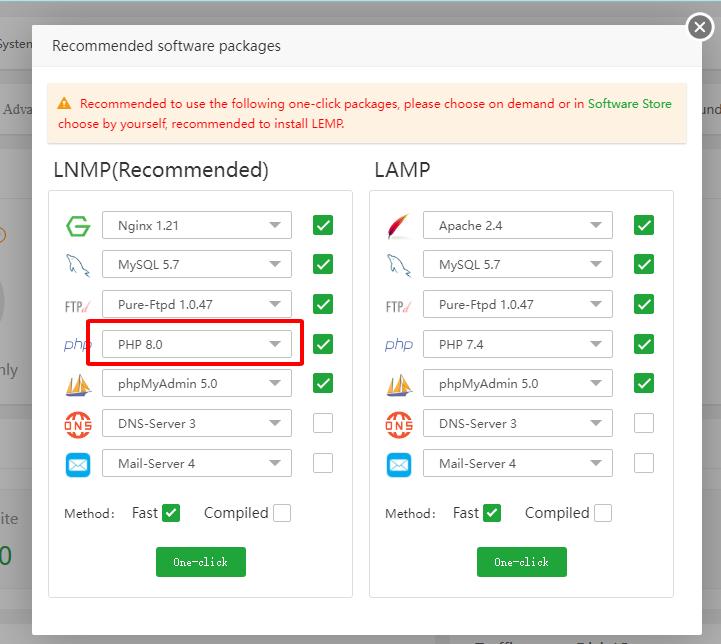
    1. Configuring PHP with version 8.0 or 8.1.
    2. Allow_url_fopen: allow_url_fopen=On
    3. Memory_limit = 512M or higher ( Importance)
    4. Upload_max_size = 512M
    5. Post_max_size = 512M
    6. Upload_max_filesize = 512M

    Install Extensions:

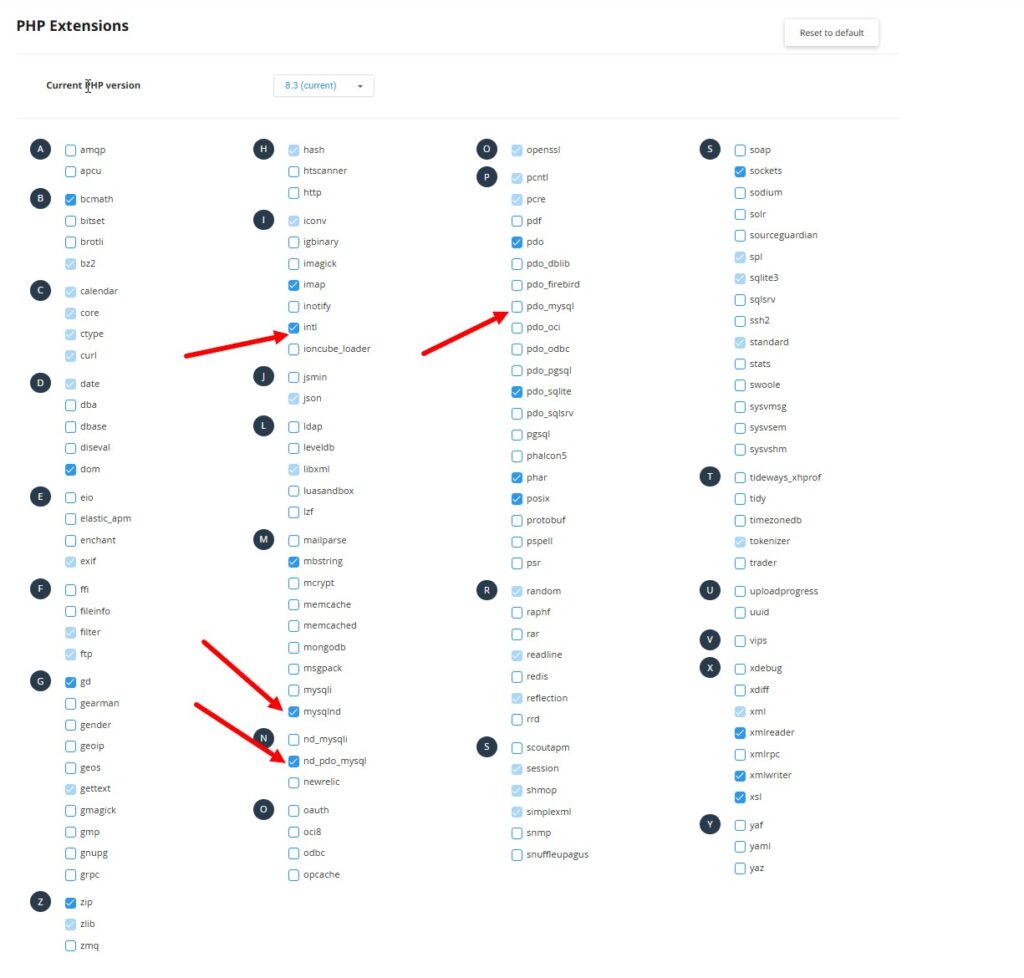
    Installing PHP extensions: exif and intl

    Enable Functions:

    Allowing execution of functions including exec, putenv, and shell_exec.


    Please watch the video tutorial


    Part 2: Install Main Script

    Install Waziper Main Script

    Please prepare the information before proceeding with the installation

    Purchase code:

    Database
    username: 
    databasename: 
    password: 

    Admin Account login
    username: 
    email: 
    password: 

    Timezone

    Please watch the video tutorial

    Setting up Nginx configuration for a domain.

    Please watch the video tutorial

    Please add the following code to your primary domain’s Nginx configuration

    location / {
    try_files $uri $uri/ /index.php;
    }

    If you install in a subdirectory please set as follows

    location /subfoldername {
    try_files $uri $uri/ /subfoldername/index.php;
    }


    Part 3: Install server domain

    Download whatsapp_server_module_main.zip file

    Step 1: Create Api domain and connect them to your Server IP Address

    Ex: api.yourdomain.com

    Please set up SSL for Api domain

    Please watch the video tutorial

    Step 2: API Domain Configure

    Please insert code below into your API Domain

             location / {
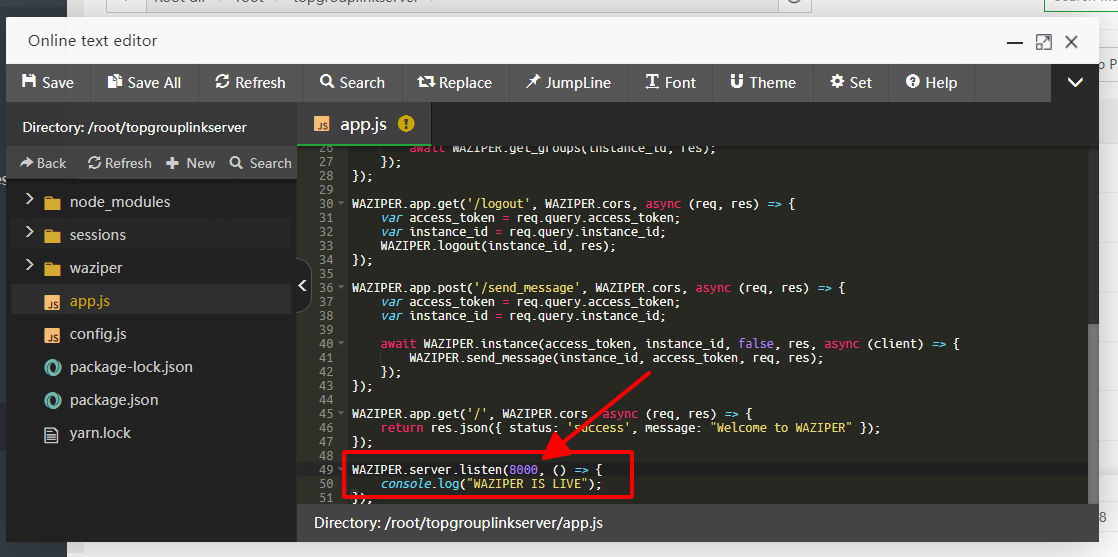
                  proxy_pass http://localhost:8000; #whatever port your app runs on
                  proxy_http_version 1.1;
                  proxy_set_header Upgrade $http_upgrade;
                  proxy_set_header Connection 'upgrade';
                  proxy_set_header Host $host;
                  proxy_cache_bypass $http_upgrade;
              }
    

    Please watch the video tutorial

    Step 3. Create a directory in the root folder to upload “whatsapp_server_module_main.zip”.

    (whatsapp_server_module_main.zip =  waziper_server.zip in video)

    To ensure the safety and security of the system, please place the file in the root directory.


    Step 4. Config Database for API Domain

    Set up a common database with Main Script

    Part 4: Setup Nodejs

    The current version is fully compatible with nodejs 16 and working smoothly.

    Install Nodejs version manager 1.6

    Install Cronj

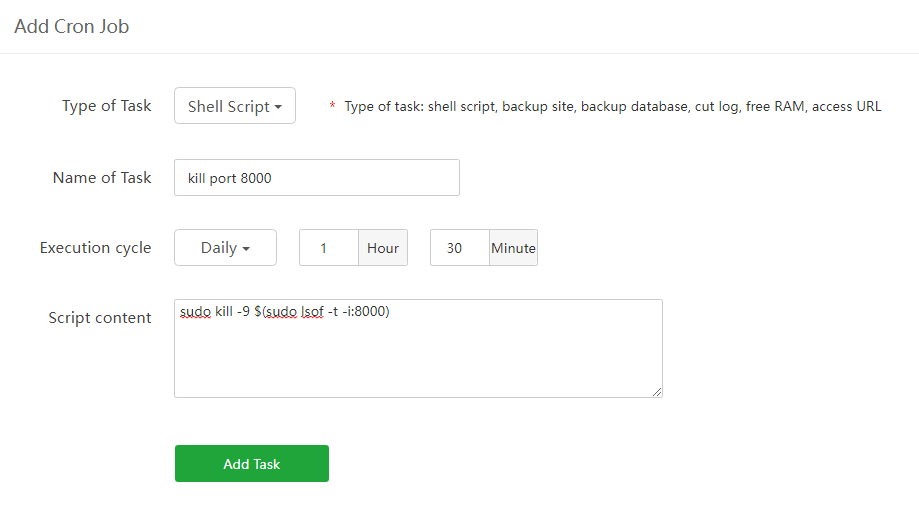
    Please create Cron according to the instructions

    Cron: Once/minute:

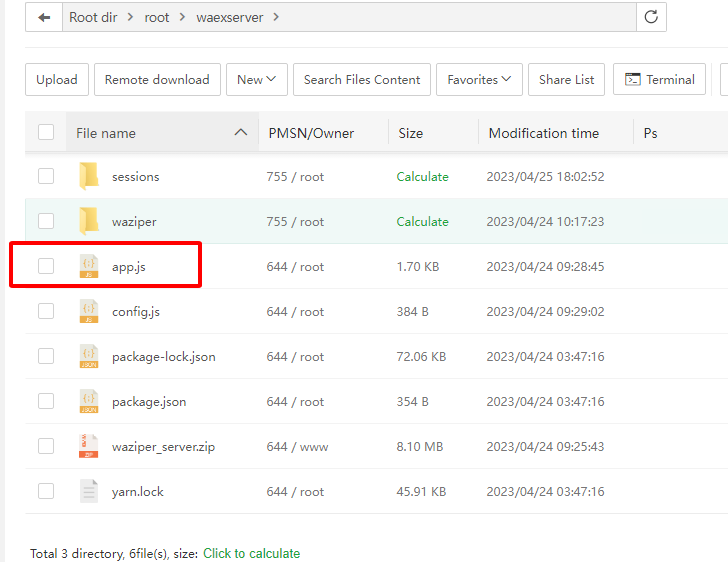
    sh -c $(cd /root/wa_server && node app)
    

    /root/wa_server: is the path to the server.zip installation directory

    Open PORT 8000

    Please open port 8000 according to instructions

    To switch the port to Listening state, you need to complete the following steps:

    • Install server domain
    • Install Nodejs version manager 1.6
    • Install Cronj

    Check the working status of the api domain

    Please check the link

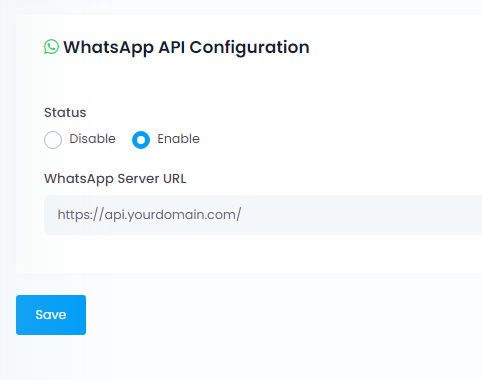
    https://api.yourdomain.com/

    {"status":"success","message":"Welcome to WAZIPER"}

    Please check the link

    https://api.yourdomain.com/get_qrcode

    {"status":"error","message":"The Instance ID must be provided for the process to be completed"}


    Part 5: WhatsApp API Configure & Check Qrcode

    Api domain set up correctly
    Correct setting

    https://api.yourdomain.com/

    Wrong setting

    https://api.yourdomain.com
    http://api.yourdomain.com/
    api.yourdomain.com

    and more….


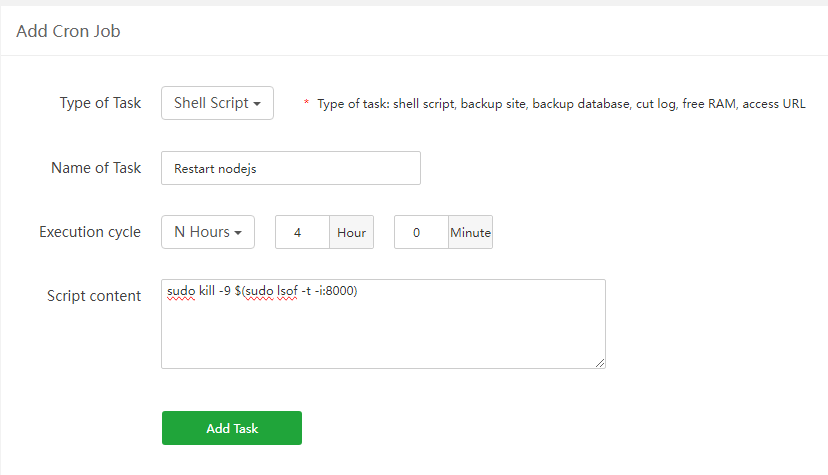
    Set up Cronj according to the daily cycle

    sudo kill -9 $(sudo lsof -t -i:8000)     

    Configure PayPal

    What Is PayPal?

    PayPal is an electronic commerce company that facilitates payments between parties through online transfers. PayPal allows customers who establish an account on its platform, is connected to a user’s credit card or checking account.

    You can understand PayPal with some basic ideas:

    • PayPal is an online payment platform that offers individuals and businesses low-cost services.
    • PayPal has been its own company since 2015.
    • In addition to online payments, PayPal also offers a variety of related services including debit cards for payments, credit card readers for small merchants, and lines of credit.
    • PayPal is considered a very secure method of sending payments online.

    When you purchase an Extended license Stackposts that you will have PayPal Payment Gateway 

    How to Configure PayPal in Stackposts?

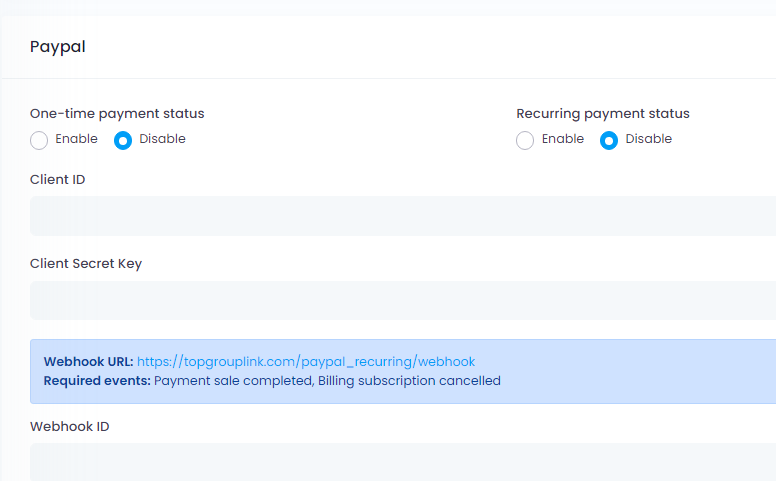
    Required events: Payment sale completed, Billing subscription canceled

    Watching this Guide video to get more detail:

    How to get Support from the Developer Team?

    Please open the ticket here to get support detail from our developer team.

    QR Code not working

    🔄 How to Update Waziper Server (v6.0.0)

    (Fix QR Not Showing / Connection Issues)

    If your WhatsApp QR code is not showing or your connection keeps failing, please update your Waziper Server using the latest whatsapp_server.zip included in your download package.


    📁 1️⃣ What’s inside your download package?

    When you extract your main ZIP file, you will see:

     
    Documentation.html How to install.html waziper_main_v6.0.0.zip whatsapp_server.zip ← THIS is the new Waziper Server update

    ✔️ You only need to use whatsapp_server.zip
    ❌ Do NOT reinstall waziper_main_v6.0.0.zip


    🧩 2️⃣ Requirements (Important)

    Your server MUST use:

    Software Required Version
    Node.js 20.x or higher (REQUIRED)
    npm 8+

    ⚠️ Waziper Server will not run on Node 16 or Node 18.
    ⚠️ Node 20+ is mandatory.


    🛠 3️⃣ Install Node.js 20 (if needed)

    Ubuntu / Debian:

     
    curl -fsSL https://deb.nodesource.com/setup_20.x | bash - apt install -y nodejs

    CentOS / AlmaLinux / Rocky:

     
    curl -fsSL https://rpm.nodesource.com/setup_20.x | bash - yum install -y nodejs

    Check version:

     
    node -v

    Should be:

     
    v20.x.x

    📁 4️⃣ Locate your existing server folder

    Usually located at:

     
    /var/www/waziper_server/

    or

     
    htdocs/waziper_server/

    🔧 5️⃣ Replace the server with the new version

    Delete or rename your old folder:

     
    waziper_server

    Extract the file from your download package:

     
    whatsapp_server.zip

    After extracting, rename it to:

     
    waziper_server

    📌 Important:
    Even though the ZIP file is named whatsapp_server.zip,
    the final folder on your server must always be:

     
    waziper_server

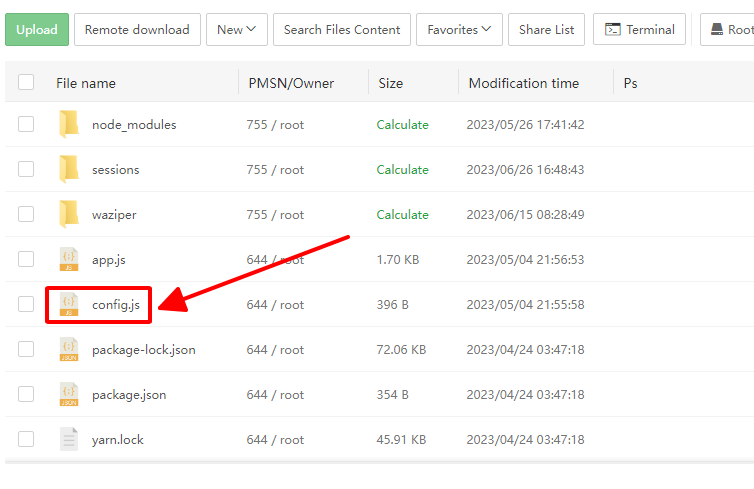
    ⚙️ 6️⃣ Update config.js

    Path:

     
    waziper_server/config.js

    Use this template:

     
    /** * config.js (ESM version) * Compatible with Node.js 20+ */ const config = { debug: false, database: { connectionLimit: 500, host: "localhost", user: "[YOUR_DB_USERNAME]", password: "[YOUR_DB_PASSWORD]", database: "[YOUR_DB_NAME]", charset: "utf8mb4", debug: false, waitForConnections: true, multipleStatements: true, }, cors: { origin: "*", optionsSuccessStatus: 200, }, }; export default config;

    🚀 7️⃣ Restart your server (IMPORTANT)

    After replacing the folder, simply restart your entire server:

    Linux VPS:

     
    reboot

    or through your hosting panel.

    Shared hosting / cPanel:

    Use Reboot Server, Restart Node App, or Restart Hosting Service (depends on your panel).

    Windows:

    Restart XAMPP / WAMP / Laragon or restart the computer.

    ✔️ This will automatically restart the new Waziper Server.
    ✔️ No need to run any terminal commands.
    ✔️ No need to run node or npm install.


    🎉 8️⃣ Finish

    Go to:

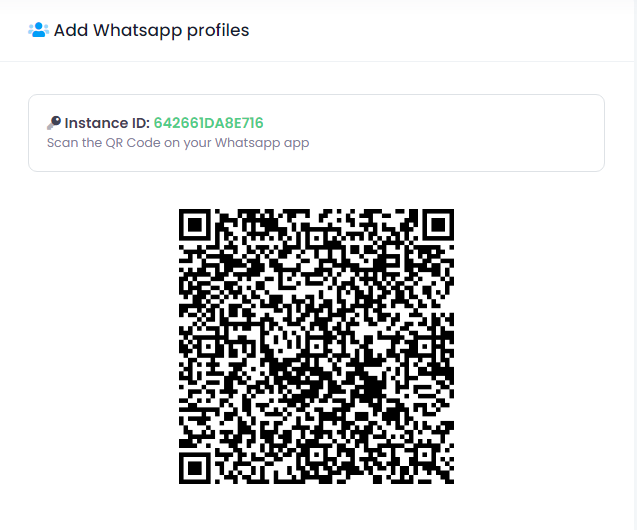
    Waziper Dashboard → WhatsApp Accounts → Scan QR

    Your QR code should appear immediately and the connection should work correctly.


    ⚠️ Notes

    • Only replace the waziper_server folder

    • Do NOT reinstall Waziper PHP script

    • No database migration required

    • No need to run Node.js manually

    • Restarting the server is enough

    This update fixes:

    ✔️ QR not showing
    ✔️ Connection failed
    ✔️ Baileys v7 compatibility issues
    ✔️ Node.js errors
    ✔️ Auto disconnect
    ✔️ Memory leaks


    Introduction

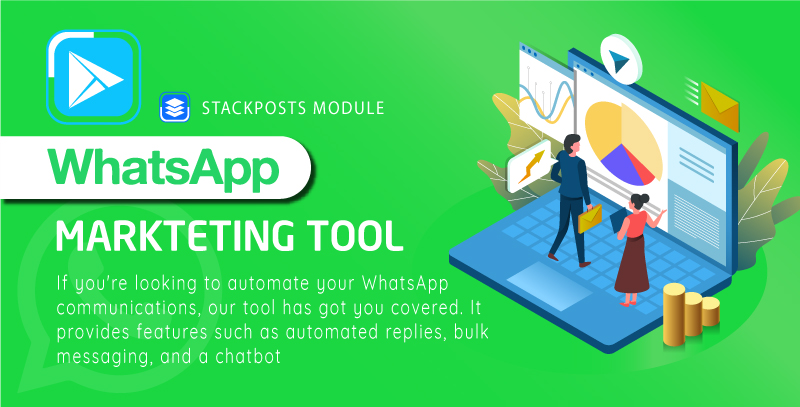
    Waziper is WhatsApp Marketing Software based on PHP Script. It is the best solution for Small or Large Companies, Software Companies, Digital Marketers as well as you can use it as the software-as-a-service (SaaS).

    Waziper is Standalone. The Powerful WhatsApp Marketing Solution

    WhatsApp Marketing Tool which is one of the products by Stackposts. You can use many of its features such as allowing you to automatically Bulk WhatsApp Sender by seconds to millions of customers, Auto Reply for a first message, Chatbot System with keywords or sentences, Sending all types of file like text, image, video. Additional, exporting contacts are from groups. It’s not only WhatsApp Marketing Software but also help your business keep and reach more customers.

    Waziper helps you send out messages 24-hour on 7 days send out messages 24-hour on 7 days. It not only allows you to send relevant notifications such as appointments, orders, etc. but also interacts with your potential clients as your real person. You just need to purchase one time to get Lifetime Updates. Moreover, you also have 06 free months for support. Don’t Wait! Get it right now!

    We have important features that you need for a WhatsApp Marketing tool

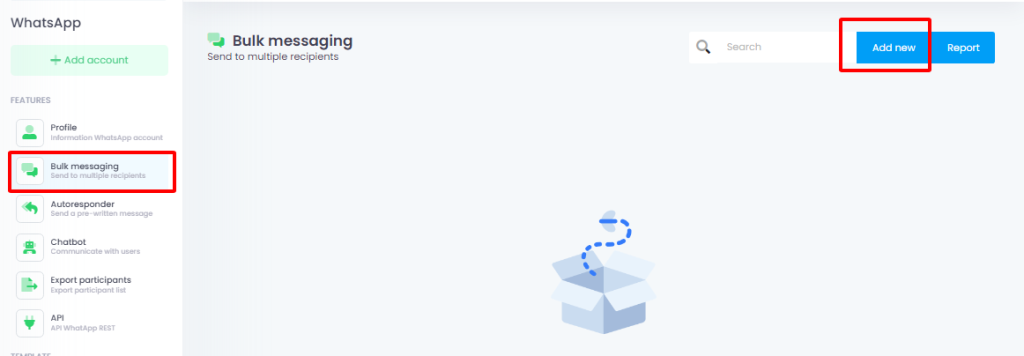
    1. Bulk messaging
      Send messages in bulk to multiple recipients at once. This can be useful for sending promotions, announcements, or updates to a large group of customers.
    2. Message scheduling
      Schedule messages to be sent at a specific time and date
    3. Automated responses
      Include chatbots or other automated response features that can respond to customer messages automatically. This can help businesses provide quick and efficient customer support.
    4. Personalization
      Messages with the recipient’s name, location, or other details
    5. Multiple Accounts:
      Managing multiple WhatsApp accounts via a single platform


    Bulk WhatsApp Messages

    Send messages in bulk to multiple recipients at once. This can be useful for sending promotions, announcements, or updates to a large group of customers.

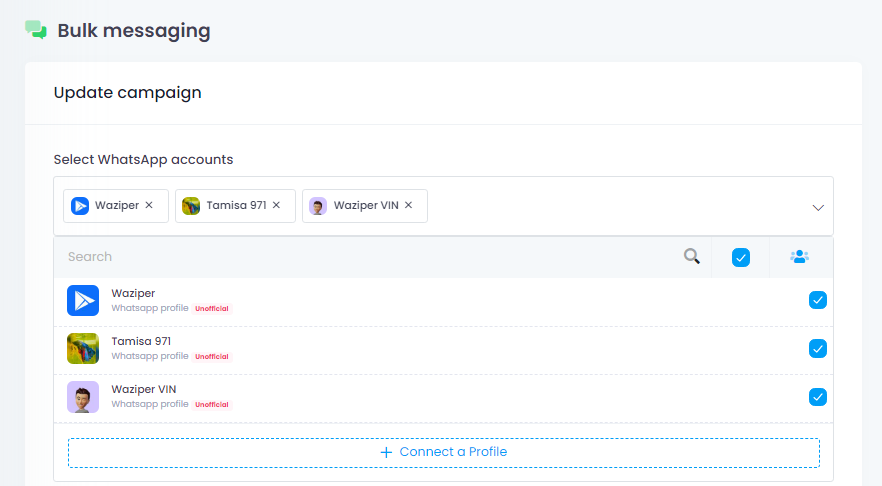
    1. Rotate between Multi-Accounts

    Reduce the risk of account suspension, increase message limits, and test message effectiveness

    2. Simple to add a new contact

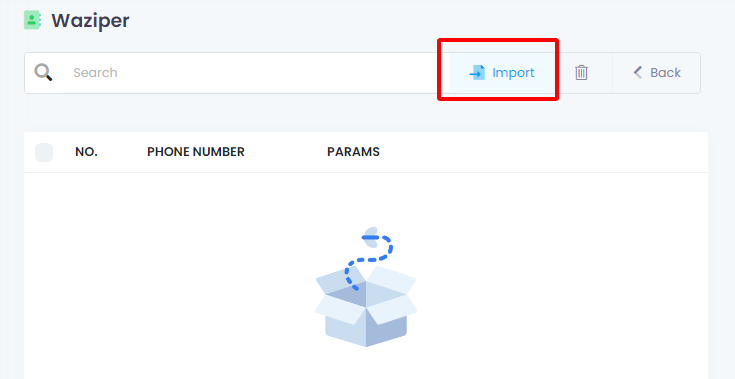
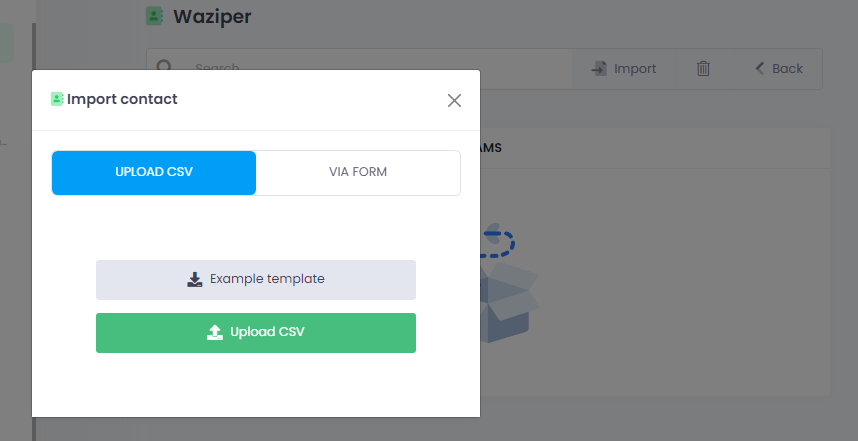
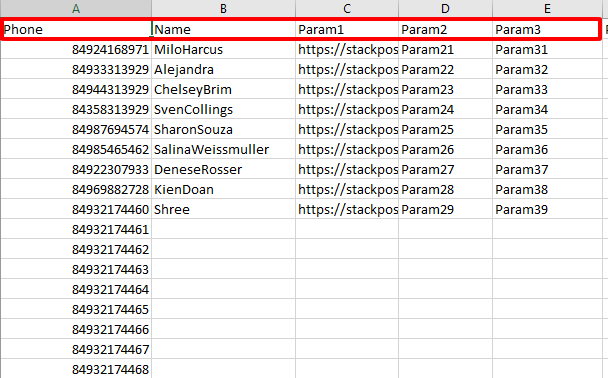
    It can be added manually by entering phone numbers, or it can be imported from a CSV file. It is organized into groups to make it easier to send targeted messages to specific groups of people.

    3. Variables in the message

    Improve personalization, and relevance, avoid spam filters and increase efficiency.

    4. Variety of message types

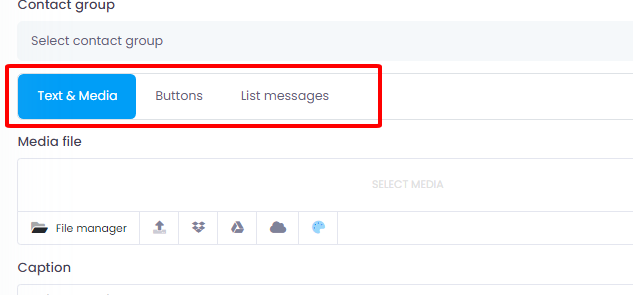
    It’s supported by various media types, such as images, audio, and text. Especially, you can use the Button and List Templates.

    5. SpinTax capability

    Utilize the SpinTax function to create a list of synonymous words.

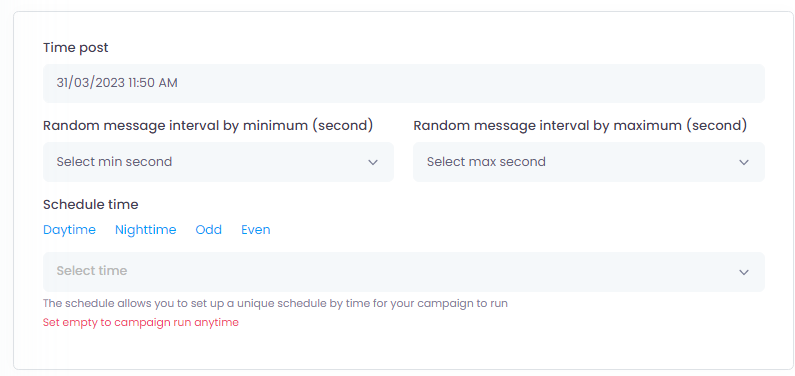
    6. Random time delays in message delivery

    Reduce the risk of being flagged as spam or causing network congestion.

    7. Specific days and times

    Increase the chances of a message being opened, read, and acted upon by the intended audience. 

    8. Save & Schedule campaigns for future delivery

    Manage time more efficiently, send messages at targeted times, and maintain consistency in messaging frequency

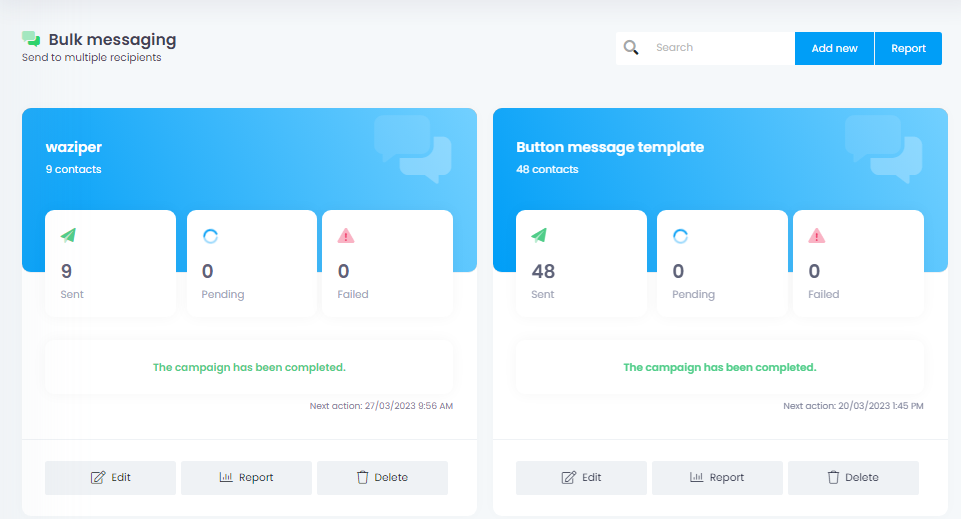
    9. Bulk Message Report

    If you are looking to conduct a marketing campaign using messaging, Waziper is one of the best platforms. 

    It provides all campaign statistics such as Campaign name, Contact name, min and max second delay, Phone number and the status of them which can help you measure the effectiveness of your campaign.

    10. Single Campaign Report

    Helping you understand a summary of the campaign report detailing a specified time period, such as start and end time. It supports you make data-driven decisions to drive conversions.


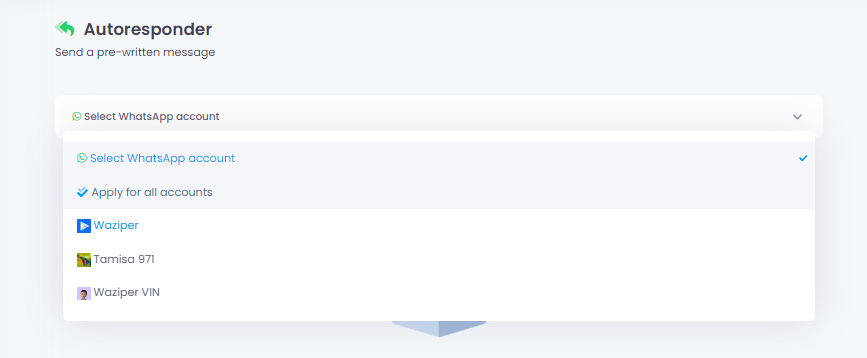
    AutoResponder

    Send a pre-written message to incoming messages

    Autoreply messages can help to improve customer service, maintain a professional image, manage expectations, and increase efficiency in messaging systems.


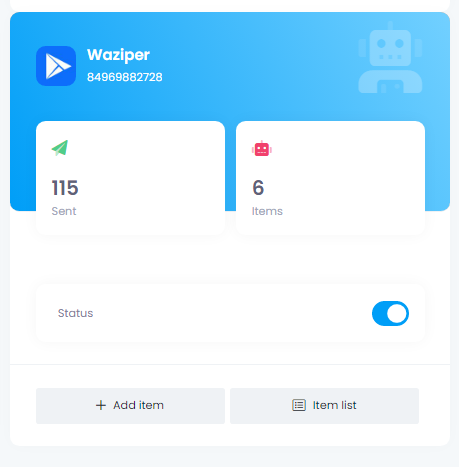
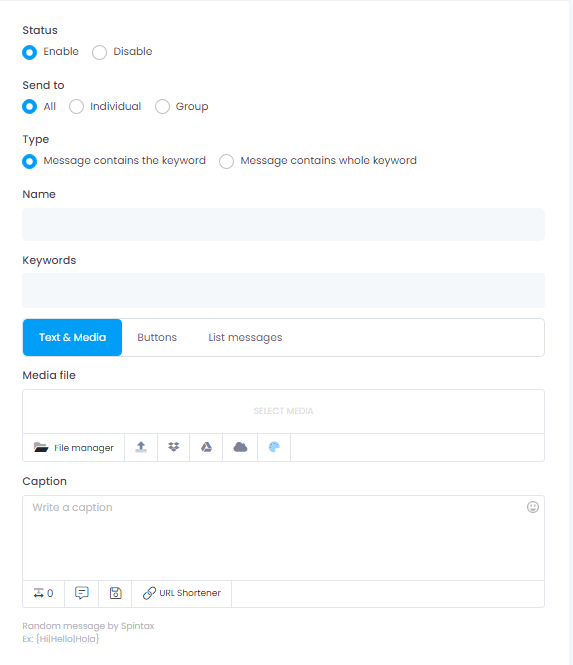
    Chatbots

    Communicate with users in a conversational manner

    Chatbots can help to improve customer service, reduce costs, maintain consistency, increase engagement and conversion rates, and collect valuable data in messaging systems.


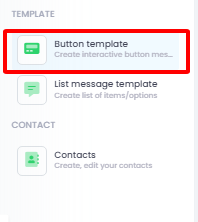
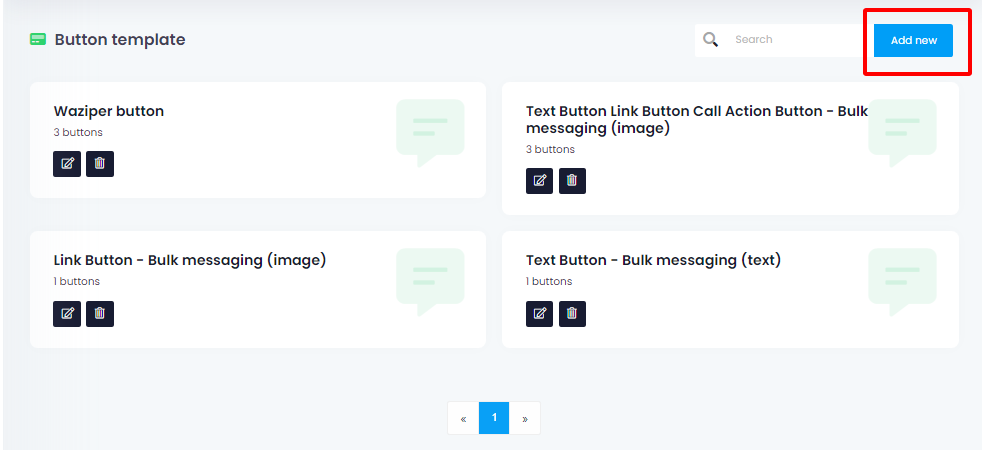
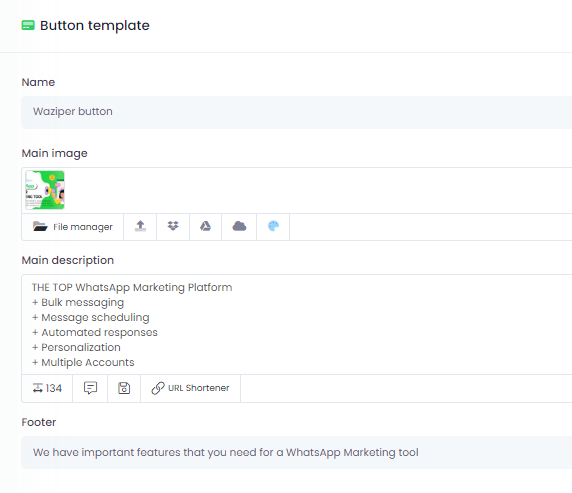
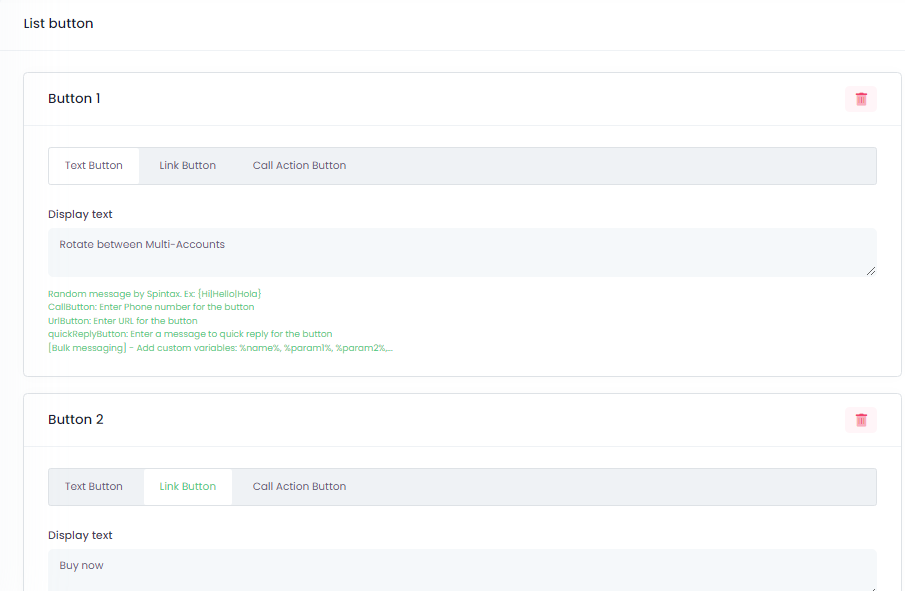
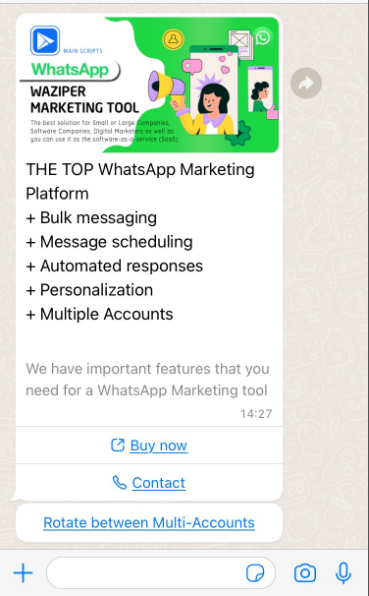
    Button Template

    Create interactive messages with buttons

    Provide interactive buttons for recipients to click on. The buttons can be customized with different text or URLs and can be used to offer a range of actions or options for the recipients to choose from.


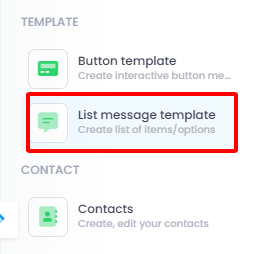
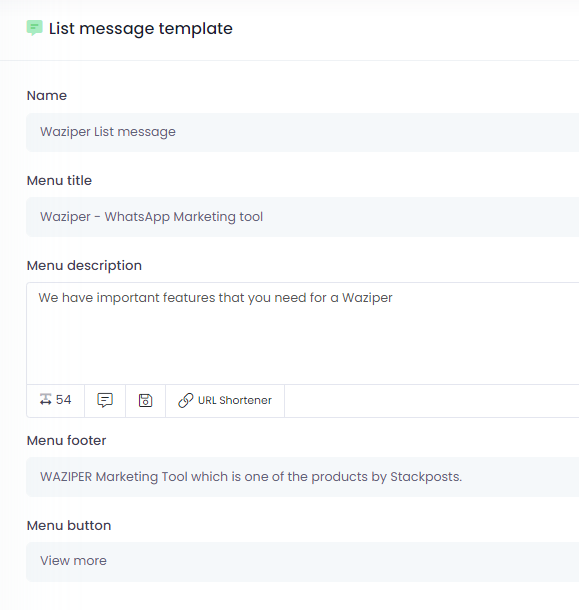
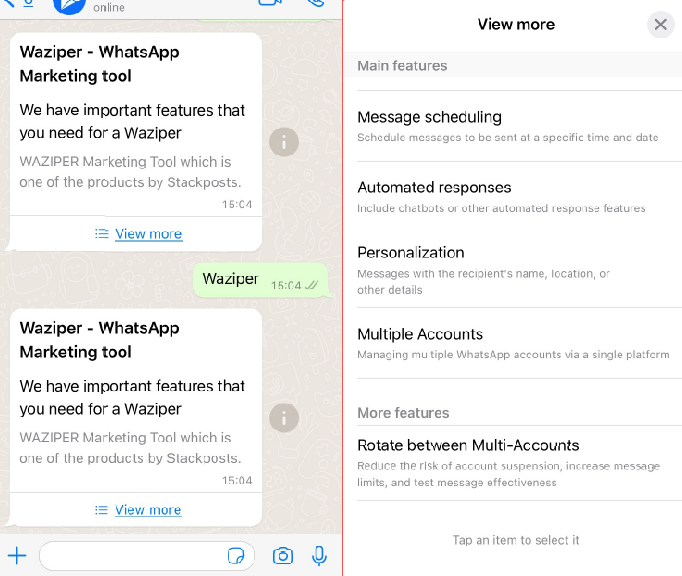
    List Message Template

    Create a list of items or options for customers

    Quickly send a list of items to customers without having to type out each item individually. The template can be customized to include relevant information such as product images, descriptions, and prices.


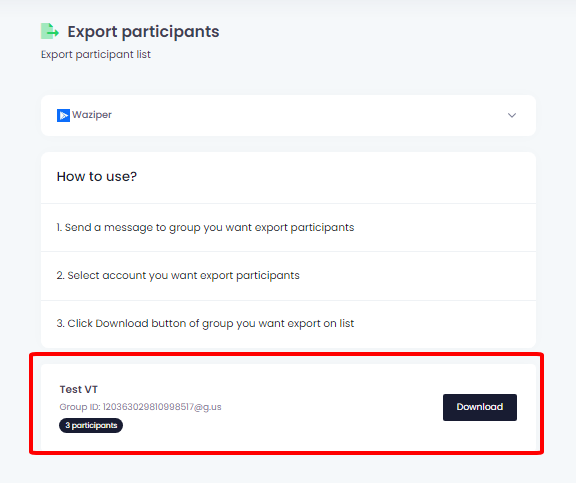
    Export Participants

    Export a list of all the participants in a specific group

    It allows you to download a list of all the participants in a group chat or a broadcast list. This feature is particularly useful for businesses and organizations.


    Key Features

    • Easy to install and use, mobile responsive UI
    • Multiple Whatsapp Accounts at one place
    • Send message to number not in contacts
    • Send Bulk Messages
      1. Rotate between Multi-Accounts
      2. Upload group contact with CSV file
      3. Variables in the message
      4. Variety of message types
      5. SpinTax capability
      6. Random time delays in message delivery
      7. Specific days and times
      8. Save & Schedule campaigns for future delivery
      9. Bulk Message Report
      10. Single Campaign Report
    • Send media messages (videos, images, pdf, hyperlinks…)
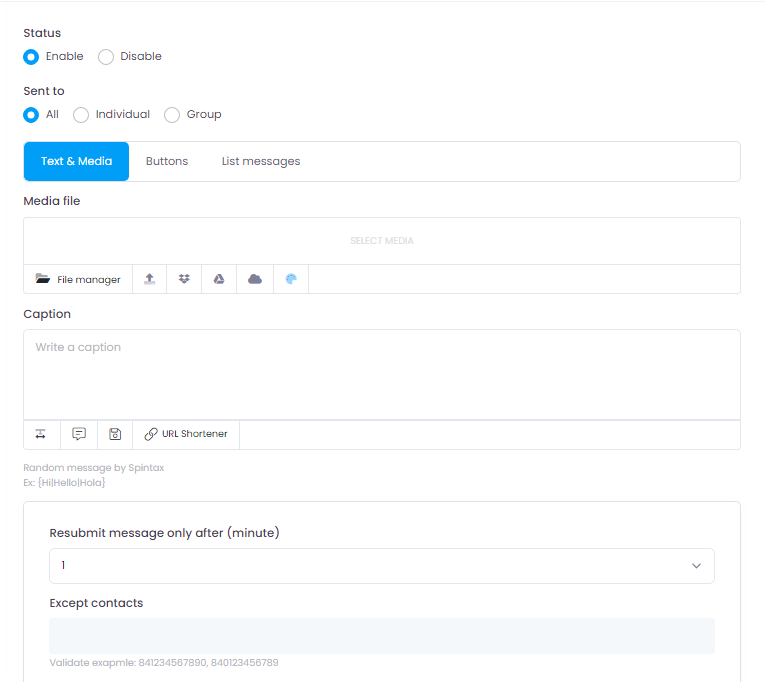
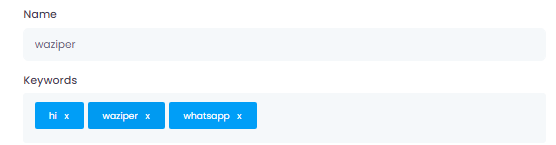
    • Chatbots by keywords (Spintax option)
    • Auto reply messages (Spintax, Except contacts)
    • Export WhatsApp Group Contacts
    • Increase message interaction with buttons and list message.
    • File Manager: file and folder management. Manage all media for user (Google, Dropbox, OneDrive, Image Editor)
    • Save and get caption: Save all your contents
    • Emoji Support
    • Login & Signup with Facebook, Google, Twitter
    • Secure Password Hashing
    • Dashboard: Report sent successfully or error
    • Manage account groups
    • Supported SSL
    • Automatic timezone
    • Multilingual ready
    • Statistics
    • Website info
    • Change logo for script
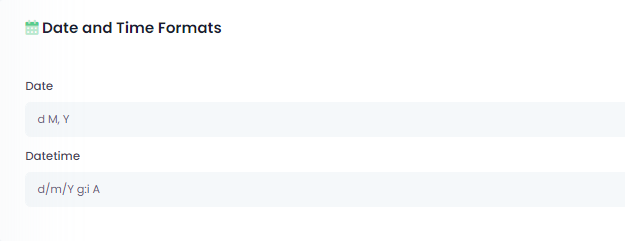
    • Change Date and Time Formats
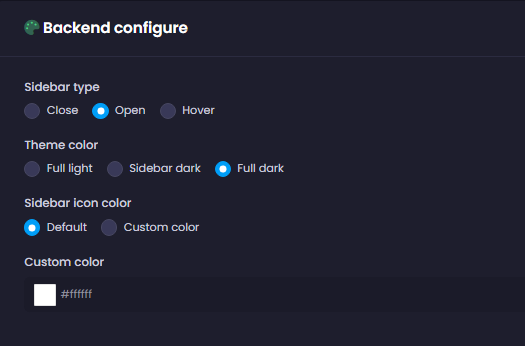
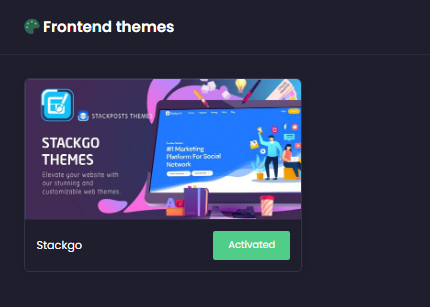
    • Change the Backend and Frontend interface
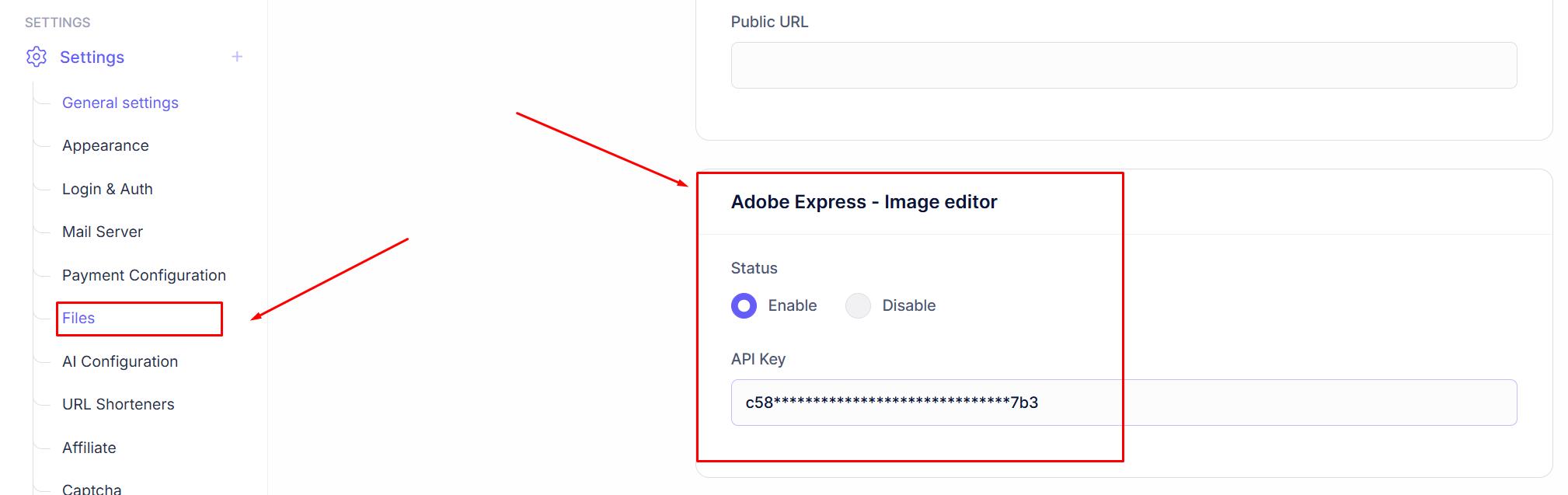
    • Adobe Express – Image editor
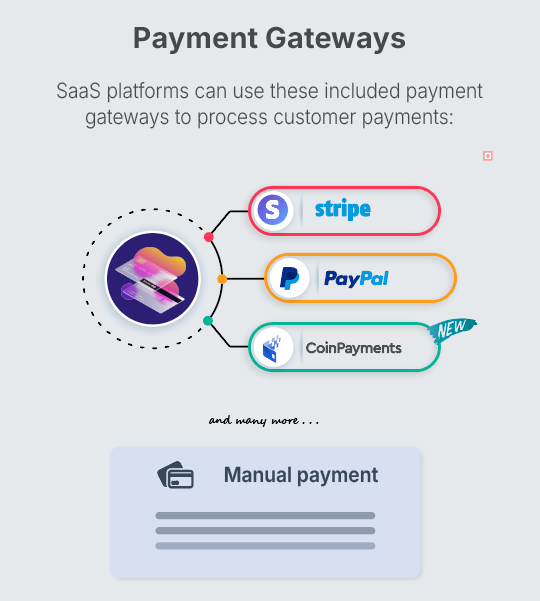
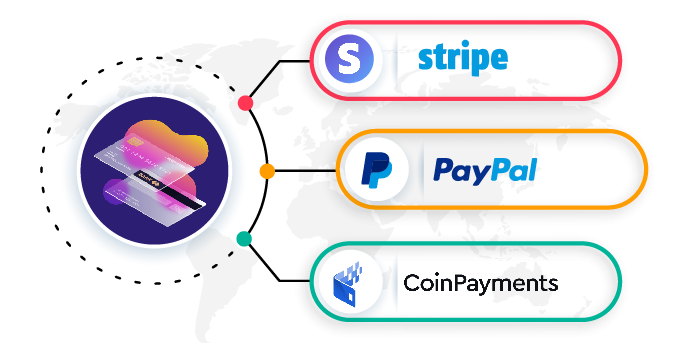
    • Payment configuration: Paypal, Stripe, Coinpayment
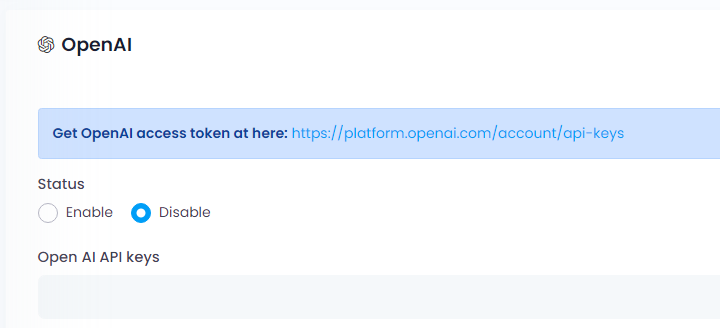
    • OpenAI
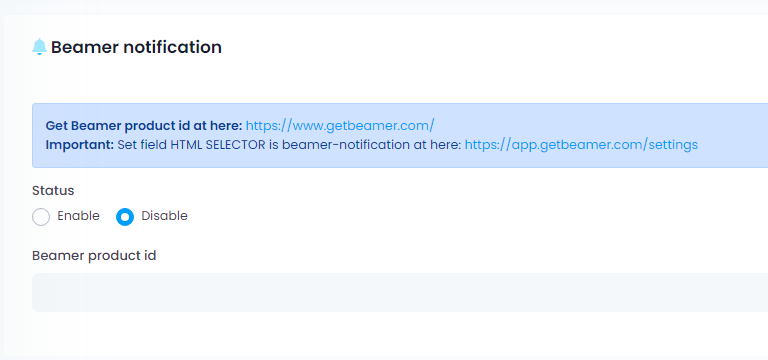
    • Beamer notification
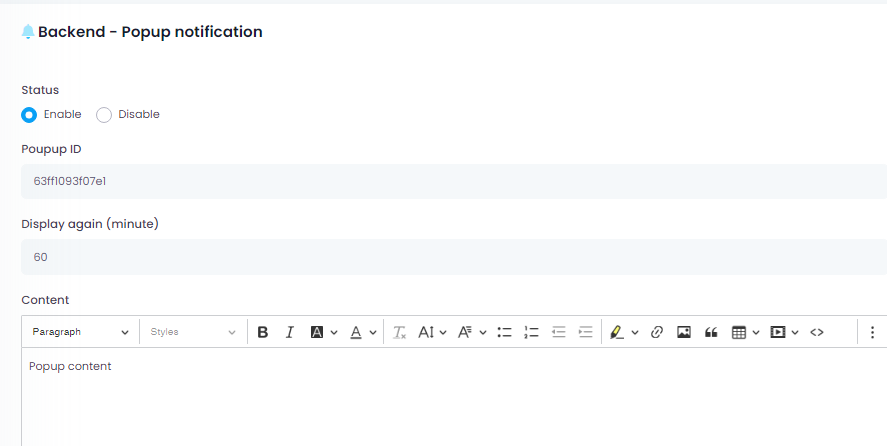
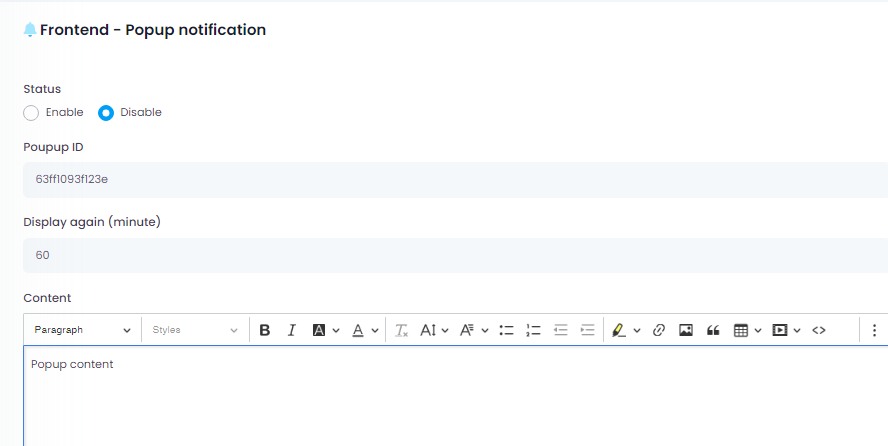
    • Notification: Backend and Frontend
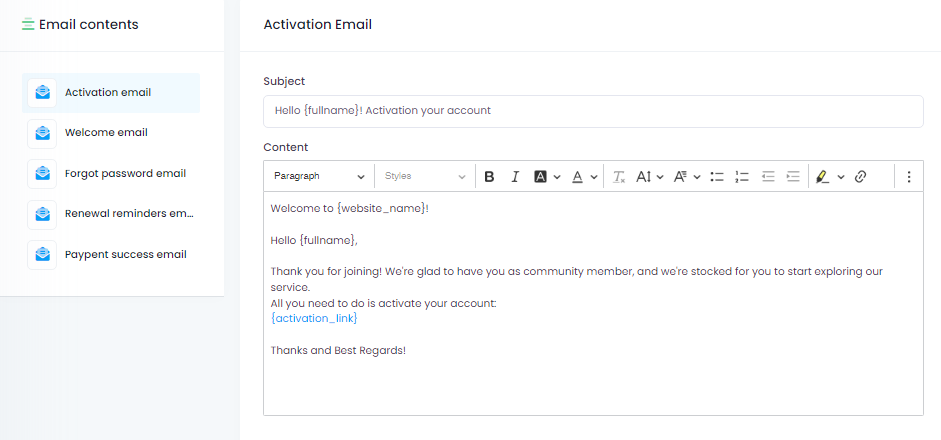
    • Email contents
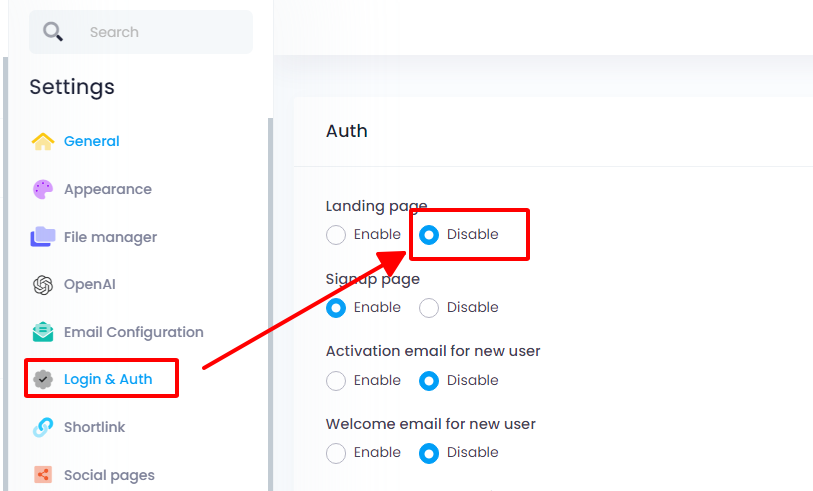
    • Login & Auth: Google reCaptcha V2, Facebook login, Google login, Twitter login
    • Shortlink (Bitly)
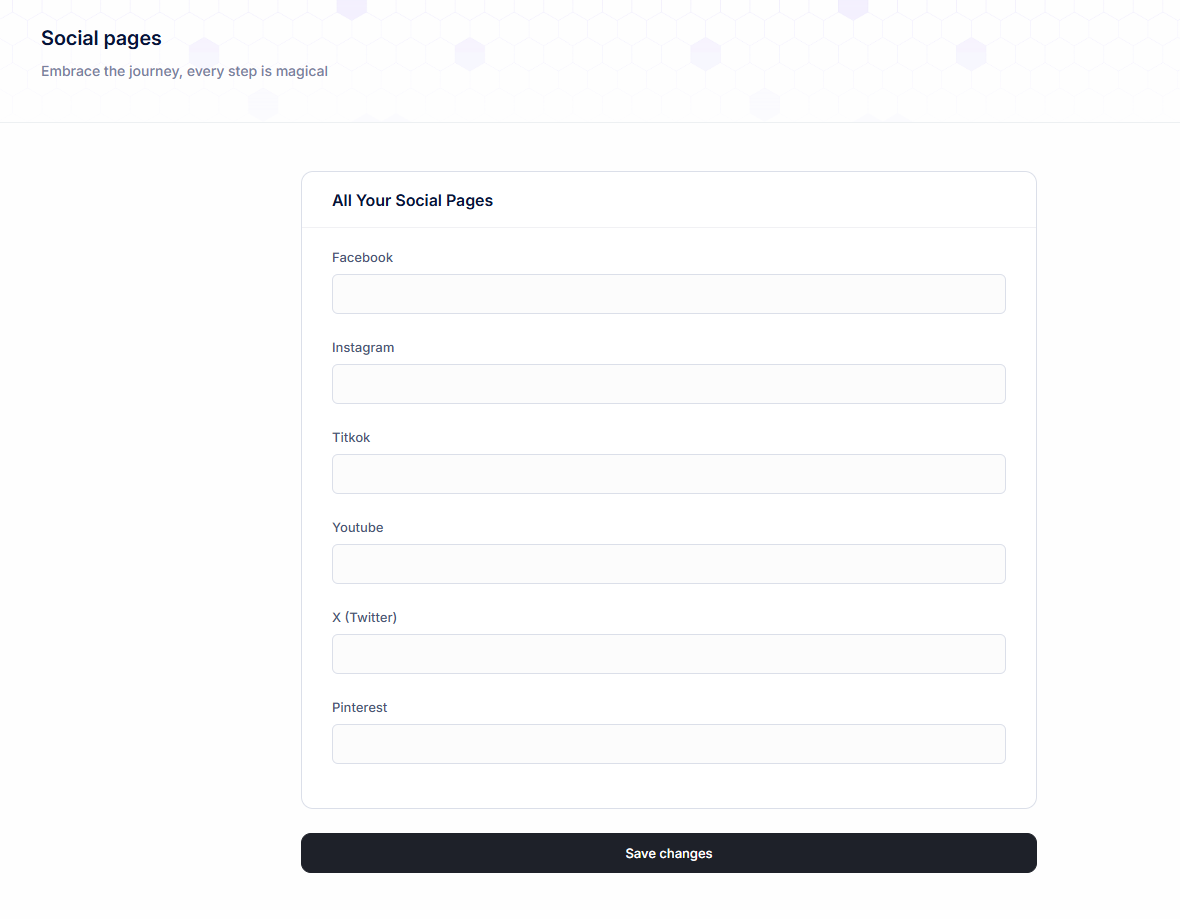
    • Social pages
    • Proxy system
    • MultiLanguage: You can import your language
    • WhatsApp API Configuration
    • GDPR Cookie Consent
    • Embed code
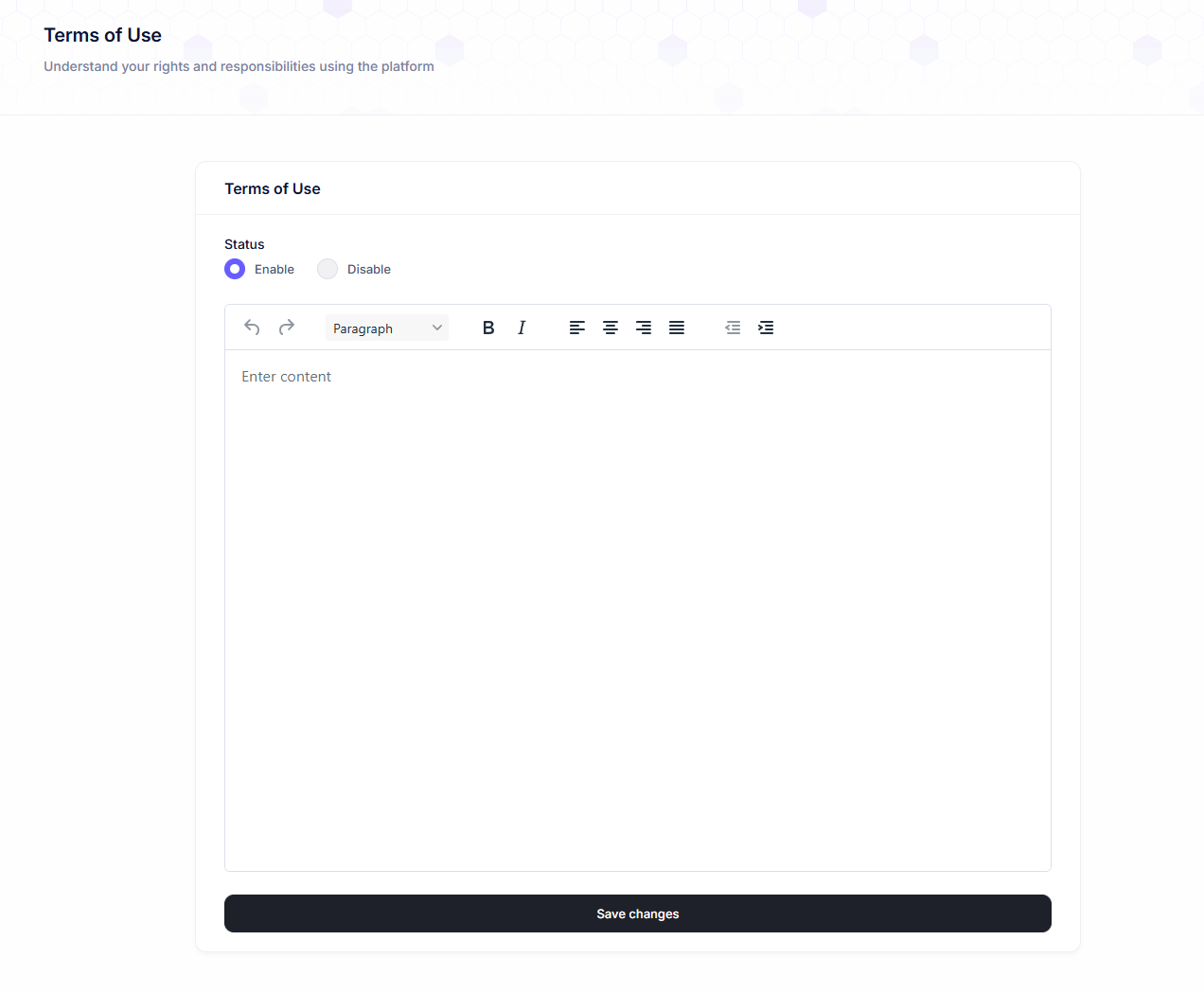
    • Terms of Use
    • Privacy Policy
    • and more…

    Team Member Tool - Social Media Collaboration

    Manage multiple social media accounts, schedule posts, and collaborate with a team member

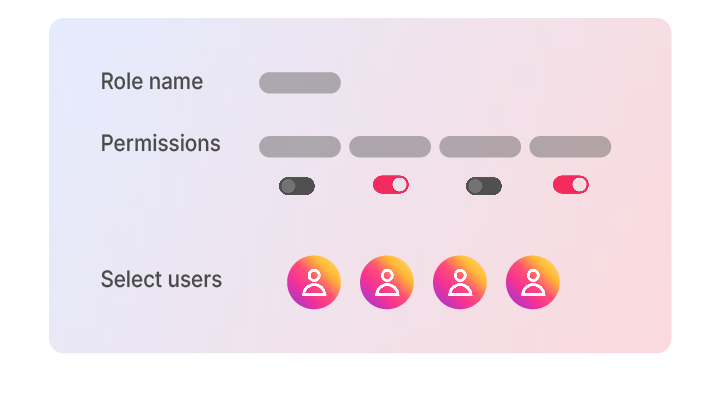
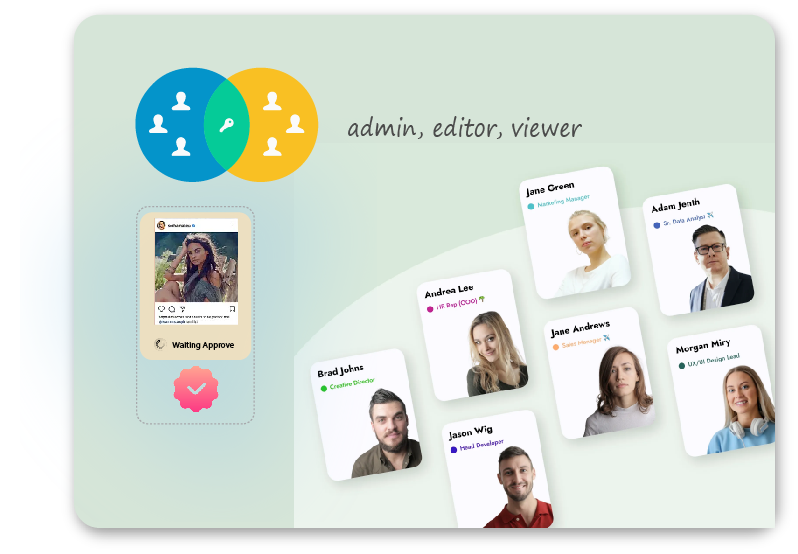
    It allows team members to work together and collaborate on social media accounts. It is designed to streamline the process of managing social media accounts by enabling multiple users to work on the same accounts, with different levels of access and permissions.

    Used for: Collaborate and manage social media accounts with multiple team members

    Best for: Social media teams who need to collaborate on content creation, scheduling, and analysis

    Key features:

    Collaboration: The tool allows team members to collaborate on social media content creation and publishing

    Scheduling: The tool allows teams to schedule social media posts in advance.

    Permissions: The tool allows team members to set permissions and access levels for different users. This ensures that each team member has the appropriate level of access to the social media accounts and content.


    Hesabe Payment

    Installation Guide for Aapanel (Nginx)

    Part 1: Install and configure AApanel Server with Nginx.

    Download PuTTY

    Download the latest version of PuTTY SSH from the official website. After that, install it on your computer. It’s as simple as that.

    Connect PuTTY & Install aaPanel

    Cloud Server Account

    Ex:

    • IP: 178.128.84.87
    • username: root
    • password: XvrJ@pDYux2R5Qd

    Install Aapanel

    wget -O install.sh http://www.aapanel.com/script/install-ubuntu_6.0_en.sh && bash install.sh forum

    Please keep a record of your AApanel login details once the installation is finished.

    EX:

    • http://178.128.84.87:7800/5f587cdf
    • username: jsilnw8t
    • password: 48ea536b

    Install libraries

    sudo apt-get install libnss3-dev libatk-bridge2.0-dev libcups2-dev libxkbcommon-dev libgtk-3-dev
      Please watch the video tutorial


    Set up AApanel Server using Nginx web server

    Please login aapanel and set up according to the instructions

    aaPanel Internal Address: http://xxx.xxx.xxx.xxx:7800/f7eec324
    username: xxxxxxxxx
    password: xxxxxxxxx

    PHP Setup:

    1. Configuring PHP with version 8.0 or 8.1.
    2. Allow_url_fopen: allow_url_fopen=On
    3. Memory_limit = 512M or higher ( Importance)
    4. Upload_max_size = 512M
    5. Post_max_size = 512M
    6. Upload_max_filesize = 512M

    Install Extensions:

    Installing PHP extensions such as PHP EXIF.

    Enable Functions:

    Allowing execution of functions including exec, putenv, and shell_exec.

    Please watch the video tutorial 

    Part 2: Install Main Script

    Install Waziper Main Script

    Please prepare the information before proceeding with the installation

    Purchase code:

    Database username: databasename: password:

    Admin Account login username: email: password:

    Timezone

    Please watch the video tutorial

    Setting up Nginx configuration for a domain.

    Please watch the video tutorial 

    Please add the following code to your primary domain’s Nginx configuration

    location / {
    try_files $uri $uri/ /index.php;
    }

    If you install in a subdirectory please set as follows

    location /subfoldername {
    try_files $uri $uri/ /subfoldername/index.php;
    }


    Introduction

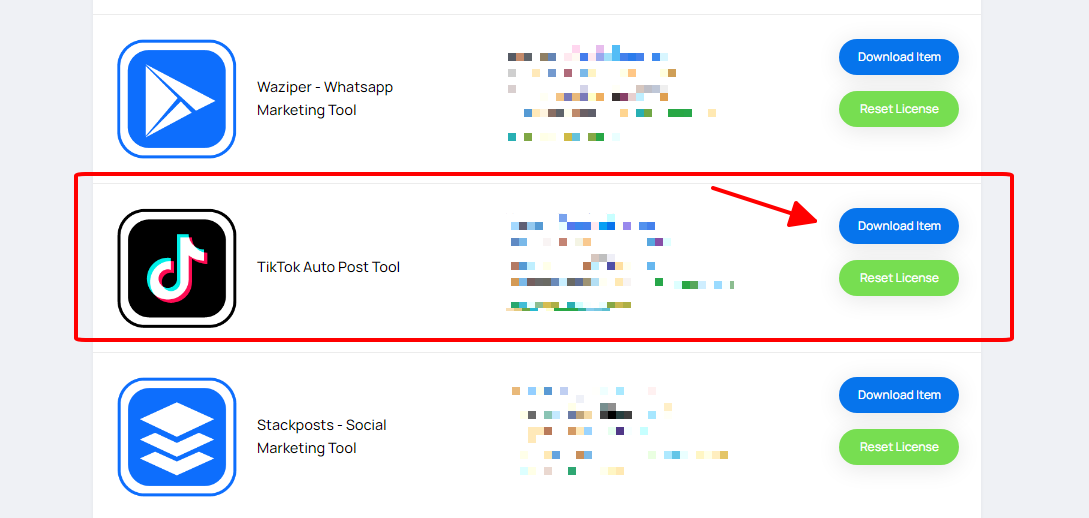
    TikTok Auto Post Tool is a module for the Stackposts Main script. It allows users to plan and schedule their TikTok content in advance as well as provides a convenient way for you to organize and automate your TikTok posting.

    Summary

    Used for:  Scheduling and Posting your TikTok content in advance. You can add captions and hashtags, select the date and time you want your video to be published, and manage multiple TikTok accounts if needed. It then takes care of publishing your videos at the specified times, even if you’re not actively using the TikTok app.


    You can add captions and hashtags, and select the date and time you want your video to be published even if you’re not actively using the TikTok app.

    Best for: Using TikTok Auto Post Tool can be beneficial for content creators, businesses, social media managers, or individuals who want to maintain a consistent posting schedule, plan their content in advance, and optimize their engagement on the platform. It helps save time and effort by streamlining the process of uploading TikTok videos and maximizing their reach.

    Maintaining a consistent posting schedule for your content in advance, and optimising your engagement on the platform. Save your time and maximise your reach

    Alternative to: Later, Sprout Social, Planoly, and Loomly

    Key features

    Schedule and Publish: You can create and schedule TikTok posts during your free time, even if you’re not immediately available to publish them. This helps you maintain a regular posting schedule without having to be constantly present on the platform.

    Multichannel management: If you manage multiple TikTok accounts, a scheduler simplifies the process by providing a centralized platform to handle all your accounts’ scheduling needs. It saves you from the hassle of logging in and out of different accounts or using separate devices.

    What’s New

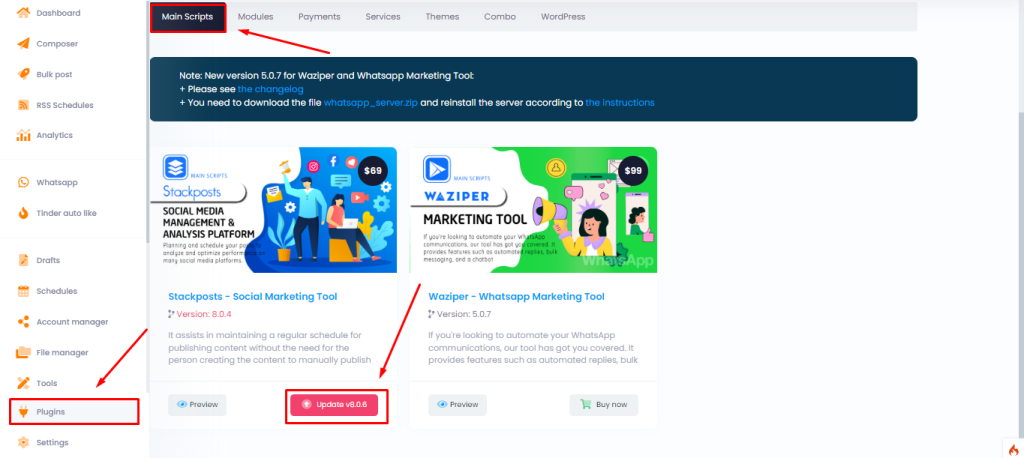
    Check & Update Version


    DO NOT update the latest version if your current version is too old from 2 versions.
    Please contact us to get more assistance.
    Example: Don’t update version 8.1.0 to 8.1.3

    May 26, 2024

    1. WhatsApp QR Code issue:
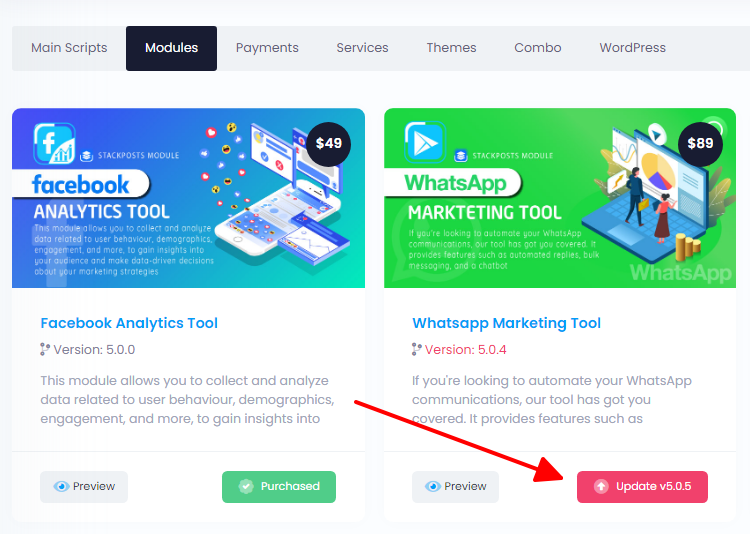
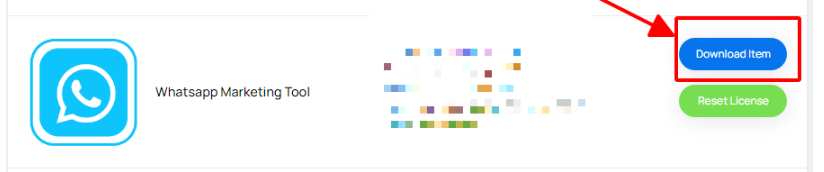
      Please follow this guide to update the Server file to fix the WhatsApp QR code. After that, you can reset the WhatsApp license and reset your server to update it all.

    April 11, 2024

    1. Facebook Analytics updated v5.0.1 

    Feb 17, 2024

    Facebook API App v19.0

    1. Meta has updated Facebook API App v19.0 and Stackposts will remove the Posting to the Group via Official API because Meta won’t support for Group any more.

    Deprecating Facebook Groups API

    1. Deprecating Facebook Groups API
      The Facebook Groups API is deprecated in v19 and in 90 days will be removed from all versions. This deprecation includes all Permissions (publish_to_groups, groups_access_member_info) and Reviewable Features (Groups API) associated with the Facebook Groups API. Click here to get more details from Meta.
      We think that Stackpost will remove the Posting to the Group via Official API because Meta won’t support for Group any more.

    Nov 2, 2023

    1. Instagram Analytics Tool v5.0.1
    2. TikTok Auto Posts Tool v5.0.2

    Aug 14, 2023

    1. Stackposts Main Script: v.8.0.8
    2. Waziper Main Script: v.5.1.0
    3. Whatsapp Marketing Tool: v.5.1.0

    Aug 11, 2023

    1. Stackposts Main Script: v.8.0.7 –  Aug 9th 2023
    2. Waziper Main Script: v.5.0.9 –  Aug 9th 2023
    3. Whatsapp Marketing Tool: v.5.0.9 – Aug 9th 2023
    4. Reddit Auto Post Tool: v.5.0.1 Aug 9th
    5. Telegram Auto Post Tool v.5.0.2 Aug 9th
    6. VK Auto Post Tool: v5.0.4 Aug 9th 2023
    7. Tumblr Auto Post Tool: v5.0.1 Aug 11, 2023
    8. OK Auto Post Tool: v5.0.1 Aug 11, 2023
    9. Linkedin Auto Post Tool: v5.0.4 Aug 11, 2023
    10. Pinterest Auto Post Tool: v5.0.1 Aug 11, 2023
    11. Team Member Tool: v5.0.2 Aug 11, 2023
    12. Google Business Profile Auto Post Tool: v5.0.2 Aug 11, 2023

    July 12, 2023

    Telegram Module v5.0.1

    – Fixed fixed post video

    VK Module v5.0.3

    – Fixed posts to pages, groups, profiles
    – Improved module

    July 10, 2023

    VK Module v5.0.2

    – Fixed Adding VK Profiles, pages, groups

    July 09, 2023

    New Updates


    1. Stackposts Main Script has been updated to version 8.0.6
    2. Twitter Analytics Module has been updated to v5.0.3

    July 08, 2023

    New Updates


    1. Stackposts Main Script has been updated to version 8.0.5
    2. WhatsApp Module for Stackposts has been updated to version 5.0.7
    3. Waziper Main Script has been updated to version 5.0.7

    July 07, 2023

    New Updates


    1. WhatsApp Module for Stackposts has been updated to version 5.0.5 & v5.0.6
    2. Waziper Main Script has been updated to version 5.0.5 & v5.0.6
    3. WhatsApp REST API module for Waziper/Stackposts to v5.0.3 & v5.0.4

    Jun 30, 2023

    New Updates


    1. Team Member Module for Stackposts/ Waziper updated v5.0.1

    Jun 28, 2023

    New Updates


    1. Linkedin Auto post module for Stackposts has been updated to v5.0.3
    2. Google Business Profile Auto Post Module for Stackposts updated v5.0.1

    Jun 27, 2023

    New Updates


    1. Stackposts Main Script has been updated to version 8.0.4
    2. WhatsApp Module for Stackposts has been updated to version 5.0.4
    3. Waziper Main Script has been updated to version 5.0.4

    Jun 22, 2023

    New Updates


    1. VK Auto post module for Stackposts has been updated to version 5.0.1
    2. Linkedin Auto post module for Stackposts has been updated to version 5.0.2


    Changelog

    v5.0.5 Sep 27th 2023

    – Fixed Sending Messages to the group
    – Improved the source code

    Version 5.0.5 & 5.0.6 – July 7, 2023

    - Fix the error of losing connection api 
    - Fix api connection with POST method
    - Fixed Relogin Issue
    - Improved the whole script

    Version 5.0.2 – June 27, 2023

    - Fix the error of losing connection api
    - Fix api connection with POST method
    - Fix the error of sending messages to the group whatsapp

    AI Composer Auto Post Tool

    How to install

    1. Install the module

    Follow this guide to install a new module for Stackposts Main Script

    2. Configure OpenAI API

    Follow this guide to configure your OpenAI API

    3. Install the Cronjob

    Follow this guide to install your cronjob on your hosting/server to automatically schedule and publish your posts.

    Changelogs

    v1.0.4 Sep 28, 2024

    – Update the whole module for Stackposts Main Script v8.2.0

    v1.0.2 Feb 20th 2024

    – Fixed Permission bug

    v1.0.1 Jan 9th 2024

    – Improved Calander for AI Composer


    Add a new module for Stackposts Main Script

    1. License module

    Go to this link to get your licenses: https://stackposts.com/purchases

    2. Install a new module


    1. Get Started

    The Facebook Graph API is an HTTP-based API that allows developers to extract data and functionality from the Facebook platform. Applications can use this API to programmatically query data, post in pages and groups, and manage ads, among other tasks. The latest Graph API version is v19.0

    Get Started

    To get started with the Facebook Graph API, you will need:

    PLEASE NOTE THAT:  Currently, Meta has stringent approval processes for new API apps on Facebook or Instagram. We’ve made diligent efforts to supply you with the latest forms for submitting to Meta. However, it’s essential to comply with their requests to tailor your content to meet Meta’s standards. While we cannot guarantee that our documentation alone will secure complete approval for your app, it serves as a fundamental guide for navigating the subsequent steps with Meta.


    Install

    To install the Stackpush script on your server or hosting, please make sure you have checked all requirements first.

    Requirements for Installation

    1. Server Specifications

    Check this guide to know in detail Server Specifications for StackPush Script

    2. Server Requirements

    Follow this guide to know Server Requirements before installing StackPush

    If you have any questions, issues, or suggestions for this feature, please contact us here. We will answer as soon as possible


    CronJobs (Schedule Feature)

    Cron jobs are Linux commands for automating repetitive tasks on your server.
    You can follow this guide to set up your cron on your server/ hosting

    Web Push Composer

    * * * * * https://yourdomain.com/push/cron

    Welcome Notification

    * * * * * https://yourdomain.com/push_welcome/cron


    Why Choose Us

    Introduction

    What are web push notifications?

    A push notification is a brief message that pops up on your desktop browser. These opt-in alerts can display text and rich media, like images or buttons, allowing you to take specific actions. Organizations use push notifications as a marketing or communication tool, but they can also serve as a security feature. (IBM, 2024)

    What is StackPush?

    StackPush, developed by the Stackposts Team, is a source code product that you can install on your server for independent use. Unlike other web apps, there are no monthly fees—simply make a one-time purchase and enjoy lifetime updates.

    StackPush is now a Web-based notification, also called “web-push” notifications, that can appear on your desktop or mobile device. Notifications can open on different areas of a screen or view, depending on your browser or operating system type.

    StackPush Dashboard
    StackPush Dashboard (Source: Stackposts.com)

    How push notifications are used

    A push notification is a type of channel that works to leverage communication. Marketing is the main way developers and organizations create and use push notifications. However, push notifications are also regularly used for civic communication and, less often, for security authentication (IBM, 2024).

    1. Marketing:  Push notifications can be a powerful tool in marketing to boost sales, retain customers, and provide valuable insights for more effective metrics.
    2. Civic Communication: In recent years, recipients have engaged with utility push notifications more than any other type, with a 37% engagement rate. Local government and utility agencies use these notifications to provide safety alerts for severe weather, outages, traffic updates, community notifications such as missing person alerts, and local government updates.
    3. Security Authentication: Push notifications also serve as a method of security authentication. They act as an authentication factor for verifying identity and granting access to data or sites. Apps and websites with sensitive information, like online banking or healthcare portals, can use push notifications for identity verification.

    Benefits of push notifications

    There are many reasons organizations benefit from using push notifications. These include:

    • Results in higher open-rates than email
    • Automates marketing campaigns and communication
    • Is similar to SMS messaging (short message service), a device, browser or app does not need to be powered on to send a notification
    • Generates increased user satisfaction and enhances user experience
    • Creates opportunities for more user interactions and sales
    • Achieves real-time responsiveness
    • Enables user-centric customization for opt-ins and opt-outs
    • Provides behavior analytics that can inform content strategy

    Types of push notifications

    There are numerous ways to implement push notifications, which are independent of specific marketing strategies

    • Reminders such as in-cart actions, sign-ons and next-step actions
    • Updates, including news-related or relevant brand information
    • Deals like calls-to-action (CTAs) for sales, specials or subscription opt-ins
    • Authentications like security-based, one-time pass-codes
    • PSA notifications such as civic information and weather alerts

    Why StackPush is your best option?

    Boost your website traffic and conversion rates with our Website Push Notifications – no app needed. With a one-time payment, you receive lifetime updates, helping you save a lot of money. Regain customer engagement through immediate web push notifications, and drive website traffic efficiently. Our tailored prompts will enhance your subscriber base, while timely notifications improve decision-making. Implementing our solution is efficient, leading to rapid value realization. Install the script on your server to keep your data forever, ensuring ongoing benefits from our advanced web push notification system.

    1. Website Push Notifications – No App Needed
    2. One-time payment and get updates lifetime
    3. We help you save a lot of money
    4. Increase Your Traffic and Conversion Rates
    5. Regain Customer Engagement Utilizing Immediate Web Push Notifications
    6. Efficient Implementation Leading to Rapid Value Realization
    7. Boost Your Subscriber Base Through Tailored Prompts
    8. Enhanced Timely Prompts for Improved Decision Making
    9. Install the script on your server and you can keep your data will be kept forever.
    10. Drive Website Traffic with Web Push Notifications

    How to get started?

    1. You have had a website
    2. Install StackPush source code on your server
    3. Configure your domain to StackPush
    4. Send messages to your customers immediately
    5. No monthly fee
    6. Get lifetime updates

    A/B Testing

    Enhance Your Messages Using Stackpush’s Multivariate Testing Platform

    A/B Testing Push Notifications

    When you are trying to reach out to your subscribers, you would want to make sure everything goes right the first time around. This is where A/B Testing can help to find the best message variant which would lead to higher conversions.

    A/B testing allows you to compare two variants of the notification by sending it to select portions of your subscriber base. You can try different copy, images, call to action, or any combination of these to make sure you have the best chances for a conversion.

    The test size is determined automatically based on the audience you choose. The winner is determined based on click through and other positive signals related to a notification. Once the winner is chosen, that notification is sent to the remaining target audience.

    Setting up A/B testing campaign:

    • Create the copy and creatives for both the variants.
    • Add the values to the respective fields on the A/B test page.
    • Run the campaign.

    Note:

    • To reach a significant result from the two notifications, A/B testing requires at least 100 subscribers. Once you cross this threshold, you will be able to send A/B notifications.
    If you have any questions, issues, or suggestions for this feature, please contact us here. We will answer as soon as possible

    Composer (Send Notification)

    This feature allows you to create a new notification to schedule your message to be sent at a later time.

    Push notifications grab users’ attention with text, images, or buttons when they’re not on your site. This guide helps you set them up.

    Ask permission to send push notifications

    To receive push notifications, users must subscribe (also known as “opt-in”). This process involves setting up and displaying a Configure Opt-in Box (Prompts) that requests their permission.

    Once the prompt appears, users will need to actively accept the request to begin receiving notifications from your site.

    Web push notification design

    You can fully customize the appearance of your push notifications by following these detailed guides. Tailor every aspect, including icons, images, action buttons, and other visual elements, to match your brand and create a more engaging user experience.

    These guides will walk you through the process step-by-step, ensuring your notifications are both functional and visually appealing.

    1. Title

    The title of the push notifications doesn’t support custom fonts or styling like bold, italics, or underlines, it is controlled by the operating system.

    • Around 60-80 character limit.
    • Supports: Emojis 😃

    2. Message

    The localized text provides the main content of the notification, delivering the core message to the user. However, push notifications do not support custom fonts or advanced styling options such as bold, italics, or underlining.

    The appearance and overall style, including font type and size, are determined by the operating system

    • Around 150 characters limit.
    • Supports: Emojis 😃

    3. URL

    This is a URL that directs your users to a specific webpage you want them to visit.

    When users click on the notification, they will be taken directly to this designated page, making it an essential tool for guiding traffic to relevant content, promotions, or any important section of your website.

    By strategically choosing this URL, you can ensure that users are led to the exact location that aligns with your goals, whether it’s a product page, a blog post, or a special offer.

    4. Custom Icon

    The most effective way for users to instantly recognize your brand is through a clear and memorable icon.

    You can set up a default icon for your brand in the Website Settings, ensuring it consistently appears in your notifications.

    This icon will help reinforce brand recognition whenever users receive a message from you.

    Additionally, if you want to personalize or highlight specific notifications, you have the option to change the icon for individual messages as needed, allowing for greater flexibility while maintaining brand visibility.

    • Recommended size is 256×256 pixels.
    • Supports: PNG, JPG

    5. Include UTM Params

    UTM parameters are specific query parameters that you append to URLs to track and measure the effectiveness of your marketing campaigns.

    By including these parameters, you can gain valuable insights into how different sources, mediums, or campaigns contribute to traffic and engagement on your website.

    These parameters help you understand which marketing strategies are working best, allowing you to optimize your efforts based on real data.

    You have the flexibility to modify these values to better align with your specific requirements and marketing objectives.

    • Source = webpush
    • Medium = push
    • Name= 2024-09-09-flash-sale

    Example URL with UTM parameters appended from the settings:

    https://abc.com?utm_source=webpush&utm_medium=push&utm_campaign=2024-09-09-flash-sale

    6. Campaign

    You can monitor and analyze the outcomes of the prompts associated with a particular campaign you are managing.

    By tracking these results, you can gain insights into how well your prompts are performing within the context of the campaign, allowing you to evaluate their effectiveness and make informed adjustments.

    This process helps ensure that your campaign’s objectives are being met and provides valuable data on user interactions and engagement with your prompts.

    You can check this guide to learn more about Campaign Feature.

    7. Add Large Image (Supported on Chrome 56+)

    8. Action Buttons

    9. Set Notification Expiry

    10. Auto-hide Notification (Chrome)

    11. Select Audience

    12. Advanced Options

    13. When to post

    14. Preview


    If you have any questions, issues, or suggestions for this feature, please contact us here. We will answer as soon as possible

    Stackposts

    Introduction

    Stackposts offers a source code that typically allows you to connect unlimited social profiles and schedule an unlimited number of posts.

    • Number of Connected Profiles: Profiles per platform you can connect UNLIMITED
    • Posting Limits: The number of posts you can schedule is UNLIMITED

    What is Stackposts?

    Stackposts is a powerful social media management platform that enables you to automate and control multiple social media accounts through a centralized dashboard.

    Built for individuals, agencies, digital marketers, and startups, Stackposts streamlines social media operations—saving time, boosting productivity, and enhancing engagement

    .

    Key Features & Benefits

    1. Centralized Social Media Management

    Manage and publish content across multiple social platforms—such as Facebook, Instagram, X (Twitter), LinkedIn, TikTok, and more—from one unified dashboard.

    2. Automation & Post Scheduling

    Schedule content in advance, ensuring timely and consistent delivery across all channels—even when you’re offline.

    3. Time Savings

    Reduce manual work and repetitive tasks with automation tools, freeing up your time for strategic planning and real-time engagement.

    4. Improved Workflow Efficiency

    Simplify your content pipeline, collaborate with team members, and manage campaigns more effectively.

    5. Consistent Audience Engagement

    Boost visibility and engagement with regular posting, which is key to nurturing and growing your online audience.

    6. One-Time Payment, Lifetime Access

    Stackposts offers lifetime access for a one-time fee, compared to $228+ per year charged by most SaaS competitors.

    7. Easy Installation

    Designed for non-technical users, Stackposts provides a straightforward setup process with clear documentation.

    8. Reliable Customer Support

    Get 6 months of premium support included—ideal for first-time users or developers setting up for clients.

    9. High-Quality Codebase

    Developed by an Envato Elite Author, with over 12,322+ sales and 9 years in the Envato marketplace, Stackposts is proven, stable, and trusted by thousands.

    10. SaaS-Ready White-Label Solution

    Available under an Extended License, you can rebrand Stackposts as your own SaaS platform—perfect for launching a social media management business without starting from scratch.

    Key Features at a Glance

    • 🌐 Multi-platform Auto Posting

    • 🧠 AI Templates for Social Content

    • ✍️ AI Caption Generator & Rewriter

    • 🖼️ AI Image Creation (with prompt-based customization)

    • 📅 Content Calendar with Drag-and-Drop Scheduling

    • 📊 Advanced Analytics per Platform

    • 👥 Team & Client Management Tools

    • 🔄 Bulk Import/Export with JSON

    • 🏷️ Custom Labels, Categories & Hashtags

    • 📂 Media Library & Search Tools

    Why Choose Stackposts?

    Stackposts stands out among social media tools thanks to its value, flexibility, and reputation:

    • Solves a Real Problem: Manages multiple accounts, schedules posts, and simplifies workflows.
    • Cost-Effective: Lifetime deal offers major savings versus traditional monthly SaaS pricing.
    • Trusted Platform: Recognized as a top-tier tool in its category with a strong developer reputation.
    • Supports Growth: Helps users build and maintain a professional online presence.
    • Entrepreneur-Friendly: White-label licensing lets you launch your own branded version.


    Feature / Category

    Others

    Stackposts

    Self-Hosted (on your server)

    ✔️

    One-time Payment – Lifetime Updates

    ✔️

    Build Your Own SaaS
    (Sell under your brand name)

    ✔️

    Open Source Code

    ✔️

    Full Customization

    ✔️

    Monthly/Annual Subscription

    ✔️


    How to Get Started with Stackposts

    Getting started is easy—even if you’re not a developer:

    1. Purchase the Script
      Visit Codecanyon and buy Stackposts with a Regular or Extended License.
    2. Install the Platform
      Upload the script to your server and follow the documentation to complete the setup.
    3. Connect Social Accounts
      Authorize your social media accounts inside the Stackposts dashboard.
    4. Start Managing & Scheduling
      Begin creating, automating, and analyzing your content from a single place.

    Important Notes

    • For full SaaS rebranding rights, you must purchase the Extended License.
    • Always consult the official Stackposts documentation and installation guides for detailed steps.
    • Check available add-ons and modules to expand functionality (e.g., YouTube, Pinterest, Telegram, Google Business Profile, Reddit, etc.).

    Note: An Extended License is required for commercial applications where end users are charged to access the website, whereas a Regular License is sufficient for non-commercial use cases.

    Installation

    📦 Stackposts Installation Guide – Vesion 9.0.0

    Follow this step-by-step guide to install Stackposts on your server.


    🔻 1. Download Installation Files

    Download the Stackposts installation package from your purchase source (e.g., CodeCanyon). Unzip the package and upload the contents to your web server’s root directory (or subdomain folder).


    🌐 2. Create a Domain and Point to Server

    Set up a domain or subdomain and point it to your server’s IP address. This will be the primary access point for your application.

    Example:

    yourdomain.com -> your server IP (A record)

    📋 3. System Requirements

    Before proceeding with the installation, make sure your server meets these minimum requirements:

    • PHP ≥ 8.2.2

    • MySQL (with pdo_mysql)

    • PHP Extensions:

      • PDO

      • Mbstring

      • Fileinfo

      • OpenSSL

      • Tokenizer

      • XML

      • Ctype

      • JSON

      • BCMath

      • GD

    • storage/ and bootstrap/cache/ folders must be writable


    🔒 4. Set Up SSL

    Secure your domain using HTTPS. This can be done via:

    • Let’s Encrypt (recommended for free SSL)

    • Paid SSL certificates (via your hosting provider)

    Ensure the SSL certificate is correctly installed before starting the installer.


    🧩 5. Create a Database

    Use your hosting panel or MySQL access to create a new database for Stackposts.

    You will need:

    • Database name

    • Database username

    • Database password

    • Host (usually localhost)


    ⚙️ 6. Nginx Configuration (Optional)

    If you’re using Nginx, update your site configuration file to include:

    # Installer
    location /installer {
        try_files $uri $uri/ /installer/index.php?$args;
    }
    
    # Laravel
    location / {
        try_files $uri $uri/ /public/index.php?$args;
    }
    

    Restart Nginx after saving the configuration.


    🚀 7. Run the Installer

    Open your domain in the browser. The installation wizard will guide you through 4 simple steps:

    Step 1: Welcome

    • Introduction to installation steps

    • Summary of required items: database details, admin account, site preferences


    Step 2: System Check

    • Automatically verifies PHP version, extensions, and folder permissions

    Step 3: Configuration

    • Enter your Purchase Code

    • Input your Database Configuration

    • Set up Site Name, Admin Email, Username, Password, and Timezone


    Step 4: Installation Complete

    • Confirms:

      • Database connected

      • Tables created

      • Admin account created

      • Config files generated

    Click View Site Home to finish.


    ⚠️ Important: For security, please delete the installation folder (installer/) from your server after installation.


    ✅ Final Notes

    • After installation, log in to the admin panel and configure your platform settings.

    • Don’t forget to set up your cron jobs and other modules after installation.

    Need help? Visit the support center or contact us directly.

    📦 Stackposts Installation Guide – Vesion 9.0.0

    Follow this step-by-step guide to install Stackposts on your server.


    🔻 1. Download Installation Files

    Download the Stackposts installation package from your purchase source (e.g., CodeCanyon). Unzip the package and upload the contents to your web server’s root directory (or subdomain folder).


    🌐 2. Create a Domain and Point to Server

    Set up a domain or subdomain and point it to your server’s IP address. This will be the primary access point for your application.

    Example:

    yourdomain.com -> your server IP (A record)

    📋 3. System Requirements

    Before proceeding with the installation, make sure your server meets these minimum requirements:

    • PHP ≥ 8.2.2

    • MySQL (with pdo_mysql)

    • PHP Extensions:

      • PDO

      • Mbstring

      • Fileinfo

      • OpenSSL

      • Tokenizer

      • XML

      • Ctype

      • JSON

      • BCMath

      • GD

    • storage/ and bootstrap/cache/ folders must be writable


    🔒 4. Set Up SSL

    Secure your domain using HTTPS. This can be done via:

    • Let’s Encrypt (recommended for free SSL)

    • Paid SSL certificates (via your hosting provider)

    Ensure the SSL certificate is correctly installed before starting the installer.


    🧩 5. Create a Database

    Use your hosting panel or MySQL access to create a new database for Stackposts.

    You will need:

    • Database name

    • Database username

    • Database password

    • Host (usually localhost)


    ⚙️ 6. Nginx Configuration (Optional)

    If you’re using Nginx, update your site configuration file to include:

    # Installer
    location /installer {
        try_files $uri $uri/ /installer/index.php?$args;
    }
    
    # Laravel
    location / {
        try_files $uri $uri/ /public/index.php?$args;
    }
    

    Restart Nginx after saving the configuration.


    🚀 7. Run the Installer

    Open your domain in the browser. The installation wizard will guide you through 4 simple steps:

    Step 1: Welcome

    • Introduction to installation steps

    • Summary of required items: database details, admin account, site preferences


    Step 2: System Check

    • Automatically verifies PHP version, extensions, and folder permissions

    Step 3: Configuration

    • Enter your Purchase Code

    • Input your Database Configuration

    • Set up Site Name, Admin Email, Username, Password, and Timezone


    Step 4: Installation Complete

    • Confirms:

      • Database connected

      • Tables created

      • Admin account created

      • Config files generated

    Click View Site Home to finish.


    ⚠️ Important: For security, please delete the installation folder (installer/) from your server after installation.


    ✅ Final Notes

    • After installation, log in to the admin panel and configure your platform settings.

    • Don’t forget to set up your cron jobs and other modules after installation.

    Need help? Visit the support center or contact us directly.

    Top Server Providers

    Summary:
    The top server providers in the world include a mix of cloud computing giants, dedicated server hosts, and colocation services.

    DigitalOcean

    • Headquarters: USA
    • Strengths: Developer-friendly, simple UI, predictable pricing
    • Best for: Startups, SaaS, small dev teams
    • Highlights: Droplets, App Platform, simplicity

    Contabo

    • Headquarters: Munich, Germany
    • Global Data Centers: Germany, USA, Singapore, UK, Japan, Australia
    • Services Offered: VPS, VDS (Virtual Dedicated Servers), Dedicated Servers, Object Storage
    • Pricing: Extremely competitive – known for offering more RAM and storage per dollar compared to major players
    • Target Audience: Budget-conscious users, SMBs, developers, startups


    Upgrade v10.0.0 to v10.0.1

    Please follow the steps below to apply the Marketplace fix and update your system to version 10.0.1.

    We apologize for the inconvenience and appreciate your patience.


    1. Download the Marketplace fix

    Download the ZIP file here:
    https://media.stackposts.com/marketplace.zip


    2. Upload & extract the file

    • Go to your Stackposts project directory on the server.
    • Extract the file marketplace.zip into the modules folder.

    The final path must be:

    /path-to-your-project/modules/AdminMarketplace/

    3. Clear cache

    • Log in to your Admin panel
    • Go to: Settings → Cache
    • Click Clear Cache

    4. Run the update

    • Go to: Admin → Marketplace
    • Find the main Stackposts product
    • Click Update

    The system should now update successfully to version 10.0.1.


    Important notes

    • Make sure you extract the ZIP inside the modules folder, not the project root.
    • Ensure the correct structure:
      modules/AdminMarketplace/...

    If the update still fails, please provide:

    • The exact Marketplace error message
    • A screenshot of the Marketplace update screen

    We’ll check it for you right away.

    Upgrade Version

    🔄 How to Upgrade Version (Stackposts + Addons)

    Upgrading ensures you always have the latest features, improvements, and security patches. Please follow the steps below:


    1. Check for Updates

    • Navigate to Marketplace → Manage Addons.

    • If a new version is available, you will see an Update button (e.g., Update to 9.0.3).


    2. Backup First

    • Before upgrading, always back up:

      • Your database (MySQL/MariaDB).

      • Your files and custom configurations.

    • This ensures you can restore the system in case anything goes wrong.


    3. Click Update

    • Press the Update to X.X.X button.

    • The system will automatically download and install the latest update.

    • Wait until the process completes — do not refresh the page.


    4. Update Addons

    • After upgrading the main script, check your Addons in the Marketplace.

    • If an addon requires an update, you will also see an Update button under that addon.

    • Click Update for each addon to ensure full compatibility.


    ⚠️ Important Notes

    • Do not interrupt the upgrade process once started.

    • Always update the main script before addons.

    • If you encounter issues, restore from your backup and retry.


    Install Module (Add-on)

    Go to Admin Dashboard/Marketplace

    Click Install

    Enter your Purchase code at the box

    Marketplace

    The Marketplace allows you to discover, purchase, install, and manage powerful add-ons and modules for Stackposts. It provides an easy way to extend your platform with analytics, automation, publishing, and social integrations.


    📦 Marketplace Overview

    • Browse available modules and add-ons.

    • View module descriptions, pricing, version, and demo.

    • Quickly purchase and install add-ons directly from the dashboard.


    🛒 Buying Add-ons

    1. Navigate to Marketplace in the sidebar.

    2. Browse available modules such as:

      • YouTube Analytics Addon – track video views, watch time, and engagement.

      • LinkedIn Analytics Addon – analyze post performance, followers, and audience engagement.

      • TikTok Analytics Addon – monitor video reach and engagement trends.

      • Facebook Analytics Addon – measure user demographics, engagement, and post insights.

      • And many more.

    3. Click Buy Now to purchase the add-on from the official marketplace.

    4. After purchase, you’ll receive an Envato Purchase Code or a ZIP file.


    📥 Installing Add-ons

    You can install add-ons in two ways:

    1. Install via Purchase Code

    • Go to Marketplace → Install Addon.

    • Select Via Purchase Code.

    • Enter your Envato Purchase Code.

    • Click Install Now.

    2. Install via ZIP File

    • Go to Marketplace → Install Addon.

    • Select Via ZIP File.

    • Upload the addon.zip file you downloaded.

    • Click Install Now.

    ⚠️ Note: Main script reinstallation is not allowed through this feature. Only plugins and themes can be installed.


    ⚙️ Managing Add-ons

    1. Go to Manage Addons.

    2. See the list of installed add-ons with version and activation status.

    3. From here, you can:

      • Activate or Deactivate add-ons.

      • Update modules when new versions are released.

      • Remove add-ons if no longer needed.


    ✅ With the Marketplace, you can easily extend Stackposts functionality without manual coding — simply purchase, install, and activate add-ons as needed.


    Extended License

    The difference between Regular and Extended License

    • Regular License: You can use it to create ‘an’ application item(one same item) and distribute it FREE of charge to others (multiple persons).
    • Extended License: You can use it to create ‘an’ application item(one same item) and ‘sell it for a charge or distribute’ it FREE of charge to others.

    The main difference is the regular license is only about FREE distribution (no charge) and the Extended license can SELL (charge) for your END-users.

    Extended License Bonus Features

    Allows you to use the product in a SaaS (Software as a Service) model

    1. Use the script in a paid service: You can create a platform where end-users pay to access your service, which is powered by the script (e.g., social media auto-poster SaaS).

    2. Charge clients for access: You’re allowed to charge monthly, yearly, or one-time fees to users/customers.

    3. Host the application on your server: Users access it via a browser; they don’t receive source code or a downloadable product.

    Payment Gateways

    There are several payment gateways that a SaaS (Software as a Service) company can use to process online payments from customers. Here are available payment gateways included in the extended license:

    1. Stripe: Stripe is a popular payment gateway that allows SaaS companies to accept credit card payments from customers. Stripe offers a simple and easy-to-use platform with competitive pricing, and supports multiple currencies and payment methods.

    2. PayPal: PayPal is a well-known payment gateway that allows customers to make payments using their PayPal account or credit card. PayPal also offers fraud protection and dispute resolution services, which can be helpful for SaaS companies.

    3. CoinPayment: A cryptocurrency payment gateway that allows businesses and individuals to send, receive, and accept crypto payments online

    4. Manual payment: Manual Payment is a payment process where transactions are processed manually (not automated), requiring direct human action to approve, verify, or complete the payment.

    Coupon Manager

    It is designed to help you create, manage, and distribute digital coupons to your customers. It makes it easier for you to attract and retain customers.

    Used for: Create and manage coupons or discount codes for your subscriptions or plans.

    Key Feature is Coupon Creation: The tool should allow you to create customized coupons with options like coupon codes, expiration dates, discounts, and more.

    Ticket Management System

    This powerful module streamlines customer support, offering structured ticket management and efficient issue resolution. It allows you to easily view, create, and organize tickets using customizable categories, types, and labels.

    • View All Tickets: Easily manage support tickets with advanced tools to view, filter, sort, and search by status, date, priority, assignee, ticket ID, customer, or keyword.

    • Create New Tickets: Submit detailed support requests manually. Tickets can include technical metadata such as logs, screenshots,….

    • Manage Categories: Organize tickets with customizable categories such as Billing, Technical, and Feature Request for streamlined issue classification.

    • Manage Types: Define and manage ticket types such as Bug, Inquiry, and Emergency to categorize issues accurately.

    • Custom Labels: Apply custom labels like High Priority or VIP Customer to highlight and prioritize specific tickets.

    Affiliate System

    It refers to a set of features that allows you to run your affiliate program. This means that individuals or businesses can promote your SMM tool and earn a commission for every new customer they refer through a unique affiliate link or code

    Ideal for SaaS companies looking to grow through strategic partnerships and agency owners establishing reseller networks, all within your existing Stackposts ecosystem.

    • Signup Page: A dedicated page where potential affiliates can apply to join the program.

    • Automated Approval/Denial: Option to automatically approve affiliates or require manual review.

    • Personalised Portal: A dedicated area for each affiliate to track their performance, access links, view payouts, and find resources.

    • Payout History: A clear record of all past and pending commission payouts.

    • Multiple Payout Methods: Supports various payment options like PayPal, Stripe, bank transfer


    Detailed Performance Reports

    • Clicks, Conversions, Sales: Key metrics to evaluate affiliate performance.

    • Revenue Generated: Total revenue attributed to each affiliate.

    • Conversion Rate: Percentage of clicks that result in conversions.

    • Top Performing Affiliates/Links: Identifies the most effective affiliates


    User Roles

    You can create and set user roles to quickly add permissions that are specific to the features that will ensure your social media profiles stay organized and that only the users who need access to certain features have the amount of access they need.

    User Report

    User reports can help track the performance of your sales and marketing efforts, allowing you to make data-driven decisions about how to allocate resources.

    Pricing Page

    Displays the cost of a product or service, along with different plans, features, and payment options

    Payment History

    Payment History refers to the record of past transactions, showing details like amounts paid, dates, and payment methods.

    Payment Report Dashboard

    Track Your Sales with Confidence

    Our dashboard empowers you to analyze your performance, track trends, and grow your sales with clarity.

    • Live Earnings Breakdown: Instantly see how much you’ve earned today, this week, month, and year — no spreadsheets needed.

    • Recent Payment History: View your latest transactions with customer details, amounts, and reference IDs for easy tracking and support.

    Payment Subscription Management

    Subscription Management is the process of handling customer subscriptions for products or services, ensuring smooth billing, renewals, and customer retention.

    Invoice and Bill

    Documenting the details of the transaction, such as the personal name, contact information.

    Email Payment Notification

    Automated email sent to users to inform them about payment-related updates, such as successful transactions, upcoming due dates, or overdue payments.


    User Dashboard

    The User Dashboard is the main workspace for users in Stackposts, providing an overview of their posting activity, quotas, and connected social channels.
    It helps users quickly understand their account performance and manage their publishing workflow in one place.


    🔹 Overview

    After logging in, each user is greeted with a personalized dashboard showing their latest activity, plan status, and credit usage.
    From here, they can review how many posts have been published, how many are left in their quota, and the overall success rate of scheduled posts.


    🔹 Key Features

    • Post Quota Tracking – View your total posting limit, used and remaining quota for the current plan.

    • Credits Summary – Displays total AI or post credits available, with a real-time usage bar.

    • Add Channels – Quickly connect or manage social accounts such as Facebook, Instagram, X (Twitter), and others.

    • Post Performance – See how many posts were successful, failed, or still processing.

    • Success Rate Chart – Visualizes performance trends and publishing stability over time.

    • Plan Information – Shows your active plan name, status, and expiration details.


    🔹 Dashboard Components

    • Welcome Section – Personalized greeting with the user’s name, current date, and plan info.

    • Post Quota Card – Displays how many posts are used and how many remain.

    • Performance Cards – Show counts of success, failed, and processing posts.

    • Credits Card – Tracks total and remaining credits for posting or AI usage.

    • Channel Section – Buttons to add or reconnect social profiles and pages.

    • Analytics Chart – Graph comparing successful vs. failed posts over time.


    🔹 Purpose

    The User Dashboard is designed for content creators, marketers, and teams who use Stackposts to schedule and manage posts across multiple platforms.
    It provides a clear, real-time overview of performance metrics to help optimize social media activity and maintain consistency.

    Publishing

    Publishing Calendar – Main Features Overview

    ✅ Publishing Workflow

    Publishing Across Platforms

    Schedule, automate, and optimize content publishing across multiple social media channels (e.g., Facebook, Instagram, LinkedIn, Pinterest, VK, etc.).

    Multi-Platform View

    View all scheduled posts across different platforms in one centralized calendar to stay organized and aligned.

    Drag-and-Drop Scheduling

    Quickly reschedule posts by dragging and dropping them to new dates or time slots directly on the calendar.

    View More Posts (Overflow Handling)

    When a day contains more posts than can be displayed in the calendar cell, a “+X more” indicator appears. Clicking it opens a scrollable pop-up list showing all scheduled posts for that day.

    Benefits:

    • Keeps the calendar clean and uncluttered.

    • Allows users to review or manage high-volume posting days.

    • Supports full post actions (edit, preview, status change) directly from the pop-up.

    This ensures visibility and control, even on the busiest content days.

    🗓️ Flexible Calendar Views

    There are 3 calendar display modes to suit different planning needs:

    Monthly View

    Get a high-level overview of all scheduled posts for the month in a clean grid layout.

    Weekly View

    See a detailed breakdown of content planned for the current week with time-specific slots.

    List View

    Browse scheduled posts in a chronological list for fast review and editing.

    🧠 Advanced Filtering Options

    Platform Filter

    Filter posts by social media platforms like Facebook, Instagram, LinkedIn, etc.

    Post Status Filter

    Filter and manage your content more effectively by selecting posts based on their current status:

    • All – View all posts regardless of status.

    • Active – Show posts that are currently live or scheduled.

    • Disconnected – Identify posts from disconnected or unauthenticated accounts.

    • Pause – View posts that are temporarily paused and not being published.

    This filter helps streamline content review and troubleshooting workflows across multiple platforms.

    🔧 Bulk Actions & User Status Management

    Manage user accounts efficiently with quick bulk actions:

    • Active
      Mark selected users as active and restore full access.

    • Inactive
      Temporarily disable user access without deleting data.

    • Banned
      Restrict access entirely and flag user as banned.

    • Delete 🗑️
      Permanently remove selected user accounts from the system.


    👥 Team Collaboration & Roles

    User Roles

    Supports multiple access levels—Admin, Editor, and Viewer—to manage content permissions effectively.

    Approval Workflows

    Built-in approval steps let team members review and approve posts before publishing.

    👀 Preview & Edit from Calendar

    Preview Posts via Pop-up

    Instantly preview how your post will appear on each platform before publishing.

    Click the eye icon on any scheduled post to open a platform-specific preview showing the final layout—including media, captions, author name, and timestamp.

    Highlights:

    • Accurate rendering of post content across platforms

    • No need to open the full editor

    • Ideal for final reviews and brand consistency checks

    Ensure every post looks polished and on-brand before it goes live.

    Edit & Add Post via Pop-up

    Create or update content without leaving the calendar—through a responsive and intuitive pop-up editor.

    Easily add new posts by selecting a date and opening the editor, or click on any existing post to quickly make changes to content, media, scheduled time, or platform settings. This streamlined experience boosts efficiency, reduces context switching, and keeps your workflow focused in one place.

    Do More from Calendar

    Access quick actions via post-level options without leaving the calendar view.

    Available Quick Actions:

    • Pause – Temporarily halt a scheduled post.

    • Resume – Reactivate a paused post.

    • Delete – Permanently remove the post from the calendar.

    These contextual tools help you react faster to last-minute changes, ensuring full control over your publishing schedule with just a few clicks.

    Profile Settings

    👤 Accessing Profile Settings

    To manage your personal settings, timezone, or account preferences, navigate to:

    App > Profile (usually found in the top-right corner under your avatar).

    From the Profile section, you can:

    • Set or update your timezone

    • Change your language preferences

    • View or update your name, email, and password

    • Manage notification and UI display preferences

    This is the first step to personalizing your workspace experience.

    Compose

    ✍️ Compose – Main Features Overview

    The Compose tool is your content creation hub—designed to help you write, enhance, and schedule posts efficiently across multiple platforms.


    Media Panel (Left Sidebar)

    Efficiently manage your folders, images, videos, and other assets from a centralized media library.

    • Organize content into folders for better structure and access

    • Drag and drop media directly into the post editor or selected channel blocks

    • Quickly upload, preview, rename, or delete files

    • Seamlessly browse and insert assets without leaving the Compose interface

    This feature streamlines content management and boosts productivity for content creators and teams.

    🔗 Media Integrations

    • Upload file from URL
      Import media directly by pasting an image or video URL.

    • Google Drive
      Connect your Google Drive to browse and upload files directly from your cloud storage.

    • Dropbox
      Integrate Dropbox to select and attach media from your cloud folders.

    • OneDrive
      Access and upload media from your Microsoft OneDrive account.

    • 🔍 Search Media Online

    ✅ Supported Sources:

      • Unsplash – High-quality lifestyle and abstract photography
      • Pexels Photo – Professional photos for commercial and creative use
      • Pexels Video – Free stock videos to enhance your post visuals
      • Pixabay Photo – A wide range of illustrations, vectors, and photography
      • Pixabay Video – Royalty-free video clips for all platforms

    🔧 How It Works:

      • Open the Search Media Online window
      • Choose a provider from the dropdown
      • Enter a keyword (e.g., “office”, “summer”, “coffee”)
      • Click Search to browse results
      • Select and click Save to import into your post

    This feature helps you create stunning content without ever leaving the app.

    🗂️ Media Panel – File & Folder Management

    The Media Panel on the left sidebar lets you manage all your creative assets for post composition.

    🔧 Key Features:

    • Create New Folders
      Organize images, videos, and files by campaign, brand, or theme. Helps maintain a clean and navigable media library.

    • Upload Media
      Drag and drop or upload from your computer or cloud storage services (e.g., Google Drive, Dropbox).

    • Delete Files/Folders
      Select and delete unwanted assets directly from the panel to keep your media library clutter-free

    This centralized asset manager ensures easy access to creative content, streamlining the publishing process.

    🖼️ Inline Image Editing in Media Panel

    Quickly edit or manage images directly from the media library without switching tools.

    ✂️ Right-Click Options:

    • Edit Image
      Open the built-in image editor to crop, resize, rotate, or apply filters—ideal for quick adjustments before posting.

    • Delete
      Instantly remove the selected image from your media library.

    This contextual menu speeds up creative workflows and gives users more control over visual assets inside the Compose environment.


    📝 Create & Schedule a Post

    The Post Composer is your central workspace for crafting, organizing, and scheduling content across multiple social media channels.

    From selecting your publishing accounts to composing rich captions, managing assets, applying campaign logic, and setting precise publishing times — everything is designed for speed, flexibility, and control.

    Key Capabilities:

    • Multi-channel Selection: Choose one or multiple social profiles or groups for publishing

    • Flexible Content Modes: Post with media, links, or plain text — easily switch between formats

    • Smart Editing Tools: Use built-in AI to generate content, shorten links, insert or save caption templates

    • Rich Text & Emoji Support: Enhance engagement with emojis and formatting

    • Campaign & Label Management: Organize posts by tags and campaigns for better tracking

    • Advanced Scheduling: Post instantly, schedule for specific times, or set up auto-reposting loops

    • Streamlined Workflow: Everything is editable in a single interface — no switching tabs or losing focus

    This workspace empowers individuals and teams to plan, write, optimize, and publish high-performing content at scale — all from one place.


    Channel Selector (Top Center)

    Choose which social accounts or pages to publish to. Easily toggle or remove channels.

    Highlights:

    • Multi-Account Selection
      Select multiple pages, profiles, or groups across different platforms (e.g., Facebook Pages, Instagram Profiles, LinkedIn Accounts).

    • Search & Filter
      Quickly find the right channels using the built-in search bar.

    • Channel Groups (Advanced Feature)
      Organize your social accounts into custom channel groups (e.g., “E-commerce Pages”, “Regional Pages”, “Client A Group”).

      • Select an entire group with one click

      • Manage groups from your settings or workspace panel

      • Ideal for agencies or businesses managing multiple brands

    • Connect New Channels
      Easily link additional accounts with the “+ Connect a channel” button.


    Post Editor (Center Panel)

    Create and edit your caption, upload media, insert links, and apply labels or campaigns.

    🔘 Post Mode Options

    🧭 Post Format Modes (Media / Link / Text)

    Easily switch between Media, Link, and Text-only post types using the toggle options below the caption box.

    🔹 Media Mode

    Attach images or videos from your media library or upload directly. Ideal for platforms like Instagram, Facebook, and LinkedIn.

    🔗 Link Mode

    Paste a URL to auto-generate a rich link preview (e.g., for Facebook, LinkedIn). Customize the thumbnail if supported.

    ✍️ Text Mode

    Use for plain text posts—great for quick updates, questions, or threads without media or links.

    😊 Emoji Picker in Caption Editor

    Enhance your captions with expressive emojis directly from the built-in emoji selector.

    Key Features:

    • Click the emoji icon inside the caption box to open the picker

    • Browse by category: Smileys, Activities, Food, Symbols, Flags, and more

    • Supports skin tone variations

    • Includes recently used emojis for quick access

    • Built-in search to find the perfect emoji fast

    This feature helps make your posts more engaging, friendly, and visually expressive—especially on platforms like Instagram, Facebook, and Twitter.

    Editor Tools:

    🛠️ Editor Tools – Key Functions

    • 1. AI Content Generator

      Generate high-quality captions with one click.
      Enter a short prompt (e.g., “Create a motivational quote for Monday morning”) and let the AI create content tailored to your style or audience.

      Tooltip: “Enter a prompt in the caption box and click this button. Our AI will generate the perfect content for you with just one click.”

      View more >>


    • 2. Shorten Links

      Automatically shorten any URL using integrated services like Bit.ly.
      This helps keep captions clean and trackable.

      Tooltip: “Shorten Links”


      3. Get Caption (from Saved Templates)

      Insert a pre-saved caption or hashtag set from your personal template library.
      Useful for reusing promo text, disclaimers, or recurring formats.

      Tooltip: “Get Caption”


      4. Save Caption

      Save your current caption as a reusable template.
      This streamlines future post creation and ensures consistency across campaigns.

      Tooltip: “Save caption”


    🏷️ Organize Posts with Labels & Campaigns

    The Tags & Campaigns panel lets you categorize and track content effectively, ensuring better planning and analytics.

    Labels

    Use labels to organize and filter your posts by content type, theme, or purpose (e.g., “Product Launch”, “Promotion”, “User-Generated”).

    • Add multiple labels per post

    • Filter scheduled posts by label in the calendar

    • Useful for reporting and bulk actions

    Campaigns

    Assign posts to a campaign to track performance over time and maintain strategic alignment.

    • Group posts under a campaign name

    • Sync with the Campaign Planner

    • Ideal for long-term marketing goals, product releases, or seasonal events

    This feature streamlines planning, improves collaboration, and powers campaign-based reporting.


    🕒 When to Post – Scheduling Options

    This section lets you control exactly when your content should go live across your selected channels.

    1. Immediately

    Post will be published as soon as you click “Post now.”
    Perfect for real-time updates or urgent content.

    2. Schedule & Repost

    Schedule the post once and set up a reposting loop.

    Fields:

    • Time post: First publishing time

    • Interval per post (minutes): Time delay between reposts (if applicable)

    • Repost frequency (days): How often the post should repeat (e.g., every 7 days)

    • Repost until: Date/time to stop reposting

    Great for evergreen content, recurring promotions, or automation workflows.

    3. Specific Days & Times

    Schedule the same post to publish at multiple, exact date/time combinations.

    • Add unlimited time slots

    • Use for campaigns requiring repetition across time zones or multiple peak hours

    4. Draft

    Save your post without publishing or scheduling.
    Ideal for internal reviews, approvals, or incomplete posts.

    AI Template

    Smart Content Generator

    The AI Template button launches a powerful content assistant designed to help you generate high-quality, platform-optimized captions in seconds.

    🧩 Key Features:

    • Prebuilt Templates by Platform
      Choose from platform-specific options like Facebook, Instagram, LinkedIn, TikTok, YouTube, X (Twitter), Pinterest, and more.

    • Prompt-Based Generator
      Input your own prompt or select from a suggested template to guide the AI.

    • Customizable Output

      • Language: Generate in your preferred language

      • Tone of Voice: Polite, friendly, professional, humorous, etc.

      • Creativity Level: From factual to expressive

      • Word Count Control: Specify the approximate length

      • Hashtag Support: Auto-add relevant hashtags

      • Result Number: Get multiple AI suggestions in one click

    • Flexible Use Cases

      • Generate captions

      • Rewrite or expand existing content

      • Summarize long text

      • Create psychology-driven or motivational posts

      • Adapt tone for specific audiences

    This tool is ideal for marketers, content creators, and teams who want to speed up ideation while maintaining quality and consistency across multiple platforms.


    Live Network Preview (Right Panel)

    Real-time preview of how your post will appear on selected social networks (e.g., Facebook).

    Includes:

    • Platform-specific layout

    • Avatar, name, time, caption, and media preview

    • Live update as you type

    AI Publishing

    🤖 AI Publishing – Automate Content Creation & Delivery

    AI Publishing allows you to automate post generation, scheduling, and publishing across social channels using predefined campaign logic and AI-powered content templates.

    🔧 Key Features:

    • Campaign Dashboard
      View all your AI Publishing campaigns in one place. Each campaign displays:

      • Campaign name & creation date

      • Status indicators: Published, Failed, Paused

      • End date & progress tracking

    • Campaign Controls
      Each campaign has quick-access actions via the control menu:

      • ▶️ Start – Activate the AI campaign to begin auto-posting

      • ⏸️ Pause/Stop – Temporarily suspend automated publishing

      • 🗑 Delete – Remove the campaign completely

    • Create New Campaign
      Use the + Create new button to set up an AI-driven publishing campaign from scratch. Define:

      • Target channels

      • Content themes

      • AI generation frequency

      • Scheduling rules

    🚦 Status Tracking:

    • Published – Number of successfully posted items

    • Failed – Posts that encountered issues

    • Paused/Stopped – Manually or automatically paused workflows

    AI Publishing is ideal for businesses that want to scale content output without constant manual work. From evergreen social posts to high-frequency campaigns, this tool helps automate with intelligence.


    Bulk Post

    📦 Bulk Post – Mass Content Publishing Made Simple

    The Bulk Post feature lets you upload and publish multiple posts at once using a CSV file, saving time and streamlining your publishing workflow.

    🧰 Core Features:

    ✅ Channel Selection

    • Select one or more channels (Facebook Pages, Instagram Profiles, etc.)

    • Group Channel Selector: Use the group icon to select entire channel groups at once (ideal for agencies or multi-brand teams)

    • Search and filter channels easily

    📁 Upload Media CSV

    • Upload a .csv file containing your post content and associated media

    • Use the Bulk Template for formatting guidance

    🕒 Schedule Control

    • Interval per post (minutes): Set the time gap between posts

    • If post times are left empty or invalid, the system will default to:

      • First post = current time

      • Subsequent posts = spaced by the selected interval

    🔗 Auto URL Shortener

    • Enable automatic shortening of URLs inside your posts using integrated tools (e.g., Bit.ly)


    🧾 CSV File Tips:

    Each row in the CSV should include:

    • Caption text

    • Media link or reference

    • Optional post time (if not using interval logic)

    • Associated hashtags (optional)


    Bulk Post is ideal for marketers, teams, or resellers who need to schedule batches of content across multiple accounts with minimal manual input.

    RSS Schedules

    📰 RSS Schedules – Automate Content from RSS Feeds

    The RSS Schedules module allows you to automatically fetch content from RSS feeds and schedule posts across your connected social media channels.

    ⚙️ Key Features:

    📋 Manage RSS Campaigns

    • View all your active RSS feeds in one dashboard

    • Each feed shows:

      • Feed name & source

      • Post status summary (e.g., Published, Failed)

      • Quick controls: Start, Pause/Stop, Edit, Delete

    ➕ Add/Edit an RSS Feed

    Click Add new or edit an existing feed to customize automation settings:

    • RSS URL: Input a valid feed link (e.g. news sites, blogs)

    • Channel Selection: Choose one or more social accounts for distribution

    • Auto URL Shortener: Automatically shorten links using integrated services

    • Post Without Link: Optionally remove source links from the final post

    • Post the Caption: Display the article title or summary

    • Keyword Filters:

      • Only publish posts containing…: Filter by keywords to include only specific content

      • Do not publish posts containing…: Exclude unwanted topics or tags


    ⏰ Flexible Scheduling Options

    Define how and when posts are published:

    • Time slots per day: Add multiple publishing times

    • Choose active days: Select specific weekdays to run the schedule

    • Set start and end dates: Control the campaign duration precisely


    📥 Actions Menu

    Each RSS item supports:

    • ▶️ Start – Begin fetching and publishing content

    • ⏸️ Pause/Stop – Temporarily disable a feed

    • 🔗 RSS URL – View the current feed source

    • 🗑 Delete – Remove the RSS schedule entirely


    This module is perfect for publishers, media pages, and content curators looking to keep their social feeds fresh with minimal effort.

    Manage channels

    🔧 Manage Channels – Centralized Channel Control Panel

    The Manage Channels module is your all-in-one dashboard to view, filter, group, activate, pause, or reconnect your social media accounts.


    📑 Key Features:

    🔌 Add Channels

    • Click + Add channels to connect new accounts

    • Supports all major platforms:

      • Facebook (Profile, Page)

      • Instagram (Official & Unofficial)

      • LinkedIn (Profile, Page)

      • X (Twitter) (Official & Unofficial)

      • YouTube, Pinterest, Telegram, Threads, Reddit, Tumblr, VK, Tinder, Google Business, Odnoklassniki, TikTok and more


    🎯 Filters

    • Use Filters to sort channels by:

      • Status: All, Active, Disconnected, Paused

      • Platform type: Easily find Instagram profiles, LinkedIn pages, Telegram groups, etc.


    🛠 Bulk Actions

    Select one or more channels and click Actions to:

    • Activate – Turn channels back online

    • Pause – Temporarily disable publishing

    • 🗑 Delete – Remove unwanted channels from your workspace


    🔍 Channel Overview

    Each channel card includes:

    • Account name and icon

    • Platform type (e.g. Facebook Page, X Profile)

    • Reconnect: Reauthorize a disconnected account

    • Pause: Temporarily stop content publishing for that channel

    • Status indicator: Shows current connection state (Active, Paused, Unofficial)


    👥 Channel Grouping

    Group channels by category (e.g. “Client A,” “E-commerce Stores”) for easier filtering and multi-channel scheduling.
    Use channel groups across:

    • Bulk Post

    • RSS Publishing

    • AI Campaigns

    • Compose View


    This feature ensures full visibility and control over all connected social accounts, supporting multi-brand environments and marketing teams at scale.

    AI Contents

    🤖 AI Contents – Smart Tools for Effortless Content Generation

    The AI Contents module provides a powerful set of tools to help you ideate, write, and enhance social media content using AI — tailored by platform, tone, and style.


    ✨ Key Features

    🎯 AI Templates by Platform

    Choose from a wide range of pre-built content templates designed for specific platforms:

    • Facebook

    • Instagram

    • X (Twitter)

    • LinkedIn

    • Pinterest

    • YouTube

    • TikTok

    • Google Business Profile

    • …and more

    🧠 Specialized Writing Tools

    In addition to platform-specific templates, access smart writing tools for:

    • Rewrite – Improve or restructure existing text

    • Edit – Grammar, clarity, or tone adjustments

    • Explain & Expand – Add context or length to a brief idea

    • Summarize – Shorten long text into key points

    • Content Creation Frameworks – Generate copy using popular marketing or psychology models (AIDA, PAS, etc.)


    ⚙️ Prompt Customization Options

    Customize your output by adjusting the following parameters:

    • Language – Choose from multiple supported languages

    • Tone of Voice – Polite, Casual, Bold, Friendly, etc.

    • Creativity Level – Conservative, Balanced, or Creative

    • Word Count – Approximate length of generated content

    • Hashtag Handling – Auto-insert or disable

    • Number of Results – Generate multiple output versions at once


    🚀 How It Works

    1. Choose a template from the AI Templates menu

    2. Enter your prompt (e.g., “Write a launch post for our summer collection”)

    3. Adjust tone, language, and output format

    4. Click Generate — and let the AI do the work

    5. Use or refine the generated copy instantly in your post composer


    Perfect for:
    ✅ Social media managers
    ✅ Marketing teams
    ✅ Content creators
    ✅ Businesses seeking to scale engagement with minimal effort

    Files Manager

    Files Manager

    Effortlessly organize, upload, and manage your media assets (images, videos, documents, etc.) in one centralized location.

    Key Features:

    • Folder Organization
      Create and edit folders to group related files for better management.

    • File Filters
      Filter files by type: image, video, document, PDF, CSV, or other formats.

    • Bulk Actions
      Select multiple files at once for mass deletion or management.

    • File Preview & Options
      Right-click or use the context menu to preview, edit, or delete individual files.

    • Cloud Integrations
      Upload from external sources like:

      • Google Drive

      • Dropbox

      • OneDrive

      • Adobe Express

      • URL (via “Upload from URL”)

      • Online search from Unsplash, Pexels, Pixabay

    • Drag-and-Drop Support
      Easily drag media into the post composer from the sidebar.

    Search Media Online

    Search Media Online

    The Search Media Online module allows users to easily find and insert royalty-free media (photos and videos) directly into their posts from integrated media libraries such as Unsplash, Pexels, and Pixabay.


    ⚙️ Features & Functions

    1. Search Bar

    • Enter keyword to find relevant media content.

    • Example: typing “business” will return photos/videos related to business.


    2. Provider Dropdown

    Select from the following APIs:

    Provider Type
    Unsplash High-quality stock photos
    Pexels Photo Free stock photos
    Pexels Video Free stock videos
    Pixabay Photo Royalty-free images
    Pixabay Video Royalty-free videos

    Only one provider can be active per search.


    3. Search Button

    Click the Search button to fetch results from the selected provider using the keyword provided.


    4. Preview & Selection

    • Media results are displayed as thumbnails.

    • Click to preview or select.

    • Selected items will be added to your media library or inserted directly into your post/composition.


    5. Action Buttons

    Button Description
    Save Confirms and inserts the selected media.
    Close Exits the search dialog without inserting media.

    ✅ Use Case

    • Quickly enrich social media posts with relevant images or videos.

    • Save time by avoiding external download/upload steps.

    • Enhance AI-generated content or scheduled posts with visual assets.


    🧠 Notes

    • Requires valid API keys configured in the File Settings > Search & Get Media Online section.

    • Media sourced is subject to each provider’s licensing; most are royalty-free but attribution may be recommended.

    Proxies

    Proxies Management

    Seamlessly schedule social posts with reliable proxies to avoid location-based restrictions or rate limits on your connected channels.

    🔧 Key Features

    • Add New Proxies

      • Click the + Create new button to add a new proxy.

      • Input fields include: Name, IP:Port, Username (optional), Password (optional), and Location.

    • View & Manage Proxies

      • Quickly view a list of all configured proxies including:

        • Name

        • IP & Port

        • Location

        • Status (Enabled/Disabled)

    • Bulk Actions

      • Use the checkbox column to select multiple proxies and apply:

        • ✅ Enable

        • 🚫 Disable

        • 🗑️ Delete

    • Status Filter

      • Filter proxies by current status: All, Enable, or Disable.

    • Action Dropdown

      • Per-proxy dropdown menu includes:

        • Enable/Disable

        • Delete

    This functionality is especially useful for agencies or global teams managing posts across regions with varied access restrictions.


    ✏️ Edit Proxy Configuration

    You can easily update the details of an existing proxy through the Edit Modal.

    Fields in the Edit Proxy Dialog:

    • Status

      • Choose to Enable or Disable the proxy.

    • Name

      • A friendly name to help you identify this proxy in the list.

    • Proxy Address

      • Format: username:password@ip:port (for authenticated proxies) or just ip:port (for open proxies).

    • Country

      • Used for reference or grouping, e.g., US, VN, CN.

    🔘 Actions:

    • Click the Actions dropdown next to a proxy.

    • Select Edit to open the modal.

    • After editing, click Save changes to apply updates.

    Team Collaboration

    Team Collaboration

    Collaborate efficiently on social media campaigns by adding team members, assigning roles, and managing access to specific accounts.

    🔧 Overview

    The Team Collaboration feature allows platform administrators to manage internal or external users involved in social media operations. This is especially useful for agencies or marketing departments managing multiple clients or brands.


    🧑‍🤝‍🧑 Add New Member

    Click the “+ Add new member” button to invite a new team member. You’ll need to fill out:

    • Status: Enable or Disable the member’s access

    • Full Name: The member’s display name

    • Email Member: Email used for login

    • Role Member: Choose from available roles (e.g., Client, Manager)

    ➡ Once submitted, the user will be added to the collaboration dashboard.


    📋 Team Table Features

    Once members are added, they will appear in a list with the following fields:

    • Member: Full name or account name

    • Role: Assigned permission level

    • Accounts: Channels/accounts assigned

    • Status: Enabled / Disabled

    • Created At: Date of member creation

    • Action: Edit or Remove

    Use filters to view members by status (All / Enabled / Disabled).


    🔎 Smart Filters

    • Search: Quickly look up members by name or email.

    • Status Filter: Narrow results by Enabled or Disabled status.

    • Pagination: Navigate across multiple member records easily.


    💡 Use Case

    Ideal for:

    • Agencies managing client pages

    • Marketing teams collaborating on shared campaigns

    • Allowing clients limited access to review or approve posts

    Manage captions

    Manage Captions

    Effortlessly Manage and Organize All Your Captions

    The Manage Captions panel provides a centralized space to store, edit, and reuse captions across your content workflows—boosting efficiency and ensuring consistency in your posts.


    🔑 Key Features

    📝 Create New Caption

    • Use the + Create new button to add a new caption.

    • Add plain text, emojis, or even AI-generated content.

    🧠 AI Caption Tag

    • Captions generated via the AI writing assistant are labeled with a purple AI Caption tag for easy identification.

    🔍 Search & Filter

    • Instantly find captions using the Search bar.

    • Filter by AI captions, user-created captions, or specific keywords.

    📦 Bulk Actions

    • Select multiple captions using checkboxes.

    • Perform bulk actions like Delete via the Actions dropdown.

    ⚙️ Individual Caption Options

    Each caption block supports:

    • Edit – Modify content and title.

    • Delete – Remove the caption from the library.


    📌 Use Case

    Saved captions can be easily reused in the Post Editor via the Get Caption tool. This is especially helpful for:

    • Frequently repeated promotional texts

    • Branded hashtags

    • Content templates for different campaigns or platforms

    Manage groups

    📂 Manage Groups

    Effortlessly Organize and Manage All Your Groups

    🔹 What is It?

    The Manage Groups feature allows users to create custom groups of social media channels (e.g., Facebook Pages, LinkedIn Accounts) to streamline multi-channel posting workflows.

    This is especially useful when you frequently post to the same set of accounts and want to save time selecting them in the composer.


    🎯 Key Features

    • Create and Name Channel Groups
      Assign a custom name to a group (e.g., “Facebook Pages”, “Client A”, “E-commerce Channels”).

    • Add Multiple Channels
      Select multiple channels across various platforms to include in one group.

    • Highlight Color
      Choose a color label to visually distinguish each group for quick identification.

    • Edit or Delete Groups
      Modify your group settings or remove groups no longer in use.

    • Use in Composer
      When creating a new post, simply select a group to auto-select all included channels with one click.


    🛠️ How to Use

    1. Go to: Groups

    2. Click “+ Create new”

    3. Enter a Group Name

    4. Select the channels you want to include

    5. Choose a highlight color (optional)

    6. Click “Save changes”

    You will see your group listed with the number of channels it includes.


    📌 Use Case

    Perfect for:

    • Agencies managing multiple clients

    • Businesses with region-specific pages

    • Teams running campaigns across multiple platforms

    By grouping channels, you simplify publishing and reduce the chance of missing a channel when scheduling posts.

    Watermark

    Watermark

    Subtle overlay text or logo for content protection

    The Watermark feature allows users to add a visual overlay (such as a logo or symbol) onto their image content. This is useful for branding, discouraging unauthorized reuse, or maintaining visual consistency across platforms.

    🔧 Key Features:

    • Channel-Based Settings:
      Apply a unique watermark per connected channel. Use the dropdown in the top right to switch and manage watermark per brand/page.

    • Upload Your Watermark:
      Upload a custom PNG or JPG file to use as your watermark. It could be your logo, a badge, or any recognizable symbol.

    • Position Control:
      Choose from 9 standard positions (top-left, center, bottom-right, etc.) to place your watermark on the image.

    • Size Adjustment:
      Use the Size slider to increase or decrease the watermark’s scale.

    • Transparency Control:
      The Transparency slider allows you to blend the watermark subtly into the image or make it stand out prominently.

    • Live Preview:
      Instantly see how the watermark looks on your content with real-time visual preview.

    • Save or Delete:
      Save your customized watermark settings for the selected channel or delete it anytime to revert to clean images.

    Affiliate

    Affiliate Program

    Earn passive income by referring new users to the platform

    The Affiliate Program allows users to generate ongoing revenue by promoting your platform and referring new paying subscribers. It’s a built-in commission system that tracks referrals, conversions, and payouts automatically.


    🎯 How It Works

    1. Share & Promote Link
      Each user gets a unique Affiliate Link to share with their network. They can share it via email, or social media (Facebook, LinkedIn, Twitter).

    2. First Sales & More
      When someone signs up and subscribes via the shared link, the referrer earns a commission (e.g., 5%) on every qualifying purchase, for as long as the subscription remains active.

    3. Generate Income Effortlessly
      Earnings are recurring — as long as referred users stay subscribed, affiliates keep earning.


    📊 Your Referral Stats

    • Clicks: Total visits to the affiliate link

    • Conversions: Number of successful signups and purchases

    • Pending: Earnings waiting for approval

    • Approved: Earnings ready for withdrawal

    • Rejected: Canceled or invalid commissions


    💰 Your Balance Panel

    Displays:

    • Total Paid

    • Total Approved

    • Rejected Amount

    • Current Balance – the amount available to request a withdrawal


    🏦 Withdrawal Request

    • Input Bank Information and Amount

    • Minimum Withdrawal: $10

    • Supported payment methods: PayPal, Stripe

    • Click Send Request to initiate payout


    📋 Payout History

    A detailed table that shows:

    • Payment ID

    • Amount

    • Payment Method

    • Status (Pending / Approved / Rejected)

    • Date

    • Notes

    Use filters and search to quickly locate transactions.

    Support

    🛠️ Support Central

    Support Central is your all-in-one ticket and live support system designed to help teams track, resolve, and respond quickly to customer issues.


    🔧 Core Features

    1. 📝 Submit & Organize Support Tickets

    Users can submit tickets by clicking + New Ticket, filling in:

    • Category (e.g., Technical, Billing)

    • Type (Bug, Request, etc.)

    • Subject and Detailed Message

    • Optional Labels for internal filtering

    Tickets are categorized and tracked with statuses: Open, Resolved, or Closed.


    2. 💬 Live Chat Interaction

    Support isn’t just asynchronous—you can chat live!

    • Agents and users communicate in a real-time chat-like format within each ticket.

    • Replies appear instantly in a threaded conversation view.

    • This allows for rapid resolution, reducing wait times and boosting satisfaction.

    • Supports message formatting for clearer communication.

    Think of it as a hybrid between a ticket system and a live support chat.


    3. 🔎 Smart Filters & Labels

    • Filter tickets by category, label, or status.

    • Search by keywords or ticket ID.

    • Apply multiple custom labels like Feature Request, Bug, or Account.


    4. 📊 Overview & Tracking

    • See stats like:

      • Total messages

      • Last response time

      • Status

    • Identify unresolved issues quickly.


    ✅ Benefits

    • Respond to support requests instantly via live chat.

    • Organize communication without losing context.

    • Great for support teams, SaaS admins, and client success agents.

    Admin Dashboard

    The Admin Dashboard serves as the central control panel of Stackposts.
    It summarizes key system metrics — including total users, teams, posts, connected accounts, and active subscriptions — all in one unified view.

    This dashboard allows administrators to monitor the overall health of the platform, view performance charts, and detect usage spikes or inactivity instantly.
    It’s also integrated with system analytics, making it easy to track daily activity, AI usage, revenue reports, and automation events.

    Perfect for: getting a real-time snapshot of platform performance, revenue, and user engagement.

    Dashboard

    1. Introduction

    The Admin Dashboard is the control center of your Stackposts installation.
    Here, you can:

    • Monitor user registrations and activity

    • Track post statistics (success, failed, in progress)

    • View payment and revenue reports

    • Analyze AI credit usage

    • Manage growth and subscription data


    2. Dashboard Sections

    🔹 Quick Overview

    • Total Users – Total registered users in the system

    • Active Users – Users who are currently active

    • Teams – Number of created teams

    • Plans – Available subscription plans

    • Posts – Total number of posts created

    • Active Subscriptions – Number of active subscriptions

    👉 Use this section to get a snapshot of your system’s health.


    🔹 User Registrations

    • Line chart showing new user sign-ups by day.

    • Helps you monitor growth trends over time.


    🔹 Latest Users

    • List of the most recently registered users.

    • Displays profile picture, username, and registration date.


    🔹 Login Method Breakdown

    • Pie chart showing the percentage of login methods:

      • Email & Password

      • Google

      • Facebook

      • Other providers


    🔹 Post Statistics

    • Total Posts – Total number of posts

    • Success Rate – Percentage of successful posts

    • Success – Posts successfully published

    • Failed – Posts that failed to publish

    • Processing – Posts currently in queue

    👉 Quickly identify posting errors or API issues.


    🔹 Recent Posts

    • Table of the latest published posts.

    • Includes post content, account, status (Success / Failed), and posting date.


    🔹 AI Usage Statistics

    • Chart displaying AI credit consumption by day.

    • Useful for monitoring AI usage across teams and plans.


    🔹 Growth Reports

    • Bar chart showing user growth by month/quarter.

    • Compare sign-up performance over time.


    🔹 Payment Statistics

    • Total Income – Overall revenue generated

    • Payments by Gateway – Revenue split by payment providers (Stripe, PayPal, etc.)

    • Daily Revenue – Revenue earned per day

    • Top Plans by Revenue – Best-performing subscription plans


    🔹 Latest Payments

    • Recent payment activity including:

      • User name

      • Purchased plan

      • Payment gateway

      • Status (Success / Failed)

      • Payment date


    Blogs

    1. Introduction

    The Blog Management module allows you to create, edit, and organize blog content inside Stackposts.
    Admins can publish articles, manage categories, and use tags to keep content structured and easy to find.


    2. Menu Navigation

    From the left sidebar, go to Blogs. You will see four options:

    • Add New – Create a new blog post

    • View All Posts – Manage all existing posts

    • Manage Categories – Create and organize blog categories

    • Manage Tags – Create and manage blog tags


    3. Add a New Blog Post

    Click Blogs → Add New. You will see the blog editor screen.

    Blog Fields:

    • Title – The headline of your blog post

    • Description – A short summary of the article

    • Content – Main article body (with rich text editor)

    • Category – Assign the post to one or more categories

    • Thumbnail – Upload a featured image

    • Tags – Add relevant tags for search and filtering

    • Status – Choose Enable (published) or Disable (draft)

    • Featured – Mark the post as a featured article on the website

    👉 After filling all required fields, click Save to publish or store the post.


    4. Manage All Blog Posts

    Go to Blogs → View All Posts.
    Here, you can:

    • See a list of all blog posts with title, category, status, and creation date

    • Use Search & Filters to quickly find posts

    • Perform bulk actions: Enable, Disable, or Delete multiple posts at once

    • Use the Actions menu on each post to edit, enable/disable, or delete it


    5. Manage Categories

    Go to Blogs → Manage Categories.

    • Add a new category using + Create New

    • Categories help group related blog posts (e.g., Analytics, Automation, Social Media)

    • Use Actions to edit, enable/disable, or delete categories

    • You can also use filters and search to manage large sets of categories


    6. Manage Tags

    Go to Blogs → Manage Tags.

    • Tags are keywords that describe your content (e.g., Instagram, AI Writing, Scheduling)

    • Use + Add New to create a tag with a name and description

    • Tags improve searchability and make posts easier to find

    • Use the Actions menu to edit, enable/disable, or delete tags


    7. Best Practices

    • Use Categories for broad topics and Tags for specific keywords

    • Always add a Thumbnail for a professional look

    • Keep the Description short (1–2 sentences) for SEO optimization

    • Use Featured Posts to highlight key content on your platform


    FAQs

    1. Introduction

    The FAQ (Frequently Asked Questions) module allows you to create and manage a list of common questions and answers for your users.
    This helps customers quickly find solutions without contacting support, saving time for both users and admins.


    2. Accessing the FAQ Module

    From the sidebar, go to FAQ.
    Here you can:

    • Add new – Create a new FAQ entry

    • View all FAQs – Manage existing FAQ entries


    3. Adding a New FAQ

    Click + Add New.
    You will see a form with the following fields:

    • Title – The question (e.g., How do I connect my Facebook account?)

    • Answer – The solution or step-by-step instructions

    • Status – Choose Enable (visible to users) or Disable (hidden)

    👉 Once complete, click Save to publish the FAQ.


    4. Managing FAQs

    Go to FAQ → View All FAQs.
    Here, you can:

    • View all existing FAQs in a list

    • Search FAQs by keyword

    • Use bulk Actions: Enable, Disable, Delete

    • Use the Actions menu on each FAQ to edit, enable/disable, or delete it


    5. Best Practices

    • Keep FAQ questions short and clear

    • Write answers that are simple and step-by-step

    • Enable only the FAQs relevant to your users

    • Regularly update FAQs based on support tickets and user feedback


    ✅ With the FAQ module, admins can provide instant support, reduce repetitive queries, and improve the overall user experience.

    Support

    1. Introduction

    The Support System allows admins to manage customer requests and provide assistance directly inside Stackposts.
    With tickets, categories, labels, and types, support can be organized and resolved efficiently.


    2. Support Menu

    From the sidebar, go to Support. You will find:

    • New Ticket – Create a support ticket manually

    • View All Tickets – Manage all submitted support requests

    • Manage Categories – Organize tickets into categories (e.g., API Issues, Billing, Permissions)

    • Manage Labels – Add custom labels to classify tickets (e.g., Notifications, User Management)

    • Manage Types – Define ticket types or assistance methods (e.g., Bug, Request, Done)


    3. Creating a New Ticket

    Click Support → New Ticket.
    Fill out the following fields:

    • To Recipient – Select the user who will receive the ticket response

    • Category – Select the support category (e.g., API Integration Issues)

    • Type – Select the type of request (e.g., Bug, Feature Request)

    • Subject – Enter the subject line of the ticket

    • Content – Write detailed information about the issue or request

    • Labels – Add one or more labels to better organize the ticket

    👉 After completing, click Save Changes to submit the ticket.


    4. Managing Support Tickets

    Go to Support → View All Tickets.
    Here, you can:

    • View all support requests with status, user, category, and last reply date

    • Use Search and Filters to find tickets quickly

    • Track ticket status:

      • Open – Ticket awaiting response

      • Unread – New ticket not yet opened

      • Resolved – Ticket has been completed

    • Use the Actions menu to edit, respond, or close a ticket


    5. Managing Categories

    Go to Support → Manage Categories.

    • Create categories to group tickets by type (e.g., Billing, Authentication, Analytics)

    • Use + Create New to add a new category

    • Use Actions to edit, enable/disable, or delete categories


    6. Managing Labels

    Go to Support → Manage Labels.

    • Labels help track issues more specifically (e.g., Media Upload, Notifications, API Integration)

    • Create new labels with + Create New

    • Use Actions to update or delete labels


    7. Managing Types

    Go to Support → Manage Types.

    • Types define the nature of requests (e.g., Done, Bug, Feature Request)

    • Add a new type with + Create New

    • Use Actions to edit or delete types


    8. Best Practices

    • Always categorize tickets correctly to improve resolution speed

    • Use labels for quick filtering and prioritization

    • Close or resolve tickets once completed to keep the system clean

    • Regularly check for Open and Unread tickets to avoid delays in support


    ✅ The Support System ensures all client issues are tracked, organized, and resolved in one place, improving customer satisfaction and admin efficiency.

    Mail System

    1. Introduction

    The Mail System in Stackposts allows administrators to send custom emails, manage automated email templates, and apply branded email themes for consistent communication.

    With this system, you can:

    • Send custom emails to selected users

    • Manage system notification templates (e.g., welcome, payment success, password reset)

    • Apply professional email themes for a consistent look and feel


    2. Mail Sender

    Navigate to Mail System → Mail Sender.
    This feature lets you send emails manually to specific users.

    Fields:

    • Recipient(s) – Select one or multiple users

    • Subject – Email subject line

    • Message – Email content (rich text editor supported)

    • Available Variables – Use dynamic placeholders such as:

      • [username] → User’s username

      • [fullname] → Full name

      • [email] → Email address

      • [plan_name] → Subscription plan name

      • [expiration_date] → Plan expiration date

    👉 Example:
    “Hello [fullname], your plan [plan_name] will expire on [expiration_date].”


    3. Mail Templates

    Navigate to Mail System → Mail Templates.
    These templates are used for system notifications sent automatically.

    Default Templates include:

    • Team Invitation – When a user is invited to a team

    • Forgot Password – Password reset instructions

    • Password Changed – Confirmation after password update

    • Welcome Email – Sent when a new account is created

    • Account Activation – Sent to verify and activate accounts

    • Payment Success – Confirmation of successful payment

    • Payment Failed – Notification of failed payment attempt

    👉 You can edit each template’s subject and body. Use Available Variables to personalize messages automatically.


    4. Mail Themes

    Navigate to Mail System → Mail Themes.
    Themes define the visual style of all outgoing emails.

    Example Themes:

    • Minimal Elegant – Clean and modern layout

    • Modern Pro – Professional and responsive design

    Actions:

    • Use Theme – Apply a theme to all system emails

    • Active Theme – The theme currently applied to outgoing emails

    👉 Choose a theme that best matches your brand identity.


    5. Best Practices

    • Always use Available Variables to personalize user emails

    • Customize Mail Templates to reflect your brand voice

    • Select a Mail Theme that provides readability and professionalism

    • Test emails by sending them to your admin account before rolling out to users


    ✅ With the Mail System, admins can automate notifications, maintain consistent branding, and communicate directly with users effectively.


    Manual Notifications

    1. Introduction

    Manual Notifications allow admins to send instant custom messages to selected users.
    This is helpful for announcements, promotions, or urgent system alerts.


    2. Sending a Notification

    When you click + New Notification, a popup form will appear.

    Fields:

    • Send To Users – Choose one or multiple users from the dropdown list

    • Title – The headline of the notification (short & clear)

    • Message – The main body text (supports text, emojis, links)

    • URL (Optional) – Add a clickable link that users can open directly from the notification


    3. Example

    Title: Payment Success 🎉
    Message: “Your payment has been processed successfully. Thank you for upgrading your plan.”
    URL: https://yourdomain.com/dashboard

    Users will receive the notification instantly in their notification panel (bell icon).


    4. Final Steps

    • Click Send to deliver the notification

    • Click Close if you want to cancel


    5. Best Practices

    • Keep titles short (max 6–8 words)

    • Use emojis to grab attention (🔔 🎉 📢)

    • Add links for quick actions (e.g., redirect to dashboard, upgrade page, or blog post)

    • Always test with your own admin account before sending to all users


    ✅ With this feature, admins can quickly communicate with users inside the platform, without needing email or external tools.

    Proxies

    1. Introduction

    The System Proxies module allows admins to manage and maintain proxy servers used across the platform.
    Proxies help ensure reliable connections to social media platforms, prevent IP bans, and improve account stability.


    2. Accessing System Proxies

    From the sidebar, go to System Proxies.
    Here you can:

    • View all configured proxies

    • Add new proxies

    • Enable, disable, or delete existing proxies

    • Set limits and control proxy usage


    3. Adding or Updating a Proxy

    Click + Create New or Actions → Edit on an existing proxy.
    You will see the Update Proxy form.

    Fields:

    • Status – Enable or Disable the proxy

    • Proxy Address – Format:

      • ip:port

      • username:password@ip:port (if authentication is required)

    • Account Limit – Maximum number of accounts allowed to use this proxy

      • Enter -1 for unlimited usage

    • Description (Optional) – Add a note to describe the proxy (e.g., “CA – High Speed”)

    • Allow Usage on Free Plans – Check this option if the proxy should also be available for free-tier users

    After filling in the details, click Save Changes.


    4. Proxy List Overview

    In the System Proxies list, each proxy shows:

    • Proxy Address – The IP and port (with or without authentication)

    • Location – Where the proxy server is based

    • Free – Whether the proxy is allowed on free plans

    • Description – Notes about the proxy

    • Status – Enable or Disable

    • Actions – Edit or delete the proxy


    5. Best Practices

    • Use proxies from reliable providers with good uptime

    • Assign proxies per account to avoid login conflicts

    • Use account limits to control load per proxy

    • Keep a clear description for better tracking (e.g., “US Proxy – Instagram safe”)

    • For free users, only allow selected proxies to prevent abuse


    ✅ With System Proxies, admins can ensure safe, stable, and scalable account management across the platform.

    AI Templates & Reports

    📥 How to Install Default AI Templates

    1. Download the File

    2. Unzip the File

    • If the file comes as a .zip, extract it first.

    • Inside, you will find:

      aitemplates.sql

    3. Import into Database

    There are two ways to import the SQL file into your database.

    Option 1: Using phpMyAdmin

    1. Log in to phpMyAdmin from your hosting or cPanel.

    2. Select the database used by Stackposts.

    3. Go to the Import tab.

    4. Click Choose File and select aitemplates.sql.

    5. Click Go to import the file.


    1. Introduction

    The AI Settings section helps admins and users track AI credit usage and manage AI templates.
    With these tools, you can:

    • Monitor AI token usage by day and model

    • Export AI reports for billing or analytics

    • Use pre-made AI templates to generate content faster

    • Organize templates into categories for easier access


    2. AI Reports

    Navigate to AI Report.
    This section provides insights into how AI credits are consumed.

    Features:

    • Daily AI Credit Usage – Line chart showing daily token usage

    • Credit Usage by AI Model – Bar chart showing credits consumed per AI provider (e.g., Claude, Deepseek)

    • Export PDF – Export AI usage data for offline analysis or billing

    • Date Range Filter – Select a custom time frame for usage reports

    👉 Example: You can see if users are consuming more credits with Claude vs Deepseek and adjust pricing accordingly.


    3. AI Templates

    Navigate to AI Templates → View All Templates.
    Here you will find pre-made content prompts designed for use with AI.

    Features:

    • Content List – Displays all available templates (e.g., fitness posts, motivational messages, product descriptions)

    • Category – Each template is assigned to a category (e.g., Fitness Trainers, Authors, Ads)

    • Status – Templates can be Enabled or Disabled

    • Actions – Edit, duplicate, or delete templates

    👉 Example Templates:

    • “Write a post about the benefits of meditation.”

    • “Create a motivational message about self-care.”

    • “Generate a product description for your new app.”


    4. Manage AI Categories

    Navigate to AI Templates → Manage Categories.
    This section organizes templates into groups for easy navigation.

    Example Categories:

    • Fitness Trainers – Posts for personal trainers

    • Restaurants – Food-related content ideas

    • Marketing Agencies – Campaign and promotion prompts

    • Business Coaches – Leadership and growth prompts

    • Social Platforms – Facebook, TikTok, YouTube, Pinterest templates

    • Content Types – Rewrite, Summarize, Explain & Expand, Inspirational

    👉 Use categories to help users find relevant templates faster.


    5. Best Practices

    • Use AI Reports regularly to monitor credit consumption

    • Disable unused templates to keep the list clean

    • Group templates by industry in Categories for better user experience

    • Export usage reports monthly to analyze AI cost and performance

    • Provide users with both short-form templates (tweets, captions) and long-form templates (blogs, ads, descriptions)


    Plans

    1. Introduction

    The Plan Management module allows admins to create, edit, and manage subscription plans.
    Plans define pricing, features, AI credits, posting limits, and channel access available to users.


    2. Accessing Plan Management

    From the sidebar, go to Plan Management.
    Here you can:

    • View all subscription plans

    • Create new plans

    • Enable, disable, or delete existing plans

    • Mark plans as Featured or Free Trial


    3. Plan List Overview

    In the Plan Management list, each plan displays:

    • Name – Plan title (e.g., Standard, Premium)

    • Price – Subscription cost

    • Type – Payment frequency (Monthly, Yearly, Lifetime)

    • Featured – Marked as highlighted in pricing tables

    • Free Plan – Whether the plan is offered for free

    • Status – Enable or Disable

    • Actions – Edit or delete the plan


    4. Creating a New Plan

    Click + Create New. Fill out the form:

    🔹 Plan Info

    • Status – Enable or Disable

    • Featured – Highlight this plan in pricing tables

    • Name – Plan name (e.g., Pro, Business)

    • Description – Short summary of features

    • Position – Order in which plan appears

    🔹 Pricing

    • Price – Subscription price

    • Payment Frequency – Monthly, Yearly, or Lifetime

    • Free Plan – Yes/No

    • Trial Days – Allow free trial for X days

    🔹 Credits

    • Credits Usage – Total credits available in the plan

    • AI Credits – AI word/token credits (enter -1 for unlimited)

    🔹 Channels

    • Max Channels – Number of accounts allowed (enter -1 for unlimited)

    • Calculation – Limit per social network or total across all

    • Allow Channels – Select which platforms are supported (Facebook, Instagram, TikTok, LinkedIn, YouTube, etc.)

    🔹 Publishing

    • Maximum Posts per Month – Limit scheduled posts (enter -1 for unlimited)

    • Features – Enable/disable advanced publishing (Campaign Publishing, Label Publishing)

    • Allow Post to Channels – Choose which platforms users can publish to

    🔹 Analytics

    • Select which platforms include analytics (e.g., Facebook, TikTok, YouTube)

    🔹 Files

    • File Picker – Allow integrations (Google Drive, Dropbox, OneDrive)

    • Image Editor – Enable/disable built-in editor

    • Max Storage Size (MB) – Storage quota for media files

    • Max File Size (MB) – Maximum upload size per file

    🔹 Additional Features

    Enable or disable extra features such as:

    • AI Content

    • AI Publishing

    • Bulk Posts

    • Captions

    • Groups

    • Inbox

    • Media Search

    • Proxies

    • RSS Schedules

    • Support

    • Teams

    • URL Shorteners

    • Watermark

    👉 After completing the setup, click Save Changes.


    5. Best Practices

    • Create at least 3 plans (Basic, Standard, Premium) to cover different user needs

    • Use Free Trial to attract new users and encourage upgrades

    • Limit channels and posts for lower plans to push users toward higher tiers

    • Monitor AI credit usage in AI Reports to adjust plan limits

    • Mark Featured Plans to highlight your best-selling option


    ✅ With Plan Management, admins can monetize their platform effectively while providing users with flexible subscription options.

    Credit Rates

    1. Introduction

    The Credit Rates section allows admins to customize how AI tokens are converted into credits.
    This ensures full control over AI usage costs and helps align system expenses with subscription plans.


    2. Purpose

    Each AI model (e.g., GPT, Claude, Gemini, Deepseek) consumes tokens differently.
    By setting Credit Rates, admins can control how many credits are deducted per token.

    👉 Example:

    • 1 token = 1 credit → Default setting

    • 20 tokens = 1 credit → Model costs double compared to default


    3. How to Configure Credit Rates

    Navigate to Credit Rates under admin settings.

    For each model:

    1. Enter the credit rate per token in the input field

    2. Leave blank to use the default 1 credit per token

    3. Adjust based on cost strategy or provider billing

    Example Configurations:

    • gpt-4-turbo – Set to 10 (deduct 10 credits per token → more expensive model)

    • gpt-3.5-turbo – Keep at 1 (standard cost)

    • deepseek-chat – Keep at 1

    • gemini-2.5-flash – Keep at 1

    • claude-opus-4 – Keep at 1


    4. Available Models

    The system supports multiple providers:

    🔹 OpenAI

    • gpt-4.5-turbo

    • gpt-4o, gpt-4o-mini

    • gpt-4, gpt-4-turbo

    • gpt-3.5-turbo, gpt-3.5-turbo-instruct

    🔹 Deepseek

    • deepseek-chat

    • deepseek-reasoner

    🔹 Gemini

    • gemini-2.5-flash, lite, pro

    • gemini-2.0 series (flash, pro, lite, thinking)

    • gemini-1.5 series

    🔹 Claude

    • Claude Opus 4.1, 4.0

    • Claude Sonnet 4.0, 3.7

    • Claude Haiku 3.5, 3.0


    5. Notes

    • If left blank, the system defaults to 1 credit per token

    • You can adjust rates anytime based on:

      • Provider billing cost

      • Plan pricing strategy

      • Token usage optimization


    6. Best Practices

    • Assign higher credit rates to expensive models (e.g., GPT-4, Claude Opus)

    • Keep lower credit rates for cheaper models (e.g., GPT-3.5, Gemini Flash)

    • Regularly check AI Reports to see which models users consume the most

    • Align credit settings with Plan Management to avoid losses


    ✅ With Credit Rates, admins have full flexibility to balance AI costs vs. subscription revenue, ensuring sustainable usage.


    Coupons

    1. Introduction

    The Coupons module allows admins to create and manage discount codes for subscription plans.
    Coupons can be used as part of marketing campaigns, promotions, or loyalty rewards to encourage new signups or plan upgrades.


    2. Accessing Coupons

    From the sidebar, go to Coupons.
    Here you can:

    • View all existing coupons

    • Create new coupons

    • Enable, disable, or delete coupons

    • Track usage count and limits


    3. Coupons List Overview

    Each coupon record shows:

    • Name – Coupon title

    • Code – The actual discount code users will enter

    • Discount – Value of the discount (percentage or fixed amount)

    • Usage Count – Number of times the coupon has been used

    • Usage Limit – Maximum number of times the coupon can be used

    • Start Date / End Date – Active period of the coupon

    • Status – Enable or Disable

    • Actions – Edit or delete the coupon


    4. Creating a New Coupon

    Click + Create New to set up a new coupon.

    🔹 Coupon Info

    • Status – Enable or Disable

    • Coupon by – Choose between:

      • Percent → e.g., 20% off

      • Price → e.g., $10 off

    • Name – Internal coupon name (for admin reference)

    • Code – Unique discount code users will apply

    • Discount Value – Value of discount (percentage or fixed amount)

    🔹 Validity

    • Start Date / End Date – Define the active period of the coupon

    • Usage Limit – Number of times the coupon can be used (set -1 for unlimited)

    🔹 Plan Assignment

    • Allow for Plans – Select which subscription plans the coupon applies to (e.g., Standard, Premium, Team Plan)

    👉 After filling the form, click Save Changes.


    5. Example Use Cases

    • Launch Promotion – 20% off for all new users in the first month

    • Seasonal Campaign – $10 discount during Black Friday or New Year sales

    • Loyalty Rewards – Provide discount codes to long-term subscribers

    • Targeted Upsell – Give a special coupon to free users to upgrade to premium


    6. Best Practices

    • Use limited-time offers to create urgency

    • Keep coupon codes simple and memorable (e.g., NEWYEAR2025)

    • Monitor usage count to track campaign effectiveness

    • Apply coupons only to specific plans to avoid revenue loss

    • Always test a coupon before launching a campaign


    ✅ With Coupons Management, admins can boost sales, reward users, and run marketing promotions effectively.

    Affiliate

    1. Introduction

    The Affiliate System allows admins to manage affiliate programs, track commissions, and process withdrawals.
    Affiliates can earn commissions by referring new customers, while admins maintain full visibility and control.


    2. Menu Overview

    In the sidebar, go to Affiliate

    • Affiliate Reports – Track affiliate performance with charts and summaries

    • Affiliate Commissions – Review all earned commissions from referrals

    • Affiliate Withdrawals – Manage and process affiliate payout requests


    3. Affiliate Reports

    The Reports Dashboard provides insights into referral activities and commission earnings.

    Key Charts:

    • Commission by Day/Month – Earnings trends over time

    • Commission Status – Pie chart showing Approved, Pending, Rejected

    • Withdrawal by Day – Daily withdrawal activity

    Referral Summary:

    • Clicks – Number of times referral links were clicked

    • Referrals – Number of successful signups via referral links

    • Pending – Commissions awaiting approval

    • Approved – Commissions ready for withdrawal

    • Paid – Total paid commissions

    • Next Payout – Remaining balance available for affiliates

    Admins can export reports as PDF for record keeping.


    4. Affiliate Commissions

    The Commissions Table lists all referral-based earnings.

    Columns:

    • Affiliate – Affiliate user who earned commission

    • Transaction ID – Reference ID from payment system

    • Amount – Total order amount from referral

    • Commission Rate – Percentage applied

    • Commission – Actual earnings from referral

    • Transaction Status – Payment success/failure

    • Status – Commission approval status (Approved, Pending, Rejected)

    • Created At – Date commission was generated

    👉 Admins can approve, reject, or keep commissions pending based on validation.


    5. Affiliate Withdrawals

    Affiliates can request payouts once commissions are approved.

    Withdrawal Table:

    • Affiliate – Affiliate requesting payout

    • Amount – Requested withdrawal amount

    • Bank/Payment Details – Affiliate’s payout method (bank, PayPal, etc.)

    • Notes – Additional information from affiliate

    • Created At – Request submission date

    • Status – Pending, Approved, or Rejected

    👉 Admins can process payouts manually and mark status accordingly.


    6. Workflow Example

    1. A user signs up using an affiliate referral link

    2. A commission is generated once the user makes a purchase

    3. Admin reviews and approves the commission

    4. Affiliate submits a withdrawal request

    5. Admin processes payout and updates withdrawal status


    7. Best Practices

    • Define clear commission rates in your plans

    • Regularly check pending commissions to avoid delays

    • Use PDF exports for accounting and auditing

    • Encourage affiliates with real-time reports and transparent tracking

    • Verify withdrawal requests before approval


    ✅ With the Affiliate System, admins can effectively manage referral programs, grow user acquisition, and ensure affiliates are paid on time.


    Payment Report

    1. Introduction

    The Payment Reports module provides a complete overview of all payment transactions in your system.
    It allows admins to track revenue, monitor income trends, analyze payment gateways, and view recent transactions.


    2. Key Features

    • Total Income Overview → Displays total revenue earned over a selected period.

    • Payment Gateway Breakdown → Shows revenue distribution across gateways (e.g., Stripe, PayPal).

    • Daily Income → Visualizes income trends per day.

    • Top Plans by Revenue → Identifies which subscription plans generate the most income.

    • Latest Payments → Lists recent successful transactions with details.

    • Export to PDF → Generate and download financial reports for offline use or accounting.


    3. Report Sections

    🔹 Total Income

    • Displays the total revenue earned in the selected date range.

    • Compares results with the previous 27 days (growth or decline percentage).

    • Shows success vs. refund transactions.


    🔹 Payments by Gateway

    • Graphical breakdown of income by payment providers (e.g., Stripe, PayPal).

    • Helps identify which gateway is most frequently used.


    🔹 Daily Income

    • Bar chart showing daily revenue trends.

    • Useful for tracking performance of campaigns, promotions, or seasonal sales.


    🔹 Top Plans by Revenue

    • Highlights the best-performing subscription plans.

    • Displays revenue contribution percentages for each plan.


    🔹 Latest Payments

    • Lists the most recent customer payments.

    • Includes:

      • Customer name & email

      • Payment gateway (Stripe/PayPal)

      • Transaction status (Success/Failed)

      • Payment time (e.g., 2 weeks ago)


    4. Exporting Reports

    • Click Export PDF (top right).

    • Download a well-structured payment report for:

      • Financial analysis

      • Investor presentations

      • Accounting or tax purposes


    5. Best Practices

    • Review daily income trends to detect unusual activity.

    • Monitor refund transactions closely to reduce churn.

    • Use top plans report to optimize pricing strategies.

    • Always export and archive reports monthly for bookkeeping.


    ✅ With Payment Reports, admins can easily manage revenue, track growth, and ensure smooth financial operations.

    Payment History

    1. Introduction

    The Payment History section provides a detailed record of all customer transactions.
    Admins can track plans, amounts, payment methods, transaction IDs, currencies, and statuses to maintain clear financial transparency.


    2. Key Features

    • Complete transaction log → View all payments made by customers.

    • Plan tracking → Displays which subscription plan each payment is associated with.

    • Payment details → Includes amount, currency, and payment gateway.

    • Transaction ID → Unique identifier for every payment (useful for Stripe/PayPal dispute checks).

    • Status updates → Shows whether the payment was successful, failed, or refunded.

    • Search & Filter → Quickly locate transactions by user, date, or gateway.

    • Actions → Perform additional actions on each record (e.g., view details, refund).


    3. Payment History Table Fields

    Field Description
    User The customer who made the payment (name + email).
    Plan The subscription plan purchased.
    From The payment provider (e.g., Stripe, PayPal).
    Transaction ID Unique transaction reference number from the payment gateway.
    Amount Total amount paid by the user.
    Currency Currency used (USD, EUR, etc.).
    Created At Date and time when the transaction was completed.
    Status Current status (Success, Pending, Failed, Refunded).
    Action Dropdown menu for further management (view details, refund, export, etc.).

    4. Benefits

    • Helps admins monitor all payments in one place.

    • Enables quick fraud detection and refund management.

    • Useful for accounting, tax reporting, and audits.

    • Ensures full transparency between admin and customer payment history.


    5. Best Practices

    • Regularly export payment history for monthly financial records.

    • Always cross-check Transaction ID with Stripe/PayPal dashboards during disputes.

    • Use filters to quickly locate high-value payments or specific customers.

    • Monitor failed or refunded transactions to improve customer experience.


    ✅ With Payment History, admins can manage transactions effectively, maintain financial accuracy, and ensure smooth payment operations.


    Payment Subscriptions

    1. Introduction

    The Payment Subscriptions section allows admins to manage and review all recurring subscription payments made by customers.
    This feature is essential for tracking active, pending, and cancelled subscriptions, ensuring smooth revenue flow and customer management.


    2. Key Features

    • Centralized subscription list → View all active and inactive subscriptions.

    • User-based tracking → See which user is linked to each subscription.

    • Plan management → Identify which plan each subscription is associated with.

    • Gateway details → Displays payment provider (e.g., Stripe, PayPal).

    • Unique identifiers → Subscription ID and Customer ID for verification with gateways.

    • Transaction details → Includes amount, currency, and creation date.

    • Actions menu → Manage subscription settings (view, cancel, or update).


    3. Payment Subscriptions Table Fields

    Field Description
    Status Shows whether the subscription is active, pending, or cancelled.
    User The customer associated with the subscription.
    Plan The subscribed plan (e.g., Standard, Premium).
    From Payment gateway used (Stripe, PayPal, etc.).
    Subscription ID Unique subscription reference from the gateway.
    Customer ID Unique identifier for the customer within the gateway system.
    Amount The billing amount per subscription cycle.
    Currency The currency of the subscription payment.
    Created At The date and time when the subscription was created.
    Action Dropdown menu for managing the subscription (view, cancel, update).

    4. Benefits

    • Simplifies recurring billing management.

    • Helps admins monitor customer retention and churn rates.

    • Provides transparency for accounting and auditing.

    • Allows quick resolution of subscription issues (e.g., failed payments).


    5. Best Practices

    • Regularly check for failed or cancelled subscriptions to reduce churn.

    • Always match Subscription ID and Customer ID with the payment gateway (Stripe/PayPal) for dispute handling.

    • Use filters to find high-value recurring customers for loyalty rewards.

    • Export subscription data monthly for financial and business analysis.


    ✅ With Payment Subscriptions, admins can efficiently manage recurring payments, ensuring stable revenue and a seamless customer experience.


    Manual Payment & Info

    📖 Manual Payments

    1. Introduction

    The Manual Payments section allows admins to record and manage payments that are made outside of the automated gateways (e.g., bank transfer, cash, or offline methods).
    This ensures that every transaction, even those made manually, is logged and linked to the customer’s subscription plan.


    2. Key Features

    • Track offline payments such as bank transfers, cash, or other methods.

    • Custom Payment ID with configurable prefix for better organization.

    • Store payment details like transaction info, amount, currency, and notes.

    • Status management → Pending, Approved, or Rejected.

    • Plan association → Assign manual payments to specific subscription plans.

    • Search & filter to quickly find manual payment records.


    3. Manual Payments Table Fields

    Field Description
    User The customer who made the payment.
    Plan Subscription plan associated with the payment.
    Payment ID Unique identifier for the manual payment (prefix defined in settings).
    Payment Info Notes or references entered during payment (e.g., bank transfer code).
    Amount The paid amount.
    Currency Currency of the payment (USD, EUR, etc.).
    Notes Additional remarks about the payment.
    Created At Date and time when the payment was logged.
    Status Current state (Pending, Approved, Rejected).
    Action Manage the payment record (view, edit, approve, reject, delete).

    📖 Manual Payment Info

    1. Introduction

    The Manual Payment Info section allows admins to configure and display payment instructions for customers who choose manual payments.


    2. Key Features

    • Enable or disable manual payment option.

    • Custom prefix for payment IDs (e.g., PAY-0001).

    • Add detailed instructions for customers (e.g., bank details, transfer notes).

    • Supports rich text formatting for clear and branded payment instructions.


    3. Configuration Fields

    Field Description
    Status Enable/disable manual payment feature.
    Prefix Prefix for payment IDs (e.g., PAY-).
    Manual Payment Info Information shown to customers (bank name, account number, notes, etc.).

    4. Benefits

    • Ensures offline payments are properly recorded and traceable.

    • Provides clear instructions for customers, reducing confusion.

    • Gives admins flexibility to approve or reject payments manually.

    • Keeps financial records consistent across both online and offline transactions.


    ✅ With Manual Payments and Manual Payment Info, admins can manage offline transactions efficiently, while customers receive clear instructions for completing manual payments.


    Users

    👥 User Portal

    1. Users

    Manage all users in the system:

    • View the full list of users with detailed info: avatar, email, username, plan, role, timezone, and status.

    • Filter by Active / Inactive / Banned.

    • Quick search and export the user list.

    • Quick actions via Actions: edit, change status, assign plan, delete.

    Key Features:

    • Add New User: enter basic information (full name, email, username, password, timezone), select a plan & set expiration date.

    • Edit User: update personal details, change password, switch role (User/Admin), update status.

    • Assign Plan: choose any existing plan in the system, set expiration date or unlimited (-1).

    • Manage Status: Active, Inactive, or Banned.


    2. User Reports

    Comprehensive user insights and analytics:

    • User Overview: total users, active, inactive, banned.

    • Daily Registrations Chart: track new user registrations over time.

    • Login Method Breakdown: distribution of login methods (Google, Direct, Unknown).

    • Latest Users: list of most recently registered users.

    • Export PDF: admins can export reports for storage or sharing.


    👉 In summary, the User Portal enables Admins to manage the entire user lifecycle: from registration, role & plan assignment, to monitoring activity and generating reports.


    .


    Frontend

    Themes

    Privacy Policy

    Terms of Use

    Social Pages

    API Integration - Social Media APIs

    Summary:
    A Social Media API helps apps connect with social platforms to access data, share content, manage ads, track engagement, and handle user logins.

    It makes building apps easier by giving access to social media features.

    Facebook + Instagram API Official

    📘 Facebook & Instagram API Setup Guide for Stackposts

    This guide explains how to configure a Meta (Facebook) App so that Stackposts can connect to Facebook Pages and Instagram Professional accounts for publishing posts and retrieving analytics.

    • ⏱ Estimated Setup Time: 30–50 minutes

    • 🏗 Phase Count: 6 Phases


    🏗 Phase 1 — Create the Meta App

    Step 1 — Create a Meta Application

    1. Open the Meta Developer Dashboard: https://developers.facebook.com/apps/

    2. Click Create App.

    3. Select: OtherBusiness.

    4. Click Next.

    5. Enter the required information:

    6. Click Create App.

    Step 2 — Select App Use Cases

    Meta will ask which Use Cases your application requires. Select the following:

    • Manage everything on your Page (Enables Facebook Pages API)

    • Manage messaging & content on Instagram (Enables Instagram Graph API)

    • Click Next.

    Step 3 — Configure Basic App Settings

    Navigate to: App SettingsBasic and fill in the following:

    Field Value
    App Domains yourdomain.com
    Privacy Policy URL https://yourdomain.com/privacy-policy
    Terms of Service URL https://yourdomain.com/terms-of-service
    User Data Deletion URL https://yourdomain.com/delete-data.html
    App Icon Upload a 1024 × 1024 px logo
    Category Business and Pages
    Support Email [email protected]

    📄 Required: Data Deletion Page

    Meta requires a User Data Deletion page. Create a file delete-data.html and upload it to your website.

    Example template:

    HTML

    <!DOCTYPE html>
    <html lang="en">
    <head>
    <meta charset="UTF-8">
    <title>Data Deletion Request</title>
    <style>
    body{font-family:sans-serif;background:#f9fafb;text-align:center}
    .container{max-width:700px;margin:60px auto;background:#fff;padding:40px;border-radius:16px;box-shadow:0 6px 18px rgba(0,0,0,0.1)}
    h1{color:#675dff}
    .btn{display:inline-block;padding:12px 24px;background:#675dff;color:#fff;text-decoration:none;border-radius:8px}
    </style>
    </head>
    <body><div class="container">
    <h1>Data Deletion Request</h1>
    <p>If you wish to request deletion of your data from our system, please contact us.</p>
    <a href="mailto:[email protected]" class="btn">Request Data Deletion</a>
    <p>Your request will be processed within 7 business days.</p>
    </div></body>
    </html>
    

    ⚠️ Important: Without these fields Meta will display: Currently Ineligible for Submission and you will not be able to submit the app for review.

    Step 4 — Connect Business Portfolio

    Select your business if available (Example: Your Business Name). If you do not have one yet, select: I don’t want to connect a business portfolio yet. Click Next.


    🛡 Phase 2 — Verification & Permissions

    Step 5 — Complete Access Verification

    1. Open: ReviewVerification.

    2. Follow the instructions and submit verification.

    3. ⚠️ Important: Access verification can take up to 5 days. Wait until the status becomes: Verified. Only then continue to App Review.

    Step 6 — Add Required Permissions

    Open: Use CasesCustomizePermissions and Features. Add the following:

    Permission Purpose
    pages_show_list Connect Facebook Pages
    pages_read_engagement Retrieve page analytics
    pages_manage_posts Publish posts to Facebook Pages
    instagram_basic Connect Instagram accounts
    instagram_content_publish Publish posts to Instagram
    instagram_manage_insights Retrieve Instagram analytics
    business_management Manage business assets

    Status result: Should display Ready for testing.


    ⚙ Phase 3 — Configure Stackposts

    Step 7 — Copy App Credentials

    Open: App SettingsBasic. Copy the App ID and App Secret.

    Step 8 — Add Credentials in Stackposts

    1. Open your Stackposts Admin Panel.

    2. Navigate to: AdminAPI IntegrationFacebook. Paste App ID and App Secret. Click Save Changes.

    3. Navigate to: AdminAPI IntegrationInstagram. Paste the same credentials. Click Save Changes.

    Step 9 — Add Redirect URLs

    Open: Facebook Login for BusinessSettings. Find Valid OAuth Redirect URIs and add:

    • https://yourdomain.com/app/facebook/page

    • https://yourdomain.com/app/facebook/profile

    • https://yourdomain.com/app/instagram/profile

      (Replace [suspicious link removed] with your actual domain).


    🧪 Phase 4 — Testing Integration

    Step 10 — Connect Social Accounts

    1. Open your Stackposts DashboardChannelsAdd Channels.

    2. Facebook Page: Click Facebook → + Page. Login and approve permissions.

    3. Instagram Account: Click Instagram → + Profile. Login using Facebook.

    ⚠️ Requirements: Instagram must be a Professional Account and Connected to a Facebook Page.

    Step 11 — Create a Test Post

    Open PublishingCompose. Upload an image and write: “Test post from Stackposts”. Click Post Now.

    Step 12 — Verify the Post

    Open your Facebook Page and Instagram Profile. If the post appears, the integration works!


    🧾 Phase 5 — App Review

    Step 13 — Test Your Use Cases

    Open: Meta DashboardReviewTesting. Verify:

    • Login to platform

    • Connect Facebook Page / Instagram account

    • Publish a post

    ⚠️ Important: Wait 24 hours after testing before submitting for review to allow Meta to detect API calls.

    Step 14 — Allowed Usage (Permission Descriptions)

    In App ReviewPermissions and Features, click Get Started for each and use these details:

    instagram_manage_contents

    • Description: Our platform is a social media management tool that allows users to connect their Instagram Professional accounts and manage their content from a centralized scheduling dashboard. Users can create, upload, and schedule posts.

    • What to Upload: Screen recording showing login, adding channel, and publishing a post.

    instagram_content_publish

    • Description: This permission is used to publish images or videos created by the user directly to their Instagram account through the Instagram Graph API.

    • What to Upload: Use the same screen recording.

    instagram_basic

    • Description: Used to retrieve basic information (ID, Username, Profile info) to display the connected account inside the dashboard.

    • What to Upload: Same screen recording.

    pages_read_engagement

    • Description: Used to retrieve engagement data (Reactions, Comments, Insights) to help users understand post performance in the Analytics section.

    • What to Upload: Same recording (ensure a Facebook Page is connected).

    pages_manage_posts

    • Description: Allows the application to publish content to Facebook Pages managed by the user.

    • What to Upload: Recording showing adding a Page and publishing content to it.

    pages_show_list

    • Description: Allows the application to retrieve the list of Facebook Pages managed by the user so they can select which Page to connect.

    business_management

    • Description: Used to access Facebook Business assets associated with the user to retrieve and manage Pages connected to their Business Manager.

    public_profile

    • Description: Used to retrieve basic info (User ID, Name) when logging in to create and manage the user’s account within the platform.


    📹 Screen Recording Example

    Meta requires a 1–2 minute video showing the full workflow.

    • Facebook Record:

    • Instagram Record:


    📑 Phase 6 — Final Submission

    Step 15 — Complete Data Handling

    Open: ReviewApp ReviewData Handling.

    • Data processors: No

    • Responsible entity: Your Company Name

    • Shared with authorities: No

    Step 16 — Add Website Platform

    Open: App SettingsBasic. Click Add PlatformWebsite.

    • URL: https://yourdomain.com

    Step 17 — Provide Testing Instructions

    Open: App SettingsBasic.

    • App Location: https://yourdomain.com

    • Test Account:

    Step 18 — Submit for Review

    Open: ReviewApp Review → Click Submit for Review.

    After approval, switch the app from Development Mode to Live Mode.


    ✅ Summary Requirements & ❌ Common Rejections

    • ✔ Instagram must be a Professional Account connected to a Facebook Page.

    • Privacy Policy must be publicly accessible on your website.

    • Screen recording must show the full publishing process.

    • Rejection: Reviewer cannot login. (Ensure test account works).

    • Rejection: Instagram is not Professional. (Switch in IG settings).

    Facebook API Official

    📘 Facebook App Setup for Stackposts


    1. Prerequisites

    Before creating your Facebook App, prepare the following:

    • ✅ Secure domain with HTTPS (e.g., https://yourdomain.com)

    • Privacy Policy pagehttps://yourdomain.com/privacy-policy

    • Terms of Service pagehttps://yourdomain.com/terms-of-service

    • Data Deletion pagehttps://yourdomain.com/delete-data.html

    • ✅ Business account on Meta Business Manager that is Business Verified

    • ✅ App logo (1024 × 1024, PNG or JPG)

    • ✅ Support email (e.g., [email protected])

    • ✅ Active Meta Developer account


    2. Create a Facebook App

    1. Go to Meta for Developers.

    2. Click My Apps → Create App.

    3. Select App Type = Business → click Next.

    4. On Use Cases, scroll down and select Other → click Next.

      • ⚠️ Choosing Other ensures you can manually configure all needed permissions.

    5. Select your verified Business account.

    6. Finish app creation.


    3. Configure Basic App Settings

    Navigate to App Settings → Basic and fill in:

    • App Domains: yourdomain.com

    • Privacy Policy URL: https://yourdomain.com/privacy-policy

    • Terms of Service URL: https://yourdomain.com/terms-of-service

    • User Data Deletion URL: https://yourdomain.com/delete-data.html

    • App Icon: upload 1024 × 1024 logo

    • Category: Business and Pages

    • Support Email: [email protected]

    Click Save changes.

    ⚠️ Without these, your app will show “Currently Ineligible for Submission.”

    Example file delete-data.html :

    <!DOCTYPE html>
    <html lang=”en”>
    <head>
    <meta charset=”UTF-8″>
    <meta name=”viewport” content=”width=device-width, initial-scale=1.0″>
    <title>Data Deletion Instructions</title>
    <style>
    body {
    font-family: ‘Segoe UI’, Tahoma, Geneva, Verdana, sans-serif;
    background: #f9fafb;
    margin: 0;
    padding: 0;
    color: #333;
    }
    .container {
    max-width: 700px;
    margin: 60px auto;
    background: #fff;
    padding: 40px;
    border-radius: 16px;
    box-shadow: 0 6px 18px rgba(0,0,0,0.1);
    text-align: center;
    }
    h1 {
    font-size: 28px;
    margin-bottom: 16px;
    color: #675dff; /* primary brand color */
    }
    p {
    font-size: 16px;
    line-height: 1.6;
    margin-bottom: 20px;
    }
    .email {
    display: inline-block;
    margin-top: 10px;
    padding: 12px 24px;
    background: #675dff;
    color: #fff;
    text-decoration: none;
    font-weight: 600;
    border-radius: 8px;
    transition: background 0.3s ease;
    }
    .email:hover {
    background: #574be0;
    }
    footer {
    margin-top: 40px;
    font-size: 14px;
    color: #777;
    }
    </style>
    </head>
    <body>
    <div class=”container”>
    <h1>Data Deletion Request</h1>
    <p>
    At Miropost, we respect your privacy. If you wish to request the deletion of your data from our system,
    please contact us by email.
    </p>
    <a href=”mailto:[email protected]” class=”email”>Request Data Deletion</a>
    <p>
    We will process your request within <strong>7 business days</strong>.
    </p>
    <footer>
    &copy; 2025 Miropost. All rights reserved.
    </footer>
    </div>
    </body>
    </html>


    4. Add Facebook Login

    1. In the left sidebar → Add Product.

    2. Choose Facebook Login for Business → Set Up.

    3. Go to Facebook Login → Settings and configure:

    • Client OAuth Login: YES

    • Web OAuth Login: YES

    • Enforce HTTPS: YES

    • Valid OAuth Redirect URIs:

      https://yourdomain.com/app/facebook/profile
      https://yourdomain.com/app/facebook/page
    • Data Deletion Request URL:

      https://yourdomain.com/delete-data.html

    Save changes.


    5. Business & Access Verification

    Navigate to App Dashboard → Verification:

    • Business Verification: Upload legal docs, verify domain, confirm phone number.

    • Access Verification: Required if you are a Tech Provider.

    👉 Both must show Verified before requesting advanced access.


    6. Request Advanced Access for Permissions

    Go to App Review → Permissions and Features and request:

    • pages_manage_posts → create, edit, delete posts

    • pages_read_engagement → retrieve likes, comments, shares, insights

    • pages_show_list → display list of Pages user manages

    • business_management → manage assets under Business Manager

    📌 Notes:

    • You must successfully test each permission with at least one API call.

    • Wait up to 24 hours after the first successful call before the Request Advanced Access button appears.

    Example test calls:

    • GET /me/accounts → tests pages_show_list

    • POST /{page-id}/feed → tests pages_manage_posts


    7. Permission Descriptions (for App Review)

    pages_manage_posts

    Description:
    Our app allows users to create, publish, and schedule posts directly to their Facebook Pages from the Stackposts platform. This feature is essential for social media managers and businesses who need to manage multiple Pages efficiently. By granting this permission, the app can automate publishing workflows and ensure posts appear at the correct time on the selected Pages.

    Value for user:
    Users save time by managing all of their social media content in one place. They can schedule posts in advance, ensure consistent branding, and reduce the risk of missing important publishing deadlines.

    Necessity:
    Without this permission, the app cannot create or edit content on behalf of the user’s Page, meaning one of the core functionalities (publishing and scheduling posts) would not work.

    pages_read_engagement

    Description:
    Our app retrieves insights and engagement data from Facebook Pages, including likes, comments, shares, and reach metrics for posts. This data is displayed in analytics dashboards inside Stackposts, allowing users to track the performance of their content.

    Value for user:
    Users gain visibility into how their audience interacts with their content. This helps them identify what types of posts are most effective, optimize future campaigns, and make data-driven decisions to improve engagement.

    Necessity:
    Without this permission, the app cannot show engagement statistics, which is a core part of the analytics module. This would significantly reduce the usefulness of the app for businesses and marketers.

    pages_show_list

    Description:
    Our app uses this permission to fetch the list of Facebook Pages that a logged-in user manages. The user can then select which Page(s) they want to connect to Stackposts for publishing and analytics.

    Value for user:
    Users with multiple Pages (e.g., agencies or businesses managing several brands) can easily see all available Pages and connect the ones they want to manage. This improves usability and reduces confusion.

    Necessity:
    Without this permission, the app cannot know which Pages the user owns or manages, making it impossible to let the user choose a Page to connect.

    business_management

    Description:
    Our app requires this permission to manage Facebook Page assets under the user’s Business account. It ensures that connected Pages, tokens, and assets are correctly assigned to the user’s business for publishing and analytics.

    Value for user:
    This enables smooth integration with Business Manager accounts, allowing teams and agencies to securely manage multiple Pages and assets in one platform.

    Necessity:
    Without this permission, the app cannot correctly manage Page assets in Business Manager, which is required for businesses that use multiple admins or handle multiple clients.


    8. Record a Demo Video

    Meta reviewers require a clear 3–5 minute demo video showing:

    1. Log in to Stackposts with Facebook.

    2. Go to Channels → Add Channel → Facebook → Add Page.

    3. Facebook login popup appears → approve requested permissions.

    4. Page connects successfully in Stackposts.

    5. Create a post → choose Post Now → publish.

    6. Open the Page on Facebook → verify the post.

    7. Show analytics dashboard with likes, comments, reach data.


    9. Test with Testers

    1. Go to App Roles → Testers.

    2. Add another Facebook account.

    3. Log in as the tester → connect a Page → publish a test post.


    10. Submit App for Review

    1. Go to App Review → Permissions and Features.

    2. Select requested permissions → click Request Advanced Access.

    3. Provide the descriptions (section 7).

    4. Upload demo video (section 8).

    5. Submit.

    ⏳ Review time: typically 5–10 business days.


    11. After Approval

    • Permissions will switch from Standard Access → Advanced Access.

    • Set your app to Live Mode.

    • Real users (not just testers) can connect their Facebook Pages.

    Stackposts can now:

    • ✅ Connect Pages

    • ✅ Publish & schedule posts

    • ✅ Retrieve Page analytics


    📘 Guide: How to Apply for Tech Provider (Access Verification) on Facebook

    To avoid the limitation of 4 apps and to request Advanced Access for permissions (pages_manage_posts, pages_read_engagement, etc.), you must complete Access Verification – Tech Provider.

    Below is the step-by-step process:


    🔹 Step 1: Complete Business Verification

    1. Go to Business Settings.

    2. Navigate to Business Info → complete the business verification (upload business license, verify domain, company phone number, and email).

    3. Once approved, the status will show Business Verified.


    🔹 Step 2: Start Access Verification

    1. Open Meta for DevelopersApp Dashboard.

    2. Go to VerificationAccess Verification section.

    3. Click Start to fill out the form.


    🔹 Step 3: Fill in the Access Verification Form

    You will see a form like this:

    • Which options best describe your business?
      → Select SaaS Platform (if you are providing a software-as-a-service product).

    • How will your business use Platform Data?
      → Write a clear and short explanation, for example:

      Our platform helps businesses and individuals manage their social media presence by scheduling posts, publishing content, and analyzing engagement. We use Facebook Platform Data (such as Pages, posts, and insights) only to allow our clients to publish to their Facebook/Instagram accounts and view analytics about their own content. The data is used exclusively to provide these features and is not shared or resold.

    • Does your business manage multiple business portfolios?
      → Choose No, unless you really manage multiple Business Managers for your clients.

    • Provide a link to your website
      → Enter your official website URL (e.g., https://miropost.com/). The site must publicly show details about your service/product.


    🔹 Step 4: Submit & Wait for Review

    • After submission, Meta will review your request (usually within 5 business days).

    • If successful, you will see the status:
      “Your business was verified as a Tech Provider.”


    🔹 Step 5: Done!

    When both Business Verification and Access Verification show as Verified, your business is officially recognized as a Tech Provider.

    👉 At this stage:

    • You are no longer limited to 4 apps.

    • You can send apps for App Review to request Advanced Access permissions.

    Instagram API Offical

    📖 Instagram App Setup Guide for Stackposts

    This guide explains how to create and configure a Facebook/Instagram App for Stackposts so users can connect their Instagram Business/Creator accounts, schedule content, and view insights.


    1. Prerequisites

    Before starting, prepare the following:

    • ✅ A domain with HTTPS

    • Privacy Policy: https://yourdomain.com/privacy-policy

    • Terms of Service: https://yourdomain.com/terms-of-service

    • Data Deletion page: https://yourdomain.com/delete-data.html

    • Verified Facebook Business Manager account

    • ✅ An Instagram Business or Creator account linked to a Facebook Page

    • ✅ A logo (1024 × 1024 PNG)

    • ✅ A support email


    2. Create a Facebook App

    1. Go to Meta for Developers.

    2. Navigate to My Apps → Create App.

    3. Choose App Type: Business, then click Next.

    4. Select Use Case: Other → click Next.

    5. Choose your Business Account.

    6. Complete the setup → your app is created.


    3. Configure Basic Settings

    In App Settings → Basic:

    • App Domains: yourdomain.com

    • Privacy Policy URL: https://yourdomain.com/privacy-policy

    • Terms of Service URL: https://yourdomain.com/terms-of-service

    • User Data Deletion URL: https://yourdomain.com/delete-data.html

    • App Icon: upload your 1024 × 1024 logo

    • Category: Business and Pages

    • Support Email: [email protected]

    ✅ Click Save Changes.


    4. Add Products

    From the left sidebar → Add Product, then add:

    • Facebook Login for Business

    • Instagram Graph API


    5. Configure Facebook Login

    Go to Facebook Login → Settings:

    • Client OAuth Login → YES

    • Web OAuth Login → YES

    • Enforce HTTPS → YES

    Valid OAuth Redirect URIs:

    https://yourdomain.com/app/instagram/profile

    Data Deletion URL:

    https://yourdomain.com/delete-data.html

    ✅ Save changes.


    Example delete-data.html

    <!DOCTYPE html>
    <html lang="en">
    <head>
    <meta charset="UTF-8">
    <meta name="viewport" content="width=device-width, initial-scale=1.0">
    <title>Data Deletion Instructions</title>
    <style>
    body { font-family: 'Segoe UI', sans-serif; background: #f9fafb; margin: 0; padding: 0; color: #333; }
    .container { max-width: 700px; margin: 60px auto; background: #fff; padding: 40px; border-radius: 16px; box-shadow: 0 6px 18px rgba(0,0,0,0.1); text-align: center; }
    h1 { font-size: 28px; margin-bottom: 16px; color: #675dff; }
    p { font-size: 16px; line-height: 1.6; margin-bottom: 20px; }
    .email { display: inline-block; margin-top: 10px; padding: 12px 24px; background: #675dff; color: #fff; text-decoration: none; font-weight: 600; border-radius: 8px; transition: background 0.3s; }
    .email:hover { background: #574be0; }
    footer { margin-top: 40px; font-size: 14px; color: #777; }
    </style>
    </head>
    <body>
    <div class="container">
    <h1>Data Deletion Request</h1>
    <p>If you wish to request deletion of your data from our system, please contact us via email.</p>
    <a href="mailto:[email protected]" class="email">Request Data Deletion</a>
    <p>We will process your request within <strong>7 business days</strong>.</p>
    <footer>&copy; 2025 YourCompany. All rights reserved.</footer>
    </div>
    </body>
    </html>

    6. Business Verification

    Go to App Dashboard → Verification:

    • Business Verification: upload business docs, confirm domain, verify phone.

    • Access Verification: required for Tech Providers.

    ✅ Both must show Verified before you can request permissions.


    7. Request Instagram Permissions

    1. Go to App Review → Permissions and Features.

    2. Request Advanced Access for the following permissions:

    • instagram_basic → access profile info & media

    • instagram_content_publish → publish photos, videos, reels

    • pages_show_list → list Pages that link to Instagram accounts

    • business_management → required to fetch Pages/IG accounts under Business Manager

    Test API Calls:

    • GET /{ig-user-id}?fields=id,username → validates instagram_basic

    • POST /{ig-user-id}/media → validates instagram_content_publish

    • GET /me/accounts → validates pages_show_list + business_management


    8. Permission Descriptions (for Review)

    instagram_basic
    Our app requires this permission to access Instagram Business/Creator profile information and media. It allows users to connect their Instagram accounts and manage their media library within Stackposts.

    instagram_content_publish
    This permission enables users to publish and schedule content (photos, videos, reels) directly to their Instagram Business/Creator accounts. It is essential for social media managers to streamline content distribution.

    pages_show_list
    This permission is needed to list the Facebook Pages a user manages. Since Instagram Business/Creator accounts are always linked to a Facebook Page, this is required to identify and connect the correct Instagram accounts.

    business_management
    This permission is required to access Instagram accounts and Facebook Pages that are part of a Business Manager. Without it, users would not be able to connect their Business-managed Instagram accounts to Stackposts.


    12. After Approval

    • Permissions switch to Advanced Access.

    • Switch your app to Live Mode.

    • Real users can now:

      • Connect Instagram accounts

      • Publish posts

      • View analytics in Stackposts


    Note: Stackposts does not use webhooks for Instagram. All data is retrieved via official APIs, so no webhook configuration is required.

    X (Twitter) API Official

    X (Twitter) API Configuration Guide for Stackposts (2026 Updated)

    Introduction

    The X API (formerly Twitter API) allows Stackposts to:

    • Publish tweets

    • Upload images & videos

    • Read profile information

    • Access followers data

    • Send Direct Messages (if enabled)

    This guide shows you how to correctly configure an X Developer App for Stackposts.


    Step 1: Create an X Developer Account

    1. Go to:
      👉 https://developer.x.com

    2. Login with your X account.

    3. Open Developer Console

    4. Navigate to:

      Dashboard → Apps → Create App
    5. Enter your App name and create the application.


    Step 2: Generate API Keys

    Click your App → Go to:

    Keys & Tokens

    Generate:

    • API Key (Consumer Key)

    • API Secret Key

    • Access Token

    • Access Token Secret

    • Bearer Token (optional but recommended)

    ⚠️ Important: Save these keys immediately. X will not show the full secret again.


    Step 3: Configure User Authentication Settings

    Inside your App:

    Click:

    User Authentication Settings → Set up

    You will see the authentication configuration page.


    3.1 App Permissions (Required)

    Select:

    ✅ Read and write

    If you need Direct Messages support:

    ✅ Read, write and Direct message

    For Stackposts basic publishing:

    👉 Read and write is required


    3.2 Type of App (Required)

    Select:

    ✅ Web App, Automated App or Bot

    (Confidential client)

    ❌ Do NOT select Native App.


    3.3 App Information

    Fill the following fields exactly:


    Callback URL / Redirect URL

    https://yourdomain.com/app/x/profile

    ⚠️ Important:

    • Must match exactly the callback route used by Stackposts

    • Must use HTTPS

    • No extra slash differences


    Website URL

    https://yourdomain.com

    Organization Name

    Your Company Name

    Organization URL

    https://yourdomain.com

    Terms of Service URL

    https://yourdomain.com/terms-of-service

    Privacy Policy URL

    https://yourdomain.com/privacy-policy

    ⚠️ Required for production apps.


    Click:

    Save Changes

    Step 4: Verify Access Level

    Go to:

    Dashboard → Project Overview

    You should see:

    ✅ Elevated Access

    If you only have Free or Basic access and posting fails, you may need to upgrade your X API plan.


    Step 5: Add API Keys into Stackposts

    Login to your Stackposts Admin Panel.

    Go to:

    Settings → Social Networks → X (Twitter)

    Fill in:

    • API Key

    • API Secret

    • Access Token

    • Access Token Secret

    • Bearer Token (optional)

    Click Save.


    Step 6: Test Connection

    1. Go to User Dashboard.

    2. Click Add Account.

    3. Select X.

    4. Authorize your account.

    5. If redirected back successfully → Setup is correct.


    Common Problems & Solutions


    ❌ Redirect URI Mismatch

    Cause:
    Callback URL in X does not match Stackposts callback.

    Solution:
    Ensure both are identical:

    https://yourdomain.com/app/x/profile

    ❌ This application cannot authenticate more users at this time

    Cause:
    Free plan token limit reached.

    Solution:
    Upgrade X API plan or request higher access.


    ❌ 403 Unauthorized When Posting

    Check:

    • App Permission = Read & Write

    • Access Token matches app

    • Elevated Access enabled

    • Keys not regenerated accidentally


    ❌ Cannot Add X Account in Stackposts

    Check:

    • User authentication enabled

    • Callback URL correct

    • Web App selected (not Native)

    • HTTPS enabled on your domain


    X (Twitter) Unofficial

    🐦 X (Twitter) Unofficial Login with Cookie

    In some cases, X (Twitter) accounts may face restrictions when using the official API. To work around this, you can connect your account using Login with Cookie.

    This method requires you to extract tokens from your browser cookies while logged into X.


    🔑 Required Information

    1. CSRF Token (ct0)

      • A security token used by X to validate requests.

    2. Auth Token (auth_token)

      • The main session token representing your logged-in account.

    3. Screen Name

      • Your X username (without @).

      • Example: https://x.com/johndoe → screen name is johndoe.


    📋 How to Get Tokens

    ✅ Recommended Safe Method

    • Always use Incognito/Private Mode when logging in to extract cookies.

    • After copying your tokens and adding them into the system, close the incognito window to clear all cookies automatically.

    Step-by-Step

    1. Open an Incognito/Private Mode browser window → log in to your X account.

    2. Open Developer Tools (F12) → go to the Application/Storage tab.

    3. Navigate to Cookies → https://x.com.

    4. Copy:

      • ct0 → paste into CSRF Token.

      • auth_token → paste into Auth Token.

    5. Enter your screen name (your X username).

    6. Click Submit to connect.

    7. Close the incognito window to clear cookies from your device.


    ⚠️ Important Notes

    • Cookies may expire if you log out or if X resets your session → you’ll need to re-enter them.

    • Avoid using your regular browser session (to protect your personal cookies).

    • This method is unofficial and may stop working if X updates its security measures.


    TikTok API Official

    📘 TikTok Integration with Our App

    The TikTok Integration allows users to securely connect their TikTok accounts to Our App for login authentication, profile insights, and direct video publishing.
    This document explains both Sandbox (testing) and Live (production) setups for smooth integration and easy TikTok App review approval.


    🔹 Sandbox Integration

    1. Create a TikTok App

    1. Go to TikTok for Developers.

    2. Select Manage Apps → Connect an App.

    3. Choose Individual Developer for Sandbox mode.

    4. Name the app (e.g., Our App TikTok Sandbox).


    2. Create a Sandbox

    1. Open the Sandbox tab → click Create Sandbox.

    2. Enter a name (e.g., Our App Sandbox).

    3. Copy the generated Client Key and Client Secret.


    3. Configure App Details

    Field Example
    App Icon 1024×1024 PNG, ≤5MB
    Category Business
    Description Testing TikTok integration with Our App
    Privacy Policy URL https://yourdomain.com/privacy-policy
    Terms of Service URL https://yourdomain.com/terms-of-service
    Website URL https://yourdomain.com/

    4. Add Products

    Add the following under Products:

    • Login Kit → Add Redirect URI:

      https://yourdomain.com/app/tiktok/profile
    • Content Posting API → Enable Direct Post and verify your domain.


    5. Configure Scopes

    Use only the scopes required for login, analytics, and publishing:

    user.info.basic
    user.info.profile
    user.info.stats
    video.list
    video.publish

    🔸 video.upload is not used — videos are published directly through the TikTok API using video.publish.


    6. Add Target Users (Sandbox Only)

    1. Go to Sandbox → Target Users.

    2. Add your TikTok test accounts here.
      Only these accounts can connect during Sandbox testing.


    7. Configure in Our App

    Go to Settings → API Integration → TikTok.
    Enter:

    • App ID

    • App Secret

    • Callback URL

    • Scopes (listed above)

    • Mode = Sandbox

    Click Save.


    8. Connect TikTok in Our App

    1. Open Channels → + Add Channel.

    2. Select TikTok → + Profile.

    3. Log in with TikTok and grant requested permissions.

    4. Your TikTok profile will appear under Connected Channels.


    9. Troubleshooting Sandbox

    Problem Solution
    Login popup blocked Allow pop-ups in your browser
    Callback URL mismatch Verify your Redirect URI in TikTok Developer Portal
    Account not authorized Add account under Sandbox → Target Users
    Publishing failed Ensure domain verification for Content Posting API

    🔹 Live Integration

    1. Requirements Before Review

    • Must be an Organization account.

    • Domain must be verified.

    • Public Privacy Policy and Terms pages are required.

    • App icon and description should clearly explain usage.


    2. Domain Verification

    Choose one of the following:

    • Add the DNS TXT record provided by TikTok, or

    • Upload the tiktok-verification.txt file to your website root (e.g.,
      https://yourdomain.com/tiktok-verification.txt).


    3. Products & Scopes for Live

    Products:

    • Login Kit

    • Content Posting API

    Scopes:

    user.info.basic
    user.info.profile
    user.info.stats
    video.list
    video.publish

    4. Explain Usage of Products & Scopes

    Use this clear, reviewer-approved description:

    Our App integrates TikTok to allow users to log in, view account analytics, and publish videos directly.

    • Login Kit → Provides secure OAuth login.

    • Content Posting API → Enables users to publish videos directly to TikTok.

    • user.info.basic → Identifies the TikTok account (name, avatar, open_id).

    • user.info.profile → Displays profile info like bio and verification status.

    • user.info.stats → Shows follower count, total likes, and video metrics for analytics.

    • video.list → Displays existing videos posted by the connected TikTok account.

    • video.publish → Publishes videos from our app directly to TikTok (no draft uploads).


    5. Prepare a Demo Video

    Record a 1–2 minute demo video showing:

    1. Logging into Our App

    2. Adding a TikTok channel

    3. OAuth login & granting permissions

    4. TikTok profile connected successfully

    5. Publishing a video → appears on TikTok profile

    Upload it to YouTube, Vimeo, or Google Drive (public link).


    6. Submit for Review

    In TikTok Developer Portal → App → Review:

    • Add app details

    • Include scopes explanation (above)

    • Provide the demo video link

    • Submit and wait for TikTok’s feedback (3–7 business days)


    7. After Approval

    • Switch your app mode to Live in TikTok Developer Portal.

    • In your app → Settings → API Integration → TikTok → Mode = Live.

    • Test connection with a real TikTok account.


    8. Best Practices for Live

    Do:

    • Use HTTPS everywhere.

    • Match callback domains exactly.

    • Keep Privacy Policy & Terms pages public.

    • Request only necessary scopes.

    • Respond quickly to reviewer questions.

    Don’t:

    • Include video.upload if not used.

    • Leave placeholder URLs.

    • Use personal accounts for production testing.


    ✅ Final Result

    After successful review and approval:

    • Users can log in securely via TikTok

    • View TikTok profile & stats inside Our App

    • Publish videos directly to TikTok through the Content Posting API

    Linkedin API Official

    📘 LinkedIn API Integration Guide for Stackposts

    (Two-App Setup: Profile & Page)

    This guide explains how to create and configure two separate LinkedIn Apps to connect Stackposts with both personal profiles and company pages for publishing and management.


    🔹 Why Two Apps Are Required

    LinkedIn separates access permissions for Profiles and Pages.
    Each type requires a different set of scopes and product permissions:

    Type Use Case Requires
    Profile App For connecting and posting to personal LinkedIn accounts email, profile, openid, w_member_social
    Page App For managing and posting to LinkedIn Company Pages rw_organization_admin

    Because rw_organization_admin is only available for apps verified with a LinkedIn Company Page, you must create two separate apps.


    🧩 App #1 — LinkedIn Profile (Personal)

    Used for connecting individual LinkedIn profiles.

    Step 1: Create the App

    1. Go to LinkedIn Developer Portal.

    2. Log in → click Create App.

    3. Fill in:

      • App Name: Stackposts LinkedIn Profile

      • LinkedIn Page: Leave blank (not required)

      • Privacy Policy URL: https://yourdomain.com/privacy-policy

      • Logo: square image (min 100×100 px)

    4. Tick the agreement and click Create app.


    Step 2: Enable Products

    Under the Products tab, click Request Access for:

    • Sign In with LinkedIn (OpenID Connect)

    • Share on LinkedIn


    Step 3: Configure Redirect URL

    Go to Auth → OAuth 2.0 Settings and add:

    https://yourdomain.com/app/linkedin/profile

    (Replace yourdomain.com with your actual domain.)
    Then click Save changes.


    Step 4: Add App Credentials to Stackposts

    In Stackposts Admin → API Integrations → LinkedIn:

    • Paste your Client ID and Client Secret under LinkedIn Profile.

    • Enable it and click Save changes.


    Step 5: Required Scopes (Profile)

    Use the following OAuth 2.0 scopes:

    email
    profile
    openid
    w_member_social

    Explanation

    • email → Access user’s email address

    • profile → Read basic profile information

    • openid → Authenticate the user identity

    • w_member_social → Create and publish posts on behalf of the user


    🧩 App #2 — LinkedIn Page (Company)

    Used for connecting and managing LinkedIn Company Pages.

    Step 1: Create the App

    1. Visit LinkedIn Developer Portal.

    2. Click Create App again.

    3. Fill in:

      • App Name: Stackposts LinkedIn Page

      • LinkedIn Page: select your company page (required)

      • Privacy Policy URL: https://yourdomain.com/privacy-policy

      • Logo: square image (min 100×100 px)

    4. Click Create app.


    Step 2: Verify Your Company Page

    • Open your new app → Settings tab.

    • Under LinkedIn Page, click Verify.

    • LinkedIn will generate a verification URL.

    • Send this link to your page admin for approval.

    • Once approved, your app is officially linked to your page.


    Step 3: Enable Products

    In the Products tab, click Request Access for:

    • Community Management API

    (Optional: you may also request “Marketing Developer Platform” if you plan to use analytics features.)


    Step 4: Configure Redirect URL

    Go to Auth → OAuth 2.0 Settings and add:

    https://yourdomain.com/app/linkedin/page

    Then click Save changes.


    Step 5: Add App Credentials to Stackposts

    In Stackposts Admin → API Integrations → LinkedIn:

    • Paste your Client ID and Client Secret under LinkedIn Page.

    • Enable it and click Save changes.


    Step 6: Required Scopes (Page)

    Use the following OAuth 2.0 scope:

    rw_organization_admin

    Explanation

    • rw_organization_admin → Allows Stackposts to read, write, and manage LinkedIn Company Pages that the user administrates.

      • Fetch managed pages

      • Publish and schedule posts

      • Manage basic page data


    🔹 Step 7: Connect LinkedIn in Stackposts

    1. Go to Channels in Stackposts.

    2. Click + Add Channels → select LinkedIn.

    3. Choose + Profile or + Page depending on your target.

    4. Log in to LinkedIn and approve the permissions.

    5. Once authorized, your LinkedIn Profile or Page will appear under Channels.


    🔹 Step 8: Start Publishing

    • Go to Publishing → Compose or Bulk Posts.

    • Choose your LinkedIn Profile or Page as the posting channel.

    • Create, schedule, and publish posts directly from Stackposts.


    ⚙️ Troubleshooting

    Issue Possible Cause Solution
    “Something went wrong” page Redirect URL mismatch Ensure your Redirect URL in LinkedIn Developer matches Stackposts exactly
    Page not showing Page not verified or missing Community Management API Verify your company page and reauthorize
    Insufficient permission Missing scopes Double-check your app’s configured scopes
    403 error when posting Using Profile App for a Page request Use the correct LinkedIn Page app

    You’re all set!
    You now have:

    • One LinkedIn App for Profiles

    • One LinkedIn App for Pages

    Both connected to Stackposts, ready for seamless publishing and page management.


    YouTube API Official

    Please follow this guide

    Google Business Profile API

    📌 Google Business Profile (GBP) API Integration – Stackposts (Updated 2026)


    1️⃣ Overview

    Google Business Profile (GBP) API integration allows Stackposts to connect with and manage verified Google Business Profiles owned or authorized by users.

    Once approved and configured, users can:

    • Publish Google Business Profile posts (user-initiated)

    • Upload images

    • Manage verified business locations

    • Work with multiple authorized locations

    ⚠️ Important
    Access to the GBP API requires manual approval by Google.
    Correct configuration does not guarantee approval.


    2️⃣ Supported Features

    Feature Status
    Publish GBP posts
    Upload images
    Multiple locations
    Analytics / Insights
    Automated / bulk posting ❌ (Not allowed by Google)

    3️⃣ Configuration Fields (Stackposts)

    Field Description
    Status Enable / Disable GBP integration
    Client ID OAuth 2.0 Client ID
    Client Secret OAuth Client Secret
    API Key Optional (not required for posting)

    4️⃣ OAuth Redirect URI (Callback URL)

    Add the following exact URL to Authorized Redirect URIs in Google Cloud Console:

    https://yourdomain.com/app/google_business_profile/location

    ⚠️ Must match exactly (protocol, domain, path).


    5️⃣ Google Cloud Console Setup

    Step 1: Create Project

    • Go to Google Cloud Console

    • Create or select a project

    Step 2: Enable API

    Enable Google My Business API

    ❌ Do NOT enable “Business Profile API” (deprecated / not used)

    Step 3: OAuth Consent Screen

    • User type: External

    • App name: Your platform name

    • Authorized domains: yourdomain.com

    • Scopes: required by Stackposts

    • Status: Published (Production)


    6️⃣ 🧾 Requesting API Access Approval (REQUIRED)

    ⚠️ This step is mandatory. Without approval, the API quota remains 0 and Stackposts will not work.

    By default, new Google projects have:

    0 Queries Per Minute (QPM)

    Any API call will return:

    Quota exceeded for quota metric 'Requests per minute'

    🔗 Official Access Request Form

    👉 Google Business Profile API Access Request Form
    (Official Google form)


    🔎 How to find Project Number

    1. Open Google Cloud Console

    2. Go to Project Dashboard

    3. Copy Project Number (not Project ID)


    📝 Form Fields – What to Submit

    Field What to Enter
    Access Type Basic Access Request
    Project Number Your Google Cloud project number
    Business Name Your verified Google Business Profile
    Business Website Your official website
    Contact Email Email that manages the GBP

    ✅ Recommended Use-Case Description (Updated)

    Use this or adapt it carefully:

    Our platform is an internal business management system used by verified business owners and authorized staff to manage their own Google Business Profiles.

    The Google Business Profile API is used to:

    • Publish posts manually initiated by users

    • Upload user-selected media

    • Update business information for verified locations

    • Manage multiple locations owned or authorized by the same business

    All actions are initiated directly by users.
    The platform does not perform automated, spam, scraping, or bulk posting.

    🚫 Avoid words like: automation, bulk, AI posting, mass posting, marketing bot


    ⏳ Review Timeline

    • Typical review time: 3–7 business days

    • In some cases: 1–3 weeks

    • You will receive an email from the Google Business Profile API Team

    If approved:

    • Quota increases (usually 300 QPM)

    • Stackposts GBP integration will work normally


    7️⃣ Mandatory Website Requirements (Google Checks)

    Required

    • Privacy Policy (must mention Google data usage)

    • Terms of Service

    • Contact page (real email + address)

    • About / Company page

    • Data deletion & account removal instructions

    Strongly Recommended

    • A dedicated page:
      “Google Business Profile Integration”
      explaining:

      • What data is accessed

      • User-initiated actions

      • Ownership / authorization requirements

      • Compliance with Google policies


    8️⃣ Common Rejection Reasons

    Reason Explanation
    Internal quality checks failed Website trust / transparency
    Automation wording Disallowed SaaS positioning
    Missing legal pages Privacy / Terms incomplete
    OAuth not verified Consent screen still in testing
    Generic marketing site No clear GBP use explanation

    9️⃣ Common Errors & Fixes

    Error Cause Solution
    Quota exceeded (0 QPM) Not approved Submit access request
    invalid_redirect_uri Callback mismatch Fix redirect URI
    unauthorized_client OAuth not published Publish consent screen
    access_denied Missing scopes Reconnect account

    🔟 Important Notes

    • GBP API approval is not guaranteed

    • Stackposts cannot influence approval

    • Each platform must apply independently

    • Google reviews SaaS tools very strictly


    11️⃣ Disclaimer

    Stackposts provides technical integration only.
    API approval, quota limits, and compliance are controlled entirely by Google.


    Tumblr API

    Tumblr API Integration

    The Tumblr API module allows administrators to connect Tumblr accounts for posting, content automation, and scheduling. Once integrated, users can publish blog content directly to Tumblr from within the Stackposts platform.


    ⚙️ Configuration Fields

    To enable Tumblr integration, fill out the following fields:

    • Status

      • Enable: Activates Tumblr API usage across the platform.

      • Disable: Deactivates the Tumblr connection.

    • Consumer Key
      OAuth client key provided by Tumblr when you register your application.
      Example:
      kCEbblMAMJnzGj5hmWFEHBVb761Vc34rErYh8OXYQl.......

    • Consumer Secret
      Secret key paired with the consumer key for signing requests.
      Example:
      pjNVq3hmedb.......WPuooLHCeox


    🔁 Callback & App Setup

    • Callback URL:

      https://yourdomain.com/app/tumblr/blog

      This must be configured in the Tumblr app settings as the default callback for OAuth redirection.

    • Create Tumblr App:
      You can register a Tumblr app here:
      https://www.tumblr.com/oauth/register


    💾 Save Configuration

    Once all values are entered, click Save changes to store the settings and activate the Tumblr API connection.


    ✅ Tips for Use

    • Ensure that the Tumblr application is in production mode and OAuth permissions are correctly configured.

    • Tumblr supports posting various content types (text, photo, video, quote, link), which can be mapped within the Stackposts scheduling UI.

    • Monitor API rate limits and OAuth token expiration via the Tumblr developer dashboard.

    Telegram API Official

    Connect Telegram Groups & Channels in Stackposts

    Introduction

    Stackposts allows you to connect your Telegram Groups and Channels to schedule and publish posts automatically.
    To do this, you need to create a Telegram Bot and link it with Stackposts.


    Step 1: Create a Telegram Bot

    1. Open Telegram app and search for @BotFather.

    2. Start a chat and send the command:

      /newbot
    3. BotFather will ask you to:

      • Enter a name for your bot (e.g., Stackposts Bot).

      • Enter a username ending with bot (e.g., stackposts_manager_bot).

    4. Once created, BotFather will send you a message with your Access Token, e.g.:

      123456789:ABCDefGhIJKlmNoPQRstuVwxyZ

      ➝ Save this token, you will need it later in Stackposts.


    Step 2: Add Bot to Your Group or Channel

    For Groups

    1. Go to your Group on Telegram.

    2. Tap the Group name → Manage GroupAdministrators.

    3. Add your newly created bot as an Admin.

    4. Give the bot permission to post messages.

    For Channels

    1. Go to your Channel on Telegram.

    2. Tap the Channel name → Administrators.

    3. Add your bot as an Admin.

    4. Make sure it has permission to publish posts.

    ⚠️ Note: Without admin rights, Stackposts will not be able to post content.


    Step 3: Connect Telegram to Stackposts

    1. In Stackposts, go to Channels → click + Add Channels.

    2. Select Telegram → choose Channel or Group.

    3. Enter the Access Token from BotFather.

    4. Click Submit.

    5. If successful, your Group/Channel will appear in the list of connected channels.


    Step 4: Start Publishing

    • Now you can create and schedule posts to Telegram directly from Stackposts.

    • Select the connected Group/Channel when creating a post.

    • Your bot will automatically publish the post at the scheduled time.


    Troubleshooting

    • Bot not posting? Make sure it has Admin rights in the Group/Channel.

    • Invalid Token error? Double-check the Access Token from BotFather.

    • Multiple Groups/Channels? You can use the same bot, just add it as Admin in each Group/Channel and reconnect them in Stackposts.


    ✅ Done! Your Telegram Groups and Channels are now connected to Stackposts.

    Odnoklassniki API

    Odnoklassniki API Integration

    The Odnoklassniki API module allows administrators to connect the Stackposts platform with Odnoklassniki (OK.ru), enabling publishing, authentication, and social automation features via the OK.ru API.


    ⚙️ Configuration Fields

    To enable the integration with Odnoklassniki:

    • Status

      • Enable: Activates API usage for Odnoklassniki.

      • Disable: Turns off the integration.

    • App ID
      Your application’s unique ID registered on OK.ru.
      Example: 512004502208

    • App Secret
      Secret key used for server-to-server communication.
      Example: CBBMIIJGDGFFABABA

    • API Key
      The public API key provided for application-level requests.
      Example: FC2B415D2123C6D4BBDA3D1A


    🔁 Callback & App Setup

    • Callback URL:

      https://yourdomain.com/app/ok/group

      This must be registered in your Odnoklassniki developer app settings

    • Create App:
      Create or manage your application via:
      https://ok.ru/dk?st.cmd=appEditBasic


    💾 Save Settings

    Click Save changes to apply the configuration. The platform will use these credentials to communicate securely with OK.ru for publishing and user actions.


    ✅ Notes

    • Make sure the callback URL exactly matches the one configured in your OK developer dashboard.

    • Verify that your app has the necessary permissions (e.g., posting to group walls or user feeds).

    • Keep your App Secret and API Key secure—store them in environment files on production servers.

    Threads API

    Threads API Integration

    The Threads API module in Stackposts allows administrators to connect Threads (by Instagram) to the platform. This enables users to schedule and publish content, retrieve basic profile information, and access insights—empowering more streamlined social media automation.


    ⚙️ Configuration Fields

    To enable the Threads API, you must configure the following fields:

    • Status

      • Enable: Activates integration with Threads.

      • Disable: Turns off Threads features.

    • App ID
      This is your Facebook/Meta App ID connected to Instagram and Threads.
      Example: 913308...585077

    • App Secret
      Secret key that pairs with the App ID for secure OAuth authorization.
      Example: be7faaf6e1d42....1bb7652ee84a603

    • Permissions (Scopes)
      A comma-separated list of permissions your app is requesting. Example:

      threads_basic, threads_content_publish, threads_manage_insights

    These permissions must be reviewed and approved by Meta before production use.


    🔁 Callback URL

    The OAuth redirect URI that must be configured in your Meta Developer settings:

    https://yourdomain.com/app/threads/profile

    Add this URL in your app’s “Valid OAuth Redirect URIs” field in the Facebook Developer Console.


    🔗 App Setup Instructions

    1. Visit https://developers.facebook.com.

    2. Create a new app and select Business or Instagram Graph API access.

    3. Under “Products,” add Threads API or configure via Instagram Graph API.

    4. Set up:

      • App ID

      • App Secret

      • Callback URL (Redirect URI)

    5. Request and enable the following permissions:

      • threads_basic

      • threads_content_publish

      • threads_manage_insights


    💾 Save Configuration

    Once credentials and permissions are filled in, click Save changes. You can then allow users to authenticate with Threads and post content through Stackposts.


    ✅ Best Practices

    • Ensure your app is in Live Mode for production use.

    • Test API functionality with sandbox accounts before public rollout.

    • Verify the connected Threads account is also linked with a valid Instagram Business Profile.

    VKontakte API

    VKontakte API Integration

    The VKontakte API module allows administrators to integrate the VKontakte (VK) social media platform for content posting, account authentication, or social connectivity within Stackposts.


    ⚙️ Configuration Fields

    To enable VKontakte integration, fill in the following fields:

    • Status

      • Enable: Activates VK integration features on the platform.

      • Disable: Turns off VK-related functionalities.

    • App ID
      Your unique application identifier provided by VK Developer Console.
      Example: 51602111

    • Secure Key
      A private key used to authorize API requests between Stackposts and VK.
      Example: EKwG091Zhqeoy8123456

    🔗 You can create or manage your VK application at: https://vk.com/dev


    💾 Save Settings

    Once the App ID and Secure Key are entered, click Save changes to activate the integration. The platform will now be able to use VK API features according to your app permissions.


    ✅ Tips

    • Ensure your VK app is configured with correct redirect URLs and permissions (e.g., photos, wall, offline, etc.).

    • VK API access is subject to rate limits. Monitor usage via your VK developer dashboard.

    • Secure your credentials using environment variables in production.

    Pinterest API

    Pinterest API Integration

    The Pinterest API module allows Stackposts administrators to connect the platform to Pinterest for scheduling and automating pin publishing across boards. This module uses OAuth-based integration and requires a Pinterest Developer App.


    ⚙️ Configuration Fields

    To configure the Pinterest API, complete the following:

    • Status

      • Enable: Activates Pinterest integration features.

      • Disable: Disables Pinterest-related functionality.

    • Mode
      Choose between:

      • Live: For production usage.

      • Sandbox: For testing and development.

    • App ID
      Your Pinterest application’s unique ID, issued upon app registration.
      Example: 1485555

    • App Secret
      A secure key that validates your app’s identity in OAuth flows.
      Example: 2818f8e...eeb8656

    • Scopes
      These define permissions the app requests from the user. Example:

      user_accounts:read, pins:read, pins:read_secret, pins:write,
      pins:write_secret, boards:read, boards:read_secret

    🔁 Callback & App Setup

    • Callback URL

      https://yourdomain.com/app/pinterest/board

      This must be added to your Pinterest App settings under OAuth Redirect URIs.

    • Create Pinterest App
      Register or manage your app at:
      https://developers.pinterest.com/apps/connect/


    💾 Save Configuration

    Click Save changes to activate and store the integration settings. Once connected, users can authenticate Pinterest accounts and post pins via Stackposts.


    ✅ Recommendations

    • Use Sandbox for initial testing and switch to Live for actual publishing.

    • Pinterest requires approval for certain scopes like pins:write_secret—apply for elevated access if needed.

    • Ensure all OAuth callback URLs are whitelisted in the Pinterest Developer Console.

    Reddit API

    Reddit API Integration

    The Reddit API module allows administrators to integrate Reddit into Stackposts. Once configured, it enables scheduling, posting, subreddit interaction, and account automation via OAuth-secured access.


    ⚙️ Configuration Fields

    To enable the Reddit API, complete the following configuration:

    • Status

      • Enable: Activates Reddit API integration.

      • Disable: Turns it off.

    • Client ID
      The identifier assigned to your app when created on Reddit.
      Example: fwx77PiaJJ1ax3E...

    • Client Secret
      The secret key used to authenticate your app securely.
      Example: vb5umMmYGjRfRY...

    • Scopes
      Comma-separated list of permissions your app is requesting. Example:

      save, modposts, identity, edit, flair, history, modconfig, modflair,
      modlog, modwiki, mysubreddits, privatemessages, read, report, submit

    For more details on available scopes, refer to the Reddit OAuth2 Scopes documentation.


    🔁 Callback & App Setup

    • Callback URL:

      https://yourdomain.com/app/reddit/profile

      This must be set as your Redirect URI in your Reddit application configuration.

    • Create Reddit App:
      Register or manage your app at:
      https://www.reddit.com/prefs/apps

    Make sure to choose script or web app based on usage.


    💾 Save Settings

    Click Save changes to apply your Reddit API configuration and enable authentication and interaction with Reddit accounts via Stackposts.


    ✅ Notes

    • Ensure your Reddit app is not in developer-only mode when moving to production.

    • Stackposts will use OAuth to allow users to authorize their Reddit accounts without revealing login credentials.

    • Reddit has strict rate limits; avoid automation that exceeds their posting thresholds.


    Settings

    The Settings section in Stackposts allows administrators to configure and customize all core system functions — including general preferences, appearance, authentication, payments, and integrations.

    It serves as the central place to manage how your platform looks, behaves, and connects with external services.


    🔹 Overview

    The Settings menu is located inside the Admin Dashboard, under the ⚙️ Settings icon in the left sidebar.
    It includes multiple configuration pages grouped by purpose — from general setup to advanced system options.


    🔹 Key Sections

    • General Settings – Configure site name, logo, favicon, default language, timezone, and contact details.

    • Appearance – Customize theme colors, layout, and visual styles for the admin and user dashboards.

    • Login & Auth – Manage user registration, email verification, password recovery, and social logins (Facebook, Google, etc.).

    • Mail Server – Set up SMTP, Mailgun, or other mail providers for sending system emails.

    • Payment Configuration – Connect and manage supported payment gateways such as Stripe, PayPal, Razorpay, or Paystack.

    • Files – Define upload storage options (Local, AWS S3, Google Drive) and size limits.

    • AI Configuration – Manage API keys and model selections for AI-related features.

    • URL Shorteners – Integrate third-party URL shortener APIs for link management.

    • Affiliate – Configure affiliate program settings and commission rules.

    • Captcha – Enable Google reCAPTCHA or similar tools to protect login and registration forms.

    • Broadcast – Send system-wide notifications or announcements to all users.

    • Embed Code – Insert analytics scripts or tracking pixels (e.g., Google Analytics, Meta Pixel).

    • Cache – Clear or refresh system cache to improve performance.

    • System Information – Display PHP version, server details, and active modules for debugging.


    🔹 Purpose

    The Settings section ensures complete control and flexibility for administrators.
    It helps you fine-tune system performance, branding, user experience, and third-party integrations — all from one centralized dashboard.

    System Information

    ⚙️ System Information

    The System Information page provides a complete overview of your hosting environment and verifies whether it meets the requirements for optimal performance of the platform.


    🔹 Web Server Information

    • Web Server Type – Displays the type of web server running (e.g., Apache, Nginx).

      • ✅ Recommended: Apache or Nginx for stability and performance.


    🔹 PHP Configuration

    • PHP Version – Required PHP >= 8.2.

    • file_uploads – Must be enabled for uploading media and files.

    • max_execution_time – Minimum 120 seconds recommended.

    • SMTP – Configured as per email server setup.

    • upload_max_filesize – At least 1024M required for larger uploads.

    • post_max_size – At least 1024M recommended.

    • memory_limit – Minimum 512M required (higher improves performance).

    • allow_url_fopen – Must be enabled for fetching remote content.

    • allow_url_include – Must be disabled for security.


    🔹 MySQL Configuration

    • max_connections – At least 100 recommended.

    • max_user_connections – At least 5 per user required.

    • wait_timeout – At least 300 seconds recommended.

    • max_allowed_packet – Minimum 16M (larger values improve handling of big datasets).


    🔹 PHP Extensions

    The following extensions must be enabled:

    • ✅ PDO MySQL – Required for database connection.

    • ✅ intl – Required for localization and multi-language features.

    • ✅ OpenSSL – Required for secure HTTPS connections.

    • ✅ Zip – Required for handling compressed files.


    🔹 Image Format Support

    The application requires the following image libraries:

    • ✅ JPEG Support

    • ✅ PNG Support

    • ✅ WebP Support

    These formats are used for media uploads, compression, and optimization.


    🔹 Server Tools

    • FFMPEG – Required for video processing (upload, conversion, thumbnail generation).

      • ⚠️ If not installed, video features may not work. Contact your server provider to install FFMPEG.


    ✅ Keeping all the above configurations aligned ensures the platform runs smoothly without upload, media, or performance issues.


    General Settings

    ⚙️ General Settings

    Easily configure your platform’s core preferences, branding, and contact details.


    🌐 Website Settings

    • Website Title – Enter the name or tagline of your platform.

    • Website Description – Short description to explain what your platform does (displayed in SEO and meta tags).

    • Website Keywords – Add keywords separated by commas to improve search engine optimization.


    🖼️ Logo Settings

    • Website Favicon – Upload your site’s small icon (displayed in browser tabs).

    • Website Logo (Dark & Light) – Upload both light and dark versions of your logo to ensure it looks good on different themes.

    • Brand Logo (Dark & Light) – Alternative branding logos for marketing or white-label use.


    📅 Date and Time Formats

    • Date Format – Choose how dates should be displayed across the platform (e.g., 10/09/2025).

    • Date & Time Format – Choose how dates with time should be displayed (e.g., 10/09/2025 14:16).


    📞 Contact Settings

    • Company Name – Enter your business or platform name.

    • Company Website – Link to your main website.

    • Email Address – Support or contact email.

    • Phone Number – Customer support phone number.

    • Working Hours – Display your official support or office hours.

    • Location – Your business address.


    ✅ Don’t forget to click Save changes after updating your settings.


    Appearance

    🎨 Appearance

    Customize the look and feel of the admin dashboard to match your brand preferences.


    ⚙️ Backend Configure

    Sidebar Type

    • Hover – The sidebar expands when you hover over it.

    • Open – The sidebar remains permanently open and visible.

    Sidebar Icon Color

    • Default – Uses the system’s default sidebar icon color.

    • Custom Color – Allows you to pick your own color for sidebar icons.

      • Custom Color Picker – Select any color to apply to sidebar icons.


    ✅ Click Save changes to apply your customization.


    Login & Auth

    Login and Authentication Settings

    The Login and Authentication Settings page lets you manage user onboarding, credentials, and social login integrations (Facebook, Google, Twitter/X).


    1. User Onboarding & Preferences

    • Landing Page: Enable or disable the landing page after login.

    • Signup Page: Allow new users to register or disable signups completely.

    • Activation Email to New User: Send an activation email when a new account is created.

    • Welcome Email to New User: Send a welcome email upon successful registration.

    • User Can Change Email: Allow users to update their registered email.

    • User Can Change Username: Allow users to change their username.


    2. Facebook Login

    Enable login with Facebook by setting up the following fields in your system:

    • Status: Enable or disable Facebook login.

    • Callback URL: The system-generated URL (copy this into your Facebook App → Valid OAuth Redirect URIs).

    • Facebook App ID: Enter the App ID from your Facebook Developer Console.

    • Facebook App Secret: Enter the secret key generated by Facebook.

    • Facebook App Version: Specify the Graph API version (e.g., v19.0).

    ⚙️ App Setup Requirement

    When creating your Facebook App, you must select the correct use case as shown in the image below:

    Authenticate and request data from users with Facebook Login

    This ensures your app is properly configured for user authentication through Facebook Login.

    Once your app is created, copy the App ID and App Secret from the Facebook Developer Dashboard and paste them into the fields above.

    Finally, click Save Changes to apply your settings.


    3. Google Login

    Enable login with Google by setting up these fields:

    • Status: Enable/disable Google login.

    • Callback URL: The system-generated endpoint (insert into your Google app credentials).

    • Google Client ID: Obtain from Google Cloud Console.

    • Google Client Secret: Secret key from your Google project.


    4. Twitter (X) Login

    Enable login with Twitter/X by completing the fields below:

    • Status: Enable/disable Twitter login.

    • Callback URL: The system-generated endpoint (add to your X Developer app).

    • X Client ID: Obtained from X Developer Dashboard.

    • X Client Secret: Secret key for your X app.


    Save Changes

    After updating your preferences and login credentials, click Save changes to apply settings.


    Tip:
    You must first create apps in Facebook Developer, Google Cloud Console, or Twitter Developer Portal, then copy the IDs and secrets into this settings page.


    Mail Server

    Mail Server Settings

    The Mail Server Settings page allows you to configure how your system sends emails such as user activation, notifications, password resets, and other automated messages.


    1. General Settings

    • Email Protocol

      • Mail: Uses the default PHP mail function (simple but may be unreliable on some servers).

      • SMTP: Uses an external mail server for more secure and reliable email delivery.

    • Sender Email: The email address that outgoing system messages will be sent from.

    • Sender Name: The name displayed in the “From” field when users receive emails.


    2. SMTP Settings (if SMTP is selected)

    • SMTP Server: The outgoing mail server address (e.g., smtp.gmail.com, smtp.mailgun.org).

    • SMTP Username: The email account username.

    • SMTP Password: The email account password or app-specific password.

    • SMTP Port: Common ports are 465 for SSL, 587 for TLS, or 25 (less secure).

    • SMTP Encryption: Choose between SSL, TLS, or None, depending on your provider’s requirements.


    3. Test Send Email

    • Enter a recipient email address and click Send now to verify if your configuration works.

    • If the test is successful, your email server is properly configured.


    4. Save Changes

    Once all fields are filled, click Save changes to apply your email settings.


    Tip:

    • For Gmail, enable App Passwords or allow Less secure apps in your Google Account.

    • For services like Mailgun, SendGrid, or Amazon SES, copy their SMTP credentials here.


    Payment Configuration

    ⚙️ Payment Gateway Configuration

    Manage and integrate payment gateways for secure and seamless transactions.


    1. General Configuration

    • Currency: Select the default currency for all payments.
      (Example: [USD] United States Dollar)

    • Symbol: Set the currency symbol.
      (Example: $)

    • Symbol Position: Choose whether the currency symbol appears Before or After the amount.

    Click Save changes to apply.


    2. Available Payment Gateways

    You can configure and enable multiple payment gateways for your platform.

    🔹 PayPal One-Time Payment

    • Supports single-time payments via PayPal.

    🔹 PayPal Recurring Payment

    • Supports subscriptions and recurring billing via PayPal.

    🔹 Stripe One-Time Payment

    • Supports single-time payments via Stripe.

    🔹 Stripe Recurring Payment

    • Supports subscriptions and recurring billing via Stripe.


    3. PayPal Configuration

    Click the ⚙️ settings icon under PayPal One-Time or PayPal Recurring to configure.

    • Status: Enable / Disable PayPal payment method.

    • Environment: Choose Sandbox (for testing) or Live (for production).

    • Client ID: Enter your PayPal App Client ID.

    • Client Secret: Enter your PayPal App Client Secret.

    👉 You must create a PayPal app from the PayPal Developer Dashboard to obtain credentials.

    Click Save changes when done.


    4. Stripe Configuration

    Click the ⚙️ settings icon under Stripe One-Time or Stripe Recurring to configure.

    • Status: Enable / Disable Stripe payment method.

    • Publishable Key: Enter your Stripe Publishable Key.

    • Secret Key: Enter your Stripe Secret Key.

    • Webhook Secret (optional): Configure Stripe webhooks for subscription management and refunds.

    👉 You must create a Stripe account and generate API keys from the Stripe Dashboard.

    Click Save changes when done.


    ✅ After configuration, users will be able to pay using PayPal or Stripe for both one-time and recurring subscriptions.

    Files

    File Settings

    The File Settings page allows you to configure where and how files are stored, which file types are allowed, and integrations with third-party storage or media services.


    General Configuration

    • Storage Server – Select the default storage service (e.g., Amazon S3, Contabo S3, Local, etc.).

    • Allowed File Types – Define which file formats can be uploaded (e.g., jpg, png, mp4, pdf).

    • File Upload by URL – Allow users to upload files directly using a link.


    Amazon S3

    Integrate with Amazon S3 for secure cloud storage.

    • Region – AWS region of your S3 bucket (e.g., ap-southeast-2).

    • Access Key – AWS access key ID.

    • Secret Access Key – AWS secret access key.

    • Bucket Name – Name of your S3 bucket.

    🔗 Create an Amazon S3 bucket


    Contabo S3

    Alternative to Amazon S3 using Contabo Object Storage.

    • Region – Contabo region (e.g., usc1).

    • Access Key – Contabo access key.

    • Secret Access Key – Contabo secret.

    • Bucket Name – Your Contabo bucket.

    • Endpoint – API endpoint for the storage server.

    • Public URL – Public access link for uploaded files.

    🔗 Create a Contabo S3 bucket


    Adobe Express – Image Editor Integration

    The Adobe Express – Image Editor integration allows you to edit images directly within the platform.

    Options

    • Status

      • Enable – Activate Adobe Express integration and unlock image editing features.

      • Disable – Turn off the integration.

    • App Name
      The name of your connected Adobe Express application (for identification purposes).

    • API Key
      A required authentication key provided by Adobe Express. This key ensures secure communication between the platform and Adobe Express.

    Notes

    • You must generate an API Key from your Adobe developer account.

    • Keep the API Key private. Do not share it publicly.


    Unsplash (Search & Get Media Online)

    Allow users to search and import stock images from Unsplash.

    • Status – Enable/Disable.

    • Access Key – API access key.

    • Secret Key – API secret key.

    🔗 Get API key


    Pexels (Search & Get Media Online)

    Integration with Pexels to fetch stock photos & videos.

    • Status – Enable/Disable.

    • API Key – Required to connect.

    🔗 Get API key


    Pixabay (Search & Get Media Online)

    Integration with Pixabay for free stock content.

    • Status – Enable/Disable.

    • API Key – Required to connect.

    🔗 Get API key


    Google Drive

    Store and manage files directly on Google Drive.

    • Status – Enable/Disable.

    • API Key, Client ID, Client Secret – Google API credentials.

    🔗 Get API credentials


    Dropbox

    Integration with Dropbox.

    • Status – Enable/Disable.

    • API Key – Dropbox app key.

    🔗 Create Dropbox app


    OneDrive

    Integration with Microsoft OneDrive.

    • Status – Enable/Disable.

    • API Key – OneDrive app key.

    🔗 Create OneDrive app


    AI Configuration

    The AI Configuration section allows you to connect and customize AI platforms used within your system. Here you can enable or disable AI features, set default preferences, and integrate API keys for supported AI providers like OpenAI, Gemini AI, DeepSeek, and Claude AI.


    1. General Configuration

    These settings define the default behavior of your AI system:

    • Status: Enable or disable AI features globally.

    • AI Platform: Select the default AI provider (e.g., OpenAI, Claude, Gemini, DeepSeek).

    • Default Language: Choose the primary language for AI outputs (e.g., English (USA)).

    • Default Tone of Voice: Adjust the tone used in AI-generated responses (e.g., Friendly, Formal).

    • Default Creativity: Control the style of responses (e.g., Economic = efficient/short answers, Creative = more descriptive).

    • Maximum Input Length: Define the maximum number of tokens (words/characters) for user input.

    • Maximum Output Length: Define the maximum number of tokens for AI responses.


    2. OpenAI Integration

    Configure OpenAI models (e.g., GPT-4, GPT-4 Turbo, GPT-3.5).

    • API Key: Enter your OpenAI API key.

    • Default Model: Select a default model (e.g., GPT-4 Turbo for cost efficiency).

    📌 Get your API key from OpenAI Platform.


    3. Gemini AI Integration

    Google’s Gemini AI can be used for text, multimodal, and reasoning tasks.

    • API Key: Enter your Gemini API key.

    • Default Model: Choose a model (e.g., Gemini 2.0 Flash for fast, versatile tasks).

    📌 Get your API key from Google AI Studio.


    4. DeepSeek AI Integration

    DeepSeek AI provides general-purpose conversational and reasoning models.

    • API Key: Enter your DeepSeek API key.

    • Default Model: Select the default model (e.g., DeepSeek Chat).

    📌 Get your API key from DeepSeek Developer Portal.


    5. Claude AI Integration

    Claude by Anthropic is designed for reasoning, complex problem-solving, and safe outputs.

    • API Key: Enter your Claude API key.

    • Default Model: Choose a model (e.g., Claude Opus 4 for advanced reasoning).

    📌 Get your API key from Anthropic Console.


    Best Practices

    • Always keep your API keys secure and never share them publicly.

    • Choose models based on your cost vs. performance needs (e.g., GPT-4 Turbo for cheaper bulk tasks, Claude Opus for advanced reasoning).

    • Adjust creativity and tone to match your product’s branding and user experience.


    URL Shorteners

    The URL Shorteners Configuration section allows you to integrate and manage third-party URL shortening services. Shortened URLs are useful for social media posts, campaigns, and analytics, as they keep links concise and trackable.

    General Configuration

    • URL Shortener Platform
      Choose the default platform to use for shortening URLs.
      Options: Short.io, Bitly, TinyURL, Rebrandly, or Disable (if you don’t want to shorten links automatically).


    Short.io

    • Status: Enable or Disable integration.

    • API Key: Enter your Short.io API key.

    • Domain: (Optional) Provide your custom domain from Short.io if available.

    🔗 Get API Key


    Bitly

    • Status: Enable or Disable integration.

    • API Token: Enter your Bitly API token.

    🔗 Get API Token


    TinyURL

    • Status: Enable or Disable integration.

    • API Key: Enter your TinyURL API key.

    🔗 Get API Key


    Rebrandly

    • Status: Enable or Disable integration.

    • API Key: Enter your Rebrandly API key.

    • Domain: Set the domain you want to use (default: rebrand.ly).

    🔗 Get API Key


    Save Changes

    After entering your credentials and enabling your preferred URL shortener, click Save changes to activate the integration.


    Affiliate Settings

    The Affiliate Settings page allows you to configure how your affiliate program works, including commission rates, payout options, and withdrawal conditions.

    Configuration Options

    1. Affiliate Minimum Withdrawal

    • The minimum balance affiliates must reach before they can request a withdrawal.

    • Example: 1000 means affiliates need at least 1000 (in your system’s currency) before requesting payout.


    2. Affiliate Commission Percentage (%)

    • The percentage of commission affiliates earn from successful referrals.

    • Example: 20 means affiliates earn 20% of the referred sale.


    3. Accepted Payment Methods

    • Defines which payment methods affiliates can use to withdraw their earnings.

    • Example: Paypal, Stripe, Bank.


    4. One-time Commission

    • Enable → Affiliates earn commission only on the first purchase from a referral.

    • Disable → Affiliates continue earning commissions on recurring payments or renewals.


    Save Changes

    After adjusting the settings, click Save changes to apply updates.


    Captcha

    The CAPTCHA Settings page allows you to configure bot protection for your platform. CAPTCHA helps prevent spam, abuse, and automated sign-ups by requiring human verification.


    General Configuration

    • CAPTCHA Type
      Select the CAPTCHA provider you want to use:

      • Disable – No CAPTCHA protection.

      • Google reCAPTCHA V2 – Standard Google CAPTCHA solution.

      • Cloudflare Turnstile – Privacy-friendly CAPTCHA alternative.


    Google reCAPTCHA V2

    To use Google reCAPTCHA, you need a Site Key and a Secret Key from your Google reCAPTCHA admin panel.

    • Status

      • Enable → Activates Google reCAPTCHA for your platform.

      • Disable → Turns it off.

    • Google Site Key
      Public key used in your website forms.

    • Google Secret Key
      Private key used on the server side to validate user responses.

    👉 Get your keys here


    Cloudflare Turnstile

    Cloudflare Turnstile is a lightweight, privacy-first CAPTCHA alternative.
    You need Site Key and Secret Key from your Cloudflare dashboard.

    • Status

      • Enable → Activates Cloudflare Turnstile for your platform.

      • Disable → Turns it off.

    • Cloudflare Site Key
      Public key for integration.

    • Cloudflare Secret Key
      Private key for verification.

    👉 Get your keys here


    Save Changes

    Click Save changes to apply your CAPTCHA configuration.

    Broadcast

    The Broadcast Configuration page allows you to enable real-time communication for your application. This is essential for features like live chat support, notifications, and other instant updates.


    General Configuration

    • Broadcast Driver
      Choose how real-time broadcasting should be handled:

      • Disable → Turns off broadcasting features.

      • Pusher → Uses Pusher as the broadcasting service provider.


    Pusher Configuration

    If Pusher is selected, you’ll need to provide the following credentials from your Pusher dashboard:

    • App ID → Unique ID for your Pusher application.

    • App Key → Public key used for authentication.

    • App Secret → Private key used for secure communication.

    • Cluster → Region where your Pusher app is hosted (e.g., mt1, eu, ap1).

    👉 You can get these details from your Pusher account under App Settings.


    Save Changes

    Click Save changes to apply your broadcasting settings. Once configured, live features such as chat messages, notifications, and activity updates will work in real time.


    Note: Currently, broadcasting is mainly used for Live Chat Support in the platform. If broadcasting is disabled, chat and notifications may not update in real time.

    Embed Code

    The Embed Code section allows you to add custom code snippets that will be injected into your platform pages. This is useful for integrating third-party services like analytics, live chat widgets, tracking pixels, or custom scripts.


    Settings

    • Status

      • Enable → Activates the embed code.

      • Disable → Turns off the embed code (the script will not load on your site).

    • Code Editor
      A text area where you can paste your embed code. This can include:

      • Google Analytics tracking scripts

      • Facebook Pixel

      • Live chat tools (e.g., Tawk.to, Crisp, Intercom)

      • Custom JavaScript or CSS snippets

    Example:

    <!-- Google Analytics -->
    <script async src="https://www.googletagmanager.com/gtag/js?id=UA-XXXXXXX-X"></script>
    <script>
    window.dataLayer = window.dataLayer || [];
    function gtag(){dataLayer.push(arguments);}
    gtag('js', new Date());
    gtag('config', 'UA-XXXXXXX-X');
    </script>

    Save Changes

    After pasting your embed code, click Save changes. The script will then automatically load across the site where the embed injection is configured.


    ⚠️ Important Notes:

    • Only add trusted scripts to avoid performance or security risks.

    • Adding multiple embed codes is possible, but keep performance in mind.

    • If the embed affects page loading, test thoroughly before applying on production.

    Crons

    ⏰ Cron Jobs Configuration

    Cron jobs are essential to ensure that your scheduled tasks (AI Publishing, Post Publishing, RSS Feeds, etc.) run automatically without manual action.


    🔑 Secure Cron Key

    • Each cron URL is protected by a Secure Key.

    • You can regenerate a new key anytime by clicking Change Key.

    • Always update your server’s cron jobs if you change the key.


    📋 List of Available Crons

    1. AI Publishing

    Runs the automated AI-based publishing tasks.

    • Use with URL

    * * * * * curl -fsS "https://yourdomain.com/app/ai-publishing/cron?key=SECURE_KEY" >/dev/null 2>&1
    • Use with Artisan Command

    * * * * * php /path-to-your-project/artisan appaipublishing:cron >/dev/null 2>&1

    2. Publishing

    Handles scheduled post publishing across connected social media accounts.

    • Use with URL

    * * * * * curl -fsS "https://yourdomain.com/app/publishing/cron?key=SECURE_KEY" >/dev/null 2>&1
    • Use with Artisan Command

    * * * * * php /path-to-your-project/artisan apppublishing:cron >/dev/null 2>&1

    3. RSS Schedules

    Runs your RSS automation to fetch and publish content at regular intervals.

    • Use with URL

    * * * * * curl -fsS "https://yourdomain.com/app/rss-schedules/cron?key=SECURE_KEY" >/dev/null 2>&1
    • Use with Artisan Command

    * * * * * php /path-to-your-project/artisan apprsschedules:cron >/dev/null 2>&1

    ⚙️ Setting up on Server

    Linux / cPanel

    1. Open Cron Jobs in your hosting panel.

    2. Add each cron with * * * * * (every minute).

    3. Use either URL method or Artisan command depending on your server.

    Windows / WAMP

    • Use Task Scheduler to run the Artisan command every minute.


    ✅ Recommendations

    • Run all crons every minute for real-time execution.

    • If your hosting restricts cron frequency, set it to at least every 5 minutes.

    • Always test after setting up to confirm tasks are executing.

    Adobe Express API

    Get credentials

    Create unique credentials that you will use to call Adobe Express Embed SDK from your application.

    https://developer.adobe.com/express/embed-sdk/docs/get-credential/

    Your credential is ready to use


    API Key on Stackposts v9

    Google Drive API

    📁 Google Drive API Integration for Stackposts

    This guide explains how to connect your Google Drive to Stackposts, allowing users to import or upload files directly from their Google Drive account.


    🧩 1. Create a Google Cloud Project

    1. Go to: https://console.developers.google.com/projectcreate

    2. Enter a Project name, for example: Stackposts Drive Integration.

    3. Click Create.


    ⚙️ 2. Enable Google Drive API

    1. After creating the project, open this link:
      https://console.developers.google.com/apis/library/drive.googleapis.com

    2. Click Enable to activate the Google Drive API for your project.


    🧾 3. Configure the OAuth Consent Screen

    1. Go to APIs & Services → OAuth consent screen.

    2. Select External, then click Create.

    3. Fill in the following details:

      • App name: Stackposts Google Drive Integration

      • User support email: your Google account email

      • Developer contact information: your email address

    4. Click Save and Continue to move to the next step.


    🔍 4. Add Required Scopes

    1. In the Scopes step, click Add or Remove Scopes.

    2. Add this scope:

      https://www.googleapis.com/auth/drive
    3. Click Save and Continue.


    👥 5. Add Test Users

    1. Go to the Test users section.

    2. Click Add users.

    3. Enter your Google account email.

    4. Click Save and Continue.


    🔐 6. Create OAuth Credentials

    1. Go to APIs & Services → Credentials.

    2. Click + Create Credentials → OAuth client ID.

    3. Choose:

      • Application type: Web application

      • Name: Stackposts Drive Integration

    4. Under Authorized redirect URIs, add:

      https://yourdomain.com/callback/google_drive

      (Replace yourdomain.com with your actual domain.)

    5. Click Create.

    You will get two values:

    • Client ID

    • Client Secret


    🧰 7. Get Your API Key

    1. Go to APIs & Services → Credentials again.

    2. Click + Create Credentials → API key.

    3. Copy the generated API Key.


    ⚙️ 8. Enter the Following Fields in Stackposts

    In your Stackposts Admin Panel, go to:

    Settings → Files → Google Drive

    Then fill in the following fields:

    • API Key(Paste the key you copied from Google Cloud)

    • Client ID(From your OAuth client credentials)

    • Client Secret(From your OAuth client credentials)

    After entering, click Save Changes and ensure Status = Enable.


    🧾 9. OAuth Verification (Optional but Recommended)

    When submitting your app for Google review, fill in the following:

    Scopes Justification:

    My app will use this permission: https://www.googleapis.com/auth/drive
    To show a user's files on Google Drive and allow downloading them from their account.
    This feature helps users attach files from Google Drive directly within Stackposts.

    Additional Information:

    This is a video demo showing how the permission above is used in our system: [Insert your YouTube video link here]

    ✅ 10. Completed

    Once everything is configured, users can now connect their Google Drive accounts and access their files directly from Stackposts.


    Cloud Storage S3

    Cloud storage is like having a virtual space on the internet where you can store and access your files. Instead of keeping everything on your computer or phone, you can save it online. Popular examples are services like Amazon S3 or Contabo S3. It’s handy because you can reach your stuff from anywhere with an internet connection.

    1. Amazon S3 Cloud Storage Integration

    Amazon S3 is like a big online storage space provided by Amazon. You can use it to save and retrieve your files over the internet. It’s good for keeping backups, sharing files, or hosting things like pictures for websites. It’s secure, can store a lot of data, and you only pay for what you use.

    2. Contabo S3 Cloud Storage Integration

    Contabo S3 is a cheap alternative with unlimited free transfer to AWS S3 and other vendors. Billing is simple and month-to-month at all-inclusive rate, and you can easily migrate from S3


    If you have any questions, issues, or suggestions for this feature, please contact us here. We will answer as soon as possible

    Modules

    The Modules section in Stackposts allows administrators to manage all installed modules or addons within the system.
    Each module extends the platform’s functionality — such as adding new social integrations, analytics dashboards, or automation tools.


    🔹 Overview

    From this page, you can view all installed modules, enable or disable them, and manage updates or licenses.
    It provides a simple and organized interface to control which features are active in your Stackposts installation.


    🔹 Key Features

    • View Installed Modules – Displays all modules currently active or installed on your system.

    • Enable / Disable Modules – Turn specific modules on or off without uninstalling them.

    • Version & Author Info – Quickly check each module’s version, author, and description.

    • License Management – Verify and manage module licenses (Regular, Extended, or All Addons).

    • Update Checker – Detect available updates from the Marketplace or Stackposts server.

    • Add New Modules – Easily upload and install new modules purchased from the Marketplace.


    🔹 Purpose

    The Modules page helps administrators maintain a flexible and modular system architecture — enabling new features or integrations without affecting the core platform.


    🛍️ Marketplace

    The Marketplace section connects your Stackposts installation to the official Stackposts Marketplace, where you can browse, purchase, and install new modules or addons.

    It allows you to expand your platform with additional tools like new social media integrations, analytics features, payment gateways, and automation systems.


    🔹 Overview

    Through the Marketplace page, admins can directly access available products, check purchase status, verify licenses, and install updates — all from within the Stackposts Admin Panel.


    🔹 Key Features

    • Browse Available Addons – Explore new modules, integrations, and tools from the Stackposts ecosystem.

    • Purchase & Install – Buy addons directly or import purchases from Envato using a purchase code.

    • Automatic Updates – Check for and apply updates to installed modules.

    • License Verification – Validate product ownership before activation.

    • Installed vs. Available View – Instantly see which modules are already installed and which can be added.

    • Search & Filter – Quickly find addons by category or keyword.


    🔹 Purpose

    The Marketplace simplifies how you discover and install new Stackposts addons — allowing you to scale your platform’s capabilities effortlessly, without manual file uploads or complex setup.

    Replix - AI WhatsApp Bulk Sender, Chatbot & Automation

    Install Module (Add-on)

    Go to Admin Dashboard/Marketplace

    Click Install

    Enter your Purchase code at the box

    Install WhatsApp Server

    ⚡ WhatsApp Server Setup & Configuration

    The WhatsApp Server is required to enable QR login, message sending, chatbot automation,
    and real-time communication.

    Important: Without this server, WhatsApp features will NOT work.


    1. Extract WhatsApp Server

    Locate the file:

    whatsapp_server.zip

    Extract the file. After extraction, you will get:

    whatsapp-server/

    Move it to your server:

    /home/whatsapp-server/ or /var/www/whatsapp-server/

    Important: Do NOT place inside your Laravel project directory.


    2. Configure Server (config.js)

    Open file:

    whatsapp-server/config.js

    Update your configuration:

    app_url must match your main domain:

    https://yourdomain.com/

    Update database credentials (must be same as Laravel):

    • Database host
    • Database name
    • Database username
    • Database password

    Important: The database must be the SAME as your Laravel installation.


    3. Install Dependencies

    Open terminal and run:

    cd whatsapp-server

    npm install


    4. Start Server

    Run:

    node app.js

    Or (recommended):

    pm2 start app.js -i max

    Default server URL:

    http://localhost:8000


    5. Connect in Laravel

    Go to:

    Settings → API Integration → WhatsApp Unofficial

    • Set Status = Enable
    • Enter WhatsApp Server URL

    Example:

    http://yourdomain.com:8000/

    Or (recommended):

    https://ws.yourdomain.com

    Click Save


    6. Verify Setup

    • Go to User Dashboard
    • Add WhatsApp account
    • Scan QR code

    If QR appears → setup successful


    Recommended Setup (No Port)

    Instead of using:

    http://yourdomain.com:8000/

    Use:

    https://ws.yourdomain.com

    This method is more stable and avoids port blocking issues.


    Troubleshooting

    • QR not showing: Check server is running, check URL, restart server
    • Cannot connect: Check firewall, port 8000, reverse proxy
    • Disconnected: Use PM2, ensure stable server

    Important Notes

    • Node.js version must be 20 or higher
    • Server must run 24/7
    • Use same server as main application (recommended)
    • Do NOT use localhost in production

    Required Notice

    You must complete all steps:

    • Extract and run WhatsApp Server
    • Configure config.js correctly
    • Enable WhatsApp Unofficial API in Laravel

    Missing any step will cause the system to NOT work properly.

    How To Use

    Social Analytics

    Facebook Analytics

    📖 Documentation: Adding read_insights in Facebook API Settings

    🔹 Step 1. Navigate to API Integration

    1. Log in to your Stackposts Admin Dashboard.

    2. Go to Settings → API Integration → Facebook.


    🔹 Step 2. Add read_insights Permission

    1. In the Facebook Page section, locate the Permissions field.

    2. Add read_insights to the list of permissions.
      Example:

      pages_read_engagement,pages_manage_posts,pages_show_list,read_insights
    3. Ensure your Callback URL is correctly set (e.g., https://yourdomain.com/app/facebook/page).


    🔹 Step 3. Save Changes

    • Click Save changes to update the Facebook integration settings.


    🔹 Step 4. Re-authenticate Facebook Pages

    • Users who have already connected their Facebook Pages will need to reconnect them.

    • During re-authentication, they will see the additional read_insights permission request.


    🔹 Step 5. Submit read_insights for Facebook App Review

    1. Go to your Facebook App Dashboard → App Review → Permissions and Features.

    2. Request approval for read_insights.

    3. Provide explanation + screenshots (Stackposts fetching page analytics such as reach, impressions, and engagement).


    📊 Adding read_insights Permission for Facebook Analytics

    To enable Facebook Analytics in Stackposts, your Facebook App must request and be approved for the read_insights permission. This permission allows your app to read metrics, insights, and other analytical data from Pages, Posts, and other Facebook objects.


    🔹 Step 1. Go to Facebook App Dashboard

    1. Log in to Meta for Developers.

    2. Select your Facebook App used for Stackposts.

    3. Navigate to App Review → Permissions and Features.


    🔹 Step 2. Request read_insights

    1. In the list of permissions, find read_insights.

    2. Click Request.

    3. Fill out the required details:

      • How you will use this permission → Explain that your app uses it to fetch analytics data from Facebook Pages and Posts for users who have connected their accounts in Stackposts.

      • Provide screenshots or video showing:

        • How users connect their Facebook Page in Stackposts.

        • How insights (reach, impressions, engagement) are displayed inside the dashboard.


    🔹 Step 3. Provide Test Accounts for Review

    • Add a test account with access to a Facebook Page.

    • Ensure that the reviewer can:

      1. Log in via your Stackposts app.

      2. Connect a Page.

      3. See analytics data (Page reach, Post engagement, etc.) fetched using read_insights.


    🔹 Step 4. Update Scopes in Stackposts

    In your Stackposts configuration (Facebook integration), make sure you include read_insights when requesting permissions during the login flow. Example scopes:

    pages_read_engagement, pages_manage_posts, pages_show_list, read_insights

    🔹 Step 5. Submit for Review

    • After preparing the explanation and demo, click Submit for Review.

    • Once approved, all Stackposts users can grant this permission when connecting their Facebook Pages, enabling advanced analytics.


    ⚠️ Important Notes

    • read_insights is a standard permission but still requires review by Meta.

    • Without approval, only Admins/Developers/Testers of your app can use it.

    • Ensure your app’s Privacy Policy and Terms of Service links are valid before submission.

    Instagram Analytics

    📖 Documentation: Adding instagram_manage_insights in Instagram API Settings

    🔹 Step 1. Navigate to API Integration

    • Log in to your Stackposts Admin Dashboard.

    • Go to Settings → API Integration → Instagram.


    🔹 Step 2. Add instagram_manage_insights Permission

    • In the Instagram Permissions field, add instagram_manage_insights to the list of permissions.

    Example:

    instagram_basic,instagram_content_publish,pages_show_list,business_management,instagram_manage_insights
    • Ensure your Callback URL is correctly set (e.g.,
      https://yourdomain.com/app/instagram/profiles).


    🔹 Step 3. Save Changes

    • Click Save changes to update the Instagram integration settings.


    🔹 Step 4. Re-authenticate Instagram Accounts

    • Users who have already connected their Instagram Business/Creator accounts will need to reconnect them.

    • During re-authentication, they will see the additional instagram_manage_insights permission request.


    🔹 Step 5. Submit instagram_manage_insights for App Review

    • Go to your Facebook App Dashboard → App Review → Permissions and Features.

    • Request approval for instagram_manage_insights.

    Fill out the required details:

    • How you will use this permission → Explain that your app uses it to fetch analytics (reach, impressions, engagement, demographics) from Instagram accounts for users who have connected them in Stackposts.

    • Provide screenshots or video showing:

      • How users connect their Instagram account in Stackposts.

      • How insights (reach, impressions, engagement) are displayed inside the dashboard.


    📊 Adding instagram_manage_insights Permission for Instagram Analytics

    To enable Instagram Analytics in Stackposts, your app must request and be approved for the instagram_manage_insights permission.
    This permission allows your app to read metrics, insights, and other analytical data from Instagram Business/Creator accounts.


    🔹 Step 1. Go to Facebook App Dashboard

    • Log in to Meta for Developers.

    • Select your Facebook App used for Stackposts.

    • Navigate to App Review → Permissions and Features.


    🔹 Step 2. Request instagram_manage_insights

    • In the list of permissions, find instagram_manage_insights.

    • Click Request.

    • Fill out the required details:

      • How you will use this permission → Describe that Stackposts uses it to fetch analytics from Instagram accounts (reach, impressions, engagement) for connected users.

      • Provide screenshots or demo video showing:

        • The connection flow (login with Facebook → choose IG account).

        • Analytics charts inside Stackposts using IG data.


    🔹 Step 3. Provide Test Accounts for Review

    • Add a test account that has access to an Instagram Business/Creator account linked to a Facebook Page.

    • Ensure that the reviewer can:

      1. Log in via your Stackposts app.

      2. Connect an Instagram account.

      3. See analytics data (reach, impressions, engagement) fetched using instagram_manage_insights.


    🔹 Step 4. Update Scopes in Stackposts

    • In your Stackposts configuration (Instagram integration), make sure you include instagram_manage_insights when requesting permissions during the login flow.

    Example scopes:

    instagram_basic,instagram_content_publish,pages_show_list,business_management,instagram_manage_insights

    🔹 Step 5. Submit for Review

    • After preparing the explanation and demo, click Submit for Review.

    • Once approved, all Stackposts users can grant this permission when connecting their Instagram accounts, enabling advanced analytics.


    ⚠️ Important Notes

    • instagram_manage_insights is a standard permission but still requires Meta review.

    • Without approval, only Admins/Developers/Testers of your app can use it.

    • Ensure your app’s Privacy Policy and Terms of Service links are valid before submission.

    FAQs

    📌 Pre-Purchase FAQs (Before Buying)

    1. What is Stackposts?

    Stackposts is a self-hosted social media management and scheduling platform. It allows you to schedule posts, manage unlimited accounts, view analytics, and extend features with add-ons.

    2. Do I need to pay monthly?

    No. Stackposts is a one-time purchase on Envato/Codecanyon. However, add-ons may be sold separately depending on your needs.

    3. What’s the difference between the main script and add-ons?

    • Main script: Core social media management system.

    • Add-ons: Extra modules (e.g., YouTube Analytics, TikTok Analytics, Marketplace, AI Tools) that extend functionality.

    4. Which platforms are included in the main script?

    Facebook, Instagram, X (Twitter), LinkedIn, TikTok, and more. Additional platforms (like YouTube, Pinterest, Telegram) may require separate add-ons.

    5. Do you provide a live demo?

    Yes. A live demo is available so you can explore all main features before purchasing.

    6. What license should I buy?

    • Regular License: For personal or single client projects.

    • Extended License: Required if you plan to run it as a SaaS and charge end users.

    7. Is installation included?

    Yes, we provide basic installation support (upload and setup on your server). However, advanced configurations (e.g., third-party APIs, server optimization) are not included.

    8. What are the server requirements?

    • PHP 8.2 or higher

    • MySQL 5.7+ or MariaDB

    • Apache/Nginx

    • cURL, GD, Zip, Intl, OpenSSL enabled

    • Recommended VPS or dedicated hosting

    9. Can I rebrand or white-label Stackposts?

    Yes, you can customize logos, colors, and brand settings from the admin panel.

    10. Do you offer refunds?

    Refunds follow Envato’s refund policy. Please check the live demo carefully before purchase.


    📌 Post-Purchase FAQs (After Buying)

    1. How do I install Stackposts?

    • Download files from Envato.

    • Upload to your server.

    • Create a database.

    • Run the installer at yourdomain.com/install.

    2. How do I install add-ons?

    • Go to Marketplace → Install Addon.

    • Upload the ZIP file or enter your purchase code.

    • Activate the add-on in the admin panel.

    3. Can I move my license to another domain?

    Yes. You can reset the license in the admin panel and re-activate it on a new domain.

    4. How do I update Stackposts or add-ons?

    Download the latest version from Envato and replace files. Database updates will run automatically.

    5. I can’t connect Facebook/Instagram/TikTok. What should I do?

    • Ensure your app is approved on the platform.

    • Double-check redirect URLs.

    • Verify API keys and permissions.

    • Contact support if the issue persists.

    6. How long do I get support?

    Each purchase includes 6 months of free support. You can extend support to 12 months when purchasing or renew later.

    7. Can I get custom features?

    Yes. We provide custom development services. Contact our team with your requirements.

    8. My installation shows server errors. What should I check?

    • PHP version must be 8.2+.

    • Enable required PHP extensions.

    • Check file permissions (755/644).

    • Increase PHP limits for upload and execution time.

    9. How do affiliate commissions work?

    You can configure Affiliate Settings in the admin panel (commission %, payout methods, withdrawal limits). Affiliates earn commission when new customers purchase through their referral link.

    10. Where can I find documentation?

    Official documentation is available at: https://doc.stackposts.com


    Script Update & Customization Policy

    🔄 Script Update & Customization Policy

    When we release a new version of Stackposts, you’re completely free to decide whether to update or keep your customized version.
    Here’s what you should know before upgrading.


    🧩 Full Source Code Access

    Stackposts gives you full access to the source code, so you can:

    • Edit or customize any file.

    • Add new modules or features.

    • Modify any function to fit your business.

    Because you have full control, updates will not automatically include your custom changes.


    ⚙️ What Happens During an Update

    When a new version is released:

    • New features and bug fixes are added to the official script.

    • If you replace all files directly, your custom edits may be overwritten.

    • You can always keep using your current version — updates are optional.


    🛡️ Recommendation Before Updating

    We highly recommend creating a full backup of your files and database before running any update.
    This ensures you can restore your system safely if anything goes wrong during the upgrade.

    💡 Backup first — then update.


    ⚠️ Important Note

    We don’t provide support for custom code after modification.
    You’re free to customize anything, but you should manage and maintain your own changes.

    Problems & Solutions

    Summary:
    The first steps for Beginners who use just used Stackposts

    Fixing Google Drive “The API developer key is invalid” (Google Picker Error)

    ✅ Fixing Google Drive “The API developer key is invalid” (Google Picker Error)

    This error comes from Google Picker, not Google Drive.
    Google Picker requires a valid API Key, and if the API Key is missing, incorrect, or restricted, you will see:

    The API developer key is invalid

    To fix this, follow the instructions below.


    🔧 Step-by-Step Setup Guide (Google Drive + Google Picker)

    1️⃣ Enable Required Google APIs

    Go to Google Cloud → APIs & Services → Library
    Enable these APIs:

    • Google Drive API

    • Google Picker API

    • (Optional) Google People API


    2️⃣ Create Required Credentials

    Go to Google Cloud → APIs & Services → Credentials

    You must create three items:

    A. API Key

    Used by Google Picker popup.

    B. OAuth Client ID

    Used to log in with Google Drive.

    C. OAuth Client Secret

    Also used for OAuth login.


    3️⃣ Configure the OAuth Redirect URI

    Copy the redirect URL from your Stackposts settings, for example:

    https://yourdomain.com/google/callback

    Paste it into:

    Google Cloud → Credentials → OAuth Client → Authorized redirect URIs


    4️⃣ Configure the API Key (IMPORTANT)

    Your API Key must be:

    • Active

    • Not restricted incorrectly

    • Allowed to use Google Picker + Drive API

    If you want to restrict it, use:

    Application restrictions:
    → HTTP referrers (websites)

    Allowed domains:

    https://yourdomain.com/*

    🎉 After Completing These Steps

    Google Drive will login correctly using OAuth,
    and Google Picker popup will work using your API Key,
    so the error:

    “The API developer key is invalid”

    will disappear.

    Posts are successfully published, but in the Calendar view they are still marked as “Unpublished.”

    ❗ Issue Description

    Posts are successfully published, but in the Calendar view they are still marked as “Unpublished.”

    🔍 Root Cause

    This usually happens when required PHP extensions (MySQL / PDO / Intl) are missing or disabled, so the system cannot correctly update or sync the post status in the database.


    ✅ Required PHP Configuration

    🔹 Step 1: PHP Version

    • Use PHP 8.3 (as shown in your screenshot)

    • After selecting PHP 8.3, enable the extensions below


    🔹 Step 2: Enable Required PHP Extensions

    Database / MySQL Extensions (CRITICAL)

    You must enable ALL of the following:

    • mysqli

    • mysqlnd

    • nd_mysqli

    • nd_pdo_mysql

    • pdo

    • pdo_mysql

    ⚠️ If any one of these is missing, the system will fail to update the publish status, and the Calendar will show incorrect results.


    Internationalization

    • intl

    Used for:

    • Date & time handling

    • Timezone conversion

    • Calendar synchronization


    Recommended Core Extensions

    These should also be enabled:

    • json

    • mbstring

    • curl

    • openssl

    • fileinfo

    • zip

    • xml

    • tokenizer


    🔄 Step 3: Restart PHP / Web Server

    After enabling the extensions:

    • Restart PHP

    • Restart Apache / Nginx

    • If using aaPanel, restart the PHP service


    🧪 Step 4: Verify

    1. Publish a new post

    2. Open the Calendar

    3. The post status should now display as:

      • Published

      • ❌ No longer Unpublished


    ⚠️ Important Notes

    • Do NOT use pdo_sqlite for production

    • Use MySQL / MariaDB only

    • Always re-check PHP extensions after server migration or PHP upgrade


    ✅ Conclusion

    Once the correct PHP extensions are enabled (especially mysqlnd, nd_pdo_mysql, pdo_mysql, and intl), the Calendar will correctly sync and display the published status.

    How to Enable Social Networks in Stackposts v9 (Admin & Plans Guide)

    Step 1: Enable Social Networks & Configure APIs in Admin Panel

    Go to:

    Admin Dashboard → Settings → API Integration

    For each social network, you must:

    1️⃣ Enable the Network

    • Toggle Enable / Active status to ON

    2️⃣ Configure API Credentials

    Each social network requires valid API information, for example:

    Social Network Required Configuration
    Facebook / Instagram App ID, App Secret, Webhook, Valid Permissions
    TikTok Client Key, Client Secret, App Approval
    YouTube Google OAuth Client ID, Client Secret, API Key
    LinkedIn Client ID, Client Secret, OAuth Scopes
    X (Twitter) API Key, API Secret, Access Level
    Google Business Profile OAuth Client, Approved Scopes

    📌 Important:

    • If API credentials are missing or invalid, the network may not appear in the User Dashboard.

    • Some networks will only appear after successful API configuration.


    Step 2 (MOST IMPORTANT): Enable Social Networks in Plan Permissions

    Go to:

    Admin Dashboard → Plans

    For each Plan:

    1. Click Edit

    2. Open the Permissions tab

    3. Enable the required social networks:

      • Facebook

      • Instagram

      • TikTok

      • YouTube

      • LinkedIn

      • Threads, etc.

    4. Save the Plan

    📌 If a social network is not enabled in the Plan, users on that plan will never see it, even if Admin + API are configured correctly.


    Step 3: Re-login User Account

    After completing Admin + API + Plan configuration:

    • Log out from the user account

    • Log in again

    • Go to Add Channels

    ✅ All enabled and permitted social networks should now be visible.


    ⚠️ Important Notes

    • Admin → API Integration = system-level configuration

    • Plan Permissions = user-level access control

    • Both are mandatory

    • This behavior is by design in Stackposts v9

    • X (Unofficial) appears by default because it does not require official API approval

    Requirements for TikTok App Review Video

    TikTok App Review – Video Recording Guide

    To complete the TikTok Content Posting API Review, you must record a full demonstration video showing the complete workflow of the system. Please follow the instructions below carefully.


    1. Full Screen Recording

    The video must:

    • Record the entire screen

    • The browser URL bar must be visible

    • The video must clearly show the domain name of the platform

    During the recording, please open and show:

    • Privacy Policy page

    • Terms of Service page

    These pages must be clearly visible so the TikTok review team can verify them.


    2. Login Process Must Be Included

    The video must include the user login process.

    Please show:

    1. Opening the website

    2. The login page

    3. Logging into the system with the test user account

    4. Entering the dashboard

    Do not skip the login step.

    TikTok requires the complete user flow.


    3. Create a Dedicated TikTok Plan

    Please create a separate plan specifically for TikTok testing.

    Configuration requirements:

    Enable:

    • TikTok

    Disable:

    • Facebook

    • Instagram

    • LinkedIn

    • Pinterest

    • YouTube

    • All other social networks

    The plan should allow TikTok only.


    4. Create a New TikTok Review User

    Create a new user account specifically for TikTok review.

    Example:

    Email:
    [email protected]

    Assign this user to the TikTok-only plan created above.

    This helps the TikTok review team test the platform easily.


    5. Record the Complete Workflow

    The video must show the entire publishing flow.

    Required steps:

    1. Open the platform homepage (show the URL)

    2. Login with the TikTok review user

    3. Enter the dashboard

    4. Go to Add Social Account

    5. Connect a TikTok account

    6. Open Create Post

    7. Upload a video

    8. Show the TikTok post preview

    9. Publish the post

    Make sure the video shows the complete process from start to finish.


    6. Important Recording Requirements

    The video must:

    • Be recorded in one continuous recording

    • No cuts or edits

    • Show the full posting process

    • Clearly demonstrate the TikTok integration


    7. After Recording

    Once the video is completed:

    1. Upload the video to Google Drive / YouTube (Unlisted)

    2. Send the video link to us

    We will then use the video for TikTok API Review submission.


    Tiktok: Something went wrong – client_key

    ⚠️ Error: “Something went wrong – client_key”

    This issue usually happens when the TikTok account used to log in is not added as a Test User in your TikTok Developer App settings — not because the client key is incorrect.


    🔍 Why it happens

    When your TikTok App is still in Development Mode, only the accounts that are explicitly added as Test Users can connect through OAuth login.
    If someone tries to log in using a TikTok account not listed in the Test Users section, TikTok will reject the request and show:

    “Something went wrong – client_key”


    🛠️ How to fix it

    1. Go to the TikTok Developer Portal:
      👉 https://developers.tiktok.com

    2. Open your app under My Apps → [Your App Name].

    3. Navigate to App Permissions → Test Users.

    4. Click Add Test User and enter the TikTok username or email of the account you want to test with.

      • You can add up to 10 test users per app.

    5. After adding, ask the user to:

      • Log out of TikTok (if logged in).

      • Log in again and reconnect their TikTok account inside Stackposts.

    6. Once your app is approved and switched to Live Mode, any TikTok account can log in without being added as a test user.


    📘 Summary

    App Mode Who Can Log In Solution
    Development Mode Only test users added in Developer Portal Add user as a Test User
    Live Mode Any TikTok account Submit the app for review and go Live

    ✅ So in short:
    This error appears because the TikTok account isn’t added as a test account. Add the user to your app’s Test Users list in the TikTok Developer Portal, and the login will work correctly.


    Tiktok: Video Upload Error: “FAILED: video_pull_failed”

    ⚠️ Error: FAILED: video_pull_failed

    This error means that TikTok couldn’t retrieve or upload the video file from your Stackposts server during the publishing process.
    It’s not a permission issue — it’s usually related to the video file, format, or connection.


    🔍 Common Causes

    1. Video size too large

      • TikTok only allows up to 1 GB per video (sometimes less for normal accounts).

      • Large 4K videos often fail to upload.

    2. Unsupported format or encoding

      • Only MP4 (H.264) or MOV are accepted.

      • Avoid formats such as .avi, .mkv, or videos using unusual codecs.

    3. Invalid or expired temporary file link

      • If the file was stored temporarily and the session expired, TikTok can’t “pull” the video.

      • Re-upload the video and publish again.

    4. Slow or unstable connection

      • A timeout while TikTok fetches the video from your server will trigger video_pull_failed.

    5. TikTok business rules

      • Some Business Accounts have restrictions (e.g., region limits, content moderation).

      • If other videos post fine but one fails, it may be flagged automatically by TikTok.


    🛠️ How to Fix

    1. Re-encode your video to MP4 (H.264) and keep it under 100 MB–500 MB if possible.

    2. Try re-uploading the post again — this refreshes the temporary upload link.

    3. Ensure your server or hosting allows direct public access to media files (TikTok must be able to download the file via HTTPS).

    4. Check your TikTok App permissions: it must include video.upload scope.

    5. If you use a Business Account, confirm it’s verified and allowed to post via API.

    Tiktok: Failed to start video upload: unaudited_client_can_only_post_to_private_accounts

    🔍 Why this happens

    TikTok requires every app using its Content Posting API to go through an “App Audit / App Review” before it can post publicly on users’ accounts.

    If your app is still in Development Mode, TikTok restricts you to:

    • ✅ Only private accounts, and

    • ✅ Only “Only You” privacy setting when uploading videos.

    Until your app passes TikTok’s audit, you cannot post to public profiles or business accounts.

    That’s why you see this error.


    🛠️ How to Fix

    1. Submit your app for TikTok App Review:

      • Go to TikTok for Developers → My Apps.

      • Select your app and click “Submit for Review.”

      • Follow the instructions to provide:

        • App logo and description

        • Redirect URL

        • Test account credentials

        • Screenshots showing how users connect and post videos

      TikTok will review the integration for compliance with their Content Sharing Guidelines.

    2. Wait for TikTok’s approval:

      • Review time: usually 3–7 business days.

      • Once approved, your app status changes from Development → Live (audited).

      • After that, you’ll be able to publish to public accounts and pages normally.

    3. Temporary workaround (for testing):

      • You can still post while your app is unaudited, but only to private accounts, and videos must use “Only You” privacy.

      • This is useful for testing integration before going live.


    📘 Summary Table

    App Status Posting Capability Visibility
    Development (Unaudited) Can post only to private or test accounts Videos set to “Only You”
    Audited / Live Can post to all TikTok accounts (public or business) Normal public visibility

    Fix “503 Service Unavailable” When Uploading in Stackposts (aaPanel + Apache + PHP 8.x)

    🚀 Fix “Request Timeout” & “Service Unavailable” (aaPanel + Apache + PHP 8.x)

    💡 Summary

    You must adjust three areas to fix timeouts permanently:

    ① Increase upload limits in PHP
    ② Raise timeout limits in Apache
    ③ Extend process / execution time in PHP-FPM


    ✅ Step 1 – Configure PHP

    Path:
    aaPanel → App Store → PHP 8.x → Setting → Configuration

    Set these values:

    upload_max_filesize = 1024M
    post_max_size = 1024M
    memory_limit = 2048M
    max_execution_time = 600
    max_input_time = 600

    Then Save → Restart PHP 8.x

    💡 These parameters control how large and how long PHP accepts uploads and requests.


    ✅ Step 2 – Configure Apache

    Path:
    /www/server/panel/vhost/apache/post.domain.com.conf
    (Replace post.domain.com with your actual domain.)

    Add the following before </VirtualHost>:

    # --- Timeout & Upload Settings ---
    Timeout 600
    ProxyTimeout 600
    LimitRequestBody 0
    # Optional: Only include if mod_reqtimeout is enabled
    # RequestReadTimeout header=60 body=120

    <Directory "/www/wwwroot/post.domain.com/">
    Options FollowSymLinks
    AllowOverride All
    Require all granted
    LimitRequestBody 0
    </Directory>

    Then Save → Restart Apache

    💡 If you receive “Invalid command ‘RequestReadTimeout’”,
    comment out the module line in httpd.conf:

    #LoadModule reqtimeout_module modules/mod_reqtimeout.so

    and remove the RequestReadTimeout directive — this disables Apache’s strict request timer completely.


    ✅ Step 3 – Configure PHP-FPM

    Path:
    /www/server/php/8x/etc/php-fpm.conf
    (or /www/server/php/8x/etc/php-fpm.d/www.conf)

    Update / confirm the following inside the [www] section:

    [www]
    listen = /tmp/php-cgi-8x.sock
    listen.owner = www
    listen.group = www
    listen.mode = 0660

    pm = dynamic
    pm.max_children = 50
    pm.start_servers = 5
    pm.min_spare_servers = 5
    pm.max_spare_servers = 35
    pm.max_requests = 500

    request_terminate_timeout = 600
    request_slowlog_timeout = 30

    Then Save → Restart PHP 8.x

    💡 These settings let PHP-FPM handle longer executions (up to 10 minutes).


    ✅ Step 4 – Verify & Test

    1. Create a file at /www/wwwroot/post.domain.com/info.php:

      <?php phpinfo(); ?>
    2. Visit https://post.domain.com/info.php

      • Confirm PHP-FPM is active.

      • Check that upload_max_filesize, post_max_size, and max_execution_time show your new values.

    3. Upload an image / video or perform a long request.

    ✅ You should no longer see:

    • “Request Timeout – Server timeout waiting for the HTTP request from the client.”

    • “503 Service Unavailable.”


    🧰 Optional (Recommended for stability)

    Add to the bottom of /www/server/apache/conf/httpd.conf:

    Timeout 600
    KeepAlive On
    KeepAliveTimeout 15
    MaxKeepAliveRequests 200

    Then restart Apache:

    service httpd restart

    ✅ Final Result

    Your aaPanel + Apache + PHP 8.x server will now:

    • Accept uploads up to 1 GB or more

    • Handle long-running PHP scripts (up to 10 minutes)

    • Avoid 408 / 503 timeouts permanently

    Fix “503 Service Unavailable” When Uploading in Stackposts (aaPanel + Nginx + PHP 8.x)

    💡 Summary

    Fix 3 parts:
    ① PHP → increase upload & execution limits
    ② Nginx → raise timeouts & file size limits
    ③ PHP-FPM → increase workers and request timeout

    ✅ Step 1 – Configure PHP

    In aaPanel → App Store → PHP 8.x → Setting → Configuration, set:

    upload_max_filesize = 1024M
    post_max_size = 1024M
    memory_limit = 2048M
    max_execution_time = 600
    max_input_time = 600

    → Click SaveRestart PHP 8.x


    ✅ Step 2 – Configure Nginx

    Open your domain config file:

    /www/server/panel/vhost/nginx/post.domain.com.conf

    and add (or update) the following inside the server { ... } block:

    # --- Fix upload & timeout ---
    client_max_body_size 1024M;
    client_body_timeout 600s;
    send_timeout 600s;
    proxy_read_timeout 600s;
    fastcgi_read_timeout 600s;
    fastcgi_send_timeout 600s;

    location ~ \.php$ {
    fastcgi_pass unix:/tmp/php-cgi-8x.sock;
    fastcgi_index index.php;
    include fastcgi_params;
    fastcgi_param SCRIPT_FILENAME $document_root$fastcgi_script_name;
    fastcgi_connect_timeout 600;
    fastcgi_read_timeout 600;
    fastcgi_send_timeout 600;
    }

    (replace 8x with your PHP version, e.g. 80, 81, 82, 83)

    SaveRestart Nginx


    ✅ Step 3 – Configure PHP-FPM

    Open:

    /www/server/php/8x/etc/php-fpm.conf

    Find the [www] section and ensure:

    [www]
    listen = /tmp/php-cgi-8x.sock
    listen.owner = www
    listen.group = www
    listen.mode = 0660

    pm = dynamic
    pm.max_children = 50
    pm.start_servers = 5
    pm.min_spare_servers = 5
    pm.max_spare_servers = 35
    pm.max_requests = 500
    request_terminate_timeout = 600

    → Save → Restart PHP 8.x


    ✅ Step 4 – Test

    1. Open info.php → confirm php-fpm: active.

    2. Upload an image or video in Stackposts → ✅ No more 503 Service Unavailable.


    Tiktok Post: Failed to start video upload: url_ownership_unverified - Please review our URL ownership verification rules at https://developers.tiktok.com/doc/content-posting-api-media-transfer-guide/#pull_from_url

    That TikTok error message —

    url_ownership_unverified
    means TikTok rejected your video upload URL because the domain hosting your media file hasn’t been verified as belonging to your app.


    🧩 Why It Happens

    When you upload to TikTok using the Content Posting API (pull-from-URL), TikTok first checks whether the video URL’s domain is approved / verified under your TikTok developer app.

    For example, if Stackposts sends:

    https://yourdomain.com/storage/uploads/video.mp4

    TikTok will verify if yourdomain.com is listed as a verified domain under your TikTok App in the Developer Console.

    If it isn’t — you’ll get:

    url_ownership_unverified

    ✅ How to Fix It

    Step 1: Verify your domain in TikTok Developer Portal

    1. Go to your TikTok for Developers Dashboard.

    2. Select your App.

    3. Navigate to
      “Content Posting → URL Ownership Verification”
      or directly follow this doc:
      https://developers.tiktok.com/doc/content-posting-api-media-transfer-guide/#pull_from_url

    4. Add your domain — e.g.
      https://yourdomain.com

    5. Download the verification file provided by TikTok (something like tiktok_verify_xxxxx.html).

    6. Upload that file to your domain’s root folder so it’s accessible at:
      https://yourdomain.com/tiktok_verify_xxxxx.html

    7. Click Verify in TikTok dashboard.


    Step 2: Retry the upload

    Once the domain shows as Verified, reupload the video in Stackposts.

    TikTok will now accept the media URL and continue the video publishing process.


    🧠 Notes

    • Only HTTPS URLs are accepted.

    • You cannot use temporary or third-party CDN URLs (like AWS S3 presigned URLs, Google Drive links, etc.) unless you verify that exact domain.

    • If you use Stackposts Cloud Storage, verify your Stackposts site domain instead (e.g., https://app.yourstackposts.com).


    Youtube Post: Fix Guide: “Access blocked: Request is invalid” (Error 400: redirect_uri_mismatch)

    ⚠️ Fix Guide: “Access blocked: Request is invalid” (Error 400: redirect_uri_mismatch)

    If you see this Google error while connecting your YouTube account:

    Access blocked: [App Name]’s request is invalid
    Error 400: redirect_uri_mismatch

    it means your Redirect URI in Google Cloud Console does not match the one used by Stackposts.


    🔹 Step-by-Step Solution

    1️⃣ Go to Google Cloud Console


    2️⃣ Open Your OAuth 2.0 Client

    • Under OAuth 2.0 Client IDs, click the name of your app.
      (It looks like your Client ID starts with:
      460228741010-7m2ttd3fj76jrk8bbyjn84vr45m06jst.apps.googleusercontent.com)


    3️⃣ Check “Authorized redirect URIs”

    Scroll down to Authorized redirect URIs, and make sure it includes the exact URL from your Stackposts YouTube settings:

    https://yourdomain.com/app/youtube/channel

    💡 Example (from your screenshot):

    https://hugo.com/app/youtube/channel

    ⚠️ The URI must match exactly — including https://, /app/youtube/channel, and no extra slashes.


    4️⃣ Save Changes

    • Click Save at the bottom of the Google Cloud Console page.


    5️⃣ Retry Connection

    • Return to your Stackposts panel → YouTube API settings.

    • Click Save changes, then try connecting your YouTube channel again.

    • The Google sign-in window should now work without the redirect error.


    🔹 Common Mistakes to Avoid

    Problem Cause Fix
    Missing /channel at the end Redirect URL incomplete Use the full callback: /app/youtube/channel
    Wrong domain (e.g. localhost, staging) Google only allows pre-approved URIs Add each environment domain in “Authorized redirect URIs”
    HTTP instead of HTTPS Google requires SSL for OAuth Use https://
    Copy/paste error Hidden space or typo in the URI Copy directly from Stackposts’ purple “Callback URL” field

    Changelog

    📌 Changelog


    🚀 Version 10.0.1

    ✨ Added

    • Static Pages

    ⚡ Improved

    • Auto Update system
    • Automation API performance & stability
    • RSS Schedules reliability
    • Admin Dashboard UI/UX

    🛠 Fixed

    • Twitter post images issue
    • Instagram post images issue

    🚀 Version 10.0.0

    ✨ Added

    • New Frontend Theme – Modern SaaS landing experience
    • New Backend Theme – Improved UI/UX and performance
    • AI Features Suite:
      • AI Content Generation
      • AI Image Creation
      • AI Video Generation
      • Repurpose Content
      • Calendar Planner
      • AI Review & Optimization
      • Best Time Suggestion
      • Semantic Search
    • Automation API
    • New Publishing Design
    • Credits Packages system

    ⚡ Improved

    • Overall system performance and usability

    🚀 Version 9.1.0

    ✨ Added

    • New Landing Page Theme

    ⚡ Improved

    • Plans system flexibility
    • Landing page UI/UX
    • File Manager performance

    🛠 Fixed

    • Minor bugs and optimizations

    🚀 Version 9.0.7

    ✨ Added

    • Facebook Stories posting

    ⚡ Improved

    • Facebook posting performance
    • TikTok scheduling accuracy

    🛠 Fixed

    • Facebook Reels posting issue
    • TikTok preview display

    🚀 Version 9.0.4

    ✨ Added

    • LinkedIn Page posting
    • TikTok image posting
    • Advanced TikTok options
    • ETB currency support

    ⚡ Improved

    • Bulk posting performance
    • Image handling system
    • Twitter (X) API integration
    • Blog UX
    • AI Publishing performance
    • Watermark with S3

    🛠 Fixed

    • Cache system
    • RSS cronjobs
    • Media detection

    🚀 Version 9.0.3

    ✨ Added

    • Affiliate toggle on plans
    • Enable/Disable integrations (X, Instagram Unofficial)
    • Drag & drop uploads
    • AI Image support
    • Clear Cache
    • New AI models (GPT-5, Gemini, DALL·E, etc.)

    ⚡ Improved

    • Payment system
    • Security module
    • DataTable pagination
    • Currency handling
    • Integration management
    • Cronjobs stability
    • AI model management

    🛠 Fixed

    • Payments (Stripe/PayPal recurring)
    • AI integrations (DeepSeek, Claude, Gemini)
    • Publishing & scheduling issues
    • Google Drive issues
    • Instagram Official bugs
    • Multiple minor bugs

    🚀 Version 9.0.2

    ✨ Added

    • TikTok preview
    • File Manager video viewer
    • Payment configuration options

    ⚡ Improved

    • Cron management
    • Pricing & support pages
    • User management
    • Coupon system

    🛠 Fixed

    • Translation issues
    • Storage (S3) issues
    • Blog editing
    • Publishing & scheduling
    • Dashboard reports
    • Image editor
    • Social posting bugs

    🚀 Version 9.0.1

    ⚡ Improved

    • Marketplace performance & UI/UX

    🛠 Fixed

    • Instagram Analytics error
    • RSS schedules error
    • AI Publishing error
    • Publishing queue issues
    • Group creation error
    • Language activation issue

    Introduction

    Stackposts offers a source code that typically allows you to connect unlimited social profiles and schedule an unlimited number of posts.

    • Number of Connected Profiles: Profiles per platform you can connect UNLIMITED
    • Posting Limits: The number of posts you can schedule is UNLIMITED

    What is Stackposts?

    Stackposts is a powerful social media management platform that enables you to automate and control multiple social media accounts through a centralized dashboard.

    Built for individuals, agencies, digital marketers, and startups, Stackposts streamlines social media operations—saving time, boosting productivity, and enhancing engagement

    .

    Key Features & Benefits

    1. Centralized Social Media Management

    Manage and publish content across multiple social platforms—such as Facebook, Instagram, X (Twitter), LinkedIn, TikTok, and more—from one unified dashboard.

    2. Automation & Post Scheduling

    Schedule content in advance, ensuring timely and consistent delivery across all channels—even when you’re offline.

    3. Time Savings

    Reduce manual work and repetitive tasks with automation tools, freeing up your time for strategic planning and real-time engagement.

    4. Improved Workflow Efficiency

    Simplify your content pipeline, collaborate with team members, and manage campaigns more effectively.

    5. Consistent Audience Engagement

    Boost visibility and engagement with regular posting, which is key to nurturing and growing your online audience.

    6. One-Time Payment, Lifetime Access

    Stackposts offers lifetime access for a one-time fee, compared to $228+ per year charged by most SaaS competitors.

    7. Easy Installation

    Designed for non-technical users, Stackposts provides a straightforward setup process with clear documentation.

    8. Reliable Customer Support

    Get 6 months of premium support included—ideal for first-time users or developers setting up for clients.

    9. High-Quality Codebase

    Developed by an Envato Elite Author, with over 12,322+ sales and 9 years in the Envato marketplace, Stackposts is proven, stable, and trusted by thousands.

    10. SaaS-Ready White-Label Solution

    Available under an Extended License, you can rebrand Stackposts as your own SaaS platform—perfect for launching a social media management business without starting from scratch.

    Key Features at a Glance

    • 🌐 Multi-platform Auto Posting

    • 🧠 AI Templates for Social Content

    • ✍️ AI Caption Generator & Rewriter

    • 🖼️ AI Image Creation (with prompt-based customization)

    • 📅 Content Calendar with Drag-and-Drop Scheduling

    • 📊 Advanced Analytics per Platform

    • 👥 Team & Client Management Tools

    • 🔄 Bulk Import/Export with JSON

    • 🏷️ Custom Labels, Categories & Hashtags

    • 📂 Media Library & Search Tools

    Why Choose Stackposts?

    Stackposts stands out among social media tools thanks to its value, flexibility, and reputation:

    • Solves a Real Problem: Manages multiple accounts, schedules posts, and simplifies workflows.
    • Cost-Effective: Lifetime deal offers major savings versus traditional monthly SaaS pricing.
    • Trusted Platform: Recognized as a top-tier tool in its category with a strong developer reputation.
    • Supports Growth: Helps users build and maintain a professional online presence.
    • Entrepreneur-Friendly: White-label licensing lets you launch your own branded version.


    Feature / Category

    Others

    Stackposts

    Self-Hosted (on your server)

    ✔️

    One-time Payment – Lifetime Updates

    ✔️

    Build Your Own SaaS
    (Sell under your brand name)

    ✔️

    Open Source Code

    ✔️

    Full Customization

    ✔️

    Monthly/Annual Subscription

    ✔️


    How to Get Started with Stackposts

    Getting started is easy—even if you’re not a developer:

    1. Purchase the Script
      Visit Codecanyon and buy Stackposts with a Regular or Extended License.
    2. Install the Platform
      Upload the script to your server and follow the documentation to complete the setup.
    3. Connect Social Accounts
      Authorize your social media accounts inside the Stackposts dashboard.
    4. Start Managing & Scheduling
      Begin creating, automating, and analyzing your content from a single place.

    Important Notes

    • For full SaaS rebranding rights, you must purchase the Extended License.
    • Always consult the official Stackposts documentation and installation guides for detailed steps.
    • Check available add-ons and modules to expand functionality (e.g., YouTube, Pinterest, Telegram, Google Business Profile, Reddit, etc.).

    Note: An Extended License is required for commercial applications where end users are charged to access the website, whereas a Regular License is sufficient for non-commercial use cases.

    Top Server Providers

    Summary:
    The top server providers in the world include a mix of cloud computing giants, dedicated server hosts, and colocation services.

    DigitalOcean

    • Headquarters: USA
    • Strengths: Developer-friendly, simple UI, predictable pricing
    • Best for: Startups, SaaS, small dev teams
    • Highlights: Droplets, App Platform, simplicity

    Contabo

    • Headquarters: Munich, Germany
    • Global Data Centers: Germany, USA, Singapore, UK, Japan, Australia
    • Services Offered: VPS, VDS (Virtual Dedicated Servers), Dedicated Servers, Object Storage
    • Pricing: Extremely competitive – known for offering more RAM and storage per dollar compared to major players
    • Target Audience: Budget-conscious users, SMBs, developers, startups


    Publishing

    Publishing Calendar – Main Features Overview

    ✅ Publishing Workflow

    Publishing Across Platforms

    Schedule, automate, and optimize content publishing across multiple social media channels (e.g., Facebook, Instagram, LinkedIn, Pinterest, VK, etc.).

    Multi-Platform View

    View all scheduled posts across different platforms in one centralized calendar to stay organized and aligned.

    Drag-and-Drop Scheduling

    Quickly reschedule posts by dragging and dropping them to new dates or time slots directly on the calendar.

    View More Posts (Overflow Handling)

    When a day contains more posts than can be displayed in the calendar cell, a “+X more” indicator appears. Clicking it opens a scrollable pop-up list showing all scheduled posts for that day.

    Benefits:

    • Keeps the calendar clean and uncluttered.

    • Allows users to review or manage high-volume posting days.

    • Supports full post actions (edit, preview, status change) directly from the pop-up.

    This ensures visibility and control, even on the busiest content days.

    🗓️ Flexible Calendar Views

    There are 3 calendar display modes to suit different planning needs:

    Monthly View

    Get a high-level overview of all scheduled posts for the month in a clean grid layout.

    Weekly View

    See a detailed breakdown of content planned for the current week with time-specific slots.

    List View

    Browse scheduled posts in a chronological list for fast review and editing.

    🧠 Advanced Filtering Options

    Platform Filter

    Filter posts by social media platforms like Facebook, Instagram, LinkedIn, etc.

    Post Status Filter

    Filter and manage your content more effectively by selecting posts based on their current status:

    • All – View all posts regardless of status.

    • Active – Show posts that are currently live or scheduled.

    • Disconnected – Identify posts from disconnected or unauthenticated accounts.

    • Pause – View posts that are temporarily paused and not being published.

    This filter helps streamline content review and troubleshooting workflows across multiple platforms.

    🔧 Bulk Actions & User Status Management

    Manage user accounts efficiently with quick bulk actions:

    • Active
      Mark selected users as active and restore full access.

    • Inactive
      Temporarily disable user access without deleting data.

    • Banned
      Restrict access entirely and flag user as banned.

    • Delete 🗑️
      Permanently remove selected user accounts from the system.


    👥 Team Collaboration & Roles

    User Roles

    Supports multiple access levels—Admin, Editor, and Viewer—to manage content permissions effectively.

    Approval Workflows

    Built-in approval steps let team members review and approve posts before publishing.

    👀 Preview & Edit from Calendar

    Preview Posts via Pop-up

    Instantly preview how your post will appear on each platform before publishing.

    Click the eye icon on any scheduled post to open a platform-specific preview showing the final layout—including media, captions, author name, and timestamp.

    Highlights:

    • Accurate rendering of post content across platforms

    • No need to open the full editor

    • Ideal for final reviews and brand consistency checks

    Ensure every post looks polished and on-brand before it goes live.

    Edit & Add Post via Pop-up

    Create or update content without leaving the calendar—through a responsive and intuitive pop-up editor.

    Easily add new posts by selecting a date and opening the editor, or click on any existing post to quickly make changes to content, media, scheduled time, or platform settings. This streamlined experience boosts efficiency, reduces context switching, and keeps your workflow focused in one place.

    Do More from Calendar

    Access quick actions via post-level options without leaving the calendar view.

    Available Quick Actions:

    • Pause – Temporarily halt a scheduled post.

    • Resume – Reactivate a paused post.

    • Delete – Permanently remove the post from the calendar.

    These contextual tools help you react faster to last-minute changes, ensuring full control over your publishing schedule with just a few clicks.

    Dashboard

    1. Introduction

    The Admin Dashboard is the control center of your Stackposts installation.
    Here, you can:

    • Monitor user registrations and activity

    • Track post statistics (success, failed, in progress)

    • View payment and revenue reports

    • Analyze AI credit usage

    • Manage growth and subscription data


    2. Dashboard Sections

    🔹 Quick Overview

    • Total Users – Total registered users in the system

    • Active Users – Users who are currently active

    • Teams – Number of created teams

    • Plans – Available subscription plans

    • Posts – Total number of posts created

    • Active Subscriptions – Number of active subscriptions

    👉 Use this section to get a snapshot of your system’s health.


    🔹 User Registrations

    • Line chart showing new user sign-ups by day.

    • Helps you monitor growth trends over time.


    🔹 Latest Users

    • List of the most recently registered users.

    • Displays profile picture, username, and registration date.


    🔹 Login Method Breakdown

    • Pie chart showing the percentage of login methods:

      • Email & Password

      • Google

      • Facebook

      • Other providers


    🔹 Post Statistics

    • Total Posts – Total number of posts

    • Success Rate – Percentage of successful posts

    • Success – Posts successfully published

    • Failed – Posts that failed to publish

    • Processing – Posts currently in queue

    👉 Quickly identify posting errors or API issues.


    🔹 Recent Posts

    • Table of the latest published posts.

    • Includes post content, account, status (Success / Failed), and posting date.


    🔹 AI Usage Statistics

    • Chart displaying AI credit consumption by day.

    • Useful for monitoring AI usage across teams and plans.


    🔹 Growth Reports

    • Bar chart showing user growth by month/quarter.

    • Compare sign-up performance over time.


    🔹 Payment Statistics

    • Total Income – Overall revenue generated

    • Payments by Gateway – Revenue split by payment providers (Stripe, PayPal, etc.)

    • Daily Revenue – Revenue earned per day

    • Top Plans by Revenue – Best-performing subscription plans


    🔹 Latest Payments

    • Recent payment activity including:

      • User name

      • Purchased plan

      • Payment gateway

      • Status (Success / Failed)

      • Payment date


    Themes

    System Information

    ⚙️ System Information

    The System Information page provides a complete overview of your hosting environment and verifies whether it meets the requirements for optimal performance of the platform.


    🔹 Web Server Information

    • Web Server Type – Displays the type of web server running (e.g., Apache, Nginx).

      • ✅ Recommended: Apache or Nginx for stability and performance.


    🔹 PHP Configuration

    • PHP Version – Required PHP >= 8.2.

    • file_uploads – Must be enabled for uploading media and files.

    • max_execution_time – Minimum 120 seconds recommended.

    • SMTP – Configured as per email server setup.

    • upload_max_filesize – At least 1024M required for larger uploads.

    • post_max_size – At least 1024M recommended.

    • memory_limit – Minimum 512M required (higher improves performance).

    • allow_url_fopen – Must be enabled for fetching remote content.

    • allow_url_include – Must be disabled for security.


    🔹 MySQL Configuration

    • max_connections – At least 100 recommended.

    • max_user_connections – At least 5 per user required.

    • wait_timeout – At least 300 seconds recommended.

    • max_allowed_packet – Minimum 16M (larger values improve handling of big datasets).


    🔹 PHP Extensions

    The following extensions must be enabled:

    • ✅ PDO MySQL – Required for database connection.

    • ✅ intl – Required for localization and multi-language features.

    • ✅ OpenSSL – Required for secure HTTPS connections.

    • ✅ Zip – Required for handling compressed files.


    🔹 Image Format Support

    The application requires the following image libraries:

    • ✅ JPEG Support

    • ✅ PNG Support

    • ✅ WebP Support

    These formats are used for media uploads, compression, and optimization.


    🔹 Server Tools

    • FFMPEG – Required for video processing (upload, conversion, thumbnail generation).

      • ⚠️ If not installed, video features may not work. Contact your server provider to install FFMPEG.


    ✅ Keeping all the above configurations aligned ensures the platform runs smoothly without upload, media, or performance issues.


    Facebook Analytics

    📖 Documentation: Adding read_insights in Facebook API Settings

    🔹 Step 1. Navigate to API Integration

    1. Log in to your Stackposts Admin Dashboard.

    2. Go to Settings → API Integration → Facebook.


    🔹 Step 2. Add read_insights Permission

    1. In the Facebook Page section, locate the Permissions field.

    2. Add read_insights to the list of permissions.
      Example:

      pages_read_engagement,pages_manage_posts,pages_show_list,read_insights
    3. Ensure your Callback URL is correctly set (e.g., https://yourdomain.com/app/facebook/page).


    🔹 Step 3. Save Changes

    • Click Save changes to update the Facebook integration settings.


    🔹 Step 4. Re-authenticate Facebook Pages

    • Users who have already connected their Facebook Pages will need to reconnect them.

    • During re-authentication, they will see the additional read_insights permission request.


    🔹 Step 5. Submit read_insights for Facebook App Review

    1. Go to your Facebook App Dashboard → App Review → Permissions and Features.

    2. Request approval for read_insights.

    3. Provide explanation + screenshots (Stackposts fetching page analytics such as reach, impressions, and engagement).


    📊 Adding read_insights Permission for Facebook Analytics

    To enable Facebook Analytics in Stackposts, your Facebook App must request and be approved for the read_insights permission. This permission allows your app to read metrics, insights, and other analytical data from Pages, Posts, and other Facebook objects.


    🔹 Step 1. Go to Facebook App Dashboard

    1. Log in to Meta for Developers.

    2. Select your Facebook App used for Stackposts.

    3. Navigate to App Review → Permissions and Features.


    🔹 Step 2. Request read_insights

    1. In the list of permissions, find read_insights.

    2. Click Request.

    3. Fill out the required details:

      • How you will use this permission → Explain that your app uses it to fetch analytics data from Facebook Pages and Posts for users who have connected their accounts in Stackposts.

      • Provide screenshots or video showing:

        • How users connect their Facebook Page in Stackposts.

        • How insights (reach, impressions, engagement) are displayed inside the dashboard.


    🔹 Step 3. Provide Test Accounts for Review

    • Add a test account with access to a Facebook Page.

    • Ensure that the reviewer can:

      1. Log in via your Stackposts app.

      2. Connect a Page.

      3. See analytics data (Page reach, Post engagement, etc.) fetched using read_insights.


    🔹 Step 4. Update Scopes in Stackposts

    In your Stackposts configuration (Facebook integration), make sure you include read_insights when requesting permissions during the login flow. Example scopes:

    pages_read_engagement, pages_manage_posts, pages_show_list, read_insights

    🔹 Step 5. Submit for Review

    • After preparing the explanation and demo, click Submit for Review.

    • Once approved, all Stackposts users can grant this permission when connecting their Facebook Pages, enabling advanced analytics.


    ⚠️ Important Notes

    • read_insights is a standard permission but still requires review by Meta.

    • Without approval, only Admins/Developers/Testers of your app can use it.

    • Ensure your app’s Privacy Policy and Terms of Service links are valid before submission.

    Script Update & Customization Policy

    🔄 Script Update & Customization Policy

    When we release a new version of Stackposts, you’re completely free to decide whether to update or keep your customized version.
    Here’s what you should know before upgrading.


    🧩 Full Source Code Access

    Stackposts gives you full access to the source code, so you can:

    • Edit or customize any file.

    • Add new modules or features.

    • Modify any function to fit your business.

    Because you have full control, updates will not automatically include your custom changes.


    ⚙️ What Happens During an Update

    When a new version is released:

    • New features and bug fixes are added to the official script.

    • If you replace all files directly, your custom edits may be overwritten.

    • You can always keep using your current version — updates are optional.


    🛡️ Recommendation Before Updating

    We highly recommend creating a full backup of your files and database before running any update.
    This ensures you can restore your system safely if anything goes wrong during the upgrade.

    💡 Backup first — then update.


    ⚠️ Important Note

    We don’t provide support for custom code after modification.
    You’re free to customize anything, but you should manage and maintain your own changes.

    Fixing Google Drive “The API developer key is invalid” (Google Picker Error)

    ✅ Fixing Google Drive “The API developer key is invalid” (Google Picker Error)

    This error comes from Google Picker, not Google Drive.
    Google Picker requires a valid API Key, and if the API Key is missing, incorrect, or restricted, you will see:

    The API developer key is invalid

    To fix this, follow the instructions below.


    🔧 Step-by-Step Setup Guide (Google Drive + Google Picker)

    1️⃣ Enable Required Google APIs

    Go to Google Cloud → APIs & Services → Library
    Enable these APIs:

    • Google Drive API

    • Google Picker API

    • (Optional) Google People API


    2️⃣ Create Required Credentials

    Go to Google Cloud → APIs & Services → Credentials

    You must create three items:

    A. API Key

    Used by Google Picker popup.

    B. OAuth Client ID

    Used to log in with Google Drive.

    C. OAuth Client Secret

    Also used for OAuth login.


    3️⃣ Configure the OAuth Redirect URI

    Copy the redirect URL from your Stackposts settings, for example:

    https://yourdomain.com/google/callback

    Paste it into:

    Google Cloud → Credentials → OAuth Client → Authorized redirect URIs


    4️⃣ Configure the API Key (IMPORTANT)

    Your API Key must be:

    • Active

    • Not restricted incorrectly

    • Allowed to use Google Picker + Drive API

    If you want to restrict it, use:

    Application restrictions:
    → HTTP referrers (websites)

    Allowed domains:

    https://yourdomain.com/*

    🎉 After Completing These Steps

    Google Drive will login correctly using OAuth,
    and Google Picker popup will work using your API Key,
    so the error:

    “The API developer key is invalid”

    will disappear.

    Facebook + Instagram API Official

    📘 Facebook & Instagram API Setup Guide for Stackposts

    This guide explains how to configure a Meta (Facebook) App so that Stackposts can connect to Facebook Pages and Instagram Professional accounts for publishing posts and retrieving analytics.

    • ⏱ Estimated Setup Time: 30–50 minutes

    • 🏗 Phase Count: 6 Phases


    🏗 Phase 1 — Create the Meta App

    Step 1 — Create a Meta Application

    1. Open the Meta Developer Dashboard: https://developers.facebook.com/apps/

    2. Click Create App.

    3. Select: OtherBusiness.

    4. Click Next.

    5. Enter the required information:

    6. Click Create App.

    Step 2 — Select App Use Cases

    Meta will ask which Use Cases your application requires. Select the following:

    • Manage everything on your Page (Enables Facebook Pages API)

    • Manage messaging & content on Instagram (Enables Instagram Graph API)

    • Click Next.

    Step 3 — Configure Basic App Settings

    Navigate to: App SettingsBasic and fill in the following:

    Field Value
    App Domains yourdomain.com
    Privacy Policy URL https://yourdomain.com/privacy-policy
    Terms of Service URL https://yourdomain.com/terms-of-service
    User Data Deletion URL https://yourdomain.com/delete-data.html
    App Icon Upload a 1024 × 1024 px logo
    Category Business and Pages
    Support Email [email protected]

    📄 Required: Data Deletion Page

    Meta requires a User Data Deletion page. Create a file delete-data.html and upload it to your website.

    Example template:

    HTML

    <!DOCTYPE html>
    <html lang="en">
    <head>
    <meta charset="UTF-8">
    <title>Data Deletion Request</title>
    <style>
    body{font-family:sans-serif;background:#f9fafb;text-align:center}
    .container{max-width:700px;margin:60px auto;background:#fff;padding:40px;border-radius:16px;box-shadow:0 6px 18px rgba(0,0,0,0.1)}
    h1{color:#675dff}
    .btn{display:inline-block;padding:12px 24px;background:#675dff;color:#fff;text-decoration:none;border-radius:8px}
    </style>
    </head>
    <body><div class="container">
    <h1>Data Deletion Request</h1>
    <p>If you wish to request deletion of your data from our system, please contact us.</p>
    <a href="mailto:[email protected]" class="btn">Request Data Deletion</a>
    <p>Your request will be processed within 7 business days.</p>
    </div></body>
    </html>
    

    ⚠️ Important: Without these fields Meta will display: Currently Ineligible for Submission and you will not be able to submit the app for review.

    Step 4 — Connect Business Portfolio

    Select your business if available (Example: Your Business Name). If you do not have one yet, select: I don’t want to connect a business portfolio yet. Click Next.


    🛡 Phase 2 — Verification & Permissions

    Step 5 — Complete Access Verification

    1. Open: ReviewVerification.

    2. Follow the instructions and submit verification.

    3. ⚠️ Important: Access verification can take up to 5 days. Wait until the status becomes: Verified. Only then continue to App Review.

    Step 6 — Add Required Permissions

    Open: Use CasesCustomizePermissions and Features. Add the following:

    Permission Purpose
    pages_show_list Connect Facebook Pages
    pages_read_engagement Retrieve page analytics
    pages_manage_posts Publish posts to Facebook Pages
    instagram_basic Connect Instagram accounts
    instagram_content_publish Publish posts to Instagram
    instagram_manage_insights Retrieve Instagram analytics
    business_management Manage business assets

    Status result: Should display Ready for testing.


    ⚙ Phase 3 — Configure Stackposts

    Step 7 — Copy App Credentials

    Open: App SettingsBasic. Copy the App ID and App Secret.

    Step 8 — Add Credentials in Stackposts

    1. Open your Stackposts Admin Panel.

    2. Navigate to: AdminAPI IntegrationFacebook. Paste App ID and App Secret. Click Save Changes.

    3. Navigate to: AdminAPI IntegrationInstagram. Paste the same credentials. Click Save Changes.

    Step 9 — Add Redirect URLs

    Open: Facebook Login for BusinessSettings. Find Valid OAuth Redirect URIs and add:

    • https://yourdomain.com/app/facebook/page

    • https://yourdomain.com/app/facebook/profile

    • https://yourdomain.com/app/instagram/profile

      (Replace [suspicious link removed] with your actual domain).


    🧪 Phase 4 — Testing Integration

    Step 10 — Connect Social Accounts

    1. Open your Stackposts DashboardChannelsAdd Channels.

    2. Facebook Page: Click Facebook → + Page. Login and approve permissions.

    3. Instagram Account: Click Instagram → + Profile. Login using Facebook.

    ⚠️ Requirements: Instagram must be a Professional Account and Connected to a Facebook Page.

    Step 11 — Create a Test Post

    Open PublishingCompose. Upload an image and write: “Test post from Stackposts”. Click Post Now.

    Step 12 — Verify the Post

    Open your Facebook Page and Instagram Profile. If the post appears, the integration works!


    🧾 Phase 5 — App Review

    Step 13 — Test Your Use Cases

    Open: Meta DashboardReviewTesting. Verify:

    • Login to platform

    • Connect Facebook Page / Instagram account

    • Publish a post

    ⚠️ Important: Wait 24 hours after testing before submitting for review to allow Meta to detect API calls.

    Step 14 — Allowed Usage (Permission Descriptions)

    In App ReviewPermissions and Features, click Get Started for each and use these details:

    instagram_manage_contents

    • Description: Our platform is a social media management tool that allows users to connect their Instagram Professional accounts and manage their content from a centralized scheduling dashboard. Users can create, upload, and schedule posts.

    • What to Upload: Screen recording showing login, adding channel, and publishing a post.

    instagram_content_publish

    • Description: This permission is used to publish images or videos created by the user directly to their Instagram account through the Instagram Graph API.

    • What to Upload: Use the same screen recording.

    instagram_basic

    • Description: Used to retrieve basic information (ID, Username, Profile info) to display the connected account inside the dashboard.

    • What to Upload: Same screen recording.

    pages_read_engagement

    • Description: Used to retrieve engagement data (Reactions, Comments, Insights) to help users understand post performance in the Analytics section.

    • What to Upload: Same recording (ensure a Facebook Page is connected).

    pages_manage_posts

    • Description: Allows the application to publish content to Facebook Pages managed by the user.

    • What to Upload: Recording showing adding a Page and publishing content to it.

    pages_show_list

    • Description: Allows the application to retrieve the list of Facebook Pages managed by the user so they can select which Page to connect.

    business_management

    • Description: Used to access Facebook Business assets associated with the user to retrieve and manage Pages connected to their Business Manager.

    public_profile

    • Description: Used to retrieve basic info (User ID, Name) when logging in to create and manage the user’s account within the platform.


    📹 Screen Recording Example

    Meta requires a 1–2 minute video showing the full workflow.

    • Facebook Record:

    • Instagram Record:


    📑 Phase 6 — Final Submission

    Step 15 — Complete Data Handling

    Open: ReviewApp ReviewData Handling.

    • Data processors: No

    • Responsible entity: Your Company Name

    • Shared with authorities: No

    Step 16 — Add Website Platform

    Open: App SettingsBasic. Click Add PlatformWebsite.

    • URL: https://yourdomain.com

    Step 17 — Provide Testing Instructions

    Open: App SettingsBasic.

    • App Location: https://yourdomain.com

    • Test Account:

    Step 18 — Submit for Review

    Open: ReviewApp Review → Click Submit for Review.

    After approval, switch the app from Development Mode to Live Mode.


    ✅ Summary Requirements & ❌ Common Rejections

    • ✔ Instagram must be a Professional Account connected to a Facebook Page.

    • Privacy Policy must be publicly accessible on your website.

    • Screen recording must show the full publishing process.

    • Rejection: Reviewer cannot login. (Ensure test account works).

    • Rejection: Instagram is not Professional. (Switch in IG settings).

    Replix - AI WhatsApp Bulk Sender, Chatbot & Automation

    Install Module (Add-on)

    Go to Admin Dashboard/Marketplace

    Click Install

    Enter your Purchase code at the box

    Install WhatsApp Server

    ⚡ WhatsApp Server Setup & Configuration

    The WhatsApp Server is required to enable QR login, message sending, chatbot automation,
    and real-time communication.

    Important: Without this server, WhatsApp features will NOT work.


    1. Extract WhatsApp Server

    Locate the file:

    whatsapp_server.zip

    Extract the file. After extraction, you will get:

    whatsapp-server/

    Move it to your server:

    /home/whatsapp-server/ or /var/www/whatsapp-server/

    Important: Do NOT place inside your Laravel project directory.


    2. Configure Server (config.js)

    Open file:

    whatsapp-server/config.js

    Update your configuration:

    app_url must match your main domain:

    https://yourdomain.com/

    Update database credentials (must be same as Laravel):

    • Database host
    • Database name
    • Database username
    • Database password

    Important: The database must be the SAME as your Laravel installation.


    3. Install Dependencies

    Open terminal and run:

    cd whatsapp-server

    npm install


    4. Start Server

    Run:

    node app.js

    Or (recommended):

    pm2 start app.js -i max

    Default server URL:

    http://localhost:8000


    5. Connect in Laravel

    Go to:

    Settings → API Integration → WhatsApp Unofficial

    • Set Status = Enable
    • Enter WhatsApp Server URL

    Example:

    http://yourdomain.com:8000/

    Or (recommended):

    https://ws.yourdomain.com

    Click Save


    6. Verify Setup

    • Go to User Dashboard
    • Add WhatsApp account
    • Scan QR code

    If QR appears → setup successful


    Recommended Setup (No Port)

    Instead of using:

    http://yourdomain.com:8000/

    Use:

    https://ws.yourdomain.com

    This method is more stable and avoids port blocking issues.


    Troubleshooting

    • QR not showing: Check server is running, check URL, restart server
    • Cannot connect: Check firewall, port 8000, reverse proxy
    • Disconnected: Use PM2, ensure stable server

    Important Notes

    • Node.js version must be 20 or higher
    • Server must run 24/7
    • Use same server as main application (recommended)
    • Do NOT use localhost in production

    Required Notice

    You must complete all steps:

    • Extract and run WhatsApp Server
    • Configure config.js correctly
    • Enable WhatsApp Unofficial API in Laravel

    Missing any step will cause the system to NOT work properly.

    How To Use

    WhatsApp Profile Info

    WhatsApp Profile Info – User Guide

    WhatsApp Profile Info allows you to view essential details and connection status of your WhatsApp Unofficial account in real time.

    This module acts as a quick diagnostic and verification tool before using other WhatsApp features such as:

    • Live Chat
    • Bulk Campaigns
    • Auto Reply
    • AI Smart Reply
    • Chatbot
    • REST API

    Overview

    The Profile Info page helps you confirm that:

    • Your WhatsApp account is properly connected
    • The correct account is being used
    • The session is active and ready

    If the connection is not valid, other WhatsApp features may not function correctly.


    How to Access

    Navigate to:

    WhatsApp Unofficial → Profile Info


    Requirements

    Before using this module, make sure:

    • The WhatsApp Unofficial server is configured correctly
    • Your WhatsApp account has been connected via QR code
    • The account status is active

    If no account is connected, the page may appear empty or show a disconnected status.


    Information Displayed

    Depending on your setup, the following details may be shown:

    • Profile Name
      The display name of the connected WhatsApp account
    • Phone Number / WhatsApp ID
      The phone number or unique account identifier
    • Connection Status
      Indicates whether the account is currently connected
    • Instance ID
      The WhatsApp server instance linked to this account
    • Session Information
      Internal session data used to maintain the connection

    How to Use

    1. Check Connection Status

    Open WhatsApp Profile Info and verify the status:

    • Connected → Account is ready to use
    • Disconnected → Reconnection is required

    If disconnected, reconnect the account before using any feature.


    2. Verify the Correct Account

    If you manage multiple WhatsApp accounts, confirm:

    • Profile name
    • Phone number
    • Active session

    This helps prevent sending messages from the wrong account.


    3. Troubleshoot Issues

    If any WhatsApp feature is not working (e.g. campaigns, chatbot, live chat), always check this page first.

    Common symptoms of connection issues:

    • Messages are not sent
    • Chatbot does not respond
    • Live chat is not updating
    • AI replies are not triggered

    Most of these issues are caused by expired or disconnected sessions.


    Connection Status Explained

    Connected

    The account is active and fully operational.
    All WhatsApp features can be used normally.

    Disconnected

    The session is no longer valid. You may need to:

    • Reconnect the account
    • Scan QR code again
    • Restart the WhatsApp server

    Missing Profile Data

    The connection may be incomplete or still syncing.

    Try:

    • Refreshing the page
    • Reconnecting the account

    Best Practices

    Before using any WhatsApp automation feature, always verify:

    • The account is connected
    • The correct profile is selected
    • The phone number matches your intended account

    This is especially important before:

    • Running bulk campaigns
    • Setting up chatbot automation
    • Enabling auto replies
    • Sending messages via API

    Troubleshooting

    Profile Info is Empty

    Possible causes:

    • No account connected
    • WhatsApp server is offline
    • Session or webhook is not syncing

    Status Shows Disconnected

    Possible causes:

    • Phone logged out
    • QR session expired
    • WhatsApp server stopped
    • Instance connection failed

    Wrong Profile Displayed

    Possible causes:

    • Incorrect account selected
    • Old session still active
    • Duplicate instance mapping

    Recommended Workflow

    Follow this sequence for best results:

    1. Connect your WhatsApp account
    2. Open Profile Info
    3. Confirm status is Connected
    4. Verify correct phone number and profile
    5. Start using other WhatsApp modules

    Related Modules

    Once your account is connected, you can continue with:

    • Reports – analytics and performance tracking
    • Live Chat – real-time messaging
    • Bulk Campaigns – mass messaging
    • Auto Reply – automated responses
    • AI Smart Reply – AI-powered suggestions
    • Chatbot – keyword-based automation
    • Contacts – contact management

    Final Note

    WhatsApp Profile Info should always be your first checkpoint when troubleshooting WhatsApp-related issues.

    If the account is not properly connected, other modules will not work as expected.

    WhatsApp Reports

    WhatsApp Reports – User Guide

    WhatsApp Reports provides a centralized dashboard to monitor WhatsApp Unofficial activity, usage statistics, and automation performance across all features.

    It helps you understand how your WhatsApp system is performing and where your activity is coming from.


    Overview

    The Reports module allows you to:

    • Track message activity (sent, failed, total records)
    • Monitor automation usage (Chatbot, Auto Reply, AI Smart Reply)
    • Analyze performance by feature or account
    • Review message quota and limits
    • Identify issues and optimize workflows

    This is your main analytics and monitoring center for WhatsApp operations.


    How to Access

    Go to:

    WhatsApp Unofficial → Reports


    Requirements

    Before using this module, ensure:

    • At least one WhatsApp account is connected
    • There is activity in the system (messages, automation, etc.)
    • Relevant modules are installed and enabled

    Example:

    • If Live Chat is not installed → no live chat data will appear
    • If REST API is not used → no API activity will be shown

    Main Sections

    1. Filters

    At the top of the page, you can filter data by:

    • Date range
    • WhatsApp account
    • Feature (module)

    This allows you to analyze specific data segments.

    Example use:

    • Last 7 days
    • One specific account
    • Only Auto Reply activity

    2. Summary Metrics

    Quick overview cards may include:

    • Tracked Records – total logged activity
    • Sent – successfully processed messages/actions
    • Failed – unsuccessful attempts
    • Active Automations – running rules or workflows
    • Messages Left This Month – remaining quota

    These provide a snapshot of system performance.


    3. Feature Access & Limits

    This section shows:

    • Enabled WhatsApp features in your plan
    • Usage limits and restrictions

    Examples:

    • Available features:
      Profile Info, Reports, Bulk Campaigns, Chatbot, AI Smart Reply, Live Chat, REST API
    • Limits:
      • Monthly messages
      • Chatbot items
      • Contact groups
      • Numbers per group

    4. Feature Breakdown

    Compare usage across different modules:

    • Auto Reply
    • Chatbot
    • AI Smart Reply
    • Bulk Campaign
    • REST API
    • Live Chat

    For each feature, you may see:

    • Total records
    • Active items
    • Sent count
    • Failed count

    This helps identify:

    • Which features are most used
    • Which ones may need optimization

    5. Volume Chart

    Visual comparison of activity across features.

    Use it to quickly understand:

    • Which feature generates the most traffic
    • Where failures occur
    • Overall workload distribution

    6. Daily Trend

    Displays activity over time (by day).

    Useful for:

    • Detecting spikes or drops
    • Monitoring system behavior after changes
    • Identifying peak usage periods

    How to Use

    1. Monitor Monthly Usage

    Check:

    • Messages left this month
    • Total sent
    • Tracked records

    This helps avoid exceeding plan limits.


    2. Compare Automation Performance

    Use Feature Breakdown to evaluate:

    • Chatbot vs Auto Reply vs AI Smart Reply
    • Bulk Campaign effectiveness

    Identify which automation drives the most activity.


    3. Investigate Failures

    If performance drops:

    • Check Failed metrics
    • Review feature breakdown
    • Analyze daily trends

    This helps determine whether issues come from:

    • Campaigns
    • Chatbot rules
    • Auto replies
    • API requests

    4. Analyze a Specific Account

    If managing multiple accounts:

    1. Select an account in filters
    2. Apply filter
    3. Review data for that account only

    Useful for team-based operations.


    5. Analyze a Specific Feature

    To focus on one workflow:

    1. Select a feature
    2. Apply filter
    3. Review only that module

    Examples:

    • Bulk Campaign performance
    • Chatbot activity
    • Auto Reply usage

    Common Use Cases

    Measure Campaign Performance

    After sending a campaign, review:

    • Sent vs failed
    • Total tracked activity

    Monitor Automation Activity

    Check whether:

    • Chatbot is active
    • Auto Reply is working correctly
    • AI Smart Reply is being used

    Optimize Support Workflow

    Compare:

    • Auto Reply vs AI Smart Reply usage

    Understand how much workload is automated.


    Evaluate Account Health

    Track whether a specific WhatsApp account is:

    • Active
    • Stable
    • Generating expected activity

    Troubleshooting

    No Data Displayed

    Possible causes:

    • No activity yet
    • Incorrect date range
    • Wrong account selected
    • Feature has no usage
    • Module not installed

    Feature Not Showing

    Possible causes:

    • Module not installed or disabled
    • Feature not included in plan
    • No activity recorded yet

    Incorrect Message Count

    Check:

    • Current plan limits
    • Team permissions
    • Selected filters (date/account)

    Best Practices

    Use WhatsApp Reports regularly to:

    • Monitor quota usage
    • Detect issues early
    • Optimize automation performance
    • Track real usage of features

    Recommended routine:

    • Daily → for active systems
    • Weekly → for performance review
    • Monthly → for planning and scaling

    Related Modules

    Works together with:

    • Profile Info – verify connection status
    • Live Chat – conversation handling
    • Bulk Campaigns – mass messaging
    • Auto Reply – rule-based responses
    • AI Smart Reply – AI-assisted replies
    • Chatbot – keyword automation
    • Contacts – audience management
    • REST API – external integrations

    Final Note

    WhatsApp Reports is your control center for monitoring and optimizing WhatsApp performance.

    Use it to make data-driven decisions, improve automation efficiency, and maintain system stability over time.

    WhatsApp Live Chat

    WhatsApp Live Chat – User Guide

    WhatsApp Live Chat allows you to manage real-time WhatsApp conversations from a centralized workspace.

    It helps your team respond faster, organize conversations, and handle customer communication efficiently without relying on mobile devices.


    Overview

    With Live Chat, you can:

    • View all conversations in one inbox
    • Reply directly from the system
    • Send text, images, videos, and files
    • Organize chats using labels
    • Add internal notes for team collaboration
    • Use AI Smart Reply suggestions (if enabled)
    • Start new conversations manually

    This module is your main communication hub for WhatsApp messaging.


    How to Access

    Go to:

    WhatsApp Unofficial → Live Chat


    Requirements

    Before using Live Chat, ensure:

    • At least one WhatsApp account is connected
    • The account is active
    • The WhatsApp server is running
    • The Live Chat feature is enabled in your plan
    • Webhook and session sync are functioning correctly

    If the account is disconnected, messages may not appear.


    Workspace Layout

    The Live Chat interface typically includes three main areas:

    1. Conversations List

    Displays all WhatsApp conversations.

    You can:

    • Search conversations
    • View unread messages
    • Open chats
    • See recent activity

    2. Chat Window

    Main conversation area.

    You can:

    • Read message history
    • Send replies
    • Attach media
    • View conversation details

    3. Conversation Tools

    Additional tools may include:

    • Labels
    • Internal notes
    • AI Smart Reply suggestions

    These help manage conversations more effectively.


    Key Features

    1. Open a Conversation

    Click a conversation from the list to view:

    • Contact or group name
    • Message history
    • Reply input area
    • Labels and notes

    2. Send Messages

    Use the reply box to send:

    • Text messages
    • Images
    • Videos
    • Documents or files

    Messages will appear instantly in the conversation thread.


    3. Attach Media

    You can send media using:

    • File upload
    • URL input
    • Media library
    • Cloud storage (if enabled)

    Supported formats include:

    • Images
    • Videos
    • Documents

    4. Start a New Conversation

    Use the New button:

    1. Select WhatsApp account
    2. Enter recipient number
    3. Write message
    4. Send

    This allows you to initiate conversations.


    5. Conversation Labels

    Tag conversations for better organization.

    Examples:

    • Support
    • Sales
    • VIP
    • Follow-up
    • Complaint

    Labels help categorize and prioritize chats.


    6. Internal Notes

    Private notes visible only to your team.

    Use for:

    • Follow-up reminders
    • Case summaries
    • Internal communication
    • Customer context

    These notes are not visible to customers.


    7. AI Smart Reply

    If enabled, Live Chat can suggest replies.

    You can:

    • Click Suggest
    • Generate AI responses
    • Insert suggestions into the reply box

    This improves response speed and consistency.


    Mobile Experience

    On mobile devices:

    • The interface shows one panel at a time
    • Conversations list and chat view are separated
    • Tools are accessible via separate panels

    This ensures a clean and responsive layout.


    Common Use Cases

    Customer Support

    Handle incoming messages efficiently in one place.


    Sales Conversations

    Engage leads, answer questions, and follow up.


    Team Collaboration

    Use labels and notes to manage conversations across team members.


    Media Communication

    Send documents, images, and files during conversations.


    AI-Assisted Messaging

    Use AI suggestions to speed up responses.


    Best Practices

    To keep your inbox organized:

    • Use labels consistently
    • Add notes for important cases
    • Keep replies clear and concise
    • Use media only when necessary
    • Review active conversations regularly
    • Use AI suggestions carefully (review before sending)

    Troubleshooting

    Messages Not Appearing

    Possible causes:

    • WhatsApp account disconnected
    • Webhook not working
    • Server offline
    • Session expired

    Cannot Send Messages

    Possible causes:

    • Account disconnected
    • Invalid recipient
    • Duplicate request
    • Media issue

    Media Upload Issues

    Possible causes:

    • Upload failed
    • Invalid file URL
    • Unsupported format
    • Media library sync issue

    AI Suggestions Not Available

    Possible causes:

    • AI feature disabled
    • AI provider not configured
    • Missing permissions

    Incorrect Conversation Data

    Possible causes:

    • Outdated cache
    • Incomplete metadata
    • Sync delay

    Recommended Workflow

    Follow this process:

    1. Connect WhatsApp account
    2. Verify in Profile Info
    3. Open Live Chat
    4. Select a conversation
    5. Add labels and notes
    6. Reply manually or use AI
    7. Attach media if needed
    8. Continue conversation

    Related Modules

    Works together with:

    • Profile Info – verify connection
    • Reports – monitor activity
    • AI Smart Reply – generate suggestions
    • Auto Reply – basic automation
    • Chatbot – keyword automation
    • Contacts – manage users
    • Bulk Campaigns – follow-up outreach

    Final Note

    WhatsApp Live Chat is your central workspace for real-time communication.

    Use it to manage conversations efficiently, improve response time, and deliver better customer experience at scale.

    WhatsApp Bulk Campaigns

    WhatsApp Bulk Campaigns – User Guide

    WhatsApp Bulk Campaigns allows you to send scheduled messages to large groups of contacts using one or multiple connected WhatsApp accounts.

    This module is designed for marketing, outreach, follow-ups, reminders, and scalable communication.


    Overview

    With Bulk Campaigns, you can:

    • Send messages to multiple contacts at once
    • Use one or multiple WhatsApp accounts
    • Schedule campaigns for later
    • Add delays between messages
    • Send text and media content
    • Track sent and failed results

    It is your core tool for large-scale WhatsApp messaging.


    How to Access

    Go to:

    WhatsApp Unofficial → Bulk Campaigns


    Requirements

    Before creating a campaign, make sure:

    • At least one WhatsApp account is connected
    • A contact group with valid phone numbers exists
    • The WhatsApp server is running properly
    • Your monthly sending limit is sufficient
    • The selected account is active

    If no account is connected, campaigns will not run.


    Campaign Workflow

    A typical campaign follows this process:

    1. Select WhatsApp account(s)
    2. Choose a contact group
    3. Write your message
    4. Attach media (optional)
    5. Configure delay settings
    6. Set schedule or send immediately
    7. Monitor campaign performance

    Campaign Setup

    1. WhatsApp Account(s)

    Select one or more accounts for sending.

    Why use multiple accounts?

    • Distribute sending load
    • Reduce risk on a single account
    • Improve delivery flexibility

    2. Contact Group

    Choose the recipient group.

    This group can be built from:

    • Manually added contacts
    • Imported phone numbers
    • Exported participants
    • Other modules

    3. Campaign Name

    Use a clear internal name for easy management.

    Examples:

    • March Promotion
    • VIP Follow-up
    • Product Launch
    • Reminder Campaign

    4. Message Content

    Create the message you want to send.

    Supported formats:

    • Text message
    • Text + media
    • Promotional content
    • Follow-up or reminder

    Keep messages clear and natural.


    5. Media Attachment

    Attach supported files such as:

    • Images
    • Videos
    • Documents
    • Files from media library

    Useful for:

    • Product showcases
    • Marketing materials
    • Brochures or PDFs

    6. Delay Settings

    Control sending speed between recipients.

    Typical options:

    • Minimum delay
    • Maximum delay
    • Sending interval

    Why delay matters:

    • Prevents sending too fast
    • Makes behavior more natural
    • Improves account stability

    7. Schedule

    Choose when the campaign runs:

    • Send immediately
    • Schedule for later
    • Prepare campaigns in advance

    Sending Behavior

    When a campaign starts, the system will:

    • Load the selected contact group
    • Send messages one by one
    • Apply delay settings
    • Rotate between accounts (if selected)
    • Track sent and failed results

    Campaign Status

    Campaigns may have the following statuses:

    • Pending – waiting to start
    • Running – currently sending
    • Paused – temporarily stopped
    • Completed – finished successfully
    • Failed – encountered issues

    Common Use Cases

    Promotions

    Send offers, discounts, or seasonal campaigns to customers.

    Follow-ups

    Reconnect with leads or previous customers.

    Reminders

    Send notifications for events, deadlines, or appointments.

    Re-engagement

    Reach inactive users and bring them back.


    Monitoring Results

    After running a campaign, review:

    • Total contacts
    • Sent count
    • Failed count
    • Overall performance

    Use this data to optimize future campaigns.


    Best Practices

    To improve delivery and account safety:

    • Use realistic delays (avoid sending too fast)
    • Keep messages natural and non-spammy
    • Rotate accounts for large campaigns
    • Use clean and verified contact lists
    • Avoid duplicate or invalid numbers

    Troubleshooting

    Campaign Does Not Start

    Possible causes:

    • No connected account
    • Invalid contact group
    • Incorrect schedule
    • Server issue
    • Campaign not activated

    Sent Count Stays at Zero

    Possible causes:

    • Empty contact group
    • Disconnected account
    • Monthly limit reached
    • WhatsApp server not running

    Failed Count Increases

    Possible causes:

    • Invalid phone numbers
    • Account/session issues
    • Media errors
    • Sending restrictions

    Media Not Sending

    Check:

    • File exists and is accessible
    • Supported format
    • Valid file URL
    • Server permissions

    Recommended Workflow

    For best results, follow this order:

    1. Connect WhatsApp account
    2. Verify status in Profile Info
    3. Prepare contact group
    4. Create campaign
    5. Attach media (if needed)
    6. Configure delay and schedule
    7. Start campaign
    8. Review results in Reports

    Related Modules

    Works together with:

    • Profile Info – verify connection status
    • Reports – track campaign performance
    • Contacts – manage recipients
    • Export Participants – build contact lists
    • Live Chat – handle replies
    • AI Smart Reply – assist responses
    • Auto Reply & Chatbot – automate follow-ups

    Final Note

    WhatsApp Bulk Campaigns is the main engine for large-scale WhatsApp outreach.

    Use it responsibly with proper delays, valid contact data, and active accounts to ensure stable performance and better results.

    WhatsApp AI Smart Reply

    WhatsApp AI Smart Reply – User Guide

    WhatsApp AI Smart Reply helps you generate AI-assisted responses for incoming WhatsApp conversations.

    It allows your team to reply faster, reduce manual typing, and maintain natural, context-aware communication.


    Overview

    With AI Smart Reply, you can:

    • Generate AI-based reply suggestions
    • Respond quickly to customer messages
    • Create more natural and contextual replies
    • Reduce repetitive typing
    • Assist support and sales conversations

    This module acts as an AI assistant for real-time messaging.


    How to Access

    Go to:

    WhatsApp Unofficial → AI Smart Reply


    Requirements

    Before using this feature, ensure:

    • At least one WhatsApp account is connected
    • The account is active
    • The WhatsApp server is running
    • AI permission is enabled in your plan
    • AI provider is properly configured (API key, model, etc.)

    If AI is not configured correctly, this feature will not function.


    Main Purpose

    AI Smart Reply is designed to generate responses based on conversation context.

    It is best suited for:

    • Customer support conversations
    • Sales and product inquiries
    • Lead qualification
    • Follow-up responses
    • Assisting agents during live chat

    How It Works

    When a message is received:

    1. The system captures the conversation
    2. AI analyzes the latest message and context
    3. A suggested reply is generated
    4. You can review, edit, or send the reply

    This improves response speed while maintaining quality.


    Common Use Cases

    Customer Support

    Quickly answer support questions.

    Example:

    Customer: How can I reset my account password?
    AI Reply: You can reset your password using the recovery option on the login page. Let us know if you need further assistance.

    Product Inquiry

    Respond to questions about services or pricing.

    Example:

    Customer: Can you tell me more about your pricing?
    AI Reply: Sure, please let us know which service you are interested in and we will provide detailed pricing information.

    Lead Qualification

    Guide potential customers toward the next step.

    Example:

    Customer: Will this work for my business?
    AI Reply: It may be suitable depending on your needs. Please share more details so we can assist you better.

    Human-Like First Response

    Create natural, conversational replies instead of rigid automated messages.


    AI Configuration

    AI Smart Reply depends on a properly configured AI system.

    Ensure:

    • AI provider is enabled
    • API key is valid
    • AI permissions are active
    • Feature is enabled in your plan

    If any requirement is missing, replies may not be generated.


    Best Practices

    To improve AI response quality:

    • Ensure sufficient conversation context
    • Use AI as assistance, not full automation
    • Review replies before sending when needed
    • Keep conversations clear and structured
    • Combine with Live Chat for best results

    Troubleshooting

    AI Smart Reply Not Working

    Possible causes:

    • AI provider not configured
    • Invalid or missing API key
    • Feature disabled in plan
    • WhatsApp account disconnected
    • AI request failed

    No Reply Generated

    Possible causes:

    • Insufficient message context
    • AI service temporarily unavailable
    • Missing permissions
    • Server communication issue

    Poor Reply Quality

    Possible causes:

    • Limited context
    • Unclear customer message
    • Language mismatch
    • Lack of supporting information

    Recommended Workflow

    Follow this process:

    1. Connect WhatsApp account
    2. Verify status in Profile Info
    3. Configure AI provider
    4. Enable AI Smart Reply
    5. Send a test message
    6. Review generated reply
    7. Monitor activity in Reports

    Related Modules

    Works together with:

    • Profile Info – verify connection status
    • Reports – monitor AI usage
    • Live Chat – use AI suggestions in real-time
    • Auto Reply – simple automated responses
    • Chatbot – advanced automation logic
    • Contacts – manage customer data

    Final Note

    WhatsApp AI Smart Reply helps your team respond faster while keeping conversations natural and context-aware.

    It is best used as an AI assistant, supporting human interaction rather than replacing it completely.

    WhatsApp Auto Reply

    WhatsApp Auto Reply – User Guide

    WhatsApp Auto Reply allows you to automatically respond to incoming WhatsApp messages using predefined rules.

    It is designed to help you reduce manual work, improve response time, and automate first-contact communication.


    Overview

    With Auto Reply, you can:

    • Automatically respond to incoming messages
    • Create rule-based replies per WhatsApp account
    • Send text or media responses
    • Add delays for natural behavior
    • Exclude specific contacts or scenarios
    • Handle common questions without manual effort

    This module is ideal for basic automation and quick responses.


    How to Access

    Go to:

    WhatsApp Unofficial → Auto Reply


    Requirements

    Before using Auto Reply, ensure:

    • At least one WhatsApp account is connected
    • The account is active
    • The WhatsApp server is running
    • The feature is enabled in your plan

    If the account is disconnected, auto replies will not be triggered.


    Main Purpose

    Auto Reply is best suited for simple, one-step responses such as:

    • Greeting new messages
    • After-hours replies
    • First-contact acknowledgements
    • Basic customer information
    • Sending documents or media automatically

    How It Works

    When a message is received:

    1. The system detects the incoming message
    2. It checks active Auto Reply rules
    3. If conditions match, the reply is triggered
    4. The message is sent (with delay if configured)

    Setup Workflow

    Typical setup process:

    1. Select WhatsApp account
    2. Create a rule
    3. Write reply message
    4. Attach media (optional)
    5. Configure delay and conditions
    6. Save rule
    7. Test using another number

    Rule Configuration

    1. WhatsApp Account

    Select which account will use this rule.

    You can create separate rules for different numbers.


    2. Rule Name

    Use a clear internal name.

    Examples:

    • Welcome Reply
    • After Hours Reply
    • Pricing Info
    • Support First Response

    3. Reply Message

    Define the automatic response.

    Supported formats:

    • Text message
    • Text + media
    • Image + caption
    • Document + message
    • Video + caption

    4. Delay

    Delay helps simulate human-like responses.

    Instead of replying instantly, the system waits before sending.

    Benefits:

    • Avoids robotic behavior
    • Improves user experience

    5. Exceptions / Exclusions

    Depending on your setup, you may exclude:

    • Specific contacts
    • Groups
    • Certain message types
    • Previously handled conversations

    Use this to avoid unwanted or repeated replies.


    Common Use Cases

    Greeting Message

    Send a welcome reply when someone contacts you.

    Example:

    Hello! Thanks for contacting us. Our team will reply shortly.

    After-Hours Reply

    Notify users when you are offline.

    Example:

    Thanks for your message. We are currently offline and will respond during working hours.

    Information Reply

    Provide quick answers to common questions.

    Example:

    Thank you for your interest. Please let us know your requirements and we will assist you.

    Media Reply

    Automatically send:

    • Product catalogs
    • Brochures
    • Service images
    • PDF instructions

    Auto Reply vs Chatbot

    Auto Reply

    Best for:

    • Simple replies
    • One-step responses
    • Quick acknowledgements

    Chatbot

    Best for:

    • Keyword-based logic
    • Multiple conditions
    • Advanced conversation flows

    Recommendation:
    Use Auto Reply for basic automation, and Chatbot for more complex workflows.


    Troubleshooting

    Auto Reply Not Sending

    Possible causes:

    • WhatsApp account disconnected
    • Rule not saved or inactive
    • Feature not enabled in plan
    • WhatsApp server not running
    • Another module handled the message first

    Reply Sent at Wrong Time

    Check:

    • Delay settings
    • Rule conditions
    • Server timezone
    • Schedule configuration

    Media Not Delivered

    Check:

    • File exists and is accessible
    • Valid file URL
    • Supported format
    • Server permissions

    Too Many Replies Sent

    Possible causes:

    • Rule is too broad
    • Missing exclusions
    • Multiple automation modules overlapping

    Best Practices

    To ensure effective automation:

    • Keep replies short and natural
    • Avoid overly long messages
    • Use delays instead of instant replies
    • Avoid overlapping rules
    • Test before using in production

    Recommended Workflow

    Follow this sequence:

    1. Connect WhatsApp account
    2. Verify status in Profile Info
    3. Create Auto Reply rule
    4. Add message or media
    5. Save and activate rule
    6. Test with another number
    7. Monitor activity in Reports

    Related Modules

    Works together with:

    • Profile Info – verify connection status
    • Reports – track reply activity
    • Live Chat – continue conversations manually
    • AI Smart Reply – assist human responses
    • Chatbot – advanced automation
    • Contacts – manage users

    Final Note

    WhatsApp Auto Reply is the fastest way to automate basic responses and reduce response time.

    Use it to maintain active communication, improve user experience, and handle incoming messages efficiently.

    WhatsApp Chatbot

    WhatsApp Chatbot – User Guide

    WhatsApp Chatbot allows you to automate WhatsApp conversations using keyword-based reply rules.

    It helps you respond instantly, reduce manual workload, and handle repeated questions efficiently.


    Overview

    With WhatsApp Chatbot, you can:

    • Create keyword-based automation rules
    • Automatically respond to incoming messages
    • Send text and media replies
    • Organize multiple chatbot rules
    • Improve response speed and consistency

    This module is ideal for structured automation with multiple scenarios.


    How to Access

    Go to:

    WhatsApp Unofficial → Chatbot


    Requirements

    Before using this module, ensure:

    • At least one WhatsApp account is connected
    • The account is active
    • The WhatsApp server is running
    • The Chatbot feature is enabled in your plan

    If the account is disconnected, chatbot automation will not work.


    Main Purpose

    Chatbot is designed for keyword-triggered responses.

    Examples:

    • User sends “price” → system replies with pricing info
    • User sends “hello” → system sends greeting
    • User sends “catalog” → system sends product catalog

    How It Works

    When a message is received:

    1. The system detects the incoming message
    2. It checks all active chatbot rules
    3. It matches the message with defined keywords
    4. If matched, the configured reply is sent automatically

    Setup Workflow

    Typical setup process:

    1. Select WhatsApp account
    2. Create a chatbot item
    3. Add trigger keywords
    4. Define reply content
    5. Attach media (optional)
    6. Save and activate the rule
    7. Test with sample messages

    Chatbot Configuration

    1. Status

    Enable or disable the chatbot rule.


    2. Send To

    Define where the chatbot applies:

    • All chats
    • Individual chats
    • Groups

    3. Bot Name

    Use a clear internal name.

    Examples:

    • Welcome Bot
    • Pricing Bot
    • Catalog Reply
    • Support Bot

    4. Keyword Match Type

    Defines how messages are matched:

    • Contains Keyword – triggers if keyword appears anywhere
    • Exact Keyword – triggers only on exact match

    5. Keywords

    Define trigger words or phrases.

    Examples:

    • hello
    • price
    • support
    • catalog
    • opening hours

    Well-defined keywords improve accuracy.


    6. Reply Content

    Define what the chatbot sends.

    Supported formats:

    • Text message
    • Image + caption
    • Video + caption
    • Document/file
    • Media from library

    Common Use Cases

    Welcome Message

    Keyword:

    hello

    Reply:

    Hello! Welcome to our WhatsApp support. How can we assist you today?

    Pricing Response

    Keywords:

    price, pricing, cost

    Reply:

    Please let us know which product or service you are interested in, and we will provide pricing details.

    Catalog Request

    Keyword:

    catalog

    Reply:

    Here is our latest catalog. Please review it and let us know what you need.

    Support Routing

    Keywords:

    support, problem, issue

    Reply:

    We’re here to help. Please describe your issue so our support team can assist you.

    Chatbot vs Auto Reply

    Chatbot

    Best for:

    • Keyword-based automation
    • Multiple rules
    • Targeted responses

    Auto Reply

    Best for:

    • One general reply
    • Welcome message
    • Simple automation

    Recommendation:
    Use Chatbot for structured workflows, and Auto Reply for simple responses.


    Best Practices

    To improve chatbot performance:

    • Use clear and specific keywords
    • Avoid overlapping rules
    • Keep replies short and useful
    • Use exact match when necessary
    • Separate flows (sales, support, info)
    • Always test before going live

    Troubleshooting

    Chatbot Not Responding

    Possible causes:

    • WhatsApp account disconnected
    • Chatbot rule disabled
    • Keywords do not match
    • Incorrect “Send To” setting
    • Another automation handled the message

    Wrong Rule Triggered

    Possible causes:

    • Keywords too broad
    • Contains-match is too loose
    • Overlapping rules

    Media Not Sending

    Check:

    • File exists and is accessible
    • Valid media URL
    • Supported format
    • Server permissions

    Too Many Replies

    Possible causes:

    • Too many keywords
    • No exclusions
    • Poor rule structure

    Recommended Workflow

    Follow this process:

    1. Connect WhatsApp account
    2. Verify in Profile Info
    3. Create chatbot rules
    4. Define keywords and replies
    5. Save and activate
    6. Test with real messages
    7. Monitor in Reports

    Related Modules

    Works together with:

    • Profile Info – verify connection status
    • Reports – track chatbot performance
    • Live Chat – continue conversations manually
    • Auto Reply – simple automation
    • AI Smart Reply – AI-assisted responses
    • Contacts – manage users
    • Bulk Campaigns – re-engage leads

    Final Note

    WhatsApp Chatbot is the best solution for structured, keyword-based WhatsApp automation.

    Use it to handle frequent questions instantly, improve response speed, and scale your communication efficiently.

    WhatsApp Contact groups

    WhatsApp Contacts – User Guide

    WhatsApp Contacts helps you organize phone numbers into reusable contact groups for campaigns and ongoing communication.

    It allows you to build, manage, and reuse your WhatsApp audience efficiently.


    Overview

    With WhatsApp Contacts, you can:

    • Create and manage contact groups
    • Add phone numbers manually or via import
    • Organize reusable recipient lists
    • Maintain a structured contact database
    • Use contacts for bulk campaigns and follow-ups

    This module is the foundation for scalable WhatsApp outreach.


    How to Access

    Go to:

    WhatsApp Unofficial → Contacts


    Requirements

    Before using this module, ensure:

    • The Contacts feature is enabled in your plan
    • You have a clear structure for organizing contacts
    • (Optional) A WhatsApp account is connected if you plan to use contacts in campaigns

    Main Purpose

    Contacts allows you to store and reuse phone numbers instead of collecting them repeatedly.

    You can use saved contact groups for:

    • Bulk Campaigns
    • Follow-up messaging
    • Segmented marketing
    • Customer communication workflows

    Workflow

    A typical workflow:

    1. Create a contact group
    2. Add phone numbers
    3. Review and organize contacts
    4. Use the group in campaigns

    Key Features

    1. Contact Groups

    Create groups to organize your audience.

    Examples:

    • VIP Customers
    • Leads – March
    • Trial Users
    • Webinar Attendees
    • Product Buyers

    Each group can be reused across campaigns.


    2. Add Phone Numbers

    You can add numbers to a group using:

    • Manual input
    • Import from file or list
    • Copied phone numbers
    • Data from other modules

    Ensure numbers are valid and formatted correctly.


    3. Additional Contact Data

    Depending on your system, contacts may include:

    • Name
    • Custom fields
    • Imported metadata

    This helps personalize campaigns and improve targeting.


    4. Reuse in Campaigns

    Once your group is ready, you can use it in:

    WhatsApp Unofficial → Bulk Campaigns

    This allows you to send messages without rebuilding your list each time.


    Common Use Cases

    Customer Lists

    Store existing customers for promotions and updates.


    Lead Lists

    Save potential customers from campaigns or inquiries.


    Group Export Reuse

    Import and reuse contacts collected from WhatsApp groups.


    Segmented Marketing

    Organize contacts based on:

    • Product or service
    • Location
    • Customer type
    • Campaign source

    Best Practices

    To keep your contact system effective:

    • Use clear and consistent group names
    • Avoid duplicate phone numbers
    • Clean invalid or inactive numbers regularly
    • Separate leads and customers
    • Keep groups organized by purpose

    Naming Guidelines

    Use descriptive names for easier management.

    Good Examples

    • VIP Customers
    • Leads – March
    • Buyers – Product A
    • Event Registrations
    • Support Follow-up

    Avoid

    • list1
    • data2
    • test group
    • old numbers

    Example Workflow

    Create a Group

    VIP Customers

    Add Phone Numbers

    84901111111
    84902222222
    84903333333

    Use in Campaign

    Select this group when creating a Bulk Campaign.


    Troubleshooting

    Cannot Create Group

    Possible causes:

    • Feature not enabled in plan
    • Group limit reached
    • Invalid group name

    Cannot Add Numbers

    Possible causes:

    • Maximum numbers per group reached
    • Duplicate numbers
    • Invalid phone format
    • Import structure incorrect

    Group Not Available in Campaign

    Possible causes:

    • Group is empty
    • No valid numbers
    • Campaign setup incomplete
    • WhatsApp account disconnected

    Recommended Workflow

    Follow this sequence:

    1. Create contact group
    2. Add phone numbers
    3. Clean and verify data
    4. Go to Bulk Campaigns
    5. Select contact group
    6. Send or schedule messages

    Related Modules

    Works together with:

    • Bulk Campaigns – send messages to groups
    • Export Participants – collect numbers from WhatsApp groups
    • Live Chat – convert conversations into contacts
    • Reports – analyze campaign performance

    Final Note

    WhatsApp Contacts is the foundation of your WhatsApp marketing system.

    Well-organized contact groups help you run more effective campaigns, reduce errors, and scale your communication efficiently.

    WhatsApp Export participants

    WhatsApp Export Participants – User Guide

    WhatsApp Export Participants allows you to collect members from WhatsApp groups and reuse them for campaigns or contact management.

    It helps you build contact lists quickly without manual copying.


    Overview

    With this module, you can:

    • Load WhatsApp groups from a connected account
    • View group participants
    • Export member phone numbers
    • Save and reuse contact data
    • Build audiences for campaigns

    This module is essential for audience building and lead collection.


    How to Access

    Go to:

    WhatsApp Unofficial → Export Participants


    Requirements

    Before using this feature, ensure:

    • At least one WhatsApp account is connected
    • The account is active and logged in
    • The WhatsApp server is running properly
    • Your account is a member of the target group
    • The feature is enabled in your plan

    If the account is not part of a group, participants cannot be retrieved.


    Main Purpose

    Export Participants is designed to collect WhatsApp group members for reuse.

    Use it for:

    • Lead generation
    • Audience building
    • Campaign preparation
    • Customer segmentation
    • Eliminating manual data collection

    Workflow

    Typical workflow:

    1. Select WhatsApp account
    2. Load available groups
    3. Choose a group
    4. View participants
    5. Export data
    6. Save into Contacts or use in campaigns

    Key Features

    1. Load Group List

    Retrieve groups linked to your WhatsApp account.

    Displayed data may include:

    • Group name
    • Group ID
    • Participant count

    2. View Participants

    Select a group to view its members.

    This allows you to verify data before exporting.


    3. Export Data

    Export participant phone numbers for reuse.

    Common uses:

    • Save into contact groups
    • Use in bulk campaigns
    • Build segmented lists

    4. Reuse Data

    Exported numbers can be used in:

    • WhatsApp Contacts
    • Bulk Campaigns

    This enables fast audience creation.


    Common Use Cases

    Lead Collection

    Extract contacts from niche or community groups.


    Community Reuse

    Reuse members from groups you manage or participate in.


    Event Follow-up

    Collect attendees and send follow-up messages.


    Customer Segmentation

    Group contacts for targeted marketing campaigns.


    Best Practices

    Use this feature responsibly:

    • Only export from groups you have legitimate access to
    • Organize contacts into clear groups
    • Remove duplicates and invalid numbers
    • Follow your local policies and messaging guidelines

    Example Workflow

    Step 1

    Go to Export Participants

    Step 2

    Select your WhatsApp account

    Step 3

    Choose a WhatsApp group

    Step 4

    Load participants

    Step 5

    Export the data

    Step 6

    Save into:

    • Contacts
    • Or use in Bulk Campaigns

    Troubleshooting

    No Groups Found

    Possible causes:

    • WhatsApp account disconnected
    • Account not part of any group
    • Session not active
    • Server connection issue

    Cannot Load Participants

    Possible causes:

    • Temporary server issue
    • Lost access to group
    • Connection expired
    • Metadata loading failed

    Empty Export Result

    Possible causes:

    • No accessible participants
    • Failed group data retrieval
    • Unstable session

    Recommended Workflow

    Follow this sequence:

    1. Connect WhatsApp account
    2. Verify in Profile Info
    3. Open Export Participants
    4. Load target group
    5. Export participants
    6. Save into Contacts
    7. Use in Bulk Campaigns

    Related Modules

    Works together with:

    • Profile Info – verify connection status
    • Contacts – store exported numbers
    • Bulk Campaigns – send messages to collected contacts
    • Reports – monitor campaign results

    Final Note

    WhatsApp Export Participants is one of the fastest ways to convert WhatsApp group access into reusable contact data.

    Use it to build better audiences, save time, and scale your WhatsApp campaigns effectively.

    WhatsApp REST API

    WhatsApp REST API – User Guide

    WhatsApp REST API allows you to connect your applications, websites, or systems directly to your WhatsApp account for programmatic messaging.

    It enables you to send messages automatically, build integrations, and create custom workflows beyond the dashboard.


    Overview

    With WhatsApp REST API, you can:

    • Send messages from external systems
    • Connect CRM, websites, or SaaS platforms
    • Trigger automated messaging via API
    • Manage multiple WhatsApp accounts
    • Generate QR codes and manage instances
    • Build custom automation workflows

    This module is designed for developers and advanced business integrations.


    How to Access

    Go to:

    WhatsApp Unofficial → REST API


    Requirements

    Before using this feature, ensure:

    • The REST API feature is enabled in your plan
    • WhatsApp Unofficial server is installed and running
    • At least one WhatsApp account is connected
    • WhatsApp API configuration is enabled
    • The WhatsApp Server URL is correctly configured

    If the server or account is not configured, API requests may fail.


    Main Purpose

    REST API enables system-to-system communication.

    Use it to:

    • Send messages from your own software
    • Connect WhatsApp to forms or CRM systems
    • Trigger messages from system events
    • Send transactional notifications
    • Build custom integrations or SaaS features

    Workflow

    Typical setup process:

    1. Open REST API
    2. Create or select a WhatsApp instance
    3. Generate QR code
    4. Connect WhatsApp account
    5. Copy access token
    6. Send API requests from your system

    Key Components

    1. Access Token

    Used to authenticate API requests.

    • Required for every API call
    • Must be kept secure
    • Should never be exposed publicly

    2. WhatsApp Account

    Select which account will be used for sending.

    Useful when managing multiple numbers.


    3. Instance ID

    Each connection uses an Instance ID.

    Used to:

    • Identify the WhatsApp session
    • Reconnect accounts
    • Manage instances

    4. QR Code Connection

    If not connected:

    1. Generate QR code
    2. Scan with WhatsApp
    3. Wait until status becomes connected

    Once connected, the API is ready to use.


    5. Webhook

    Webhook allows your system to receive events.

    Used for:

    • Incoming message notifications
    • Delivery updates
    • Session status changes
    • System synchronization

    Common Use Cases

    Website Forms

    Send WhatsApp messages when users submit forms.


    CRM Integration

    Trigger messages when leads are created or updated.


    Order Notifications

    Send confirmations, reminders, or delivery updates.


    SaaS Automation

    Build automated messaging workflows inside your system.


    Internal Alerts

    Send notifications from internal tools or systems.


    API Controls

    Depending on your setup, you may see:

    • Generate Instance ID
    • Get QR Code
    • Save Webhook
    • Reconnect
    • Reboot
    • Reset

    These help manage WhatsApp sessions directly.


    Best Practices

    To ensure stability:

    • Use only connected accounts
    • Protect access tokens
    • Avoid sending messages too quickly
    • Validate webhook URLs
    • Monitor delivery using Reports
    • Reconnect sessions if needed

    Security Guidelines

    Because this is an API feature:

    • Never expose your access token
    • Store credentials securely
    • Restrict API access
    • Rotate tokens periodically
    • Use HTTPS in production

    Troubleshooting

    API Not Sending Messages

    Possible causes:

    • Account disconnected
    • Invalid access token
    • Incorrect server URL
    • Instance not connected
    • WhatsApp server offline

    QR Code Issues

    Possible causes:

    • Scan not completed
    • Session not established
    • Server configuration error
    • Connection delay

    Webhook Not Working

    Possible causes:

    • Invalid or unreachable URL
    • Route blocked
    • Domain mismatch
    • SSL or firewall issue

    Reconnect Fails

    Possible causes:

    • Session expired
    • Invalid instance ID
    • Server offline
    • Requires new QR login

    Recommended Workflow

    Follow this process:

    1. Configure WhatsApp Server URL
    2. Enable REST API
    3. Generate Instance ID
    4. Connect account via QR
    5. Confirm connection
    6. Configure webhook (optional)
    7. Use access token in your system
    8. Send test API request
    9. Monitor results in Reports

    Related Modules

    Works together with:

    • Profile Info – verify connection status
    • Reports – monitor API activity
    • Live Chat – handle incoming conversations
    • Contacts – manage recipients
    • Bulk Campaigns – large-scale sending
    • AI Smart Reply, Auto Reply, Chatbot – combine API with automation

    Final Note

    WhatsApp REST API is the most powerful way to extend WhatsApp beyond the dashboard.

    Use it to build integrations, automate messaging, and create scalable communication systems.

    Replix

    Introduction

    Stackposts offers a source code that typically allows you to connect unlimited social profiles and schedule an unlimited number of posts.

    • Number of Connected Profiles: Profiles per platform you can connect UNLIMITED
    • Posting Limits: The number of posts you can schedule is UNLIMITED

    What is Stackposts?

    Stackposts is a powerful social media management platform that enables you to automate and control multiple social media accounts through a centralized dashboard.

    Built for individuals, agencies, digital marketers, and startups, Stackposts streamlines social media operations—saving time, boosting productivity, and enhancing engagement

    .

    Key Features & Benefits

    1. Centralized Social Media Management

    Manage and publish content across multiple social platforms—such as Facebook, Instagram, X (Twitter), LinkedIn, TikTok, and more—from one unified dashboard.

    2. Automation & Post Scheduling

    Schedule content in advance, ensuring timely and consistent delivery across all channels—even when you’re offline.

    3. Time Savings

    Reduce manual work and repetitive tasks with automation tools, freeing up your time for strategic planning and real-time engagement.

    4. Improved Workflow Efficiency

    Simplify your content pipeline, collaborate with team members, and manage campaigns more effectively.

    5. Consistent Audience Engagement

    Boost visibility and engagement with regular posting, which is key to nurturing and growing your online audience.

    6. One-Time Payment, Lifetime Access

    Stackposts offers lifetime access for a one-time fee, compared to $228+ per year charged by most SaaS competitors.

    7. Easy Installation

    Designed for non-technical users, Stackposts provides a straightforward setup process with clear documentation.

    8. Reliable Customer Support

    Get 6 months of premium support included—ideal for first-time users or developers setting up for clients.

    9. High-Quality Codebase

    Developed by an Envato Elite Author, with over 12,322+ sales and 9 years in the Envato marketplace, Stackposts is proven, stable, and trusted by thousands.

    10. SaaS-Ready White-Label Solution

    Available under an Extended License, you can rebrand Stackposts as your own SaaS platform—perfect for launching a social media management business without starting from scratch.

    Key Features at a Glance

    • 🌐 Multi-platform Auto Posting

    • 🧠 AI Templates for Social Content

    • ✍️ AI Caption Generator & Rewriter

    • 🖼️ AI Image Creation (with prompt-based customization)

    • 📅 Content Calendar with Drag-and-Drop Scheduling

    • 📊 Advanced Analytics per Platform

    • 👥 Team & Client Management Tools

    • 🔄 Bulk Import/Export with JSON

    • 🏷️ Custom Labels, Categories & Hashtags

    • 📂 Media Library & Search Tools

    Why Choose Stackposts?

    Stackposts stands out among social media tools thanks to its value, flexibility, and reputation:

    • Solves a Real Problem: Manages multiple accounts, schedules posts, and simplifies workflows.
    • Cost-Effective: Lifetime deal offers major savings versus traditional monthly SaaS pricing.
    • Trusted Platform: Recognized as a top-tier tool in its category with a strong developer reputation.
    • Supports Growth: Helps users build and maintain a professional online presence.
    • Entrepreneur-Friendly: White-label licensing lets you launch your own branded version.


    Feature / Category

    Others

    Stackposts

    Self-Hosted (on your server)

    ✔️

    One-time Payment – Lifetime Updates

    ✔️

    Build Your Own SaaS
    (Sell under your brand name)

    ✔️

    Open Source Code

    ✔️

    Full Customization

    ✔️

    Monthly/Annual Subscription

    ✔️


    How to Get Started with Stackposts

    Getting started is easy—even if you’re not a developer:

    1. Purchase the Script
      Visit Codecanyon and buy Stackposts with a Regular or Extended License.
    2. Install the Platform
      Upload the script to your server and follow the documentation to complete the setup.
    3. Connect Social Accounts
      Authorize your social media accounts inside the Stackposts dashboard.
    4. Start Managing & Scheduling
      Begin creating, automating, and analyzing your content from a single place.

    Important Notes

    • For full SaaS rebranding rights, you must purchase the Extended License.
    • Always consult the official Stackposts documentation and installation guides for detailed steps.
    • Check available add-ons and modules to expand functionality (e.g., YouTube, Pinterest, Telegram, Google Business Profile, Reddit, etc.).

    Note: An Extended License is required for commercial applications where end users are charged to access the website, whereas a Regular License is sufficient for non-commercial use cases.

    Installation

    Installation Guide

    Follow these simple steps to install and run Replix.


    Step 1: Install PHP Application

    • Extract the file Install.zip
    • Upload all files to your server (public_html or subdomain)
    • Open your domain in browser
    • Follow the installer steps (Database, Admin account, Settings)

    Done: Your main system is ready.


    Step 2: Install WhatsApp Server

    • Extract the file whatsapp_server.zip
    • Upload to your server (outside Laravel project)
    • Open terminal and run:

    cd whatsapp-server

    npm install

    node app.js

    • Go to Settings → API Integration → WhatsApp Unofficial
    • Enable WhatsApp API
    • Enter Server URL:

    http://yourdomain.com:8000/

    • Click Save

    Done: WhatsApp is now connected.


    Final Step

    • Go to User Dashboard
    • Add WhatsApp account
    • Scan QR code

    If QR appears, everything is working correctly.


    Important: Both steps are required. Missing WhatsApp Server will cause features not to work.

    Install PHP

    📦 Stackposts Installation Guide – Vesion 9.0.0

    Follow this step-by-step guide to install Stackposts on your server.


    🔻 1. Download Installation Files

    Download the Stackposts installation package from your purchase source (e.g., CodeCanyon). Unzip the package and upload the contents to your web server’s root directory (or subdomain folder).


    🌐 2. Create a Domain and Point to Server

    Set up a domain or subdomain and point it to your server’s IP address. This will be the primary access point for your application.

    Example:

    yourdomain.com -> your server IP (A record)

    📋 3. System Requirements

    Before proceeding with the installation, make sure your server meets these minimum requirements:

    • PHP ≥ 8.2.2

    • MySQL (with pdo_mysql)

    • PHP Extensions:

      • PDO

      • Mbstring

      • Fileinfo

      • OpenSSL

      • Tokenizer

      • XML

      • Ctype

      • JSON

      • BCMath

      • GD

    • storage/ and bootstrap/cache/ folders must be writable


    🔒 4. Set Up SSL

    Secure your domain using HTTPS. This can be done via:

    • Let’s Encrypt (recommended for free SSL)

    • Paid SSL certificates (via your hosting provider)

    Ensure the SSL certificate is correctly installed before starting the installer.


    🧩 5. Create a Database

    Use your hosting panel or MySQL access to create a new database for Stackposts.

    You will need:

    • Database name

    • Database username

    • Database password

    • Host (usually localhost)


    ⚙️ 6. Nginx Configuration (Optional)

    If you’re using Nginx, update your site configuration file to include:

    # Installer
    location /installer {
        try_files $uri $uri/ /installer/index.php?$args;
    }
    
    # Laravel
    location / {
        try_files $uri $uri/ /public/index.php?$args;
    }
    

    Restart Nginx after saving the configuration.


    🚀 7. Run the Installer

    Open your domain in the browser. The installation wizard will guide you through 4 simple steps:

    Step 1: Welcome

    • Introduction to installation steps

    • Summary of required items: database details, admin account, site preferences

    Step 2: System Check

    • Automatically verifies PHP version, extensions, and folder permissions

    Step 3: Configuration

    • Enter your Purchase Code

    • Input your Database Configuration

    • Set up Site Name, Admin Email, Username, Password, and Timezone

    Step 4: Installation Complete

    • Confirms:

      • Database connected

      • Tables created

      • Admin account created

      • Config files generated

    Click View Site Home to finish.

    ⚠️ Important: For security, please delete the installation folder (installer/) from your server after installation.


    ✅ Final Notes

    • After installation, log in to the admin panel and configure your platform settings.

    • Don’t forget to set up your cron jobs and other modules after installation.

    Need help? Visit the support center or contact us directly.

    Install WhatsApp Server

    ⚡ WhatsApp Server Setup & Configuration

    The WhatsApp Server is required to enable QR login, message sending, chatbot automation,
    and real-time communication.

    Important: Without this server, WhatsApp features will NOT work.


    1. Extract WhatsApp Server

    Locate the file:

    whatsapp_server.zip

    Extract the file. After extraction, you will get:

    whatsapp-server/

    Move it to your server:

    /home/whatsapp-server/ or /var/www/whatsapp-server/

    Important: Do NOT place inside your Laravel project directory.


    2. Configure Server (config.js)

    Open file:

    whatsapp-server/config.js

    Update your configuration:

    app_url must match your main domain:

    https://yourdomain.com/

    Update database credentials (must be same as Laravel):

    • Database host
    • Database name
    • Database username
    • Database password

    Important: The database must be the SAME as your Laravel installation.


    3. Install Dependencies

    Open terminal and run:

    cd whatsapp-server

    npm install


    4. Start Server

    Run:

    node app.js

    Or (recommended):

    pm2 start app.js -i max

    Default server URL:

    http://localhost:8000


    5. Connect in Laravel

    Go to:

    Settings → API Integration → WhatsApp Unofficial

    • Set Status = Enable
    • Enter WhatsApp Server URL

    Example:

    http://yourdomain.com:8000/

    Or (recommended):

    https://ws.yourdomain.com

    Click Save


    6. Verify Setup

    • Go to User Dashboard
    • Add WhatsApp account
    • Scan QR code

    If QR appears → setup successful


    Recommended Setup (No Port)

    Instead of using:

    http://yourdomain.com:8000/

    Use:

    https://ws.yourdomain.com

    This method is more stable and avoids port blocking issues.


    Troubleshooting

    • QR not showing: Check server is running, check URL, restart server
    • Cannot connect: Check firewall, port 8000, reverse proxy
    • Disconnected: Use PM2, ensure stable server

    Important Notes

    • Node.js version must be 20 or higher
    • Server must run 24/7
    • Use same server as main application (recommended)
    • Do NOT use localhost in production

    Required Notice

    You must complete all steps:

    • Extract and run WhatsApp Server
    • Configure config.js correctly
    • Enable WhatsApp Unofficial API in Laravel

    Missing any step will cause the system to NOT work properly.

    Upgrade Version

    🔄 How to Upgrade Version (Stackposts + Addons)

    Upgrading ensures you always have the latest features, improvements, and security patches. Please follow the steps below:


    1. Check for Updates

    • Navigate to Marketplace → Manage Addons.

    • If a new version is available, you will see an Update button (e.g., Update to 9.0.3).


    2. Backup First

    • Before upgrading, always back up:

      • Your database (MySQL/MariaDB).

      • Your files and custom configurations.

    • This ensures you can restore the system in case anything goes wrong.


    3. Click Update

    • Press the Update to X.X.X button.

    • The system will automatically download and install the latest update.

    • Wait until the process completes — do not refresh the page.


    4. Update Addons

    • After upgrading the main script, check your Addons in the Marketplace.

    • If an addon requires an update, you will also see an Update button under that addon.

    • Click Update for each addon to ensure full compatibility.


    ⚠️ Important Notes

    • Do not interrupt the upgrade process once started.

    • Always update the main script before addons.

    • If you encounter issues, restore from your backup and retry.


    Install Module (Add-on)

    Go to Admin Dashboard/Marketplace

    Click Install

    Enter your Purchase code at the box

    Marketplace

    The Marketplace allows you to discover, purchase, install, and manage powerful add-ons and modules for Stackposts. It provides an easy way to extend your platform with analytics, automation, publishing, and social integrations.


    📦 Marketplace Overview

    • Browse available modules and add-ons.

    • View module descriptions, pricing, version, and demo.

    • Quickly purchase and install add-ons directly from the dashboard.


    🛒 Buying Add-ons

    1. Navigate to Marketplace in the sidebar.

    2. Browse available modules such as:

      • YouTube Analytics Addon – track video views, watch time, and engagement.

      • LinkedIn Analytics Addon – analyze post performance, followers, and audience engagement.

      • TikTok Analytics Addon – monitor video reach and engagement trends.

      • Facebook Analytics Addon – measure user demographics, engagement, and post insights.

      • And many more.

    3. Click Buy Now to purchase the add-on from the official marketplace.

    4. After purchase, you’ll receive an Envato Purchase Code or a ZIP file.


    📥 Installing Add-ons

    You can install add-ons in two ways:

    1. Install via Purchase Code

    • Go to Marketplace → Install Addon.

    • Select Via Purchase Code.

    • Enter your Envato Purchase Code.

    • Click Install Now.

    2. Install via ZIP File

    • Go to Marketplace → Install Addon.

    • Select Via ZIP File.

    • Upload the addon.zip file you downloaded.

    • Click Install Now.

    ⚠️ Note: Main script reinstallation is not allowed through this feature. Only plugins and themes can be installed.


    ⚙️ Managing Add-ons

    1. Go to Manage Addons.

    2. See the list of installed add-ons with version and activation status.

    3. From here, you can:

      • Activate or Deactivate add-ons.

      • Update modules when new versions are released.

      • Remove add-ons if no longer needed.


    ✅ With the Marketplace, you can easily extend Stackposts functionality without manual coding — simply purchase, install, and activate add-ons as needed.


    Extended License

    The difference between Regular and Extended License

    • Regular License: You can use it to create ‘an’ application item(one same item) and distribute it FREE of charge to others (multiple persons).
    • Extended License: You can use it to create ‘an’ application item(one same item) and ‘sell it for a charge or distribute’ it FREE of charge to others.

    The main difference is the regular license is only about FREE distribution (no charge) and the Extended license can SELL (charge) for your END-users.

    Extended License Bonus Features

    Allows you to use the product in a SaaS (Software as a Service) model

    1. Use the script in a paid service: You can create a platform where end-users pay to access your service, which is powered by the script (e.g., social media auto-poster SaaS).

    2. Charge clients for access: You’re allowed to charge monthly, yearly, or one-time fees to users/customers.

    3. Host the application on your server: Users access it via a browser; they don’t receive source code or a downloadable product.

    Payment Gateways

    There are several payment gateways that a SaaS (Software as a Service) company can use to process online payments from customers. Here are available payment gateways included in the extended license:

    1. Stripe: Stripe is a popular payment gateway that allows SaaS companies to accept credit card payments from customers. Stripe offers a simple and easy-to-use platform with competitive pricing, and supports multiple currencies and payment methods.

    2. PayPal: PayPal is a well-known payment gateway that allows customers to make payments using their PayPal account or credit card. PayPal also offers fraud protection and dispute resolution services, which can be helpful for SaaS companies.

    3. CoinPayment: A cryptocurrency payment gateway that allows businesses and individuals to send, receive, and accept crypto payments online

    4. Manual payment: Manual Payment is a payment process where transactions are processed manually (not automated), requiring direct human action to approve, verify, or complete the payment.

    Coupon Manager

    It is designed to help you create, manage, and distribute digital coupons to your customers. It makes it easier for you to attract and retain customers.

    Used for: Create and manage coupons or discount codes for your subscriptions or plans.

    Key Feature is Coupon Creation: The tool should allow you to create customized coupons with options like coupon codes, expiration dates, discounts, and more.

    Ticket Management System

    This powerful module streamlines customer support, offering structured ticket management and efficient issue resolution. It allows you to easily view, create, and organize tickets using customizable categories, types, and labels.

    • View All Tickets: Easily manage support tickets with advanced tools to view, filter, sort, and search by status, date, priority, assignee, ticket ID, customer, or keyword.

    • Create New Tickets: Submit detailed support requests manually. Tickets can include technical metadata such as logs, screenshots,….

    • Manage Categories: Organize tickets with customizable categories such as Billing, Technical, and Feature Request for streamlined issue classification.

    • Manage Types: Define and manage ticket types such as Bug, Inquiry, and Emergency to categorize issues accurately.

    • Custom Labels: Apply custom labels like High Priority or VIP Customer to highlight and prioritize specific tickets.

    Affiliate System

    It refers to a set of features that allows you to run your affiliate program. This means that individuals or businesses can promote your SMM tool and earn a commission for every new customer they refer through a unique affiliate link or code

    Ideal for SaaS companies looking to grow through strategic partnerships and agency owners establishing reseller networks, all within your existing Stackposts ecosystem.

    • Signup Page: A dedicated page where potential affiliates can apply to join the program.

    • Automated Approval/Denial: Option to automatically approve affiliates or require manual review.

    • Personalised Portal: A dedicated area for each affiliate to track their performance, access links, view payouts, and find resources.

    • Payout History: A clear record of all past and pending commission payouts.

    • Multiple Payout Methods: Supports various payment options like PayPal, Stripe, bank transfer


    Detailed Performance Reports

    • Clicks, Conversions, Sales: Key metrics to evaluate affiliate performance.

    • Revenue Generated: Total revenue attributed to each affiliate.

    • Conversion Rate: Percentage of clicks that result in conversions.

    • Top Performing Affiliates/Links: Identifies the most effective affiliates


    User Roles

    You can create and set user roles to quickly add permissions that are specific to the features that will ensure your social media profiles stay organized and that only the users who need access to certain features have the amount of access they need.

    User Report

    User reports can help track the performance of your sales and marketing efforts, allowing you to make data-driven decisions about how to allocate resources.

    Pricing Page

    Displays the cost of a product or service, along with different plans, features, and payment options

    Payment History

    Payment History refers to the record of past transactions, showing details like amounts paid, dates, and payment methods.

    Payment Report Dashboard

    Track Your Sales with Confidence

    Our dashboard empowers you to analyze your performance, track trends, and grow your sales with clarity.

    • Live Earnings Breakdown: Instantly see how much you’ve earned today, this week, month, and year — no spreadsheets needed.

    • Recent Payment History: View your latest transactions with customer details, amounts, and reference IDs for easy tracking and support.

    Payment Subscription Management

    Subscription Management is the process of handling customer subscriptions for products or services, ensuring smooth billing, renewals, and customer retention.

    Invoice and Bill

    Documenting the details of the transaction, such as the personal name, contact information.

    Email Payment Notification

    Automated email sent to users to inform them about payment-related updates, such as successful transactions, upcoming due dates, or overdue payments.


    User Dashboard

    The User Dashboard is the main workspace for users in Stackposts, providing an overview of their posting activity, quotas, and connected social channels.
    It helps users quickly understand their account performance and manage their publishing workflow in one place.


    🔹 Overview

    After logging in, each user is greeted with a personalized dashboard showing their latest activity, plan status, and credit usage.
    From here, they can review how many posts have been published, how many are left in their quota, and the overall success rate of scheduled posts.


    🔹 Key Features

    • Post Quota Tracking – View your total posting limit, used and remaining quota for the current plan.

    • Credits Summary – Displays total AI or post credits available, with a real-time usage bar.

    • Add Channels – Quickly connect or manage social accounts such as Facebook, Instagram, X (Twitter), and others.

    • Post Performance – See how many posts were successful, failed, or still processing.

    • Success Rate Chart – Visualizes performance trends and publishing stability over time.

    • Plan Information – Shows your active plan name, status, and expiration details.


    🔹 Dashboard Components

    • Welcome Section – Personalized greeting with the user’s name, current date, and plan info.

    • Post Quota Card – Displays how many posts are used and how many remain.

    • Performance Cards – Show counts of success, failed, and processing posts.

    • Credits Card – Tracks total and remaining credits for posting or AI usage.

    • Channel Section – Buttons to add or reconnect social profiles and pages.

    • Analytics Chart – Graph comparing successful vs. failed posts over time.


    🔹 Purpose

    The User Dashboard is designed for content creators, marketers, and teams who use Stackposts to schedule and manage posts across multiple platforms.
    It provides a clear, real-time overview of performance metrics to help optimize social media activity and maintain consistency.

    WhatsApp Profile Info

    WhatsApp Profile Info – User Guide

    WhatsApp Profile Info allows you to view essential details and connection status of your WhatsApp Unofficial account in real time.

    This module acts as a quick diagnostic and verification tool before using other WhatsApp features such as:

    • Live Chat
    • Bulk Campaigns
    • Auto Reply
    • AI Smart Reply
    • Chatbot
    • REST API

    Overview

    The Profile Info page helps you confirm that:

    • Your WhatsApp account is properly connected
    • The correct account is being used
    • The session is active and ready

    If the connection is not valid, other WhatsApp features may not function correctly.


    How to Access

    Navigate to:

    WhatsApp Unofficial → Profile Info


    Requirements

    Before using this module, make sure:

    • The WhatsApp Unofficial server is configured correctly
    • Your WhatsApp account has been connected via QR code
    • The account status is active

    If no account is connected, the page may appear empty or show a disconnected status.


    Information Displayed

    Depending on your setup, the following details may be shown:

    • Profile Name
      The display name of the connected WhatsApp account
    • Phone Number / WhatsApp ID
      The phone number or unique account identifier
    • Connection Status
      Indicates whether the account is currently connected
    • Instance ID
      The WhatsApp server instance linked to this account
    • Session Information
      Internal session data used to maintain the connection

    How to Use

    1. Check Connection Status

    Open WhatsApp Profile Info and verify the status:

    • Connected → Account is ready to use
    • Disconnected → Reconnection is required

    If disconnected, reconnect the account before using any feature.


    2. Verify the Correct Account

    If you manage multiple WhatsApp accounts, confirm:

    • Profile name
    • Phone number
    • Active session

    This helps prevent sending messages from the wrong account.


    3. Troubleshoot Issues

    If any WhatsApp feature is not working (e.g. campaigns, chatbot, live chat), always check this page first.

    Common symptoms of connection issues:

    • Messages are not sent
    • Chatbot does not respond
    • Live chat is not updating
    • AI replies are not triggered

    Most of these issues are caused by expired or disconnected sessions.


    Connection Status Explained

    Connected

    The account is active and fully operational.
    All WhatsApp features can be used normally.

    Disconnected

    The session is no longer valid. You may need to:

    • Reconnect the account
    • Scan QR code again
    • Restart the WhatsApp server

    Missing Profile Data

    The connection may be incomplete or still syncing.

    Try:

    • Refreshing the page
    • Reconnecting the account

    Best Practices

    Before using any WhatsApp automation feature, always verify:

    • The account is connected
    • The correct profile is selected
    • The phone number matches your intended account

    This is especially important before:

    • Running bulk campaigns
    • Setting up chatbot automation
    • Enabling auto replies
    • Sending messages via API

    Troubleshooting

    Profile Info is Empty

    Possible causes:

    • No account connected
    • WhatsApp server is offline
    • Session or webhook is not syncing

    Status Shows Disconnected

    Possible causes:

    • Phone logged out
    • QR session expired
    • WhatsApp server stopped
    • Instance connection failed

    Wrong Profile Displayed

    Possible causes:

    • Incorrect account selected
    • Old session still active
    • Duplicate instance mapping

    Recommended Workflow

    Follow this sequence for best results:

    1. Connect your WhatsApp account
    2. Open Profile Info
    3. Confirm status is Connected
    4. Verify correct phone number and profile
    5. Start using other WhatsApp modules

    Related Modules

    Once your account is connected, you can continue with:

    • Reports – analytics and performance tracking
    • Live Chat – real-time messaging
    • Bulk Campaigns – mass messaging
    • Auto Reply – automated responses
    • AI Smart Reply – AI-powered suggestions
    • Chatbot – keyword-based automation
    • Contacts – contact management

    Final Note

    WhatsApp Profile Info should always be your first checkpoint when troubleshooting WhatsApp-related issues.

    If the account is not properly connected, other modules will not work as expected.

    WhatsApp Reports

    WhatsApp Reports – User Guide

    WhatsApp Reports provides a centralized dashboard to monitor WhatsApp Unofficial activity, usage statistics, and automation performance across all features.

    It helps you understand how your WhatsApp system is performing and where your activity is coming from.


    Overview

    The Reports module allows you to:

    • Track message activity (sent, failed, total records)
    • Monitor automation usage (Chatbot, Auto Reply, AI Smart Reply)
    • Analyze performance by feature or account
    • Review message quota and limits
    • Identify issues and optimize workflows

    This is your main analytics and monitoring center for WhatsApp operations.


    How to Access

    Go to:

    WhatsApp Unofficial → Reports


    Requirements

    Before using this module, ensure:

    • At least one WhatsApp account is connected
    • There is activity in the system (messages, automation, etc.)
    • Relevant modules are installed and enabled

    Example:

    • If Live Chat is not installed → no live chat data will appear
    • If REST API is not used → no API activity will be shown

    Main Sections

    1. Filters

    At the top of the page, you can filter data by:

    • Date range
    • WhatsApp account
    • Feature (module)

    This allows you to analyze specific data segments.

    Example use:

    • Last 7 days
    • One specific account
    • Only Auto Reply activity

    2. Summary Metrics

    Quick overview cards may include:

    • Tracked Records – total logged activity
    • Sent – successfully processed messages/actions
    • Failed – unsuccessful attempts
    • Active Automations – running rules or workflows
    • Messages Left This Month – remaining quota

    These provide a snapshot of system performance.


    3. Feature Access & Limits

    This section shows:

    • Enabled WhatsApp features in your plan
    • Usage limits and restrictions

    Examples:

    • Available features:
      Profile Info, Reports, Bulk Campaigns, Chatbot, AI Smart Reply, Live Chat, REST API
    • Limits:
      • Monthly messages
      • Chatbot items
      • Contact groups
      • Numbers per group

    4. Feature Breakdown

    Compare usage across different modules:

    • Auto Reply
    • Chatbot
    • AI Smart Reply
    • Bulk Campaign
    • REST API
    • Live Chat

    For each feature, you may see:

    • Total records
    • Active items
    • Sent count
    • Failed count

    This helps identify:

    • Which features are most used
    • Which ones may need optimization

    5. Volume Chart

    Visual comparison of activity across features.

    Use it to quickly understand:

    • Which feature generates the most traffic
    • Where failures occur
    • Overall workload distribution

    6. Daily Trend

    Displays activity over time (by day).

    Useful for:

    • Detecting spikes or drops
    • Monitoring system behavior after changes
    • Identifying peak usage periods

    How to Use

    1. Monitor Monthly Usage

    Check:

    • Messages left this month
    • Total sent
    • Tracked records

    This helps avoid exceeding plan limits.


    2. Compare Automation Performance

    Use Feature Breakdown to evaluate:

    • Chatbot vs Auto Reply vs AI Smart Reply
    • Bulk Campaign effectiveness

    Identify which automation drives the most activity.


    3. Investigate Failures

    If performance drops:

    • Check Failed metrics
    • Review feature breakdown
    • Analyze daily trends

    This helps determine whether issues come from:

    • Campaigns
    • Chatbot rules
    • Auto replies
    • API requests

    4. Analyze a Specific Account

    If managing multiple accounts:

    1. Select an account in filters
    2. Apply filter
    3. Review data for that account only

    Useful for team-based operations.


    5. Analyze a Specific Feature

    To focus on one workflow:

    1. Select a feature
    2. Apply filter
    3. Review only that module

    Examples:

    • Bulk Campaign performance
    • Chatbot activity
    • Auto Reply usage

    Common Use Cases

    Measure Campaign Performance

    After sending a campaign, review:

    • Sent vs failed
    • Total tracked activity

    Monitor Automation Activity

    Check whether:

    • Chatbot is active
    • Auto Reply is working correctly
    • AI Smart Reply is being used

    Optimize Support Workflow

    Compare:

    • Auto Reply vs AI Smart Reply usage

    Understand how much workload is automated.


    Evaluate Account Health

    Track whether a specific WhatsApp account is:

    • Active
    • Stable
    • Generating expected activity

    Troubleshooting

    No Data Displayed

    Possible causes:

    • No activity yet
    • Incorrect date range
    • Wrong account selected
    • Feature has no usage
    • Module not installed

    Feature Not Showing

    Possible causes:

    • Module not installed or disabled
    • Feature not included in plan
    • No activity recorded yet

    Incorrect Message Count

    Check:

    • Current plan limits
    • Team permissions
    • Selected filters (date/account)

    Best Practices

    Use WhatsApp Reports regularly to:

    • Monitor quota usage
    • Detect issues early
    • Optimize automation performance
    • Track real usage of features

    Recommended routine:

    • Daily → for active systems
    • Weekly → for performance review
    • Monthly → for planning and scaling

    Related Modules

    Works together with:

    • Profile Info – verify connection status
    • Live Chat – conversation handling
    • Bulk Campaigns – mass messaging
    • Auto Reply – rule-based responses
    • AI Smart Reply – AI-assisted replies
    • Chatbot – keyword automation
    • Contacts – audience management
    • REST API – external integrations

    Final Note

    WhatsApp Reports is your control center for monitoring and optimizing WhatsApp performance.

    Use it to make data-driven decisions, improve automation efficiency, and maintain system stability over time.

    WhatsApp Live Chat

    WhatsApp Live Chat – User Guide

    WhatsApp Live Chat allows you to manage real-time WhatsApp conversations from a centralized workspace.

    It helps your team respond faster, organize conversations, and handle customer communication efficiently without relying on mobile devices.


    Overview

    With Live Chat, you can:

    • View all conversations in one inbox
    • Reply directly from the system
    • Send text, images, videos, and files
    • Organize chats using labels
    • Add internal notes for team collaboration
    • Use AI Smart Reply suggestions (if enabled)
    • Start new conversations manually

    This module is your main communication hub for WhatsApp messaging.


    How to Access

    Go to:

    WhatsApp Unofficial → Live Chat


    Requirements

    Before using Live Chat, ensure:

    • At least one WhatsApp account is connected
    • The account is active
    • The WhatsApp server is running
    • The Live Chat feature is enabled in your plan
    • Webhook and session sync are functioning correctly

    If the account is disconnected, messages may not appear.


    Workspace Layout

    The Live Chat interface typically includes three main areas:

    1. Conversations List

    Displays all WhatsApp conversations.

    You can:

    • Search conversations
    • View unread messages
    • Open chats
    • See recent activity

    2. Chat Window

    Main conversation area.

    You can:

    • Read message history
    • Send replies
    • Attach media
    • View conversation details

    3. Conversation Tools

    Additional tools may include:

    • Labels
    • Internal notes
    • AI Smart Reply suggestions

    These help manage conversations more effectively.


    Key Features

    1. Open a Conversation

    Click a conversation from the list to view:

    • Contact or group name
    • Message history
    • Reply input area
    • Labels and notes

    2. Send Messages

    Use the reply box to send:

    • Text messages
    • Images
    • Videos
    • Documents or files

    Messages will appear instantly in the conversation thread.


    3. Attach Media

    You can send media using:

    • File upload
    • URL input
    • Media library
    • Cloud storage (if enabled)

    Supported formats include:

    • Images
    • Videos
    • Documents

    4. Start a New Conversation

    Use the New button:

    1. Select WhatsApp account
    2. Enter recipient number
    3. Write message
    4. Send

    This allows you to initiate conversations.


    5. Conversation Labels

    Tag conversations for better organization.

    Examples:

    • Support
    • Sales
    • VIP
    • Follow-up
    • Complaint

    Labels help categorize and prioritize chats.


    6. Internal Notes

    Private notes visible only to your team.

    Use for:

    • Follow-up reminders
    • Case summaries
    • Internal communication
    • Customer context

    These notes are not visible to customers.


    7. AI Smart Reply

    If enabled, Live Chat can suggest replies.

    You can:

    • Click Suggest
    • Generate AI responses
    • Insert suggestions into the reply box

    This improves response speed and consistency.


    Mobile Experience

    On mobile devices:

    • The interface shows one panel at a time
    • Conversations list and chat view are separated
    • Tools are accessible via separate panels

    This ensures a clean and responsive layout.


    Common Use Cases

    Customer Support

    Handle incoming messages efficiently in one place.


    Sales Conversations

    Engage leads, answer questions, and follow up.


    Team Collaboration

    Use labels and notes to manage conversations across team members.


    Media Communication

    Send documents, images, and files during conversations.


    AI-Assisted Messaging

    Use AI suggestions to speed up responses.


    Best Practices

    To keep your inbox organized:

    • Use labels consistently
    • Add notes for important cases
    • Keep replies clear and concise
    • Use media only when necessary
    • Review active conversations regularly
    • Use AI suggestions carefully (review before sending)

    Troubleshooting

    Messages Not Appearing

    Possible causes:

    • WhatsApp account disconnected
    • Webhook not working
    • Server offline
    • Session expired

    Cannot Send Messages

    Possible causes:

    • Account disconnected
    • Invalid recipient
    • Duplicate request
    • Media issue

    Media Upload Issues

    Possible causes:

    • Upload failed
    • Invalid file URL
    • Unsupported format
    • Media library sync issue

    AI Suggestions Not Available

    Possible causes:

    • AI feature disabled
    • AI provider not configured
    • Missing permissions

    Incorrect Conversation Data

    Possible causes:

    • Outdated cache
    • Incomplete metadata
    • Sync delay

    Recommended Workflow

    Follow this process:

    1. Connect WhatsApp account
    2. Verify in Profile Info
    3. Open Live Chat
    4. Select a conversation
    5. Add labels and notes
    6. Reply manually or use AI
    7. Attach media if needed
    8. Continue conversation

    Related Modules

    Works together with:

    • Profile Info – verify connection
    • Reports – monitor activity
    • AI Smart Reply – generate suggestions
    • Auto Reply – basic automation
    • Chatbot – keyword automation
    • Contacts – manage users
    • Bulk Campaigns – follow-up outreach

    Final Note

    WhatsApp Live Chat is your central workspace for real-time communication.

    Use it to manage conversations efficiently, improve response time, and deliver better customer experience at scale.

    WhatsApp Bulk Campaigns

    WhatsApp Bulk Campaigns – User Guide

    WhatsApp Bulk Campaigns allows you to send scheduled messages to large groups of contacts using one or multiple connected WhatsApp accounts.

    This module is designed for marketing, outreach, follow-ups, reminders, and scalable communication.


    Overview

    With Bulk Campaigns, you can:

    • Send messages to multiple contacts at once
    • Use one or multiple WhatsApp accounts
    • Schedule campaigns for later
    • Add delays between messages
    • Send text and media content
    • Track sent and failed results

    It is your core tool for large-scale WhatsApp messaging.


    How to Access

    Go to:

    WhatsApp Unofficial → Bulk Campaigns


    Requirements

    Before creating a campaign, make sure:

    • At least one WhatsApp account is connected
    • A contact group with valid phone numbers exists
    • The WhatsApp server is running properly
    • Your monthly sending limit is sufficient
    • The selected account is active

    If no account is connected, campaigns will not run.


    Campaign Workflow

    A typical campaign follows this process:

    1. Select WhatsApp account(s)
    2. Choose a contact group
    3. Write your message
    4. Attach media (optional)
    5. Configure delay settings
    6. Set schedule or send immediately
    7. Monitor campaign performance

    Campaign Setup

    1. WhatsApp Account(s)

    Select one or more accounts for sending.

    Why use multiple accounts?

    • Distribute sending load
    • Reduce risk on a single account
    • Improve delivery flexibility

    2. Contact Group

    Choose the recipient group.

    This group can be built from:

    • Manually added contacts
    • Imported phone numbers
    • Exported participants
    • Other modules

    3. Campaign Name

    Use a clear internal name for easy management.

    Examples:

    • March Promotion
    • VIP Follow-up
    • Product Launch
    • Reminder Campaign

    4. Message Content

    Create the message you want to send.

    Supported formats:

    • Text message
    • Text + media
    • Promotional content
    • Follow-up or reminder

    Keep messages clear and natural.


    5. Media Attachment

    Attach supported files such as:

    • Images
    • Videos
    • Documents
    • Files from media library

    Useful for:

    • Product showcases
    • Marketing materials
    • Brochures or PDFs

    6. Delay Settings

    Control sending speed between recipients.

    Typical options:

    • Minimum delay
    • Maximum delay
    • Sending interval

    Why delay matters:

    • Prevents sending too fast
    • Makes behavior more natural
    • Improves account stability

    7. Schedule

    Choose when the campaign runs:

    • Send immediately
    • Schedule for later
    • Prepare campaigns in advance

    Sending Behavior

    When a campaign starts, the system will:

    • Load the selected contact group
    • Send messages one by one
    • Apply delay settings
    • Rotate between accounts (if selected)
    • Track sent and failed results

    Campaign Status

    Campaigns may have the following statuses:

    • Pending – waiting to start
    • Running – currently sending
    • Paused – temporarily stopped
    • Completed – finished successfully
    • Failed – encountered issues

    Common Use Cases

    Promotions

    Send offers, discounts, or seasonal campaigns to customers.

    Follow-ups

    Reconnect with leads or previous customers.

    Reminders

    Send notifications for events, deadlines, or appointments.

    Re-engagement

    Reach inactive users and bring them back.


    Monitoring Results

    After running a campaign, review:

    • Total contacts
    • Sent count
    • Failed count
    • Overall performance

    Use this data to optimize future campaigns.


    Best Practices

    To improve delivery and account safety:

    • Use realistic delays (avoid sending too fast)
    • Keep messages natural and non-spammy
    • Rotate accounts for large campaigns
    • Use clean and verified contact lists
    • Avoid duplicate or invalid numbers

    Troubleshooting

    Campaign Does Not Start

    Possible causes:

    • No connected account
    • Invalid contact group
    • Incorrect schedule
    • Server issue
    • Campaign not activated

    Sent Count Stays at Zero

    Possible causes:

    • Empty contact group
    • Disconnected account
    • Monthly limit reached
    • WhatsApp server not running

    Failed Count Increases

    Possible causes:

    • Invalid phone numbers
    • Account/session issues
    • Media errors
    • Sending restrictions

    Media Not Sending

    Check:

    • File exists and is accessible
    • Supported format
    • Valid file URL
    • Server permissions

    Recommended Workflow

    For best results, follow this order:

    1. Connect WhatsApp account
    2. Verify status in Profile Info
    3. Prepare contact group
    4. Create campaign
    5. Attach media (if needed)
    6. Configure delay and schedule
    7. Start campaign
    8. Review results in Reports

    Related Modules

    Works together with:

    • Profile Info – verify connection status
    • Reports – track campaign performance
    • Contacts – manage recipients
    • Export Participants – build contact lists
    • Live Chat – handle replies
    • AI Smart Reply – assist responses
    • Auto Reply & Chatbot – automate follow-ups

    Final Note

    WhatsApp Bulk Campaigns is the main engine for large-scale WhatsApp outreach.

    Use it responsibly with proper delays, valid contact data, and active accounts to ensure stable performance and better results.

    WhatsApp AI Smart Reply

    WhatsApp AI Smart Reply – User Guide

    WhatsApp AI Smart Reply helps you generate AI-assisted responses for incoming WhatsApp conversations.

    It allows your team to reply faster, reduce manual typing, and maintain natural, context-aware communication.


    Overview

    With AI Smart Reply, you can:

    • Generate AI-based reply suggestions
    • Respond quickly to customer messages
    • Create more natural and contextual replies
    • Reduce repetitive typing
    • Assist support and sales conversations

    This module acts as an AI assistant for real-time messaging.


    How to Access

    Go to:

    WhatsApp Unofficial → AI Smart Reply


    Requirements

    Before using this feature, ensure:

    • At least one WhatsApp account is connected
    • The account is active
    • The WhatsApp server is running
    • AI permission is enabled in your plan
    • AI provider is properly configured (API key, model, etc.)

    If AI is not configured correctly, this feature will not function.


    Main Purpose

    AI Smart Reply is designed to generate responses based on conversation context.

    It is best suited for:

    • Customer support conversations
    • Sales and product inquiries
    • Lead qualification
    • Follow-up responses
    • Assisting agents during live chat

    How It Works

    When a message is received:

    1. The system captures the conversation
    2. AI analyzes the latest message and context
    3. A suggested reply is generated
    4. You can review, edit, or send the reply

    This improves response speed while maintaining quality.


    Common Use Cases

    Customer Support

    Quickly answer support questions.

    Example:

    Customer: How can I reset my account password?
    AI Reply: You can reset your password using the recovery option on the login page. Let us know if you need further assistance.

    Product Inquiry

    Respond to questions about services or pricing.

    Example:

    Customer: Can you tell me more about your pricing?
    AI Reply: Sure, please let us know which service you are interested in and we will provide detailed pricing information.

    Lead Qualification

    Guide potential customers toward the next step.

    Example:

    Customer: Will this work for my business?
    AI Reply: It may be suitable depending on your needs. Please share more details so we can assist you better.

    Human-Like First Response

    Create natural, conversational replies instead of rigid automated messages.


    AI Configuration

    AI Smart Reply depends on a properly configured AI system.

    Ensure:

    • AI provider is enabled
    • API key is valid
    • AI permissions are active
    • Feature is enabled in your plan

    If any requirement is missing, replies may not be generated.


    Best Practices

    To improve AI response quality:

    • Ensure sufficient conversation context
    • Use AI as assistance, not full automation
    • Review replies before sending when needed
    • Keep conversations clear and structured
    • Combine with Live Chat for best results

    Troubleshooting

    AI Smart Reply Not Working

    Possible causes:

    • AI provider not configured
    • Invalid or missing API key
    • Feature disabled in plan
    • WhatsApp account disconnected
    • AI request failed

    No Reply Generated

    Possible causes:

    • Insufficient message context
    • AI service temporarily unavailable
    • Missing permissions
    • Server communication issue

    Poor Reply Quality

    Possible causes:

    • Limited context
    • Unclear customer message
    • Language mismatch
    • Lack of supporting information

    Recommended Workflow

    Follow this process:

    1. Connect WhatsApp account
    2. Verify status in Profile Info
    3. Configure AI provider
    4. Enable AI Smart Reply
    5. Send a test message
    6. Review generated reply
    7. Monitor activity in Reports

    Related Modules

    Works together with:

    • Profile Info – verify connection status
    • Reports – monitor AI usage
    • Live Chat – use AI suggestions in real-time
    • Auto Reply – simple automated responses
    • Chatbot – advanced automation logic
    • Contacts – manage customer data

    Final Note

    WhatsApp AI Smart Reply helps your team respond faster while keeping conversations natural and context-aware.

    It is best used as an AI assistant, supporting human interaction rather than replacing it completely.

    WhatsApp Auto Reply

    WhatsApp Auto Reply – User Guide

    WhatsApp Auto Reply allows you to automatically respond to incoming WhatsApp messages using predefined rules.

    It is designed to help you reduce manual work, improve response time, and automate first-contact communication.


    Overview

    With Auto Reply, you can:

    • Automatically respond to incoming messages
    • Create rule-based replies per WhatsApp account
    • Send text or media responses
    • Add delays for natural behavior
    • Exclude specific contacts or scenarios
    • Handle common questions without manual effort

    This module is ideal for basic automation and quick responses.


    How to Access

    Go to:

    WhatsApp Unofficial → Auto Reply


    Requirements

    Before using Auto Reply, ensure:

    • At least one WhatsApp account is connected
    • The account is active
    • The WhatsApp server is running
    • The feature is enabled in your plan

    If the account is disconnected, auto replies will not be triggered.


    Main Purpose

    Auto Reply is best suited for simple, one-step responses such as:

    • Greeting new messages
    • After-hours replies
    • First-contact acknowledgements
    • Basic customer information
    • Sending documents or media automatically

    How It Works

    When a message is received:

    1. The system detects the incoming message
    2. It checks active Auto Reply rules
    3. If conditions match, the reply is triggered
    4. The message is sent (with delay if configured)

    Setup Workflow

    Typical setup process:

    1. Select WhatsApp account
    2. Create a rule
    3. Write reply message
    4. Attach media (optional)
    5. Configure delay and conditions
    6. Save rule
    7. Test using another number

    Rule Configuration

    1. WhatsApp Account

    Select which account will use this rule.

    You can create separate rules for different numbers.


    2. Rule Name

    Use a clear internal name.

    Examples:

    • Welcome Reply
    • After Hours Reply
    • Pricing Info
    • Support First Response

    3. Reply Message

    Define the automatic response.

    Supported formats:

    • Text message
    • Text + media
    • Image + caption
    • Document + message
    • Video + caption

    4. Delay

    Delay helps simulate human-like responses.

    Instead of replying instantly, the system waits before sending.

    Benefits:

    • Avoids robotic behavior
    • Improves user experience

    5. Exceptions / Exclusions

    Depending on your setup, you may exclude:

    • Specific contacts
    • Groups
    • Certain message types
    • Previously handled conversations

    Use this to avoid unwanted or repeated replies.


    Common Use Cases

    Greeting Message

    Send a welcome reply when someone contacts you.

    Example:

    Hello! Thanks for contacting us. Our team will reply shortly.

    After-Hours Reply

    Notify users when you are offline.

    Example:

    Thanks for your message. We are currently offline and will respond during working hours.

    Information Reply

    Provide quick answers to common questions.

    Example:

    Thank you for your interest. Please let us know your requirements and we will assist you.

    Media Reply

    Automatically send:

    • Product catalogs
    • Brochures
    • Service images
    • PDF instructions

    Auto Reply vs Chatbot

    Auto Reply

    Best for:

    • Simple replies
    • One-step responses
    • Quick acknowledgements

    Chatbot

    Best for:

    • Keyword-based logic
    • Multiple conditions
    • Advanced conversation flows

    Recommendation:
    Use Auto Reply for basic automation, and Chatbot for more complex workflows.


    Troubleshooting

    Auto Reply Not Sending

    Possible causes:

    • WhatsApp account disconnected
    • Rule not saved or inactive
    • Feature not enabled in plan
    • WhatsApp server not running
    • Another module handled the message first

    Reply Sent at Wrong Time

    Check:

    • Delay settings
    • Rule conditions
    • Server timezone
    • Schedule configuration

    Media Not Delivered

    Check:

    • File exists and is accessible
    • Valid file URL
    • Supported format
    • Server permissions

    Too Many Replies Sent

    Possible causes:

    • Rule is too broad
    • Missing exclusions
    • Multiple automation modules overlapping

    Best Practices

    To ensure effective automation:

    • Keep replies short and natural
    • Avoid overly long messages
    • Use delays instead of instant replies
    • Avoid overlapping rules
    • Test before using in production

    Recommended Workflow

    Follow this sequence:

    1. Connect WhatsApp account
    2. Verify status in Profile Info
    3. Create Auto Reply rule
    4. Add message or media
    5. Save and activate rule
    6. Test with another number
    7. Monitor activity in Reports

    Related Modules

    Works together with:

    • Profile Info – verify connection status
    • Reports – track reply activity
    • Live Chat – continue conversations manually
    • AI Smart Reply – assist human responses
    • Chatbot – advanced automation
    • Contacts – manage users

    Final Note

    WhatsApp Auto Reply is the fastest way to automate basic responses and reduce response time.

    Use it to maintain active communication, improve user experience, and handle incoming messages efficiently.

    WhatsApp Chatbot

    WhatsApp Chatbot – User Guide

    WhatsApp Chatbot allows you to automate WhatsApp conversations using keyword-based reply rules.

    It helps you respond instantly, reduce manual workload, and handle repeated questions efficiently.


    Overview

    With WhatsApp Chatbot, you can:

    • Create keyword-based automation rules
    • Automatically respond to incoming messages
    • Send text and media replies
    • Organize multiple chatbot rules
    • Improve response speed and consistency

    This module is ideal for structured automation with multiple scenarios.


    How to Access

    Go to:

    WhatsApp Unofficial → Chatbot


    Requirements

    Before using this module, ensure:

    • At least one WhatsApp account is connected
    • The account is active
    • The WhatsApp server is running
    • The Chatbot feature is enabled in your plan

    If the account is disconnected, chatbot automation will not work.


    Main Purpose

    Chatbot is designed for keyword-triggered responses.

    Examples:

    • User sends “price” → system replies with pricing info
    • User sends “hello” → system sends greeting
    • User sends “catalog” → system sends product catalog

    How It Works

    When a message is received:

    1. The system detects the incoming message
    2. It checks all active chatbot rules
    3. It matches the message with defined keywords
    4. If matched, the configured reply is sent automatically

    Setup Workflow

    Typical setup process:

    1. Select WhatsApp account
    2. Create a chatbot item
    3. Add trigger keywords
    4. Define reply content
    5. Attach media (optional)
    6. Save and activate the rule
    7. Test with sample messages

    Chatbot Configuration

    1. Status

    Enable or disable the chatbot rule.


    2. Send To

    Define where the chatbot applies:

    • All chats
    • Individual chats
    • Groups

    3. Bot Name

    Use a clear internal name.

    Examples:

    • Welcome Bot
    • Pricing Bot
    • Catalog Reply
    • Support Bot

    4. Keyword Match Type

    Defines how messages are matched:

    • Contains Keyword – triggers if keyword appears anywhere
    • Exact Keyword – triggers only on exact match

    5. Keywords

    Define trigger words or phrases.

    Examples:

    • hello
    • price
    • support
    • catalog
    • opening hours

    Well-defined keywords improve accuracy.


    6. Reply Content

    Define what the chatbot sends.

    Supported formats:

    • Text message
    • Image + caption
    • Video + caption
    • Document/file
    • Media from library

    Common Use Cases

    Welcome Message

    Keyword:

    hello

    Reply:

    Hello! Welcome to our WhatsApp support. How can we assist you today?

    Pricing Response

    Keywords:

    price, pricing, cost

    Reply:

    Please let us know which product or service you are interested in, and we will provide pricing details.

    Catalog Request

    Keyword:

    catalog

    Reply:

    Here is our latest catalog. Please review it and let us know what you need.

    Support Routing

    Keywords:

    support, problem, issue

    Reply:

    We’re here to help. Please describe your issue so our support team can assist you.

    Chatbot vs Auto Reply

    Chatbot

    Best for:

    • Keyword-based automation
    • Multiple rules
    • Targeted responses

    Auto Reply

    Best for:

    • One general reply
    • Welcome message
    • Simple automation

    Recommendation:
    Use Chatbot for structured workflows, and Auto Reply for simple responses.


    Best Practices

    To improve chatbot performance:

    • Use clear and specific keywords
    • Avoid overlapping rules
    • Keep replies short and useful
    • Use exact match when necessary
    • Separate flows (sales, support, info)
    • Always test before going live

    Troubleshooting

    Chatbot Not Responding

    Possible causes:

    • WhatsApp account disconnected
    • Chatbot rule disabled
    • Keywords do not match
    • Incorrect “Send To” setting
    • Another automation handled the message

    Wrong Rule Triggered

    Possible causes:

    • Keywords too broad
    • Contains-match is too loose
    • Overlapping rules

    Media Not Sending

    Check:

    • File exists and is accessible
    • Valid media URL
    • Supported format
    • Server permissions

    Too Many Replies

    Possible causes:

    • Too many keywords
    • No exclusions
    • Poor rule structure

    Recommended Workflow

    Follow this process:

    1. Connect WhatsApp account
    2. Verify in Profile Info
    3. Create chatbot rules
    4. Define keywords and replies
    5. Save and activate
    6. Test with real messages
    7. Monitor in Reports

    Related Modules

    Works together with:

    • Profile Info – verify connection status
    • Reports – track chatbot performance
    • Live Chat – continue conversations manually
    • Auto Reply – simple automation
    • AI Smart Reply – AI-assisted responses
    • Contacts – manage users
    • Bulk Campaigns – re-engage leads

    Final Note

    WhatsApp Chatbot is the best solution for structured, keyword-based WhatsApp automation.

    Use it to handle frequent questions instantly, improve response speed, and scale your communication efficiently.

    WhatsApp Contact groups

    WhatsApp Contacts – User Guide

    WhatsApp Contacts helps you organize phone numbers into reusable contact groups for campaigns and ongoing communication.

    It allows you to build, manage, and reuse your WhatsApp audience efficiently.


    Overview

    With WhatsApp Contacts, you can:

    • Create and manage contact groups
    • Add phone numbers manually or via import
    • Organize reusable recipient lists
    • Maintain a structured contact database
    • Use contacts for bulk campaigns and follow-ups

    This module is the foundation for scalable WhatsApp outreach.


    How to Access

    Go to:

    WhatsApp Unofficial → Contacts


    Requirements

    Before using this module, ensure:

    • The Contacts feature is enabled in your plan
    • You have a clear structure for organizing contacts
    • (Optional) A WhatsApp account is connected if you plan to use contacts in campaigns

    Main Purpose

    Contacts allows you to store and reuse phone numbers instead of collecting them repeatedly.

    You can use saved contact groups for:

    • Bulk Campaigns
    • Follow-up messaging
    • Segmented marketing
    • Customer communication workflows

    Workflow

    A typical workflow:

    1. Create a contact group
    2. Add phone numbers
    3. Review and organize contacts
    4. Use the group in campaigns

    Key Features

    1. Contact Groups

    Create groups to organize your audience.

    Examples:

    • VIP Customers
    • Leads – March
    • Trial Users
    • Webinar Attendees
    • Product Buyers

    Each group can be reused across campaigns.


    2. Add Phone Numbers

    You can add numbers to a group using:

    • Manual input
    • Import from file or list
    • Copied phone numbers
    • Data from other modules

    Ensure numbers are valid and formatted correctly.


    3. Additional Contact Data

    Depending on your system, contacts may include:

    • Name
    • Custom fields
    • Imported metadata

    This helps personalize campaigns and improve targeting.


    4. Reuse in Campaigns

    Once your group is ready, you can use it in:

    WhatsApp Unofficial → Bulk Campaigns

    This allows you to send messages without rebuilding your list each time.


    Common Use Cases

    Customer Lists

    Store existing customers for promotions and updates.


    Lead Lists

    Save potential customers from campaigns or inquiries.


    Group Export Reuse

    Import and reuse contacts collected from WhatsApp groups.


    Segmented Marketing

    Organize contacts based on:

    • Product or service
    • Location
    • Customer type
    • Campaign source

    Best Practices

    To keep your contact system effective:

    • Use clear and consistent group names
    • Avoid duplicate phone numbers
    • Clean invalid or inactive numbers regularly
    • Separate leads and customers
    • Keep groups organized by purpose

    Naming Guidelines

    Use descriptive names for easier management.

    Good Examples

    • VIP Customers
    • Leads – March
    • Buyers – Product A
    • Event Registrations
    • Support Follow-up

    Avoid

    • list1
    • data2
    • test group
    • old numbers

    Example Workflow

    Create a Group

    VIP Customers

    Add Phone Numbers

    84901111111
    84902222222
    84903333333

    Use in Campaign

    Select this group when creating a Bulk Campaign.


    Troubleshooting

    Cannot Create Group

    Possible causes:

    • Feature not enabled in plan
    • Group limit reached
    • Invalid group name

    Cannot Add Numbers

    Possible causes:

    • Maximum numbers per group reached
    • Duplicate numbers
    • Invalid phone format
    • Import structure incorrect

    Group Not Available in Campaign

    Possible causes:

    • Group is empty
    • No valid numbers
    • Campaign setup incomplete
    • WhatsApp account disconnected

    Recommended Workflow

    Follow this sequence:

    1. Create contact group
    2. Add phone numbers
    3. Clean and verify data
    4. Go to Bulk Campaigns
    5. Select contact group
    6. Send or schedule messages

    Related Modules

    Works together with:

    • Bulk Campaigns – send messages to groups
    • Export Participants – collect numbers from WhatsApp groups
    • Live Chat – convert conversations into contacts
    • Reports – analyze campaign performance

    Final Note

    WhatsApp Contacts is the foundation of your WhatsApp marketing system.

    Well-organized contact groups help you run more effective campaigns, reduce errors, and scale your communication efficiently.

    WhatsApp Export participants

    WhatsApp Export Participants – User Guide

    WhatsApp Export Participants allows you to collect members from WhatsApp groups and reuse them for campaigns or contact management.

    It helps you build contact lists quickly without manual copying.


    Overview

    With this module, you can:

    • Load WhatsApp groups from a connected account
    • View group participants
    • Export member phone numbers
    • Save and reuse contact data
    • Build audiences for campaigns

    This module is essential for audience building and lead collection.


    How to Access

    Go to:

    WhatsApp Unofficial → Export Participants


    Requirements

    Before using this feature, ensure:

    • At least one WhatsApp account is connected
    • The account is active and logged in
    • The WhatsApp server is running properly
    • Your account is a member of the target group
    • The feature is enabled in your plan

    If the account is not part of a group, participants cannot be retrieved.


    Main Purpose

    Export Participants is designed to collect WhatsApp group members for reuse.

    Use it for:

    • Lead generation
    • Audience building
    • Campaign preparation
    • Customer segmentation
    • Eliminating manual data collection

    Workflow

    Typical workflow:

    1. Select WhatsApp account
    2. Load available groups
    3. Choose a group
    4. View participants
    5. Export data
    6. Save into Contacts or use in campaigns

    Key Features

    1. Load Group List

    Retrieve groups linked to your WhatsApp account.

    Displayed data may include:

    • Group name
    • Group ID
    • Participant count

    2. View Participants

    Select a group to view its members.

    This allows you to verify data before exporting.


    3. Export Data

    Export participant phone numbers for reuse.

    Common uses:

    • Save into contact groups
    • Use in bulk campaigns
    • Build segmented lists

    4. Reuse Data

    Exported numbers can be used in:

    • WhatsApp Contacts
    • Bulk Campaigns

    This enables fast audience creation.


    Common Use Cases

    Lead Collection

    Extract contacts from niche or community groups.


    Community Reuse

    Reuse members from groups you manage or participate in.


    Event Follow-up

    Collect attendees and send follow-up messages.


    Customer Segmentation

    Group contacts for targeted marketing campaigns.


    Best Practices

    Use this feature responsibly:

    • Only export from groups you have legitimate access to
    • Organize contacts into clear groups
    • Remove duplicates and invalid numbers
    • Follow your local policies and messaging guidelines

    Example Workflow

    Step 1

    Go to Export Participants

    Step 2

    Select your WhatsApp account

    Step 3

    Choose a WhatsApp group

    Step 4

    Load participants

    Step 5

    Export the data

    Step 6

    Save into:

    • Contacts
    • Or use in Bulk Campaigns

    Troubleshooting

    No Groups Found

    Possible causes:

    • WhatsApp account disconnected
    • Account not part of any group
    • Session not active
    • Server connection issue

    Cannot Load Participants

    Possible causes:

    • Temporary server issue
    • Lost access to group
    • Connection expired
    • Metadata loading failed

    Empty Export Result

    Possible causes:

    • No accessible participants
    • Failed group data retrieval
    • Unstable session

    Recommended Workflow

    Follow this sequence:

    1. Connect WhatsApp account
    2. Verify in Profile Info
    3. Open Export Participants
    4. Load target group
    5. Export participants
    6. Save into Contacts
    7. Use in Bulk Campaigns

    Related Modules

    Works together with:

    • Profile Info – verify connection status
    • Contacts – store exported numbers
    • Bulk Campaigns – send messages to collected contacts
    • Reports – monitor campaign results

    Final Note

    WhatsApp Export Participants is one of the fastest ways to convert WhatsApp group access into reusable contact data.

    Use it to build better audiences, save time, and scale your WhatsApp campaigns effectively.

    WhatsApp REST API

    WhatsApp REST API – User Guide

    WhatsApp REST API allows you to connect your applications, websites, or systems directly to your WhatsApp account for programmatic messaging.

    It enables you to send messages automatically, build integrations, and create custom workflows beyond the dashboard.


    Overview

    With WhatsApp REST API, you can:

    • Send messages from external systems
    • Connect CRM, websites, or SaaS platforms
    • Trigger automated messaging via API
    • Manage multiple WhatsApp accounts
    • Generate QR codes and manage instances
    • Build custom automation workflows

    This module is designed for developers and advanced business integrations.


    How to Access

    Go to:

    WhatsApp Unofficial → REST API


    Requirements

    Before using this feature, ensure:

    • The REST API feature is enabled in your plan
    • WhatsApp Unofficial server is installed and running
    • At least one WhatsApp account is connected
    • WhatsApp API configuration is enabled
    • The WhatsApp Server URL is correctly configured

    If the server or account is not configured, API requests may fail.


    Main Purpose

    REST API enables system-to-system communication.

    Use it to:

    • Send messages from your own software
    • Connect WhatsApp to forms or CRM systems
    • Trigger messages from system events
    • Send transactional notifications
    • Build custom integrations or SaaS features

    Workflow

    Typical setup process:

    1. Open REST API
    2. Create or select a WhatsApp instance
    3. Generate QR code
    4. Connect WhatsApp account
    5. Copy access token
    6. Send API requests from your system

    Key Components

    1. Access Token

    Used to authenticate API requests.

    • Required for every API call
    • Must be kept secure
    • Should never be exposed publicly

    2. WhatsApp Account

    Select which account will be used for sending.

    Useful when managing multiple numbers.


    3. Instance ID

    Each connection uses an Instance ID.

    Used to:

    • Identify the WhatsApp session
    • Reconnect accounts
    • Manage instances

    4. QR Code Connection

    If not connected:

    1. Generate QR code
    2. Scan with WhatsApp
    3. Wait until status becomes connected

    Once connected, the API is ready to use.


    5. Webhook

    Webhook allows your system to receive events.

    Used for:

    • Incoming message notifications
    • Delivery updates
    • Session status changes
    • System synchronization

    Common Use Cases

    Website Forms

    Send WhatsApp messages when users submit forms.


    CRM Integration

    Trigger messages when leads are created or updated.


    Order Notifications

    Send confirmations, reminders, or delivery updates.


    SaaS Automation

    Build automated messaging workflows inside your system.


    Internal Alerts

    Send notifications from internal tools or systems.


    API Controls

    Depending on your setup, you may see:

    • Generate Instance ID
    • Get QR Code
    • Save Webhook
    • Reconnect
    • Reboot
    • Reset

    These help manage WhatsApp sessions directly.


    Best Practices

    To ensure stability:

    • Use only connected accounts
    • Protect access tokens
    • Avoid sending messages too quickly
    • Validate webhook URLs
    • Monitor delivery using Reports
    • Reconnect sessions if needed

    Security Guidelines

    Because this is an API feature:

    • Never expose your access token
    • Store credentials securely
    • Restrict API access
    • Rotate tokens periodically
    • Use HTTPS in production

    Troubleshooting

    API Not Sending Messages

    Possible causes:

    • Account disconnected
    • Invalid access token
    • Incorrect server URL
    • Instance not connected
    • WhatsApp server offline

    QR Code Issues

    Possible causes:

    • Scan not completed
    • Session not established
    • Server configuration error
    • Connection delay

    Webhook Not Working

    Possible causes:

    • Invalid or unreachable URL
    • Route blocked
    • Domain mismatch
    • SSL or firewall issue

    Reconnect Fails

    Possible causes:

    • Session expired
    • Invalid instance ID
    • Server offline
    • Requires new QR login

    Recommended Workflow

    Follow this process:

    1. Configure WhatsApp Server URL
    2. Enable REST API
    3. Generate Instance ID
    4. Connect account via QR
    5. Confirm connection
    6. Configure webhook (optional)
    7. Use access token in your system
    8. Send test API request
    9. Monitor results in Reports

    Related Modules

    Works together with:

    • Profile Info – verify connection status
    • Reports – monitor API activity
    • Live Chat – handle incoming conversations
    • Contacts – manage recipients
    • Bulk Campaigns – large-scale sending
    • AI Smart Reply, Auto Reply, Chatbot – combine API with automation

    Final Note

    WhatsApp REST API is the most powerful way to extend WhatsApp beyond the dashboard.

    Use it to build integrations, automate messaging, and create scalable communication systems.

    Profile Settings

    👤 Accessing Profile Settings

    To manage your personal settings, timezone, or account preferences, navigate to:

    App > Profile (usually found in the top-right corner under your avatar).

    From the Profile section, you can:

    • Set or update your timezone

    • Change your language preferences

    • View or update your name, email, and password

    • Manage notification and UI display preferences

    This is the first step to personalizing your workspace experience.

    Manage channels

    🔧 Manage Channels – Centralized Channel Control Panel

    The Manage Channels module is your all-in-one dashboard to view, filter, group, activate, pause, or reconnect your social media accounts.


    📑 Key Features:

    🔌 Add Channels

    • Click + Add channels to connect new accounts

    • Supports all major platforms:

      • Facebook (Profile, Page)

      • Instagram (Official & Unofficial)

      • LinkedIn (Profile, Page)

      • X (Twitter) (Official & Unofficial)

      • YouTube, Pinterest, Telegram, Threads, Reddit, Tumblr, VK, Tinder, Google Business, Odnoklassniki, TikTok and more


    🎯 Filters

    • Use Filters to sort channels by:

      • Status: All, Active, Disconnected, Paused

      • Platform type: Easily find Instagram profiles, LinkedIn pages, Telegram groups, etc.


    🛠 Bulk Actions

    Select one or more channels and click Actions to:

    • Activate – Turn channels back online

    • Pause – Temporarily disable publishing

    • 🗑 Delete – Remove unwanted channels from your workspace


    🔍 Channel Overview

    Each channel card includes:

    • Account name and icon

    • Platform type (e.g. Facebook Page, X Profile)

    • Reconnect: Reauthorize a disconnected account

    • Pause: Temporarily stop content publishing for that channel

    • Status indicator: Shows current connection state (Active, Paused, Unofficial)


    👥 Channel Grouping

    Group channels by category (e.g. “Client A,” “E-commerce Stores”) for easier filtering and multi-channel scheduling.
    Use channel groups across:

    • Bulk Post

    • RSS Publishing

    • AI Campaigns

    • Compose View


    This feature ensures full visibility and control over all connected social accounts, supporting multi-brand environments and marketing teams at scale.

    AI Contents

    🤖 AI Contents – Smart Tools for Effortless Content Generation

    The AI Contents module provides a powerful set of tools to help you ideate, write, and enhance social media content using AI — tailored by platform, tone, and style.


    ✨ Key Features

    🎯 AI Templates by Platform

    Choose from a wide range of pre-built content templates designed for specific platforms:

    • Facebook

    • Instagram

    • X (Twitter)

    • LinkedIn

    • Pinterest

    • YouTube

    • TikTok

    • Google Business Profile

    • …and more

    🧠 Specialized Writing Tools

    In addition to platform-specific templates, access smart writing tools for:

    • Rewrite – Improve or restructure existing text

    • Edit – Grammar, clarity, or tone adjustments

    • Explain & Expand – Add context or length to a brief idea

    • Summarize – Shorten long text into key points

    • Content Creation Frameworks – Generate copy using popular marketing or psychology models (AIDA, PAS, etc.)


    ⚙️ Prompt Customization Options

    Customize your output by adjusting the following parameters:

    • Language – Choose from multiple supported languages

    • Tone of Voice – Polite, Casual, Bold, Friendly, etc.

    • Creativity Level – Conservative, Balanced, or Creative

    • Word Count – Approximate length of generated content

    • Hashtag Handling – Auto-insert or disable

    • Number of Results – Generate multiple output versions at once


    🚀 How It Works

    1. Choose a template from the AI Templates menu

    2. Enter your prompt (e.g., “Write a launch post for our summer collection”)

    3. Adjust tone, language, and output format

    4. Click Generate — and let the AI do the work

    5. Use or refine the generated copy instantly in your post composer


    Perfect for:
    ✅ Social media managers
    ✅ Marketing teams
    ✅ Content creators
    ✅ Businesses seeking to scale engagement with minimal effort

    Files Manager

    Files Manager

    Effortlessly organize, upload, and manage your media assets (images, videos, documents, etc.) in one centralized location.

    Key Features:

    • Folder Organization
      Create and edit folders to group related files for better management.

    • File Filters
      Filter files by type: image, video, document, PDF, CSV, or other formats.

    • Bulk Actions
      Select multiple files at once for mass deletion or management.

    • File Preview & Options
      Right-click or use the context menu to preview, edit, or delete individual files.

    • Cloud Integrations
      Upload from external sources like:

      • Google Drive

      • Dropbox

      • OneDrive

      • Adobe Express

      • URL (via “Upload from URL”)

      • Online search from Unsplash, Pexels, Pixabay

    • Drag-and-Drop Support
      Easily drag media into the post composer from the sidebar.

    Search Media Online

    Search Media Online

    The Search Media Online module allows users to easily find and insert royalty-free media (photos and videos) directly into their posts from integrated media libraries such as Unsplash, Pexels, and Pixabay.


    ⚙️ Features & Functions

    1. Search Bar

    • Enter keyword to find relevant media content.

    • Example: typing “business” will return photos/videos related to business.


    2. Provider Dropdown

    Select from the following APIs:

    Provider Type
    Unsplash High-quality stock photos
    Pexels Photo Free stock photos
    Pexels Video Free stock videos
    Pixabay Photo Royalty-free images
    Pixabay Video Royalty-free videos

    Only one provider can be active per search.


    3. Search Button

    Click the Search button to fetch results from the selected provider using the keyword provided.


    4. Preview & Selection

    • Media results are displayed as thumbnails.

    • Click to preview or select.

    • Selected items will be added to your media library or inserted directly into your post/composition.


    5. Action Buttons

    Button Description
    Save Confirms and inserts the selected media.
    Close Exits the search dialog without inserting media.

    ✅ Use Case

    • Quickly enrich social media posts with relevant images or videos.

    • Save time by avoiding external download/upload steps.

    • Enhance AI-generated content or scheduled posts with visual assets.


    🧠 Notes

    • Requires valid API keys configured in the File Settings > Search & Get Media Online section.

    • Media sourced is subject to each provider’s licensing; most are royalty-free but attribution may be recommended.

    Team Collaboration

    Team Collaboration

    Collaborate efficiently on social media campaigns by adding team members, assigning roles, and managing access to specific accounts.

    🔧 Overview

    The Team Collaboration feature allows platform administrators to manage internal or external users involved in social media operations. This is especially useful for agencies or marketing departments managing multiple clients or brands.


    🧑‍🤝‍🧑 Add New Member

    Click the “+ Add new member” button to invite a new team member. You’ll need to fill out:

    • Status: Enable or Disable the member’s access

    • Full Name: The member’s display name

    • Email Member: Email used for login

    • Role Member: Choose from available roles (e.g., Client, Manager)

    ➡ Once submitted, the user will be added to the collaboration dashboard.


    📋 Team Table Features

    Once members are added, they will appear in a list with the following fields:

    • Member: Full name or account name

    • Role: Assigned permission level

    • Accounts: Channels/accounts assigned

    • Status: Enabled / Disabled

    • Created At: Date of member creation

    • Action: Edit or Remove

    Use filters to view members by status (All / Enabled / Disabled).


    🔎 Smart Filters

    • Search: Quickly look up members by name or email.

    • Status Filter: Narrow results by Enabled or Disabled status.

    • Pagination: Navigate across multiple member records easily.


    💡 Use Case

    Ideal for:

    • Agencies managing client pages

    • Marketing teams collaborating on shared campaigns

    • Allowing clients limited access to review or approve posts

    Manage captions

    Manage Captions

    Effortlessly Manage and Organize All Your Captions

    The Manage Captions panel provides a centralized space to store, edit, and reuse captions across your content workflows—boosting efficiency and ensuring consistency in your posts.


    🔑 Key Features

    📝 Create New Caption

    • Use the + Create new button to add a new caption.

    • Add plain text, emojis, or even AI-generated content.

    🧠 AI Caption Tag

    • Captions generated via the AI writing assistant are labeled with a purple AI Caption tag for easy identification.

    🔍 Search & Filter

    • Instantly find captions using the Search bar.

    • Filter by AI captions, user-created captions, or specific keywords.

    📦 Bulk Actions

    • Select multiple captions using checkboxes.

    • Perform bulk actions like Delete via the Actions dropdown.

    ⚙️ Individual Caption Options

    Each caption block supports:

    • Edit – Modify content and title.

    • Delete – Remove the caption from the library.


    📌 Use Case

    Saved captions can be easily reused in the Post Editor via the Get Caption tool. This is especially helpful for:

    • Frequently repeated promotional texts

    • Branded hashtags

    • Content templates for different campaigns or platforms

    Manage groups

    📂 Manage Groups

    Effortlessly Organize and Manage All Your Groups

    🔹 What is It?

    The Manage Groups feature allows users to create custom groups of social media channels (e.g., Facebook Pages, LinkedIn Accounts) to streamline multi-channel posting workflows.

    This is especially useful when you frequently post to the same set of accounts and want to save time selecting them in the composer.


    🎯 Key Features

    • Create and Name Channel Groups
      Assign a custom name to a group (e.g., “Facebook Pages”, “Client A”, “E-commerce Channels”).

    • Add Multiple Channels
      Select multiple channels across various platforms to include in one group.

    • Highlight Color
      Choose a color label to visually distinguish each group for quick identification.

    • Edit or Delete Groups
      Modify your group settings or remove groups no longer in use.

    • Use in Composer
      When creating a new post, simply select a group to auto-select all included channels with one click.


    🛠️ How to Use

    1. Go to: Groups

    2. Click “+ Create new”

    3. Enter a Group Name

    4. Select the channels you want to include

    5. Choose a highlight color (optional)

    6. Click “Save changes”

    You will see your group listed with the number of channels it includes.


    📌 Use Case

    Perfect for:

    • Agencies managing multiple clients

    • Businesses with region-specific pages

    • Teams running campaigns across multiple platforms

    By grouping channels, you simplify publishing and reduce the chance of missing a channel when scheduling posts.

    Affiliate

    Affiliate Program

    Earn passive income by referring new users to the platform

    The Affiliate Program allows users to generate ongoing revenue by promoting your platform and referring new paying subscribers. It’s a built-in commission system that tracks referrals, conversions, and payouts automatically.


    🎯 How It Works

    1. Share & Promote Link
      Each user gets a unique Affiliate Link to share with their network. They can share it via email, or social media (Facebook, LinkedIn, Twitter).

    2. First Sales & More
      When someone signs up and subscribes via the shared link, the referrer earns a commission (e.g., 5%) on every qualifying purchase, for as long as the subscription remains active.

    3. Generate Income Effortlessly
      Earnings are recurring — as long as referred users stay subscribed, affiliates keep earning.


    📊 Your Referral Stats

    • Clicks: Total visits to the affiliate link

    • Conversions: Number of successful signups and purchases

    • Pending: Earnings waiting for approval

    • Approved: Earnings ready for withdrawal

    • Rejected: Canceled or invalid commissions


    💰 Your Balance Panel

    Displays:

    • Total Paid

    • Total Approved

    • Rejected Amount

    • Current Balance – the amount available to request a withdrawal


    🏦 Withdrawal Request

    • Input Bank Information and Amount

    • Minimum Withdrawal: $10

    • Supported payment methods: PayPal, Stripe

    • Click Send Request to initiate payout


    📋 Payout History

    A detailed table that shows:

    • Payment ID

    • Amount

    • Payment Method

    • Status (Pending / Approved / Rejected)

    • Date

    • Notes

    Use filters and search to quickly locate transactions.

    Support

    🛠️ Support Central

    Support Central is your all-in-one ticket and live support system designed to help teams track, resolve, and respond quickly to customer issues.


    🔧 Core Features

    1. 📝 Submit & Organize Support Tickets

    Users can submit tickets by clicking + New Ticket, filling in:

    • Category (e.g., Technical, Billing)

    • Type (Bug, Request, etc.)

    • Subject and Detailed Message

    • Optional Labels for internal filtering

    Tickets are categorized and tracked with statuses: Open, Resolved, or Closed.


    2. 💬 Live Chat Interaction

    Support isn’t just asynchronous—you can chat live!

    • Agents and users communicate in a real-time chat-like format within each ticket.

    • Replies appear instantly in a threaded conversation view.

    • This allows for rapid resolution, reducing wait times and boosting satisfaction.

    • Supports message formatting for clearer communication.

    Think of it as a hybrid between a ticket system and a live support chat.


    3. 🔎 Smart Filters & Labels

    • Filter tickets by category, label, or status.

    • Search by keywords or ticket ID.

    • Apply multiple custom labels like Feature Request, Bug, or Account.


    4. 📊 Overview & Tracking

    • See stats like:

      • Total messages

      • Last response time

      • Status

    • Identify unresolved issues quickly.


    ✅ Benefits

    • Respond to support requests instantly via live chat.

    • Organize communication without losing context.

    • Great for support teams, SaaS admins, and client success agents.

    Admin Dashboard

    The Admin Dashboard serves as the central control panel of Stackposts.
    It summarizes key system metrics — including total users, teams, posts, connected accounts, and active subscriptions — all in one unified view.

    This dashboard allows administrators to monitor the overall health of the platform, view performance charts, and detect usage spikes or inactivity instantly.
    It’s also integrated with system analytics, making it easy to track daily activity, AI usage, revenue reports, and automation events.

    Perfect for: getting a real-time snapshot of platform performance, revenue, and user engagement.

    Dashboard

    1. Introduction

    The Admin Dashboard is the control center of your Stackposts installation.
    Here, you can:

    • Monitor user registrations and activity

    • Track post statistics (success, failed, in progress)

    • View payment and revenue reports

    • Analyze AI credit usage

    • Manage growth and subscription data


    2. Dashboard Sections

    🔹 Quick Overview

    • Total Users – Total registered users in the system

    • Active Users – Users who are currently active

    • Teams – Number of created teams

    • Plans – Available subscription plans

    • Posts – Total number of posts created

    • Active Subscriptions – Number of active subscriptions

    👉 Use this section to get a snapshot of your system’s health.


    🔹 User Registrations

    • Line chart showing new user sign-ups by day.

    • Helps you monitor growth trends over time.


    🔹 Latest Users

    • List of the most recently registered users.

    • Displays profile picture, username, and registration date.


    🔹 Login Method Breakdown

    • Pie chart showing the percentage of login methods:

      • Email & Password

      • Google

      • Facebook

      • Other providers


    🔹 Post Statistics

    • Total Posts – Total number of posts

    • Success Rate – Percentage of successful posts

    • Success – Posts successfully published

    • Failed – Posts that failed to publish

    • Processing – Posts currently in queue

    👉 Quickly identify posting errors or API issues.


    🔹 Recent Posts

    • Table of the latest published posts.

    • Includes post content, account, status (Success / Failed), and posting date.


    🔹 AI Usage Statistics

    • Chart displaying AI credit consumption by day.

    • Useful for monitoring AI usage across teams and plans.


    🔹 Growth Reports

    • Bar chart showing user growth by month/quarter.

    • Compare sign-up performance over time.


    🔹 Payment Statistics

    • Total Income – Overall revenue generated

    • Payments by Gateway – Revenue split by payment providers (Stripe, PayPal, etc.)

    • Daily Revenue – Revenue earned per day

    • Top Plans by Revenue – Best-performing subscription plans


    🔹 Latest Payments

    • Recent payment activity including:

      • User name

      • Purchased plan

      • Payment gateway

      • Status (Success / Failed)

      • Payment date


    Blogs

    1. Introduction

    The Blog Management module allows you to create, edit, and organize blog content inside Stackposts.
    Admins can publish articles, manage categories, and use tags to keep content structured and easy to find.


    2. Menu Navigation

    From the left sidebar, go to Blogs. You will see four options:

    • Add New – Create a new blog post

    • View All Posts – Manage all existing posts

    • Manage Categories – Create and organize blog categories

    • Manage Tags – Create and manage blog tags


    3. Add a New Blog Post

    Click Blogs → Add New. You will see the blog editor screen.

    Blog Fields:

    • Title – The headline of your blog post

    • Description – A short summary of the article

    • Content – Main article body (with rich text editor)

    • Category – Assign the post to one or more categories

    • Thumbnail – Upload a featured image

    • Tags – Add relevant tags for search and filtering

    • Status – Choose Enable (published) or Disable (draft)

    • Featured – Mark the post as a featured article on the website

    👉 After filling all required fields, click Save to publish or store the post.


    4. Manage All Blog Posts

    Go to Blogs → View All Posts.
    Here, you can:

    • See a list of all blog posts with title, category, status, and creation date

    • Use Search & Filters to quickly find posts

    • Perform bulk actions: Enable, Disable, or Delete multiple posts at once

    • Use the Actions menu on each post to edit, enable/disable, or delete it


    5. Manage Categories

    Go to Blogs → Manage Categories.

    • Add a new category using + Create New

    • Categories help group related blog posts (e.g., Analytics, Automation, Social Media)

    • Use Actions to edit, enable/disable, or delete categories

    • You can also use filters and search to manage large sets of categories


    6. Manage Tags

    Go to Blogs → Manage Tags.

    • Tags are keywords that describe your content (e.g., Instagram, AI Writing, Scheduling)

    • Use + Add New to create a tag with a name and description

    • Tags improve searchability and make posts easier to find

    • Use the Actions menu to edit, enable/disable, or delete tags


    7. Best Practices

    • Use Categories for broad topics and Tags for specific keywords

    • Always add a Thumbnail for a professional look

    • Keep the Description short (1–2 sentences) for SEO optimization

    • Use Featured Posts to highlight key content on your platform


    FAQs

    1. Introduction

    The FAQ (Frequently Asked Questions) module allows you to create and manage a list of common questions and answers for your users.
    This helps customers quickly find solutions without contacting support, saving time for both users and admins.


    2. Accessing the FAQ Module

    From the sidebar, go to FAQ.
    Here you can:

    • Add new – Create a new FAQ entry

    • View all FAQs – Manage existing FAQ entries


    3. Adding a New FAQ

    Click + Add New.
    You will see a form with the following fields:

    • Title – The question (e.g., How do I connect my Facebook account?)

    • Answer – The solution or step-by-step instructions

    • Status – Choose Enable (visible to users) or Disable (hidden)

    👉 Once complete, click Save to publish the FAQ.


    4. Managing FAQs

    Go to FAQ → View All FAQs.
    Here, you can:

    • View all existing FAQs in a list

    • Search FAQs by keyword

    • Use bulk Actions: Enable, Disable, Delete

    • Use the Actions menu on each FAQ to edit, enable/disable, or delete it


    5. Best Practices

    • Keep FAQ questions short and clear

    • Write answers that are simple and step-by-step

    • Enable only the FAQs relevant to your users

    • Regularly update FAQs based on support tickets and user feedback


    ✅ With the FAQ module, admins can provide instant support, reduce repetitive queries, and improve the overall user experience.

    Support

    1. Introduction

    The Support System allows admins to manage customer requests and provide assistance directly inside Stackposts.
    With tickets, categories, labels, and types, support can be organized and resolved efficiently.


    2. Support Menu

    From the sidebar, go to Support. You will find:

    • New Ticket – Create a support ticket manually

    • View All Tickets – Manage all submitted support requests

    • Manage Categories – Organize tickets into categories (e.g., API Issues, Billing, Permissions)

    • Manage Labels – Add custom labels to classify tickets (e.g., Notifications, User Management)

    • Manage Types – Define ticket types or assistance methods (e.g., Bug, Request, Done)


    3. Creating a New Ticket

    Click Support → New Ticket.
    Fill out the following fields:

    • To Recipient – Select the user who will receive the ticket response

    • Category – Select the support category (e.g., API Integration Issues)

    • Type – Select the type of request (e.g., Bug, Feature Request)

    • Subject – Enter the subject line of the ticket

    • Content – Write detailed information about the issue or request

    • Labels – Add one or more labels to better organize the ticket

    👉 After completing, click Save Changes to submit the ticket.


    4. Managing Support Tickets

    Go to Support → View All Tickets.
    Here, you can:

    • View all support requests with status, user, category, and last reply date

    • Use Search and Filters to find tickets quickly

    • Track ticket status:

      • Open – Ticket awaiting response

      • Unread – New ticket not yet opened

      • Resolved – Ticket has been completed

    • Use the Actions menu to edit, respond, or close a ticket


    5. Managing Categories

    Go to Support → Manage Categories.

    • Create categories to group tickets by type (e.g., Billing, Authentication, Analytics)

    • Use + Create New to add a new category

    • Use Actions to edit, enable/disable, or delete categories


    6. Managing Labels

    Go to Support → Manage Labels.

    • Labels help track issues more specifically (e.g., Media Upload, Notifications, API Integration)

    • Create new labels with + Create New

    • Use Actions to update or delete labels


    7. Managing Types

    Go to Support → Manage Types.

    • Types define the nature of requests (e.g., Done, Bug, Feature Request)

    • Add a new type with + Create New

    • Use Actions to edit or delete types


    8. Best Practices

    • Always categorize tickets correctly to improve resolution speed

    • Use labels for quick filtering and prioritization

    • Close or resolve tickets once completed to keep the system clean

    • Regularly check for Open and Unread tickets to avoid delays in support


    ✅ The Support System ensures all client issues are tracked, organized, and resolved in one place, improving customer satisfaction and admin efficiency.

    Mail System

    1. Introduction

    The Mail System in Stackposts allows administrators to send custom emails, manage automated email templates, and apply branded email themes for consistent communication.

    With this system, you can:

    • Send custom emails to selected users

    • Manage system notification templates (e.g., welcome, payment success, password reset)

    • Apply professional email themes for a consistent look and feel


    2. Mail Sender

    Navigate to Mail System → Mail Sender.
    This feature lets you send emails manually to specific users.

    Fields:

    • Recipient(s) – Select one or multiple users

    • Subject – Email subject line

    • Message – Email content (rich text editor supported)

    • Available Variables – Use dynamic placeholders such as:

      • [username] → User’s username

      • [fullname] → Full name

      • [email] → Email address

      • [plan_name] → Subscription plan name

      • [expiration_date] → Plan expiration date

    👉 Example:
    “Hello [fullname], your plan [plan_name] will expire on [expiration_date].”


    3. Mail Templates

    Navigate to Mail System → Mail Templates.
    These templates are used for system notifications sent automatically.

    Default Templates include:

    • Team Invitation – When a user is invited to a team

    • Forgot Password – Password reset instructions

    • Password Changed – Confirmation after password update

    • Welcome Email – Sent when a new account is created

    • Account Activation – Sent to verify and activate accounts

    • Payment Success – Confirmation of successful payment

    • Payment Failed – Notification of failed payment attempt

    👉 You can edit each template’s subject and body. Use Available Variables to personalize messages automatically.


    4. Mail Themes

    Navigate to Mail System → Mail Themes.
    Themes define the visual style of all outgoing emails.

    Example Themes:

    • Minimal Elegant – Clean and modern layout

    • Modern Pro – Professional and responsive design

    Actions:

    • Use Theme – Apply a theme to all system emails

    • Active Theme – The theme currently applied to outgoing emails

    👉 Choose a theme that best matches your brand identity.


    5. Best Practices

    • Always use Available Variables to personalize user emails

    • Customize Mail Templates to reflect your brand voice

    • Select a Mail Theme that provides readability and professionalism

    • Test emails by sending them to your admin account before rolling out to users


    ✅ With the Mail System, admins can automate notifications, maintain consistent branding, and communicate directly with users effectively.


    Manual Notifications

    1. Introduction

    Manual Notifications allow admins to send instant custom messages to selected users.
    This is helpful for announcements, promotions, or urgent system alerts.


    2. Sending a Notification

    When you click + New Notification, a popup form will appear.

    Fields:

    • Send To Users – Choose one or multiple users from the dropdown list

    • Title – The headline of the notification (short & clear)

    • Message – The main body text (supports text, emojis, links)

    • URL (Optional) – Add a clickable link that users can open directly from the notification


    3. Example

    Title: Payment Success 🎉
    Message: “Your payment has been processed successfully. Thank you for upgrading your plan.”
    URL: https://yourdomain.com/dashboard

    Users will receive the notification instantly in their notification panel (bell icon).


    4. Final Steps

    • Click Send to deliver the notification

    • Click Close if you want to cancel


    5. Best Practices

    • Keep titles short (max 6–8 words)

    • Use emojis to grab attention (🔔 🎉 📢)

    • Add links for quick actions (e.g., redirect to dashboard, upgrade page, or blog post)

    • Always test with your own admin account before sending to all users


    ✅ With this feature, admins can quickly communicate with users inside the platform, without needing email or external tools.

    Proxies

    1. Introduction

    The System Proxies module allows admins to manage and maintain proxy servers used across the platform.
    Proxies help ensure reliable connections to social media platforms, prevent IP bans, and improve account stability.


    2. Accessing System Proxies

    From the sidebar, go to System Proxies.
    Here you can:

    • View all configured proxies

    • Add new proxies

    • Enable, disable, or delete existing proxies

    • Set limits and control proxy usage


    3. Adding or Updating a Proxy

    Click + Create New or Actions → Edit on an existing proxy.
    You will see the Update Proxy form.

    Fields:

    • Status – Enable or Disable the proxy

    • Proxy Address – Format:

      • ip:port

      • username:password@ip:port (if authentication is required)

    • Account Limit – Maximum number of accounts allowed to use this proxy

      • Enter -1 for unlimited usage

    • Description (Optional) – Add a note to describe the proxy (e.g., “CA – High Speed”)

    • Allow Usage on Free Plans – Check this option if the proxy should also be available for free-tier users

    After filling in the details, click Save Changes.


    4. Proxy List Overview

    In the System Proxies list, each proxy shows:

    • Proxy Address – The IP and port (with or without authentication)

    • Location – Where the proxy server is based

    • Free – Whether the proxy is allowed on free plans

    • Description – Notes about the proxy

    • Status – Enable or Disable

    • Actions – Edit or delete the proxy


    5. Best Practices

    • Use proxies from reliable providers with good uptime

    • Assign proxies per account to avoid login conflicts

    • Use account limits to control load per proxy

    • Keep a clear description for better tracking (e.g., “US Proxy – Instagram safe”)

    • For free users, only allow selected proxies to prevent abuse


    ✅ With System Proxies, admins can ensure safe, stable, and scalable account management across the platform.

    AI Templates & Reports

    📥 How to Install Default AI Templates

    1. Download the File

    2. Unzip the File

    • If the file comes as a .zip, extract it first.

    • Inside, you will find:

      aitemplates.sql

    3. Import into Database

    There are two ways to import the SQL file into your database.

    Option 1: Using phpMyAdmin

    1. Log in to phpMyAdmin from your hosting or cPanel.

    2. Select the database used by Stackposts.

    3. Go to the Import tab.

    4. Click Choose File and select aitemplates.sql.

    5. Click Go to import the file.


    1. Introduction

    The AI Settings section helps admins and users track AI credit usage and manage AI templates.
    With these tools, you can:

    • Monitor AI token usage by day and model

    • Export AI reports for billing or analytics

    • Use pre-made AI templates to generate content faster

    • Organize templates into categories for easier access


    2. AI Reports

    Navigate to AI Report.
    This section provides insights into how AI credits are consumed.

    Features:

    • Daily AI Credit Usage – Line chart showing daily token usage

    • Credit Usage by AI Model – Bar chart showing credits consumed per AI provider (e.g., Claude, Deepseek)

    • Export PDF – Export AI usage data for offline analysis or billing

    • Date Range Filter – Select a custom time frame for usage reports

    👉 Example: You can see if users are consuming more credits with Claude vs Deepseek and adjust pricing accordingly.


    3. AI Templates

    Navigate to AI Templates → View All Templates.
    Here you will find pre-made content prompts designed for use with AI.

    Features:

    • Content List – Displays all available templates (e.g., fitness posts, motivational messages, product descriptions)

    • Category – Each template is assigned to a category (e.g., Fitness Trainers, Authors, Ads)

    • Status – Templates can be Enabled or Disabled

    • Actions – Edit, duplicate, or delete templates

    👉 Example Templates:

    • “Write a post about the benefits of meditation.”

    • “Create a motivational message about self-care.”

    • “Generate a product description for your new app.”


    4. Manage AI Categories

    Navigate to AI Templates → Manage Categories.
    This section organizes templates into groups for easy navigation.

    Example Categories:

    • Fitness Trainers – Posts for personal trainers

    • Restaurants – Food-related content ideas

    • Marketing Agencies – Campaign and promotion prompts

    • Business Coaches – Leadership and growth prompts

    • Social Platforms – Facebook, TikTok, YouTube, Pinterest templates

    • Content Types – Rewrite, Summarize, Explain & Expand, Inspirational

    👉 Use categories to help users find relevant templates faster.


    5. Best Practices

    • Use AI Reports regularly to monitor credit consumption

    • Disable unused templates to keep the list clean

    • Group templates by industry in Categories for better user experience

    • Export usage reports monthly to analyze AI cost and performance

    • Provide users with both short-form templates (tweets, captions) and long-form templates (blogs, ads, descriptions)


    Plans

    1. Introduction

    The Plan Management module allows admins to create, edit, and manage subscription plans.
    Plans define pricing, features, AI credits, posting limits, and channel access available to users.


    2. Accessing Plan Management

    From the sidebar, go to Plan Management.
    Here you can:

    • View all subscription plans

    • Create new plans

    • Enable, disable, or delete existing plans

    • Mark plans as Featured or Free Trial


    3. Plan List Overview

    In the Plan Management list, each plan displays:

    • Name – Plan title (e.g., Standard, Premium)

    • Price – Subscription cost

    • Type – Payment frequency (Monthly, Yearly, Lifetime)

    • Featured – Marked as highlighted in pricing tables

    • Free Plan – Whether the plan is offered for free

    • Status – Enable or Disable

    • Actions – Edit or delete the plan


    4. Creating a New Plan

    Click + Create New. Fill out the form:

    🔹 Plan Info

    • Status – Enable or Disable

    • Featured – Highlight this plan in pricing tables

    • Name – Plan name (e.g., Pro, Business)

    • Description – Short summary of features

    • Position – Order in which plan appears

    🔹 Pricing

    • Price – Subscription price

    • Payment Frequency – Monthly, Yearly, or Lifetime

    • Free Plan – Yes/No

    • Trial Days – Allow free trial for X days

    🔹 Credits

    • Credits Usage – Total credits available in the plan

    • AI Credits – AI word/token credits (enter -1 for unlimited)

    🔹 Channels

    • Max Channels – Number of accounts allowed (enter -1 for unlimited)

    • Calculation – Limit per social network or total across all

    • Allow Channels – Select which platforms are supported (Facebook, Instagram, TikTok, LinkedIn, YouTube, etc.)

    🔹 Publishing

    • Maximum Posts per Month – Limit scheduled posts (enter -1 for unlimited)

    • Features – Enable/disable advanced publishing (Campaign Publishing, Label Publishing)

    • Allow Post to Channels – Choose which platforms users can publish to

    🔹 Analytics

    • Select which platforms include analytics (e.g., Facebook, TikTok, YouTube)

    🔹 Files

    • File Picker – Allow integrations (Google Drive, Dropbox, OneDrive)

    • Image Editor – Enable/disable built-in editor

    • Max Storage Size (MB) – Storage quota for media files

    • Max File Size (MB) – Maximum upload size per file

    🔹 Additional Features

    Enable or disable extra features such as:

    • AI Content

    • AI Publishing

    • Bulk Posts

    • Captions

    • Groups

    • Inbox

    • Media Search

    • Proxies

    • RSS Schedules

    • Support

    • Teams

    • URL Shorteners

    • Watermark

    👉 After completing the setup, click Save Changes.


    5. Best Practices

    • Create at least 3 plans (Basic, Standard, Premium) to cover different user needs

    • Use Free Trial to attract new users and encourage upgrades

    • Limit channels and posts for lower plans to push users toward higher tiers

    • Monitor AI credit usage in AI Reports to adjust plan limits

    • Mark Featured Plans to highlight your best-selling option


    ✅ With Plan Management, admins can monetize their platform effectively while providing users with flexible subscription options.

    Credit Rates

    1. Introduction

    The Credit Rates section allows admins to customize how AI tokens are converted into credits.
    This ensures full control over AI usage costs and helps align system expenses with subscription plans.


    2. Purpose

    Each AI model (e.g., GPT, Claude, Gemini, Deepseek) consumes tokens differently.
    By setting Credit Rates, admins can control how many credits are deducted per token.

    👉 Example:

    • 1 token = 1 credit → Default setting

    • 20 tokens = 1 credit → Model costs double compared to default


    3. How to Configure Credit Rates

    Navigate to Credit Rates under admin settings.

    For each model:

    1. Enter the credit rate per token in the input field

    2. Leave blank to use the default 1 credit per token

    3. Adjust based on cost strategy or provider billing

    Example Configurations:

    • gpt-4-turbo – Set to 10 (deduct 10 credits per token → more expensive model)

    • gpt-3.5-turbo – Keep at 1 (standard cost)

    • deepseek-chat – Keep at 1

    • gemini-2.5-flash – Keep at 1

    • claude-opus-4 – Keep at 1


    4. Available Models

    The system supports multiple providers:

    🔹 OpenAI

    • gpt-4.5-turbo

    • gpt-4o, gpt-4o-mini

    • gpt-4, gpt-4-turbo

    • gpt-3.5-turbo, gpt-3.5-turbo-instruct

    🔹 Deepseek

    • deepseek-chat

    • deepseek-reasoner

    🔹 Gemini

    • gemini-2.5-flash, lite, pro

    • gemini-2.0 series (flash, pro, lite, thinking)

    • gemini-1.5 series

    🔹 Claude

    • Claude Opus 4.1, 4.0

    • Claude Sonnet 4.0, 3.7

    • Claude Haiku 3.5, 3.0


    5. Notes

    • If left blank, the system defaults to 1 credit per token

    • You can adjust rates anytime based on:

      • Provider billing cost

      • Plan pricing strategy

      • Token usage optimization


    6. Best Practices

    • Assign higher credit rates to expensive models (e.g., GPT-4, Claude Opus)

    • Keep lower credit rates for cheaper models (e.g., GPT-3.5, Gemini Flash)

    • Regularly check AI Reports to see which models users consume the most

    • Align credit settings with Plan Management to avoid losses


    ✅ With Credit Rates, admins have full flexibility to balance AI costs vs. subscription revenue, ensuring sustainable usage.


    Coupons

    1. Introduction

    The Coupons module allows admins to create and manage discount codes for subscription plans.
    Coupons can be used as part of marketing campaigns, promotions, or loyalty rewards to encourage new signups or plan upgrades.


    2. Accessing Coupons

    From the sidebar, go to Coupons.
    Here you can:

    • View all existing coupons

    • Create new coupons

    • Enable, disable, or delete coupons

    • Track usage count and limits


    3. Coupons List Overview

    Each coupon record shows:

    • Name – Coupon title

    • Code – The actual discount code users will enter

    • Discount – Value of the discount (percentage or fixed amount)

    • Usage Count – Number of times the coupon has been used

    • Usage Limit – Maximum number of times the coupon can be used

    • Start Date / End Date – Active period of the coupon

    • Status – Enable or Disable

    • Actions – Edit or delete the coupon


    4. Creating a New Coupon

    Click + Create New to set up a new coupon.

    🔹 Coupon Info

    • Status – Enable or Disable

    • Coupon by – Choose between:

      • Percent → e.g., 20% off

      • Price → e.g., $10 off

    • Name – Internal coupon name (for admin reference)

    • Code – Unique discount code users will apply

    • Discount Value – Value of discount (percentage or fixed amount)

    🔹 Validity

    • Start Date / End Date – Define the active period of the coupon

    • Usage Limit – Number of times the coupon can be used (set -1 for unlimited)

    🔹 Plan Assignment

    • Allow for Plans – Select which subscription plans the coupon applies to (e.g., Standard, Premium, Team Plan)

    👉 After filling the form, click Save Changes.


    5. Example Use Cases

    • Launch Promotion – 20% off for all new users in the first month

    • Seasonal Campaign – $10 discount during Black Friday or New Year sales

    • Loyalty Rewards – Provide discount codes to long-term subscribers

    • Targeted Upsell – Give a special coupon to free users to upgrade to premium


    6. Best Practices

    • Use limited-time offers to create urgency

    • Keep coupon codes simple and memorable (e.g., NEWYEAR2025)

    • Monitor usage count to track campaign effectiveness

    • Apply coupons only to specific plans to avoid revenue loss

    • Always test a coupon before launching a campaign


    ✅ With Coupons Management, admins can boost sales, reward users, and run marketing promotions effectively.

    Affiliate

    1. Introduction

    The Affiliate System allows admins to manage affiliate programs, track commissions, and process withdrawals.
    Affiliates can earn commissions by referring new customers, while admins maintain full visibility and control.


    2. Menu Overview

    In the sidebar, go to Affiliate

    • Affiliate Reports – Track affiliate performance with charts and summaries

    • Affiliate Commissions – Review all earned commissions from referrals

    • Affiliate Withdrawals – Manage and process affiliate payout requests


    3. Affiliate Reports

    The Reports Dashboard provides insights into referral activities and commission earnings.

    Key Charts:

    • Commission by Day/Month – Earnings trends over time

    • Commission Status – Pie chart showing Approved, Pending, Rejected

    • Withdrawal by Day – Daily withdrawal activity

    Referral Summary:

    • Clicks – Number of times referral links were clicked

    • Referrals – Number of successful signups via referral links

    • Pending – Commissions awaiting approval

    • Approved – Commissions ready for withdrawal

    • Paid – Total paid commissions

    • Next Payout – Remaining balance available for affiliates

    Admins can export reports as PDF for record keeping.


    4. Affiliate Commissions

    The Commissions Table lists all referral-based earnings.

    Columns:

    • Affiliate – Affiliate user who earned commission

    • Transaction ID – Reference ID from payment system

    • Amount – Total order amount from referral

    • Commission Rate – Percentage applied

    • Commission – Actual earnings from referral

    • Transaction Status – Payment success/failure

    • Status – Commission approval status (Approved, Pending, Rejected)

    • Created At – Date commission was generated

    👉 Admins can approve, reject, or keep commissions pending based on validation.


    5. Affiliate Withdrawals

    Affiliates can request payouts once commissions are approved.

    Withdrawal Table:

    • Affiliate – Affiliate requesting payout

    • Amount – Requested withdrawal amount

    • Bank/Payment Details – Affiliate’s payout method (bank, PayPal, etc.)

    • Notes – Additional information from affiliate

    • Created At – Request submission date

    • Status – Pending, Approved, or Rejected

    👉 Admins can process payouts manually and mark status accordingly.


    6. Workflow Example

    1. A user signs up using an affiliate referral link

    2. A commission is generated once the user makes a purchase

    3. Admin reviews and approves the commission

    4. Affiliate submits a withdrawal request

    5. Admin processes payout and updates withdrawal status


    7. Best Practices

    • Define clear commission rates in your plans

    • Regularly check pending commissions to avoid delays

    • Use PDF exports for accounting and auditing

    • Encourage affiliates with real-time reports and transparent tracking

    • Verify withdrawal requests before approval


    ✅ With the Affiliate System, admins can effectively manage referral programs, grow user acquisition, and ensure affiliates are paid on time.


    Payment Report

    1. Introduction

    The Payment Reports module provides a complete overview of all payment transactions in your system.
    It allows admins to track revenue, monitor income trends, analyze payment gateways, and view recent transactions.


    2. Key Features

    • Total Income Overview → Displays total revenue earned over a selected period.

    • Payment Gateway Breakdown → Shows revenue distribution across gateways (e.g., Stripe, PayPal).

    • Daily Income → Visualizes income trends per day.

    • Top Plans by Revenue → Identifies which subscription plans generate the most income.

    • Latest Payments → Lists recent successful transactions with details.

    • Export to PDF → Generate and download financial reports for offline use or accounting.


    3. Report Sections

    🔹 Total Income

    • Displays the total revenue earned in the selected date range.

    • Compares results with the previous 27 days (growth or decline percentage).

    • Shows success vs. refund transactions.


    🔹 Payments by Gateway

    • Graphical breakdown of income by payment providers (e.g., Stripe, PayPal).

    • Helps identify which gateway is most frequently used.


    🔹 Daily Income

    • Bar chart showing daily revenue trends.

    • Useful for tracking performance of campaigns, promotions, or seasonal sales.


    🔹 Top Plans by Revenue

    • Highlights the best-performing subscription plans.

    • Displays revenue contribution percentages for each plan.


    🔹 Latest Payments

    • Lists the most recent customer payments.

    • Includes:

      • Customer name & email

      • Payment gateway (Stripe/PayPal)

      • Transaction status (Success/Failed)

      • Payment time (e.g., 2 weeks ago)


    4. Exporting Reports

    • Click Export PDF (top right).

    • Download a well-structured payment report for:

      • Financial analysis

      • Investor presentations

      • Accounting or tax purposes


    5. Best Practices

    • Review daily income trends to detect unusual activity.

    • Monitor refund transactions closely to reduce churn.

    • Use top plans report to optimize pricing strategies.

    • Always export and archive reports monthly for bookkeeping.


    ✅ With Payment Reports, admins can easily manage revenue, track growth, and ensure smooth financial operations.

    Payment History

    1. Introduction

    The Payment History section provides a detailed record of all customer transactions.
    Admins can track plans, amounts, payment methods, transaction IDs, currencies, and statuses to maintain clear financial transparency.


    2. Key Features

    • Complete transaction log → View all payments made by customers.

    • Plan tracking → Displays which subscription plan each payment is associated with.

    • Payment details → Includes amount, currency, and payment gateway.

    • Transaction ID → Unique identifier for every payment (useful for Stripe/PayPal dispute checks).

    • Status updates → Shows whether the payment was successful, failed, or refunded.

    • Search & Filter → Quickly locate transactions by user, date, or gateway.

    • Actions → Perform additional actions on each record (e.g., view details, refund).


    3. Payment History Table Fields

    Field Description
    User The customer who made the payment (name + email).
    Plan The subscription plan purchased.
    From The payment provider (e.g., Stripe, PayPal).
    Transaction ID Unique transaction reference number from the payment gateway.
    Amount Total amount paid by the user.
    Currency Currency used (USD, EUR, etc.).
    Created At Date and time when the transaction was completed.
    Status Current status (Success, Pending, Failed, Refunded).
    Action Dropdown menu for further management (view details, refund, export, etc.).

    4. Benefits

    • Helps admins monitor all payments in one place.

    • Enables quick fraud detection and refund management.

    • Useful for accounting, tax reporting, and audits.

    • Ensures full transparency between admin and customer payment history.


    5. Best Practices

    • Regularly export payment history for monthly financial records.

    • Always cross-check Transaction ID with Stripe/PayPal dashboards during disputes.

    • Use filters to quickly locate high-value payments or specific customers.

    • Monitor failed or refunded transactions to improve customer experience.


    ✅ With Payment History, admins can manage transactions effectively, maintain financial accuracy, and ensure smooth payment operations.


    Payment Subscriptions

    1. Introduction

    The Payment Subscriptions section allows admins to manage and review all recurring subscription payments made by customers.
    This feature is essential for tracking active, pending, and cancelled subscriptions, ensuring smooth revenue flow and customer management.


    2. Key Features

    • Centralized subscription list → View all active and inactive subscriptions.

    • User-based tracking → See which user is linked to each subscription.

    • Plan management → Identify which plan each subscription is associated with.

    • Gateway details → Displays payment provider (e.g., Stripe, PayPal).

    • Unique identifiers → Subscription ID and Customer ID for verification with gateways.

    • Transaction details → Includes amount, currency, and creation date.

    • Actions menu → Manage subscription settings (view, cancel, or update).


    3. Payment Subscriptions Table Fields

    Field Description
    Status Shows whether the subscription is active, pending, or cancelled.
    User The customer associated with the subscription.
    Plan The subscribed plan (e.g., Standard, Premium).
    From Payment gateway used (Stripe, PayPal, etc.).
    Subscription ID Unique subscription reference from the gateway.
    Customer ID Unique identifier for the customer within the gateway system.
    Amount The billing amount per subscription cycle.
    Currency The currency of the subscription payment.
    Created At The date and time when the subscription was created.
    Action Dropdown menu for managing the subscription (view, cancel, update).

    4. Benefits

    • Simplifies recurring billing management.

    • Helps admins monitor customer retention and churn rates.

    • Provides transparency for accounting and auditing.

    • Allows quick resolution of subscription issues (e.g., failed payments).


    5. Best Practices

    • Regularly check for failed or cancelled subscriptions to reduce churn.

    • Always match Subscription ID and Customer ID with the payment gateway (Stripe/PayPal) for dispute handling.

    • Use filters to find high-value recurring customers for loyalty rewards.

    • Export subscription data monthly for financial and business analysis.


    ✅ With Payment Subscriptions, admins can efficiently manage recurring payments, ensuring stable revenue and a seamless customer experience.


    Manual Payment & Info

    📖 Manual Payments

    1. Introduction

    The Manual Payments section allows admins to record and manage payments that are made outside of the automated gateways (e.g., bank transfer, cash, or offline methods).
    This ensures that every transaction, even those made manually, is logged and linked to the customer’s subscription plan.


    2. Key Features

    • Track offline payments such as bank transfers, cash, or other methods.

    • Custom Payment ID with configurable prefix for better organization.

    • Store payment details like transaction info, amount, currency, and notes.

    • Status management → Pending, Approved, or Rejected.

    • Plan association → Assign manual payments to specific subscription plans.

    • Search & filter to quickly find manual payment records.


    3. Manual Payments Table Fields

    Field Description
    User The customer who made the payment.
    Plan Subscription plan associated with the payment.
    Payment ID Unique identifier for the manual payment (prefix defined in settings).
    Payment Info Notes or references entered during payment (e.g., bank transfer code).
    Amount The paid amount.
    Currency Currency of the payment (USD, EUR, etc.).
    Notes Additional remarks about the payment.
    Created At Date and time when the payment was logged.
    Status Current state (Pending, Approved, Rejected).
    Action Manage the payment record (view, edit, approve, reject, delete).

    📖 Manual Payment Info

    1. Introduction

    The Manual Payment Info section allows admins to configure and display payment instructions for customers who choose manual payments.


    2. Key Features

    • Enable or disable manual payment option.

    • Custom prefix for payment IDs (e.g., PAY-0001).

    • Add detailed instructions for customers (e.g., bank details, transfer notes).

    • Supports rich text formatting for clear and branded payment instructions.


    3. Configuration Fields

    Field Description
    Status Enable/disable manual payment feature.
    Prefix Prefix for payment IDs (e.g., PAY-).
    Manual Payment Info Information shown to customers (bank name, account number, notes, etc.).

    4. Benefits

    • Ensures offline payments are properly recorded and traceable.

    • Provides clear instructions for customers, reducing confusion.

    • Gives admins flexibility to approve or reject payments manually.

    • Keeps financial records consistent across both online and offline transactions.


    ✅ With Manual Payments and Manual Payment Info, admins can manage offline transactions efficiently, while customers receive clear instructions for completing manual payments.


    Users

    👥 User Portal

    1. Users

    Manage all users in the system:

    • View the full list of users with detailed info: avatar, email, username, plan, role, timezone, and status.

    • Filter by Active / Inactive / Banned.

    • Quick search and export the user list.

    • Quick actions via Actions: edit, change status, assign plan, delete.

    Key Features:

    • Add New User: enter basic information (full name, email, username, password, timezone), select a plan & set expiration date.

    • Edit User: update personal details, change password, switch role (User/Admin), update status.

    • Assign Plan: choose any existing plan in the system, set expiration date or unlimited (-1).

    • Manage Status: Active, Inactive, or Banned.


    2. User Reports

    Comprehensive user insights and analytics:

    • User Overview: total users, active, inactive, banned.

    • Daily Registrations Chart: track new user registrations over time.

    • Login Method Breakdown: distribution of login methods (Google, Direct, Unknown).

    • Latest Users: list of most recently registered users.

    • Export PDF: admins can export reports for storage or sharing.


    👉 In summary, the User Portal enables Admins to manage the entire user lifecycle: from registration, role & plan assignment, to monitoring activity and generating reports.


    .


    Frontend

    Themes

    Privacy Policy

    Terms of Use

    Social Pages

    Settings

    The Settings section in Stackposts allows administrators to configure and customize all core system functions — including general preferences, appearance, authentication, payments, and integrations.

    It serves as the central place to manage how your platform looks, behaves, and connects with external services.


    🔹 Overview

    The Settings menu is located inside the Admin Dashboard, under the ⚙️ Settings icon in the left sidebar.
    It includes multiple configuration pages grouped by purpose — from general setup to advanced system options.


    🔹 Key Sections

    • General Settings – Configure site name, logo, favicon, default language, timezone, and contact details.

    • Appearance – Customize theme colors, layout, and visual styles for the admin and user dashboards.

    • Login & Auth – Manage user registration, email verification, password recovery, and social logins (Facebook, Google, etc.).

    • Mail Server – Set up SMTP, Mailgun, or other mail providers for sending system emails.

    • Payment Configuration – Connect and manage supported payment gateways such as Stripe, PayPal, Razorpay, or Paystack.

    • Files – Define upload storage options (Local, AWS S3, Google Drive) and size limits.

    • AI Configuration – Manage API keys and model selections for AI-related features.

    • URL Shorteners – Integrate third-party URL shortener APIs for link management.

    • Affiliate – Configure affiliate program settings and commission rules.

    • Captcha – Enable Google reCAPTCHA or similar tools to protect login and registration forms.

    • Broadcast – Send system-wide notifications or announcements to all users.

    • Embed Code – Insert analytics scripts or tracking pixels (e.g., Google Analytics, Meta Pixel).

    • Cache – Clear or refresh system cache to improve performance.

    • System Information – Display PHP version, server details, and active modules for debugging.


    🔹 Purpose

    The Settings section ensures complete control and flexibility for administrators.
    It helps you fine-tune system performance, branding, user experience, and third-party integrations — all from one centralized dashboard.

    System Information

    ⚙️ System Information

    The System Information page provides a complete overview of your hosting environment and verifies whether it meets the requirements for optimal performance of the platform.


    🔹 Web Server Information

    • Web Server Type – Displays the type of web server running (e.g., Apache, Nginx).

      • ✅ Recommended: Apache or Nginx for stability and performance.


    🔹 PHP Configuration

    • PHP Version – Required PHP >= 8.2.

    • file_uploads – Must be enabled for uploading media and files.

    • max_execution_time – Minimum 120 seconds recommended.

    • SMTP – Configured as per email server setup.

    • upload_max_filesize – At least 1024M required for larger uploads.

    • post_max_size – At least 1024M recommended.

    • memory_limit – Minimum 512M required (higher improves performance).

    • allow_url_fopen – Must be enabled for fetching remote content.

    • allow_url_include – Must be disabled for security.


    🔹 MySQL Configuration

    • max_connections – At least 100 recommended.

    • max_user_connections – At least 5 per user required.

    • wait_timeout – At least 300 seconds recommended.

    • max_allowed_packet – Minimum 16M (larger values improve handling of big datasets).


    🔹 PHP Extensions

    The following extensions must be enabled:

    • ✅ PDO MySQL – Required for database connection.

    • ✅ intl – Required for localization and multi-language features.

    • ✅ OpenSSL – Required for secure HTTPS connections.

    • ✅ Zip – Required for handling compressed files.


    🔹 Image Format Support

    The application requires the following image libraries:

    • ✅ JPEG Support

    • ✅ PNG Support

    • ✅ WebP Support

    These formats are used for media uploads, compression, and optimization.


    🔹 Server Tools

    • FFMPEG – Required for video processing (upload, conversion, thumbnail generation).

      • ⚠️ If not installed, video features may not work. Contact your server provider to install FFMPEG.


    ✅ Keeping all the above configurations aligned ensures the platform runs smoothly without upload, media, or performance issues.


    General Settings

    ⚙️ General Settings

    Easily configure your platform’s core preferences, branding, and contact details.


    🌐 Website Settings

    • Website Title – Enter the name or tagline of your platform.

    • Website Description – Short description to explain what your platform does (displayed in SEO and meta tags).

    • Website Keywords – Add keywords separated by commas to improve search engine optimization.


    🖼️ Logo Settings

    • Website Favicon – Upload your site’s small icon (displayed in browser tabs).

    • Website Logo (Dark & Light) – Upload both light and dark versions of your logo to ensure it looks good on different themes.

    • Brand Logo (Dark & Light) – Alternative branding logos for marketing or white-label use.


    📅 Date and Time Formats

    • Date Format – Choose how dates should be displayed across the platform (e.g., 10/09/2025).

    • Date & Time Format – Choose how dates with time should be displayed (e.g., 10/09/2025 14:16).


    📞 Contact Settings

    • Company Name – Enter your business or platform name.

    • Company Website – Link to your main website.

    • Email Address – Support or contact email.

    • Phone Number – Customer support phone number.

    • Working Hours – Display your official support or office hours.

    • Location – Your business address.


    ✅ Don’t forget to click Save changes after updating your settings.


    Appearance

    🎨 Appearance

    Customize the look and feel of the admin dashboard to match your brand preferences.


    ⚙️ Backend Configure

    Sidebar Type

    • Hover – The sidebar expands when you hover over it.

    • Open – The sidebar remains permanently open and visible.

    Sidebar Icon Color

    • Default – Uses the system’s default sidebar icon color.

    • Custom Color – Allows you to pick your own color for sidebar icons.

      • Custom Color Picker – Select any color to apply to sidebar icons.


    ✅ Click Save changes to apply your customization.


    Login & Auth

    Login and Authentication Settings

    The Login and Authentication Settings page lets you manage user onboarding, credentials, and social login integrations (Facebook, Google, Twitter/X).


    1. User Onboarding & Preferences

    • Landing Page: Enable or disable the landing page after login.

    • Signup Page: Allow new users to register or disable signups completely.

    • Activation Email to New User: Send an activation email when a new account is created.

    • Welcome Email to New User: Send a welcome email upon successful registration.

    • User Can Change Email: Allow users to update their registered email.

    • User Can Change Username: Allow users to change their username.


    2. Facebook Login

    Enable login with Facebook by setting up the following fields in your system:

    • Status: Enable or disable Facebook login.

    • Callback URL: The system-generated URL (copy this into your Facebook App → Valid OAuth Redirect URIs).

    • Facebook App ID: Enter the App ID from your Facebook Developer Console.

    • Facebook App Secret: Enter the secret key generated by Facebook.

    • Facebook App Version: Specify the Graph API version (e.g., v19.0).

    ⚙️ App Setup Requirement

    When creating your Facebook App, you must select the correct use case as shown in the image below:

    Authenticate and request data from users with Facebook Login

    This ensures your app is properly configured for user authentication through Facebook Login.

    Once your app is created, copy the App ID and App Secret from the Facebook Developer Dashboard and paste them into the fields above.

    Finally, click Save Changes to apply your settings.


    3. Google Login

    Enable login with Google by setting up these fields:

    • Status: Enable/disable Google login.

    • Callback URL: The system-generated endpoint (insert into your Google app credentials).

    • Google Client ID: Obtain from Google Cloud Console.

    • Google Client Secret: Secret key from your Google project.


    4. Twitter (X) Login

    Enable login with Twitter/X by completing the fields below:

    • Status: Enable/disable Twitter login.

    • Callback URL: The system-generated endpoint (add to your X Developer app).

    • X Client ID: Obtained from X Developer Dashboard.

    • X Client Secret: Secret key for your X app.


    Save Changes

    After updating your preferences and login credentials, click Save changes to apply settings.


    Tip:
    You must first create apps in Facebook Developer, Google Cloud Console, or Twitter Developer Portal, then copy the IDs and secrets into this settings page.


    Mail Server

    Mail Server Settings

    The Mail Server Settings page allows you to configure how your system sends emails such as user activation, notifications, password resets, and other automated messages.


    1. General Settings

    • Email Protocol

      • Mail: Uses the default PHP mail function (simple but may be unreliable on some servers).

      • SMTP: Uses an external mail server for more secure and reliable email delivery.

    • Sender Email: The email address that outgoing system messages will be sent from.

    • Sender Name: The name displayed in the “From” field when users receive emails.


    2. SMTP Settings (if SMTP is selected)

    • SMTP Server: The outgoing mail server address (e.g., smtp.gmail.com, smtp.mailgun.org).

    • SMTP Username: The email account username.

    • SMTP Password: The email account password or app-specific password.

    • SMTP Port: Common ports are 465 for SSL, 587 for TLS, or 25 (less secure).

    • SMTP Encryption: Choose between SSL, TLS, or None, depending on your provider’s requirements.


    3. Test Send Email

    • Enter a recipient email address and click Send now to verify if your configuration works.

    • If the test is successful, your email server is properly configured.


    4. Save Changes

    Once all fields are filled, click Save changes to apply your email settings.


    Tip:

    • For Gmail, enable App Passwords or allow Less secure apps in your Google Account.

    • For services like Mailgun, SendGrid, or Amazon SES, copy their SMTP credentials here.


    Payment Configuration

    ⚙️ Payment Gateway Configuration

    Manage and integrate payment gateways for secure and seamless transactions.


    1. General Configuration

    • Currency: Select the default currency for all payments.
      (Example: [USD] United States Dollar)

    • Symbol: Set the currency symbol.
      (Example: $)

    • Symbol Position: Choose whether the currency symbol appears Before or After the amount.

    Click Save changes to apply.


    2. Available Payment Gateways

    You can configure and enable multiple payment gateways for your platform.

    🔹 PayPal One-Time Payment

    • Supports single-time payments via PayPal.

    🔹 PayPal Recurring Payment

    • Supports subscriptions and recurring billing via PayPal.

    🔹 Stripe One-Time Payment

    • Supports single-time payments via Stripe.

    🔹 Stripe Recurring Payment

    • Supports subscriptions and recurring billing via Stripe.


    3. PayPal Configuration

    Click the ⚙️ settings icon under PayPal One-Time or PayPal Recurring to configure.

    • Status: Enable / Disable PayPal payment method.

    • Environment: Choose Sandbox (for testing) or Live (for production).

    • Client ID: Enter your PayPal App Client ID.

    • Client Secret: Enter your PayPal App Client Secret.

    👉 You must create a PayPal app from the PayPal Developer Dashboard to obtain credentials.

    Click Save changes when done.


    4. Stripe Configuration

    Click the ⚙️ settings icon under Stripe One-Time or Stripe Recurring to configure.

    • Status: Enable / Disable Stripe payment method.

    • Publishable Key: Enter your Stripe Publishable Key.

    • Secret Key: Enter your Stripe Secret Key.

    • Webhook Secret (optional): Configure Stripe webhooks for subscription management and refunds.

    👉 You must create a Stripe account and generate API keys from the Stripe Dashboard.

    Click Save changes when done.


    ✅ After configuration, users will be able to pay using PayPal or Stripe for both one-time and recurring subscriptions.

    Files

    File Settings

    The File Settings page allows you to configure where and how files are stored, which file types are allowed, and integrations with third-party storage or media services.


    General Configuration

    • Storage Server – Select the default storage service (e.g., Amazon S3, Contabo S3, Local, etc.).

    • Allowed File Types – Define which file formats can be uploaded (e.g., jpg, png, mp4, pdf).

    • File Upload by URL – Allow users to upload files directly using a link.


    Amazon S3

    Integrate with Amazon S3 for secure cloud storage.

    • Region – AWS region of your S3 bucket (e.g., ap-southeast-2).

    • Access Key – AWS access key ID.

    • Secret Access Key – AWS secret access key.

    • Bucket Name – Name of your S3 bucket.

    🔗 Create an Amazon S3 bucket


    Contabo S3

    Alternative to Amazon S3 using Contabo Object Storage.

    • Region – Contabo region (e.g., usc1).

    • Access Key – Contabo access key.

    • Secret Access Key – Contabo secret.

    • Bucket Name – Your Contabo bucket.

    • Endpoint – API endpoint for the storage server.

    • Public URL – Public access link for uploaded files.

    🔗 Create a Contabo S3 bucket


    Adobe Express – Image Editor Integration

    The Adobe Express – Image Editor integration allows you to edit images directly within the platform.

    Options

    • Status

      • Enable – Activate Adobe Express integration and unlock image editing features.

      • Disable – Turn off the integration.

    • App Name
      The name of your connected Adobe Express application (for identification purposes).

    • API Key
      A required authentication key provided by Adobe Express. This key ensures secure communication between the platform and Adobe Express.

    Notes

    • You must generate an API Key from your Adobe developer account.

    • Keep the API Key private. Do not share it publicly.


    Unsplash (Search & Get Media Online)

    Allow users to search and import stock images from Unsplash.

    • Status – Enable/Disable.

    • Access Key – API access key.

    • Secret Key – API secret key.

    🔗 Get API key


    Pexels (Search & Get Media Online)

    Integration with Pexels to fetch stock photos & videos.

    • Status – Enable/Disable.

    • API Key – Required to connect.

    🔗 Get API key


    Pixabay (Search & Get Media Online)

    Integration with Pixabay for free stock content.

    • Status – Enable/Disable.

    • API Key – Required to connect.

    🔗 Get API key


    Google Drive

    Store and manage files directly on Google Drive.

    • Status – Enable/Disable.

    • API Key, Client ID, Client Secret – Google API credentials.

    🔗 Get API credentials


    Dropbox

    Integration with Dropbox.

    • Status – Enable/Disable.

    • API Key – Dropbox app key.

    🔗 Create Dropbox app


    OneDrive

    Integration with Microsoft OneDrive.

    • Status – Enable/Disable.

    • API Key – OneDrive app key.

    🔗 Create OneDrive app


    AI Configuration

    The AI Configuration section allows you to connect and customize AI platforms used within your system. Here you can enable or disable AI features, set default preferences, and integrate API keys for supported AI providers like OpenAI, Gemini AI, DeepSeek, and Claude AI.


    1. General Configuration

    These settings define the default behavior of your AI system:

    • Status: Enable or disable AI features globally.

    • AI Platform: Select the default AI provider (e.g., OpenAI, Claude, Gemini, DeepSeek).

    • Default Language: Choose the primary language for AI outputs (e.g., English (USA)).

    • Default Tone of Voice: Adjust the tone used in AI-generated responses (e.g., Friendly, Formal).

    • Default Creativity: Control the style of responses (e.g., Economic = efficient/short answers, Creative = more descriptive).

    • Maximum Input Length: Define the maximum number of tokens (words/characters) for user input.

    • Maximum Output Length: Define the maximum number of tokens for AI responses.


    2. OpenAI Integration

    Configure OpenAI models (e.g., GPT-4, GPT-4 Turbo, GPT-3.5).

    • API Key: Enter your OpenAI API key.

    • Default Model: Select a default model (e.g., GPT-4 Turbo for cost efficiency).

    📌 Get your API key from OpenAI Platform.


    3. Gemini AI Integration

    Google’s Gemini AI can be used for text, multimodal, and reasoning tasks.

    • API Key: Enter your Gemini API key.

    • Default Model: Choose a model (e.g., Gemini 2.0 Flash for fast, versatile tasks).

    📌 Get your API key from Google AI Studio.


    4. DeepSeek AI Integration

    DeepSeek AI provides general-purpose conversational and reasoning models.

    • API Key: Enter your DeepSeek API key.

    • Default Model: Select the default model (e.g., DeepSeek Chat).

    📌 Get your API key from DeepSeek Developer Portal.


    5. Claude AI Integration

    Claude by Anthropic is designed for reasoning, complex problem-solving, and safe outputs.

    • API Key: Enter your Claude API key.

    • Default Model: Choose a model (e.g., Claude Opus 4 for advanced reasoning).

    📌 Get your API key from Anthropic Console.


    Best Practices

    • Always keep your API keys secure and never share them publicly.

    • Choose models based on your cost vs. performance needs (e.g., GPT-4 Turbo for cheaper bulk tasks, Claude Opus for advanced reasoning).

    • Adjust creativity and tone to match your product’s branding and user experience.


    URL Shorteners

    The URL Shorteners Configuration section allows you to integrate and manage third-party URL shortening services. Shortened URLs are useful for social media posts, campaigns, and analytics, as they keep links concise and trackable.

    General Configuration

    • URL Shortener Platform
      Choose the default platform to use for shortening URLs.
      Options: Short.io, Bitly, TinyURL, Rebrandly, or Disable (if you don’t want to shorten links automatically).


    Short.io

    • Status: Enable or Disable integration.

    • API Key: Enter your Short.io API key.

    • Domain: (Optional) Provide your custom domain from Short.io if available.

    🔗 Get API Key


    Bitly

    • Status: Enable or Disable integration.

    • API Token: Enter your Bitly API token.

    🔗 Get API Token


    TinyURL

    • Status: Enable or Disable integration.

    • API Key: Enter your TinyURL API key.

    🔗 Get API Key


    Rebrandly

    • Status: Enable or Disable integration.

    • API Key: Enter your Rebrandly API key.

    • Domain: Set the domain you want to use (default: rebrand.ly).

    🔗 Get API Key


    Save Changes

    After entering your credentials and enabling your preferred URL shortener, click Save changes to activate the integration.


    Affiliate Settings

    The Affiliate Settings page allows you to configure how your affiliate program works, including commission rates, payout options, and withdrawal conditions.

    Configuration Options

    1. Affiliate Minimum Withdrawal

    • The minimum balance affiliates must reach before they can request a withdrawal.

    • Example: 1000 means affiliates need at least 1000 (in your system’s currency) before requesting payout.


    2. Affiliate Commission Percentage (%)

    • The percentage of commission affiliates earn from successful referrals.

    • Example: 20 means affiliates earn 20% of the referred sale.


    3. Accepted Payment Methods

    • Defines which payment methods affiliates can use to withdraw their earnings.

    • Example: Paypal, Stripe, Bank.


    4. One-time Commission

    • Enable → Affiliates earn commission only on the first purchase from a referral.

    • Disable → Affiliates continue earning commissions on recurring payments or renewals.


    Save Changes

    After adjusting the settings, click Save changes to apply updates.


    Captcha

    The CAPTCHA Settings page allows you to configure bot protection for your platform. CAPTCHA helps prevent spam, abuse, and automated sign-ups by requiring human verification.


    General Configuration

    • CAPTCHA Type
      Select the CAPTCHA provider you want to use:

      • Disable – No CAPTCHA protection.

      • Google reCAPTCHA V2 – Standard Google CAPTCHA solution.

      • Cloudflare Turnstile – Privacy-friendly CAPTCHA alternative.


    Google reCAPTCHA V2

    To use Google reCAPTCHA, you need a Site Key and a Secret Key from your Google reCAPTCHA admin panel.

    • Status

      • Enable → Activates Google reCAPTCHA for your platform.

      • Disable → Turns it off.

    • Google Site Key
      Public key used in your website forms.

    • Google Secret Key
      Private key used on the server side to validate user responses.

    👉 Get your keys here


    Cloudflare Turnstile

    Cloudflare Turnstile is a lightweight, privacy-first CAPTCHA alternative.
    You need Site Key and Secret Key from your Cloudflare dashboard.

    • Status

      • Enable → Activates Cloudflare Turnstile for your platform.

      • Disable → Turns it off.

    • Cloudflare Site Key
      Public key for integration.

    • Cloudflare Secret Key
      Private key for verification.

    👉 Get your keys here


    Save Changes

    Click Save changes to apply your CAPTCHA configuration.

    Broadcast

    The Broadcast Configuration page allows you to enable real-time communication for your application. This is essential for features like live chat support, notifications, and other instant updates.


    General Configuration

    • Broadcast Driver
      Choose how real-time broadcasting should be handled:

      • Disable → Turns off broadcasting features.

      • Pusher → Uses Pusher as the broadcasting service provider.


    Pusher Configuration

    If Pusher is selected, you’ll need to provide the following credentials from your Pusher dashboard:

    • App ID → Unique ID for your Pusher application.

    • App Key → Public key used for authentication.

    • App Secret → Private key used for secure communication.

    • Cluster → Region where your Pusher app is hosted (e.g., mt1, eu, ap1).

    👉 You can get these details from your Pusher account under App Settings.


    Save Changes

    Click Save changes to apply your broadcasting settings. Once configured, live features such as chat messages, notifications, and activity updates will work in real time.


    Note: Currently, broadcasting is mainly used for Live Chat Support in the platform. If broadcasting is disabled, chat and notifications may not update in real time.

    Embed Code

    The Embed Code section allows you to add custom code snippets that will be injected into your platform pages. This is useful for integrating third-party services like analytics, live chat widgets, tracking pixels, or custom scripts.


    Settings

    • Status

      • Enable → Activates the embed code.

      • Disable → Turns off the embed code (the script will not load on your site).

    • Code Editor
      A text area where you can paste your embed code. This can include:

      • Google Analytics tracking scripts

      • Facebook Pixel

      • Live chat tools (e.g., Tawk.to, Crisp, Intercom)

      • Custom JavaScript or CSS snippets

    Example:

    <!-- Google Analytics -->
    <script async src="https://www.googletagmanager.com/gtag/js?id=UA-XXXXXXX-X"></script>
    <script>
    window.dataLayer = window.dataLayer || [];
    function gtag(){dataLayer.push(arguments);}
    gtag('js', new Date());
    gtag('config', 'UA-XXXXXXX-X');
    </script>

    Save Changes

    After pasting your embed code, click Save changes. The script will then automatically load across the site where the embed injection is configured.


    ⚠️ Important Notes:

    • Only add trusted scripts to avoid performance or security risks.

    • Adding multiple embed codes is possible, but keep performance in mind.

    • If the embed affects page loading, test thoroughly before applying on production.

    Crons

    ⏰ Cron Jobs Configuration

    Cron jobs are essential to ensure that your scheduled tasks (AI Publishing, Post Publishing, RSS Feeds, etc.) run automatically without manual action.


    🔑 Secure Cron Key

    • Each cron URL is protected by a Secure Key.

    • You can regenerate a new key anytime by clicking Change Key.

    • Always update your server’s cron jobs if you change the key.


    📋 List of Available Crons

    1. AI Publishing

    Runs the automated AI-based publishing tasks.

    • Use with URL

    * * * * * curl -fsS "https://yourdomain.com/app/ai-publishing/cron?key=SECURE_KEY" >/dev/null 2>&1
    • Use with Artisan Command

    * * * * * php /path-to-your-project/artisan appaipublishing:cron >/dev/null 2>&1

    2. Publishing

    Handles scheduled post publishing across connected social media accounts.

    • Use with URL

    * * * * * curl -fsS "https://yourdomain.com/app/publishing/cron?key=SECURE_KEY" >/dev/null 2>&1
    • Use with Artisan Command

    * * * * * php /path-to-your-project/artisan apppublishing:cron >/dev/null 2>&1

    3. RSS Schedules

    Runs your RSS automation to fetch and publish content at regular intervals.

    • Use with URL

    * * * * * curl -fsS "https://yourdomain.com/app/rss-schedules/cron?key=SECURE_KEY" >/dev/null 2>&1
    • Use with Artisan Command

    * * * * * php /path-to-your-project/artisan apprsschedules:cron >/dev/null 2>&1

    ⚙️ Setting up on Server

    Linux / cPanel

    1. Open Cron Jobs in your hosting panel.

    2. Add each cron with * * * * * (every minute).

    3. Use either URL method or Artisan command depending on your server.

    Windows / WAMP

    • Use Task Scheduler to run the Artisan command every minute.


    ✅ Recommendations

    • Run all crons every minute for real-time execution.

    • If your hosting restricts cron frequency, set it to at least every 5 minutes.

    • Always test after setting up to confirm tasks are executing.

    Adobe Express API

    Get credentials

    Create unique credentials that you will use to call Adobe Express Embed SDK from your application.

    https://developer.adobe.com/express/embed-sdk/docs/get-credential/

    Your credential is ready to use


    API Key on Stackposts v9

    Google Drive API

    📁 Google Drive API Integration for Stackposts

    This guide explains how to connect your Google Drive to Stackposts, allowing users to import or upload files directly from their Google Drive account.


    🧩 1. Create a Google Cloud Project

    1. Go to: https://console.developers.google.com/projectcreate

    2. Enter a Project name, for example: Stackposts Drive Integration.

    3. Click Create.


    ⚙️ 2. Enable Google Drive API

    1. After creating the project, open this link:
      https://console.developers.google.com/apis/library/drive.googleapis.com

    2. Click Enable to activate the Google Drive API for your project.


    🧾 3. Configure the OAuth Consent Screen

    1. Go to APIs & Services → OAuth consent screen.

    2. Select External, then click Create.

    3. Fill in the following details:

      • App name: Stackposts Google Drive Integration

      • User support email: your Google account email

      • Developer contact information: your email address

    4. Click Save and Continue to move to the next step.


    🔍 4. Add Required Scopes

    1. In the Scopes step, click Add or Remove Scopes.

    2. Add this scope:

      https://www.googleapis.com/auth/drive
    3. Click Save and Continue.


    👥 5. Add Test Users

    1. Go to the Test users section.

    2. Click Add users.

    3. Enter your Google account email.

    4. Click Save and Continue.


    🔐 6. Create OAuth Credentials

    1. Go to APIs & Services → Credentials.

    2. Click + Create Credentials → OAuth client ID.

    3. Choose:

      • Application type: Web application

      • Name: Stackposts Drive Integration

    4. Under Authorized redirect URIs, add:

      https://yourdomain.com/callback/google_drive

      (Replace yourdomain.com with your actual domain.)

    5. Click Create.

    You will get two values:

    • Client ID

    • Client Secret


    🧰 7. Get Your API Key

    1. Go to APIs & Services → Credentials again.

    2. Click + Create Credentials → API key.

    3. Copy the generated API Key.


    ⚙️ 8. Enter the Following Fields in Stackposts

    In your Stackposts Admin Panel, go to:

    Settings → Files → Google Drive

    Then fill in the following fields:

    • API Key(Paste the key you copied from Google Cloud)

    • Client ID(From your OAuth client credentials)

    • Client Secret(From your OAuth client credentials)

    After entering, click Save Changes and ensure Status = Enable.


    🧾 9. OAuth Verification (Optional but Recommended)

    When submitting your app for Google review, fill in the following:

    Scopes Justification:

    My app will use this permission: https://www.googleapis.com/auth/drive
    To show a user's files on Google Drive and allow downloading them from their account.
    This feature helps users attach files from Google Drive directly within Stackposts.

    Additional Information:

    This is a video demo showing how the permission above is used in our system: [Insert your YouTube video link here]

    ✅ 10. Completed

    Once everything is configured, users can now connect their Google Drive accounts and access their files directly from Stackposts.


    Cloud Storage S3

    Cloud storage is like having a virtual space on the internet where you can store and access your files. Instead of keeping everything on your computer or phone, you can save it online. Popular examples are services like Amazon S3 or Contabo S3. It’s handy because you can reach your stuff from anywhere with an internet connection.

    1. Amazon S3 Cloud Storage Integration

    Amazon S3 is like a big online storage space provided by Amazon. You can use it to save and retrieve your files over the internet. It’s good for keeping backups, sharing files, or hosting things like pictures for websites. It’s secure, can store a lot of data, and you only pay for what you use.

    2. Contabo S3 Cloud Storage Integration

    Contabo S3 is a cheap alternative with unlimited free transfer to AWS S3 and other vendors. Billing is simple and month-to-month at all-inclusive rate, and you can easily migrate from S3


    If you have any questions, issues, or suggestions for this feature, please contact us here. We will answer as soon as possible

    Modules

    The Modules section in Stackposts allows administrators to manage all installed modules or addons within the system.
    Each module extends the platform’s functionality — such as adding new social integrations, analytics dashboards, or automation tools.


    🔹 Overview

    From this page, you can view all installed modules, enable or disable them, and manage updates or licenses.
    It provides a simple and organized interface to control which features are active in your Stackposts installation.


    🔹 Key Features

    • View Installed Modules – Displays all modules currently active or installed on your system.

    • Enable / Disable Modules – Turn specific modules on or off without uninstalling them.

    • Version & Author Info – Quickly check each module’s version, author, and description.

    • License Management – Verify and manage module licenses (Regular, Extended, or All Addons).

    • Update Checker – Detect available updates from the Marketplace or Stackposts server.

    • Add New Modules – Easily upload and install new modules purchased from the Marketplace.


    🔹 Purpose

    The Modules page helps administrators maintain a flexible and modular system architecture — enabling new features or integrations without affecting the core platform.


    🛍️ Marketplace

    The Marketplace section connects your Stackposts installation to the official Stackposts Marketplace, where you can browse, purchase, and install new modules or addons.

    It allows you to expand your platform with additional tools like new social media integrations, analytics features, payment gateways, and automation systems.


    🔹 Overview

    Through the Marketplace page, admins can directly access available products, check purchase status, verify licenses, and install updates — all from within the Stackposts Admin Panel.


    🔹 Key Features

    • Browse Available Addons – Explore new modules, integrations, and tools from the Stackposts ecosystem.

    • Purchase & Install – Buy addons directly or import purchases from Envato using a purchase code.

    • Automatic Updates – Check for and apply updates to installed modules.

    • License Verification – Validate product ownership before activation.

    • Installed vs. Available View – Instantly see which modules are already installed and which can be added.

    • Search & Filter – Quickly find addons by category or keyword.


    🔹 Purpose

    The Marketplace simplifies how you discover and install new Stackposts addons — allowing you to scale your platform’s capabilities effortlessly, without manual file uploads or complex setup.

    Replix - AI WhatsApp Bulk Sender, Chatbot & Automation module for Stackposts

    Social Analytics

    Facebook Analytics

    📖 Documentation: Adding read_insights in Facebook API Settings

    🔹 Step 1. Navigate to API Integration

    1. Log in to your Stackposts Admin Dashboard.

    2. Go to Settings → API Integration → Facebook.


    🔹 Step 2. Add read_insights Permission

    1. In the Facebook Page section, locate the Permissions field.

    2. Add read_insights to the list of permissions.
      Example:

      pages_read_engagement,pages_manage_posts,pages_show_list,read_insights
    3. Ensure your Callback URL is correctly set (e.g., https://yourdomain.com/app/facebook/page).


    🔹 Step 3. Save Changes

    • Click Save changes to update the Facebook integration settings.


    🔹 Step 4. Re-authenticate Facebook Pages

    • Users who have already connected their Facebook Pages will need to reconnect them.

    • During re-authentication, they will see the additional read_insights permission request.


    🔹 Step 5. Submit read_insights for Facebook App Review

    1. Go to your Facebook App Dashboard → App Review → Permissions and Features.

    2. Request approval for read_insights.

    3. Provide explanation + screenshots (Stackposts fetching page analytics such as reach, impressions, and engagement).


    📊 Adding read_insights Permission for Facebook Analytics

    To enable Facebook Analytics in Stackposts, your Facebook App must request and be approved for the read_insights permission. This permission allows your app to read metrics, insights, and other analytical data from Pages, Posts, and other Facebook objects.


    🔹 Step 1. Go to Facebook App Dashboard

    1. Log in to Meta for Developers.

    2. Select your Facebook App used for Stackposts.

    3. Navigate to App Review → Permissions and Features.


    🔹 Step 2. Request read_insights

    1. In the list of permissions, find read_insights.

    2. Click Request.

    3. Fill out the required details:

      • How you will use this permission → Explain that your app uses it to fetch analytics data from Facebook Pages and Posts for users who have connected their accounts in Stackposts.

      • Provide screenshots or video showing:

        • How users connect their Facebook Page in Stackposts.

        • How insights (reach, impressions, engagement) are displayed inside the dashboard.


    🔹 Step 3. Provide Test Accounts for Review

    • Add a test account with access to a Facebook Page.

    • Ensure that the reviewer can:

      1. Log in via your Stackposts app.

      2. Connect a Page.

      3. See analytics data (Page reach, Post engagement, etc.) fetched using read_insights.


    🔹 Step 4. Update Scopes in Stackposts

    In your Stackposts configuration (Facebook integration), make sure you include read_insights when requesting permissions during the login flow. Example scopes:

    pages_read_engagement, pages_manage_posts, pages_show_list, read_insights

    🔹 Step 5. Submit for Review

    • After preparing the explanation and demo, click Submit for Review.

    • Once approved, all Stackposts users can grant this permission when connecting their Facebook Pages, enabling advanced analytics.


    ⚠️ Important Notes

    • read_insights is a standard permission but still requires review by Meta.

    • Without approval, only Admins/Developers/Testers of your app can use it.

    • Ensure your app’s Privacy Policy and Terms of Service links are valid before submission.

    Instagram Analytics

    📖 Documentation: Adding instagram_manage_insights in Instagram API Settings

    🔹 Step 1. Navigate to API Integration

    • Log in to your Stackposts Admin Dashboard.

    • Go to Settings → API Integration → Instagram.


    🔹 Step 2. Add instagram_manage_insights Permission

    • In the Instagram Permissions field, add instagram_manage_insights to the list of permissions.

    Example:

    instagram_basic,instagram_content_publish,pages_show_list,business_management,instagram_manage_insights
    • Ensure your Callback URL is correctly set (e.g.,
      https://yourdomain.com/app/instagram/profiles).


    🔹 Step 3. Save Changes

    • Click Save changes to update the Instagram integration settings.


    🔹 Step 4. Re-authenticate Instagram Accounts

    • Users who have already connected their Instagram Business/Creator accounts will need to reconnect them.

    • During re-authentication, they will see the additional instagram_manage_insights permission request.


    🔹 Step 5. Submit instagram_manage_insights for App Review

    • Go to your Facebook App Dashboard → App Review → Permissions and Features.

    • Request approval for instagram_manage_insights.

    Fill out the required details:

    • How you will use this permission → Explain that your app uses it to fetch analytics (reach, impressions, engagement, demographics) from Instagram accounts for users who have connected them in Stackposts.

    • Provide screenshots or video showing:

      • How users connect their Instagram account in Stackposts.

      • How insights (reach, impressions, engagement) are displayed inside the dashboard.


    📊 Adding instagram_manage_insights Permission for Instagram Analytics

    To enable Instagram Analytics in Stackposts, your app must request and be approved for the instagram_manage_insights permission.
    This permission allows your app to read metrics, insights, and other analytical data from Instagram Business/Creator accounts.


    🔹 Step 1. Go to Facebook App Dashboard

    • Log in to Meta for Developers.

    • Select your Facebook App used for Stackposts.

    • Navigate to App Review → Permissions and Features.


    🔹 Step 2. Request instagram_manage_insights

    • In the list of permissions, find instagram_manage_insights.

    • Click Request.

    • Fill out the required details:

      • How you will use this permission → Describe that Stackposts uses it to fetch analytics from Instagram accounts (reach, impressions, engagement) for connected users.

      • Provide screenshots or demo video showing:

        • The connection flow (login with Facebook → choose IG account).

        • Analytics charts inside Stackposts using IG data.


    🔹 Step 3. Provide Test Accounts for Review

    • Add a test account that has access to an Instagram Business/Creator account linked to a Facebook Page.

    • Ensure that the reviewer can:

      1. Log in via your Stackposts app.

      2. Connect an Instagram account.

      3. See analytics data (reach, impressions, engagement) fetched using instagram_manage_insights.


    🔹 Step 4. Update Scopes in Stackposts

    • In your Stackposts configuration (Instagram integration), make sure you include instagram_manage_insights when requesting permissions during the login flow.

    Example scopes:

    instagram_basic,instagram_content_publish,pages_show_list,business_management,instagram_manage_insights

    🔹 Step 5. Submit for Review

    • After preparing the explanation and demo, click Submit for Review.

    • Once approved, all Stackposts users can grant this permission when connecting their Instagram accounts, enabling advanced analytics.


    ⚠️ Important Notes

    • instagram_manage_insights is a standard permission but still requires Meta review.

    • Without approval, only Admins/Developers/Testers of your app can use it.

    • Ensure your app’s Privacy Policy and Terms of Service links are valid before submission.

    FAQs

    📌 Pre-Purchase FAQs (Before Buying)

    1. What is Stackposts?

    Stackposts is a self-hosted social media management and scheduling platform. It allows you to schedule posts, manage unlimited accounts, view analytics, and extend features with add-ons.

    2. Do I need to pay monthly?

    No. Stackposts is a one-time purchase on Envato/Codecanyon. However, add-ons may be sold separately depending on your needs.

    3. What’s the difference between the main script and add-ons?

    • Main script: Core social media management system.

    • Add-ons: Extra modules (e.g., YouTube Analytics, TikTok Analytics, Marketplace, AI Tools) that extend functionality.

    4. Which platforms are included in the main script?

    Facebook, Instagram, X (Twitter), LinkedIn, TikTok, and more. Additional platforms (like YouTube, Pinterest, Telegram) may require separate add-ons.

    5. Do you provide a live demo?

    Yes. A live demo is available so you can explore all main features before purchasing.

    6. What license should I buy?

    • Regular License: For personal or single client projects.

    • Extended License: Required if you plan to run it as a SaaS and charge end users.

    7. Is installation included?

    Yes, we provide basic installation support (upload and setup on your server). However, advanced configurations (e.g., third-party APIs, server optimization) are not included.

    8. What are the server requirements?

    • PHP 8.2 or higher

    • MySQL 5.7+ or MariaDB

    • Apache/Nginx

    • cURL, GD, Zip, Intl, OpenSSL enabled

    • Recommended VPS or dedicated hosting

    9. Can I rebrand or white-label Stackposts?

    Yes, you can customize logos, colors, and brand settings from the admin panel.

    10. Do you offer refunds?

    Refunds follow Envato’s refund policy. Please check the live demo carefully before purchase.


    📌 Post-Purchase FAQs (After Buying)

    1. How do I install Stackposts?

    • Download files from Envato.

    • Upload to your server.

    • Create a database.

    • Run the installer at yourdomain.com/install.

    2. How do I install add-ons?

    • Go to Marketplace → Install Addon.

    • Upload the ZIP file or enter your purchase code.

    • Activate the add-on in the admin panel.

    3. Can I move my license to another domain?

    Yes. You can reset the license in the admin panel and re-activate it on a new domain.

    4. How do I update Stackposts or add-ons?

    Download the latest version from Envato and replace files. Database updates will run automatically.

    5. I can’t connect Facebook/Instagram/TikTok. What should I do?

    • Ensure your app is approved on the platform.

    • Double-check redirect URLs.

    • Verify API keys and permissions.

    • Contact support if the issue persists.

    6. How long do I get support?

    Each purchase includes 6 months of free support. You can extend support to 12 months when purchasing or renew later.

    7. Can I get custom features?

    Yes. We provide custom development services. Contact our team with your requirements.

    8. My installation shows server errors. What should I check?

    • PHP version must be 8.2+.

    • Enable required PHP extensions.

    • Check file permissions (755/644).

    • Increase PHP limits for upload and execution time.

    9. How do affiliate commissions work?

    You can configure Affiliate Settings in the admin panel (commission %, payout methods, withdrawal limits). Affiliates earn commission when new customers purchase through their referral link.

    10. Where can I find documentation?

    Official documentation is available at: https://doc.stackposts.com


    Script Update & Customization Policy

    🔄 Script Update & Customization Policy

    When we release a new version of Stackposts, you’re completely free to decide whether to update or keep your customized version.
    Here’s what you should know before upgrading.


    🧩 Full Source Code Access

    Stackposts gives you full access to the source code, so you can:

    • Edit or customize any file.

    • Add new modules or features.

    • Modify any function to fit your business.

    Because you have full control, updates will not automatically include your custom changes.


    ⚙️ What Happens During an Update

    When a new version is released:

    • New features and bug fixes are added to the official script.

    • If you replace all files directly, your custom edits may be overwritten.

    • You can always keep using your current version — updates are optional.


    🛡️ Recommendation Before Updating

    We highly recommend creating a full backup of your files and database before running any update.
    This ensures you can restore your system safely if anything goes wrong during the upgrade.

    💡 Backup first — then update.


    ⚠️ Important Note

    We don’t provide support for custom code after modification.
    You’re free to customize anything, but you should manage and maintain your own changes.

    Problems & Solutions

    Summary:
    The first steps for Beginners who use just used Stackposts

    Fixing Google Drive “The API developer key is invalid” (Google Picker Error)

    ✅ Fixing Google Drive “The API developer key is invalid” (Google Picker Error)

    This error comes from Google Picker, not Google Drive.
    Google Picker requires a valid API Key, and if the API Key is missing, incorrect, or restricted, you will see:

    The API developer key is invalid

    To fix this, follow the instructions below.


    🔧 Step-by-Step Setup Guide (Google Drive + Google Picker)

    1️⃣ Enable Required Google APIs

    Go to Google Cloud → APIs & Services → Library
    Enable these APIs:

    • Google Drive API

    • Google Picker API

    • (Optional) Google People API


    2️⃣ Create Required Credentials

    Go to Google Cloud → APIs & Services → Credentials

    You must create three items:

    A. API Key

    Used by Google Picker popup.

    B. OAuth Client ID

    Used to log in with Google Drive.

    C. OAuth Client Secret

    Also used for OAuth login.


    3️⃣ Configure the OAuth Redirect URI

    Copy the redirect URL from your Stackposts settings, for example:

    https://yourdomain.com/google/callback

    Paste it into:

    Google Cloud → Credentials → OAuth Client → Authorized redirect URIs


    4️⃣ Configure the API Key (IMPORTANT)

    Your API Key must be:

    • Active

    • Not restricted incorrectly

    • Allowed to use Google Picker + Drive API

    If you want to restrict it, use:

    Application restrictions:
    → HTTP referrers (websites)

    Allowed domains:

    https://yourdomain.com/*

    🎉 After Completing These Steps

    Google Drive will login correctly using OAuth,
    and Google Picker popup will work using your API Key,
    so the error:

    “The API developer key is invalid”

    will disappear.

    How to Enable Social Networks in Stackposts v9 (Admin & Plans Guide)

    Step 1: Enable Social Networks & Configure APIs in Admin Panel

    Go to:

    Admin Dashboard → Settings → API Integration

    For each social network, you must:

    1️⃣ Enable the Network

    • Toggle Enable / Active status to ON

    2️⃣ Configure API Credentials

    Each social network requires valid API information, for example:

    Social Network Required Configuration
    Facebook / Instagram App ID, App Secret, Webhook, Valid Permissions
    TikTok Client Key, Client Secret, App Approval
    YouTube Google OAuth Client ID, Client Secret, API Key
    LinkedIn Client ID, Client Secret, OAuth Scopes
    X (Twitter) API Key, API Secret, Access Level
    Google Business Profile OAuth Client, Approved Scopes

    📌 Important:

    • If API credentials are missing or invalid, the network may not appear in the User Dashboard.

    • Some networks will only appear after successful API configuration.


    Step 2 (MOST IMPORTANT): Enable Social Networks in Plan Permissions

    Go to:

    Admin Dashboard → Plans

    For each Plan:

    1. Click Edit

    2. Open the Permissions tab

    3. Enable the required social networks:

      • Facebook

      • Instagram

      • TikTok

      • YouTube

      • LinkedIn

      • Threads, etc.

    4. Save the Plan

    📌 If a social network is not enabled in the Plan, users on that plan will never see it, even if Admin + API are configured correctly.


    Step 3: Re-login User Account

    After completing Admin + API + Plan configuration:

    • Log out from the user account

    • Log in again

    • Go to Add Channels

    ✅ All enabled and permitted social networks should now be visible.


    ⚠️ Important Notes

    • Admin → API Integration = system-level configuration

    • Plan Permissions = user-level access control

    • Both are mandatory

    • This behavior is by design in Stackposts v9

    • X (Unofficial) appears by default because it does not require official API approval

    Fix “503 Service Unavailable” When Uploading in Stackposts (aaPanel + Apache + PHP 8.x)

    🚀 Fix “Request Timeout” & “Service Unavailable” (aaPanel + Apache + PHP 8.x)

    💡 Summary

    You must adjust three areas to fix timeouts permanently:

    ① Increase upload limits in PHP
    ② Raise timeout limits in Apache
    ③ Extend process / execution time in PHP-FPM


    ✅ Step 1 – Configure PHP

    Path:
    aaPanel → App Store → PHP 8.x → Setting → Configuration

    Set these values:

    upload_max_filesize = 1024M
    post_max_size = 1024M
    memory_limit = 2048M
    max_execution_time = 600
    max_input_time = 600

    Then Save → Restart PHP 8.x

    💡 These parameters control how large and how long PHP accepts uploads and requests.


    ✅ Step 2 – Configure Apache

    Path:
    /www/server/panel/vhost/apache/post.domain.com.conf
    (Replace post.domain.com with your actual domain.)

    Add the following before </VirtualHost>:

    # --- Timeout & Upload Settings ---
    Timeout 600
    ProxyTimeout 600
    LimitRequestBody 0
    # Optional: Only include if mod_reqtimeout is enabled
    # RequestReadTimeout header=60 body=120

    <Directory "/www/wwwroot/post.domain.com/">
    Options FollowSymLinks
    AllowOverride All
    Require all granted
    LimitRequestBody 0
    </Directory>

    Then Save → Restart Apache

    💡 If you receive “Invalid command ‘RequestReadTimeout’”,
    comment out the module line in httpd.conf:

    #LoadModule reqtimeout_module modules/mod_reqtimeout.so

    and remove the RequestReadTimeout directive — this disables Apache’s strict request timer completely.


    ✅ Step 3 – Configure PHP-FPM

    Path:
    /www/server/php/8x/etc/php-fpm.conf
    (or /www/server/php/8x/etc/php-fpm.d/www.conf)

    Update / confirm the following inside the [www] section:

    [www]
    listen = /tmp/php-cgi-8x.sock
    listen.owner = www
    listen.group = www
    listen.mode = 0660

    pm = dynamic
    pm.max_children = 50
    pm.start_servers = 5
    pm.min_spare_servers = 5
    pm.max_spare_servers = 35
    pm.max_requests = 500

    request_terminate_timeout = 600
    request_slowlog_timeout = 30

    Then Save → Restart PHP 8.x

    💡 These settings let PHP-FPM handle longer executions (up to 10 minutes).


    ✅ Step 4 – Verify & Test

    1. Create a file at /www/wwwroot/post.domain.com/info.php:

      <?php phpinfo(); ?>
    2. Visit https://post.domain.com/info.php

      • Confirm PHP-FPM is active.

      • Check that upload_max_filesize, post_max_size, and max_execution_time show your new values.

    3. Upload an image / video or perform a long request.

    ✅ You should no longer see:

    • “Request Timeout – Server timeout waiting for the HTTP request from the client.”

    • “503 Service Unavailable.”


    🧰 Optional (Recommended for stability)

    Add to the bottom of /www/server/apache/conf/httpd.conf:

    Timeout 600
    KeepAlive On
    KeepAliveTimeout 15
    MaxKeepAliveRequests 200

    Then restart Apache:

    service httpd restart

    ✅ Final Result

    Your aaPanel + Apache + PHP 8.x server will now:

    • Accept uploads up to 1 GB or more

    • Handle long-running PHP scripts (up to 10 minutes)

    • Avoid 408 / 503 timeouts permanently

    Changelog

    Change Log

    Version 9.0.0

    • Added: Initial release of Replix – AI WhatsApp Bulk Sender, Chatbot & Automation
    • Added: WhatsApp Bulk Messaging system
    • Added: WhatsApp Chatbot Automation
    • Added: AI Smart Reply integration
    • Added: Contact management system
    • Added: Campaign scheduling & automation
    • Added: WhatsApp Server (Node.js) integration
    • Added: QR Code login system
    • Added: Real-time messaging & session handling
    • Added: Admin configuration for WhatsApp Unofficial API

    Note: This is the first stable release of Replix.

    Introduction

    Stackposts offers a source code that typically allows you to connect unlimited social profiles and schedule an unlimited number of posts.

    • Number of Connected Profiles: Profiles per platform you can connect UNLIMITED
    • Posting Limits: The number of posts you can schedule is UNLIMITED

    What is Stackposts?

    Stackposts is a powerful social media management platform that enables you to automate and control multiple social media accounts through a centralized dashboard.

    Built for individuals, agencies, digital marketers, and startups, Stackposts streamlines social media operations—saving time, boosting productivity, and enhancing engagement

    .

    Key Features & Benefits

    1. Centralized Social Media Management

    Manage and publish content across multiple social platforms—such as Facebook, Instagram, X (Twitter), LinkedIn, TikTok, and more—from one unified dashboard.

    2. Automation & Post Scheduling

    Schedule content in advance, ensuring timely and consistent delivery across all channels—even when you’re offline.

    3. Time Savings

    Reduce manual work and repetitive tasks with automation tools, freeing up your time for strategic planning and real-time engagement.

    4. Improved Workflow Efficiency

    Simplify your content pipeline, collaborate with team members, and manage campaigns more effectively.

    5. Consistent Audience Engagement

    Boost visibility and engagement with regular posting, which is key to nurturing and growing your online audience.

    6. One-Time Payment, Lifetime Access

    Stackposts offers lifetime access for a one-time fee, compared to $228+ per year charged by most SaaS competitors.

    7. Easy Installation

    Designed for non-technical users, Stackposts provides a straightforward setup process with clear documentation.

    8. Reliable Customer Support

    Get 6 months of premium support included—ideal for first-time users or developers setting up for clients.

    9. High-Quality Codebase

    Developed by an Envato Elite Author, with over 12,322+ sales and 9 years in the Envato marketplace, Stackposts is proven, stable, and trusted by thousands.

    10. SaaS-Ready White-Label Solution

    Available under an Extended License, you can rebrand Stackposts as your own SaaS platform—perfect for launching a social media management business without starting from scratch.

    Key Features at a Glance

    • 🌐 Multi-platform Auto Posting

    • 🧠 AI Templates for Social Content

    • ✍️ AI Caption Generator & Rewriter

    • 🖼️ AI Image Creation (with prompt-based customization)

    • 📅 Content Calendar with Drag-and-Drop Scheduling

    • 📊 Advanced Analytics per Platform

    • 👥 Team & Client Management Tools

    • 🔄 Bulk Import/Export with JSON

    • 🏷️ Custom Labels, Categories & Hashtags

    • 📂 Media Library & Search Tools

    Why Choose Stackposts?

    Stackposts stands out among social media tools thanks to its value, flexibility, and reputation:

    • Solves a Real Problem: Manages multiple accounts, schedules posts, and simplifies workflows.
    • Cost-Effective: Lifetime deal offers major savings versus traditional monthly SaaS pricing.
    • Trusted Platform: Recognized as a top-tier tool in its category with a strong developer reputation.
    • Supports Growth: Helps users build and maintain a professional online presence.
    • Entrepreneur-Friendly: White-label licensing lets you launch your own branded version.


    Feature / Category

    Others

    Stackposts

    Self-Hosted (on your server)

    ✔️

    One-time Payment – Lifetime Updates

    ✔️

    Build Your Own SaaS
    (Sell under your brand name)

    ✔️

    Open Source Code

    ✔️

    Full Customization

    ✔️

    Monthly/Annual Subscription

    ✔️


    How to Get Started with Stackposts

    Getting started is easy—even if you’re not a developer:

    1. Purchase the Script
      Visit Codecanyon and buy Stackposts with a Regular or Extended License.
    2. Install the Platform
      Upload the script to your server and follow the documentation to complete the setup.
    3. Connect Social Accounts
      Authorize your social media accounts inside the Stackposts dashboard.
    4. Start Managing & Scheduling
      Begin creating, automating, and analyzing your content from a single place.

    Important Notes

    • For full SaaS rebranding rights, you must purchase the Extended License.
    • Always consult the official Stackposts documentation and installation guides for detailed steps.
    • Check available add-ons and modules to expand functionality (e.g., YouTube, Pinterest, Telegram, Google Business Profile, Reddit, etc.).

    Note: An Extended License is required for commercial applications where end users are charged to access the website, whereas a Regular License is sufficient for non-commercial use cases.

    Dashboard

    1. Introduction

    The Admin Dashboard is the control center of your Stackposts installation.
    Here, you can:

    • Monitor user registrations and activity

    • Track post statistics (success, failed, in progress)

    • View payment and revenue reports

    • Analyze AI credit usage

    • Manage growth and subscription data


    2. Dashboard Sections

    🔹 Quick Overview

    • Total Users – Total registered users in the system

    • Active Users – Users who are currently active

    • Teams – Number of created teams

    • Plans – Available subscription plans

    • Posts – Total number of posts created

    • Active Subscriptions – Number of active subscriptions

    👉 Use this section to get a snapshot of your system’s health.


    🔹 User Registrations

    • Line chart showing new user sign-ups by day.

    • Helps you monitor growth trends over time.


    🔹 Latest Users

    • List of the most recently registered users.

    • Displays profile picture, username, and registration date.


    🔹 Login Method Breakdown

    • Pie chart showing the percentage of login methods:

      • Email & Password

      • Google

      • Facebook

      • Other providers


    🔹 Post Statistics

    • Total Posts – Total number of posts

    • Success Rate – Percentage of successful posts

    • Success – Posts successfully published

    • Failed – Posts that failed to publish

    • Processing – Posts currently in queue

    👉 Quickly identify posting errors or API issues.


    🔹 Recent Posts

    • Table of the latest published posts.

    • Includes post content, account, status (Success / Failed), and posting date.


    🔹 AI Usage Statistics

    • Chart displaying AI credit consumption by day.

    • Useful for monitoring AI usage across teams and plans.


    🔹 Growth Reports

    • Bar chart showing user growth by month/quarter.

    • Compare sign-up performance over time.


    🔹 Payment Statistics

    • Total Income – Overall revenue generated

    • Payments by Gateway – Revenue split by payment providers (Stripe, PayPal, etc.)

    • Daily Revenue – Revenue earned per day

    • Top Plans by Revenue – Best-performing subscription plans


    🔹 Latest Payments

    • Recent payment activity including:

      • User name

      • Purchased plan

      • Payment gateway

      • Status (Success / Failed)

      • Payment date


    Themes

    System Information

    ⚙️ System Information

    The System Information page provides a complete overview of your hosting environment and verifies whether it meets the requirements for optimal performance of the platform.


    🔹 Web Server Information

    • Web Server Type – Displays the type of web server running (e.g., Apache, Nginx).

      • ✅ Recommended: Apache or Nginx for stability and performance.


    🔹 PHP Configuration

    • PHP Version – Required PHP >= 8.2.

    • file_uploads – Must be enabled for uploading media and files.

    • max_execution_time – Minimum 120 seconds recommended.

    • SMTP – Configured as per email server setup.

    • upload_max_filesize – At least 1024M required for larger uploads.

    • post_max_size – At least 1024M recommended.

    • memory_limit – Minimum 512M required (higher improves performance).

    • allow_url_fopen – Must be enabled for fetching remote content.

    • allow_url_include – Must be disabled for security.


    🔹 MySQL Configuration

    • max_connections – At least 100 recommended.

    • max_user_connections – At least 5 per user required.

    • wait_timeout – At least 300 seconds recommended.

    • max_allowed_packet – Minimum 16M (larger values improve handling of big datasets).


    🔹 PHP Extensions

    The following extensions must be enabled:

    • ✅ PDO MySQL – Required for database connection.

    • ✅ intl – Required for localization and multi-language features.

    • ✅ OpenSSL – Required for secure HTTPS connections.

    • ✅ Zip – Required for handling compressed files.


    🔹 Image Format Support

    The application requires the following image libraries:

    • ✅ JPEG Support

    • ✅ PNG Support

    • ✅ WebP Support

    These formats are used for media uploads, compression, and optimization.


    🔹 Server Tools

    • FFMPEG – Required for video processing (upload, conversion, thumbnail generation).

      • ⚠️ If not installed, video features may not work. Contact your server provider to install FFMPEG.


    ✅ Keeping all the above configurations aligned ensures the platform runs smoothly without upload, media, or performance issues.


    Replix - AI WhatsApp Bulk Sender, Chatbot & Automation module for Stackposts

    Facebook Analytics

    📖 Documentation: Adding read_insights in Facebook API Settings

    🔹 Step 1. Navigate to API Integration

    1. Log in to your Stackposts Admin Dashboard.

    2. Go to Settings → API Integration → Facebook.


    🔹 Step 2. Add read_insights Permission

    1. In the Facebook Page section, locate the Permissions field.

    2. Add read_insights to the list of permissions.
      Example:

      pages_read_engagement,pages_manage_posts,pages_show_list,read_insights
    3. Ensure your Callback URL is correctly set (e.g., https://yourdomain.com/app/facebook/page).


    🔹 Step 3. Save Changes

    • Click Save changes to update the Facebook integration settings.


    🔹 Step 4. Re-authenticate Facebook Pages

    • Users who have already connected their Facebook Pages will need to reconnect them.

    • During re-authentication, they will see the additional read_insights permission request.


    🔹 Step 5. Submit read_insights for Facebook App Review

    1. Go to your Facebook App Dashboard → App Review → Permissions and Features.

    2. Request approval for read_insights.

    3. Provide explanation + screenshots (Stackposts fetching page analytics such as reach, impressions, and engagement).


    📊 Adding read_insights Permission for Facebook Analytics

    To enable Facebook Analytics in Stackposts, your Facebook App must request and be approved for the read_insights permission. This permission allows your app to read metrics, insights, and other analytical data from Pages, Posts, and other Facebook objects.


    🔹 Step 1. Go to Facebook App Dashboard

    1. Log in to Meta for Developers.

    2. Select your Facebook App used for Stackposts.

    3. Navigate to App Review → Permissions and Features.


    🔹 Step 2. Request read_insights

    1. In the list of permissions, find read_insights.

    2. Click Request.

    3. Fill out the required details:

      • How you will use this permission → Explain that your app uses it to fetch analytics data from Facebook Pages and Posts for users who have connected their accounts in Stackposts.

      • Provide screenshots or video showing:

        • How users connect their Facebook Page in Stackposts.

        • How insights (reach, impressions, engagement) are displayed inside the dashboard.


    🔹 Step 3. Provide Test Accounts for Review

    • Add a test account with access to a Facebook Page.

    • Ensure that the reviewer can:

      1. Log in via your Stackposts app.

      2. Connect a Page.

      3. See analytics data (Page reach, Post engagement, etc.) fetched using read_insights.


    🔹 Step 4. Update Scopes in Stackposts

    In your Stackposts configuration (Facebook integration), make sure you include read_insights when requesting permissions during the login flow. Example scopes:

    pages_read_engagement, pages_manage_posts, pages_show_list, read_insights

    🔹 Step 5. Submit for Review

    • After preparing the explanation and demo, click Submit for Review.

    • Once approved, all Stackposts users can grant this permission when connecting their Facebook Pages, enabling advanced analytics.


    ⚠️ Important Notes

    • read_insights is a standard permission but still requires review by Meta.

    • Without approval, only Admins/Developers/Testers of your app can use it.

    • Ensure your app’s Privacy Policy and Terms of Service links are valid before submission.

    Script Update & Customization Policy

    🔄 Script Update & Customization Policy

    When we release a new version of Stackposts, you’re completely free to decide whether to update or keep your customized version.
    Here’s what you should know before upgrading.


    🧩 Full Source Code Access

    Stackposts gives you full access to the source code, so you can:

    • Edit or customize any file.

    • Add new modules or features.

    • Modify any function to fit your business.

    Because you have full control, updates will not automatically include your custom changes.


    ⚙️ What Happens During an Update

    When a new version is released:

    • New features and bug fixes are added to the official script.

    • If you replace all files directly, your custom edits may be overwritten.

    • You can always keep using your current version — updates are optional.


    🛡️ Recommendation Before Updating

    We highly recommend creating a full backup of your files and database before running any update.
    This ensures you can restore your system safely if anything goes wrong during the upgrade.

    💡 Backup first — then update.


    ⚠️ Important Note

    We don’t provide support for custom code after modification.
    You’re free to customize anything, but you should manage and maintain your own changes.

    Fixing Google Drive “The API developer key is invalid” (Google Picker Error)

    ✅ Fixing Google Drive “The API developer key is invalid” (Google Picker Error)

    This error comes from Google Picker, not Google Drive.
    Google Picker requires a valid API Key, and if the API Key is missing, incorrect, or restricted, you will see:

    The API developer key is invalid

    To fix this, follow the instructions below.


    🔧 Step-by-Step Setup Guide (Google Drive + Google Picker)

    1️⃣ Enable Required Google APIs

    Go to Google Cloud → APIs & Services → Library
    Enable these APIs:

    • Google Drive API

    • Google Picker API

    • (Optional) Google People API


    2️⃣ Create Required Credentials

    Go to Google Cloud → APIs & Services → Credentials

    You must create three items:

    A. API Key

    Used by Google Picker popup.

    B. OAuth Client ID

    Used to log in with Google Drive.

    C. OAuth Client Secret

    Also used for OAuth login.


    3️⃣ Configure the OAuth Redirect URI

    Copy the redirect URL from your Stackposts settings, for example:

    https://yourdomain.com/google/callback

    Paste it into:

    Google Cloud → Credentials → OAuth Client → Authorized redirect URIs


    4️⃣ Configure the API Key (IMPORTANT)

    Your API Key must be:

    • Active

    • Not restricted incorrectly

    • Allowed to use Google Picker + Drive API

    If you want to restrict it, use:

    Application restrictions:
    → HTTP referrers (websites)

    Allowed domains:

    https://yourdomain.com/*

    🎉 After Completing These Steps

    Google Drive will login correctly using OAuth,
    and Google Picker popup will work using your API Key,
    so the error:

    “The API developer key is invalid”

    will disappear.

    Install PHP

    📦 Stackposts Installation Guide – Vesion 9.0.0

    Follow this step-by-step guide to install Stackposts on your server.


    🔻 1. Download Installation Files

    Download the Stackposts installation package from your purchase source (e.g., CodeCanyon). Unzip the package and upload the contents to your web server’s root directory (or subdomain folder).


    🌐 2. Create a Domain and Point to Server

    Set up a domain or subdomain and point it to your server’s IP address. This will be the primary access point for your application.

    Example:

    yourdomain.com -> your server IP (A record)

    📋 3. System Requirements

    Before proceeding with the installation, make sure your server meets these minimum requirements:

    • PHP ≥ 8.2.2

    • MySQL (with pdo_mysql)

    • PHP Extensions:

      • PDO

      • Mbstring

      • Fileinfo

      • OpenSSL

      • Tokenizer

      • XML

      • Ctype

      • JSON

      • BCMath

      • GD

    • storage/ and bootstrap/cache/ folders must be writable


    🔒 4. Set Up SSL

    Secure your domain using HTTPS. This can be done via:

    • Let’s Encrypt (recommended for free SSL)

    • Paid SSL certificates (via your hosting provider)

    Ensure the SSL certificate is correctly installed before starting the installer.


    🧩 5. Create a Database

    Use your hosting panel or MySQL access to create a new database for Stackposts.

    You will need:

    • Database name

    • Database username

    • Database password

    • Host (usually localhost)


    ⚙️ 6. Nginx Configuration (Optional)

    If you’re using Nginx, update your site configuration file to include:

    # Installer
    location /installer {
        try_files $uri $uri/ /installer/index.php?$args;
    }
    
    # Laravel
    location / {
        try_files $uri $uri/ /public/index.php?$args;
    }
    

    Restart Nginx after saving the configuration.


    🚀 7. Run the Installer

    Open your domain in the browser. The installation wizard will guide you through 4 simple steps:

    Step 1: Welcome

    • Introduction to installation steps

    • Summary of required items: database details, admin account, site preferences

    Step 2: System Check

    • Automatically verifies PHP version, extensions, and folder permissions

    Step 3: Configuration

    • Enter your Purchase Code

    • Input your Database Configuration

    • Set up Site Name, Admin Email, Username, Password, and Timezone

    Step 4: Installation Complete

    • Confirms:

      • Database connected

      • Tables created

      • Admin account created

      • Config files generated

    Click View Site Home to finish.

    ⚠️ Important: For security, please delete the installation folder (installer/) from your server after installation.


    ✅ Final Notes

    • After installation, log in to the admin panel and configure your platform settings.

    • Don’t forget to set up your cron jobs and other modules after installation.

    Need help? Visit the support center or contact us directly.

    WhatsApp Profile Info

    WhatsApp Profile Info – User Guide

    WhatsApp Profile Info allows you to view essential details and connection status of your WhatsApp Unofficial account in real time.

    This module acts as a quick diagnostic and verification tool before using other WhatsApp features such as:

    • Live Chat
    • Bulk Campaigns
    • Auto Reply
    • AI Smart Reply
    • Chatbot
    • REST API

    Overview

    The Profile Info page helps you confirm that:

    • Your WhatsApp account is properly connected
    • The correct account is being used
    • The session is active and ready

    If the connection is not valid, other WhatsApp features may not function correctly.


    How to Access

    Navigate to:

    WhatsApp Unofficial → Profile Info


    Requirements

    Before using this module, make sure:

    • The WhatsApp Unofficial server is configured correctly
    • Your WhatsApp account has been connected via QR code
    • The account status is active

    If no account is connected, the page may appear empty or show a disconnected status.


    Information Displayed

    Depending on your setup, the following details may be shown:

    • Profile Name
      The display name of the connected WhatsApp account
    • Phone Number / WhatsApp ID
      The phone number or unique account identifier
    • Connection Status
      Indicates whether the account is currently connected
    • Instance ID
      The WhatsApp server instance linked to this account
    • Session Information
      Internal session data used to maintain the connection

    How to Use

    1. Check Connection Status

    Open WhatsApp Profile Info and verify the status:

    • Connected → Account is ready to use
    • Disconnected → Reconnection is required

    If disconnected, reconnect the account before using any feature.


    2. Verify the Correct Account

    If you manage multiple WhatsApp accounts, confirm:

    • Profile name
    • Phone number
    • Active session

    This helps prevent sending messages from the wrong account.


    3. Troubleshoot Issues

    If any WhatsApp feature is not working (e.g. campaigns, chatbot, live chat), always check this page first.

    Common symptoms of connection issues:

    • Messages are not sent
    • Chatbot does not respond
    • Live chat is not updating
    • AI replies are not triggered

    Most of these issues are caused by expired or disconnected sessions.


    Connection Status Explained

    Connected

    The account is active and fully operational.
    All WhatsApp features can be used normally.

    Disconnected

    The session is no longer valid. You may need to:

    • Reconnect the account
    • Scan QR code again
    • Restart the WhatsApp server

    Missing Profile Data

    The connection may be incomplete or still syncing.

    Try:

    • Refreshing the page
    • Reconnecting the account

    Best Practices

    Before using any WhatsApp automation feature, always verify:

    • The account is connected
    • The correct profile is selected
    • The phone number matches your intended account

    This is especially important before:

    • Running bulk campaigns
    • Setting up chatbot automation
    • Enabling auto replies
    • Sending messages via API

    Troubleshooting

    Profile Info is Empty

    Possible causes:

    • No account connected
    • WhatsApp server is offline
    • Session or webhook is not syncing

    Status Shows Disconnected

    Possible causes:

    • Phone logged out
    • QR session expired
    • WhatsApp server stopped
    • Instance connection failed

    Wrong Profile Displayed

    Possible causes:

    • Incorrect account selected
    • Old session still active
    • Duplicate instance mapping

    Recommended Workflow

    Follow this sequence for best results:

    1. Connect your WhatsApp account
    2. Open Profile Info
    3. Confirm status is Connected
    4. Verify correct phone number and profile
    5. Start using other WhatsApp modules

    Related Modules

    Once your account is connected, you can continue with:

    • Reports – analytics and performance tracking
    • Live Chat – real-time messaging
    • Bulk Campaigns – mass messaging
    • Auto Reply – automated responses
    • AI Smart Reply – AI-powered suggestions
    • Chatbot – keyword-based automation
    • Contacts – contact management

    Final Note

    WhatsApp Profile Info should always be your first checkpoint when troubleshooting WhatsApp-related issues.

    If the account is not properly connected, other modules will not work as expected.

    WhatsApp Profile Info

    WhatsApp Profile Info – User Guide

    WhatsApp Profile Info allows you to view essential details and connection status of your WhatsApp Unofficial account in real time.

    This module acts as a quick diagnostic and verification tool before using other WhatsApp features such as:

    • Live Chat
    • Bulk Campaigns
    • Auto Reply
    • AI Smart Reply
    • Chatbot
    • REST API

    Overview

    The Profile Info page helps you confirm that:

    • Your WhatsApp account is properly connected
    • The correct account is being used
    • The session is active and ready

    If the connection is not valid, other WhatsApp features may not function correctly.


    How to Access

    Navigate to:

    WhatsApp Unofficial → Profile Info


    Requirements

    Before using this module, make sure:

    • The WhatsApp Unofficial server is configured correctly
    • Your WhatsApp account has been connected via QR code
    • The account status is active

    If no account is connected, the page may appear empty or show a disconnected status.


    Information Displayed

    Depending on your setup, the following details may be shown:

    • Profile Name
      The display name of the connected WhatsApp account
    • Phone Number / WhatsApp ID
      The phone number or unique account identifier
    • Connection Status
      Indicates whether the account is currently connected
    • Instance ID
      The WhatsApp server instance linked to this account
    • Session Information
      Internal session data used to maintain the connection

    How to Use

    1. Check Connection Status

    Open WhatsApp Profile Info and verify the status:

    • Connected → Account is ready to use
    • Disconnected → Reconnection is required

    If disconnected, reconnect the account before using any feature.


    2. Verify the Correct Account

    If you manage multiple WhatsApp accounts, confirm:

    • Profile name
    • Phone number
    • Active session

    This helps prevent sending messages from the wrong account.


    3. Troubleshoot Issues

    If any WhatsApp feature is not working (e.g. campaigns, chatbot, live chat), always check this page first.

    Common symptoms of connection issues:

    • Messages are not sent
    • Chatbot does not respond
    • Live chat is not updating
    • AI replies are not triggered

    Most of these issues are caused by expired or disconnected sessions.


    Connection Status Explained

    Connected

    The account is active and fully operational.
    All WhatsApp features can be used normally.

    Disconnected

    The session is no longer valid. You may need to:

    • Reconnect the account
    • Scan QR code again
    • Restart the WhatsApp server

    Missing Profile Data

    The connection may be incomplete or still syncing.

    Try:

    • Refreshing the page
    • Reconnecting the account

    Best Practices

    Before using any WhatsApp automation feature, always verify:

    • The account is connected
    • The correct profile is selected
    • The phone number matches your intended account

    This is especially important before:

    • Running bulk campaigns
    • Setting up chatbot automation
    • Enabling auto replies
    • Sending messages via API

    Troubleshooting

    Profile Info is Empty

    Possible causes:

    • No account connected
    • WhatsApp server is offline
    • Session or webhook is not syncing

    Status Shows Disconnected

    Possible causes:

    • Phone logged out
    • QR session expired
    • WhatsApp server stopped
    • Instance connection failed

    Wrong Profile Displayed

    Possible causes:

    • Incorrect account selected
    • Old session still active
    • Duplicate instance mapping

    Recommended Workflow

    Follow this sequence for best results:

    1. Connect your WhatsApp account
    2. Open Profile Info
    3. Confirm status is Connected
    4. Verify correct phone number and profile
    5. Start using other WhatsApp modules

    Related Modules

    Once your account is connected, you can continue with:

    • Reports – analytics and performance tracking
    • Live Chat – real-time messaging
    • Bulk Campaigns – mass messaging
    • Auto Reply – automated responses
    • AI Smart Reply – AI-powered suggestions
    • Chatbot – keyword-based automation
    • Contacts – contact management

    Final Note

    WhatsApp Profile Info should always be your first checkpoint when troubleshooting WhatsApp-related issues.

    If the account is not properly connected, other modules will not work as expected.

    Install Module (Add-on)

    Go to Admin Dashboard/Marketplace

    Click Install

    Enter your Purchase code at the box

    Stackposts v8.0

    Waziper V9.0

    Important notice:

    • We don’t offer free support (Time support can up to 2 days)
    • We don’t offer a refund (If the item has been downloaded or Mistake)
    • We don’t support installation and custom script-free
    • Read all the product information before you decide to buy it

    Note: You cannot charge your users for using this script with the Regular license. Kindly buy the Extended license for the commercial use (SaaS) of this script.


    What’s New

    Check & Update Version


    DO NOT update the latest version if your current version is too old from 2 versions.
    Please contact us to get more assistance.
    Example: Don’t update version 8.1.0 to 8.1.3

    May 26, 2024

    1. WhatsApp QR Code issue:
      Please follow this guide to update the Server file to fix the WhatsApp QR code. After that, you can reset the WhatsApp license and reset your server to update it all.

    April 11, 2024

    1. Facebook Analytics updated v5.0.1 

    Feb 17, 2024

    Facebook API App v19.0

    1. Meta has updated Facebook API App v19.0 and Stackposts will remove the Posting to the Group via Official API because Meta won’t support for Group any more.

    Deprecating Facebook Groups API

    1. Deprecating Facebook Groups API
      The Facebook Groups API is deprecated in v19 and in 90 days will be removed from all versions. This deprecation includes all Permissions (publish_to_groups, groups_access_member_info) and Reviewable Features (Groups API) associated with the Facebook Groups API. Click here to get more details from Meta.
      We think that Stackpost will remove the Posting to the Group via Official API because Meta won’t support for Group any more.

    Nov 2, 2023

    1. Instagram Analytics Tool v5.0.1
    2. TikTok Auto Posts Tool v5.0.2

    Aug 14, 2023

    1. Stackposts Main Script: v.8.0.8
    2. Waziper Main Script: v.5.1.0
    3. Whatsapp Marketing Tool: v.5.1.0

    Aug 11, 2023

    1. Stackposts Main Script: v.8.0.7 –  Aug 9th 2023
    2. Waziper Main Script: v.5.0.9 –  Aug 9th 2023
    3. Whatsapp Marketing Tool: v.5.0.9 – Aug 9th 2023
    4. Reddit Auto Post Tool: v.5.0.1 Aug 9th
    5. Telegram Auto Post Tool v.5.0.2 Aug 9th
    6. VK Auto Post Tool: v5.0.4 Aug 9th 2023
    7. Tumblr Auto Post Tool: v5.0.1 Aug 11, 2023
    8. OK Auto Post Tool: v5.0.1 Aug 11, 2023
    9. Linkedin Auto Post Tool: v5.0.4 Aug 11, 2023
    10. Pinterest Auto Post Tool: v5.0.1 Aug 11, 2023
    11. Team Member Tool: v5.0.2 Aug 11, 2023
    12. Google Business Profile Auto Post Tool: v5.0.2 Aug 11, 2023

    July 12, 2023

    Telegram Module v5.0.1

    – Fixed fixed post video

    VK Module v5.0.3

    – Fixed posts to pages, groups, profiles
    – Improved module

    July 10, 2023

    VK Module v5.0.2

    – Fixed Adding VK Profiles, pages, groups

    July 09, 2023

    New Updates


    1. Stackposts Main Script has been updated to version 8.0.6
    2. Twitter Analytics Module has been updated to v5.0.3

    July 08, 2023

    New Updates


    1. Stackposts Main Script has been updated to version 8.0.5
    2. WhatsApp Module for Stackposts has been updated to version 5.0.7
    3. Waziper Main Script has been updated to version 5.0.7

    July 07, 2023

    New Updates


    1. WhatsApp Module for Stackposts has been updated to version 5.0.5 & v5.0.6
    2. Waziper Main Script has been updated to version 5.0.5 & v5.0.6
    3. WhatsApp REST API module for Waziper/Stackposts to v5.0.3 & v5.0.4

    Jun 30, 2023

    New Updates


    1. Team Member Module for Stackposts/ Waziper updated v5.0.1

    Jun 28, 2023

    New Updates


    1. Linkedin Auto post module for Stackposts has been updated to v5.0.3
    2. Google Business Profile Auto Post Module for Stackposts updated v5.0.1

    Jun 27, 2023

    New Updates


    1. Stackposts Main Script has been updated to version 8.0.4
    2. WhatsApp Module for Stackposts has been updated to version 5.0.4
    3. Waziper Main Script has been updated to version 5.0.4

    Jun 22, 2023

    New Updates


    1. VK Auto post module for Stackposts has been updated to version 5.0.1
    2. Linkedin Auto post module for Stackposts has been updated to version 5.0.2


    Beginner

    Important!

    With the official Stackposts license, you get lifetime free updates, support, and custom work services. DON’T USE any cracked, nulled or stolen copies that they may contain malware.

    License

    License on Codecanyon

    1. Log in to Codecanyon and open your downloads https://codecanyon.net/downloads

    2. Click on the download button of Stackposts and download the License certificate & purchase code You can download it as a PDF or text file.

    3. You will find your code as the following

    License on Stackposts

    1. log in to your Stackposts and open your download: https://stackposts.com/purchases

    Server / Hosting


    Our developer team will help you easier to check or support you in detail when you use AAPanel to manage your Server/Hosting.


    Server Specifications?

    We recommend UBUNTU Server from CONTABO which will be easier to upgrade later with the minimum specifications for the beginning, our developer team will help you easier to check or support you in detail.

    Please check the Server Specifications here.

    Note: Please Do not use CyberPanel, VESTACP and HESTIA because Hestia or Vestacp Server will automatically change file Nginx or APACHE config for about 1 -2 days for default so the API domain will stop working.


    If you have any questions, issues, or suggestions for this feature, please contact us here. We will answer as soon as possible

    Install

    Install Stackposts Main Script

    Install Stackposts Main Script

    How to Install Stackposts Main Script 8.1.3? (UPDATED 2024)


    Server / Hosting


    Our developer team will help you easier to check or support you in detail when you use AAPanel to manage your Server/Hosting.


    Server Specifications?

    We recommend UBUNTU Server from CONTABO which will be easier to upgrade later with the minimum specifications for the beginning, our developer team will help you easier to check or support you in detail. Click here to get more details.

    Note: Please Do not use CyberPanel, VESTACP and HESTIA because Hestia or Vestacp Server will automatically change file Nginx or APACHE config for about 1 -2 days for default so the API domain will stop working.


    If you have any questions, issues, or suggestions for this feature, please contact us here. We will answer as soon as possible

    Server Requirements for Installation

    Requirements

    Server Specifications?

    We recommend the UBUNTU Server from CONTABO which will be easier to upgrade later with the minimum specifications for the beginning, our developer team will help you easier to check or support you in detail.

    Before installing the Stackposts script on your server/hosting, make sure your server is fully configured for the script

    Stackposts Main Script Only

    If you only want to use the Stackposts Main Script, you can use the minimum plan Cloud VPS 1

    – 4 vCPU Cores
    – 6 GB RAM
    – 100 GB NVMe or 400 GB SSD
    – 1 Snapshot
    – 32 TB Traffic* (Unlimited Incoming)

    Stackposts Main Script + All modules

    If you plan to use WhatsApp and Tiktok modules we recommend you get at least the v8CPU core  with the Cloud VPS 3

    – 8 vCPU Cores
    – 24 GB RAM
    – 300 GB NVMe or 1.2 TB SSD
    – 2 Snapshot
    – 32 TB Traffic* (Unlimited Incoming)

    Note: Please Do not use CyberPanel, VESTACP and HESTIA because Hestia or Vestacp Server will automatically change file Nginx or APACHE config for about 1 -2 days for default so the API domain will stop working.

    Waziper Main Script Only

    If you plan to use Waziper WhatsApp Main Scritp Only we recommend you get at least the v8CPU core  with the Cloud VPS 3

    – 8 vCPU Cores
    – 24 GB RAM
    – 300 GB NVMe or 1.2 TB SSD
    – 2 Snapshot
    – 32 TB Traffic* (Unlimited Incoming)

    Note: Please Do not use CyberPanel, VESTACP and HESTIA because Hestia or Vestacp Server will automatically change file Nginx or APACHE config for about 1 -2 days for default so the API domain will stop working.

    StackPush Main Script Only

    If you only want to use the StackPush Main Script Only, you can use the minimum plan Cloud VPS 1

    – 4 vCPU Cores
    – 6 GB RAM
    – 100 GB NVMe or 400 GB SSD
    – 1 Snapshot
    – 32 TB Traffic* (Unlimited Incoming)

    Server Requirements

    Stackposts

    Before installing the Stackposts script on your server/hosting, make sure your server is fully configured for the script by following the below requirements:

    PHP version PHP version 8.0 - 8.1
    allow_url_fopen allow_url_fopen=On (php.ini file)
    PHP cURL Required. (Curl Library, Curl_init Function, and Curl_exec)
    PHP OpenSSL Required. (For secure data encryption.)
    PHP PDO Required. (To create a secure connection to MySQL server)
    GD Required. (For image processing).
    PHP EXIF Required. (For validating JPEG files)
    PHP mbstring Required.
    Cronjobs Required (The cronjobs must be configured for publishing scheduled posts.)
    FFMPEG Required for video posts. (For Video post types.)
    Zip PHP zip extension is required (for updating, installing, etc)
    zlib.output_compression Required: zlib.output_compression = OFF
    Option (Recommended) To make sure that the script working fine. You need to increase the following values in your server:
    memory_limit = 1024M
    upload_max_size = 256M
    post_max_size = 256M
    upload_max_filesize = 256M
    max_execution_time = 60
    max_input_time = 500
    max_connections = 500
    max_user_connections = 200
    wait_timeout = 180
    max_allowed_packet = 1024M

    Waziper

    Before installing the Waziper script on your server, make sure your server is fully configured for the script by following the below requirements:

    PHP version PHP version 8.0 – 8.1
    Node.js Required – Version 16.x
    allow_url_fopen allow_url_fopen=On (php.ini file)
    PHP cURL Required. (Curl Library, Curl_init Function, and Curl_exec)
    PHP OpenSSL Required. (For secure data encryption.)
    PHP PDO Required. (To create a secure connection to MySQL server)
    GD Required. (For image processing).
    PHP EXIF Required. (For validating JPEG files)
    PHP mbstring Required.
    Zip PHP zip extension is required (for updating, installing, etc)
    Option (Recommended) To make sure script working fine. You need to increase the following values in your server:
    memory_limit = 512M or higher ( Importance)
    upload_max_size = 512M
    post_max_size = 512M
    upload_max_filesize = 512M
    max_execution_time = 60
    max_input_time = 500
    max_connections = 200
    max_user_connections = 200
    wait_timeout = 180
    max_allowed_packet = 512M

    Note: We strongly advise against using VESTACP or HESTIA as they have been known to automatically modify the nginx or apache config file within 1-2 days, which may cause the API domain to stop working.

    StackPush

    Before installing the StackPush script on your server/hosting, make sure your server is fully configured for the script by following the below requirements:

    PHP version PHP version 8.0 - 8.1
    allow_url_fopen allow_url_fopen=On (php.ini file)
    PHP cURL Required. (Curl Library, Curl_init Function, and Curl_exec)
    PHP OpenSSL Required. (For secure data encryption.)
    PHP PDO Required. (To create a secure connection to MySQL server)
    GD Required. (For image processing).
    PHP EXIF Required. (For validating JPEG files)
    PHP mbstring Required.
    Cronjobs Required (The cronjobs must be configured for publishing scheduled posts.)
    FFMPEG Required for video posts. (For Video post types.)
    Zip PHP zip extension is required (for updating, installing, etc)
    zlib.output_compression Required: zlib.output_compression = OFF
    Option (Recommended) To make sure that the script working fine. You need to increase the following values in your server:
    memory_limit = 1024M
    upload_max_size = 256M
    post_max_size = 256M
    upload_max_filesize = 256M
    max_execution_time = 60
    max_input_time = 500
    max_connections = 500
    max_user_connections = 200
    wait_timeout = 180
    max_allowed_packet = 1024M

    If you have any questions, issues, or suggestions for this feature, please contact us here. We will answer as soon as possible

    Installation Guide for Aapanel (Nginx)

    Part 1: Install and configure AApanel Server with Nginx.

    Download PuTTY

    Download the latest version of PuTTY SSH from the official website. After that, install it on your computer. It’s as simple as that.

    Connect PuTTY & Install aaPanel

    Cloud Server Account

    Ex:

    • IP: 178.128.84.87
    • username: root
    • password: XvrJ@pDYux2R5Qd

    Install Aapanel

    wget -O install.sh http://www.aapanel.com/script/install-ubuntu_6.0_en.sh && bash install.sh forum

    Please keep a record of your AApanel login details once the installation is finished.

    EX:

    • http://178.128.84.87:7800/5f587cdf
    • username: jsilnw8t
    • password: 48ea536b

    Install libraries

    sudo apt-get install libnss3-dev libatk-bridge2.0-dev libcups2-dev libxkbcommon-dev libgtk-3-dev
      Please watch the video tutorial


    Set up AApanel Server using Nginx web server

    Please login aapanel and set up according to the instructions

    aaPanel Internal Address: http://xxx.xxx.xxx.xxx:7800/f7eec324
    username: xxxxxxxxx
    password: xxxxxxxxx

    PHP Setup:

    1. Configuring PHP with version 8.0 or 8.1.
    2. Allow_url_fopen: allow_url_fopen=On
    3. Memory_limit = 512M or higher ( Importance)
    4. Upload_max_size = 512M
    5. Post_max_size = 512M
    6. Upload_max_filesize = 512M

    Install Extensions:

    Installing PHP extensions such as PHP EXIF.

    Enable Functions:

    Allowing execution of functions including exec, putenv, and shell_exec.

    Please watch the video tutorial 

    Part 2: Install Main Script

    Install Waziper Main Script

    Please prepare the information before proceeding with the installation

    Purchase code:

    Database username: databasename: password:

    Admin Account login username: email: password:

    Timezone

    Please watch the video tutorial

    Setting up Nginx configuration for a domain.

    Please watch the video tutorial 

    Please add the following code to your primary domain’s Nginx configuration

    location / {
    try_files $uri $uri/ /index.php;
    }

    If you install in a subdirectory please set as follows

    location /subfoldername {
    try_files $uri $uri/ /subfoldername/index.php;
    }


    Installation Guide for Aapanel (Apache)

    Part 1: Install and configure AApanel Server

    Download PuTTY

    Download the latest version of PuTTY SSH from the official website. After that, install it on your computer. It’s as simple as that.

    Connect PuTTY & Install aaPanel

    Cloud Server Account Ex:

    IP: 178.128.84.87 username: root password: XvrJ@pDYux2R5Qd

    Install Aapanel

    wget -O install.sh http://www.aapanel.com/script/install-ubuntu_6.0_en.sh && bash install.sh forum

    Please keep a record of your AApanel login details once the installation is finished. EX:

    http://178.128.84.87:7800/5f587cdf

    username: jsilnw8t

    password: 48ea536b

    Install libraries

    sudo apt-get install libnss3-dev libatk-bridge2.0-dev libcups2-dev libxkbcommon-dev libgtk-3-dev
      Please watch the video tutorial

    Set up AApanel Server using Apache2 web server

    Please login aapanel and set up according to the instructions

    aaPanel Internal Address: http://xxx.xxx.xxx.xxx:7800/f7eec324

    username: xxxxxxxxx

    password: xxxxxxxxx

    PHP Setup:

    1. Configuring PHP with version 8.0 or 8.1.
    2. Allow_url_fopen: allow_url_fopen=On
    3. Memory_limit = 512M or higher ( Importance)
    4. Upload_max_size = 512M
    5. Post_max_size = 512M
    6. Upload_max_filesize = 512M

    Install Extensions:

    Installing PHP extensions such as PHP EXIF.

    Enable Functions:

    Allowing execution of functions including exec, putenv, and shell_exec.

    Please watch the video tutorial 

    Part 2: Install Main Script

    Install Waziper Main Script

    Please prepare the information before proceeding with the installation

    Purchase code:

    Database

    username:

    databasename:

    password:

    Admin Account login

    username:

    email:

    password:

    Timezone

    Please watch the video tutorial 


    Installation Guide for Cpanel

    WHM installation guide or tutorial

    WHM (Web Host Manager) is a control panel used for managing web hosting accounts. The installation process for WHM may vary depending on your server setup and hosting provider. Here are some general steps that may help you with the installation:

    Obtain a license key for WHM from cPanel. You will need this key during the installation process.

    Connect to your server using SSH (Secure Shell).

    Update your server packages using the command:

    sudo yum update

    Install Perl using the command:

    sudo yum install perl

    Download the installation script using the command:

    curl -o latest -L https://securedownloads.cpanel.net/latest

    Run the installation script using the command:

    sh latest

    Follow the prompts during the installation process. You will be asked to enter your license key, server hostname, and other information.

    Once the installation is complete, you can access WHM by navigating to https://your-server-ip:2087 in your web browser.

    Log in to WHM using your root username and password.

    Configure your server settings and set up your hosting accounts as needed.

    These steps should help you with the basic installation process for WHM. Keep in mind that the exact steps may vary depending on your hosting provider and server configuration.

    Install packages in a profile

    Please watch the video tutorial

    Configure basic settings of a PHP version 8

    • allow_url_fopen: Enabled
    • memory_limit: 1024M
    • post_max_size: 512M
    • upload_max_filesize: 512M

    Please watch the video tutorial


    Create New Database

    Please watch the video tutorial


    Install Main Script

    Upload the waziper_main_version_8.0.0.zip file to the main domain directory

    Please watch the video tutorial

    Cronjobs

    wget -q -O - [link_cron] >/dev/null 2>&1

    Installation Guide for Plesk

    Add domain to Plesk

    Set up Plesk Server

    Configure basic settings of a PHP version 8

    • allow_url_fopen: Enabled
    • memory_limit: 1024M
    • post_max_size: 512M
    • upload_max_filesize: 512M

    Configure basic settings of a PHP version 8

    Set up SSL for the domain

    Create new Database

    Upload stackposts_main_version.zip to the main domain directory

    Please download the file stackposts_main_version.zip and upload it to the server (Main domain directory)

    Fix 500 Internal Server Error

    Log into Plesk;

    Navigate to Domains > example.com > File Manager;

    Replace the entire .htaccess file with the content below

    RewriteEngine on
    RewriteBase /
    RewriteCond $1 !^(index\.php|resources|robots\.txt|static) [NC]
    RewriteCond %{REQUEST_FILENAME} !-f
    RewriteCond %{REQUEST_FILENAME} !-d
    RewriteRule ^(.*)$ index.php/?$1 [L,QSA]

    Install Main Script


    Installation Guide for Hostinger

    1. Dashboard

    Dashboard/File Manager

    Select public_html folder

    2. Upload Stackpost Script

    3. Create Database

    4. Crobjobs

    To schedule your posts, Cron jobs must be configured on your server/hosting.

    Create a New Cron Job
    wget -O /dev/null https://yourdomain.com/post/cron

    Installation Guide for Webuzo

    1. Storage

    Create a new folder with your domain

    2. Upload Stackpost Script

    3. Create Database

    Follow this guide to add a new database.

    4. Crobjobs

    To schedule your posts, Cron jobs must be configured on your server/hosting.


    Settings

    General

     Settings / General

    Website info

    • Website title: Site title.
    • Website description: Site description
    • Website keyword: Site keywords

    Change logo for script

    You can change your logo and favicon from this section.

    • Website favicon: Site favicon.
    • Website logo mark: Site logo mark
    • Website logo color: Site logo color
    • Website logo light: Site logo light
    • Website logo black: Site logo black

    Change Date and Time Formats

    Change the Backend and Frontend interface

     Settings / Appearance

    You can make your visual settings from this section.

    i :    Please clear cache to update: Ctrl + Shift + R

    Backend configure

    Where to set: Sidebar type, Theme color and Sidebar icon color

    • Sidebar type: You can set sidebar
    • Theme color: You can set  theme color
    • Sidebar icon color: You can set sidebar icon color

    Frontend themes

    You can purchase and install the themes for the website here

    File manager

     Settings / File manager

    Image management and editing features

    File manager

    • Medias per page: Set number of Medias per page
    • Allow file extensions: You can set the file types allowed to use
    • Allow upload file via url: You can enable & disable allow upload file via url with this option.

    Adobe Express – Image editor

    • Status: You can enable & disable Adobe Express – Image editor with this option.
    • Client ID: You can set Adobe Express ID
    Click this link to create Adobe Express app:
    https://developer.adobe.com/console
    REDIRECT URI: https://yourdomain.com
    REDIRECT URI PATTERN: https://yourdomain\.com

    Google Drive

    • Status: You can enable and disable file management using Google Drive with this option.
    • Client ID: You can set Google Client ID
    Click this link to create Google app:
    https://console.developers.google.com/projectcreate

    Dropbox

    • Status: You can enable and disable file management using dropbox with this option.
    • Client ID: You can set Dropbox API Key
    Click this link to create Dropbox app:
    https://www.dropbox.com/developers/apps/create

    OneDrive

    • Status: You can enable and disable file management using onedrive with this option.
    • Client ID: You can set OneDrive API Key


    Payment configuration

     Settings / Payment configuration

    Payment

    General settings for payments

    • Environment: Environment
    • Currency: Currency
    • Symbol: Symbol

    Paypal

    • One-time payment status: Set up One-time payment
    • Recurring payment status: Set up Recurring payment
    • Client ID: Set up Client ID
    • Client Secret Key: Set up Client Secret Key
    • Webhook ID: Set up Webhook ID
    Webhook URL: https://yourdomain.com/paypal_recurring/webhook
    Required events: Payment sale completed, Billing subscription cancelled


    Stripe

    • One-time payment status: Set up One-time payment
    • Recurring payment status: Set up Recurring payment
    • Publishable key: Set up Publishable key
    • Secret key: Set up Secret key
    • Webhook ID: Set up Webhook ID
    Webhook URL: https://yourdomain.com/stripe_recurring/webhook
    invoice.payment_succeeded, customer.subscription.deleted


    Coinpayments

    • One-time payment status: You can enable and disable
    • Public key: Set up Public key
    • Client Secret Key: Set up Client Secret Key
    Webhook URL: https://yourdomain.com/coinpayments/webhook


    OpenAI

    • Status: You can enable and disable using OpenAI with this option.
    • Open AI API keys: Set up Open AI API keys
    Get OpenAI access token at here:
    https://platform.openai.com/account/api-keys

    Notification

    Beamer notification

    • Status: You can enable and disable using Beamer with this option.
    • Beamer product ID: Set up Beamer ID
    Get Beamer product id at here:
    https://www.getbeamer.com/
    Important:
    Set field HTML SELECTOR is beamer-notification at here: https://app.getbeamer.com/settings

    Backend – Popup notification

    Popup showing in admin

    • Status: You can enable and disable using Beamer with this option.
    • Poupup ID: Change ID to clear cache
    • Display again (minute): Time for popup to show again
    • Content: Set popup content

    Frontend – Popup notification

    Popup displayed to website visitors

    • Status: You can enable and disable using Beamer with this option.
    • Poupup ID: Change ID to clear cache
    • Display again (minute): Time for popup to show again
    • Content: Set popup content


    Email Configuration

     Settings / Email Configuration

    Email template

    List of installed email templates

    Email contents

    • Activation email: Set email subject and content
    • Welcome email: Set email subject and content
    • Forgot password email: Set email subject and content
    • Renewal reminders email: Set email subject and content
    • Paypent success email: Set email subject and content

    Configure mail server

    Set up a list of emails and you want to use


    Login & Auth

    Set the locations you want to authenticate

    • Signup page: Enable or Disable
    • Activation email for new user: Enable or Disable
    • Welcome email for new user: Enable or Disable
    • User can change email: Enable or Disable
    • Phone number field for signup page: Enable or Disable

    Google reCaptcha V2

    • Status: Enable or Disable
    • Google site key: set Google site key
    • Google secret key: set Google secret key

    Facebook login

    • Status: Enable or Disable
    • Facebook app id: set Facebook app id
    • Facebook app secret: set Facebook app secret
    • Facebook app version: set Facebook app version
    Callback URL:

    https://yourdomain.com/login/facebook

    Click this link to create Facebook app:

    https://developers.facebook.com/apps/create/

    Google login

    • Status: Enable or Disable
    • Google client id: set Google client id
    • Google client secret: set Google client secret
    Callback URL:

    https://yourdomain.com/login/google

    Click this link to create Google app:

    https://console.cloud.google.com/projectcreate

    Twitter login

    • Status: Enable or Disable
    • Twitter client id: set Twitter client id
    • Twitter client secret: set Twitter client secret
    Callback URL:

    https://yourdomain.com/login/twitter

    Click this link to create Twitter app:

    https://developer.twitter.com/en/portal/dashboard

    Shortlink

     Settings / Shortlink

    Bitly

    • Status: Enable or Disable
    • Client id: set Client id
    • Client secret: set Client secret
    Callback URL:

    https://yourdomain.com/shortlink/bitly

    Click this link to create Bitly app:

    https://app.bitly.com/settings/api/oauth/

    Social pages

     Settings / Social pages

    • Facebook: Set up your Facebook page
    • Instagram: Set up your Instagram page
    • Youtube: Set up your Youtube page
    • Tiktok: Set up your Tiktokpage
    • Twitter: Set up your Twitter page
    • Pinterest: Set up your Pinterestpage

    Proxy system

     Settings / Proxy system

    Set up your proxy list

    Set up accounts connected to proxies

    Crons

     Settings / Crons

    List of crons


    Language

     Settings / Language

    Set the languages you want to use. The system will automatically use google translate for the entire script.

    You can translate it back to your language

    You can import your language

    Social network settings

     Settings / Social network settings

    WhatsApp API Configuration

    • Status: Enable or Disable
    • WhatsApp Server URL: set up server domain


    Other Settings

     Settings / Other

    • Redirect HTTP to HTTPS automatically: Enable or Disable

    Important:

    This feature may cause the website to stop functioning. Therefore, make sure that SSL has been installed on this domain.

    GDPR Cookie Consent

    • Status: Enable or Disable

    Embed code

    • Status: Enable or Disable

    Terms of Use

    Set up Terms of Use

    Privacy Policy

    Privacy Policy Settings


    Cloud Storage S3

    Cloud storage is like having a virtual space on the internet where you can store and access your files. Instead of keeping everything on your computer or phone, you can save it online. Popular examples are services like Amazon S3 or Contabo S3. It’s handy because you can reach your stuff from anywhere with an internet connection.

    1. Amazon S3 Cloud Storage Integration

    Amazon S3 is like a big online storage space provided by Amazon. You can use it to save and retrieve your files over the internet. It’s good for keeping backups, sharing files, or hosting things like pictures for websites. It’s secure, can store a lot of data, and you only pay for what you use.

    2. Contabo S3 Cloud Storage Integration

    Contabo S3 is a cheap alternative with unlimited free transfer to AWS S3 and other vendors. Billing is simple and month-to-month at all-inclusive rate, and you can easily migrate from S3


    If you have any questions, issues, or suggestions for this feature, please contact us here. We will answer as soon as possible

    Change Logo/ Icon

    Where can I change

    URL: https://domain.com/settings/index/settings

    Note: You need to go to the File Manager (https://domain.com/file_manager) first to upload your files and you will see it in the File Manager.

    Dimensions

    We recommend the sizes for logos and the favicon

    • Website favicon: 500 x 500 or 1080 x 1080pixels
    • Website logo mark: 500 x 500 or 1080 x 1080pixels
    • Website logo color: 790 x 193 pixels
    • Website logo black: 790 x 193 pixels
    • Website logo light: 790 x 193 pixels
    If you have any questions, issues, or suggestions for this feature, please contact us here. We will answer as soon as possible

    Privacy Policy

    Proxy

    Updated: September 28th, 2023

    Modules of Stackposts are supported

    Currently, the Proxy feature supports:

    1. Instagram Auto Post with Username and Password Login Method
    2. Pinterest Auto Post with Username and Password Login Method

    Reasons You Need Proxies

    Proxies hide your real IP address with that of a proxy server’s IP address. As a result, your actual IP address is protected from getting banned.

    Check out the list below to learn why you need Instagram proxies:

    1. Run Multiple Accounts
    2. Bypass IP Blocking/ Geo-restrictions
    3. Using Marketing Automation Tools


    reCAPTCHA

    What’s reCAPTCHA?

    reCAPTCHA protects your website from fraud and abuse without creating friction.

    reCAPTCHA uses an advanced risk analysis engine and adaptive challenges to keep malicious software from engaging in abusive activities on your website. Meanwhile, legitimate users will be able to log in, make purchases, view pages, or create accounts and fake users will be blocked.

    It is a contrived acronym for “Completely Automated Public Turing test to tell Computers and Humans Apart”

    Get the Site Key and Secret Key on Google

    Go to Google reCAPTCHA https://www.google.com/recaptcha/admin

    Register a new site:

    Label: Your website name

    reCAPTCHA type: Select “Challenge v2” and “I’m not a robot Checkbox”

    Select Google Cloud Platform and click “Submit

    Adding reCAPTCHA to your site with SITE KEY and SECRET KEY


    Configure Site Key and Secret Key on Stackposts


    If you have any questions, issues, or suggestions for this feature, please contact us here. We will answer as soon as possible

    SMTP

    We recommend you use SMTP of SMTP2GO or Mailgun
    Ports:

    1. 587: TLS
    2. 465: SSL
    3. 25: None

    If you have any questions, issues, or suggestions for this feature, please contact us here. We will answer as soon as possible

    Prevent your emails from going to spam

    Despite our best efforts, some questions lack straightforward answers. One of the most challenging issues for any email provider is preventing emails from being marked as spam. Why does this occur, and what can be done to prevent it? If you’re not sending spam yet your messages are still being flagged, this post is for you.

    Check this guide now

    Cronjobs

    You need to check your cronjobs here: https://yourstackpostswebsite.com/settings/index/crons

    1. Cron Task Scheduler in aaPanel

    2. Cron Task Scheduler in CPanel

    wget -q -O - [link_cron] >/dev/null 2>&1

    Example:

    wget -q -O - https://yourdomain.com/post/cron >/dev/null 2>&1

    3. Cron Task Scheduler on FastPanel

    You can add a cron job in FASTPANEL. Open the Control section -> Scheduler.

    When using Ispmanager: the Main menu -> Scheduler

    Example:

    /usr/bin/wget -O /dev/null "https://yourstackposts.com/post/cron"

    Social Media APIs

    Meta API Apps

    1. Get Started

    The Facebook Graph API is an HTTP-based API that allows developers to extract data and functionality from the Facebook platform. Applications can use this API to programmatically query data, post in pages and groups, and manage ads, among other tasks. The latest Graph API version is v19.0

    Get Started

    To get started with the Facebook Graph API, you will need:

    PLEASE NOTE THAT:  Currently, Meta has stringent approval processes for new API apps on Facebook or Instagram. We’ve made diligent efforts to supply you with the latest forms for submitting to Meta. However, it’s essential to comply with their requests to tailor your content to meet Meta’s standards. While we cannot guarantee that our documentation alone will secure complete approval for your app, it serves as a fundamental guide for navigating the subsequent steps with Meta.


    2. Get the App ID & App Secret

    Get the App ID & App Secret

    If you want to get access to the Facebook API key, you should register or sign up with your existing Facebook account on the developers portal and approve your identity. This will take just some simple following steps:

    Step 1. Log in or create an account

    Go to the Facebook portal for developers and click “Log in”. You can log in with your existing Facebook account or create a new one

    Step 2. Create an App

    When you find yourself inside the service, press “My App” in the right upper corner of the main page or this link: https://developers.facebook.com/apps/

    Step 3. Fill in all basic information App

    Click Create App: https://developers.facebook.com/apps/create/. Get started by selecting the main use case you’d like to add to your app. You’ll be asked to add permissions to your use case later. Please note that the app type can’t be changed after your app is created. Select None and click Next.

    Note: If you don’t see the NONE OPTION, please choose the BUSINESS OPTION

      Input your App Details and click Next.

    • Display name: This is the app name that will show on your My Apps page and associated with your app ID. You can change the name later in Settings.
    • App Contact Email: This is the email address we’ll use to contact you about your app. Make sure it is an address you check regularly. We may contact you about policies, app restrictions or recovery if your app is deleted or compromised.
    • Business Manager accoun(Optional): Connecting a business portfolio to your app is only required for certain products and permissions. You’ll be asked to connect a Business Account when you request access to those products and permissions. (Important: You must have a verified Facebook Bussiness Account to access the advanced permissions)

    Go back to Dashboard for Apps and select your App

    Step 4. Get App ID & App Secret Detail

    Get App ID and App Secret for Stackposts Configuration Click App Settings/ Basic at the left-side Menu in the Developer Facebook to show the App ID and App Secret Section. Click the “Show” button to display your App Secret Series  It looks like the example below:

    • App ID: 311234693627458
    • App Secret: 5123f75b1234656b3cf34567b321fa12

    * Now we have App ID and App Secret for Stackposts Configuration.


    3. Enable Facebook Login

    A secure, fast, and convenient way for users to log into your app, and for your app to ask for permissions to access data

    Step 1. Add products to your app

    Use the Quickstart to add Facebook Login to your app. To get started, select the platform for this app.

    Tell us what the URL of your site is.

    Step 2. Get Advanced Access

    Your app has standard access to public_profile. To use Facebook Login, switch public_profile to advanced access.

    Step 3. Verification Required

    Meta will now ask developers to verify their businesses to get advanced access for any permission on the Meta Developer Platform

    4. Configure Facebook (Meta)

    Step 1. Basic Settings

    Click Settings/ Basic at the left-side Menu in the Developer Facebook. You need to fill as:

    • Display Name: Your_name_app
    • Namespace: (Empty)
    • App Domains: (Empty)
    • Contact Email[email protected]
    • Privacy Policy URL: www.yoursite.com/privacy_policy (Sample #1)
    • Terms of Service URL: www. yoursite.com/terms_of_service (Sameple #2)
    • App Icon (1024 x 1024): Required logo exactly 1021 x 1024 (PNG)
    • Category: Business and Pages

    After all, remember to make sure to click Save to complete.


    Step 2. Create Test Users on Facebook App

    Important: Currently, Version v19.0 Meta doesn’t need Test Users Accounts so you can skip this step

    MUST TO DO: You have to create an actual Facebook account with a password for the Meta team to review your app and website

    Click Roles/ Test Users at the left-side Menu in the Developer Facebook. Click Add to make a new one.  

      Step 3. Choose Permissions and Features for App Review

      public_profile and email permissions are needed Business verification is required to get advanced access. Click App Review/ Permissions and Features at the left-side Menu in the Developer Facebook.

      After that you will see this:

        For all permissions that you need for your Facebook Page feature, you need to search them and click Request Advanced Access Facebook Permissions:

      • email,
      • public_profile,
      • pages_read_engagement,
      • pages_manage_posts,
      • pages_show_list,

      Instagram Permissions:

      • instagram_basic,
      • instagram_content_publish,


      You will see this notification for some permissions:To request… up to 24 hours...”
      Solution: You need to add your Page to your Stackpsts first, Within 24 hours, this feature will be available for Requesting Advance Access.  

      Step 4. Valid OAuth Redirect URIs

      A manually specified redirect_uri used with Login on the web must exactly match one of the URIs listed here. This list is also used by the JavaScript SDK for in-app browsers that suppress popups.Click Facebook Login/ Settings at the left-side Menu and follow this video to configure:


      5. Configure Stackposts (Your Website)

      Step 1.  General Settings

      Click Settings/ Social network settings in your Stackposts. Click Facebook and then Copy and Paste the App ID and App Secret that you got from Meta App

      • Facebook Client ID (Meta App ID): 311234693627458
      • Facebook Client secret: 5123f75b1234656b3cf34567b321fa12
      • Facebook app version: v19.0

      Step 2. Login & Auth Settings

      Click Settings/ Social Network Settings in your Stackposts. Click Facebook and then Copy and Paste the App ID and App Secret that you got from Facebook App. For example below:

      • Facebook app id: 311234693627458
      • Facebook app secret: 5123f75b1234656b3cf34567b321fa12
      • Facebook app version: v19.0

      Step 3. Create a Package for Facebook Review

      Click Membership / Plans in your left-side Stackposts menu. Click Add new   

        Fill in the Package Info Tab following these guides below:  

      • Status:  Enable
      • Name: Facebook Review
      • Description:  Facebook Review
      • Price monthly: 22
      • Price annually: 21
      • Position: 1
      • The number of accounts is calculated by / Number accounts: 100

        Fill the Permissions Tab follows these guides below:  Carefully select permissions below and click Enable them for the Facebook Review package.  

      File Manager: You enable all and set the Max. storage size (MB): 500MB, Max. file size (MB): 500MB

      Account Manager: Select only Facebook Profiles, Pages and Groups, Instagram profiles

      Click Save to create a new package for Facebook Review  

      Step 4. Create a Testing Account for Facebook Review

      Click User Manager in your left-side Stackposts menu. Click Add new


      Fill the Update Account follows these guides below and click Save

      1. Role: User 
      2. Status: Active
      3. Fullname: Test
      4. Email: [email protected]
      5. Password: 123456
      6. Confirm password: 123456
      7. Package: Facebook Review
      8. Expiration date: Any date
      9. Timezone: Any timezone

      Step 5: Update your Terms of Services & Privacy Policy

      To submit App you have to fill out your Terms of Services and Privacy policy. You can check your site

      1. Privacy Policy URL: www.yoursite.com/privacy_policy (Sample #1)
      2. Terms of Service URL: www. yoursite.com/terms_of_service (Sameple #2)

      You can edit them at Settings/ Others in your Stackposts and click Save when you finish.

      6. Record videos for submit review

      First, ensure you establish your own Fanpage. Then, use a test Accounts to record videos. For example:

      Note: As creating a test account on Meta isn’t possible, you’ll need to provide your actual Facebook account details instead.

      Facebook Account Test:
      Email: [email protected]
      Password: 123sdwr***************

      Account Test Website:
      Website: https://yourdomain.com/
      Email: [email protected]
      Password: 123456

      Record Fanpage Video

      Log in to Facebook.com under your Facebook Account Test. Watching this video that shows you how to record a video for Fanpage Test:


      7. Fill Requests App Review

      Step 1: Submit Form Content

      1. How does this permission/feature help my app users?
      2. Why does my app need this permission/feature?
      3. How does my app use the data that this permission/feature provides access to?
      4. Why would my app be less useful if it did not have this permission/feature?

      It is our sample form for all of our clients, you can edit or change to get the approved permssions.

      This permission will help app user access their own pages. It will allow users who use our app to post to their pages. Our app will be disabled when this permission isn’t approved.

      Step by Step for Permissions: pages_read_engagement, pages_manage_posts, pages_show_list,business_management

      Please follow these steps to get how to use this app
      1. Login with an account test on our system or you can login via the Facebook Login Button
      2. Click the button “Account manager” on the sidebar menu ( https://www.yourdomain.com/account_manager)
      3. On the box Facebook Accounts click the button “Add accounts”
      4. When the popup opens continue to click the button “Continue with Facebook”
      5. Authorize permissions to need to system can work fine
      6. On the left sidebar, click the button “Composer”(https://www.yourdomain.com/post)
      7. Select a page on the tab “Please select a profile” (Center box). And then select the type of post (Media, Link, Text). For example, with media select a photo or video and then enter captions for the post.
      8. Click the button “Send Now” to post your post to the pages you selected. When post success a box green with the text “Content is being published on 1 profile”
      9. Go to the Facebook pages just posted to check (https://www.yourdomain.com/schedules/index/published/all/)
      Regards,

      Step 2: Content for the following permissions

      Choose the suitable permissions from the options below:

      pages_show_list

      The app uses this permission to Publish a post, photo, or video to your Page. Once the app is authorized to use then we would be able to publish content to Pages owned by the admin from the authorized user’s YourAppName site and track the auto-published post. This will reduce the time required to publish each post content manually to the admin’s Facebook pages

      pages_read_engagement

      The app uses this permission to get the metadata about the page managed by the user (such as page ids, publicly available page content such as post id, content posted by page, page name and PSIDs ). Once the app is authorized to use then we would be able to publish content to Pages owned by the admin from the authorized user’s YourAppName site and track the auto-published post. This will reduce the time required to publish each post content manually to the admin’s Facebook pages

      pages_manage_posts

      The app uses this permission to Publish a post, photo, or video to your Page. Once the app is authorized to use then we would be able to publish content to Pages owned by the admin from the authorized user’s YourAppName site and track the auto-published post. This will reduce the time required to publish each post content manually to the admin’s Facebook pages

      business_management

      By granting this permission, the app empowers users to effectively handle their business assets, including connecting an ad account to our platform. Consequently, the need for manual posting of content to the admin’s Facebook pages is minimized, resulting in time savings.

      instagram_basic,

      Option 1:

      The app uses this permission to read an Instagram account profile’s info and media. Once the app is authorized to use then we will be able to publish content to the Instagram profile owned by the user from the authorized user’s YourAppName site and track the auto-published post. This will reduce the time required to publish each post content manually to the user’s Instagram profiles.

      Option 2:

      Providing Instagram business users with a unique experience of interacting with their content on Instagram, allowing for easy management and analysis of their media files and profile information. We are interested in the capability to read information from business user profiles including username, id, profile photo, and permanent links. This functionality is critically important for the implementation of our key feature—enhancing the convenience of content management and providing analytics on subscriber activity.

      instagram_content_publish,

      Option 1:

      The app uses this permission to Publish a post, photo, or video to your Instagram profile. Once the app is authorized to use then we will be able to publish content to the Instagram profile owned by the user from the authorized user’s YourAppName site and track the auto-published post. This will reduce the time required to publish each post content manually to the user’s Instagram profiles.

      Option 2:

      This app is for Instagram business accounts. To publish a post on the Instagram BUSINESS Account.
      Our app helps allow app users to create, schedule and publish organic Feed posts from our app (ID 1234567890111213) to any Instagram business account they manage.

      Step 3: Request for App Review

      Click App Review/ Requests at the left-side Menu in the Developer Facebook. Click Edit

      Watching this video that shows you how to Fill Requests for App Review:


      Step 4: Wait for Approved App in the Inbox App

      Navigate to the “Alert/Inbox” section located in the left-side menu of the Developer Meta interface. Here, you’ll receive notifications regarding the approval or rejection of your app, either within this area or sent to your registered email address.

      If you have any questions, issues, or suggestions for this feature, please contact us here. We will answer as soon as possible

      FAQs - Meta API Apps

      Facebook API

      Updated March, 2024: We are updating the new documentation for Meta API Apps with Facebook and Instagram, you can check it at the new link here

      Instagram API

      First of all, you need to follow this Facebook API guide to create a new Meta App. You will know how to get approved permissions for your API App.

      To use Official API for Instagram, you need:

      You need an IG business account linked to a Fanpage FB to use an Official API for Instagram.

      1. Your Instagram Account must be an Instagram Business

      2. Connect an Instagram account to your Facebook Page

      Permissions and Features for Instagram API

      Click App Review/ Permissions and Features at the left-side Menu in the Developer Facebook.  

      After that you will see this:

      For all permissions that you need for your Facebook Page and Group Posting feature, you need to search them and click Request Advanced Access

      Facebook Permissions:

      • email,
      • publish_profile,
      • pages_read_engagement,
      • pages_manage_posts,
      • pages_show_list,
      • publish_to_groups,
      • Groups API,

      Instagram Permissions:

      • instagram_basic,
      • instagram_content_publish,
      • pages_read_engagement,
      • pages_show_list,
      • business_management

      Instagram Analytics:

      • pages_read_user_content,
      • business_management,
      • instagram_manage_insights

      You will see this notification for some permissions: “To request… up to 24 hours...” for the first time

      Solution: You need to add your Page to your Stackpsts first, Within 24 hours, this feature will be available for Requesting Advance Access.

      Valid OAuth Redirect URIs

      A manually specified redirect_uri used with Login on the web must exactly match one of the URIs listed here. This list is also used by the JavaScript SDK for in-app browsers that suppress popups.

      Click Facebook Login/ Settings at the left-side Menu and follow this image to configure:

      You should to follow this Facebook API guide to create a new Meta App. You will know how to get approved permissions for your API App.

      Twitter API

      API stands for Application Programming Interface. This software provides “middleman services” between two applications that want to communicate with each other. Any requests you make go to the server first and the response given comes through the same route.

      What is the Twitter API?

      The Twitter API lets you read and write Twitter data. Thus, you can use it to compose tweets, read profiles, and access your followers’ data and a high volume of tweets on particular subjects in specific locations.

      How to Configure Stackposts for Twitter API App? 

      Watching this video that shows you full steps on how to submit a Twitter API App for Stackposts:


      Create a Twitter API App

      Step 1: Click Create Twitter App to start.

      • Twitter Account
      • Email:
      • What country are you based in?
      • What’s your use case?
      • Will you make Twitter content … a government affiliated entity?

              Step 2: verify your email

              Step 3: Get an Elevated Access App

              If you see this notification you must get a submission to get an approved app to get its APIs. Click Get started to get more steps


              Basic Info

              How will you use the Twitter API or Twitter Data?

              Please describe your planned use of these features.

              Review your info

              Terms

              ApplicationReceived

              Twitter API for free with an approved application

              Elevated Access

              When Twitter approves your API App you will see the dashboard below:

              You will see a note that “You have Elevated access”

              Create Project

              Name Your Project

              Your Project helps you organize your work and monitor your usage with the Twitter API.

              Which best describes you?

              This is how you intend to use the Twitter developer platform.

              Building consumer tools (professional)

              Describe your new Project

              This info is just for us, here at Twitter. It’ll help us create better developer experiences down the road.

              We are working on a social media publisher that can post on several social media including Twitter.

              Choose an App environment

              App Environment

              App Name

              Apps are where you get your access keys & tokens, plus set permissions. You can find them within your Projects.

              Keys & Tokens

              For security, this will be the last time we’ll fully display these. If something happens, you can always regenerate them. Learn more

              User authentication settings

              App Settings

              Set up

              App permissions (required)

              These permissions enable OAuth 1.0a Authentication.

              Problems – Solutions

              Getting error message: “This application cannot authenticate more users at this time”

              For the Ads API, depending on your level of access, you’re limited to the number of user tokens that can be authenticated.

              Solutions:

              Applications are initially limited to 5 tokens while building an integration with the Ads API. See how to increase your developer access token limit if you have completed your integration.

              If you want this removed, please reach out to [email protected] for additional assistance.

              Google Login

              Creating a Google API Console project and OAuth2 Client ID

              In order to log in via Google social network, you need to create an application on Google Developers Console. In this application, you need to declare one or more valid ULRs to which your application is allowed to redirect after users log in to Google successfully. The application will supply you with a Client ID and a Password.

              Note that you can create one or more applications from each Google account.

              Register Google Developers Console

              1. Create New Project

              The first step is to log into your Gmail account. Once you’ve done that, you can proceed to access the address: https://console.cloud.google.com/projectcreate

              2. Project Name & Location

              When you’re starting out, you won’t have any projects, so you’ll need to create one. Typically, it’s a good idea to give your project the same name as your website, although this isn’t mandatory.


              OAuth Consent Screen

              1. User Type

              You have the flexibility to choose the configuration and registration process that best fits your requirements for your app.

              2. App information

              The information you provide here will appear on the consent screen, which will help users understand who you are and how to contact you.

              3. App domain & Contact Developer

              When you fill in all the basic info, you need to SAVE AND CONTINUE to go to the next step

              SAVE AND CONTINUE to go to the next step

              Configure Stackposts

              Setting / Login & Auth / Google login

              Fill in Google client id & Google client secret

              Google Drive API

              Click this link to create a Google app: https://console.developers.google.com/projectcreate


              1. Submit a review on Google Drive

              2. Recorded a video Test

              You need to record a video like this

              3. Enter this content for Scopes justification

              My app will use this permission: https://www.googleapis.com/auth/drive

              To show a user’s files on Google Drive and then can download files from their Google Drive account to show a user’s calendar data on the scheduling screen of my app to help users manage their schedule directly through my app.

              Enter this content for Include any information that will help us with verification, like a Google contact or the Project IDs of any other projects that use OAuth.

              This is a video demo for permission above use on our system: [Link Youtube For Recorded Video Test]

              Google Business Profile API

              Getting Started!

              Prerequisites

              In order to use Google Business Profile with Stackposts, it is necessary to have a Google account. If you do not have one, you can create a Google account at www.google.com/accounts/NewAccount.

              Requirements

              To use Google My Business API Key. You need to register with Google to approved and open this API on your Google API App

              Go to this link to register:

              https://docs.google.com/forms/d/e/1FAIpQLSfC_FKSWzbSae_5rOpgwFeIUzXUF1JCQnlsZM_gC1I2UHjA3w/viewform

              API configuration

              Click this link to create a Google app: https://console.developers.google.com/projectcreate

              To can use the script you need to enable these libraries:

              Configure Stackposts

              Youtube API

              Configure Youtube API

              1. Log in to Google Developers Console.

              To access the Google Developers Console, simply log in using your Google account. If you don’t have one yet, you’ll need to create one before proceeding

              Follow this guide to create a new project.

              After you’ve created a project, all subsequent actions you take will apply exclusively to that project, including creating the API key. If you’re working on multiple projects simultaneously, be sure to double-check that you’ve selected the correct project by verifying that it’s listed in the top navigation bar.

              2. On the new project dashboard, click Explore & Enable APIs

              After creating a project, you’ll be taken to a brand new dashboard with different cards: Project Info, Resources, and so on.

              Navigate to the APIs & Services and click on Library

              3. YouTube Data API v3

              After arriving at the library, you’ll find a page that’s been sectioned off. Locate the section labelled “YouTube” and choose the option for “YouTube Data API v3.

              Alternatively, you can search for the YouTube Data API on the search bar

              4. Enable the API

              Once you’ve reached the YouTube Data API page, simply click on the blue “Enable” button to proceed

              5. Create a credential

              After clicking Enable, you’ll be taken to an overview page

              Click Create Credentials.

              or you will see a screen will appear with the API key if you did this guide for Google Login

              6. OAuth consent screen

              on the left side select OAuth consent screen / Click PUBLISH APP to get the next steps

              Prepare for verification

              You need to complete the requirements below:

              1. An official link to your app’s Privacy Policy
              2. A YouTube video showing how you plan to use the Google user data you get from scopes
              3. A written explanation telling Google why you need access to sensitive and/or restricted user data
              4. All your domains verified in Google Search Console

              1. Verification Status

              2. Fill the form

              Complete the form and click SAVE AND CONTINUE

              3. Add or remove scopes

              Scopes express the permissions you request users to authorize for your app and allow your project to access specific types of private user data from their Google Account. Learn more 

              4. Update selected scopes

              Search this link in the Update selected scopes:

              https://www.googleapis.com/auth/youtube

              Select it and Update

              5. Your sensitive scopes

              Because you added sensitive scopes, which grant access to private Google User Data, you will need to submit your app for verification.

              6. How will the scopes be used?

              Explain to Google why you need these scopes, how you will use them, and why more limited scopes aren’t sufficient.

              Enter this content for Scopes justification

              Our website using this permission to can add our youtube channel and then post to video to our youtube channel:
              My app will use https://www.googleapis.com/auth/youtube to manage my YouTube account to help our post video and live stream video to my channel

              7. Demo video: how will the scopes will be used?

              Your YouTube video should demonstrate the OAuth grant process by users and explain, in detail, how you’ll use sensitive and restricted scopes within the app’s functionality for each OAuth client belonging to the project.

              You need to record a video like this and upload it to your Youtube channel. Pasting its link to YouTube Link above.

              If you don’t see this video please subscribe to Stackposts Youtube to watch private videos for members only

              8. Optional info

              You can speed up the verification process by providing Google reviewers with more, helpful details about your app.

              Enter this content for “Share any final details about your app. Include any information that will help us with verification, like the Project IDs of any other projects that use OAuth.”

              This is a video demo for permission above use on our system: [Link Youtube For Recorded Video Test]

              9. Final review

              Check all information and click SUBMIT FOR VERIFICATION

              10. Verification Status

              The Trust and Safety team has received your form. They will reach out to you via your contact email if needed. The review process can take up to 4-6 weeks. Expect the first email from our Trust and Safety team within 3-5 days.

              Configure Stackposts

              Google Login

              Google client id:
              Google client secret:

              YouTube API

              Google API Key:
              Google client id:
              Google client secret:

              LinkedIn API

              From here, you can create a new application if you don’t already have one or view the details of your existing applications.

              You will find your Client ID (otherwise known as API Key/ID or Consumer Key/ID) listed in the “Authentication” side nav link, underneath the header “Authentication Keys”.

              Where can I find my API key?

              Click on the My Apps link in the top navigation menu to manage your LinkedIn applications.

              From here, you can create a new application if you don’t already have one or view the details of your existing applications.

              You will find your Client ID (otherwise known as API Key/ID or Consumer Key/ID) listed in the “Authentication” side nav link, underneath the header “Authentication Keys”.

              Step 2: Managing products

              Additional product requests We only grant access to apps that have product-relevant use cases. For requests that require LinkedIn approval, the link to our Access Request Form will be made available on this page. Your request is reviewed, and we notify you of the decision by email.

              1. Share on LinkedIn
              2. Sign In with LinkedIn
              3. Advertising API
              4. Sign In with LinkedIn using OpenID Connect

              OAuth 2.0 scopes

              Understanding Authentication and OAuth 2.0: In order for your applications to access LinkedIn member data and/or act on their behalf, they must be authenticated. To make this process as easy as possible, LinkedIn relies on the industry standard OAuth 2.0 protocol for granting access. Using OAuth 2.0 tools you can create new access tokens and inspect token details such as token validity, scopes. Learn more

              Tutorial Video 


              Where can I find my API key?

              Click on the My Apps link in the top navigation menu to manage your LinkedIn applications.

              From here, you can create a new application if you don’t already have one or view the details of your existing applications.

              You will find your Client ID (otherwise known as API Key/ID or Consumer Key/ID) listed in the “Authentication” side nav link, underneath the header “Authentication Keys”.

              Step 2: Managing products

              Additional product requests We only grant access to apps that have product-relevant use cases. For requests that require LinkedIn approval, the link to our Access Request Form will be made available on this page. Your request is reviewed, and we notify you of the decision by email.

              1. Share on LinkedIn
              2. Sign In with LinkedIn
              3. Advertising API
              4. Sign In with LinkedIn using OpenID Connect

              OAuth 2.0 scopes

              Understanding Authentication and OAuth 2.0: In order for your applications to access LinkedIn member data and/or act on their behalf, they must be authenticated. To make this process as easy as possible, LinkedIn relies on the industry standard OAuth 2.0 protocol for granting access. Using OAuth 2.0 tools you can create new access tokens and inspect token details such as token validity, scopes. Learn more

              Tutorial Video 


              Where can I find my API key?

              Click on the My Apps link in the top navigation menu to manage your LinkedIn applications.

              From here, you can create a new application if you don’t already have one or view the details of your existing applications.

              You will find your Client ID (otherwise known as API Key/ID or Consumer Key/ID) listed in the “Authentication” side nav link, underneath the header “Authentication Keys”.

              Step 1: First, you need to Go to the LinkedIn Developers’ website Step 2: Create an app

              Step 2: Managing products

              Additional product requests We only grant access to apps that have product-relevant use cases. For requests that require LinkedIn approval, the link to our Access Request Form will be made available on this page. Your request is reviewed, and we notify you of the decision by email.

              1. Share on LinkedIn
              2. Sign In with LinkedIn
              3. Advertising API
              4. Sign In with LinkedIn using OpenID Connect

              OAuth 2.0 scopes

              Understanding Authentication and OAuth 2.0: In order for your applications to access LinkedIn member data and/or act on their behalf, they must be authenticated. To make this process as easy as possible, LinkedIn relies on the industry standard OAuth 2.0 protocol for granting access. Using OAuth 2.0 tools you can create new access tokens and inspect token details such as token validity, scopes. Learn more

              Tutorial Video 


              Where can I find my API key?

              Click on the My Apps link in the top navigation menu to manage your LinkedIn applications.

              From here, you can create a new application if you don’t already have one or view the details of your existing applications.

              You will find your Client ID (otherwise known as API Key/ID or Consumer Key/ID) listed in the “Authentication” side nav link, underneath the header “Authentication Keys”.

              Create new App

              Step 1: Go to the LinkedIn Developers’ website

              Step 1: First, you need to Go to the LinkedIn Developers’ website Step 2: Create an app

              Step 2: Managing products

              Additional product requests We only grant access to apps that have product-relevant use cases. For requests that require LinkedIn approval, the link to our Access Request Form will be made available on this page. Your request is reviewed, and we notify you of the decision by email.

              1. Share on LinkedIn
              2. Sign In with LinkedIn
              3. Advertising API
              4. Sign In with LinkedIn using OpenID Connect

              OAuth 2.0 scopes

              Understanding Authentication and OAuth 2.0: In order for your applications to access LinkedIn member data and/or act on their behalf, they must be authenticated. To make this process as easy as possible, LinkedIn relies on the industry standard OAuth 2.0 protocol for granting access. Using OAuth 2.0 tools you can create new access tokens and inspect token details such as token validity, scopes. Learn more

              Tutorial Video 


              Where can I find my API key?

              Click on the My Apps link in the top navigation menu to manage your LinkedIn applications.

              From here, you can create a new application if you don’t already have one or view the details of your existing applications.

              You will find your Client ID (otherwise known as API Key/ID or Consumer Key/ID) listed in the “Authentication” side nav link, underneath the header “Authentication Keys”.

              Pinterest API

              Updated: July 2023

              Pinterest requires you to create an external application that links your website to its API. Pinterest’s API Key and Secret APP are what we call app login credentials.

              This application will link your website to the Pinterest API and these credentials are needed for Pinterest users to access your site.

              To enable authentication with Stackposts and to sign up for the new Pinterest API Application, follow these steps:

              Register Pinterest API

              Perform the following steps to register your app and get your app ID and secret key

              1. Create developer account

              Log into www.pinterest.com with the account that you’ll use to manage your apps or you can click this link to create a Pinterest app

              2. Create a business account

              Create a free business account

              You can choose a way with Create a linked business account

              Once you create a linked business account, you can use the same login email to switch seamlessly between both personal and business accounts.

              3. Create API App

              Select Connect app and complete their request form with your app information.

              Submit your request to get trial access.

              As soon as we complete the review, you will be notified by email.

              Once you have received the email approval, go to My Apps to see your app ID and secret key.

              3. Upgrade to Standard access

              You can connect up to 5 apps. You can have one open request to connect and one upgrade request at a time.

              Please upload a video demo of the app you would like to upgrade.

              • Show how your app authenticates Pinterest users
              • Show the main Pinterest features your users will use
              • You can include an optional voiceover of how your app works in the video

              Record a video demo

              Using your Stackposts website to publish a pin to your Pinterest account and upload it to video demo

              Review information

              Correct this information if needed


              Configure redirect URIs

              Configure Stackposts

              Click this link to create a Pinterest app: https://developers.pinterest.com/apps/

              Reddit API

              Click this link to create Reddit app: https://www.reddit.com/prefs/apps

              Configure Reddit

              1. Create an App

              2. Create application

              Please read the API usage guidelines before creating your application. After creating, you will be required to register for production API use.

              Configure Stackposts

              1. Callback URL

              Callback URL:
              https://yoursite.com/reddit_profiles

              Telegram API

              Watch the video below to know how to use the Telegram module

              Tumblr API

              Configure Tumblr

              1. Create a Tumblr account & blog first

              Alright, let’s begin the process. First things first, you’ll need to create a Tumblr account and set up your blog following these steps:

              1. Go to the Tumblr website at www.tumblr.com.
              2. Click on the “Get Started” button on the top right corner of the homepage.
              3. Enter your email address, password, and username for your account.
              4. Next, you’ll be asked to enter your age, as Tumblr has age restrictions.
              5. After entering your age, click on the “Sign up” button.
              6. Tumblr will then ask you to select some topics you’re interested in to personalize your dashboard. You can skip this step if you want to.
              7. Once you’re signed in, you’ll see the Tumblr dashboard. Click on the “Account” icon on the top right corner of the page.
              8. Select “New Blog” from the dropdown menu.
              9. Choose a name for your blog and a custom domain name if you want one. You can also select a theme for your blog.
              10. Click on the “Create Blog” button to create your Tumblr blog.

              Once you’ve finished setting up your Tumblr account and blog, make sure to visit the Tumblr API page by following this link: https://www.tumblr.com/oauth/apps

              2. Register application

              To start creating your new app, click on the “Register application” button on the Tumblr API page.

              3. Edit your application

              Make sure to fill out all the required fields, which are marked with a star symbol. Give your app a name and provide the website where you plan to use it.

              Application Name:
              Application Website:
              Application Description:
              Administrative contact email:
              Default callback URL: https://yoursite.com/tumblr_blogs (This link is from your Stackposts Setting here)

              After providing the name and website for your app, add a brief description of what your app does and how you plan to use the Tumblr API key. Make sure to also enter a valid contact email address and callback URL

              4. Get Tumblr API Key

              Once you’ve entered all the required information and registered your app, you’ll receive your API keys: an OAuth consumer key and a secret key.”

              You can easily copy and paste these keys into your Stackposts

              Configure Stackposts

              Settings/ Social Network Settings/ Tumblr

              Tumblr consumer key:
              Tumblr consumer secret:

              OK API

              Configure OK (Odnoklassniki)

              Create an app

              To create an app you need to register on Odnoklassniki and link an email to your account to receive emails with app data;
              Obtain developer rights here or at https://ok.ru/devaccess.

              After obtaining developer rights you will get a link to add apps or external sites. Open Games and Press “Add app” button.

              Fill out the form:

              • Name: App title -application’s name that will be used in all catalogs, notifications, topics and messages.
              • Application type: Game is a game app published in the games section on OK Application – other applications published in the features and services section on OK
              • Name in the link: A unique short name is required, Latin characters only without special characters. Short links by name work only for games and applications running on the site. After moderation, your game will be available via this link https://ok.ru/app/gamename
              • Description:  Description of the application that may be used for advertising purposes. Maximum 200 characters.

              Enabling additional platforms

              Depending on what you want from your app following platforms can be additionally enabled for it:

              1. OAuth – if the app is going to be used for OAuth authorization, automated posting to your group/user’s feed;
              2. Web – if it’s a game/app that will be available for users on ok.ru;
              3. Mobile – if it’s a game/app that will be available for users on our mobile platforms – m.ok.ru, apps for android and iOS;

              Get approved App

              Submit review permissions to can post

              To can post to Ok (Odnoklassniki) profile to next send request submit a review to email: [email protected]. After submitting the review you need to wait 1 – 3 days to get approved to use

              This is an email form for you:

              Subject:

              ID приложения: [APPLICATION ID]

              Content:

              Добрый день!

              ID приложения: [APPLICATION ID]

              Необходимые разрешения: “VALUABLE_ACCESS”,”PHOTO_CONTENT”,”GROUP_CONTENT”, “VIDEO_CONTENT” ,”LONG_ACCESS_TOKEN”

              Описание: Данные права необходимы для публикации контента в группы/страницы/профиль. Так же будет возможность отложенной публикации. В данный момент у нас подтверждены соц сети: FaceBook, VK, Twitter. Поиск контент мы НЕ будет использовать. Клиенты будут загружать свой контент без копирования. Поиск контента реализован только для Instagram.

              Если у вас есть какие-то вопросы, или нужно предоставить какие-либо данные, напишите. Спасибо!

              Approved App Settings

              General application settings

              External app settings

              Settings for an app in a group

              Access rights & Save

              Configure Stackposts

              OneDrive API

              New Registration


              Adobe Express API

              Get started with your new project

              Welcome to your new empty project. To start using Adobe services, add an API, Event, or Plugin ID to your project. For more guidance on projects and the services we offer, view our documentation.

              Add an API

              Add a REST API to your project to access Adobe services and products. Browse this API list and customize.
              Note that many services are only available through paid license or subscription. If you believe you should have access to a disabled service, please contact your Adobe sales representative.

              OAuth 2.0 authentication and authorization

              With OAuth, your end users can sign in to your integration with their Adobe ID. By using an OAuth token, your integration can access Adobe services or content as the signed-in user. Learn more about OAuth and Adobe.

              What kind of application are you trying to integrate with Adobe?

              Available Scopes

              All Scopes are currently available by default and can’t be deselected at this time. View scope documentation

              Connected credentials

              Set up your public profile

              You’ll need to complete a public profile before you can submit your app or integration for approval. The information from this profile will appear on the consent screen that users will view when using your app.

              Developer account management

              Manage the public profile and commerce options for your organization.

              Submit for approval

              Consent screen details

              These details will appear on the consent screen that users will view when signing in to use your app or integration. Information from your public profile will also appear on this screen.

              If your app processes personal information, include a link to the privacy policy on your app’s website, per the Adobe Developer Agreement.

              Approval details

              Describe what your app does, to help Adobe review it for approval. Allowing other enterprises to discover your app or integration in the Adobe Admin Console will make it so that the administrators of those enterprises can manage access to it for their users.

              Screenshots for approval

              Include screenshots that show the full experience of your app or integration, as well as any usage of Adobe branded elements.

              Please note that you also don’t need to get the approved API app when you use it with Stackposts 

              If you have any questions, issues, or suggestions for this feature, please contact us here. We will answer as soon as possible

              Vk API

              Click this link to create VK app: https://vk.com/editapp?act=create

              A Powerful Platform For Your Projects: Develop apps and use all the VK features in your business


              Bitly API

              Configure Bitly

              1. Register OAuth application

              Click this link to create the Bitly app: https://app.bitly.com/settings/api/oauth/

              For documentation on using Bitly OAuth visit the API Documentation

              • Application name (required): Please provide a unique name for your application. This value will be displayed to users when they authenticate to Bitly.
              • Application link (required): The URL of your application. This value will be displayed to users when they authenticate to Bitly. If your application link is a root domain or a directory (ie, a link that does not end in .html or .php), it must end with a forward slash. Example: http://your-app.com/
              • Redirect URIs (required): For multiple, enter one per line. Example:
                – https://your-app.com/callback/
                – http://dev.your-app.com/redirect.php
                – https://yoursite.com/shortlink/bitly (Stackposts)
              • Application description: 300 character max

              2. Registered OAuth applications

              Configure Stackposts

              API application for Facebook (Meta)

              Creating an API application for Facebook (now Meta) involves several steps within the Meta for Developers platform.1 Here’s a comprehensive guide:

              1. Go to the Meta for Developers Website:

              2. Log In or Sign Up:

              • If you already have a Facebook account, log in using your credentials.
              • If you don’t have an account, you’ll need to sign up for one.

              3. Access the “My Apps” Dashboard:

              Once logged in, hover over the “My Apps” option in the top navigation bar and click on it.

              4. Create a New App:

              On the “My Apps” dashboard, you’ll see a button that says “+ Add New App” or “Create App”. Click on it.

              5. Choose an App Type:

              Meta will ask you to choose the type of app you’re building. Select the option that best describes your use case. Common options include:

              1. Consumer: For apps that integrate with Facebook login, share content, or access user data for personal use or a small business.
              2. Business: For apps that help businesses manage their presence, run ads, or engage with customers on Facebook and Instagram.
              3. Gaming: For apps that are games and integrate with Facebook for social features.
              4. Apps for Pages: For apps that add functionality to Facebook Pages.

              Choose the most appropriate option for your project.

              6. Provide App Details:

              You’ll be prompted to enter the following details:

                • App Display Name: This is the name that will be visible to users when they interact with your app (e.g., during Facebook Login). Choose a clear and descriptive name.
                • App Contact Email: Provide a valid email address that Meta can use to contact you regarding your app.

              Click on the “Create App ID” button. You might be asked to complete a security check (e.g., CAPTCHA).

              7. Set Up Products:

              • Once your app is created, you’ll be redirected to the App Dashboard. Here, you’ll see a section labeled “Add Products to Your App”.
              • Products represent the specific Facebook and Instagram features you want your app to use (e.g., Facebook Login, Instagram Basic Display, Marketing API).
              • Browse the available products and click the “Set Up” button for each product you intend to integrate into your application.

              8. Configure Product Settings:

              After selecting a product, you’ll need to configure its settings. The specific settings will vary depending on the product. Common configurations include:

              • Basic Settings: This section (found under “Settings” in the left sidebar) requires you to provide:
                  • Privacy Policy URL: A link to your app’s privacy policy. This is mandatory.
                  • Terms of Service URL: A link to your app’s terms of service (optional but recommended).
                  • App Icon: Upload an icon for your app.
                  • Category: Select the category that best describes your app.
                  • Data Deletion Instructions URL: A URL explaining how users can request deletion of their data collected by your app.
              • Facebook Login:
                  • Valid OAuth Redirect URIs: These are the URLs in your application where Facebook will redirect users after they have logged in. You need to provide the exact URLs.
                  • Deauthorize Callback URL: An optional URL that Facebook will call when a user deauthorizes your app.
              • Instagram Basic Display:
                  • Valid OAuth Redirect URIs: Similar to Facebook Login, you need to provide the redirect URLs for Instagram authentication.
                  • Deauthorize Callback URL: An optional URL for Instagram deauthorization callbacks.
                  • Data Deletion Request Callback URL: A URL where Instagram can notify you of data deletion requests.
              • Other Products: Each product will have its own specific configuration requirements. Follow the on-screen instructions carefully.

              9. Save Your Changes:

              • After configuring the settings for each product, make sure to click the “Save Changes” button at the bottom of the page.

              10. Review App Permissions (if applicable):

              • Some Facebook APIs require specific permissions to access user data. When you configure a product that needs permissions (e.g., Facebook Login), you’ll need to request these permissions.
              • Be mindful of the permissions you request and only ask for what your app truly needs. Over-requesting permissions can lead to your app being rejected during the review process.
              • For certain sensitive permissions, you’ll need to go through an App Review process with Meta to demonstrate why your app needs access to that data and how it will be used.

              11. Understand App Modes (Development vs. Live):

              • When you first create your app, it will be in Development Mode. In this mode, only administrators, developers, and testers of your app can access its features.
              • Once your app is ready for public use and you’ve completed any necessary App Review processes, you’ll need to switch your app to Live Mode. You can do this using the toggle switch in the App Dashboard.

              12. Get Access Tokens and Use the APIs:

              • Once your app is set up and configured, you can start using the APIs. The process for obtaining access tokens will vary depending on the API you’re using (e.g., OAuth 2.0 flow for user authentication).
              • Meta provides extensive documentation for each API product, including guides on authentication, making API calls, and handling responses. Refer to the documentation for the specific APIs you are working with.

              Key Considerations and Best Practices:

              • Read the Documentation: Meta’s developer documentation is crucial. Spend time understanding the specific requirements and limitations of each API you intend to use.
              • Follow Meta’s Platform Policies: Ensure your app complies with Meta’s Platform Policies and Developer Terms.15 Violations can lead to your app being restricted or banned.
              • Implement Secure Authentication: Handle access tokens and user data securely. Use HTTPS for all communication.
              • Handle Errors Gracefully: Implement proper error handling in your application to manage API failures and provide informative feedback to users.
              • Test Thoroughly: Test your app extensively in development mode before making it live.
              • Stay Updated: Facebook’s APIs and policies can change. Regularly check the Meta for Developers platform for updates and announcements.
              • App Review: Be prepared for the App Review process if your app requires access to sensitive user data or certain features. Provide clear and accurate information during the review.

              By following these steps and diligently referring to the Meta for Developers documentation, you can successfully create an API application for Facebook (Meta). Remember that the specific steps and configurations will depend on the exact features and functionalities you want to integrate into your application.

              OpenAI API

              Get an OpenAI access token here: https://platform.openai.com/account/api-keys

              Please save this secret key somewhere safe and accessible. For security reasons, you won’t be able to view it again through your OpenAI account. If you lose this secret key, you’ll need to generate a new one.

              Unsplash (Search & Get Media Online)

              Click this link to create the Unsplash app: https://unsplash.com/oauth/applications/new

              You don’t need to submit an approved API app from Unsplash to use this feature on Stackposts.

              If you have any questions, issues, or suggestions for this feature, please contact us here. We will answer as soon as possible

              Installation Services

              When you buy our scripts you will have Documents that help you install them yourself. We do not support Installation with your Server, Hosting, or domain issues.

              If you need our developer team to install the scripts for you, you can hire us with a fee as below:

              Stackposts Main Scripts

              It’s $40 for Stackposts Main Scripts Installation Services. You can order our service here.

              WhatsApp Module/Waziper

              It’s $89 for the Full Installation of WhatsApp. Please order here!
              We recommend UBUNTU Server from CONTABO that will be easier to upgrade later with the minimum specifications for beginning:
              – 8GB/ 4CPUs
              – 160GB SSD Disk
              – 5TB Transfer

              Note: Please Do not use VESTACP and HESTIA because Hestia or Vestacp Server will automatically change file Nginx or APACHE config about 1 -2 days for default so the API domain will stop working.

              FFmpeg

              The price for installing FFmpeg on your server is $30
              If you want to order please make payment here.

              Extend Support

              If you want to order please contact us here.


              How to use


              Renew / Extend Support Period

              All your items are expired and will be shown on the right side. Please select the correct item you would like to get support from our development team

              Go to this link: https://stackposts.com/support 

              Livestream

              Install FFMPEG first to operate Livestream modules. You can follow this guide to install it.


              First Things to do

              Change your Logo

              Before proceeding to the next configuration steps, please initiate the modification of your logo and icon. This action will facilitate easier navigation through subsequent settings.

              Configure your Social Media API app


              Composer

              Media

              You can publish images, and video files for suitable social media sites.

              Link

              When you insert a link, Stackposts will automatically retrieve the image associated with it and set it as the default image for your posts.

              You can’t change the thumbnail image if the social media platform doesn’t support image changes.

              Text

              Features

              When to post

              Immediately


              Schedule & Repost

              1. Interval per post

              Interval per post: It refers to the time duration or gap between each individual post shared or published. This setting allows users to specify how much time should pass between consecutive posts.

              For instance, setting an interval of 5 minutes per post would mean that after one post is published, the tool will wait for 5 minutes before allowing the next post to be published. This feature helps regulate the frequency and timing of content sharing to maintain a consistent schedule and avoid overwhelming audiences with too many posts in a short period.

              2. Repost frequency (day)

              Repost frequency (day): It refers to the number of times content is shared or reposted within a specific period, typically measured in days. It indicates how often a particular piece of content (such as a social media post, link, or text) is scheduled or automatically shared again on a platform within a defined time frame.

              For example, if the repost frequency is set to “3 days,” it means that after sharing a piece of content, it will be reposted or shared again automatically after every three days.

              3. Repost until

              Repost until: It refers to the duration or specific endpoint set for the reposting of content. It indicates the time and date until which a particular piece of content will continue to be shared or reposted.

              For instance, if a social media scheduling tool has a “repost until” feature and you set it for a date two weeks in the future, the content will be automatically reposted at the designated intervals until that specified date is reached. Once the “repost until” date is reached, the reposting or sharing of that content will cease as per the configured settings.


              Open AI

              URL Shorteners

              Save Caption

              Get Caption

              Word Counter

              Bulk Post

              Bulk Post Template File

              You have the option to download our bulk post template, which can then be uploaded to your Stackposts platform to activate this feature seamlessly.

              Bulk Post Teamplate
              Bulk Post Teamplate

              Drafts

              Schedules

              Account Manager

              File Manager

              Tools

              FAQs

              Memberships

              Plans

              Add a new plan

              Plan info

              Permissions

              Enable features that you want to add to your new plan. Some permissions will be invisible because you haven’t purchased them yet. You can buy more modules and features here.

              Dashboard

              Composer

              File Manager

              Click the Save button when you create a new plan. Click Save and update subscribers when you update the current plans.

              Coupons

              Subscriptions

              Payments


              Install & configure aaPanel

              Users

              List users

              User roles

              It’s available for the extended license only

              User report

              It’s available for the extended license only


              If you have any questionsissues, or suggestions for this feature, please contact us here. We will answer as soon as possible

              Install FFMPEG

              FFmpeg is one of the best multimedia frameworks that can be used to encode, decode, transcode, mux, demux, record, stream, filter, and play any type of media file. It is a completely free multimedia framework that works on almost all operating systems, including Linux, Mac OS X, Microsoft Windows, the BSDs, Solaris, etc.

              Install FFmpeg In Linux

              FFmpeg is packaged for most Linux distributions and is available in the default repositories. Here are installation instructions for popular Linux distros.

              1. Install FFmpeg on Arch Linux and its derivatives

              FFmpeg is available in the default repositories of Arch Linux. You can install it using the command:

              $ sudo pacman -S ffmpeg

              The latest development version is available in the AUR. , so you can install it using any AUR helpers, for example, Yay.

              $ yay -S ffmpeg-git

              There is also ffmpeg-full package in AUR, which is built with as many optional features enabled as possible. You can install that too if you want.

              $ yay -S ffmpeg-full-git

              2. Install FFmpeg on Debian

              FFmpeg is available in the default repositories. Open your Terminal and run the following command to install it.

              $ sudo apt-get install ffmpeg

              3. Install FFmpeg on Ubuntu and its derivatives

              In Ubuntu, FFmpeg is available in the official repositories, so you can install it using command:

              $ sudo apt-get install ffmpeg

              FFmpeg in the official repositories might be bit outdated. To install the most recent version, use the FFmpeg PPA.

              $ sudo add-apt-repository ppa:mc3man/trusty-media
              $ sudo apt-get update
              $ sudo apt-get dist-upgrade

              4. Install FFmpeg on Fedora, RHEL, CentOS

              FFmpeg can be installed via EPEL and RPM Fusion repositories on RPM-based distributions, such as RHEL, Fedora, CentOS.

              First, Add EPEL repository using the command:

              $ sudo dnf install epel-release

              Add RPM Fusion repository as shown below depending upon the distribution you use:

              To enable access to both the free and the nonfree repository use the following command:

              Fedora 22 and later:

              $ sudo dnf install https://mirrors.rpmfusion.org/free/fedora/rpmfusion-free-release-$(rpm -E %fedora).noarch.rpm https://mirrors.rpmfusion.org/nonfree/fedora/rpmfusion-nonfree-release-$(rpm -E %fedora).noarch.rpm

              RHEL 8.x and compatible systems:

              $ sudo dnf install --nogpgcheck https://dl.fedoraproject.org/pub/epel/epel-release-latest-8.noarch.rpm
              $ sudo dnf install --nogpgcheck https://mirrors.rpmfusion.org/free/el/rpmfusion-free-release-8.noarch.rpm https://mirrors.rpmfusion.org/nonfree/el/rpmfusion-nonfree-release-8.noarch.rpm

              RHEL 7.x, CentOS 7.x:

              $ sudo yum localinstall --nogpgcheck https://mirrors.rpmfusion.org/free/el/rpmfusion-free-release-7.noarch.rpm https://mirrors.rpmfusion.org/nonfree/el/rpmfusion-nonfree-release-7.noarch.rpm

              The above commands will install both free and non-free repositories.

              After enabling EPEL and RPM Fusion repositories, run the following command to install FFmpeg:

              $ sudo dnf install ffmpeg ffmpeg-devel

              Or,

              $ sudo yum install ffmpeg ffmpeg-devel

              5. Install FFmpeg in openSUSE

              Enable Packman repository on your openSUSE system.

              If you’re using openSUSE Tumbleweed edition, run the following command to enable Packman repository:

              $ sudo zypper addrepo -cfp 90 'https://ftp.gwdg.de/pub/linux/misc/packman/suse/openSUSE_Tumbleweed/' packman

              On openSUSE Leap:

              $ sudo zypper addrepo -cfp 90 'https://ftp.gwdg.de/pub/linux/misc/packman/suse/openSUSE_Leap_$releasever/' packman

              Refresh the repository database:

              $ sudo zypper refresh

              Finally, install FFmpeg on openSUSE using the command:

              $ sudo zypper install --from packman ffmpeg

              ! Congratulations! You have successfully installed FFmpeg on your Linux box.

              To verify the FFmpeg version, run

              $ ffmpeg -version

              Sample output:

              ffmpeg version 4.4 Copyright (c) 2000-2021 the FFmpeg developers
                            built with gcc 11 (GCC)
                            configuration: --prefix=/usr --bindir=/usr/bin --datadir=/usr/share/ffmpeg --docdir=/usr/share/doc/ffmpeg --incdir=/usr/include/ffmpeg --libdir=/usr/lib64 --mandir=/usr/share/man --arch=x86_64 --optflags='-O2 -flto=auto -ffat-lto-objects -fexceptions -g -grecord-gcc-switches -pipe -Wall -Werror=format-security -Wp,-D_FORTIFY_SOURCE=2 -Wp,-D_GLIBCXX_ASSERTIONS -specs=/usr/lib/rpm/redhat/redhat-hardened-cc1 -fstack-protector-strong -specs=/usr/lib/rpm/redhat/redhat-annobin-cc1 -m64 -mtune=generic -fasynchronous-unwind-tables -fstack-clash-protection -fcf-protection' --extra-ldflags='-Wl,-z,relro -Wl,--as-needed -Wl,-z,now -specs=/usr/lib/rpm/redhat/redhat-hardened-ld ' --extra-cflags=' -I/usr/include/rav1e' --enable-libopencore-amrnb --enable-libopencore-amrwb --enable-libvo-amrwbenc --enable-version3 --enable-bzlib --disable-crystalhd --enable-fontconfig --enable-frei0r --enable-gcrypt --enable-gnutls --enable-ladspa --enable-libaom --enable-libdav1d --enable-libass --enable-libbluray --enable-libcdio --enable-libdrm --enable-libjack --enable-libfreetype --enable-libfribidi --enable-libgsm --enable-libmp3lame --enable-libmysofa --enable-nvenc --enable-openal --enable-opencl --enable-opengl --enable-libopenjpeg --enable-libopenmpt --enable-libopus --enable-libpulse --enable-librsvg --enable-librav1e --enable-libsmbclient --enable-version3 --enable-libsoxr --enable-libspeex --enable-libsrt --enable-libssh --enable-libsvtav1 --enable-libtheora --enable-libvorbis --enable-libv4l2 --enable-libvidstab --enable-libvmaf --enable-version3 --enable-vapoursynth --enable-libvpx --enable-vulkan --enable-libglslang --enable-libx264 --enable-libx265 --enable-libxvid --enable-libxml2 --enable-libzimg --enable-libzvbi --enable-lv2 --enable-avfilter --enable-avresample --enable-libmodplug --enable-postproc --enable-pthreads --disable-static --enable-shared --enable-gpl --disable-debug --disable-stripping --shlibdir=/usr/lib64 --enable-lto --enable-libmfx --enable-runtime-cpudetect
                            libavutil 56. 70.100 / 56. 70.100
                            libavcodec 58.134.100 / 58.134.100
                            libavformat 58. 76.100 / 58. 76.100
                            libavdevice 58. 13.100 / 58. 13.100
                            libavfilter 7.110.100 / 7.110.100
                            libavresample 4. 0. 0 / 4. 0. 0
                            libswscale 5. 9.100 / 5. 9.100
                            libswresample 3. 9.100 / 3. 9.100
                            libpostproc 55. 9.100 / 55. 9.100
                          

              To print FFmpeg help section:

              $ ffmpeg -h

              Display FFmpeg man page:

              $ man ffmpeg

              Installing FFmpeg on Ubuntu

              FFmpeg is a very popular software project, which is a collection of programs and libraries that are used to handle audio and video file conversion, and streams, as well as record other multimedia files.

              Step 1: Update the Repository

              Update and upgrade the system packages to get the FFmpeg version currently available in the repository. Execute the following command:

              sudo apt update && sudo apt upgradeudo apt update && sudo apt upgrade
              sudo apt update && sudo apt upgrade terminal output

              Hit y to continue when prompted:

              Step 2: Install FFmpeg

              After upgrading the repository, install FFmpeg by running the following:

              sudo apt install ffmpeg

              sudo apt install ffmpeg terminal output

              It may ask for taking additional disk space for installation, type “Y” and hit the “Enter” button.

              Now FFmpeg is installed on your Ubuntu 20.04 LTS system.

              Step 3: Check FFmpeg version

              The next thing you should do after confirming its installation is, first, check the version of FFmpeg using the command given below:

              ffmpeg --version

              Step 4: Encoders and Decoders

              In order to see/print encoders and decoders available from FFmpeg, type the commands given below:

              ffmpeg -encoders

              ffmpeg -decoders

              You can witness that FFmpeg is installed and working perfectly fine.

              Contact Stackposts Team

              Social Media Sites

              We appreciate your message and we will reply to your message as soon as we’re able.
              Please note that our team doesn’t answer issues that are relevant to technical problems.

               FacebookFollow News & Updates
               Youtube:     Watch the Tutorial & Demo
                  Email:         [email protected]
                 WhatsApp: Chat with us now

              The developer helps with technical problems

              Our dev team will check your case in detail. Please open a ticket here with your purchase codes to fix your technical problems

              Report Stackposts Issues

              We also provide a form for those who wish to report detailed issues. You can send all your info here.

              Open a support ticket

              If you don’t see your license on Stackposts.com please follow this guide to enable it:

              Please open the ticket here to get support details: https://stackposts.com/support/new_ticket and our dev team will check it all for you.

              Please watch this video to learn How to open or renew the support ticket on Stackposts.


              Change the storage capacity for each of the packages

              How do I change the storage capacity for each of the packages?

              How to install Google Analytics in the Stackposts website

              Settings / General Settings / Others ==>

              Version 7.2.3


              How to Get Latest Updates on Stackpost?

              What is an Update?

              An update is a free download for Stackpost Main Script that provides fixes for features that aren’t working as intended or adds minor software enhancements and compatibility.

              Updates are released to address minor bugs discovered in the Script. These small, incremental updates improve the operation of your own platform.

              It is wise to install security updates when they are released to ensure your system is as protected as possible against constantly changing threats.

              How to Get the Latest Updates on Stackpost?

              Please follow the Screenshot below to download updates for your scripts:

              1. From your Dashboard, click Plugins in the left menu and select Main Scripts to check all the latest updating scripts.
              2. Select your a version update to update it now

              Important: Back up all your file before updating to keep safe for script


              How to use Package Manager on Stackposts?

              In a nutshell, your pricing page is the landing page on your website that lists the different pricing options or tiers available to customers and the benefits and features included in each tier. 

              How to use Package Manager on Stackposts?

              Create a new package

              on the left-side menu click Package manager and click Add new

              Set up Free Package Info

              • Status:  Click Enable to show on your pricing page.
              • Name: Your package name (Free, Standard or Premier,..)
              • Description: Overview for this package
              • Trial day: Number of days user use it free
              • Number of accounts: How many social media accounts users can add to your platform
              • Position: Order your packages on the pricing page.

              Set up Subscription Package Info

              • Status:  Click Enable to show on your pricing page.
              • Name: Your package name (Free, Standard or Premier,..)
              • Description: Overview for this package
              • Price Monthly: The price the user will pay a package for every month
              • Price Annually: The price the user will pay a package for every year.
              • Number of accounts: How many social media accounts users can add to your platform
              • Position: Order your packages on the pricing page.

              Select Permissions for Package

              Choose all features that will be included in your package and click Enable.

              At Account manager, please click enable the social media network you want users to add 

              Finally, click Save to publish your packages.

              How to Get the Latest Version Stackposts?

              Important: Back update all your file before updating to keep safe for script

              What is an Update?

              An update is a free download for Stackpost Main Script that provides fixes for features that aren’t working as intended or adds minor software enhancements and compatibility.

              Updates are released to address minor bugs discovered in the Script. These small, incremental updates improve the operation of your own platform.

              It is wise to install security updates when they are released to ensure your system is as protected as possible against constantly changing threats.

              How to Get the Latest Version Stackpost?

              Please follow the Screenshot below to download updates for your scripts:

              1. From your Dashboard, click Plugins in the left menu and select Main Scripts to check all the latest updating scripts.
              2. Select your version update to update it now

              Important: Back update all your file before updating to keep them safe for script

              How to get Support on Stackpost?

              Please open the ticket here to get support detail from our developer team.

              How to Configure Google Drive Integration?

              How to Configure Google Drive Integration in Stackposts?

              What is Google Drive?

              Google Drive is a cloud-based storage solution that allows you to save files online and access them anywhere from any smartphone, tablet, or computer. 

              Some of Google Drive’s other key features:

              How to Configure Google Drive Integration in Stackposts?

              Click this link to create a Google app: https://console.developers.google.com/projectcreate

              Watching this Guide video to get more detail:

              How to get Support from the Developer Team?

              Please open the ticket here to get support detail from our developer team.

              How to use Spintax on Stackposts?

              What is Spintax?

              The word Spintax comes from the phrase “Spinning Syntax”, and it is a technique often used for producing content on a large scale within a short span of time. The syntax begins with an open curly brace and ends with a closing brace, and each term inside the braces is separated by a delimiter (pipe character).

              {word1|word2|word3}

              For example, let us try using Spintax in a sentence with different Stackposts items,

              You can use Stackposts for {Facebook|Instagram|Twitter}

              And at any instance, you would come up with only one of the following results.

              • You can use Stackposts for Facebook
              • You can use Stackposts for Instagram
              • You can use Stackposts for Twitter

              How to get Support on Stackpost?

              Please open the ticket here to get support detail from our developer team.

              Reset License

              Please reset your license here: https://stackposts.com/purchases

              If you have any questions, issues, or suggestions for this feature, please contact us here. We will answer as soon as possible

              Landing Page / Homepage

              Disable Landing Page

              Disable Home Page

              Change the content on the Homepage

              You can change it in the language for the homepage content.


              Modules

              If you need to use the modules below, please purchase and install according to the instructions

              How to install a module?

              Kindly acquire the license module and follow the installation instructions carefully. In case of any issues, please submit a license reset request.


              Facebook Auto Post

              FAQs

              Add a new module for Stackposts Main Script

              1. License module

              Go to this link to get your licenses: https://stackposts.com/purchases

              2. Install a new module


              AI Composer Auto Post Tool

              How to install

              1. Install the module

              Follow this guide to install a new module for Stackposts Main Script

              2. Configure OpenAI API

              Follow this guide to configure your OpenAI API

              3. Install the Cronjob

              Follow this guide to install your cronjob on your hosting/server to automatically schedule and publish your posts.

              Changelogs

              v1.0.4 Sep 28, 2024

              – Update the whole module for Stackposts Main Script v8.2.0

              v1.0.2 Feb 20th 2024

              – Fixed Permission bug

              v1.0.1 Jan 9th 2024

              – Improved Calander for AI Composer


              X (Twitter) Auto Post

              API App Issues

              Cannot Add X (Twitter) Account

              Issue #1: Client error

              Client error: `GET https://api.twitter.com/2/users/me/?expansions=pinned_tweet_id&user.fields=id%2Cname%2Curl%2Cverified%2Cusername%2Cprofile_image_url` resulted in a `403 Forbidden` response: {"client_id":"27131234","detail":"When authenticating requests to the Twitter API v2 endpoints, you must use keys and to (truncated...)

              Solution #1

              Add an existing App or create a new App

              Add your App

              Pick an App to add to your Project. The App you choose will gain v2 access and retain v1.1 access.

              An App that’s added to a Project will have access to both v2 and v1.1 endpoints. Existing v1.1 App integrations will stay the same. Learn more


              Instagram Auto Post

              FAQs

              Instagram OTP

              It seems after trying to authenticate in Instagram (via logging in) if the OTP is enabled it does not show to authenticate (OTP), it just shows the screen as if nothing happened.

              In this case, we recommend that you go to https://www.instagram.com/ to log in to your account and then back to your Stackposts website and add again (turn off: 2-step Security if enabled). Please do not send login too much at the same time.

              Instagram Threads Auto Post

              How to use

              1. Go to instagram.com or threads.net to log in to your account first and then back to your Stackposts website and add again
              2. Turn off: 2-step Security if it is required many times

              Changelogs

              Changelog updates can include bug fixes, security patches, new features, improvements to existing features, and other changes made to the software product or service.

              v1.0.2 Sep 27, 2024

              – Update the whole module for Stackposts Main Script v8.2.0

              v1.0.1 – Feb 21, 2024

              – Fixed: No Profile to Add
              – Improved Performance of the module

              v1.0.0 – July 16, 2023

              – New module

              FAQs

              TikTok Auto Post

              Please see the instructions below

              Introduction

              TikTok Auto Post Tool is a module for the Stackposts Main script. It allows users to plan and schedule their TikTok content in advance as well as provides a convenient way for you to organize and automate your TikTok posting.

              Summary

              Used for:  Scheduling and Posting your TikTok content in advance. You can add captions and hashtags, select the date and time you want your video to be published, and manage multiple TikTok accounts if needed. It then takes care of publishing your videos at the specified times, even if you’re not actively using the TikTok app.


              You can add captions and hashtags, and select the date and time you want your video to be published even if you’re not actively using the TikTok app.

              Best for: Using TikTok Auto Post Tool can be beneficial for content creators, businesses, social media managers, or individuals who want to maintain a consistent posting schedule, plan their content in advance, and optimize their engagement on the platform. It helps save time and effort by streamlining the process of uploading TikTok videos and maximizing their reach.

              Maintaining a consistent posting schedule for your content in advance, and optimising your engagement on the platform. Save your time and maximise your reach

              Alternative to: Later, Sprout Social, Planoly, and Loomly

              Key features

              Schedule and Publish: You can create and schedule TikTok posts during your free time, even if you’re not immediately available to publish them. This helps you maintain a regular posting schedule without having to be constantly present on the platform.

              Multichannel management: If you manage multiple TikTok accounts, a scheduler simplifies the process by providing a centralized platform to handle all your accounts’ scheduling needs. It saves you from the hassle of logging in and out of different accounts or using separate devices.

              Installation Services

              Although we have included detailed installation instructions for popular servers, installing tiktok module can be quite intricate as it necessitates configuring an extra domain for the API and installing and configuring Node.js.

              As a result, if you require a faster deployment or are unfamiliar with the installation process, we offer additional installation services. All you need to do is purchase a domain and server and provide us with the necessary information, and we will take care of the installation for you.

              The installation process should take approximately 24-48 hours, depending on your timezone.

              Installation fee

              Need assistance with script installation? Our team is here to help. For a fee of $49, we offer a full installation service for Tiktok module. You can pay here

              Notes:

              Please note that the installation fee covers one successful installation and support during the specified period. If you need to reinstall the script, a new installation package will need to be purchased.

              Installation Api Tiktok

              Install license

              Go to Admin Dashboard/Plugins

              Click Install

              Enter your Purchase code at the box

              Installation Api Domain

              Open port 8008

              //For Aapanel

              //For Plesk

              //For WHM


              cd /root 

              Please see instructions below

              To install CSF, perform the following steps:
               
              Log in to your server as the root user via SSH.
               
              Run the cd /root command to change to the root directory.
              cd /root 
               
              Run the following command to download CSF:
              wget https://download.configserver.com/csf.tgz
               
              Run the command to decompress the downloaded file.
              tar -xzf csf.tgz
              Run the command to change directories.
              cd csf
              To begin the CSF installation, run the 
              ./install.cpanel.sh command.nnn 


              Installation Api Domain for Ubuntu


              Download tiktok_server.zip file

              Create api domain and connect them to your Server IP Address

              Ex: tiktokapi.yourdomain.com

              Please set up SSL for api domain 

              Api Domain Configure

              For Nginx

              Please insert code below into your api Domain

                       location / {
                            proxy_pass http://localhost:8008; #whatever port your app runs on
                            proxy_http_version 1.1;
                            proxy_set_header Upgrade $http_upgrade;
                            proxy_set_header Connection 'upgrade';
                            proxy_set_header Host $host;
                            proxy_cache_bypass $http_upgrade;
                        }

              For Apache

              Insert code below into your api Domain: Please check that you have inserted the code at 2 places as instructed

                <Location />
                     ProxyPass http://127.0.0.1:8008/
                     ProxyPassReverse http://127.0.0.1:8008/
                </Location> 


              1/ Create folder “tiktokserver” on folder “/root”

              Create a directory in the root folder to upload “tiktok_server.zip”.

              To ensure the safety and security of the system, please place the file in the root directory. 

              2/ Go to folder “tiktokserver” and then upload & unzip file “tiktok_server.zip”


              3/ Config database on file config.js

              Important: Set up a common database with Stackposts Main Script, Do not create another database for the module.


              4/ Set permissions 775 for folder “node_modules/.bin”

              Access Terminal

              chmod -R 0755 /root/tiktokserver/node_modules/.bin/
              chown root:root .

              5/ Install Node JS 16 or Higher

              //For Ubuntu

              curl -sL https://deb.nodesource.com/setup_16.x | sudo -E bash -
              sudo apt install nodejs


              6/ Install Playwright & Browser

              npx playwright install

              7/ Install Libraries

              //For Ubuntu

              apt-get install libasound2 libdbus-glib-1-2 libgtk-3-dev libevent-2.1-7

              8/ Config cronjob

              Please create Cron according to the instructions

              Cron: Once/minute:

              sh -c 'cd /root/tiktokserver && node app'
              

              /root/tiktok_server: is the path to the tiktok_server.zip installation directory

              9/ Activate tiktok server

              Run below command to activate tiktok server

              cd /root/tiktokserver && node app

              Check the working status of the API domain

              Please check the link Please check the link https://tiktokapi.yourdomain.com/

              Cannot GET /

              Tiktok API Configuration & Check Qrcode

              Api domain set up correctly Correct setting

              https://tiktokapi.yourdomain.com/

              Wrong setting

              https://tiktokapi.yourdomain.com

              http://tiktokapi.yourdomain.com/

              tiktokapi.yourdomain.com

              and more….


              Check qrcode worked

              https://yourdomain.com/tiktok_profiles/oauth


              You can also set up via ip without running through api domain

              Check the working status of the API domain

              Please check the link Please check the link http://ip:8008/

              Cannot GET /


              Tiktok API Configuration & Check Qrcode

              Api set up correctly Correct setting

              http://ip:8008/


              Wrong setting

              https://ip:8008

              https://ip:8008/

              ip:8008

              and more….


              Check qrcode worked

              https://yourdomain.com/tiktok_profiles/oauth


              Installation Api server for Centos

              With CentOS server, you can only set up Tiktok Api via IP, not via domain

              1/ Create folder “tiktokserver” on folder “/root”

              2/ Go to folder “tiktokserver” and then upload & unzip file “tiktok_server.zip”

              3. Config database on file config.js

              Important: Set up a common database with Stackposts Main Script, Do not create another database for the module.

              4. Set permissions 775 for folder “node_modules/.bin”

              Access Terminal

              chmod -R 0755 /root/tiktokserver/node_modules/.bin/
              chown root:root .

              5/ Install Node JS 16 or Higher

              Access Terminal

              //For Centos

              yum install -y gcc-c++ make 
              curl -sL https://rpm.nodesource.com/setup_16.x | sudo -E bash -
              sudo yum install nodejs

              6/ Install Playwright & Browser

              npx playwright install

              7/ Install Libraries

              yum install alsa-lib-devel dbus-glib-devel gtk3-devel

              8/ Config cronjob

              Please create Cron according to the instructions

              Cron: Once/minute:

              * * * * * sh -c 'cd /root/tiktokserver && node app'
              

              /root/tiktok_server: is the path to the tiktok_server.zip installation directory

              Please see the instructions below, instead of setting cronj as above

              Select insert on the keyboard to enter cronjob

              Select Esc and run the comment “: x” to save

              9/ Activate tiktok server

              Run below command to activate tiktok server

              /root/tiktok_server: is the path to the tiktok_server.zip installation directory

              cd /root/tiktokserver && node app


              Check the working status of the API domain

              Please check the link Please check the link http://ip:8008/

              Cannot GET /


              Tiktok API Configuration & Check Qrcode

              Api set up correctly Correct setting

              http://ip:8008/


              Wrong setting

              https://ip:8008

              https://ip:8008/

              ip:8008

              and more….


              Check qrcode worked

              http://ip:8008/tiktok_profiles/oauth


              Config server domain

              After installing Successfull, using Admin Account to login Main Domain and setting your server. Enter you server domain at Tiktok API Configuration on your Main Domain

              With aapanel you can setup with tiktokdomain

              Important:

              Api must be SSL supported

              Set enough “/” in Url

              With other servers, you need to set up via ip

              Important:

              Set enough “/” in Url

              How to use?

              Problems & Solutions

              Problems: Instance ID does not exist.

              Solutions:

              Please replace file tiktok.js and restart nodejs or server
              https://drive.google.com/file/d/1lqTaFo9Jft4bUI-39y4KhsievRvZ4I7X/view?usp=sharing

              Upgrade version

              Please follow the instructions

              1. Upgrade Plugin Script

              Please go to Plugin and click the Tiktok module upgrade button

              2. Upgrade tiktokserver

              Step 1: Please download the latest tiktokserver.zip file


              Step 2: Extract the tiktokserver.zip file to get the tiktok.js file

              Step 3: Replace the tiktok.js file in the tiktokserver folder you installed

              Step 4: Restart nodejs to update

              Changelog

              v1.0.7 Sep 27th, 2024

              – Update the whole module for Stackposts Main Script v8.2.0

              v.1.0.6 May 26th 2024

              – Fixed  Adding Account
              – Improved Whole Module Performance

              v.1.0.4 Feb 20th 2024

              – Fixed QR Code
              – Fixed Posting Video
              – Fixed  Adding Account
              – Improved Whole Module Performance

              v.1.0.3 Nov 21st 2023

              – Improved Scan QR Code

              v.1.0.2 Nov 2nd 2023

              – Improved Scan QR Code
              – Improved whole module

              v1.0.1 Sep 26th 2023

              – Fixed Adding Tiktok account
              – Improved Posting video feature


              Install New Module

              Go to Admin Dashboard/Plugins

              Click Install

              Enter your Purchase code at the box


              Facebook Analytics

              Main Features

              How to use

              1. Permissions Requirements

              • pages_read_engagement,
              • pages_manage_posts,
              • pages_show_list,
              • business_management

              FAQs

              FAQs about Facebook Analytics tools

              How do I get Facebook analytics?

              To gather and evaluate your Facebook analytics, you will require the use of a third-party tool, such as Stackposts or Meta Business Suite. These tools enable you to monitor all of your Facebook metrics, including your views, likes, engagement rate, shares, audience demographics, and more.

              By using third-party products, you can obtain valuable insights into the performance of your Facebook content and campaigns, which can help you optimize your marketing strategies and improve your overall results.

              Are there tools to analyze Facebook pages?

              In 2023, there is a plethora of Facebook analytics tools to choose from when analyzing the performance of your Facebook Page. For example, Stackposts offers a Facebook Analytics tool that can be connected to your Facebook account.

              Once connected, these social media analytics tools will gather data on your post performance and audience behavior, allowing you to pinpoint trends and strategies for achieving success on Facebook.

              Changelogs

              v5.0.2

              Updated: September 26th 2024

              • Improved the module with Stackposts Main Script

              Changelog Facebook Analytics

              Version 5.0.1

              Version 5.0.1 –  April 11, 2024

              – Updated the new Meta Permissions for Facebook Insight features
              – Improved the whole module for performance

              Version 5.0.0

              Version 5.0.0 –  April, 2023

              – New module
              – Use Facebook API Official
              – Improved whole script for performance

              Facebook LiveStream

              Installation

              Installing FFMPEG

              Please check your server whether installed FFMPEG or not.

              For this module to work fine you need to follow this post to install FFMPEG

              https://stackposts.com/docs/detail/21747459/installating-ffmpeg

              Please note that our dev team doesn’t support this issue because it’s not relevant to our Script. Please contact your Server/Hosing provider to get help if you need to install FFMPEG.

              Permission API

              Record a video for Submission

              1. You recorded a video for screencast like this:

              Submit Form Content

              Follow this video to submit a review on Facebook

              Our software gets the user’s group information & user can livestream video to their profile, groups and pages where he is admin and owner.

              —-

              Hi,

              Facebook Account Test:
              Email: [email protected]
              Password: 111222

              Account Test Website:
              Website: https://yourwebsite.com/
              Email: [email protected]
              Password: 123456

              Please follow by this steps to get how to use this app
              1. Login with account test on our system
              2. Click menu “Account manager” on sidebar menu
              3. On this page click “Add Facebook profile” to add your profile (https://beta.stackcode.co/account_manager)
              4. Authorize permissions need to system can working fine
              5. Box profile. Select profile to add schedule posts to profile
              6. Hover to icon “Facebook” with blue color on sidebar menu and then click on “Livestream” item (https://beta.stackcode.co/facebook_livestream)
              7. Select an profile on box list account (left box). Select video and then enter title and captions for post.
              8. Click post now to post your post to pages you selected. When post success a box green with text “Content is being published on 1 profiles and 0 profiles unpublished”
              9. Go to Facebook pages just posted to checked

              Thanks

              Changelog

              Changelog updates can include bug fixes, security patches, new features, improvements to existing features, and other changes made to the software product or service.

              By keeping track of these updates in a changelog, developers and users can easily see what changes have been made to the software and when, which can be useful for troubleshooting, documentation, and other purposes.

              v5.0.1 – Sep 26, 2024

              – Update the whole module for Stackposts Main Script

              version 1.2 – May 19, 2019
                  - [Improved] Livestream with RTMPS
              
              version 1.1 – March 22, 2019
                  - Fixed problem for video not livestream
              
              version 1.0 – March 07, 2019
                  - Initial Release

              Instagram Auto Activity

              FAQs

              Frequently Asked Questions

              Changelog

              Changelog updates can include bug fixes, security patches, new features, improvements to existing features, and other changes made to the software product or service.

              By keeping track of these updates in a changelog, developers and users can easily see what changes have been made to the software and when, which can be useful for troubleshooting, documentation, and other purposes.

              Version 4.0.1 – Jan 14, 2021
                 - Improved: Filter
                 - Improved: Javascript
              
              Version 3.7 –  Nov 2, 2019
                  - Improved: Throttled by Instagram because of too many API requests
              
              Version 3.5 –  Aug 31, 2019
                 [IMPORTANT: CLEAR CACHE BROWSER AFTER UPDATE]
                  - Updated: Instagram API
                  - Fixed: Instagram Avatar not show
                  - Improved small bugs
              
              Version 3.4 –  July 24, 2019
                 [IMPORTANT: CLEAR CACHE AFTER UPDATE]
                  - Added: Schedule activity options: Run by odd hours, Run by even hours, Run by Alternate 1 and Alternate 2
                  - Added: Option never stop on activity
                  - Improved small bugs
              
              Version 3.2 –  May 29, 2019
                  - Improved instagram Auto Activity
              
              Version 3.1 –  April 15, 2019
                  - Fixed: Stopped activity when occur errors
                  - Fixed: Unfollow by source (No response from server. Either a connection or configuration error.)
                  - Fixed: Multi account comment on a post
                  - Fixed: Duplicate followers
                  - Fixed: Repost by days don't work
              
              Version 3.0 –  April 9, 2019
                  - Fixed: Don't comment the same users
                  - Fixed: Don't follow the same users
                  - Fixed: Don't DM the same users
                  - Fixed: Comment multi times on the same posts
                  - Fixed: Search and Load locations
                  - Remove actions on onwer posts
                  - Fixed: Filter advance not work
                  - Fixed: Repost caption not save
                  - Changed "Repost by hour" to Repost by days"
                  - Remove post can't comment
                  - Fixed report pages problems
                  - Improved CSS
              
              Version 2.2 - December 27, 2018
              - Fixed problem for direct message to new followers
              - Add repost media by Usernames, Tags, Locations
              
              Version 2.0 –  November 1, 2018
                  - [NEW] Added auto repost media feature
                  - [NEW] Added auto DM (New followers) feature
                  - Fixed unfollows problem 
                  - Fixed activity schedules features
                  - Improved script
              
                  NEW CRON: 
                 * * * * * wget --spider -O - http://yourwebsite.com/instagram/activity/cron/repost_media >/dev/null 2>&1 
              
              Version 1.1
                  - Fixed problem for save activity
              
              First version 1.0

              Instagram Analytics

              A key point to note: Instagram Analytics exclusively functions with IG accounts added to Stackposts using the Official API method


              You need to check and change your IG account to the Business account first.

              Please follow this guide on how to set up a business account on Instagram

              Permissions

              Permissions for Instagram Analytics

              instagram_basic,
              instagram_content_publish,
              pages_read_engagement,
              business_management,
              

              Changelog

              v5.0.2 – Dec 11, 2023

              – Improved Instagram analytics with new permissions for Meta API version 18.0

              v5.0.1 – Nov 2, 2023

              – Improved the whole script

              If you have any questions, issues, or suggestions for this feature, please contact us here. We will answer as soon as possible

              Instagram Direct Message

              Instagram LiveStream

              Changelog

              Changelog updates can include bug fixes, security patches, new features, improvements to existing features, and other changes made to the software product or service.

              By keeping track of these updates in a changelog, developers and users can easily see what changes have been made to the software and when, which can be useful for troubleshooting, documentation, and other purposes.

              v5.0.1 – Sep 26th 2024

              – Update the whole module for Stackposts Main Script


              Version 1.2 –  May 29, 2019
                  - Fixed: Report PDF on other language
              
              Version 1.1 –  May 18, 2019
                  - Improved small bugs
              
              First version 1.0 - May 7, 2019

              Twitter Direct Message

              FAQs

              Frequently Asked Questions

              Changelog

              Changelog updates can include bug fixes, security patches, new features, improvements to existing features, and other changes made to the software product or service.

              By keeping track of these updates in a changelog, developers and users can easily see what changes have been made to the software and when, which can be useful for troubleshooting, documentation, and other purposes.

              Version 5.0.0 – April 19, 2023 
              - New module 
              - Use API Official 
              - Improved script
              version 1.1 – Nov 02, 2019
                  - Fixed problem load inbox
              
              version 1.0 – Aug 02, 2019
                  - Initial Release

              Twitter Analystics

              How to use

              You need to add your Twitter Account via the Cookie method to use this module

              Twitter Analytics is only available via Twitter Cookie Login

              Changelog

              Changelog updates can include bug fixes, security patches, new features, improvements to existing features, and other changes made to the software product or service.

              v5.0.5 Sep 27, 2024

              – Update the whole module for Stackposts Main Script v8.2.0

              v5.0.4 Dec 08, 2023

              – Fixed Twitter Analytics Error

              v5.0.3 July 09 2023

              Version 5.0.3 – July 09, 2023 
              - Updated Tweeter Cookie Login supported for Analytics
              Version 5.0.2 – Jun 20, 2023 
              - Updated Twitteer API Official
              Version 5.0.1 – May 19, 2023 
              - Fixed cronjob
              - Improved script
              Version 5.0.0 – April 19, 2023 
              - New module 
              - Use API Official 
              - Improved script
              First version 1.0 - Sep 7, 2019

              Twitter Find Trend Location

              FAQs

              Frequently Asked Questions

              Changelog

              Changelog updates can include bug fixes, security patches, new features, improvements to existing features, and other changes made to the software product or service.

              By keeping track of these updates in a changelog, developers and users can easily see what changes have been made to the software and when, which can be useful for troubleshooting, documentation, and other purposes.

              Version 5.0.0 – April 19, 2023 
              - New module 
              - Use API Official 
              - Improved script
              version 1.0 – Sep 11, 2020
                  - Initial Release

              Twitter Auto Activity

              Disable Pinterest Unofficial API

              You can disable or enable the methods of add your Pinterest accounts

              Pinterest Auto Activity

              FAQs

              Frequently Asked Questions

              Changelog

              Changelog updates can include bug fixes, security patches, new features, improvements to existing features, and other changes made to the software product or service.

              By keeping track of these updates in a changelog, developers and users can easily see what changes have been made to the software and when, which can be useful for troubleshooting, documentation, and other purposes.

              version 1.2 – Nov 02, 2019
                  - Sloved: Stats not working
              
              version 1.1 – Sep 14, 2019
                  - Improved small errors
              
              version 1.0 – Aug 27, 2019
                  - Initial Release

              Pinterest Auto Post

              FAQs

              FAQs about Pinterest Auto Post

              Changelog

              Changelog updates can include bug fixes, security patches, new features, improvements to existing features, and other changes made to the software product or service.

              By keeping track of these updates in a changelog, developers and users can easily see what changes have been made to the software and when, which can be useful for troubleshooting, documentation, and other purposes.

              v5.0

              v5.0.2 Sep 27, 2024

              – Update the whole module for Stackposts Main Script v8.2.0

              v.5.0.1 Aug 11, 2023

              – Improved the whole module

              v5.0.0

              Updated: April 2023

              - New module 
              - Use Pinterst API Official
              - Improved script

              v4.0

              Version 4.0.2 – Jan 14 2021
                  - Sloved: Problem login API Unoffical
              
              Version 3.3 – Oct 27, 2019
                  - Added option select all for post
              
              Version 3.2 – Aug 27, 2019
                  - Fixed small bugs
              
              Version 3.1 – Aug 12, 2019
                  - Fixed small bugs
              
              Version 3.0 – Aug 12, 2019
                  - Added: Option add Pinterest accounts with Pinterest API Unofficial
                  - Added: Option add Pinterest accounts with Pinterest App ID & App Secret
                  - Added: Proxy for Pinterest API Unofficial 
                  - Fixed small bugs
              
              Version 2.2 – Jun 24, 2019
                  - Fixed post multi post
                  - Added repeat post
                  - Fixed small bugs
              
              Version 2.1 –  March 07, 2019
                  - Fixed problem post image
              
              Version 2.0 –  January 11, 2019
                  - Added edit post for schedules post
                  - Added all in one for post
                  - Many more small improved
              
              version 1.0 – May 20, 2018
                  - Initial Release
              - New module 
              - Use Facebook API Official
              - Improved script

              Whatsapp Markteting Tool

              Installation

              Before you install Waziper, please prepare all things:

              • You have to create 1 subdomain (Ex: api.yourdomain.com) and connect them to your Server IP Address

              Please see the instructions below

              Important Note :

              If you are a current client using Version 3.0.0 or earlier, PLEASE READ THIS NOTIFICATION.

              Version 5.0 is the most crucial update from Waziper in 2023. As a result, you need to re-install it like fresh on your hosting or server.

              Please DO NOT UPGRADE to version 5.0.0 if you want to use version 5.0.0. You can NOT REVERT BACK to the old version when you upgraded to version 5.0.0

              Changelog


              Version 5.0.9 – 10th Aug 2023

              - Many Frontend themes
              - New Dashboard
              - Improved the whole script

              Version 5.0.8 – July 16, 2023

              - Fixed Relogin Issue
              - Improved the whole script

              Version 5.0.7 – July 8, 2023

              - Fixed chatbot delay
              - Improved the whole script

              Version 5.0.5 & 5.0.6 – July 7, 2023

              - Fixed Duplicating Message on Bulk
              - Fixed Whoop! problem for Bulk
              - Fixed Relogin Issue
              - Improve chatbot
              - Improved the whole script


              Version 5.0.4 – June 27, 2023

              - Fixed campaign stopped working
              - Fixed display mp3, mp4, pdf...
              - Fixed unlimited account error
              - Fixed Send to number not in the list
              - Fixed the error of sending duplicate messages
              - Fixed bug sending Mp3 now received as pdf
              - Fixed Incomplete response received from application
              - Fixed Fix autoresponder incompatibility with chabot
              - Send multiple chatbots with the same keywords
              - Fixed activation_link link email
              - Fixed Janpan/Korean/Chinese Font for invoice export PDF 
              - Fixed Email_forgot_password_content template DOESN’T SAVE
              - Fixed activation_link link email
              - Fixed Caption limitation - Fixed changing language in the user profile 
              - Fixed registration statistics for Extended license - Added some fields cannot translate 
              - Added Multi languages button in Homepage
              - Improved Translation Feature 
              - Improved whole script

              Version 5.0.3 – May 26, 2023

              - Fixed Brazilian WhatsApp Number
              - Added Theme Sidebar & Header Light
              - Improved the whole script

              Version 5.0.2 – May 23, 2023

              - Fixed show emojis
              - Fixed Send a message to Group
              - Fixed upload CSV file
              - Fixed Translate language
              - Fixed Bitly function
              - Fixed bug: “Whoops! We seem to have hit a snag.....”
              - Fixed email template
              - Fixed Blog links
              - Fixed currency error in payment
              - Fixed RTL bugs
              - Supported Reset message limitation for the user
              - Supported Reset the limit of messages monthly automatically
              - Supported OGG file
              - Supported Internal image editor
              - Improved File Manager
              - Improved the whole script

              Version 5.0.1 – April 26, 2023

              - Fixed profile page
              - Fixed save language
              - Fixed set default language
              - Fixed save email template
              - Improved Admin Dashboard
              - Improved Whatsapp module

              Version 5.0.0 – April 24, 2023

              - Rotate between Multi-Accounts 
              - Random time delays in message delivery 
              - Specific days and times 
              - Bulk Message Report 
              - Single Campaign Report 
              - Upload group contact with CSV file 
              - Send media messages (videos, images, pdf, hyperlinks...) 
              - OpenAI 
              - Adobe Express 
              – Image editor 
              - File Manager: file and folder management. Manage all media for user (Google, Dropbox, OneDrive, Image Editor) - Improved performance


              Version 3.0.0 – Aug 30, 2022

              - Improved Button Template feature
              - Improved List Message Template feature
              - Added Campaign report by day
              - Added Campaign report by schedule
              - Added custom variables for Bulk messaging
              - Added spintax for Button Template feature
              - Added spintax for the list message Template feature
              - Fixed Export participants
              - Fixed import group via contact
              - Fixed bulk messaging to group
              - Improved Chatbot auto stop
              - Improved performance

              Version 2.0.4 – May 24, 2022

              - Added Button Template feature with Permissions on packages
              - Added List Message Template feature with Permissions on packages
              - Added Import contacts with CSV feature
              - Fixed chatbot feature not working when open direct via Whatsapp link
              - Fixed dark mode
              - Added new permission button & list messsage for Packages
              - Added option relogin keep Instance ID
              - Improved performance

              Version 2.0.0 – Jan 7, 2022

              - Release Whatsapp multi-device beta
              - Added option edit time post for bulk schedule
              - Improved bulk schedule 
              - Improved chatbot
              - Improved autoresponser
              - Improved export member in groups
              - Fixed auto reply for status
              - Improved performance
              - Remove chat live feature because Whatsapp multi-device beta not support

              Version 1.0.6 – Nov 2, 2021

              - Fixed pause/start bulk schedule
              - Fixed scan QR Code
              - Improve performance

              Version 1.0.5 – Otc 12, 2021

              - Fixed problem for send bulk schedule with image
              - Fixed problem auto response not send in first message
              - Fixed problem pause/play for bulk schedule
              - Improved whatsapp server
              - Improve performance

              Version 1.0.2 – Jul 20, 2021

              - Added option auto responser: All, Individual and Group only
              - Added option chatbot: All, Individual and Group only
              - Added option report for realtime chat
              - Added load more chat for Realtime Chat
              - Fixed bulk schedule delay
              - Fixed chatbot and auto responser send twice messages at the same time
              - Fixed Scan QR code cannot login
              - Fixed Whatsapp report incorect
              - Imporoved realtime chat and loading faster 70%
              - Improved whatsapp server
              - Improve performance

              Version 1.0.1 – Jun 23, 2021

              - Improved whatsapp server
              - Improved chatbot
              - Improve performance

              Version 1.0 – Jun 3, 2018

              - Initial Release

              Introduction

              Whatsapp Marketing Tool is an app for Stackposts – Social Marketing Tool. You can’t use it without Stackposts – Social Marketing Tool

              WhatsApp Marketing Tool which is one of the products by Stackposts. You can use many of its features such as allowing you to automatically Bulk WhatsApp Sender by seconds to millions of customers, Auto Reply for a first message, Chatbot System with keywords or sentences, Sending all types of file like text, image, video, pdf. Additional, exporting contacts are from groups. It’s not only WhatsApp Marketing Software but also help your business keep and reach more customers.

              Whatsapp Marketing Tool helps you send out messages 24-hour on 7 days send out messages 24-hour on 7 days. It not only allows you to send relevant notifications such as appointments, orders, etc. but also interacts with your potential clients as your real person. You just need to purchase one time to get Lifetime Updates. Moreover, you also have 06 free months for support. Don’t Wait! Get it right now!

              We have important features that you need for a WhatsApp Marketing tool

              1. Bulk messaging
                Send messages in bulk to multiple recipients at once. This can be useful for sending promotions, announcements, or updates to a large group of customers.
              2. Message scheduling
                Schedule messages to be sent at a specific time and date
              3. Automated responses
                Include chatbots or other automated response features that can respond to customer messages automatically. This can help businesses provide quick and efficient customer support.
              4. Personalization
                Messages with the recipient’s name, location, or other details
              5. Multiple Accounts:
                Managing multiple WhatsApp accounts via a single platform


              Bulk WhatsApp Messages

              Send messages in bulk to multiple recipients at once. This can be useful for sending promotions, announcements, or updates to a large group of customers.

              1. Rotate between Multi-Accounts

              Reduce the risk of account suspension, increase message limits, and test message effectiveness

              2. Simple to add a new contact

              It can be added manually by entering phone numbers, or it can be imported from a CSV file. It is organized into groups to make it easier to send targeted messages to specific groups of people.

              3. Variables in the message

              Improve personalization, and relevance, avoid spam filters and increase efficiency.

              4. Variety of message types

              It’s supported by various media types, such as images, audio, and text. Especially, you can use the Button and List Templates.

              5. SpinTax capability

              Utilize the SpinTax function to create a list of synonymous words.

              6. Random time delays in message delivery

              Reduce the risk of being flagged as spam or causing network congestion.

              7. Specific days and times

              Increase the chances of a message being opened, read, and acted upon by the intended audience. 

              8. Save & Schedule campaigns for future delivery

              Manage time more efficiently, send messages at targeted times, and maintain consistency in messaging frequency

              9. Bulk Message Report

              If you are looking to conduct a marketing campaign using messaging, Waziper is one of the best platforms. 

              It provides all campaign statistics such as Campaign name, Contact name, min and max second delay, Phone number and the status of them which can help you measure the effectiveness of your campaign.

              10. Single Campaign Report

              Helping you understand a summary of the campaign report detailing a specified time period, such as start and end time. It supports you make data-driven decisions to drive conversions.


              AutoResponder

              Send a pre-written message to incoming messages

              Autoreply messages can help to improve customer service, maintain a professional image, manage expectations, and increase efficiency in messaging systems.


              Chatbots

              Communicate with users in a conversational manner

              Chatbots can help to improve customer service, reduce costs, maintain consistency, increase engagement and conversion rates, and collect valuable data in messaging systems.


              Button Template

              Create interactive messages with buttons

              Provide interactive buttons for recipients to click on. The buttons can be customized with different text or URLs and can be used to offer a range of actions or options for the recipients to choose from.


              List Message Template

              Create a list of items or options for customers

              Quickly send a list of items to customers without having to type out each item individually. The template can be customized to include relevant information such as product images, descriptions, and prices.


              Export Participants

              Export a list of all the participants in a specific group

              It allows you to download a list of all the participants in a group chat or a broadcast list. This feature is particularly useful for businesses and organizations.


              Key Features

              • Easy to install and use, mobile responsive UI
              • Multiple Whatsapp Accounts at one place
              • Send message to number not in contacts
              • Send Bulk Messages
                1. Rotate between Multi-Accounts
                2. Upload group contact with CSV file
                3. Variables in the message
                4. Variety of message types
                5. SpinTax capability
                6. Random time delays in message delivery
                7. Specific days and times
                8. Save & Schedule campaigns for future delivery
                9. Bulk Message Report
                10. Single Campaign Report
              • Send media messages (videos, images, pdf, hyperlinks…)
              • Chatbots by keywords (Spintax option)
              • Auto reply messages (Spintax, Except contacts)
              • Export WhatsApp Group Contacts
              • Increase message interaction with buttons and list message.
              • File Manager: file and folder management. Manage all media for user (Google, Dropbox, OneDrive, Image Editor)
              • Save and get caption: Save all your contents
              • Emoji Support
              • Dashboard: Report sent successfully or error
              • Manage account groups
              • Supported SSL
              • Automatic timezone

              Installation Services

              Although we have included detailed installation instructions for popular servers, installing Waziper can be quite intricate as it necessitates configuring an extra domain for the API and installing and configuring Node.js.

              As a result, if you require a faster deployment or are unfamiliar with the installation process, we offer additional installation services. All you need to do is purchase a domain and server and provide us with the necessary information, and we will take care of the installation for you.

              The installation process should take approximately 24-48 hours, depending on your timezone.

              Installation fee

              Need assistance with script installation? Our team is here to help. For a fee of $89, we offer a full installation service for WhatsApp. You can pay here

              Notes:

              Please note that the installation fee covers one successful installation and support during the specified period. If you need to reinstall the script, a new installation package will need to be purchased.

              Installation API Domain

              Installation API Domain for Aapanel (Nginx)

              Download whatsapp_server.zip file

              Create Api domain and connect them to your Server IP Address

              Ex: api.yourdomain.com

              Please set up SSL for Api domain

              Please watch the video tutorial

              API Domain Configure

              Please insert code below into your API Domain

                       location / {
                            proxy_pass http://localhost:8000; #whatever port your app runs on
                            proxy_http_version 1.1;
                            proxy_set_header Upgrade $http_upgrade;
                            proxy_set_header Connection 'upgrade';
                            proxy_set_header Host $host;
                            proxy_cache_bypass $http_upgrade;
                        }
              

              Please watch the video tutorial

              Create a directory in the root folder to upload “whatsapp_server.zip”.

              To ensure the safety and security of the system, please place the file in the root directory.


              Config Database for API Domain

              Important: Set up a common database with Stackposts Main Script, Do not create another database for the module.

              Install Nodejs version manager 1.6

              The current version is fully compatible with nodejs 16 and working smoothly.

              Install Cronj

              Please create Cron according to the instructions

              Cron: Once/minute:

              sh -c $(cd /root/wa_server && node app)
              

              /root/wa_server: is the path to the server.zip installation directory

              Open PORT 8000

              Please open port 8000 according to instructions

              To switch the port to Listening state, you need to complete the following steps:

              • Install server domain
              • Install Nodejs version manager 1.6
              • Install Cronj

              Check the working status of the api domain

              Please check the link

              Please check the link

              https://api.yourdomain.com/

              {"status":"success","message":"Welcome to WAZIPER"}

              Please check the link

              https://api.yourdomain.com/get_qrcode

              {"status":"error","message":"The Instance ID must be provided for the process to be completed"}


              WhatsApp API Configure & Check Qrcode

              Api domain set up correctly
              Correct setting

              https://api.yourdomain.com/

              Wrong setting

              https://api.yourdomain.com
              http://api.yourdomain.com/
              api.yourdomain.com

              and more….

              Set up Cronj according to the daily cycle

              sudo kill -9 $(sudo lsof -t -i:8000)     

              Installation API Domain for Aapanel ( Apache2)

              Download whatsapp_server.zip file and upload to server

              Create Api domain and connect them to your Server IP Address

              Ex: api.yourdomain.com

              Please set up SSL for Api domain Please watch the video tutorial 

              API Domain Configure

              Insert code below into your API Domain: Please check that you have inserted the code at 2 places as instructed

                <Location />
                     ProxyPass http://127.0.0.1:8000/
                     ProxyPassReverse http://127.0.0.1:8000/
                </Location> 
              

              Please watch the video tutorial 

              Create a directory in the root folder to upload “whatsapp_server.zip”.

              To ensure the safety and security of the system, please place the file in the root directory.


              Config Database for API Domain

              Important: Set up a common database with Stackposts Main Script, Do not create another database for the module.


              Install Nodejs version manager 1.6

              The current version is fully compatible with nodejs 16 and working smoothly.

              Install Cronj

              Please create Cron according to the instructions

              Cron: Once/minute:

              sh -c $(cd /root/wa_server && node app)
              

              /root/wa_server: is the path to the server.zip installation directory 

              Open PORT 8000

              Please open port 8000 according to instructions 

              To switch the port to Listening state, you need to complete the following steps:

              • Install server domain
              • Install Nodejs version manager 1.6
              • Install Cronj

              Check the working status of the api domain

              Please check the link

              https://api.yourdomain.com/

              {"status":"success","message":"Welcome to WAZIPER"}

              Please check the link

              https://api.yourdomain.com/get_qrcode

              {"status":"error","message":"The Instance ID must be provided for the process to be completed"}


              WhatsApp API Configure & Check Qrcode

              Api domain set up correctly
              Correct setting

              https://api.yourdomain.com/

              Wrong setting

              https://api.yourdomain.com
              http://api.yourdomain.com/
              api.yourdomain.com

              and more….


              Set up Cronj according to the daily cycle

              sudo kill -9 $(sudo lsof -t -i:8000)     


              Installation API Domain for Cpanel

              Download whatsapp_server.zip

              Create Api domain and connect them to your Server IP Address

              Please watch the video tutorial

              API Domain Configure

              Create a directory in the root folder to upload whatsapp_server.zip 

              Important: Set up a common database with Stackposts Main Script, Do not create another database for the module.

              Please watch the video tutorial

              Setup Nodejs

              Please watch the video tutorial

              Install Application Manager

              Please watch the video tutorial

              Connect api domain to port 8000

              Create file.htaccess and upload to api domain directory

              <IfModule mod_rewrite.c>
                  RewriteEngine On
                  RewriteCond %{HTTPS} !=on
                  RewriteCond %{SERVER_PORT} !^8000$
                  RewriteRule ^ http://%{HTTP_HOST}:8000%{REQUEST_URI} [P,QSA,L]
              </IfModule>

              Please watch the video tutorial

              Check the working status of the api domain

              Please check the link

              https://api.yourdomain.com/

              {"status":"success","message":"Welcome to WAZIPER"}

              Please check the link

              https://api.yourdomain.com/get_qrcode

              {"status":"error","message":"The Instance ID must be provided for the process to be completed"}


              WhatsApp API Configure & Check Qrcode

              Please watch the video tutorial

              Api domain set up correctly
              Correct setting

              https://api.yourdomain.com/

              Wrong setting

              https://api.yourdomain.com
              http://api.yourdomain.com/
              api.yourdomain.com

              and more….

              Set up Cronj according to the daily cycle

              sudo kill -9 $(sudo lsof -t -i:8000)     


              Installation API Domain for Plesk

              Add api domain

              Add api domain and install SSL/TLS Certificate for api.yourdomain.com

              Node.js extension – Plesk

              The current version is fully compatible with nodejs 16 and working smoothly.

              Upload the whatsapp_server.zip file to the server

              Install nodejs for api domain

              Check the working status of the api domain

              Please check the link

              https://api.yourdomain.com/

              {"status":"success","message":"Welcome to WAZIPER"}

              Please check the link

              https://api.yourdomain.com/get_qrcode

              {"status":"error","message":"The Instance ID must be provided for the process to be completed"}


              WhatsApp API Configure & Check Qrcode

              Api domain set up correctly
              Correct setting

              https://api.yourdomain.com/

              Wrong setting

              https://api.yourdomain.com
              http://api.yourdomain.com/
              api.yourdomain.com

              and more….

              Set up Cronj according to the daily cycle

              sudo kill -9 $(sudo lsof -t -i:8000)     


              Config API domain

              After installing Successfull, using Admin Account to login Main Domain and setting your API. 

              Enter you API domain at WhatsApp API Configuration on your Main Domain


              Important:

              Api must be SSL supported

              Set enough “/” in Url

              Problems & Solutions

              Upgrade version

              Please check the changelog before updating

              Important (September 25, 2024)

              We just updated whatsapp_server for qrcode connection failure
              Please update as per instructions
              https://doc.stackposts.com/docs/waziper/upgrade-version/#server-upgrade-api

              Update Script

              Go to the plugin and update the php script

              Server upgrade (API)

              Step 1: Download the latest whatsapp_server.zip file

              Please download the file corresponding to your product

              Step 2: Backup files config.js. Delete the file in the server folder.

              Step 3: Replace all new files in whatsapp_server.zip and Restore files config.js’

              Step 4: Adjust the port in the app.js file if you changed it before (default port setting value is 8000)

              Step 4: Restart server or nodejs app

              Step 5: Clear browser cache

              WhatsApp Waziper REST API

              Youtube Auto Post

              FAQs

              Frequently Asked Questions

              Video & Image Sizes

              YouTube Community

              Community Post Size: 1080×1080 pixels, 360×360 pixels, 480×480 pixels.
              Aspect ratio: 1:1
              Size: Up to 16MB
              File types: JPG, PNG, GIF, or WEBP

              YouTube Shorts

              YouTube Shorts is a new short-form video experience introduced by YouTube

              How long can YouTube Shorts be?

              Before we jump into learning how to upload, you must keep these points in mind:

              • Video dimensions: The video must be Square or Vertical.
              • Video duration: It must be between 15 and 60 seconds.
              • Video Title: The title or description must have the hashtag #Shorts. This would help your Shorts to get a better reach and increases the probability of the video appearing in YouTube recommendations.

              Summary:

              • The maximum duration of a Youtube Shorts video is 60 seconds.
              • The ideal duration is between 15 and 60 seconds.

              Changelog

              Changelog updates can include bug fixes, security patches, new features, improvements to existing features, and other changes made to the software product or service.

              v5.0.1 Sep 27, 2024

              – Update the whole module for Stackposts Main Script v8.2.0


              Version 5.0.0 – April 19, 2023
              - New module 
              - Use YouTube API Official 
              - Improved script
              
              Version 2.0.1 – Jan 14, 2021
                  - Added new permissions for Youtube
              
              Version 1.4 – Oct 27, 2019
                  - Added option select all for post
              
              Version 1.3 – Jun 24, 2019
                  - Fixed post multi post
                  - Added repeat post
                  - Fixed small bugs
              
              version 1.2 – May 08, 2019
                  - Fixed: Cronjob not working
              
              version 1.1 – April 15, 2019
                  - Fixed: Blank page when add youtube accounts
              
              version 1.0 – May 29, 2019
                  - Initial Release

              Youtube LiveStream

              FAQs

              Frequently Asked Questions

              Changelog

              Changelog updates can include bug fixes, security patches, new features, improvements to existing features, and other changes made to the software product or service.

              By keeping track of these updates in a changelog, developers and users can easily see what changes have been made to the software and when, which can be useful for troubleshooting, documentation, and other purposes.

              version 2.0.2 – Jan 14, 2021
                 - Fixed: Blank page when add youtube accounts
              
              version 1.1 – April 15, 2019
                  - Fixed: Blank page when add youtube accounts
              
              Version 1.0 – March 29, 2019
                  - Initial Release

              Reddit Auto Post

              FAQs

              Frequently Asked Questions

              Changelog

              Changelog updates can include bug fixes, security patches, new features, improvements to existing features, and other changes made to the software product or service.

              By keeping track of these updates in a changelog, developers and users can easily see what changes have been made to the software and when, which can be useful for troubleshooting, documentation, and other purposes.

              v5.0.2 – Sep 27, 2024

              – Update the whole module for Stackposts Main Script v8.2.0

              v5.0.1- Aug 9th 2023

              v5.0.1- Aug 9th 2023

              – Improved the whole script

              Version 5.0.0

              5.0.0 – April 19, 2023

              Version 5.0.0 – April 19, 2023 
              - New module 
              - Use API Official 
              - Improved script
              
              Version 1.4 – Oct 29, 2019
                  - Fixed: Can't schedule on publish all
              
              Version 1.3 – Oct 27, 2019
                  - Added option select all for post
              
              Version 1.2 – Aug 31, 2019
                  - Fixed problem schedule calendar
              
              Version 1.0 – Jul 16, 2019
                  - Initial Release

              Telegram Auto Post

              How to use


              FAQs

              Frequently Asked Questions

              Changelog

              Changelog updates can include bug fixes, security patches, new features, improvements to existing features, and other changes made to the software product or service.

              v5.0.2 Sep 27, 2024

              – Update the whole module for Stackposts Main Script v8.2.0

              Version 5.0.2 – Aug 9, 2023

              – Improved module performance

              Version 5.0.1 – Jul 12, 2023

              – Fixed fixed post video

              Version 5.0.0 – April 19, 2023
              – New module
              – Use API Official
              – Improved script

              Version 1.1 – Oct 27, 2019

              – Added option to select all for post

              version 1.0 – Jul 07, 2019

              – Initial Release

              Tumbrl Auto Post

              Changelog

              Changelog updates can include bug fixes, security patches, new features, improvements to existing features, and other changes made to the software product or service.

              v5.0.2 Sep 27, 2024

              – Update the whole module for Stackposts Main Script v8.2.0

              Version 5.0.1 – Aug 11, 2023

              – Improved module

              Version 5.0.0 – April 19, 2023

              – New module
              – Use API Official
              – Improved script

              Version 5.0.0 – April 19, 2023 
              - New module 
              - Use API Official 
              - Improved script
              Version 1.3 – Oct 27, 2019
                  - Added option select all for post
              
              Version 1.2 – Jun 24, 2019
                  - Fixed post multi post
                  - Added repeat post
                  - Fixed small bugs
              
              Version 1.1 – May 29, 2018
                  - Fixed problem schedule post on Publish All
              
              version 1.0 – April 30, 2018
                  - Initial Release

              LinkedIn Auto Post

              FAQs

              Frequently Asked Questions

              Changelog

              Changelog updates can include bug fixes, security patches, new features, improvements to existing features, and other changes made to the software product or service.

              v5.0.7 – Sep 26, 2024

              – Update the whole module for Stackposts Main Script

              v5.0.5 – Dec 6, 2023

              – Fixed Adding profiles, pages for the new API app

              v5.0.4 – Aug 11, 2023

              – Improved module

              v5.0.3 – Jun 28, 2023

              Version 5.0.3 – Jun 28, 2023 
              - Fixed some Translate Fields
              - Improved module
              Version 5.0.2 – Jun 22, 2023 
              - Fixed Adding Linkedin Profile
              Version 5.0.1 – May 23, 2023 
              - Fixed Multiple Images Posting
              Version 5.0.0 – April 19, 2023 
              - New module 
              - Use API Official 
              - Improved script
              Version 3.5 – Jan 14, 2021 
                  - Sloved: Problem relogin when post company and profile together
              
              Version 3.5 – Nov 02, 2019
                  - Sloved: Schedule not post
              
              Version 3.4 – Oct 27, 2019
                  - Added option select all for post
                  - Added post to company pages
              
              Version 3.3 – Jun 24, 2019
                  - Fixed post multi post
                  - Added repeat post
                  - Fixed small bugs
              
              Version 3.2 –  May 02, 2019
                  - Fixed schedule All published not working
              
              Version 3.1 –  April 19, 2019
                  - Fixed blank page when add accounts
              
              Version 3.0 –  April 08, 2019
                  - New layout
                  - Add post with Text/Link/Image
                  - Improved report
                  - Upgrade Linkedin API 2.0
              
                  IMPORTANT: LINKEDIN API V2 has no longer supported posting on the page.
              
              Version 2.0 –  January 11, 2019
                  - Added edit post for schedules post
                  - Added all in one for post
                  - Many more small improved
              
              version 1.1 – May 28, 2018
                  - Fixed problem on CSS
              
              version 1.0 – May 26, 2018
                  - Initial Release

              VK Auto Post

              FAQs

              Frequently Asked Questions

              Changelog

              Changelog updates can include bug fixes, security patches, new features, improvements to existing features, and other changes made to the software product or service.

              By keeping track of these updates in a changelog, developers and users can easily see what changes have been made to the software and when, which can be useful for troubleshooting, documentation, and other purposes.

              Version 5.0.3 – July 12, 2023 
              - Fixed post to pages, groups, profiles
              - Improved module
              Version 5.0.2 – July 10, 2023 
              - Fixed Adding VK Profiles, pages, groups
              - Improved module
              Version 5.0.1 – Jun 22, 2023 
              - Fixed Adding VK Profile 
              - Improved module
              Version 5.0.0 – April 19, 2023
              - New module 
              - Use API Official 
              - Improved script
              Version 2.2 – Oct 27, 2019
                  - Added option select all for post
              
              Version 2.1 – Jun 24, 2019
                  - Fixed post multi post
                  - Added repeat post
                  - Fixed small bugs
              
              Version 2.0 –  January 11, 2019
                  - Added edit post for schedules post
                  - Added all in one for post
                  - Many more small improved
              
              version 1.0 – May 20, 2018
                  - Initial Release

              Proxy Manager

              How to use it?

              There are 2 ways for end-users who can use the proxies.

              1. The first one is that end-users can use their own proxies when they add their social accounts.
              2. The second is that end users automatically use your proxies system. The proxy manager will randomly assign a proxy for them when they add their social account.

              Please follow this guide to add the new proxies. We recommend using the Proxy with port 80 or 8080

              Proxy Suggestion

              All of you understand that IG is very strict on their platform so we have to use proxies to use the script.

              There are many proxy providers so it depends on your side and your IG account which is suitable or not. As a result, we can not recommend exactly the proxy provider but you can try the top proxy companies.

              Please check various proxy companies to find the best proxy for you on the internet.

              Google Business Profile Auto Post

              Problems & Solutions

              Changelog - Google Business Profile

              Changelog

              v5.0.4 – Sep 26, 2024

              – Improved the whole script

              v5.0.3 – Mar 10, 2024

              – Fixed bug: Image bytes too small

              v5.0.2 – Aug 11, 2023

              – Improved the whole script

              v5.0.1 – Jun 28, 2023

              – Fixed Translate Feature
              – Improved script

              Version 5.0.1 – Jun 28, 2023 
              - Fixed Translate Feature
              - Improved script
              Version 5.0.0 – April 19, 2023 
              - New module 
              - Use API Official 
              - Improved script
              Version 1.2 – Oct 27, 2019
                  - Added option select all for post
              
              Version 1.1 – Jun 24, 2019
                  - Fixed post multi post
                  - Added repeat post
                  - Fixed small bugs
              
              version 1.0 – May 20, 2018
                  - Initial Release

              OK Auto Post

              FAQs

              Frequently Asked Questions

              Changelog

              Changelog updates can include bug fixes, security patches, new features, improvements to existing features, and other changes made to the software product or service.

              v5.0.2 Sep 27, 2024

              – Update the whole module for Stackposts Main Script v8.2.0

              v5.0.1 Aug 11, 2023

              – Improved the whole script

              v5.0.0 – April 19, 2023 

              Version 5.0.0 – April 19, 2023 
              - New module 
              - Use API Official 
              - Improved script
              Version 1.1 – Oct 27, 2019
                  - Added option select all for post
              
              version 1.0 – Jul 07, 2019

              RSS Feed Auto Post

              FAQs

              Frequently Asked Questions

              Changelog

              Changelog updates can include bug fixes, security patches, new features, improvements to existing features, and other changes made to the software product or service.

              v5.0.2 Sep 27, 2024

              – Update the whole module for Stackposts Main Script v8.2.0

              Version 5.0.1 – May 23, 2023 
              - Improved performance the module
              
              Version 5.0.0 – April 19, 2023 
              - New module 
              - Improved design 
              - Improved script
              
              Version 1.0.2 – Jan 14, 2021
              - Improved design
              
              Version 1.0 – Jun 04, 2020
              - Initial Release

              Tinder Auto Like

              FAQs

              Frequently Asked Questions

              Changelog

              Changelog updates can include bug fixes, security patches, new features, improvements to existing features, and other changes made to the software product or service.

              By keeping track of these updates in a changelog, developers and users can easily see what changes have been made to the software and when, which can be useful for troubleshooting, documentation, and other purposes.

              Version 5.0.0 – April 19, 2023 
              - New module 
              - Use API Official 
              - Improved script

              Team Member

              Definition

              Team Manager: Who creates a new team and will invite you to the team

              Team Member: Who has received an invitation to the team

              How to use

              1. Configure your Email Server

              We recommend you use SMTP of SMTP2GO or Mailgun
              https://www.mailgun.com/products/send/smtp/ 

              2. Sending Invitations to member

              Note: All members must have an account on your website to activate the member role

              s

              FAQs

              Frequently Asked Questions

              Changelog

              Changelog updates can include bug fixes, security patches, new features, improvements to existing features, and other changes made to the software product or service.

              v5.0.2 Sep 27, 2024

              – Update the whole module for Stackposts Main Script v8.2.0

              v5.0.4 Dec 08, 2023

              – Added the Resend Invitation button feature

              v5.0.3 Sep 27, 2023

              – Fixed Adding more members in Team Member

              v5.0.2 – Aug 11, 2023

              – Improved module

              v5.0.1 – Jun 30, 2023

              Version 5.0.1 – Jun 30, 2023 
              - Improved Translate Multiple Languages
              - Improved script
              Version 5.0.0 – April 19, 2023 
              - New module 
              - Improved script
              
              Version 1.0 – Jun 10, 2020
              - Initial Release
              If you have any questions, issues, or suggestions for this feature, please contact us here. We will answer as soon as possible

              Payment Gateways

              Coupon Manager

              YooMoney Payment

              Configure PayPal

              What Is PayPal?

              PayPal is an electronic commerce company that facilitates payments between parties through online transfers. PayPal allows customers who establish an account on its platform, is connected to a user’s credit card or checking account.

              You can understand PayPal with some basic ideas:

              • PayPal is an online payment platform that offers individuals and businesses low-cost services.
              • PayPal has been its own company since 2015.
              • In addition to online payments, PayPal also offers a variety of related services including debit cards for payments, credit card readers for small merchants, and lines of credit.
              • PayPal is considered a very secure method of sending payments online.

              When you purchase an Extended license Stackposts that you will have PayPal Payment Gateway 

              How to Configure PayPal in Stackposts?

              Required events: Payment sale completed, Billing subscription cancelled

              • Note: This feature is only available for the Extended License

              Watching this Guide video to get more detail:

              How to get Support from the Developer Team?

              Please open the ticket here to get support detail from our developer team.

              Configure Stripe

              What is Stripe?

              Millions of companies of all sizes—from startups to Fortune 500s—use Stripe’s software and APIs to accept payments, send payouts, and manage their businesses online.

              Stripe brings together everything that’s required to build websites and apps that accept payments and send payouts globally. Stripe’s products power payments for online and in-person retailers, subscriptions businesses, software platforms and marketplaces, and everything in between.

              Business Models Supported by Stripe:

              • Ecommerce sites
              • Retail online stores
              • B2B Platforms
              • Software as a service
              • B2C Marketplaces 
              • Nonprofits and fundraisers 

              How to Configure Stripe in Stackposts?

              • Note: This feature is only available for the Extended License

              Required events:invoice.payment_succeeded, customer.subscription.deleted

              Watching this Guide video to get more detail:

              How to get Support from the Developer Team?

              Please open the ticket here to get support detail from our developer team.

              Payfast Payment

              Hesabe Payment

              Upgrade 8.0 Version

              Important Note

              If you are a current client using Version 7.2.3 or earlier, please read this notification.

              Note

              Version 8.0 is the most crucial update from Stackposts in 2023. As a result, you need to re-install it like fresh on your hosting or server. 

              Please DO NOT UPGRADE to version 8.0 if you want to use version 7.2.3. You can NOT REVERT BACK to the old version when you upgraded to version 8.0

              Releases Version 8.0.0

              Image editors: Open AI, Adobe Express

              Adobe Express integration

              Open AI integration

              Auto Caption: Open AI


              Shortener linnks: Bitly

              Bulk schedule social media posts

              Super Admin role

              Advance Proxies Manager

              Creating Folders in File Manager

              More periods of time when scheduling

              Instagram Reel publishing

              Publish your Instagram Reels with Stackposts.

              Now you can publish Reels directly from Stackposts to your Instagram Business Profiles. Using Composer, upload your Reels video, select your options and schedule your Reels to post.

              Drag and drop images in Composer

              End-user can use their own Twitter API App

              In progress Modules/ Features

              We are currently working on improving our existing modules, which may result in some being temporarily unavailable. We’ll bring them back as soon as the latest version for every single module is completed.

              Just a reminder, your purchased items come with free lifetime updates.

              What modules/features will not be supported in v8.0?

              Important note:

              “We will update these features and modules in the future to support clients who bought them already”

              Features for Stackposts Main Script:

              • Login to Instagram accounts with Unofficial API: Official API will work better

              Modules for Stackposts:

              • Instagram Auto Activity Module: Official API doesn’t support
              • Instagram Livestream Module: Official API doesn’t support
              • Instagram Direct Message Module: Official API doesn’t support
              • Twitter Direct Message module: Official API doesn’t support
              • Tinder Activity Module: Official API need to be improved
              • Pinterest Auto Activity Module: Official API need to be improved

              How to upgrade

              Important note:

              “You cannot update Stackposts Main Script from version 7.2.3 to version 8.0. You must install Stackposts v8.0.0 like new. It means you cannot keep the old database.”

              1. Download the Stackposts script

              You can get the latest v8.0 here

              Please login to your Stackposts account. Go to this link: https://stackposts.com/purchases and click the button: “Download Item.

              2. Follow the Installation Guide

              Follow this link to install the Stackposts Main Script from the beginning.

              FAQs

              How can I move my database to the new version 8.0.0?

              Basically, you have to install the new database. If you want to keep the current users in your database. Please contact us to hire our services.

              Which data can I keep for my current user?

              Basically, you have to install the new database. If you want to keep the current users in your database. Please contact us to hire our services.

              • User
              • Invoice
              • Expired day
              • Plans (Subscriptions)

              Update new version 8.0.1

              If you already have version 8.0.0 installed, you can upgrade to version 8.0.1 following the instructions


              If you have any questions, issues, or suggestions for this feature, please contact us here. We will answer as soon as possible

              Problems & Solutions

              500 Internal Server Error


              What is a 500 Internal Server Error?

              The 500 Internal Server Error happens when the server encounters an unexpected condition that prevents it from fulfilling the request. This is a general message indicating that the server knows something is wrong, but can’t be more specific about the exact problem.

              How to Fix the 500 Internal Server Error?

              1. Check Your Server Logs
              2. Check for Permissions Error
              3. Increase PHP Memory Limit
              4. Fix Your .htaccess File
              5. Check With Your Host About Server Issues

              You also can check this guide to find the correct cause on your server.

              My website is not aligning correctly

              My website is not aligning correctly

              Follow this guide to fix your issue

              Your domain missed http://. You need to correct it to https://

              Whoops! We seem to have hit a snag. Please try again later...

              There are so many reasons for this problem. It may be from your server/hosting settings or missed Stackposts files. You have to check it in detail first.

              First, you need to check your site. Open .env file:

              Editing this line from production to development

              You will the the issue cause, open a ticket and send it to our dev team. We will check and fix it for you.

              After you check it is done. Please change this line from development to production

              Instagram Profile Issues

              Instagram profile not showing

              Please add this permission: business_management to your Social Network Settings for Facebook and Instagram

              Undefined array key “name”

              Please ensure that your pages are associated with your FB account, which holds administrative privileges for the FB API app.

              Compile FFmpeg with RTMPS for Facebook Live Stream

              Facebook announced that “Live Video streams on Pages and Workplace can use the non-encrypted standard RTMP protocol until November 1st, 2019, after which RTMP will no longer be supported”.

              On May 1st, 2019, the Real-time Messaging Protocol (RTMP) has been deprecated from the Live API, GoLive Dialog, and Publisher Pages. RTMPS (RTMP over a TLS/SSL connection) will continue to be supported.

              Live streaming to facebook need RTMPS, but unfortunately most FFmpeg not enable openssl which need.

              Install the dependencies

              apt-get -y install build-essential autoconf automake cmake libtool git checkinstall nasm yasm libass-dev libfreetype6-dev libsdl2-dev libtool libva-dev libvdpau-dev libvorbis-dev libxcb1-dev libxcb-shm0-dev libxcb-xfixes0-dev pkg-config texinfo wget zlib1g-dev libchromaprint-dev frei0r-plugins-dev ladspa-sdk libcaca-dev libcdio-paranoia-dev libcodec2-dev libfontconfig1-dev libfreetype6-dev libfribidi-dev libgme-dev libgsm1-dev libjack-dev libmodplug-dev libmp3lame-dev libopencore-amrnb-dev libopencore-amrwb-dev libopenjp2-7-dev libopenmpt-dev libopus-dev libpulse-dev librsvg2-dev librubberband-dev librtmp-dev libshine-dev libsmbclient-dev libsnappy-dev libsoxr-dev libspeex-dev libssh-dev libtesseract-dev libtheora-dev libtwolame-dev libv4l-dev libvo-amrwbenc-dev libvpx-dev libwavpack-dev libwebp-dev libx264-dev libx265-dev libxvidcore-dev libxml2-dev libzmq3-dev libzvbi-dev liblilv-dev libmysofa-dev libopenal-dev opencl-dev gnutls-dev libfdk-aac-dev

              Prepare source code

              #clone source code (parameter list)
              #git clone https://git.ffmpeg.org/ffmpeg.git ffmpeg
              #git checkout 4154f89
              
              wget https://github.com/FFmpeg/FFmpeg/archive/n4.1.3.tar.gz
              tar -xvf n4.1.3.tar.gz
              
              cd FFmpeg-n4.1.3

              Configuration

              To use RTMPS, module “openssl” is require.

              sample 1

              ./configure --disable-shared --enable-static --enable-pthreads --enable-gpl --enable-nonfree --enable-libass --enable-libfdk-aac --enable-libfreetype --enable-libmp3lame --enable-libopus --enable-libvorbis --enable-libvpx --enable-libx264 --enable-filters --enable-openssl --enable-runtime-cpudetect --extra-version=patrickz

              sample 2

              ./configure --disable-shared --enable-static --enable-pthreads --enable-nonfree --enable-version3 --enable-hardcoded-tables --enable-avresample --enable-ffplay --enable-gpl --enable-libmp3lame --enable-libopus --enable-librubberband --enable-libsnappy --enable-libtesseract --enable-libtheora --enable-libvorbis --enable-libvpx --enable-libx264 --enable-libx265 --enable-libxvid --enable-libfontconfig --enable-libfreetype --enable-frei0r --enable-libass --enable-libopencore-amrnb --enable-libopencore-amrwb --enable-libopenjpeg --enable-librtmp --enable-libspeex  --disable-libjack --disable-indev=jack --enable-libsoxr --enable-openssl --enable-runtime-cpudetect --extra-version=patrickz

              Build

              make
              make install

              Please note that “make install” may replace (ffmpeg) old one or affect your current version. You can use absolute path (i.e. /root/FFmpeg-n4.1.3/ffmpeg) until you sure that it work as expected.

              Try

              ./ffmpeg -f lavfi -re -i "life=s=300x200:mold=10:r=25:ratio=0.1:death_color=#C83232:life_color=#00ff00,scale=1200:800:flags=16" -f lavfi -re -i sine=frequency=1000:sample_rate=44100 -pix_fmt yuv420p -c:v libx264 -b:v 1000k -g 30 -keyint_min 120 -profile:v baseline -preset veryfast -c:a aac -b:a 96k  -f flv "rtmps://live-api-s.facebook.com:443/rtmp/{YOUR STREAM KEY}"

              I use FFmpeg Filters to simulate as a video source. Don’t forget to change {YOUR STREAM KEY} to your stream key then enter the command.

              FFmpeg stream to facebook

              If you see a screen as above, seems it work and you could see the incoming video stream on the Facebook Live control panel.

              Now you can live streaming to Facebook with RTMPS. Hope you enjoy it. Have a nice day!

              —-

              Please open the ticket here to get support detail from our developer team.

              failed to open stream: No such file or directory

              file_put_contents(…): failed to open stream: No such file or directory – Always this problem

              This is an issue with your server permission. Please check this guide to get more information about your issue.

              Error: Call to undefined function CodeIgniter\locale_set_default()

              PHP version is required, with the intl extension installed. You must check your server/hosting if it is installed intl extension

              Call to undefined function CodeIgniter\locale_set_default()
              Call to undefined function CodeIgniter\locale_set_default()


              FAQs

              Suddenly my Stackposts website shows dangerous “Deceptive site ahead”?

              I need to check my timezone for scheduling

              If you have any questions, issues, or suggestions for this feature, please contact us here. We will answer as soon as possible

              If we bought means we need to config all the api or its ready to use?

              If we make a purchase, will we need to configure all the APIs ourselves, or are they ready for immediate use?

              You are responsible for configuring the official API apps yourself as we provide the source code and ensure its functions operate effectively. Please note that we do not provide support for or include third-party applications such as social media APIs.

              Once we bought the script can we modify or we cant

              After purchasing the script, are we allowed to make modifications, or are modifications prohibited?

              Certainly, you have the freedom to edit or customize our source code. However, please note that our development team will not provide support for any alterations or customizations made to your website.

              I need to check your script on live demo websites

              I require access to assess your script on live demonstration websites.

              You can check all our scripts on 2 websites:

              1. https://socialpostcenter.com/
              (Included: Stackposts Main Script + All modules for Stackposts Main Script. It is the extended license for those who want to build a SaaS)

              2. https://waziper.com/ 
              (Included: Waziper Main Script + All modules for Waziper Main Script. It is the extended license for those who want to build a SaaS)

              SSL Activation still ongoing and website not appearing

              SSL Activation is still ongoing and the website not appearing

              If you have activated an SSL certificate on your website and it’s not appearing, there could be a few different reasons why this is happening. Here are some possible causes and solutions:

              1. DNS propagation delay: It may take some time for the DNS changes to propagate throughout the internet. It could take anywhere from a few minutes to a few hours for the changes to take effect.
              2. Incorrect SSL installation: Double-check that your SSL certificate has been installed correctly. Make sure you have installed the SSL certificate on the correct server and the correct domain name. If you’re not sure how to do this, contact your SSL certificate provider or hosting company for assistance.
              3. Mixed content: If you have mixed content on your website (i.e., some resources are loaded over HTTP instead of HTTPS), it can cause SSL issues. Use a tool like the SSL Checker to identify mixed content issues and update the URLs accordingly.
              4. HSTS policy: If you have implemented an HSTS policy, your website may not be accessible over HTTP until the policy expires. Check your HSTS settings to make sure they’re configured correctly

              Refund Policy

              Before you ask for a refund

              If you have purchased an item on Stackposts.com and you are experiencing a technical issue with the item we recommend that you contact us of that item and seek assistance. Often we will be able to help troubleshoot your problem.

              Item is not as described

              Item is “not as described” or the item doesn’t work the way it should.

              If an item doesn’t work the way it should then the author is required to promptly fix the issue by updating the item. An item is “not as described” if it is materially different from the item description or preview. If the issue can’t be fixed or it turns out that the item is “not as described” then you would be entitled to a refund from Stackposts.

              We will refund when items are typically provided in cases where the item significantly differs from what was advertised.


              Where I find my ticket number

              Where I find my ticket number?

              Regular & Extended Licenses

              Differences between Regular and Extended License

              The main difference is the regular license is only about FREE distribution (no charge) and the Extended license can SELL (charge) for your END-users.

              To understand easily, you should choose the Regular License if your end product is distributed for free, and choose the Extended License if your end product is sold to the end customer.

              An extended license helps you build a SaaS website where you can charge your clients via your subscriptions or plans.

              Upgrade the regular to the extended license

              Contact us here

              I am planning to use Stackposts in a product that I will sell. Which license do I need?

              You need the Extended License so that you can use our script as SaaS.

              I am a commercial entity or run a business. Do I always need an Extended License?

              No, just using the item in a commercial setting doesn’t necessarily mean you need an Extended License. You need an Extended License if the end product is sold to end users. If the end product is free, even if you are a commercial enterprise, you only need a Regular License.

              Which license do I need for an end product that is only accessible to paying users?

              If the end users need to pay to see the end product, you need an Extended License. There can be more than one end user as long as there is only one end product.

              Which license do I need for an end product that is free, but has parts some users need to pay to access or make use of?

              If the item is used within the free part, the Regular License if fine. If the item is used in a part that requires payment to access or make use of, you need the Extended License.

              If I purchase an Extended License, do I get a multi-use, multi-domain, multi-client or developer license?

              No. The Extended License is still limited to a single end product, but you can re-sell our scripts as SaaS (Software as a Service).

              Do you have a developer license?

              No. At this time we don’t have a developer or multi-client license for themes and code items.

              If you have any questions, issues, or suggestions for this feature, please contact us here. We will answer as soon as possible

              Do I have to download something to use it or is it web based and works like hootsuite?

              You need to install the PHP Script on your hosting/server and use it like a Hootsuite.

              Are any limits to the number of messages a client can send?

              There are no limitations when you use our script and install it on your own server.

              When you use our script as SaaS (Extended license) you can set the limitation of messages for your customers via subscriptions, plans or packages.

              upgrade the regular to the extended license

              Please check this link to learn more information about the extended license for Stackposts Main script.

              To upgrade from the regular to the extended version, please:

              1. Purchase this item first.
              2. Open the ticket here via the upgrade item
              3. After payment, please open the ticket with the newly created license and send us the required information so that our dev team can help you upgrade for you.
                +Access your Server (WHM, FTP, Cpanel, Aapanel, ..)
                +Your website + Admin Account Login

              You also need to know the difference between the regular and extended licenses here.

              How do I get started with Stackposts?

              How can I manage multiple social media accounts?

              Using Stackposts social media management tool that allows you to work on all your social profiles from one dashboard. It helps automate scheduling in advance and post content seamlessly.

              It also makes collaboration easy by allowing team members to edit posts, and share copy ideas, all from a single tab.

              Instagram API Official vs Unofficial Differentials

              When you use the Username and Password for logging in. It means you are using an UNOFFICIAL API.

              Currently, Instagram Official has more restrictions with Unofficial API, as a result, you will get more security steps when you use Unofficial API.

              We recommend that you should use the Official API (Button Login) on your Stackposts script.

              Does Stackposts have Installation Services?

              When you buy our scripts you will have Documents that help you install by yourself. We do not support Installation with your Server, Hosting, domain issues. If you need our developer team to install the scripts for you, you can hire us with a fee as below:

              Stackposts Main Scripts Installation Service

              It’s $40 for Stackposts Main Scripts Installation Services.

              ==> Completing the payment here.

              WhatsApp Module Installation Service

              It’s $89 for Full Installation WhatsApp. Please order here!
              We recommend UBUNTU Server from CONTABO that will be easier to upgrade later with the minimum specifications for beginning:
              – 8GB/ 4CPUs
              – 160GB SSD Disk
              – 5TB Transfer

              Note: Please Do not use VESTACP and HESTIA because Hestia or Vestacp Server will automatically change file Nginx or APACHE config about 1 -2 days for default so the API domain will stop working.

              Submit API Apps Services

              Price for submitting reviews:
              1. Facebook + twitter + Instagram: $120
              2. Facebook or Twitter or Instagram: $50
              3. Facebook + Twitter: $100
              4. Facebook + Instagram: $70
              If you want to order please make payment here.

              Installing FFmpeg

              The price for installing FFmpeg on your server is $30
              If you want to order please make payment for us via PayPal / Stripe at [email protected]

              Extend Support Time

              It’s $30 for 6 months and $55 for 1 year that you can complete the payment via PayPal / Stripe at [email protected]

              How to get Support from the Developer Team?

              Please open the ticket here to get support detail from our developer team.

              If you have any questionsissues, or suggestions for this feature, please leave a comment below. We will answer as soon as possible.

              How WhatsApp REST API works

              Hello. I want to purchase the WhatsApp extension for stackpost. I have already purchased the stackpost script. But I am unsure, because the webhooks are not working on my current waziper installation and since webhooks are important for what I plan to use it for, I need to know that webhooks will work


              Different between Regular & Extended license

              The main difference is the regular license is only about FREE distribution (no charge) and the Extended license can SELL (charge) for your END-users.

              To understand easily, you should choose the Regular License if your end product is distributed for free, and choose the Extended License if your end product is sold to the end customer.

              Is there a mobile app?

              No, there is no mobile app. However, Stackposts can work equally well on desktop and mobile devices.

              Waziper uses an Official API or not?

              Currently, Waziper uses a WhatsApp API client that connects through the WhatsApp Web browser app.

              With Waziper no need to buy Official Whatsapp API and install Waziper on your server to create API. API is created and installed on your server. All just need your server to run and no need for third-party.

              Recommend SERVER to INSTALL WhatsApp?

              WhatsApp Module Installation Service

              It’s $89 for Full Installation of WhatsApp. Please order here!
              We recommend UBUNTU Server from CONTABO that will be easier to upgrade later with the minimum specifications for beginning:

              • 8GB/ 4CPUs
              • 160GB SSD Disk
              • 5TB Transfer

              Note: Please Do not use VESTACP and HESTIA because Hestia or Vestacp Server will automatically change file Nginx or APACHE config about 1 -2 days for default so the API domain will stop working.

              After Purchase

              /*! elementor - v3.6.7 - 03-07-2022 */ .elementor-heading-title{padding:0;margin:0;line-height:1}.elementor-widget-heading .elementor-heading-title[class*=elementor-size-]>a{color:inherit;font-size:inherit;line-height:inherit}.elementor-widget-heading .elementor-heading-title.elementor-size-small{font-size:15px}.elementor-widget-heading .elementor-heading-title.elementor-size-medium{font-size:19px}.elementor-widget-heading .elementor-heading-title.elementor-size-large{font-size:29px}.elementor-widget-heading .elementor-heading-title.elementor-size-xl{font-size:39px}.elementor-widget-heading .elementor-heading-title.elementor-size-xxl{font-size:59px}

              Stackposts – Social Marketing Tool

              Go to file index.php and change to the ‘environment’ to ‘production

              Error: {"status":"error","message":"There was a temporary problem with your request"}
              Error: JS

              Please delete file assets/core.js and clear cache on your browser (CTR + SHIFT + R) to solve this problem

              Please contact via our email: [email protected] with your purchase codes that we will reset it for you

              Please contact via our email: [email protected] with your purchase codes that we will reset it for you

              Please contact via our email: [email protected] with your purchase codes that we will upgrade it for you

              Your license is regular so your user account cannot automatically activate itself.

              Please check these reasons:

              1. Your video format: MP4 File
              2. Your server/hosting support FFMPEG or not

              Our script is still safe for you. 

              Please check these guides to get information about this issue:

              1. The Chrome browser may display a “Deceptive site ahead” warning when visitors view your site.
              2. How To Remove ‘Deceptive Site Ahead’ Warning?

              Instagram

              At your Stackposts Dashboard following:

              • Settings / Social networking settings / Instagram


              Your Server/Hosting IP Address may be blocked by IG Official. Please try to use the Proxy to add your IG Account.

              Please check these reasons:

              1. Your video format: MP4 File
              2. Your server/hosting support FFMPEG or not

              This is an error from your IG Account. Please wait a few minutes before your try again.
              With this case, We recommend you:

              1. Go to www.instagram.com to log in to your account and then back to the website and add again
              2. Use proxies for this account
              3. Do not send login too much at the same time

              Please enable this option:

              Team Member

              This problem for SMTP

              You should:

              1. Make sure your server enabled PHP Mail function

              2. Make sure all your configure SMTP is correct (It will not working if wrong any info)

              3. Recommend you use MailGun, SMTP2GO for SMTP service


              Updating more…

              LinkedIn

              Please read this guide to get more information about this issue.

              Facebook


              To post to groups you are the admin. You need to install an App on your own Group. Follow this post: https://www.facebook.com/help/261149227954100

              Google My Business


              { "error": { "code": 400, "message": "Request contains an invalid argument.", "errors": [ { "message": "Request contains an invalid argument.", "domain": "global", "reason": "badRequest" } ], "status": "INVALID_ARGUMENT", "details": [ { "@type": "type.googleapis.com/google.mybusiness.v4.ValidationError", "errorDetails": [ { "message": " This API will soon be deprecated. Please migrate all the usages to My Business Account Management API - https://developers.google.com/my-business/reference/accountmanagement/rest" } ] } ] } }

              Google is shutting down that API as stated in the error message. They have stated:

              Starting April 30, 2022, the following four API methods will return errors with increasing frequency, ramping up to 100% shut down within 30 days.

              The old API will soon be deprecated. Please migrate all the usages to My Business Account Management API
              https://developers.google.com/my-business/reference/accountmanagement/rest

              Before Purchase

              If you have any questions, issues, or suggestions for this feature, please leave a comment below.
              We will answer as soon as possible.

              /*! elementor - v3.6.6 - 08-06-2022 */ .elementor-heading-title{padding:0;margin:0;line-height:1}.elementor-widget-heading .elementor-heading-title[class*=elementor-size-]>a{color:inherit;font-size:inherit;line-height:inherit}.elementor-widget-heading .elementor-heading-title.elementor-size-small{font-size:15px}.elementor-widget-heading .elementor-heading-title.elementor-size-medium{font-size:19px}.elementor-widget-heading .elementor-heading-title.elementor-size-large{font-size:29px}.elementor-widget-heading .elementor-heading-title.elementor-size-xl{font-size:39px}.elementor-widget-heading .elementor-heading-title.elementor-size-xxl{font-size:59px}

              Stackposts – Social Marketing Tool


              When you buy our scripts you will have Documents that help you install by yourself. We do not support Installation with your Server, Hosting, domain issues. If you need our developer team to install the scripts for you, you can hire us with a fee at this link.

              Please open the ticket here to get support detail from our developer team

              You also can contact us via email: [email protected]

              The main difference is the regular license is only about FREE distribution (no charge) and the Extended license can SELL (charge) for your END-users.

              To understand easily, you should choose the Regular License if your end product is distributed for free, and choose the Extended License if your end product is sold to the end customer.

              No, there is no mobile app. However, Stackposts can work equally well on desktop and mobile devices.

              No, that’s no longer allowed by Facebook’s terms and conditions. You can add and post on Facebook business pages and Facebook groups where you have admin access.

              No, you can use Stackposts only for posting on Facebook groups where you are an admin.

              The Group Manager allows you to organize the social media accounts connected to your Stackpost into groups. For example, you can organize accounts into client groups (all accounts of a single client into one group) or into social media network groups (all your Facebook pages and groups into one group, for example). Then when scheduling posts, you can choose to schedule on a specific group or groups of accounts instead of selecting all accounts where you want to publish one by one. 

              For photos, we support jpg, jpeg, png, and gif. For videos we support mp4.

              The Watermark feature allows you to brand all your image content with your company’s logo. The Watermark feature is customizable per social media account. 

              Linkedin Module


              Yes, you can add and post on you both your LinkedIn personal profile and LinkedIn company page 

              What is

              If you have any questionsissues, or suggestions for this feature, please contact us here. We will answer as soon as possible

              Stackposts - Social Media Marketing Tool

              Updated: Oct 2023

              Overview

              Are you finding an all-in-one platform to manage your social media presence? There is a fact that 88% of marketers believe that social media positively impacts their profit. This points to the importance of investing in the right platforms for the long-term growth of your business.

              Furthermore, 45% of global consumers said that they use social media at least once a month to research prospective products and brands before spending their money. Stackposts will help you that planning and scheduling your posts to analyze and optimize their performance.

              What’s the Stackposts?

              Stackposts is Social Media Tool or Software and PHP Scripts that you can use to manage your brands or viral business on social networks such as Facebook, Instagram, Twitter, and more.

              Stackposts will help you that planning and schedule your posts to analyze and optimize performance on many social media platforms.

              It is the best solution for Individuals, Small or Large Companies, Software Companies, and Digital Marketers as well as you can use it as the software-as-a-service (SaaS).

              Currently, Stackposts have over 10,000 members in the world and are developing more in 2023

              Stackposts will help you manage all social media sites in one place. You can schedule the one content to all sites at the same time which will help you save time to do more things.

              Moreover, Stackposts build some automation tools that help you keep in touch with your clients in 24/07 with some scripts such as Instagram Auto Activity, WhatsApp Bulk Sending Messages, Pinterest Auto Activity, and more.

              How to use it?

              It is very easy to use all the Stackposts Scripts. Because you do need too many technical skills to install, the support team will help you with detailed documentation. There are 2 options for you using Stackposts as below:

              Option 1:
              Buying the PHP Stackposts Script Standalone and installing it on your own Server

              Step 1: Download Stackposts Main Script Other Modules
              Step 2:
              Installing and Setting up your own server
              Step 3: Configuring all settings between your website and your server provider
              Step 4: Follow our documentation to configure Step 1 + Step 2 + Step 3
              Step 5: You will have your own website to manage all social media in one place and no need to pay anything more

              Option 2:
              Buying Stackposts Plans using it Monthly or Yearly.

              Stackposts recommends you use this website: Socialpostscenter.com which uses our script and customises some basic features and uses Stackposts as their SaaS. You can consider getting subscriptions to use Monthly or Yearly.

              Step 1: Purchasing plans which suitable for you
              Step 2: Adding an account and using it.

              Who uses it?

              • Digital Marketer
              • Social Media Manager
              • Small business
              • Larger company
              • SEO

              FAQs

              Stackposts is a one-time payment? No fee monthly

              Yes, exactly. You only purchase one time to get the PHP Script with the purchase code and get the latest version forever. No fee monthly!

              When you buy any items on Stackposts you will have 6 months free of Support. Our Developer Team will help you check and find out solutions when the script is installed on your Shared Hosting or Server.

              What do the Stackposts look like after I install them?

              Contact now

              If you have any questionsissues, or suggestions for this feature, please contact us here. We will answer as soon as possible

              Waziper - WhatsApp Marketing Tool

              Do you know that WhatsApp is the most popular messaging app and the second most popular social media network in the world?  With over 1.5 billion users in more than 180 nations using it, most of them will be your customers if you can reach out to them.

              What’s Waziper

              Waziper is WhatsApp Marketing Software which you can use many of its features such as Auto Bulk Message,  Auto Reply for a first message, Chatbot System with keywords or sentences, Sending a message to WhatsApp numbers that are not in your contact,…

              The main features

              Currently, Waziper has main functions:

              1. Sending BULK MESSAGES
                Bulk messages save time, optimize resource use, and are a great tool for business-customer interaction. Random sending message by the minute.
              2. Replying Message Automatically
                The great way for businesses to fulfill customer support expectations of receiving a prompt response for their chat
              3. Chatbot System
                Chatbots allow quicker response time to customer queries and faster resolutions
              4. Sending a Message to Numbers that are not in the contact
                Now you can send WhatsApp messages to numbers without adding it to your contact list or address book
              5. Multiple WhatsApp Accounts at one place
                You can manage many WhatsApp numbers at one dashboard that is the best place to control and manage all in one easily.
              6. Export WhatsApp Group Contacts
                Downloading all members in the WhatsApp group by one Click
              7. File Manager
                The place that helps you upload all images, videos that can be used later for your campaigns.
              8. An abundance of features more
                • Random sending messages by the minute.
                • Send media messages (videos, images, hyperlinks)
                • Chatbots by keywords (Spintax option)
                • Save and get a caption

              How can I use

              There are 3 options for you using Waziper as below:

              1. Waziper Script Standalone

              1. Buying the PHP Waziper Script Standalone and installing it on your own server

                • Step 1: Purchasing the Waziper Standonle Scripts (Only Waziper – You CANNOT add more social media modules in the future)
                • Step 2: Installing and Setting up your own server
                • Step 3: Configuring all settings between your website and your server provider
                • Step 4: You can use it and no need to pay anything more

              2. WhatsApp Module for Stackposts

              2. Buying the PHP Script WhatsApp Module for Stackposts and adding it to your own Main Script.

              3. Waziper Plans

              3. Buying Waziper Plans using it Monthly or Yearly.

                • Step 1: Purchasing Waziper plans which suitable for you
                • Step 2: Adding an account and using it.

              Contact now

              If you have any questions, issues, or suggestions for this feature, please contact us here. We will answer as soon as possible

              Changelog

              Version 8

              Important Note :

              If you are a current client using Version 7.2.3 or earlier, PLEASE READ THIS NOTIFICATION.
              Version 8.0 is the most crucial update from Stackposts in 2023. As a result, you need to re-install it like fresh on your hosting or server.
              Please DO NOT UPGRADE to version 8.0 if you want to use version 7.2.3. You can NOT REVERT BACK to the old version when you upgraded to version 8.0

              Version 8.2.0

              Version 8.2.0 – Sep 25, 2024

              Summary:
              Backup your all website and database before updating the new versions

              – Fixed Preview Image
              – Fixed Cannot login via username and password IG
              – Fixed Bulk Upload
              – Fixed Bulk Posts error with webp image
              – Fixed Calendar
              – Removed Group Posting feature (Meta Official does not support)
              – Add new Template
              – Improved whole script for performance

              Version 8.1.5

              Version 8.1.5 – Mar 15, 2024

              – Fixed Instagram post story
              – Fixed Instagram story post unofficial
              – Improved whole script for performance

              Version 8.1.4

              Version 8.1.4 – Mar 13, 2024

              – Fixed get file via Third-party (Unplash, …)
              – Fixed schedule list shows wrong date
              – Fixed Instagram login: “You’ll need to update Instagram to the latest version before you can use the app”
              – Improved File Manager
              – Improved whole script for performance

              Version 8.1.3

              Version 8.1.3 – Jan 26, 2024

              – Added AI Generate Content (Include more than 1000 templates in 36 categories)
              – Added AWS S3 – Contabo S3 (Cloud Storage Integration)
              – Added: Search Media (Images and Video) Features
              – Fixed Facebook & Instagram post problems
              – Improved File Manager
              – Improved whole script for performance

              Version 8.1.2

              Version 8.1.2 – Jan 17, 2024

              – Added new features for OpenAI
              – Improved whole script for performance

              Version 8.1.1

              Version 8.1.1 – Jan 10, 2024

              – Added basic feature for AI Composer Auto Post Tools
              – Improved Calendar
              – Improved Watermark feature
              – Improved whole script for performance

              Version 8.1.0

              Version 8.1.0 – Dec 11, 2023

              – Improved Twitter Unofficial API

              Version 8.0.9

              Version 8.0.9 – Dec 5, 2023

              – Added IG first comment supports IG Official & Unofficial
              – Added new permissions for Meta API App version 18.0
              – Fixed IG posting image PNG type
              – Fixed IG Official can post Stories/ Reels
              – Fixed IG Unofficial can post Stories/ Reels
              – Fixed Interval feature when scheduling the posts
              – Improved Twitter Cookie
              – Improved Facebook, Instagram and Twitter Posting modules
              – Improved the whole script
              – Added Quick Menu for end-user
              – Fixed Adding Facebook Pages
              – Fixed 2 open AI icons on the Pricing page
              – Fixed some fields that don’t translate
              – Fixed Cannot search Watermark list
              – Fixed Google reCaptcha Error
              – Fixed Login with Social buttons
              – Fixed security vulnerability
              – Fixed Cannot Enable Unofficial Facebook Cookie

              Version 8.0.8

              Version 8.0.8 – Aug 14, 2023

              – Fixed error updates
              – Fixed Timezone for Signup page
              – Improved Translation for new themes

              Version 8.0.7

              Version 8.0.7 – 10th Aug 2023

              – Improved the whole script
              – Fixed Adobe crashed layout
              – Fixed Instagram Carousel Problem for both official & Unofficial methods
              – Fixed some fields dont translate
              – Fixed the Dark Theme error
              – Fixed Water Mark doesn’t show when Scheduling
              – Fixed Network Preview Buttons
              – Fixed multiple Language scroll
              – Fixed post with same image (flower)
              – Added multiple themes for the homepage feature
              – Added export language feature

              Version 8.0.6

              Version 8.0.6 – 09 July 2023

              - Improved whole script

              Version 8.0.5

              Version 8.0.5 – 08 July 2023

              - Added Login Twitter cookie
              - Added Post Media/Link/Text via Twitter Login Cookie
              - Fixed Cannot Add Facebook Group
              - Improved File manager
              - Improved Account Manager
              - Fixed Add Twitter APP for User
              - Improved whole script

              Version 8.0.4

              Version 8.0.4 – 27 Jun 2023

              - Fixed Instagram Stories posting an image
              - Fixed Janpan/Korean/Chinese Font for invoice export PDF 
              - Fixed Email_forgot_password_content template DOESN’T SAVE
              - Fixed Caption limitation
              - Fixed changing language in the user profile
              - Fixed registration statistics for Extended license
              - Added some fields cannot translate
              - Added Multi languages button in Homepage
              - Added Twitter API v2 endpoint
              - Added Cookie Login (Unofficial Login) for Facebook/ Instagram
              - Added Facebook Profile/Page/Group Login with Cookie
              - Added Facebook Profile Posting Media/Text/Link/Story (Cookie Login)
              - Added Facebook Page Posting Media/Text/Link/Story (Cookie Login)
              - Added Facebook Group Posting to groups as a member (Cookie Login)
              - Added Instagram Profile Login with Username and Password
              - Improved Translation Feature 
              - Improved whole script

              Version 8.0.3

              Version 8.0.3 – 26 May 2023

              - Fixed Instagram Stories
              - Fixed Instagram Carousel
              - Added Theme Sidebar & Header Light
              - Improved whole script

              Version 8.0.2

              Version 8.0.2 – 23 May 2023

              - Fixed Translate language
              - Fixed email template
              - Fixed Blog links
              - Fixed currency error in payment
              - Fixed RTL language bugs
              - Added Internal image editor
              - Added Instagram Posting Story
              - Improved File Manager
              - Improved whole script

              Version 8.0.1

              Version 8.0.1 – 26 April 2023

              - Fixed profile page
              - Fixed save language
              - Fixed set default language
              - Fixed save email template
              - Improved Admin Dashboard

              Version 8.0.0

              Version 8.0.0 – 24 April 2023

              - New 100% UI and UX Design 2023
              - Drag and drop images in Composer
              - Instagram Reel publishing
              - OpenAI integration
              - Adobe Express integration
              - Creates folder on File Manager
              - More periods of time when scheduling
              - Bulk schedule social media posts
              - End-user can use their own Twitter API App
              - Super Admin role (Extended license)
              - Lifetime Plan (Extended license)
              - Improved script

              Version 7.2

              Version 7.2.3

              Version 7.2.3 – 28 Oct, 2022

              - Fixed problem: Requested resource does not exist for Instagram API Unofficial
              - Fixed stripe one-time payment
              - Improved script

              Version 7.2.2

              Version 7.2.2 – 5 Mar, 2022

              - Fixed post instagram API Offcial
              - Improved script

              Version 7.2.1

              Version 7.2.1 – 20 Jul, 2021

              - Fixed post instagram API Offcial
              - Improved script

              Version 7.2.0

              Version 7.2.0 – 30 May, 2021

              - Fixed post instagram API Offcial
              - Improved script

              Version 7.1

              Version 7.1.0

              Version 7.1.0 – 4 May, 2021

              - Improve: Instagram API Unofficial: "Throttled by Instagram because of too many API requests Error"
              - Added: Post video feature for Instagram API Official
              - Improve: User manager
              - Improve: Wimax landing page
              - Improve: Multi language
              - Added post video via Instagram API Official
              - Improve: Facebook page
              - Improve: Facebook post
              - Improve: Facebook group
              - Improve: Twitter post
              - Improve: Twitter add account
              - Added delete multi account on Account manager page

              Version 7.0

              Version 7.0.8

              Version 7.0.8 – 17 Feb, 2021

              - Sloved: Problem for add Language (Please delete file assets/core.js and clear cache on your browser (CTR + SHIFT + R) to make sure all update working fine)
              - Added: Welcome email to new user register after activated
              - Added: Language menu on Wimax theme landing page
              - Sloved: Stripe payment problem (Provide free on Extended License)

              Version 7.0.7

              Version 7.0.7 – 1 Feb, 2021
              – Added: Post & Schedule Photo type thought Instagram API Official feature
              – Added: Auto Translate language with one click via Google Translate
              – Sloved: Problem with Stripe payment
              – Improved: Wimax theme
              – Improved: Blog manager (Provide free on Extended License)
              – Improved: User manager module
              – Sloved: Facebook page permissions fields not save

              Version 7.0.6

              Version 7.0.6 – 13 Jan, 2021
              – Added: New lading page “Wimax”
              – Added: Dark theme for backend dashboard
              – Added: FAQs module
              – Added: Blog module (Provide free on Extended License)
              – Added: Facebook API version 9.0
              – Sloved: Cannot upload language file
              – Sloved: Interval per post not working correct
              – Sloved: Prolem payment getway on Stripe
              – Sloved: Problem post Instagram Carousel with Watermark
              – Improved: File manager
              – Improved: Proxy manager
              – Improved: User manager
              – Improved: Design for Dashboard

              Version 7.0.5

              Version 7.0.5 – 11 Jun, 2020
              – Sloved: Instagram post video problem (Unable to find the necessary “rur” cookie for uploading video)
              – Sloved: Edit caption feature
              – Sloved: Status user when register from “Banned” to “Inactive”
              – Update: Facebook API version 7.0
              – Improved: Published All module
              – Improved: Account manager module
              – Improved: Package manager module
              – Improved: Javascript performance and backend loading speed
              – Improved: Language

              Version 7.0.3 – 04 May, 2020
              – Added: Sort image when scheduling post (Drag and Drop)
              – Added: Edit caption feature
              – Sloved: Status user when register from “Banned” to “Inactive”
              – Sloved: Can’t upload video via Dropbox, Onedrive when schedule video post
              – Sloved: Caption show for all users
              – Sloved: Remove sessions when delete user
              – Sloved: Payment symbol not change on pricing page
              – Improved: Language

              Version 7.0.2 – 16 Apr, 2020
              – Sloved: Insragram Carousel not work
              – Sloved: Counter caption for instagram comment
              – Sloved: Group manager can’t not move on mobile
              – Sloved: Language not set default
              – Added: Select language via landing page

              Version 7.0.1 – 12 Apr, 2020
              – Sloved: Can’t upload file via Instagram
              – Sloved: Can’t post & schedule
              – Sloved: Password save not correct via User manager
              – Sloved: Sidebar not work

              Version 7.0 – 10 Apr, 2020
              – New design and layout for all pages
              – New design for Schedule calendar
              – Added Instagram IGTV Post feature
              – Added: Add location on Twitter post
              – Added disable landing page feature
              – Added OneDirve for File manager
              – Added new notification with Beamer
              – Added watermark for each social accounts
              – Added User report feature
              – Added payment report feature
              – Added change date/datetime format feature
              – Package manager can manager all modules for now
              – And many more change for this update

              Version 6.5 – Oct 27, 2019
              – Fixed: Can’t add Facebook Accounts
              – Fixed: Can’t drag & drop on groups

              Version 6.3 – Oct 27, 2019
              – Fixed: Can’t add Facebook Accounts

              Version 6.2 – Oct 26, 2019
              – Added: Option disable landing page
              – Added: Option disable GDPR Cookie Consent
              – Added: Option select all accounts when schedule posts
              – Added: New Datetimepicker for Schedule Post
              – Updated: Instagram API version 7.0
              – Fixed: Permission from packages for Google Drive and Dropbox
              – Fixed: Packages not save when update
              – Sloved: Instagram avatar not showing
              – Sloved: Facebook Pages and Groups not show with Facebook API Official
              – Sloved: Preview not show correct on publish all.

              Version 6.1 – Aug 31, 2019
              [IMPORTANT: CLEAR CACHE BROWSER AFTER UPDATE]
              – Improved: Unknown Error Server on Instagram
              – Updated: Instagram API
              – Added GDPR Compliant Cookie Consent
              – Improved: Design for profile page
              – Improved: New design for package page
              – Improved: New design for proxies pages
              – Improved: New design for custom pages
              – Added: option clear cache for Instagram
              – Added: Option enable/disable optimize image for instagram post
              – Fixed: Instagram Avatar not show
              – Improved small bugs

              Version 6.0 – July 24, 2019
              [IMPORTANT: CLEAR CACHE BROWSER AFTER UPDATE]
              – Fixed: Unknown Error Server on Instagram
              – Fixed: Edit Instagram Carousel Post
              – Improved: Facebook Modules
              – Update Instagram API Latest Version

              —– PLAN ON NEXT UPDATE———
              1. Improve quanlity Image Instagram Posts
              2. Improve Instagram API
              3. Improve Design
              4. Add new features

              Version 5.9 – July 24, 2019
              [IMPORTANT: CLEAR CACHE BROWSER AFTER UPDATE]
              – Fixed: DesignBold Image Editor not save

              Version 5.8 – July 24, 2019
              [IMPORTANT: CLEAR CACHE AFTER UPDATE]
              – Added: Link story feature for Instagram
              – Added: Post story close friends features for Instagram
              – Added: Notification feature (https://headwayapp.co/)
              – Added: DesignBold Image Editor feature
              – Improved: Schedule Calendar
              – Improved: Image quanlity post for Instagram
              – Improved: Dashboard Report
              – Improved: Aruba Theme
              – Improved: Twitter post
              – Improved small bugs

              Version 5.7 – June 27, 2019
              – Addded: Option show subcription expires on header
              – Fixed: Twitter preview not show image
              – Fixed: Groups showed on all users
              – Fixed: Facebook add account with Facebook For Android/IPhone
              – Fixed: Line white on header aruba theme
              – Fixed: Show wrong price on Paystack
              – Improved: Caption page
              – Improved: Instagram caption empty when post
              – Improved CSS
              – Fixed small bugs

              Version 5.6 – June 25, 2019
              – Fixed: Group accounts feature show on all users

              Version 5.5 – June 25, 2019
              – Added: Google Captcha feature when users register
              – Added: User repost feature
              – Added: New layout for Settings page
              – Added: New layout for User manager page
              – Added: New layout for Schedule list
              – Added: Group accounts feature
              – Improved: Calendar schedules
              – Improved: File manager not save
              – Improved: Template
              – Improved: Proxy manager
              – Fixed: Post now with multi social accounts
              – Fixed: Get video from youtube
              – Improved language
              – Improved small bugs

              Version 5.4 – May 30, 2019
              – Fixed problem not load calendar
              – Improved language

              Version 5.3 – May 29, 2019
              – Added repeat post function
              – Added new design for Facebook, Instagram and Twitter post
              – Fixed sidebar menu not show on IE
              – Improved image editor
              – Improved Instagram API
              – Improved problem “consent required”
              – Fixed time post when edit post
              – Improved language
              – Fixed menu social not show on user account
              – Improved small bugs

              Version 5.2 – May 19, 2019
              – Improved post image to instagram
              – Fixed notification show on users not admin
              – Improved language
              – Improved small bugs

              Version 5.1 – May 18, 2019
              – Fixed post video to instagram
              – Improved language
              – Improved small bugs

              Version 5.0 – May 17, 2019
              – Added Image Editor
              – Added notification when have new updates
              – Added import/export language on Language module
              – Improved report page
              – Improved language on site
              – Fixed problem unknown server error
              – Fixed problem search location
              – Fixed image not show on edit page
              – Improve login page on Aruba theme suite with Facebook Login
              – Fixed small bugs
              – Improved Performance

              NOTE: Clear cache browser after update,
              IMPORTANT: Facebook updated: Not support post to profile for now

              Version 4.9 – May 07, 2019
              – Fixed schedule calendar duplicate funtion
              – Update new JS
              – Improved script

              Version 4.8 – April 29, 2019
              – Fixed problem add instagram account “No configs given”
              – Improved Facebook Login button
              – Improved speed loading

              Version 4.7 – March 29, 2019
              – Fixed problem for crash on login page
              – Improved Css
              – Improved Post all in one

              Version 4.4 – March 03, 2019
              – Fixed problem for Instagram search media
              – Fixed problemd for JS & CSS

              Version 4.4 – March 03, 2019
              – Fixed small bugs for File manager

              Version 4.2 – March 03, 2019
              – Fixed small bugs for Facebook Login

              Version 4.0 – March 03, 2019
              – Improved translate language
              – Add post instagram with location
              – Improved schedule canlendar
              – Improved add instagram account
              – Improved module page
              – Improved instagram carousel image size
              – Fixed Facebook post to Page with Post All in one
              – Fixed small bugs

              Version 3.3 – January 11, 2019
              – Fixed translate language
              – Fixed loading on Basic theme
              – Improved post all in one

              Version 3.2 – January 11, 2019
              – Many more small improved

              Version 3.1 – January 11, 2019
              – Many more small improved

              Version 3.0 – January 11, 2019
              – Added edit post for schedules post
              – Added Facebook API Official
              – Added filter for calendar schedules
              – Added All in one for post
              – Improved pass Instagram challenge required easier
              – Added “Login as User” features
              – Many more small improved

              Version 2.0

              Version 2.2

              Version 2.2 – October 11, 2018

              - Fixed problem for watermark feature
              - Fixed problem for Facebook post feature
              - Fixed problem for Instagram carousel post feature
              - Fixed problem for Twitter post
              - Fixed problem for Schedules calendar
              - Fixed problem for translate on Aruba template
              - Add new auto resize for instagram
              - Improved for performance

              Version 2.1 – October 9, 2018
              – Fixed problem for social login

              Version 2.0 – October 8, 2018
              – [NEW] Added watermark feature
              – [NEW] Added editor image feature
              – [NEW] Added custom page module
              – [NEW] Added multiple template feature
              – [NEW] Added new template ARUBA
              – [NEW] Added editor image
              – [NEW] Added dark menu sidebar
              – [NEW] Added full menu sidebar
              – Fixed bug report count posts
              – Fixed bug calendar schedules
              – Fixed bug translate language
              – Fixed bug Facebook post schedules
              – Fixed bug small bugs
              – Improve a some features

              Version 1.0

              Version 1.5

              Version 1.5 – Agust 14, 2018

              - Improve small problem

              Version 1.4 – July 26, 2018
              – Improved file manager
              – Fixed problem upload video instagram
              – Fixed problem on calendar
              – Fixed problem on schedules calendar
              – Update new Instagram API
              – Fixed some small errors

              Version 1.3 – Jun 12, 2018
              – Fixed problem for interval on Facebook post
              – Fixed problem for code
              – Fixed problem on package
              – Fixed problem upload file on Firefox
              – Add new see old post feature on schedule calendar
              – Add new caption feature
              – Add new system proxies feature
              – Add new redirect SSL feature
              – Add new notification when user expired feature
              – Add new embed code feature
              – Add new storage size feature on package
              – Add new file size feature on package
              – Improve file manager

              Note: HOW TO UPDATE
              Please follow by this image: http://prntscr.com/jo8dq0
              We recommend backup all file before get new update

              Version 1.2 – May 30, 2018
              – Fixed problem login social
              – Fixed problem special character on post
              – Fixed problem for language
              – Fixed problem time post
              – Fixed problem proxy on Instagram
              – Fixed problem for upload media
              – Fixed problem for CSS

              Version 1.1 – May 05, 2018
              – Improved checkpoint required
              – Fixed problem for package
              – Fixed problem for Instagram schedules
              – Fixed problem for cronjob
              – Fixed problem for language
              – Fixed problem for install
              – Fixed problem for change password
              – Fixed problem for forgot password
              – Fixed problem for statistics
              – Fixed problem for timezone

              Version 1.0

              Version 1.0 – April 20, 2018

              - Initial Release

              Roadmap

              Planning

              1. Social Stream
              2. New design Calander Layout (Drop&Drap)
              3. Support Manager
              4. Stackposts Webhook
              5. ShorLink URL
              6. Youtube Analytics
              7. TikTok Analytics
              8. Instagram Auto Activity
              9. New Scheduling and Posting modules: Mastodo, Discord, WordPress, Woo, Plurk, Medium, Blogger

              If you have any questions, issues, or suggestions for this feature, please contact us here. We will answer as soon as possible

              Completed

              1. Paytabs Payment: (Launched: March, 2024)
                PayTabs serves as a payment gateway catering to regions like the Middle East, North Africa, Asia, and select parts of Europe.
              2. PayStack Payment: (Launched: March, 2024)
                Paystack is focusing primarily on the African market.
              3. AI Composer module
              4. AI Generate Content and Image Feature
              5. Cloud Storage AWS 3S and Contabo 3S

              If you have any questions, issues, or suggestions for this feature, please contact us here. We will answer as soon as possible

              Considering

                1. Sora: OpenAI’s text-to-video model
                  Integrating Sora’s text-to-video functionality into Stackposts Main Script could offer users the ability to generate video content directly from text inputs, enhancing the platform’s versatility and appeal.
                2. DPO Pay Payment Gateway
                  African payment gateway
                3. PayTabs Payment Gateway
                  PayTabs is the most famous company in Arab countries


              If you have any questions, issues, or suggestions for this feature, please contact us here. We will answer as soon as possible

              Beginner

              Important!

              With the official Stackposts license, you get lifetime free updates, support, and custom work services. DON’T USE any cracked, nulled or stolen copies that they may contain malware.

              License

              License on Codecanyon

              1. Log in to Codecanyon and open your downloads https://codecanyon.net/downloads

              2. Click on the download button of Stackposts and download the License certificate & purchase code You can download it as a PDF or text file.

              3. You will find your code as the following

              License on Stackposts

              1. log in to your Stackposts and open your download: https://stackposts.com/purchases

              Server / Hosting


              Our developer team will help you easier to check or support you in detail when you use AAPanel to manage your Server/Hosting.


              Server Specifications?

              We recommend UBUNTU Server from CONTABO which will be easier to upgrade later with the minimum specifications for the beginning, our developer team will help you easier to check or support you in detail.

              Please check the Server Specifications here.

              Note: Please Do not use CyberPanel, VESTACP and HESTIA because Hestia or Vestacp Server will automatically change file Nginx or APACHE config for about 1 -2 days for default so the API domain will stop working.


              If you have any questions, issues, or suggestions for this feature, please contact us here. We will answer as soon as possible

              Installation

              Before you install Waziper, please prepare all things

              • Your Cloud Server Account
              • You need to pay attention to the following issues:
                Server needs to support nodejs 16. The types of servers below we recommend can best support nodejs
                Server configuration must be set up at least as we require
                Script cannot be installed on local
              • Your domains are pointed to Server IP Address:
              • You have to create 2 domains/ subdomains and connect them to your Server IP Address:
                Main domain for your main site (Ex: yourdomain.com, app.yourdomain.com)
                API domain for API (Ex: api.yourdomain.com) 
                Note:
                The main domain is used to install the file waziper_main_version_8.0.0
                The domain api is used to set up the file whatsapp_server_module_main.zip
              • Your purchase code and timezone


              Server / Hosting


              Our developer team will help you easier to check or support you in detail when you use AAPanel to manage your Server/Hosting.


              Server Specifications?

              We recommend UBUNTU Server from CONTABO which will be easier to upgrade later with the minimum specifications for the beginning, our developer team will help you easier to check or support you in detail:

              – 4  vCPU Cores – 8 GB RAM – 50 GB NVMe or 200 GB SSD – 1 Snapshot – 32 TB Traffic* (Unlimited Incoming)

              Note:

              We recommend you to use 1 of 3 on-demand servers (aapanel, cpanel, plesk.But we suggest you use aapanel for best system performance.

              We strongly advise against using AWS, hostinger, VESTACP or HESTIA which may cause the API domain to stop working.


              Installation Guide for Aapanel (Nginx)

              Part 1: Install and configure AApanel Server with Nginx.

              Download PuTTY

              Download the latest version of PuTTY SSH from the official website. After that, install it on your computer. It’s as simple as that.

              Connect PuTTY & Install aaPanel

              Cloud Server Account

              Ex:

              IP: 178.128.84.87
              username: root
              password: XvrJ@pDYux2R5Qd

              Install Aapanel

              wget -O install.sh http://www.aapanel.com/script/install-ubuntu_6.0_en.sh && bash install.sh forum

              Please keep a record of your AApanel login details once the installation is finished.

              EX:

              http://178.128.84.87:7800/5f587cdf
              username: jsilnw8t
              password: 48ea536b

              Install libraries

              sudo apt-get install libnss3-dev libatk-bridge2.0-dev libcups2-dev libxkbcommon-dev libgtk-3-dev


              Please watch the video tutorial

              Set up AApanel Server using Nginx web server

              PHP Setup:

              1. Configuring PHP with version 8.0 or 8.1.
              2. Allow_url_fopen: allow_url_fopen=On
              3. Memory_limit = 512M or higher ( Importance)
              4. Upload_max_size = 512M
              5. Post_max_size = 512M
              6. Upload_max_filesize = 512M

              Install Extensions:

              Installing PHP extensions: exif and intl

              Enable Functions:

              Allowing execution of functions including exec, putenv, and shell_exec.


              Please watch the video tutorial


              Part 2: Install Main Script

              Install Waziper Main Script

              Please prepare the information before proceeding with the installation

              Purchase code:

              Database
              username: 
              databasename: 
              password: 

              Admin Account login
              username: 
              email: 
              password: 

              Timezone

              Please watch the video tutorial

              Setting up Nginx configuration for a domain.

              Please watch the video tutorial

              Please add the following code to your primary domain’s Nginx configuration

              location / {
              try_files $uri $uri/ /index.php;
              }

              If you install in a subdirectory please set as follows

              location /subfoldername {
              try_files $uri $uri/ /subfoldername/index.php;
              }


              Part 3: Install server domain

              Download whatsapp_server_module_main.zip file

              Step 1: Create Api domain and connect them to your Server IP Address

              Ex: api.yourdomain.com

              Please set up SSL for Api domain

              Please watch the video tutorial

              Step 2: API Domain Configure

              Please insert code below into your API Domain

                       location / {
                            proxy_pass http://localhost:8000; #whatever port your app runs on
                            proxy_http_version 1.1;
                            proxy_set_header Upgrade $http_upgrade;
                            proxy_set_header Connection 'upgrade';
                            proxy_set_header Host $host;
                            proxy_cache_bypass $http_upgrade;
                        }
              

              Please watch the video tutorial

              Step 3. Create a directory in the root folder to upload “whatsapp_server_module_main.zip”.

              (whatsapp_server_module_main.zip =  waziper_server.zip in video)

              To ensure the safety and security of the system, please place the file in the root directory.


              Step 4. Config Database for API Domain

              Set up a common database with Main Script

              Part 4: Setup Nodejs

              The current version is fully compatible with nodejs 16 and working smoothly.

              Install Nodejs version manager 1.6

              Install Cronj

              Please create Cron according to the instructions

              Cron: Once/minute:

              sh -c $(cd /root/wa_server && node app)
              

              /root/wa_server: is the path to the server.zip installation directory

              Open PORT 8000

              Please open port 8000 according to instructions

              To switch the port to Listening state, you need to complete the following steps:

              • Install server domain
              • Install Nodejs version manager 1.6
              • Install Cronj

              Check the working status of the api domain

              Please check the link

              https://api.yourdomain.com/

              {"status":"success","message":"Welcome to WAZIPER"}

              Please check the link

              https://api.yourdomain.com/get_qrcode

              {"status":"error","message":"The Instance ID must be provided for the process to be completed"}


              Part 5: WhatsApp API Configure & Check Qrcode

              Api domain set up correctly
              Correct setting

              https://api.yourdomain.com/

              Wrong setting

              https://api.yourdomain.com
              http://api.yourdomain.com/
              api.yourdomain.com

              and more….


              Set up Cronj according to the daily cycle

              sudo kill -9 $(sudo lsof -t -i:8000)     

              Installation Guide for Aapanel (Apache2)

              Part 1: Install and configure AApanel Server

              Download PuTTY

              Download the latest version of PuTTY SSH from the official website. After that, install it on your computer. It’s as simple as that.

              Connect PuTTY & Install aaPanel

              Cloud Server Account Ex:

              IP: 178.128.84.87 username: root password: XvrJ@pDYux2R5Qd

              Install Aapanel

              wget -O install.sh http://www.aapanel.com/script/install-ubuntu_6.0_en.sh && bash install.sh forum

              Please keep a record of your AApanel login details once the installation is finished. EX:

              http://178.128.84.87:7800/5f587cdf

              username: jsilnw8t

              password: 48ea536b

              Install libraries

              sudo apt-get install libnss3-dev libatk-bridge2.0-dev libcups2-dev libxkbcommon-dev libgtk-3-dev
                Please watch the video tutorial

              Set up AApanel Server using Apache2 web server

              Please login aapanel and set up according to the instructions

              aaPanel Internal Address: http://xxx.xxx.xxx.xxx:7800/f7eec324

              username: xxxxxxxxx

              password: xxxxxxxxx

              PHP Setup:

              1. Configuring PHP with version 8.0 or 8.1.
              2. Allow_url_fopen: allow_url_fopen=On
              3. Memory_limit = 512M or higher ( Importance)
              4. Upload_max_size = 512M
              5. Post_max_size = 512M
              6. Upload_max_filesize = 512M

              Install Extensions:

              Installing PHP extensions: exif and intl

              Enable Functions:

              Allowing execution of functions including exec, putenv, and shell_exec.

              Please watch the video tutorial 

              Part 2: Install Main Script

              Install Waziper Main Script

              Please prepare the information before proceeding with the installation

              Purchase code:

              Database

              username:

              databasename:

              password:

              Admin Account login

              username:

              email:

              password:

              Timezone

              Please watch the video tutorial 

              Part 3: Install server domain

              Download whatsapp_server_module_main.zip file and upload tu server

              Step 1: Create Api domain and connect them to your Server IP Address

              Ex: api.yourdomain.com

              Please set up SSL for Api domain Please watch the video tutorial 

              Step 2: API Domain Configure

              Insert code below into your API Domain: Please check that you have inserted the code at 2 places as instructed

                <Location />
                     ProxyPass http://127.0.0.1:8000/
                     ProxyPassReverse http://127.0.0.1:8000/
                </Location> 
              

              Please watch the video tutorial 

              Step 3. Create a directory in the root folder to upload “whatsapp_server_module_main.zip”.

              (whatsapp_server_module_main.zip =  waziper_server.zip in video)

              To ensure the safety and security of the system, please place the file in the root directory.


              Step 4. Config Database for API Domain

              Set up a common database with Main Script 

              Part 4: Setup Nodejs

              The current version is fully compatible with nodejs 16 and working smoothly.

              Install Nodejs version manager 1.6

              Install Cronj

              Please create Cron according to the instructions

              Cron: Once/minute:

              sh -c $(cd /root/wa_server && node app)
              

              /root/wa_server: is the path to the server.zip installation directory 

              Open PORT 8000

              Please open port 8000 according to instructions 

              To switch the port to Listening state, you need to complete the following steps:

              • Install server domain
              • Install Nodejs version manager 1.6
              • Install Cronj

              Check the working status of the api domain

              Please check the link

              https://api.yourdomain.com/

              {"status":"success","message":"Welcome to WAZIPER"}

              Please check the link

              https://api.yourdomain.com/get_qrcode

              {"status":"error","message":"The Instance ID must be provided for the process to be completed"}


              Part 5: WhatsApp API Configure & Check Qrcode

              Api domain set up correctly
              Correct setting

              https://api.yourdomain.com/

              Wrong setting

              https://api.yourdomain.com
              http://api.yourdomain.com/
              api.yourdomain.com

              and more….

              Set up Cronj according to the daily cycle

              sudo kill -9 $(sudo lsof -t -i:8000)     

              Installation Guide for Cpanel

              WHM installation guide or tutorial

              WHM (Web Host Manager) is a control panel used for managing web hosting accounts. The installation process for WHM may vary depending on your server setup and hosting provider. Here are some general steps that may help you with the installation:

              Obtain a license key for WHM from cPanel. You will need this key during the installation process.

              Connect to your server using SSH (Secure Shell).

              Update your server packages using the command:

              sudo yum update

              Install Perl using the command:

              sudo yum install perl

              Download the installation script using the command:

              curl -o latest -L https://securedownloads.cpanel.net/latest

              Run the installation script using the command:

              sh latest

              Follow the prompts during the installation process. You will be asked to enter your license key, server hostname, and other information.

              Once the installation is complete, you can access WHM by navigating to https://your-server-ip:2087 in your web browser.

              Log in to WHM using your root username and password.

              Configure your server settings and set up your hosting accounts as needed.

              These steps should help you with the basic installation process for WHM. Keep in mind that the exact steps may vary depending on your hosting provider and server configuration.

              Install packages in a profile

              Please watch the video tutorial


              Configure basic settings of a PHP version 8

              • allow_url_fopen: Enabled
              • memory_limit: 1024M
              • post_max_size: 512M
              • upload_max_filesize: 512M

              Please watch the video tutorial

              Create New Database

              Please watch the video tutorial

              Install Main Script

              Upload the waziper_main_version_8.0.0.zip file to the main domain directory

              Please watch the video tutorial

              Install server domain

              Download whatsapp_server_module_main.zip (waziper_server.zip in video) and upload to server

              Create Api domain and connect them to your Server IP Address

              Please watch the video tutorial

              API Domain Configure

              • Create a directory in the root folder to upload “waziper_server.zip”.
              • Set up a common database with Main Script

              Please watch the video tutorial

              Setup Nodejs

              Please watch the video tutorial

              Install Application Manager

              Please watch the video tutorial

              Connect api domain to port 8000

              Create file.htaccess and upload to api domain directory

              <IfModule mod_rewrite.c>
                  RewriteEngine On
                  RewriteCond %{HTTPS} !=on
                  RewriteCond %{SERVER_PORT} !^8000$
                  RewriteRule ^ http://%{HTTP_HOST}:8000%{REQUEST_URI} [P,QSA,L]
              </IfModule>

              Please watch the video tutorial

              Check the working status of the api domain

              Please check the link

              https://api.yourdomain.com/

              {"status":"success","message":"Welcome to WAZIPER"}

              Please check the link

              https://api.yourdomain.com/get_qrcode

              {"status":"error","message":"The Instance ID must be provided for the process to be completed"}


              Part 5: WhatsApp API Configure & Check Qrcode

              Please watch the video tutorial

              Api domain set up correctly
              Correct setting

              https://api.yourdomain.com/

              Wrong setting

              https://api.yourdomain.com
              http://api.yourdomain.com/
              api.yourdomain.com

              and more….

              Set up Cronj according to the daily cycle

              sudo kill -9 $(sudo lsof -t -i:8000)     


              Installation Guide for Plesk

              Add domain to Plesk

              Set up Plesk Server

              Configure basic settings of a PHP version 8

              • allow_url_fopen: Enabled
              • memory_limit: 1024M
              • post_max_size: 512
              • Mupload_max_filesize: 512M

              Configure basic settings of a PHP version 8

              Set up SSL for the domain


              Create new Database

              Upload waziper_main_install.zip to the main domain directory

              Please download the file waziper_main_install.zip and upload it to the server (Main domain directory)


              Fix 500 Internal Server Error

              Log into Plesk;

              Navigate to Domains > example.com > File Manager;

              Replace the entire .htaccess file with the content below

              RewriteEngine on
              RewriteBase /
              RewriteCond $1 !^(index\.php|resources|robots\.txt|static) [NC]
              RewriteCond %{REQUEST_FILENAME} !-f
              RewriteCond %{REQUEST_FILENAME} !-d
              RewriteRule ^(.*)$ index.php/?$1 [L,QSA]

              Install Main Script

              Install server domain

              Add api domain and install SSL/TLS Certificate for api.yourdomain.com

              Node.js extension – Plesk

              The current version is fully compatible with nodejs 16 and working smoothly.

              Upload the whatsapp_server_module_main.zip file to the server

              Install nodejs for api domain

              Check the working status of the api domain

              Please check the link

              https://api.yourdomain.com/

              {"status":"success","message":"Welcome to WAZIPER"}

              Please check the link

              https://api.yourdomain.com/get_qrcode

              {"status":"error","message":"The Instance ID must be provided for the process to be completed"}


              WhatsApp API Configure & Check Qrcode

              Api domain set up correctly
              Correct setting

              https://api.yourdomain.com/

              Wrong setting

              https://api.yourdomain.com
              http://api.yourdomain.com/
              api.yourdomain.com

              and more….

              Set up Cronj according to the daily cycle

              sudo kill -9 $(sudo lsof -t -i:8000)     


              Installation Guide for Aapanel (Apache2)

              Part 1: Install and configure AApanel Server

              Download PuTTY

              Download the latest version of PuTTY SSH from the official website. After that, install it on your computer. It’s as simple as that.

              Connect PuTTY & Install aaPanel

              Cloud Server Account Ex:

              IP: 178.128.84.87 username: root password: XvrJ@pDYux2R5Qd

              Install Aapanel

              wget -O install.sh http://www.aapanel.com/script/install-ubuntu_6.0_en.sh && bash install.sh forum

              Please keep a record of your AApanel login details once the installation is finished. EX:

              http://178.128.84.87:7800/5f587cdf

              username: jsilnw8t

              password: 48ea536b

              Install libraries

              sudo apt-get install libnss3-dev libatk-bridge2.0-dev libcups2-dev libxkbcommon-dev libgtk-3-dev
                Please watch the video tutorial

              Set up AApanel Server using Apache2 web server

              Please login aapanel and set up according to the instructions

              aaPanel Internal Address: http://xxx.xxx.xxx.xxx:7800/f7eec324

              username: xxxxxxxxx

              password: xxxxxxxxx

              PHP Setup:

              1. Configuring PHP with version 8.0 or 8.1.
              2. Allow_url_fopen: allow_url_fopen=On
              3. Memory_limit = 512M or higher ( Importance)
              4. Upload_max_size = 512M
              5. Post_max_size = 512M
              6. Upload_max_filesize = 512M

              Install Extensions:

              Installing PHP extensions: exif and intl

              Enable Functions:

              Allowing execution of functions including exec, putenv, and shell_exec.

              Please watch the video tutorial 

              Part 2: Install Main Script

              Install Waziper Main Script

              Please prepare the information before proceeding with the installation

              Purchase code:

              Database

              username:

              databasename:

              password:

              Admin Account login

              username:

              email:

              password:

              Timezone

              Please watch the video tutorial 

              Part 3: Install server domain

              Download whatsapp_server_module_main.zip file and upload tu server

              Step 1: Create Api domain and connect them to your Server IP Address

              Ex: api.yourdomain.com

              Please set up SSL for Api domain Please watch the video tutorial 

              Step 2: API Domain Configure

              Insert code below into your API Domain: Please check that you have inserted the code at 2 places as instructed

                <Location />
                     ProxyPass http://127.0.0.1:8000/
                     ProxyPassReverse http://127.0.0.1:8000/
                </Location> 
              

              Please watch the video tutorial 

              Step 3. Create a directory in the root folder to upload “whatsapp_server_module_main.zip”.

              (whatsapp_server_module_main.zip =  waziper_server.zip in video)

              To ensure the safety and security of the system, please place the file in the root directory.


              Step 4. Config Database for API Domain

              Set up a common database with Main Script 

              Part 4: Setup Nodejs

              The current version is fully compatible with nodejs 16 and working smoothly.

              Install Nodejs version manager 1.6

              Install Cronj

              Please create Cron according to the instructions

              Cron: Once/minute:

              sh -c $(cd /root/wa_server && node app)
              

              /root/wa_server: is the path to the server.zip installation directory 

              Open PORT 8000

              Please open port 8000 according to instructions 

              To switch the port to Listening state, you need to complete the following steps:

              • Install server domain
              • Install Nodejs version manager 1.6
              • Install Cronj

              Check the working status of the api domain

              Please check the link

              https://api.yourdomain.com/

              {"status":"success","message":"Welcome to WAZIPER"}

              Please check the link

              https://api.yourdomain.com/get_qrcode

              {"status":"error","message":"The Instance ID must be provided for the process to be completed"}


              Part 5: WhatsApp API Configure & Check Qrcode

              Api domain set up correctly
              Correct setting

              https://api.yourdomain.com/

              Wrong setting

              https://api.yourdomain.com
              http://api.yourdomain.com/
              api.yourdomain.com

              and more….

              Set up Cronj according to the daily cycle

              sudo kill -9 $(sudo lsof -t -i:8000)     

              Configure Stripe

              What is Stripe?

              Millions of companies of all sizes—from startups to Fortune 500s—use Stripe’s software and APIs to accept payments, send payouts, and manage their businesses online.

              Stripe brings together everything that’s required to build websites and apps that accept payments and send payouts globally. Stripe’s products power payments for online and in-person retailers, subscriptions businesses, software platforms and marketplaces, and everything in between.

              Business Models Supported by Stripe:

              • Ecommerce sites
              • Retail online stores
              • B2B Platforms
              • Software as a service
              • B2C Marketplaces 
              • Nonprofits and fundraisers 

              How to Configure Stripe in Stackposts?

              Required events:invoice.payment_succeeded, customer.subscription.deleted

              Watching this Guide video to get more detail:

              How to get Support from the Developer Team?

              Please open the ticket here to get support detail from our developer team.

              Coupon Manager Tool

              Payfast Payment

              Installation Guide for Aapanel (Apache)

              Part 1: Install and configure AApanel Server

              Download PuTTY

              Download the latest version of PuTTY SSH from the official website. After that, install it on your computer. It’s as simple as that.

              Connect PuTTY & Install aaPanel

              Cloud Server Account Ex:

              IP: 178.128.84.87 username: root password: XvrJ@pDYux2R5Qd

              Install Aapanel

              wget -O install.sh http://www.aapanel.com/script/install-ubuntu_6.0_en.sh && bash install.sh forum

              Please keep a record of your AApanel login details once the installation is finished. EX:

              http://178.128.84.87:7800/5f587cdf

              username: jsilnw8t

              password: 48ea536b

              Install libraries

              sudo apt-get install libnss3-dev libatk-bridge2.0-dev libcups2-dev libxkbcommon-dev libgtk-3-dev
                Please watch the video tutorial

              Set up AApanel Server using Apache2 web server

              Please login aapanel and set up according to the instructions

              aaPanel Internal Address: http://xxx.xxx.xxx.xxx:7800/f7eec324

              username: xxxxxxxxx

              password: xxxxxxxxx

              PHP Setup:

              1. Configuring PHP with version 8.0 or 8.1.
              2. Allow_url_fopen: allow_url_fopen=On
              3. Memory_limit = 512M or higher ( Importance)
              4. Upload_max_size = 512M
              5. Post_max_size = 512M
              6. Upload_max_filesize = 512M

              Install Extensions:

              Installing PHP extensions such as PHP EXIF.

              Enable Functions:

              Allowing execution of functions including exec, putenv, and shell_exec.

              Please watch the video tutorial 

              Part 2: Install Main Script

              Install Waziper Main Script

              Please prepare the information before proceeding with the installation

              Purchase code:

              Database

              username:

              databasename:

              password:

              Admin Account login

              username:

              email:

              password:

              Timezone

              Please watch the video tutorial 


              Installation Services

              Although we have included detailed installation instructions for popular servers, installing tiktok module can be quite intricate as it necessitates configuring an extra domain for the API and installing and configuring Node.js.

              As a result, if you require a faster deployment or are unfamiliar with the installation process, we offer additional installation services. All you need to do is purchase a domain and server and provide us with the necessary information, and we will take care of the installation for you.

              The installation process should take approximately 24-48 hours, depending on your timezone.

              Installation fee

              Need assistance with script installation? Our team is here to help. For a fee of $49, we offer a full installation service for Tiktok module. You can pay here

              Notes:

              Please note that the installation fee covers one successful installation and support during the specified period. If you need to reinstall the script, a new installation package will need to be purchased.

              Migrate database to version 5.0

              Instructions to convert database from version 3.0 to version 5.0
              The new system can import data from tables

              sp_package_manager
              sp_payment_history
              sp_payment_subscriptions
              sp_users

              Step 1: Import the above 4 tables to the new database version 5.0 with the following name changes
              sp_package_manager_bk
              sp_payment_history_bk
              sp_payment_subscriptions_bk
              sp_users_bk

              Step 2: Upload the Import database.zip file to the mainscript version 5.0 installation directory and extract it

              https://drive.google.com/file/d/1KL-WQ1-jkR4lj5ZCuP8DKeUnkfcc04kB/view?usp=sharing

              Step 3: Go to your website, admin page and activate import

              X (Twitter) Auto Post

              API App Issues

              Cannot Add X (Twitter) Account

              Issue #1: Client error

              Client error: `GET https://api.twitter.com/2/users/me/?expansions=pinned_tweet_id&user.fields=id%2Cname%2Curl%2Cverified%2Cusername%2Cprofile_image_url` resulted in a `403 Forbidden` response: {"client_id":"27131234","detail":"When authenticating requests to the Twitter API v2 endpoints, you must use keys and to (truncated...)

              Solution #1

              Add an existing App or create a new App

              Add your App

              Pick an App to add to your Project. The App you choose will gain v2 access and retain v1.1 access.

              An App that’s added to a Project will have access to both v2 and v1.1 endpoints. Existing v1.1 App integrations will stay the same. Learn more


              2. Get the App ID & App Secret

              Get the App ID & App Secret

              If you want to get access to the Facebook API key, you should register or sign up with your existing Facebook account on the developers portal and approve your identity. This will take just some simple following steps:

              Step 1. Log in or create an account

              Go to the Facebook portal for developers and click “Log in”. You can log in with your existing Facebook account or create a new one

              Step 2. Create an App

              When you find yourself inside the service, press “My App” in the right upper corner of the main page or this link: https://developers.facebook.com/apps/

              Step 3. Fill in all basic information App

              Click Create App: https://developers.facebook.com/apps/create/. Get started by selecting the main use case you’d like to add to your app. You’ll be asked to add permissions to your use case later. Please note that the app type can’t be changed after your app is created. Select None and click Next.
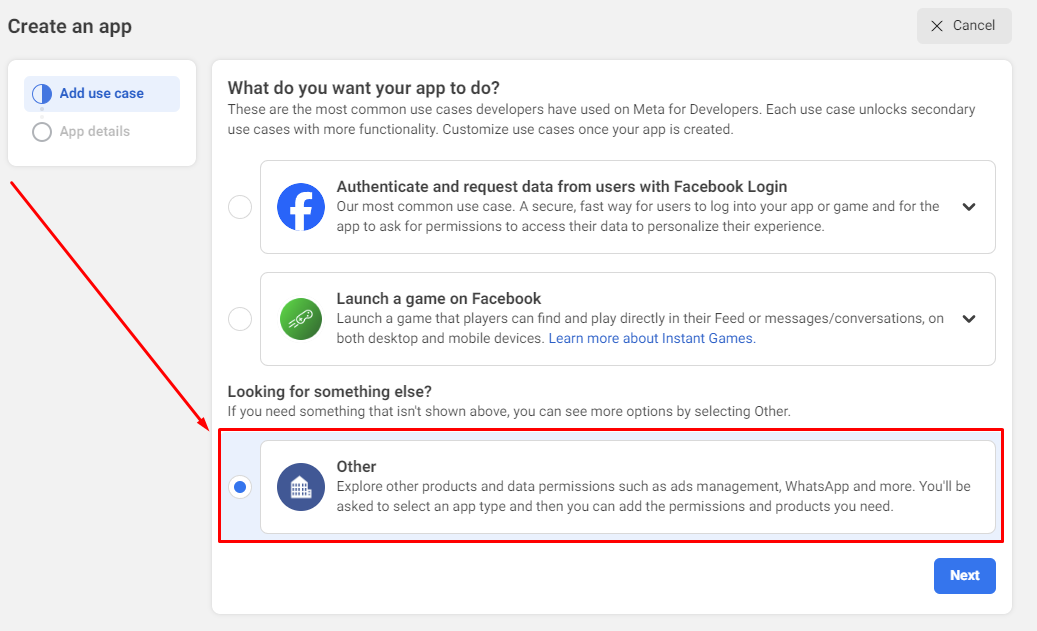
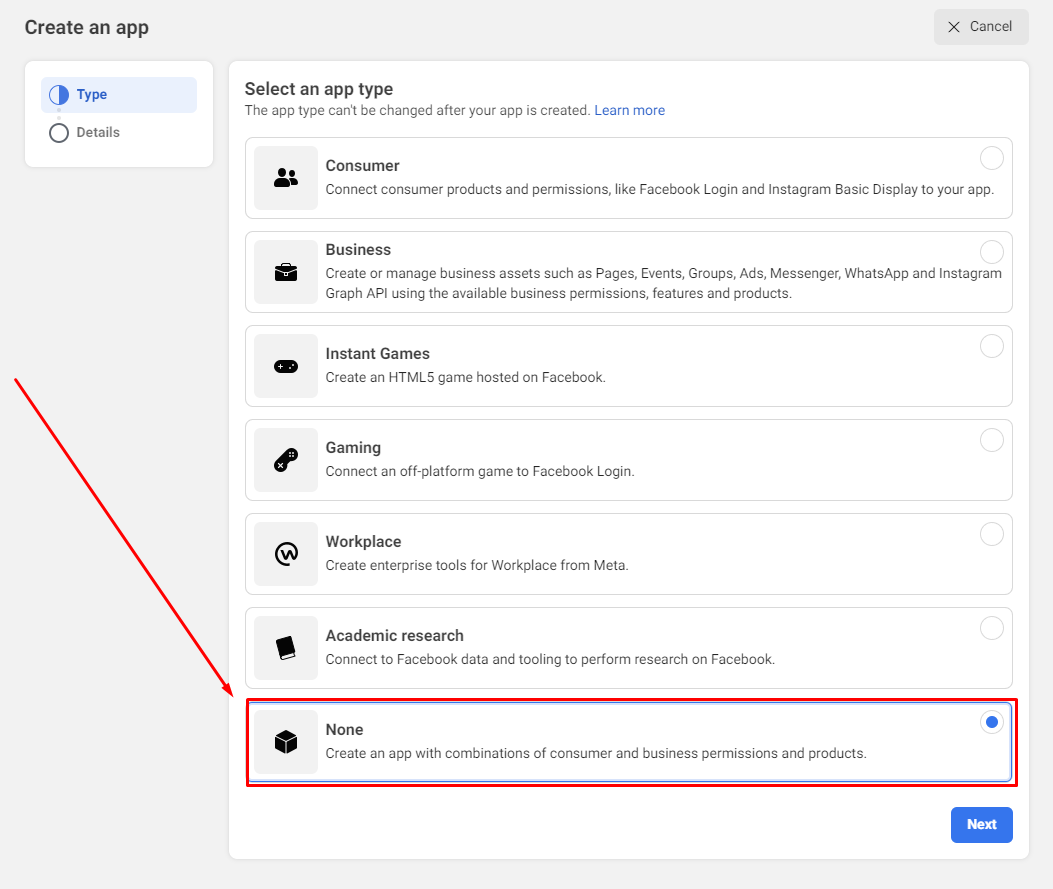
              Note: If you don’t see the NONE OPTION, please choose the BUSINESS OPTION

                Input your App Details and click Next.

              • Display name: This is the app name that will show on your My Apps page and associated with your app ID. You can change the name later in Settings.
              • App Contact Email: This is the email address we’ll use to contact you about your app. Make sure it is an address you check regularly. We may contact you about policies, app restrictions or recovery if your app is deleted or compromised.
              • Business Manager accoun(Optional): Connecting a business portfolio to your app is only required for certain products and permissions. You’ll be asked to connect a Business Account when you request access to those products and permissions. (Important: You must have a verified Facebook Bussiness Account to access the advanced permissions)

              Go back to Dashboard for Apps and select your App

              Step 4. Get App ID & App Secret Detail

              Get App ID and App Secret for Stackposts Configuration Click App Settings/ Basic at the left-side Menu in the Developer Facebook to show the App ID and App Secret Section. Click the “Show” button to display your App Secret Series  It looks like the example below:
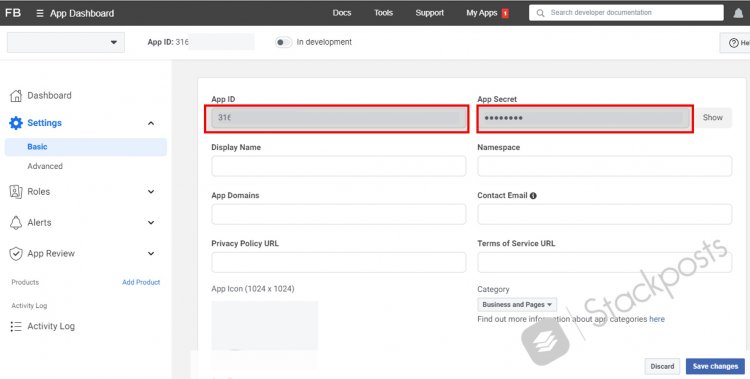
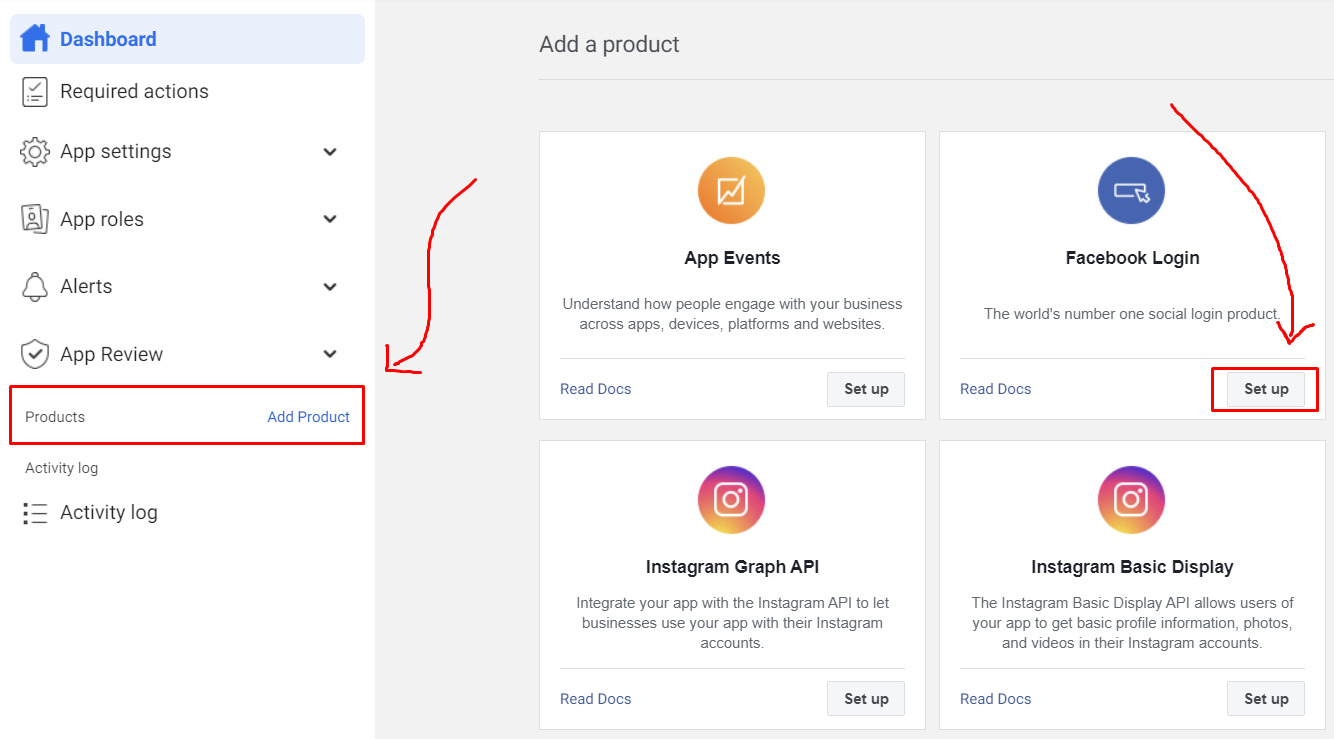
              • App ID: 311234693627458
              • App Secret: 5123f75b1234656b3cf34567b321fa12

              * Now we have App ID and App Secret for Stackposts Configuration.


              How to use

              Step 5: Create a Welcome Notification

              Summary: After configuring the opt-in, your site is ready to start gathering subscribers. But how can you be sure your push notifications are functioning correctly?

              We suggest sending a welcome push notification to verify everything is set up properly. This initial message serves as both a confirmation of the subscription and a warm welcome to your new subscribers.

              Create a Welcome Notification

              A welcome push notification serves two key purposes: it confirms successful subscription, reassuring users they’re subscribed, and it can re-engage users by offering a welcome coupon, encouraging further interaction with your brand.

              Access the StackPush dashboard and go to FeaturesWelcome Notification

              Your web push notifications are now set up on your website. Now, return to your StackPush dashboard and begin creating your push notification campaigns.

              Step 1: Add new Website

              Ensure SSL certification for secure connections.

              To configure other settings you need to add a new website

              To configure additional settings, you’ll first need to add a new website to your account. This will allow you to access and customize a broader range of options tailored to your specific needs.

              Input your website domain here

              Please enter your website domain in the field provided below. This will allow us to accurately connect your site with our services, ensuring seamless integration and optimal performance.

              Supported Browsers

              Important:
              Please ensure that your browser allows receiving new notifications by going to the browser settings and enabling notifications. <a href="#" rel="noopener" target="_blank"Learn more

              All major browsers now support web push notifications and here is a list of browsers compatible with web push notifications:

              Browser Windows PC MacOS 13/Later ChromeOS Ubuntu/Linux Android iPhone (iOS) iPad (iPadOS)
              Chrome Yes Yes Yes Yes Yes Yes Yes
              Firefox Yes Yes Yes Yes Yes No No
              Microsoft Edge Yes Yes N/A N/A Yes Yes Yes
              Opera Yes Yes Yes Yes Yes No No
              Safari N/A Yes N/A N/A N/A Yes Yes

               There are a few things to keep in mind:

              • Web Push doesn’t work in Incognito/Private Mode.
              • Web push notifications aren’t supported in in-app browsers like Facebook or Instagram.
              • Web Push doesn’t work in Android WebViews.
              If you have any questions, issues, or suggestions for this feature, please contact us here. We will answer as soon as possible

              Step 4: Configure Opt-in Box (Prompts)

              Opt-in is when users actively consent to receive notifications, such as for promotions. It’s best practice, and often legally required, to obtain this consent before adding users to messaging campaigns. Requesting opt-in enhances user engagement by reducing notification blocks and improving click-through and conversion rates.

              In this context, “prompting” means asking users for permission to send push notifications via a browser pop-up, where they must click “Allow” to subscribe.

              Note: Asking users to subscribe to push notifications without customizing the opt-in can seem suspicious. If it doesn’t match your brand, users may ignore it. Personalizing the opt-in is key to gaining their trust.

              You can select different styles for Desktop and Mobile. We’ll guide you through editing the Desktop opt-in, and the same steps apply to Mobile.

              Step 1: Select the Opt-in Box Theme

              Access the StackPush dashboard and go to SettingsOpt-in Box Theme


              Step 2: Editing Opt-in Box message

              Here’s where you need to explain to users why they should subscribe to your push notifications. Use compelling language to boost your subscription rate. By default, the CTA buttons are labeled “Allow” and “Block.”

              Step 3: Style Option

              You can pre-view the Mobile layout here:

              Themes and Background color

              Adjusting the background color. Use your brand’s existing color scheme to customize it and ensure it aligns with your color palette.

              You’ve learned how to design a tailored push notification opt-in for your website. Craft a unique opt-in that reflects your brand’s identity to boost subscription rates.

              Step 3: Website

              Website settings

              Website settings where you can customize your default icon, badge icon, and UTM parameters.

              iOS/iPadOS Configuration

              Please refer to this guide for details on what you need to set up this feature.

              Safari (macOS) Configuration

              Please refer to this guide for details on what you need to set up this feature.

              Step 2: Integrate

              HTTPS Websites

              Web Push for HTTPS Websites

              The sw.js file

              This setup guide is for HTTPS only websites. Please make sure that your website URL starts with https://


              Step 1: Download the sw.js File

              Click on the link to download the sw.js file. Make sure to save it to a location on your computer where you can easily find it later, such as your Downloads folder or a specific project directory.

              Step 2: Upload the sw.js File to the Root Directory of Your Website

              Log in to your website’s hosting account or access your server via FTP/SFTP or a file manager provided by your hosting service. Once you have access to your website’s files, locate the root directory of your website. The root directory is typically the main folder where your website’s core files are stored, often named public_html, www, or similar.

              Use the upload feature in your file manager or drag and drop the sw.js file from your local machine into the root directory of your website. Confirm that the file has been successfully uploaded and appears in the directory.

              Step 3: Insert the Provided Code into Your Website

              Carefully copy the entire code snippet that you’ve been provided. Ensure that there are no extra spaces or missing characters. Paste the copied code into the chosen file at the correct location. If the instructions specify where to place the code, follow those directions closely. For example, it might be inserted just before the closing </body> tag.

              After pasting the code, save the changes to the file. If you’re editing files directly on the server, this may happen automatically. If you’re editing locally, ensure you upload the modified file back to the server, replacing the old version.

              Once the code is added and the files are saved, visit your website in a browser to ensure that everything is working as expected. Clear your browser cache if necessary to see the changes.

              The manifest.json (iOS/iPadOS Configuration)

              First, ensure that you have completed all the required fields below to generate the Manifest.json file. You can follow this guide to know the information that you need to config your manifest.json file.

              Upload the manifest.json to the Root Directory of Your Website like these steps above. Clear your browser cache if necessary to see the changes.


              iOS and iPadOS for Safari

              Apple has released iOS and iPadOS 16.4, which now supports web push notifications for web apps, including those on the home screen. This update allows websites to prompt users to opt-in and send notifications to iPhone and iPad users globally.

              With iOS and iPadOS 16.4, push notifications are now supported on Safari, Google Chrome, and Edge for iPhone and iPad. This feature allows you to engage and target your customers with personalized notifications, even when they aren’t on your website.

              On iOS, web push notifications work differently than on Android and desktop. Users must first add your website to their Home Screen and open the Web App. After doing so, they can grant permission, allowing your web app to function like a native app. It will appear separately in the app switcher, have its own notification settings, and receive notifications just like other apps.

              Create a custom manifest (manifest.json)

              To make your website compatible with iOS, you need a Web Application Manifest, a JSON file that defines how your site should appear when opened from the Home Screen, including metadata like colors, icons, and the app name. You can easily create a custom manifest (manifest.json) using our built-in manifest generator available in your StackPush Dashboard.

              You can generate a custom Web App Manifest using the StackPush Web App Manifest generator, which is located under the “Website > iOS/iPadOS Configuration” section.

              To enable iOS web push notifications, you’ll need to set up a Web App Manifest with these key elements:

              • Short Name: A brief name (max 12 characters) for your web app, used when space is limited.
              • Name: The full name of your web app, typically up to 45 characters.
              • Start URL: A unique identifier for your web app, usually set to ‘/’ to determine where the app loads from.
              • Background Color: A placeholder color shown before your app’s stylesheet loads, ideally matching your website’s background color.
              • Theme Color: The default theme color for your app, influencing how it’s displayed by the OS.
              • Icon: A 512×512 PNG image used as the app’s shortcut icon on the home screen.

              Fill in these fields using the manifest builder, download the manifest.json file, and upload it to the root of your website. Follow this guide if you haven’t known yet how to upload it to your hosting/server.

              If you update any manifest fields, be sure to regenerate the new manifest.json file and re-upload it to your website, replacing the old file.

              Guidance popup for HomeScreen settings

              To help your customers get started with push notifications on Safari, we offer a customizable popup that guides users through saving your web app to their Home Screen and enabling notifications.

              On iOS and iPadOS, users need to save your website to their Home Screen before they can grant notification permission. Our custom popup helps users with this process by guiding them to save your web app using the share option and then allowing notifications within the app. To ensure a seamless experience, we recommend customizing the popup to match your site’s theme and highlighting the benefits of downloading your Web App.

              Integrate StackPush into your website.

              Ensure you’ve generated and uploaded the manifest to your website root and enabled web push for iOS. Then, follow our integration guides to add StackPush , enabling Popup for web push permission.

              For universal integration across all platforms, add a simple JavaScript snippet to the head section of your website and upload the service worker (sw.js) to your website root.

              Web push notifications are supported on iOS 16.4 or later for Safari, Google Chrome, and Edge only. For using, you’ll need an iPhone or iPad with iOS 16.4 or later.

              MacOS for Safari

              Web Push notifications are supported in Safari 16 on macOS 13 (Ventura) or later, using the standard Web Push API, like Chrome and Firefox.

              Apple has released iOS and iPadOS 16.4, which now supports web push notifications for web apps, including those on the home screen. This update allows websites to prompt users to opt-in and send notifications to iPhone and iPad users globally.

              With iOS and iPadOS 16.4, push notifications are now supported on Safari, Google Chrome, and Edge for iPhone and iPad. This feature allows you to engage and target your customers with personalized notifications, even when they aren’t on your website.

              On iOS, web push notifications work differently than on Android and desktop. Users must first add your website to their Home Screen and open the Web App. After doing so, they can grant permission, allowing your web app to function like a native app. It will appear separately in the app switcher, have its own notification settings, and receive notifications just like other apps.

              VAPID Configuration

              You can read more about VAPID in this article from Mozilla.

              which is located under the “Settings > Web Push Config > VAPID Configuration” section.

              Click this link to create VAPID:  https://vapidkeys.com/

              This tool helps you easily generate secure keys for VAPID

              VAPID, which stands for Voluntary Application Server Identity, is a new way to send and receive website push notifications. Your VAPID keys allow you to send web push campaigns without having to send them through a service like Firebase Cloud Messaging (or FCM). Instead, the application server can voluntarily identify itself to your web push provider.

              Composer (Send Notification)

              This feature allows you to create a new notification to schedule your message to be sent at a later time.

              Push notifications grab users’ attention with text, images, or buttons when they’re not on your site. This guide helps you set them up.

              Ask permission to send push notifications

              To receive push notifications, users must subscribe (also known as “opt-in”). This process involves setting up and displaying a Configure Opt-in Box (Prompts) that requests their permission.

              Once the prompt appears, users will need to actively accept the request to begin receiving notifications from your site.

              Web push notification design

              You can fully customize the appearance of your push notifications by following these detailed guides. Tailor every aspect, including icons, images, action buttons, and other visual elements, to match your brand and create a more engaging user experience.

              These guides will walk you through the process step-by-step, ensuring your notifications are both functional and visually appealing.

              1. Title

              The title of the push notifications doesn’t support custom fonts or styling like bold, italics, or underlines, it is controlled by the operating system.

              • Around 60-80 character limit.
              • Supports: Emojis 😃

              2. Message

              The localized text provides the main content of the notification, delivering the core message to the user. However, push notifications do not support custom fonts or advanced styling options such as bold, italics, or underlining.

              The appearance and overall style, including font type and size, are determined by the operating system

              • Around 150 characters limit.
              • Supports: Emojis 😃

              3. URL

              This is a URL that directs your users to a specific webpage you want them to visit.

              When users click on the notification, they will be taken directly to this designated page, making it an essential tool for guiding traffic to relevant content, promotions, or any important section of your website.

              By strategically choosing this URL, you can ensure that users are led to the exact location that aligns with your goals, whether it’s a product page, a blog post, or a special offer.

              4. Custom Icon

              The most effective way for users to instantly recognize your brand is through a clear and memorable icon.

              You can set up a default icon for your brand in the Website Settings, ensuring it consistently appears in your notifications.

              This icon will help reinforce brand recognition whenever users receive a message from you.

              Additionally, if you want to personalize or highlight specific notifications, you have the option to change the icon for individual messages as needed, allowing for greater flexibility while maintaining brand visibility.

              • Recommended size is 256×256 pixels.
              • Supports: PNG, JPG

              5. Include UTM Params

              UTM parameters are specific query parameters that you append to URLs to track and measure the effectiveness of your marketing campaigns.

              By including these parameters, you can gain valuable insights into how different sources, mediums, or campaigns contribute to traffic and engagement on your website.

              These parameters help you understand which marketing strategies are working best, allowing you to optimize your efforts based on real data.

              You have the flexibility to modify these values to better align with your specific requirements and marketing objectives.

              • Source = webpush
              • Medium = push
              • Name= 2024-09-09-flash-sale

              Example URL with UTM parameters appended from the settings:

              https://abc.com?utm_source=webpush&utm_medium=push&utm_campaign=2024-09-09-flash-sale

              6. Campaign

              You can monitor and analyze the outcomes of the prompts associated with a particular campaign you are managing.

              By tracking these results, you can gain insights into how well your prompts are performing within the context of the campaign, allowing you to evaluate their effectiveness and make informed adjustments.

              This process helps ensure that your campaign’s objectives are being met and provides valuable data on user interactions and engagement with your prompts.

              You can check this guide to learn more about Campaign Feature.

              7. Add Large Image (Supported on Chrome 56+)

              8. Action Buttons

              9. Set Notification Expiry

              10. Auto-hide Notification (Chrome)

              11. Select Audience

              12. Advanced Options

              13. When to post

              14. Preview


              If you have any questions, issues, or suggestions for this feature, please contact us here. We will answer as soon as possible

              A/B Testing

              Enhance Your Messages Using Stackpush’s Multivariate Testing Platform

              A/B Testing Push Notifications

              When you are trying to reach out to your subscribers, you would want to make sure everything goes right the first time around. This is where A/B Testing can help to find the best message variant which would lead to higher conversions.

              A/B testing allows you to compare two variants of the notification by sending it to select portions of your subscriber base. You can try different copy, images, call to action, or any combination of these to make sure you have the best chances for a conversion.

              The test size is determined automatically based on the audience you choose. The winner is determined based on click through and other positive signals related to a notification. Once the winner is chosen, that notification is sent to the remaining target audience.

              Setting up A/B testing campaign:

              • Create the copy and creatives for both the variants.
              • Add the values to the respective fields on the A/B test page.
              • Run the campaign.

              Note:

              • To reach a significant result from the two notifications, A/B testing requires at least 100 subscribers. Once you cross this threshold, you will be able to send A/B notifications.
              If you have any questions, issues, or suggestions for this feature, please contact us here. We will answer as soon as possible

              Welcome Drip

              Welcome Drip Notifications

              With welcome drip campaign you can send a series of notifications to your new subscribers. With these you can automate customer on-boarding, and direct the way they navigate your website.

              To start with the automation, it is important that you visualize the funnel and identify the steps the user has to take at every stage to lead to a conversion. Once done, you will then have a set of URLs through which the user moves in the funnel. In this article, we explain the steps required to create your automation funnel based on a discrete set of URLs.

              A welcome drip campaign can help in creating a great on-boarding experience and lead nurturing.

              • You can create a great first impression about your website/service by acknowledging the subscription to notifications, giving them an example of how the updates would be sent in the future.
              • Send a series of on-boarding push messages to help your subscribers get acquainted with your website/service, or direct them towards a specific journey.
              • You can pre-define any number of notifications, which would keep your subscribers engaged.
              • If you run an e-commerce website, you can share coupon codes for new users or inform them about offers running on the website.
              • Build a strong relationship with your subscribers, by helping them with features on your website, tutorial videos or announcing new products.

              Setting up Welcome Drip Notifications

              Welcome notifications are now welcome drip notifications. If you had welcome notifications enabled, they have now been converted to a welcome drip with a single step and immediate delivery. So it works the same as before. But you can now add more steps to the drip and automate subscriber re-engagement.

              • The first step is already created for you. You can click on the green edit icon to make changes to the notification.
              • You can add CTA buttons, add a large image which is known to boost click-through.
              • Once you have customized the notification, click on Save Notification.
              • Now, you can set the time when you want the first notification from the welcome drip to go out. By default it is set to 0 minutes, which means it is set to go out immediately as soon as the user subscribes.
              • Now you can add the next step in the drip by clicking on the Add button.
              • You will get a popup to edit the notification content. Save this notification once you are done with the changes.
              • This notification will be sent after the previous notification, you can specify the duration after which it should be sent. You can set the duration in minutes, hours or even days from the previous notification.
              • Similarly, you can add more steps to the drip campaign, and once you are set, click on Enable at the bottom. That’s it, the drip campaign is now active and it will keep your subscribers engaged.

              Editing an active drip campaign

              • If you want to edit an active active campaign, click on the Edit button at the bottom. You will be notified that the current drip will be stopped for the subscribers that are already in this drip campaign.
              • What this means is that, for the subscribers who have not yet completed this drip campaign, they will not get further notifications from this campaign.
              • Essentially, if you edit the welcome drip campaign, it is paused immediately and will only send notifications to new subscribers once it is enabled.
              • Once you are in the Edit mode, you can change the timing, add or delete steps or change the notification content as well.
              • Once you are done with the changes, click on Enable to start the drip for new subscribers.

              Welcome Drip Analytics

              • Welcome drip campaign has a separate reporting dashboard. Click on the View Stats button at the bottom of the page to check the statistics on the current drip.
              • The analytics here give you an in-depth look at the performance of the campaign, right from how many subscribers entered to how many completed the drip.
              • You also get detailed analytics on clicks as well as click-through rate for each step of the welcome notification campaign.

              Optimizing your Drip Campaign

              • Make sure the previous notification expires before the next is sent out: To do that, set the previous notification to expire before the next is set to go out. You wouldn’t want your subscribers to be bombarded with notifications if they had gone out on a holiday.
              • Give the notifications some space to breathe: Timing is the key to getting meaningful engagement from push notifications. Space them so as to not overwhelm your subscribers. For eg. if you run an e-commerce website, you can start with a welcome coupon which can be used for the first purchase. Then, after a few days, you can check back if they made a purchase and also send them links to popular or new products on your website. Next, you can talk about any rewards program you may have, bulk shipping coupons. And finally ask for feedback on their experience.
              • Add call to action buttons to notifications: Call to action or CTA buttons help guide your customers through a specific journey. While the main body of the notification can be used to direct the journey as well, CTA buttons provide context.
              • Large images boost click-through rates: Notifications are a visual medium, and adding large images not only draws attention but makes them more clickable as well. You can stand out from the clutter with a well timed notification with a hero image that highlights the context of the notification.

              Campaign

              When starting a new campaign, you need to create it and assign a name, such as “Flash Sale” or “Product Launch.” All data related to the notifications you send will be displayed within that campaign.

              Overview

              Follow from Navigations: FeaturesCampaign

              For a comprehensive overview, please review the detailed information for each of your campaigns.

              All of your data will be presented in this format, allowing you to view and analyze it comprehensively.

              Please refer to this guide for detailed instructions on how to edit and delete your campaigns. This will provide you with step-by-step directions to make the necessary changes or remove campaigns as needed.

              How to use it

              When sending notifications, it is important to select the appropriate campaign name. This ensures that all related results, including performance metrics and user engagement data, will be accurately tracked and stored in the campaign details for future analysis and reporting.

              By organizing this information under the campaign name, you can better assess the effectiveness of your notifications and make informed decisions for future campaigns.

              Follow FeaturesComposer Campaign


              Schedules

              Audience Creator

              Audience Creator

              Target users based on their interests, number of visits, location, device and more. Audience Creator lets you create dynamic segments based on user behavior. You can also further enhance subscription data with custom attributes or rich data to create specific segments.

              Creating a new Audience

              • Head to Audience Creator on your Dashboard.
              • Give your Audience a name. Please write a name that matches the Audience characteristics, as this will be used to send notifications later.
              • Choose from the below mentioned parameters to create unique audiences. You can combine different rules to further pin-point your target customers.

              Manual Segmentation

              You can use manual segmentation to send personalized messages tailored to each person’s interests and actions, rather than sending the same prompt to everyone.

              SegmentationManual segmentation

              This feature relies on your Subscriber list. A specific user will be added to the Manual Segmentation when they visit the page where you’ve placed the Manual Segment Code.

              Step #1: Create a Manual Segment for Your Push Campaigns

              To create a successful campaign, start by setting up segments and audience groups to deliver personalized push messages.

              Step #2: Place the Manual Segmentation Code on the specific page

              To target a specific page with Manual Segmentation, start by placing the Manual Segmentation Code on that page.

              Begin by adding an HTML block to the page, and then insert the provided code into the HTML block. This will ensure that users who visit this page are added to the designated segment.

              Additionally, you have the flexibility to create dynamic segments for any landing page of your choice. This allows you to target and engage specific audiences based on the landing pages they visit, tailoring your communication for maximum relevance.

              Sent Notification

              Subscribers

              Subscriber Information

              Geo Location

              Browser/Device

              API

              Widget

              Requirements for Installation

              1. Server Specifications

              Check this guide to know in detail Server Specifications for StackPush Script

              2. Server Requirements

              Follow this guide to know Server Requirements before installing StackPush

              If you have any questions, issues, or suggestions for this feature, please contact us here. We will answer as soon as possible


              Profile Settings

              👤 Accessing Profile Settings

              To manage your personal settings, timezone, or account preferences, navigate to:

              App > Profile (usually found in the top-right corner under your avatar).

              From the Profile section, you can:

              • Set or update your timezone

              • Change your language preferences

              • View or update your name, email, and password

              • Manage notification and UI display preferences

              This is the first step to personalizing your workspace experience.

              Facebook API Official

              📘 Facebook App Setup for Stackposts


              1. Prerequisites

              Before creating your Facebook App, prepare the following:

              • ✅ Secure domain with HTTPS (e.g., https://yourdomain.com)

              • Privacy Policy pagehttps://yourdomain.com/privacy-policy

              • Terms of Service pagehttps://yourdomain.com/terms-of-service

              • Data Deletion pagehttps://yourdomain.com/delete-data.html

              • ✅ Business account on Meta Business Manager that is Business Verified

              • ✅ App logo (1024 × 1024, PNG or JPG)

              • ✅ Support email (e.g., [email protected])

              • ✅ Active Meta Developer account


              2. Create a Facebook App

              1. Go to Meta for Developers.

              2. Click My Apps → Create App.

              3. Select App Type = Business → click Next.

              4. On Use Cases, scroll down and select Other → click Next.

                • ⚠️ Choosing Other ensures you can manually configure all needed permissions.

              5. Select your verified Business account.

              6. Finish app creation.


              3. Configure Basic App Settings

              Navigate to App Settings → Basic and fill in:

              • App Domains: yourdomain.com

              • Privacy Policy URL: https://yourdomain.com/privacy-policy

              • Terms of Service URL: https://yourdomain.com/terms-of-service

              • User Data Deletion URL: https://yourdomain.com/delete-data.html

              • App Icon: upload 1024 × 1024 logo

              • Category: Business and Pages

              • Support Email: [email protected]

              Click Save changes.

              ⚠️ Without these, your app will show “Currently Ineligible for Submission.”

              Example file delete-data.html :

              <!DOCTYPE html>
              <html lang=”en”>
              <head>
              <meta charset=”UTF-8″>
              <meta name=”viewport” content=”width=device-width, initial-scale=1.0″>
              <title>Data Deletion Instructions</title>
              <style>
              body {
              font-family: ‘Segoe UI’, Tahoma, Geneva, Verdana, sans-serif;
              background: #f9fafb;
              margin: 0;
              padding: 0;
              color: #333;
              }
              .container {
              max-width: 700px;
              margin: 60px auto;
              background: #fff;
              padding: 40px;
              border-radius: 16px;
              box-shadow: 0 6px 18px rgba(0,0,0,0.1);
              text-align: center;
              }
              h1 {
              font-size: 28px;
              margin-bottom: 16px;
              color: #675dff; /* primary brand color */
              }
              p {
              font-size: 16px;
              line-height: 1.6;
              margin-bottom: 20px;
              }
              .email {
              display: inline-block;
              margin-top: 10px;
              padding: 12px 24px;
              background: #675dff;
              color: #fff;
              text-decoration: none;
              font-weight: 600;
              border-radius: 8px;
              transition: background 0.3s ease;
              }
              .email:hover {
              background: #574be0;
              }
              footer {
              margin-top: 40px;
              font-size: 14px;
              color: #777;
              }
              </style>
              </head>
              <body>
              <div class=”container”>
              <h1>Data Deletion Request</h1>
              <p>
              At Miropost, we respect your privacy. If you wish to request the deletion of your data from our system,
              please contact us by email.
              </p>
              <a href=”mailto:[email protected]” class=”email”>Request Data Deletion</a>
              <p>
              We will process your request within <strong>7 business days</strong>.
              </p>
              <footer>
              &copy; 2025 Miropost. All rights reserved.
              </footer>
              </div>
              </body>
              </html>


              4. Add Facebook Login

              1. In the left sidebar → Add Product.

              2. Choose Facebook Login for Business → Set Up.

              3. Go to Facebook Login → Settings and configure:

              • Client OAuth Login: YES

              • Web OAuth Login: YES

              • Enforce HTTPS: YES

              • Valid OAuth Redirect URIs:

                https://yourdomain.com/app/facebook/profile
                https://yourdomain.com/app/facebook/page
              • Data Deletion Request URL:

                https://yourdomain.com/delete-data.html

              Save changes.


              5. Business & Access Verification

              Navigate to App Dashboard → Verification:

              • Business Verification: Upload legal docs, verify domain, confirm phone number.

              • Access Verification: Required if you are a Tech Provider.

              👉 Both must show Verified before requesting advanced access.


              6. Request Advanced Access for Permissions

              Go to App Review → Permissions and Features and request:

              • pages_manage_posts → create, edit, delete posts

              • pages_read_engagement → retrieve likes, comments, shares, insights

              • pages_show_list → display list of Pages user manages

              • business_management → manage assets under Business Manager

              📌 Notes:

              • You must successfully test each permission with at least one API call.

              • Wait up to 24 hours after the first successful call before the Request Advanced Access button appears.

              Example test calls:

              • GET /me/accounts → tests pages_show_list

              • POST /{page-id}/feed → tests pages_manage_posts


              7. Permission Descriptions (for App Review)

              pages_manage_posts

              Description:
              Our app allows users to create, publish, and schedule posts directly to their Facebook Pages from the Stackposts platform. This feature is essential for social media managers and businesses who need to manage multiple Pages efficiently. By granting this permission, the app can automate publishing workflows and ensure posts appear at the correct time on the selected Pages.

              Value for user:
              Users save time by managing all of their social media content in one place. They can schedule posts in advance, ensure consistent branding, and reduce the risk of missing important publishing deadlines.

              Necessity:
              Without this permission, the app cannot create or edit content on behalf of the user’s Page, meaning one of the core functionalities (publishing and scheduling posts) would not work.

              pages_read_engagement

              Description:
              Our app retrieves insights and engagement data from Facebook Pages, including likes, comments, shares, and reach metrics for posts. This data is displayed in analytics dashboards inside Stackposts, allowing users to track the performance of their content.

              Value for user:
              Users gain visibility into how their audience interacts with their content. This helps them identify what types of posts are most effective, optimize future campaigns, and make data-driven decisions to improve engagement.

              Necessity:
              Without this permission, the app cannot show engagement statistics, which is a core part of the analytics module. This would significantly reduce the usefulness of the app for businesses and marketers.

              pages_show_list

              Description:
              Our app uses this permission to fetch the list of Facebook Pages that a logged-in user manages. The user can then select which Page(s) they want to connect to Stackposts for publishing and analytics.

              Value for user:
              Users with multiple Pages (e.g., agencies or businesses managing several brands) can easily see all available Pages and connect the ones they want to manage. This improves usability and reduces confusion.

              Necessity:
              Without this permission, the app cannot know which Pages the user owns or manages, making it impossible to let the user choose a Page to connect.

              business_management

              Description:
              Our app requires this permission to manage Facebook Page assets under the user’s Business account. It ensures that connected Pages, tokens, and assets are correctly assigned to the user’s business for publishing and analytics.

              Value for user:
              This enables smooth integration with Business Manager accounts, allowing teams and agencies to securely manage multiple Pages and assets in one platform.

              Necessity:
              Without this permission, the app cannot correctly manage Page assets in Business Manager, which is required for businesses that use multiple admins or handle multiple clients.


              8. Record a Demo Video

              Meta reviewers require a clear 3–5 minute demo video showing:

              1. Log in to Stackposts with Facebook.

              2. Go to Channels → Add Channel → Facebook → Add Page.

              3. Facebook login popup appears → approve requested permissions.

              4. Page connects successfully in Stackposts.

              5. Create a post → choose Post Now → publish.

              6. Open the Page on Facebook → verify the post.

              7. Show analytics dashboard with likes, comments, reach data.


              9. Test with Testers

              1. Go to App Roles → Testers.

              2. Add another Facebook account.

              3. Log in as the tester → connect a Page → publish a test post.


              10. Submit App for Review

              1. Go to App Review → Permissions and Features.

              2. Select requested permissions → click Request Advanced Access.

              3. Provide the descriptions (section 7).

              4. Upload demo video (section 8).

              5. Submit.

              ⏳ Review time: typically 5–10 business days.


              11. After Approval

              • Permissions will switch from Standard Access → Advanced Access.

              • Set your app to Live Mode.

              • Real users (not just testers) can connect their Facebook Pages.

              Stackposts can now:

              • ✅ Connect Pages

              • ✅ Publish & schedule posts

              • ✅ Retrieve Page analytics


              📘 Guide: How to Apply for Tech Provider (Access Verification) on Facebook

              To avoid the limitation of 4 apps and to request Advanced Access for permissions (pages_manage_posts, pages_read_engagement, etc.), you must complete Access Verification – Tech Provider.

              Below is the step-by-step process:


              🔹 Step 1: Complete Business Verification

              1. Go to Business Settings.

              2. Navigate to Business Info → complete the business verification (upload business license, verify domain, company phone number, and email).

              3. Once approved, the status will show Business Verified.


              🔹 Step 2: Start Access Verification

              1. Open Meta for DevelopersApp Dashboard.

              2. Go to VerificationAccess Verification section.

              3. Click Start to fill out the form.


              🔹 Step 3: Fill in the Access Verification Form

              You will see a form like this:

              • Which options best describe your business?
                → Select SaaS Platform (if you are providing a software-as-a-service product).

              • How will your business use Platform Data?
                → Write a clear and short explanation, for example:

                Our platform helps businesses and individuals manage their social media presence by scheduling posts, publishing content, and analyzing engagement. We use Facebook Platform Data (such as Pages, posts, and insights) only to allow our clients to publish to their Facebook/Instagram accounts and view analytics about their own content. The data is used exclusively to provide these features and is not shared or resold.

              • Does your business manage multiple business portfolios?
                → Choose No, unless you really manage multiple Business Managers for your clients.

              • Provide a link to your website
                → Enter your official website URL (e.g., https://miropost.com/). The site must publicly show details about your service/product.


              🔹 Step 4: Submit & Wait for Review

              • After submission, Meta will review your request (usually within 5 business days).

              • If successful, you will see the status:
                “Your business was verified as a Tech Provider.”


              🔹 Step 5: Done!

              When both Business Verification and Access Verification show as Verified, your business is officially recognized as a Tech Provider.

              👉 At this stage:

              • You are no longer limited to 4 apps.

              • You can send apps for App Review to request Advanced Access permissions.

              Blogs

              1. Introduction

              The Blog Management module allows you to create, edit, and organize blog content inside Stackposts.
              Admins can publish articles, manage categories, and use tags to keep content structured and easy to find.


              2. Menu Navigation

              From the left sidebar, go to Blogs. You will see four options:

              • Add New – Create a new blog post

              • View All Posts – Manage all existing posts

              • Manage Categories – Create and organize blog categories

              • Manage Tags – Create and manage blog tags


              3. Add a New Blog Post

              Click Blogs → Add New. You will see the blog editor screen.

              Blog Fields:

              • Title – The headline of your blog post

              • Description – A short summary of the article

              • Content – Main article body (with rich text editor)

              • Category – Assign the post to one or more categories

              • Thumbnail – Upload a featured image

              • Tags – Add relevant tags for search and filtering

              • Status – Choose Enable (published) or Disable (draft)

              • Featured – Mark the post as a featured article on the website

              👉 After filling all required fields, click Save to publish or store the post.


              4. Manage All Blog Posts

              Go to Blogs → View All Posts.
              Here, you can:

              • See a list of all blog posts with title, category, status, and creation date

              • Use Search & Filters to quickly find posts

              • Perform bulk actions: Enable, Disable, or Delete multiple posts at once

              • Use the Actions menu on each post to edit, enable/disable, or delete it


              5. Manage Categories

              Go to Blogs → Manage Categories.

              • Add a new category using + Create New

              • Categories help group related blog posts (e.g., Analytics, Automation, Social Media)

              • Use Actions to edit, enable/disable, or delete categories

              • You can also use filters and search to manage large sets of categories


              6. Manage Tags

              Go to Blogs → Manage Tags.

              • Tags are keywords that describe your content (e.g., Instagram, AI Writing, Scheduling)

              • Use + Add New to create a tag with a name and description

              • Tags improve searchability and make posts easier to find

              • Use the Actions menu to edit, enable/disable, or delete tags


              7. Best Practices

              • Use Categories for broad topics and Tags for specific keywords

              • Always add a Thumbnail for a professional look

              • Keep the Description short (1–2 sentences) for SEO optimization

              • Use Featured Posts to highlight key content on your platform


              Privacy Policy

              General Settings

              ⚙️ General Settings

              Easily configure your platform’s core preferences, branding, and contact details.


              🌐 Website Settings

              • Website Title – Enter the name or tagline of your platform.

              • Website Description – Short description to explain what your platform does (displayed in SEO and meta tags).

              • Website Keywords – Add keywords separated by commas to improve search engine optimization.


              🖼️ Logo Settings

              • Website Favicon – Upload your site’s small icon (displayed in browser tabs).

              • Website Logo (Dark & Light) – Upload both light and dark versions of your logo to ensure it looks good on different themes.

              • Brand Logo (Dark & Light) – Alternative branding logos for marketing or white-label use.


              📅 Date and Time Formats

              • Date Format – Choose how dates should be displayed across the platform (e.g., 10/09/2025).

              • Date & Time Format – Choose how dates with time should be displayed (e.g., 10/09/2025 14:16).


              📞 Contact Settings

              • Company Name – Enter your business or platform name.

              • Company Website – Link to your main website.

              • Email Address – Support or contact email.

              • Phone Number – Customer support phone number.

              • Working Hours – Display your official support or office hours.

              • Location – Your business address.


              ✅ Don’t forget to click Save changes after updating your settings.


              Social Analytics

              Facebook Analytics

              📖 Documentation: Adding read_insights in Facebook API Settings

              🔹 Step 1. Navigate to API Integration

              1. Log in to your Stackposts Admin Dashboard.

              2. Go to Settings → API Integration → Facebook.


              🔹 Step 2. Add read_insights Permission

              1. In the Facebook Page section, locate the Permissions field.

              2. Add read_insights to the list of permissions.
                Example:

                pages_read_engagement,pages_manage_posts,pages_show_list,read_insights
              3. Ensure your Callback URL is correctly set (e.g., https://yourdomain.com/app/facebook/page).


              🔹 Step 3. Save Changes

              • Click Save changes to update the Facebook integration settings.


              🔹 Step 4. Re-authenticate Facebook Pages

              • Users who have already connected their Facebook Pages will need to reconnect them.

              • During re-authentication, they will see the additional read_insights permission request.


              🔹 Step 5. Submit read_insights for Facebook App Review

              1. Go to your Facebook App Dashboard → App Review → Permissions and Features.

              2. Request approval for read_insights.

              3. Provide explanation + screenshots (Stackposts fetching page analytics such as reach, impressions, and engagement).


              📊 Adding read_insights Permission for Facebook Analytics

              To enable Facebook Analytics in Stackposts, your Facebook App must request and be approved for the read_insights permission. This permission allows your app to read metrics, insights, and other analytical data from Pages, Posts, and other Facebook objects.


              🔹 Step 1. Go to Facebook App Dashboard

              1. Log in to Meta for Developers.

              2. Select your Facebook App used for Stackposts.

              3. Navigate to App Review → Permissions and Features.


              🔹 Step 2. Request read_insights

              1. In the list of permissions, find read_insights.

              2. Click Request.

              3. Fill out the required details:

                • How you will use this permission → Explain that your app uses it to fetch analytics data from Facebook Pages and Posts for users who have connected their accounts in Stackposts.

                • Provide screenshots or video showing:

                  • How users connect their Facebook Page in Stackposts.

                  • How insights (reach, impressions, engagement) are displayed inside the dashboard.


              🔹 Step 3. Provide Test Accounts for Review

              • Add a test account with access to a Facebook Page.

              • Ensure that the reviewer can:

                1. Log in via your Stackposts app.

                2. Connect a Page.

                3. See analytics data (Page reach, Post engagement, etc.) fetched using read_insights.


              🔹 Step 4. Update Scopes in Stackposts

              In your Stackposts configuration (Facebook integration), make sure you include read_insights when requesting permissions during the login flow. Example scopes:

              pages_read_engagement, pages_manage_posts, pages_show_list, read_insights

              🔹 Step 5. Submit for Review

              • After preparing the explanation and demo, click Submit for Review.

              • Once approved, all Stackposts users can grant this permission when connecting their Facebook Pages, enabling advanced analytics.


              ⚠️ Important Notes

              • read_insights is a standard permission but still requires review by Meta.

              • Without approval, only Admins/Developers/Testers of your app can use it.

              • Ensure your app’s Privacy Policy and Terms of Service links are valid before submission.

              Instagram Analytics

              📖 Documentation: Adding instagram_manage_insights in Instagram API Settings

              🔹 Step 1. Navigate to API Integration

              • Log in to your Stackposts Admin Dashboard.

              • Go to Settings → API Integration → Instagram.


              🔹 Step 2. Add instagram_manage_insights Permission

              • In the Instagram Permissions field, add instagram_manage_insights to the list of permissions.

              Example:

              instagram_basic,instagram_content_publish,pages_show_list,business_management,instagram_manage_insights
              • Ensure your Callback URL is correctly set (e.g.,
                https://yourdomain.com/app/instagram/profiles).


              🔹 Step 3. Save Changes

              • Click Save changes to update the Instagram integration settings.


              🔹 Step 4. Re-authenticate Instagram Accounts

              • Users who have already connected their Instagram Business/Creator accounts will need to reconnect them.

              • During re-authentication, they will see the additional instagram_manage_insights permission request.


              🔹 Step 5. Submit instagram_manage_insights for App Review

              • Go to your Facebook App Dashboard → App Review → Permissions and Features.

              • Request approval for instagram_manage_insights.

              Fill out the required details:

              • How you will use this permission → Explain that your app uses it to fetch analytics (reach, impressions, engagement, demographics) from Instagram accounts for users who have connected them in Stackposts.

              • Provide screenshots or video showing:

                • How users connect their Instagram account in Stackposts.

                • How insights (reach, impressions, engagement) are displayed inside the dashboard.


              📊 Adding instagram_manage_insights Permission for Instagram Analytics

              To enable Instagram Analytics in Stackposts, your app must request and be approved for the instagram_manage_insights permission.
              This permission allows your app to read metrics, insights, and other analytical data from Instagram Business/Creator accounts.


              🔹 Step 1. Go to Facebook App Dashboard

              • Log in to Meta for Developers.

              • Select your Facebook App used for Stackposts.

              • Navigate to App Review → Permissions and Features.


              🔹 Step 2. Request instagram_manage_insights

              • In the list of permissions, find instagram_manage_insights.

              • Click Request.

              • Fill out the required details:

                • How you will use this permission → Describe that Stackposts uses it to fetch analytics from Instagram accounts (reach, impressions, engagement) for connected users.

                • Provide screenshots or demo video showing:

                  • The connection flow (login with Facebook → choose IG account).

                  • Analytics charts inside Stackposts using IG data.


              🔹 Step 3. Provide Test Accounts for Review

              • Add a test account that has access to an Instagram Business/Creator account linked to a Facebook Page.

              • Ensure that the reviewer can:

                1. Log in via your Stackposts app.

                2. Connect an Instagram account.

                3. See analytics data (reach, impressions, engagement) fetched using instagram_manage_insights.


              🔹 Step 4. Update Scopes in Stackposts

              • In your Stackposts configuration (Instagram integration), make sure you include instagram_manage_insights when requesting permissions during the login flow.

              Example scopes:

              instagram_basic,instagram_content_publish,pages_show_list,business_management,instagram_manage_insights

              🔹 Step 5. Submit for Review

              • After preparing the explanation and demo, click Submit for Review.

              • Once approved, all Stackposts users can grant this permission when connecting their Instagram accounts, enabling advanced analytics.


              ⚠️ Important Notes

              • instagram_manage_insights is a standard permission but still requires Meta review.

              • Without approval, only Admins/Developers/Testers of your app can use it.

              • Ensure your app’s Privacy Policy and Terms of Service links are valid before submission.

              Instagram Analytics

              📖 Documentation: Adding instagram_manage_insights in Instagram API Settings

              🔹 Step 1. Navigate to API Integration

              • Log in to your Stackposts Admin Dashboard.

              • Go to Settings → API Integration → Instagram.


              🔹 Step 2. Add instagram_manage_insights Permission

              • In the Instagram Permissions field, add instagram_manage_insights to the list of permissions.

              Example:

              instagram_basic,instagram_content_publish,pages_show_list,business_management,instagram_manage_insights
              • Ensure your Callback URL is correctly set (e.g.,
                https://yourdomain.com/app/instagram/profiles).


              🔹 Step 3. Save Changes

              • Click Save changes to update the Instagram integration settings.


              🔹 Step 4. Re-authenticate Instagram Accounts

              • Users who have already connected their Instagram Business/Creator accounts will need to reconnect them.

              • During re-authentication, they will see the additional instagram_manage_insights permission request.


              🔹 Step 5. Submit instagram_manage_insights for App Review

              • Go to your Facebook App Dashboard → App Review → Permissions and Features.

              • Request approval for instagram_manage_insights.

              Fill out the required details:

              • How you will use this permission → Explain that your app uses it to fetch analytics (reach, impressions, engagement, demographics) from Instagram accounts for users who have connected them in Stackposts.

              • Provide screenshots or video showing:

                • How users connect their Instagram account in Stackposts.

                • How insights (reach, impressions, engagement) are displayed inside the dashboard.


              📊 Adding instagram_manage_insights Permission for Instagram Analytics

              To enable Instagram Analytics in Stackposts, your app must request and be approved for the instagram_manage_insights permission.
              This permission allows your app to read metrics, insights, and other analytical data from Instagram Business/Creator accounts.


              🔹 Step 1. Go to Facebook App Dashboard

              • Log in to Meta for Developers.

              • Select your Facebook App used for Stackposts.

              • Navigate to App Review → Permissions and Features.


              🔹 Step 2. Request instagram_manage_insights

              • In the list of permissions, find instagram_manage_insights.

              • Click Request.

              • Fill out the required details:

                • How you will use this permission → Describe that Stackposts uses it to fetch analytics from Instagram accounts (reach, impressions, engagement) for connected users.

                • Provide screenshots or demo video showing:

                  • The connection flow (login with Facebook → choose IG account).

                  • Analytics charts inside Stackposts using IG data.


              🔹 Step 3. Provide Test Accounts for Review

              • Add a test account that has access to an Instagram Business/Creator account linked to a Facebook Page.

              • Ensure that the reviewer can:

                1. Log in via your Stackposts app.

                2. Connect an Instagram account.

                3. See analytics data (reach, impressions, engagement) fetched using instagram_manage_insights.


              🔹 Step 4. Update Scopes in Stackposts

              • In your Stackposts configuration (Instagram integration), make sure you include instagram_manage_insights when requesting permissions during the login flow.

              Example scopes:

              instagram_basic,instagram_content_publish,pages_show_list,business_management,instagram_manage_insights

              🔹 Step 5. Submit for Review

              • After preparing the explanation and demo, click Submit for Review.

              • Once approved, all Stackposts users can grant this permission when connecting their Instagram accounts, enabling advanced analytics.


              ⚠️ Important Notes

              • instagram_manage_insights is a standard permission but still requires Meta review.

              • Without approval, only Admins/Developers/Testers of your app can use it.

              • Ensure your app’s Privacy Policy and Terms of Service links are valid before submission.

              Posts are successfully published, but in the Calendar view they are still marked as “Unpublished.”

              ❗ Issue Description

              Posts are successfully published, but in the Calendar view they are still marked as “Unpublished.”

              🔍 Root Cause

              This usually happens when required PHP extensions (MySQL / PDO / Intl) are missing or disabled, so the system cannot correctly update or sync the post status in the database.


              ✅ Required PHP Configuration

              🔹 Step 1: PHP Version

              • Use PHP 8.3 (as shown in your screenshot)

              • After selecting PHP 8.3, enable the extensions below


              🔹 Step 2: Enable Required PHP Extensions

              Database / MySQL Extensions (CRITICAL)

              You must enable ALL of the following:

              • mysqli

              • mysqlnd

              • nd_mysqli

              • nd_pdo_mysql

              • pdo

              • pdo_mysql

              ⚠️ If any one of these is missing, the system will fail to update the publish status, and the Calendar will show incorrect results.


              Internationalization

              • intl

              Used for:

              • Date & time handling

              • Timezone conversion

              • Calendar synchronization


              Recommended Core Extensions

              These should also be enabled:

              • json

              • mbstring

              • curl

              • openssl

              • fileinfo

              • zip

              • xml

              • tokenizer


              🔄 Step 3: Restart PHP / Web Server

              After enabling the extensions:

              • Restart PHP

              • Restart Apache / Nginx

              • If using aaPanel, restart the PHP service


              🧪 Step 4: Verify

              1. Publish a new post

              2. Open the Calendar

              3. The post status should now display as:

                • Published

                • ❌ No longer Unpublished


              ⚠️ Important Notes

              • Do NOT use pdo_sqlite for production

              • Use MySQL / MariaDB only

              • Always re-check PHP extensions after server migration or PHP upgrade


              ✅ Conclusion

              Once the correct PHP extensions are enabled (especially mysqlnd, nd_pdo_mysql, pdo_mysql, and intl), the Calendar will correctly sync and display the published status.

              Blogs

              1. Introduction

              The Blog Management module allows you to create, edit, and organize blog content inside Stackposts.
              Admins can publish articles, manage categories, and use tags to keep content structured and easy to find.


              2. Menu Navigation

              From the left sidebar, go to Blogs. You will see four options:

              • Add New – Create a new blog post

              • View All Posts – Manage all existing posts

              • Manage Categories – Create and organize blog categories

              • Manage Tags – Create and manage blog tags


              3. Add a New Blog Post

              Click Blogs → Add New. You will see the blog editor screen.

              Blog Fields:

              • Title – The headline of your blog post

              • Description – A short summary of the article

              • Content – Main article body (with rich text editor)

              • Category – Assign the post to one or more categories

              • Thumbnail – Upload a featured image

              • Tags – Add relevant tags for search and filtering

              • Status – Choose Enable (published) or Disable (draft)

              • Featured – Mark the post as a featured article on the website

              👉 After filling all required fields, click Save to publish or store the post.


              4. Manage All Blog Posts

              Go to Blogs → View All Posts.
              Here, you can:

              • See a list of all blog posts with title, category, status, and creation date

              • Use Search & Filters to quickly find posts

              • Perform bulk actions: Enable, Disable, or Delete multiple posts at once

              • Use the Actions menu on each post to edit, enable/disable, or delete it


              5. Manage Categories

              Go to Blogs → Manage Categories.

              • Add a new category using + Create New

              • Categories help group related blog posts (e.g., Analytics, Automation, Social Media)

              • Use Actions to edit, enable/disable, or delete categories

              • You can also use filters and search to manage large sets of categories


              6. Manage Tags

              Go to Blogs → Manage Tags.

              • Tags are keywords that describe your content (e.g., Instagram, AI Writing, Scheduling)

              • Use + Add New to create a tag with a name and description

              • Tags improve searchability and make posts easier to find

              • Use the Actions menu to edit, enable/disable, or delete tags


              7. Best Practices

              • Use Categories for broad topics and Tags for specific keywords

              • Always add a Thumbnail for a professional look

              • Keep the Description short (1–2 sentences) for SEO optimization

              • Use Featured Posts to highlight key content on your platform


              Privacy Policy

              General Settings

              ⚙️ General Settings

              Easily configure your platform’s core preferences, branding, and contact details.


              🌐 Website Settings

              • Website Title – Enter the name or tagline of your platform.

              • Website Description – Short description to explain what your platform does (displayed in SEO and meta tags).

              • Website Keywords – Add keywords separated by commas to improve search engine optimization.


              🖼️ Logo Settings

              • Website Favicon – Upload your site’s small icon (displayed in browser tabs).

              • Website Logo (Dark & Light) – Upload both light and dark versions of your logo to ensure it looks good on different themes.

              • Brand Logo (Dark & Light) – Alternative branding logos for marketing or white-label use.


              📅 Date and Time Formats

              • Date Format – Choose how dates should be displayed across the platform (e.g., 10/09/2025).

              • Date & Time Format – Choose how dates with time should be displayed (e.g., 10/09/2025 14:16).


              📞 Contact Settings

              • Company Name – Enter your business or platform name.

              • Company Website – Link to your main website.

              • Email Address – Support or contact email.

              • Phone Number – Customer support phone number.

              • Working Hours – Display your official support or office hours.

              • Location – Your business address.


              ✅ Don’t forget to click Save changes after updating your settings.


              Social Analytics

              Facebook Analytics

              📖 Documentation: Adding read_insights in Facebook API Settings

              🔹 Step 1. Navigate to API Integration

              1. Log in to your Stackposts Admin Dashboard.

              2. Go to Settings → API Integration → Facebook.


              🔹 Step 2. Add read_insights Permission

              1. In the Facebook Page section, locate the Permissions field.

              2. Add read_insights to the list of permissions.
                Example:

                pages_read_engagement,pages_manage_posts,pages_show_list,read_insights
              3. Ensure your Callback URL is correctly set (e.g., https://yourdomain.com/app/facebook/page).


              🔹 Step 3. Save Changes

              • Click Save changes to update the Facebook integration settings.


              🔹 Step 4. Re-authenticate Facebook Pages

              • Users who have already connected their Facebook Pages will need to reconnect them.

              • During re-authentication, they will see the additional read_insights permission request.


              🔹 Step 5. Submit read_insights for Facebook App Review

              1. Go to your Facebook App Dashboard → App Review → Permissions and Features.

              2. Request approval for read_insights.

              3. Provide explanation + screenshots (Stackposts fetching page analytics such as reach, impressions, and engagement).


              📊 Adding read_insights Permission for Facebook Analytics

              To enable Facebook Analytics in Stackposts, your Facebook App must request and be approved for the read_insights permission. This permission allows your app to read metrics, insights, and other analytical data from Pages, Posts, and other Facebook objects.


              🔹 Step 1. Go to Facebook App Dashboard

              1. Log in to Meta for Developers.

              2. Select your Facebook App used for Stackposts.

              3. Navigate to App Review → Permissions and Features.


              🔹 Step 2. Request read_insights

              1. In the list of permissions, find read_insights.

              2. Click Request.

              3. Fill out the required details:

                • How you will use this permission → Explain that your app uses it to fetch analytics data from Facebook Pages and Posts for users who have connected their accounts in Stackposts.

                • Provide screenshots or video showing:

                  • How users connect their Facebook Page in Stackposts.

                  • How insights (reach, impressions, engagement) are displayed inside the dashboard.


              🔹 Step 3. Provide Test Accounts for Review

              • Add a test account with access to a Facebook Page.

              • Ensure that the reviewer can:

                1. Log in via your Stackposts app.

                2. Connect a Page.

                3. See analytics data (Page reach, Post engagement, etc.) fetched using read_insights.


              🔹 Step 4. Update Scopes in Stackposts

              In your Stackposts configuration (Facebook integration), make sure you include read_insights when requesting permissions during the login flow. Example scopes:

              pages_read_engagement, pages_manage_posts, pages_show_list, read_insights

              🔹 Step 5. Submit for Review

              • After preparing the explanation and demo, click Submit for Review.

              • Once approved, all Stackposts users can grant this permission when connecting their Facebook Pages, enabling advanced analytics.


              ⚠️ Important Notes

              • read_insights is a standard permission but still requires review by Meta.

              • Without approval, only Admins/Developers/Testers of your app can use it.

              • Ensure your app’s Privacy Policy and Terms of Service links are valid before submission.

              Instagram Analytics

              📖 Documentation: Adding instagram_manage_insights in Instagram API Settings

              🔹 Step 1. Navigate to API Integration

              • Log in to your Stackposts Admin Dashboard.

              • Go to Settings → API Integration → Instagram.


              🔹 Step 2. Add instagram_manage_insights Permission

              • In the Instagram Permissions field, add instagram_manage_insights to the list of permissions.

              Example:

              instagram_basic,instagram_content_publish,pages_show_list,business_management,instagram_manage_insights
              • Ensure your Callback URL is correctly set (e.g.,
                https://yourdomain.com/app/instagram/profiles).


              🔹 Step 3. Save Changes

              • Click Save changes to update the Instagram integration settings.


              🔹 Step 4. Re-authenticate Instagram Accounts

              • Users who have already connected their Instagram Business/Creator accounts will need to reconnect them.

              • During re-authentication, they will see the additional instagram_manage_insights permission request.


              🔹 Step 5. Submit instagram_manage_insights for App Review

              • Go to your Facebook App Dashboard → App Review → Permissions and Features.

              • Request approval for instagram_manage_insights.

              Fill out the required details:

              • How you will use this permission → Explain that your app uses it to fetch analytics (reach, impressions, engagement, demographics) from Instagram accounts for users who have connected them in Stackposts.

              • Provide screenshots or video showing:

                • How users connect their Instagram account in Stackposts.

                • How insights (reach, impressions, engagement) are displayed inside the dashboard.


              📊 Adding instagram_manage_insights Permission for Instagram Analytics

              To enable Instagram Analytics in Stackposts, your app must request and be approved for the instagram_manage_insights permission.
              This permission allows your app to read metrics, insights, and other analytical data from Instagram Business/Creator accounts.


              🔹 Step 1. Go to Facebook App Dashboard

              • Log in to Meta for Developers.

              • Select your Facebook App used for Stackposts.

              • Navigate to App Review → Permissions and Features.


              🔹 Step 2. Request instagram_manage_insights

              • In the list of permissions, find instagram_manage_insights.

              • Click Request.

              • Fill out the required details:

                • How you will use this permission → Describe that Stackposts uses it to fetch analytics from Instagram accounts (reach, impressions, engagement) for connected users.

                • Provide screenshots or demo video showing:

                  • The connection flow (login with Facebook → choose IG account).

                  • Analytics charts inside Stackposts using IG data.


              🔹 Step 3. Provide Test Accounts for Review

              • Add a test account that has access to an Instagram Business/Creator account linked to a Facebook Page.

              • Ensure that the reviewer can:

                1. Log in via your Stackposts app.

                2. Connect an Instagram account.

                3. See analytics data (reach, impressions, engagement) fetched using instagram_manage_insights.


              🔹 Step 4. Update Scopes in Stackposts

              • In your Stackposts configuration (Instagram integration), make sure you include instagram_manage_insights when requesting permissions during the login flow.

              Example scopes:

              instagram_basic,instagram_content_publish,pages_show_list,business_management,instagram_manage_insights

              🔹 Step 5. Submit for Review

              • After preparing the explanation and demo, click Submit for Review.

              • Once approved, all Stackposts users can grant this permission when connecting their Instagram accounts, enabling advanced analytics.


              ⚠️ Important Notes

              • instagram_manage_insights is a standard permission but still requires Meta review.

              • Without approval, only Admins/Developers/Testers of your app can use it.

              • Ensure your app’s Privacy Policy and Terms of Service links are valid before submission.

              Instagram Analytics

              📖 Documentation: Adding instagram_manage_insights in Instagram API Settings

              🔹 Step 1. Navigate to API Integration

              • Log in to your Stackposts Admin Dashboard.

              • Go to Settings → API Integration → Instagram.


              🔹 Step 2. Add instagram_manage_insights Permission

              • In the Instagram Permissions field, add instagram_manage_insights to the list of permissions.

              Example:

              instagram_basic,instagram_content_publish,pages_show_list,business_management,instagram_manage_insights
              • Ensure your Callback URL is correctly set (e.g.,
                https://yourdomain.com/app/instagram/profiles).


              🔹 Step 3. Save Changes

              • Click Save changes to update the Instagram integration settings.


              🔹 Step 4. Re-authenticate Instagram Accounts

              • Users who have already connected their Instagram Business/Creator accounts will need to reconnect them.

              • During re-authentication, they will see the additional instagram_manage_insights permission request.


              🔹 Step 5. Submit instagram_manage_insights for App Review

              • Go to your Facebook App Dashboard → App Review → Permissions and Features.

              • Request approval for instagram_manage_insights.

              Fill out the required details:

              • How you will use this permission → Explain that your app uses it to fetch analytics (reach, impressions, engagement, demographics) from Instagram accounts for users who have connected them in Stackposts.

              • Provide screenshots or video showing:

                • How users connect their Instagram account in Stackposts.

                • How insights (reach, impressions, engagement) are displayed inside the dashboard.


              📊 Adding instagram_manage_insights Permission for Instagram Analytics

              To enable Instagram Analytics in Stackposts, your app must request and be approved for the instagram_manage_insights permission.
              This permission allows your app to read metrics, insights, and other analytical data from Instagram Business/Creator accounts.


              🔹 Step 1. Go to Facebook App Dashboard

              • Log in to Meta for Developers.

              • Select your Facebook App used for Stackposts.

              • Navigate to App Review → Permissions and Features.


              🔹 Step 2. Request instagram_manage_insights

              • In the list of permissions, find instagram_manage_insights.

              • Click Request.

              • Fill out the required details:

                • How you will use this permission → Describe that Stackposts uses it to fetch analytics from Instagram accounts (reach, impressions, engagement) for connected users.

                • Provide screenshots or demo video showing:

                  • The connection flow (login with Facebook → choose IG account).

                  • Analytics charts inside Stackposts using IG data.


              🔹 Step 3. Provide Test Accounts for Review

              • Add a test account that has access to an Instagram Business/Creator account linked to a Facebook Page.

              • Ensure that the reviewer can:

                1. Log in via your Stackposts app.

                2. Connect an Instagram account.

                3. See analytics data (reach, impressions, engagement) fetched using instagram_manage_insights.


              🔹 Step 4. Update Scopes in Stackposts

              • In your Stackposts configuration (Instagram integration), make sure you include instagram_manage_insights when requesting permissions during the login flow.

              Example scopes:

              instagram_basic,instagram_content_publish,pages_show_list,business_management,instagram_manage_insights

              🔹 Step 5. Submit for Review

              • After preparing the explanation and demo, click Submit for Review.

              • Once approved, all Stackposts users can grant this permission when connecting their Instagram accounts, enabling advanced analytics.


              ⚠️ Important Notes

              • instagram_manage_insights is a standard permission but still requires Meta review.

              • Without approval, only Admins/Developers/Testers of your app can use it.

              • Ensure your app’s Privacy Policy and Terms of Service links are valid before submission.

              Install WhatsApp Server

              ⚡ WhatsApp Server Setup & Configuration

              The WhatsApp Server is required to enable QR login, message sending, chatbot automation,
              and real-time communication.

              Important: Without this server, WhatsApp features will NOT work.


              1. Extract WhatsApp Server

              Locate the file:

              whatsapp_server.zip

              Extract the file. After extraction, you will get:

              whatsapp-server/

              Move it to your server:

              /home/whatsapp-server/ or /var/www/whatsapp-server/

              Important: Do NOT place inside your Laravel project directory.


              2. Configure Server (config.js)

              Open file:

              whatsapp-server/config.js

              Update your configuration:

              app_url must match your main domain:

              https://yourdomain.com/

              Update database credentials (must be same as Laravel):

              • Database host
              • Database name
              • Database username
              • Database password

              Important: The database must be the SAME as your Laravel installation.


              3. Install Dependencies

              Open terminal and run:

              cd whatsapp-server

              npm install


              4. Start Server

              Run:

              node app.js

              Or (recommended):

              pm2 start app.js -i max

              Default server URL:

              http://localhost:8000


              5. Connect in Laravel

              Go to:

              Settings → API Integration → WhatsApp Unofficial

              • Set Status = Enable
              • Enter WhatsApp Server URL

              Example:

              http://yourdomain.com:8000/

              Or (recommended):

              https://ws.yourdomain.com

              Click Save


              6. Verify Setup

              • Go to User Dashboard
              • Add WhatsApp account
              • Scan QR code

              If QR appears → setup successful


              Recommended Setup (No Port)

              Instead of using:

              http://yourdomain.com:8000/

              Use:

              https://ws.yourdomain.com

              This method is more stable and avoids port blocking issues.


              Troubleshooting

              • QR not showing: Check server is running, check URL, restart server
              • Cannot connect: Check firewall, port 8000, reverse proxy
              • Disconnected: Use PM2, ensure stable server

              Important Notes

              • Node.js version must be 20 or higher
              • Server must run 24/7
              • Use same server as main application (recommended)
              • Do NOT use localhost in production

              Required Notice

              You must complete all steps:

              • Extract and run WhatsApp Server
              • Configure config.js correctly
              • Enable WhatsApp Unofficial API in Laravel

              Missing any step will cause the system to NOT work properly.

              WhatsApp Reports

              WhatsApp Reports – User Guide

              WhatsApp Reports provides a centralized dashboard to monitor WhatsApp Unofficial activity, usage statistics, and automation performance across all features.

              It helps you understand how your WhatsApp system is performing and where your activity is coming from.


              Overview

              The Reports module allows you to:

              • Track message activity (sent, failed, total records)
              • Monitor automation usage (Chatbot, Auto Reply, AI Smart Reply)
              • Analyze performance by feature or account
              • Review message quota and limits
              • Identify issues and optimize workflows

              This is your main analytics and monitoring center for WhatsApp operations.


              How to Access

              Go to:

              WhatsApp Unofficial → Reports


              Requirements

              Before using this module, ensure:

              • At least one WhatsApp account is connected
              • There is activity in the system (messages, automation, etc.)
              • Relevant modules are installed and enabled

              Example:

              • If Live Chat is not installed → no live chat data will appear
              • If REST API is not used → no API activity will be shown

              Main Sections

              1. Filters

              At the top of the page, you can filter data by:

              • Date range
              • WhatsApp account
              • Feature (module)

              This allows you to analyze specific data segments.

              Example use:

              • Last 7 days
              • One specific account
              • Only Auto Reply activity

              2. Summary Metrics

              Quick overview cards may include:

              • Tracked Records – total logged activity
              • Sent – successfully processed messages/actions
              • Failed – unsuccessful attempts
              • Active Automations – running rules or workflows
              • Messages Left This Month – remaining quota

              These provide a snapshot of system performance.


              3. Feature Access & Limits

              This section shows:

              • Enabled WhatsApp features in your plan
              • Usage limits and restrictions

              Examples:

              • Available features:
                Profile Info, Reports, Bulk Campaigns, Chatbot, AI Smart Reply, Live Chat, REST API
              • Limits:
                • Monthly messages
                • Chatbot items
                • Contact groups
                • Numbers per group

              4. Feature Breakdown

              Compare usage across different modules:

              • Auto Reply
              • Chatbot
              • AI Smart Reply
              • Bulk Campaign
              • REST API
              • Live Chat

              For each feature, you may see:

              • Total records
              • Active items
              • Sent count
              • Failed count

              This helps identify:

              • Which features are most used
              • Which ones may need optimization

              5. Volume Chart

              Visual comparison of activity across features.

              Use it to quickly understand:

              • Which feature generates the most traffic
              • Where failures occur
              • Overall workload distribution

              6. Daily Trend

              Displays activity over time (by day).

              Useful for:

              • Detecting spikes or drops
              • Monitoring system behavior after changes
              • Identifying peak usage periods

              How to Use

              1. Monitor Monthly Usage

              Check:

              • Messages left this month
              • Total sent
              • Tracked records

              This helps avoid exceeding plan limits.


              2. Compare Automation Performance

              Use Feature Breakdown to evaluate:

              • Chatbot vs Auto Reply vs AI Smart Reply
              • Bulk Campaign effectiveness

              Identify which automation drives the most activity.


              3. Investigate Failures

              If performance drops:

              • Check Failed metrics
              • Review feature breakdown
              • Analyze daily trends

              This helps determine whether issues come from:

              • Campaigns
              • Chatbot rules
              • Auto replies
              • API requests

              4. Analyze a Specific Account

              If managing multiple accounts:

              1. Select an account in filters
              2. Apply filter
              3. Review data for that account only

              Useful for team-based operations.


              5. Analyze a Specific Feature

              To focus on one workflow:

              1. Select a feature
              2. Apply filter
              3. Review only that module

              Examples:

              • Bulk Campaign performance
              • Chatbot activity
              • Auto Reply usage

              Common Use Cases

              Measure Campaign Performance

              After sending a campaign, review:

              • Sent vs failed
              • Total tracked activity

              Monitor Automation Activity

              Check whether:

              • Chatbot is active
              • Auto Reply is working correctly
              • AI Smart Reply is being used

              Optimize Support Workflow

              Compare:

              • Auto Reply vs AI Smart Reply usage

              Understand how much workload is automated.


              Evaluate Account Health

              Track whether a specific WhatsApp account is:

              • Active
              • Stable
              • Generating expected activity

              Troubleshooting

              No Data Displayed

              Possible causes:

              • No activity yet
              • Incorrect date range
              • Wrong account selected
              • Feature has no usage
              • Module not installed

              Feature Not Showing

              Possible causes:

              • Module not installed or disabled
              • Feature not included in plan
              • No activity recorded yet

              Incorrect Message Count

              Check:

              • Current plan limits
              • Team permissions
              • Selected filters (date/account)

              Best Practices

              Use WhatsApp Reports regularly to:

              • Monitor quota usage
              • Detect issues early
              • Optimize automation performance
              • Track real usage of features

              Recommended routine:

              • Daily → for active systems
              • Weekly → for performance review
              • Monthly → for planning and scaling

              Related Modules

              Works together with:

              • Profile Info – verify connection status
              • Live Chat – conversation handling
              • Bulk Campaigns – mass messaging
              • Auto Reply – rule-based responses
              • AI Smart Reply – AI-assisted replies
              • Chatbot – keyword automation
              • Contacts – audience management
              • REST API – external integrations

              Final Note

              WhatsApp Reports is your control center for monitoring and optimizing WhatsApp performance.

              Use it to make data-driven decisions, improve automation efficiency, and maintain system stability over time.

              Install WhatsApp Server

              ⚡ WhatsApp Server Setup & Configuration

              The WhatsApp Server is required to enable QR login, message sending, chatbot automation,
              and real-time communication.

              Important: Without this server, WhatsApp features will NOT work.


              1. Extract WhatsApp Server

              Locate the file:

              whatsapp_server.zip

              Extract the file. After extraction, you will get:

              whatsapp-server/

              Move it to your server:

              /home/whatsapp-server/ or /var/www/whatsapp-server/

              Important: Do NOT place inside your Laravel project directory.


              2. Configure Server (config.js)

              Open file:

              whatsapp-server/config.js

              Update your configuration:

              app_url must match your main domain:

              https://yourdomain.com/

              Update database credentials (must be same as Laravel):

              • Database host
              • Database name
              • Database username
              • Database password

              Important: The database must be the SAME as your Laravel installation.


              3. Install Dependencies

              Open terminal and run:

              cd whatsapp-server

              npm install


              4. Start Server

              Run:

              node app.js

              Or (recommended):

              pm2 start app.js -i max

              Default server URL:

              http://localhost:8000


              5. Connect in Laravel

              Go to:

              Settings → API Integration → WhatsApp Unofficial

              • Set Status = Enable
              • Enter WhatsApp Server URL

              Example:

              http://yourdomain.com:8000/

              Or (recommended):

              https://ws.yourdomain.com

              Click Save


              6. Verify Setup

              • Go to User Dashboard
              • Add WhatsApp account
              • Scan QR code

              If QR appears → setup successful


              Recommended Setup (No Port)

              Instead of using:

              http://yourdomain.com:8000/

              Use:

              https://ws.yourdomain.com

              This method is more stable and avoids port blocking issues.


              Troubleshooting

              • QR not showing: Check server is running, check URL, restart server
              • Cannot connect: Check firewall, port 8000, reverse proxy
              • Disconnected: Use PM2, ensure stable server

              Important Notes

              • Node.js version must be 20 or higher
              • Server must run 24/7
              • Use same server as main application (recommended)
              • Do NOT use localhost in production

              Required Notice

              You must complete all steps:

              • Extract and run WhatsApp Server
              • Configure config.js correctly
              • Enable WhatsApp Unofficial API in Laravel

              Missing any step will cause the system to NOT work properly.

              WhatsApp Reports

              WhatsApp Reports – User Guide

              WhatsApp Reports provides a centralized dashboard to monitor WhatsApp Unofficial activity, usage statistics, and automation performance across all features.

              It helps you understand how your WhatsApp system is performing and where your activity is coming from.


              Overview

              The Reports module allows you to:

              • Track message activity (sent, failed, total records)
              • Monitor automation usage (Chatbot, Auto Reply, AI Smart Reply)
              • Analyze performance by feature or account
              • Review message quota and limits
              • Identify issues and optimize workflows

              This is your main analytics and monitoring center for WhatsApp operations.


              How to Access

              Go to:

              WhatsApp Unofficial → Reports


              Requirements

              Before using this module, ensure:

              • At least one WhatsApp account is connected
              • There is activity in the system (messages, automation, etc.)
              • Relevant modules are installed and enabled

              Example:

              • If Live Chat is not installed → no live chat data will appear
              • If REST API is not used → no API activity will be shown

              Main Sections

              1. Filters

              At the top of the page, you can filter data by:

              • Date range
              • WhatsApp account
              • Feature (module)

              This allows you to analyze specific data segments.

              Example use:

              • Last 7 days
              • One specific account
              • Only Auto Reply activity

              2. Summary Metrics

              Quick overview cards may include:

              • Tracked Records – total logged activity
              • Sent – successfully processed messages/actions
              • Failed – unsuccessful attempts
              • Active Automations – running rules or workflows
              • Messages Left This Month – remaining quota

              These provide a snapshot of system performance.


              3. Feature Access & Limits

              This section shows:

              • Enabled WhatsApp features in your plan
              • Usage limits and restrictions

              Examples:

              • Available features:
                Profile Info, Reports, Bulk Campaigns, Chatbot, AI Smart Reply, Live Chat, REST API
              • Limits:
                • Monthly messages
                • Chatbot items
                • Contact groups
                • Numbers per group

              4. Feature Breakdown

              Compare usage across different modules:

              • Auto Reply
              • Chatbot
              • AI Smart Reply
              • Bulk Campaign
              • REST API
              • Live Chat

              For each feature, you may see:

              • Total records
              • Active items
              • Sent count
              • Failed count

              This helps identify:

              • Which features are most used
              • Which ones may need optimization

              5. Volume Chart

              Visual comparison of activity across features.

              Use it to quickly understand:

              • Which feature generates the most traffic
              • Where failures occur
              • Overall workload distribution

              6. Daily Trend

              Displays activity over time (by day).

              Useful for:

              • Detecting spikes or drops
              • Monitoring system behavior after changes
              • Identifying peak usage periods

              How to Use

              1. Monitor Monthly Usage

              Check:

              • Messages left this month
              • Total sent
              • Tracked records

              This helps avoid exceeding plan limits.


              2. Compare Automation Performance

              Use Feature Breakdown to evaluate:

              • Chatbot vs Auto Reply vs AI Smart Reply
              • Bulk Campaign effectiveness

              Identify which automation drives the most activity.


              3. Investigate Failures

              If performance drops:

              • Check Failed metrics
              • Review feature breakdown
              • Analyze daily trends

              This helps determine whether issues come from:

              • Campaigns
              • Chatbot rules
              • Auto replies
              • API requests

              4. Analyze a Specific Account

              If managing multiple accounts:

              1. Select an account in filters
              2. Apply filter
              3. Review data for that account only

              Useful for team-based operations.


              5. Analyze a Specific Feature

              To focus on one workflow:

              1. Select a feature
              2. Apply filter
              3. Review only that module

              Examples:

              • Bulk Campaign performance
              • Chatbot activity
              • Auto Reply usage

              Common Use Cases

              Measure Campaign Performance

              After sending a campaign, review:

              • Sent vs failed
              • Total tracked activity

              Monitor Automation Activity

              Check whether:

              • Chatbot is active
              • Auto Reply is working correctly
              • AI Smart Reply is being used

              Optimize Support Workflow

              Compare:

              • Auto Reply vs AI Smart Reply usage

              Understand how much workload is automated.


              Evaluate Account Health

              Track whether a specific WhatsApp account is:

              • Active
              • Stable
              • Generating expected activity

              Troubleshooting

              No Data Displayed

              Possible causes:

              • No activity yet
              • Incorrect date range
              • Wrong account selected
              • Feature has no usage
              • Module not installed

              Feature Not Showing

              Possible causes:

              • Module not installed or disabled
              • Feature not included in plan
              • No activity recorded yet

              Incorrect Message Count

              Check:

              • Current plan limits
              • Team permissions
              • Selected filters (date/account)

              Best Practices

              Use WhatsApp Reports regularly to:

              • Monitor quota usage
              • Detect issues early
              • Optimize automation performance
              • Track real usage of features

              Recommended routine:

              • Daily → for active systems
              • Weekly → for performance review
              • Monthly → for planning and scaling

              Related Modules

              Works together with:

              • Profile Info – verify connection status
              • Live Chat – conversation handling
              • Bulk Campaigns – mass messaging
              • Auto Reply – rule-based responses
              • AI Smart Reply – AI-assisted replies
              • Chatbot – keyword automation
              • Contacts – audience management
              • REST API – external integrations

              Final Note

              WhatsApp Reports is your control center for monitoring and optimizing WhatsApp performance.

              Use it to make data-driven decisions, improve automation efficiency, and maintain system stability over time.

              Waziper


              Version 5.0 – April 24, 2022

              Important Note :

              If you are a current client using Version 3.0 or earlier, PLEASE READ THIS NOTIFICATION.

              Version 5.0 is the most crucial update from Waziper in 2023. As a result, you need to re-install it like fresh on your hosting or server.

              Please DO NOT UPGRADE to version 5.0 if you want to use version 5.0 You can NOT REVERT BACK to the old version when you upgraded to version 5.0

              NOTE: Button & List Message function currently does not work with android devices

              Introduction

              Waziper is WhatsApp Marketing Software based on PHP Script. It is the best solution for Small or Large Companies, Software Companies, Digital Marketers as well as you can use it as the software-as-a-service (SaaS).

              Waziper is Standalone. The Powerful WhatsApp Marketing Solution

              WhatsApp Marketing Tool which is one of the products by Stackposts. You can use many of its features such as allowing you to automatically Bulk WhatsApp Sender by seconds to millions of customers, Auto Reply for a first message, Chatbot System with keywords or sentences, Sending all types of file like text, image, video. Additional, exporting contacts are from groups. It’s not only WhatsApp Marketing Software but also help your business keep and reach more customers.

              Waziper helps you send out messages 24-hour on 7 days send out messages 24-hour on 7 days. It not only allows you to send relevant notifications such as appointments, orders, etc. but also interacts with your potential clients as your real person. You just need to purchase one time to get Lifetime Updates. Moreover, you also have 06 free months for support. Don’t Wait! Get it right now!

              We have important features that you need for a WhatsApp Marketing tool

              1. Bulk messaging
                Send messages in bulk to multiple recipients at once. This can be useful for sending promotions, announcements, or updates to a large group of customers.
              2. Message scheduling
                Schedule messages to be sent at a specific time and date
              3. Automated responses
                Include chatbots or other automated response features that can respond to customer messages automatically. This can help businesses provide quick and efficient customer support.
              4. Personalization
                Messages with the recipient’s name, location, or other details
              5. Multiple Accounts:
                Managing multiple WhatsApp accounts via a single platform


              Bulk WhatsApp Messages

              Send messages in bulk to multiple recipients at once. This can be useful for sending promotions, announcements, or updates to a large group of customers.

              1. Rotate between Multi-Accounts

              Reduce the risk of account suspension, increase message limits, and test message effectiveness

              2. Simple to add a new contact

              It can be added manually by entering phone numbers, or it can be imported from a CSV file. It is organized into groups to make it easier to send targeted messages to specific groups of people.

              3. Variables in the message

              Improve personalization, and relevance, avoid spam filters and increase efficiency.

              4. Variety of message types

              It’s supported by various media types, such as images, audio, and text. Especially, you can use the Button and List Templates.

              5. SpinTax capability

              Utilize the SpinTax function to create a list of synonymous words.

              6. Random time delays in message delivery

              Reduce the risk of being flagged as spam or causing network congestion.

              7. Specific days and times

              Increase the chances of a message being opened, read, and acted upon by the intended audience. 

              8. Save & Schedule campaigns for future delivery

              Manage time more efficiently, send messages at targeted times, and maintain consistency in messaging frequency

              9. Bulk Message Report

              If you are looking to conduct a marketing campaign using messaging, Waziper is one of the best platforms. 

              It provides all campaign statistics such as Campaign name, Contact name, min and max second delay, Phone number and the status of them which can help you measure the effectiveness of your campaign.

              10. Single Campaign Report

              Helping you understand a summary of the campaign report detailing a specified time period, such as start and end time. It supports you make data-driven decisions to drive conversions.


              AutoResponder

              Send a pre-written message to incoming messages

              Autoreply messages can help to improve customer service, maintain a professional image, manage expectations, and increase efficiency in messaging systems.


              Chatbots

              Communicate with users in a conversational manner

              Chatbots can help to improve customer service, reduce costs, maintain consistency, increase engagement and conversion rates, and collect valuable data in messaging systems.


              Button Template

              Create interactive messages with buttons

              Provide interactive buttons for recipients to click on. The buttons can be customized with different text or URLs and can be used to offer a range of actions or options for the recipients to choose from.


              List Message Template

              Create a list of items or options for customers

              Quickly send a list of items to customers without having to type out each item individually. The template can be customized to include relevant information such as product images, descriptions, and prices.


              Export Participants

              Export a list of all the participants in a specific group

              It allows you to download a list of all the participants in a group chat or a broadcast list. This feature is particularly useful for businesses and organizations.


              Key Features

              • Easy to install and use, mobile responsive UI
              • Multiple Whatsapp Accounts at one place
              • Send message to number not in contacts
              • Send Bulk Messages
                1. Rotate between Multi-Accounts
                2. Upload group contact with CSV file
                3. Variables in the message
                4. Variety of message types
                5. SpinTax capability
                6. Random time delays in message delivery
                7. Specific days and times
                8. Save & Schedule campaigns for future delivery
                9. Bulk Message Report
                10. Single Campaign Report
              • Send media messages (videos, images, pdf, hyperlinks…)
              • Chatbots by keywords (Spintax option)
              • Auto reply messages (Spintax, Except contacts)
              • Export WhatsApp Group Contacts
              • Increase message interaction with buttons and list message.
              • File Manager: file and folder management. Manage all media for user (Google, Dropbox, OneDrive, Image Editor)
              • Save and get caption: Save all your contents
              • Emoji Support
              • Login & Signup with Facebook, Google, Twitter
              • Secure Password Hashing
              • Dashboard: Report sent successfully or error
              • Manage account groups
              • Supported SSL
              • Automatic timezone
              • Multilingual ready
              • Statistics
              • Website info
              • Change logo for script
              • Change Date and Time Formats
              • Change the Backend and Frontend interface
              • Adobe Express – Image editor
              • Payment configuration: Paypal, Stripe, Coinpayment
              • OpenAI
              • Beamer notification
              • Notification: Backend and Frontend
              • Email contents
              • Login & Auth: Google reCaptcha V2, Facebook login, Google login, Twitter login
              • Shortlink (Bitly)
              • Social pages
              • Proxy system
              • MultiLanguage: You can import your language
              • WhatsApp API Configuration
              • GDPR Cookie Consent
              • Embed code
              • Terms of Use
              • Privacy Policy
              • and more…

              Installation

              Before you install Waziper, please prepare all things

              • Your Cloud Server Account
              • You need to pay attention to the following issues:
                Server needs to support nodejs 16. The types of servers below we recommend can best support nodejs
                Server configuration must be set up at least as we require
                Script cannot be installed on local
              • Your domains are pointed to Server IP Address:
              • You have to create 2 domains/ subdomains and connect them to your Server IP Address:
                Main domain for your main site (Ex: yourdomain.com, app.yourdomain.com)
                API domain for API (Ex: api.yourdomain.com) 
                Note:
                The main domain is used to install the file waziper_main_version_8.0.0
                The domain api is used to set up the file whatsapp_server_module_main.zip
              • Your purchase code and timezone


              Server / Hosting


              Our developer team will help you easier to check or support you in detail when you use AAPanel to manage your Server/Hosting.


              Server Specifications?

              We recommend UBUNTU Server from CONTABO which will be easier to upgrade later with the minimum specifications for the beginning, our developer team will help you easier to check or support you in detail:

              – 4  vCPU Cores – 8 GB RAM – 50 GB NVMe or 200 GB SSD – 1 Snapshot – 32 TB Traffic* (Unlimited Incoming)

              Note:

              We recommend you to use 1 of 3 on-demand servers (aapanel, cpanel, plesk.But we suggest you use aapanel for best system performance.

              We strongly advise against using AWS, hostinger, VESTACP or HESTIA which may cause the API domain to stop working.


              Installation Guide for Aapanel (Nginx)

              Part 1: Install and configure AApanel Server with Nginx.

              Download PuTTY

              Download the latest version of PuTTY SSH from the official website. After that, install it on your computer. It’s as simple as that.

              Connect PuTTY & Install aaPanel

              Cloud Server Account

              Ex:

              IP: 178.128.84.87
              username: root
              password: XvrJ@pDYux2R5Qd

              Install Aapanel

              wget -O install.sh http://www.aapanel.com/script/install-ubuntu_6.0_en.sh && bash install.sh forum

              Please keep a record of your AApanel login details once the installation is finished.

              EX:

              http://178.128.84.87:7800/5f587cdf
              username: jsilnw8t
              password: 48ea536b

              Install libraries

              sudo apt-get install libnss3-dev libatk-bridge2.0-dev libcups2-dev libxkbcommon-dev libgtk-3-dev


              Please watch the video tutorial

              Set up AApanel Server using Nginx web server

              PHP Setup:

              1. Configuring PHP with version 8.0 or 8.1.
              2. Allow_url_fopen: allow_url_fopen=On
              3. Memory_limit = 512M or higher ( Importance)
              4. Upload_max_size = 512M
              5. Post_max_size = 512M
              6. Upload_max_filesize = 512M

              Install Extensions:

              Installing PHP extensions: exif and intl

              Enable Functions:

              Allowing execution of functions including exec, putenv, and shell_exec.


              Please watch the video tutorial


              Part 2: Install Main Script

              Install Waziper Main Script

              Please prepare the information before proceeding with the installation

              Purchase code:

              Database
              username: 
              databasename: 
              password: 

              Admin Account login
              username: 
              email: 
              password: 

              Timezone

              Please watch the video tutorial

              Setting up Nginx configuration for a domain.

              Please watch the video tutorial

              Please add the following code to your primary domain’s Nginx configuration

              location / {
              try_files $uri $uri/ /index.php;
              }

              If you install in a subdirectory please set as follows

              location /subfoldername {
              try_files $uri $uri/ /subfoldername/index.php;
              }


              Part 3: Install server domain

              Download whatsapp_server_module_main.zip file

              Step 1: Create Api domain and connect them to your Server IP Address

              Ex: api.yourdomain.com

              Please set up SSL for Api domain

              Please watch the video tutorial

              Step 2: API Domain Configure

              Please insert code below into your API Domain

                       location / {
                            proxy_pass http://localhost:8000; #whatever port your app runs on
                            proxy_http_version 1.1;
                            proxy_set_header Upgrade $http_upgrade;
                            proxy_set_header Connection 'upgrade';
                            proxy_set_header Host $host;
                            proxy_cache_bypass $http_upgrade;
                        }
              

              Please watch the video tutorial

              Step 3. Create a directory in the root folder to upload “whatsapp_server_module_main.zip”.

              (whatsapp_server_module_main.zip =  waziper_server.zip in video)

              To ensure the safety and security of the system, please place the file in the root directory.


              Step 4. Config Database for API Domain

              Set up a common database with Main Script

              Part 4: Setup Nodejs

              The current version is fully compatible with nodejs 16 and working smoothly.

              Install Nodejs version manager 1.6

              Install Cronj

              Please create Cron according to the instructions

              Cron: Once/minute:

              sh -c $(cd /root/wa_server && node app)
              

              /root/wa_server: is the path to the server.zip installation directory

              Open PORT 8000

              Please open port 8000 according to instructions

              To switch the port to Listening state, you need to complete the following steps:

              • Install server domain
              • Install Nodejs version manager 1.6
              • Install Cronj

              Check the working status of the api domain

              Please check the link

              https://api.yourdomain.com/

              {"status":"success","message":"Welcome to WAZIPER"}

              Please check the link

              https://api.yourdomain.com/get_qrcode

              {"status":"error","message":"The Instance ID must be provided for the process to be completed"}


              Part 5: WhatsApp API Configure & Check Qrcode

              Api domain set up correctly
              Correct setting

              https://api.yourdomain.com/

              Wrong setting

              https://api.yourdomain.com
              http://api.yourdomain.com/
              api.yourdomain.com

              and more….


              Set up Cronj according to the daily cycle

              sudo kill -9 $(sudo lsof -t -i:8000)     

              Installation Guide for Aapanel (Apache2)

              Part 1: Install and configure AApanel Server

              Download PuTTY

              Download the latest version of PuTTY SSH from the official website. After that, install it on your computer. It’s as simple as that.

              Connect PuTTY & Install aaPanel

              Cloud Server Account Ex:

              IP: 178.128.84.87 username: root password: XvrJ@pDYux2R5Qd

              Install Aapanel

              wget -O install.sh http://www.aapanel.com/script/install-ubuntu_6.0_en.sh && bash install.sh forum

              Please keep a record of your AApanel login details once the installation is finished. EX:

              http://178.128.84.87:7800/5f587cdf

              username: jsilnw8t

              password: 48ea536b

              Install libraries

              sudo apt-get install libnss3-dev libatk-bridge2.0-dev libcups2-dev libxkbcommon-dev libgtk-3-dev
                Please watch the video tutorial

              Set up AApanel Server using Apache2 web server

              Please login aapanel and set up according to the instructions

              aaPanel Internal Address: http://xxx.xxx.xxx.xxx:7800/f7eec324

              username: xxxxxxxxx

              password: xxxxxxxxx

              PHP Setup:

              1. Configuring PHP with version 8.0 or 8.1.
              2. Allow_url_fopen: allow_url_fopen=On
              3. Memory_limit = 512M or higher ( Importance)
              4. Upload_max_size = 512M
              5. Post_max_size = 512M
              6. Upload_max_filesize = 512M

              Install Extensions:

              Installing PHP extensions: exif and intl

              Enable Functions:

              Allowing execution of functions including exec, putenv, and shell_exec.

              Please watch the video tutorial 

              Part 2: Install Main Script

              Install Waziper Main Script

              Please prepare the information before proceeding with the installation

              Purchase code:

              Database

              username:

              databasename:

              password:

              Admin Account login

              username:

              email:

              password:

              Timezone

              Please watch the video tutorial 

              Part 3: Install server domain

              Download whatsapp_server_module_main.zip file and upload tu server

              Step 1: Create Api domain and connect them to your Server IP Address

              Ex: api.yourdomain.com

              Please set up SSL for Api domain Please watch the video tutorial 

              Step 2: API Domain Configure

              Insert code below into your API Domain: Please check that you have inserted the code at 2 places as instructed

                <Location />
                     ProxyPass http://127.0.0.1:8000/
                     ProxyPassReverse http://127.0.0.1:8000/
                </Location> 
              

              Please watch the video tutorial 

              Step 3. Create a directory in the root folder to upload “whatsapp_server_module_main.zip”.

              (whatsapp_server_module_main.zip =  waziper_server.zip in video)

              To ensure the safety and security of the system, please place the file in the root directory.


              Step 4. Config Database for API Domain

              Set up a common database with Main Script 

              Part 4: Setup Nodejs

              The current version is fully compatible with nodejs 16 and working smoothly.

              Install Nodejs version manager 1.6

              Install Cronj

              Please create Cron according to the instructions

              Cron: Once/minute:

              sh -c $(cd /root/wa_server && node app)
              

              /root/wa_server: is the path to the server.zip installation directory 

              Open PORT 8000

              Please open port 8000 according to instructions 

              To switch the port to Listening state, you need to complete the following steps:

              • Install server domain
              • Install Nodejs version manager 1.6
              • Install Cronj

              Check the working status of the api domain

              Please check the link

              https://api.yourdomain.com/

              {"status":"success","message":"Welcome to WAZIPER"}

              Please check the link

              https://api.yourdomain.com/get_qrcode

              {"status":"error","message":"The Instance ID must be provided for the process to be completed"}


              Part 5: WhatsApp API Configure & Check Qrcode

              Api domain set up correctly
              Correct setting

              https://api.yourdomain.com/

              Wrong setting

              https://api.yourdomain.com
              http://api.yourdomain.com/
              api.yourdomain.com

              and more….

              Set up Cronj according to the daily cycle

              sudo kill -9 $(sudo lsof -t -i:8000)     

              Installation Guide for Cpanel

              WHM installation guide or tutorial

              WHM (Web Host Manager) is a control panel used for managing web hosting accounts. The installation process for WHM may vary depending on your server setup and hosting provider. Here are some general steps that may help you with the installation:

              Obtain a license key for WHM from cPanel. You will need this key during the installation process.

              Connect to your server using SSH (Secure Shell).

              Update your server packages using the command:

              sudo yum update

              Install Perl using the command:

              sudo yum install perl

              Download the installation script using the command:

              curl -o latest -L https://securedownloads.cpanel.net/latest

              Run the installation script using the command:

              sh latest

              Follow the prompts during the installation process. You will be asked to enter your license key, server hostname, and other information.

              Once the installation is complete, you can access WHM by navigating to https://your-server-ip:2087 in your web browser.

              Log in to WHM using your root username and password.

              Configure your server settings and set up your hosting accounts as needed.

              These steps should help you with the basic installation process for WHM. Keep in mind that the exact steps may vary depending on your hosting provider and server configuration.

              Install packages in a profile

              Please watch the video tutorial


              Configure basic settings of a PHP version 8

              • allow_url_fopen: Enabled
              • memory_limit: 1024M
              • post_max_size: 512M
              • upload_max_filesize: 512M

              Please watch the video tutorial

              Create New Database

              Please watch the video tutorial

              Install Main Script

              Upload the waziper_main_version_8.0.0.zip file to the main domain directory

              Please watch the video tutorial

              Install server domain

              Download whatsapp_server_module_main.zip (waziper_server.zip in video) and upload to server

              Create Api domain and connect them to your Server IP Address

              Please watch the video tutorial

              API Domain Configure

              • Create a directory in the root folder to upload “waziper_server.zip”.
              • Set up a common database with Main Script

              Please watch the video tutorial

              Setup Nodejs

              Please watch the video tutorial

              Install Application Manager

              Please watch the video tutorial

              Connect api domain to port 8000

              Create file.htaccess and upload to api domain directory

              <IfModule mod_rewrite.c>
                  RewriteEngine On
                  RewriteCond %{HTTPS} !=on
                  RewriteCond %{SERVER_PORT} !^8000$
                  RewriteRule ^ http://%{HTTP_HOST}:8000%{REQUEST_URI} [P,QSA,L]
              </IfModule>

              Please watch the video tutorial

              Check the working status of the api domain

              Please check the link

              https://api.yourdomain.com/

              {"status":"success","message":"Welcome to WAZIPER"}

              Please check the link

              https://api.yourdomain.com/get_qrcode

              {"status":"error","message":"The Instance ID must be provided for the process to be completed"}


              Part 5: WhatsApp API Configure & Check Qrcode

              Please watch the video tutorial

              Api domain set up correctly
              Correct setting

              https://api.yourdomain.com/

              Wrong setting

              https://api.yourdomain.com
              http://api.yourdomain.com/
              api.yourdomain.com

              and more….

              Set up Cronj according to the daily cycle

              sudo kill -9 $(sudo lsof -t -i:8000)     


              Installation Guide for Plesk

              Add domain to Plesk

              Set up Plesk Server

              Configure basic settings of a PHP version 8

              • allow_url_fopen: Enabled
              • memory_limit: 1024M
              • post_max_size: 512
              • Mupload_max_filesize: 512M

              Configure basic settings of a PHP version 8

              Set up SSL for the domain


              Create new Database

              Upload waziper_main_install.zip to the main domain directory

              Please download the file waziper_main_install.zip and upload it to the server (Main domain directory)


              Fix 500 Internal Server Error

              Log into Plesk;

              Navigate to Domains > example.com > File Manager;

              Replace the entire .htaccess file with the content below

              RewriteEngine on
              RewriteBase /
              RewriteCond $1 !^(index\.php|resources|robots\.txt|static) [NC]
              RewriteCond %{REQUEST_FILENAME} !-f
              RewriteCond %{REQUEST_FILENAME} !-d
              RewriteRule ^(.*)$ index.php/?$1 [L,QSA]

              Install Main Script

              Install server domain

              Add api domain and install SSL/TLS Certificate for api.yourdomain.com

              Node.js extension – Plesk

              The current version is fully compatible with nodejs 16 and working smoothly.

              Upload the whatsapp_server_module_main.zip file to the server

              Install nodejs for api domain

              Check the working status of the api domain

              Please check the link

              https://api.yourdomain.com/

              {"status":"success","message":"Welcome to WAZIPER"}

              Please check the link

              https://api.yourdomain.com/get_qrcode

              {"status":"error","message":"The Instance ID must be provided for the process to be completed"}


              WhatsApp API Configure & Check Qrcode

              Api domain set up correctly
              Correct setting

              https://api.yourdomain.com/

              Wrong setting

              https://api.yourdomain.com
              http://api.yourdomain.com/
              api.yourdomain.com

              and more….

              Set up Cronj according to the daily cycle

              sudo kill -9 $(sudo lsof -t -i:8000)     


              Notifications

              Version 5.0.x – April 24, 2023

              Important Note :

              If you are a current client using Version 3.0 or earlier, PLEASE READ THIS NOTIFICATION.

              Version 5.0 is the most crucial update from Waziper in 2023. As a result, you need to re-install it like fresh on your hosting or server.

              Please DO NOT UPGRADE to version 5.0 if you want to use version 5.0. You can NOT REVERT BACK to the old version when you upgraded to version 5.0

              Buttons and list messages

              Messages with buttons and list messages are not displayed for android but are displayed in reverse for IOS


              License

              With the official Stackposts license, you get lifetime free updates, support, and custom work services.

              Important:

              DON’T USE any cracked, nulled or stolen copies that they may contain malware.

              We refuse to support errors caused by editing scripts or scripts that are not officially released from Stackposts

              License

              License on Codecanyon

              1. Log in to Codecanyon and open your downloads https://codecanyon.net/downloads

              2. Click on the download button of Stackposts and download the License certificate & purchase code You can download it as a PDF or text file.

              3. You will find your code as the following

              License on Stackposts

              Log in to your Stackposts and open your download: https://stackposts.com/download

              Important:

              We limit 1 license will only be activated for 1 server and 1 domain (subdomain). 

              To change settings on another domain or server, please create a license reactivation request.

              Installation Services

              Although we have included detailed installation instructions for popular servers, installing Waziper can be quite intricate as it necessitates configuring an extra domain for the API and installing and configuring Node.js.

              As a result, if you require a faster deployment or are unfamiliar with the installation process, we offer additional installation services. All you need to do is purchase a domain and server and provide us with the necessary information, and we will take care of the installation for you.

              The installation process should take approximately 24-48 hours, depending on your timezone.

              Installation fee

              Need assistance with script installation? Our team is here to help. For a fee of $89, we offer a full installation service for WhatsApp. You can pay here

              Notes:

              Please note that the installation fee covers one successful installation and support during the specified period. If you need to reinstall the script, a new installation package will need to be purchased.

              Requirements

              Which server is best for SaaS?

              We recommend UBUNTU Sever from CONTABO that will be easier to upgrade after you have massive customers with minimum requirements:

              • 4  vCPU Cores
              • 8 GB RAM
              • 50 GB NVMe or 200 GB SSD
              • 1 Snapshot
              • 32 TB Traffic* (Unlimited Incoming)

                Requirements

                Before installing Waziper script on your server, make sure your server is fully configured for the script by following the below requirements:

                PHP version PHP version 8.0 – 8.1
                mySQL Version 5.7.xx
                Node.js Required – Version 18.x
                allow_url_fopen allow_url_fopen=On (php.ini file)
                PHP cURL Required. (Curl Library, Curl_init Function, and Curl_exec)
                PHP OpenSSL Required. (For secure data encryption.)
                PHP PDO Required. (To create a secure connection to MySQL server)
                GD Required. (For image processing).
                PHP EXIF Required. (For validating JPEG files)
                PHP mbstring Required.
                Zip PHP zip extension is required (for updating, installing, etc)
                Option (Recommended) To make sure script working fine. You need to increase the following values in your server: 
                memory_limit = 512M or higher ( Importance)
                upload_max_size = 512M 
                post_max_size = 512M 
                upload_max_filesize = 512M 
                max_execution_time = 60
                max_input_time = 500
                max_connections = 1000
                max_user_connections = 200
                wait_timeout = 180
                max_allowed_packet = 512M

                Note: We strongly advise against using VESTACP or HESTIA as they have been known to automatically modify the nginx or apache config file within 1-2 days, which may cause the API domain to stop working.

                How to use?

                NOTEs: Currently Button and List messages function only work with web browser. We are checking the problem, please do not use for IOS and android. Thanks!


                Please set up the first steps to use

                Set up your Timezone

                Set up your Package

                Set up account number for each package

                Select “Save” to set new limits for new users
                Select “Save and update subscribers” to set new limits for all users

                Set up account number for each package

                Set limits for functions

                How to add WhatsApp Number to Waziper?

                Please sign out WhatsApp Number which is Active on Web WhatsApp or any place where you logged in to your WhatsApp Account.

                When you logged in to your account on Waziper.com, please follow these steps:

                Step 1:  Select WhatsApp Icon and Press Add account

                Step 2: Scanning QR code from your Cell Phone

                Using your phone to scan the QR code

                Relogin to keep old instance id and account settings

                Step 3: You will see your WhatsApp Account on Waziper as the picture below:

                Keep your phone in front of the QR Code (Don’t Move) and waiting from 5 – 10 seconds
                You will see your WhatsApp Account on Waziper as the picture below:

                How to Send Bulk Messages?

                Sending bulk messages has always been considered an excellent chance for small and large companies as well as start-up firms that come to life within the many versions of WhatsApp, because it allows them to quickly send messages to all customers, share promotions, give relevant information, or highlight special events.

                What are WhatsApp bulk messages?

                WhatsApp bulk messages are a very effective method businesses use to contact leads and build customer loyalty that can include videos and images, as well as the ability to express their message with an unlimited number of characters.

                Send Bulk Messages on Waziper

                Step 1: Create a list of Contacts

                Please create a list of Contact group you want to send

                You can create multiple Contact group for multiple campaigns. Limit the number of Contact group set up in the package
                The Contact group helps you to set up variables for each contact. These variables you can only use for feature Bulk Messages

                Step 2: Create a Bulk messaging

                To use this feature please select Bulk messaging tab -> Select Add New

                Select WhatsApp accounts: You can choose each account for each campaign or multiple accounts for 1 campaign, the system will automatically rotate each account to send to each contact in the contact list in turn.

                You can create groups of accounts

                Campaign name: Enter a name for each campaign

                Contact group: Select the contact list you want to send.
                If the contact list is empty, please create a contact list in the contact tab

                Select message type:

                There are many types of messages that you can use for the campaign

                Text & Media: You can send a message that includes only text or includes both text and media. 

                • Media file: Supported media types: Image, video, pdf… and all other file types, but mobile app will not support viewing or downloading these files.
                • Caption: Enter what you want to send. Do you use a pre-made list of messages using the “Get Caption” function
                • Get Caption: Click here to get Saved Captions to post
                • Save Caption:  Clicker to save new caption in your database
                • You can use variables in a contact list using a structure: %name%, %param1%, %param2%,…
                • You can random message by Spintax: {Hi|Hello|Hola}
                • Use save caption function to save caption
                • Support URL Shortener

                Buttons: You can create interactions in your messages with buttons. Please create a button template to use.
                List messages: You can create a list of choices in a message. Please set the list message template to use


                Time post: 

                Set the time for the campaign

                Set random interval between messages

                Set up a unique schedule by time for your campaign to run

                Step 3: Checking All Campaigns that are Scheduled.

                All your Bulk Messages Campaigns will be shown here

                • Sent: Number of messages sent successfully
                • Pending: Number of messages waiting to be sent
                • Failed: Number of failed messages sent
                • Report: Export report for campaign, xls file


                How to use Auto Responder?

                A Waziper auto-reply makes your business less difficult. Because we’re simply not always able to be there for our customers right away. So in order to provide the speed that your customers are looking for, you need some automation. This can be done by creating WhatsApp Business greeting messages, or an out-of-office reply.

                What is Auto Responder WhatsApp Marketing Tool?

                An automatic reply is a message which is set up to go out automatically in response to any WhatsApp numbers that arrive, often though not necessarily while he or she is out of the office or you would like to engage with your customers immediately.

                Auto Responder WhatsApp Marketing Tool

                When you’re busy or out of the office, you can set Auto Responder messages to automatically send messages to all of your contacts, to set Auto Responder messages:

                Choose Autoresponder setup account or set up for the whole account

                The Functions of AutoResponder

                Select message type:

                There are many types of messages that you can use for the campaign

                Text & Media: You can send a message that includes only text or includes both text and media. 

                • Media file: Supported media types: Image, video, pdf… and all other file types, but mobile app will not support viewing or downloading these files.
                • Caption: Enter what you want to send. Do you use a pre-made list of messages using the “Get Caption” function
                • Get Caption: Click here to get Saved Captions to post
                • Save Caption:  Clicker to save new caption in your database
                • You can random message by Spintax: {Hi|Hello|Hola}
                • Use save caption function to save caption
                • Support URL Shortener

                Buttons: You can create interactions in your messages with buttons. Please create a button template to use.
                List messages: You can create a list of choices in a message. Please set the list message template to use

                Note: You cannot use variables for this feature

                Resubmit message only after (minute): Reply delay time, time since last message

                Except contacts: Exclude no reply with whatsapp accounts

                How to use Chatbot?

                Communicate with users in a conversational manner

                Chatbots can help to improve customer service, reduce costs, maintain consistency, increase engagement and conversion rates, and collect valuable data in messaging systems.

                After you select Chatbot, click  Add item:

                The Functions of Chatbot

                • Sent to:
                  • All: Sending to all contacts, groups
                  • Individual: Sending to WhatsApp Contacts which is Individual people
                  • Group Only: Chatbot only replies on WhatsApp Groups.
                • Type:
                  • Message contains the keyword: For example: if you set a keyword: “hi” that chatbot will reply to all messages that have “hi” in any sentences.
                  • Message contains whole keyword: For example: if you set a keyword: “hi, I need to buy items” that chatbot will reply exactly to the messages that have”hi, I need to buy items” in the sentences.

                Create a name and keywords for the chatbot

                Select message type:

                There are many types of messages that you can use for the campaign

                Text & Media: You can send a message that includes only text or includes both text and media. 

                • Media file: Supported media types: Image, video, pdf… and all other file types, but mobile app will not support viewing or downloading these files.
                • Caption: Enter what you want to send. Do you use a pre-made list of messages using the “Get Caption” function
                • Get Caption: Click here to get Saved Captions to post
                • Save Caption:  Clicker to save new caption in your database
                • You can random message by Spintax: {Hi|Hello|Hola}
                • Use save caption function to save caption
                • Support URL Shortener

                Buttons: You can create interactions in your messages with buttons. Please create a button template to use.
                List messages: You can create a list of choices in a message. Please set the list message template to use

                Note: You cannot use variables for this feature

                Status: Click Enable 

                How to use Export participants?

                The feature only helps you to export 1 group at a time

                How to use?

                • 1. Send a message to group you want export participants
                • 2. Select account you want export participants
                • 3. Click Download button of group you want export on list

                How to use button?

                The feature only supports creating up to 3 buttons

                Button supports Bulk messaging, Autoresponder and Chatbot features. If you need to use these types of messages, please set them up first.

                After you select button template, click  Add item:

                The Functions of button

                Main image: Button only supports you to send text and images, does not support you to send videos

                Main description:

                • Media file: Supported media types: Image, video, pdf… and all other file types, but mobile app will not support viewing or downloading these files.
                • Caption: Enter what you want to send. Do you use a pre-made list of messages using the “Get Caption” function
                • Get Caption: Click here to get Saved Captions to post
                • Save Caption:  Clicker to save new caption in your database
                • You can use variables in a contact list using a structure: %name%, %param1%, %param2%,…Variable only works when you use button for function Bulk messaging
                • You can random message by Spintax: {Hi|Hello|Hola}
                • Use save caption function to save caption
                • Support URL Shortener

                Footer: Content under Main description, you can set or not


                List button: You can create a list of choices in a message. Please set the list message template to use

                There are 3 types of buttons you can use, please enter the parameters as required

                Display text: The variable only works when you use the button for the Bulk messaging feature

                Messages are sent with 3 types of buttons

                How to use List message?

                NOTE: List Message function currently does not work with android devices

                Create a list of items or options for customers

                Quickly send a list of items to customers without having to type out each item individually. The template can be customized to include relevant information such as product images, descriptions, and prices.

                After you select List message template, click  Add new:

                The Functions of List message

                Menu description:

                • Media file: Supported media types: Image, video, pdf… and all other file types, but mobile app will not support viewing or downloading these files.
                • Caption: Enter what you want to send. Do you use a pre-made list of messages using the “Get Caption” function
                • Get Caption: Click here to get Saved Captions to post
                • Save Caption:  Clicker to save new caption in your database
                • You can use variables in a contact list using a structure: %name%, %param1%, %param2%,…Variable only works when you use button for function Bulk messaging
                • You can random message by Spintax: {Hi|Hello|Hola}
                • Use save caption function to save caption
                • Support URL Shortener

                Section and Options: You can create multiple sections, each section you can create multiple options

                How to create and edit contacts?

                Contact list is only used for Bulk messaging feature, all user accounts can use the same contact list

                After you select List message template, click  Add new:

                Step 1: Create contact groups and enable active status

                Step 2: Import contact list, number of groups and number of contacts in each group is limited by user plan

                Please do not change the name of the first row in the file


                Install WhatsApp Server

                🔄 How to Update Waziper Server (v6.0.6)

                Fix QR Not Showing / Connection Failed / Auto Disconnect

                If your WhatsApp QR code is not showing, connection keeps failing, or the account disconnects automatically, please update your Waziper Server using the latest whatsapp_server.zip included in your download package.


                📦 1️⃣ What’s inside your download package?

                After extracting the main ZIP file, you will see:

                • Documentation.html

                • How to install.html

                • waziper_main_v6.0.6.zip

                • whatsapp_server.zip ← THIS is the server update

                ✅ You only need whatsapp_server.zip
                Do NOT reinstall waziper_main_v6.0.6.zip

                The PHP script does NOT need to be reinstalled.


                🧩 2️⃣ Requirements (IMPORTANT)

                Your server MUST use:

                Software Required Version
                Node.js 20.x or higher
                npm 8+

                ⚠️ Waziper Server will NOT run on:

                • Node.js 16 ❌

                • Node.js 18 ❌

                👉 Node.js 20+ is mandatory


                🛠 3️⃣ Install / Upgrade Node.js 20

                Ubuntu / Debian

                curl -fsSL https://deb.nodesource.com/setup_20.x | bash -
                apt install -y nodejs

                CentOS / AlmaLinux / Rocky

                curl -fsSL https://rpm.nodesource.com/setup_20.x | bash -
                yum install -y nodejs

                Verify installation

                node -v

                ✅ Expected output:

                v20.x.x

                📁 4️⃣ Locate your existing Waziper Server folder

                Common locations:

                /var/www/waziper_server/

                or

                htdocs/waziper_server/

                🔧 5️⃣ Replace the server with v6.0.6

                Step-by-step

                1️⃣ Delete or rename your old folder:

                waziper_server

                2️⃣ Extract:

                whatsapp_server.zip

                3️⃣ Rename the extracted folder to:

                waziper_server

                📌 Important

                • The ZIP file name is whatsapp_server.zip

                • The final folder name MUST be:

                waziper_server

                ⚙️ 6️⃣ Update config.js

                Path

                waziper_server/config.js

                Template (Node.js 20+ – ESM compatible)

                /**
                * config.js (ESM version)
                * Compatible with Node.js 20+
                */

                const config = {
                debug: false,

                database: {
                connectionLimit: 500,
                host: "localhost",
                user: "[YOUR_DB_USERNAME]",
                password: "[YOUR_DB_PASSWORD]",
                database: "[YOUR_DB_NAME]",
                charset: "utf8mb4",
                debug: false,
                waitForConnections: true,
                multipleStatements: true,
                },

                cors: {
                origin: "*",
                optionsSuccessStatus: 200,
                },
                };

                export default config;

                ⚠️ Make sure database credentials match your Waziper PHP database


                🚀 7️⃣ Restart your server (VERY IMPORTANT)

                After replacing the folder, restart your server completely.

                Linux VPS

                reboot

                or restart via your hosting panel.

                Shared hosting / cPanel

                • Reboot Server

                • Restart Node App

                • Restart Hosting Service (depends on panel)

                Windows

                • Restart XAMPP / WAMP / Laragon

                • Or restart the computer

                ✅ No terminal commands needed
                ✅ No npm install
                ✅ No node app.js
                ✅ Restarting is enough


                🎉 8️⃣ Done

                Go to:

                Waziper Dashboard → WhatsApp Accounts → Scan QR

                ✔️ QR code should appear immediately
                ✔️ Connection should stay stable


                ⚠️ Important Notes

                • ✅ Only replace waziper_server folder

                • ❌ Do NOT reinstall Waziper PHP script

                • ❌ No database migration required

                • ❌ Do NOT run Node manually

                • ✅ Restarting the server is enough


                Setting

                General

                 Settings / General

                Website info

                • Website title: Site title.
                • Website description: Site description
                • Website keyword: Site keywords

                Change logo for script

                You can change your logo and favicon from this section.

                • Website favicon: Site favicon.
                • Website logo mark: Site logo mark
                • Website logo color: Site logo color
                • Website logo light: Site logo light
                • Website logo black: Site logo black

                Change Date and Time Formats

                Change the Backend and Frontend interface

                 Settings / Appearance

                You can make your visual settings from this section.

                i :    Please clear cache to update: Ctrl + Shift + R

                Backend configure

                Where to set: Sidebar type, Theme color and Sidebar icon color

                • Sidebar type: You can set sidebar
                • Theme color: You can set  theme color
                • Sidebar icon color: You can set sidebar icon color

                Frontend themes

                You can purchase and install the themes for the website here

                File manager

                 Settings / File manager

                Image management and editing features

                File manager

                • Medias per page: Set number of Medias per page
                • Allow file extensions: You can set the file types allowed to use
                • Allow upload file via url: You can enable & disable allow upload file via url with this option.

                Adobe Express – Image editor

                • Status: You can enable & disable Adobe Express – Image editor with this option.
                • Client ID: You can set Adobe Express ID
                Click this link to create Adobe Express app:
                https://developer.adobe.com/console
                REDIRECT URI: https://yourdomain.com
                REDIRECT URI PATTERN: https://yourdomain\.com

                Google Drive

                • Status: You can enable and disable file management using Google Drive with this option.
                • Client ID: You can set Google Client ID
                Click this link to create Google app:
                https://console.developers.google.com/projectcreate

                Dropbox

                • Status: You can enable and disable file management using dropbox with this option.
                • Client ID: You can set Dropbox API Key
                Click this link to create Dropbox app:
                https://www.dropbox.com/developers/apps/create

                OneDrive

                • Status: You can enable and disable file management using onedrive with this option.
                • Client ID: You can set OneDrive API Key

                Payment configuration

                 Settings / Payment configuration

                Payment

                General settings for payments

                • Environment: Environment
                • Currency: Currency
                • Symbol: Symbol

                Paypal

                • One-time payment status: Set up One-time payment
                • Recurring payment status: Set up Recurring payment
                • Client ID: Set up Client ID
                • Client Secret Key: Set up Client Secret Key
                • Webhook ID: Set up Webhook ID
                Webhook URL: https://yourdomain.com/paypal_recurring/webhook
                Required events: Payment sale completed, Billing subscription cancelled

                Stripe

                • One-time payment status: Set up One-time payment
                • Recurring payment status: Set up Recurring payment
                • Publishable key: Set up Publishable key
                • Secret key: Set up Secret key
                • Webhook ID: Set up Webhook ID
                Webhook URL: https://yourdomain.com/stripe_recurring/webhook
                invoice.payment_succeeded, customer.subscription.deleted

                Coinpayments

                • One-time payment status: You can enable and disable
                • Public key: Set up Public key
                • Client Secret Key: Set up Client Secret Key
                Webhook URL: https://yourdomain.com/coinpayments/webhook

                OpenAI

                • Status: You can enable and disable using OpenAI with this option.
                • Open AI API keys: Set up Open AI API keys
                Get OpenAI access token at here:
                https://platform.openai.com/account/api-keys

                Notification

                Beamer notification

                • Status: You can enable and disable using Beamer with this option.
                • Beamer product ID: Set up Beamer ID
                Get Beamer product id at here:
                https://www.getbeamer.com/
                Important:
                Set field HTML SELECTOR is beamer-notification at here: https://app.getbeamer.com/settings

                Backend – Popup notification

                Popup showing in admin

                • Status: You can enable and disable using Beamer with this option.
                • Poupup ID: Change ID to clear cache
                • Display again (minute): Time for popup to show again
                • Content: Set popup content

                Frontend – Popup notification

                Popup displayed to website visitors

                • Status: You can enable and disable using Beamer with this option.
                • Poupup ID: Change ID to clear cache
                • Display again (minute): Time for popup to show again
                • Content: Set popup content


                Email Configuration

                 Settings / Email Configuration

                Email template

                List of installed email templates

                Email contents

                • Activation email: Set email subject and content
                • Welcome email: Set email subject and content
                • Forgot password email: Set email subject and content
                • Renewal reminders email: Set email subject and content
                • Paypent success email: Set email subject and content

                Configure mail server

                Set up a list of emails and you want to use


                Login & Auth

                Set the locations you want to authenticate

                • Signup page: Enable or Disable
                • Activation email for new user: Enable or Disable
                • Welcome email for new user: Enable or Disable
                • User can change email: Enable or Disable
                • Phone number field for signup page: Enable or Disable

                Google reCaptcha V2

                • Status: Enable or Disable
                • Google site key: set Google site key
                • Google secret key: set Google secret key

                Facebook login

                • Status: Enable or Disable
                • Facebook app id: set Facebook app id
                • Facebook app secret: set Facebook app secret
                • Facebook app version: set Facebook app version
                Callback URL:

                https://yourdomain.com/login/facebook

                Click this link to create Facebook app:

                https://developers.facebook.com/apps/create/

                Google login

                • Status: Enable or Disable
                • Google client id: set Google client id
                • Google client secret: set Google client secret
                Callback URL:

                https://yourdomain.com/login/google

                Click this link to create Google app:

                https://console.cloud.google.com/projectcreate

                Twitter login

                • Status: Enable or Disable
                • Twitter client id: set Twitter client id
                • Twitter client secret: set Twitter client secret
                Callback URL:

                https://yourdomain.com/login/twitter

                Click this link to create Twitter app:

                https://developer.twitter.com/en/portal/dashboard

                Shortlink

                 Settings / Shortlink

                Bitly

                • Status: Enable or Disable
                • Client id: set Client id
                • Client secret: set Client secret
                Callback URL:

                https://yourdomain.com/shortlink/bitly

                Click this link to create Bitly app:

                https://app.bitly.com/settings/api/oauth/

                Social pages

                 Settings / Social pages

                • Facebook: Set up your Facebook page
                • Instagram: Set up your Instagram page
                • Youtube: Set up your Youtube page
                • Tiktok: Set up your Tiktokpage
                • Twitter: Set up your Twitter page
                • Pinterest: Set up your Pinterestpage

                Proxy system

                 Settings / Proxy system

                Set up your proxy list

                Set up accounts connected to proxies

                Crons

                 Settings / Crons

                List of crons


                Language

                 Settings / Language

                Set the languages you want to use. The system will automatically use google translate for the entire script.

                You can translate it back to your language

                You can import your language

                Social network settings

                 Settings / Social network settings

                WhatsApp API Configuration

                • Status: Enable or Disable
                • WhatsApp Server URL: set up server domain


                Other Settings

                 Settings / Other

                • Redirect HTTP to HTTPS automatically: Enable or Disable

                Important:

                This feature may cause the website to stop functioning. Therefore, make sure that SSL has been installed on this domain.

                GDPR Cookie Consent

                • Status: Enable or Disable

                Embed code

                • Status: Enable or Disable

                Terms of Use

                Set up Terms of Use

                Privacy Policy

                Privacy Policy Settings


                Extended License

                The difference between Regular and Extended License

                • Regular License: You can use it to create ‘an’ application item(one same item) and distribute it FREE of charge to others (multiple persons).
                • Extended License: You can use it to create ‘an’ application item(one same item) and ‘sell it for a charge or distribute’ it FREE of charge to others.

                The main difference is the regular license is only about FREE distribution (no charge) and the Extended license can SELL (charge) for your END-users.

                Extended License Bonus Features

                Pricing plans

                You can create Pricing plans for users

                It commonly provides information on various pricing options, outlining the features or benefits associated with each plan along with their respective costs.


                Payment Gateways

                There are several payment gateways that a SaaS (Software as a Service) company can use to process online payments from customers.


                There are several payment gateways that a SaaS (Software as a Service) company can use to process online payments from customers. 

                Stripe: This gateway is a popular payment gateway that allows SaaS companies to accept credit card payments from customers.

                Supports integrating them into your website with both one-time payments and recurring payments

                PayPal: It offers fraud protection and dispute resolution services, which can be helpful for SaaS companies.

                Supports both one-time payments and recurring payments that help collect payments from your customers

                CoinPayments: Enables businesses and individuals to accept and manage payments in over 1,200 different cryptocurrencies

                Blogs

                It’s an essential component of a website as it can drive traffic, improve SEO, establish thought leadership, increase engagement, and provide value to users.

                User Roles

                You can create and set user roles to quickly add permissions that are specific to the features that will ensure your social media profiles stay organized and that only the users who need access to certain features have the amount of access they need.

                User Report

                User reports can help track the performance of your sales and marketing efforts, allowing you to make data-driven decisions about how to allocate resources.

                Popup notification

                Helping you display additional information or provide notifications about updates or special offers to website visitors in Frontend and Backend. It also can help you increase sales and revenue.  

                To understand easily, you should choose the Regular License if your end product is distributed for free, and choose the Extended License if your end product is sold to the end customer.

                Invoice and Bill

                Documenting the details of the transaction, such as the personal name, contact information as well as its associated coupons and promotions

                Payment History

                It helps you check specific transactions. You can access the transaction details through the payment method or platform your customers used to make the transaction.

                Subscription Management

                You can view the user’s recurring subscriptions, including monthly or annual payments, as well as the type of plan and purchase date.

                Email Payment Notification

                An email message that is sent to a recipient to confirm that a payment has been made to your customer which will be sent to your users when they complete a payment.

                Upgrade To Extended License here

                Configure PayPal

                What Is PayPal?

                PayPal is an electronic commerce company that facilitates payments between parties through online transfers. PayPal allows customers who establish an account on its platform, is connected to a user’s credit card or checking account.

                You can understand PayPal with some basic ideas:

                • PayPal is an online payment platform that offers individuals and businesses low-cost services.
                • PayPal has been its own company since 2015.
                • In addition to online payments, PayPal also offers a variety of related services including debit cards for payments, credit card readers for small merchants, and lines of credit.
                • PayPal is considered a very secure method of sending payments online.

                When you purchase an Extended license Stackposts that you will have PayPal Payment Gateway 

                How to Configure PayPal in Stackposts?

                Required events: Payment sale completed, Billing subscription canceled

                Watching this Guide video to get more detail:

                How to get Support from the Developer Team?

                Please open the ticket here to get support detail from our developer team.

                Configure Stripe

                What is Stripe?

                Millions of companies of all sizes—from startups to Fortune 500s—use Stripe’s software and APIs to accept payments, send payouts, and manage their businesses online.

                Stripe brings together everything that’s required to build websites and apps that accept payments and send payouts globally. Stripe’s products power payments for online and in-person retailers, subscriptions businesses, software platforms and marketplaces, and everything in between.

                Business Models Supported by Stripe:

                • Ecommerce sites
                • Retail online stores
                • B2B Platforms
                • Software as a service
                • B2C Marketplaces 
                • Nonprofits and fundraisers 

                How to Configure Stripe in Stackposts?

                Required events:invoice.payment_succeeded, customer.subscription.deleted

                Watching this Guide video to get more detail:

                How to get Support from the Developer Team?

                Please open the ticket here to get support detail from our developer team.

                Configure Coinpayments


                Modules

                If you need to use the modules below, please purchase and install according to the instructions

                How to install a module?

                Kindly acquire the license module and follow the installation instructions carefully. In case of any issues, please submit a license reset request.

                Team Member Tool - Social Media Collaboration

                Manage multiple social media accounts, schedule posts, and collaborate with a team member

                It allows team members to work together and collaborate on social media accounts. It is designed to streamline the process of managing social media accounts by enabling multiple users to work on the same accounts, with different levels of access and permissions.

                Used for: Collaborate and manage social media accounts with multiple team members

                Best for: Social media teams who need to collaborate on content creation, scheduling, and analysis

                Key features:

                Collaboration: The tool allows team members to collaborate on social media content creation and publishing

                Scheduling: The tool allows teams to schedule social media posts in advance.

                Permissions: The tool allows team members to set permissions and access levels for different users. This ensures that each team member has the appropriate level of access to the social media accounts and content.


                Coupon Manager Tool

                Whatsap Rest Api for Waziper

                With the Api module, users can use the full functionality of Waziper through the setting of packages.

                After successfully installing the Api module, the Api tab will appear in the menu

                Installation

                Please follow the steps below to add new modules for Stackposts.

                Step 1: Access Plugins
                Step 2: Access Module
                Step 3: Install

                Step 4: Input your purchase code to add it to your own platform.

                How to use INSTANCE API?

                Make sure your whatsapp account is successfully connected to the system

                Please visit profile to find Instance ID and Access Token

                Create Instance ID

                Structure of the GET request

                https://yourdomain.com/api/create_instance?access_token=647a33a8cxxxx

                Create a new Instance IDPARAMS

                access_token 647a33a8cxxxx

                Get QR Code

                Structure of the GET request

                https://yourdomain.com/api/get_qrcode?instance_id=609ACF283XXXX&access_token=647a33a8cxxxx

                Display QR code to login to Whatsapp web. You can get the results returned via WebhookPARAMS

                instance_id 609ACF283XXXX
                access_token 647a33a8cxxxx

                Set Receving Webhook

                Structure of the GET request

                https://yourdomain.com/api/set_webhook?webhook_url=https%3A%2F%2Fwebhook.site%2F1b25464d6833784f96eef4xxxxxxxxxx&enable=true&instance_id=609ACF283XXXX&access_token=647a33a8cxxxx

                Get all return values from Whatsapp. Like connection status, Incoming message, Outgoing message, Disconnected, Change Battery,…PARAMS

                webhook_url https://webhook.site/1b25464d6833784f96eef4xxxxxxxxxx
                enable true
                instance_id 609ACF283XXXX
                access_token 647a33a8cxxxx

                Visit https://webhook.site/

                Copy the link and replace the URL

                Thiết lập instance_id và access_token

                Proceed to connect with the webhook
                The information you can see through the webhook

                {
                "instance_id": "651CEB16DA2B3",
                "data": {
                "event": "messages.update",
                "data": [
                {
                "key": {
                "remoteJid": "[email protected]",
                "id": "4E9B69EA3BD86AB356",
                "fromMe": true
                },
                "update": {
                "status": 3
                }
                }
                ]
                }
                }
                {
                "instance_id": "651CEB16DA2B3",
                "data": {
                "event": "messages.upsert",
                "data": {
                "messages": [
                {
                "key": {
                "remoteJid": "[email protected]",
                "fromMe": true,
                "id": "3A4F779AB2A5476266C3",
                "participant": "[email protected]"
                },
                "messageTimestamp": 1696394208,
                "pushName": "Waziper Support",
                "broadcast": false,
                "status": 2,
                "message": {
                "conversation": "Hi",
                "senderKeyDistributionMessage": {
                "groupId": "[email protected]",
                "axolotlSenderKeyDistributionMessage": "MwjlwuTWAhAAGiCnMODKwA/Q1V9slkc1SoM3ighYbWNuLGXRGH2LmhZ71SIhBUqyy1m+sjMYe01hQbH5Fx5chin6L4d+KIt/qv/K2T0O"
                },
                "messageContextInfo": {
                "deviceListMetadata": {
                "senderKeyHash": "NhA0H/8X5Ed9Mg==",
                "senderTimestamp": "1696394010"
                },
                "deviceListMetadataVersion": 2
                }
                }
                }
                ],
                "type": "notify"
                }
                }
                }
                {
                "instance_id": "651CEB16DA2B3",
                "data": {
                "event": "messages.update",
                "data": [
                {
                "key": {
                "remoteJid": "[email protected]",
                "id": "4E9B69EA3BD86AB356",
                "fromMe": true
                },
                "update": {
                "status": 3
                }
                }
                ]
                }
                }

                and more

                Reboot Instance

                Structure of the GET request

                https://yourdomain.com/api/reboot?instance_id=609ACF283XXXX&access_token=647a33a8cxxxx

                Logout Whatsapp web and do a fresh scanPARAMS

                instance_id 609ACF283XXXX
                access_token 647a33a8cxxxx

                Reset Instance

                Structure of the GET request

                https://yourdomain.com/api/reset_instance?instance_id=609ACF283XXXX&access_token=647a33a8cxxxx

                This will logout Whatsapp web, Change Instance ID, Delete all old instance dataPARAMS

                instance_id 609ACF283XXXX
                access_token 647a33a8cxxxx

                Reconnect

                Structure of the GET request

                https://yourdomain.com/api/reconnect?instance_id=609ACF283XXXX&access_token=647a33a8cxxxx

                Re-initiate connection from app to Whatsapp web when lost connectionPARAMS

                instance_id 609ACF283XXXX
                access_token 647a33a8cxxxx

                How to use SEND DIRECT MESSAGE API?

                Send Text

                Structure of the GET request

                https://yourdomain.com/api/send?number=84933313xxx&type=text&message=test+message&instance_id=609ACF283XXXX&access_token=647a33a8cxxxx

                Structure of the POST request

                {
                    number: "{int}",
                    type: "text",
                    message: "{string}",
                    instance_id: "{string}",
                    access_token: "647a33a8cxxxx"
                }

                Send a text message to a phone number through the appPARAMS

                number 84933313xxx
                type text
                message test message
                instance_id 609ACF283XXXX
                access_token 647a33a8cxxxx

                Send Media & File

                Structure of the GET request

                https://yourdomain.com/api/send?number=84933313xxx&type=media&message=test+message&media_url=https%3A%2F%2Fi.pravatar.cc&filename=file_test.jpg&instance_id=609ACF283XXXX&access_token=647a33a8cxxxx

                Structure of the POST request

                {
                    number: "{int}",
                    type: "media",
                    message: "{string}",
                    media_url: "{string}",
                    instance_id: "{string}",
                    access_token: "647a33a8cxxxx"
                }

                Send a media or file with message to a phone number through the appPARAMS

                number 84933313xxx
                type media
                message test message
                media_url https://i.pravatar.cc
                filename (Just use for send document) file_test.pdf
                instance_id 609ACF283XXXX
                access_token 647a33a8cxxxx

                How to use GROUP API?

                Send Text Message Group

                Structure of the GET request

                https://yourdomain.com/api/[email protected]&type=text&message=test+message&instance_id=609ACF283XXXX&access_token=647a33a8cxxxx

                Structure of the POST request

                {
                    group_id: " [email protected]",
                    type: "text",
                    message: "{string}",
                    instance_id: "{string}",
                    access_token: "647a33a8cxxxx"
                }

                Send a text message to a group through the appPARAMS

                group_id [email protected]
                type text
                message test message
                instance_id 609ACF283XXXX
                access_token 647a33a8cxxxx

                Send Media & File Message Group

                Structure of the GET request

                https://yourdomain.com/api/[email protected]&type=media&message=test+message&media_url=https%3A%2F%2Fi.pravatar/file_test.jpg&filename=file_test.jpg&instance_id=609ACF283XXXX&access_token=647a33a8cxxxx

                Structure of the POST request

                {
                    group_id: " [email protected]",
                    type: "media",
                    message: "{string}",
                    media_url: "{string}",
                    instance_id: "{string}",
                    access_token: "647a33a8cxxxx"
                }

                Send a media or file with message to a group through the appPARAMS

                You can send pdf, mp4, mp3…Please change the media_url and filename

                group_id [email protected]
                type media
                message test message
                media_url https://i.pravatar.cc/file_test.jpg
                filename (Just use for send document) file_test.jpg  (Please check the file link that can be accessed directly)
                instance_id 609ACF283XXXX
                access_token 647a33a8cxxxx

                You can test the api here https://reqbin.com/

                BUYNOW: Whatsapp Rest API


                Changelog

                v5.0.5 Sep 27th 2023

                – Fixed Sending Messages to the group
                – Improved the source code

                Version 5.0.5 & 5.0.6 – July 7, 2023

                - Fix the error of losing connection api 
                - Fix api connection with POST method
                - Fixed Relogin Issue
                - Improved the whole script

                Version 5.0.2 – June 27, 2023

                - Fix the error of losing connection api
                - Fix api connection with POST method
                - Fix the error of sending messages to the group whatsapp

                Payment gateway modules

                With payment gateways included in the extended version, you can easily charge your users.

                Paypal, Stripe, and Coinpayment are included in the extended version as payment gateways. If you need additional gateways, you can purchase and install them separately.

                If you require integration with a payment gateway not already included in the extended version, we offer a customization service at an additional cost. Please get in touch with us to discuss your requirements and the associated setup fees.

                CONTACT


                Hesabe Payment

                Payfast Payment

                YooMoney Payment

                Upgrade version

                Please check the changelog before updating

                Important (May 28, 2025)

                We just updated whatsapp_server for qrcode connection failure
                Please update as per instructions
                https://doc.stackposts.com/docs/waziper/upgrade-version/#server-upgrade-api


                Upgrade Instructions Script

                Go to the plugin and update the php script

                Access mainscript or module to update


                Upgrade script for waziper mainscript

                Upgrade script for whatsapp module

                Server upgrade (API)

                (May 20, 2025)

                Step 1: Download whatsapp_server.zip file

                Please download the file corresponding to your product

                Version for waziper mainscript

                Version for whatsapp module


                Step 2: Backup files config.js. Delete all remaining files in the folder.

                Step 3: Replace all new files in whatsapp_server.zip and Restore files config.js

                Step 4: Adjust the port in the app.js file

                Default port is set to 8000
                If you did not change the previous port to the new port, you do not have to do this step
                If you changed the port in the previous installation, please reset the port according to your settings

                Step 5: Restart server or nodejs app

                This is an important step for the system to update to the new version
                Every time you change the files in the directory you need to restart the server or nodejs

                Step 6: Clear browser cache

                Themes

                Transform your website into a stunning masterpiece with our premium theme collection.

                Problems & Solutions

                QR Code not working

                🔄 How to Update Waziper Server (v6.0.0)

                (Fix QR Not Showing / Connection Issues)

                If your WhatsApp QR code is not showing or your connection keeps failing, please update your Waziper Server using the latest whatsapp_server.zip included in your download package.


                📁 1️⃣ What’s inside your download package?

                When you extract your main ZIP file, you will see:

                 
                Documentation.html How to install.html waziper_main_v6.0.0.zip whatsapp_server.zip ← THIS is the new Waziper Server update

                ✔️ You only need to use whatsapp_server.zip
                ❌ Do NOT reinstall waziper_main_v6.0.0.zip


                🧩 2️⃣ Requirements (Important)

                Your server MUST use:

                Software Required Version
                Node.js 20.x or higher (REQUIRED)
                npm 8+

                ⚠️ Waziper Server will not run on Node 16 or Node 18.
                ⚠️ Node 20+ is mandatory.


                🛠 3️⃣ Install Node.js 20 (if needed)

                Ubuntu / Debian:

                 
                curl -fsSL https://deb.nodesource.com/setup_20.x | bash - apt install -y nodejs

                CentOS / AlmaLinux / Rocky:

                 
                curl -fsSL https://rpm.nodesource.com/setup_20.x | bash - yum install -y nodejs

                Check version:

                 
                node -v

                Should be:

                 
                v20.x.x

                📁 4️⃣ Locate your existing server folder

                Usually located at:

                 
                /var/www/waziper_server/

                or

                 
                htdocs/waziper_server/

                🔧 5️⃣ Replace the server with the new version

                Delete or rename your old folder:

                 
                waziper_server

                Extract the file from your download package:

                 
                whatsapp_server.zip

                After extracting, rename it to:

                 
                waziper_server

                📌 Important:
                Even though the ZIP file is named whatsapp_server.zip,
                the final folder on your server must always be:

                 
                waziper_server

                ⚙️ 6️⃣ Update config.js

                Path:

                 
                waziper_server/config.js

                Use this template:

                 
                /** * config.js (ESM version) * Compatible with Node.js 20+ */ const config = { debug: false, database: { connectionLimit: 500, host: "localhost", user: "[YOUR_DB_USERNAME]", password: "[YOUR_DB_PASSWORD]", database: "[YOUR_DB_NAME]", charset: "utf8mb4", debug: false, waitForConnections: true, multipleStatements: true, }, cors: { origin: "*", optionsSuccessStatus: 200, }, }; export default config;

                🚀 7️⃣ Restart your server (IMPORTANT)

                After replacing the folder, simply restart your entire server:

                Linux VPS:

                 
                reboot

                or through your hosting panel.

                Shared hosting / cPanel:

                Use Reboot Server, Restart Node App, or Restart Hosting Service (depends on your panel).

                Windows:

                Restart XAMPP / WAMP / Laragon or restart the computer.

                ✔️ This will automatically restart the new Waziper Server.
                ✔️ No need to run any terminal commands.
                ✔️ No need to run node or npm install.


                🎉 8️⃣ Finish

                Go to:

                Waziper Dashboard → WhatsApp Accounts → Scan QR

                Your QR code should appear immediately and the connection should work correctly.


                ⚠️ Notes

                • Only replace the waziper_server folder

                • Do NOT reinstall Waziper PHP script

                • No database migration required

                • No need to run Node.js manually

                • Restarting the server is enough

                This update fixes:

                ✔️ QR not showing
                ✔️ Connection failed
                ✔️ Baileys v7 compatibility issues
                ✔️ Node.js errors
                ✔️ Auto disconnect
                ✔️ Memory leaks


                Migrate database to version 5.0

                Instructions to convert database from version 3.0 to version 5.0
                The new system can import data from tables

                sp_package_manager
                sp_payment_history
                sp_payment_subscriptions
                sp_users

                Step 1: Import the above 4 tables to the new database version 5.0 with the following name changes
                sp_package_manager_bk
                sp_payment_history_bk
                sp_payment_subscriptions_bk
                sp_users_bk

                Step 2: Upload the Import database.zip file to the mainscript version 5.0 installation directory and extract it

                https://drive.google.com/file/d/1KL-WQ1-jkR4lj5ZCuP8DKeUnkfcc04kB/view?usp=sharing

                Step 3: Go to your website, admin page and activate import

                Storing emojis in MySql database. Showing ???

                Please update to version 5.0.4 to fix bugs or edit according to the instructions if you are on a lower version

                Problems

                Showing question mark ??? while storing emoji in a MySQL database.

                Solutions

                Please update to version 5.0.2 to fix this or follow the instructions below if you are using a lower version

                Go to app/Config/Database.php

                Replace code

                ‘charset’ => ‘utf8mb4’,
                ‘DBCollat’ => ‘utf8mb4_general_ci’,

                Guide to restart nodejs

                Every time you update the new version or change the information in the whatsapp server installation directory, you need to restart nodejs to update.
                Here are instructions to restart nodejs with each server

                Aapanel:

                Step 1: Create cronj kill port 8000

                sudo kill -9 $(sudo lsof -t -i:8000)

                Step 2: 

                Execute cronj kill port 8000

                Step 3: 

                Execute cronj waziper

                Cpanel:


                Plesk:


                Control Web Panel


                Fix bug version 3.0 error

                If you are using version 3.0. Please replace file wa.js and restart nodejs or server
                https://drive.google.com/file/d/18vwuFjATvbU-tdNcTzI6dubdRW0MQhtI/view?usp=sharing

                Set up SMTP email

                Please check the operation of smtp before setting up on the system
                https://www.gmass.co/smtp-test

                How to create Client ID and Client Secret? | Adobe Sign

                Fix: QR Code not showing in Waziper (Baileys version error)

                Why this happens

                WhatsApp recently updated their internal web version.
                The Baileys library (used by Waziper) is using an older version, so it cannot generate the QR code anymore.

                This is not a bug in your server.
                We only need to update 1 file.


                Step-by-step fix

                1. Open your File Manager (or SSH)

                2. Go to this path (folder name can be different on each server):

                [YOUR WAZIPER SERVER FOLDER]/node_modules/@adiwajshing/baileys/lib/Defaults

                Examples (for reference only):

                • www/wa_ziper/

                • www/whatsapp/

                • www/wapi/

                Use the correct folder where your Waziper server files are installed.

                1. Open this file:

                baileys-version.json
                1. Replace all content with this:

                {
                "version": [2, 3000, 1029630292]
                }
                1. Save the file.


                Important: Restart the server

                After saving the file, please restart your server (full reboot).

                For example:

                • reboot from hosting panel (DigitalOcean / Vultr / AWS / cPanel / Plesk)

                • OR via SSH:

                reboot

                After the server finishes rebooting → open Waziper again → go to the WhatsApp connect page → the QR code should now show normally.


                Delayed replying to chatbots

                Chatbot is set up to instantly respond to incoming messages
                You can delay this return time
                Please increase the chatbot_delay time according to the instructions

                After changing, you need to restart nodejs or server to update

                System stopped working after a few hours

                Please set up cronj with a period corresponding to downtime from your system
                Note: Cronj can only be set up as root

                Setup for aapanel

                Install Cronj below to restart nodejs

                sudo kill -9 $(sudo lsof -t -i:8000)


                Setup for WHM

                Install Cronj below to restart nodejs

                0 */3 * * * sudo kill -9 $(sudo lsof -t -i:8000)

                Whoop! The license provided is not valid


                Please check that the database settings in the config.js file are set up correctly. Database needs to be set up same as mainscript

                image.png

                The bulk messages are not deliverd when adding images or media

                Please renew SSL for 2 domains

                How to disable Landing page?

                Please follow the instructions

                Can't find whatsapp_server.zip file

                Problem:

                I buy whatsapp marketing tool module for stackposts. But can’t find waziper_main_install.zip File. i just recived only whatsapp_server.zip file.

                Solution:

                This is a modular version of Stackposts Main Script, you need to buy and install Stackposts Main Script first. Then install the WhatsApp module.

                Stackposts Main Script – Buy Now

                Whoops! we seem to have hit a snag...

                Your website access error encountered an error: Whoops! we seem to have hit a snag…

                Please check

                + Check if you are using PHP 8.0 or higher version

                + Go to My SQL and set max_connections = 1000


                Suddenly my Stackposts website shows dangerous “Deceptive site ahead”?

                Our script is still safe for you.

                Please check these guides to get information about this issue:

                1. The Chrome browser may display a “Deceptive site ahead” warning when visitors view your site.
                2. How To Remove ‘Deceptive Site Ahead’ Warning?

                Install server via IP

                With Cpanel you need to perform the following additional instructions

                You need to run port 8000 directly over ip. Domain server will not be used

                You need to have a WHM account to update Cpanel

                Login to your WHM account

                Step 1: Install Plugins Config Server Security & Firewall – CSF

                Select tab Terminal (Home » Server Configuration » Terminal)

                1. Run the cd /root command to change to the root directory.
                2. Run the following command to download CSF: wget https://download.configserver.com/csf.tgz
                3. Run the tar -xzf csf.tgz command to decompress the downloaded file.
                4. Run the cd csf command to change directories.
                5. To begin the CSF installation, run the ./install.cpanel.sh command.nnn

                Step 2: Install Nodejs 16.x

                Select tab Terminal (Home » Server Configuration » Terminal)

                1. Run the curl -sL https://rpm.nodesource.com/setup_16.x | bash – command 
                2. Run the sudo yum install -y nodejs command

                Step 3:Open port 8000

                Step 4: Setup cronjob

                Select insert on the keyboard to enter cronjob

                Select Esc and run the comment “: x” to save

                Step 5: RESTART Waziper

                Select tab Terminal (Home » Server Configuration » Terminal)

                Run the sudo kill -9 $(sudo lsof -t -i:8000) command

                Run the command to change to waziper folder.

                Run the node app command

                Step 6: Check server operation

                Enter the server link in the browser
                http://xxx.xxx.xxx.xxx:8000/get_qrcode
                Notice your server is up

                {"status":"error","message":"Authentication failed"}

                xxx.xxx.xxx.xxx is the ip of the server

                Step 7: Setting up Whatsapp API Configuration

                Input link server Whatsapp API Configuration

                Install multiple licenses on the same server

                Problem:

                You have multiple licenses and want to install them on the same server

                Solutions:

                The default license uses port 8000
                Please set up the remaining licenses on other ports

                1. Change the port in the app.js file

                2. Set port on nodejs

                Setup Node.js Application on CyberPanel/OpenLiteSpeed

                Express.js is a web application framework for Node.js. We’ve written quite a few articles on running multiple Node.js based applications in past because OpenLiteSpeed recently had native support to run Node.js based applications without doing any reverse proxy, this gives a great performance improvment.

                Today we will specifically see that how we can run Express.js Application on CyberPanel using the feature provided to us by OpenLiteSpeed.

                Installation Instructions

                FAQs

                What WhatsApp tool do you provide?

                We provide an automation tool for your WhatsApp accounts. It offers automated replies, bulk messaging, a chatbot, and more features.


                Do we use WhatsApp’s official API?

                No, we don’t. Our tool uses a WhatsApp web connection to connect your account. 


                How can I use this tool?

                User-friendly signup process to establish your account on our website. Select from a variety of plans that meet your needs!


                Is there a mobile app?

                No, there is no mobile app. However, the platform can work equally well on desktop and mobile devices.


                Is it necessary to save contacts before sending bulk WhatsApp messages?

                The software allows you to send messages by importing a list of contacts through a CSV file, or by manually copying and pasting them.


                Can you help me customize a package for my needs?

                Yes, we offer personalized packages. Just let us know your requirement, and we’ll share a customized plan for your business needs.

                Changelog

                Important Note :

                If you are a current client using Version 3.0 or earlier, PLEASE READ THIS NOTIFICATION.

                Version 5.0 is the most crucial update from Waziper in 2023. As a result, you need to re-install it like fresh on your hosting or server.

                You can NOT REVERT BACK to the old version when you upgraded to version 5.0

                v5.1.1 – Feb 21, 2024

                – Fixed Chatbot feature
                – Fixed WhatsApp accounts were disconnected
                – Added AI Generate Content (Include more than 1000 templates in 36 categories)
                – Added AWS S3 – Contabo S3 (Cloud Storage Integration)
                – Added: Search Media (Images and Video) Features
                – Improved File Manager
                – Improved whole script for performance

                Version 5.1.0 – Aug 14, 2023

                – Fixed error updates
                – Fixed Timezone for Signup page
                – Improved Translation for new themes

                Version 5.0.9 – 10th Aug 2023

                - Many Frontend themes
                - New Dashboard
                - Improved the whole script

                Version 5.0.8 – July 16, 2023

                - Fixed Relogin Issue
                - Improved the whole script

                Version 5.0.7 – July 8, 2023

                - Fixed chatbot delay
                - Improved the whole script

                Version 5.0.5 & 5.0.6 – July 7, 2023

                - Fixed Duplicating Message on Bulk
                - Fixed Whoop! problem for Bulk
                - Fixed Relogin Issue
                - Improve chatbot
                - Improved the whole script


                Version 5.0.4 – June 27, 2023

                - Fixed campaign stopped working
                - Fixed display mp3, mp4, pdf...
                - Fixed unlimited account error
                - Fixed Send to number not in the list
                - Fixed the error of sending duplicate messages
                - Fixed bug sending Mp3 now received as pdf
                - Fixed Incomplete response received from application
                - Fixed Fix autoresponder incompatibility with chabot
                - Send multiple chatbots with the same keywords
                - Fixed activation_link link email
                - Fixed Janpan/Korean/Chinese Font for invoice export PDF 
                - Fixed Email_forgot_password_content template DOESN’T SAVE
                - Fixed activation_link link email
                - Fixed Caption limitation - Fixed changing language in the user profile 
                - Fixed registration statistics for Extended license - Added some fields cannot translate 
                - Added Multi languages button in Homepage
                - Improved Translation Feature 
                - Improved whole script

                Version 5.0.3 – May 26, 2023

                - Fixed Brazilian WhatsApp Number
                - Added Theme Sidebar & Header Light
                - Improved the whole script

                Version 5.0.2 – May 23, 2023

                - Fixed show emojis
                - Fixed Send a message to Group 
                - Fixed upload CSV file
                - Fixed Translate language
                - Fixed Bitly function
                - Fixed bug: “Whoops! We seem to have hit a snag.....”
                - Fixed email template
                - Fixed Blog links
                - Fixed currency error in payment
                - Fixed RTL bugs
                - Supported Reset message limitation for the user
                - Supported Reset the limit of messages monthly automatically
                - Supported OGG file
                - Supported Internal image editor
                - Improved File Manager
                - Improved the whole script

                Version 5.0.1 – April 26, 2023

                - Fixed profile page
                - Fixed save language
                - Fixed set default language
                - Fixed save email template
                - Improved Admin Dashboard
                - Improved Whatsapp module

                Version 5.0.0 – April 24, 2023

                - Rotate between Multi-Accounts 
                - Random time delays in message delivery 
                - Specific days and times 
                - Bulk Message Report 
                - Single Campaign Report 
                - Upload group contact with CSV file 
                - Send media messages (videos, images, pdf, hyperlinks...) 
                - OpenAI 
                - Adobe Express 
                – Image editor 
                - File Manager: file and folder management. Manage all media for user (Google, Dropbox, OneDrive, Image Editor) - Improved performance


                Version 3.0.0 – Aug 30, 2022

                - Improved Button Template feature
                - Improved List Message Template feature
                - Added Campaign report by day
                - Added Campaign report by schedule
                - Added custom variables for Bulk messaging
                - Added spintax for Button Template feature
                - Added spintax for the list message Template feature
                - Fixed Export participants
                - Fixed import group via contact
                - Fixed bulk messaging to group
                - Improved Chatbot auto stop
                - Improved performance

                Version 2.0.4 – May 24, 2022

                - Added Button Template feature with Permissions on packages
                - Added List Message Template feature with Permissions on packages
                - Added Import contacts with CSV feature
                - Fixed chatbot feature not working when open direct via Whatsapp link
                - Fixed dark mode
                - Added new permission button & list messsage for Packages
                - Added option relogin keep Instance ID
                - Improved performance

                Version 2.0.0 – Jan 7, 2022

                - Release Whatsapp multi-device beta
                - Added option edit time post for bulk schedule
                - Improved bulk schedule 
                - Improved chatbot
                - Improved autoresponser
                - Improved export member in groups
                - Fixed auto reply for status
                - Improved performance
                - Remove chat live feature because Whatsapp multi-device beta not support

                Version 1.0.6 – Nov 2, 2021

                - Fixed pause/start bulk schedule
                - Fixed scan QR Code
                - Improve performance

                Version 1.0.5 – Otc 12, 2021

                - Fixed problem for send bulk schedule with image
                - Fixed problem auto response not send in first message
                - Fixed problem pause/play for bulk schedule
                - Improved whatsapp server
                - Improve performance

                Version 1.0.2 – Jul 20, 2021

                - Added option auto responser: All, Individual and Group only
                - Added option chatbot: All, Individual and Group only
                - Added option report for realtime chat
                - Added load more chat for Realtime Chat
                - Fixed bulk schedule delay
                - Fixed chatbot and auto responser send twice messages at the same time
                - Fixed Scan QR code cannot login
                - Fixed Whatsapp report incorect
                - Imporoved realtime chat and loading faster 70%
                - Improved whatsapp server
                - Improve performance

                Version 1.0.1 – Jun 23, 2021

                - Improved whatsapp server
                - Improved chatbot
                - Improve performance

                Version 1.0 – Jun 3, 2018

                - Initial Release

                Installation Guide for Cpanel

                WHM installation guide or tutorial

                WHM (Web Host Manager) is a control panel used for managing web hosting accounts. The installation process for WHM may vary depending on your server setup and hosting provider. Here are some general steps that may help you with the installation:

                Obtain a license key for WHM from cPanel. You will need this key during the installation process.

                Connect to your server using SSH (Secure Shell).

                Update your server packages using the command:

                sudo yum update

                Install Perl using the command:

                sudo yum install perl

                Download the installation script using the command:

                curl -o latest -L https://securedownloads.cpanel.net/latest

                Run the installation script using the command:

                sh latest

                Follow the prompts during the installation process. You will be asked to enter your license key, server hostname, and other information.

                Once the installation is complete, you can access WHM by navigating to https://your-server-ip:2087 in your web browser.

                Log in to WHM using your root username and password.

                Configure your server settings and set up your hosting accounts as needed.

                These steps should help you with the basic installation process for WHM. Keep in mind that the exact steps may vary depending on your hosting provider and server configuration.

                Install packages in a profile

                Please watch the video tutorial


                Configure basic settings of a PHP version 8

                • allow_url_fopen: Enabled
                • memory_limit: 1024M
                • post_max_size: 512M
                • upload_max_filesize: 512M

                Please watch the video tutorial

                Create New Database

                Please watch the video tutorial

                Install Main Script

                Upload the waziper_main_version_8.0.0.zip file to the main domain directory

                Please watch the video tutorial

                Install server domain

                Download whatsapp_server_module_main.zip (waziper_server.zip in video) and upload to server

                Create Api domain and connect them to your Server IP Address

                Please watch the video tutorial

                API Domain Configure

                • Create a directory in the root folder to upload “waziper_server.zip”.
                • Set up a common database with Main Script

                Please watch the video tutorial

                Setup Nodejs

                Please watch the video tutorial

                Install Application Manager

                Please watch the video tutorial

                Connect api domain to port 8000

                Create file.htaccess and upload to api domain directory

                <IfModule mod_rewrite.c>
                    RewriteEngine On
                    RewriteCond %{HTTPS} !=on
                    RewriteCond %{SERVER_PORT} !^8000$
                    RewriteRule ^ http://%{HTTP_HOST}:8000%{REQUEST_URI} [P,QSA,L]
                </IfModule>

                Please watch the video tutorial

                Check the working status of the api domain

                Please check the link

                https://api.yourdomain.com/

                {"status":"success","message":"Welcome to WAZIPER"}

                Please check the link

                https://api.yourdomain.com/get_qrcode

                {"status":"error","message":"The Instance ID must be provided for the process to be completed"}


                Part 5: WhatsApp API Configure & Check Qrcode

                Please watch the video tutorial

                Api domain set up correctly
                Correct setting

                https://api.yourdomain.com/

                Wrong setting

                https://api.yourdomain.com
                http://api.yourdomain.com/
                api.yourdomain.com

                and more….

                Set up Cronj according to the daily cycle

                sudo kill -9 $(sudo lsof -t -i:8000)     


                Install

                Install Stackposts Main Script

                Install Stackposts Main Script

                How to Install Stackposts Main Script 8.1.3? (UPDATED 2024)


                Server / Hosting


                Our developer team will help you easier to check or support you in detail when you use AAPanel to manage your Server/Hosting.


                Server Specifications?

                We recommend UBUNTU Server from CONTABO which will be easier to upgrade later with the minimum specifications for the beginning, our developer team will help you easier to check or support you in detail. Click here to get more details.

                Note: Please Do not use CyberPanel, VESTACP and HESTIA because Hestia or Vestacp Server will automatically change file Nginx or APACHE config for about 1 -2 days for default so the API domain will stop working.


                If you have any questions, issues, or suggestions for this feature, please contact us here. We will answer as soon as possible

                Server Requirements for Installation

                Requirements

                Server Specifications?

                We recommend the UBUNTU Server from CONTABO which will be easier to upgrade later with the minimum specifications for the beginning, our developer team will help you easier to check or support you in detail.

                Before installing the Stackposts script on your server/hosting, make sure your server is fully configured for the script

                Stackposts Main Script Only

                If you only want to use the Stackposts Main Script, you can use the minimum plan Cloud VPS 1

                – 4 vCPU Cores
                – 6 GB RAM
                – 100 GB NVMe or 400 GB SSD
                – 1 Snapshot
                – 32 TB Traffic* (Unlimited Incoming)

                Stackposts Main Script + All modules

                If you plan to use WhatsApp and Tiktok modules we recommend you get at least the v8CPU core  with the Cloud VPS 3

                – 8 vCPU Cores
                – 24 GB RAM
                – 300 GB NVMe or 1.2 TB SSD
                – 2 Snapshot
                – 32 TB Traffic* (Unlimited Incoming)

                Note: Please Do not use CyberPanel, VESTACP and HESTIA because Hestia or Vestacp Server will automatically change file Nginx or APACHE config for about 1 -2 days for default so the API domain will stop working.

                Waziper Main Script Only

                If you plan to use Waziper WhatsApp Main Scritp Only we recommend you get at least the v8CPU core  with the Cloud VPS 3

                – 8 vCPU Cores
                – 24 GB RAM
                – 300 GB NVMe or 1.2 TB SSD
                – 2 Snapshot
                – 32 TB Traffic* (Unlimited Incoming)

                Note: Please Do not use CyberPanel, VESTACP and HESTIA because Hestia or Vestacp Server will automatically change file Nginx or APACHE config for about 1 -2 days for default so the API domain will stop working.

                StackPush Main Script Only

                If you only want to use the StackPush Main Script Only, you can use the minimum plan Cloud VPS 1

                – 4 vCPU Cores
                – 6 GB RAM
                – 100 GB NVMe or 400 GB SSD
                – 1 Snapshot
                – 32 TB Traffic* (Unlimited Incoming)

                Server Requirements

                Stackposts

                Before installing the Stackposts script on your server/hosting, make sure your server is fully configured for the script by following the below requirements:

                PHP version PHP version 8.0 - 8.1
                allow_url_fopen allow_url_fopen=On (php.ini file)
                PHP cURL Required. (Curl Library, Curl_init Function, and Curl_exec)
                PHP OpenSSL Required. (For secure data encryption.)
                PHP PDO Required. (To create a secure connection to MySQL server)
                GD Required. (For image processing).
                PHP EXIF Required. (For validating JPEG files)
                PHP mbstring Required.
                Cronjobs Required (The cronjobs must be configured for publishing scheduled posts.)
                FFMPEG Required for video posts. (For Video post types.)
                Zip PHP zip extension is required (for updating, installing, etc)
                zlib.output_compression Required: zlib.output_compression = OFF
                Option (Recommended) To make sure that the script working fine. You need to increase the following values in your server:
                memory_limit = 1024M
                upload_max_size = 256M
                post_max_size = 256M
                upload_max_filesize = 256M
                max_execution_time = 60
                max_input_time = 500
                max_connections = 500
                max_user_connections = 200
                wait_timeout = 180
                max_allowed_packet = 1024M

                Waziper

                Before installing the Waziper script on your server, make sure your server is fully configured for the script by following the below requirements:

                PHP version PHP version 8.0 – 8.1
                Node.js Required – Version 16.x
                allow_url_fopen allow_url_fopen=On (php.ini file)
                PHP cURL Required. (Curl Library, Curl_init Function, and Curl_exec)
                PHP OpenSSL Required. (For secure data encryption.)
                PHP PDO Required. (To create a secure connection to MySQL server)
                GD Required. (For image processing).
                PHP EXIF Required. (For validating JPEG files)
                PHP mbstring Required.
                Zip PHP zip extension is required (for updating, installing, etc)
                Option (Recommended) To make sure script working fine. You need to increase the following values in your server:
                memory_limit = 512M or higher ( Importance)
                upload_max_size = 512M
                post_max_size = 512M
                upload_max_filesize = 512M
                max_execution_time = 60
                max_input_time = 500
                max_connections = 200
                max_user_connections = 200
                wait_timeout = 180
                max_allowed_packet = 512M

                Note: We strongly advise against using VESTACP or HESTIA as they have been known to automatically modify the nginx or apache config file within 1-2 days, which may cause the API domain to stop working.

                StackPush

                Before installing the StackPush script on your server/hosting, make sure your server is fully configured for the script by following the below requirements:

                PHP version PHP version 8.0 - 8.1
                allow_url_fopen allow_url_fopen=On (php.ini file)
                PHP cURL Required. (Curl Library, Curl_init Function, and Curl_exec)
                PHP OpenSSL Required. (For secure data encryption.)
                PHP PDO Required. (To create a secure connection to MySQL server)
                GD Required. (For image processing).
                PHP EXIF Required. (For validating JPEG files)
                PHP mbstring Required.
                Cronjobs Required (The cronjobs must be configured for publishing scheduled posts.)
                FFMPEG Required for video posts. (For Video post types.)
                Zip PHP zip extension is required (for updating, installing, etc)
                zlib.output_compression Required: zlib.output_compression = OFF
                Option (Recommended) To make sure that the script working fine. You need to increase the following values in your server:
                memory_limit = 1024M
                upload_max_size = 256M
                post_max_size = 256M
                upload_max_filesize = 256M
                max_execution_time = 60
                max_input_time = 500
                max_connections = 500
                max_user_connections = 200
                wait_timeout = 180
                max_allowed_packet = 1024M

                If you have any questions, issues, or suggestions for this feature, please contact us here. We will answer as soon as possible

                Installation Guide for Aapanel (Nginx)

                Part 1: Install and configure AApanel Server with Nginx.

                Download PuTTY

                Download the latest version of PuTTY SSH from the official website. After that, install it on your computer. It’s as simple as that.

                Connect PuTTY & Install aaPanel

                Cloud Server Account

                Ex:

                • IP: 178.128.84.87
                • username: root
                • password: XvrJ@pDYux2R5Qd

                Install Aapanel

                wget -O install.sh http://www.aapanel.com/script/install-ubuntu_6.0_en.sh && bash install.sh forum

                Please keep a record of your AApanel login details once the installation is finished.

                EX:

                • http://178.128.84.87:7800/5f587cdf
                • username: jsilnw8t
                • password: 48ea536b

                Install libraries

                sudo apt-get install libnss3-dev libatk-bridge2.0-dev libcups2-dev libxkbcommon-dev libgtk-3-dev
                  Please watch the video tutorial


                Set up AApanel Server using Nginx web server

                Please login aapanel and set up according to the instructions

                aaPanel Internal Address: http://xxx.xxx.xxx.xxx:7800/f7eec324
                username: xxxxxxxxx
                password: xxxxxxxxx

                PHP Setup:

                1. Configuring PHP with version 8.0 or 8.1.
                2. Allow_url_fopen: allow_url_fopen=On
                3. Memory_limit = 512M or higher ( Importance)
                4. Upload_max_size = 512M
                5. Post_max_size = 512M
                6. Upload_max_filesize = 512M

                Install Extensions:

                Installing PHP extensions such as PHP EXIF.

                Enable Functions:

                Allowing execution of functions including exec, putenv, and shell_exec.

                Please watch the video tutorial 

                Part 2: Install Main Script

                Install Waziper Main Script

                Please prepare the information before proceeding with the installation

                Purchase code:

                Database username: databasename: password:

                Admin Account login username: email: password:

                Timezone

                Please watch the video tutorial

                Setting up Nginx configuration for a domain.

                Please watch the video tutorial 

                Please add the following code to your primary domain’s Nginx configuration

                location / {
                try_files $uri $uri/ /index.php;
                }

                If you install in a subdirectory please set as follows

                location /subfoldername {
                try_files $uri $uri/ /subfoldername/index.php;
                }


                Installation Guide for Aapanel (Apache)

                Part 1: Install and configure AApanel Server

                Download PuTTY

                Download the latest version of PuTTY SSH from the official website. After that, install it on your computer. It’s as simple as that.

                Connect PuTTY & Install aaPanel

                Cloud Server Account Ex:

                IP: 178.128.84.87 username: root password: XvrJ@pDYux2R5Qd

                Install Aapanel

                wget -O install.sh http://www.aapanel.com/script/install-ubuntu_6.0_en.sh && bash install.sh forum

                Please keep a record of your AApanel login details once the installation is finished. EX:

                http://178.128.84.87:7800/5f587cdf

                username: jsilnw8t

                password: 48ea536b

                Install libraries

                sudo apt-get install libnss3-dev libatk-bridge2.0-dev libcups2-dev libxkbcommon-dev libgtk-3-dev
                  Please watch the video tutorial

                Set up AApanel Server using Apache2 web server

                Please login aapanel and set up according to the instructions

                aaPanel Internal Address: http://xxx.xxx.xxx.xxx:7800/f7eec324

                username: xxxxxxxxx

                password: xxxxxxxxx

                PHP Setup:

                1. Configuring PHP with version 8.0 or 8.1.
                2. Allow_url_fopen: allow_url_fopen=On
                3. Memory_limit = 512M or higher ( Importance)
                4. Upload_max_size = 512M
                5. Post_max_size = 512M
                6. Upload_max_filesize = 512M

                Install Extensions:

                Installing PHP extensions such as PHP EXIF.

                Enable Functions:

                Allowing execution of functions including exec, putenv, and shell_exec.

                Please watch the video tutorial 

                Part 2: Install Main Script

                Install Waziper Main Script

                Please prepare the information before proceeding with the installation

                Purchase code:

                Database

                username:

                databasename:

                password:

                Admin Account login

                username:

                email:

                password:

                Timezone

                Please watch the video tutorial 


                Installation Guide for Cpanel

                WHM installation guide or tutorial

                WHM (Web Host Manager) is a control panel used for managing web hosting accounts. The installation process for WHM may vary depending on your server setup and hosting provider. Here are some general steps that may help you with the installation:

                Obtain a license key for WHM from cPanel. You will need this key during the installation process.

                Connect to your server using SSH (Secure Shell).

                Update your server packages using the command:

                sudo yum update

                Install Perl using the command:

                sudo yum install perl

                Download the installation script using the command:

                curl -o latest -L https://securedownloads.cpanel.net/latest

                Run the installation script using the command:

                sh latest

                Follow the prompts during the installation process. You will be asked to enter your license key, server hostname, and other information.

                Once the installation is complete, you can access WHM by navigating to https://your-server-ip:2087 in your web browser.

                Log in to WHM using your root username and password.

                Configure your server settings and set up your hosting accounts as needed.

                These steps should help you with the basic installation process for WHM. Keep in mind that the exact steps may vary depending on your hosting provider and server configuration.

                Install packages in a profile

                Please watch the video tutorial

                Configure basic settings of a PHP version 8

                • allow_url_fopen: Enabled
                • memory_limit: 1024M
                • post_max_size: 512M
                • upload_max_filesize: 512M

                Please watch the video tutorial


                Create New Database

                Please watch the video tutorial


                Install Main Script

                Upload the waziper_main_version_8.0.0.zip file to the main domain directory

                Please watch the video tutorial

                Cronjobs

                wget -q -O - [link_cron] >/dev/null 2>&1

                Installation Guide for Plesk

                Add domain to Plesk

                Set up Plesk Server

                Configure basic settings of a PHP version 8

                • allow_url_fopen: Enabled
                • memory_limit: 1024M
                • post_max_size: 512M
                • upload_max_filesize: 512M

                Configure basic settings of a PHP version 8

                Set up SSL for the domain

                Create new Database

                Upload stackposts_main_version.zip to the main domain directory

                Please download the file stackposts_main_version.zip and upload it to the server (Main domain directory)

                Fix 500 Internal Server Error

                Log into Plesk;

                Navigate to Domains > example.com > File Manager;

                Replace the entire .htaccess file with the content below

                RewriteEngine on
                RewriteBase /
                RewriteCond $1 !^(index\.php|resources|robots\.txt|static) [NC]
                RewriteCond %{REQUEST_FILENAME} !-f
                RewriteCond %{REQUEST_FILENAME} !-d
                RewriteRule ^(.*)$ index.php/?$1 [L,QSA]

                Install Main Script


                Installation Guide for Hostinger

                1. Dashboard

                Dashboard/File Manager

                Select public_html folder

                2. Upload Stackpost Script

                3. Create Database

                4. Crobjobs

                To schedule your posts, Cron jobs must be configured on your server/hosting.

                Create a New Cron Job
                wget -O /dev/null https://yourdomain.com/post/cron

                Installation Guide for Webuzo

                1. Storage

                Create a new folder with your domain

                2. Upload Stackpost Script

                3. Create Database

                Follow this guide to add a new database.

                4. Crobjobs

                To schedule your posts, Cron jobs must be configured on your server/hosting.


                Whatsap Rest Api for Waziper

                With the Api module, users can use the full functionality of Waziper through the setting of packages.

                After successfully installing the Api module, the Api tab will appear in the menu

                Installation

                Please follow the steps below to add new modules for Stackposts.

                Step 1: Access Plugins
                Step 2: Access Module
                Step 3: Install

                Step 4: Input your purchase code to add it to your own platform.

                How to use INSTANCE API?

                Make sure your whatsapp account is successfully connected to the system

                Please visit profile to find Instance ID and Access Token

                Create Instance ID

                Structure of the GET request

                https://yourdomain.com/api/create_instance?access_token=647a33a8cxxxx

                Create a new Instance IDPARAMS

                access_token 647a33a8cxxxx

                Get QR Code

                Structure of the GET request

                https://yourdomain.com/api/get_qrcode?instance_id=609ACF283XXXX&access_token=647a33a8cxxxx

                Display QR code to login to Whatsapp web. You can get the results returned via WebhookPARAMS

                instance_id 609ACF283XXXX
                access_token 647a33a8cxxxx

                Set Receving Webhook

                Structure of the GET request

                https://yourdomain.com/api/set_webhook?webhook_url=https%3A%2F%2Fwebhook.site%2F1b25464d6833784f96eef4xxxxxxxxxx&enable=true&instance_id=609ACF283XXXX&access_token=647a33a8cxxxx

                Get all return values from Whatsapp. Like connection status, Incoming message, Outgoing message, Disconnected, Change Battery,…PARAMS

                webhook_url https://webhook.site/1b25464d6833784f96eef4xxxxxxxxxx
                enable true
                instance_id 609ACF283XXXX
                access_token 647a33a8cxxxx

                Visit https://webhook.site/

                Copy the link and replace the URL

                Thiết lập instance_id và access_token

                Proceed to connect with the webhook
                The information you can see through the webhook

                {
                "instance_id": "651CEB16DA2B3",
                "data": {
                "event": "messages.update",
                "data": [
                {
                "key": {
                "remoteJid": "[email protected]",
                "id": "4E9B69EA3BD86AB356",
                "fromMe": true
                },
                "update": {
                "status": 3
                }
                }
                ]
                }
                }
                {
                "instance_id": "651CEB16DA2B3",
                "data": {
                "event": "messages.upsert",
                "data": {
                "messages": [
                {
                "key": {
                "remoteJid": "[email protected]",
                "fromMe": true,
                "id": "3A4F779AB2A5476266C3",
                "participant": "[email protected]"
                },
                "messageTimestamp": 1696394208,
                "pushName": "Waziper Support",
                "broadcast": false,
                "status": 2,
                "message": {
                "conversation": "Hi",
                "senderKeyDistributionMessage": {
                "groupId": "[email protected]",
                "axolotlSenderKeyDistributionMessage": "MwjlwuTWAhAAGiCnMODKwA/Q1V9slkc1SoM3ighYbWNuLGXRGH2LmhZ71SIhBUqyy1m+sjMYe01hQbH5Fx5chin6L4d+KIt/qv/K2T0O"
                },
                "messageContextInfo": {
                "deviceListMetadata": {
                "senderKeyHash": "NhA0H/8X5Ed9Mg==",
                "senderTimestamp": "1696394010"
                },
                "deviceListMetadataVersion": 2
                }
                }
                }
                ],
                "type": "notify"
                }
                }
                }
                {
                "instance_id": "651CEB16DA2B3",
                "data": {
                "event": "messages.update",
                "data": [
                {
                "key": {
                "remoteJid": "[email protected]",
                "id": "4E9B69EA3BD86AB356",
                "fromMe": true
                },
                "update": {
                "status": 3
                }
                }
                ]
                }
                }

                and more

                Reboot Instance

                Structure of the GET request

                https://yourdomain.com/api/reboot?instance_id=609ACF283XXXX&access_token=647a33a8cxxxx

                Logout Whatsapp web and do a fresh scanPARAMS

                instance_id 609ACF283XXXX
                access_token 647a33a8cxxxx

                Reset Instance

                Structure of the GET request

                https://yourdomain.com/api/reset_instance?instance_id=609ACF283XXXX&access_token=647a33a8cxxxx

                This will logout Whatsapp web, Change Instance ID, Delete all old instance dataPARAMS

                instance_id 609ACF283XXXX
                access_token 647a33a8cxxxx

                Reconnect

                Structure of the GET request

                https://yourdomain.com/api/reconnect?instance_id=609ACF283XXXX&access_token=647a33a8cxxxx

                Re-initiate connection from app to Whatsapp web when lost connectionPARAMS

                instance_id 609ACF283XXXX
                access_token 647a33a8cxxxx

                How to use SEND DIRECT MESSAGE API?

                Send Text

                Structure of the GET request

                https://yourdomain.com/api/send?number=84933313xxx&type=text&message=test+message&instance_id=609ACF283XXXX&access_token=647a33a8cxxxx

                Structure of the POST request

                {
                    number: "{int}",
                    type: "text",
                    message: "{string}",
                    instance_id: "{string}",
                    access_token: "647a33a8cxxxx"
                }

                Send a text message to a phone number through the appPARAMS

                number 84933313xxx
                type text
                message test message
                instance_id 609ACF283XXXX
                access_token 647a33a8cxxxx

                Send Media & File

                Structure of the GET request

                https://yourdomain.com/api/send?number=84933313xxx&type=media&message=test+message&media_url=https%3A%2F%2Fi.pravatar.cc&filename=file_test.jpg&instance_id=609ACF283XXXX&access_token=647a33a8cxxxx

                Structure of the POST request

                {
                    number: "{int}",
                    type: "media",
                    message: "{string}",
                    media_url: "{string}",
                    instance_id: "{string}",
                    access_token: "647a33a8cxxxx"
                }

                Send a media or file with message to a phone number through the appPARAMS

                number 84933313xxx
                type media
                message test message
                media_url https://i.pravatar.cc
                filename (Just use for send document) file_test.pdf
                instance_id 609ACF283XXXX
                access_token 647a33a8cxxxx

                How to use GROUP API?

                Send Text Message Group

                Structure of the GET request

                https://yourdomain.com/api/[email protected]&type=text&message=test+message&instance_id=609ACF283XXXX&access_token=647a33a8cxxxx

                Structure of the POST request

                {
                    group_id: " [email protected]",
                    type: "text",
                    message: "{string}",
                    instance_id: "{string}",
                    access_token: "647a33a8cxxxx"
                }

                Send a text message to a group through the appPARAMS

                group_id [email protected]
                type text
                message test message
                instance_id 609ACF283XXXX
                access_token 647a33a8cxxxx

                Send Media & File Message Group

                Structure of the GET request

                https://yourdomain.com/api/[email protected]&type=media&message=test+message&media_url=https%3A%2F%2Fi.pravatar/file_test.jpg&filename=file_test.jpg&instance_id=609ACF283XXXX&access_token=647a33a8cxxxx

                Structure of the POST request

                {
                    group_id: " [email protected]",
                    type: "media",
                    message: "{string}",
                    media_url: "{string}",
                    instance_id: "{string}",
                    access_token: "647a33a8cxxxx"
                }

                Send a media or file with message to a group through the appPARAMS

                You can send pdf, mp4, mp3…Please change the media_url and filename

                group_id [email protected]
                type media
                message test message
                media_url https://i.pravatar.cc/file_test.jpg
                filename (Just use for send document) file_test.jpg  (Please check the file link that can be accessed directly)
                instance_id 609ACF283XXXX
                access_token 647a33a8cxxxx

                You can test the api here https://reqbin.com/

                BUYNOW: Whatsapp Rest API


                Articles

                Changelog

                v5.0.5 Sep 27th 2023

                – Fixed Sending Messages to the group
                – Improved the source code

                Version 5.0.5 & 5.0.6 – July 7, 2023

                - Fix the error of losing connection api 
                - Fix api connection with POST method
                - Fixed Relogin Issue
                - Improved the whole script

                Version 5.0.2 – June 27, 2023

                - Fix the error of losing connection api
                - Fix api connection with POST method
                - Fix the error of sending messages to the group whatsapp

                Configure Coinpayments


                YooMoney Payment

                Notifications

                Version 5.0.x – April 24, 2023

                Important Note :

                If you are a current client using Version 3.0 or earlier, PLEASE READ THIS NOTIFICATION.

                Version 5.0 is the most crucial update from Waziper in 2023. As a result, you need to re-install it like fresh on your hosting or server.

                Please DO NOT UPGRADE to version 5.0 if you want to use version 5.0. You can NOT REVERT BACK to the old version when you upgraded to version 5.0

                Buttons and list messages

                Messages with buttons and list messages are not displayed for android but are displayed in reverse for IOS


                Installation Guide for Cpanel

                WHM installation guide or tutorial

                WHM (Web Host Manager) is a control panel used for managing web hosting accounts. The installation process for WHM may vary depending on your server setup and hosting provider. Here are some general steps that may help you with the installation:

                Obtain a license key for WHM from cPanel. You will need this key during the installation process.

                Connect to your server using SSH (Secure Shell).

                Update your server packages using the command:

                sudo yum update

                Install Perl using the command:

                sudo yum install perl

                Download the installation script using the command:

                curl -o latest -L https://securedownloads.cpanel.net/latest

                Run the installation script using the command:

                sh latest

                Follow the prompts during the installation process. You will be asked to enter your license key, server hostname, and other information.

                Once the installation is complete, you can access WHM by navigating to https://your-server-ip:2087 in your web browser.

                Log in to WHM using your root username and password.

                Configure your server settings and set up your hosting accounts as needed.

                These steps should help you with the basic installation process for WHM. Keep in mind that the exact steps may vary depending on your hosting provider and server configuration.

                Install packages in a profile

                Please watch the video tutorial

                Configure basic settings of a PHP version 8

                • allow_url_fopen: Enabled
                • memory_limit: 1024M
                • post_max_size: 512M
                • upload_max_filesize: 512M

                Please watch the video tutorial


                Create New Database

                Please watch the video tutorial


                Install Main Script

                Upload the waziper_main_version_8.0.0.zip file to the main domain directory

                Please watch the video tutorial

                Cronjobs

                wget -q -O - [link_cron] >/dev/null 2>&1

                Storing emojis in MySql database. Showing ???

                Please update to version 5.0.4 to fix bugs or edit according to the instructions if you are on a lower version

                Problems

                Showing question mark ??? while storing emoji in a MySQL database.

                Solutions

                Please update to version 5.0.2 to fix this or follow the instructions below if you are using a lower version

                Go to app/Config/Database.php

                Replace code

                ‘charset’ => ‘utf8mb4’,
                ‘DBCollat’ => ‘utf8mb4_general_ci’,

                Installation Api Tiktok

                Install license

                Go to Admin Dashboard/Plugins

                Click Install

                Enter your Purchase code at the box

                Installation Api Domain

                Open port 8008

                //For Aapanel

                //For Plesk

                //For WHM


                cd /root 

                Please see instructions below

                To install CSF, perform the following steps:
                 
                Log in to your server as the root user via SSH.
                 
                Run the cd /root command to change to the root directory.
                cd /root 
                 
                Run the following command to download CSF:
                wget https://download.configserver.com/csf.tgz
                 
                Run the command to decompress the downloaded file.
                tar -xzf csf.tgz
                Run the command to change directories.
                cd csf
                To begin the CSF installation, run the 
                ./install.cpanel.sh command.nnn 


                Installation Api Domain for Ubuntu


                Download tiktok_server.zip file

                Create api domain and connect them to your Server IP Address

                Ex: tiktokapi.yourdomain.com

                Please set up SSL for api domain 

                Api Domain Configure

                For Nginx

                Please insert code below into your api Domain

                         location / {
                              proxy_pass http://localhost:8008; #whatever port your app runs on
                              proxy_http_version 1.1;
                              proxy_set_header Upgrade $http_upgrade;
                              proxy_set_header Connection 'upgrade';
                              proxy_set_header Host $host;
                              proxy_cache_bypass $http_upgrade;
                          }

                For Apache

                Insert code below into your api Domain: Please check that you have inserted the code at 2 places as instructed

                  <Location />
                       ProxyPass http://127.0.0.1:8008/
                       ProxyPassReverse http://127.0.0.1:8008/
                  </Location> 


                1/ Create folder “tiktokserver” on folder “/root”

                Create a directory in the root folder to upload “tiktok_server.zip”.

                To ensure the safety and security of the system, please place the file in the root directory. 

                2/ Go to folder “tiktokserver” and then upload & unzip file “tiktok_server.zip”


                3/ Config database on file config.js

                Important: Set up a common database with Stackposts Main Script, Do not create another database for the module.


                4/ Set permissions 775 for folder “node_modules/.bin”

                Access Terminal

                chmod -R 0755 /root/tiktokserver/node_modules/.bin/
                chown root:root .

                5/ Install Node JS 16 or Higher

                //For Ubuntu

                curl -sL https://deb.nodesource.com/setup_16.x | sudo -E bash -
                sudo apt install nodejs


                6/ Install Playwright & Browser

                npx playwright install

                7/ Install Libraries

                //For Ubuntu

                apt-get install libasound2 libdbus-glib-1-2 libgtk-3-dev libevent-2.1-7

                8/ Config cronjob

                Please create Cron according to the instructions

                Cron: Once/minute:

                sh -c 'cd /root/tiktokserver && node app'
                

                /root/tiktok_server: is the path to the tiktok_server.zip installation directory

                9/ Activate tiktok server

                Run below command to activate tiktok server

                cd /root/tiktokserver && node app

                Check the working status of the API domain

                Please check the link Please check the link https://tiktokapi.yourdomain.com/

                Cannot GET /

                Tiktok API Configuration & Check Qrcode

                Api domain set up correctly Correct setting

                https://tiktokapi.yourdomain.com/

                Wrong setting

                https://tiktokapi.yourdomain.com

                http://tiktokapi.yourdomain.com/

                tiktokapi.yourdomain.com

                and more….


                Check qrcode worked

                https://yourdomain.com/tiktok_profiles/oauth


                You can also set up via ip without running through api domain

                Check the working status of the API domain

                Please check the link Please check the link http://ip:8008/

                Cannot GET /


                Tiktok API Configuration & Check Qrcode

                Api set up correctly Correct setting

                http://ip:8008/


                Wrong setting

                https://ip:8008

                https://ip:8008/

                ip:8008

                and more….


                Check qrcode worked

                https://yourdomain.com/tiktok_profiles/oauth


                Installation Api server for Centos

                With CentOS server, you can only set up Tiktok Api via IP, not via domain

                1/ Create folder “tiktokserver” on folder “/root”

                2/ Go to folder “tiktokserver” and then upload & unzip file “tiktok_server.zip”

                3. Config database on file config.js

                Important: Set up a common database with Stackposts Main Script, Do not create another database for the module.

                4. Set permissions 775 for folder “node_modules/.bin”

                Access Terminal

                chmod -R 0755 /root/tiktokserver/node_modules/.bin/
                chown root:root .

                5/ Install Node JS 16 or Higher

                Access Terminal

                //For Centos

                yum install -y gcc-c++ make 
                curl -sL https://rpm.nodesource.com/setup_16.x | sudo -E bash -
                sudo yum install nodejs

                6/ Install Playwright & Browser

                npx playwright install

                7/ Install Libraries

                yum install alsa-lib-devel dbus-glib-devel gtk3-devel

                8/ Config cronjob

                Please create Cron according to the instructions

                Cron: Once/minute:

                * * * * * sh -c 'cd /root/tiktokserver && node app'
                

                /root/tiktok_server: is the path to the tiktok_server.zip installation directory

                Please see the instructions below, instead of setting cronj as above

                Select insert on the keyboard to enter cronjob

                Select Esc and run the comment “: x” to save

                9/ Activate tiktok server

                Run below command to activate tiktok server

                /root/tiktok_server: is the path to the tiktok_server.zip installation directory

                cd /root/tiktokserver && node app


                Check the working status of the API domain

                Please check the link Please check the link http://ip:8008/

                Cannot GET /


                Tiktok API Configuration & Check Qrcode

                Api set up correctly Correct setting

                http://ip:8008/


                Wrong setting

                https://ip:8008

                https://ip:8008/

                ip:8008

                and more….


                Check qrcode worked

                http://ip:8008/tiktok_profiles/oauth


                Privacy Policy

                Whoops! We seem to have hit a snag. Please try again later...

                There are so many reasons for this problem. It may be from your server/hosting settings or missed Stackposts files. You have to check it in detail first.

                First, you need to check your site. Open .env file:

                Editing this line from production to development

                You will the the issue cause, open a ticket and send it to our dev team. We will check and fix it for you.

                After you check it is done. Please change this line from development to production

                3. Enable Facebook Login

                A secure, fast, and convenient way for users to log into your app, and for your app to ask for permissions to access data

                Step 1. Add products to your app

                Use the Quickstart to add Facebook Login to your app. To get started, select the platform for this app.

                Tell us what the URL of your site is.

                Step 2. Get Advanced Access

                Your app has standard access to public_profile. To use Facebook Login, switch public_profile to advanced access.

                Step 3. Verification Required

                Meta will now ask developers to verify their businesses to get advanced access for any permission on the Meta Developer Platform

                iOS/iPadOS Configuration

                Please refer to this guide for details on what you need to set up this feature.

                CronJobs (Schedule Feature)

                Cron jobs are Linux commands for automating repetitive tasks on your server.
                You can follow this guide to set up your cron on your server/ hosting

                Web Push Composer

                * * * * * https://yourdomain.com/push/cron

                Welcome Notification

                * * * * * https://yourdomain.com/push_welcome/cron


                Installation

                📦 Stackposts Installation Guide – Vesion 9.0.0

                Follow this step-by-step guide to install Stackposts on your server.


                🔻 1. Download Installation Files

                Download the Stackposts installation package from your purchase source (e.g., CodeCanyon). Unzip the package and upload the contents to your web server’s root directory (or subdomain folder).


                🌐 2. Create a Domain and Point to Server

                Set up a domain or subdomain and point it to your server’s IP address. This will be the primary access point for your application.

                Example:

                yourdomain.com -> your server IP (A record)

                📋 3. System Requirements

                Before proceeding with the installation, make sure your server meets these minimum requirements:

                • PHP ≥ 8.2.2

                • MySQL (with pdo_mysql)

                • PHP Extensions:

                  • PDO

                  • Mbstring

                  • Fileinfo

                  • OpenSSL

                  • Tokenizer

                  • XML

                  • Ctype

                  • JSON

                  • BCMath

                  • GD

                • storage/ and bootstrap/cache/ folders must be writable


                🔒 4. Set Up SSL

                Secure your domain using HTTPS. This can be done via:

                • Let’s Encrypt (recommended for free SSL)

                • Paid SSL certificates (via your hosting provider)

                Ensure the SSL certificate is correctly installed before starting the installer.


                🧩 5. Create a Database

                Use your hosting panel or MySQL access to create a new database for Stackposts.

                You will need:

                • Database name

                • Database username

                • Database password

                • Host (usually localhost)


                ⚙️ 6. Nginx Configuration (Optional)

                If you’re using Nginx, update your site configuration file to include:

                # Installer
                location /installer {
                    try_files $uri $uri/ /installer/index.php?$args;
                }
                
                # Laravel
                location / {
                    try_files $uri $uri/ /public/index.php?$args;
                }
                

                Restart Nginx after saving the configuration.


                🚀 7. Run the Installer

                Open your domain in the browser. The installation wizard will guide you through 4 simple steps:

                Step 1: Welcome

                • Introduction to installation steps

                • Summary of required items: database details, admin account, site preferences


                Step 2: System Check

                • Automatically verifies PHP version, extensions, and folder permissions

                Step 3: Configuration

                • Enter your Purchase Code

                • Input your Database Configuration

                • Set up Site Name, Admin Email, Username, Password, and Timezone


                Step 4: Installation Complete

                • Confirms:

                  • Database connected

                  • Tables created

                  • Admin account created

                  • Config files generated

                Click View Site Home to finish.


                ⚠️ Important: For security, please delete the installation folder (installer/) from your server after installation.


                ✅ Final Notes

                • After installation, log in to the admin panel and configure your platform settings.

                • Don’t forget to set up your cron jobs and other modules after installation.

                Need help? Visit the support center or contact us directly.

                📦 Stackposts Installation Guide – Vesion 9.0.0

                Follow this step-by-step guide to install Stackposts on your server.


                🔻 1. Download Installation Files

                Download the Stackposts installation package from your purchase source (e.g., CodeCanyon). Unzip the package and upload the contents to your web server’s root directory (or subdomain folder).


                🌐 2. Create a Domain and Point to Server

                Set up a domain or subdomain and point it to your server’s IP address. This will be the primary access point for your application.

                Example:

                yourdomain.com -> your server IP (A record)

                📋 3. System Requirements

                Before proceeding with the installation, make sure your server meets these minimum requirements:

                • PHP ≥ 8.2.2

                • MySQL (with pdo_mysql)

                • PHP Extensions:

                  • PDO

                  • Mbstring

                  • Fileinfo

                  • OpenSSL

                  • Tokenizer

                  • XML

                  • Ctype

                  • JSON

                  • BCMath

                  • GD

                • storage/ and bootstrap/cache/ folders must be writable


                🔒 4. Set Up SSL

                Secure your domain using HTTPS. This can be done via:

                • Let’s Encrypt (recommended for free SSL)

                • Paid SSL certificates (via your hosting provider)

                Ensure the SSL certificate is correctly installed before starting the installer.


                🧩 5. Create a Database

                Use your hosting panel or MySQL access to create a new database for Stackposts.

                You will need:

                • Database name

                • Database username

                • Database password

                • Host (usually localhost)


                ⚙️ 6. Nginx Configuration (Optional)

                If you’re using Nginx, update your site configuration file to include:

                # Installer
                location /installer {
                    try_files $uri $uri/ /installer/index.php?$args;
                }
                
                # Laravel
                location / {
                    try_files $uri $uri/ /public/index.php?$args;
                }
                

                Restart Nginx after saving the configuration.


                🚀 7. Run the Installer

                Open your domain in the browser. The installation wizard will guide you through 4 simple steps:

                Step 1: Welcome

                • Introduction to installation steps

                • Summary of required items: database details, admin account, site preferences


                Step 2: System Check

                • Automatically verifies PHP version, extensions, and folder permissions

                Step 3: Configuration

                • Enter your Purchase Code

                • Input your Database Configuration

                • Set up Site Name, Admin Email, Username, Password, and Timezone


                Step 4: Installation Complete

                • Confirms:

                  • Database connected

                  • Tables created

                  • Admin account created

                  • Config files generated

                Click View Site Home to finish.


                ⚠️ Important: For security, please delete the installation folder (installer/) from your server after installation.


                ✅ Final Notes

                • After installation, log in to the admin panel and configure your platform settings.

                • Don’t forget to set up your cron jobs and other modules after installation.

                Need help? Visit the support center or contact us directly.

                Top Server Providers

                Summary:
                The top server providers in the world include a mix of cloud computing giants, dedicated server hosts, and colocation services.

                DigitalOcean

                • Headquarters: USA
                • Strengths: Developer-friendly, simple UI, predictable pricing
                • Best for: Startups, SaaS, small dev teams
                • Highlights: Droplets, App Platform, simplicity

                Contabo

                • Headquarters: Munich, Germany
                • Global Data Centers: Germany, USA, Singapore, UK, Japan, Australia
                • Services Offered: VPS, VDS (Virtual Dedicated Servers), Dedicated Servers, Object Storage
                • Pricing: Extremely competitive – known for offering more RAM and storage per dollar compared to major players
                • Target Audience: Budget-conscious users, SMBs, developers, startups


                Compose

                ✍️ Compose – Main Features Overview

                The Compose tool is your content creation hub—designed to help you write, enhance, and schedule posts efficiently across multiple platforms.


                Media Panel (Left Sidebar)

                Efficiently manage your folders, images, videos, and other assets from a centralized media library.

                • Organize content into folders for better structure and access

                • Drag and drop media directly into the post editor or selected channel blocks

                • Quickly upload, preview, rename, or delete files

                • Seamlessly browse and insert assets without leaving the Compose interface

                This feature streamlines content management and boosts productivity for content creators and teams.

                🔗 Media Integrations

                • Upload file from URL
                  Import media directly by pasting an image or video URL.

                • Google Drive
                  Connect your Google Drive to browse and upload files directly from your cloud storage.

                • Dropbox
                  Integrate Dropbox to select and attach media from your cloud folders.

                • OneDrive
                  Access and upload media from your Microsoft OneDrive account.

                • 🔍 Search Media Online

                ✅ Supported Sources:

                  • Unsplash – High-quality lifestyle and abstract photography
                  • Pexels Photo – Professional photos for commercial and creative use
                  • Pexels Video – Free stock videos to enhance your post visuals
                  • Pixabay Photo – A wide range of illustrations, vectors, and photography
                  • Pixabay Video – Royalty-free video clips for all platforms

                🔧 How It Works:

                  • Open the Search Media Online window
                  • Choose a provider from the dropdown
                  • Enter a keyword (e.g., “office”, “summer”, “coffee”)
                  • Click Search to browse results
                  • Select and click Save to import into your post

                This feature helps you create stunning content without ever leaving the app.

                🗂️ Media Panel – File & Folder Management

                The Media Panel on the left sidebar lets you manage all your creative assets for post composition.

                🔧 Key Features:

                • Create New Folders
                  Organize images, videos, and files by campaign, brand, or theme. Helps maintain a clean and navigable media library.

                • Upload Media
                  Drag and drop or upload from your computer or cloud storage services (e.g., Google Drive, Dropbox).

                • Delete Files/Folders
                  Select and delete unwanted assets directly from the panel to keep your media library clutter-free

                This centralized asset manager ensures easy access to creative content, streamlining the publishing process.

                🖼️ Inline Image Editing in Media Panel

                Quickly edit or manage images directly from the media library without switching tools.

                ✂️ Right-Click Options:

                • Edit Image
                  Open the built-in image editor to crop, resize, rotate, or apply filters—ideal for quick adjustments before posting.

                • Delete
                  Instantly remove the selected image from your media library.

                This contextual menu speeds up creative workflows and gives users more control over visual assets inside the Compose environment.


                📝 Create & Schedule a Post

                The Post Composer is your central workspace for crafting, organizing, and scheduling content across multiple social media channels.

                From selecting your publishing accounts to composing rich captions, managing assets, applying campaign logic, and setting precise publishing times — everything is designed for speed, flexibility, and control.

                Key Capabilities:

                • Multi-channel Selection: Choose one or multiple social profiles or groups for publishing

                • Flexible Content Modes: Post with media, links, or plain text — easily switch between formats

                • Smart Editing Tools: Use built-in AI to generate content, shorten links, insert or save caption templates

                • Rich Text & Emoji Support: Enhance engagement with emojis and formatting

                • Campaign & Label Management: Organize posts by tags and campaigns for better tracking

                • Advanced Scheduling: Post instantly, schedule for specific times, or set up auto-reposting loops

                • Streamlined Workflow: Everything is editable in a single interface — no switching tabs or losing focus

                This workspace empowers individuals and teams to plan, write, optimize, and publish high-performing content at scale — all from one place.


                Channel Selector (Top Center)

                Choose which social accounts or pages to publish to. Easily toggle or remove channels.

                Highlights:

                • Multi-Account Selection
                  Select multiple pages, profiles, or groups across different platforms (e.g., Facebook Pages, Instagram Profiles, LinkedIn Accounts).

                • Search & Filter
                  Quickly find the right channels using the built-in search bar.

                • Channel Groups (Advanced Feature)
                  Organize your social accounts into custom channel groups (e.g., “E-commerce Pages”, “Regional Pages”, “Client A Group”).

                  • Select an entire group with one click

                  • Manage groups from your settings or workspace panel

                  • Ideal for agencies or businesses managing multiple brands

                • Connect New Channels
                  Easily link additional accounts with the “+ Connect a channel” button.


                Post Editor (Center Panel)

                Create and edit your caption, upload media, insert links, and apply labels or campaigns.

                🔘 Post Mode Options

                🧭 Post Format Modes (Media / Link / Text)

                Easily switch between Media, Link, and Text-only post types using the toggle options below the caption box.

                🔹 Media Mode

                Attach images or videos from your media library or upload directly. Ideal for platforms like Instagram, Facebook, and LinkedIn.

                🔗 Link Mode

                Paste a URL to auto-generate a rich link preview (e.g., for Facebook, LinkedIn). Customize the thumbnail if supported.

                ✍️ Text Mode

                Use for plain text posts—great for quick updates, questions, or threads without media or links.

                😊 Emoji Picker in Caption Editor

                Enhance your captions with expressive emojis directly from the built-in emoji selector.

                Key Features:

                • Click the emoji icon inside the caption box to open the picker

                • Browse by category: Smileys, Activities, Food, Symbols, Flags, and more

                • Supports skin tone variations

                • Includes recently used emojis for quick access

                • Built-in search to find the perfect emoji fast

                This feature helps make your posts more engaging, friendly, and visually expressive—especially on platforms like Instagram, Facebook, and Twitter.

                Editor Tools:

                🛠️ Editor Tools – Key Functions

                • 1. AI Content Generator

                  Generate high-quality captions with one click.
                  Enter a short prompt (e.g., “Create a motivational quote for Monday morning”) and let the AI create content tailored to your style or audience.

                  Tooltip: “Enter a prompt in the caption box and click this button. Our AI will generate the perfect content for you with just one click.”

                  View more >>


                • 2. Shorten Links

                  Automatically shorten any URL using integrated services like Bit.ly.
                  This helps keep captions clean and trackable.

                  Tooltip: “Shorten Links”


                  3. Get Caption (from Saved Templates)

                  Insert a pre-saved caption or hashtag set from your personal template library.
                  Useful for reusing promo text, disclaimers, or recurring formats.

                  Tooltip: “Get Caption”


                  4. Save Caption

                  Save your current caption as a reusable template.
                  This streamlines future post creation and ensures consistency across campaigns.

                  Tooltip: “Save caption”


                🏷️ Organize Posts with Labels & Campaigns

                The Tags & Campaigns panel lets you categorize and track content effectively, ensuring better planning and analytics.

                Labels

                Use labels to organize and filter your posts by content type, theme, or purpose (e.g., “Product Launch”, “Promotion”, “User-Generated”).

                • Add multiple labels per post

                • Filter scheduled posts by label in the calendar

                • Useful for reporting and bulk actions

                Campaigns

                Assign posts to a campaign to track performance over time and maintain strategic alignment.

                • Group posts under a campaign name

                • Sync with the Campaign Planner

                • Ideal for long-term marketing goals, product releases, or seasonal events

                This feature streamlines planning, improves collaboration, and powers campaign-based reporting.


                🕒 When to Post – Scheduling Options

                This section lets you control exactly when your content should go live across your selected channels.

                1. Immediately

                Post will be published as soon as you click “Post now.”
                Perfect for real-time updates or urgent content.

                2. Schedule & Repost

                Schedule the post once and set up a reposting loop.

                Fields:

                • Time post: First publishing time

                • Interval per post (minutes): Time delay between reposts (if applicable)

                • Repost frequency (days): How often the post should repeat (e.g., every 7 days)

                • Repost until: Date/time to stop reposting

                Great for evergreen content, recurring promotions, or automation workflows.

                3. Specific Days & Times

                Schedule the same post to publish at multiple, exact date/time combinations.

                • Add unlimited time slots

                • Use for campaigns requiring repetition across time zones or multiple peak hours

                4. Draft

                Save your post without publishing or scheduling.
                Ideal for internal reviews, approvals, or incomplete posts.

                AI Template

                Smart Content Generator

                The AI Template button launches a powerful content assistant designed to help you generate high-quality, platform-optimized captions in seconds.

                🧩 Key Features:

                • Prebuilt Templates by Platform
                  Choose from platform-specific options like Facebook, Instagram, LinkedIn, TikTok, YouTube, X (Twitter), Pinterest, and more.

                • Prompt-Based Generator
                  Input your own prompt or select from a suggested template to guide the AI.

                • Customizable Output

                  • Language: Generate in your preferred language

                  • Tone of Voice: Polite, friendly, professional, humorous, etc.

                  • Creativity Level: From factual to expressive

                  • Word Count Control: Specify the approximate length

                  • Hashtag Support: Auto-add relevant hashtags

                  • Result Number: Get multiple AI suggestions in one click

                • Flexible Use Cases

                  • Generate captions

                  • Rewrite or expand existing content

                  • Summarize long text

                  • Create psychology-driven or motivational posts

                  • Adapt tone for specific audiences

                This tool is ideal for marketers, content creators, and teams who want to speed up ideation while maintaining quality and consistency across multiple platforms.


                Live Network Preview (Right Panel)

                Real-time preview of how your post will appear on selected social networks (e.g., Facebook).

                Includes:

                • Platform-specific layout

                • Avatar, name, time, caption, and media preview

                • Live update as you type

                Instagram API Offical

                📖 Instagram App Setup Guide for Stackposts

                This guide explains how to create and configure a Facebook/Instagram App for Stackposts so users can connect their Instagram Business/Creator accounts, schedule content, and view insights.


                1. Prerequisites

                Before starting, prepare the following:

                • ✅ A domain with HTTPS

                • Privacy Policy: https://yourdomain.com/privacy-policy

                • Terms of Service: https://yourdomain.com/terms-of-service

                • Data Deletion page: https://yourdomain.com/delete-data.html

                • Verified Facebook Business Manager account

                • ✅ An Instagram Business or Creator account linked to a Facebook Page

                • ✅ A logo (1024 × 1024 PNG)

                • ✅ A support email


                2. Create a Facebook App

                1. Go to Meta for Developers.

                2. Navigate to My Apps → Create App.

                3. Choose App Type: Business, then click Next.

                4. Select Use Case: Other → click Next.

                5. Choose your Business Account.

                6. Complete the setup → your app is created.


                3. Configure Basic Settings

                In App Settings → Basic:

                • App Domains: yourdomain.com

                • Privacy Policy URL: https://yourdomain.com/privacy-policy

                • Terms of Service URL: https://yourdomain.com/terms-of-service

                • User Data Deletion URL: https://yourdomain.com/delete-data.html

                • App Icon: upload your 1024 × 1024 logo

                • Category: Business and Pages

                • Support Email: [email protected]

                ✅ Click Save Changes.


                4. Add Products

                From the left sidebar → Add Product, then add:

                • Facebook Login for Business

                • Instagram Graph API


                5. Configure Facebook Login

                Go to Facebook Login → Settings:

                • Client OAuth Login → YES

                • Web OAuth Login → YES

                • Enforce HTTPS → YES

                Valid OAuth Redirect URIs:

                https://yourdomain.com/app/instagram/profile

                Data Deletion URL:

                https://yourdomain.com/delete-data.html

                ✅ Save changes.


                Example delete-data.html

                <!DOCTYPE html>
                <html lang="en">
                <head>
                <meta charset="UTF-8">
                <meta name="viewport" content="width=device-width, initial-scale=1.0">
                <title>Data Deletion Instructions</title>
                <style>
                body { font-family: 'Segoe UI', sans-serif; background: #f9fafb; margin: 0; padding: 0; color: #333; }
                .container { max-width: 700px; margin: 60px auto; background: #fff; padding: 40px; border-radius: 16px; box-shadow: 0 6px 18px rgba(0,0,0,0.1); text-align: center; }
                h1 { font-size: 28px; margin-bottom: 16px; color: #675dff; }
                p { font-size: 16px; line-height: 1.6; margin-bottom: 20px; }
                .email { display: inline-block; margin-top: 10px; padding: 12px 24px; background: #675dff; color: #fff; text-decoration: none; font-weight: 600; border-radius: 8px; transition: background 0.3s; }
                .email:hover { background: #574be0; }
                footer { margin-top: 40px; font-size: 14px; color: #777; }
                </style>
                </head>
                <body>
                <div class="container">
                <h1>Data Deletion Request</h1>
                <p>If you wish to request deletion of your data from our system, please contact us via email.</p>
                <a href="mailto:[email protected]" class="email">Request Data Deletion</a>
                <p>We will process your request within <strong>7 business days</strong>.</p>
                <footer>&copy; 2025 YourCompany. All rights reserved.</footer>
                </div>
                </body>
                </html>

                6. Business Verification

                Go to App Dashboard → Verification:

                • Business Verification: upload business docs, confirm domain, verify phone.

                • Access Verification: required for Tech Providers.

                ✅ Both must show Verified before you can request permissions.


                7. Request Instagram Permissions

                1. Go to App Review → Permissions and Features.

                2. Request Advanced Access for the following permissions:

                • instagram_basic → access profile info & media

                • instagram_content_publish → publish photos, videos, reels

                • pages_show_list → list Pages that link to Instagram accounts

                • business_management → required to fetch Pages/IG accounts under Business Manager

                Test API Calls:

                • GET /{ig-user-id}?fields=id,username → validates instagram_basic

                • POST /{ig-user-id}/media → validates instagram_content_publish

                • GET /me/accounts → validates pages_show_list + business_management


                8. Permission Descriptions (for Review)

                instagram_basic
                Our app requires this permission to access Instagram Business/Creator profile information and media. It allows users to connect their Instagram accounts and manage their media library within Stackposts.

                instagram_content_publish
                This permission enables users to publish and schedule content (photos, videos, reels) directly to their Instagram Business/Creator accounts. It is essential for social media managers to streamline content distribution.

                pages_show_list
                This permission is needed to list the Facebook Pages a user manages. Since Instagram Business/Creator accounts are always linked to a Facebook Page, this is required to identify and connect the correct Instagram accounts.

                business_management
                This permission is required to access Instagram accounts and Facebook Pages that are part of a Business Manager. Without it, users would not be able to connect their Business-managed Instagram accounts to Stackposts.


                12. After Approval

                • Permissions switch to Advanced Access.

                • Switch your app to Live Mode.

                • Real users can now:

                  • Connect Instagram accounts

                  • Publish posts

                  • View analytics in Stackposts


                Note: Stackposts does not use webhooks for Instagram. All data is retrieved via official APIs, so no webhook configuration is required.

                FAQs

                1. Introduction

                The FAQ (Frequently Asked Questions) module allows you to create and manage a list of common questions and answers for your users.
                This helps customers quickly find solutions without contacting support, saving time for both users and admins.


                2. Accessing the FAQ Module

                From the sidebar, go to FAQ.
                Here you can:

                • Add new – Create a new FAQ entry

                • View all FAQs – Manage existing FAQ entries


                3. Adding a New FAQ

                Click + Add New.
                You will see a form with the following fields:

                • Title – The question (e.g., How do I connect my Facebook account?)

                • Answer – The solution or step-by-step instructions

                • Status – Choose Enable (visible to users) or Disable (hidden)

                👉 Once complete, click Save to publish the FAQ.


                4. Managing FAQs

                Go to FAQ → View All FAQs.
                Here, you can:

                • View all existing FAQs in a list

                • Search FAQs by keyword

                • Use bulk Actions: Enable, Disable, Delete

                • Use the Actions menu on each FAQ to edit, enable/disable, or delete it


                5. Best Practices

                • Keep FAQ questions short and clear

                • Write answers that are simple and step-by-step

                • Enable only the FAQs relevant to your users

                • Regularly update FAQs based on support tickets and user feedback


                ✅ With the FAQ module, admins can provide instant support, reduce repetitive queries, and improve the overall user experience.

                Terms of Use

                Appearance

                🎨 Appearance

                Customize the look and feel of the admin dashboard to match your brand preferences.


                ⚙️ Backend Configure

                Sidebar Type

                • Hover – The sidebar expands when you hover over it.

                • Open – The sidebar remains permanently open and visible.

                Sidebar Icon Color

                • Default – Uses the system’s default sidebar icon color.

                • Custom Color – Allows you to pick your own color for sidebar icons.

                  • Custom Color Picker – Select any color to apply to sidebar icons.


                ✅ Click Save changes to apply your customization.


                How to Enable Social Networks in Stackposts v9 (Admin & Plans Guide)

                Step 1: Enable Social Networks & Configure APIs in Admin Panel

                Go to:

                Admin Dashboard → Settings → API Integration

                For each social network, you must:

                1️⃣ Enable the Network

                • Toggle Enable / Active status to ON

                2️⃣ Configure API Credentials

                Each social network requires valid API information, for example:

                Social Network Required Configuration
                Facebook / Instagram App ID, App Secret, Webhook, Valid Permissions
                TikTok Client Key, Client Secret, App Approval
                YouTube Google OAuth Client ID, Client Secret, API Key
                LinkedIn Client ID, Client Secret, OAuth Scopes
                X (Twitter) API Key, API Secret, Access Level
                Google Business Profile OAuth Client, Approved Scopes

                📌 Important:

                • If API credentials are missing or invalid, the network may not appear in the User Dashboard.

                • Some networks will only appear after successful API configuration.


                Step 2 (MOST IMPORTANT): Enable Social Networks in Plan Permissions

                Go to:

                Admin Dashboard → Plans

                For each Plan:

                1. Click Edit

                2. Open the Permissions tab

                3. Enable the required social networks:

                  • Facebook

                  • Instagram

                  • TikTok

                  • YouTube

                  • LinkedIn

                  • Threads, etc.

                4. Save the Plan

                📌 If a social network is not enabled in the Plan, users on that plan will never see it, even if Admin + API are configured correctly.


                Step 3: Re-login User Account

                After completing Admin + API + Plan configuration:

                • Log out from the user account

                • Log in again

                • Go to Add Channels

                ✅ All enabled and permitted social networks should now be visible.


                ⚠️ Important Notes

                • Admin → API Integration = system-level configuration

                • Plan Permissions = user-level access control

                • Both are mandatory

                • This behavior is by design in Stackposts v9

                • X (Unofficial) appears by default because it does not require official API approval

                Installation

                Installation Guide

                Follow these simple steps to install and run Replix.


                Step 1: Install PHP Application

                • Extract the file Install.zip
                • Upload all files to your server (public_html or subdomain)
                • Open your domain in browser
                • Follow the installer steps (Database, Admin account, Settings)

                Done: Your main system is ready.


                Step 2: Install WhatsApp Server

                • Extract the file whatsapp_server.zip
                • Upload to your server (outside Laravel project)
                • Open terminal and run:

                cd whatsapp-server

                npm install

                node app.js

                • Go to Settings → API Integration → WhatsApp Unofficial
                • Enable WhatsApp API
                • Enter Server URL:

                http://yourdomain.com:8000/

                • Click Save

                Done: WhatsApp is now connected.


                Final Step

                • Go to User Dashboard
                • Add WhatsApp account
                • Scan QR code

                If QR appears, everything is working correctly.


                Important: Both steps are required. Missing WhatsApp Server will cause features not to work.

                Install PHP

                📦 Stackposts Installation Guide – Vesion 9.0.0

                Follow this step-by-step guide to install Stackposts on your server.


                🔻 1. Download Installation Files

                Download the Stackposts installation package from your purchase source (e.g., CodeCanyon). Unzip the package and upload the contents to your web server’s root directory (or subdomain folder).


                🌐 2. Create a Domain and Point to Server

                Set up a domain or subdomain and point it to your server’s IP address. This will be the primary access point for your application.

                Example:

                yourdomain.com -> your server IP (A record)

                📋 3. System Requirements

                Before proceeding with the installation, make sure your server meets these minimum requirements:

                • PHP ≥ 8.2.2

                • MySQL (with pdo_mysql)

                • PHP Extensions:

                  • PDO

                  • Mbstring

                  • Fileinfo

                  • OpenSSL

                  • Tokenizer

                  • XML

                  • Ctype

                  • JSON

                  • BCMath

                  • GD

                • storage/ and bootstrap/cache/ folders must be writable


                🔒 4. Set Up SSL

                Secure your domain using HTTPS. This can be done via:

                • Let’s Encrypt (recommended for free SSL)

                • Paid SSL certificates (via your hosting provider)

                Ensure the SSL certificate is correctly installed before starting the installer.


                🧩 5. Create a Database

                Use your hosting panel or MySQL access to create a new database for Stackposts.

                You will need:

                • Database name

                • Database username

                • Database password

                • Host (usually localhost)


                ⚙️ 6. Nginx Configuration (Optional)

                If you’re using Nginx, update your site configuration file to include:

                # Installer
                location /installer {
                    try_files $uri $uri/ /installer/index.php?$args;
                }
                
                # Laravel
                location / {
                    try_files $uri $uri/ /public/index.php?$args;
                }
                

                Restart Nginx after saving the configuration.


                🚀 7. Run the Installer

                Open your domain in the browser. The installation wizard will guide you through 4 simple steps:

                Step 1: Welcome

                • Introduction to installation steps

                • Summary of required items: database details, admin account, site preferences

                Step 2: System Check

                • Automatically verifies PHP version, extensions, and folder permissions

                Step 3: Configuration

                • Enter your Purchase Code

                • Input your Database Configuration

                • Set up Site Name, Admin Email, Username, Password, and Timezone

                Step 4: Installation Complete

                • Confirms:

                  • Database connected

                  • Tables created

                  • Admin account created

                  • Config files generated

                Click View Site Home to finish.

                ⚠️ Important: For security, please delete the installation folder (installer/) from your server after installation.


                ✅ Final Notes

                • After installation, log in to the admin panel and configure your platform settings.

                • Don’t forget to set up your cron jobs and other modules after installation.

                Need help? Visit the support center or contact us directly.

                Install WhatsApp Server

                ⚡ WhatsApp Server Setup & Configuration

                The WhatsApp Server is required to enable QR login, message sending, chatbot automation,
                and real-time communication.

                Important: Without this server, WhatsApp features will NOT work.


                1. Extract WhatsApp Server

                Locate the file:

                whatsapp_server.zip

                Extract the file. After extraction, you will get:

                whatsapp-server/

                Move it to your server:

                /home/whatsapp-server/ or /var/www/whatsapp-server/

                Important: Do NOT place inside your Laravel project directory.


                2. Configure Server (config.js)

                Open file:

                whatsapp-server/config.js

                Update your configuration:

                app_url must match your main domain:

                https://yourdomain.com/

                Update database credentials (must be same as Laravel):

                • Database host
                • Database name
                • Database username
                • Database password

                Important: The database must be the SAME as your Laravel installation.


                3. Install Dependencies

                Open terminal and run:

                cd whatsapp-server

                npm install


                4. Start Server

                Run:

                node app.js

                Or (recommended):

                pm2 start app.js -i max

                Default server URL:

                http://localhost:8000


                5. Connect in Laravel

                Go to:

                Settings → API Integration → WhatsApp Unofficial

                • Set Status = Enable
                • Enter WhatsApp Server URL

                Example:

                http://yourdomain.com:8000/

                Or (recommended):

                https://ws.yourdomain.com

                Click Save


                6. Verify Setup

                • Go to User Dashboard
                • Add WhatsApp account
                • Scan QR code

                If QR appears → setup successful


                Recommended Setup (No Port)

                Instead of using:

                http://yourdomain.com:8000/

                Use:

                https://ws.yourdomain.com

                This method is more stable and avoids port blocking issues.


                Troubleshooting

                • QR not showing: Check server is running, check URL, restart server
                • Cannot connect: Check firewall, port 8000, reverse proxy
                • Disconnected: Use PM2, ensure stable server

                Important Notes

                • Node.js version must be 20 or higher
                • Server must run 24/7
                • Use same server as main application (recommended)
                • Do NOT use localhost in production

                Required Notice

                You must complete all steps:

                • Extract and run WhatsApp Server
                • Configure config.js correctly
                • Enable WhatsApp Unofficial API in Laravel

                Missing any step will cause the system to NOT work properly.

                FAQs

                1. Introduction

                The FAQ (Frequently Asked Questions) module allows you to create and manage a list of common questions and answers for your users.
                This helps customers quickly find solutions without contacting support, saving time for both users and admins.


                2. Accessing the FAQ Module

                From the sidebar, go to FAQ.
                Here you can:

                • Add new – Create a new FAQ entry

                • View all FAQs – Manage existing FAQ entries


                3. Adding a New FAQ

                Click + Add New.
                You will see a form with the following fields:

                • Title – The question (e.g., How do I connect my Facebook account?)

                • Answer – The solution or step-by-step instructions

                • Status – Choose Enable (visible to users) or Disable (hidden)

                👉 Once complete, click Save to publish the FAQ.


                4. Managing FAQs

                Go to FAQ → View All FAQs.
                Here, you can:

                • View all existing FAQs in a list

                • Search FAQs by keyword

                • Use bulk Actions: Enable, Disable, Delete

                • Use the Actions menu on each FAQ to edit, enable/disable, or delete it


                5. Best Practices

                • Keep FAQ questions short and clear

                • Write answers that are simple and step-by-step

                • Enable only the FAQs relevant to your users

                • Regularly update FAQs based on support tickets and user feedback


                ✅ With the FAQ module, admins can provide instant support, reduce repetitive queries, and improve the overall user experience.

                Terms of Use

                Appearance

                🎨 Appearance

                Customize the look and feel of the admin dashboard to match your brand preferences.


                ⚙️ Backend Configure

                Sidebar Type

                • Hover – The sidebar expands when you hover over it.

                • Open – The sidebar remains permanently open and visible.

                Sidebar Icon Color

                • Default – Uses the system’s default sidebar icon color.

                • Custom Color – Allows you to pick your own color for sidebar icons.

                  • Custom Color Picker – Select any color to apply to sidebar icons.


                ✅ Click Save changes to apply your customization.


                How to Enable Social Networks in Stackposts v9 (Admin & Plans Guide)

                Step 1: Enable Social Networks & Configure APIs in Admin Panel

                Go to:

                Admin Dashboard → Settings → API Integration

                For each social network, you must:

                1️⃣ Enable the Network

                • Toggle Enable / Active status to ON

                2️⃣ Configure API Credentials

                Each social network requires valid API information, for example:

                Social Network Required Configuration
                Facebook / Instagram App ID, App Secret, Webhook, Valid Permissions
                TikTok Client Key, Client Secret, App Approval
                YouTube Google OAuth Client ID, Client Secret, API Key
                LinkedIn Client ID, Client Secret, OAuth Scopes
                X (Twitter) API Key, API Secret, Access Level
                Google Business Profile OAuth Client, Approved Scopes

                📌 Important:

                • If API credentials are missing or invalid, the network may not appear in the User Dashboard.

                • Some networks will only appear after successful API configuration.


                Step 2 (MOST IMPORTANT): Enable Social Networks in Plan Permissions

                Go to:

                Admin Dashboard → Plans

                For each Plan:

                1. Click Edit

                2. Open the Permissions tab

                3. Enable the required social networks:

                  • Facebook

                  • Instagram

                  • TikTok

                  • YouTube

                  • LinkedIn

                  • Threads, etc.

                4. Save the Plan

                📌 If a social network is not enabled in the Plan, users on that plan will never see it, even if Admin + API are configured correctly.


                Step 3: Re-login User Account

                After completing Admin + API + Plan configuration:

                • Log out from the user account

                • Log in again

                • Go to Add Channels

                ✅ All enabled and permitted social networks should now be visible.


                ⚠️ Important Notes

                • Admin → API Integration = system-level configuration

                • Plan Permissions = user-level access control

                • Both are mandatory

                • This behavior is by design in Stackposts v9

                • X (Unofficial) appears by default because it does not require official API approval

                WhatsApp Live Chat

                WhatsApp Live Chat – User Guide

                WhatsApp Live Chat allows you to manage real-time WhatsApp conversations from a centralized workspace.

                It helps your team respond faster, organize conversations, and handle customer communication efficiently without relying on mobile devices.


                Overview

                With Live Chat, you can:

                • View all conversations in one inbox
                • Reply directly from the system
                • Send text, images, videos, and files
                • Organize chats using labels
                • Add internal notes for team collaboration
                • Use AI Smart Reply suggestions (if enabled)
                • Start new conversations manually

                This module is your main communication hub for WhatsApp messaging.


                How to Access

                Go to:

                WhatsApp Unofficial → Live Chat


                Requirements

                Before using Live Chat, ensure:

                • At least one WhatsApp account is connected
                • The account is active
                • The WhatsApp server is running
                • The Live Chat feature is enabled in your plan
                • Webhook and session sync are functioning correctly

                If the account is disconnected, messages may not appear.


                Workspace Layout

                The Live Chat interface typically includes three main areas:

                1. Conversations List

                Displays all WhatsApp conversations.

                You can:

                • Search conversations
                • View unread messages
                • Open chats
                • See recent activity

                2. Chat Window

                Main conversation area.

                You can:

                • Read message history
                • Send replies
                • Attach media
                • View conversation details

                3. Conversation Tools

                Additional tools may include:

                • Labels
                • Internal notes
                • AI Smart Reply suggestions

                These help manage conversations more effectively.


                Key Features

                1. Open a Conversation

                Click a conversation from the list to view:

                • Contact or group name
                • Message history
                • Reply input area
                • Labels and notes

                2. Send Messages

                Use the reply box to send:

                • Text messages
                • Images
                • Videos
                • Documents or files

                Messages will appear instantly in the conversation thread.


                3. Attach Media

                You can send media using:

                • File upload
                • URL input
                • Media library
                • Cloud storage (if enabled)

                Supported formats include:

                • Images
                • Videos
                • Documents

                4. Start a New Conversation

                Use the New button:

                1. Select WhatsApp account
                2. Enter recipient number
                3. Write message
                4. Send

                This allows you to initiate conversations.


                5. Conversation Labels

                Tag conversations for better organization.

                Examples:

                • Support
                • Sales
                • VIP
                • Follow-up
                • Complaint

                Labels help categorize and prioritize chats.


                6. Internal Notes

                Private notes visible only to your team.

                Use for:

                • Follow-up reminders
                • Case summaries
                • Internal communication
                • Customer context

                These notes are not visible to customers.


                7. AI Smart Reply

                If enabled, Live Chat can suggest replies.

                You can:

                • Click Suggest
                • Generate AI responses
                • Insert suggestions into the reply box

                This improves response speed and consistency.


                Mobile Experience

                On mobile devices:

                • The interface shows one panel at a time
                • Conversations list and chat view are separated
                • Tools are accessible via separate panels

                This ensures a clean and responsive layout.


                Common Use Cases

                Customer Support

                Handle incoming messages efficiently in one place.


                Sales Conversations

                Engage leads, answer questions, and follow up.


                Team Collaboration

                Use labels and notes to manage conversations across team members.


                Media Communication

                Send documents, images, and files during conversations.


                AI-Assisted Messaging

                Use AI suggestions to speed up responses.


                Best Practices

                To keep your inbox organized:

                • Use labels consistently
                • Add notes for important cases
                • Keep replies clear and concise
                • Use media only when necessary
                • Review active conversations regularly
                • Use AI suggestions carefully (review before sending)

                Troubleshooting

                Messages Not Appearing

                Possible causes:

                • WhatsApp account disconnected
                • Webhook not working
                • Server offline
                • Session expired

                Cannot Send Messages

                Possible causes:

                • Account disconnected
                • Invalid recipient
                • Duplicate request
                • Media issue

                Media Upload Issues

                Possible causes:

                • Upload failed
                • Invalid file URL
                • Unsupported format
                • Media library sync issue

                AI Suggestions Not Available

                Possible causes:

                • AI feature disabled
                • AI provider not configured
                • Missing permissions

                Incorrect Conversation Data

                Possible causes:

                • Outdated cache
                • Incomplete metadata
                • Sync delay

                Recommended Workflow

                Follow this process:

                1. Connect WhatsApp account
                2. Verify in Profile Info
                3. Open Live Chat
                4. Select a conversation
                5. Add labels and notes
                6. Reply manually or use AI
                7. Attach media if needed
                8. Continue conversation

                Related Modules

                Works together with:

                • Profile Info – verify connection
                • Reports – monitor activity
                • AI Smart Reply – generate suggestions
                • Auto Reply – basic automation
                • Chatbot – keyword automation
                • Contacts – manage users
                • Bulk Campaigns – follow-up outreach

                Final Note

                WhatsApp Live Chat is your central workspace for real-time communication.

                Use it to manage conversations efficiently, improve response time, and deliver better customer experience at scale.

                How To Use

                WhatsApp Profile Info

                WhatsApp Profile Info – User Guide

                WhatsApp Profile Info allows you to view essential details and connection status of your WhatsApp Unofficial account in real time.

                This module acts as a quick diagnostic and verification tool before using other WhatsApp features such as:

                • Live Chat
                • Bulk Campaigns
                • Auto Reply
                • AI Smart Reply
                • Chatbot
                • REST API

                Overview

                The Profile Info page helps you confirm that:

                • Your WhatsApp account is properly connected
                • The correct account is being used
                • The session is active and ready

                If the connection is not valid, other WhatsApp features may not function correctly.


                How to Access

                Navigate to:

                WhatsApp Unofficial → Profile Info


                Requirements

                Before using this module, make sure:

                • The WhatsApp Unofficial server is configured correctly
                • Your WhatsApp account has been connected via QR code
                • The account status is active

                If no account is connected, the page may appear empty or show a disconnected status.


                Information Displayed

                Depending on your setup, the following details may be shown:

                • Profile Name
                  The display name of the connected WhatsApp account
                • Phone Number / WhatsApp ID
                  The phone number or unique account identifier
                • Connection Status
                  Indicates whether the account is currently connected
                • Instance ID
                  The WhatsApp server instance linked to this account
                • Session Information
                  Internal session data used to maintain the connection

                How to Use

                1. Check Connection Status

                Open WhatsApp Profile Info and verify the status:

                • Connected → Account is ready to use
                • Disconnected → Reconnection is required

                If disconnected, reconnect the account before using any feature.


                2. Verify the Correct Account

                If you manage multiple WhatsApp accounts, confirm:

                • Profile name
                • Phone number
                • Active session

                This helps prevent sending messages from the wrong account.


                3. Troubleshoot Issues

                If any WhatsApp feature is not working (e.g. campaigns, chatbot, live chat), always check this page first.

                Common symptoms of connection issues:

                • Messages are not sent
                • Chatbot does not respond
                • Live chat is not updating
                • AI replies are not triggered

                Most of these issues are caused by expired or disconnected sessions.


                Connection Status Explained

                Connected

                The account is active and fully operational.
                All WhatsApp features can be used normally.

                Disconnected

                The session is no longer valid. You may need to:

                • Reconnect the account
                • Scan QR code again
                • Restart the WhatsApp server

                Missing Profile Data

                The connection may be incomplete or still syncing.

                Try:

                • Refreshing the page
                • Reconnecting the account

                Best Practices

                Before using any WhatsApp automation feature, always verify:

                • The account is connected
                • The correct profile is selected
                • The phone number matches your intended account

                This is especially important before:

                • Running bulk campaigns
                • Setting up chatbot automation
                • Enabling auto replies
                • Sending messages via API

                Troubleshooting

                Profile Info is Empty

                Possible causes:

                • No account connected
                • WhatsApp server is offline
                • Session or webhook is not syncing

                Status Shows Disconnected

                Possible causes:

                • Phone logged out
                • QR session expired
                • WhatsApp server stopped
                • Instance connection failed

                Wrong Profile Displayed

                Possible causes:

                • Incorrect account selected
                • Old session still active
                • Duplicate instance mapping

                Recommended Workflow

                Follow this sequence for best results:

                1. Connect your WhatsApp account
                2. Open Profile Info
                3. Confirm status is Connected
                4. Verify correct phone number and profile
                5. Start using other WhatsApp modules

                Related Modules

                Once your account is connected, you can continue with:

                • Reports – analytics and performance tracking
                • Live Chat – real-time messaging
                • Bulk Campaigns – mass messaging
                • Auto Reply – automated responses
                • AI Smart Reply – AI-powered suggestions
                • Chatbot – keyword-based automation
                • Contacts – contact management

                Final Note

                WhatsApp Profile Info should always be your first checkpoint when troubleshooting WhatsApp-related issues.

                If the account is not properly connected, other modules will not work as expected.

                WhatsApp Reports

                WhatsApp Reports – User Guide

                WhatsApp Reports provides a centralized dashboard to monitor WhatsApp Unofficial activity, usage statistics, and automation performance across all features.

                It helps you understand how your WhatsApp system is performing and where your activity is coming from.


                Overview

                The Reports module allows you to:

                • Track message activity (sent, failed, total records)
                • Monitor automation usage (Chatbot, Auto Reply, AI Smart Reply)
                • Analyze performance by feature or account
                • Review message quota and limits
                • Identify issues and optimize workflows

                This is your main analytics and monitoring center for WhatsApp operations.


                How to Access

                Go to:

                WhatsApp Unofficial → Reports


                Requirements

                Before using this module, ensure:

                • At least one WhatsApp account is connected
                • There is activity in the system (messages, automation, etc.)
                • Relevant modules are installed and enabled

                Example:

                • If Live Chat is not installed → no live chat data will appear
                • If REST API is not used → no API activity will be shown

                Main Sections

                1. Filters

                At the top of the page, you can filter data by:

                • Date range
                • WhatsApp account
                • Feature (module)

                This allows you to analyze specific data segments.

                Example use:

                • Last 7 days
                • One specific account
                • Only Auto Reply activity

                2. Summary Metrics

                Quick overview cards may include:

                • Tracked Records – total logged activity
                • Sent – successfully processed messages/actions
                • Failed – unsuccessful attempts
                • Active Automations – running rules or workflows
                • Messages Left This Month – remaining quota

                These provide a snapshot of system performance.


                3. Feature Access & Limits

                This section shows:

                • Enabled WhatsApp features in your plan
                • Usage limits and restrictions

                Examples:

                • Available features:
                  Profile Info, Reports, Bulk Campaigns, Chatbot, AI Smart Reply, Live Chat, REST API
                • Limits:
                  • Monthly messages
                  • Chatbot items
                  • Contact groups
                  • Numbers per group

                4. Feature Breakdown

                Compare usage across different modules:

                • Auto Reply
                • Chatbot
                • AI Smart Reply
                • Bulk Campaign
                • REST API
                • Live Chat

                For each feature, you may see:

                • Total records
                • Active items
                • Sent count
                • Failed count

                This helps identify:

                • Which features are most used
                • Which ones may need optimization

                5. Volume Chart

                Visual comparison of activity across features.

                Use it to quickly understand:

                • Which feature generates the most traffic
                • Where failures occur
                • Overall workload distribution

                6. Daily Trend

                Displays activity over time (by day).

                Useful for:

                • Detecting spikes or drops
                • Monitoring system behavior after changes
                • Identifying peak usage periods

                How to Use

                1. Monitor Monthly Usage

                Check:

                • Messages left this month
                • Total sent
                • Tracked records

                This helps avoid exceeding plan limits.


                2. Compare Automation Performance

                Use Feature Breakdown to evaluate:

                • Chatbot vs Auto Reply vs AI Smart Reply
                • Bulk Campaign effectiveness

                Identify which automation drives the most activity.


                3. Investigate Failures

                If performance drops:

                • Check Failed metrics
                • Review feature breakdown
                • Analyze daily trends

                This helps determine whether issues come from:

                • Campaigns
                • Chatbot rules
                • Auto replies
                • API requests

                4. Analyze a Specific Account

                If managing multiple accounts:

                1. Select an account in filters
                2. Apply filter
                3. Review data for that account only

                Useful for team-based operations.


                5. Analyze a Specific Feature

                To focus on one workflow:

                1. Select a feature
                2. Apply filter
                3. Review only that module

                Examples:

                • Bulk Campaign performance
                • Chatbot activity
                • Auto Reply usage

                Common Use Cases

                Measure Campaign Performance

                After sending a campaign, review:

                • Sent vs failed
                • Total tracked activity

                Monitor Automation Activity

                Check whether:

                • Chatbot is active
                • Auto Reply is working correctly
                • AI Smart Reply is being used

                Optimize Support Workflow

                Compare:

                • Auto Reply vs AI Smart Reply usage

                Understand how much workload is automated.


                Evaluate Account Health

                Track whether a specific WhatsApp account is:

                • Active
                • Stable
                • Generating expected activity

                Troubleshooting

                No Data Displayed

                Possible causes:

                • No activity yet
                • Incorrect date range
                • Wrong account selected
                • Feature has no usage
                • Module not installed

                Feature Not Showing

                Possible causes:

                • Module not installed or disabled
                • Feature not included in plan
                • No activity recorded yet

                Incorrect Message Count

                Check:

                • Current plan limits
                • Team permissions
                • Selected filters (date/account)

                Best Practices

                Use WhatsApp Reports regularly to:

                • Monitor quota usage
                • Detect issues early
                • Optimize automation performance
                • Track real usage of features

                Recommended routine:

                • Daily → for active systems
                • Weekly → for performance review
                • Monthly → for planning and scaling

                Related Modules

                Works together with:

                • Profile Info – verify connection status
                • Live Chat – conversation handling
                • Bulk Campaigns – mass messaging
                • Auto Reply – rule-based responses
                • AI Smart Reply – AI-assisted replies
                • Chatbot – keyword automation
                • Contacts – audience management
                • REST API – external integrations

                Final Note

                WhatsApp Reports is your control center for monitoring and optimizing WhatsApp performance.

                Use it to make data-driven decisions, improve automation efficiency, and maintain system stability over time.

                WhatsApp Live Chat

                WhatsApp Live Chat – User Guide

                WhatsApp Live Chat allows you to manage real-time WhatsApp conversations from a centralized workspace.

                It helps your team respond faster, organize conversations, and handle customer communication efficiently without relying on mobile devices.


                Overview

                With Live Chat, you can:

                • View all conversations in one inbox
                • Reply directly from the system
                • Send text, images, videos, and files
                • Organize chats using labels
                • Add internal notes for team collaboration
                • Use AI Smart Reply suggestions (if enabled)
                • Start new conversations manually

                This module is your main communication hub for WhatsApp messaging.


                How to Access

                Go to:

                WhatsApp Unofficial → Live Chat


                Requirements

                Before using Live Chat, ensure:

                • At least one WhatsApp account is connected
                • The account is active
                • The WhatsApp server is running
                • The Live Chat feature is enabled in your plan
                • Webhook and session sync are functioning correctly

                If the account is disconnected, messages may not appear.


                Workspace Layout

                The Live Chat interface typically includes three main areas:

                1. Conversations List

                Displays all WhatsApp conversations.

                You can:

                • Search conversations
                • View unread messages
                • Open chats
                • See recent activity

                2. Chat Window

                Main conversation area.

                You can:

                • Read message history
                • Send replies
                • Attach media
                • View conversation details

                3. Conversation Tools

                Additional tools may include:

                • Labels
                • Internal notes
                • AI Smart Reply suggestions

                These help manage conversations more effectively.


                Key Features

                1. Open a Conversation

                Click a conversation from the list to view:

                • Contact or group name
                • Message history
                • Reply input area
                • Labels and notes

                2. Send Messages

                Use the reply box to send:

                • Text messages
                • Images
                • Videos
                • Documents or files

                Messages will appear instantly in the conversation thread.


                3. Attach Media

                You can send media using:

                • File upload
                • URL input
                • Media library
                • Cloud storage (if enabled)

                Supported formats include:

                • Images
                • Videos
                • Documents

                4. Start a New Conversation

                Use the New button:

                1. Select WhatsApp account
                2. Enter recipient number
                3. Write message
                4. Send

                This allows you to initiate conversations.


                5. Conversation Labels

                Tag conversations for better organization.

                Examples:

                • Support
                • Sales
                • VIP
                • Follow-up
                • Complaint

                Labels help categorize and prioritize chats.


                6. Internal Notes

                Private notes visible only to your team.

                Use for:

                • Follow-up reminders
                • Case summaries
                • Internal communication
                • Customer context

                These notes are not visible to customers.


                7. AI Smart Reply

                If enabled, Live Chat can suggest replies.

                You can:

                • Click Suggest
                • Generate AI responses
                • Insert suggestions into the reply box

                This improves response speed and consistency.


                Mobile Experience

                On mobile devices:

                • The interface shows one panel at a time
                • Conversations list and chat view are separated
                • Tools are accessible via separate panels

                This ensures a clean and responsive layout.


                Common Use Cases

                Customer Support

                Handle incoming messages efficiently in one place.


                Sales Conversations

                Engage leads, answer questions, and follow up.


                Team Collaboration

                Use labels and notes to manage conversations across team members.


                Media Communication

                Send documents, images, and files during conversations.


                AI-Assisted Messaging

                Use AI suggestions to speed up responses.


                Best Practices

                To keep your inbox organized:

                • Use labels consistently
                • Add notes for important cases
                • Keep replies clear and concise
                • Use media only when necessary
                • Review active conversations regularly
                • Use AI suggestions carefully (review before sending)

                Troubleshooting

                Messages Not Appearing

                Possible causes:

                • WhatsApp account disconnected
                • Webhook not working
                • Server offline
                • Session expired

                Cannot Send Messages

                Possible causes:

                • Account disconnected
                • Invalid recipient
                • Duplicate request
                • Media issue

                Media Upload Issues

                Possible causes:

                • Upload failed
                • Invalid file URL
                • Unsupported format
                • Media library sync issue

                AI Suggestions Not Available

                Possible causes:

                • AI feature disabled
                • AI provider not configured
                • Missing permissions

                Incorrect Conversation Data

                Possible causes:

                • Outdated cache
                • Incomplete metadata
                • Sync delay

                Recommended Workflow

                Follow this process:

                1. Connect WhatsApp account
                2. Verify in Profile Info
                3. Open Live Chat
                4. Select a conversation
                5. Add labels and notes
                6. Reply manually or use AI
                7. Attach media if needed
                8. Continue conversation

                Related Modules

                Works together with:

                • Profile Info – verify connection
                • Reports – monitor activity
                • AI Smart Reply – generate suggestions
                • Auto Reply – basic automation
                • Chatbot – keyword automation
                • Contacts – manage users
                • Bulk Campaigns – follow-up outreach

                Final Note

                WhatsApp Live Chat is your central workspace for real-time communication.

                Use it to manage conversations efficiently, improve response time, and deliver better customer experience at scale.

                WhatsApp Bulk Campaigns

                WhatsApp Bulk Campaigns – User Guide

                WhatsApp Bulk Campaigns allows you to send scheduled messages to large groups of contacts using one or multiple connected WhatsApp accounts.

                This module is designed for marketing, outreach, follow-ups, reminders, and scalable communication.


                Overview

                With Bulk Campaigns, you can:

                • Send messages to multiple contacts at once
                • Use one or multiple WhatsApp accounts
                • Schedule campaigns for later
                • Add delays between messages
                • Send text and media content
                • Track sent and failed results

                It is your core tool for large-scale WhatsApp messaging.


                How to Access

                Go to:

                WhatsApp Unofficial → Bulk Campaigns


                Requirements

                Before creating a campaign, make sure:

                • At least one WhatsApp account is connected
                • A contact group with valid phone numbers exists
                • The WhatsApp server is running properly
                • Your monthly sending limit is sufficient
                • The selected account is active

                If no account is connected, campaigns will not run.


                Campaign Workflow

                A typical campaign follows this process:

                1. Select WhatsApp account(s)
                2. Choose a contact group
                3. Write your message
                4. Attach media (optional)
                5. Configure delay settings
                6. Set schedule or send immediately
                7. Monitor campaign performance

                Campaign Setup

                1. WhatsApp Account(s)

                Select one or more accounts for sending.

                Why use multiple accounts?

                • Distribute sending load
                • Reduce risk on a single account
                • Improve delivery flexibility

                2. Contact Group

                Choose the recipient group.

                This group can be built from:

                • Manually added contacts
                • Imported phone numbers
                • Exported participants
                • Other modules

                3. Campaign Name

                Use a clear internal name for easy management.

                Examples:

                • March Promotion
                • VIP Follow-up
                • Product Launch
                • Reminder Campaign

                4. Message Content

                Create the message you want to send.

                Supported formats:

                • Text message
                • Text + media
                • Promotional content
                • Follow-up or reminder

                Keep messages clear and natural.


                5. Media Attachment

                Attach supported files such as:

                • Images
                • Videos
                • Documents
                • Files from media library

                Useful for:

                • Product showcases
                • Marketing materials
                • Brochures or PDFs

                6. Delay Settings

                Control sending speed between recipients.

                Typical options:

                • Minimum delay
                • Maximum delay
                • Sending interval

                Why delay matters:

                • Prevents sending too fast
                • Makes behavior more natural
                • Improves account stability

                7. Schedule

                Choose when the campaign runs:

                • Send immediately
                • Schedule for later
                • Prepare campaigns in advance

                Sending Behavior

                When a campaign starts, the system will:

                • Load the selected contact group
                • Send messages one by one
                • Apply delay settings
                • Rotate between accounts (if selected)
                • Track sent and failed results

                Campaign Status

                Campaigns may have the following statuses:

                • Pending – waiting to start
                • Running – currently sending
                • Paused – temporarily stopped
                • Completed – finished successfully
                • Failed – encountered issues

                Common Use Cases

                Promotions

                Send offers, discounts, or seasonal campaigns to customers.

                Follow-ups

                Reconnect with leads or previous customers.

                Reminders

                Send notifications for events, deadlines, or appointments.

                Re-engagement

                Reach inactive users and bring them back.


                Monitoring Results

                After running a campaign, review:

                • Total contacts
                • Sent count
                • Failed count
                • Overall performance

                Use this data to optimize future campaigns.


                Best Practices

                To improve delivery and account safety:

                • Use realistic delays (avoid sending too fast)
                • Keep messages natural and non-spammy
                • Rotate accounts for large campaigns
                • Use clean and verified contact lists
                • Avoid duplicate or invalid numbers

                Troubleshooting

                Campaign Does Not Start

                Possible causes:

                • No connected account
                • Invalid contact group
                • Incorrect schedule
                • Server issue
                • Campaign not activated

                Sent Count Stays at Zero

                Possible causes:

                • Empty contact group
                • Disconnected account
                • Monthly limit reached
                • WhatsApp server not running

                Failed Count Increases

                Possible causes:

                • Invalid phone numbers
                • Account/session issues
                • Media errors
                • Sending restrictions

                Media Not Sending

                Check:

                • File exists and is accessible
                • Supported format
                • Valid file URL
                • Server permissions

                Recommended Workflow

                For best results, follow this order:

                1. Connect WhatsApp account
                2. Verify status in Profile Info
                3. Prepare contact group
                4. Create campaign
                5. Attach media (if needed)
                6. Configure delay and schedule
                7. Start campaign
                8. Review results in Reports

                Related Modules

                Works together with:

                • Profile Info – verify connection status
                • Reports – track campaign performance
                • Contacts – manage recipients
                • Export Participants – build contact lists
                • Live Chat – handle replies
                • AI Smart Reply – assist responses
                • Auto Reply & Chatbot – automate follow-ups

                Final Note

                WhatsApp Bulk Campaigns is the main engine for large-scale WhatsApp outreach.

                Use it responsibly with proper delays, valid contact data, and active accounts to ensure stable performance and better results.

                WhatsApp AI Smart Reply

                WhatsApp AI Smart Reply – User Guide

                WhatsApp AI Smart Reply helps you generate AI-assisted responses for incoming WhatsApp conversations.

                It allows your team to reply faster, reduce manual typing, and maintain natural, context-aware communication.


                Overview

                With AI Smart Reply, you can:

                • Generate AI-based reply suggestions
                • Respond quickly to customer messages
                • Create more natural and contextual replies
                • Reduce repetitive typing
                • Assist support and sales conversations

                This module acts as an AI assistant for real-time messaging.


                How to Access

                Go to:

                WhatsApp Unofficial → AI Smart Reply


                Requirements

                Before using this feature, ensure:

                • At least one WhatsApp account is connected
                • The account is active
                • The WhatsApp server is running
                • AI permission is enabled in your plan
                • AI provider is properly configured (API key, model, etc.)

                If AI is not configured correctly, this feature will not function.


                Main Purpose

                AI Smart Reply is designed to generate responses based on conversation context.

                It is best suited for:

                • Customer support conversations
                • Sales and product inquiries
                • Lead qualification
                • Follow-up responses
                • Assisting agents during live chat

                How It Works

                When a message is received:

                1. The system captures the conversation
                2. AI analyzes the latest message and context
                3. A suggested reply is generated
                4. You can review, edit, or send the reply

                This improves response speed while maintaining quality.


                Common Use Cases

                Customer Support

                Quickly answer support questions.

                Example:

                Customer: How can I reset my account password?
                AI Reply: You can reset your password using the recovery option on the login page. Let us know if you need further assistance.

                Product Inquiry

                Respond to questions about services or pricing.

                Example:

                Customer: Can you tell me more about your pricing?
                AI Reply: Sure, please let us know which service you are interested in and we will provide detailed pricing information.

                Lead Qualification

                Guide potential customers toward the next step.

                Example:

                Customer: Will this work for my business?
                AI Reply: It may be suitable depending on your needs. Please share more details so we can assist you better.

                Human-Like First Response

                Create natural, conversational replies instead of rigid automated messages.


                AI Configuration

                AI Smart Reply depends on a properly configured AI system.

                Ensure:

                • AI provider is enabled
                • API key is valid
                • AI permissions are active
                • Feature is enabled in your plan

                If any requirement is missing, replies may not be generated.


                Best Practices

                To improve AI response quality:

                • Ensure sufficient conversation context
                • Use AI as assistance, not full automation
                • Review replies before sending when needed
                • Keep conversations clear and structured
                • Combine with Live Chat for best results

                Troubleshooting

                AI Smart Reply Not Working

                Possible causes:

                • AI provider not configured
                • Invalid or missing API key
                • Feature disabled in plan
                • WhatsApp account disconnected
                • AI request failed

                No Reply Generated

                Possible causes:

                • Insufficient message context
                • AI service temporarily unavailable
                • Missing permissions
                • Server communication issue

                Poor Reply Quality

                Possible causes:

                • Limited context
                • Unclear customer message
                • Language mismatch
                • Lack of supporting information

                Recommended Workflow

                Follow this process:

                1. Connect WhatsApp account
                2. Verify status in Profile Info
                3. Configure AI provider
                4. Enable AI Smart Reply
                5. Send a test message
                6. Review generated reply
                7. Monitor activity in Reports

                Related Modules

                Works together with:

                • Profile Info – verify connection status
                • Reports – monitor AI usage
                • Live Chat – use AI suggestions in real-time
                • Auto Reply – simple automated responses
                • Chatbot – advanced automation logic
                • Contacts – manage customer data

                Final Note

                WhatsApp AI Smart Reply helps your team respond faster while keeping conversations natural and context-aware.

                It is best used as an AI assistant, supporting human interaction rather than replacing it completely.

                WhatsApp Auto Reply

                WhatsApp Auto Reply – User Guide

                WhatsApp Auto Reply allows you to automatically respond to incoming WhatsApp messages using predefined rules.

                It is designed to help you reduce manual work, improve response time, and automate first-contact communication.


                Overview

                With Auto Reply, you can:

                • Automatically respond to incoming messages
                • Create rule-based replies per WhatsApp account
                • Send text or media responses
                • Add delays for natural behavior
                • Exclude specific contacts or scenarios
                • Handle common questions without manual effort

                This module is ideal for basic automation and quick responses.


                How to Access

                Go to:

                WhatsApp Unofficial → Auto Reply


                Requirements

                Before using Auto Reply, ensure:

                • At least one WhatsApp account is connected
                • The account is active
                • The WhatsApp server is running
                • The feature is enabled in your plan

                If the account is disconnected, auto replies will not be triggered.


                Main Purpose

                Auto Reply is best suited for simple, one-step responses such as:

                • Greeting new messages
                • After-hours replies
                • First-contact acknowledgements
                • Basic customer information
                • Sending documents or media automatically

                How It Works

                When a message is received:

                1. The system detects the incoming message
                2. It checks active Auto Reply rules
                3. If conditions match, the reply is triggered
                4. The message is sent (with delay if configured)

                Setup Workflow

                Typical setup process:

                1. Select WhatsApp account
                2. Create a rule
                3. Write reply message
                4. Attach media (optional)
                5. Configure delay and conditions
                6. Save rule
                7. Test using another number

                Rule Configuration

                1. WhatsApp Account

                Select which account will use this rule.

                You can create separate rules for different numbers.


                2. Rule Name

                Use a clear internal name.

                Examples:

                • Welcome Reply
                • After Hours Reply
                • Pricing Info
                • Support First Response

                3. Reply Message

                Define the automatic response.

                Supported formats:

                • Text message
                • Text + media
                • Image + caption
                • Document + message
                • Video + caption

                4. Delay

                Delay helps simulate human-like responses.

                Instead of replying instantly, the system waits before sending.

                Benefits:

                • Avoids robotic behavior
                • Improves user experience

                5. Exceptions / Exclusions

                Depending on your setup, you may exclude:

                • Specific contacts
                • Groups
                • Certain message types
                • Previously handled conversations

                Use this to avoid unwanted or repeated replies.


                Common Use Cases

                Greeting Message

                Send a welcome reply when someone contacts you.

                Example:

                Hello! Thanks for contacting us. Our team will reply shortly.

                After-Hours Reply

                Notify users when you are offline.

                Example:

                Thanks for your message. We are currently offline and will respond during working hours.

                Information Reply

                Provide quick answers to common questions.

                Example:

                Thank you for your interest. Please let us know your requirements and we will assist you.

                Media Reply

                Automatically send:

                • Product catalogs
                • Brochures
                • Service images
                • PDF instructions

                Auto Reply vs Chatbot

                Auto Reply

                Best for:

                • Simple replies
                • One-step responses
                • Quick acknowledgements

                Chatbot

                Best for:

                • Keyword-based logic
                • Multiple conditions
                • Advanced conversation flows

                Recommendation:
                Use Auto Reply for basic automation, and Chatbot for more complex workflows.


                Troubleshooting

                Auto Reply Not Sending

                Possible causes:

                • WhatsApp account disconnected
                • Rule not saved or inactive
                • Feature not enabled in plan
                • WhatsApp server not running
                • Another module handled the message first

                Reply Sent at Wrong Time

                Check:

                • Delay settings
                • Rule conditions
                • Server timezone
                • Schedule configuration

                Media Not Delivered

                Check:

                • File exists and is accessible
                • Valid file URL
                • Supported format
                • Server permissions

                Too Many Replies Sent

                Possible causes:

                • Rule is too broad
                • Missing exclusions
                • Multiple automation modules overlapping

                Best Practices

                To ensure effective automation:

                • Keep replies short and natural
                • Avoid overly long messages
                • Use delays instead of instant replies
                • Avoid overlapping rules
                • Test before using in production

                Recommended Workflow

                Follow this sequence:

                1. Connect WhatsApp account
                2. Verify status in Profile Info
                3. Create Auto Reply rule
                4. Add message or media
                5. Save and activate rule
                6. Test with another number
                7. Monitor activity in Reports

                Related Modules

                Works together with:

                • Profile Info – verify connection status
                • Reports – track reply activity
                • Live Chat – continue conversations manually
                • AI Smart Reply – assist human responses
                • Chatbot – advanced automation
                • Contacts – manage users

                Final Note

                WhatsApp Auto Reply is the fastest way to automate basic responses and reduce response time.

                Use it to maintain active communication, improve user experience, and handle incoming messages efficiently.

                WhatsApp Chatbot

                WhatsApp Chatbot – User Guide

                WhatsApp Chatbot allows you to automate WhatsApp conversations using keyword-based reply rules.

                It helps you respond instantly, reduce manual workload, and handle repeated questions efficiently.


                Overview

                With WhatsApp Chatbot, you can:

                • Create keyword-based automation rules
                • Automatically respond to incoming messages
                • Send text and media replies
                • Organize multiple chatbot rules
                • Improve response speed and consistency

                This module is ideal for structured automation with multiple scenarios.


                How to Access

                Go to:

                WhatsApp Unofficial → Chatbot


                Requirements

                Before using this module, ensure:

                • At least one WhatsApp account is connected
                • The account is active
                • The WhatsApp server is running
                • The Chatbot feature is enabled in your plan

                If the account is disconnected, chatbot automation will not work.


                Main Purpose

                Chatbot is designed for keyword-triggered responses.

                Examples:

                • User sends “price” → system replies with pricing info
                • User sends “hello” → system sends greeting
                • User sends “catalog” → system sends product catalog

                How It Works

                When a message is received:

                1. The system detects the incoming message
                2. It checks all active chatbot rules
                3. It matches the message with defined keywords
                4. If matched, the configured reply is sent automatically

                Setup Workflow

                Typical setup process:

                1. Select WhatsApp account
                2. Create a chatbot item
                3. Add trigger keywords
                4. Define reply content
                5. Attach media (optional)
                6. Save and activate the rule
                7. Test with sample messages

                Chatbot Configuration

                1. Status

                Enable or disable the chatbot rule.


                2. Send To

                Define where the chatbot applies:

                • All chats
                • Individual chats
                • Groups

                3. Bot Name

                Use a clear internal name.

                Examples:

                • Welcome Bot
                • Pricing Bot
                • Catalog Reply
                • Support Bot

                4. Keyword Match Type

                Defines how messages are matched:

                • Contains Keyword – triggers if keyword appears anywhere
                • Exact Keyword – triggers only on exact match

                5. Keywords

                Define trigger words or phrases.

                Examples:

                • hello
                • price
                • support
                • catalog
                • opening hours

                Well-defined keywords improve accuracy.


                6. Reply Content

                Define what the chatbot sends.

                Supported formats:

                • Text message
                • Image + caption
                • Video + caption
                • Document/file
                • Media from library

                Common Use Cases

                Welcome Message

                Keyword:

                hello

                Reply:

                Hello! Welcome to our WhatsApp support. How can we assist you today?

                Pricing Response

                Keywords:

                price, pricing, cost

                Reply:

                Please let us know which product or service you are interested in, and we will provide pricing details.

                Catalog Request

                Keyword:

                catalog

                Reply:

                Here is our latest catalog. Please review it and let us know what you need.

                Support Routing

                Keywords:

                support, problem, issue

                Reply:

                We’re here to help. Please describe your issue so our support team can assist you.

                Chatbot vs Auto Reply

                Chatbot

                Best for:

                • Keyword-based automation
                • Multiple rules
                • Targeted responses

                Auto Reply

                Best for:

                • One general reply
                • Welcome message
                • Simple automation

                Recommendation:
                Use Chatbot for structured workflows, and Auto Reply for simple responses.


                Best Practices

                To improve chatbot performance:

                • Use clear and specific keywords
                • Avoid overlapping rules
                • Keep replies short and useful
                • Use exact match when necessary
                • Separate flows (sales, support, info)
                • Always test before going live

                Troubleshooting

                Chatbot Not Responding

                Possible causes:

                • WhatsApp account disconnected
                • Chatbot rule disabled
                • Keywords do not match
                • Incorrect “Send To” setting
                • Another automation handled the message

                Wrong Rule Triggered

                Possible causes:

                • Keywords too broad
                • Contains-match is too loose
                • Overlapping rules

                Media Not Sending

                Check:

                • File exists and is accessible
                • Valid media URL
                • Supported format
                • Server permissions

                Too Many Replies

                Possible causes:

                • Too many keywords
                • No exclusions
                • Poor rule structure

                Recommended Workflow

                Follow this process:

                1. Connect WhatsApp account
                2. Verify in Profile Info
                3. Create chatbot rules
                4. Define keywords and replies
                5. Save and activate
                6. Test with real messages
                7. Monitor in Reports

                Related Modules

                Works together with:

                • Profile Info – verify connection status
                • Reports – track chatbot performance
                • Live Chat – continue conversations manually
                • Auto Reply – simple automation
                • AI Smart Reply – AI-assisted responses
                • Contacts – manage users
                • Bulk Campaigns – re-engage leads

                Final Note

                WhatsApp Chatbot is the best solution for structured, keyword-based WhatsApp automation.

                Use it to handle frequent questions instantly, improve response speed, and scale your communication efficiently.

                WhatsApp Contact groups

                WhatsApp Contacts – User Guide

                WhatsApp Contacts helps you organize phone numbers into reusable contact groups for campaigns and ongoing communication.

                It allows you to build, manage, and reuse your WhatsApp audience efficiently.


                Overview

                With WhatsApp Contacts, you can:

                • Create and manage contact groups
                • Add phone numbers manually or via import
                • Organize reusable recipient lists
                • Maintain a structured contact database
                • Use contacts for bulk campaigns and follow-ups

                This module is the foundation for scalable WhatsApp outreach.


                How to Access

                Go to:

                WhatsApp Unofficial → Contacts


                Requirements

                Before using this module, ensure:

                • The Contacts feature is enabled in your plan
                • You have a clear structure for organizing contacts
                • (Optional) A WhatsApp account is connected if you plan to use contacts in campaigns

                Main Purpose

                Contacts allows you to store and reuse phone numbers instead of collecting them repeatedly.

                You can use saved contact groups for:

                • Bulk Campaigns
                • Follow-up messaging
                • Segmented marketing
                • Customer communication workflows

                Workflow

                A typical workflow:

                1. Create a contact group
                2. Add phone numbers
                3. Review and organize contacts
                4. Use the group in campaigns

                Key Features

                1. Contact Groups

                Create groups to organize your audience.

                Examples:

                • VIP Customers
                • Leads – March
                • Trial Users
                • Webinar Attendees
                • Product Buyers

                Each group can be reused across campaigns.


                2. Add Phone Numbers

                You can add numbers to a group using:

                • Manual input
                • Import from file or list
                • Copied phone numbers
                • Data from other modules

                Ensure numbers are valid and formatted correctly.


                3. Additional Contact Data

                Depending on your system, contacts may include:

                • Name
                • Custom fields
                • Imported metadata

                This helps personalize campaigns and improve targeting.


                4. Reuse in Campaigns

                Once your group is ready, you can use it in:

                WhatsApp Unofficial → Bulk Campaigns

                This allows you to send messages without rebuilding your list each time.


                Common Use Cases

                Customer Lists

                Store existing customers for promotions and updates.


                Lead Lists

                Save potential customers from campaigns or inquiries.


                Group Export Reuse

                Import and reuse contacts collected from WhatsApp groups.


                Segmented Marketing

                Organize contacts based on:

                • Product or service
                • Location
                • Customer type
                • Campaign source

                Best Practices

                To keep your contact system effective:

                • Use clear and consistent group names
                • Avoid duplicate phone numbers
                • Clean invalid or inactive numbers regularly
                • Separate leads and customers
                • Keep groups organized by purpose

                Naming Guidelines

                Use descriptive names for easier management.

                Good Examples

                • VIP Customers
                • Leads – March
                • Buyers – Product A
                • Event Registrations
                • Support Follow-up

                Avoid

                • list1
                • data2
                • test group
                • old numbers

                Example Workflow

                Create a Group

                VIP Customers

                Add Phone Numbers

                84901111111
                84902222222
                84903333333

                Use in Campaign

                Select this group when creating a Bulk Campaign.


                Troubleshooting

                Cannot Create Group

                Possible causes:

                • Feature not enabled in plan
                • Group limit reached
                • Invalid group name

                Cannot Add Numbers

                Possible causes:

                • Maximum numbers per group reached
                • Duplicate numbers
                • Invalid phone format
                • Import structure incorrect

                Group Not Available in Campaign

                Possible causes:

                • Group is empty
                • No valid numbers
                • Campaign setup incomplete
                • WhatsApp account disconnected

                Recommended Workflow

                Follow this sequence:

                1. Create contact group
                2. Add phone numbers
                3. Clean and verify data
                4. Go to Bulk Campaigns
                5. Select contact group
                6. Send or schedule messages

                Related Modules

                Works together with:

                • Bulk Campaigns – send messages to groups
                • Export Participants – collect numbers from WhatsApp groups
                • Live Chat – convert conversations into contacts
                • Reports – analyze campaign performance

                Final Note

                WhatsApp Contacts is the foundation of your WhatsApp marketing system.

                Well-organized contact groups help you run more effective campaigns, reduce errors, and scale your communication efficiently.

                WhatsApp Export participants

                WhatsApp Export Participants – User Guide

                WhatsApp Export Participants allows you to collect members from WhatsApp groups and reuse them for campaigns or contact management.

                It helps you build contact lists quickly without manual copying.


                Overview

                With this module, you can:

                • Load WhatsApp groups from a connected account
                • View group participants
                • Export member phone numbers
                • Save and reuse contact data
                • Build audiences for campaigns

                This module is essential for audience building and lead collection.


                How to Access

                Go to:

                WhatsApp Unofficial → Export Participants


                Requirements

                Before using this feature, ensure:

                • At least one WhatsApp account is connected
                • The account is active and logged in
                • The WhatsApp server is running properly
                • Your account is a member of the target group
                • The feature is enabled in your plan

                If the account is not part of a group, participants cannot be retrieved.


                Main Purpose

                Export Participants is designed to collect WhatsApp group members for reuse.

                Use it for:

                • Lead generation
                • Audience building
                • Campaign preparation
                • Customer segmentation
                • Eliminating manual data collection

                Workflow

                Typical workflow:

                1. Select WhatsApp account
                2. Load available groups
                3. Choose a group
                4. View participants
                5. Export data
                6. Save into Contacts or use in campaigns

                Key Features

                1. Load Group List

                Retrieve groups linked to your WhatsApp account.

                Displayed data may include:

                • Group name
                • Group ID
                • Participant count

                2. View Participants

                Select a group to view its members.

                This allows you to verify data before exporting.


                3. Export Data

                Export participant phone numbers for reuse.

                Common uses:

                • Save into contact groups
                • Use in bulk campaigns
                • Build segmented lists

                4. Reuse Data

                Exported numbers can be used in:

                • WhatsApp Contacts
                • Bulk Campaigns

                This enables fast audience creation.


                Common Use Cases

                Lead Collection

                Extract contacts from niche or community groups.


                Community Reuse

                Reuse members from groups you manage or participate in.


                Event Follow-up

                Collect attendees and send follow-up messages.


                Customer Segmentation

                Group contacts for targeted marketing campaigns.


                Best Practices

                Use this feature responsibly:

                • Only export from groups you have legitimate access to
                • Organize contacts into clear groups
                • Remove duplicates and invalid numbers
                • Follow your local policies and messaging guidelines

                Example Workflow

                Step 1

                Go to Export Participants

                Step 2

                Select your WhatsApp account

                Step 3

                Choose a WhatsApp group

                Step 4

                Load participants

                Step 5

                Export the data

                Step 6

                Save into:

                • Contacts
                • Or use in Bulk Campaigns

                Troubleshooting

                No Groups Found

                Possible causes:

                • WhatsApp account disconnected
                • Account not part of any group
                • Session not active
                • Server connection issue

                Cannot Load Participants

                Possible causes:

                • Temporary server issue
                • Lost access to group
                • Connection expired
                • Metadata loading failed

                Empty Export Result

                Possible causes:

                • No accessible participants
                • Failed group data retrieval
                • Unstable session

                Recommended Workflow

                Follow this sequence:

                1. Connect WhatsApp account
                2. Verify in Profile Info
                3. Open Export Participants
                4. Load target group
                5. Export participants
                6. Save into Contacts
                7. Use in Bulk Campaigns

                Related Modules

                Works together with:

                • Profile Info – verify connection status
                • Contacts – store exported numbers
                • Bulk Campaigns – send messages to collected contacts
                • Reports – monitor campaign results

                Final Note

                WhatsApp Export Participants is one of the fastest ways to convert WhatsApp group access into reusable contact data.

                Use it to build better audiences, save time, and scale your WhatsApp campaigns effectively.

                WhatsApp REST API

                WhatsApp REST API – User Guide

                WhatsApp REST API allows you to connect your applications, websites, or systems directly to your WhatsApp account for programmatic messaging.

                It enables you to send messages automatically, build integrations, and create custom workflows beyond the dashboard.


                Overview

                With WhatsApp REST API, you can:

                • Send messages from external systems
                • Connect CRM, websites, or SaaS platforms
                • Trigger automated messaging via API
                • Manage multiple WhatsApp accounts
                • Generate QR codes and manage instances
                • Build custom automation workflows

                This module is designed for developers and advanced business integrations.


                How to Access

                Go to:

                WhatsApp Unofficial → REST API


                Requirements

                Before using this feature, ensure:

                • The REST API feature is enabled in your plan
                • WhatsApp Unofficial server is installed and running
                • At least one WhatsApp account is connected
                • WhatsApp API configuration is enabled
                • The WhatsApp Server URL is correctly configured

                If the server or account is not configured, API requests may fail.


                Main Purpose

                REST API enables system-to-system communication.

                Use it to:

                • Send messages from your own software
                • Connect WhatsApp to forms or CRM systems
                • Trigger messages from system events
                • Send transactional notifications
                • Build custom integrations or SaaS features

                Workflow

                Typical setup process:

                1. Open REST API
                2. Create or select a WhatsApp instance
                3. Generate QR code
                4. Connect WhatsApp account
                5. Copy access token
                6. Send API requests from your system

                Key Components

                1. Access Token

                Used to authenticate API requests.

                • Required for every API call
                • Must be kept secure
                • Should never be exposed publicly

                2. WhatsApp Account

                Select which account will be used for sending.

                Useful when managing multiple numbers.


                3. Instance ID

                Each connection uses an Instance ID.

                Used to:

                • Identify the WhatsApp session
                • Reconnect accounts
                • Manage instances

                4. QR Code Connection

                If not connected:

                1. Generate QR code
                2. Scan with WhatsApp
                3. Wait until status becomes connected

                Once connected, the API is ready to use.


                5. Webhook

                Webhook allows your system to receive events.

                Used for:

                • Incoming message notifications
                • Delivery updates
                • Session status changes
                • System synchronization

                Common Use Cases

                Website Forms

                Send WhatsApp messages when users submit forms.


                CRM Integration

                Trigger messages when leads are created or updated.


                Order Notifications

                Send confirmations, reminders, or delivery updates.


                SaaS Automation

                Build automated messaging workflows inside your system.


                Internal Alerts

                Send notifications from internal tools or systems.


                API Controls

                Depending on your setup, you may see:

                • Generate Instance ID
                • Get QR Code
                • Save Webhook
                • Reconnect
                • Reboot
                • Reset

                These help manage WhatsApp sessions directly.


                Best Practices

                To ensure stability:

                • Use only connected accounts
                • Protect access tokens
                • Avoid sending messages too quickly
                • Validate webhook URLs
                • Monitor delivery using Reports
                • Reconnect sessions if needed

                Security Guidelines

                Because this is an API feature:

                • Never expose your access token
                • Store credentials securely
                • Restrict API access
                • Rotate tokens periodically
                • Use HTTPS in production

                Troubleshooting

                API Not Sending Messages

                Possible causes:

                • Account disconnected
                • Invalid access token
                • Incorrect server URL
                • Instance not connected
                • WhatsApp server offline

                QR Code Issues

                Possible causes:

                • Scan not completed
                • Session not established
                • Server configuration error
                • Connection delay

                Webhook Not Working

                Possible causes:

                • Invalid or unreachable URL
                • Route blocked
                • Domain mismatch
                • SSL or firewall issue

                Reconnect Fails

                Possible causes:

                • Session expired
                • Invalid instance ID
                • Server offline
                • Requires new QR login

                Recommended Workflow

                Follow this process:

                1. Configure WhatsApp Server URL
                2. Enable REST API
                3. Generate Instance ID
                4. Connect account via QR
                5. Confirm connection
                6. Configure webhook (optional)
                7. Use access token in your system
                8. Send test API request
                9. Monitor results in Reports

                Related Modules

                Works together with:

                • Profile Info – verify connection status
                • Reports – monitor API activity
                • Live Chat – handle incoming conversations
                • Contacts – manage recipients
                • Bulk Campaigns – large-scale sending
                • AI Smart Reply, Auto Reply, Chatbot – combine API with automation

                Final Note

                WhatsApp REST API is the most powerful way to extend WhatsApp beyond the dashboard.

                Use it to build integrations, automate messaging, and create scalable communication systems.

                WhatsApp Live Chat

                WhatsApp Live Chat – User Guide

                WhatsApp Live Chat allows you to manage real-time WhatsApp conversations from a centralized workspace.

                It helps your team respond faster, organize conversations, and handle customer communication efficiently without relying on mobile devices.


                Overview

                With Live Chat, you can:

                • View all conversations in one inbox
                • Reply directly from the system
                • Send text, images, videos, and files
                • Organize chats using labels
                • Add internal notes for team collaboration
                • Use AI Smart Reply suggestions (if enabled)
                • Start new conversations manually

                This module is your main communication hub for WhatsApp messaging.


                How to Access

                Go to:

                WhatsApp Unofficial → Live Chat


                Requirements

                Before using Live Chat, ensure:

                • At least one WhatsApp account is connected
                • The account is active
                • The WhatsApp server is running
                • The Live Chat feature is enabled in your plan
                • Webhook and session sync are functioning correctly

                If the account is disconnected, messages may not appear.


                Workspace Layout

                The Live Chat interface typically includes three main areas:

                1. Conversations List

                Displays all WhatsApp conversations.

                You can:

                • Search conversations
                • View unread messages
                • Open chats
                • See recent activity

                2. Chat Window

                Main conversation area.

                You can:

                • Read message history
                • Send replies
                • Attach media
                • View conversation details

                3. Conversation Tools

                Additional tools may include:

                • Labels
                • Internal notes
                • AI Smart Reply suggestions

                These help manage conversations more effectively.


                Key Features

                1. Open a Conversation

                Click a conversation from the list to view:

                • Contact or group name
                • Message history
                • Reply input area
                • Labels and notes

                2. Send Messages

                Use the reply box to send:

                • Text messages
                • Images
                • Videos
                • Documents or files

                Messages will appear instantly in the conversation thread.


                3. Attach Media

                You can send media using:

                • File upload
                • URL input
                • Media library
                • Cloud storage (if enabled)

                Supported formats include:

                • Images
                • Videos
                • Documents

                4. Start a New Conversation

                Use the New button:

                1. Select WhatsApp account
                2. Enter recipient number
                3. Write message
                4. Send

                This allows you to initiate conversations.


                5. Conversation Labels

                Tag conversations for better organization.

                Examples:

                • Support
                • Sales
                • VIP
                • Follow-up
                • Complaint

                Labels help categorize and prioritize chats.


                6. Internal Notes

                Private notes visible only to your team.

                Use for:

                • Follow-up reminders
                • Case summaries
                • Internal communication
                • Customer context

                These notes are not visible to customers.


                7. AI Smart Reply

                If enabled, Live Chat can suggest replies.

                You can:

                • Click Suggest
                • Generate AI responses
                • Insert suggestions into the reply box

                This improves response speed and consistency.


                Mobile Experience

                On mobile devices:

                • The interface shows one panel at a time
                • Conversations list and chat view are separated
                • Tools are accessible via separate panels

                This ensures a clean and responsive layout.


                Common Use Cases

                Customer Support

                Handle incoming messages efficiently in one place.


                Sales Conversations

                Engage leads, answer questions, and follow up.


                Team Collaboration

                Use labels and notes to manage conversations across team members.


                Media Communication

                Send documents, images, and files during conversations.


                AI-Assisted Messaging

                Use AI suggestions to speed up responses.


                Best Practices

                To keep your inbox organized:

                • Use labels consistently
                • Add notes for important cases
                • Keep replies clear and concise
                • Use media only when necessary
                • Review active conversations regularly
                • Use AI suggestions carefully (review before sending)

                Troubleshooting

                Messages Not Appearing

                Possible causes:

                • WhatsApp account disconnected
                • Webhook not working
                • Server offline
                • Session expired

                Cannot Send Messages

                Possible causes:

                • Account disconnected
                • Invalid recipient
                • Duplicate request
                • Media issue

                Media Upload Issues

                Possible causes:

                • Upload failed
                • Invalid file URL
                • Unsupported format
                • Media library sync issue

                AI Suggestions Not Available

                Possible causes:

                • AI feature disabled
                • AI provider not configured
                • Missing permissions

                Incorrect Conversation Data

                Possible causes:

                • Outdated cache
                • Incomplete metadata
                • Sync delay

                Recommended Workflow

                Follow this process:

                1. Connect WhatsApp account
                2. Verify in Profile Info
                3. Open Live Chat
                4. Select a conversation
                5. Add labels and notes
                6. Reply manually or use AI
                7. Attach media if needed
                8. Continue conversation

                Related Modules

                Works together with:

                • Profile Info – verify connection
                • Reports – monitor activity
                • AI Smart Reply – generate suggestions
                • Auto Reply – basic automation
                • Chatbot – keyword automation
                • Contacts – manage users
                • Bulk Campaigns – follow-up outreach

                Final Note

                WhatsApp Live Chat is your central workspace for real-time communication.

                Use it to manage conversations efficiently, improve response time, and deliver better customer experience at scale.

                License

                With the official Stackposts license, you get lifetime free updates, support, and custom work services.

                Important:

                DON’T USE any cracked, nulled or stolen copies that they may contain malware.

                We refuse to support errors caused by editing scripts or scripts that are not officially released from Stackposts

                License

                License on Codecanyon

                1. Log in to Codecanyon and open your downloads https://codecanyon.net/downloads

                2. Click on the download button of Stackposts and download the License certificate & purchase code You can download it as a PDF or text file.

                3. You will find your code as the following

                License on Stackposts

                Log in to your Stackposts and open your download: https://stackposts.com/download

                Important:

                We limit 1 license will only be activated for 1 server and 1 domain (subdomain). 

                To change settings on another domain or server, please create a license reactivation request.

                Installation Guide for Plesk

                Add domain to Plesk

                Set up Plesk Server

                Configure basic settings of a PHP version 8

                • allow_url_fopen: Enabled
                • memory_limit: 1024M
                • post_max_size: 512
                • Mupload_max_filesize: 512M

                Configure basic settings of a PHP version 8

                Set up SSL for the domain


                Create new Database

                Upload waziper_main_install.zip to the main domain directory

                Please download the file waziper_main_install.zip and upload it to the server (Main domain directory)


                Fix 500 Internal Server Error

                Log into Plesk;

                Navigate to Domains > example.com > File Manager;

                Replace the entire .htaccess file with the content below

                RewriteEngine on
                RewriteBase /
                RewriteCond $1 !^(index\.php|resources|robots\.txt|static) [NC]
                RewriteCond %{REQUEST_FILENAME} !-f
                RewriteCond %{REQUEST_FILENAME} !-d
                RewriteRule ^(.*)$ index.php/?$1 [L,QSA]

                Install Main Script

                Install server domain

                Add api domain and install SSL/TLS Certificate for api.yourdomain.com

                Node.js extension – Plesk

                The current version is fully compatible with nodejs 16 and working smoothly.

                Upload the whatsapp_server_module_main.zip file to the server

                Install nodejs for api domain

                Check the working status of the api domain

                Please check the link

                https://api.yourdomain.com/

                {"status":"success","message":"Welcome to WAZIPER"}

                Please check the link

                https://api.yourdomain.com/get_qrcode

                {"status":"error","message":"The Instance ID must be provided for the process to be completed"}


                WhatsApp API Configure & Check Qrcode

                Api domain set up correctly
                Correct setting

                https://api.yourdomain.com/

                Wrong setting

                https://api.yourdomain.com
                http://api.yourdomain.com/
                api.yourdomain.com

                and more….

                Set up Cronj according to the daily cycle

                sudo kill -9 $(sudo lsof -t -i:8000)     


                Settings

                General

                 Settings / General

                Website info

                • Website title: Site title.
                • Website description: Site description
                • Website keyword: Site keywords

                Change logo for script

                You can change your logo and favicon from this section.

                • Website favicon: Site favicon.
                • Website logo mark: Site logo mark
                • Website logo color: Site logo color
                • Website logo light: Site logo light
                • Website logo black: Site logo black

                Change Date and Time Formats

                Change the Backend and Frontend interface

                 Settings / Appearance

                You can make your visual settings from this section.

                i :    Please clear cache to update: Ctrl + Shift + R

                Backend configure

                Where to set: Sidebar type, Theme color and Sidebar icon color

                • Sidebar type: You can set sidebar
                • Theme color: You can set  theme color
                • Sidebar icon color: You can set sidebar icon color

                Frontend themes

                You can purchase and install the themes for the website here

                File manager

                 Settings / File manager

                Image management and editing features

                File manager

                • Medias per page: Set number of Medias per page
                • Allow file extensions: You can set the file types allowed to use
                • Allow upload file via url: You can enable & disable allow upload file via url with this option.

                Adobe Express – Image editor

                • Status: You can enable & disable Adobe Express – Image editor with this option.
                • Client ID: You can set Adobe Express ID
                Click this link to create Adobe Express app:
                https://developer.adobe.com/console
                REDIRECT URI: https://yourdomain.com
                REDIRECT URI PATTERN: https://yourdomain\.com

                Google Drive

                • Status: You can enable and disable file management using Google Drive with this option.
                • Client ID: You can set Google Client ID
                Click this link to create Google app:
                https://console.developers.google.com/projectcreate

                Dropbox

                • Status: You can enable and disable file management using dropbox with this option.
                • Client ID: You can set Dropbox API Key
                Click this link to create Dropbox app:
                https://www.dropbox.com/developers/apps/create

                OneDrive

                • Status: You can enable and disable file management using onedrive with this option.
                • Client ID: You can set OneDrive API Key


                Payment configuration

                 Settings / Payment configuration

                Payment

                General settings for payments

                • Environment: Environment
                • Currency: Currency
                • Symbol: Symbol

                Paypal

                • One-time payment status: Set up One-time payment
                • Recurring payment status: Set up Recurring payment
                • Client ID: Set up Client ID
                • Client Secret Key: Set up Client Secret Key
                • Webhook ID: Set up Webhook ID
                Webhook URL: https://yourdomain.com/paypal_recurring/webhook
                Required events: Payment sale completed, Billing subscription cancelled


                Stripe

                • One-time payment status: Set up One-time payment
                • Recurring payment status: Set up Recurring payment
                • Publishable key: Set up Publishable key
                • Secret key: Set up Secret key
                • Webhook ID: Set up Webhook ID
                Webhook URL: https://yourdomain.com/stripe_recurring/webhook
                invoice.payment_succeeded, customer.subscription.deleted


                Coinpayments

                • One-time payment status: You can enable and disable
                • Public key: Set up Public key
                • Client Secret Key: Set up Client Secret Key
                Webhook URL: https://yourdomain.com/coinpayments/webhook


                OpenAI

                • Status: You can enable and disable using OpenAI with this option.
                • Open AI API keys: Set up Open AI API keys
                Get OpenAI access token at here:
                https://platform.openai.com/account/api-keys

                Notification

                Beamer notification

                • Status: You can enable and disable using Beamer with this option.
                • Beamer product ID: Set up Beamer ID
                Get Beamer product id at here:
                https://www.getbeamer.com/
                Important:
                Set field HTML SELECTOR is beamer-notification at here: https://app.getbeamer.com/settings

                Backend – Popup notification

                Popup showing in admin

                • Status: You can enable and disable using Beamer with this option.
                • Poupup ID: Change ID to clear cache
                • Display again (minute): Time for popup to show again
                • Content: Set popup content

                Frontend – Popup notification

                Popup displayed to website visitors

                • Status: You can enable and disable using Beamer with this option.
                • Poupup ID: Change ID to clear cache
                • Display again (minute): Time for popup to show again
                • Content: Set popup content


                Email Configuration

                 Settings / Email Configuration

                Email template

                List of installed email templates

                Email contents

                • Activation email: Set email subject and content
                • Welcome email: Set email subject and content
                • Forgot password email: Set email subject and content
                • Renewal reminders email: Set email subject and content
                • Paypent success email: Set email subject and content

                Configure mail server

                Set up a list of emails and you want to use


                Login & Auth

                Set the locations you want to authenticate

                • Signup page: Enable or Disable
                • Activation email for new user: Enable or Disable
                • Welcome email for new user: Enable or Disable
                • User can change email: Enable or Disable
                • Phone number field for signup page: Enable or Disable

                Google reCaptcha V2

                • Status: Enable or Disable
                • Google site key: set Google site key
                • Google secret key: set Google secret key

                Facebook login

                • Status: Enable or Disable
                • Facebook app id: set Facebook app id
                • Facebook app secret: set Facebook app secret
                • Facebook app version: set Facebook app version
                Callback URL:

                https://yourdomain.com/login/facebook

                Click this link to create Facebook app:

                https://developers.facebook.com/apps/create/

                Google login

                • Status: Enable or Disable
                • Google client id: set Google client id
                • Google client secret: set Google client secret
                Callback URL:

                https://yourdomain.com/login/google

                Click this link to create Google app:

                https://console.cloud.google.com/projectcreate

                Twitter login

                • Status: Enable or Disable
                • Twitter client id: set Twitter client id
                • Twitter client secret: set Twitter client secret
                Callback URL:

                https://yourdomain.com/login/twitter

                Click this link to create Twitter app:

                https://developer.twitter.com/en/portal/dashboard

                Shortlink

                 Settings / Shortlink

                Bitly

                • Status: Enable or Disable
                • Client id: set Client id
                • Client secret: set Client secret
                Callback URL:

                https://yourdomain.com/shortlink/bitly

                Click this link to create Bitly app:

                https://app.bitly.com/settings/api/oauth/

                Social pages

                 Settings / Social pages

                • Facebook: Set up your Facebook page
                • Instagram: Set up your Instagram page
                • Youtube: Set up your Youtube page
                • Tiktok: Set up your Tiktokpage
                • Twitter: Set up your Twitter page
                • Pinterest: Set up your Pinterestpage

                Proxy system

                 Settings / Proxy system

                Set up your proxy list

                Set up accounts connected to proxies

                Crons

                 Settings / Crons

                List of crons


                Language

                 Settings / Language

                Set the languages you want to use. The system will automatically use google translate for the entire script.

                You can translate it back to your language

                You can import your language

                Social network settings

                 Settings / Social network settings

                WhatsApp API Configuration

                • Status: Enable or Disable
                • WhatsApp Server URL: set up server domain


                Other Settings

                 Settings / Other

                • Redirect HTTP to HTTPS automatically: Enable or Disable

                Important:

                This feature may cause the website to stop functioning. Therefore, make sure that SSL has been installed on this domain.

                GDPR Cookie Consent

                • Status: Enable or Disable

                Embed code

                • Status: Enable or Disable

                Terms of Use

                Set up Terms of Use

                Privacy Policy

                Privacy Policy Settings


                Cloud Storage S3

                Cloud storage is like having a virtual space on the internet where you can store and access your files. Instead of keeping everything on your computer or phone, you can save it online. Popular examples are services like Amazon S3 or Contabo S3. It’s handy because you can reach your stuff from anywhere with an internet connection.

                1. Amazon S3 Cloud Storage Integration

                Amazon S3 is like a big online storage space provided by Amazon. You can use it to save and retrieve your files over the internet. It’s good for keeping backups, sharing files, or hosting things like pictures for websites. It’s secure, can store a lot of data, and you only pay for what you use.

                2. Contabo S3 Cloud Storage Integration

                Contabo S3 is a cheap alternative with unlimited free transfer to AWS S3 and other vendors. Billing is simple and month-to-month at all-inclusive rate, and you can easily migrate from S3


                If you have any questions, issues, or suggestions for this feature, please contact us here. We will answer as soon as possible

                Change Logo/ Icon

                Where can I change

                URL: https://domain.com/settings/index/settings

                Note: You need to go to the File Manager (https://domain.com/file_manager) first to upload your files and you will see it in the File Manager.

                Dimensions

                We recommend the sizes for logos and the favicon

                • Website favicon: 500 x 500 or 1080 x 1080pixels
                • Website logo mark: 500 x 500 or 1080 x 1080pixels
                • Website logo color: 790 x 193 pixels
                • Website logo black: 790 x 193 pixels
                • Website logo light: 790 x 193 pixels
                If you have any questions, issues, or suggestions for this feature, please contact us here. We will answer as soon as possible

                Privacy Policy

                Proxy

                Updated: September 28th, 2023

                Modules of Stackposts are supported

                Currently, the Proxy feature supports:

                1. Instagram Auto Post with Username and Password Login Method
                2. Pinterest Auto Post with Username and Password Login Method

                Reasons You Need Proxies

                Proxies hide your real IP address with that of a proxy server’s IP address. As a result, your actual IP address is protected from getting banned.

                Check out the list below to learn why you need Instagram proxies:

                1. Run Multiple Accounts
                2. Bypass IP Blocking/ Geo-restrictions
                3. Using Marketing Automation Tools


                reCAPTCHA

                What’s reCAPTCHA?

                reCAPTCHA protects your website from fraud and abuse without creating friction.

                reCAPTCHA uses an advanced risk analysis engine and adaptive challenges to keep malicious software from engaging in abusive activities on your website. Meanwhile, legitimate users will be able to log in, make purchases, view pages, or create accounts and fake users will be blocked.

                It is a contrived acronym for “Completely Automated Public Turing test to tell Computers and Humans Apart”

                Get the Site Key and Secret Key on Google

                Go to Google reCAPTCHA https://www.google.com/recaptcha/admin

                Register a new site:

                Label: Your website name

                reCAPTCHA type: Select “Challenge v2” and “I’m not a robot Checkbox”

                Select Google Cloud Platform and click “Submit

                Adding reCAPTCHA to your site with SITE KEY and SECRET KEY


                Configure Site Key and Secret Key on Stackposts


                If you have any questions, issues, or suggestions for this feature, please contact us here. We will answer as soon as possible

                SMTP

                We recommend you use SMTP of SMTP2GO or Mailgun
                Ports:

                1. 587: TLS
                2. 465: SSL
                3. 25: None

                If you have any questions, issues, or suggestions for this feature, please contact us here. We will answer as soon as possible

                Prevent your emails from going to spam

                Despite our best efforts, some questions lack straightforward answers. One of the most challenging issues for any email provider is preventing emails from being marked as spam. Why does this occur, and what can be done to prevent it? If you’re not sending spam yet your messages are still being flagged, this post is for you.

                Check this guide now

                Cronjobs

                You need to check your cronjobs here: https://yourstackpostswebsite.com/settings/index/crons

                1. Cron Task Scheduler in aaPanel

                2. Cron Task Scheduler in CPanel

                wget -q -O - [link_cron] >/dev/null 2>&1

                Example:

                wget -q -O - https://yourdomain.com/post/cron >/dev/null 2>&1

                3. Cron Task Scheduler on FastPanel

                You can add a cron job in FASTPANEL. Open the Control section -> Scheduler.

                When using Ispmanager: the Main menu -> Scheduler

                Example:

                /usr/bin/wget -O /dev/null "https://yourstackposts.com/post/cron"

                Installation Guide for Plesk

                Add domain to Plesk

                Set up Plesk Server

                Configure basic settings of a PHP version 8

                • allow_url_fopen: Enabled
                • memory_limit: 1024M
                • post_max_size: 512M
                • upload_max_filesize: 512M

                Configure basic settings of a PHP version 8

                Set up SSL for the domain

                Create new Database

                Upload stackposts_main_version.zip to the main domain directory

                Please download the file stackposts_main_version.zip and upload it to the server (Main domain directory)

                Fix 500 Internal Server Error

                Log into Plesk;

                Navigate to Domains > example.com > File Manager;

                Replace the entire .htaccess file with the content below

                RewriteEngine on
                RewriteBase /
                RewriteCond $1 !^(index\.php|resources|robots\.txt|static) [NC]
                RewriteCond %{REQUEST_FILENAME} !-f
                RewriteCond %{REQUEST_FILENAME} !-d
                RewriteRule ^(.*)$ index.php/?$1 [L,QSA]

                Install Main Script


                Config server domain

                After installing Successfull, using Admin Account to login Main Domain and setting your server. Enter you server domain at Tiktok API Configuration on your Main Domain

                With aapanel you can setup with tiktokdomain

                Important:

                Api must be SSL supported

                Set enough “/” in Url

                With other servers, you need to set up via ip

                Important:

                Set enough “/” in Url

                Guide to restart nodejs

                Every time you update the new version or change the information in the whatsapp server installation directory, you need to restart nodejs to update.
                Here are instructions to restart nodejs with each server

                Aapanel:

                Step 1: Create cronj kill port 8000

                sudo kill -9 $(sudo lsof -t -i:8000)

                Step 2: 

                Execute cronj kill port 8000

                Step 3: 

                Execute cronj waziper

                Cpanel:


                Plesk:


                Control Web Panel


                Proxy

                Updated: September 28th, 2023

                Modules of Stackposts are supported

                Currently, the Proxy feature supports:

                1. Instagram Auto Post with Username and Password Login Method
                2. Pinterest Auto Post with Username and Password Login Method

                Reasons You Need Proxies

                Proxies hide your real IP address with that of a proxy server’s IP address. As a result, your actual IP address is protected from getting banned.

                Check out the list below to learn why you need Instagram proxies:

                1. Run Multiple Accounts
                2. Bypass IP Blocking/ Geo-restrictions
                3. Using Marketing Automation Tools


                4. Configure Facebook (Meta)

                Step 1. Basic Settings

                Click Settings/ Basic at the left-side Menu in the Developer Facebook. You need to fill as:

                • Display Name: Your_name_app
                • Namespace: (Empty)
                • App Domains: (Empty)
                • Contact Email[email protected]
                • Privacy Policy URL: www.yoursite.com/privacy_policy (Sample #1)
                • Terms of Service URL: www. yoursite.com/terms_of_service (Sameple #2)
                • App Icon (1024 x 1024): Required logo exactly 1021 x 1024 (PNG)
                • Category: Business and Pages

                After all, remember to make sure to click Save to complete.


                Step 2. Create Test Users on Facebook App

                Important: Currently, Version v19.0 Meta doesn’t need Test Users Accounts so you can skip this step

                MUST TO DO: You have to create an actual Facebook account with a password for the Meta team to review your app and website

                Click Roles/ Test Users at the left-side Menu in the Developer Facebook. Click Add to make a new one.  

                  Step 3. Choose Permissions and Features for App Review

                  public_profile and email permissions are needed Business verification is required to get advanced access. Click App Review/ Permissions and Features at the left-side Menu in the Developer Facebook.

                  After that you will see this:

                    For all permissions that you need for your Facebook Page feature, you need to search them and click Request Advanced Access Facebook Permissions:

                  • email,
                  • public_profile,
                  • pages_read_engagement,
                  • pages_manage_posts,
                  • pages_show_list,

                  Instagram Permissions:

                  • instagram_basic,
                  • instagram_content_publish,


                  You will see this notification for some permissions:To request… up to 24 hours...”
                  Solution: You need to add your Page to your Stackpsts first, Within 24 hours, this feature will be available for Requesting Advance Access.  

                  Step 4. Valid OAuth Redirect URIs

                  A manually specified redirect_uri used with Login on the web must exactly match one of the URIs listed here. This list is also used by the JavaScript SDK for in-app browsers that suppress popups.Click Facebook Login/ Settings at the left-side Menu and follow this video to configure:


                  Stackpush

                  Changelog

                  Install

                  To install the Stackpush script on your server or hosting, please make sure you have checked all requirements first.

                  Requirements for Installation

                  1. Server Specifications

                  Check this guide to know in detail Server Specifications for StackPush Script

                  2. Server Requirements

                  Follow this guide to know Server Requirements before installing StackPush

                  If you have any questions, issues, or suggestions for this feature, please contact us here. We will answer as soon as possible


                  CronJobs (Schedule Feature)

                  Cron jobs are Linux commands for automating repetitive tasks on your server.
                  You can follow this guide to set up your cron on your server/ hosting

                  Web Push Composer

                  * * * * * https://yourdomain.com/push/cron

                  Welcome Notification

                  * * * * * https://yourdomain.com/push_welcome/cron


                  Why Choose Us

                  Introduction

                  What are web push notifications?

                  A push notification is a brief message that pops up on your desktop browser. These opt-in alerts can display text and rich media, like images or buttons, allowing you to take specific actions. Organizations use push notifications as a marketing or communication tool, but they can also serve as a security feature. (IBM, 2024)

                  What is StackPush?

                  StackPush, developed by the Stackposts Team, is a source code product that you can install on your server for independent use. Unlike other web apps, there are no monthly fees—simply make a one-time purchase and enjoy lifetime updates.

                  StackPush is now a Web-based notification, also called “web-push” notifications, that can appear on your desktop or mobile device. Notifications can open on different areas of a screen or view, depending on your browser or operating system type.

                  StackPush Dashboard
                  StackPush Dashboard (Source: Stackposts.com)

                  How push notifications are used

                  A push notification is a type of channel that works to leverage communication. Marketing is the main way developers and organizations create and use push notifications. However, push notifications are also regularly used for civic communication and, less often, for security authentication (IBM, 2024).

                  1. Marketing:  Push notifications can be a powerful tool in marketing to boost sales, retain customers, and provide valuable insights for more effective metrics.
                  2. Civic Communication: In recent years, recipients have engaged with utility push notifications more than any other type, with a 37% engagement rate. Local government and utility agencies use these notifications to provide safety alerts for severe weather, outages, traffic updates, community notifications such as missing person alerts, and local government updates.
                  3. Security Authentication: Push notifications also serve as a method of security authentication. They act as an authentication factor for verifying identity and granting access to data or sites. Apps and websites with sensitive information, like online banking or healthcare portals, can use push notifications for identity verification.

                  Benefits of push notifications

                  There are many reasons organizations benefit from using push notifications. These include:

                  • Results in higher open-rates than email
                  • Automates marketing campaigns and communication
                  • Is similar to SMS messaging (short message service), a device, browser or app does not need to be powered on to send a notification
                  • Generates increased user satisfaction and enhances user experience
                  • Creates opportunities for more user interactions and sales
                  • Achieves real-time responsiveness
                  • Enables user-centric customization for opt-ins and opt-outs
                  • Provides behavior analytics that can inform content strategy

                  Types of push notifications

                  There are numerous ways to implement push notifications, which are independent of specific marketing strategies

                  • Reminders such as in-cart actions, sign-ons and next-step actions
                  • Updates, including news-related or relevant brand information
                  • Deals like calls-to-action (CTAs) for sales, specials or subscription opt-ins
                  • Authentications like security-based, one-time pass-codes
                  • PSA notifications such as civic information and weather alerts

                  Why StackPush is your best option?

                  Boost your website traffic and conversion rates with our Website Push Notifications – no app needed. With a one-time payment, you receive lifetime updates, helping you save a lot of money. Regain customer engagement through immediate web push notifications, and drive website traffic efficiently. Our tailored prompts will enhance your subscriber base, while timely notifications improve decision-making. Implementing our solution is efficient, leading to rapid value realization. Install the script on your server to keep your data forever, ensuring ongoing benefits from our advanced web push notification system.

                  1. Website Push Notifications – No App Needed
                  2. One-time payment and get updates lifetime
                  3. We help you save a lot of money
                  4. Increase Your Traffic and Conversion Rates
                  5. Regain Customer Engagement Utilizing Immediate Web Push Notifications
                  6. Efficient Implementation Leading to Rapid Value Realization
                  7. Boost Your Subscriber Base Through Tailored Prompts
                  8. Enhanced Timely Prompts for Improved Decision Making
                  9. Install the script on your server and you can keep your data will be kept forever.
                  10. Drive Website Traffic with Web Push Notifications

                  How to get started?

                  1. You have had a website
                  2. Install StackPush source code on your server
                  3. Configure your domain to StackPush
                  4. Send messages to your customers immediately
                  5. No monthly fee
                  6. Get lifetime updates

                  How to use

                  Step 5: Create a Welcome Notification

                  Summary: After configuring the opt-in, your site is ready to start gathering subscribers. But how can you be sure your push notifications are functioning correctly?

                  We suggest sending a welcome push notification to verify everything is set up properly. This initial message serves as both a confirmation of the subscription and a warm welcome to your new subscribers.

                  Create a Welcome Notification

                  A welcome push notification serves two key purposes: it confirms successful subscription, reassuring users they’re subscribed, and it can re-engage users by offering a welcome coupon, encouraging further interaction with your brand.

                  Access the StackPush dashboard and go to FeaturesWelcome Notification

                  Your web push notifications are now set up on your website. Now, return to your StackPush dashboard and begin creating your push notification campaigns.

                  Step 1: Add new Website

                  Ensure SSL certification for secure connections.

                  To configure other settings you need to add a new website

                  To configure additional settings, you’ll first need to add a new website to your account. This will allow you to access and customize a broader range of options tailored to your specific needs.

                  Input your website domain here

                  Please enter your website domain in the field provided below. This will allow us to accurately connect your site with our services, ensuring seamless integration and optimal performance.

                  Supported Browsers

                  Important:
                  Please ensure that your browser allows receiving new notifications by going to the browser settings and enabling notifications. <a href="#" rel="noopener" target="_blank"Learn more

                  All major browsers now support web push notifications and here is a list of browsers compatible with web push notifications:

                  Browser Windows PC MacOS 13/Later ChromeOS Ubuntu/Linux Android iPhone (iOS) iPad (iPadOS)
                  Chrome Yes Yes Yes Yes Yes Yes Yes
                  Firefox Yes Yes Yes Yes Yes No No
                  Microsoft Edge Yes Yes N/A N/A Yes Yes Yes
                  Opera Yes Yes Yes Yes Yes No No
                  Safari N/A Yes N/A N/A N/A Yes Yes

                   There are a few things to keep in mind:

                  • Web Push doesn’t work in Incognito/Private Mode.
                  • Web push notifications aren’t supported in in-app browsers like Facebook or Instagram.
                  • Web Push doesn’t work in Android WebViews.
                  If you have any questions, issues, or suggestions for this feature, please contact us here. We will answer as soon as possible

                  Step 4: Configure Opt-in Box (Prompts)

                  Opt-in is when users actively consent to receive notifications, such as for promotions. It’s best practice, and often legally required, to obtain this consent before adding users to messaging campaigns. Requesting opt-in enhances user engagement by reducing notification blocks and improving click-through and conversion rates.

                  In this context, “prompting” means asking users for permission to send push notifications via a browser pop-up, where they must click “Allow” to subscribe.

                  Note: Asking users to subscribe to push notifications without customizing the opt-in can seem suspicious. If it doesn’t match your brand, users may ignore it. Personalizing the opt-in is key to gaining their trust.

                  You can select different styles for Desktop and Mobile. We’ll guide you through editing the Desktop opt-in, and the same steps apply to Mobile.

                  Step 1: Select the Opt-in Box Theme

                  Access the StackPush dashboard and go to SettingsOpt-in Box Theme


                  Step 2: Editing Opt-in Box message

                  Here’s where you need to explain to users why they should subscribe to your push notifications. Use compelling language to boost your subscription rate. By default, the CTA buttons are labeled “Allow” and “Block.”

                  Step 3: Style Option

                  You can pre-view the Mobile layout here:

                  Themes and Background color

                  Adjusting the background color. Use your brand’s existing color scheme to customize it and ensure it aligns with your color palette.

                  You’ve learned how to design a tailored push notification opt-in for your website. Craft a unique opt-in that reflects your brand’s identity to boost subscription rates.

                  Step 3: Website

                  Website settings

                  Website settings where you can customize your default icon, badge icon, and UTM parameters.

                  iOS/iPadOS Configuration

                  Please refer to this guide for details on what you need to set up this feature.

                  Safari (macOS) Configuration

                  Please refer to this guide for details on what you need to set up this feature.

                  Step 2: Integrate

                  HTTPS Websites

                  Web Push for HTTPS Websites

                  The sw.js file

                  This setup guide is for HTTPS only websites. Please make sure that your website URL starts with https://


                  Step 1: Download the sw.js File

                  Click on the link to download the sw.js file. Make sure to save it to a location on your computer where you can easily find it later, such as your Downloads folder or a specific project directory.

                  Step 2: Upload the sw.js File to the Root Directory of Your Website

                  Log in to your website’s hosting account or access your server via FTP/SFTP or a file manager provided by your hosting service. Once you have access to your website’s files, locate the root directory of your website. The root directory is typically the main folder where your website’s core files are stored, often named public_html, www, or similar.

                  Use the upload feature in your file manager or drag and drop the sw.js file from your local machine into the root directory of your website. Confirm that the file has been successfully uploaded and appears in the directory.

                  Step 3: Insert the Provided Code into Your Website

                  Carefully copy the entire code snippet that you’ve been provided. Ensure that there are no extra spaces or missing characters. Paste the copied code into the chosen file at the correct location. If the instructions specify where to place the code, follow those directions closely. For example, it might be inserted just before the closing </body> tag.

                  After pasting the code, save the changes to the file. If you’re editing files directly on the server, this may happen automatically. If you’re editing locally, ensure you upload the modified file back to the server, replacing the old version.

                  Once the code is added and the files are saved, visit your website in a browser to ensure that everything is working as expected. Clear your browser cache if necessary to see the changes.

                  The manifest.json (iOS/iPadOS Configuration)

                  First, ensure that you have completed all the required fields below to generate the Manifest.json file. You can follow this guide to know the information that you need to config your manifest.json file.

                  Upload the manifest.json to the Root Directory of Your Website like these steps above. Clear your browser cache if necessary to see the changes.


                  iOS and iPadOS for Safari

                  Apple has released iOS and iPadOS 16.4, which now supports web push notifications for web apps, including those on the home screen. This update allows websites to prompt users to opt-in and send notifications to iPhone and iPad users globally.

                  With iOS and iPadOS 16.4, push notifications are now supported on Safari, Google Chrome, and Edge for iPhone and iPad. This feature allows you to engage and target your customers with personalized notifications, even when they aren’t on your website.

                  On iOS, web push notifications work differently than on Android and desktop. Users must first add your website to their Home Screen and open the Web App. After doing so, they can grant permission, allowing your web app to function like a native app. It will appear separately in the app switcher, have its own notification settings, and receive notifications just like other apps.

                  Create a custom manifest (manifest.json)

                  To make your website compatible with iOS, you need a Web Application Manifest, a JSON file that defines how your site should appear when opened from the Home Screen, including metadata like colors, icons, and the app name. You can easily create a custom manifest (manifest.json) using our built-in manifest generator available in your StackPush Dashboard.

                  You can generate a custom Web App Manifest using the StackPush Web App Manifest generator, which is located under the “Website > iOS/iPadOS Configuration” section.

                  To enable iOS web push notifications, you’ll need to set up a Web App Manifest with these key elements:

                  • Short Name: A brief name (max 12 characters) for your web app, used when space is limited.
                  • Name: The full name of your web app, typically up to 45 characters.
                  • Start URL: A unique identifier for your web app, usually set to ‘/’ to determine where the app loads from.
                  • Background Color: A placeholder color shown before your app’s stylesheet loads, ideally matching your website’s background color.
                  • Theme Color: The default theme color for your app, influencing how it’s displayed by the OS.
                  • Icon: A 512×512 PNG image used as the app’s shortcut icon on the home screen.

                  Fill in these fields using the manifest builder, download the manifest.json file, and upload it to the root of your website. Follow this guide if you haven’t known yet how to upload it to your hosting/server.

                  If you update any manifest fields, be sure to regenerate the new manifest.json file and re-upload it to your website, replacing the old file.

                  Guidance popup for HomeScreen settings

                  To help your customers get started with push notifications on Safari, we offer a customizable popup that guides users through saving your web app to their Home Screen and enabling notifications.

                  On iOS and iPadOS, users need to save your website to their Home Screen before they can grant notification permission. Our custom popup helps users with this process by guiding them to save your web app using the share option and then allowing notifications within the app. To ensure a seamless experience, we recommend customizing the popup to match your site’s theme and highlighting the benefits of downloading your Web App.

                  Integrate StackPush into your website.

                  Ensure you’ve generated and uploaded the manifest to your website root and enabled web push for iOS. Then, follow our integration guides to add StackPush , enabling Popup for web push permission.

                  For universal integration across all platforms, add a simple JavaScript snippet to the head section of your website and upload the service worker (sw.js) to your website root.

                  Web push notifications are supported on iOS 16.4 or later for Safari, Google Chrome, and Edge only. For using, you’ll need an iPhone or iPad with iOS 16.4 or later.

                  MacOS for Safari

                  Web Push notifications are supported in Safari 16 on macOS 13 (Ventura) or later, using the standard Web Push API, like Chrome and Firefox.

                  Apple has released iOS and iPadOS 16.4, which now supports web push notifications for web apps, including those on the home screen. This update allows websites to prompt users to opt-in and send notifications to iPhone and iPad users globally.

                  With iOS and iPadOS 16.4, push notifications are now supported on Safari, Google Chrome, and Edge for iPhone and iPad. This feature allows you to engage and target your customers with personalized notifications, even when they aren’t on your website.

                  On iOS, web push notifications work differently than on Android and desktop. Users must first add your website to their Home Screen and open the Web App. After doing so, they can grant permission, allowing your web app to function like a native app. It will appear separately in the app switcher, have its own notification settings, and receive notifications just like other apps.

                  VAPID Configuration

                  You can read more about VAPID in this article from Mozilla.

                  which is located under the “Settings > Web Push Config > VAPID Configuration” section.

                  Click this link to create VAPID:  https://vapidkeys.com/

                  This tool helps you easily generate secure keys for VAPID

                  VAPID, which stands for Voluntary Application Server Identity, is a new way to send and receive website push notifications. Your VAPID keys allow you to send web push campaigns without having to send them through a service like Firebase Cloud Messaging (or FCM). Instead, the application server can voluntarily identify itself to your web push provider.

                  Composer (Send Notification)

                  This feature allows you to create a new notification to schedule your message to be sent at a later time.

                  Push notifications grab users’ attention with text, images, or buttons when they’re not on your site. This guide helps you set them up.

                  Ask permission to send push notifications

                  To receive push notifications, users must subscribe (also known as “opt-in”). This process involves setting up and displaying a Configure Opt-in Box (Prompts) that requests their permission.

                  Once the prompt appears, users will need to actively accept the request to begin receiving notifications from your site.

                  Web push notification design

                  You can fully customize the appearance of your push notifications by following these detailed guides. Tailor every aspect, including icons, images, action buttons, and other visual elements, to match your brand and create a more engaging user experience.

                  These guides will walk you through the process step-by-step, ensuring your notifications are both functional and visually appealing.

                  1. Title

                  The title of the push notifications doesn’t support custom fonts or styling like bold, italics, or underlines, it is controlled by the operating system.

                  • Around 60-80 character limit.
                  • Supports: Emojis 😃

                  2. Message

                  The localized text provides the main content of the notification, delivering the core message to the user. However, push notifications do not support custom fonts or advanced styling options such as bold, italics, or underlining.

                  The appearance and overall style, including font type and size, are determined by the operating system

                  • Around 150 characters limit.
                  • Supports: Emojis 😃

                  3. URL

                  This is a URL that directs your users to a specific webpage you want them to visit.

                  When users click on the notification, they will be taken directly to this designated page, making it an essential tool for guiding traffic to relevant content, promotions, or any important section of your website.

                  By strategically choosing this URL, you can ensure that users are led to the exact location that aligns with your goals, whether it’s a product page, a blog post, or a special offer.

                  4. Custom Icon

                  The most effective way for users to instantly recognize your brand is through a clear and memorable icon.

                  You can set up a default icon for your brand in the Website Settings, ensuring it consistently appears in your notifications.

                  This icon will help reinforce brand recognition whenever users receive a message from you.

                  Additionally, if you want to personalize or highlight specific notifications, you have the option to change the icon for individual messages as needed, allowing for greater flexibility while maintaining brand visibility.

                  • Recommended size is 256×256 pixels.
                  • Supports: PNG, JPG

                  5. Include UTM Params

                  UTM parameters are specific query parameters that you append to URLs to track and measure the effectiveness of your marketing campaigns.

                  By including these parameters, you can gain valuable insights into how different sources, mediums, or campaigns contribute to traffic and engagement on your website.

                  These parameters help you understand which marketing strategies are working best, allowing you to optimize your efforts based on real data.

                  You have the flexibility to modify these values to better align with your specific requirements and marketing objectives.

                  • Source = webpush
                  • Medium = push
                  • Name= 2024-09-09-flash-sale

                  Example URL with UTM parameters appended from the settings:

                  https://abc.com?utm_source=webpush&utm_medium=push&utm_campaign=2024-09-09-flash-sale

                  6. Campaign

                  You can monitor and analyze the outcomes of the prompts associated with a particular campaign you are managing.

                  By tracking these results, you can gain insights into how well your prompts are performing within the context of the campaign, allowing you to evaluate their effectiveness and make informed adjustments.

                  This process helps ensure that your campaign’s objectives are being met and provides valuable data on user interactions and engagement with your prompts.

                  You can check this guide to learn more about Campaign Feature.

                  7. Add Large Image (Supported on Chrome 56+)

                  8. Action Buttons

                  9. Set Notification Expiry

                  10. Auto-hide Notification (Chrome)

                  11. Select Audience

                  12. Advanced Options

                  13. When to post

                  14. Preview


                  If you have any questions, issues, or suggestions for this feature, please contact us here. We will answer as soon as possible

                  A/B Testing

                  Enhance Your Messages Using Stackpush’s Multivariate Testing Platform

                  A/B Testing Push Notifications

                  When you are trying to reach out to your subscribers, you would want to make sure everything goes right the first time around. This is where A/B Testing can help to find the best message variant which would lead to higher conversions.

                  A/B testing allows you to compare two variants of the notification by sending it to select portions of your subscriber base. You can try different copy, images, call to action, or any combination of these to make sure you have the best chances for a conversion.

                  The test size is determined automatically based on the audience you choose. The winner is determined based on click through and other positive signals related to a notification. Once the winner is chosen, that notification is sent to the remaining target audience.

                  Setting up A/B testing campaign:

                  • Create the copy and creatives for both the variants.
                  • Add the values to the respective fields on the A/B test page.
                  • Run the campaign.

                  Note:

                  • To reach a significant result from the two notifications, A/B testing requires at least 100 subscribers. Once you cross this threshold, you will be able to send A/B notifications.
                  If you have any questions, issues, or suggestions for this feature, please contact us here. We will answer as soon as possible

                  Welcome Drip

                  Welcome Drip Notifications

                  With welcome drip campaign you can send a series of notifications to your new subscribers. With these you can automate customer on-boarding, and direct the way they navigate your website.

                  To start with the automation, it is important that you visualize the funnel and identify the steps the user has to take at every stage to lead to a conversion. Once done, you will then have a set of URLs through which the user moves in the funnel. In this article, we explain the steps required to create your automation funnel based on a discrete set of URLs.

                  A welcome drip campaign can help in creating a great on-boarding experience and lead nurturing.

                  • You can create a great first impression about your website/service by acknowledging the subscription to notifications, giving them an example of how the updates would be sent in the future.
                  • Send a series of on-boarding push messages to help your subscribers get acquainted with your website/service, or direct them towards a specific journey.
                  • You can pre-define any number of notifications, which would keep your subscribers engaged.
                  • If you run an e-commerce website, you can share coupon codes for new users or inform them about offers running on the website.
                  • Build a strong relationship with your subscribers, by helping them with features on your website, tutorial videos or announcing new products.

                  Setting up Welcome Drip Notifications

                  Welcome notifications are now welcome drip notifications. If you had welcome notifications enabled, they have now been converted to a welcome drip with a single step and immediate delivery. So it works the same as before. But you can now add more steps to the drip and automate subscriber re-engagement.

                  • The first step is already created for you. You can click on the green edit icon to make changes to the notification.
                  • You can add CTA buttons, add a large image which is known to boost click-through.
                  • Once you have customized the notification, click on Save Notification.
                  • Now, you can set the time when you want the first notification from the welcome drip to go out. By default it is set to 0 minutes, which means it is set to go out immediately as soon as the user subscribes.
                  • Now you can add the next step in the drip by clicking on the Add button.
                  • You will get a popup to edit the notification content. Save this notification once you are done with the changes.
                  • This notification will be sent after the previous notification, you can specify the duration after which it should be sent. You can set the duration in minutes, hours or even days from the previous notification.
                  • Similarly, you can add more steps to the drip campaign, and once you are set, click on Enable at the bottom. That’s it, the drip campaign is now active and it will keep your subscribers engaged.

                  Editing an active drip campaign

                  • If you want to edit an active active campaign, click on the Edit button at the bottom. You will be notified that the current drip will be stopped for the subscribers that are already in this drip campaign.
                  • What this means is that, for the subscribers who have not yet completed this drip campaign, they will not get further notifications from this campaign.
                  • Essentially, if you edit the welcome drip campaign, it is paused immediately and will only send notifications to new subscribers once it is enabled.
                  • Once you are in the Edit mode, you can change the timing, add or delete steps or change the notification content as well.
                  • Once you are done with the changes, click on Enable to start the drip for new subscribers.

                  Welcome Drip Analytics

                  • Welcome drip campaign has a separate reporting dashboard. Click on the View Stats button at the bottom of the page to check the statistics on the current drip.
                  • The analytics here give you an in-depth look at the performance of the campaign, right from how many subscribers entered to how many completed the drip.
                  • You also get detailed analytics on clicks as well as click-through rate for each step of the welcome notification campaign.

                  Optimizing your Drip Campaign

                  • Make sure the previous notification expires before the next is sent out: To do that, set the previous notification to expire before the next is set to go out. You wouldn’t want your subscribers to be bombarded with notifications if they had gone out on a holiday.
                  • Give the notifications some space to breathe: Timing is the key to getting meaningful engagement from push notifications. Space them so as to not overwhelm your subscribers. For eg. if you run an e-commerce website, you can start with a welcome coupon which can be used for the first purchase. Then, after a few days, you can check back if they made a purchase and also send them links to popular or new products on your website. Next, you can talk about any rewards program you may have, bulk shipping coupons. And finally ask for feedback on their experience.
                  • Add call to action buttons to notifications: Call to action or CTA buttons help guide your customers through a specific journey. While the main body of the notification can be used to direct the journey as well, CTA buttons provide context.
                  • Large images boost click-through rates: Notifications are a visual medium, and adding large images not only draws attention but makes them more clickable as well. You can stand out from the clutter with a well timed notification with a hero image that highlights the context of the notification.

                  Campaign

                  When starting a new campaign, you need to create it and assign a name, such as “Flash Sale” or “Product Launch.” All data related to the notifications you send will be displayed within that campaign.

                  Overview

                  Follow from Navigations: FeaturesCampaign

                  For a comprehensive overview, please review the detailed information for each of your campaigns.

                  All of your data will be presented in this format, allowing you to view and analyze it comprehensively.

                  Please refer to this guide for detailed instructions on how to edit and delete your campaigns. This will provide you with step-by-step directions to make the necessary changes or remove campaigns as needed.

                  How to use it

                  When sending notifications, it is important to select the appropriate campaign name. This ensures that all related results, including performance metrics and user engagement data, will be accurately tracked and stored in the campaign details for future analysis and reporting.

                  By organizing this information under the campaign name, you can better assess the effectiveness of your notifications and make informed decisions for future campaigns.

                  Follow FeaturesComposer Campaign


                  Schedules

                  Audience Creator

                  Audience Creator

                  Target users based on their interests, number of visits, location, device and more. Audience Creator lets you create dynamic segments based on user behavior. You can also further enhance subscription data with custom attributes or rich data to create specific segments.

                  Creating a new Audience

                  • Head to Audience Creator on your Dashboard.
                  • Give your Audience a name. Please write a name that matches the Audience characteristics, as this will be used to send notifications later.
                  • Choose from the below mentioned parameters to create unique audiences. You can combine different rules to further pin-point your target customers.

                  Manual Segmentation

                  You can use manual segmentation to send personalized messages tailored to each person’s interests and actions, rather than sending the same prompt to everyone.

                  SegmentationManual segmentation

                  This feature relies on your Subscriber list. A specific user will be added to the Manual Segmentation when they visit the page where you’ve placed the Manual Segment Code.

                  Step #1: Create a Manual Segment for Your Push Campaigns

                  To create a successful campaign, start by setting up segments and audience groups to deliver personalized push messages.

                  Step #2: Place the Manual Segmentation Code on the specific page

                  To target a specific page with Manual Segmentation, start by placing the Manual Segmentation Code on that page.

                  Begin by adding an HTML block to the page, and then insert the provided code into the HTML block. This will ensure that users who visit this page are added to the designated segment.

                  Additionally, you have the flexibility to create dynamic segments for any landing page of your choice. This allows you to target and engage specific audiences based on the landing pages they visit, tailoring your communication for maximum relevance.

                  Sent Notification

                  Subscribers

                  Subscriber Information

                  Geo Location

                  Browser/Device

                  API

                  Widget

                  General Settings

                  Using Images

                  What Images Does a Push Notification Have?

                  1. Site Icon

                  File format: PNG file.

                  2. Hero Images

                  We recommend that you use these dimensions:

                  • Windows: 728px (Width) x 360px (Height)
                  • File format: Batch requires a PNG or JPEG file.

                  Free Resources for Hero Image Creation

                  • Create poster-like hero images easily with Canva. For an advanced design tool, choose Figma.
                  • Download editable designs from resource hubs like Freepik or Undraw.
                  • If you want to use stock images, download free images from UnsplashPixabay, and Pexels.

                  Although there isn’t a one-size-fits-all approach to hero images, by adhering to best practices for push notifications and continuously testing and monitoring their performance, you can identify the most effective hero images that boost your conversions.

                  Troubleshooting

                  Check out our comprehensive troubleshooting guides to find detailed solutions and step-by-step instructions for resolving any issues you may encounter.

                  Safari (macOS) Configuration

                  Please refer to this guide for details on what you need to set up this feature.

                  AI Publishing

                  🤖 AI Publishing – Automate Content Creation & Delivery

                  AI Publishing allows you to automate post generation, scheduling, and publishing across social channels using predefined campaign logic and AI-powered content templates.

                  🔧 Key Features:

                  • Campaign Dashboard
                    View all your AI Publishing campaigns in one place. Each campaign displays:

                    • Campaign name & creation date

                    • Status indicators: Published, Failed, Paused

                    • End date & progress tracking

                  • Campaign Controls
                    Each campaign has quick-access actions via the control menu:

                    • ▶️ Start – Activate the AI campaign to begin auto-posting

                    • ⏸️ Pause/Stop – Temporarily suspend automated publishing

                    • 🗑 Delete – Remove the campaign completely

                  • Create New Campaign
                    Use the + Create new button to set up an AI-driven publishing campaign from scratch. Define:

                    • Target channels

                    • Content themes

                    • AI generation frequency

                    • Scheduling rules

                  🚦 Status Tracking:

                  • Published – Number of successfully posted items

                  • Failed – Posts that encountered issues

                  • Paused/Stopped – Manually or automatically paused workflows

                  AI Publishing is ideal for businesses that want to scale content output without constant manual work. From evergreen social posts to high-frequency campaigns, this tool helps automate with intelligence.


                  X (Twitter) API Official

                  X (Twitter) API Configuration Guide for Stackposts (2026 Updated)

                  Introduction

                  The X API (formerly Twitter API) allows Stackposts to:

                  • Publish tweets

                  • Upload images & videos

                  • Read profile information

                  • Access followers data

                  • Send Direct Messages (if enabled)

                  This guide shows you how to correctly configure an X Developer App for Stackposts.


                  Step 1: Create an X Developer Account

                  1. Go to:
                    👉 https://developer.x.com

                  2. Login with your X account.

                  3. Open Developer Console

                  4. Navigate to:

                    Dashboard → Apps → Create App
                  5. Enter your App name and create the application.


                  Step 2: Generate API Keys

                  Click your App → Go to:

                  Keys & Tokens

                  Generate:

                  • API Key (Consumer Key)

                  • API Secret Key

                  • Access Token

                  • Access Token Secret

                  • Bearer Token (optional but recommended)

                  ⚠️ Important: Save these keys immediately. X will not show the full secret again.


                  Step 3: Configure User Authentication Settings

                  Inside your App:

                  Click:

                  User Authentication Settings → Set up

                  You will see the authentication configuration page.


                  3.1 App Permissions (Required)

                  Select:

                  ✅ Read and write

                  If you need Direct Messages support:

                  ✅ Read, write and Direct message

                  For Stackposts basic publishing:

                  👉 Read and write is required


                  3.2 Type of App (Required)

                  Select:

                  ✅ Web App, Automated App or Bot

                  (Confidential client)

                  ❌ Do NOT select Native App.


                  3.3 App Information

                  Fill the following fields exactly:


                  Callback URL / Redirect URL

                  https://yourdomain.com/app/x/profile

                  ⚠️ Important:

                  • Must match exactly the callback route used by Stackposts

                  • Must use HTTPS

                  • No extra slash differences


                  Website URL

                  https://yourdomain.com

                  Organization Name

                  Your Company Name

                  Organization URL

                  https://yourdomain.com

                  Terms of Service URL

                  https://yourdomain.com/terms-of-service

                  Privacy Policy URL

                  https://yourdomain.com/privacy-policy

                  ⚠️ Required for production apps.


                  Click:

                  Save Changes

                  Step 4: Verify Access Level

                  Go to:

                  Dashboard → Project Overview

                  You should see:

                  ✅ Elevated Access

                  If you only have Free or Basic access and posting fails, you may need to upgrade your X API plan.


                  Step 5: Add API Keys into Stackposts

                  Login to your Stackposts Admin Panel.

                  Go to:

                  Settings → Social Networks → X (Twitter)

                  Fill in:

                  • API Key

                  • API Secret

                  • Access Token

                  • Access Token Secret

                  • Bearer Token (optional)

                  Click Save.


                  Step 6: Test Connection

                  1. Go to User Dashboard.

                  2. Click Add Account.

                  3. Select X.

                  4. Authorize your account.

                  5. If redirected back successfully → Setup is correct.


                  Common Problems & Solutions


                  ❌ Redirect URI Mismatch

                  Cause:
                  Callback URL in X does not match Stackposts callback.

                  Solution:
                  Ensure both are identical:

                  https://yourdomain.com/app/x/profile

                  ❌ This application cannot authenticate more users at this time

                  Cause:
                  Free plan token limit reached.

                  Solution:
                  Upgrade X API plan or request higher access.


                  ❌ 403 Unauthorized When Posting

                  Check:

                  • App Permission = Read & Write

                  • Access Token matches app

                  • Elevated Access enabled

                  • Keys not regenerated accidentally


                  ❌ Cannot Add X Account in Stackposts

                  Check:

                  • User authentication enabled

                  • Callback URL correct

                  • Web App selected (not Native)

                  • HTTPS enabled on your domain


                  Support

                  1. Introduction

                  The Support System allows admins to manage customer requests and provide assistance directly inside Stackposts.
                  With tickets, categories, labels, and types, support can be organized and resolved efficiently.


                  2. Support Menu

                  From the sidebar, go to Support. You will find:

                  • New Ticket – Create a support ticket manually

                  • View All Tickets – Manage all submitted support requests

                  • Manage Categories – Organize tickets into categories (e.g., API Issues, Billing, Permissions)

                  • Manage Labels – Add custom labels to classify tickets (e.g., Notifications, User Management)

                  • Manage Types – Define ticket types or assistance methods (e.g., Bug, Request, Done)


                  3. Creating a New Ticket

                  Click Support → New Ticket.
                  Fill out the following fields:

                  • To Recipient – Select the user who will receive the ticket response

                  • Category – Select the support category (e.g., API Integration Issues)

                  • Type – Select the type of request (e.g., Bug, Feature Request)

                  • Subject – Enter the subject line of the ticket

                  • Content – Write detailed information about the issue or request

                  • Labels – Add one or more labels to better organize the ticket

                  👉 After completing, click Save Changes to submit the ticket.


                  4. Managing Support Tickets

                  Go to Support → View All Tickets.
                  Here, you can:

                  • View all support requests with status, user, category, and last reply date

                  • Use Search and Filters to find tickets quickly

                  • Track ticket status:

                    • Open – Ticket awaiting response

                    • Unread – New ticket not yet opened

                    • Resolved – Ticket has been completed

                  • Use the Actions menu to edit, respond, or close a ticket


                  5. Managing Categories

                  Go to Support → Manage Categories.

                  • Create categories to group tickets by type (e.g., Billing, Authentication, Analytics)

                  • Use + Create New to add a new category

                  • Use Actions to edit, enable/disable, or delete categories


                  6. Managing Labels

                  Go to Support → Manage Labels.

                  • Labels help track issues more specifically (e.g., Media Upload, Notifications, API Integration)

                  • Create new labels with + Create New

                  • Use Actions to update or delete labels


                  7. Managing Types

                  Go to Support → Manage Types.

                  • Types define the nature of requests (e.g., Done, Bug, Feature Request)

                  • Add a new type with + Create New

                  • Use Actions to edit or delete types


                  8. Best Practices

                  • Always categorize tickets correctly to improve resolution speed

                  • Use labels for quick filtering and prioritization

                  • Close or resolve tickets once completed to keep the system clean

                  • Regularly check for Open and Unread tickets to avoid delays in support


                  ✅ The Support System ensures all client issues are tracked, organized, and resolved in one place, improving customer satisfaction and admin efficiency.

                  Social Pages

                  Login & Auth

                  Login and Authentication Settings

                  The Login and Authentication Settings page lets you manage user onboarding, credentials, and social login integrations (Facebook, Google, Twitter/X).


                  1. User Onboarding & Preferences

                  • Landing Page: Enable or disable the landing page after login.

                  • Signup Page: Allow new users to register or disable signups completely.

                  • Activation Email to New User: Send an activation email when a new account is created.

                  • Welcome Email to New User: Send a welcome email upon successful registration.

                  • User Can Change Email: Allow users to update their registered email.

                  • User Can Change Username: Allow users to change their username.


                  2. Facebook Login

                  Enable login with Facebook by setting up the following fields in your system:

                  • Status: Enable or disable Facebook login.

                  • Callback URL: The system-generated URL (copy this into your Facebook App → Valid OAuth Redirect URIs).

                  • Facebook App ID: Enter the App ID from your Facebook Developer Console.

                  • Facebook App Secret: Enter the secret key generated by Facebook.

                  • Facebook App Version: Specify the Graph API version (e.g., v19.0).

                  ⚙️ App Setup Requirement

                  When creating your Facebook App, you must select the correct use case as shown in the image below:

                  Authenticate and request data from users with Facebook Login

                  This ensures your app is properly configured for user authentication through Facebook Login.

                  Once your app is created, copy the App ID and App Secret from the Facebook Developer Dashboard and paste them into the fields above.

                  Finally, click Save Changes to apply your settings.


                  3. Google Login

                  Enable login with Google by setting up these fields:

                  • Status: Enable/disable Google login.

                  • Callback URL: The system-generated endpoint (insert into your Google app credentials).

                  • Google Client ID: Obtain from Google Cloud Console.

                  • Google Client Secret: Secret key from your Google project.


                  4. Twitter (X) Login

                  Enable login with Twitter/X by completing the fields below:

                  • Status: Enable/disable Twitter login.

                  • Callback URL: The system-generated endpoint (add to your X Developer app).

                  • X Client ID: Obtained from X Developer Dashboard.

                  • X Client Secret: Secret key for your X app.


                  Save Changes

                  After updating your preferences and login credentials, click Save changes to apply settings.


                  Tip:
                  You must first create apps in Facebook Developer, Google Cloud Console, or Twitter Developer Portal, then copy the IDs and secrets into this settings page.


                  Requirements for TikTok App Review Video

                  TikTok App Review – Video Recording Guide

                  To complete the TikTok Content Posting API Review, you must record a full demonstration video showing the complete workflow of the system. Please follow the instructions below carefully.


                  1. Full Screen Recording

                  The video must:

                  • Record the entire screen

                  • The browser URL bar must be visible

                  • The video must clearly show the domain name of the platform

                  During the recording, please open and show:

                  • Privacy Policy page

                  • Terms of Service page

                  These pages must be clearly visible so the TikTok review team can verify them.


                  2. Login Process Must Be Included

                  The video must include the user login process.

                  Please show:

                  1. Opening the website

                  2. The login page

                  3. Logging into the system with the test user account

                  4. Entering the dashboard

                  Do not skip the login step.

                  TikTok requires the complete user flow.


                  3. Create a Dedicated TikTok Plan

                  Please create a separate plan specifically for TikTok testing.

                  Configuration requirements:

                  Enable:

                  • TikTok

                  Disable:

                  • Facebook

                  • Instagram

                  • LinkedIn

                  • Pinterest

                  • YouTube

                  • All other social networks

                  The plan should allow TikTok only.


                  4. Create a New TikTok Review User

                  Create a new user account specifically for TikTok review.

                  Example:

                  Email:
                  [email protected]

                  Assign this user to the TikTok-only plan created above.

                  This helps the TikTok review team test the platform easily.


                  5. Record the Complete Workflow

                  The video must show the entire publishing flow.

                  Required steps:

                  1. Open the platform homepage (show the URL)

                  2. Login with the TikTok review user

                  3. Enter the dashboard

                  4. Go to Add Social Account

                  5. Connect a TikTok account

                  6. Open Create Post

                  7. Upload a video

                  8. Show the TikTok post preview

                  9. Publish the post

                  Make sure the video shows the complete process from start to finish.


                  6. Important Recording Requirements

                  The video must:

                  • Be recorded in one continuous recording

                  • No cuts or edits

                  • Show the full posting process

                  • Clearly demonstrate the TikTok integration


                  7. After Recording

                  Once the video is completed:

                  1. Upload the video to Google Drive / YouTube (Unlisted)

                  2. Send the video link to us

                  We will then use the video for TikTok API Review submission.


                  Upgrade Version

                  🔄 How to Upgrade Version (Stackposts + Addons)

                  Upgrading ensures you always have the latest features, improvements, and security patches. Please follow the steps below:


                  1. Check for Updates

                  • Navigate to Marketplace → Manage Addons.

                  • If a new version is available, you will see an Update button (e.g., Update to 9.0.3).


                  2. Backup First

                  • Before upgrading, always back up:

                    • Your database (MySQL/MariaDB).

                    • Your files and custom configurations.

                  • This ensures you can restore the system in case anything goes wrong.


                  3. Click Update

                  • Press the Update to X.X.X button.

                  • The system will automatically download and install the latest update.

                  • Wait until the process completes — do not refresh the page.


                  4. Update Addons

                  • After upgrading the main script, check your Addons in the Marketplace.

                  • If an addon requires an update, you will also see an Update button under that addon.

                  • Click Update for each addon to ensure full compatibility.


                  ⚠️ Important Notes

                  • Do not interrupt the upgrade process once started.

                  • Always update the main script before addons.

                  • If you encounter issues, restore from your backup and retry.


                  Support

                  1. Introduction

                  The Support System allows admins to manage customer requests and provide assistance directly inside Stackposts.
                  With tickets, categories, labels, and types, support can be organized and resolved efficiently.


                  2. Support Menu

                  From the sidebar, go to Support. You will find:

                  • New Ticket – Create a support ticket manually

                  • View All Tickets – Manage all submitted support requests

                  • Manage Categories – Organize tickets into categories (e.g., API Issues, Billing, Permissions)

                  • Manage Labels – Add custom labels to classify tickets (e.g., Notifications, User Management)

                  • Manage Types – Define ticket types or assistance methods (e.g., Bug, Request, Done)


                  3. Creating a New Ticket

                  Click Support → New Ticket.
                  Fill out the following fields:

                  • To Recipient – Select the user who will receive the ticket response

                  • Category – Select the support category (e.g., API Integration Issues)

                  • Type – Select the type of request (e.g., Bug, Feature Request)

                  • Subject – Enter the subject line of the ticket

                  • Content – Write detailed information about the issue or request

                  • Labels – Add one or more labels to better organize the ticket

                  👉 After completing, click Save Changes to submit the ticket.


                  4. Managing Support Tickets

                  Go to Support → View All Tickets.
                  Here, you can:

                  • View all support requests with status, user, category, and last reply date

                  • Use Search and Filters to find tickets quickly

                  • Track ticket status:

                    • Open – Ticket awaiting response

                    • Unread – New ticket not yet opened

                    • Resolved – Ticket has been completed

                  • Use the Actions menu to edit, respond, or close a ticket


                  5. Managing Categories

                  Go to Support → Manage Categories.

                  • Create categories to group tickets by type (e.g., Billing, Authentication, Analytics)

                  • Use + Create New to add a new category

                  • Use Actions to edit, enable/disable, or delete categories


                  6. Managing Labels

                  Go to Support → Manage Labels.

                  • Labels help track issues more specifically (e.g., Media Upload, Notifications, API Integration)

                  • Create new labels with + Create New

                  • Use Actions to update or delete labels


                  7. Managing Types

                  Go to Support → Manage Types.

                  • Types define the nature of requests (e.g., Done, Bug, Feature Request)

                  • Add a new type with + Create New

                  • Use Actions to edit or delete types


                  8. Best Practices

                  • Always categorize tickets correctly to improve resolution speed

                  • Use labels for quick filtering and prioritization

                  • Close or resolve tickets once completed to keep the system clean

                  • Regularly check for Open and Unread tickets to avoid delays in support


                  ✅ The Support System ensures all client issues are tracked, organized, and resolved in one place, improving customer satisfaction and admin efficiency.

                  Social Pages

                  Login & Auth

                  Login and Authentication Settings

                  The Login and Authentication Settings page lets you manage user onboarding, credentials, and social login integrations (Facebook, Google, Twitter/X).


                  1. User Onboarding & Preferences

                  • Landing Page: Enable or disable the landing page after login.

                  • Signup Page: Allow new users to register or disable signups completely.

                  • Activation Email to New User: Send an activation email when a new account is created.

                  • Welcome Email to New User: Send a welcome email upon successful registration.

                  • User Can Change Email: Allow users to update their registered email.

                  • User Can Change Username: Allow users to change their username.


                  2. Facebook Login

                  Enable login with Facebook by setting up the following fields in your system:

                  • Status: Enable or disable Facebook login.

                  • Callback URL: The system-generated URL (copy this into your Facebook App → Valid OAuth Redirect URIs).

                  • Facebook App ID: Enter the App ID from your Facebook Developer Console.

                  • Facebook App Secret: Enter the secret key generated by Facebook.

                  • Facebook App Version: Specify the Graph API version (e.g., v19.0).

                  ⚙️ App Setup Requirement

                  When creating your Facebook App, you must select the correct use case as shown in the image below:

                  Authenticate and request data from users with Facebook Login

                  This ensures your app is properly configured for user authentication through Facebook Login.

                  Once your app is created, copy the App ID and App Secret from the Facebook Developer Dashboard and paste them into the fields above.

                  Finally, click Save Changes to apply your settings.


                  3. Google Login

                  Enable login with Google by setting up these fields:

                  • Status: Enable/disable Google login.

                  • Callback URL: The system-generated endpoint (insert into your Google app credentials).

                  • Google Client ID: Obtain from Google Cloud Console.

                  • Google Client Secret: Secret key from your Google project.


                  4. Twitter (X) Login

                  Enable login with Twitter/X by completing the fields below:

                  • Status: Enable/disable Twitter login.

                  • Callback URL: The system-generated endpoint (add to your X Developer app).

                  • X Client ID: Obtained from X Developer Dashboard.

                  • X Client Secret: Secret key for your X app.


                  Save Changes

                  After updating your preferences and login credentials, click Save changes to apply settings.


                  Tip:
                  You must first create apps in Facebook Developer, Google Cloud Console, or Twitter Developer Portal, then copy the IDs and secrets into this settings page.


                  WhatsApp Bulk Campaigns

                  WhatsApp Bulk Campaigns – User Guide

                  WhatsApp Bulk Campaigns allows you to send scheduled messages to large groups of contacts using one or multiple connected WhatsApp accounts.

                  This module is designed for marketing, outreach, follow-ups, reminders, and scalable communication.


                  Overview

                  With Bulk Campaigns, you can:

                  • Send messages to multiple contacts at once
                  • Use one or multiple WhatsApp accounts
                  • Schedule campaigns for later
                  • Add delays between messages
                  • Send text and media content
                  • Track sent and failed results

                  It is your core tool for large-scale WhatsApp messaging.


                  How to Access

                  Go to:

                  WhatsApp Unofficial → Bulk Campaigns


                  Requirements

                  Before creating a campaign, make sure:

                  • At least one WhatsApp account is connected
                  • A contact group with valid phone numbers exists
                  • The WhatsApp server is running properly
                  • Your monthly sending limit is sufficient
                  • The selected account is active

                  If no account is connected, campaigns will not run.


                  Campaign Workflow

                  A typical campaign follows this process:

                  1. Select WhatsApp account(s)
                  2. Choose a contact group
                  3. Write your message
                  4. Attach media (optional)
                  5. Configure delay settings
                  6. Set schedule or send immediately
                  7. Monitor campaign performance

                  Campaign Setup

                  1. WhatsApp Account(s)

                  Select one or more accounts for sending.

                  Why use multiple accounts?

                  • Distribute sending load
                  • Reduce risk on a single account
                  • Improve delivery flexibility

                  2. Contact Group

                  Choose the recipient group.

                  This group can be built from:

                  • Manually added contacts
                  • Imported phone numbers
                  • Exported participants
                  • Other modules

                  3. Campaign Name

                  Use a clear internal name for easy management.

                  Examples:

                  • March Promotion
                  • VIP Follow-up
                  • Product Launch
                  • Reminder Campaign

                  4. Message Content

                  Create the message you want to send.

                  Supported formats:

                  • Text message
                  • Text + media
                  • Promotional content
                  • Follow-up or reminder

                  Keep messages clear and natural.


                  5. Media Attachment

                  Attach supported files such as:

                  • Images
                  • Videos
                  • Documents
                  • Files from media library

                  Useful for:

                  • Product showcases
                  • Marketing materials
                  • Brochures or PDFs

                  6. Delay Settings

                  Control sending speed between recipients.

                  Typical options:

                  • Minimum delay
                  • Maximum delay
                  • Sending interval

                  Why delay matters:

                  • Prevents sending too fast
                  • Makes behavior more natural
                  • Improves account stability

                  7. Schedule

                  Choose when the campaign runs:

                  • Send immediately
                  • Schedule for later
                  • Prepare campaigns in advance

                  Sending Behavior

                  When a campaign starts, the system will:

                  • Load the selected contact group
                  • Send messages one by one
                  • Apply delay settings
                  • Rotate between accounts (if selected)
                  • Track sent and failed results

                  Campaign Status

                  Campaigns may have the following statuses:

                  • Pending – waiting to start
                  • Running – currently sending
                  • Paused – temporarily stopped
                  • Completed – finished successfully
                  • Failed – encountered issues

                  Common Use Cases

                  Promotions

                  Send offers, discounts, or seasonal campaigns to customers.

                  Follow-ups

                  Reconnect with leads or previous customers.

                  Reminders

                  Send notifications for events, deadlines, or appointments.

                  Re-engagement

                  Reach inactive users and bring them back.


                  Monitoring Results

                  After running a campaign, review:

                  • Total contacts
                  • Sent count
                  • Failed count
                  • Overall performance

                  Use this data to optimize future campaigns.


                  Best Practices

                  To improve delivery and account safety:

                  • Use realistic delays (avoid sending too fast)
                  • Keep messages natural and non-spammy
                  • Rotate accounts for large campaigns
                  • Use clean and verified contact lists
                  • Avoid duplicate or invalid numbers

                  Troubleshooting

                  Campaign Does Not Start

                  Possible causes:

                  • No connected account
                  • Invalid contact group
                  • Incorrect schedule
                  • Server issue
                  • Campaign not activated

                  Sent Count Stays at Zero

                  Possible causes:

                  • Empty contact group
                  • Disconnected account
                  • Monthly limit reached
                  • WhatsApp server not running

                  Failed Count Increases

                  Possible causes:

                  • Invalid phone numbers
                  • Account/session issues
                  • Media errors
                  • Sending restrictions

                  Media Not Sending

                  Check:

                  • File exists and is accessible
                  • Supported format
                  • Valid file URL
                  • Server permissions

                  Recommended Workflow

                  For best results, follow this order:

                  1. Connect WhatsApp account
                  2. Verify status in Profile Info
                  3. Prepare contact group
                  4. Create campaign
                  5. Attach media (if needed)
                  6. Configure delay and schedule
                  7. Start campaign
                  8. Review results in Reports

                  Related Modules

                  Works together with:

                  • Profile Info – verify connection status
                  • Reports – track campaign performance
                  • Contacts – manage recipients
                  • Export Participants – build contact lists
                  • Live Chat – handle replies
                  • AI Smart Reply – assist responses
                  • Auto Reply & Chatbot – automate follow-ups

                  Final Note

                  WhatsApp Bulk Campaigns is the main engine for large-scale WhatsApp outreach.

                  Use it responsibly with proper delays, valid contact data, and active accounts to ensure stable performance and better results.

                  WhatsApp Bulk Campaigns

                  WhatsApp Bulk Campaigns – User Guide

                  WhatsApp Bulk Campaigns allows you to send scheduled messages to large groups of contacts using one or multiple connected WhatsApp accounts.

                  This module is designed for marketing, outreach, follow-ups, reminders, and scalable communication.


                  Overview

                  With Bulk Campaigns, you can:

                  • Send messages to multiple contacts at once
                  • Use one or multiple WhatsApp accounts
                  • Schedule campaigns for later
                  • Add delays between messages
                  • Send text and media content
                  • Track sent and failed results

                  It is your core tool for large-scale WhatsApp messaging.


                  How to Access

                  Go to:

                  WhatsApp Unofficial → Bulk Campaigns


                  Requirements

                  Before creating a campaign, make sure:

                  • At least one WhatsApp account is connected
                  • A contact group with valid phone numbers exists
                  • The WhatsApp server is running properly
                  • Your monthly sending limit is sufficient
                  • The selected account is active

                  If no account is connected, campaigns will not run.


                  Campaign Workflow

                  A typical campaign follows this process:

                  1. Select WhatsApp account(s)
                  2. Choose a contact group
                  3. Write your message
                  4. Attach media (optional)
                  5. Configure delay settings
                  6. Set schedule or send immediately
                  7. Monitor campaign performance

                  Campaign Setup

                  1. WhatsApp Account(s)

                  Select one or more accounts for sending.

                  Why use multiple accounts?

                  • Distribute sending load
                  • Reduce risk on a single account
                  • Improve delivery flexibility

                  2. Contact Group

                  Choose the recipient group.

                  This group can be built from:

                  • Manually added contacts
                  • Imported phone numbers
                  • Exported participants
                  • Other modules

                  3. Campaign Name

                  Use a clear internal name for easy management.

                  Examples:

                  • March Promotion
                  • VIP Follow-up
                  • Product Launch
                  • Reminder Campaign

                  4. Message Content

                  Create the message you want to send.

                  Supported formats:

                  • Text message
                  • Text + media
                  • Promotional content
                  • Follow-up or reminder

                  Keep messages clear and natural.


                  5. Media Attachment

                  Attach supported files such as:

                  • Images
                  • Videos
                  • Documents
                  • Files from media library

                  Useful for:

                  • Product showcases
                  • Marketing materials
                  • Brochures or PDFs

                  6. Delay Settings

                  Control sending speed between recipients.

                  Typical options:

                  • Minimum delay
                  • Maximum delay
                  • Sending interval

                  Why delay matters:

                  • Prevents sending too fast
                  • Makes behavior more natural
                  • Improves account stability

                  7. Schedule

                  Choose when the campaign runs:

                  • Send immediately
                  • Schedule for later
                  • Prepare campaigns in advance

                  Sending Behavior

                  When a campaign starts, the system will:

                  • Load the selected contact group
                  • Send messages one by one
                  • Apply delay settings
                  • Rotate between accounts (if selected)
                  • Track sent and failed results

                  Campaign Status

                  Campaigns may have the following statuses:

                  • Pending – waiting to start
                  • Running – currently sending
                  • Paused – temporarily stopped
                  • Completed – finished successfully
                  • Failed – encountered issues

                  Common Use Cases

                  Promotions

                  Send offers, discounts, or seasonal campaigns to customers.

                  Follow-ups

                  Reconnect with leads or previous customers.

                  Reminders

                  Send notifications for events, deadlines, or appointments.

                  Re-engagement

                  Reach inactive users and bring them back.


                  Monitoring Results

                  After running a campaign, review:

                  • Total contacts
                  • Sent count
                  • Failed count
                  • Overall performance

                  Use this data to optimize future campaigns.


                  Best Practices

                  To improve delivery and account safety:

                  • Use realistic delays (avoid sending too fast)
                  • Keep messages natural and non-spammy
                  • Rotate accounts for large campaigns
                  • Use clean and verified contact lists
                  • Avoid duplicate or invalid numbers

                  Troubleshooting

                  Campaign Does Not Start

                  Possible causes:

                  • No connected account
                  • Invalid contact group
                  • Incorrect schedule
                  • Server issue
                  • Campaign not activated

                  Sent Count Stays at Zero

                  Possible causes:

                  • Empty contact group
                  • Disconnected account
                  • Monthly limit reached
                  • WhatsApp server not running

                  Failed Count Increases

                  Possible causes:

                  • Invalid phone numbers
                  • Account/session issues
                  • Media errors
                  • Sending restrictions

                  Media Not Sending

                  Check:

                  • File exists and is accessible
                  • Supported format
                  • Valid file URL
                  • Server permissions

                  Recommended Workflow

                  For best results, follow this order:

                  1. Connect WhatsApp account
                  2. Verify status in Profile Info
                  3. Prepare contact group
                  4. Create campaign
                  5. Attach media (if needed)
                  6. Configure delay and schedule
                  7. Start campaign
                  8. Review results in Reports

                  Related Modules

                  Works together with:

                  • Profile Info – verify connection status
                  • Reports – track campaign performance
                  • Contacts – manage recipients
                  • Export Participants – build contact lists
                  • Live Chat – handle replies
                  • AI Smart Reply – assist responses
                  • Auto Reply & Chatbot – automate follow-ups

                  Final Note

                  WhatsApp Bulk Campaigns is the main engine for large-scale WhatsApp outreach.

                  Use it responsibly with proper delays, valid contact data, and active accounts to ensure stable performance and better results.

                  Upgrade v10.0.0 to v10.0.1

                  Please follow the steps below to apply the Marketplace fix and update your system to version 10.0.1.

                  We apologize for the inconvenience and appreciate your patience.


                  1. Download the Marketplace fix

                  Download the ZIP file here:
                  https://media.stackposts.com/marketplace.zip


                  2. Upload & extract the file

                  • Go to your Stackposts project directory on the server.
                  • Extract the file marketplace.zip into the modules folder.

                  The final path must be:

                  /path-to-your-project/modules/AdminMarketplace/

                  3. Clear cache

                  • Log in to your Admin panel
                  • Go to: Settings → Cache
                  • Click Clear Cache

                  4. Run the update

                  • Go to: Admin → Marketplace
                  • Find the main Stackposts product
                  • Click Update

                  The system should now update successfully to version 10.0.1.


                  Important notes

                  • Make sure you extract the ZIP inside the modules folder, not the project root.
                  • Ensure the correct structure:
                    modules/AdminMarketplace/...

                  If the update still fails, please provide:

                  • The exact Marketplace error message
                  • A screenshot of the Marketplace update screen

                  We’ll check it for you right away.

                  Installation Services

                  Although we have included detailed installation instructions for popular servers, installing Waziper can be quite intricate as it necessitates configuring an extra domain for the API and installing and configuring Node.js.

                  As a result, if you require a faster deployment or are unfamiliar with the installation process, we offer additional installation services. All you need to do is purchase a domain and server and provide us with the necessary information, and we will take care of the installation for you.

                  The installation process should take approximately 24-48 hours, depending on your timezone.

                  Installation fee

                  Need assistance with script installation? Our team is here to help. For a fee of $89, we offer a full installation service for WhatsApp. You can pay here

                  Notes:

                  Please note that the installation fee covers one successful installation and support during the specified period. If you need to reinstall the script, a new installation package will need to be purchased.

                  Social Media APIs

                  Meta API Apps

                  1. Get Started

                  The Facebook Graph API is an HTTP-based API that allows developers to extract data and functionality from the Facebook platform. Applications can use this API to programmatically query data, post in pages and groups, and manage ads, among other tasks. The latest Graph API version is v19.0

                  Get Started

                  To get started with the Facebook Graph API, you will need:

                  PLEASE NOTE THAT:  Currently, Meta has stringent approval processes for new API apps on Facebook or Instagram. We’ve made diligent efforts to supply you with the latest forms for submitting to Meta. However, it’s essential to comply with their requests to tailor your content to meet Meta’s standards. While we cannot guarantee that our documentation alone will secure complete approval for your app, it serves as a fundamental guide for navigating the subsequent steps with Meta.


                  2. Get the App ID & App Secret

                  Get the App ID & App Secret

                  If you want to get access to the Facebook API key, you should register or sign up with your existing Facebook account on the developers portal and approve your identity. This will take just some simple following steps:

                  Step 1. Log in or create an account

                  Go to the Facebook portal for developers and click “Log in”. You can log in with your existing Facebook account or create a new one

                  Step 2. Create an App

                  When you find yourself inside the service, press “My App” in the right upper corner of the main page or this link: https://developers.facebook.com/apps/

                  Step 3. Fill in all basic information App

                  Click Create App: https://developers.facebook.com/apps/create/. Get started by selecting the main use case you’d like to add to your app. You’ll be asked to add permissions to your use case later. Please note that the app type can’t be changed after your app is created. Select None and click Next.

                  Note: If you don’t see the NONE OPTION, please choose the BUSINESS OPTION

                    Input your App Details and click Next.

                  • Display name: This is the app name that will show on your My Apps page and associated with your app ID. You can change the name later in Settings.
                  • App Contact Email: This is the email address we’ll use to contact you about your app. Make sure it is an address you check regularly. We may contact you about policies, app restrictions or recovery if your app is deleted or compromised.
                  • Business Manager accoun(Optional): Connecting a business portfolio to your app is only required for certain products and permissions. You’ll be asked to connect a Business Account when you request access to those products and permissions. (Important: You must have a verified Facebook Bussiness Account to access the advanced permissions)

                  Go back to Dashboard for Apps and select your App

                  Step 4. Get App ID & App Secret Detail

                  Get App ID and App Secret for Stackposts Configuration Click App Settings/ Basic at the left-side Menu in the Developer Facebook to show the App ID and App Secret Section. Click the “Show” button to display your App Secret Series  It looks like the example below:
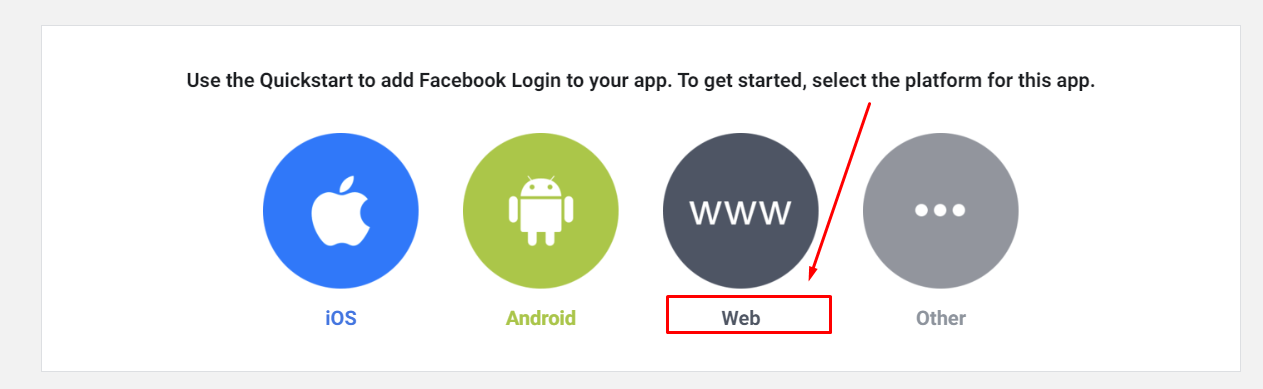
                  • App ID: 311234693627458
                  • App Secret: 5123f75b1234656b3cf34567b321fa12

                  * Now we have App ID and App Secret for Stackposts Configuration.


                  3. Enable Facebook Login

                  A secure, fast, and convenient way for users to log into your app, and for your app to ask for permissions to access data

                  Step 1. Add products to your app

                  Use the Quickstart to add Facebook Login to your app. To get started, select the platform for this app.

                  Tell us what the URL of your site is.

                  Step 2. Get Advanced Access

                  Your app has standard access to public_profile. To use Facebook Login, switch public_profile to advanced access.

                  Step 3. Verification Required

                  Meta will now ask developers to verify their businesses to get advanced access for any permission on the Meta Developer Platform

                  4. Configure Facebook (Meta)

                  Step 1. Basic Settings

                  Click Settings/ Basic at the left-side Menu in the Developer Facebook. You need to fill as:

                  • Display Name: Your_name_app
                  • Namespace: (Empty)
                  • App Domains: (Empty)
                  • Contact Email[email protected]
                  • Privacy Policy URL: www.yoursite.com/privacy_policy (Sample #1)
                  • Terms of Service URL: www. yoursite.com/terms_of_service (Sameple #2)
                  • App Icon (1024 x 1024): Required logo exactly 1021 x 1024 (PNG)
                  • Category: Business and Pages

                  After all, remember to make sure to click Save to complete.


                  Step 2. Create Test Users on Facebook App

                  Important: Currently, Version v19.0 Meta doesn’t need Test Users Accounts so you can skip this step

                  MUST TO DO: You have to create an actual Facebook account with a password for the Meta team to review your app and website

                  Click Roles/ Test Users at the left-side Menu in the Developer Facebook. Click Add to make a new one.  
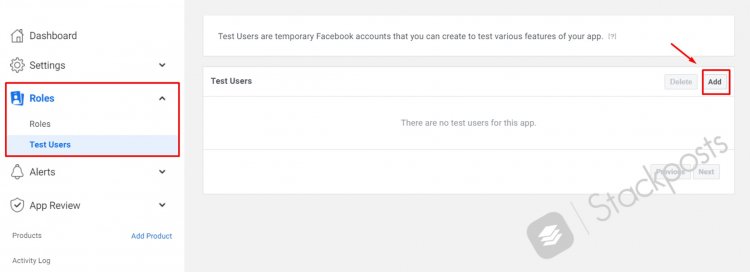
                    Step 3. Choose Permissions and Features for App Review

                    public_profile and email permissions are needed Business verification is required to get advanced access. Click App Review/ Permissions and Features at the left-side Menu in the Developer Facebook.

                    After that you will see this:

                      For all permissions that you need for your Facebook Page feature, you need to search them and click Request Advanced Access Facebook Permissions:

                    • email,
                    • public_profile,
                    • pages_read_engagement,
                    • pages_manage_posts,
                    • pages_show_list,

                    Instagram Permissions:

                    • instagram_basic,
                    • instagram_content_publish,


                    You will see this notification for some permissions:To request… up to 24 hours...”
                    Solution: You need to add your Page to your Stackpsts first, Within 24 hours, this feature will be available for Requesting Advance Access.  

                    Step 4. Valid OAuth Redirect URIs

                    A manually specified redirect_uri used with Login on the web must exactly match one of the URIs listed here. This list is also used by the JavaScript SDK for in-app browsers that suppress popups.Click Facebook Login/ Settings at the left-side Menu and follow this video to configure:


                    5. Configure Stackposts (Your Website)

                    Step 1.  General Settings

                    Click Settings/ Social network settings in your Stackposts. Click Facebook and then Copy and Paste the App ID and App Secret that you got from Meta App

                    • Facebook Client ID (Meta App ID): 311234693627458
                    • Facebook Client secret: 5123f75b1234656b3cf34567b321fa12
                    • Facebook app version: v19.0

                    Step 2. Login & Auth Settings

                    Click Settings/ Social Network Settings in your Stackposts. Click Facebook and then Copy and Paste the App ID and App Secret that you got from Facebook App. For example below:

                    • Facebook app id: 311234693627458
                    • Facebook app secret: 5123f75b1234656b3cf34567b321fa12
                    • Facebook app version: v19.0

                    Step 3. Create a Package for Facebook Review

                    Click Membership / Plans in your left-side Stackposts menu. Click Add new   

                      Fill in the Package Info Tab following these guides below:  

                    • Status:  Enable
                    • Name: Facebook Review
                    • Description:  Facebook Review
                    • Price monthly: 22
                    • Price annually: 21
                    • Position: 1
                    • The number of accounts is calculated by / Number accounts: 100

                      Fill the Permissions Tab follows these guides below:  Carefully select permissions below and click Enable them for the Facebook Review package.  

                    File Manager: You enable all and set the Max. storage size (MB): 500MB, Max. file size (MB): 500MB

                    Account Manager: Select only Facebook Profiles, Pages and Groups, Instagram profiles

                    Click Save to create a new package for Facebook Review  

                    Step 4. Create a Testing Account for Facebook Review

                    Click User Manager in your left-side Stackposts menu. Click Add new


                    Fill the Update Account follows these guides below and click Save

                    1. Role: User 
                    2. Status: Active
                    3. Fullname: Test
                    4. Email: [email protected]
                    5. Password: 123456
                    6. Confirm password: 123456
                    7. Package: Facebook Review
                    8. Expiration date: Any date
                    9. Timezone: Any timezone

                    Step 5: Update your Terms of Services & Privacy Policy

                    To submit App you have to fill out your Terms of Services and Privacy policy. You can check your site

                    1. Privacy Policy URL: www.yoursite.com/privacy_policy (Sample #1)
                    2. Terms of Service URL: www. yoursite.com/terms_of_service (Sameple #2)

                    You can edit them at Settings/ Others in your Stackposts and click Save when you finish.

                    6. Record videos for submit review

                    First, ensure you establish your own Fanpage. Then, use a test Accounts to record videos. For example:

                    Note: As creating a test account on Meta isn’t possible, you’ll need to provide your actual Facebook account details instead.

                    Facebook Account Test:
                    Email: [email protected]
                    Password: 123sdwr***************

                    Account Test Website:
                    Website: https://yourdomain.com/
                    Email: [email protected]
                    Password: 123456

                    Record Fanpage Video

                    Log in to Facebook.com under your Facebook Account Test. Watching this video that shows you how to record a video for Fanpage Test:


                    7. Fill Requests App Review

                    Step 1: Submit Form Content

                    1. How does this permission/feature help my app users?
                    2. Why does my app need this permission/feature?
                    3. How does my app use the data that this permission/feature provides access to?
                    4. Why would my app be less useful if it did not have this permission/feature?

                    It is our sample form for all of our clients, you can edit or change to get the approved permssions.

                    This permission will help app user access their own pages. It will allow users who use our app to post to their pages. Our app will be disabled when this permission isn’t approved.

                    Step by Step for Permissions: pages_read_engagement, pages_manage_posts, pages_show_list,business_management

                    Please follow these steps to get how to use this app
                    1. Login with an account test on our system or you can login via the Facebook Login Button
                    2. Click the button “Account manager” on the sidebar menu ( https://www.yourdomain.com/account_manager)
                    3. On the box Facebook Accounts click the button “Add accounts”
                    4. When the popup opens continue to click the button “Continue with Facebook”
                    5. Authorize permissions to need to system can work fine
                    6. On the left sidebar, click the button “Composer”(https://www.yourdomain.com/post)
                    7. Select a page on the tab “Please select a profile” (Center box). And then select the type of post (Media, Link, Text). For example, with media select a photo or video and then enter captions for the post.
                    8. Click the button “Send Now” to post your post to the pages you selected. When post success a box green with the text “Content is being published on 1 profile”
                    9. Go to the Facebook pages just posted to check (https://www.yourdomain.com/schedules/index/published/all/)
                    Regards,

                    Step 2: Content for the following permissions

                    Choose the suitable permissions from the options below:

                    pages_show_list

                    The app uses this permission to Publish a post, photo, or video to your Page. Once the app is authorized to use then we would be able to publish content to Pages owned by the admin from the authorized user’s YourAppName site and track the auto-published post. This will reduce the time required to publish each post content manually to the admin’s Facebook pages

                    pages_read_engagement

                    The app uses this permission to get the metadata about the page managed by the user (such as page ids, publicly available page content such as post id, content posted by page, page name and PSIDs ). Once the app is authorized to use then we would be able to publish content to Pages owned by the admin from the authorized user’s YourAppName site and track the auto-published post. This will reduce the time required to publish each post content manually to the admin’s Facebook pages

                    pages_manage_posts

                    The app uses this permission to Publish a post, photo, or video to your Page. Once the app is authorized to use then we would be able to publish content to Pages owned by the admin from the authorized user’s YourAppName site and track the auto-published post. This will reduce the time required to publish each post content manually to the admin’s Facebook pages

                    business_management

                    By granting this permission, the app empowers users to effectively handle their business assets, including connecting an ad account to our platform. Consequently, the need for manual posting of content to the admin’s Facebook pages is minimized, resulting in time savings.

                    instagram_basic,

                    Option 1:

                    The app uses this permission to read an Instagram account profile’s info and media. Once the app is authorized to use then we will be able to publish content to the Instagram profile owned by the user from the authorized user’s YourAppName site and track the auto-published post. This will reduce the time required to publish each post content manually to the user’s Instagram profiles.

                    Option 2:

                    Providing Instagram business users with a unique experience of interacting with their content on Instagram, allowing for easy management and analysis of their media files and profile information. We are interested in the capability to read information from business user profiles including username, id, profile photo, and permanent links. This functionality is critically important for the implementation of our key feature—enhancing the convenience of content management and providing analytics on subscriber activity.

                    instagram_content_publish,

                    Option 1:

                    The app uses this permission to Publish a post, photo, or video to your Instagram profile. Once the app is authorized to use then we will be able to publish content to the Instagram profile owned by the user from the authorized user’s YourAppName site and track the auto-published post. This will reduce the time required to publish each post content manually to the user’s Instagram profiles.

                    Option 2:

                    This app is for Instagram business accounts. To publish a post on the Instagram BUSINESS Account.
                    Our app helps allow app users to create, schedule and publish organic Feed posts from our app (ID 1234567890111213) to any Instagram business account they manage.

                    Step 3: Request for App Review

                    Click App Review/ Requests at the left-side Menu in the Developer Facebook. Click Edit

                    Watching this video that shows you how to Fill Requests for App Review:


                    Step 4: Wait for Approved App in the Inbox App

                    Navigate to the “Alert/Inbox” section located in the left-side menu of the Developer Meta interface. Here, you’ll receive notifications regarding the approval or rejection of your app, either within this area or sent to your registered email address.

                    If you have any questions, issues, or suggestions for this feature, please contact us here. We will answer as soon as possible

                    FAQs - Meta API Apps

                    Add people to your app

                    How do you add people to your app?

                    App roles -> Roles

                    Add people to your app

                    Register as a Meta Developer

                    This document explains how to register as a Meta developer. Once you have registered you will have access to the App Dashboard and all of our products, SDKs, APIs, development tools, and developer documentation.

                    Register as a Meta developer to gain access to app development tools at this link: https://developers.facebook.com/docs/development/register

                    Required permission still greyed out some permissions

                    We can’t manage to add some facebook permissions (the one that are grayed out), although we went through your tutorial. Facebook doesn’t allow creating test users at the moment, and although we did make an API call through the login page to the same data, it is still grayed out some of the required permissions.

                    Initially, you only need to configure everything and add your personal accounts for posting. After a 24-hour period, permissions will become accessible for submission.

                    Facebook App – Cannot add test users

                    From v16.0 Meta is unavailable for Test Users Accounts so you can skip this step.

                    Tools for Meta Developers

                    https://developers.facebook.com/tools/debug/

                    How does the Facebook Crawler work?

                    You can use the Sharing Debugger to see the information that is used when your website content is shared on Facebook, Messenger and other places. The Batch Invalidator will let you refresh this information for multiple URLs at the same time. Open Graph markup lets you take control over how your website content appears to others. Learn More

                    The Access Token Debugger lets you see the information associated with a particular access token from someone who’s logged into your app with Facebook.

                    Facebook API

                    Updated March, 2024: We are updating the new documentation for Meta API Apps with Facebook and Instagram, you can check it at the new link here

                    Instagram API

                    First of all, you need to follow this Facebook API guide to create a new Meta App. You will know how to get approved permissions for your API App.

                    To use Official API for Instagram, you need:

                    You need an IG business account linked to a Fanpage FB to use an Official API for Instagram.

                    1. Your Instagram Account must be an Instagram Business

                    2. Connect an Instagram account to your Facebook Page

                    Permissions and Features for Instagram API

                    Click App Review/ Permissions and Features at the left-side Menu in the Developer Facebook.  

                    After that you will see this:

                    For all permissions that you need for your Facebook Page and Group Posting feature, you need to search them and click Request Advanced Access

                    Facebook Permissions:

                    • email,
                    • publish_profile,
                    • pages_read_engagement,
                    • pages_manage_posts,
                    • pages_show_list,
                    • publish_to_groups,
                    • Groups API,

                    Instagram Permissions:

                    • instagram_basic,
                    • instagram_content_publish,
                    • pages_read_engagement,
                    • pages_show_list,
                    • business_management

                    Instagram Analytics:

                    • pages_read_user_content,
                    • business_management,
                    • instagram_manage_insights

                    You will see this notification for some permissions: “To request… up to 24 hours...” for the first time

                    Solution: You need to add your Page to your Stackpsts first, Within 24 hours, this feature will be available for Requesting Advance Access.

                    Valid OAuth Redirect URIs

                    A manually specified redirect_uri used with Login on the web must exactly match one of the URIs listed here. This list is also used by the JavaScript SDK for in-app browsers that suppress popups.

                    Click Facebook Login/ Settings at the left-side Menu and follow this image to configure:

                    You should to follow this Facebook API guide to create a new Meta App. You will know how to get approved permissions for your API App.

                    Twitter API

                    API stands for Application Programming Interface. This software provides “middleman services” between two applications that want to communicate with each other. Any requests you make go to the server first and the response given comes through the same route.

                    What is the Twitter API?

                    The Twitter API lets you read and write Twitter data. Thus, you can use it to compose tweets, read profiles, and access your followers’ data and a high volume of tweets on particular subjects in specific locations.

                    How to Configure Stackposts for Twitter API App? 

                    Watching this video that shows you full steps on how to submit a Twitter API App for Stackposts:


                    Create a Twitter API App

                    Step 1: Click Create Twitter App to start.

                    • Twitter Account
                    • Email:
                    • What country are you based in?
                    • What’s your use case?
                    • Will you make Twitter content … a government affiliated entity?

                            Step 2: verify your email

                            Step 3: Get an Elevated Access App

                            If you see this notification you must get a submission to get an approved app to get its APIs. Click Get started to get more steps


                            Basic Info

                            How will you use the Twitter API or Twitter Data?

                            Please describe your planned use of these features.

                            Review your info

                            Terms

                            ApplicationReceived

                            Twitter API for free with an approved application

                            Elevated Access

                            When Twitter approves your API App you will see the dashboard below:

                            You will see a note that “You have Elevated access”

                            Create Project

                            Name Your Project

                            Your Project helps you organize your work and monitor your usage with the Twitter API.

                            Which best describes you?

                            This is how you intend to use the Twitter developer platform.

                            Building consumer tools (professional)

                            Describe your new Project

                            This info is just for us, here at Twitter. It’ll help us create better developer experiences down the road.

                            We are working on a social media publisher that can post on several social media including Twitter.

                            Choose an App environment

                            App Environment

                            App Name

                            Apps are where you get your access keys & tokens, plus set permissions. You can find them within your Projects.

                            Keys & Tokens

                            For security, this will be the last time we’ll fully display these. If something happens, you can always regenerate them. Learn more

                            User authentication settings

                            App Settings

                            Set up

                            App permissions (required)

                            These permissions enable OAuth 1.0a Authentication.

                            Problems – Solutions

                            Getting error message: “This application cannot authenticate more users at this time”

                            For the Ads API, depending on your level of access, you’re limited to the number of user tokens that can be authenticated.

                            Solutions:

                            Applications are initially limited to 5 tokens while building an integration with the Ads API. See how to increase your developer access token limit if you have completed your integration.

                            If you want this removed, please reach out to [email protected] for additional assistance.

                            Google Login

                            Creating a Google API Console project and OAuth2 Client ID

                            In order to log in via Google social network, you need to create an application on Google Developers Console. In this application, you need to declare one or more valid ULRs to which your application is allowed to redirect after users log in to Google successfully. The application will supply you with a Client ID and a Password.

                            Note that you can create one or more applications from each Google account.

                            Register Google Developers Console

                            1. Create New Project

                            The first step is to log into your Gmail account. Once you’ve done that, you can proceed to access the address: https://console.cloud.google.com/projectcreate

                            2. Project Name & Location

                            When you’re starting out, you won’t have any projects, so you’ll need to create one. Typically, it’s a good idea to give your project the same name as your website, although this isn’t mandatory.


                            OAuth Consent Screen

                            1. User Type

                            You have the flexibility to choose the configuration and registration process that best fits your requirements for your app.

                            2. App information

                            The information you provide here will appear on the consent screen, which will help users understand who you are and how to contact you.

                            3. App domain & Contact Developer

                            When you fill in all the basic info, you need to SAVE AND CONTINUE to go to the next step

                            SAVE AND CONTINUE to go to the next step

                            Configure Stackposts

                            Setting / Login & Auth / Google login

                            Fill in Google client id & Google client secret

                            Google Drive API

                            Click this link to create a Google app: https://console.developers.google.com/projectcreate


                            1. Submit a review on Google Drive

                            2. Recorded a video Test

                            You need to record a video like this

                            3. Enter this content for Scopes justification

                            My app will use this permission: https://www.googleapis.com/auth/drive

                            To show a user’s files on Google Drive and then can download files from their Google Drive account to show a user’s calendar data on the scheduling screen of my app to help users manage their schedule directly through my app.

                            Enter this content for Include any information that will help us with verification, like a Google contact or the Project IDs of any other projects that use OAuth.

                            This is a video demo for permission above use on our system: [Link Youtube For Recorded Video Test]

                            Google Business Profile API

                            Getting Started!

                            Prerequisites

                            In order to use Google Business Profile with Stackposts, it is necessary to have a Google account. If you do not have one, you can create a Google account at www.google.com/accounts/NewAccount.

                            Requirements

                            To use Google My Business API Key. You need to register with Google to approved and open this API on your Google API App

                            Go to this link to register:

                            https://docs.google.com/forms/d/e/1FAIpQLSfC_FKSWzbSae_5rOpgwFeIUzXUF1JCQnlsZM_gC1I2UHjA3w/viewform

                            API configuration

                            Click this link to create a Google app: https://console.developers.google.com/projectcreate

                            To can use the script you need to enable these libraries:

                            Configure Stackposts

                            Youtube API

                            Configure Youtube API

                            1. Log in to Google Developers Console.

                            To access the Google Developers Console, simply log in using your Google account. If you don’t have one yet, you’ll need to create one before proceeding

                            Follow this guide to create a new project.

                            After you’ve created a project, all subsequent actions you take will apply exclusively to that project, including creating the API key. If you’re working on multiple projects simultaneously, be sure to double-check that you’ve selected the correct project by verifying that it’s listed in the top navigation bar.

                            2. On the new project dashboard, click Explore & Enable APIs

                            After creating a project, you’ll be taken to a brand new dashboard with different cards: Project Info, Resources, and so on.

                            Navigate to the APIs & Services and click on Library

                            3. YouTube Data API v3

                            After arriving at the library, you’ll find a page that’s been sectioned off. Locate the section labelled “YouTube” and choose the option for “YouTube Data API v3.

                            Alternatively, you can search for the YouTube Data API on the search bar

                            4. Enable the API

                            Once you’ve reached the YouTube Data API page, simply click on the blue “Enable” button to proceed

                            5. Create a credential

                            After clicking Enable, you’ll be taken to an overview page

                            Click Create Credentials.

                            or you will see a screen will appear with the API key if you did this guide for Google Login

                            6. OAuth consent screen

                            on the left side select OAuth consent screen / Click PUBLISH APP to get the next steps

                            Prepare for verification

                            You need to complete the requirements below:

                            1. An official link to your app’s Privacy Policy
                            2. A YouTube video showing how you plan to use the Google user data you get from scopes
                            3. A written explanation telling Google why you need access to sensitive and/or restricted user data
                            4. All your domains verified in Google Search Console

                            1. Verification Status

                            2. Fill the form

                            Complete the form and click SAVE AND CONTINUE

                            3. Add or remove scopes

                            Scopes express the permissions you request users to authorize for your app and allow your project to access specific types of private user data from their Google Account. Learn more 

                            4. Update selected scopes

                            Search this link in the Update selected scopes:

                            https://www.googleapis.com/auth/youtube

                            Select it and Update

                            5. Your sensitive scopes

                            Because you added sensitive scopes, which grant access to private Google User Data, you will need to submit your app for verification.

                            6. How will the scopes be used?

                            Explain to Google why you need these scopes, how you will use them, and why more limited scopes aren’t sufficient.

                            Enter this content for Scopes justification

                            Our website using this permission to can add our youtube channel and then post to video to our youtube channel:
                            My app will use https://www.googleapis.com/auth/youtube to manage my YouTube account to help our post video and live stream video to my channel

                            7. Demo video: how will the scopes will be used?

                            Your YouTube video should demonstrate the OAuth grant process by users and explain, in detail, how you’ll use sensitive and restricted scopes within the app’s functionality for each OAuth client belonging to the project.

                            You need to record a video like this and upload it to your Youtube channel. Pasting its link to YouTube Link above.

                            If you don’t see this video please subscribe to Stackposts Youtube to watch private videos for members only

                            8. Optional info

                            You can speed up the verification process by providing Google reviewers with more, helpful details about your app.

                            Enter this content for “Share any final details about your app. Include any information that will help us with verification, like the Project IDs of any other projects that use OAuth.”

                            This is a video demo for permission above use on our system: [Link Youtube For Recorded Video Test]

                            9. Final review

                            Check all information and click SUBMIT FOR VERIFICATION

                            10. Verification Status

                            The Trust and Safety team has received your form. They will reach out to you via your contact email if needed. The review process can take up to 4-6 weeks. Expect the first email from our Trust and Safety team within 3-5 days.

                            Configure Stackposts

                            Google Login

                            Google client id:
                            Google client secret:

                            YouTube API

                            Google API Key:
                            Google client id:
                            Google client secret:

                            LinkedIn API

                            From here, you can create a new application if you don’t already have one or view the details of your existing applications.

                            You will find your Client ID (otherwise known as API Key/ID or Consumer Key/ID) listed in the “Authentication” side nav link, underneath the header “Authentication Keys”.

                            Where can I find my API key?

                            Click on the My Apps link in the top navigation menu to manage your LinkedIn applications.

                            From here, you can create a new application if you don’t already have one or view the details of your existing applications.

                            You will find your Client ID (otherwise known as API Key/ID or Consumer Key/ID) listed in the “Authentication” side nav link, underneath the header “Authentication Keys”.

                            Step 2: Managing products

                            Additional product requests We only grant access to apps that have product-relevant use cases. For requests that require LinkedIn approval, the link to our Access Request Form will be made available on this page. Your request is reviewed, and we notify you of the decision by email.

                            1. Share on LinkedIn
                            2. Sign In with LinkedIn
                            3. Advertising API
                            4. Sign In with LinkedIn using OpenID Connect

                            OAuth 2.0 scopes

                            Understanding Authentication and OAuth 2.0: In order for your applications to access LinkedIn member data and/or act on their behalf, they must be authenticated. To make this process as easy as possible, LinkedIn relies on the industry standard OAuth 2.0 protocol for granting access. Using OAuth 2.0 tools you can create new access tokens and inspect token details such as token validity, scopes. Learn more

                            Tutorial Video 


                            Where can I find my API key?

                            Click on the My Apps link in the top navigation menu to manage your LinkedIn applications.

                            From here, you can create a new application if you don’t already have one or view the details of your existing applications.

                            You will find your Client ID (otherwise known as API Key/ID or Consumer Key/ID) listed in the “Authentication” side nav link, underneath the header “Authentication Keys”.

                            Step 2: Managing products

                            Additional product requests We only grant access to apps that have product-relevant use cases. For requests that require LinkedIn approval, the link to our Access Request Form will be made available on this page. Your request is reviewed, and we notify you of the decision by email.

                            1. Share on LinkedIn
                            2. Sign In with LinkedIn
                            3. Advertising API
                            4. Sign In with LinkedIn using OpenID Connect

                            OAuth 2.0 scopes

                            Understanding Authentication and OAuth 2.0: In order for your applications to access LinkedIn member data and/or act on their behalf, they must be authenticated. To make this process as easy as possible, LinkedIn relies on the industry standard OAuth 2.0 protocol for granting access. Using OAuth 2.0 tools you can create new access tokens and inspect token details such as token validity, scopes. Learn more

                            Tutorial Video 


                            Where can I find my API key?

                            Click on the My Apps link in the top navigation menu to manage your LinkedIn applications.

                            From here, you can create a new application if you don’t already have one or view the details of your existing applications.

                            You will find your Client ID (otherwise known as API Key/ID or Consumer Key/ID) listed in the “Authentication” side nav link, underneath the header “Authentication Keys”.

                            Step 1: First, you need to Go to the LinkedIn Developers’ website Step 2: Create an app

                            Step 2: Managing products

                            Additional product requests We only grant access to apps that have product-relevant use cases. For requests that require LinkedIn approval, the link to our Access Request Form will be made available on this page. Your request is reviewed, and we notify you of the decision by email.

                            1. Share on LinkedIn
                            2. Sign In with LinkedIn
                            3. Advertising API
                            4. Sign In with LinkedIn using OpenID Connect

                            OAuth 2.0 scopes

                            Understanding Authentication and OAuth 2.0: In order for your applications to access LinkedIn member data and/or act on their behalf, they must be authenticated. To make this process as easy as possible, LinkedIn relies on the industry standard OAuth 2.0 protocol for granting access. Using OAuth 2.0 tools you can create new access tokens and inspect token details such as token validity, scopes. Learn more

                            Tutorial Video 


                            Where can I find my API key?

                            Click on the My Apps link in the top navigation menu to manage your LinkedIn applications.

                            From here, you can create a new application if you don’t already have one or view the details of your existing applications.

                            You will find your Client ID (otherwise known as API Key/ID or Consumer Key/ID) listed in the “Authentication” side nav link, underneath the header “Authentication Keys”.

                            Create new App

                            Step 1: Go to the LinkedIn Developers’ website

                            Step 1: First, you need to Go to the LinkedIn Developers’ website Step 2: Create an app

                            Step 2: Managing products

                            Additional product requests We only grant access to apps that have product-relevant use cases. For requests that require LinkedIn approval, the link to our Access Request Form will be made available on this page. Your request is reviewed, and we notify you of the decision by email.

                            1. Share on LinkedIn
                            2. Sign In with LinkedIn
                            3. Advertising API
                            4. Sign In with LinkedIn using OpenID Connect

                            OAuth 2.0 scopes

                            Understanding Authentication and OAuth 2.0: In order for your applications to access LinkedIn member data and/or act on their behalf, they must be authenticated. To make this process as easy as possible, LinkedIn relies on the industry standard OAuth 2.0 protocol for granting access. Using OAuth 2.0 tools you can create new access tokens and inspect token details such as token validity, scopes. Learn more

                            Tutorial Video 


                            Where can I find my API key?

                            Click on the My Apps link in the top navigation menu to manage your LinkedIn applications.

                            From here, you can create a new application if you don’t already have one or view the details of your existing applications.

                            You will find your Client ID (otherwise known as API Key/ID or Consumer Key/ID) listed in the “Authentication” side nav link, underneath the header “Authentication Keys”.

                            Pinterest API

                            Updated: July 2023

                            Pinterest requires you to create an external application that links your website to its API. Pinterest’s API Key and Secret APP are what we call app login credentials.

                            This application will link your website to the Pinterest API and these credentials are needed for Pinterest users to access your site.

                            To enable authentication with Stackposts and to sign up for the new Pinterest API Application, follow these steps:

                            Register Pinterest API

                            Perform the following steps to register your app and get your app ID and secret key

                            1. Create developer account

                            Log into www.pinterest.com with the account that you’ll use to manage your apps or you can click this link to create a Pinterest app

                            2. Create a business account

                            Create a free business account

                            You can choose a way with Create a linked business account

                            Once you create a linked business account, you can use the same login email to switch seamlessly between both personal and business accounts.

                            3. Create API App

                            Select Connect app and complete their request form with your app information.

                            Submit your request to get trial access.

                            As soon as we complete the review, you will be notified by email.

                            Once you have received the email approval, go to My Apps to see your app ID and secret key.

                            3. Upgrade to Standard access

                            You can connect up to 5 apps. You can have one open request to connect and one upgrade request at a time.

                            Please upload a video demo of the app you would like to upgrade.

                            • Show how your app authenticates Pinterest users
                            • Show the main Pinterest features your users will use
                            • You can include an optional voiceover of how your app works in the video

                            Record a video demo

                            Using your Stackposts website to publish a pin to your Pinterest account and upload it to video demo

                            Review information

                            Correct this information if needed


                            Configure redirect URIs

                            Configure Stackposts

                            Click this link to create a Pinterest app: https://developers.pinterest.com/apps/

                            Reddit API

                            Click this link to create Reddit app: https://www.reddit.com/prefs/apps

                            Configure Reddit

                            1. Create an App

                            2. Create application

                            Please read the API usage guidelines before creating your application. After creating, you will be required to register for production API use.

                            Configure Stackposts

                            1. Callback URL

                            Callback URL:
                            https://yoursite.com/reddit_profiles

                            Telegram API

                            Watch the video below to know how to use the Telegram module

                            Tumblr API

                            Configure Tumblr

                            1. Create a Tumblr account & blog first

                            Alright, let’s begin the process. First things first, you’ll need to create a Tumblr account and set up your blog following these steps:

                            1. Go to the Tumblr website at www.tumblr.com.
                            2. Click on the “Get Started” button on the top right corner of the homepage.
                            3. Enter your email address, password, and username for your account.
                            4. Next, you’ll be asked to enter your age, as Tumblr has age restrictions.
                            5. After entering your age, click on the “Sign up” button.
                            6. Tumblr will then ask you to select some topics you’re interested in to personalize your dashboard. You can skip this step if you want to.
                            7. Once you’re signed in, you’ll see the Tumblr dashboard. Click on the “Account” icon on the top right corner of the page.
                            8. Select “New Blog” from the dropdown menu.
                            9. Choose a name for your blog and a custom domain name if you want one. You can also select a theme for your blog.
                            10. Click on the “Create Blog” button to create your Tumblr blog.

                            Once you’ve finished setting up your Tumblr account and blog, make sure to visit the Tumblr API page by following this link: https://www.tumblr.com/oauth/apps

                            2. Register application

                            To start creating your new app, click on the “Register application” button on the Tumblr API page.

                            3. Edit your application

                            Make sure to fill out all the required fields, which are marked with a star symbol. Give your app a name and provide the website where you plan to use it.

                            Application Name:
                            Application Website:
                            Application Description:
                            Administrative contact email:
                            Default callback URL: https://yoursite.com/tumblr_blogs (This link is from your Stackposts Setting here)

                            After providing the name and website for your app, add a brief description of what your app does and how you plan to use the Tumblr API key. Make sure to also enter a valid contact email address and callback URL

                            4. Get Tumblr API Key

                            Once you’ve entered all the required information and registered your app, you’ll receive your API keys: an OAuth consumer key and a secret key.”

                            You can easily copy and paste these keys into your Stackposts

                            Configure Stackposts

                            Settings/ Social Network Settings/ Tumblr

                            Tumblr consumer key:
                            Tumblr consumer secret:

                            OK API

                            Configure OK (Odnoklassniki)

                            Create an app

                            To create an app you need to register on Odnoklassniki and link an email to your account to receive emails with app data;
                            Obtain developer rights here or at https://ok.ru/devaccess.

                            After obtaining developer rights you will get a link to add apps or external sites. Open Games and Press “Add app” button.

                            Fill out the form:

                            • Name: App title -application’s name that will be used in all catalogs, notifications, topics and messages.
                            • Application type: Game is a game app published in the games section on OK Application – other applications published in the features and services section on OK
                            • Name in the link: A unique short name is required, Latin characters only without special characters. Short links by name work only for games and applications running on the site. After moderation, your game will be available via this link https://ok.ru/app/gamename
                            • Description:  Description of the application that may be used for advertising purposes. Maximum 200 characters.

                            Enabling additional platforms

                            Depending on what you want from your app following platforms can be additionally enabled for it:

                            1. OAuth – if the app is going to be used for OAuth authorization, automated posting to your group/user’s feed;
                            2. Web – if it’s a game/app that will be available for users on ok.ru;
                            3. Mobile – if it’s a game/app that will be available for users on our mobile platforms – m.ok.ru, apps for android and iOS;

                            Get approved App

                            Submit review permissions to can post

                            To can post to Ok (Odnoklassniki) profile to next send request submit a review to email: [email protected]. After submitting the review you need to wait 1 – 3 days to get approved to use

                            This is an email form for you:

                            Subject:

                            ID приложения: [APPLICATION ID]

                            Content:

                            Добрый день!

                            ID приложения: [APPLICATION ID]

                            Необходимые разрешения: “VALUABLE_ACCESS”,”PHOTO_CONTENT”,”GROUP_CONTENT”, “VIDEO_CONTENT” ,”LONG_ACCESS_TOKEN”

                            Описание: Данные права необходимы для публикации контента в группы/страницы/профиль. Так же будет возможность отложенной публикации. В данный момент у нас подтверждены соц сети: FaceBook, VK, Twitter. Поиск контент мы НЕ будет использовать. Клиенты будут загружать свой контент без копирования. Поиск контента реализован только для Instagram.

                            Если у вас есть какие-то вопросы, или нужно предоставить какие-либо данные, напишите. Спасибо!

                            Approved App Settings

                            General application settings

                            External app settings

                            Settings for an app in a group

                            Access rights & Save

                            Configure Stackposts

                            OneDrive API

                            New Registration


                            Adobe Express API

                            Get started with your new project

                            Welcome to your new empty project. To start using Adobe services, add an API, Event, or Plugin ID to your project. For more guidance on projects and the services we offer, view our documentation.

                            Add an API

                            Add a REST API to your project to access Adobe services and products. Browse this API list and customize.
                            Note that many services are only available through paid license or subscription. If you believe you should have access to a disabled service, please contact your Adobe sales representative.

                            OAuth 2.0 authentication and authorization

                            With OAuth, your end users can sign in to your integration with their Adobe ID. By using an OAuth token, your integration can access Adobe services or content as the signed-in user. Learn more about OAuth and Adobe.

                            What kind of application are you trying to integrate with Adobe?

                            Available Scopes

                            All Scopes are currently available by default and can’t be deselected at this time. View scope documentation

                            Connected credentials

                            Set up your public profile

                            You’ll need to complete a public profile before you can submit your app or integration for approval. The information from this profile will appear on the consent screen that users will view when using your app.

                            Developer account management

                            Manage the public profile and commerce options for your organization.

                            Submit for approval

                            Consent screen details

                            These details will appear on the consent screen that users will view when signing in to use your app or integration. Information from your public profile will also appear on this screen.

                            If your app processes personal information, include a link to the privacy policy on your app’s website, per the Adobe Developer Agreement.

                            Approval details

                            Describe what your app does, to help Adobe review it for approval. Allowing other enterprises to discover your app or integration in the Adobe Admin Console will make it so that the administrators of those enterprises can manage access to it for their users.

                            Screenshots for approval

                            Include screenshots that show the full experience of your app or integration, as well as any usage of Adobe branded elements.

                            Please note that you also don’t need to get the approved API app when you use it with Stackposts 

                            If you have any questions, issues, or suggestions for this feature, please contact us here. We will answer as soon as possible

                            Vk API

                            Click this link to create VK app: https://vk.com/editapp?act=create

                            A Powerful Platform For Your Projects: Develop apps and use all the VK features in your business


                            Bitly API

                            Configure Bitly

                            1. Register OAuth application

                            Click this link to create the Bitly app: https://app.bitly.com/settings/api/oauth/

                            For documentation on using Bitly OAuth visit the API Documentation

                            • Application name (required): Please provide a unique name for your application. This value will be displayed to users when they authenticate to Bitly.
                            • Application link (required): The URL of your application. This value will be displayed to users when they authenticate to Bitly. If your application link is a root domain or a directory (ie, a link that does not end in .html or .php), it must end with a forward slash. Example: http://your-app.com/
                            • Redirect URIs (required): For multiple, enter one per line. Example:
                              – https://your-app.com/callback/
                              – http://dev.your-app.com/redirect.php
                              – https://yoursite.com/shortlink/bitly (Stackposts)
                            • Application description: 300 character max

                            2. Registered OAuth applications

                            Configure Stackposts

                            API application for Facebook (Meta)

                            Creating an API application for Facebook (now Meta) involves several steps within the Meta for Developers platform.1 Here’s a comprehensive guide:

                            1. Go to the Meta for Developers Website:

                            2. Log In or Sign Up:

                            • If you already have a Facebook account, log in using your credentials.
                            • If you don’t have an account, you’ll need to sign up for one.

                            3. Access the “My Apps” Dashboard:

                            Once logged in, hover over the “My Apps” option in the top navigation bar and click on it.

                            4. Create a New App:

                            On the “My Apps” dashboard, you’ll see a button that says “+ Add New App” or “Create App”. Click on it.

                            5. Choose an App Type:

                            Meta will ask you to choose the type of app you’re building. Select the option that best describes your use case. Common options include:

                            1. Consumer: For apps that integrate with Facebook login, share content, or access user data for personal use or a small business.
                            2. Business: For apps that help businesses manage their presence, run ads, or engage with customers on Facebook and Instagram.
                            3. Gaming: For apps that are games and integrate with Facebook for social features.
                            4. Apps for Pages: For apps that add functionality to Facebook Pages.

                            Choose the most appropriate option for your project.

                            6. Provide App Details:

                            You’ll be prompted to enter the following details:

                              • App Display Name: This is the name that will be visible to users when they interact with your app (e.g., during Facebook Login). Choose a clear and descriptive name.
                              • App Contact Email: Provide a valid email address that Meta can use to contact you regarding your app.

                            Click on the “Create App ID” button. You might be asked to complete a security check (e.g., CAPTCHA).

                            7. Set Up Products:

                            • Once your app is created, you’ll be redirected to the App Dashboard. Here, you’ll see a section labeled “Add Products to Your App”.
                            • Products represent the specific Facebook and Instagram features you want your app to use (e.g., Facebook Login, Instagram Basic Display, Marketing API).
                            • Browse the available products and click the “Set Up” button for each product you intend to integrate into your application.

                            8. Configure Product Settings:

                            After selecting a product, you’ll need to configure its settings. The specific settings will vary depending on the product. Common configurations include:

                            • Basic Settings: This section (found under “Settings” in the left sidebar) requires you to provide:
                                • Privacy Policy URL: A link to your app’s privacy policy. This is mandatory.
                                • Terms of Service URL: A link to your app’s terms of service (optional but recommended).
                                • App Icon: Upload an icon for your app.
                                • Category: Select the category that best describes your app.
                                • Data Deletion Instructions URL: A URL explaining how users can request deletion of their data collected by your app.
                            • Facebook Login:
                                • Valid OAuth Redirect URIs: These are the URLs in your application where Facebook will redirect users after they have logged in. You need to provide the exact URLs.
                                • Deauthorize Callback URL: An optional URL that Facebook will call when a user deauthorizes your app.
                            • Instagram Basic Display:
                                • Valid OAuth Redirect URIs: Similar to Facebook Login, you need to provide the redirect URLs for Instagram authentication.
                                • Deauthorize Callback URL: An optional URL for Instagram deauthorization callbacks.
                                • Data Deletion Request Callback URL: A URL where Instagram can notify you of data deletion requests.
                            • Other Products: Each product will have its own specific configuration requirements. Follow the on-screen instructions carefully.

                            9. Save Your Changes:

                            • After configuring the settings for each product, make sure to click the “Save Changes” button at the bottom of the page.

                            10. Review App Permissions (if applicable):

                            • Some Facebook APIs require specific permissions to access user data. When you configure a product that needs permissions (e.g., Facebook Login), you’ll need to request these permissions.
                            • Be mindful of the permissions you request and only ask for what your app truly needs. Over-requesting permissions can lead to your app being rejected during the review process.
                            • For certain sensitive permissions, you’ll need to go through an App Review process with Meta to demonstrate why your app needs access to that data and how it will be used.

                            11. Understand App Modes (Development vs. Live):

                            • When you first create your app, it will be in Development Mode. In this mode, only administrators, developers, and testers of your app can access its features.
                            • Once your app is ready for public use and you’ve completed any necessary App Review processes, you’ll need to switch your app to Live Mode. You can do this using the toggle switch in the App Dashboard.

                            12. Get Access Tokens and Use the APIs:

                            • Once your app is set up and configured, you can start using the APIs. The process for obtaining access tokens will vary depending on the API you’re using (e.g., OAuth 2.0 flow for user authentication).
                            • Meta provides extensive documentation for each API product, including guides on authentication, making API calls, and handling responses. Refer to the documentation for the specific APIs you are working with.

                            Key Considerations and Best Practices:

                            • Read the Documentation: Meta’s developer documentation is crucial. Spend time understanding the specific requirements and limitations of each API you intend to use.
                            • Follow Meta’s Platform Policies: Ensure your app complies with Meta’s Platform Policies and Developer Terms.15 Violations can lead to your app being restricted or banned.
                            • Implement Secure Authentication: Handle access tokens and user data securely. Use HTTPS for all communication.
                            • Handle Errors Gracefully: Implement proper error handling in your application to manage API failures and provide informative feedback to users.
                            • Test Thoroughly: Test your app extensively in development mode before making it live.
                            • Stay Updated: Facebook’s APIs and policies can change. Regularly check the Meta for Developers platform for updates and announcements.
                            • App Review: Be prepared for the App Review process if your app requires access to sensitive user data or certain features. Provide clear and accurate information during the review.

                            By following these steps and diligently referring to the Meta for Developers documentation, you can successfully create an API application for Facebook (Meta). Remember that the specific steps and configurations will depend on the exact features and functionalities you want to integrate into your application.

                            OpenAI API

                            Get an OpenAI access token here: https://platform.openai.com/account/api-keys

                            Please save this secret key somewhere safe and accessible. For security reasons, you won’t be able to view it again through your OpenAI account. If you lose this secret key, you’ll need to generate a new one.

                            Unsplash (Search & Get Media Online)

                            Click this link to create the Unsplash app: https://unsplash.com/oauth/applications/new

                            You don’t need to submit an approved API app from Unsplash to use this feature on Stackposts.

                            If you have any questions, issues, or suggestions for this feature, please contact us here. We will answer as soon as possible

                            Installation Guide for Hostinger

                            1. Dashboard

                            Dashboard/File Manager

                            Select public_html folder

                            2. Upload Stackpost Script

                            3. Create Database

                            4. Crobjobs

                            To schedule your posts, Cron jobs must be configured on your server/hosting.

                            Create a New Cron Job
                            wget -O /dev/null https://yourdomain.com/post/cron

                            How to use?

                            reCAPTCHA

                            What’s reCAPTCHA?

                            reCAPTCHA protects your website from fraud and abuse without creating friction.

                            reCAPTCHA uses an advanced risk analysis engine and adaptive challenges to keep malicious software from engaging in abusive activities on your website. Meanwhile, legitimate users will be able to log in, make purchases, view pages, or create accounts and fake users will be blocked.

                            It is a contrived acronym for “Completely Automated Public Turing test to tell Computers and Humans Apart”

                            Get the Site Key and Secret Key on Google

                            Go to Google reCAPTCHA https://www.google.com/recaptcha/admin

                            Register a new site:

                            Label: Your website name

                            reCAPTCHA type: Select “Challenge v2” and “I’m not a robot Checkbox”

                            Select Google Cloud Platform and click “Submit

                            Adding reCAPTCHA to your site with SITE KEY and SECRET KEY


                            Configure Site Key and Secret Key on Stackposts


                            If you have any questions, issues, or suggestions for this feature, please contact us here. We will answer as soon as possible

                            5. Configure Stackposts (Your Website)

                            Step 1.  General Settings

                            Click Settings/ Social network settings in your Stackposts. Click Facebook and then Copy and Paste the App ID and App Secret that you got from Meta App

                            • Facebook Client ID (Meta App ID): 311234693627458
                            • Facebook Client secret: 5123f75b1234656b3cf34567b321fa12
                            • Facebook app version: v19.0

                            Step 2. Login & Auth Settings

                            Click Settings/ Social Network Settings in your Stackposts. Click Facebook and then Copy and Paste the App ID and App Secret that you got from Facebook App. For example below:

                            • Facebook app id: 311234693627458
                            • Facebook app secret: 5123f75b1234656b3cf34567b321fa12
                            • Facebook app version: v19.0

                            Step 3. Create a Package for Facebook Review

                            Click Membership / Plans in your left-side Stackposts menu. Click Add new   

                              Fill in the Package Info Tab following these guides below:  

                            • Status:  Enable
                            • Name: Facebook Review
                            • Description:  Facebook Review
                            • Price monthly: 22
                            • Price annually: 21
                            • Position: 1
                            • The number of accounts is calculated by / Number accounts: 100

                              Fill the Permissions Tab follows these guides below:  Carefully select permissions below and click Enable them for the Facebook Review package.  

                            File Manager: You enable all and set the Max. storage size (MB): 500MB, Max. file size (MB): 500MB

                            Account Manager: Select only Facebook Profiles, Pages and Groups, Instagram profiles
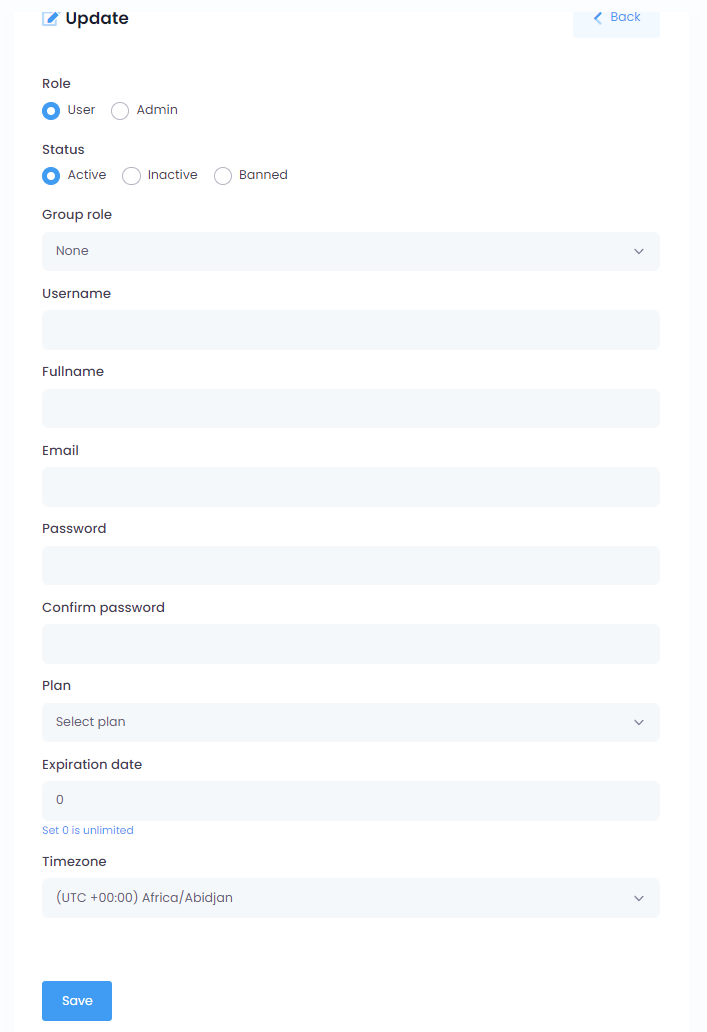
                            Click Save to create a new package for Facebook Review  

                            Step 4. Create a Testing Account for Facebook Review

                            Click User Manager in your left-side Stackposts menu. Click Add new


                            Fill the Update Account follows these guides below and click Save

                            1. Role: User 
                            2. Status: Active
                            3. Fullname: Test
                            4. Email: [email protected]
                            5. Password: 123456
                            6. Confirm password: 123456
                            7. Package: Facebook Review
                            8. Expiration date: Any date
                            9. Timezone: Any timezone

                            Step 5: Update your Terms of Services & Privacy Policy

                            To submit App you have to fill out your Terms of Services and Privacy policy. You can check your site

                            1. Privacy Policy URL: www.yoursite.com/privacy_policy (Sample #1)
                            2. Terms of Service URL: www. yoursite.com/terms_of_service (Sameple #2)

                            You can edit them at Settings/ Others in your Stackposts and click Save when you finish.

                            Welcome Drip

                            Welcome Drip Notifications

                            With welcome drip campaign you can send a series of notifications to your new subscribers. With these you can automate customer on-boarding, and direct the way they navigate your website.

                            To start with the automation, it is important that you visualize the funnel and identify the steps the user has to take at every stage to lead to a conversion. Once done, you will then have a set of URLs through which the user moves in the funnel. In this article, we explain the steps required to create your automation funnel based on a discrete set of URLs.

                            A welcome drip campaign can help in creating a great on-boarding experience and lead nurturing.

                            • You can create a great first impression about your website/service by acknowledging the subscription to notifications, giving them an example of how the updates would be sent in the future.
                            • Send a series of on-boarding push messages to help your subscribers get acquainted with your website/service, or direct them towards a specific journey.
                            • You can pre-define any number of notifications, which would keep your subscribers engaged.
                            • If you run an e-commerce website, you can share coupon codes for new users or inform them about offers running on the website.
                            • Build a strong relationship with your subscribers, by helping them with features on your website, tutorial videos or announcing new products.

                            Setting up Welcome Drip Notifications

                            Welcome notifications are now welcome drip notifications. If you had welcome notifications enabled, they have now been converted to a welcome drip with a single step and immediate delivery. So it works the same as before. But you can now add more steps to the drip and automate subscriber re-engagement.

                            • The first step is already created for you. You can click on the green edit icon to make changes to the notification.
                            • You can add CTA buttons, add a large image which is known to boost click-through.
                            • Once you have customized the notification, click on Save Notification.
                            • Now, you can set the time when you want the first notification from the welcome drip to go out. By default it is set to 0 minutes, which means it is set to go out immediately as soon as the user subscribes.
                            • Now you can add the next step in the drip by clicking on the Add button.
                            • You will get a popup to edit the notification content. Save this notification once you are done with the changes.
                            • This notification will be sent after the previous notification, you can specify the duration after which it should be sent. You can set the duration in minutes, hours or even days from the previous notification.
                            • Similarly, you can add more steps to the drip campaign, and once you are set, click on Enable at the bottom. That’s it, the drip campaign is now active and it will keep your subscribers engaged.

                            Editing an active drip campaign

                            • If you want to edit an active active campaign, click on the Edit button at the bottom. You will be notified that the current drip will be stopped for the subscribers that are already in this drip campaign.
                            • What this means is that, for the subscribers who have not yet completed this drip campaign, they will not get further notifications from this campaign.
                            • Essentially, if you edit the welcome drip campaign, it is paused immediately and will only send notifications to new subscribers once it is enabled.
                            • Once you are in the Edit mode, you can change the timing, add or delete steps or change the notification content as well.
                            • Once you are done with the changes, click on Enable to start the drip for new subscribers.

                            Welcome Drip Analytics

                            • Welcome drip campaign has a separate reporting dashboard. Click on the View Stats button at the bottom of the page to check the statistics on the current drip.
                            • The analytics here give you an in-depth look at the performance of the campaign, right from how many subscribers entered to how many completed the drip.
                            • You also get detailed analytics on clicks as well as click-through rate for each step of the welcome notification campaign.

                            Optimizing your Drip Campaign

                            • Make sure the previous notification expires before the next is sent out: To do that, set the previous notification to expire before the next is set to go out. You wouldn’t want your subscribers to be bombarded with notifications if they had gone out on a holiday.
                            • Give the notifications some space to breathe: Timing is the key to getting meaningful engagement from push notifications. Space them so as to not overwhelm your subscribers. For eg. if you run an e-commerce website, you can start with a welcome coupon which can be used for the first purchase. Then, after a few days, you can check back if they made a purchase and also send them links to popular or new products on your website. Next, you can talk about any rewards program you may have, bulk shipping coupons. And finally ask for feedback on their experience.
                            • Add call to action buttons to notifications: Call to action or CTA buttons help guide your customers through a specific journey. While the main body of the notification can be used to direct the journey as well, CTA buttons provide context.
                            • Large images boost click-through rates: Notifications are a visual medium, and adding large images not only draws attention but makes them more clickable as well. You can stand out from the clutter with a well timed notification with a hero image that highlights the context of the notification.

                            VAPID Configuration

                            You can read more about VAPID in this article from Mozilla.

                            which is located under the “Settings > Web Push Config > VAPID Configuration” section.

                            Click this link to create VAPID:  https://vapidkeys.com/

                            This tool helps you easily generate secure keys for VAPID

                            VAPID, which stands for Voluntary Application Server Identity, is a new way to send and receive website push notifications. Your VAPID keys allow you to send web push campaigns without having to send them through a service like Firebase Cloud Messaging (or FCM). Instead, the application server can voluntarily identify itself to your web push provider.

                            Bulk Post

                            📦 Bulk Post – Mass Content Publishing Made Simple

                            The Bulk Post feature lets you upload and publish multiple posts at once using a CSV file, saving time and streamlining your publishing workflow.

                            🧰 Core Features:

                            ✅ Channel Selection

                            • Select one or more channels (Facebook Pages, Instagram Profiles, etc.)

                            • Group Channel Selector: Use the group icon to select entire channel groups at once (ideal for agencies or multi-brand teams)

                            • Search and filter channels easily

                            📁 Upload Media CSV

                            • Upload a .csv file containing your post content and associated media

                            • Use the Bulk Template for formatting guidance

                            🕒 Schedule Control

                            • Interval per post (minutes): Set the time gap between posts

                            • If post times are left empty or invalid, the system will default to:

                              • First post = current time

                              • Subsequent posts = spaced by the selected interval

                            🔗 Auto URL Shortener

                            • Enable automatic shortening of URLs inside your posts using integrated tools (e.g., Bit.ly)


                            🧾 CSV File Tips:

                            Each row in the CSV should include:

                            • Caption text

                            • Media link or reference

                            • Optional post time (if not using interval logic)

                            • Associated hashtags (optional)


                            Bulk Post is ideal for marketers, teams, or resellers who need to schedule batches of content across multiple accounts with minimal manual input.

                            Upgrade Version

                            🔄 How to Upgrade Version (Stackposts + Addons)

                            Upgrading ensures you always have the latest features, improvements, and security patches. Please follow the steps below:


                            1. Check for Updates

                            • Navigate to Marketplace → Manage Addons.

                            • If a new version is available, you will see an Update button (e.g., Update to 9.0.3).


                            2. Backup First

                            • Before upgrading, always back up:

                              • Your database (MySQL/MariaDB).

                              • Your files and custom configurations.

                            • This ensures you can restore the system in case anything goes wrong.


                            3. Click Update

                            • Press the Update to X.X.X button.

                            • The system will automatically download and install the latest update.

                            • Wait until the process completes — do not refresh the page.


                            4. Update Addons

                            • After upgrading the main script, check your Addons in the Marketplace.

                            • If an addon requires an update, you will also see an Update button under that addon.

                            • Click Update for each addon to ensure full compatibility.


                            ⚠️ Important Notes

                            • Do not interrupt the upgrade process once started.

                            • Always update the main script before addons.

                            • If you encounter issues, restore from your backup and retry.


                            Mail System

                            1. Introduction

                            The Mail System in Stackposts allows administrators to send custom emails, manage automated email templates, and apply branded email themes for consistent communication.

                            With this system, you can:

                            • Send custom emails to selected users

                            • Manage system notification templates (e.g., welcome, payment success, password reset)

                            • Apply professional email themes for a consistent look and feel


                            2. Mail Sender

                            Navigate to Mail System → Mail Sender.
                            This feature lets you send emails manually to specific users.

                            Fields:

                            • Recipient(s) – Select one or multiple users

                            • Subject – Email subject line

                            • Message – Email content (rich text editor supported)

                            • Available Variables – Use dynamic placeholders such as:

                              • [username] → User’s username

                              • [fullname] → Full name

                              • [email] → Email address

                              • [plan_name] → Subscription plan name

                              • [expiration_date] → Plan expiration date

                            👉 Example:
                            “Hello [fullname], your plan [plan_name] will expire on [expiration_date].”


                            3. Mail Templates

                            Navigate to Mail System → Mail Templates.
                            These templates are used for system notifications sent automatically.

                            Default Templates include:

                            • Team Invitation – When a user is invited to a team

                            • Forgot Password – Password reset instructions

                            • Password Changed – Confirmation after password update

                            • Welcome Email – Sent when a new account is created

                            • Account Activation – Sent to verify and activate accounts

                            • Payment Success – Confirmation of successful payment

                            • Payment Failed – Notification of failed payment attempt

                            👉 You can edit each template’s subject and body. Use Available Variables to personalize messages automatically.


                            4. Mail Themes

                            Navigate to Mail System → Mail Themes.
                            Themes define the visual style of all outgoing emails.

                            Example Themes:

                            • Minimal Elegant – Clean and modern layout

                            • Modern Pro – Professional and responsive design

                            Actions:

                            • Use Theme – Apply a theme to all system emails

                            • Active Theme – The theme currently applied to outgoing emails

                            👉 Choose a theme that best matches your brand identity.


                            5. Best Practices

                            • Always use Available Variables to personalize user emails

                            • Customize Mail Templates to reflect your brand voice

                            • Select a Mail Theme that provides readability and professionalism

                            • Test emails by sending them to your admin account before rolling out to users


                            ✅ With the Mail System, admins can automate notifications, maintain consistent branding, and communicate directly with users effectively.


                            Mail Server

                            Mail Server Settings

                            The Mail Server Settings page allows you to configure how your system sends emails such as user activation, notifications, password resets, and other automated messages.


                            1. General Settings

                            • Email Protocol

                              • Mail: Uses the default PHP mail function (simple but may be unreliable on some servers).

                              • SMTP: Uses an external mail server for more secure and reliable email delivery.

                            • Sender Email: The email address that outgoing system messages will be sent from.

                            • Sender Name: The name displayed in the “From” field when users receive emails.


                            2. SMTP Settings (if SMTP is selected)

                            • SMTP Server: The outgoing mail server address (e.g., smtp.gmail.com, smtp.mailgun.org).

                            • SMTP Username: The email account username.

                            • SMTP Password: The email account password or app-specific password.

                            • SMTP Port: Common ports are 465 for SSL, 587 for TLS, or 25 (less secure).

                            • SMTP Encryption: Choose between SSL, TLS, or None, depending on your provider’s requirements.


                            3. Test Send Email

                            • Enter a recipient email address and click Send now to verify if your configuration works.

                            • If the test is successful, your email server is properly configured.


                            4. Save Changes

                            Once all fields are filled, click Save changes to apply your email settings.


                            Tip:

                            • For Gmail, enable App Passwords or allow Less secure apps in your Google Account.

                            • For services like Mailgun, SendGrid, or Amazon SES, copy their SMTP credentials here.


                            X (Twitter) Unofficial

                            🐦 X (Twitter) Unofficial Login with Cookie

                            In some cases, X (Twitter) accounts may face restrictions when using the official API. To work around this, you can connect your account using Login with Cookie.

                            This method requires you to extract tokens from your browser cookies while logged into X.


                            🔑 Required Information

                            1. CSRF Token (ct0)

                              • A security token used by X to validate requests.

                            2. Auth Token (auth_token)

                              • The main session token representing your logged-in account.

                            3. Screen Name

                              • Your X username (without @).

                              • Example: https://x.com/johndoe → screen name is johndoe.


                            📋 How to Get Tokens

                            ✅ Recommended Safe Method

                            • Always use Incognito/Private Mode when logging in to extract cookies.

                            • After copying your tokens and adding them into the system, close the incognito window to clear all cookies automatically.

                            Step-by-Step

                            1. Open an Incognito/Private Mode browser window → log in to your X account.

                            2. Open Developer Tools (F12) → go to the Application/Storage tab.

                            3. Navigate to Cookies → https://x.com.

                            4. Copy:

                              • ct0 → paste into CSRF Token.

                              • auth_token → paste into Auth Token.

                            5. Enter your screen name (your X username).

                            6. Click Submit to connect.

                            7. Close the incognito window to clear cookies from your device.


                            ⚠️ Important Notes

                            • Cookies may expire if you log out or if X resets your session → you’ll need to re-enter them.

                            • Avoid using your regular browser session (to protect your personal cookies).

                            • This method is unofficial and may stop working if X updates its security measures.


                            Tiktok: Something went wrong – client_key

                            ⚠️ Error: “Something went wrong – client_key”

                            This issue usually happens when the TikTok account used to log in is not added as a Test User in your TikTok Developer App settings — not because the client key is incorrect.


                            🔍 Why it happens

                            When your TikTok App is still in Development Mode, only the accounts that are explicitly added as Test Users can connect through OAuth login.
                            If someone tries to log in using a TikTok account not listed in the Test Users section, TikTok will reject the request and show:

                            “Something went wrong – client_key”


                            🛠️ How to fix it

                            1. Go to the TikTok Developer Portal:
                              👉 https://developers.tiktok.com

                            2. Open your app under My Apps → [Your App Name].

                            3. Navigate to App Permissions → Test Users.

                            4. Click Add Test User and enter the TikTok username or email of the account you want to test with.

                              • You can add up to 10 test users per app.

                            5. After adding, ask the user to:

                              • Log out of TikTok (if logged in).

                              • Log in again and reconnect their TikTok account inside Stackposts.

                            6. Once your app is approved and switched to Live Mode, any TikTok account can log in without being added as a test user.


                            📘 Summary

                            App Mode Who Can Log In Solution
                            Development Mode Only test users added in Developer Portal Add user as a Test User
                            Live Mode Any TikTok account Submit the app for review and go Live

                            ✅ So in short:
                            This error appears because the TikTok account isn’t added as a test account. Add the user to your app’s Test Users list in the TikTok Developer Portal, and the login will work correctly.


                            Install Module (Add-on)

                            Go to Admin Dashboard/Marketplace

                            Click Install

                            Enter your Purchase code at the box

                            Mail System

                            1. Introduction

                            The Mail System in Stackposts allows administrators to send custom emails, manage automated email templates, and apply branded email themes for consistent communication.

                            With this system, you can:

                            • Send custom emails to selected users

                            • Manage system notification templates (e.g., welcome, payment success, password reset)

                            • Apply professional email themes for a consistent look and feel


                            2. Mail Sender

                            Navigate to Mail System → Mail Sender.
                            This feature lets you send emails manually to specific users.

                            Fields:

                            • Recipient(s) – Select one or multiple users

                            • Subject – Email subject line

                            • Message – Email content (rich text editor supported)

                            • Available Variables – Use dynamic placeholders such as:

                              • [username] → User’s username

                              • [fullname] → Full name

                              • [email] → Email address

                              • [plan_name] → Subscription plan name

                              • [expiration_date] → Plan expiration date

                            👉 Example:
                            “Hello [fullname], your plan [plan_name] will expire on [expiration_date].”


                            3. Mail Templates

                            Navigate to Mail System → Mail Templates.
                            These templates are used for system notifications sent automatically.

                            Default Templates include:

                            • Team Invitation – When a user is invited to a team

                            • Forgot Password – Password reset instructions

                            • Password Changed – Confirmation after password update

                            • Welcome Email – Sent when a new account is created

                            • Account Activation – Sent to verify and activate accounts

                            • Payment Success – Confirmation of successful payment

                            • Payment Failed – Notification of failed payment attempt

                            👉 You can edit each template’s subject and body. Use Available Variables to personalize messages automatically.


                            4. Mail Themes

                            Navigate to Mail System → Mail Themes.
                            Themes define the visual style of all outgoing emails.

                            Example Themes:

                            • Minimal Elegant – Clean and modern layout

                            • Modern Pro – Professional and responsive design

                            Actions:

                            • Use Theme – Apply a theme to all system emails

                            • Active Theme – The theme currently applied to outgoing emails

                            👉 Choose a theme that best matches your brand identity.


                            5. Best Practices

                            • Always use Available Variables to personalize user emails

                            • Customize Mail Templates to reflect your brand voice

                            • Select a Mail Theme that provides readability and professionalism

                            • Test emails by sending them to your admin account before rolling out to users


                            ✅ With the Mail System, admins can automate notifications, maintain consistent branding, and communicate directly with users effectively.


                            Mail Server

                            Mail Server Settings

                            The Mail Server Settings page allows you to configure how your system sends emails such as user activation, notifications, password resets, and other automated messages.


                            1. General Settings

                            • Email Protocol

                              • Mail: Uses the default PHP mail function (simple but may be unreliable on some servers).

                              • SMTP: Uses an external mail server for more secure and reliable email delivery.

                            • Sender Email: The email address that outgoing system messages will be sent from.

                            • Sender Name: The name displayed in the “From” field when users receive emails.


                            2. SMTP Settings (if SMTP is selected)

                            • SMTP Server: The outgoing mail server address (e.g., smtp.gmail.com, smtp.mailgun.org).

                            • SMTP Username: The email account username.

                            • SMTP Password: The email account password or app-specific password.

                            • SMTP Port: Common ports are 465 for SSL, 587 for TLS, or 25 (less secure).

                            • SMTP Encryption: Choose between SSL, TLS, or None, depending on your provider’s requirements.


                            3. Test Send Email

                            • Enter a recipient email address and click Send now to verify if your configuration works.

                            • If the test is successful, your email server is properly configured.


                            4. Save Changes

                            Once all fields are filled, click Save changes to apply your email settings.


                            Tip:

                            • For Gmail, enable App Passwords or allow Less secure apps in your Google Account.

                            • For services like Mailgun, SendGrid, or Amazon SES, copy their SMTP credentials here.


                            WhatsApp AI Smart Reply

                            WhatsApp AI Smart Reply – User Guide

                            WhatsApp AI Smart Reply helps you generate AI-assisted responses for incoming WhatsApp conversations.

                            It allows your team to reply faster, reduce manual typing, and maintain natural, context-aware communication.


                            Overview

                            With AI Smart Reply, you can:

                            • Generate AI-based reply suggestions
                            • Respond quickly to customer messages
                            • Create more natural and contextual replies
                            • Reduce repetitive typing
                            • Assist support and sales conversations

                            This module acts as an AI assistant for real-time messaging.


                            How to Access

                            Go to:

                            WhatsApp Unofficial → AI Smart Reply


                            Requirements

                            Before using this feature, ensure:

                            • At least one WhatsApp account is connected
                            • The account is active
                            • The WhatsApp server is running
                            • AI permission is enabled in your plan
                            • AI provider is properly configured (API key, model, etc.)

                            If AI is not configured correctly, this feature will not function.


                            Main Purpose

                            AI Smart Reply is designed to generate responses based on conversation context.

                            It is best suited for:

                            • Customer support conversations
                            • Sales and product inquiries
                            • Lead qualification
                            • Follow-up responses
                            • Assisting agents during live chat

                            How It Works

                            When a message is received:

                            1. The system captures the conversation
                            2. AI analyzes the latest message and context
                            3. A suggested reply is generated
                            4. You can review, edit, or send the reply

                            This improves response speed while maintaining quality.


                            Common Use Cases

                            Customer Support

                            Quickly answer support questions.

                            Example:

                            Customer: How can I reset my account password?
                            AI Reply: You can reset your password using the recovery option on the login page. Let us know if you need further assistance.

                            Product Inquiry

                            Respond to questions about services or pricing.

                            Example:

                            Customer: Can you tell me more about your pricing?
                            AI Reply: Sure, please let us know which service you are interested in and we will provide detailed pricing information.

                            Lead Qualification

                            Guide potential customers toward the next step.

                            Example:

                            Customer: Will this work for my business?
                            AI Reply: It may be suitable depending on your needs. Please share more details so we can assist you better.

                            Human-Like First Response

                            Create natural, conversational replies instead of rigid automated messages.


                            AI Configuration

                            AI Smart Reply depends on a properly configured AI system.

                            Ensure:

                            • AI provider is enabled
                            • API key is valid
                            • AI permissions are active
                            • Feature is enabled in your plan

                            If any requirement is missing, replies may not be generated.


                            Best Practices

                            To improve AI response quality:

                            • Ensure sufficient conversation context
                            • Use AI as assistance, not full automation
                            • Review replies before sending when needed
                            • Keep conversations clear and structured
                            • Combine with Live Chat for best results

                            Troubleshooting

                            AI Smart Reply Not Working

                            Possible causes:

                            • AI provider not configured
                            • Invalid or missing API key
                            • Feature disabled in plan
                            • WhatsApp account disconnected
                            • AI request failed

                            No Reply Generated

                            Possible causes:

                            • Insufficient message context
                            • AI service temporarily unavailable
                            • Missing permissions
                            • Server communication issue

                            Poor Reply Quality

                            Possible causes:

                            • Limited context
                            • Unclear customer message
                            • Language mismatch
                            • Lack of supporting information

                            Recommended Workflow

                            Follow this process:

                            1. Connect WhatsApp account
                            2. Verify status in Profile Info
                            3. Configure AI provider
                            4. Enable AI Smart Reply
                            5. Send a test message
                            6. Review generated reply
                            7. Monitor activity in Reports

                            Related Modules

                            Works together with:

                            • Profile Info – verify connection status
                            • Reports – monitor AI usage
                            • Live Chat – use AI suggestions in real-time
                            • Auto Reply – simple automated responses
                            • Chatbot – advanced automation logic
                            • Contacts – manage customer data

                            Final Note

                            WhatsApp AI Smart Reply helps your team respond faster while keeping conversations natural and context-aware.

                            It is best used as an AI assistant, supporting human interaction rather than replacing it completely.

                            WhatsApp AI Smart Reply

                            WhatsApp AI Smart Reply – User Guide

                            WhatsApp AI Smart Reply helps you generate AI-assisted responses for incoming WhatsApp conversations.

                            It allows your team to reply faster, reduce manual typing, and maintain natural, context-aware communication.


                            Overview

                            With AI Smart Reply, you can:

                            • Generate AI-based reply suggestions
                            • Respond quickly to customer messages
                            • Create more natural and contextual replies
                            • Reduce repetitive typing
                            • Assist support and sales conversations

                            This module acts as an AI assistant for real-time messaging.


                            How to Access

                            Go to:

                            WhatsApp Unofficial → AI Smart Reply


                            Requirements

                            Before using this feature, ensure:

                            • At least one WhatsApp account is connected
                            • The account is active
                            • The WhatsApp server is running
                            • AI permission is enabled in your plan
                            • AI provider is properly configured (API key, model, etc.)

                            If AI is not configured correctly, this feature will not function.


                            Main Purpose

                            AI Smart Reply is designed to generate responses based on conversation context.

                            It is best suited for:

                            • Customer support conversations
                            • Sales and product inquiries
                            • Lead qualification
                            • Follow-up responses
                            • Assisting agents during live chat

                            How It Works

                            When a message is received:

                            1. The system captures the conversation
                            2. AI analyzes the latest message and context
                            3. A suggested reply is generated
                            4. You can review, edit, or send the reply

                            This improves response speed while maintaining quality.


                            Common Use Cases

                            Customer Support

                            Quickly answer support questions.

                            Example:

                            Customer: How can I reset my account password?
                            AI Reply: You can reset your password using the recovery option on the login page. Let us know if you need further assistance.

                            Product Inquiry

                            Respond to questions about services or pricing.

                            Example:

                            Customer: Can you tell me more about your pricing?
                            AI Reply: Sure, please let us know which service you are interested in and we will provide detailed pricing information.

                            Lead Qualification

                            Guide potential customers toward the next step.

                            Example:

                            Customer: Will this work for my business?
                            AI Reply: It may be suitable depending on your needs. Please share more details so we can assist you better.

                            Human-Like First Response

                            Create natural, conversational replies instead of rigid automated messages.


                            AI Configuration

                            AI Smart Reply depends on a properly configured AI system.

                            Ensure:

                            • AI provider is enabled
                            • API key is valid
                            • AI permissions are active
                            • Feature is enabled in your plan

                            If any requirement is missing, replies may not be generated.


                            Best Practices

                            To improve AI response quality:

                            • Ensure sufficient conversation context
                            • Use AI as assistance, not full automation
                            • Review replies before sending when needed
                            • Keep conversations clear and structured
                            • Combine with Live Chat for best results

                            Troubleshooting

                            AI Smart Reply Not Working

                            Possible causes:

                            • AI provider not configured
                            • Invalid or missing API key
                            • Feature disabled in plan
                            • WhatsApp account disconnected
                            • AI request failed

                            No Reply Generated

                            Possible causes:

                            • Insufficient message context
                            • AI service temporarily unavailable
                            • Missing permissions
                            • Server communication issue

                            Poor Reply Quality

                            Possible causes:

                            • Limited context
                            • Unclear customer message
                            • Language mismatch
                            • Lack of supporting information

                            Recommended Workflow

                            Follow this process:

                            1. Connect WhatsApp account
                            2. Verify status in Profile Info
                            3. Configure AI provider
                            4. Enable AI Smart Reply
                            5. Send a test message
                            6. Review generated reply
                            7. Monitor activity in Reports

                            Related Modules

                            Works together with:

                            • Profile Info – verify connection status
                            • Reports – monitor AI usage
                            • Live Chat – use AI suggestions in real-time
                            • Auto Reply – simple automated responses
                            • Chatbot – advanced automation logic
                            • Contacts – manage customer data

                            Final Note

                            WhatsApp AI Smart Reply helps your team respond faster while keeping conversations natural and context-aware.

                            It is best used as an AI assistant, supporting human interaction rather than replacing it completely.

                            Requirements

                            Which server is best for SaaS?

                            We recommend UBUNTU Sever from CONTABO that will be easier to upgrade after you have massive customers with minimum requirements:

                            • 4  vCPU Cores
                            • 8 GB RAM
                            • 50 GB NVMe or 200 GB SSD
                            • 1 Snapshot
                            • 32 TB Traffic* (Unlimited Incoming)

                              Requirements

                              Before installing Waziper script on your server, make sure your server is fully configured for the script by following the below requirements:

                              PHP version PHP version 8.0 – 8.1
                              mySQL Version 5.7.xx
                              Node.js Required – Version 18.x
                              allow_url_fopen allow_url_fopen=On (php.ini file)
                              PHP cURL Required. (Curl Library, Curl_init Function, and Curl_exec)
                              PHP OpenSSL Required. (For secure data encryption.)
                              PHP PDO Required. (To create a secure connection to MySQL server)
                              GD Required. (For image processing).
                              PHP EXIF Required. (For validating JPEG files)
                              PHP mbstring Required.
                              Zip PHP zip extension is required (for updating, installing, etc)
                              Option (Recommended) To make sure script working fine. You need to increase the following values in your server: 
                              memory_limit = 512M or higher ( Importance)
                              upload_max_size = 512M 
                              post_max_size = 512M 
                              upload_max_filesize = 512M 
                              max_execution_time = 60
                              max_input_time = 500
                              max_connections = 1000
                              max_user_connections = 200
                              wait_timeout = 180
                              max_allowed_packet = 512M

                              Note: We strongly advise against using VESTACP or HESTIA as they have been known to automatically modify the nginx or apache config file within 1-2 days, which may cause the API domain to stop working.

                              Installation Services

                              When you buy our scripts you will have Documents that help you install them yourself. We do not support Installation with your Server, Hosting, or domain issues.

                              If you need our developer team to install the scripts for you, you can hire us with a fee as below:

                              Stackposts Main Scripts

                              It’s $40 for Stackposts Main Scripts Installation Services. You can order our service here.

                              WhatsApp Module/Waziper

                              It’s $89 for the Full Installation of WhatsApp. Please order here!
                              We recommend UBUNTU Server from CONTABO that will be easier to upgrade later with the minimum specifications for beginning:
                              – 8GB/ 4CPUs
                              – 160GB SSD Disk
                              – 5TB Transfer

                              Note: Please Do not use VESTACP and HESTIA because Hestia or Vestacp Server will automatically change file Nginx or APACHE config about 1 -2 days for default so the API domain will stop working.

                              FFmpeg

                              The price for installing FFmpeg on your server is $30
                              If you want to order please make payment here.

                              Extend Support

                              If you want to order please contact us here.


                              SMTP

                              We recommend you use SMTP of SMTP2GO or Mailgun
                              Ports:

                              1. 587: TLS
                              2. 465: SSL
                              3. 25: None

                              If you have any questions, issues, or suggestions for this feature, please contact us here. We will answer as soon as possible

                              Prevent your emails from going to spam

                              Despite our best efforts, some questions lack straightforward answers. One of the most challenging issues for any email provider is preventing emails from being marked as spam. Why does this occur, and what can be done to prevent it? If you’re not sending spam yet your messages are still being flagged, this post is for you.

                              Check this guide now

                              6. Record videos for submit review

                              First, ensure you establish your own Fanpage. Then, use a test Accounts to record videos. For example:

                              Note: As creating a test account on Meta isn’t possible, you’ll need to provide your actual Facebook account details instead.

                              Facebook Account Test:
                              Email: [email protected]
                              Password: 123sdwr***************

                              Account Test Website:
                              Website: https://yourdomain.com/
                              Email: [email protected]
                              Password: 123456

                              Record Fanpage Video

                              Log in to Facebook.com under your Facebook Account Test. Watching this video that shows you how to record a video for Fanpage Test:


                              Campaign

                              When starting a new campaign, you need to create it and assign a name, such as “Flash Sale” or “Product Launch.” All data related to the notifications you send will be displayed within that campaign.

                              Overview

                              Follow from Navigations: FeaturesCampaign

                              For a comprehensive overview, please review the detailed information for each of your campaigns.

                              All of your data will be presented in this format, allowing you to view and analyze it comprehensively.

                              Please refer to this guide for detailed instructions on how to edit and delete your campaigns. This will provide you with step-by-step directions to make the necessary changes or remove campaigns as needed.

                              How to use it

                              When sending notifications, it is important to select the appropriate campaign name. This ensures that all related results, including performance metrics and user engagement data, will be accurately tracked and stored in the campaign details for future analysis and reporting.

                              By organizing this information under the campaign name, you can better assess the effectiveness of your notifications and make informed decisions for future campaigns.

                              Follow FeaturesComposer Campaign


                              General Settings

                              Using Images

                              What Images Does a Push Notification Have?

                              1. Site Icon

                              File format: PNG file.

                              2. Hero Images

                              We recommend that you use these dimensions:

                              • Windows: 728px (Width) x 360px (Height)
                              • File format: Batch requires a PNG or JPEG file.

                              Free Resources for Hero Image Creation

                              • Create poster-like hero images easily with Canva. For an advanced design tool, choose Figma.
                              • Download editable designs from resource hubs like Freepik or Undraw.
                              • If you want to use stock images, download free images from UnsplashPixabay, and Pexels.

                              Although there isn’t a one-size-fits-all approach to hero images, by adhering to best practices for push notifications and continuously testing and monitoring their performance, you can identify the most effective hero images that boost your conversions.

                              RSS Schedules

                              📰 RSS Schedules – Automate Content from RSS Feeds

                              The RSS Schedules module allows you to automatically fetch content from RSS feeds and schedule posts across your connected social media channels.

                              ⚙️ Key Features:

                              📋 Manage RSS Campaigns

                              • View all your active RSS feeds in one dashboard

                              • Each feed shows:

                                • Feed name & source

                                • Post status summary (e.g., Published, Failed)

                                • Quick controls: Start, Pause/Stop, Edit, Delete

                              ➕ Add/Edit an RSS Feed

                              Click Add new or edit an existing feed to customize automation settings:

                              • RSS URL: Input a valid feed link (e.g. news sites, blogs)

                              • Channel Selection: Choose one or more social accounts for distribution

                              • Auto URL Shortener: Automatically shorten links using integrated services

                              • Post Without Link: Optionally remove source links from the final post

                              • Post the Caption: Display the article title or summary

                              • Keyword Filters:

                                • Only publish posts containing…: Filter by keywords to include only specific content

                                • Do not publish posts containing…: Exclude unwanted topics or tags


                              ⏰ Flexible Scheduling Options

                              Define how and when posts are published:

                              • Time slots per day: Add multiple publishing times

                              • Choose active days: Select specific weekdays to run the schedule

                              • Set start and end dates: Control the campaign duration precisely


                              📥 Actions Menu

                              Each RSS item supports:

                              • ▶️ Start – Begin fetching and publishing content

                              • ⏸️ Pause/Stop – Temporarily disable a feed

                              • 🔗 RSS URL – View the current feed source

                              • 🗑 Delete – Remove the RSS schedule entirely


                              This module is perfect for publishers, media pages, and content curators looking to keep their social feeds fresh with minimal effort.

                              Install Module (Add-on)

                              Go to Admin Dashboard/Marketplace

                              Click Install

                              Enter your Purchase code at the box

                              TikTok API Official

                              📘 TikTok Integration with Our App

                              The TikTok Integration allows users to securely connect their TikTok accounts to Our App for login authentication, profile insights, and direct video publishing.
                              This document explains both Sandbox (testing) and Live (production) setups for smooth integration and easy TikTok App review approval.


                              🔹 Sandbox Integration

                              1. Create a TikTok App

                              1. Go to TikTok for Developers.

                              2. Select Manage Apps → Connect an App.

                              3. Choose Individual Developer for Sandbox mode.

                              4. Name the app (e.g., Our App TikTok Sandbox).


                              2. Create a Sandbox

                              1. Open the Sandbox tab → click Create Sandbox.

                              2. Enter a name (e.g., Our App Sandbox).

                              3. Copy the generated Client Key and Client Secret.


                              3. Configure App Details

                              Field Example
                              App Icon 1024×1024 PNG, ≤5MB
                              Category Business
                              Description Testing TikTok integration with Our App
                              Privacy Policy URL https://yourdomain.com/privacy-policy
                              Terms of Service URL https://yourdomain.com/terms-of-service
                              Website URL https://yourdomain.com/

                              4. Add Products

                              Add the following under Products:

                              • Login Kit → Add Redirect URI:

                                https://yourdomain.com/app/tiktok/profile
                              • Content Posting API → Enable Direct Post and verify your domain.


                              5. Configure Scopes

                              Use only the scopes required for login, analytics, and publishing:

                              user.info.basic
                              user.info.profile
                              user.info.stats
                              video.list
                              video.publish

                              🔸 video.upload is not used — videos are published directly through the TikTok API using video.publish.


                              6. Add Target Users (Sandbox Only)

                              1. Go to Sandbox → Target Users.

                              2. Add your TikTok test accounts here.
                                Only these accounts can connect during Sandbox testing.


                              7. Configure in Our App

                              Go to Settings → API Integration → TikTok.
                              Enter:

                              • App ID

                              • App Secret

                              • Callback URL

                              • Scopes (listed above)

                              • Mode = Sandbox

                              Click Save.


                              8. Connect TikTok in Our App

                              1. Open Channels → + Add Channel.

                              2. Select TikTok → + Profile.

                              3. Log in with TikTok and grant requested permissions.

                              4. Your TikTok profile will appear under Connected Channels.


                              9. Troubleshooting Sandbox

                              Problem Solution
                              Login popup blocked Allow pop-ups in your browser
                              Callback URL mismatch Verify your Redirect URI in TikTok Developer Portal
                              Account not authorized Add account under Sandbox → Target Users
                              Publishing failed Ensure domain verification for Content Posting API

                              🔹 Live Integration

                              1. Requirements Before Review

                              • Must be an Organization account.

                              • Domain must be verified.

                              • Public Privacy Policy and Terms pages are required.

                              • App icon and description should clearly explain usage.


                              2. Domain Verification

                              Choose one of the following:

                              • Add the DNS TXT record provided by TikTok, or

                              • Upload the tiktok-verification.txt file to your website root (e.g.,
                                https://yourdomain.com/tiktok-verification.txt).


                              3. Products & Scopes for Live

                              Products:

                              • Login Kit

                              • Content Posting API

                              Scopes:

                              user.info.basic
                              user.info.profile
                              user.info.stats
                              video.list
                              video.publish

                              4. Explain Usage of Products & Scopes

                              Use this clear, reviewer-approved description:

                              Our App integrates TikTok to allow users to log in, view account analytics, and publish videos directly.

                              • Login Kit → Provides secure OAuth login.

                              • Content Posting API → Enables users to publish videos directly to TikTok.

                              • user.info.basic → Identifies the TikTok account (name, avatar, open_id).

                              • user.info.profile → Displays profile info like bio and verification status.

                              • user.info.stats → Shows follower count, total likes, and video metrics for analytics.

                              • video.list → Displays existing videos posted by the connected TikTok account.

                              • video.publish → Publishes videos from our app directly to TikTok (no draft uploads).


                              5. Prepare a Demo Video

                              Record a 1–2 minute demo video showing:

                              1. Logging into Our App

                              2. Adding a TikTok channel

                              3. OAuth login & granting permissions

                              4. TikTok profile connected successfully

                              5. Publishing a video → appears on TikTok profile

                              Upload it to YouTube, Vimeo, or Google Drive (public link).


                              6. Submit for Review

                              In TikTok Developer Portal → App → Review:

                              • Add app details

                              • Include scopes explanation (above)

                              • Provide the demo video link

                              • Submit and wait for TikTok’s feedback (3–7 business days)


                              7. After Approval

                              • Switch your app mode to Live in TikTok Developer Portal.

                              • In your app → Settings → API Integration → TikTok → Mode = Live.

                              • Test connection with a real TikTok account.


                              8. Best Practices for Live

                              Do:

                              • Use HTTPS everywhere.

                              • Match callback domains exactly.

                              • Keep Privacy Policy & Terms pages public.

                              • Request only necessary scopes.

                              • Respond quickly to reviewer questions.

                              Don’t:

                              • Include video.upload if not used.

                              • Leave placeholder URLs.

                              • Use personal accounts for production testing.


                              ✅ Final Result

                              After successful review and approval:

                              • Users can log in securely via TikTok

                              • View TikTok profile & stats inside Our App

                              • Publish videos directly to TikTok through the Content Posting API

                              Manual Notifications

                              1. Introduction

                              Manual Notifications allow admins to send instant custom messages to selected users.
                              This is helpful for announcements, promotions, or urgent system alerts.


                              2. Sending a Notification

                              When you click + New Notification, a popup form will appear.

                              Fields:

                              • Send To Users – Choose one or multiple users from the dropdown list

                              • Title – The headline of the notification (short & clear)

                              • Message – The main body text (supports text, emojis, links)

                              • URL (Optional) – Add a clickable link that users can open directly from the notification


                              3. Example

                              Title: Payment Success 🎉
                              Message: “Your payment has been processed successfully. Thank you for upgrading your plan.”
                              URL: https://yourdomain.com/dashboard

                              Users will receive the notification instantly in their notification panel (bell icon).


                              4. Final Steps

                              • Click Send to deliver the notification

                              • Click Close if you want to cancel


                              5. Best Practices

                              • Keep titles short (max 6–8 words)

                              • Use emojis to grab attention (🔔 🎉 📢)

                              • Add links for quick actions (e.g., redirect to dashboard, upgrade page, or blog post)

                              • Always test with your own admin account before sending to all users


                              ✅ With this feature, admins can quickly communicate with users inside the platform, without needing email or external tools.

                              Payment Configuration

                              ⚙️ Payment Gateway Configuration

                              Manage and integrate payment gateways for secure and seamless transactions.


                              1. General Configuration

                              • Currency: Select the default currency for all payments.
                                (Example: [USD] United States Dollar)

                              • Symbol: Set the currency symbol.
                                (Example: $)

                              • Symbol Position: Choose whether the currency symbol appears Before or After the amount.

                              Click Save changes to apply.


                              2. Available Payment Gateways

                              You can configure and enable multiple payment gateways for your platform.

                              🔹 PayPal One-Time Payment

                              • Supports single-time payments via PayPal.

                              🔹 PayPal Recurring Payment

                              • Supports subscriptions and recurring billing via PayPal.

                              🔹 Stripe One-Time Payment

                              • Supports single-time payments via Stripe.

                              🔹 Stripe Recurring Payment

                              • Supports subscriptions and recurring billing via Stripe.


                              3. PayPal Configuration

                              Click the ⚙️ settings icon under PayPal One-Time or PayPal Recurring to configure.

                              • Status: Enable / Disable PayPal payment method.

                              • Environment: Choose Sandbox (for testing) or Live (for production).

                              • Client ID: Enter your PayPal App Client ID.

                              • Client Secret: Enter your PayPal App Client Secret.

                              👉 You must create a PayPal app from the PayPal Developer Dashboard to obtain credentials.

                              Click Save changes when done.


                              4. Stripe Configuration

                              Click the ⚙️ settings icon under Stripe One-Time or Stripe Recurring to configure.

                              • Status: Enable / Disable Stripe payment method.

                              • Publishable Key: Enter your Stripe Publishable Key.

                              • Secret Key: Enter your Stripe Secret Key.

                              • Webhook Secret (optional): Configure Stripe webhooks for subscription management and refunds.

                              👉 You must create a Stripe account and generate API keys from the Stripe Dashboard.

                              Click Save changes when done.


                              ✅ After configuration, users will be able to pay using PayPal or Stripe for both one-time and recurring subscriptions.

                              Tiktok: Video Upload Error: “FAILED: video_pull_failed”

                              ⚠️ Error: FAILED: video_pull_failed

                              This error means that TikTok couldn’t retrieve or upload the video file from your Stackposts server during the publishing process.
                              It’s not a permission issue — it’s usually related to the video file, format, or connection.


                              🔍 Common Causes

                              1. Video size too large

                                • TikTok only allows up to 1 GB per video (sometimes less for normal accounts).

                                • Large 4K videos often fail to upload.

                              2. Unsupported format or encoding

                                • Only MP4 (H.264) or MOV are accepted.

                                • Avoid formats such as .avi, .mkv, or videos using unusual codecs.

                              3. Invalid or expired temporary file link

                                • If the file was stored temporarily and the session expired, TikTok can’t “pull” the video.

                                • Re-upload the video and publish again.

                              4. Slow or unstable connection

                                • A timeout while TikTok fetches the video from your server will trigger video_pull_failed.

                              5. TikTok business rules

                                • Some Business Accounts have restrictions (e.g., region limits, content moderation).

                                • If other videos post fine but one fails, it may be flagged automatically by TikTok.


                              🛠️ How to Fix

                              1. Re-encode your video to MP4 (H.264) and keep it under 100 MB–500 MB if possible.

                              2. Try re-uploading the post again — this refreshes the temporary upload link.

                              3. Ensure your server or hosting allows direct public access to media files (TikTok must be able to download the file via HTTPS).

                              4. Check your TikTok App permissions: it must include video.upload scope.

                              5. If you use a Business Account, confirm it’s verified and allowed to post via API.

                              Marketplace

                              The Marketplace allows you to discover, purchase, install, and manage powerful add-ons and modules for Stackposts. It provides an easy way to extend your platform with analytics, automation, publishing, and social integrations.


                              📦 Marketplace Overview

                              • Browse available modules and add-ons.

                              • View module descriptions, pricing, version, and demo.

                              • Quickly purchase and install add-ons directly from the dashboard.


                              🛒 Buying Add-ons

                              1. Navigate to Marketplace in the sidebar.

                              2. Browse available modules such as:

                                • YouTube Analytics Addon – track video views, watch time, and engagement.

                                • LinkedIn Analytics Addon – analyze post performance, followers, and audience engagement.

                                • TikTok Analytics Addon – monitor video reach and engagement trends.

                                • Facebook Analytics Addon – measure user demographics, engagement, and post insights.

                                • And many more.

                              3. Click Buy Now to purchase the add-on from the official marketplace.

                              4. After purchase, you’ll receive an Envato Purchase Code or a ZIP file.


                              📥 Installing Add-ons

                              You can install add-ons in two ways:

                              1. Install via Purchase Code

                              • Go to Marketplace → Install Addon.

                              • Select Via Purchase Code.

                              • Enter your Envato Purchase Code.

                              • Click Install Now.

                              2. Install via ZIP File

                              • Go to Marketplace → Install Addon.

                              • Select Via ZIP File.

                              • Upload the addon.zip file you downloaded.

                              • Click Install Now.

                              ⚠️ Note: Main script reinstallation is not allowed through this feature. Only plugins and themes can be installed.


                              ⚙️ Managing Add-ons

                              1. Go to Manage Addons.

                              2. See the list of installed add-ons with version and activation status.

                              3. From here, you can:

                                • Activate or Deactivate add-ons.

                                • Update modules when new versions are released.

                                • Remove add-ons if no longer needed.


                              ✅ With the Marketplace, you can easily extend Stackposts functionality without manual coding — simply purchase, install, and activate add-ons as needed.


                              Manual Notifications

                              1. Introduction

                              Manual Notifications allow admins to send instant custom messages to selected users.
                              This is helpful for announcements, promotions, or urgent system alerts.


                              2. Sending a Notification

                              When you click + New Notification, a popup form will appear.

                              Fields:

                              • Send To Users – Choose one or multiple users from the dropdown list

                              • Title – The headline of the notification (short & clear)

                              • Message – The main body text (supports text, emojis, links)

                              • URL (Optional) – Add a clickable link that users can open directly from the notification


                              3. Example

                              Title: Payment Success 🎉
                              Message: “Your payment has been processed successfully. Thank you for upgrading your plan.”
                              URL: https://yourdomain.com/dashboard

                              Users will receive the notification instantly in their notification panel (bell icon).


                              4. Final Steps

                              • Click Send to deliver the notification

                              • Click Close if you want to cancel


                              5. Best Practices

                              • Keep titles short (max 6–8 words)

                              • Use emojis to grab attention (🔔 🎉 📢)

                              • Add links for quick actions (e.g., redirect to dashboard, upgrade page, or blog post)

                              • Always test with your own admin account before sending to all users


                              ✅ With this feature, admins can quickly communicate with users inside the platform, without needing email or external tools.

                              Payment Configuration

                              ⚙️ Payment Gateway Configuration

                              Manage and integrate payment gateways for secure and seamless transactions.


                              1. General Configuration

                              • Currency: Select the default currency for all payments.
                                (Example: [USD] United States Dollar)

                              • Symbol: Set the currency symbol.
                                (Example: $)

                              • Symbol Position: Choose whether the currency symbol appears Before or After the amount.

                              Click Save changes to apply.


                              2. Available Payment Gateways

                              You can configure and enable multiple payment gateways for your platform.

                              🔹 PayPal One-Time Payment

                              • Supports single-time payments via PayPal.

                              🔹 PayPal Recurring Payment

                              • Supports subscriptions and recurring billing via PayPal.

                              🔹 Stripe One-Time Payment

                              • Supports single-time payments via Stripe.

                              🔹 Stripe Recurring Payment

                              • Supports subscriptions and recurring billing via Stripe.


                              3. PayPal Configuration

                              Click the ⚙️ settings icon under PayPal One-Time or PayPal Recurring to configure.

                              • Status: Enable / Disable PayPal payment method.

                              • Environment: Choose Sandbox (for testing) or Live (for production).

                              • Client ID: Enter your PayPal App Client ID.

                              • Client Secret: Enter your PayPal App Client Secret.

                              👉 You must create a PayPal app from the PayPal Developer Dashboard to obtain credentials.

                              Click Save changes when done.


                              4. Stripe Configuration

                              Click the ⚙️ settings icon under Stripe One-Time or Stripe Recurring to configure.

                              • Status: Enable / Disable Stripe payment method.

                              • Publishable Key: Enter your Stripe Publishable Key.

                              • Secret Key: Enter your Stripe Secret Key.

                              • Webhook Secret (optional): Configure Stripe webhooks for subscription management and refunds.

                              👉 You must create a Stripe account and generate API keys from the Stripe Dashboard.

                              Click Save changes when done.


                              ✅ After configuration, users will be able to pay using PayPal or Stripe for both one-time and recurring subscriptions.

                              WhatsApp Auto Reply

                              WhatsApp Auto Reply – User Guide

                              WhatsApp Auto Reply allows you to automatically respond to incoming WhatsApp messages using predefined rules.

                              It is designed to help you reduce manual work, improve response time, and automate first-contact communication.


                              Overview

                              With Auto Reply, you can:

                              • Automatically respond to incoming messages
                              • Create rule-based replies per WhatsApp account
                              • Send text or media responses
                              • Add delays for natural behavior
                              • Exclude specific contacts or scenarios
                              • Handle common questions without manual effort

                              This module is ideal for basic automation and quick responses.


                              How to Access

                              Go to:

                              WhatsApp Unofficial → Auto Reply


                              Requirements

                              Before using Auto Reply, ensure:

                              • At least one WhatsApp account is connected
                              • The account is active
                              • The WhatsApp server is running
                              • The feature is enabled in your plan

                              If the account is disconnected, auto replies will not be triggered.


                              Main Purpose

                              Auto Reply is best suited for simple, one-step responses such as:

                              • Greeting new messages
                              • After-hours replies
                              • First-contact acknowledgements
                              • Basic customer information
                              • Sending documents or media automatically

                              How It Works

                              When a message is received:

                              1. The system detects the incoming message
                              2. It checks active Auto Reply rules
                              3. If conditions match, the reply is triggered
                              4. The message is sent (with delay if configured)

                              Setup Workflow

                              Typical setup process:

                              1. Select WhatsApp account
                              2. Create a rule
                              3. Write reply message
                              4. Attach media (optional)
                              5. Configure delay and conditions
                              6. Save rule
                              7. Test using another number

                              Rule Configuration

                              1. WhatsApp Account

                              Select which account will use this rule.

                              You can create separate rules for different numbers.


                              2. Rule Name

                              Use a clear internal name.

                              Examples:

                              • Welcome Reply
                              • After Hours Reply
                              • Pricing Info
                              • Support First Response

                              3. Reply Message

                              Define the automatic response.

                              Supported formats:

                              • Text message
                              • Text + media
                              • Image + caption
                              • Document + message
                              • Video + caption

                              4. Delay

                              Delay helps simulate human-like responses.

                              Instead of replying instantly, the system waits before sending.

                              Benefits:

                              • Avoids robotic behavior
                              • Improves user experience

                              5. Exceptions / Exclusions

                              Depending on your setup, you may exclude:

                              • Specific contacts
                              • Groups
                              • Certain message types
                              • Previously handled conversations

                              Use this to avoid unwanted or repeated replies.


                              Common Use Cases

                              Greeting Message

                              Send a welcome reply when someone contacts you.

                              Example:

                              Hello! Thanks for contacting us. Our team will reply shortly.

                              After-Hours Reply

                              Notify users when you are offline.

                              Example:

                              Thanks for your message. We are currently offline and will respond during working hours.

                              Information Reply

                              Provide quick answers to common questions.

                              Example:

                              Thank you for your interest. Please let us know your requirements and we will assist you.

                              Media Reply

                              Automatically send:

                              • Product catalogs
                              • Brochures
                              • Service images
                              • PDF instructions

                              Auto Reply vs Chatbot

                              Auto Reply

                              Best for:

                              • Simple replies
                              • One-step responses
                              • Quick acknowledgements

                              Chatbot

                              Best for:

                              • Keyword-based logic
                              • Multiple conditions
                              • Advanced conversation flows

                              Recommendation:
                              Use Auto Reply for basic automation, and Chatbot for more complex workflows.


                              Troubleshooting

                              Auto Reply Not Sending

                              Possible causes:

                              • WhatsApp account disconnected
                              • Rule not saved or inactive
                              • Feature not enabled in plan
                              • WhatsApp server not running
                              • Another module handled the message first

                              Reply Sent at Wrong Time

                              Check:

                              • Delay settings
                              • Rule conditions
                              • Server timezone
                              • Schedule configuration

                              Media Not Delivered

                              Check:

                              • File exists and is accessible
                              • Valid file URL
                              • Supported format
                              • Server permissions

                              Too Many Replies Sent

                              Possible causes:

                              • Rule is too broad
                              • Missing exclusions
                              • Multiple automation modules overlapping

                              Best Practices

                              To ensure effective automation:

                              • Keep replies short and natural
                              • Avoid overly long messages
                              • Use delays instead of instant replies
                              • Avoid overlapping rules
                              • Test before using in production

                              Recommended Workflow

                              Follow this sequence:

                              1. Connect WhatsApp account
                              2. Verify status in Profile Info
                              3. Create Auto Reply rule
                              4. Add message or media
                              5. Save and activate rule
                              6. Test with another number
                              7. Monitor activity in Reports

                              Related Modules

                              Works together with:

                              • Profile Info – verify connection status
                              • Reports – track reply activity
                              • Live Chat – continue conversations manually
                              • AI Smart Reply – assist human responses
                              • Chatbot – advanced automation
                              • Contacts – manage users

                              Final Note

                              WhatsApp Auto Reply is the fastest way to automate basic responses and reduce response time.

                              Use it to maintain active communication, improve user experience, and handle incoming messages efficiently.

                              WhatsApp Auto Reply

                              WhatsApp Auto Reply – User Guide

                              WhatsApp Auto Reply allows you to automatically respond to incoming WhatsApp messages using predefined rules.

                              It is designed to help you reduce manual work, improve response time, and automate first-contact communication.


                              Overview

                              With Auto Reply, you can:

                              • Automatically respond to incoming messages
                              • Create rule-based replies per WhatsApp account
                              • Send text or media responses
                              • Add delays for natural behavior
                              • Exclude specific contacts or scenarios
                              • Handle common questions without manual effort

                              This module is ideal for basic automation and quick responses.


                              How to Access

                              Go to:

                              WhatsApp Unofficial → Auto Reply


                              Requirements

                              Before using Auto Reply, ensure:

                              • At least one WhatsApp account is connected
                              • The account is active
                              • The WhatsApp server is running
                              • The feature is enabled in your plan

                              If the account is disconnected, auto replies will not be triggered.


                              Main Purpose

                              Auto Reply is best suited for simple, one-step responses such as:

                              • Greeting new messages
                              • After-hours replies
                              • First-contact acknowledgements
                              • Basic customer information
                              • Sending documents or media automatically

                              How It Works

                              When a message is received:

                              1. The system detects the incoming message
                              2. It checks active Auto Reply rules
                              3. If conditions match, the reply is triggered
                              4. The message is sent (with delay if configured)

                              Setup Workflow

                              Typical setup process:

                              1. Select WhatsApp account
                              2. Create a rule
                              3. Write reply message
                              4. Attach media (optional)
                              5. Configure delay and conditions
                              6. Save rule
                              7. Test using another number

                              Rule Configuration

                              1. WhatsApp Account

                              Select which account will use this rule.

                              You can create separate rules for different numbers.


                              2. Rule Name

                              Use a clear internal name.

                              Examples:

                              • Welcome Reply
                              • After Hours Reply
                              • Pricing Info
                              • Support First Response

                              3. Reply Message

                              Define the automatic response.

                              Supported formats:

                              • Text message
                              • Text + media
                              • Image + caption
                              • Document + message
                              • Video + caption

                              4. Delay

                              Delay helps simulate human-like responses.

                              Instead of replying instantly, the system waits before sending.

                              Benefits:

                              • Avoids robotic behavior
                              • Improves user experience

                              5. Exceptions / Exclusions

                              Depending on your setup, you may exclude:

                              • Specific contacts
                              • Groups
                              • Certain message types
                              • Previously handled conversations

                              Use this to avoid unwanted or repeated replies.


                              Common Use Cases

                              Greeting Message

                              Send a welcome reply when someone contacts you.

                              Example:

                              Hello! Thanks for contacting us. Our team will reply shortly.

                              After-Hours Reply

                              Notify users when you are offline.

                              Example:

                              Thanks for your message. We are currently offline and will respond during working hours.

                              Information Reply

                              Provide quick answers to common questions.

                              Example:

                              Thank you for your interest. Please let us know your requirements and we will assist you.

                              Media Reply

                              Automatically send:

                              • Product catalogs
                              • Brochures
                              • Service images
                              • PDF instructions

                              Auto Reply vs Chatbot

                              Auto Reply

                              Best for:

                              • Simple replies
                              • One-step responses
                              • Quick acknowledgements

                              Chatbot

                              Best for:

                              • Keyword-based logic
                              • Multiple conditions
                              • Advanced conversation flows

                              Recommendation:
                              Use Auto Reply for basic automation, and Chatbot for more complex workflows.


                              Troubleshooting

                              Auto Reply Not Sending

                              Possible causes:

                              • WhatsApp account disconnected
                              • Rule not saved or inactive
                              • Feature not enabled in plan
                              • WhatsApp server not running
                              • Another module handled the message first

                              Reply Sent at Wrong Time

                              Check:

                              • Delay settings
                              • Rule conditions
                              • Server timezone
                              • Schedule configuration

                              Media Not Delivered

                              Check:

                              • File exists and is accessible
                              • Valid file URL
                              • Supported format
                              • Server permissions

                              Too Many Replies Sent

                              Possible causes:

                              • Rule is too broad
                              • Missing exclusions
                              • Multiple automation modules overlapping

                              Best Practices

                              To ensure effective automation:

                              • Keep replies short and natural
                              • Avoid overly long messages
                              • Use delays instead of instant replies
                              • Avoid overlapping rules
                              • Test before using in production

                              Recommended Workflow

                              Follow this sequence:

                              1. Connect WhatsApp account
                              2. Verify status in Profile Info
                              3. Create Auto Reply rule
                              4. Add message or media
                              5. Save and activate rule
                              6. Test with another number
                              7. Monitor activity in Reports

                              Related Modules

                              Works together with:

                              • Profile Info – verify connection status
                              • Reports – track reply activity
                              • Live Chat – continue conversations manually
                              • AI Smart Reply – assist human responses
                              • Chatbot – advanced automation
                              • Contacts – manage users

                              Final Note

                              WhatsApp Auto Reply is the fastest way to automate basic responses and reduce response time.

                              Use it to maintain active communication, improve user experience, and handle incoming messages efficiently.

                              Facebook API

                              Updated March, 2024: We are updating the new documentation for Meta API Apps with Facebook and Instagram, you can check it at the new link here

                              How to use


                              Renew / Extend Support Period

                              All your items are expired and will be shown on the right side. Please select the correct item you would like to get support from our development team

                              Go to this link: https://stackposts.com/support 

                              Livestream

                              Install FFMPEG first to operate Livestream modules. You can follow this guide to install it.


                              First Things to do

                              Change your Logo

                              Before proceeding to the next configuration steps, please initiate the modification of your logo and icon. This action will facilitate easier navigation through subsequent settings.

                              Configure your Social Media API app


                              Composer

                              Media

                              You can publish images, and video files for suitable social media sites.

                              Link

                              When you insert a link, Stackposts will automatically retrieve the image associated with it and set it as the default image for your posts.

                              You can’t change the thumbnail image if the social media platform doesn’t support image changes.

                              Text

                              Features

                              When to post

                              Immediately


                              Schedule & Repost

                              1. Interval per post

                              Interval per post: It refers to the time duration or gap between each individual post shared or published. This setting allows users to specify how much time should pass between consecutive posts.

                              For instance, setting an interval of 5 minutes per post would mean that after one post is published, the tool will wait for 5 minutes before allowing the next post to be published. This feature helps regulate the frequency and timing of content sharing to maintain a consistent schedule and avoid overwhelming audiences with too many posts in a short period.

                              2. Repost frequency (day)

                              Repost frequency (day): It refers to the number of times content is shared or reposted within a specific period, typically measured in days. It indicates how often a particular piece of content (such as a social media post, link, or text) is scheduled or automatically shared again on a platform within a defined time frame.

                              For example, if the repost frequency is set to “3 days,” it means that after sharing a piece of content, it will be reposted or shared again automatically after every three days.

                              3. Repost until

                              Repost until: It refers to the duration or specific endpoint set for the reposting of content. It indicates the time and date until which a particular piece of content will continue to be shared or reposted.

                              For instance, if a social media scheduling tool has a “repost until” feature and you set it for a date two weeks in the future, the content will be automatically reposted at the designated intervals until that specified date is reached. Once the “repost until” date is reached, the reposting or sharing of that content will cease as per the configured settings.


                              Open AI

                              URL Shorteners

                              Save Caption

                              Get Caption

                              Word Counter

                              Bulk Post

                              Bulk Post Template File

                              You have the option to download our bulk post template, which can then be uploaded to your Stackposts platform to activate this feature seamlessly.

                              Bulk Post Teamplate
                              Bulk Post Teamplate

                              Drafts

                              Schedules

                              Account Manager

                              File Manager

                              Tools

                              FAQs

                              Memberships

                              Plans

                              Add a new plan

                              Plan info

                              Permissions

                              Enable features that you want to add to your new plan. Some permissions will be invisible because you haven’t purchased them yet. You can buy more modules and features here.

                              Dashboard

                              Composer

                              File Manager

                              Click the Save button when you create a new plan. Click Save and update subscribers when you update the current plans.

                              Coupons

                              Subscriptions

                              Payments


                              Install & configure aaPanel

                              Users

                              List users

                              User roles

                              It’s available for the extended license only

                              User report

                              It’s available for the extended license only


                              If you have any questionsissues, or suggestions for this feature, please contact us here. We will answer as soon as possible

                              Install FFMPEG

                              FFmpeg is one of the best multimedia frameworks that can be used to encode, decode, transcode, mux, demux, record, stream, filter, and play any type of media file. It is a completely free multimedia framework that works on almost all operating systems, including Linux, Mac OS X, Microsoft Windows, the BSDs, Solaris, etc.

                              Install FFmpeg In Linux

                              FFmpeg is packaged for most Linux distributions and is available in the default repositories. Here are installation instructions for popular Linux distros.

                              1. Install FFmpeg on Arch Linux and its derivatives

                              FFmpeg is available in the default repositories of Arch Linux. You can install it using the command:

                              $ sudo pacman -S ffmpeg

                              The latest development version is available in the AUR. , so you can install it using any AUR helpers, for example, Yay.

                              $ yay -S ffmpeg-git

                              There is also ffmpeg-full package in AUR, which is built with as many optional features enabled as possible. You can install that too if you want.

                              $ yay -S ffmpeg-full-git

                              2. Install FFmpeg on Debian

                              FFmpeg is available in the default repositories. Open your Terminal and run the following command to install it.

                              $ sudo apt-get install ffmpeg

                              3. Install FFmpeg on Ubuntu and its derivatives

                              In Ubuntu, FFmpeg is available in the official repositories, so you can install it using command:

                              $ sudo apt-get install ffmpeg

                              FFmpeg in the official repositories might be bit outdated. To install the most recent version, use the FFmpeg PPA.

                              $ sudo add-apt-repository ppa:mc3man/trusty-media
                              $ sudo apt-get update
                              $ sudo apt-get dist-upgrade

                              4. Install FFmpeg on Fedora, RHEL, CentOS

                              FFmpeg can be installed via EPEL and RPM Fusion repositories on RPM-based distributions, such as RHEL, Fedora, CentOS.

                              First, Add EPEL repository using the command:

                              $ sudo dnf install epel-release

                              Add RPM Fusion repository as shown below depending upon the distribution you use:

                              To enable access to both the free and the nonfree repository use the following command:

                              Fedora 22 and later:

                              $ sudo dnf install https://mirrors.rpmfusion.org/free/fedora/rpmfusion-free-release-$(rpm -E %fedora).noarch.rpm https://mirrors.rpmfusion.org/nonfree/fedora/rpmfusion-nonfree-release-$(rpm -E %fedora).noarch.rpm

                              RHEL 8.x and compatible systems:

                              $ sudo dnf install --nogpgcheck https://dl.fedoraproject.org/pub/epel/epel-release-latest-8.noarch.rpm
                              $ sudo dnf install --nogpgcheck https://mirrors.rpmfusion.org/free/el/rpmfusion-free-release-8.noarch.rpm https://mirrors.rpmfusion.org/nonfree/el/rpmfusion-nonfree-release-8.noarch.rpm

                              RHEL 7.x, CentOS 7.x:

                              $ sudo yum localinstall --nogpgcheck https://mirrors.rpmfusion.org/free/el/rpmfusion-free-release-7.noarch.rpm https://mirrors.rpmfusion.org/nonfree/el/rpmfusion-nonfree-release-7.noarch.rpm

                              The above commands will install both free and non-free repositories.

                              After enabling EPEL and RPM Fusion repositories, run the following command to install FFmpeg:

                              $ sudo dnf install ffmpeg ffmpeg-devel

                              Or,

                              $ sudo yum install ffmpeg ffmpeg-devel

                              5. Install FFmpeg in openSUSE

                              Enable Packman repository on your openSUSE system.

                              If you’re using openSUSE Tumbleweed edition, run the following command to enable Packman repository:

                              $ sudo zypper addrepo -cfp 90 'https://ftp.gwdg.de/pub/linux/misc/packman/suse/openSUSE_Tumbleweed/' packman

                              On openSUSE Leap:

                              $ sudo zypper addrepo -cfp 90 'https://ftp.gwdg.de/pub/linux/misc/packman/suse/openSUSE_Leap_$releasever/' packman

                              Refresh the repository database:

                              $ sudo zypper refresh

                              Finally, install FFmpeg on openSUSE using the command:

                              $ sudo zypper install --from packman ffmpeg

                              ! Congratulations! You have successfully installed FFmpeg on your Linux box.

                              To verify the FFmpeg version, run

                              $ ffmpeg -version

                              Sample output:

                              ffmpeg version 4.4 Copyright (c) 2000-2021 the FFmpeg developers
                                            built with gcc 11 (GCC)
                                            configuration: --prefix=/usr --bindir=/usr/bin --datadir=/usr/share/ffmpeg --docdir=/usr/share/doc/ffmpeg --incdir=/usr/include/ffmpeg --libdir=/usr/lib64 --mandir=/usr/share/man --arch=x86_64 --optflags='-O2 -flto=auto -ffat-lto-objects -fexceptions -g -grecord-gcc-switches -pipe -Wall -Werror=format-security -Wp,-D_FORTIFY_SOURCE=2 -Wp,-D_GLIBCXX_ASSERTIONS -specs=/usr/lib/rpm/redhat/redhat-hardened-cc1 -fstack-protector-strong -specs=/usr/lib/rpm/redhat/redhat-annobin-cc1 -m64 -mtune=generic -fasynchronous-unwind-tables -fstack-clash-protection -fcf-protection' --extra-ldflags='-Wl,-z,relro -Wl,--as-needed -Wl,-z,now -specs=/usr/lib/rpm/redhat/redhat-hardened-ld ' --extra-cflags=' -I/usr/include/rav1e' --enable-libopencore-amrnb --enable-libopencore-amrwb --enable-libvo-amrwbenc --enable-version3 --enable-bzlib --disable-crystalhd --enable-fontconfig --enable-frei0r --enable-gcrypt --enable-gnutls --enable-ladspa --enable-libaom --enable-libdav1d --enable-libass --enable-libbluray --enable-libcdio --enable-libdrm --enable-libjack --enable-libfreetype --enable-libfribidi --enable-libgsm --enable-libmp3lame --enable-libmysofa --enable-nvenc --enable-openal --enable-opencl --enable-opengl --enable-libopenjpeg --enable-libopenmpt --enable-libopus --enable-libpulse --enable-librsvg --enable-librav1e --enable-libsmbclient --enable-version3 --enable-libsoxr --enable-libspeex --enable-libsrt --enable-libssh --enable-libsvtav1 --enable-libtheora --enable-libvorbis --enable-libv4l2 --enable-libvidstab --enable-libvmaf --enable-version3 --enable-vapoursynth --enable-libvpx --enable-vulkan --enable-libglslang --enable-libx264 --enable-libx265 --enable-libxvid --enable-libxml2 --enable-libzimg --enable-libzvbi --enable-lv2 --enable-avfilter --enable-avresample --enable-libmodplug --enable-postproc --enable-pthreads --disable-static --enable-shared --enable-gpl --disable-debug --disable-stripping --shlibdir=/usr/lib64 --enable-lto --enable-libmfx --enable-runtime-cpudetect
                                            libavutil 56. 70.100 / 56. 70.100
                                            libavcodec 58.134.100 / 58.134.100
                                            libavformat 58. 76.100 / 58. 76.100
                                            libavdevice 58. 13.100 / 58. 13.100
                                            libavfilter 7.110.100 / 7.110.100
                                            libavresample 4. 0. 0 / 4. 0. 0
                                            libswscale 5. 9.100 / 5. 9.100
                                            libswresample 3. 9.100 / 3. 9.100
                                            libpostproc 55. 9.100 / 55. 9.100
                                          

                              To print FFmpeg help section:

                              $ ffmpeg -h

                              Display FFmpeg man page:

                              $ man ffmpeg

                              Installing FFmpeg on Ubuntu

                              FFmpeg is a very popular software project, which is a collection of programs and libraries that are used to handle audio and video file conversion, and streams, as well as record other multimedia files.

                              Step 1: Update the Repository

                              Update and upgrade the system packages to get the FFmpeg version currently available in the repository. Execute the following command:

                              sudo apt update && sudo apt upgradeudo apt update && sudo apt upgrade
                              sudo apt update && sudo apt upgrade terminal output

                              Hit y to continue when prompted:

                              Step 2: Install FFmpeg

                              After upgrading the repository, install FFmpeg by running the following:

                              sudo apt install ffmpeg

                              sudo apt install ffmpeg terminal output

                              It may ask for taking additional disk space for installation, type “Y” and hit the “Enter” button.

                              Now FFmpeg is installed on your Ubuntu 20.04 LTS system.

                              Step 3: Check FFmpeg version

                              The next thing you should do after confirming its installation is, first, check the version of FFmpeg using the command given below:

                              ffmpeg --version

                              Step 4: Encoders and Decoders

                              In order to see/print encoders and decoders available from FFmpeg, type the commands given below:

                              ffmpeg -encoders

                              ffmpeg -decoders

                              You can witness that FFmpeg is installed and working perfectly fine.

                              Contact Stackposts Team

                              Social Media Sites

                              We appreciate your message and we will reply to your message as soon as we’re able.
                              Please note that our team doesn’t answer issues that are relevant to technical problems.

                               FacebookFollow News & Updates
                               Youtube:     Watch the Tutorial & Demo
                                  Email:         [email protected]
                                 WhatsApp: Chat with us now

                              The developer helps with technical problems

                              Our dev team will check your case in detail. Please open a ticket here with your purchase codes to fix your technical problems

                              Report Stackposts Issues

                              We also provide a form for those who wish to report detailed issues. You can send all your info here.

                              Open a support ticket

                              If you don’t see your license on Stackposts.com please follow this guide to enable it:

                              Please open the ticket here to get support details: https://stackposts.com/support/new_ticket and our dev team will check it all for you.

                              Please watch this video to learn How to open or renew the support ticket on Stackposts.


                              Change the storage capacity for each of the packages

                              How do I change the storage capacity for each of the packages?

                              How to install Google Analytics in the Stackposts website

                              Settings / General Settings / Others ==>

                              Version 7.2.3


                              How to Get Latest Updates on Stackpost?

                              What is an Update?

                              An update is a free download for Stackpost Main Script that provides fixes for features that aren’t working as intended or adds minor software enhancements and compatibility.

                              Updates are released to address minor bugs discovered in the Script. These small, incremental updates improve the operation of your own platform.

                              It is wise to install security updates when they are released to ensure your system is as protected as possible against constantly changing threats.

                              How to Get the Latest Updates on Stackpost?

                              Please follow the Screenshot below to download updates for your scripts:

                              1. From your Dashboard, click Plugins in the left menu and select Main Scripts to check all the latest updating scripts.
                              2. Select your a version update to update it now

                              Important: Back up all your file before updating to keep safe for script


                              How to use Package Manager on Stackposts?

                              In a nutshell, your pricing page is the landing page on your website that lists the different pricing options or tiers available to customers and the benefits and features included in each tier. 

                              How to use Package Manager on Stackposts?

                              Create a new package

                              on the left-side menu click Package manager and click Add new

                              Set up Free Package Info

                              • Status:  Click Enable to show on your pricing page.
                              • Name: Your package name (Free, Standard or Premier,..)
                              • Description: Overview for this package
                              • Trial day: Number of days user use it free
                              • Number of accounts: How many social media accounts users can add to your platform
                              • Position: Order your packages on the pricing page.

                              Set up Subscription Package Info

                              • Status:  Click Enable to show on your pricing page.
                              • Name: Your package name (Free, Standard or Premier,..)
                              • Description: Overview for this package
                              • Price Monthly: The price the user will pay a package for every month
                              • Price Annually: The price the user will pay a package for every year.
                              • Number of accounts: How many social media accounts users can add to your platform
                              • Position: Order your packages on the pricing page.

                              Select Permissions for Package

                              Choose all features that will be included in your package and click Enable.

                              At Account manager, please click enable the social media network you want users to add 

                              Finally, click Save to publish your packages.

                              How to Get the Latest Version Stackposts?

                              Important: Back update all your file before updating to keep safe for script

                              What is an Update?

                              An update is a free download for Stackpost Main Script that provides fixes for features that aren’t working as intended or adds minor software enhancements and compatibility.

                              Updates are released to address minor bugs discovered in the Script. These small, incremental updates improve the operation of your own platform.

                              It is wise to install security updates when they are released to ensure your system is as protected as possible against constantly changing threats.

                              How to Get the Latest Version Stackpost?

                              Please follow the Screenshot below to download updates for your scripts:

                              1. From your Dashboard, click Plugins in the left menu and select Main Scripts to check all the latest updating scripts.
                              2. Select your version update to update it now

                              Important: Back update all your file before updating to keep them safe for script

                              How to get Support on Stackpost?

                              Please open the ticket here to get support detail from our developer team.

                              How to Configure Google Drive Integration?

                              How to Configure Google Drive Integration in Stackposts?

                              What is Google Drive?

                              Google Drive is a cloud-based storage solution that allows you to save files online and access them anywhere from any smartphone, tablet, or computer. 

                              Some of Google Drive’s other key features:

                              How to Configure Google Drive Integration in Stackposts?

                              Click this link to create a Google app: https://console.developers.google.com/projectcreate

                              Watching this Guide video to get more detail:

                              How to get Support from the Developer Team?

                              Please open the ticket here to get support detail from our developer team.

                              How to use Spintax on Stackposts?

                              What is Spintax?

                              The word Spintax comes from the phrase “Spinning Syntax”, and it is a technique often used for producing content on a large scale within a short span of time. The syntax begins with an open curly brace and ends with a closing brace, and each term inside the braces is separated by a delimiter (pipe character).

                              {word1|word2|word3}

                              For example, let us try using Spintax in a sentence with different Stackposts items,

                              You can use Stackposts for {Facebook|Instagram|Twitter}

                              And at any instance, you would come up with only one of the following results.

                              • You can use Stackposts for Facebook
                              • You can use Stackposts for Instagram
                              • You can use Stackposts for Twitter

                              How to get Support on Stackpost?

                              Please open the ticket here to get support detail from our developer team.

                              Reset License

                              Please reset your license here: https://stackposts.com/purchases

                              If you have any questions, issues, or suggestions for this feature, please contact us here. We will answer as soon as possible

                              Landing Page / Homepage

                              Disable Landing Page

                              Disable Home Page

                              Change the content on the Homepage

                              You can change it in the language for the homepage content.


                              How to use?

                              NOTEs: Currently Button and List messages function only work with web browser. We are checking the problem, please do not use for IOS and android. Thanks!


                              Please set up the first steps to use

                              Set up your Timezone

                              Set up your Package

                              Set up account number for each package

                              Select “Save” to set new limits for new users
                              Select “Save and update subscribers” to set new limits for all users

                              Set up account number for each package

                              Set limits for functions

                              How to add WhatsApp Number to Waziper?

                              Please sign out WhatsApp Number which is Active on Web WhatsApp or any place where you logged in to your WhatsApp Account.

                              When you logged in to your account on Waziper.com, please follow these steps:

                              Step 1:  Select WhatsApp Icon and Press Add account

                              Step 2: Scanning QR code from your Cell Phone

                              Using your phone to scan the QR code

                              Relogin to keep old instance id and account settings

                              Step 3: You will see your WhatsApp Account on Waziper as the picture below:

                              Keep your phone in front of the QR Code (Don’t Move) and waiting from 5 – 10 seconds
                              You will see your WhatsApp Account on Waziper as the picture below:

                              How to Send Bulk Messages?

                              Sending bulk messages has always been considered an excellent chance for small and large companies as well as start-up firms that come to life within the many versions of WhatsApp, because it allows them to quickly send messages to all customers, share promotions, give relevant information, or highlight special events.

                              What are WhatsApp bulk messages?

                              WhatsApp bulk messages are a very effective method businesses use to contact leads and build customer loyalty that can include videos and images, as well as the ability to express their message with an unlimited number of characters.

                              Send Bulk Messages on Waziper

                              Step 1: Create a list of Contacts

                              Please create a list of Contact group you want to send

                              You can create multiple Contact group for multiple campaigns. Limit the number of Contact group set up in the package
                              The Contact group helps you to set up variables for each contact. These variables you can only use for feature Bulk Messages

                              Step 2: Create a Bulk messaging

                              To use this feature please select Bulk messaging tab -> Select Add New

                              Select WhatsApp accounts: You can choose each account for each campaign or multiple accounts for 1 campaign, the system will automatically rotate each account to send to each contact in the contact list in turn.

                              You can create groups of accounts

                              Campaign name: Enter a name for each campaign

                              Contact group: Select the contact list you want to send.
                              If the contact list is empty, please create a contact list in the contact tab

                              Select message type:

                              There are many types of messages that you can use for the campaign

                              Text & Media: You can send a message that includes only text or includes both text and media. 

                              • Media file: Supported media types: Image, video, pdf… and all other file types, but mobile app will not support viewing or downloading these files.
                              • Caption: Enter what you want to send. Do you use a pre-made list of messages using the “Get Caption” function
                              • Get Caption: Click here to get Saved Captions to post
                              • Save Caption:  Clicker to save new caption in your database
                              • You can use variables in a contact list using a structure: %name%, %param1%, %param2%,…
                              • You can random message by Spintax: {Hi|Hello|Hola}
                              • Use save caption function to save caption
                              • Support URL Shortener

                              Buttons: You can create interactions in your messages with buttons. Please create a button template to use.
                              List messages: You can create a list of choices in a message. Please set the list message template to use


                              Time post: 

                              Set the time for the campaign

                              Set random interval between messages

                              Set up a unique schedule by time for your campaign to run

                              Step 3: Checking All Campaigns that are Scheduled.

                              All your Bulk Messages Campaigns will be shown here

                              • Sent: Number of messages sent successfully
                              • Pending: Number of messages waiting to be sent
                              • Failed: Number of failed messages sent
                              • Report: Export report for campaign, xls file


                              How to use Auto Responder?

                              A Waziper auto-reply makes your business less difficult. Because we’re simply not always able to be there for our customers right away. So in order to provide the speed that your customers are looking for, you need some automation. This can be done by creating WhatsApp Business greeting messages, or an out-of-office reply.

                              What is Auto Responder WhatsApp Marketing Tool?

                              An automatic reply is a message which is set up to go out automatically in response to any WhatsApp numbers that arrive, often though not necessarily while he or she is out of the office or you would like to engage with your customers immediately.

                              Auto Responder WhatsApp Marketing Tool

                              When you’re busy or out of the office, you can set Auto Responder messages to automatically send messages to all of your contacts, to set Auto Responder messages:

                              Choose Autoresponder setup account or set up for the whole account

                              The Functions of AutoResponder

                              Select message type:

                              There are many types of messages that you can use for the campaign

                              Text & Media: You can send a message that includes only text or includes both text and media. 

                              • Media file: Supported media types: Image, video, pdf… and all other file types, but mobile app will not support viewing or downloading these files.
                              • Caption: Enter what you want to send. Do you use a pre-made list of messages using the “Get Caption” function
                              • Get Caption: Click here to get Saved Captions to post
                              • Save Caption:  Clicker to save new caption in your database
                              • You can random message by Spintax: {Hi|Hello|Hola}
                              • Use save caption function to save caption
                              • Support URL Shortener

                              Buttons: You can create interactions in your messages with buttons. Please create a button template to use.
                              List messages: You can create a list of choices in a message. Please set the list message template to use

                              Note: You cannot use variables for this feature

                              Resubmit message only after (minute): Reply delay time, time since last message

                              Except contacts: Exclude no reply with whatsapp accounts

                              How to use Chatbot?

                              Communicate with users in a conversational manner

                              Chatbots can help to improve customer service, reduce costs, maintain consistency, increase engagement and conversion rates, and collect valuable data in messaging systems.

                              After you select Chatbot, click  Add item:

                              The Functions of Chatbot

                              • Sent to:
                                • All: Sending to all contacts, groups
                                • Individual: Sending to WhatsApp Contacts which is Individual people
                                • Group Only: Chatbot only replies on WhatsApp Groups.
                              • Type:
                                • Message contains the keyword: For example: if you set a keyword: “hi” that chatbot will reply to all messages that have “hi” in any sentences.
                                • Message contains whole keyword: For example: if you set a keyword: “hi, I need to buy items” that chatbot will reply exactly to the messages that have”hi, I need to buy items” in the sentences.

                              Create a name and keywords for the chatbot

                              Select message type:

                              There are many types of messages that you can use for the campaign

                              Text & Media: You can send a message that includes only text or includes both text and media. 

                              • Media file: Supported media types: Image, video, pdf… and all other file types, but mobile app will not support viewing or downloading these files.
                              • Caption: Enter what you want to send. Do you use a pre-made list of messages using the “Get Caption” function
                              • Get Caption: Click here to get Saved Captions to post
                              • Save Caption:  Clicker to save new caption in your database
                              • You can random message by Spintax: {Hi|Hello|Hola}
                              • Use save caption function to save caption
                              • Support URL Shortener

                              Buttons: You can create interactions in your messages with buttons. Please create a button template to use.
                              List messages: You can create a list of choices in a message. Please set the list message template to use

                              Note: You cannot use variables for this feature

                              Status: Click Enable 

                              How to use Export participants?

                              The feature only helps you to export 1 group at a time

                              How to use?

                              • 1. Send a message to group you want export participants
                              • 2. Select account you want export participants
                              • 3. Click Download button of group you want export on list

                              How to use button?

                              The feature only supports creating up to 3 buttons

                              Button supports Bulk messaging, Autoresponder and Chatbot features. If you need to use these types of messages, please set them up first.

                              After you select button template, click  Add item:

                              The Functions of button

                              Main image: Button only supports you to send text and images, does not support you to send videos

                              Main description:

                              • Media file: Supported media types: Image, video, pdf… and all other file types, but mobile app will not support viewing or downloading these files.
                              • Caption: Enter what you want to send. Do you use a pre-made list of messages using the “Get Caption” function
                              • Get Caption: Click here to get Saved Captions to post
                              • Save Caption:  Clicker to save new caption in your database
                              • You can use variables in a contact list using a structure: %name%, %param1%, %param2%,…Variable only works when you use button for function Bulk messaging
                              • You can random message by Spintax: {Hi|Hello|Hola}
                              • Use save caption function to save caption
                              • Support URL Shortener

                              Footer: Content under Main description, you can set or not


                              List button: You can create a list of choices in a message. Please set the list message template to use

                              There are 3 types of buttons you can use, please enter the parameters as required

                              Display text: The variable only works when you use the button for the Bulk messaging feature

                              Messages are sent with 3 types of buttons

                              How to use List message?

                              NOTE: List Message function currently does not work with android devices

                              Create a list of items or options for customers

                              Quickly send a list of items to customers without having to type out each item individually. The template can be customized to include relevant information such as product images, descriptions, and prices.

                              After you select List message template, click  Add new:

                              The Functions of List message

                              Menu description:

                              • Media file: Supported media types: Image, video, pdf… and all other file types, but mobile app will not support viewing or downloading these files.
                              • Caption: Enter what you want to send. Do you use a pre-made list of messages using the “Get Caption” function
                              • Get Caption: Click here to get Saved Captions to post
                              • Save Caption:  Clicker to save new caption in your database
                              • You can use variables in a contact list using a structure: %name%, %param1%, %param2%,…Variable only works when you use button for function Bulk messaging
                              • You can random message by Spintax: {Hi|Hello|Hola}
                              • Use save caption function to save caption
                              • Support URL Shortener

                              Section and Options: You can create multiple sections, each section you can create multiple options

                              How to create and edit contacts?

                              Contact list is only used for Bulk messaging feature, all user accounts can use the same contact list

                              After you select List message template, click  Add new:

                              Step 1: Create contact groups and enable active status

                              Step 2: Import contact list, number of groups and number of contacts in each group is limited by user plan

                              Please do not change the name of the first row in the file


                              Upgrade version

                              Please follow the instructions

                              1. Upgrade Plugin Script

                              Please go to Plugin and click the Tiktok module upgrade button

                              2. Upgrade tiktokserver

                              Step 1: Please download the latest tiktokserver.zip file


                              Step 2: Extract the tiktokserver.zip file to get the tiktok.js file

                              Step 3: Replace the tiktok.js file in the tiktokserver folder you installed

                              Step 4: Restart nodejs to update

                              Installation Guide for Webuzo

                              1. Storage

                              Create a new folder with your domain

                              2. Upload Stackpost Script

                              3. Create Database

                              Follow this guide to add a new database.

                              4. Crobjobs

                              To schedule your posts, Cron jobs must be configured on your server/hosting.


                              7. Fill Requests App Review

                              Step 1: Submit Form Content

                              1. How does this permission/feature help my app users?
                              2. Why does my app need this permission/feature?
                              3. How does my app use the data that this permission/feature provides access to?
                              4. Why would my app be less useful if it did not have this permission/feature?

                              It is our sample form for all of our clients, you can edit or change to get the approved permssions.

                              This permission will help app user access their own pages. It will allow users who use our app to post to their pages. Our app will be disabled when this permission isn’t approved.

                              Step by Step for Permissions: pages_read_engagement, pages_manage_posts, pages_show_list,business_management

                              Please follow these steps to get how to use this app
                              1. Login with an account test on our system or you can login via the Facebook Login Button
                              2. Click the button “Account manager” on the sidebar menu ( https://www.yourdomain.com/account_manager)
                              3. On the box Facebook Accounts click the button “Add accounts”
                              4. When the popup opens continue to click the button “Continue with Facebook”
                              5. Authorize permissions to need to system can work fine
                              6. On the left sidebar, click the button “Composer”(https://www.yourdomain.com/post)
                              7. Select a page on the tab “Please select a profile” (Center box). And then select the type of post (Media, Link, Text). For example, with media select a photo or video and then enter captions for the post.
                              8. Click the button “Send Now” to post your post to the pages you selected. When post success a box green with the text “Content is being published on 1 profile”
                              9. Go to the Facebook pages just posted to check (https://www.yourdomain.com/schedules/index/published/all/)
                              Regards,

                              Step 2: Content for the following permissions

                              Choose the suitable permissions from the options below:

                              pages_show_list

                              The app uses this permission to Publish a post, photo, or video to your Page. Once the app is authorized to use then we would be able to publish content to Pages owned by the admin from the authorized user’s YourAppName site and track the auto-published post. This will reduce the time required to publish each post content manually to the admin’s Facebook pages

                              pages_read_engagement

                              The app uses this permission to get the metadata about the page managed by the user (such as page ids, publicly available page content such as post id, content posted by page, page name and PSIDs ). Once the app is authorized to use then we would be able to publish content to Pages owned by the admin from the authorized user’s YourAppName site and track the auto-published post. This will reduce the time required to publish each post content manually to the admin’s Facebook pages

                              pages_manage_posts

                              The app uses this permission to Publish a post, photo, or video to your Page. Once the app is authorized to use then we would be able to publish content to Pages owned by the admin from the authorized user’s YourAppName site and track the auto-published post. This will reduce the time required to publish each post content manually to the admin’s Facebook pages

                              business_management

                              By granting this permission, the app empowers users to effectively handle their business assets, including connecting an ad account to our platform. Consequently, the need for manual posting of content to the admin’s Facebook pages is minimized, resulting in time savings.

                              instagram_basic,

                              Option 1:

                              The app uses this permission to read an Instagram account profile’s info and media. Once the app is authorized to use then we will be able to publish content to the Instagram profile owned by the user from the authorized user’s YourAppName site and track the auto-published post. This will reduce the time required to publish each post content manually to the user’s Instagram profiles.

                              Option 2:

                              Providing Instagram business users with a unique experience of interacting with their content on Instagram, allowing for easy management and analysis of their media files and profile information. We are interested in the capability to read information from business user profiles including username, id, profile photo, and permanent links. This functionality is critically important for the implementation of our key feature—enhancing the convenience of content management and providing analytics on subscriber activity.

                              instagram_content_publish,

                              Option 1:

                              The app uses this permission to Publish a post, photo, or video to your Instagram profile. Once the app is authorized to use then we will be able to publish content to the Instagram profile owned by the user from the authorized user’s YourAppName site and track the auto-published post. This will reduce the time required to publish each post content manually to the user’s Instagram profiles.

                              Option 2:

                              This app is for Instagram business accounts. To publish a post on the Instagram BUSINESS Account.
                              Our app helps allow app users to create, schedule and publish organic Feed posts from our app (ID 1234567890111213) to any Instagram business account they manage.

                              Step 3: Request for App Review

                              Click App Review/ Requests at the left-side Menu in the Developer Facebook. Click Edit

                              Watching this video that shows you how to Fill Requests for App Review:


                              Step 4: Wait for Approved App in the Inbox App

                              Navigate to the “Alert/Inbox” section located in the left-side menu of the Developer Meta interface. Here, you’ll receive notifications regarding the approval or rejection of your app, either within this area or sent to your registered email address.

                              If you have any questions, issues, or suggestions for this feature, please contact us here. We will answer as soon as possible

                              Schedules

                              Troubleshooting

                              Check out our comprehensive troubleshooting guides to find detailed solutions and step-by-step instructions for resolving any issues you may encounter.

                              Manage channels

                              🔧 Manage Channels – Centralized Channel Control Panel

                              The Manage Channels module is your all-in-one dashboard to view, filter, group, activate, pause, or reconnect your social media accounts.


                              📑 Key Features:

                              🔌 Add Channels

                              • Click + Add channels to connect new accounts

                              • Supports all major platforms:

                                • Facebook (Profile, Page)

                                • Instagram (Official & Unofficial)

                                • LinkedIn (Profile, Page)

                                • X (Twitter) (Official & Unofficial)

                                • YouTube, Pinterest, Telegram, Threads, Reddit, Tumblr, VK, Tinder, Google Business, Odnoklassniki, TikTok and more


                              🎯 Filters

                              • Use Filters to sort channels by:

                                • Status: All, Active, Disconnected, Paused

                                • Platform type: Easily find Instagram profiles, LinkedIn pages, Telegram groups, etc.


                              🛠 Bulk Actions

                              Select one or more channels and click Actions to:

                              • Activate – Turn channels back online

                              • Pause – Temporarily disable publishing

                              • 🗑 Delete – Remove unwanted channels from your workspace


                              🔍 Channel Overview

                              Each channel card includes:

                              • Account name and icon

                              • Platform type (e.g. Facebook Page, X Profile)

                              • Reconnect: Reauthorize a disconnected account

                              • Pause: Temporarily stop content publishing for that channel

                              • Status indicator: Shows current connection state (Active, Paused, Unofficial)


                              👥 Channel Grouping

                              Group channels by category (e.g. “Client A,” “E-commerce Stores”) for easier filtering and multi-channel scheduling.
                              Use channel groups across:

                              • Bulk Post

                              • RSS Publishing

                              • AI Campaigns

                              • Compose View


                              This feature ensures full visibility and control over all connected social accounts, supporting multi-brand environments and marketing teams at scale.

                              Linkedin API Official

                              📘 LinkedIn API Integration Guide for Stackposts

                              (Two-App Setup: Profile & Page)

                              This guide explains how to create and configure two separate LinkedIn Apps to connect Stackposts with both personal profiles and company pages for publishing and management.


                              🔹 Why Two Apps Are Required

                              LinkedIn separates access permissions for Profiles and Pages.
                              Each type requires a different set of scopes and product permissions:

                              Type Use Case Requires
                              Profile App For connecting and posting to personal LinkedIn accounts email, profile, openid, w_member_social
                              Page App For managing and posting to LinkedIn Company Pages rw_organization_admin

                              Because rw_organization_admin is only available for apps verified with a LinkedIn Company Page, you must create two separate apps.


                              🧩 App #1 — LinkedIn Profile (Personal)

                              Used for connecting individual LinkedIn profiles.

                              Step 1: Create the App

                              1. Go to LinkedIn Developer Portal.

                              2. Log in → click Create App.

                              3. Fill in:

                                • App Name: Stackposts LinkedIn Profile

                                • LinkedIn Page: Leave blank (not required)

                                • Privacy Policy URL: https://yourdomain.com/privacy-policy

                                • Logo: square image (min 100×100 px)

                              4. Tick the agreement and click Create app.


                              Step 2: Enable Products

                              Under the Products tab, click Request Access for:

                              • Sign In with LinkedIn (OpenID Connect)

                              • Share on LinkedIn


                              Step 3: Configure Redirect URL

                              Go to Auth → OAuth 2.0 Settings and add:

                              https://yourdomain.com/app/linkedin/profile

                              (Replace yourdomain.com with your actual domain.)
                              Then click Save changes.


                              Step 4: Add App Credentials to Stackposts

                              In Stackposts Admin → API Integrations → LinkedIn:

                              • Paste your Client ID and Client Secret under LinkedIn Profile.

                              • Enable it and click Save changes.


                              Step 5: Required Scopes (Profile)

                              Use the following OAuth 2.0 scopes:

                              email
                              profile
                              openid
                              w_member_social

                              Explanation

                              • email → Access user’s email address

                              • profile → Read basic profile information

                              • openid → Authenticate the user identity

                              • w_member_social → Create and publish posts on behalf of the user


                              🧩 App #2 — LinkedIn Page (Company)

                              Used for connecting and managing LinkedIn Company Pages.

                              Step 1: Create the App

                              1. Visit LinkedIn Developer Portal.

                              2. Click Create App again.

                              3. Fill in:

                                • App Name: Stackposts LinkedIn Page

                                • LinkedIn Page: select your company page (required)

                                • Privacy Policy URL: https://yourdomain.com/privacy-policy

                                • Logo: square image (min 100×100 px)

                              4. Click Create app.


                              Step 2: Verify Your Company Page

                              • Open your new app → Settings tab.

                              • Under LinkedIn Page, click Verify.

                              • LinkedIn will generate a verification URL.

                              • Send this link to your page admin for approval.

                              • Once approved, your app is officially linked to your page.


                              Step 3: Enable Products

                              In the Products tab, click Request Access for:

                              • Community Management API

                              (Optional: you may also request “Marketing Developer Platform” if you plan to use analytics features.)


                              Step 4: Configure Redirect URL

                              Go to Auth → OAuth 2.0 Settings and add:

                              https://yourdomain.com/app/linkedin/page

                              Then click Save changes.


                              Step 5: Add App Credentials to Stackposts

                              In Stackposts Admin → API Integrations → LinkedIn:

                              • Paste your Client ID and Client Secret under LinkedIn Page.

                              • Enable it and click Save changes.


                              Step 6: Required Scopes (Page)

                              Use the following OAuth 2.0 scope:

                              rw_organization_admin

                              Explanation

                              • rw_organization_admin → Allows Stackposts to read, write, and manage LinkedIn Company Pages that the user administrates.

                                • Fetch managed pages

                                • Publish and schedule posts

                                • Manage basic page data


                              🔹 Step 7: Connect LinkedIn in Stackposts

                              1. Go to Channels in Stackposts.

                              2. Click + Add Channels → select LinkedIn.

                              3. Choose + Profile or + Page depending on your target.

                              4. Log in to LinkedIn and approve the permissions.

                              5. Once authorized, your LinkedIn Profile or Page will appear under Channels.


                              🔹 Step 8: Start Publishing

                              • Go to Publishing → Compose or Bulk Posts.

                              • Choose your LinkedIn Profile or Page as the posting channel.

                              • Create, schedule, and publish posts directly from Stackposts.


                              ⚙️ Troubleshooting

                              Issue Possible Cause Solution
                              “Something went wrong” page Redirect URL mismatch Ensure your Redirect URL in LinkedIn Developer matches Stackposts exactly
                              Page not showing Page not verified or missing Community Management API Verify your company page and reauthorize
                              Insufficient permission Missing scopes Double-check your app’s configured scopes
                              403 error when posting Using Profile App for a Page request Use the correct LinkedIn Page app

                              You’re all set!
                              You now have:

                              • One LinkedIn App for Profiles
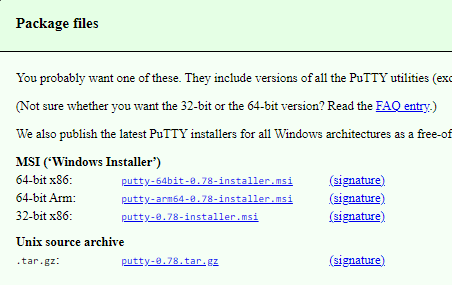
                              • One LinkedIn App for Pages

                              Both connected to Stackposts, ready for seamless publishing and page management.


                              Proxies

                              1. Introduction

                              The System Proxies module allows admins to manage and maintain proxy servers used across the platform.
                              Proxies help ensure reliable connections to social media platforms, prevent IP bans, and improve account stability.


                              2. Accessing System Proxies

                              From the sidebar, go to System Proxies.
                              Here you can:

                              • View all configured proxies

                              • Add new proxies

                              • Enable, disable, or delete existing proxies

                              • Set limits and control proxy usage


                              3. Adding or Updating a Proxy

                              Click + Create New or Actions → Edit on an existing proxy.
                              You will see the Update Proxy form.

                              Fields:

                              • Status – Enable or Disable the proxy

                              • Proxy Address – Format:

                                • ip:port

                                • username:password@ip:port (if authentication is required)

                              • Account Limit – Maximum number of accounts allowed to use this proxy

                                • Enter -1 for unlimited usage

                              • Description (Optional) – Add a note to describe the proxy (e.g., “CA – High Speed”)

                              • Allow Usage on Free Plans – Check this option if the proxy should also be available for free-tier users

                              After filling in the details, click Save Changes.


                              4. Proxy List Overview

                              In the System Proxies list, each proxy shows:

                              • Proxy Address – The IP and port (with or without authentication)

                              • Location – Where the proxy server is based

                              • Free – Whether the proxy is allowed on free plans

                              • Description – Notes about the proxy

                              • Status – Enable or Disable

                              • Actions – Edit or delete the proxy


                              5. Best Practices

                              • Use proxies from reliable providers with good uptime

                              • Assign proxies per account to avoid login conflicts

                              • Use account limits to control load per proxy

                              • Keep a clear description for better tracking (e.g., “US Proxy – Instagram safe”)

                              • For free users, only allow selected proxies to prevent abuse


                              ✅ With System Proxies, admins can ensure safe, stable, and scalable account management across the platform.

                              Files

                              File Settings

                              The File Settings page allows you to configure where and how files are stored, which file types are allowed, and integrations with third-party storage or media services.
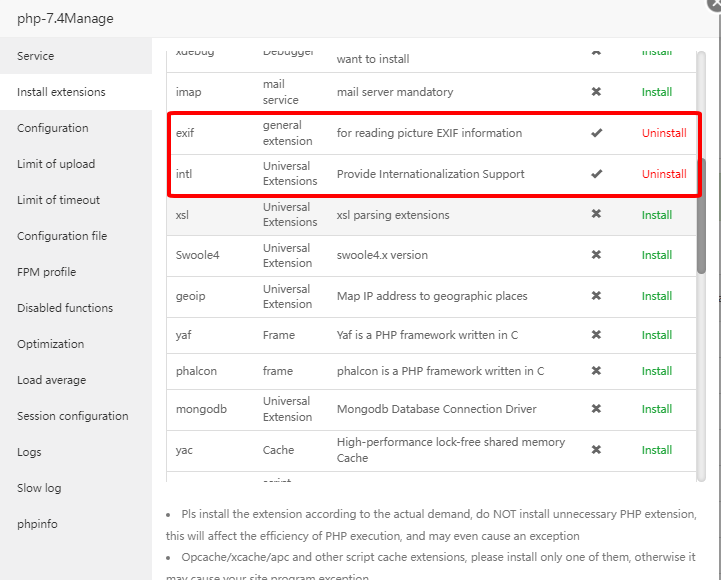

                              General Configuration

                              • Storage Server – Select the default storage service (e.g., Amazon S3, Contabo S3, Local, etc.).

                              • Allowed File Types – Define which file formats can be uploaded (e.g., jpg, png, mp4, pdf).

                              • File Upload by URL – Allow users to upload files directly using a link.
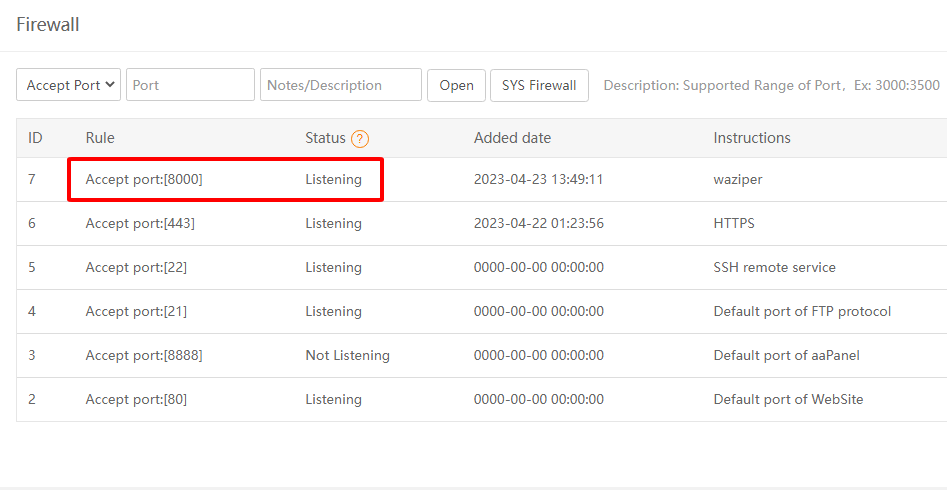

                              Amazon S3

                              Integrate with Amazon S3 for secure cloud storage.

                              • Region – AWS region of your S3 bucket (e.g., ap-southeast-2).

                              • Access Key – AWS access key ID.

                              • Secret Access Key – AWS secret access key.

                              • Bucket Name – Name of your S3 bucket.

                              🔗 Create an Amazon S3 bucket


                              Contabo S3

                              Alternative to Amazon S3 using Contabo Object Storage.

                              • Region – Contabo region (e.g., usc1).

                              • Access Key – Contabo access key.

                              • Secret Access Key – Contabo secret.

                              • Bucket Name – Your Contabo bucket.

                              • Endpoint – API endpoint for the storage server.

                              • Public URL – Public access link for uploaded files.

                              🔗 Create a Contabo S3 bucket


                              Adobe Express – Image Editor Integration

                              The Adobe Express – Image Editor integration allows you to edit images directly within the platform.

                              Options

                              • Status

                                • Enable – Activate Adobe Express integration and unlock image editing features.

                                • Disable – Turn off the integration.

                              • App Name
                                The name of your connected Adobe Express application (for identification purposes).

                              • API Key
                                A required authentication key provided by Adobe Express. This key ensures secure communication between the platform and Adobe Express.

                              Notes

                              • You must generate an API Key from your Adobe developer account.

                              • Keep the API Key private. Do not share it publicly.


                              Unsplash (Search & Get Media Online)

                              Allow users to search and import stock images from Unsplash.

                              • Status – Enable/Disable.

                              • Access Key – API access key.

                              • Secret Key – API secret key.

                              🔗 Get API key


                              Pexels (Search & Get Media Online)

                              Integration with Pexels to fetch stock photos & videos.

                              • Status – Enable/Disable.

                              • API Key – Required to connect.

                              🔗 Get API key


                              Pixabay (Search & Get Media Online)

                              Integration with Pixabay for free stock content.

                              • Status – Enable/Disable.

                              • API Key – Required to connect.

                              🔗 Get API key


                              Google Drive

                              Store and manage files directly on Google Drive.
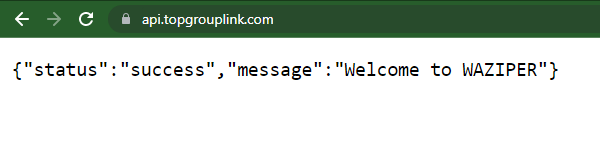
                              • Status – Enable/Disable.

                              • API Key, Client ID, Client Secret – Google API credentials.

                              🔗 Get API credentials


                              Dropbox

                              Integration with Dropbox.

                              • Status – Enable/Disable.

                              • API Key – Dropbox app key.

                              🔗 Create Dropbox app


                              OneDrive

                              Integration with Microsoft OneDrive.

                              • Status – Enable/Disable.

                              • API Key – OneDrive app key.

                              🔗 Create OneDrive app


                              Marketplace

                              The Marketplace allows you to discover, purchase, install, and manage powerful add-ons and modules for Stackposts. It provides an easy way to extend your platform with analytics, automation, publishing, and social integrations.

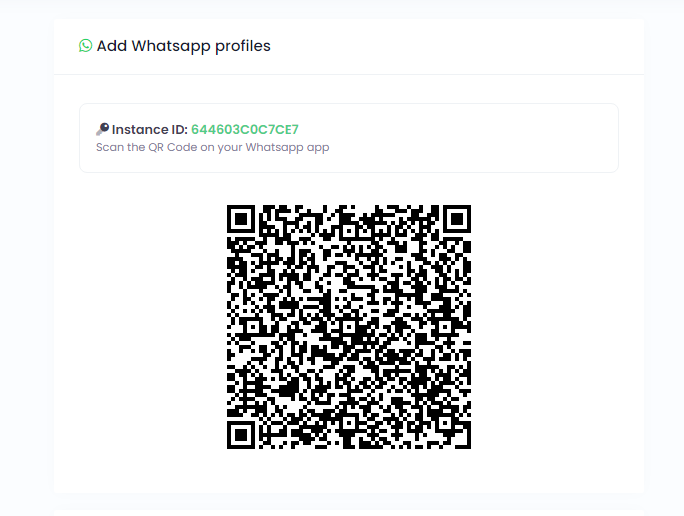

                              📦 Marketplace Overview

                              • Browse available modules and add-ons.

                              • View module descriptions, pricing, version, and demo.

                              • Quickly purchase and install add-ons directly from the dashboard.


                              🛒 Buying Add-ons

                              1. Navigate to Marketplace in the sidebar.

                              2. Browse available modules such as:

                                • YouTube Analytics Addon – track video views, watch time, and engagement.

                                • LinkedIn Analytics Addon – analyze post performance, followers, and audience engagement.

                                • TikTok Analytics Addon – monitor video reach and engagement trends.

                                • Facebook Analytics Addon – measure user demographics, engagement, and post insights.

                                • And many more.

                              3. Click Buy Now to purchase the add-on from the official marketplace.

                              4. After purchase, you’ll receive an Envato Purchase Code or a ZIP file.


                              📥 Installing Add-ons

                              You can install add-ons in two ways:

                              1. Install via Purchase Code

                              • Go to Marketplace → Install Addon.

                              • Select Via Purchase Code.

                              • Enter your Envato Purchase Code.

                              • Click Install Now.

                              2. Install via ZIP File

                              • Go to Marketplace → Install Addon.

                              • Select Via ZIP File.

                              • Upload the addon.zip file you downloaded.

                              • Click Install Now.

                              ⚠️ Note: Main script reinstallation is not allowed through this feature. Only plugins and themes can be installed.


                              ⚙️ Managing Add-ons

                              1. Go to Manage Addons.

                              2. See the list of installed add-ons with version and activation status.

                              3. From here, you can:

                                • Activate or Deactivate add-ons.

                                • Update modules when new versions are released.

                                • Remove add-ons if no longer needed.


                              ✅ With the Marketplace, you can easily extend Stackposts functionality without manual coding — simply purchase, install, and activate add-ons as needed.


                              Tiktok: Failed to start video upload: unaudited_client_can_only_post_to_private_accounts

                              🔍 Why this happens

                              TikTok requires every app using its Content Posting API to go through an “App Audit / App Review” before it can post publicly on users’ accounts.

                              If your app is still in Development Mode, TikTok restricts you to:

                              • ✅ Only private accounts, and

                              • ✅ Only “Only You” privacy setting when uploading videos.

                              Until your app passes TikTok’s audit, you cannot post to public profiles or business accounts.
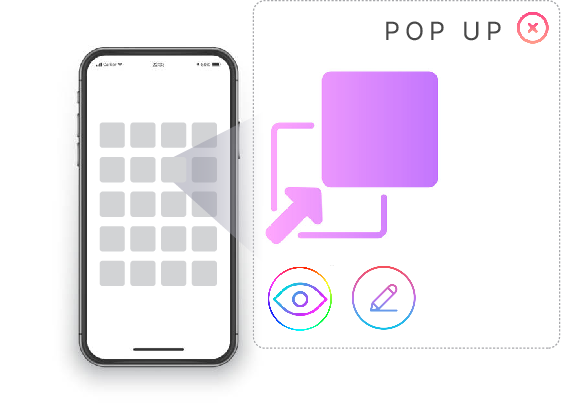
                              That’s why you see this error.


                              🛠️ How to Fix

                              1. Submit your app for TikTok App Review:

                                • Go to TikTok for Developers → My Apps.

                                • Select your app and click “Submit for Review.”

                                • Follow the instructions to provide:

                                  • App logo and description

                                  • Redirect URL

                                  • Test account credentials

                                  • Screenshots showing how users connect and post videos

                                TikTok will review the integration for compliance with their Content Sharing Guidelines.

                              2. Wait for TikTok’s approval:

                                • Review time: usually 3–7 business days.

                                • Once approved, your app status changes from Development → Live (audited).

                                • After that, you’ll be able to publish to public accounts and pages normally.

                              3. Temporary workaround (for testing):

                                • You can still post while your app is unaudited, but only to private accounts, and videos must use “Only You” privacy.

                                • This is useful for testing integration before going live.


                              📘 Summary Table

                              App Status Posting Capability Visibility
                              Development (Unaudited) Can post only to private or test accounts Videos set to “Only You”
                              Audited / Live Can post to all TikTok accounts (public or business) Normal public visibility

                              Extended License

                              The difference between Regular and Extended License

                              • Regular License: You can use it to create ‘an’ application item(one same item) and distribute it FREE of charge to others (multiple persons).
                              • Extended License: You can use it to create ‘an’ application item(one same item) and ‘sell it for a charge or distribute’ it FREE of charge to others.

                              The main difference is the regular license is only about FREE distribution (no charge) and the Extended license can SELL (charge) for your END-users.

                              Extended License Bonus Features

                              Allows you to use the product in a SaaS (Software as a Service) model

                              1. Use the script in a paid service: You can create a platform where end-users pay to access your service, which is powered by the script (e.g., social media auto-poster SaaS).

                              2. Charge clients for access: You’re allowed to charge monthly, yearly, or one-time fees to users/customers.

                              3. Host the application on your server: Users access it via a browser; they don’t receive source code or a downloadable product.

                              Payment Gateways

                              There are several payment gateways that a SaaS (Software as a Service) company can use to process online payments from customers. Here are available payment gateways included in the extended license:

                              1. Stripe: Stripe is a popular payment gateway that allows SaaS companies to accept credit card payments from customers. Stripe offers a simple and easy-to-use platform with competitive pricing, and supports multiple currencies and payment methods.

                              2. PayPal: PayPal is a well-known payment gateway that allows customers to make payments using their PayPal account or credit card. PayPal also offers fraud protection and dispute resolution services, which can be helpful for SaaS companies.

                              3. CoinPayment: A cryptocurrency payment gateway that allows businesses and individuals to send, receive, and accept crypto payments online

                              4. Manual payment: Manual Payment is a payment process where transactions are processed manually (not automated), requiring direct human action to approve, verify, or complete the payment.

                              Coupon Manager

                              It is designed to help you create, manage, and distribute digital coupons to your customers. It makes it easier for you to attract and retain customers.

                              Used for: Create and manage coupons or discount codes for your subscriptions or plans.

                              Key Feature is Coupon Creation: The tool should allow you to create customized coupons with options like coupon codes, expiration dates, discounts, and more.

                              Ticket Management System

                              This powerful module streamlines customer support, offering structured ticket management and efficient issue resolution. It allows you to easily view, create, and organize tickets using customizable categories, types, and labels.

                              • View All Tickets: Easily manage support tickets with advanced tools to view, filter, sort, and search by status, date, priority, assignee, ticket ID, customer, or keyword.

                              • Create New Tickets: Submit detailed support requests manually. Tickets can include technical metadata such as logs, screenshots,….

                              • Manage Categories: Organize tickets with customizable categories such as Billing, Technical, and Feature Request for streamlined issue classification.

                              • Manage Types: Define and manage ticket types such as Bug, Inquiry, and Emergency to categorize issues accurately.

                              • Custom Labels: Apply custom labels like High Priority or VIP Customer to highlight and prioritize specific tickets.

                              Affiliate System

                              It refers to a set of features that allows you to run your affiliate program. This means that individuals or businesses can promote your SMM tool and earn a commission for every new customer they refer through a unique affiliate link or code

                              Ideal for SaaS companies looking to grow through strategic partnerships and agency owners establishing reseller networks, all within your existing Stackposts ecosystem.

                              • Signup Page: A dedicated page where potential affiliates can apply to join the program.

                              • Automated Approval/Denial: Option to automatically approve affiliates or require manual review.

                              • Personalised Portal: A dedicated area for each affiliate to track their performance, access links, view payouts, and find resources.

                              • Payout History: A clear record of all past and pending commission payouts.

                              • Multiple Payout Methods: Supports various payment options like PayPal, Stripe, bank transfer


                              Detailed Performance Reports

                              • Clicks, Conversions, Sales: Key metrics to evaluate affiliate performance.

                              • Revenue Generated: Total revenue attributed to each affiliate.

                              • Conversion Rate: Percentage of clicks that result in conversions.

                              • Top Performing Affiliates/Links: Identifies the most effective affiliates


                              User Roles

                              You can create and set user roles to quickly add permissions that are specific to the features that will ensure your social media profiles stay organized and that only the users who need access to certain features have the amount of access they need.
                              User Report

                              User reports can help track the performance of your sales and marketing efforts, allowing you to make data-driven decisions about how to allocate resources.

                              Pricing Page

                              Displays the cost of a product or service, along with different plans, features, and payment options

                              Payment History

                              Payment History refers to the record of past transactions, showing details like amounts paid, dates, and payment methods.

                              Payment Report Dashboard

                              Track Your Sales with Confidence

                              Our dashboard empowers you to analyze your performance, track trends, and grow your sales with clarity.

                              • Live Earnings Breakdown: Instantly see how much you’ve earned today, this week, month, and year — no spreadsheets needed.

                              • Recent Payment History: View your latest transactions with customer details, amounts, and reference IDs for easy tracking and support.

                              Payment Subscription Management

                              Subscription Management is the process of handling customer subscriptions for products or services, ensuring smooth billing, renewals, and customer retention.

                              Invoice and Bill

                              Documenting the details of the transaction, such as the personal name, contact information.

                              Email Payment Notification

                              Automated email sent to users to inform them about payment-related updates, such as successful transactions, upcoming due dates, or overdue payments.


                              Proxies

                              1. Introduction

                              The System Proxies module allows admins to manage and maintain proxy servers used across the platform.
                              Proxies help ensure reliable connections to social media platforms, prevent IP bans, and improve account stability.


                              2. Accessing System Proxies

                              From the sidebar, go to System Proxies.
                              Here you can:

                              • View all configured proxies

                              • Add new proxies

                              • Enable, disable, or delete existing proxies

                              • Set limits and control proxy usage


                              3. Adding or Updating a Proxy

                              Click + Create New or Actions → Edit on an existing proxy.
                              You will see the Update Proxy form.

                              Fields:

                              • Status – Enable or Disable the proxy

                              • Proxy Address – Format:

                                • ip:port

                                • username:password@ip:port (if authentication is required)

                              • Account Limit – Maximum number of accounts allowed to use this proxy

                                • Enter -1 for unlimited usage

                              • Description (Optional) – Add a note to describe the proxy (e.g., “CA – High Speed”)

                              • Allow Usage on Free Plans – Check this option if the proxy should also be available for free-tier users

                              After filling in the details, click Save Changes.


                              4. Proxy List Overview

                              In the System Proxies list, each proxy shows:

                              • Proxy Address – The IP and port (with or without authentication)

                              • Location – Where the proxy server is based

                              • Free – Whether the proxy is allowed on free plans

                              • Description – Notes about the proxy

                              • Status – Enable or Disable

                              • Actions – Edit or delete the proxy


                              5. Best Practices

                              • Use proxies from reliable providers with good uptime

                              • Assign proxies per account to avoid login conflicts

                              • Use account limits to control load per proxy

                              • Keep a clear description for better tracking (e.g., “US Proxy – Instagram safe”)

                              • For free users, only allow selected proxies to prevent abuse


                              ✅ With System Proxies, admins can ensure safe, stable, and scalable account management across the platform.

                              Files

                              File Settings

                              The File Settings page allows you to configure where and how files are stored, which file types are allowed, and integrations with third-party storage or media services.


                              General Configuration

                              • Storage Server – Select the default storage service (e.g., Amazon S3, Contabo S3, Local, etc.).

                              • Allowed File Types – Define which file formats can be uploaded (e.g., jpg, png, mp4, pdf).

                              • File Upload by URL – Allow users to upload files directly using a link.


                              Amazon S3

                              Integrate with Amazon S3 for secure cloud storage.

                              • Region – AWS region of your S3 bucket (e.g., ap-southeast-2).

                              • Access Key – AWS access key ID.

                              • Secret Access Key – AWS secret access key.

                              • Bucket Name – Name of your S3 bucket.

                              🔗 Create an Amazon S3 bucket


                              Contabo S3

                              Alternative to Amazon S3 using Contabo Object Storage.

                              • Region – Contabo region (e.g., usc1).

                              • Access Key – Contabo access key.

                              • Secret Access Key – Contabo secret.

                              • Bucket Name – Your Contabo bucket.

                              • Endpoint – API endpoint for the storage server.

                              • Public URL – Public access link for uploaded files.

                              🔗 Create a Contabo S3 bucket


                              Adobe Express – Image Editor Integration

                              The Adobe Express – Image Editor integration allows you to edit images directly within the platform.

                              Options

                              • Status

                                • Enable – Activate Adobe Express integration and unlock image editing features.

                                • Disable – Turn off the integration.

                              • App Name
                                The name of your connected Adobe Express application (for identification purposes).

                              • API Key
                                A required authentication key provided by Adobe Express. This key ensures secure communication between the platform and Adobe Express.

                              Notes

                              • You must generate an API Key from your Adobe developer account.

                              • Keep the API Key private. Do not share it publicly.


                              Unsplash (Search & Get Media Online)

                              Allow users to search and import stock images from Unsplash.

                              • Status – Enable/Disable.

                              • Access Key – API access key.

                              • Secret Key – API secret key.

                              🔗 Get API key


                              Pexels (Search & Get Media Online)

                              Integration with Pexels to fetch stock photos & videos.

                              • Status – Enable/Disable.

                              • API Key – Required to connect.

                              🔗 Get API key


                              Pixabay (Search & Get Media Online)

                              Integration with Pixabay for free stock content.

                              • Status – Enable/Disable.

                              • API Key – Required to connect.

                              🔗 Get API key


                              Google Drive

                              Store and manage files directly on Google Drive.

                              • Status – Enable/Disable.

                              • API Key, Client ID, Client Secret – Google API credentials.

                              🔗 Get API credentials


                              Dropbox

                              Integration with Dropbox.

                              • Status – Enable/Disable.

                              • API Key – Dropbox app key.

                              🔗 Create Dropbox app


                              OneDrive

                              Integration with Microsoft OneDrive.

                              • Status – Enable/Disable.

                              • API Key – OneDrive app key.

                              🔗 Create OneDrive app


                              WhatsApp Chatbot

                              WhatsApp Chatbot – User Guide

                              WhatsApp Chatbot allows you to automate WhatsApp conversations using keyword-based reply rules.

                              It helps you respond instantly, reduce manual workload, and handle repeated questions efficiently.


                              Overview

                              With WhatsApp Chatbot, you can:

                              • Create keyword-based automation rules
                              • Automatically respond to incoming messages
                              • Send text and media replies
                              • Organize multiple chatbot rules
                              • Improve response speed and consistency

                              This module is ideal for structured automation with multiple scenarios.


                              How to Access

                              Go to:

                              WhatsApp Unofficial → Chatbot


                              Requirements

                              Before using this module, ensure:

                              • At least one WhatsApp account is connected
                              • The account is active
                              • The WhatsApp server is running
                              • The Chatbot feature is enabled in your plan

                              If the account is disconnected, chatbot automation will not work.


                              Main Purpose

                              Chatbot is designed for keyword-triggered responses.

                              Examples:

                              • User sends “price” → system replies with pricing info
                              • User sends “hello” → system sends greeting
                              • User sends “catalog” → system sends product catalog

                              How It Works

                              When a message is received:

                              1. The system detects the incoming message
                              2. It checks all active chatbot rules
                              3. It matches the message with defined keywords
                              4. If matched, the configured reply is sent automatically

                              Setup Workflow

                              Typical setup process:

                              1. Select WhatsApp account
                              2. Create a chatbot item
                              3. Add trigger keywords
                              4. Define reply content
                              5. Attach media (optional)
                              6. Save and activate the rule
                              7. Test with sample messages

                              Chatbot Configuration

                              1. Status

                              Enable or disable the chatbot rule.


                              2. Send To

                              Define where the chatbot applies:

                              • All chats
                              • Individual chats
                              • Groups

                              3. Bot Name

                              Use a clear internal name.

                              Examples:

                              • Welcome Bot
                              • Pricing Bot
                              • Catalog Reply
                              • Support Bot

                              4. Keyword Match Type

                              Defines how messages are matched:

                              • Contains Keyword – triggers if keyword appears anywhere
                              • Exact Keyword – triggers only on exact match

                              5. Keywords

                              Define trigger words or phrases.

                              Examples:

                              • hello
                              • price
                              • support
                              • catalog
                              • opening hours

                              Well-defined keywords improve accuracy.


                              6. Reply Content

                              Define what the chatbot sends.

                              Supported formats:

                              • Text message
                              • Image + caption
                              • Video + caption
                              • Document/file
                              • Media from library

                              Common Use Cases

                              Welcome Message

                              Keyword:

                              hello

                              Reply:

                              Hello! Welcome to our WhatsApp support. How can we assist you today?

                              Pricing Response

                              Keywords:

                              price, pricing, cost

                              Reply:

                              Please let us know which product or service you are interested in, and we will provide pricing details.

                              Catalog Request

                              Keyword:

                              catalog

                              Reply:

                              Here is our latest catalog. Please review it and let us know what you need.

                              Support Routing

                              Keywords:

                              support, problem, issue

                              Reply:

                              We’re here to help. Please describe your issue so our support team can assist you.

                              Chatbot vs Auto Reply

                              Chatbot

                              Best for:

                              • Keyword-based automation
                              • Multiple rules
                              • Targeted responses

                              Auto Reply

                              Best for:

                              • One general reply
                              • Welcome message
                              • Simple automation

                              Recommendation:
                              Use Chatbot for structured workflows, and Auto Reply for simple responses.


                              Best Practices

                              To improve chatbot performance:

                              • Use clear and specific keywords
                              • Avoid overlapping rules
                              • Keep replies short and useful
                              • Use exact match when necessary
                              • Separate flows (sales, support, info)
                              • Always test before going live

                              Troubleshooting

                              Chatbot Not Responding

                              Possible causes:

                              • WhatsApp account disconnected
                              • Chatbot rule disabled
                              • Keywords do not match
                              • Incorrect “Send To” setting
                              • Another automation handled the message

                              Wrong Rule Triggered

                              Possible causes:

                              • Keywords too broad
                              • Contains-match is too loose
                              • Overlapping rules

                              Media Not Sending

                              Check:

                              • File exists and is accessible
                              • Valid media URL
                              • Supported format
                              • Server permissions

                              Too Many Replies

                              Possible causes:

                              • Too many keywords
                              • No exclusions
                              • Poor rule structure

                              Recommended Workflow

                              Follow this process:

                              1. Connect WhatsApp account
                              2. Verify in Profile Info
                              3. Create chatbot rules
                              4. Define keywords and replies
                              5. Save and activate
                              6. Test with real messages
                              7. Monitor in Reports

                              Related Modules

                              Works together with:

                              • Profile Info – verify connection status
                              • Reports – track chatbot performance
                              • Live Chat – continue conversations manually
                              • Auto Reply – simple automation
                              • AI Smart Reply – AI-assisted responses
                              • Contacts – manage users
                              • Bulk Campaigns – re-engage leads

                              Final Note

                              WhatsApp Chatbot is the best solution for structured, keyword-based WhatsApp automation.

                              Use it to handle frequent questions instantly, improve response speed, and scale your communication efficiently.

                              WhatsApp Chatbot

                              WhatsApp Chatbot – User Guide

                              WhatsApp Chatbot allows you to automate WhatsApp conversations using keyword-based reply rules.

                              It helps you respond instantly, reduce manual workload, and handle repeated questions efficiently.


                              Overview

                              With WhatsApp Chatbot, you can:

                              • Create keyword-based automation rules
                              • Automatically respond to incoming messages
                              • Send text and media replies
                              • Organize multiple chatbot rules
                              • Improve response speed and consistency

                              This module is ideal for structured automation with multiple scenarios.


                              How to Access

                              Go to:

                              WhatsApp Unofficial → Chatbot


                              Requirements

                              Before using this module, ensure:

                              • At least one WhatsApp account is connected
                              • The account is active
                              • The WhatsApp server is running
                              • The Chatbot feature is enabled in your plan

                              If the account is disconnected, chatbot automation will not work.


                              Main Purpose

                              Chatbot is designed for keyword-triggered responses.

                              Examples:

                              • User sends “price” → system replies with pricing info
                              • User sends “hello” → system sends greeting
                              • User sends “catalog” → system sends product catalog

                              How It Works

                              When a message is received:

                              1. The system detects the incoming message
                              2. It checks all active chatbot rules
                              3. It matches the message with defined keywords
                              4. If matched, the configured reply is sent automatically

                              Setup Workflow

                              Typical setup process:

                              1. Select WhatsApp account
                              2. Create a chatbot item
                              3. Add trigger keywords
                              4. Define reply content
                              5. Attach media (optional)
                              6. Save and activate the rule
                              7. Test with sample messages

                              Chatbot Configuration

                              1. Status

                              Enable or disable the chatbot rule.


                              2. Send To

                              Define where the chatbot applies:

                              • All chats
                              • Individual chats
                              • Groups

                              3. Bot Name

                              Use a clear internal name.

                              Examples:

                              • Welcome Bot
                              • Pricing Bot
                              • Catalog Reply
                              • Support Bot

                              4. Keyword Match Type

                              Defines how messages are matched:

                              • Contains Keyword – triggers if keyword appears anywhere
                              • Exact Keyword – triggers only on exact match

                              5. Keywords

                              Define trigger words or phrases.

                              Examples:

                              • hello
                              • price
                              • support
                              • catalog
                              • opening hours

                              Well-defined keywords improve accuracy.


                              6. Reply Content

                              Define what the chatbot sends.

                              Supported formats:

                              • Text message
                              • Image + caption
                              • Video + caption
                              • Document/file
                              • Media from library

                              Common Use Cases

                              Welcome Message

                              Keyword:

                              hello

                              Reply:

                              Hello! Welcome to our WhatsApp support. How can we assist you today?

                              Pricing Response

                              Keywords:

                              price, pricing, cost

                              Reply:

                              Please let us know which product or service you are interested in, and we will provide pricing details.

                              Catalog Request

                              Keyword:

                              catalog

                              Reply:

                              Here is our latest catalog. Please review it and let us know what you need.

                              Support Routing

                              Keywords:

                              support, problem, issue

                              Reply:

                              We’re here to help. Please describe your issue so our support team can assist you.

                              Chatbot vs Auto Reply

                              Chatbot

                              Best for:

                              • Keyword-based automation
                              • Multiple rules
                              • Targeted responses

                              Auto Reply

                              Best for:

                              • One general reply
                              • Welcome message
                              • Simple automation

                              Recommendation:
                              Use Chatbot for structured workflows, and Auto Reply for simple responses.


                              Best Practices

                              To improve chatbot performance:

                              • Use clear and specific keywords
                              • Avoid overlapping rules
                              • Keep replies short and useful
                              • Use exact match when necessary
                              • Separate flows (sales, support, info)
                              • Always test before going live

                              Troubleshooting

                              Chatbot Not Responding

                              Possible causes:

                              • WhatsApp account disconnected
                              • Chatbot rule disabled
                              • Keywords do not match
                              • Incorrect “Send To” setting
                              • Another automation handled the message

                              Wrong Rule Triggered

                              Possible causes:

                              • Keywords too broad
                              • Contains-match is too loose
                              • Overlapping rules

                              Media Not Sending

                              Check:

                              • File exists and is accessible
                              • Valid media URL
                              • Supported format
                              • Server permissions

                              Too Many Replies

                              Possible causes:

                              • Too many keywords
                              • No exclusions
                              • Poor rule structure

                              Recommended Workflow

                              Follow this process:

                              1. Connect WhatsApp account
                              2. Verify in Profile Info
                              3. Create chatbot rules
                              4. Define keywords and replies
                              5. Save and activate
                              6. Test with real messages
                              7. Monitor in Reports

                              Related Modules

                              Works together with:

                              • Profile Info – verify connection status
                              • Reports – track chatbot performance
                              • Live Chat – continue conversations manually
                              • Auto Reply – simple automation
                              • AI Smart Reply – AI-assisted responses
                              • Contacts – manage users
                              • Bulk Campaigns – re-engage leads

                              Final Note

                              WhatsApp Chatbot is the best solution for structured, keyword-based WhatsApp automation.

                              Use it to handle frequent questions instantly, improve response speed, and scale your communication efficiently.

                              Modules

                              If you need to use the modules below, please purchase and install according to the instructions

                              How to install a module?

                              Kindly acquire the license module and follow the installation instructions carefully. In case of any issues, please submit a license reset request.


                              Facebook Auto Post

                              FAQs

                              Facebook requires either a User data deletion instructions URL

                              Facebook requires either a User data deletion instructions URL or a User data deletion callback URL.

                              • Please check this link for it, you will see it at the back of the content.
                              • You also can check it for more details.

                              FB profile doesn't show in composer

                              At the moment, Meta does not facilitate the posting of Facebook profiles through Stackposts. However, you can employ Cookie Login with your Facebook profile to schedule and publish your content promptly.
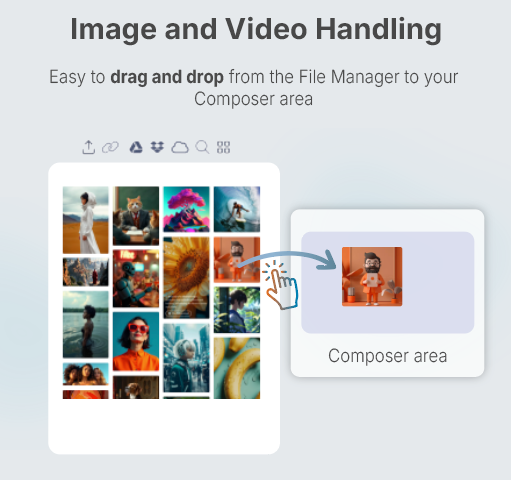
                              Add a new module for Stackposts Main Script

                              1. License module

                              Go to this link to get your licenses: https://stackposts.com/purchases

                              2. Install a new module


                              AI Composer Auto Post Tool

                              How to install

                              1. Install the module

                              Follow this guide to install a new module for Stackposts Main Script

                              2. Configure OpenAI API

                              Follow this guide to configure your OpenAI API

                              3. Install the Cronjob

                              Follow this guide to install your cronjob on your hosting/server to automatically schedule and publish your posts.

                              Changelogs

                              v1.0.4 Sep 28, 2024

                              – Update the whole module for Stackposts Main Script v8.2.0

                              v1.0.2 Feb 20th 2024

                              – Fixed Permission bug

                              v1.0.1 Jan 9th 2024

                              – Improved Calander for AI Composer


                              X (Twitter) Auto Post

                              API App Issues

                              Cannot Add X (Twitter) Account

                              Issue #1: Client error

                              Client error: `GET https://api.twitter.com/2/users/me/?expansions=pinned_tweet_id&user.fields=id%2Cname%2Curl%2Cverified%2Cusername%2Cprofile_image_url` resulted in a `403 Forbidden` response: {"client_id":"27131234","detail":"When authenticating requests to the Twitter API v2 endpoints, you must use keys and to (truncated...)

                              Solution #1

                              Add an existing App or create a new App

                              Add your App

                              Pick an App to add to your Project. The App you choose will gain v2 access and retain v1.1 access.

                              An App that’s added to a Project will have access to both v2 and v1.1 endpoints. Existing v1.1 App integrations will stay the same. Learn more


                              Instagram Auto Post

                              FAQs

                              Instagram OTP

                              It seems after trying to authenticate in Instagram (via logging in) if the OTP is enabled it does not show to authenticate (OTP), it just shows the screen as if nothing happened.

                              In this case, we recommend that you go to https://www.instagram.com/ to log in to your account and then back to your Stackposts website and add again (turn off: 2-step Security if enabled). Please do not send login too much at the same time.

                              Instagram Threads Auto Post

                              How to use

                              1. Go to instagram.com or threads.net to log in to your account first and then back to your Stackposts website and add again
                              2. Turn off: 2-step Security if it is required many times

                              Changelogs

                              Changelog updates can include bug fixes, security patches, new features, improvements to existing features, and other changes made to the software product or service.

                              v1.0.2 Sep 27, 2024

                              – Update the whole module for Stackposts Main Script v8.2.0

                              v1.0.1 – Feb 21, 2024

                              – Fixed: No Profile to Add
                              – Improved Performance of the module

                              v1.0.0 – July 16, 2023

                              – New module

                              FAQs

                              TikTok Auto Post

                              Please see the instructions below

                              Introduction

                              TikTok Auto Post Tool is a module for the Stackposts Main script. It allows users to plan and schedule their TikTok content in advance as well as provides a convenient way for you to organize and automate your TikTok posting.

                              Summary

                              Used for:  Scheduling and Posting your TikTok content in advance. You can add captions and hashtags, select the date and time you want your video to be published, and manage multiple TikTok accounts if needed. It then takes care of publishing your videos at the specified times, even if you’re not actively using the TikTok app.


                              You can add captions and hashtags, and select the date and time you want your video to be published even if you’re not actively using the TikTok app.

                              Best for: Using TikTok Auto Post Tool can be beneficial for content creators, businesses, social media managers, or individuals who want to maintain a consistent posting schedule, plan their content in advance, and optimize their engagement on the platform. It helps save time and effort by streamlining the process of uploading TikTok videos and maximizing their reach.

                              Maintaining a consistent posting schedule for your content in advance, and optimising your engagement on the platform. Save your time and maximise your reach

                              Alternative to: Later, Sprout Social, Planoly, and Loomly

                              Key features

                              Schedule and Publish: You can create and schedule TikTok posts during your free time, even if you’re not immediately available to publish them. This helps you maintain a regular posting schedule without having to be constantly present on the platform.

                              Multichannel management: If you manage multiple TikTok accounts, a scheduler simplifies the process by providing a centralized platform to handle all your accounts’ scheduling needs. It saves you from the hassle of logging in and out of different accounts or using separate devices.

                              Installation Services

                              Although we have included detailed installation instructions for popular servers, installing tiktok module can be quite intricate as it necessitates configuring an extra domain for the API and installing and configuring Node.js.

                              As a result, if you require a faster deployment or are unfamiliar with the installation process, we offer additional installation services. All you need to do is purchase a domain and server and provide us with the necessary information, and we will take care of the installation for you.

                              The installation process should take approximately 24-48 hours, depending on your timezone.

                              Installation fee

                              Need assistance with script installation? Our team is here to help. For a fee of $49, we offer a full installation service for Tiktok module. You can pay here

                              Notes:

                              Please note that the installation fee covers one successful installation and support during the specified period. If you need to reinstall the script, a new installation package will need to be purchased.

                              Installation Api Tiktok

                              Install license

                              Go to Admin Dashboard/Plugins

                              Click Install

                              Enter your Purchase code at the box

                              Installation Api Domain

                              Open port 8008

                              //For Aapanel

                              //For Plesk

                              //For WHM


                              cd /root 

                              Please see instructions below

                              To install CSF, perform the following steps:
                               
                              Log in to your server as the root user via SSH.
                               
                              Run the cd /root command to change to the root directory.
                              cd /root 
                               
                              Run the following command to download CSF:
                              wget https://download.configserver.com/csf.tgz
                               
                              Run the command to decompress the downloaded file.
                              tar -xzf csf.tgz
                              Run the command to change directories.
                              cd csf
                              To begin the CSF installation, run the 
                              ./install.cpanel.sh command.nnn 


                              Installation Api Domain for Ubuntu


                              Download tiktok_server.zip file

                              Create api domain and connect them to your Server IP Address

                              Ex: tiktokapi.yourdomain.com

                              Please set up SSL for api domain 

                              Api Domain Configure

                              For Nginx

                              Please insert code below into your api Domain

                                       location / {
                                            proxy_pass http://localhost:8008; #whatever port your app runs on
                                            proxy_http_version 1.1;
                                            proxy_set_header Upgrade $http_upgrade;
                                            proxy_set_header Connection 'upgrade';
                                            proxy_set_header Host $host;
                                            proxy_cache_bypass $http_upgrade;
                                        }

                              For Apache

                              Insert code below into your api Domain: Please check that you have inserted the code at 2 places as instructed

                                <Location />
                                     ProxyPass http://127.0.0.1:8008/
                                     ProxyPassReverse http://127.0.0.1:8008/
                                </Location> 


                              1/ Create folder “tiktokserver” on folder “/root”

                              Create a directory in the root folder to upload “tiktok_server.zip”.

                              To ensure the safety and security of the system, please place the file in the root directory. 

                              2/ Go to folder “tiktokserver” and then upload & unzip file “tiktok_server.zip”


                              3/ Config database on file config.js

                              Important: Set up a common database with Stackposts Main Script, Do not create another database for the module.


                              4/ Set permissions 775 for folder “node_modules/.bin”

                              Access Terminal

                              chmod -R 0755 /root/tiktokserver/node_modules/.bin/
                              chown root:root .

                              5/ Install Node JS 16 or Higher

                              //For Ubuntu

                              curl -sL https://deb.nodesource.com/setup_16.x | sudo -E bash -
                              sudo apt install nodejs


                              6/ Install Playwright & Browser

                              npx playwright install

                              7/ Install Libraries

                              //For Ubuntu

                              apt-get install libasound2 libdbus-glib-1-2 libgtk-3-dev libevent-2.1-7

                              8/ Config cronjob

                              Please create Cron according to the instructions

                              Cron: Once/minute:

                              sh -c 'cd /root/tiktokserver && node app'
                              

                              /root/tiktok_server: is the path to the tiktok_server.zip installation directory

                              9/ Activate tiktok server

                              Run below command to activate tiktok server

                              cd /root/tiktokserver && node app

                              Check the working status of the API domain

                              Please check the link Please check the link https://tiktokapi.yourdomain.com/

                              Cannot GET /

                              Tiktok API Configuration & Check Qrcode

                              Api domain set up correctly Correct setting

                              https://tiktokapi.yourdomain.com/

                              Wrong setting

                              https://tiktokapi.yourdomain.com

                              http://tiktokapi.yourdomain.com/

                              tiktokapi.yourdomain.com

                              and more….


                              Check qrcode worked

                              https://yourdomain.com/tiktok_profiles/oauth


                              You can also set up via ip without running through api domain

                              Check the working status of the API domain

                              Please check the link Please check the link http://ip:8008/

                              Cannot GET /


                              Tiktok API Configuration & Check Qrcode

                              Api set up correctly Correct setting

                              http://ip:8008/


                              Wrong setting

                              https://ip:8008

                              https://ip:8008/

                              ip:8008

                              and more….


                              Check qrcode worked

                              https://yourdomain.com/tiktok_profiles/oauth


                              Installation Api server for Centos

                              With CentOS server, you can only set up Tiktok Api via IP, not via domain

                              1/ Create folder “tiktokserver” on folder “/root”

                              2/ Go to folder “tiktokserver” and then upload & unzip file “tiktok_server.zip”

                              3. Config database on file config.js

                              Important: Set up a common database with Stackposts Main Script, Do not create another database for the module.

                              4. Set permissions 775 for folder “node_modules/.bin”

                              Access Terminal

                              chmod -R 0755 /root/tiktokserver/node_modules/.bin/
                              chown root:root .

                              5/ Install Node JS 16 or Higher

                              Access Terminal

                              //For Centos

                              yum install -y gcc-c++ make 
                              curl -sL https://rpm.nodesource.com/setup_16.x | sudo -E bash -
                              sudo yum install nodejs

                              6/ Install Playwright & Browser

                              npx playwright install

                              7/ Install Libraries

                              yum install alsa-lib-devel dbus-glib-devel gtk3-devel

                              8/ Config cronjob

                              Please create Cron according to the instructions

                              Cron: Once/minute:

                              * * * * * sh -c 'cd /root/tiktokserver && node app'
                              

                              /root/tiktok_server: is the path to the tiktok_server.zip installation directory

                              Please see the instructions below, instead of setting cronj as above

                              Select insert on the keyboard to enter cronjob

                              Select Esc and run the comment “: x” to save

                              9/ Activate tiktok server

                              Run below command to activate tiktok server

                              /root/tiktok_server: is the path to the tiktok_server.zip installation directory

                              cd /root/tiktokserver && node app


                              Check the working status of the API domain

                              Please check the link Please check the link http://ip:8008/

                              Cannot GET /


                              Tiktok API Configuration & Check Qrcode

                              Api set up correctly Correct setting

                              http://ip:8008/


                              Wrong setting

                              https://ip:8008

                              https://ip:8008/

                              ip:8008

                              and more….


                              Check qrcode worked

                              http://ip:8008/tiktok_profiles/oauth


                              Config server domain

                              After installing Successfull, using Admin Account to login Main Domain and setting your server. Enter you server domain at Tiktok API Configuration on your Main Domain

                              With aapanel you can setup with tiktokdomain

                              Important:

                              Api must be SSL supported

                              Set enough “/” in Url

                              With other servers, you need to set up via ip

                              Important:

                              Set enough “/” in Url

                              How to use?

                              Problems & Solutions

                              Problems: Instance ID does not exist.

                              Solutions:

                              Please replace file tiktok.js and restart nodejs or server
                              https://drive.google.com/file/d/1lqTaFo9Jft4bUI-39y4KhsievRvZ4I7X/view?usp=sharing

                              Upgrade version

                              Please follow the instructions

                              1. Upgrade Plugin Script

                              Please go to Plugin and click the Tiktok module upgrade button

                              2. Upgrade tiktokserver

                              Step 1: Please download the latest tiktokserver.zip file


                              Step 2: Extract the tiktokserver.zip file to get the tiktok.js file

                              Step 3: Replace the tiktok.js file in the tiktokserver folder you installed

                              Step 4: Restart nodejs to update

                              Changelog

                              v1.0.7 Sep 27th, 2024

                              – Update the whole module for Stackposts Main Script v8.2.0

                              v.1.0.6 May 26th 2024

                              – Fixed  Adding Account
                              – Improved Whole Module Performance

                              v.1.0.4 Feb 20th 2024

                              – Fixed QR Code
                              – Fixed Posting Video
                              – Fixed  Adding Account
                              – Improved Whole Module Performance

                              v.1.0.3 Nov 21st 2023

                              – Improved Scan QR Code

                              v.1.0.2 Nov 2nd 2023

                              – Improved Scan QR Code
                              – Improved whole module

                              v1.0.1 Sep 26th 2023

                              – Fixed Adding Tiktok account
                              – Improved Posting video feature


                              Install New Module

                              Go to Admin Dashboard/Plugins

                              Click Install

                              Enter your Purchase code at the box


                              Facebook Analytics

                              Main Features

                              How to use

                              1. Permissions Requirements

                              • pages_read_engagement,
                              • pages_manage_posts,
                              • pages_show_list,
                              • business_management

                              FAQs

                              FAQs about Facebook Analytics tools

                              How do I get Facebook analytics?

                              To gather and evaluate your Facebook analytics, you will require the use of a third-party tool, such as Stackposts or Meta Business Suite. These tools enable you to monitor all of your Facebook metrics, including your views, likes, engagement rate, shares, audience demographics, and more.

                              By using third-party products, you can obtain valuable insights into the performance of your Facebook content and campaigns, which can help you optimize your marketing strategies and improve your overall results.

                              Are there tools to analyze Facebook pages?

                              In 2023, there is a plethora of Facebook analytics tools to choose from when analyzing the performance of your Facebook Page. For example, Stackposts offers a Facebook Analytics tool that can be connected to your Facebook account.

                              Once connected, these social media analytics tools will gather data on your post performance and audience behavior, allowing you to pinpoint trends and strategies for achieving success on Facebook.

                              Changelogs

                              v5.0.2

                              Updated: September 26th 2024

                              • Improved the module with Stackposts Main Script

                              Changelog Facebook Analytics

                              Version 5.0.1

                              Version 5.0.1 –  April 11, 2024

                              – Updated the new Meta Permissions for Facebook Insight features
                              – Improved the whole module for performance

                              Version 5.0.0

                              Version 5.0.0 –  April, 2023

                              – New module
                              – Use Facebook API Official
                              – Improved whole script for performance

                              Facebook LiveStream

                              Installation

                              Installing FFMPEG

                              Please check your server whether installed FFMPEG or not.

                              For this module to work fine you need to follow this post to install FFMPEG

                              https://stackposts.com/docs/detail/21747459/installating-ffmpeg

                              Please note that our dev team doesn’t support this issue because it’s not relevant to our Script. Please contact your Server/Hosing provider to get help if you need to install FFMPEG.

                              Permission API

                              Record a video for Submission

                              1. You recorded a video for screencast like this:

                              Submit Form Content

                              Follow this video to submit a review on Facebook

                              Our software gets the user’s group information & user can livestream video to their profile, groups and pages where he is admin and owner.

                              —-

                              Hi,

                              Facebook Account Test:
                              Email: [email protected]
                              Password: 111222

                              Account Test Website:
                              Website: https://yourwebsite.com/
                              Email: [email protected]
                              Password: 123456

                              Please follow by this steps to get how to use this app
                              1. Login with account test on our system
                              2. Click menu “Account manager” on sidebar menu
                              3. On this page click “Add Facebook profile” to add your profile (https://beta.stackcode.co/account_manager)
                              4. Authorize permissions need to system can working fine
                              5. Box profile. Select profile to add schedule posts to profile
                              6. Hover to icon “Facebook” with blue color on sidebar menu and then click on “Livestream” item (https://beta.stackcode.co/facebook_livestream)
                              7. Select an profile on box list account (left box). Select video and then enter title and captions for post.
                              8. Click post now to post your post to pages you selected. When post success a box green with text “Content is being published on 1 profiles and 0 profiles unpublished”
                              9. Go to Facebook pages just posted to checked

                              Thanks

                              Changelog

                              Changelog updates can include bug fixes, security patches, new features, improvements to existing features, and other changes made to the software product or service.

                              By keeping track of these updates in a changelog, developers and users can easily see what changes have been made to the software and when, which can be useful for troubleshooting, documentation, and other purposes.

                              v5.0.1 – Sep 26, 2024

                              – Update the whole module for Stackposts Main Script

                              version 1.2 – May 19, 2019
                                  - [Improved] Livestream with RTMPS
                              
                              version 1.1 – March 22, 2019
                                  - Fixed problem for video not livestream
                              
                              version 1.0 – March 07, 2019
                                  - Initial Release

                              Instagram Auto Activity

                              FAQs

                              Frequently Asked Questions

                              Changelog

                              Changelog updates can include bug fixes, security patches, new features, improvements to existing features, and other changes made to the software product or service.

                              By keeping track of these updates in a changelog, developers and users can easily see what changes have been made to the software and when, which can be useful for troubleshooting, documentation, and other purposes.

                              Version 4.0.1 – Jan 14, 2021
                                 - Improved: Filter
                                 - Improved: Javascript
                              
                              Version 3.7 –  Nov 2, 2019
                                  - Improved: Throttled by Instagram because of too many API requests
                              
                              Version 3.5 –  Aug 31, 2019
                                 [IMPORTANT: CLEAR CACHE BROWSER AFTER UPDATE]
                                  - Updated: Instagram API
                                  - Fixed: Instagram Avatar not show
                                  - Improved small bugs
                              
                              Version 3.4 –  July 24, 2019
                                 [IMPORTANT: CLEAR CACHE AFTER UPDATE]
                                  - Added: Schedule activity options: Run by odd hours, Run by even hours, Run by Alternate 1 and Alternate 2
                                  - Added: Option never stop on activity
                                  - Improved small bugs
                              
                              Version 3.2 –  May 29, 2019
                                  - Improved instagram Auto Activity
                              
                              Version 3.1 –  April 15, 2019
                                  - Fixed: Stopped activity when occur errors
                                  - Fixed: Unfollow by source (No response from server. Either a connection or configuration error.)
                                  - Fixed: Multi account comment on a post
                                  - Fixed: Duplicate followers
                                  - Fixed: Repost by days don't work
                              
                              Version 3.0 –  April 9, 2019
                                  - Fixed: Don't comment the same users
                                  - Fixed: Don't follow the same users
                                  - Fixed: Don't DM the same users
                                  - Fixed: Comment multi times on the same posts
                                  - Fixed: Search and Load locations
                                  - Remove actions on onwer posts
                                  - Fixed: Filter advance not work
                                  - Fixed: Repost caption not save
                                  - Changed "Repost by hour" to Repost by days"
                                  - Remove post can't comment
                                  - Fixed report pages problems
                                  - Improved CSS
                              
                              Version 2.2 - December 27, 2018
                              - Fixed problem for direct message to new followers
                              - Add repost media by Usernames, Tags, Locations
                              
                              Version 2.0 –  November 1, 2018
                                  - [NEW] Added auto repost media feature
                                  - [NEW] Added auto DM (New followers) feature
                                  - Fixed unfollows problem 
                                  - Fixed activity schedules features
                                  - Improved script
                              
                                  NEW CRON: 
                                 * * * * * wget --spider -O - http://yourwebsite.com/instagram/activity/cron/repost_media >/dev/null 2>&1 
                              
                              Version 1.1
                                  - Fixed problem for save activity
                              
                              First version 1.0

                              Instagram Analytics

                              A key point to note: Instagram Analytics exclusively functions with IG accounts added to Stackposts using the Official API method


                              You need to check and change your IG account to the Business account first.

                              Please follow this guide on how to set up a business account on Instagram

                              Permissions

                              Permissions for Instagram Analytics

                              instagram_basic,
                              instagram_content_publish,
                              pages_read_engagement,
                              business_management,
                              

                              Changelog

                              v5.0.2 – Dec 11, 2023

                              – Improved Instagram analytics with new permissions for Meta API version 18.0

                              v5.0.1 – Nov 2, 2023

                              – Improved the whole script

                              If you have any questions, issues, or suggestions for this feature, please contact us here. We will answer as soon as possible

                              Instagram Direct Message

                              Instagram LiveStream

                              Changelog

                              Changelog updates can include bug fixes, security patches, new features, improvements to existing features, and other changes made to the software product or service.

                              By keeping track of these updates in a changelog, developers and users can easily see what changes have been made to the software and when, which can be useful for troubleshooting, documentation, and other purposes.

                              v5.0.1 – Sep 26th 2024

                              – Update the whole module for Stackposts Main Script


                              Version 1.2 –  May 29, 2019
                                  - Fixed: Report PDF on other language
                              
                              Version 1.1 –  May 18, 2019
                                  - Improved small bugs
                              
                              First version 1.0 - May 7, 2019

                              Twitter Direct Message

                              FAQs

                              Frequently Asked Questions

                              Changelog

                              Changelog updates can include bug fixes, security patches, new features, improvements to existing features, and other changes made to the software product or service.

                              By keeping track of these updates in a changelog, developers and users can easily see what changes have been made to the software and when, which can be useful for troubleshooting, documentation, and other purposes.

                              Version 5.0.0 – April 19, 2023 
                              - New module 
                              - Use API Official 
                              - Improved script
                              version 1.1 – Nov 02, 2019
                                  - Fixed problem load inbox
                              
                              version 1.0 – Aug 02, 2019
                                  - Initial Release

                              Twitter Analystics

                              How to use

                              You need to add your Twitter Account via the Cookie method to use this module

                              Twitter Analytics is only available via Twitter Cookie Login

                              Changelog

                              Changelog updates can include bug fixes, security patches, new features, improvements to existing features, and other changes made to the software product or service.

                              v5.0.5 Sep 27, 2024

                              – Update the whole module for Stackposts Main Script v8.2.0

                              v5.0.4 Dec 08, 2023

                              – Fixed Twitter Analytics Error

                              v5.0.3 July 09 2023

                              Version 5.0.3 – July 09, 2023 
                              - Updated Tweeter Cookie Login supported for Analytics
                              Version 5.0.2 – Jun 20, 2023 
                              - Updated Twitteer API Official
                              Version 5.0.1 – May 19, 2023 
                              - Fixed cronjob
                              - Improved script
                              Version 5.0.0 – April 19, 2023 
                              - New module 
                              - Use API Official 
                              - Improved script
                              First version 1.0 - Sep 7, 2019

                              Twitter Find Trend Location

                              FAQs

                              Frequently Asked Questions

                              Changelog

                              Changelog updates can include bug fixes, security patches, new features, improvements to existing features, and other changes made to the software product or service.

                              By keeping track of these updates in a changelog, developers and users can easily see what changes have been made to the software and when, which can be useful for troubleshooting, documentation, and other purposes.

                              Version 5.0.0 – April 19, 2023 
                              - New module 
                              - Use API Official 
                              - Improved script
                              version 1.0 – Sep 11, 2020
                                  - Initial Release

                              Twitter Auto Activity

                              Disable Pinterest Unofficial API

                              You can disable or enable the methods of add your Pinterest accounts

                              Pinterest Auto Activity

                              FAQs

                              Frequently Asked Questions

                              Changelog

                              Changelog updates can include bug fixes, security patches, new features, improvements to existing features, and other changes made to the software product or service.

                              By keeping track of these updates in a changelog, developers and users can easily see what changes have been made to the software and when, which can be useful for troubleshooting, documentation, and other purposes.

                              version 1.2 – Nov 02, 2019
                                  - Sloved: Stats not working
                              
                              version 1.1 – Sep 14, 2019
                                  - Improved small errors
                              
                              version 1.0 – Aug 27, 2019
                                  - Initial Release

                              Pinterest Auto Post

                              FAQs

                              FAQs about Pinterest Auto Post

                              Changelog

                              Changelog updates can include bug fixes, security patches, new features, improvements to existing features, and other changes made to the software product or service.

                              By keeping track of these updates in a changelog, developers and users can easily see what changes have been made to the software and when, which can be useful for troubleshooting, documentation, and other purposes.

                              v5.0

                              v5.0.2 Sep 27, 2024

                              – Update the whole module for Stackposts Main Script v8.2.0

                              v.5.0.1 Aug 11, 2023

                              – Improved the whole module

                              v5.0.0

                              Updated: April 2023

                              - New module 
                              - Use Pinterst API Official
                              - Improved script

                              v4.0

                              Version 4.0.2 – Jan 14 2021
                                  - Sloved: Problem login API Unoffical
                              
                              Version 3.3 – Oct 27, 2019
                                  - Added option select all for post
                              
                              Version 3.2 – Aug 27, 2019
                                  - Fixed small bugs
                              
                              Version 3.1 – Aug 12, 2019
                                  - Fixed small bugs
                              
                              Version 3.0 – Aug 12, 2019
                                  - Added: Option add Pinterest accounts with Pinterest API Unofficial
                                  - Added: Option add Pinterest accounts with Pinterest App ID & App Secret
                                  - Added: Proxy for Pinterest API Unofficial 
                                  - Fixed small bugs
                              
                              Version 2.2 – Jun 24, 2019
                                  - Fixed post multi post
                                  - Added repeat post
                                  - Fixed small bugs
                              
                              Version 2.1 –  March 07, 2019
                                  - Fixed problem post image
                              
                              Version 2.0 –  January 11, 2019
                                  - Added edit post for schedules post
                                  - Added all in one for post
                                  - Many more small improved
                              
                              version 1.0 – May 20, 2018
                                  - Initial Release
                              - New module 
                              - Use Facebook API Official
                              - Improved script

                              Whatsapp Markteting Tool

                              Installation

                              Before you install Waziper, please prepare all things:

                              • You have to create 1 subdomain (Ex: api.yourdomain.com) and connect them to your Server IP Address

                              Please see the instructions below

                              Important Note :

                              If you are a current client using Version 3.0.0 or earlier, PLEASE READ THIS NOTIFICATION.

                              Version 5.0 is the most crucial update from Waziper in 2023. As a result, you need to re-install it like fresh on your hosting or server.

                              Please DO NOT UPGRADE to version 5.0.0 if you want to use version 5.0.0. You can NOT REVERT BACK to the old version when you upgraded to version 5.0.0

                              Changelog


                              Version 5.0.9 – 10th Aug 2023

                              - Many Frontend themes
                              - New Dashboard
                              - Improved the whole script

                              Version 5.0.8 – July 16, 2023

                              - Fixed Relogin Issue
                              - Improved the whole script

                              Version 5.0.7 – July 8, 2023

                              - Fixed chatbot delay
                              - Improved the whole script

                              Version 5.0.5 & 5.0.6 – July 7, 2023

                              - Fixed Duplicating Message on Bulk
                              - Fixed Whoop! problem for Bulk
                              - Fixed Relogin Issue
                              - Improve chatbot
                              - Improved the whole script


                              Version 5.0.4 – June 27, 2023

                              - Fixed campaign stopped working
                              - Fixed display mp3, mp4, pdf...
                              - Fixed unlimited account error
                              - Fixed Send to number not in the list
                              - Fixed the error of sending duplicate messages
                              - Fixed bug sending Mp3 now received as pdf
                              - Fixed Incomplete response received from application
                              - Fixed Fix autoresponder incompatibility with chabot
                              - Send multiple chatbots with the same keywords
                              - Fixed activation_link link email
                              - Fixed Janpan/Korean/Chinese Font for invoice export PDF 
                              - Fixed Email_forgot_password_content template DOESN’T SAVE
                              - Fixed activation_link link email
                              - Fixed Caption limitation - Fixed changing language in the user profile 
                              - Fixed registration statistics for Extended license - Added some fields cannot translate 
                              - Added Multi languages button in Homepage
                              - Improved Translation Feature 
                              - Improved whole script

                              Version 5.0.3 – May 26, 2023

                              - Fixed Brazilian WhatsApp Number
                              - Added Theme Sidebar & Header Light
                              - Improved the whole script

                              Version 5.0.2 – May 23, 2023

                              - Fixed show emojis
                              - Fixed Send a message to Group
                              - Fixed upload CSV file
                              - Fixed Translate language
                              - Fixed Bitly function
                              - Fixed bug: “Whoops! We seem to have hit a snag.....”
                              - Fixed email template
                              - Fixed Blog links
                              - Fixed currency error in payment
                              - Fixed RTL bugs
                              - Supported Reset message limitation for the user
                              - Supported Reset the limit of messages monthly automatically
                              - Supported OGG file
                              - Supported Internal image editor
                              - Improved File Manager
                              - Improved the whole script

                              Version 5.0.1 – April 26, 2023

                              - Fixed profile page
                              - Fixed save language
                              - Fixed set default language
                              - Fixed save email template
                              - Improved Admin Dashboard
                              - Improved Whatsapp module

                              Version 5.0.0 – April 24, 2023

                              - Rotate between Multi-Accounts 
                              - Random time delays in message delivery 
                              - Specific days and times 
                              - Bulk Message Report 
                              - Single Campaign Report 
                              - Upload group contact with CSV file 
                              - Send media messages (videos, images, pdf, hyperlinks...) 
                              - OpenAI 
                              - Adobe Express 
                              – Image editor 
                              - File Manager: file and folder management. Manage all media for user (Google, Dropbox, OneDrive, Image Editor) - Improved performance


                              Version 3.0.0 – Aug 30, 2022

                              - Improved Button Template feature
                              - Improved List Message Template feature
                              - Added Campaign report by day
                              - Added Campaign report by schedule
                              - Added custom variables for Bulk messaging
                              - Added spintax for Button Template feature
                              - Added spintax for the list message Template feature
                              - Fixed Export participants
                              - Fixed import group via contact
                              - Fixed bulk messaging to group
                              - Improved Chatbot auto stop
                              - Improved performance

                              Version 2.0.4 – May 24, 2022

                              - Added Button Template feature with Permissions on packages
                              - Added List Message Template feature with Permissions on packages
                              - Added Import contacts with CSV feature
                              - Fixed chatbot feature not working when open direct via Whatsapp link
                              - Fixed dark mode
                              - Added new permission button & list messsage for Packages
                              - Added option relogin keep Instance ID
                              - Improved performance

                              Version 2.0.0 – Jan 7, 2022

                              - Release Whatsapp multi-device beta
                              - Added option edit time post for bulk schedule
                              - Improved bulk schedule 
                              - Improved chatbot
                              - Improved autoresponser
                              - Improved export member in groups
                              - Fixed auto reply for status
                              - Improved performance
                              - Remove chat live feature because Whatsapp multi-device beta not support

                              Version 1.0.6 – Nov 2, 2021

                              - Fixed pause/start bulk schedule
                              - Fixed scan QR Code
                              - Improve performance

                              Version 1.0.5 – Otc 12, 2021

                              - Fixed problem for send bulk schedule with image
                              - Fixed problem auto response not send in first message
                              - Fixed problem pause/play for bulk schedule
                              - Improved whatsapp server
                              - Improve performance

                              Version 1.0.2 – Jul 20, 2021

                              - Added option auto responser: All, Individual and Group only
                              - Added option chatbot: All, Individual and Group only
                              - Added option report for realtime chat
                              - Added load more chat for Realtime Chat
                              - Fixed bulk schedule delay
                              - Fixed chatbot and auto responser send twice messages at the same time
                              - Fixed Scan QR code cannot login
                              - Fixed Whatsapp report incorect
                              - Imporoved realtime chat and loading faster 70%
                              - Improved whatsapp server
                              - Improve performance

                              Version 1.0.1 – Jun 23, 2021

                              - Improved whatsapp server
                              - Improved chatbot
                              - Improve performance

                              Version 1.0 – Jun 3, 2018

                              - Initial Release

                              Introduction

                              Whatsapp Marketing Tool is an app for Stackposts – Social Marketing Tool. You can’t use it without Stackposts – Social Marketing Tool

                              WhatsApp Marketing Tool which is one of the products by Stackposts. You can use many of its features such as allowing you to automatically Bulk WhatsApp Sender by seconds to millions of customers, Auto Reply for a first message, Chatbot System with keywords or sentences, Sending all types of file like text, image, video, pdf. Additional, exporting contacts are from groups. It’s not only WhatsApp Marketing Software but also help your business keep and reach more customers.

                              Whatsapp Marketing Tool helps you send out messages 24-hour on 7 days send out messages 24-hour on 7 days. It not only allows you to send relevant notifications such as appointments, orders, etc. but also interacts with your potential clients as your real person. You just need to purchase one time to get Lifetime Updates. Moreover, you also have 06 free months for support. Don’t Wait! Get it right now!

                              We have important features that you need for a WhatsApp Marketing tool

                              1. Bulk messaging
                                Send messages in bulk to multiple recipients at once. This can be useful for sending promotions, announcements, or updates to a large group of customers.
                              2. Message scheduling
                                Schedule messages to be sent at a specific time and date
                              3. Automated responses
                                Include chatbots or other automated response features that can respond to customer messages automatically. This can help businesses provide quick and efficient customer support.
                              4. Personalization
                                Messages with the recipient’s name, location, or other details
                              5. Multiple Accounts:
                                Managing multiple WhatsApp accounts via a single platform


                              Bulk WhatsApp Messages

                              Send messages in bulk to multiple recipients at once. This can be useful for sending promotions, announcements, or updates to a large group of customers.

                              1. Rotate between Multi-Accounts

                              Reduce the risk of account suspension, increase message limits, and test message effectiveness

                              2. Simple to add a new contact

                              It can be added manually by entering phone numbers, or it can be imported from a CSV file. It is organized into groups to make it easier to send targeted messages to specific groups of people.

                              3. Variables in the message

                              Improve personalization, and relevance, avoid spam filters and increase efficiency.

                              4. Variety of message types

                              It’s supported by various media types, such as images, audio, and text. Especially, you can use the Button and List Templates.

                              5. SpinTax capability

                              Utilize the SpinTax function to create a list of synonymous words.

                              6. Random time delays in message delivery

                              Reduce the risk of being flagged as spam or causing network congestion.

                              7. Specific days and times

                              Increase the chances of a message being opened, read, and acted upon by the intended audience. 

                              8. Save & Schedule campaigns for future delivery

                              Manage time more efficiently, send messages at targeted times, and maintain consistency in messaging frequency

                              9. Bulk Message Report

                              If you are looking to conduct a marketing campaign using messaging, Waziper is one of the best platforms. 

                              It provides all campaign statistics such as Campaign name, Contact name, min and max second delay, Phone number and the status of them which can help you measure the effectiveness of your campaign.

                              10. Single Campaign Report

                              Helping you understand a summary of the campaign report detailing a specified time period, such as start and end time. It supports you make data-driven decisions to drive conversions.


                              AutoResponder

                              Send a pre-written message to incoming messages

                              Autoreply messages can help to improve customer service, maintain a professional image, manage expectations, and increase efficiency in messaging systems.


                              Chatbots

                              Communicate with users in a conversational manner

                              Chatbots can help to improve customer service, reduce costs, maintain consistency, increase engagement and conversion rates, and collect valuable data in messaging systems.


                              Button Template

                              Create interactive messages with buttons

                              Provide interactive buttons for recipients to click on. The buttons can be customized with different text or URLs and can be used to offer a range of actions or options for the recipients to choose from.


                              List Message Template

                              Create a list of items or options for customers

                              Quickly send a list of items to customers without having to type out each item individually. The template can be customized to include relevant information such as product images, descriptions, and prices.


                              Export Participants

                              Export a list of all the participants in a specific group

                              It allows you to download a list of all the participants in a group chat or a broadcast list. This feature is particularly useful for businesses and organizations.


                              Key Features

                              • Easy to install and use, mobile responsive UI
                              • Multiple Whatsapp Accounts at one place
                              • Send message to number not in contacts
                              • Send Bulk Messages
                                1. Rotate between Multi-Accounts
                                2. Upload group contact with CSV file
                                3. Variables in the message
                                4. Variety of message types
                                5. SpinTax capability
                                6. Random time delays in message delivery
                                7. Specific days and times
                                8. Save & Schedule campaigns for future delivery
                                9. Bulk Message Report
                                10. Single Campaign Report
                              • Send media messages (videos, images, pdf, hyperlinks…)
                              • Chatbots by keywords (Spintax option)
                              • Auto reply messages (Spintax, Except contacts)
                              • Export WhatsApp Group Contacts
                              • Increase message interaction with buttons and list message.
                              • File Manager: file and folder management. Manage all media for user (Google, Dropbox, OneDrive, Image Editor)
                              • Save and get caption: Save all your contents
                              • Emoji Support
                              • Dashboard: Report sent successfully or error
                              • Manage account groups
                              • Supported SSL
                              • Automatic timezone

                              Installation Services

                              Although we have included detailed installation instructions for popular servers, installing Waziper can be quite intricate as it necessitates configuring an extra domain for the API and installing and configuring Node.js.

                              As a result, if you require a faster deployment or are unfamiliar with the installation process, we offer additional installation services. All you need to do is purchase a domain and server and provide us with the necessary information, and we will take care of the installation for you.

                              The installation process should take approximately 24-48 hours, depending on your timezone.

                              Installation fee

                              Need assistance with script installation? Our team is here to help. For a fee of $89, we offer a full installation service for WhatsApp. You can pay here

                              Notes:

                              Please note that the installation fee covers one successful installation and support during the specified period. If you need to reinstall the script, a new installation package will need to be purchased.

                              Installation API Domain

                              Installation API Domain for Aapanel (Nginx)

                              Download whatsapp_server.zip file

                              Create Api domain and connect them to your Server IP Address

                              Ex: api.yourdomain.com

                              Please set up SSL for Api domain

                              Please watch the video tutorial

                              API Domain Configure

                              Please insert code below into your API Domain

                                       location / {
                                            proxy_pass http://localhost:8000; #whatever port your app runs on
                                            proxy_http_version 1.1;
                                            proxy_set_header Upgrade $http_upgrade;
                                            proxy_set_header Connection 'upgrade';
                                            proxy_set_header Host $host;
                                            proxy_cache_bypass $http_upgrade;
                                        }
                              

                              Please watch the video tutorial

                              Create a directory in the root folder to upload “whatsapp_server.zip”.

                              To ensure the safety and security of the system, please place the file in the root directory.


                              Config Database for API Domain

                              Important: Set up a common database with Stackposts Main Script, Do not create another database for the module.

                              Install Nodejs version manager 1.6

                              The current version is fully compatible with nodejs 16 and working smoothly.

                              Install Cronj

                              Please create Cron according to the instructions

                              Cron: Once/minute:

                              sh -c $(cd /root/wa_server && node app)
                              

                              /root/wa_server: is the path to the server.zip installation directory

                              Open PORT 8000

                              Please open port 8000 according to instructions

                              To switch the port to Listening state, you need to complete the following steps:

                              • Install server domain
                              • Install Nodejs version manager 1.6
                              • Install Cronj

                              Check the working status of the api domain

                              Please check the link

                              Please check the link

                              https://api.yourdomain.com/

                              {"status":"success","message":"Welcome to WAZIPER"}

                              Please check the link

                              https://api.yourdomain.com/get_qrcode

                              {"status":"error","message":"The Instance ID must be provided for the process to be completed"}


                              WhatsApp API Configure & Check Qrcode

                              Api domain set up correctly
                              Correct setting

                              https://api.yourdomain.com/

                              Wrong setting

                              https://api.yourdomain.com
                              http://api.yourdomain.com/
                              api.yourdomain.com

                              and more….

                              Set up Cronj according to the daily cycle

                              sudo kill -9 $(sudo lsof -t -i:8000)     

                              Installation API Domain for Aapanel ( Apache2)

                              Download whatsapp_server.zip file and upload to server

                              Create Api domain and connect them to your Server IP Address

                              Ex: api.yourdomain.com

                              Please set up SSL for Api domain Please watch the video tutorial 

                              API Domain Configure

                              Insert code below into your API Domain: Please check that you have inserted the code at 2 places as instructed

                                <Location />
                                     ProxyPass http://127.0.0.1:8000/
                                     ProxyPassReverse http://127.0.0.1:8000/
                                </Location> 
                              

                              Please watch the video tutorial 

                              Create a directory in the root folder to upload “whatsapp_server.zip”.

                              To ensure the safety and security of the system, please place the file in the root directory.


                              Config Database for API Domain

                              Important: Set up a common database with Stackposts Main Script, Do not create another database for the module.


                              Install Nodejs version manager 1.6

                              The current version is fully compatible with nodejs 16 and working smoothly.

                              Install Cronj

                              Please create Cron according to the instructions

                              Cron: Once/minute:

                              sh -c $(cd /root/wa_server && node app)
                              

                              /root/wa_server: is the path to the server.zip installation directory 

                              Open PORT 8000

                              Please open port 8000 according to instructions 

                              To switch the port to Listening state, you need to complete the following steps:

                              • Install server domain
                              • Install Nodejs version manager 1.6
                              • Install Cronj

                              Check the working status of the api domain

                              Please check the link

                              https://api.yourdomain.com/

                              {"status":"success","message":"Welcome to WAZIPER"}

                              Please check the link

                              https://api.yourdomain.com/get_qrcode

                              {"status":"error","message":"The Instance ID must be provided for the process to be completed"}


                              WhatsApp API Configure & Check Qrcode

                              Api domain set up correctly
                              Correct setting

                              https://api.yourdomain.com/

                              Wrong setting

                              https://api.yourdomain.com
                              http://api.yourdomain.com/
                              api.yourdomain.com

                              and more….


                              Set up Cronj according to the daily cycle

                              sudo kill -9 $(sudo lsof -t -i:8000)     


                              Installation API Domain for Cpanel

                              Download whatsapp_server.zip

                              Create Api domain and connect them to your Server IP Address

                              Please watch the video tutorial

                              API Domain Configure

                              Create a directory in the root folder to upload whatsapp_server.zip 

                              Important: Set up a common database with Stackposts Main Script, Do not create another database for the module.

                              Please watch the video tutorial

                              Setup Nodejs

                              Please watch the video tutorial

                              Install Application Manager

                              Please watch the video tutorial

                              Connect api domain to port 8000

                              Create file.htaccess and upload to api domain directory

                              <IfModule mod_rewrite.c>
                                  RewriteEngine On
                                  RewriteCond %{HTTPS} !=on
                                  RewriteCond %{SERVER_PORT} !^8000$
                                  RewriteRule ^ http://%{HTTP_HOST}:8000%{REQUEST_URI} [P,QSA,L]
                              </IfModule>

                              Please watch the video tutorial

                              Check the working status of the api domain

                              Please check the link

                              https://api.yourdomain.com/

                              {"status":"success","message":"Welcome to WAZIPER"}

                              Please check the link

                              https://api.yourdomain.com/get_qrcode

                              {"status":"error","message":"The Instance ID must be provided for the process to be completed"}


                              WhatsApp API Configure & Check Qrcode

                              Please watch the video tutorial

                              Api domain set up correctly
                              Correct setting

                              https://api.yourdomain.com/

                              Wrong setting

                              https://api.yourdomain.com
                              http://api.yourdomain.com/
                              api.yourdomain.com

                              and more….

                              Set up Cronj according to the daily cycle

                              sudo kill -9 $(sudo lsof -t -i:8000)     


                              Installation API Domain for Plesk

                              Add api domain

                              Add api domain and install SSL/TLS Certificate for api.yourdomain.com

                              Node.js extension – Plesk

                              The current version is fully compatible with nodejs 16 and working smoothly.

                              Upload the whatsapp_server.zip file to the server

                              Install nodejs for api domain

                              Check the working status of the api domain

                              Please check the link

                              https://api.yourdomain.com/

                              {"status":"success","message":"Welcome to WAZIPER"}

                              Please check the link

                              https://api.yourdomain.com/get_qrcode

                              {"status":"error","message":"The Instance ID must be provided for the process to be completed"}


                              WhatsApp API Configure & Check Qrcode

                              Api domain set up correctly
                              Correct setting

                              https://api.yourdomain.com/

                              Wrong setting

                              https://api.yourdomain.com
                              http://api.yourdomain.com/
                              api.yourdomain.com

                              and more….

                              Set up Cronj according to the daily cycle

                              sudo kill -9 $(sudo lsof -t -i:8000)     


                              Config API domain

                              After installing Successfull, using Admin Account to login Main Domain and setting your API. 

                              Enter you API domain at WhatsApp API Configuration on your Main Domain


                              Important:

                              Api must be SSL supported

                              Set enough “/” in Url

                              Problems & Solutions

                              Upgrade version

                              Please check the changelog before updating

                              Important (September 25, 2024)

                              We just updated whatsapp_server for qrcode connection failure
                              Please update as per instructions
                              https://doc.stackposts.com/docs/waziper/upgrade-version/#server-upgrade-api

                              Update Script

                              Go to the plugin and update the php script

                              Server upgrade (API)

                              Step 1: Download the latest whatsapp_server.zip file

                              Please download the file corresponding to your product

                              Step 2: Backup files config.js. Delete the file in the server folder.

                              Step 3: Replace all new files in whatsapp_server.zip and Restore files config.js’
                              Step 4: Adjust the port in the app.js file if you changed it before (default port setting value is 8000)
                              Step 4: Restart server or nodejs app

                              Step 5: Clear browser cache

                              WhatsApp Waziper REST API

                              Youtube Auto Post

                              FAQs

                              Frequently Asked Questions

                              Video & Image Sizes

                              YouTube Community

                              Community Post Size: 1080×1080 pixels, 360×360 pixels, 480×480 pixels.
                              Aspect ratio: 1:1
                              Size: Up to 16MB
                              File types: JPG, PNG, GIF, or WEBP

                              YouTube Shorts

                              YouTube Shorts is a new short-form video experience introduced by YouTube

                              How long can YouTube Shorts be?

                              Before we jump into learning how to upload, you must keep these points in mind:

                              • Video dimensions: The video must be Square or Vertical.
                              • Video duration: It must be between 15 and 60 seconds.
                              • Video Title: The title or description must have the hashtag #Shorts. This would help your Shorts to get a better reach and increases the probability of the video appearing in YouTube recommendations.

                              Summary:

                              • The maximum duration of a Youtube Shorts video is 60 seconds.
                              • The ideal duration is between 15 and 60 seconds.

                              Changelog

                              Changelog updates can include bug fixes, security patches, new features, improvements to existing features, and other changes made to the software product or service.

                              v5.0.1 Sep 27, 2024

                              – Update the whole module for Stackposts Main Script v8.2.0


                              Version 5.0.0 – April 19, 2023
                              - New module 
                              - Use YouTube API Official 
                              - Improved script
                              
                              Version 2.0.1 – Jan 14, 2021
                                  - Added new permissions for Youtube
                              
                              Version 1.4 – Oct 27, 2019
                                  - Added option select all for post
                              
                              Version 1.3 – Jun 24, 2019
                                  - Fixed post multi post
                                  - Added repeat post
                                  - Fixed small bugs
                              
                              version 1.2 – May 08, 2019
                                  - Fixed: Cronjob not working
                              
                              version 1.1 – April 15, 2019
                                  - Fixed: Blank page when add youtube accounts
                              
                              version 1.0 – May 29, 2019
                                  - Initial Release

                              Youtube LiveStream

                              FAQs

                              Frequently Asked Questions

                              Changelog

                              Changelog updates can include bug fixes, security patches, new features, improvements to existing features, and other changes made to the software product or service.

                              By keeping track of these updates in a changelog, developers and users can easily see what changes have been made to the software and when, which can be useful for troubleshooting, documentation, and other purposes.

                              version 2.0.2 – Jan 14, 2021
                                 - Fixed: Blank page when add youtube accounts
                              
                              version 1.1 – April 15, 2019
                                  - Fixed: Blank page when add youtube accounts
                              
                              Version 1.0 – March 29, 2019
                                  - Initial Release

                              Reddit Auto Post

                              FAQs

                              Frequently Asked Questions

                              Changelog

                              Changelog updates can include bug fixes, security patches, new features, improvements to existing features, and other changes made to the software product or service.

                              By keeping track of these updates in a changelog, developers and users can easily see what changes have been made to the software and when, which can be useful for troubleshooting, documentation, and other purposes.

                              v5.0.2 – Sep 27, 2024

                              – Update the whole module for Stackposts Main Script v8.2.0

                              v5.0.1- Aug 9th 2023

                              v5.0.1- Aug 9th 2023

                              – Improved the whole script

                              Version 5.0.0

                              5.0.0 – April 19, 2023

                              Version 5.0.0 – April 19, 2023 
                              - New module 
                              - Use API Official 
                              - Improved script
                              
                              Version 1.4 – Oct 29, 2019
                                  - Fixed: Can't schedule on publish all
                              
                              Version 1.3 – Oct 27, 2019
                                  - Added option select all for post
                              
                              Version 1.2 – Aug 31, 2019
                                  - Fixed problem schedule calendar
                              
                              Version 1.0 – Jul 16, 2019
                                  - Initial Release

                              Telegram Auto Post

                              How to use


                              FAQs

                              Frequently Asked Questions

                              Changelog

                              Changelog updates can include bug fixes, security patches, new features, improvements to existing features, and other changes made to the software product or service.

                              v5.0.2 Sep 27, 2024

                              – Update the whole module for Stackposts Main Script v8.2.0

                              Version 5.0.2 – Aug 9, 2023

                              – Improved module performance

                              Version 5.0.1 – Jul 12, 2023

                              – Fixed fixed post video

                              Version 5.0.0 – April 19, 2023
                              – New module
                              – Use API Official
                              – Improved script

                              Version 1.1 – Oct 27, 2019

                              – Added option to select all for post

                              version 1.0 – Jul 07, 2019

                              – Initial Release

                              Tumbrl Auto Post

                              Changelog

                              Changelog updates can include bug fixes, security patches, new features, improvements to existing features, and other changes made to the software product or service.

                              v5.0.2 Sep 27, 2024

                              – Update the whole module for Stackposts Main Script v8.2.0

                              Version 5.0.1 – Aug 11, 2023

                              – Improved module

                              Version 5.0.0 – April 19, 2023

                              – New module
                              – Use API Official
                              – Improved script

                              Version 5.0.0 – April 19, 2023 
                              - New module 
                              - Use API Official 
                              - Improved script
                              Version 1.3 – Oct 27, 2019
                                  - Added option select all for post
                              
                              Version 1.2 – Jun 24, 2019
                                  - Fixed post multi post
                                  - Added repeat post
                                  - Fixed small bugs
                              
                              Version 1.1 – May 29, 2018
                                  - Fixed problem schedule post on Publish All
                              
                              version 1.0 – April 30, 2018
                                  - Initial Release

                              LinkedIn Auto Post

                              FAQs

                              Frequently Asked Questions

                              Changelog

                              Changelog updates can include bug fixes, security patches, new features, improvements to existing features, and other changes made to the software product or service.

                              v5.0.7 – Sep 26, 2024

                              – Update the whole module for Stackposts Main Script

                              v5.0.5 – Dec 6, 2023

                              – Fixed Adding profiles, pages for the new API app

                              v5.0.4 – Aug 11, 2023

                              – Improved module

                              v5.0.3 – Jun 28, 2023

                              Version 5.0.3 – Jun 28, 2023 
                              - Fixed some Translate Fields
                              - Improved module
                              Version 5.0.2 – Jun 22, 2023 
                              - Fixed Adding Linkedin Profile
                              Version 5.0.1 – May 23, 2023 
                              - Fixed Multiple Images Posting
                              Version 5.0.0 – April 19, 2023 
                              - New module 
                              - Use API Official 
                              - Improved script
                              Version 3.5 – Jan 14, 2021 
                                  - Sloved: Problem relogin when post company and profile together
                              
                              Version 3.5 – Nov 02, 2019
                                  - Sloved: Schedule not post
                              
                              Version 3.4 – Oct 27, 2019
                                  - Added option select all for post
                                  - Added post to company pages
                              
                              Version 3.3 – Jun 24, 2019
                                  - Fixed post multi post
                                  - Added repeat post
                                  - Fixed small bugs
                              
                              Version 3.2 –  May 02, 2019
                                  - Fixed schedule All published not working
                              
                              Version 3.1 –  April 19, 2019
                                  - Fixed blank page when add accounts
                              
                              Version 3.0 –  April 08, 2019
                                  - New layout
                                  - Add post with Text/Link/Image
                                  - Improved report
                                  - Upgrade Linkedin API 2.0
                              
                                  IMPORTANT: LINKEDIN API V2 has no longer supported posting on the page.
                              
                              Version 2.0 –  January 11, 2019
                                  - Added edit post for schedules post
                                  - Added all in one for post
                                  - Many more small improved
                              
                              version 1.1 – May 28, 2018
                                  - Fixed problem on CSS
                              
                              version 1.0 – May 26, 2018
                                  - Initial Release

                              VK Auto Post

                              FAQs

                              Frequently Asked Questions

                              Changelog

                              Changelog updates can include bug fixes, security patches, new features, improvements to existing features, and other changes made to the software product or service.

                              By keeping track of these updates in a changelog, developers and users can easily see what changes have been made to the software and when, which can be useful for troubleshooting, documentation, and other purposes.

                              Version 5.0.3 – July 12, 2023 
                              - Fixed post to pages, groups, profiles
                              - Improved module
                              Version 5.0.2 – July 10, 2023 
                              - Fixed Adding VK Profiles, pages, groups
                              - Improved module
                              Version 5.0.1 – Jun 22, 2023 
                              - Fixed Adding VK Profile 
                              - Improved module
                              Version 5.0.0 – April 19, 2023
                              - New module 
                              - Use API Official 
                              - Improved script
                              Version 2.2 – Oct 27, 2019
                                  - Added option select all for post
                              
                              Version 2.1 – Jun 24, 2019
                                  - Fixed post multi post
                                  - Added repeat post
                                  - Fixed small bugs
                              
                              Version 2.0 –  January 11, 2019
                                  - Added edit post for schedules post
                                  - Added all in one for post
                                  - Many more small improved
                              
                              version 1.0 – May 20, 2018
                                  - Initial Release

                              Proxy Manager

                              How to use it?

                              There are 2 ways for end-users who can use the proxies.

                              1. The first one is that end-users can use their own proxies when they add their social accounts.
                              2. The second is that end users automatically use your proxies system. The proxy manager will randomly assign a proxy for them when they add their social account.

                              Please follow this guide to add the new proxies. We recommend using the Proxy with port 80 or 8080

                              Proxy Suggestion

                              All of you understand that IG is very strict on their platform so we have to use proxies to use the script.

                              There are many proxy providers so it depends on your side and your IG account which is suitable or not. As a result, we can not recommend exactly the proxy provider but you can try the top proxy companies.

                              Please check various proxy companies to find the best proxy for you on the internet.

                              Google Business Profile Auto Post

                              Problems & Solutions

                              Quota exceeded for quota metric 'Requests' and limit ' ...

                              Quota exceeded for quota metric ‘Requests’ and limit ‘Requests per minute’ of service ‘mybusinessaccountmanagement.googleapis.com’


                              Google My Business API: Standard Quota Request

                              Complete the following form to request access for Standard level quota for your project via this form link.

                              Please only submit this form once for your company. Note that it can take up to 2 weeks to process your request.


                              has not completed the Google verification process

                              You need to add the account as a test user under the OAuth consent screen:

                              Follow this guide to get more info.


                              If you have any questions, issues, or suggestions for this feature, please contact us here. We will answer as soon as possible

                              Changelog - Google Business Profile

                              Changelog

                              v5.0.4 – Sep 26, 2024

                              – Improved the whole script

                              v5.0.3 – Mar 10, 2024

                              – Fixed bug: Image bytes too small

                              v5.0.2 – Aug 11, 2023

                              – Improved the whole script

                              v5.0.1 – Jun 28, 2023

                              – Fixed Translate Feature
                              – Improved script

                              Version 5.0.1 – Jun 28, 2023 
                              - Fixed Translate Feature
                              - Improved script
                              Version 5.0.0 – April 19, 2023 
                              - New module 
                              - Use API Official 
                              - Improved script
                              Version 1.2 – Oct 27, 2019
                                  - Added option select all for post
                              
                              Version 1.1 – Jun 24, 2019
                                  - Fixed post multi post
                                  - Added repeat post
                                  - Fixed small bugs
                              
                              version 1.0 – May 20, 2018
                                  - Initial Release

                              OK Auto Post

                              FAQs

                              Frequently Asked Questions

                              Changelog

                              Changelog updates can include bug fixes, security patches, new features, improvements to existing features, and other changes made to the software product or service.

                              v5.0.2 Sep 27, 2024

                              – Update the whole module for Stackposts Main Script v8.2.0

                              v5.0.1 Aug 11, 2023

                              – Improved the whole script

                              v5.0.0 – April 19, 2023 

                              Version 5.0.0 – April 19, 2023 
                              - New module 
                              - Use API Official 
                              - Improved script
                              Version 1.1 – Oct 27, 2019
                                  - Added option select all for post
                              
                              version 1.0 – Jul 07, 2019

                              RSS Feed Auto Post

                              FAQs

                              Frequently Asked Questions

                              Changelog

                              Changelog updates can include bug fixes, security patches, new features, improvements to existing features, and other changes made to the software product or service.

                              v5.0.2 Sep 27, 2024

                              – Update the whole module for Stackposts Main Script v8.2.0

                              Version 5.0.1 – May 23, 2023 
                              - Improved performance the module
                              
                              Version 5.0.0 – April 19, 2023 
                              - New module 
                              - Improved design 
                              - Improved script
                              
                              Version 1.0.2 – Jan 14, 2021
                              - Improved design
                              
                              Version 1.0 – Jun 04, 2020
                              - Initial Release

                              Tinder Auto Like

                              FAQs

                              Frequently Asked Questions

                              Changelog

                              Changelog updates can include bug fixes, security patches, new features, improvements to existing features, and other changes made to the software product or service.

                              By keeping track of these updates in a changelog, developers and users can easily see what changes have been made to the software and when, which can be useful for troubleshooting, documentation, and other purposes.

                              Version 5.0.0 – April 19, 2023 
                              - New module 
                              - Use API Official 
                              - Improved script

                              Team Member

                              Definition

                              Team Manager: Who creates a new team and will invite you to the team

                              Team Member: Who has received an invitation to the team

                              How to use

                              1. Configure your Email Server

                              We recommend you use SMTP of SMTP2GO or Mailgun
                              https://www.mailgun.com/products/send/smtp/ 

                              2. Sending Invitations to member

                              Note: All members must have an account on your website to activate the member role

                              s

                              FAQs

                              Frequently Asked Questions

                              Changelog

                              Changelog updates can include bug fixes, security patches, new features, improvements to existing features, and other changes made to the software product or service.

                              v5.0.2 Sep 27, 2024

                              – Update the whole module for Stackposts Main Script v8.2.0

                              v5.0.4 Dec 08, 2023

                              – Added the Resend Invitation button feature

                              v5.0.3 Sep 27, 2023

                              – Fixed Adding more members in Team Member

                              v5.0.2 – Aug 11, 2023

                              – Improved module

                              v5.0.1 – Jun 30, 2023

                              Version 5.0.1 – Jun 30, 2023 
                              - Improved Translate Multiple Languages
                              - Improved script
                              Version 5.0.0 – April 19, 2023 
                              - New module 
                              - Improved script
                              
                              Version 1.0 – Jun 10, 2020
                              - Initial Release
                              If you have any questions, issues, or suggestions for this feature, please contact us here. We will answer as soon as possible

                              Introduction

                              Whatsapp Marketing Tool is an app for Stackposts – Social Marketing Tool. You can’t use it without Stackposts – Social Marketing Tool

                              WhatsApp Marketing Tool which is one of the products by Stackposts. You can use many of its features such as allowing you to automatically Bulk WhatsApp Sender by seconds to millions of customers, Auto Reply for a first message, Chatbot System with keywords or sentences, Sending all types of file like text, image, video, pdf. Additional, exporting contacts are from groups. It’s not only WhatsApp Marketing Software but also help your business keep and reach more customers.

                              Whatsapp Marketing Tool helps you send out messages 24-hour on 7 days send out messages 24-hour on 7 days. It not only allows you to send relevant notifications such as appointments, orders, etc. but also interacts with your potential clients as your real person. You just need to purchase one time to get Lifetime Updates. Moreover, you also have 06 free months for support. Don’t Wait! Get it right now!

                              We have important features that you need for a WhatsApp Marketing tool

                              1. Bulk messaging
                                Send messages in bulk to multiple recipients at once. This can be useful for sending promotions, announcements, or updates to a large group of customers.
                              2. Message scheduling
                                Schedule messages to be sent at a specific time and date
                              3. Automated responses
                                Include chatbots or other automated response features that can respond to customer messages automatically. This can help businesses provide quick and efficient customer support.
                              4. Personalization
                                Messages with the recipient’s name, location, or other details
                              5. Multiple Accounts:
                                Managing multiple WhatsApp accounts via a single platform


                              Bulk WhatsApp Messages

                              Send messages in bulk to multiple recipients at once. This can be useful for sending promotions, announcements, or updates to a large group of customers.

                              1. Rotate between Multi-Accounts

                              Reduce the risk of account suspension, increase message limits, and test message effectiveness

                              2. Simple to add a new contact

                              It can be added manually by entering phone numbers, or it can be imported from a CSV file. It is organized into groups to make it easier to send targeted messages to specific groups of people.

                              3. Variables in the message

                              Improve personalization, and relevance, avoid spam filters and increase efficiency.

                              4. Variety of message types

                              It’s supported by various media types, such as images, audio, and text. Especially, you can use the Button and List Templates.

                              5. SpinTax capability

                              Utilize the SpinTax function to create a list of synonymous words.

                              6. Random time delays in message delivery

                              Reduce the risk of being flagged as spam or causing network congestion.

                              7. Specific days and times

                              Increase the chances of a message being opened, read, and acted upon by the intended audience. 

                              8. Save & Schedule campaigns for future delivery

                              Manage time more efficiently, send messages at targeted times, and maintain consistency in messaging frequency

                              9. Bulk Message Report

                              If you are looking to conduct a marketing campaign using messaging, Waziper is one of the best platforms. 

                              It provides all campaign statistics such as Campaign name, Contact name, min and max second delay, Phone number and the status of them which can help you measure the effectiveness of your campaign.

                              10. Single Campaign Report

                              Helping you understand a summary of the campaign report detailing a specified time period, such as start and end time. It supports you make data-driven decisions to drive conversions.


                              AutoResponder

                              Send a pre-written message to incoming messages

                              Autoreply messages can help to improve customer service, maintain a professional image, manage expectations, and increase efficiency in messaging systems.


                              Chatbots

                              Communicate with users in a conversational manner

                              Chatbots can help to improve customer service, reduce costs, maintain consistency, increase engagement and conversion rates, and collect valuable data in messaging systems.


                              Button Template

                              Create interactive messages with buttons

                              Provide interactive buttons for recipients to click on. The buttons can be customized with different text or URLs and can be used to offer a range of actions or options for the recipients to choose from.


                              List Message Template

                              Create a list of items or options for customers

                              Quickly send a list of items to customers without having to type out each item individually. The template can be customized to include relevant information such as product images, descriptions, and prices.


                              Export Participants

                              Export a list of all the participants in a specific group

                              It allows you to download a list of all the participants in a group chat or a broadcast list. This feature is particularly useful for businesses and organizations.


                              Key Features

                              • Easy to install and use, mobile responsive UI
                              • Multiple Whatsapp Accounts at one place
                              • Send message to number not in contacts
                              • Send Bulk Messages
                                1. Rotate between Multi-Accounts
                                2. Upload group contact with CSV file
                                3. Variables in the message
                                4. Variety of message types
                                5. SpinTax capability
                                6. Random time delays in message delivery
                                7. Specific days and times
                                8. Save & Schedule campaigns for future delivery
                                9. Bulk Message Report
                                10. Single Campaign Report
                              • Send media messages (videos, images, pdf, hyperlinks…)
                              • Chatbots by keywords (Spintax option)
                              • Auto reply messages (Spintax, Except contacts)
                              • Export WhatsApp Group Contacts
                              • Increase message interaction with buttons and list message.
                              • File Manager: file and folder management. Manage all media for user (Google, Dropbox, OneDrive, Image Editor)
                              • Save and get caption: Save all your contents
                              • Emoji Support
                              • Dashboard: Report sent successfully or error
                              • Manage account groups
                              • Supported SSL
                              • Automatic timezone

                              Instagram API

                              First of all, you need to follow this Facebook API guide to create a new Meta App. You will know how to get approved permissions for your API App.

                              To use Official API for Instagram, you need:

                              You need an IG business account linked to a Fanpage FB to use an Official API for Instagram.

                              1. Your Instagram Account must be an Instagram Business

                              2. Connect an Instagram account to your Facebook Page

                              Permissions and Features for Instagram API

                              Click App Review/ Permissions and Features at the left-side Menu in the Developer Facebook.  

                              After that you will see this:

                              For all permissions that you need for your Facebook Page and Group Posting feature, you need to search them and click Request Advanced Access

                              Facebook Permissions:

                              • email,
                              • publish_profile,
                              • pages_read_engagement,
                              • pages_manage_posts,
                              • pages_show_list,
                              • publish_to_groups,
                              • Groups API,

                              Instagram Permissions:

                              • instagram_basic,
                              • instagram_content_publish,
                              • pages_read_engagement,
                              • pages_show_list,
                              • business_management

                              Instagram Analytics:

                              • pages_read_user_content,
                              • business_management,
                              • instagram_manage_insights

                              You will see this notification for some permissions: “To request… up to 24 hours...” for the first time

                              Solution: You need to add your Page to your Stackpsts first, Within 24 hours, this feature will be available for Requesting Advance Access.

                              Valid OAuth Redirect URIs

                              A manually specified redirect_uri used with Login on the web must exactly match one of the URIs listed here. This list is also used by the JavaScript SDK for in-app browsers that suppress popups.

                              Click Facebook Login/ Settings at the left-side Menu and follow this image to configure:

                              You should to follow this Facebook API guide to create a new Meta App. You will know how to get approved permissions for your API App.

                              Audience Creator

                              Audience Creator

                              Target users based on their interests, number of visits, location, device and more. Audience Creator lets you create dynamic segments based on user behavior. You can also further enhance subscription data with custom attributes or rich data to create specific segments.

                              Creating a new Audience

                              • Head to Audience Creator on your Dashboard.
                              • Give your Audience a name. Please write a name that matches the Audience characteristics, as this will be used to send notifications later.
                              • Choose from the below mentioned parameters to create unique audiences. You can combine different rules to further pin-point your target customers.

                              AI Contents

                              🤖 AI Contents – Smart Tools for Effortless Content Generation

                              The AI Contents module provides a powerful set of tools to help you ideate, write, and enhance social media content using AI — tailored by platform, tone, and style.


                              ✨ Key Features

                              🎯 AI Templates by Platform

                              Choose from a wide range of pre-built content templates designed for specific platforms:

                              • Facebook

                              • Instagram

                              • X (Twitter)

                              • LinkedIn

                              • Pinterest

                              • YouTube

                              • TikTok

                              • Google Business Profile

                              • …and more

                              🧠 Specialized Writing Tools

                              In addition to platform-specific templates, access smart writing tools for:

                              • Rewrite – Improve or restructure existing text

                              • Edit – Grammar, clarity, or tone adjustments

                              • Explain & Expand – Add context or length to a brief idea

                              • Summarize – Shorten long text into key points

                              • Content Creation Frameworks – Generate copy using popular marketing or psychology models (AIDA, PAS, etc.)


                              ⚙️ Prompt Customization Options

                              Customize your output by adjusting the following parameters:

                              • Language – Choose from multiple supported languages

                              • Tone of Voice – Polite, Casual, Bold, Friendly, etc.

                              • Creativity Level – Conservative, Balanced, or Creative

                              • Word Count – Approximate length of generated content

                              • Hashtag Handling – Auto-insert or disable

                              • Number of Results – Generate multiple output versions at once


                              🚀 How It Works

                              1. Choose a template from the AI Templates menu

                              2. Enter your prompt (e.g., “Write a launch post for our summer collection”)

                              3. Adjust tone, language, and output format

                              4. Click Generate — and let the AI do the work

                              5. Use or refine the generated copy instantly in your post composer


                              Perfect for:
                              ✅ Social media managers
                              ✅ Marketing teams
                              ✅ Content creators
                              ✅ Businesses seeking to scale engagement with minimal effort

                              Extended License

                              The difference between Regular and Extended License

                              • Regular License: You can use it to create ‘an’ application item(one same item) and distribute it FREE of charge to others (multiple persons).
                              • Extended License: You can use it to create ‘an’ application item(one same item) and ‘sell it for a charge or distribute’ it FREE of charge to others.

                              The main difference is the regular license is only about FREE distribution (no charge) and the Extended license can SELL (charge) for your END-users.

                              Extended License Bonus Features

                              Allows you to use the product in a SaaS (Software as a Service) model

                              1. Use the script in a paid service: You can create a platform where end-users pay to access your service, which is powered by the script (e.g., social media auto-poster SaaS).

                              2. Charge clients for access: You’re allowed to charge monthly, yearly, or one-time fees to users/customers.

                              3. Host the application on your server: Users access it via a browser; they don’t receive source code or a downloadable product.

                              Payment Gateways

                              There are several payment gateways that a SaaS (Software as a Service) company can use to process online payments from customers. Here are available payment gateways included in the extended license:

                              1. Stripe: Stripe is a popular payment gateway that allows SaaS companies to accept credit card payments from customers. Stripe offers a simple and easy-to-use platform with competitive pricing, and supports multiple currencies and payment methods.

                              2. PayPal: PayPal is a well-known payment gateway that allows customers to make payments using their PayPal account or credit card. PayPal also offers fraud protection and dispute resolution services, which can be helpful for SaaS companies.

                              3. CoinPayment: A cryptocurrency payment gateway that allows businesses and individuals to send, receive, and accept crypto payments online

                              4. Manual payment: Manual Payment is a payment process where transactions are processed manually (not automated), requiring direct human action to approve, verify, or complete the payment.

                              Coupon Manager

                              It is designed to help you create, manage, and distribute digital coupons to your customers. It makes it easier for you to attract and retain customers.

                              Used for: Create and manage coupons or discount codes for your subscriptions or plans.

                              Key Feature is Coupon Creation: The tool should allow you to create customized coupons with options like coupon codes, expiration dates, discounts, and more.

                              Ticket Management System

                              This powerful module streamlines customer support, offering structured ticket management and efficient issue resolution. It allows you to easily view, create, and organize tickets using customizable categories, types, and labels.

                              • View All Tickets: Easily manage support tickets with advanced tools to view, filter, sort, and search by status, date, priority, assignee, ticket ID, customer, or keyword.

                              • Create New Tickets: Submit detailed support requests manually. Tickets can include technical metadata such as logs, screenshots,….

                              • Manage Categories: Organize tickets with customizable categories such as Billing, Technical, and Feature Request for streamlined issue classification.

                              • Manage Types: Define and manage ticket types such as Bug, Inquiry, and Emergency to categorize issues accurately.

                              • Custom Labels: Apply custom labels like High Priority or VIP Customer to highlight and prioritize specific tickets.

                              Affiliate System

                              It refers to a set of features that allows you to run your affiliate program. This means that individuals or businesses can promote your SMM tool and earn a commission for every new customer they refer through a unique affiliate link or code

                              Ideal for SaaS companies looking to grow through strategic partnerships and agency owners establishing reseller networks, all within your existing Stackposts ecosystem.

                              • Signup Page: A dedicated page where potential affiliates can apply to join the program.

                              • Automated Approval/Denial: Option to automatically approve affiliates or require manual review.

                              • Personalised Portal: A dedicated area for each affiliate to track their performance, access links, view payouts, and find resources.

                              • Payout History: A clear record of all past and pending commission payouts.

                              • Multiple Payout Methods: Supports various payment options like PayPal, Stripe, bank transfer


                              Detailed Performance Reports

                              • Clicks, Conversions, Sales: Key metrics to evaluate affiliate performance.

                              • Revenue Generated: Total revenue attributed to each affiliate.

                              • Conversion Rate: Percentage of clicks that result in conversions.

                              • Top Performing Affiliates/Links: Identifies the most effective affiliates


                              User Roles

                              You can create and set user roles to quickly add permissions that are specific to the features that will ensure your social media profiles stay organized and that only the users who need access to certain features have the amount of access they need.

                              User Report

                              User reports can help track the performance of your sales and marketing efforts, allowing you to make data-driven decisions about how to allocate resources.

                              Pricing Page

                              Displays the cost of a product or service, along with different plans, features, and payment options

                              Payment History

                              Payment History refers to the record of past transactions, showing details like amounts paid, dates, and payment methods.

                              Payment Report Dashboard

                              Track Your Sales with Confidence

                              Our dashboard empowers you to analyze your performance, track trends, and grow your sales with clarity.

                              • Live Earnings Breakdown: Instantly see how much you’ve earned today, this week, month, and year — no spreadsheets needed.

                              • Recent Payment History: View your latest transactions with customer details, amounts, and reference IDs for easy tracking and support.

                              Payment Subscription Management

                              Subscription Management is the process of handling customer subscriptions for products or services, ensuring smooth billing, renewals, and customer retention.

                              Invoice and Bill

                              Documenting the details of the transaction, such as the personal name, contact information.

                              Email Payment Notification

                              Automated email sent to users to inform them about payment-related updates, such as successful transactions, upcoming due dates, or overdue payments.


                              AI Templates & Reports

                              📥 How to Install Default AI Templates

                              1. Download the File

                              2. Unzip the File

                              • If the file comes as a .zip, extract it first.

                              • Inside, you will find:

                                aitemplates.sql

                              3. Import into Database

                              There are two ways to import the SQL file into your database.

                              Option 1: Using phpMyAdmin

                              1. Log in to phpMyAdmin from your hosting or cPanel.

                              2. Select the database used by Stackposts.

                              3. Go to the Import tab.

                              4. Click Choose File and select aitemplates.sql.

                              5. Click Go to import the file.


                              1. Introduction

                              The AI Settings section helps admins and users track AI credit usage and manage AI templates.
                              With these tools, you can:

                              • Monitor AI token usage by day and model

                              • Export AI reports for billing or analytics

                              • Use pre-made AI templates to generate content faster

                              • Organize templates into categories for easier access


                              2. AI Reports

                              Navigate to AI Report.
                              This section provides insights into how AI credits are consumed.

                              Features:

                              • Daily AI Credit Usage – Line chart showing daily token usage

                              • Credit Usage by AI Model – Bar chart showing credits consumed per AI provider (e.g., Claude, Deepseek)

                              • Export PDF – Export AI usage data for offline analysis or billing

                              • Date Range Filter – Select a custom time frame for usage reports

                              👉 Example: You can see if users are consuming more credits with Claude vs Deepseek and adjust pricing accordingly.


                              3. AI Templates

                              Navigate to AI Templates → View All Templates.
                              Here you will find pre-made content prompts designed for use with AI.

                              Features:

                              • Content List – Displays all available templates (e.g., fitness posts, motivational messages, product descriptions)

                              • Category – Each template is assigned to a category (e.g., Fitness Trainers, Authors, Ads)

                              • Status – Templates can be Enabled or Disabled

                              • Actions – Edit, duplicate, or delete templates

                              👉 Example Templates:

                              • “Write a post about the benefits of meditation.”

                              • “Create a motivational message about self-care.”

                              • “Generate a product description for your new app.”


                              4. Manage AI Categories

                              Navigate to AI Templates → Manage Categories.
                              This section organizes templates into groups for easy navigation.

                              Example Categories:

                              • Fitness Trainers – Posts for personal trainers

                              • Restaurants – Food-related content ideas

                              • Marketing Agencies – Campaign and promotion prompts

                              • Business Coaches – Leadership and growth prompts

                              • Social Platforms – Facebook, TikTok, YouTube, Pinterest templates

                              • Content Types – Rewrite, Summarize, Explain & Expand, Inspirational

                              👉 Use categories to help users find relevant templates faster.


                              5. Best Practices

                              • Use AI Reports regularly to monitor credit consumption

                              • Disable unused templates to keep the list clean

                              • Group templates by industry in Categories for better user experience

                              • Export usage reports monthly to analyze AI cost and performance

                              • Provide users with both short-form templates (tweets, captions) and long-form templates (blogs, ads, descriptions)


                              AI Configuration

                              The AI Configuration section allows you to connect and customize AI platforms used within your system. Here you can enable or disable AI features, set default preferences, and integrate API keys for supported AI providers like OpenAI, Gemini AI, DeepSeek, and Claude AI.


                              1. General Configuration

                              These settings define the default behavior of your AI system:

                              • Status: Enable or disable AI features globally.

                              • AI Platform: Select the default AI provider (e.g., OpenAI, Claude, Gemini, DeepSeek).

                              • Default Language: Choose the primary language for AI outputs (e.g., English (USA)).

                              • Default Tone of Voice: Adjust the tone used in AI-generated responses (e.g., Friendly, Formal).

                              • Default Creativity: Control the style of responses (e.g., Economic = efficient/short answers, Creative = more descriptive).

                              • Maximum Input Length: Define the maximum number of tokens (words/characters) for user input.

                              • Maximum Output Length: Define the maximum number of tokens for AI responses.


                              2. OpenAI Integration

                              Configure OpenAI models (e.g., GPT-4, GPT-4 Turbo, GPT-3.5).

                              • API Key: Enter your OpenAI API key.

                              • Default Model: Select a default model (e.g., GPT-4 Turbo for cost efficiency).

                              📌 Get your API key from OpenAI Platform.


                              3. Gemini AI Integration

                              Google’s Gemini AI can be used for text, multimodal, and reasoning tasks.

                              • API Key: Enter your Gemini API key.

                              • Default Model: Choose a model (e.g., Gemini 2.0 Flash for fast, versatile tasks).

                              📌 Get your API key from Google AI Studio.


                              4. DeepSeek AI Integration

                              DeepSeek AI provides general-purpose conversational and reasoning models.

                              • API Key: Enter your DeepSeek API key.

                              • Default Model: Select the default model (e.g., DeepSeek Chat).

                              📌 Get your API key from DeepSeek Developer Portal.


                              5. Claude AI Integration

                              Claude by Anthropic is designed for reasoning, complex problem-solving, and safe outputs.

                              • API Key: Enter your Claude API key.

                              • Default Model: Choose a model (e.g., Claude Opus 4 for advanced reasoning).

                              📌 Get your API key from Anthropic Console.


                              Best Practices

                              • Always keep your API keys secure and never share them publicly.

                              • Choose models based on your cost vs. performance needs (e.g., GPT-4 Turbo for cheaper bulk tasks, Claude Opus for advanced reasoning).

                              • Adjust creativity and tone to match your product’s branding and user experience.


                              Fix “503 Service Unavailable” When Uploading in Stackposts (aaPanel + Apache + PHP 8.x)

                              🚀 Fix “Request Timeout” & “Service Unavailable” (aaPanel + Apache + PHP 8.x)

                              💡 Summary

                              You must adjust three areas to fix timeouts permanently:

                              ① Increase upload limits in PHP
                              ② Raise timeout limits in Apache
                              ③ Extend process / execution time in PHP-FPM


                              ✅ Step 1 – Configure PHP

                              Path:
                              aaPanel → App Store → PHP 8.x → Setting → Configuration

                              Set these values:

                              upload_max_filesize = 1024M
                              post_max_size = 1024M
                              memory_limit = 2048M
                              max_execution_time = 600
                              max_input_time = 600

                              Then Save → Restart PHP 8.x

                              💡 These parameters control how large and how long PHP accepts uploads and requests.


                              ✅ Step 2 – Configure Apache

                              Path:
                              /www/server/panel/vhost/apache/post.domain.com.conf
                              (Replace post.domain.com with your actual domain.)

                              Add the following before </VirtualHost>:

                              # --- Timeout & Upload Settings ---
                              Timeout 600
                              ProxyTimeout 600
                              LimitRequestBody 0
                              # Optional: Only include if mod_reqtimeout is enabled
                              # RequestReadTimeout header=60 body=120

                              <Directory "/www/wwwroot/post.domain.com/">
                              Options FollowSymLinks
                              AllowOverride All
                              Require all granted
                              LimitRequestBody 0
                              </Directory>

                              Then Save → Restart Apache

                              💡 If you receive “Invalid command ‘RequestReadTimeout’”,
                              comment out the module line in httpd.conf:

                              #LoadModule reqtimeout_module modules/mod_reqtimeout.so

                              and remove the RequestReadTimeout directive — this disables Apache’s strict request timer completely.


                              ✅ Step 3 – Configure PHP-FPM

                              Path:
                              /www/server/php/8x/etc/php-fpm.conf
                              (or /www/server/php/8x/etc/php-fpm.d/www.conf)

                              Update / confirm the following inside the [www] section:

                              [www]
                              listen = /tmp/php-cgi-8x.sock
                              listen.owner = www
                              listen.group = www
                              listen.mode = 0660

                              pm = dynamic
                              pm.max_children = 50
                              pm.start_servers = 5
                              pm.min_spare_servers = 5
                              pm.max_spare_servers = 35
                              pm.max_requests = 500

                              request_terminate_timeout = 600
                              request_slowlog_timeout = 30

                              Then Save → Restart PHP 8.x

                              💡 These settings let PHP-FPM handle longer executions (up to 10 minutes).


                              ✅ Step 4 – Verify & Test

                              1. Create a file at /www/wwwroot/post.domain.com/info.php:

                                <?php phpinfo(); ?>
                              2. Visit https://post.domain.com/info.php

                                • Confirm PHP-FPM is active.

                                • Check that upload_max_filesize, post_max_size, and max_execution_time show your new values.

                              3. Upload an image / video or perform a long request.

                              ✅ You should no longer see:

                              • “Request Timeout – Server timeout waiting for the HTTP request from the client.”

                              • “503 Service Unavailable.”


                              🧰 Optional (Recommended for stability)

                              Add to the bottom of /www/server/apache/conf/httpd.conf:

                              Timeout 600
                              KeepAlive On
                              KeepAliveTimeout 15
                              MaxKeepAliveRequests 200

                              Then restart Apache:

                              service httpd restart

                              ✅ Final Result

                              Your aaPanel + Apache + PHP 8.x server will now:

                              • Accept uploads up to 1 GB or more

                              • Handle long-running PHP scripts (up to 10 minutes)

                              • Avoid 408 / 503 timeouts permanently

                              Install WhatsApp Server

                              🔄 How to Update Waziper Server (v6.0.6)

                              Fix QR Not Showing / Connection Failed / Auto Disconnect

                              If your WhatsApp QR code is not showing, connection keeps failing, or the account disconnects automatically, please update your Waziper Server using the latest whatsapp_server.zip included in your download package.


                              📦 1️⃣ What’s inside your download package?

                              After extracting the main ZIP file, you will see:

                              • Documentation.html

                              • How to install.html

                              • waziper_main_v6.0.6.zip

                              • whatsapp_server.zip ← THIS is the server update

                              ✅ You only need whatsapp_server.zip
                              Do NOT reinstall waziper_main_v6.0.6.zip

                              The PHP script does NOT need to be reinstalled.


                              🧩 2️⃣ Requirements (IMPORTANT)

                              Your server MUST use:

                              Software Required Version
                              Node.js 20.x or higher
                              npm 8+

                              ⚠️ Waziper Server will NOT run on:

                              • Node.js 16 ❌

                              • Node.js 18 ❌

                              👉 Node.js 20+ is mandatory


                              🛠 3️⃣ Install / Upgrade Node.js 20

                              Ubuntu / Debian

                              curl -fsSL https://deb.nodesource.com/setup_20.x | bash -
                              apt install -y nodejs

                              CentOS / AlmaLinux / Rocky

                              curl -fsSL https://rpm.nodesource.com/setup_20.x | bash -
                              yum install -y nodejs

                              Verify installation

                              node -v

                              ✅ Expected output:

                              v20.x.x

                              📁 4️⃣ Locate your existing Waziper Server folder

                              Common locations:

                              /var/www/waziper_server/

                              or

                              htdocs/waziper_server/

                              🔧 5️⃣ Replace the server with v6.0.6

                              Step-by-step

                              1️⃣ Delete or rename your old folder:

                              waziper_server

                              2️⃣ Extract:

                              whatsapp_server.zip

                              3️⃣ Rename the extracted folder to:

                              waziper_server

                              📌 Important

                              • The ZIP file name is whatsapp_server.zip

                              • The final folder name MUST be:

                              waziper_server

                              ⚙️ 6️⃣ Update config.js

                              Path

                              waziper_server/config.js

                              Template (Node.js 20+ – ESM compatible)

                              /**
                              * config.js (ESM version)
                              * Compatible with Node.js 20+
                              */

                              const config = {
                              debug: false,

                              database: {
                              connectionLimit: 500,
                              host: "localhost",
                              user: "[YOUR_DB_USERNAME]",
                              password: "[YOUR_DB_PASSWORD]",
                              database: "[YOUR_DB_NAME]",
                              charset: "utf8mb4",
                              debug: false,
                              waitForConnections: true,
                              multipleStatements: true,
                              },

                              cors: {
                              origin: "*",
                              optionsSuccessStatus: 200,
                              },
                              };

                              export default config;

                              ⚠️ Make sure database credentials match your Waziper PHP database


                              🚀 7️⃣ Restart your server (VERY IMPORTANT)

                              After replacing the folder, restart your server completely.

                              Linux VPS

                              reboot

                              or restart via your hosting panel.

                              Shared hosting / cPanel

                              • Reboot Server

                              • Restart Node App

                              • Restart Hosting Service (depends on panel)

                              Windows

                              • Restart XAMPP / WAMP / Laragon

                              • Or restart the computer

                              ✅ No terminal commands needed
                              ✅ No npm install
                              ✅ No node app.js
                              ✅ Restarting is enough


                              🎉 8️⃣ Done

                              Go to:

                              Waziper Dashboard → WhatsApp Accounts → Scan QR

                              ✔️ QR code should appear immediately
                              ✔️ Connection should stay stable


                              ⚠️ Important Notes

                              • ✅ Only replace waziper_server folder

                              • ❌ Do NOT reinstall Waziper PHP script

                              • ❌ No database migration required

                              • ❌ Do NOT run Node manually

                              • ✅ Restarting the server is enough


                              User Dashboard

                              The User Dashboard is the main workspace for users in Stackposts, providing an overview of their posting activity, quotas, and connected social channels.
                              It helps users quickly understand their account performance and manage their publishing workflow in one place.


                              🔹 Overview

                              After logging in, each user is greeted with a personalized dashboard showing their latest activity, plan status, and credit usage.
                              From here, they can review how many posts have been published, how many are left in their quota, and the overall success rate of scheduled posts.


                              🔹 Key Features

                              • Post Quota Tracking – View your total posting limit, used and remaining quota for the current plan.

                              • Credits Summary – Displays total AI or post credits available, with a real-time usage bar.

                              • Add Channels – Quickly connect or manage social accounts such as Facebook, Instagram, X (Twitter), and others.

                              • Post Performance – See how many posts were successful, failed, or still processing.

                              • Success Rate Chart – Visualizes performance trends and publishing stability over time.

                              • Plan Information – Shows your active plan name, status, and expiration details.


                              🔹 Dashboard Components

                              • Welcome Section – Personalized greeting with the user’s name, current date, and plan info.

                              • Post Quota Card – Displays how many posts are used and how many remain.

                              • Performance Cards – Show counts of success, failed, and processing posts.

                              • Credits Card – Tracks total and remaining credits for posting or AI usage.

                              • Channel Section – Buttons to add or reconnect social profiles and pages.

                              • Analytics Chart – Graph comparing successful vs. failed posts over time.


                              🔹 Purpose

                              The User Dashboard is designed for content creators, marketers, and teams who use Stackposts to schedule and manage posts across multiple platforms.
                              It provides a clear, real-time overview of performance metrics to help optimize social media activity and maintain consistency.

                              WhatsApp Profile Info

                              WhatsApp Profile Info – User Guide

                              WhatsApp Profile Info allows you to view essential details and connection status of your WhatsApp Unofficial account in real time.

                              This module acts as a quick diagnostic and verification tool before using other WhatsApp features such as:

                              • Live Chat
                              • Bulk Campaigns
                              • Auto Reply
                              • AI Smart Reply
                              • Chatbot
                              • REST API

                              Overview

                              The Profile Info page helps you confirm that:

                              • Your WhatsApp account is properly connected
                              • The correct account is being used
                              • The session is active and ready

                              If the connection is not valid, other WhatsApp features may not function correctly.


                              How to Access

                              Navigate to:

                              WhatsApp Unofficial → Profile Info


                              Requirements

                              Before using this module, make sure:

                              • The WhatsApp Unofficial server is configured correctly
                              • Your WhatsApp account has been connected via QR code
                              • The account status is active

                              If no account is connected, the page may appear empty or show a disconnected status.


                              Information Displayed

                              Depending on your setup, the following details may be shown:

                              • Profile Name
                                The display name of the connected WhatsApp account
                              • Phone Number / WhatsApp ID
                                The phone number or unique account identifier
                              • Connection Status
                                Indicates whether the account is currently connected
                              • Instance ID
                                The WhatsApp server instance linked to this account
                              • Session Information
                                Internal session data used to maintain the connection

                              How to Use

                              1. Check Connection Status

                              Open WhatsApp Profile Info and verify the status:

                              • Connected → Account is ready to use
                              • Disconnected → Reconnection is required

                              If disconnected, reconnect the account before using any feature.


                              2. Verify the Correct Account

                              If you manage multiple WhatsApp accounts, confirm:

                              • Profile name
                              • Phone number
                              • Active session

                              This helps prevent sending messages from the wrong account.


                              3. Troubleshoot Issues

                              If any WhatsApp feature is not working (e.g. campaigns, chatbot, live chat), always check this page first.

                              Common symptoms of connection issues:

                              • Messages are not sent
                              • Chatbot does not respond
                              • Live chat is not updating
                              • AI replies are not triggered

                              Most of these issues are caused by expired or disconnected sessions.


                              Connection Status Explained

                              Connected

                              The account is active and fully operational.
                              All WhatsApp features can be used normally.

                              Disconnected

                              The session is no longer valid. You may need to:

                              • Reconnect the account
                              • Scan QR code again
                              • Restart the WhatsApp server

                              Missing Profile Data

                              The connection may be incomplete or still syncing.

                              Try:

                              • Refreshing the page
                              • Reconnecting the account

                              Best Practices

                              Before using any WhatsApp automation feature, always verify:

                              • The account is connected
                              • The correct profile is selected
                              • The phone number matches your intended account

                              This is especially important before:

                              • Running bulk campaigns
                              • Setting up chatbot automation
                              • Enabling auto replies
                              • Sending messages via API

                              Troubleshooting

                              Profile Info is Empty

                              Possible causes:

                              • No account connected
                              • WhatsApp server is offline
                              • Session or webhook is not syncing

                              Status Shows Disconnected

                              Possible causes:

                              • Phone logged out
                              • QR session expired
                              • WhatsApp server stopped
                              • Instance connection failed

                              Wrong Profile Displayed

                              Possible causes:

                              • Incorrect account selected
                              • Old session still active
                              • Duplicate instance mapping

                              Recommended Workflow

                              Follow this sequence for best results:

                              1. Connect your WhatsApp account
                              2. Open Profile Info
                              3. Confirm status is Connected
                              4. Verify correct phone number and profile
                              5. Start using other WhatsApp modules

                              Related Modules

                              Once your account is connected, you can continue with:

                              • Reports – analytics and performance tracking
                              • Live Chat – real-time messaging
                              • Bulk Campaigns – mass messaging
                              • Auto Reply – automated responses
                              • AI Smart Reply – AI-powered suggestions
                              • Chatbot – keyword-based automation
                              • Contacts – contact management

                              Final Note

                              WhatsApp Profile Info should always be your first checkpoint when troubleshooting WhatsApp-related issues.

                              If the account is not properly connected, other modules will not work as expected.

                              WhatsApp Reports

                              WhatsApp Reports – User Guide

                              WhatsApp Reports provides a centralized dashboard to monitor WhatsApp Unofficial activity, usage statistics, and automation performance across all features.

                              It helps you understand how your WhatsApp system is performing and where your activity is coming from.


                              Overview

                              The Reports module allows you to:

                              • Track message activity (sent, failed, total records)
                              • Monitor automation usage (Chatbot, Auto Reply, AI Smart Reply)
                              • Analyze performance by feature or account
                              • Review message quota and limits
                              • Identify issues and optimize workflows

                              This is your main analytics and monitoring center for WhatsApp operations.


                              How to Access

                              Go to:

                              WhatsApp Unofficial → Reports


                              Requirements

                              Before using this module, ensure:

                              • At least one WhatsApp account is connected
                              • There is activity in the system (messages, automation, etc.)
                              • Relevant modules are installed and enabled

                              Example:

                              • If Live Chat is not installed → no live chat data will appear
                              • If REST API is not used → no API activity will be shown

                              Main Sections

                              1. Filters

                              At the top of the page, you can filter data by:

                              • Date range
                              • WhatsApp account
                              • Feature (module)

                              This allows you to analyze specific data segments.

                              Example use:

                              • Last 7 days
                              • One specific account
                              • Only Auto Reply activity

                              2. Summary Metrics

                              Quick overview cards may include:

                              • Tracked Records – total logged activity
                              • Sent – successfully processed messages/actions
                              • Failed – unsuccessful attempts
                              • Active Automations – running rules or workflows
                              • Messages Left This Month – remaining quota

                              These provide a snapshot of system performance.


                              3. Feature Access & Limits

                              This section shows:

                              • Enabled WhatsApp features in your plan
                              • Usage limits and restrictions

                              Examples:

                              • Available features:
                                Profile Info, Reports, Bulk Campaigns, Chatbot, AI Smart Reply, Live Chat, REST API
                              • Limits:
                                • Monthly messages
                                • Chatbot items
                                • Contact groups
                                • Numbers per group

                              4. Feature Breakdown

                              Compare usage across different modules:

                              • Auto Reply
                              • Chatbot
                              • AI Smart Reply
                              • Bulk Campaign
                              • REST API
                              • Live Chat

                              For each feature, you may see:

                              • Total records
                              • Active items
                              • Sent count
                              • Failed count

                              This helps identify:

                              • Which features are most used
                              • Which ones may need optimization

                              5. Volume Chart

                              Visual comparison of activity across features.

                              Use it to quickly understand:

                              • Which feature generates the most traffic
                              • Where failures occur
                              • Overall workload distribution

                              6. Daily Trend

                              Displays activity over time (by day).

                              Useful for:

                              • Detecting spikes or drops
                              • Monitoring system behavior after changes
                              • Identifying peak usage periods

                              How to Use

                              1. Monitor Monthly Usage

                              Check:

                              • Messages left this month
                              • Total sent
                              • Tracked records

                              This helps avoid exceeding plan limits.


                              2. Compare Automation Performance

                              Use Feature Breakdown to evaluate:

                              • Chatbot vs Auto Reply vs AI Smart Reply
                              • Bulk Campaign effectiveness

                              Identify which automation drives the most activity.


                              3. Investigate Failures

                              If performance drops:

                              • Check Failed metrics
                              • Review feature breakdown
                              • Analyze daily trends

                              This helps determine whether issues come from:

                              • Campaigns
                              • Chatbot rules
                              • Auto replies
                              • API requests

                              4. Analyze a Specific Account

                              If managing multiple accounts:

                              1. Select an account in filters
                              2. Apply filter
                              3. Review data for that account only

                              Useful for team-based operations.


                              5. Analyze a Specific Feature

                              To focus on one workflow:

                              1. Select a feature
                              2. Apply filter
                              3. Review only that module

                              Examples:

                              • Bulk Campaign performance
                              • Chatbot activity
                              • Auto Reply usage

                              Common Use Cases

                              Measure Campaign Performance

                              After sending a campaign, review:

                              • Sent vs failed
                              • Total tracked activity

                              Monitor Automation Activity

                              Check whether:

                              • Chatbot is active
                              • Auto Reply is working correctly
                              • AI Smart Reply is being used

                              Optimize Support Workflow

                              Compare:

                              • Auto Reply vs AI Smart Reply usage

                              Understand how much workload is automated.


                              Evaluate Account Health

                              Track whether a specific WhatsApp account is:

                              • Active
                              • Stable
                              • Generating expected activity

                              Troubleshooting

                              No Data Displayed

                              Possible causes:

                              • No activity yet
                              • Incorrect date range
                              • Wrong account selected
                              • Feature has no usage
                              • Module not installed

                              Feature Not Showing

                              Possible causes:

                              • Module not installed or disabled
                              • Feature not included in plan
                              • No activity recorded yet

                              Incorrect Message Count

                              Check:

                              • Current plan limits
                              • Team permissions
                              • Selected filters (date/account)

                              Best Practices

                              Use WhatsApp Reports regularly to:

                              • Monitor quota usage
                              • Detect issues early
                              • Optimize automation performance
                              • Track real usage of features

                              Recommended routine:

                              • Daily → for active systems
                              • Weekly → for performance review
                              • Monthly → for planning and scaling

                              Related Modules

                              Works together with:

                              • Profile Info – verify connection status
                              • Live Chat – conversation handling
                              • Bulk Campaigns – mass messaging
                              • Auto Reply – rule-based responses
                              • AI Smart Reply – AI-assisted replies
                              • Chatbot – keyword automation
                              • Contacts – audience management
                              • REST API – external integrations

                              Final Note

                              WhatsApp Reports is your control center for monitoring and optimizing WhatsApp performance.

                              Use it to make data-driven decisions, improve automation efficiency, and maintain system stability over time.

                              WhatsApp Live Chat

                              WhatsApp Live Chat – User Guide

                              WhatsApp Live Chat allows you to manage real-time WhatsApp conversations from a centralized workspace.

                              It helps your team respond faster, organize conversations, and handle customer communication efficiently without relying on mobile devices.


                              Overview

                              With Live Chat, you can:

                              • View all conversations in one inbox
                              • Reply directly from the system
                              • Send text, images, videos, and files
                              • Organize chats using labels
                              • Add internal notes for team collaboration
                              • Use AI Smart Reply suggestions (if enabled)
                              • Start new conversations manually

                              This module is your main communication hub for WhatsApp messaging.


                              How to Access

                              Go to:

                              WhatsApp Unofficial → Live Chat


                              Requirements

                              Before using Live Chat, ensure:

                              • At least one WhatsApp account is connected
                              • The account is active
                              • The WhatsApp server is running
                              • The Live Chat feature is enabled in your plan
                              • Webhook and session sync are functioning correctly

                              If the account is disconnected, messages may not appear.


                              Workspace Layout

                              The Live Chat interface typically includes three main areas:

                              1. Conversations List

                              Displays all WhatsApp conversations.

                              You can:

                              • Search conversations
                              • View unread messages
                              • Open chats
                              • See recent activity

                              2. Chat Window

                              Main conversation area.

                              You can:

                              • Read message history
                              • Send replies
                              • Attach media
                              • View conversation details

                              3. Conversation Tools

                              Additional tools may include:

                              • Labels
                              • Internal notes
                              • AI Smart Reply suggestions

                              These help manage conversations more effectively.


                              Key Features

                              1. Open a Conversation

                              Click a conversation from the list to view:

                              • Contact or group name
                              • Message history
                              • Reply input area
                              • Labels and notes

                              2. Send Messages

                              Use the reply box to send:

                              • Text messages
                              • Images
                              • Videos
                              • Documents or files

                              Messages will appear instantly in the conversation thread.


                              3. Attach Media

                              You can send media using:

                              • File upload
                              • URL input
                              • Media library
                              • Cloud storage (if enabled)

                              Supported formats include:

                              • Images
                              • Videos
                              • Documents

                              4. Start a New Conversation

                              Use the New button:

                              1. Select WhatsApp account
                              2. Enter recipient number
                              3. Write message
                              4. Send

                              This allows you to initiate conversations.


                              5. Conversation Labels

                              Tag conversations for better organization.

                              Examples:

                              • Support
                              • Sales
                              • VIP
                              • Follow-up
                              • Complaint

                              Labels help categorize and prioritize chats.


                              6. Internal Notes

                              Private notes visible only to your team.

                              Use for:

                              • Follow-up reminders
                              • Case summaries
                              • Internal communication
                              • Customer context

                              These notes are not visible to customers.


                              7. AI Smart Reply

                              If enabled, Live Chat can suggest replies.

                              You can:

                              • Click Suggest
                              • Generate AI responses
                              • Insert suggestions into the reply box

                              This improves response speed and consistency.


                              Mobile Experience

                              On mobile devices:

                              • The interface shows one panel at a time
                              • Conversations list and chat view are separated
                              • Tools are accessible via separate panels

                              This ensures a clean and responsive layout.


                              Common Use Cases

                              Customer Support

                              Handle incoming messages efficiently in one place.


                              Sales Conversations

                              Engage leads, answer questions, and follow up.


                              Team Collaboration

                              Use labels and notes to manage conversations across team members.


                              Media Communication

                              Send documents, images, and files during conversations.


                              AI-Assisted Messaging

                              Use AI suggestions to speed up responses.


                              Best Practices

                              To keep your inbox organized:

                              • Use labels consistently
                              • Add notes for important cases
                              • Keep replies clear and concise
                              • Use media only when necessary
                              • Review active conversations regularly
                              • Use AI suggestions carefully (review before sending)

                              Troubleshooting

                              Messages Not Appearing

                              Possible causes:

                              • WhatsApp account disconnected
                              • Webhook not working
                              • Server offline
                              • Session expired

                              Cannot Send Messages

                              Possible causes:

                              • Account disconnected
                              • Invalid recipient
                              • Duplicate request
                              • Media issue

                              Media Upload Issues

                              Possible causes:

                              • Upload failed
                              • Invalid file URL
                              • Unsupported format
                              • Media library sync issue

                              AI Suggestions Not Available

                              Possible causes:

                              • AI feature disabled
                              • AI provider not configured
                              • Missing permissions

                              Incorrect Conversation Data

                              Possible causes:

                              • Outdated cache
                              • Incomplete metadata
                              • Sync delay

                              Recommended Workflow

                              Follow this process:

                              1. Connect WhatsApp account
                              2. Verify in Profile Info
                              3. Open Live Chat
                              4. Select a conversation
                              5. Add labels and notes
                              6. Reply manually or use AI
                              7. Attach media if needed
                              8. Continue conversation

                              Related Modules

                              Works together with:

                              • Profile Info – verify connection
                              • Reports – monitor activity
                              • AI Smart Reply – generate suggestions
                              • Auto Reply – basic automation
                              • Chatbot – keyword automation
                              • Contacts – manage users
                              • Bulk Campaigns – follow-up outreach

                              Final Note

                              WhatsApp Live Chat is your central workspace for real-time communication.

                              Use it to manage conversations efficiently, improve response time, and deliver better customer experience at scale.

                              WhatsApp Bulk Campaigns

                              WhatsApp Bulk Campaigns – User Guide

                              WhatsApp Bulk Campaigns allows you to send scheduled messages to large groups of contacts using one or multiple connected WhatsApp accounts.

                              This module is designed for marketing, outreach, follow-ups, reminders, and scalable communication.


                              Overview

                              With Bulk Campaigns, you can:

                              • Send messages to multiple contacts at once
                              • Use one or multiple WhatsApp accounts
                              • Schedule campaigns for later
                              • Add delays between messages
                              • Send text and media content
                              • Track sent and failed results

                              It is your core tool for large-scale WhatsApp messaging.


                              How to Access

                              Go to:

                              WhatsApp Unofficial → Bulk Campaigns


                              Requirements

                              Before creating a campaign, make sure:

                              • At least one WhatsApp account is connected
                              • A contact group with valid phone numbers exists
                              • The WhatsApp server is running properly
                              • Your monthly sending limit is sufficient
                              • The selected account is active

                              If no account is connected, campaigns will not run.


                              Campaign Workflow

                              A typical campaign follows this process:

                              1. Select WhatsApp account(s)
                              2. Choose a contact group
                              3. Write your message
                              4. Attach media (optional)
                              5. Configure delay settings
                              6. Set schedule or send immediately
                              7. Monitor campaign performance

                              Campaign Setup

                              1. WhatsApp Account(s)

                              Select one or more accounts for sending.

                              Why use multiple accounts?

                              • Distribute sending load
                              • Reduce risk on a single account
                              • Improve delivery flexibility

                              2. Contact Group

                              Choose the recipient group.

                              This group can be built from:

                              • Manually added contacts
                              • Imported phone numbers
                              • Exported participants
                              • Other modules

                              3. Campaign Name

                              Use a clear internal name for easy management.

                              Examples:

                              • March Promotion
                              • VIP Follow-up
                              • Product Launch
                              • Reminder Campaign

                              4. Message Content

                              Create the message you want to send.

                              Supported formats:

                              • Text message
                              • Text + media
                              • Promotional content
                              • Follow-up or reminder

                              Keep messages clear and natural.


                              5. Media Attachment

                              Attach supported files such as:

                              • Images
                              • Videos
                              • Documents
                              • Files from media library

                              Useful for:

                              • Product showcases
                              • Marketing materials
                              • Brochures or PDFs

                              6. Delay Settings

                              Control sending speed between recipients.

                              Typical options:

                              • Minimum delay
                              • Maximum delay
                              • Sending interval

                              Why delay matters:

                              • Prevents sending too fast
                              • Makes behavior more natural
                              • Improves account stability

                              7. Schedule

                              Choose when the campaign runs:

                              • Send immediately
                              • Schedule for later
                              • Prepare campaigns in advance

                              Sending Behavior

                              When a campaign starts, the system will:

                              • Load the selected contact group
                              • Send messages one by one
                              • Apply delay settings
                              • Rotate between accounts (if selected)
                              • Track sent and failed results

                              Campaign Status

                              Campaigns may have the following statuses:

                              • Pending – waiting to start
                              • Running – currently sending
                              • Paused – temporarily stopped
                              • Completed – finished successfully
                              • Failed – encountered issues

                              Common Use Cases

                              Promotions

                              Send offers, discounts, or seasonal campaigns to customers.

                              Follow-ups

                              Reconnect with leads or previous customers.

                              Reminders

                              Send notifications for events, deadlines, or appointments.

                              Re-engagement

                              Reach inactive users and bring them back.


                              Monitoring Results

                              After running a campaign, review:

                              • Total contacts
                              • Sent count
                              • Failed count
                              • Overall performance

                              Use this data to optimize future campaigns.


                              Best Practices

                              To improve delivery and account safety:

                              • Use realistic delays (avoid sending too fast)
                              • Keep messages natural and non-spammy
                              • Rotate accounts for large campaigns
                              • Use clean and verified contact lists
                              • Avoid duplicate or invalid numbers

                              Troubleshooting

                              Campaign Does Not Start

                              Possible causes:

                              • No connected account
                              • Invalid contact group
                              • Incorrect schedule
                              • Server issue
                              • Campaign not activated

                              Sent Count Stays at Zero

                              Possible causes:

                              • Empty contact group
                              • Disconnected account
                              • Monthly limit reached
                              • WhatsApp server not running

                              Failed Count Increases

                              Possible causes:

                              • Invalid phone numbers
                              • Account/session issues
                              • Media errors
                              • Sending restrictions

                              Media Not Sending

                              Check:

                              • File exists and is accessible
                              • Supported format
                              • Valid file URL
                              • Server permissions

                              Recommended Workflow

                              For best results, follow this order:

                              1. Connect WhatsApp account
                              2. Verify status in Profile Info
                              3. Prepare contact group
                              4. Create campaign
                              5. Attach media (if needed)
                              6. Configure delay and schedule
                              7. Start campaign
                              8. Review results in Reports

                              Related Modules

                              Works together with:

                              • Profile Info – verify connection status
                              • Reports – track campaign performance
                              • Contacts – manage recipients
                              • Export Participants – build contact lists
                              • Live Chat – handle replies
                              • AI Smart Reply – assist responses
                              • Auto Reply & Chatbot – automate follow-ups

                              Final Note

                              WhatsApp Bulk Campaigns is the main engine for large-scale WhatsApp outreach.

                              Use it responsibly with proper delays, valid contact data, and active accounts to ensure stable performance and better results.

                              WhatsApp AI Smart Reply

                              WhatsApp AI Smart Reply – User Guide

                              WhatsApp AI Smart Reply helps you generate AI-assisted responses for incoming WhatsApp conversations.

                              It allows your team to reply faster, reduce manual typing, and maintain natural, context-aware communication.


                              Overview

                              With AI Smart Reply, you can:

                              • Generate AI-based reply suggestions
                              • Respond quickly to customer messages
                              • Create more natural and contextual replies
                              • Reduce repetitive typing
                              • Assist support and sales conversations

                              This module acts as an AI assistant for real-time messaging.


                              How to Access

                              Go to:

                              WhatsApp Unofficial → AI Smart Reply


                              Requirements

                              Before using this feature, ensure:

                              • At least one WhatsApp account is connected
                              • The account is active
                              • The WhatsApp server is running
                              • AI permission is enabled in your plan
                              • AI provider is properly configured (API key, model, etc.)

                              If AI is not configured correctly, this feature will not function.


                              Main Purpose

                              AI Smart Reply is designed to generate responses based on conversation context.

                              It is best suited for:

                              • Customer support conversations
                              • Sales and product inquiries
                              • Lead qualification
                              • Follow-up responses
                              • Assisting agents during live chat

                              How It Works

                              When a message is received:

                              1. The system captures the conversation
                              2. AI analyzes the latest message and context
                              3. A suggested reply is generated
                              4. You can review, edit, or send the reply

                              This improves response speed while maintaining quality.


                              Common Use Cases

                              Customer Support

                              Quickly answer support questions.

                              Example:

                              Customer: How can I reset my account password?
                              AI Reply: You can reset your password using the recovery option on the login page. Let us know if you need further assistance.

                              Product Inquiry

                              Respond to questions about services or pricing.

                              Example:

                              Customer: Can you tell me more about your pricing?
                              AI Reply: Sure, please let us know which service you are interested in and we will provide detailed pricing information.

                              Lead Qualification

                              Guide potential customers toward the next step.

                              Example:

                              Customer: Will this work for my business?
                              AI Reply: It may be suitable depending on your needs. Please share more details so we can assist you better.

                              Human-Like First Response

                              Create natural, conversational replies instead of rigid automated messages.


                              AI Configuration

                              AI Smart Reply depends on a properly configured AI system.

                              Ensure:

                              • AI provider is enabled
                              • API key is valid
                              • AI permissions are active
                              • Feature is enabled in your plan

                              If any requirement is missing, replies may not be generated.


                              Best Practices

                              To improve AI response quality:

                              • Ensure sufficient conversation context
                              • Use AI as assistance, not full automation
                              • Review replies before sending when needed
                              • Keep conversations clear and structured
                              • Combine with Live Chat for best results

                              Troubleshooting

                              AI Smart Reply Not Working

                              Possible causes:

                              • AI provider not configured
                              • Invalid or missing API key
                              • Feature disabled in plan
                              • WhatsApp account disconnected
                              • AI request failed

                              No Reply Generated

                              Possible causes:

                              • Insufficient message context
                              • AI service temporarily unavailable
                              • Missing permissions
                              • Server communication issue

                              Poor Reply Quality

                              Possible causes:

                              • Limited context
                              • Unclear customer message
                              • Language mismatch
                              • Lack of supporting information

                              Recommended Workflow

                              Follow this process:

                              1. Connect WhatsApp account
                              2. Verify status in Profile Info
                              3. Configure AI provider
                              4. Enable AI Smart Reply
                              5. Send a test message
                              6. Review generated reply
                              7. Monitor activity in Reports

                              Related Modules

                              Works together with:

                              • Profile Info – verify connection status
                              • Reports – monitor AI usage
                              • Live Chat – use AI suggestions in real-time
                              • Auto Reply – simple automated responses
                              • Chatbot – advanced automation logic
                              • Contacts – manage customer data

                              Final Note

                              WhatsApp AI Smart Reply helps your team respond faster while keeping conversations natural and context-aware.

                              It is best used as an AI assistant, supporting human interaction rather than replacing it completely.

                              WhatsApp Auto Reply

                              WhatsApp Auto Reply – User Guide

                              WhatsApp Auto Reply allows you to automatically respond to incoming WhatsApp messages using predefined rules.

                              It is designed to help you reduce manual work, improve response time, and automate first-contact communication.


                              Overview

                              With Auto Reply, you can:

                              • Automatically respond to incoming messages
                              • Create rule-based replies per WhatsApp account
                              • Send text or media responses
                              • Add delays for natural behavior
                              • Exclude specific contacts or scenarios
                              • Handle common questions without manual effort

                              This module is ideal for basic automation and quick responses.


                              How to Access

                              Go to:

                              WhatsApp Unofficial → Auto Reply


                              Requirements

                              Before using Auto Reply, ensure:

                              • At least one WhatsApp account is connected
                              • The account is active
                              • The WhatsApp server is running
                              • The feature is enabled in your plan

                              If the account is disconnected, auto replies will not be triggered.


                              Main Purpose

                              Auto Reply is best suited for simple, one-step responses such as:

                              • Greeting new messages
                              • After-hours replies
                              • First-contact acknowledgements
                              • Basic customer information
                              • Sending documents or media automatically

                              How It Works

                              When a message is received:

                              1. The system detects the incoming message
                              2. It checks active Auto Reply rules
                              3. If conditions match, the reply is triggered
                              4. The message is sent (with delay if configured)

                              Setup Workflow

                              Typical setup process:

                              1. Select WhatsApp account
                              2. Create a rule
                              3. Write reply message
                              4. Attach media (optional)
                              5. Configure delay and conditions
                              6. Save rule
                              7. Test using another number

                              Rule Configuration

                              1. WhatsApp Account

                              Select which account will use this rule.

                              You can create separate rules for different numbers.


                              2. Rule Name

                              Use a clear internal name.

                              Examples:

                              • Welcome Reply
                              • After Hours Reply
                              • Pricing Info
                              • Support First Response

                              3. Reply Message

                              Define the automatic response.

                              Supported formats:

                              • Text message
                              • Text + media
                              • Image + caption
                              • Document + message
                              • Video + caption

                              4. Delay

                              Delay helps simulate human-like responses.

                              Instead of replying instantly, the system waits before sending.

                              Benefits:

                              • Avoids robotic behavior
                              • Improves user experience

                              5. Exceptions / Exclusions

                              Depending on your setup, you may exclude:

                              • Specific contacts
                              • Groups
                              • Certain message types
                              • Previously handled conversations

                              Use this to avoid unwanted or repeated replies.


                              Common Use Cases

                              Greeting Message

                              Send a welcome reply when someone contacts you.

                              Example:

                              Hello! Thanks for contacting us. Our team will reply shortly.

                              After-Hours Reply

                              Notify users when you are offline.

                              Example:

                              Thanks for your message. We are currently offline and will respond during working hours.

                              Information Reply

                              Provide quick answers to common questions.

                              Example:

                              Thank you for your interest. Please let us know your requirements and we will assist you.

                              Media Reply

                              Automatically send:

                              • Product catalogs
                              • Brochures
                              • Service images
                              • PDF instructions

                              Auto Reply vs Chatbot

                              Auto Reply

                              Best for:

                              • Simple replies
                              • One-step responses
                              • Quick acknowledgements

                              Chatbot

                              Best for:

                              • Keyword-based logic
                              • Multiple conditions
                              • Advanced conversation flows

                              Recommendation:
                              Use Auto Reply for basic automation, and Chatbot for more complex workflows.


                              Troubleshooting

                              Auto Reply Not Sending

                              Possible causes:

                              • WhatsApp account disconnected
                              • Rule not saved or inactive
                              • Feature not enabled in plan
                              • WhatsApp server not running
                              • Another module handled the message first

                              Reply Sent at Wrong Time

                              Check:

                              • Delay settings
                              • Rule conditions
                              • Server timezone
                              • Schedule configuration

                              Media Not Delivered

                              Check:

                              • File exists and is accessible
                              • Valid file URL
                              • Supported format
                              • Server permissions

                              Too Many Replies Sent

                              Possible causes:

                              • Rule is too broad
                              • Missing exclusions
                              • Multiple automation modules overlapping

                              Best Practices

                              To ensure effective automation:

                              • Keep replies short and natural
                              • Avoid overly long messages
                              • Use delays instead of instant replies
                              • Avoid overlapping rules
                              • Test before using in production

                              Recommended Workflow

                              Follow this sequence:

                              1. Connect WhatsApp account
                              2. Verify status in Profile Info
                              3. Create Auto Reply rule
                              4. Add message or media
                              5. Save and activate rule
                              6. Test with another number
                              7. Monitor activity in Reports

                              Related Modules

                              Works together with:

                              • Profile Info – verify connection status
                              • Reports – track reply activity
                              • Live Chat – continue conversations manually
                              • AI Smart Reply – assist human responses
                              • Chatbot – advanced automation
                              • Contacts – manage users

                              Final Note

                              WhatsApp Auto Reply is the fastest way to automate basic responses and reduce response time.

                              Use it to maintain active communication, improve user experience, and handle incoming messages efficiently.

                              WhatsApp Chatbot

                              WhatsApp Chatbot – User Guide

                              WhatsApp Chatbot allows you to automate WhatsApp conversations using keyword-based reply rules.

                              It helps you respond instantly, reduce manual workload, and handle repeated questions efficiently.


                              Overview

                              With WhatsApp Chatbot, you can:

                              • Create keyword-based automation rules
                              • Automatically respond to incoming messages
                              • Send text and media replies
                              • Organize multiple chatbot rules
                              • Improve response speed and consistency

                              This module is ideal for structured automation with multiple scenarios.


                              How to Access

                              Go to:

                              WhatsApp Unofficial → Chatbot


                              Requirements

                              Before using this module, ensure:

                              • At least one WhatsApp account is connected
                              • The account is active
                              • The WhatsApp server is running
                              • The Chatbot feature is enabled in your plan

                              If the account is disconnected, chatbot automation will not work.


                              Main Purpose

                              Chatbot is designed for keyword-triggered responses.

                              Examples:

                              • User sends “price” → system replies with pricing info
                              • User sends “hello” → system sends greeting
                              • User sends “catalog” → system sends product catalog

                              How It Works

                              When a message is received:

                              1. The system detects the incoming message
                              2. It checks all active chatbot rules
                              3. It matches the message with defined keywords
                              4. If matched, the configured reply is sent automatically

                              Setup Workflow

                              Typical setup process:

                              1. Select WhatsApp account
                              2. Create a chatbot item
                              3. Add trigger keywords
                              4. Define reply content
                              5. Attach media (optional)
                              6. Save and activate the rule
                              7. Test with sample messages

                              Chatbot Configuration

                              1. Status

                              Enable or disable the chatbot rule.


                              2. Send To

                              Define where the chatbot applies:

                              • All chats
                              • Individual chats
                              • Groups

                              3. Bot Name

                              Use a clear internal name.

                              Examples:

                              • Welcome Bot
                              • Pricing Bot
                              • Catalog Reply
                              • Support Bot

                              4. Keyword Match Type

                              Defines how messages are matched:

                              • Contains Keyword – triggers if keyword appears anywhere
                              • Exact Keyword – triggers only on exact match

                              5. Keywords

                              Define trigger words or phrases.

                              Examples:

                              • hello
                              • price
                              • support
                              • catalog
                              • opening hours

                              Well-defined keywords improve accuracy.


                              6. Reply Content

                              Define what the chatbot sends.

                              Supported formats:

                              • Text message
                              • Image + caption
                              • Video + caption
                              • Document/file
                              • Media from library

                              Common Use Cases

                              Welcome Message

                              Keyword:

                              hello

                              Reply:

                              Hello! Welcome to our WhatsApp support. How can we assist you today?

                              Pricing Response

                              Keywords:

                              price, pricing, cost

                              Reply:

                              Please let us know which product or service you are interested in, and we will provide pricing details.

                              Catalog Request

                              Keyword:

                              catalog

                              Reply:

                              Here is our latest catalog. Please review it and let us know what you need.

                              Support Routing

                              Keywords:

                              support, problem, issue

                              Reply:

                              We’re here to help. Please describe your issue so our support team can assist you.

                              Chatbot vs Auto Reply

                              Chatbot

                              Best for:

                              • Keyword-based automation
                              • Multiple rules
                              • Targeted responses

                              Auto Reply

                              Best for:

                              • One general reply
                              • Welcome message
                              • Simple automation

                              Recommendation:
                              Use Chatbot for structured workflows, and Auto Reply for simple responses.


                              Best Practices

                              To improve chatbot performance:

                              • Use clear and specific keywords
                              • Avoid overlapping rules
                              • Keep replies short and useful
                              • Use exact match when necessary
                              • Separate flows (sales, support, info)
                              • Always test before going live

                              Troubleshooting

                              Chatbot Not Responding

                              Possible causes:

                              • WhatsApp account disconnected
                              • Chatbot rule disabled
                              • Keywords do not match
                              • Incorrect “Send To” setting
                              • Another automation handled the message

                              Wrong Rule Triggered

                              Possible causes:

                              • Keywords too broad
                              • Contains-match is too loose
                              • Overlapping rules

                              Media Not Sending

                              Check:

                              • File exists and is accessible
                              • Valid media URL
                              • Supported format
                              • Server permissions

                              Too Many Replies

                              Possible causes:

                              • Too many keywords
                              • No exclusions
                              • Poor rule structure

                              Recommended Workflow

                              Follow this process:

                              1. Connect WhatsApp account
                              2. Verify in Profile Info
                              3. Create chatbot rules
                              4. Define keywords and replies
                              5. Save and activate
                              6. Test with real messages
                              7. Monitor in Reports

                              Related Modules

                              Works together with:

                              • Profile Info – verify connection status
                              • Reports – track chatbot performance
                              • Live Chat – continue conversations manually
                              • Auto Reply – simple automation
                              • AI Smart Reply – AI-assisted responses
                              • Contacts – manage users
                              • Bulk Campaigns – re-engage leads

                              Final Note

                              WhatsApp Chatbot is the best solution for structured, keyword-based WhatsApp automation.

                              Use it to handle frequent questions instantly, improve response speed, and scale your communication efficiently.

                              WhatsApp Contact groups

                              WhatsApp Contacts – User Guide

                              WhatsApp Contacts helps you organize phone numbers into reusable contact groups for campaigns and ongoing communication.

                              It allows you to build, manage, and reuse your WhatsApp audience efficiently.


                              Overview

                              With WhatsApp Contacts, you can:

                              • Create and manage contact groups
                              • Add phone numbers manually or via import
                              • Organize reusable recipient lists
                              • Maintain a structured contact database
                              • Use contacts for bulk campaigns and follow-ups

                              This module is the foundation for scalable WhatsApp outreach.


                              How to Access

                              Go to:

                              WhatsApp Unofficial → Contacts


                              Requirements

                              Before using this module, ensure:

                              • The Contacts feature is enabled in your plan
                              • You have a clear structure for organizing contacts
                              • (Optional) A WhatsApp account is connected if you plan to use contacts in campaigns

                              Main Purpose

                              Contacts allows you to store and reuse phone numbers instead of collecting them repeatedly.

                              You can use saved contact groups for:

                              • Bulk Campaigns
                              • Follow-up messaging
                              • Segmented marketing
                              • Customer communication workflows

                              Workflow

                              A typical workflow:

                              1. Create a contact group
                              2. Add phone numbers
                              3. Review and organize contacts
                              4. Use the group in campaigns

                              Key Features

                              1. Contact Groups

                              Create groups to organize your audience.

                              Examples:

                              • VIP Customers
                              • Leads – March
                              • Trial Users
                              • Webinar Attendees
                              • Product Buyers

                              Each group can be reused across campaigns.


                              2. Add Phone Numbers

                              You can add numbers to a group using:

                              • Manual input
                              • Import from file or list
                              • Copied phone numbers
                              • Data from other modules

                              Ensure numbers are valid and formatted correctly.


                              3. Additional Contact Data

                              Depending on your system, contacts may include:

                              • Name
                              • Custom fields
                              • Imported metadata

                              This helps personalize campaigns and improve targeting.


                              4. Reuse in Campaigns

                              Once your group is ready, you can use it in:

                              WhatsApp Unofficial → Bulk Campaigns

                              This allows you to send messages without rebuilding your list each time.


                              Common Use Cases

                              Customer Lists

                              Store existing customers for promotions and updates.


                              Lead Lists

                              Save potential customers from campaigns or inquiries.


                              Group Export Reuse

                              Import and reuse contacts collected from WhatsApp groups.


                              Segmented Marketing

                              Organize contacts based on:

                              • Product or service
                              • Location
                              • Customer type
                              • Campaign source

                              Best Practices

                              To keep your contact system effective:

                              • Use clear and consistent group names
                              • Avoid duplicate phone numbers
                              • Clean invalid or inactive numbers regularly
                              • Separate leads and customers
                              • Keep groups organized by purpose

                              Naming Guidelines

                              Use descriptive names for easier management.

                              Good Examples

                              • VIP Customers
                              • Leads – March
                              • Buyers – Product A
                              • Event Registrations
                              • Support Follow-up

                              Avoid

                              • list1
                              • data2
                              • test group
                              • old numbers

                              Example Workflow

                              Create a Group

                              VIP Customers

                              Add Phone Numbers

                              84901111111
                              84902222222
                              84903333333

                              Use in Campaign

                              Select this group when creating a Bulk Campaign.


                              Troubleshooting

                              Cannot Create Group

                              Possible causes:

                              • Feature not enabled in plan
                              • Group limit reached
                              • Invalid group name

                              Cannot Add Numbers

                              Possible causes:

                              • Maximum numbers per group reached
                              • Duplicate numbers
                              • Invalid phone format
                              • Import structure incorrect

                              Group Not Available in Campaign

                              Possible causes:

                              • Group is empty
                              • No valid numbers
                              • Campaign setup incomplete
                              • WhatsApp account disconnected

                              Recommended Workflow

                              Follow this sequence:

                              1. Create contact group
                              2. Add phone numbers
                              3. Clean and verify data
                              4. Go to Bulk Campaigns
                              5. Select contact group
                              6. Send or schedule messages

                              Related Modules

                              Works together with:

                              • Bulk Campaigns – send messages to groups
                              • Export Participants – collect numbers from WhatsApp groups
                              • Live Chat – convert conversations into contacts
                              • Reports – analyze campaign performance

                              Final Note

                              WhatsApp Contacts is the foundation of your WhatsApp marketing system.

                              Well-organized contact groups help you run more effective campaigns, reduce errors, and scale your communication efficiently.

                              WhatsApp Export participants

                              WhatsApp Export Participants – User Guide

                              WhatsApp Export Participants allows you to collect members from WhatsApp groups and reuse them for campaigns or contact management.

                              It helps you build contact lists quickly without manual copying.


                              Overview

                              With this module, you can:

                              • Load WhatsApp groups from a connected account
                              • View group participants
                              • Export member phone numbers
                              • Save and reuse contact data
                              • Build audiences for campaigns

                              This module is essential for audience building and lead collection.


                              How to Access

                              Go to:

                              WhatsApp Unofficial → Export Participants


                              Requirements

                              Before using this feature, ensure:

                              • At least one WhatsApp account is connected
                              • The account is active and logged in
                              • The WhatsApp server is running properly
                              • Your account is a member of the target group
                              • The feature is enabled in your plan

                              If the account is not part of a group, participants cannot be retrieved.


                              Main Purpose

                              Export Participants is designed to collect WhatsApp group members for reuse.

                              Use it for:

                              • Lead generation
                              • Audience building
                              • Campaign preparation
                              • Customer segmentation
                              • Eliminating manual data collection

                              Workflow

                              Typical workflow:

                              1. Select WhatsApp account
                              2. Load available groups
                              3. Choose a group
                              4. View participants
                              5. Export data
                              6. Save into Contacts or use in campaigns

                              Key Features

                              1. Load Group List

                              Retrieve groups linked to your WhatsApp account.

                              Displayed data may include:

                              • Group name
                              • Group ID
                              • Participant count

                              2. View Participants

                              Select a group to view its members.

                              This allows you to verify data before exporting.


                              3. Export Data

                              Export participant phone numbers for reuse.

                              Common uses:

                              • Save into contact groups
                              • Use in bulk campaigns
                              • Build segmented lists

                              4. Reuse Data

                              Exported numbers can be used in:

                              • WhatsApp Contacts
                              • Bulk Campaigns

                              This enables fast audience creation.


                              Common Use Cases

                              Lead Collection

                              Extract contacts from niche or community groups.


                              Community Reuse

                              Reuse members from groups you manage or participate in.


                              Event Follow-up

                              Collect attendees and send follow-up messages.


                              Customer Segmentation

                              Group contacts for targeted marketing campaigns.


                              Best Practices

                              Use this feature responsibly:

                              • Only export from groups you have legitimate access to
                              • Organize contacts into clear groups
                              • Remove duplicates and invalid numbers
                              • Follow your local policies and messaging guidelines

                              Example Workflow

                              Step 1

                              Go to Export Participants

                              Step 2

                              Select your WhatsApp account

                              Step 3

                              Choose a WhatsApp group

                              Step 4

                              Load participants

                              Step 5

                              Export the data

                              Step 6

                              Save into:

                              • Contacts
                              • Or use in Bulk Campaigns

                              Troubleshooting

                              No Groups Found

                              Possible causes:

                              • WhatsApp account disconnected
                              • Account not part of any group
                              • Session not active
                              • Server connection issue

                              Cannot Load Participants

                              Possible causes:

                              • Temporary server issue
                              • Lost access to group
                              • Connection expired
                              • Metadata loading failed

                              Empty Export Result

                              Possible causes:

                              • No accessible participants
                              • Failed group data retrieval
                              • Unstable session

                              Recommended Workflow

                              Follow this sequence:

                              1. Connect WhatsApp account
                              2. Verify in Profile Info
                              3. Open Export Participants
                              4. Load target group
                              5. Export participants
                              6. Save into Contacts
                              7. Use in Bulk Campaigns

                              Related Modules

                              Works together with:

                              • Profile Info – verify connection status
                              • Contacts – store exported numbers
                              • Bulk Campaigns – send messages to collected contacts
                              • Reports – monitor campaign results

                              Final Note

                              WhatsApp Export Participants is one of the fastest ways to convert WhatsApp group access into reusable contact data.

                              Use it to build better audiences, save time, and scale your WhatsApp campaigns effectively.

                              WhatsApp REST API

                              WhatsApp REST API – User Guide

                              WhatsApp REST API allows you to connect your applications, websites, or systems directly to your WhatsApp account for programmatic messaging.

                              It enables you to send messages automatically, build integrations, and create custom workflows beyond the dashboard.


                              Overview

                              With WhatsApp REST API, you can:

                              • Send messages from external systems
                              • Connect CRM, websites, or SaaS platforms
                              • Trigger automated messaging via API
                              • Manage multiple WhatsApp accounts
                              • Generate QR codes and manage instances
                              • Build custom automation workflows

                              This module is designed for developers and advanced business integrations.


                              How to Access

                              Go to:

                              WhatsApp Unofficial → REST API


                              Requirements

                              Before using this feature, ensure:

                              • The REST API feature is enabled in your plan
                              • WhatsApp Unofficial server is installed and running
                              • At least one WhatsApp account is connected
                              • WhatsApp API configuration is enabled
                              • The WhatsApp Server URL is correctly configured

                              If the server or account is not configured, API requests may fail.


                              Main Purpose

                              REST API enables system-to-system communication.

                              Use it to:

                              • Send messages from your own software
                              • Connect WhatsApp to forms or CRM systems
                              • Trigger messages from system events
                              • Send transactional notifications
                              • Build custom integrations or SaaS features

                              Workflow

                              Typical setup process:

                              1. Open REST API
                              2. Create or select a WhatsApp instance
                              3. Generate QR code
                              4. Connect WhatsApp account
                              5. Copy access token
                              6. Send API requests from your system

                              Key Components

                              1. Access Token

                              Used to authenticate API requests.

                              • Required for every API call
                              • Must be kept secure
                              • Should never be exposed publicly

                              2. WhatsApp Account

                              Select which account will be used for sending.

                              Useful when managing multiple numbers.


                              3. Instance ID

                              Each connection uses an Instance ID.

                              Used to:

                              • Identify the WhatsApp session
                              • Reconnect accounts
                              • Manage instances

                              4. QR Code Connection

                              If not connected:

                              1. Generate QR code
                              2. Scan with WhatsApp
                              3. Wait until status becomes connected

                              Once connected, the API is ready to use.


                              5. Webhook

                              Webhook allows your system to receive events.

                              Used for:

                              • Incoming message notifications
                              • Delivery updates
                              • Session status changes
                              • System synchronization

                              Common Use Cases

                              Website Forms

                              Send WhatsApp messages when users submit forms.


                              CRM Integration

                              Trigger messages when leads are created or updated.


                              Order Notifications

                              Send confirmations, reminders, or delivery updates.


                              SaaS Automation

                              Build automated messaging workflows inside your system.


                              Internal Alerts

                              Send notifications from internal tools or systems.


                              API Controls

                              Depending on your setup, you may see:

                              • Generate Instance ID
                              • Get QR Code
                              • Save Webhook
                              • Reconnect
                              • Reboot
                              • Reset

                              These help manage WhatsApp sessions directly.


                              Best Practices

                              To ensure stability:

                              • Use only connected accounts
                              • Protect access tokens
                              • Avoid sending messages too quickly
                              • Validate webhook URLs
                              • Monitor delivery using Reports
                              • Reconnect sessions if needed

                              Security Guidelines

                              Because this is an API feature:

                              • Never expose your access token
                              • Store credentials securely
                              • Restrict API access
                              • Rotate tokens periodically
                              • Use HTTPS in production

                              Troubleshooting

                              API Not Sending Messages

                              Possible causes:

                              • Account disconnected
                              • Invalid access token
                              • Incorrect server URL
                              • Instance not connected
                              • WhatsApp server offline

                              QR Code Issues

                              Possible causes:

                              • Scan not completed
                              • Session not established
                              • Server configuration error
                              • Connection delay

                              Webhook Not Working

                              Possible causes:

                              • Invalid or unreachable URL
                              • Route blocked
                              • Domain mismatch
                              • SSL or firewall issue

                              Reconnect Fails

                              Possible causes:

                              • Session expired
                              • Invalid instance ID
                              • Server offline
                              • Requires new QR login

                              Recommended Workflow

                              Follow this process:

                              1. Configure WhatsApp Server URL
                              2. Enable REST API
                              3. Generate Instance ID
                              4. Connect account via QR
                              5. Confirm connection
                              6. Configure webhook (optional)
                              7. Use access token in your system
                              8. Send test API request
                              9. Monitor results in Reports

                              Related Modules

                              Works together with:

                              • Profile Info – verify connection status
                              • Reports – monitor API activity
                              • Live Chat – handle incoming conversations
                              • Contacts – manage recipients
                              • Bulk Campaigns – large-scale sending
                              • AI Smart Reply, Auto Reply, Chatbot – combine API with automation

                              Final Note

                              WhatsApp REST API is the most powerful way to extend WhatsApp beyond the dashboard.

                              Use it to build integrations, automate messaging, and create scalable communication systems.

                              Profile Settings

                              👤 Accessing Profile Settings

                              To manage your personal settings, timezone, or account preferences, navigate to:

                              App > Profile (usually found in the top-right corner under your avatar).

                              From the Profile section, you can:

                              • Set or update your timezone

                              • Change your language preferences

                              • View or update your name, email, and password

                              • Manage notification and UI display preferences

                              This is the first step to personalizing your workspace experience.

                              Manage channels

                              🔧 Manage Channels – Centralized Channel Control Panel

                              The Manage Channels module is your all-in-one dashboard to view, filter, group, activate, pause, or reconnect your social media accounts.


                              📑 Key Features:

                              🔌 Add Channels

                              • Click + Add channels to connect new accounts

                              • Supports all major platforms:

                                • Facebook (Profile, Page)

                                • Instagram (Official & Unofficial)

                                • LinkedIn (Profile, Page)

                                • X (Twitter) (Official & Unofficial)

                                • YouTube, Pinterest, Telegram, Threads, Reddit, Tumblr, VK, Tinder, Google Business, Odnoklassniki, TikTok and more


                              🎯 Filters

                              • Use Filters to sort channels by:

                                • Status: All, Active, Disconnected, Paused

                                • Platform type: Easily find Instagram profiles, LinkedIn pages, Telegram groups, etc.


                              🛠 Bulk Actions

                              Select one or more channels and click Actions to:

                              • Activate – Turn channels back online

                              • Pause – Temporarily disable publishing

                              • 🗑 Delete – Remove unwanted channels from your workspace


                              🔍 Channel Overview

                              Each channel card includes:

                              • Account name and icon

                              • Platform type (e.g. Facebook Page, X Profile)

                              • Reconnect: Reauthorize a disconnected account

                              • Pause: Temporarily stop content publishing for that channel

                              • Status indicator: Shows current connection state (Active, Paused, Unofficial)


                              👥 Channel Grouping

                              Group channels by category (e.g. “Client A,” “E-commerce Stores”) for easier filtering and multi-channel scheduling.
                              Use channel groups across:

                              • Bulk Post

                              • RSS Publishing

                              • AI Campaigns

                              • Compose View


                              This feature ensures full visibility and control over all connected social accounts, supporting multi-brand environments and marketing teams at scale.

                              AI Contents

                              🤖 AI Contents – Smart Tools for Effortless Content Generation

                              The AI Contents module provides a powerful set of tools to help you ideate, write, and enhance social media content using AI — tailored by platform, tone, and style.


                              ✨ Key Features

                              🎯 AI Templates by Platform

                              Choose from a wide range of pre-built content templates designed for specific platforms:

                              • Facebook

                              • Instagram

                              • X (Twitter)

                              • LinkedIn

                              • Pinterest

                              • YouTube

                              • TikTok

                              • Google Business Profile

                              • …and more

                              🧠 Specialized Writing Tools

                              In addition to platform-specific templates, access smart writing tools for:

                              • Rewrite – Improve or restructure existing text

                              • Edit – Grammar, clarity, or tone adjustments

                              • Explain & Expand – Add context or length to a brief idea

                              • Summarize – Shorten long text into key points

                              • Content Creation Frameworks – Generate copy using popular marketing or psychology models (AIDA, PAS, etc.)


                              ⚙️ Prompt Customization Options

                              Customize your output by adjusting the following parameters:

                              • Language – Choose from multiple supported languages

                              • Tone of Voice – Polite, Casual, Bold, Friendly, etc.

                              • Creativity Level – Conservative, Balanced, or Creative

                              • Word Count – Approximate length of generated content

                              • Hashtag Handling – Auto-insert or disable

                              • Number of Results – Generate multiple output versions at once


                              🚀 How It Works

                              1. Choose a template from the AI Templates menu

                              2. Enter your prompt (e.g., “Write a launch post for our summer collection”)

                              3. Adjust tone, language, and output format

                              4. Click Generate — and let the AI do the work

                              5. Use or refine the generated copy instantly in your post composer


                              Perfect for:
                              ✅ Social media managers
                              ✅ Marketing teams
                              ✅ Content creators
                              ✅ Businesses seeking to scale engagement with minimal effort

                              Files Manager

                              Files Manager

                              Effortlessly organize, upload, and manage your media assets (images, videos, documents, etc.) in one centralized location.

                              Key Features:

                              • Folder Organization
                                Create and edit folders to group related files for better management.

                              • File Filters
                                Filter files by type: image, video, document, PDF, CSV, or other formats.

                              • Bulk Actions
                                Select multiple files at once for mass deletion or management.

                              • File Preview & Options
                                Right-click or use the context menu to preview, edit, or delete individual files.

                              • Cloud Integrations
                                Upload from external sources like:

                                • Google Drive

                                • Dropbox

                                • OneDrive

                                • Adobe Express

                                • URL (via “Upload from URL”)

                                • Online search from Unsplash, Pexels, Pixabay

                              • Drag-and-Drop Support
                                Easily drag media into the post composer from the sidebar.

                              Search Media Online

                              Search Media Online

                              The Search Media Online module allows users to easily find and insert royalty-free media (photos and videos) directly into their posts from integrated media libraries such as Unsplash, Pexels, and Pixabay.


                              ⚙️ Features & Functions

                              1. Search Bar

                              • Enter keyword to find relevant media content.

                              • Example: typing “business” will return photos/videos related to business.


                              2. Provider Dropdown

                              Select from the following APIs:

                              Provider Type
                              Unsplash High-quality stock photos
                              Pexels Photo Free stock photos
                              Pexels Video Free stock videos
                              Pixabay Photo Royalty-free images
                              Pixabay Video Royalty-free videos

                              Only one provider can be active per search.


                              3. Search Button

                              Click the Search button to fetch results from the selected provider using the keyword provided.


                              4. Preview & Selection

                              • Media results are displayed as thumbnails.

                              • Click to preview or select.

                              • Selected items will be added to your media library or inserted directly into your post/composition.


                              5. Action Buttons

                              Button Description
                              Save Confirms and inserts the selected media.
                              Close Exits the search dialog without inserting media.

                              ✅ Use Case

                              • Quickly enrich social media posts with relevant images or videos.

                              • Save time by avoiding external download/upload steps.

                              • Enhance AI-generated content or scheduled posts with visual assets.


                              🧠 Notes

                              • Requires valid API keys configured in the File Settings > Search & Get Media Online section.

                              • Media sourced is subject to each provider’s licensing; most are royalty-free but attribution may be recommended.

                              Team Collaboration

                              Team Collaboration

                              Collaborate efficiently on social media campaigns by adding team members, assigning roles, and managing access to specific accounts.

                              🔧 Overview

                              The Team Collaboration feature allows platform administrators to manage internal or external users involved in social media operations. This is especially useful for agencies or marketing departments managing multiple clients or brands.


                              🧑‍🤝‍🧑 Add New Member

                              Click the “+ Add new member” button to invite a new team member. You’ll need to fill out:

                              • Status: Enable or Disable the member’s access

                              • Full Name: The member’s display name

                              • Email Member: Email used for login

                              • Role Member: Choose from available roles (e.g., Client, Manager)

                              ➡ Once submitted, the user will be added to the collaboration dashboard.


                              📋 Team Table Features

                              Once members are added, they will appear in a list with the following fields:

                              • Member: Full name or account name

                              • Role: Assigned permission level

                              • Accounts: Channels/accounts assigned

                              • Status: Enabled / Disabled

                              • Created At: Date of member creation

                              • Action: Edit or Remove

                              Use filters to view members by status (All / Enabled / Disabled).


                              🔎 Smart Filters

                              • Search: Quickly look up members by name or email.

                              • Status Filter: Narrow results by Enabled or Disabled status.

                              • Pagination: Navigate across multiple member records easily.


                              💡 Use Case

                              Ideal for:

                              • Agencies managing client pages

                              • Marketing teams collaborating on shared campaigns

                              • Allowing clients limited access to review or approve posts

                              Manage captions

                              Manage Captions

                              Effortlessly Manage and Organize All Your Captions

                              The Manage Captions panel provides a centralized space to store, edit, and reuse captions across your content workflows—boosting efficiency and ensuring consistency in your posts.


                              🔑 Key Features

                              📝 Create New Caption

                              • Use the + Create new button to add a new caption.

                              • Add plain text, emojis, or even AI-generated content.

                              🧠 AI Caption Tag

                              • Captions generated via the AI writing assistant are labeled with a purple AI Caption tag for easy identification.

                              🔍 Search & Filter

                              • Instantly find captions using the Search bar.

                              • Filter by AI captions, user-created captions, or specific keywords.

                              📦 Bulk Actions

                              • Select multiple captions using checkboxes.

                              • Perform bulk actions like Delete via the Actions dropdown.

                              ⚙️ Individual Caption Options

                              Each caption block supports:

                              • Edit – Modify content and title.

                              • Delete – Remove the caption from the library.


                              📌 Use Case

                              Saved captions can be easily reused in the Post Editor via the Get Caption tool. This is especially helpful for:

                              • Frequently repeated promotional texts

                              • Branded hashtags

                              • Content templates for different campaigns or platforms

                              Manage groups

                              📂 Manage Groups

                              Effortlessly Organize and Manage All Your Groups

                              🔹 What is It?

                              The Manage Groups feature allows users to create custom groups of social media channels (e.g., Facebook Pages, LinkedIn Accounts) to streamline multi-channel posting workflows.

                              This is especially useful when you frequently post to the same set of accounts and want to save time selecting them in the composer.


                              🎯 Key Features

                              • Create and Name Channel Groups
                                Assign a custom name to a group (e.g., “Facebook Pages”, “Client A”, “E-commerce Channels”).

                              • Add Multiple Channels
                                Select multiple channels across various platforms to include in one group.

                              • Highlight Color
                                Choose a color label to visually distinguish each group for quick identification.

                              • Edit or Delete Groups
                                Modify your group settings or remove groups no longer in use.

                              • Use in Composer
                                When creating a new post, simply select a group to auto-select all included channels with one click.


                              🛠️ How to Use

                              1. Go to: Groups

                              2. Click “+ Create new”

                              3. Enter a Group Name

                              4. Select the channels you want to include

                              5. Choose a highlight color (optional)

                              6. Click “Save changes”

                              You will see your group listed with the number of channels it includes.


                              📌 Use Case

                              Perfect for:

                              • Agencies managing multiple clients

                              • Businesses with region-specific pages

                              • Teams running campaigns across multiple platforms

                              By grouping channels, you simplify publishing and reduce the chance of missing a channel when scheduling posts.

                              Affiliate

                              Affiliate Program

                              Earn passive income by referring new users to the platform

                              The Affiliate Program allows users to generate ongoing revenue by promoting your platform and referring new paying subscribers. It’s a built-in commission system that tracks referrals, conversions, and payouts automatically.


                              🎯 How It Works

                              1. Share & Promote Link
                                Each user gets a unique Affiliate Link to share with their network. They can share it via email, or social media (Facebook, LinkedIn, Twitter).

                              2. First Sales & More
                                When someone signs up and subscribes via the shared link, the referrer earns a commission (e.g., 5%) on every qualifying purchase, for as long as the subscription remains active.

                              3. Generate Income Effortlessly
                                Earnings are recurring — as long as referred users stay subscribed, affiliates keep earning.


                              📊 Your Referral Stats

                              • Clicks: Total visits to the affiliate link

                              • Conversions: Number of successful signups and purchases

                              • Pending: Earnings waiting for approval

                              • Approved: Earnings ready for withdrawal

                              • Rejected: Canceled or invalid commissions


                              💰 Your Balance Panel

                              Displays:

                              • Total Paid

                              • Total Approved

                              • Rejected Amount

                              • Current Balance – the amount available to request a withdrawal


                              🏦 Withdrawal Request

                              • Input Bank Information and Amount

                              • Minimum Withdrawal: $10

                              • Supported payment methods: PayPal, Stripe

                              • Click Send Request to initiate payout


                              📋 Payout History

                              A detailed table that shows:

                              • Payment ID

                              • Amount

                              • Payment Method

                              • Status (Pending / Approved / Rejected)

                              • Date

                              • Notes

                              Use filters and search to quickly locate transactions.

                              Support

                              🛠️ Support Central

                              Support Central is your all-in-one ticket and live support system designed to help teams track, resolve, and respond quickly to customer issues.


                              🔧 Core Features

                              1. 📝 Submit & Organize Support Tickets

                              Users can submit tickets by clicking + New Ticket, filling in:

                              • Category (e.g., Technical, Billing)

                              • Type (Bug, Request, etc.)

                              • Subject and Detailed Message

                              • Optional Labels for internal filtering

                              Tickets are categorized and tracked with statuses: Open, Resolved, or Closed.


                              2. 💬 Live Chat Interaction

                              Support isn’t just asynchronous—you can chat live!

                              • Agents and users communicate in a real-time chat-like format within each ticket.

                              • Replies appear instantly in a threaded conversation view.

                              • This allows for rapid resolution, reducing wait times and boosting satisfaction.

                              • Supports message formatting for clearer communication.

                              Think of it as a hybrid between a ticket system and a live support chat.


                              3. 🔎 Smart Filters & Labels

                              • Filter tickets by category, label, or status.

                              • Search by keywords or ticket ID.

                              • Apply multiple custom labels like Feature Request, Bug, or Account.


                              4. 📊 Overview & Tracking

                              • See stats like:

                                • Total messages

                                • Last response time

                                • Status

                              • Identify unresolved issues quickly.


                              ✅ Benefits

                              • Respond to support requests instantly via live chat.

                              • Organize communication without losing context.

                              • Great for support teams, SaaS admins, and client success agents.

                              AI Templates & Reports

                              📥 How to Install Default AI Templates

                              1. Download the File

                              2. Unzip the File

                              • If the file comes as a .zip, extract it first.

                              • Inside, you will find:

                                aitemplates.sql

                              3. Import into Database

                              There are two ways to import the SQL file into your database.

                              Option 1: Using phpMyAdmin

                              1. Log in to phpMyAdmin from your hosting or cPanel.

                              2. Select the database used by Stackposts.

                              3. Go to the Import tab.

                              4. Click Choose File and select aitemplates.sql.

                              5. Click Go to import the file.


                              1. Introduction

                              The AI Settings section helps admins and users track AI credit usage and manage AI templates.
                              With these tools, you can:

                              • Monitor AI token usage by day and model

                              • Export AI reports for billing or analytics

                              • Use pre-made AI templates to generate content faster

                              • Organize templates into categories for easier access


                              2. AI Reports

                              Navigate to AI Report.
                              This section provides insights into how AI credits are consumed.

                              Features:

                              • Daily AI Credit Usage – Line chart showing daily token usage

                              • Credit Usage by AI Model – Bar chart showing credits consumed per AI provider (e.g., Claude, Deepseek)

                              • Export PDF – Export AI usage data for offline analysis or billing

                              • Date Range Filter – Select a custom time frame for usage reports

                              👉 Example: You can see if users are consuming more credits with Claude vs Deepseek and adjust pricing accordingly.


                              3. AI Templates

                              Navigate to AI Templates → View All Templates.
                              Here you will find pre-made content prompts designed for use with AI.

                              Features:

                              • Content List – Displays all available templates (e.g., fitness posts, motivational messages, product descriptions)

                              • Category – Each template is assigned to a category (e.g., Fitness Trainers, Authors, Ads)

                              • Status – Templates can be Enabled or Disabled

                              • Actions – Edit, duplicate, or delete templates

                              👉 Example Templates:

                              • “Write a post about the benefits of meditation.”

                              • “Create a motivational message about self-care.”

                              • “Generate a product description for your new app.”


                              4. Manage AI Categories

                              Navigate to AI Templates → Manage Categories.
                              This section organizes templates into groups for easy navigation.

                              Example Categories:

                              • Fitness Trainers – Posts for personal trainers

                              • Restaurants – Food-related content ideas

                              • Marketing Agencies – Campaign and promotion prompts

                              • Business Coaches – Leadership and growth prompts

                              • Social Platforms – Facebook, TikTok, YouTube, Pinterest templates

                              • Content Types – Rewrite, Summarize, Explain & Expand, Inspirational

                              👉 Use categories to help users find relevant templates faster.


                              5. Best Practices

                              • Use AI Reports regularly to monitor credit consumption

                              • Disable unused templates to keep the list clean

                              • Group templates by industry in Categories for better user experience

                              • Export usage reports monthly to analyze AI cost and performance

                              • Provide users with both short-form templates (tweets, captions) and long-form templates (blogs, ads, descriptions)


                              AI Configuration

                              The AI Configuration section allows you to connect and customize AI platforms used within your system. Here you can enable or disable AI features, set default preferences, and integrate API keys for supported AI providers like OpenAI, Gemini AI, DeepSeek, and Claude AI.


                              1. General Configuration

                              These settings define the default behavior of your AI system:

                              • Status: Enable or disable AI features globally.

                              • AI Platform: Select the default AI provider (e.g., OpenAI, Claude, Gemini, DeepSeek).

                              • Default Language: Choose the primary language for AI outputs (e.g., English (USA)).

                              • Default Tone of Voice: Adjust the tone used in AI-generated responses (e.g., Friendly, Formal).

                              • Default Creativity: Control the style of responses (e.g., Economic = efficient/short answers, Creative = more descriptive).

                              • Maximum Input Length: Define the maximum number of tokens (words/characters) for user input.

                              • Maximum Output Length: Define the maximum number of tokens for AI responses.


                              2. OpenAI Integration

                              Configure OpenAI models (e.g., GPT-4, GPT-4 Turbo, GPT-3.5).

                              • API Key: Enter your OpenAI API key.

                              • Default Model: Select a default model (e.g., GPT-4 Turbo for cost efficiency).

                              📌 Get your API key from OpenAI Platform.


                              3. Gemini AI Integration

                              Google’s Gemini AI can be used for text, multimodal, and reasoning tasks.

                              • API Key: Enter your Gemini API key.

                              • Default Model: Choose a model (e.g., Gemini 2.0 Flash for fast, versatile tasks).

                              📌 Get your API key from Google AI Studio.


                              4. DeepSeek AI Integration

                              DeepSeek AI provides general-purpose conversational and reasoning models.

                              • API Key: Enter your DeepSeek API key.

                              • Default Model: Select the default model (e.g., DeepSeek Chat).

                              📌 Get your API key from DeepSeek Developer Portal.


                              5. Claude AI Integration

                              Claude by Anthropic is designed for reasoning, complex problem-solving, and safe outputs.

                              • API Key: Enter your Claude API key.

                              • Default Model: Choose a model (e.g., Claude Opus 4 for advanced reasoning).

                              📌 Get your API key from Anthropic Console.


                              Best Practices

                              • Always keep your API keys secure and never share them publicly.

                              • Choose models based on your cost vs. performance needs (e.g., GPT-4 Turbo for cheaper bulk tasks, Claude Opus for advanced reasoning).

                              • Adjust creativity and tone to match your product’s branding and user experience.


                              Fix “503 Service Unavailable” When Uploading in Stackposts (aaPanel + Apache + PHP 8.x)

                              🚀 Fix “Request Timeout” & “Service Unavailable” (aaPanel + Apache + PHP 8.x)

                              💡 Summary

                              You must adjust three areas to fix timeouts permanently:

                              ① Increase upload limits in PHP
                              ② Raise timeout limits in Apache
                              ③ Extend process / execution time in PHP-FPM


                              ✅ Step 1 – Configure PHP

                              Path:
                              aaPanel → App Store → PHP 8.x → Setting → Configuration

                              Set these values:

                              upload_max_filesize = 1024M
                              post_max_size = 1024M
                              memory_limit = 2048M
                              max_execution_time = 600
                              max_input_time = 600

                              Then Save → Restart PHP 8.x

                              💡 These parameters control how large and how long PHP accepts uploads and requests.


                              ✅ Step 2 – Configure Apache

                              Path:
                              /www/server/panel/vhost/apache/post.domain.com.conf
                              (Replace post.domain.com with your actual domain.)

                              Add the following before </VirtualHost>:

                              # --- Timeout & Upload Settings ---
                              Timeout 600
                              ProxyTimeout 600
                              LimitRequestBody 0
                              # Optional: Only include if mod_reqtimeout is enabled
                              # RequestReadTimeout header=60 body=120

                              <Directory "/www/wwwroot/post.domain.com/">
                              Options FollowSymLinks
                              AllowOverride All
                              Require all granted
                              LimitRequestBody 0
                              </Directory>

                              Then Save → Restart Apache

                              💡 If you receive “Invalid command ‘RequestReadTimeout’”,
                              comment out the module line in httpd.conf:

                              #LoadModule reqtimeout_module modules/mod_reqtimeout.so

                              and remove the RequestReadTimeout directive — this disables Apache’s strict request timer completely.


                              ✅ Step 3 – Configure PHP-FPM

                              Path:
                              /www/server/php/8x/etc/php-fpm.conf
                              (or /www/server/php/8x/etc/php-fpm.d/www.conf)

                              Update / confirm the following inside the [www] section:

                              [www]
                              listen = /tmp/php-cgi-8x.sock
                              listen.owner = www
                              listen.group = www
                              listen.mode = 0660

                              pm = dynamic
                              pm.max_children = 50
                              pm.start_servers = 5
                              pm.min_spare_servers = 5
                              pm.max_spare_servers = 35
                              pm.max_requests = 500

                              request_terminate_timeout = 600
                              request_slowlog_timeout = 30

                              Then Save → Restart PHP 8.x

                              💡 These settings let PHP-FPM handle longer executions (up to 10 minutes).


                              ✅ Step 4 – Verify & Test

                              1. Create a file at /www/wwwroot/post.domain.com/info.php:

                                <?php phpinfo(); ?>
                              2. Visit https://post.domain.com/info.php

                                • Confirm PHP-FPM is active.

                                • Check that upload_max_filesize, post_max_size, and max_execution_time show your new values.

                              3. Upload an image / video or perform a long request.

                              ✅ You should no longer see:

                              • “Request Timeout – Server timeout waiting for the HTTP request from the client.”

                              • “503 Service Unavailable.”


                              🧰 Optional (Recommended for stability)

                              Add to the bottom of /www/server/apache/conf/httpd.conf:

                              Timeout 600
                              KeepAlive On
                              KeepAliveTimeout 15
                              MaxKeepAliveRequests 200

                              Then restart Apache:

                              service httpd restart

                              ✅ Final Result

                              Your aaPanel + Apache + PHP 8.x server will now:

                              • Accept uploads up to 1 GB or more

                              • Handle long-running PHP scripts (up to 10 minutes)

                              • Avoid 408 / 503 timeouts permanently

                              WhatsApp Contact groups

                              WhatsApp Contacts – User Guide

                              WhatsApp Contacts helps you organize phone numbers into reusable contact groups for campaigns and ongoing communication.

                              It allows you to build, manage, and reuse your WhatsApp audience efficiently.


                              Overview

                              With WhatsApp Contacts, you can:

                              • Create and manage contact groups
                              • Add phone numbers manually or via import
                              • Organize reusable recipient lists
                              • Maintain a structured contact database
                              • Use contacts for bulk campaigns and follow-ups

                              This module is the foundation for scalable WhatsApp outreach.


                              How to Access

                              Go to:

                              WhatsApp Unofficial → Contacts


                              Requirements

                              Before using this module, ensure:

                              • The Contacts feature is enabled in your plan
                              • You have a clear structure for organizing contacts
                              • (Optional) A WhatsApp account is connected if you plan to use contacts in campaigns

                              Main Purpose

                              Contacts allows you to store and reuse phone numbers instead of collecting them repeatedly.

                              You can use saved contact groups for:

                              • Bulk Campaigns
                              • Follow-up messaging
                              • Segmented marketing
                              • Customer communication workflows

                              Workflow

                              A typical workflow:

                              1. Create a contact group
                              2. Add phone numbers
                              3. Review and organize contacts
                              4. Use the group in campaigns

                              Key Features

                              1. Contact Groups

                              Create groups to organize your audience.

                              Examples:

                              • VIP Customers
                              • Leads – March
                              • Trial Users
                              • Webinar Attendees
                              • Product Buyers

                              Each group can be reused across campaigns.


                              2. Add Phone Numbers

                              You can add numbers to a group using:

                              • Manual input
                              • Import from file or list
                              • Copied phone numbers
                              • Data from other modules

                              Ensure numbers are valid and formatted correctly.


                              3. Additional Contact Data

                              Depending on your system, contacts may include:

                              • Name
                              • Custom fields
                              • Imported metadata

                              This helps personalize campaigns and improve targeting.


                              4. Reuse in Campaigns

                              Once your group is ready, you can use it in:

                              WhatsApp Unofficial → Bulk Campaigns

                              This allows you to send messages without rebuilding your list each time.


                              Common Use Cases

                              Customer Lists

                              Store existing customers for promotions and updates.


                              Lead Lists

                              Save potential customers from campaigns or inquiries.


                              Group Export Reuse

                              Import and reuse contacts collected from WhatsApp groups.


                              Segmented Marketing

                              Organize contacts based on:

                              • Product or service
                              • Location
                              • Customer type
                              • Campaign source

                              Best Practices

                              To keep your contact system effective:

                              • Use clear and consistent group names
                              • Avoid duplicate phone numbers
                              • Clean invalid or inactive numbers regularly
                              • Separate leads and customers
                              • Keep groups organized by purpose

                              Naming Guidelines

                              Use descriptive names for easier management.

                              Good Examples

                              • VIP Customers
                              • Leads – March
                              • Buyers – Product A
                              • Event Registrations
                              • Support Follow-up

                              Avoid

                              • list1
                              • data2
                              • test group
                              • old numbers

                              Example Workflow

                              Create a Group

                              VIP Customers

                              Add Phone Numbers

                              84901111111
                              84902222222
                              84903333333

                              Use in Campaign

                              Select this group when creating a Bulk Campaign.


                              Troubleshooting

                              Cannot Create Group

                              Possible causes:

                              • Feature not enabled in plan
                              • Group limit reached
                              • Invalid group name

                              Cannot Add Numbers

                              Possible causes:

                              • Maximum numbers per group reached
                              • Duplicate numbers
                              • Invalid phone format
                              • Import structure incorrect

                              Group Not Available in Campaign

                              Possible causes:

                              • Group is empty
                              • No valid numbers
                              • Campaign setup incomplete
                              • WhatsApp account disconnected

                              Recommended Workflow

                              Follow this sequence:

                              1. Create contact group
                              2. Add phone numbers
                              3. Clean and verify data
                              4. Go to Bulk Campaigns
                              5. Select contact group
                              6. Send or schedule messages

                              Related Modules

                              Works together with:

                              • Bulk Campaigns – send messages to groups
                              • Export Participants – collect numbers from WhatsApp groups
                              • Live Chat – convert conversations into contacts
                              • Reports – analyze campaign performance

                              Final Note

                              WhatsApp Contacts is the foundation of your WhatsApp marketing system.

                              Well-organized contact groups help you run more effective campaigns, reduce errors, and scale your communication efficiently.

                              WhatsApp Contact groups

                              WhatsApp Contacts – User Guide

                              WhatsApp Contacts helps you organize phone numbers into reusable contact groups for campaigns and ongoing communication.

                              It allows you to build, manage, and reuse your WhatsApp audience efficiently.


                              Overview

                              With WhatsApp Contacts, you can:

                              • Create and manage contact groups
                              • Add phone numbers manually or via import
                              • Organize reusable recipient lists
                              • Maintain a structured contact database
                              • Use contacts for bulk campaigns and follow-ups

                              This module is the foundation for scalable WhatsApp outreach.


                              How to Access

                              Go to:

                              WhatsApp Unofficial → Contacts


                              Requirements

                              Before using this module, ensure:

                              • The Contacts feature is enabled in your plan
                              • You have a clear structure for organizing contacts
                              • (Optional) A WhatsApp account is connected if you plan to use contacts in campaigns

                              Main Purpose

                              Contacts allows you to store and reuse phone numbers instead of collecting them repeatedly.

                              You can use saved contact groups for:

                              • Bulk Campaigns
                              • Follow-up messaging
                              • Segmented marketing
                              • Customer communication workflows

                              Workflow

                              A typical workflow:

                              1. Create a contact group
                              2. Add phone numbers
                              3. Review and organize contacts
                              4. Use the group in campaigns

                              Key Features

                              1. Contact Groups

                              Create groups to organize your audience.

                              Examples:

                              • VIP Customers
                              • Leads – March
                              • Trial Users
                              • Webinar Attendees
                              • Product Buyers

                              Each group can be reused across campaigns.


                              2. Add Phone Numbers

                              You can add numbers to a group using:

                              • Manual input
                              • Import from file or list
                              • Copied phone numbers
                              • Data from other modules

                              Ensure numbers are valid and formatted correctly.


                              3. Additional Contact Data

                              Depending on your system, contacts may include:

                              • Name
                              • Custom fields
                              • Imported metadata

                              This helps personalize campaigns and improve targeting.


                              4. Reuse in Campaigns

                              Once your group is ready, you can use it in:

                              WhatsApp Unofficial → Bulk Campaigns

                              This allows you to send messages without rebuilding your list each time.


                              Common Use Cases

                              Customer Lists

                              Store existing customers for promotions and updates.


                              Lead Lists

                              Save potential customers from campaigns or inquiries.


                              Group Export Reuse

                              Import and reuse contacts collected from WhatsApp groups.


                              Segmented Marketing

                              Organize contacts based on:

                              • Product or service
                              • Location
                              • Customer type
                              • Campaign source

                              Best Practices

                              To keep your contact system effective:

                              • Use clear and consistent group names
                              • Avoid duplicate phone numbers
                              • Clean invalid or inactive numbers regularly
                              • Separate leads and customers
                              • Keep groups organized by purpose

                              Naming Guidelines

                              Use descriptive names for easier management.

                              Good Examples

                              • VIP Customers
                              • Leads – March
                              • Buyers – Product A
                              • Event Registrations
                              • Support Follow-up

                              Avoid

                              • list1
                              • data2
                              • test group
                              • old numbers

                              Example Workflow

                              Create a Group

                              VIP Customers

                              Add Phone Numbers

                              84901111111
                              84902222222
                              84903333333

                              Use in Campaign

                              Select this group when creating a Bulk Campaign.


                              Troubleshooting

                              Cannot Create Group

                              Possible causes:

                              • Feature not enabled in plan
                              • Group limit reached
                              • Invalid group name

                              Cannot Add Numbers

                              Possible causes:

                              • Maximum numbers per group reached
                              • Duplicate numbers
                              • Invalid phone format
                              • Import structure incorrect

                              Group Not Available in Campaign

                              Possible causes:

                              • Group is empty
                              • No valid numbers
                              • Campaign setup incomplete
                              • WhatsApp account disconnected

                              Recommended Workflow

                              Follow this sequence:

                              1. Create contact group
                              2. Add phone numbers
                              3. Clean and verify data
                              4. Go to Bulk Campaigns
                              5. Select contact group
                              6. Send or schedule messages

                              Related Modules

                              Works together with:

                              • Bulk Campaigns – send messages to groups
                              • Export Participants – collect numbers from WhatsApp groups
                              • Live Chat – convert conversations into contacts
                              • Reports – analyze campaign performance

                              Final Note

                              WhatsApp Contacts is the foundation of your WhatsApp marketing system.

                              Well-organized contact groups help you run more effective campaigns, reduce errors, and scale your communication efficiently.

                              Twitter API

                              API stands for Application Programming Interface. This software provides “middleman services” between two applications that want to communicate with each other. Any requests you make go to the server first and the response given comes through the same route.

                              What is the Twitter API?

                              The Twitter API lets you read and write Twitter data. Thus, you can use it to compose tweets, read profiles, and access your followers’ data and a high volume of tweets on particular subjects in specific locations.

                              How to Configure Stackposts for Twitter API App? 

                              Watching this video that shows you full steps on how to submit a Twitter API App for Stackposts:


                              Create a Twitter API App

                              Step 1: Click Create Twitter App to start.

                              • Twitter Account
                              • Email:
                              • What country are you based in?
                              • What’s your use case?
                              • Will you make Twitter content … a government affiliated entity?

                                      Step 2: verify your email

                                      Step 3: Get an Elevated Access App

                                      If you see this notification you must get a submission to get an approved app to get its APIs. Click Get started to get more steps


                                      Basic Info

                                      How will you use the Twitter API or Twitter Data?

                                      Please describe your planned use of these features.

                                      Review your info

                                      Terms

                                      ApplicationReceived

                                      Twitter API for free with an approved application

                                      Elevated Access

                                      When Twitter approves your API App you will see the dashboard below:

                                      You will see a note that “You have Elevated access”

                                      Create Project

                                      Name Your Project

                                      Your Project helps you organize your work and monitor your usage with the Twitter API.

                                      Which best describes you?

                                      This is how you intend to use the Twitter developer platform.

                                      Building consumer tools (professional)

                                      Describe your new Project

                                      This info is just for us, here at Twitter. It’ll help us create better developer experiences down the road.

                                      We are working on a social media publisher that can post on several social media including Twitter.

                                      Choose an App environment

                                      App Environment

                                      App Name

                                      Apps are where you get your access keys & tokens, plus set permissions. You can find them within your Projects.

                                      Keys & Tokens

                                      For security, this will be the last time we’ll fully display these. If something happens, you can always regenerate them. Learn more

                                      User authentication settings

                                      App Settings

                                      Set up

                                      App permissions (required)

                                      These permissions enable OAuth 1.0a Authentication.

                                      Problems – Solutions

                                      Getting error message: “This application cannot authenticate more users at this time”

                                      For the Ads API, depending on your level of access, you’re limited to the number of user tokens that can be authenticated.

                                      Solutions:

                                      Applications are initially limited to 5 tokens while building an integration with the Ads API. See how to increase your developer access token limit if you have completed your integration.

                                      If you want this removed, please reach out to [email protected] for additional assistance.

                                      Payment Gateways

                                      Coupon Manager

                                      YooMoney Payment

                                      Configure PayPal

                                      What Is PayPal?

                                      PayPal is an electronic commerce company that facilitates payments between parties through online transfers. PayPal allows customers who establish an account on its platform, is connected to a user’s credit card or checking account.

                                      You can understand PayPal with some basic ideas:

                                      • PayPal is an online payment platform that offers individuals and businesses low-cost services.
                                      • PayPal has been its own company since 2015.
                                      • In addition to online payments, PayPal also offers a variety of related services including debit cards for payments, credit card readers for small merchants, and lines of credit.
                                      • PayPal is considered a very secure method of sending payments online.

                                      When you purchase an Extended license Stackposts that you will have PayPal Payment Gateway 

                                      How to Configure PayPal in Stackposts?

                                      Required events: Payment sale completed, Billing subscription cancelled

                                      • Note: This feature is only available for the Extended License

                                      Watching this Guide video to get more detail:

                                      How to get Support from the Developer Team?

                                      Please open the ticket here to get support detail from our developer team.

                                      Configure Stripe

                                      What is Stripe?

                                      Millions of companies of all sizes—from startups to Fortune 500s—use Stripe’s software and APIs to accept payments, send payouts, and manage their businesses online.

                                      Stripe brings together everything that’s required to build websites and apps that accept payments and send payouts globally. Stripe’s products power payments for online and in-person retailers, subscriptions businesses, software platforms and marketplaces, and everything in between.

                                      Business Models Supported by Stripe:

                                      • Ecommerce sites
                                      • Retail online stores
                                      • B2B Platforms
                                      • Software as a service
                                      • B2C Marketplaces 
                                      • Nonprofits and fundraisers 

                                      How to Configure Stripe in Stackposts?

                                      • Note: This feature is only available for the Extended License

                                      Required events:invoice.payment_succeeded, customer.subscription.deleted

                                      Watching this Guide video to get more detail:

                                      How to get Support from the Developer Team?

                                      Please open the ticket here to get support detail from our developer team.

                                      Payfast Payment

                                      Hesabe Payment

                                      Setting

                                      General

                                       Settings / General

                                      Website info

                                      • Website title: Site title.
                                      • Website description: Site description
                                      • Website keyword: Site keywords

                                      Change logo for script

                                      You can change your logo and favicon from this section.

                                      • Website favicon: Site favicon.
                                      • Website logo mark: Site logo mark
                                      • Website logo color: Site logo color
                                      • Website logo light: Site logo light
                                      • Website logo black: Site logo black

                                      Change Date and Time Formats

                                      Change the Backend and Frontend interface

                                       Settings / Appearance

                                      You can make your visual settings from this section.

                                      i :    Please clear cache to update: Ctrl + Shift + R

                                      Backend configure

                                      Where to set: Sidebar type, Theme color and Sidebar icon color

                                      • Sidebar type: You can set sidebar
                                      • Theme color: You can set  theme color
                                      • Sidebar icon color: You can set sidebar icon color

                                      Frontend themes

                                      You can purchase and install the themes for the website here

                                      File manager

                                       Settings / File manager

                                      Image management and editing features

                                      File manager

                                      • Medias per page: Set number of Medias per page
                                      • Allow file extensions: You can set the file types allowed to use
                                      • Allow upload file via url: You can enable & disable allow upload file via url with this option.

                                      Adobe Express – Image editor

                                      • Status: You can enable & disable Adobe Express – Image editor with this option.
                                      • Client ID: You can set Adobe Express ID
                                      Click this link to create Adobe Express app:
                                      https://developer.adobe.com/console
                                      REDIRECT URI: https://yourdomain.com
                                      REDIRECT URI PATTERN: https://yourdomain\.com

                                      Google Drive

                                      • Status: You can enable and disable file management using Google Drive with this option.
                                      • Client ID: You can set Google Client ID
                                      Click this link to create Google app:
                                      https://console.developers.google.com/projectcreate

                                      Dropbox

                                      • Status: You can enable and disable file management using dropbox with this option.
                                      • Client ID: You can set Dropbox API Key
                                      Click this link to create Dropbox app:
                                      https://www.dropbox.com/developers/apps/create

                                      OneDrive

                                      • Status: You can enable and disable file management using onedrive with this option.
                                      • Client ID: You can set OneDrive API Key

                                      Payment configuration

                                       Settings / Payment configuration

                                      Payment

                                      General settings for payments

                                      • Environment: Environment
                                      • Currency: Currency
                                      • Symbol: Symbol

                                      Paypal

                                      • One-time payment status: Set up One-time payment
                                      • Recurring payment status: Set up Recurring payment
                                      • Client ID: Set up Client ID
                                      • Client Secret Key: Set up Client Secret Key
                                      • Webhook ID: Set up Webhook ID
                                      Webhook URL: https://yourdomain.com/paypal_recurring/webhook
                                      Required events: Payment sale completed, Billing subscription cancelled

                                      Stripe

                                      • One-time payment status: Set up One-time payment
                                      • Recurring payment status: Set up Recurring payment
                                      • Publishable key: Set up Publishable key
                                      • Secret key: Set up Secret key
                                      • Webhook ID: Set up Webhook ID
                                      Webhook URL: https://yourdomain.com/stripe_recurring/webhook
                                      invoice.payment_succeeded, customer.subscription.deleted

                                      Coinpayments

                                      • One-time payment status: You can enable and disable
                                      • Public key: Set up Public key
                                      • Client Secret Key: Set up Client Secret Key
                                      Webhook URL: https://yourdomain.com/coinpayments/webhook

                                      OpenAI

                                      • Status: You can enable and disable using OpenAI with this option.
                                      • Open AI API keys: Set up Open AI API keys
                                      Get OpenAI access token at here:
                                      https://platform.openai.com/account/api-keys

                                      Notification

                                      Beamer notification

                                      • Status: You can enable and disable using Beamer with this option.
                                      • Beamer product ID: Set up Beamer ID
                                      Get Beamer product id at here:
                                      https://www.getbeamer.com/
                                      Important:
                                      Set field HTML SELECTOR is beamer-notification at here: https://app.getbeamer.com/settings

                                      Backend – Popup notification

                                      Popup showing in admin

                                      • Status: You can enable and disable using Beamer with this option.
                                      • Poupup ID: Change ID to clear cache
                                      • Display again (minute): Time for popup to show again
                                      • Content: Set popup content

                                      Frontend – Popup notification

                                      Popup displayed to website visitors

                                      • Status: You can enable and disable using Beamer with this option.
                                      • Poupup ID: Change ID to clear cache
                                      • Display again (minute): Time for popup to show again
                                      • Content: Set popup content


                                      Email Configuration

                                       Settings / Email Configuration

                                      Email template

                                      List of installed email templates

                                      Email contents

                                      • Activation email: Set email subject and content
                                      • Welcome email: Set email subject and content
                                      • Forgot password email: Set email subject and content
                                      • Renewal reminders email: Set email subject and content
                                      • Paypent success email: Set email subject and content

                                      Configure mail server

                                      Set up a list of emails and you want to use


                                      Login & Auth

                                      Set the locations you want to authenticate

                                      • Signup page: Enable or Disable
                                      • Activation email for new user: Enable or Disable
                                      • Welcome email for new user: Enable or Disable
                                      • User can change email: Enable or Disable
                                      • Phone number field for signup page: Enable or Disable

                                      Google reCaptcha V2

                                      • Status: Enable or Disable
                                      • Google site key: set Google site key
                                      • Google secret key: set Google secret key

                                      Facebook login

                                      • Status: Enable or Disable
                                      • Facebook app id: set Facebook app id
                                      • Facebook app secret: set Facebook app secret
                                      • Facebook app version: set Facebook app version
                                      Callback URL:

                                      https://yourdomain.com/login/facebook

                                      Click this link to create Facebook app:

                                      https://developers.facebook.com/apps/create/

                                      Google login

                                      • Status: Enable or Disable
                                      • Google client id: set Google client id
                                      • Google client secret: set Google client secret
                                      Callback URL:

                                      https://yourdomain.com/login/google

                                      Click this link to create Google app:

                                      https://console.cloud.google.com/projectcreate

                                      Twitter login

                                      • Status: Enable or Disable
                                      • Twitter client id: set Twitter client id
                                      • Twitter client secret: set Twitter client secret
                                      Callback URL:

                                      https://yourdomain.com/login/twitter

                                      Click this link to create Twitter app:

                                      https://developer.twitter.com/en/portal/dashboard

                                      Shortlink

                                       Settings / Shortlink

                                      Bitly

                                      • Status: Enable or Disable
                                      • Client id: set Client id
                                      • Client secret: set Client secret
                                      Callback URL:

                                      https://yourdomain.com/shortlink/bitly

                                      Click this link to create Bitly app:

                                      https://app.bitly.com/settings/api/oauth/

                                      Social pages

                                       Settings / Social pages

                                      • Facebook: Set up your Facebook page
                                      • Instagram: Set up your Instagram page
                                      • Youtube: Set up your Youtube page
                                      • Tiktok: Set up your Tiktokpage
                                      • Twitter: Set up your Twitter page
                                      • Pinterest: Set up your Pinterestpage

                                      Proxy system

                                       Settings / Proxy system

                                      Set up your proxy list

                                      Set up accounts connected to proxies

                                      Crons

                                       Settings / Crons

                                      List of crons


                                      Language

                                       Settings / Language

                                      Set the languages you want to use. The system will automatically use google translate for the entire script.

                                      You can translate it back to your language

                                      You can import your language

                                      Social network settings

                                       Settings / Social network settings

                                      WhatsApp API Configuration

                                      • Status: Enable or Disable
                                      • WhatsApp Server URL: set up server domain


                                      Other Settings

                                       Settings / Other

                                      • Redirect HTTP to HTTPS automatically: Enable or Disable

                                      Important:

                                      This feature may cause the website to stop functioning. Therefore, make sure that SSL has been installed on this domain.

                                      GDPR Cookie Consent

                                      • Status: Enable or Disable

                                      Embed code

                                      • Status: Enable or Disable

                                      Terms of Use

                                      Set up Terms of Use

                                      Privacy Policy

                                      Privacy Policy Settings


                                      Installation Services

                                      Although we have included detailed installation instructions for popular servers, installing Waziper can be quite intricate as it necessitates configuring an extra domain for the API and installing and configuring Node.js.

                                      As a result, if you require a faster deployment or are unfamiliar with the installation process, we offer additional installation services. All you need to do is purchase a domain and server and provide us with the necessary information, and we will take care of the installation for you.

                                      The installation process should take approximately 24-48 hours, depending on your timezone.

                                      Installation fee

                                      Need assistance with script installation? Our team is here to help. For a fee of $89, we offer a full installation service for WhatsApp. You can pay here

                                      Notes:

                                      Please note that the installation fee covers one successful installation and support during the specified period. If you need to reinstall the script, a new installation package will need to be purchased.

                                      Changelog

                                      v1.0.7 Sep 27th, 2024

                                      – Update the whole module for Stackposts Main Script v8.2.0

                                      v.1.0.6 May 26th 2024

                                      – Fixed  Adding Account
                                      – Improved Whole Module Performance

                                      v.1.0.4 Feb 20th 2024

                                      – Fixed QR Code
                                      – Fixed Posting Video
                                      – Fixed  Adding Account
                                      – Improved Whole Module Performance

                                      v.1.0.3 Nov 21st 2023

                                      – Improved Scan QR Code

                                      v.1.0.2 Nov 2nd 2023

                                      – Improved Scan QR Code
                                      – Improved whole module

                                      v1.0.1 Sep 26th 2023

                                      – Fixed Adding Tiktok account
                                      – Improved Posting video feature


                                      Manual Segmentation

                                      You can use manual segmentation to send personalized messages tailored to each person’s interests and actions, rather than sending the same prompt to everyone.

                                      SegmentationManual segmentation

                                      This feature relies on your Subscriber list. A specific user will be added to the Manual Segmentation when they visit the page where you’ve placed the Manual Segment Code.

                                      Step #1: Create a Manual Segment for Your Push Campaigns

                                      To create a successful campaign, start by setting up segments and audience groups to deliver personalized push messages.

                                      Step #2: Place the Manual Segmentation Code on the specific page

                                      To target a specific page with Manual Segmentation, start by placing the Manual Segmentation Code on that page.

                                      Begin by adding an HTML block to the page, and then insert the provided code into the HTML block. This will ensure that users who visit this page are added to the designated segment.

                                      Additionally, you have the flexibility to create dynamic segments for any landing page of your choice. This allows you to target and engage specific audiences based on the landing pages they visit, tailoring your communication for maximum relevance.

                                      User Dashboard

                                      The User Dashboard is the main workspace for users in Stackposts, providing an overview of their posting activity, quotas, and connected social channels.
                                      It helps users quickly understand their account performance and manage their publishing workflow in one place.


                                      🔹 Overview

                                      After logging in, each user is greeted with a personalized dashboard showing their latest activity, plan status, and credit usage.
                                      From here, they can review how many posts have been published, how many are left in their quota, and the overall success rate of scheduled posts.


                                      🔹 Key Features

                                      • Post Quota Tracking – View your total posting limit, used and remaining quota for the current plan.

                                      • Credits Summary – Displays total AI or post credits available, with a real-time usage bar.

                                      • Add Channels – Quickly connect or manage social accounts such as Facebook, Instagram, X (Twitter), and others.

                                      • Post Performance – See how many posts were successful, failed, or still processing.

                                      • Success Rate Chart – Visualizes performance trends and publishing stability over time.

                                      • Plan Information – Shows your active plan name, status, and expiration details.


                                      🔹 Dashboard Components

                                      • Welcome Section – Personalized greeting with the user’s name, current date, and plan info.

                                      • Post Quota Card – Displays how many posts are used and how many remain.

                                      • Performance Cards – Show counts of success, failed, and processing posts.

                                      • Credits Card – Tracks total and remaining credits for posting or AI usage.

                                      • Channel Section – Buttons to add or reconnect social profiles and pages.

                                      • Analytics Chart – Graph comparing successful vs. failed posts over time.


                                      🔹 Purpose

                                      The User Dashboard is designed for content creators, marketers, and teams who use Stackposts to schedule and manage posts across multiple platforms.
                                      It provides a clear, real-time overview of performance metrics to help optimize social media activity and maintain consistency.

                                      Publishing

                                      Publishing Calendar – Main Features Overview

                                      ✅ Publishing Workflow

                                      Publishing Across Platforms

                                      Schedule, automate, and optimize content publishing across multiple social media channels (e.g., Facebook, Instagram, LinkedIn, Pinterest, VK, etc.).

                                      Multi-Platform View

                                      View all scheduled posts across different platforms in one centralized calendar to stay organized and aligned.

                                      Drag-and-Drop Scheduling

                                      Quickly reschedule posts by dragging and dropping them to new dates or time slots directly on the calendar.

                                      View More Posts (Overflow Handling)

                                      When a day contains more posts than can be displayed in the calendar cell, a “+X more” indicator appears. Clicking it opens a scrollable pop-up list showing all scheduled posts for that day.

                                      Benefits:

                                      • Keeps the calendar clean and uncluttered.

                                      • Allows users to review or manage high-volume posting days.

                                      • Supports full post actions (edit, preview, status change) directly from the pop-up.

                                      This ensures visibility and control, even on the busiest content days.

                                      🗓️ Flexible Calendar Views

                                      There are 3 calendar display modes to suit different planning needs:

                                      Monthly View

                                      Get a high-level overview of all scheduled posts for the month in a clean grid layout.

                                      Weekly View

                                      See a detailed breakdown of content planned for the current week with time-specific slots.

                                      List View

                                      Browse scheduled posts in a chronological list for fast review and editing.

                                      🧠 Advanced Filtering Options

                                      Platform Filter

                                      Filter posts by social media platforms like Facebook, Instagram, LinkedIn, etc.

                                      Post Status Filter

                                      Filter and manage your content more effectively by selecting posts based on their current status:

                                      • All – View all posts regardless of status.

                                      • Active – Show posts that are currently live or scheduled.

                                      • Disconnected – Identify posts from disconnected or unauthenticated accounts.

                                      • Pause – View posts that are temporarily paused and not being published.

                                      This filter helps streamline content review and troubleshooting workflows across multiple platforms.

                                      🔧 Bulk Actions & User Status Management

                                      Manage user accounts efficiently with quick bulk actions:

                                      • Active
                                        Mark selected users as active and restore full access.

                                      • Inactive
                                        Temporarily disable user access without deleting data.

                                      • Banned
                                        Restrict access entirely and flag user as banned.

                                      • Delete 🗑️
                                        Permanently remove selected user accounts from the system.


                                      👥 Team Collaboration & Roles

                                      User Roles

                                      Supports multiple access levels—Admin, Editor, and Viewer—to manage content permissions effectively.

                                      Approval Workflows

                                      Built-in approval steps let team members review and approve posts before publishing.

                                      👀 Preview & Edit from Calendar

                                      Preview Posts via Pop-up

                                      Instantly preview how your post will appear on each platform before publishing.

                                      Click the eye icon on any scheduled post to open a platform-specific preview showing the final layout—including media, captions, author name, and timestamp.

                                      Highlights:

                                      • Accurate rendering of post content across platforms

                                      • No need to open the full editor

                                      • Ideal for final reviews and brand consistency checks

                                      Ensure every post looks polished and on-brand before it goes live.

                                      Edit & Add Post via Pop-up

                                      Create or update content without leaving the calendar—through a responsive and intuitive pop-up editor.

                                      Easily add new posts by selecting a date and opening the editor, or click on any existing post to quickly make changes to content, media, scheduled time, or platform settings. This streamlined experience boosts efficiency, reduces context switching, and keeps your workflow focused in one place.

                                      Do More from Calendar

                                      Access quick actions via post-level options without leaving the calendar view.

                                      Available Quick Actions:

                                      • Pause – Temporarily halt a scheduled post.

                                      • Resume – Reactivate a paused post.

                                      • Delete – Permanently remove the post from the calendar.

                                      These contextual tools help you react faster to last-minute changes, ensuring full control over your publishing schedule with just a few clicks.

                                      Profile Settings

                                      👤 Accessing Profile Settings

                                      To manage your personal settings, timezone, or account preferences, navigate to:

                                      App > Profile (usually found in the top-right corner under your avatar).

                                      From the Profile section, you can:

                                      • Set or update your timezone

                                      • Change your language preferences

                                      • View or update your name, email, and password

                                      • Manage notification and UI display preferences

                                      This is the first step to personalizing your workspace experience.

                                      Compose

                                      ✍️ Compose – Main Features Overview

                                      The Compose tool is your content creation hub—designed to help you write, enhance, and schedule posts efficiently across multiple platforms.


                                      Media Panel (Left Sidebar)

                                      Efficiently manage your folders, images, videos, and other assets from a centralized media library.

                                      • Organize content into folders for better structure and access

                                      • Drag and drop media directly into the post editor or selected channel blocks

                                      • Quickly upload, preview, rename, or delete files

                                      • Seamlessly browse and insert assets without leaving the Compose interface

                                      This feature streamlines content management and boosts productivity for content creators and teams.

                                      🔗 Media Integrations

                                      • Upload file from URL
                                        Import media directly by pasting an image or video URL.

                                      • Google Drive
                                        Connect your Google Drive to browse and upload files directly from your cloud storage.

                                      • Dropbox
                                        Integrate Dropbox to select and attach media from your cloud folders.

                                      • OneDrive
                                        Access and upload media from your Microsoft OneDrive account.

                                      • 🔍 Search Media Online

                                      ✅ Supported Sources:

                                        • Unsplash – High-quality lifestyle and abstract photography
                                        • Pexels Photo – Professional photos for commercial and creative use
                                        • Pexels Video – Free stock videos to enhance your post visuals
                                        • Pixabay Photo – A wide range of illustrations, vectors, and photography
                                        • Pixabay Video – Royalty-free video clips for all platforms

                                      🔧 How It Works:

                                        • Open the Search Media Online window
                                        • Choose a provider from the dropdown
                                        • Enter a keyword (e.g., “office”, “summer”, “coffee”)
                                        • Click Search to browse results
                                        • Select and click Save to import into your post

                                      This feature helps you create stunning content without ever leaving the app.

                                      🗂️ Media Panel – File & Folder Management

                                      The Media Panel on the left sidebar lets you manage all your creative assets for post composition.

                                      🔧 Key Features:

                                      • Create New Folders
                                        Organize images, videos, and files by campaign, brand, or theme. Helps maintain a clean and navigable media library.

                                      • Upload Media
                                        Drag and drop or upload from your computer or cloud storage services (e.g., Google Drive, Dropbox).

                                      • Delete Files/Folders
                                        Select and delete unwanted assets directly from the panel to keep your media library clutter-free

                                      This centralized asset manager ensures easy access to creative content, streamlining the publishing process.

                                      🖼️ Inline Image Editing in Media Panel

                                      Quickly edit or manage images directly from the media library without switching tools.

                                      ✂️ Right-Click Options:

                                      • Edit Image
                                        Open the built-in image editor to crop, resize, rotate, or apply filters—ideal for quick adjustments before posting.

                                      • Delete
                                        Instantly remove the selected image from your media library.

                                      This contextual menu speeds up creative workflows and gives users more control over visual assets inside the Compose environment.


                                      📝 Create & Schedule a Post

                                      The Post Composer is your central workspace for crafting, organizing, and scheduling content across multiple social media channels.

                                      From selecting your publishing accounts to composing rich captions, managing assets, applying campaign logic, and setting precise publishing times — everything is designed for speed, flexibility, and control.

                                      Key Capabilities:

                                      • Multi-channel Selection: Choose one or multiple social profiles or groups for publishing

                                      • Flexible Content Modes: Post with media, links, or plain text — easily switch between formats

                                      • Smart Editing Tools: Use built-in AI to generate content, shorten links, insert or save caption templates

                                      • Rich Text & Emoji Support: Enhance engagement with emojis and formatting

                                      • Campaign & Label Management: Organize posts by tags and campaigns for better tracking

                                      • Advanced Scheduling: Post instantly, schedule for specific times, or set up auto-reposting loops

                                      • Streamlined Workflow: Everything is editable in a single interface — no switching tabs or losing focus

                                      This workspace empowers individuals and teams to plan, write, optimize, and publish high-performing content at scale — all from one place.


                                      Channel Selector (Top Center)

                                      Choose which social accounts or pages to publish to. Easily toggle or remove channels.

                                      Highlights:

                                      • Multi-Account Selection
                                        Select multiple pages, profiles, or groups across different platforms (e.g., Facebook Pages, Instagram Profiles, LinkedIn Accounts).

                                      • Search & Filter
                                        Quickly find the right channels using the built-in search bar.

                                      • Channel Groups (Advanced Feature)
                                        Organize your social accounts into custom channel groups (e.g., “E-commerce Pages”, “Regional Pages”, “Client A Group”).

                                        • Select an entire group with one click

                                        • Manage groups from your settings or workspace panel

                                        • Ideal for agencies or businesses managing multiple brands

                                      • Connect New Channels
                                        Easily link additional accounts with the “+ Connect a channel” button.


                                      Post Editor (Center Panel)

                                      Create and edit your caption, upload media, insert links, and apply labels or campaigns.

                                      🔘 Post Mode Options

                                      🧭 Post Format Modes (Media / Link / Text)

                                      Easily switch between Media, Link, and Text-only post types using the toggle options below the caption box.

                                      🔹 Media Mode

                                      Attach images or videos from your media library or upload directly. Ideal for platforms like Instagram, Facebook, and LinkedIn.

                                      🔗 Link Mode

                                      Paste a URL to auto-generate a rich link preview (e.g., for Facebook, LinkedIn). Customize the thumbnail if supported.

                                      ✍️ Text Mode

                                      Use for plain text posts—great for quick updates, questions, or threads without media or links.

                                      😊 Emoji Picker in Caption Editor

                                      Enhance your captions with expressive emojis directly from the built-in emoji selector.

                                      Key Features:

                                      • Click the emoji icon inside the caption box to open the picker

                                      • Browse by category: Smileys, Activities, Food, Symbols, Flags, and more

                                      • Supports skin tone variations

                                      • Includes recently used emojis for quick access

                                      • Built-in search to find the perfect emoji fast

                                      This feature helps make your posts more engaging, friendly, and visually expressive—especially on platforms like Instagram, Facebook, and Twitter.

                                      Editor Tools:

                                      🛠️ Editor Tools – Key Functions

                                      • 1. AI Content Generator

                                        Generate high-quality captions with one click.
                                        Enter a short prompt (e.g., “Create a motivational quote for Monday morning”) and let the AI create content tailored to your style or audience.

                                        Tooltip: “Enter a prompt in the caption box and click this button. Our AI will generate the perfect content for you with just one click.”

                                        View more >>


                                      • 2. Shorten Links

                                        Automatically shorten any URL using integrated services like Bit.ly.
                                        This helps keep captions clean and trackable.

                                        Tooltip: “Shorten Links”


                                        3. Get Caption (from Saved Templates)

                                        Insert a pre-saved caption or hashtag set from your personal template library.
                                        Useful for reusing promo text, disclaimers, or recurring formats.

                                        Tooltip: “Get Caption”


                                        4. Save Caption

                                        Save your current caption as a reusable template.
                                        This streamlines future post creation and ensures consistency across campaigns.

                                        Tooltip: “Save caption”


                                      🏷️ Organize Posts with Labels & Campaigns

                                      The Tags & Campaigns panel lets you categorize and track content effectively, ensuring better planning and analytics.

                                      Labels

                                      Use labels to organize and filter your posts by content type, theme, or purpose (e.g., “Product Launch”, “Promotion”, “User-Generated”).

                                      • Add multiple labels per post

                                      • Filter scheduled posts by label in the calendar

                                      • Useful for reporting and bulk actions

                                      Campaigns

                                      Assign posts to a campaign to track performance over time and maintain strategic alignment.

                                      • Group posts under a campaign name

                                      • Sync with the Campaign Planner

                                      • Ideal for long-term marketing goals, product releases, or seasonal events

                                      This feature streamlines planning, improves collaboration, and powers campaign-based reporting.


                                      🕒 When to Post – Scheduling Options

                                      This section lets you control exactly when your content should go live across your selected channels.

                                      1. Immediately

                                      Post will be published as soon as you click “Post now.”
                                      Perfect for real-time updates or urgent content.

                                      2. Schedule & Repost

                                      Schedule the post once and set up a reposting loop.

                                      Fields:

                                      • Time post: First publishing time

                                      • Interval per post (minutes): Time delay between reposts (if applicable)

                                      • Repost frequency (days): How often the post should repeat (e.g., every 7 days)

                                      • Repost until: Date/time to stop reposting

                                      Great for evergreen content, recurring promotions, or automation workflows.

                                      3. Specific Days & Times

                                      Schedule the same post to publish at multiple, exact date/time combinations.

                                      • Add unlimited time slots

                                      • Use for campaigns requiring repetition across time zones or multiple peak hours

                                      4. Draft

                                      Save your post without publishing or scheduling.
                                      Ideal for internal reviews, approvals, or incomplete posts.

                                      AI Template

                                      Smart Content Generator

                                      The AI Template button launches a powerful content assistant designed to help you generate high-quality, platform-optimized captions in seconds.

                                      🧩 Key Features:

                                      • Prebuilt Templates by Platform
                                        Choose from platform-specific options like Facebook, Instagram, LinkedIn, TikTok, YouTube, X (Twitter), Pinterest, and more.

                                      • Prompt-Based Generator
                                        Input your own prompt or select from a suggested template to guide the AI.

                                      • Customizable Output

                                        • Language: Generate in your preferred language

                                        • Tone of Voice: Polite, friendly, professional, humorous, etc.

                                        • Creativity Level: From factual to expressive

                                        • Word Count Control: Specify the approximate length

                                        • Hashtag Support: Auto-add relevant hashtags

                                        • Result Number: Get multiple AI suggestions in one click

                                      • Flexible Use Cases

                                        • Generate captions

                                        • Rewrite or expand existing content

                                        • Summarize long text

                                        • Create psychology-driven or motivational posts

                                        • Adapt tone for specific audiences

                                      This tool is ideal for marketers, content creators, and teams who want to speed up ideation while maintaining quality and consistency across multiple platforms.


                                      Live Network Preview (Right Panel)

                                      Real-time preview of how your post will appear on selected social networks (e.g., Facebook).

                                      Includes:

                                      • Platform-specific layout

                                      • Avatar, name, time, caption, and media preview

                                      • Live update as you type

                                      AI Publishing

                                      🤖 AI Publishing – Automate Content Creation & Delivery

                                      AI Publishing allows you to automate post generation, scheduling, and publishing across social channels using predefined campaign logic and AI-powered content templates.

                                      🔧 Key Features:

                                      • Campaign Dashboard
                                        View all your AI Publishing campaigns in one place. Each campaign displays:

                                        • Campaign name & creation date

                                        • Status indicators: Published, Failed, Paused

                                        • End date & progress tracking

                                      • Campaign Controls
                                        Each campaign has quick-access actions via the control menu:

                                        • ▶️ Start – Activate the AI campaign to begin auto-posting

                                        • ⏸️ Pause/Stop – Temporarily suspend automated publishing

                                        • 🗑 Delete – Remove the campaign completely

                                      • Create New Campaign
                                        Use the + Create new button to set up an AI-driven publishing campaign from scratch. Define:

                                        • Target channels

                                        • Content themes

                                        • AI generation frequency

                                        • Scheduling rules

                                      🚦 Status Tracking:

                                      • Published – Number of successfully posted items

                                      • Failed – Posts that encountered issues

                                      • Paused/Stopped – Manually or automatically paused workflows

                                      AI Publishing is ideal for businesses that want to scale content output without constant manual work. From evergreen social posts to high-frequency campaigns, this tool helps automate with intelligence.


                                      Bulk Post

                                      📦 Bulk Post – Mass Content Publishing Made Simple

                                      The Bulk Post feature lets you upload and publish multiple posts at once using a CSV file, saving time and streamlining your publishing workflow.

                                      🧰 Core Features:

                                      ✅ Channel Selection

                                      • Select one or more channels (Facebook Pages, Instagram Profiles, etc.)

                                      • Group Channel Selector: Use the group icon to select entire channel groups at once (ideal for agencies or multi-brand teams)

                                      • Search and filter channels easily

                                      📁 Upload Media CSV

                                      • Upload a .csv file containing your post content and associated media

                                      • Use the Bulk Template for formatting guidance

                                      🕒 Schedule Control

                                      • Interval per post (minutes): Set the time gap between posts

                                      • If post times are left empty or invalid, the system will default to:

                                        • First post = current time

                                        • Subsequent posts = spaced by the selected interval

                                      🔗 Auto URL Shortener

                                      • Enable automatic shortening of URLs inside your posts using integrated tools (e.g., Bit.ly)


                                      🧾 CSV File Tips:

                                      Each row in the CSV should include:

                                      • Caption text

                                      • Media link or reference

                                      • Optional post time (if not using interval logic)

                                      • Associated hashtags (optional)


                                      Bulk Post is ideal for marketers, teams, or resellers who need to schedule batches of content across multiple accounts with minimal manual input.

                                      RSS Schedules

                                      📰 RSS Schedules – Automate Content from RSS Feeds

                                      The RSS Schedules module allows you to automatically fetch content from RSS feeds and schedule posts across your connected social media channels.

                                      ⚙️ Key Features:

                                      📋 Manage RSS Campaigns

                                      • View all your active RSS feeds in one dashboard

                                      • Each feed shows:

                                        • Feed name & source

                                        • Post status summary (e.g., Published, Failed)

                                        • Quick controls: Start, Pause/Stop, Edit, Delete

                                      ➕ Add/Edit an RSS Feed

                                      Click Add new or edit an existing feed to customize automation settings:

                                      • RSS URL: Input a valid feed link (e.g. news sites, blogs)

                                      • Channel Selection: Choose one or more social accounts for distribution

                                      • Auto URL Shortener: Automatically shorten links using integrated services

                                      • Post Without Link: Optionally remove source links from the final post

                                      • Post the Caption: Display the article title or summary

                                      • Keyword Filters:

                                        • Only publish posts containing…: Filter by keywords to include only specific content

                                        • Do not publish posts containing…: Exclude unwanted topics or tags


                                      ⏰ Flexible Scheduling Options

                                      Define how and when posts are published:

                                      • Time slots per day: Add multiple publishing times

                                      • Choose active days: Select specific weekdays to run the schedule

                                      • Set start and end dates: Control the campaign duration precisely


                                      📥 Actions Menu

                                      Each RSS item supports:

                                      • ▶️ Start – Begin fetching and publishing content

                                      • ⏸️ Pause/Stop – Temporarily disable a feed

                                      • 🔗 RSS URL – View the current feed source

                                      • 🗑 Delete – Remove the RSS schedule entirely


                                      This module is perfect for publishers, media pages, and content curators looking to keep their social feeds fresh with minimal effort.

                                      Manage channels

                                      🔧 Manage Channels – Centralized Channel Control Panel

                                      The Manage Channels module is your all-in-one dashboard to view, filter, group, activate, pause, or reconnect your social media accounts.


                                      📑 Key Features:

                                      🔌 Add Channels

                                      • Click + Add channels to connect new accounts

                                      • Supports all major platforms:

                                        • Facebook (Profile, Page)

                                        • Instagram (Official & Unofficial)

                                        • LinkedIn (Profile, Page)

                                        • X (Twitter) (Official & Unofficial)

                                        • YouTube, Pinterest, Telegram, Threads, Reddit, Tumblr, VK, Tinder, Google Business, Odnoklassniki, TikTok and more


                                      🎯 Filters

                                      • Use Filters to sort channels by:

                                        • Status: All, Active, Disconnected, Paused

                                        • Platform type: Easily find Instagram profiles, LinkedIn pages, Telegram groups, etc.


                                      🛠 Bulk Actions

                                      Select one or more channels and click Actions to:

                                      • Activate – Turn channels back online

                                      • Pause – Temporarily disable publishing

                                      • 🗑 Delete – Remove unwanted channels from your workspace


                                      🔍 Channel Overview

                                      Each channel card includes:

                                      • Account name and icon

                                      • Platform type (e.g. Facebook Page, X Profile)

                                      • Reconnect: Reauthorize a disconnected account

                                      • Pause: Temporarily stop content publishing for that channel

                                      • Status indicator: Shows current connection state (Active, Paused, Unofficial)


                                      👥 Channel Grouping

                                      Group channels by category (e.g. “Client A,” “E-commerce Stores”) for easier filtering and multi-channel scheduling.
                                      Use channel groups across:

                                      • Bulk Post

                                      • RSS Publishing

                                      • AI Campaigns

                                      • Compose View


                                      This feature ensures full visibility and control over all connected social accounts, supporting multi-brand environments and marketing teams at scale.

                                      AI Contents

                                      🤖 AI Contents – Smart Tools for Effortless Content Generation

                                      The AI Contents module provides a powerful set of tools to help you ideate, write, and enhance social media content using AI — tailored by platform, tone, and style.


                                      ✨ Key Features

                                      🎯 AI Templates by Platform

                                      Choose from a wide range of pre-built content templates designed for specific platforms:

                                      • Facebook

                                      • Instagram

                                      • X (Twitter)

                                      • LinkedIn

                                      • Pinterest

                                      • YouTube

                                      • TikTok

                                      • Google Business Profile

                                      • …and more

                                      🧠 Specialized Writing Tools

                                      In addition to platform-specific templates, access smart writing tools for:

                                      • Rewrite – Improve or restructure existing text

                                      • Edit – Grammar, clarity, or tone adjustments

                                      • Explain & Expand – Add context or length to a brief idea

                                      • Summarize – Shorten long text into key points

                                      • Content Creation Frameworks – Generate copy using popular marketing or psychology models (AIDA, PAS, etc.)


                                      ⚙️ Prompt Customization Options

                                      Customize your output by adjusting the following parameters:

                                      • Language – Choose from multiple supported languages

                                      • Tone of Voice – Polite, Casual, Bold, Friendly, etc.

                                      • Creativity Level – Conservative, Balanced, or Creative

                                      • Word Count – Approximate length of generated content

                                      • Hashtag Handling – Auto-insert or disable

                                      • Number of Results – Generate multiple output versions at once


                                      🚀 How It Works

                                      1. Choose a template from the AI Templates menu

                                      2. Enter your prompt (e.g., “Write a launch post for our summer collection”)

                                      3. Adjust tone, language, and output format

                                      4. Click Generate — and let the AI do the work

                                      5. Use or refine the generated copy instantly in your post composer


                                      Perfect for:
                                      ✅ Social media managers
                                      ✅ Marketing teams
                                      ✅ Content creators
                                      ✅ Businesses seeking to scale engagement with minimal effort

                                      Files Manager

                                      Files Manager

                                      Effortlessly organize, upload, and manage your media assets (images, videos, documents, etc.) in one centralized location.

                                      Key Features:

                                      • Folder Organization
                                        Create and edit folders to group related files for better management.

                                      • File Filters
                                        Filter files by type: image, video, document, PDF, CSV, or other formats.

                                      • Bulk Actions
                                        Select multiple files at once for mass deletion or management.

                                      • File Preview & Options
                                        Right-click or use the context menu to preview, edit, or delete individual files.

                                      • Cloud Integrations
                                        Upload from external sources like:

                                        • Google Drive

                                        • Dropbox

                                        • OneDrive

                                        • Adobe Express

                                        • URL (via “Upload from URL”)

                                        • Online search from Unsplash, Pexels, Pixabay

                                      • Drag-and-Drop Support
                                        Easily drag media into the post composer from the sidebar.

                                      Search Media Online

                                      Search Media Online

                                      The Search Media Online module allows users to easily find and insert royalty-free media (photos and videos) directly into their posts from integrated media libraries such as Unsplash, Pexels, and Pixabay.


                                      ⚙️ Features & Functions

                                      1. Search Bar

                                      • Enter keyword to find relevant media content.

                                      • Example: typing “business” will return photos/videos related to business.


                                      2. Provider Dropdown

                                      Select from the following APIs:

                                      Provider Type
                                      Unsplash High-quality stock photos
                                      Pexels Photo Free stock photos
                                      Pexels Video Free stock videos
                                      Pixabay Photo Royalty-free images
                                      Pixabay Video Royalty-free videos

                                      Only one provider can be active per search.


                                      3. Search Button

                                      Click the Search button to fetch results from the selected provider using the keyword provided.


                                      4. Preview & Selection

                                      • Media results are displayed as thumbnails.

                                      • Click to preview or select.

                                      • Selected items will be added to your media library or inserted directly into your post/composition.


                                      5. Action Buttons

                                      Button Description
                                      Save Confirms and inserts the selected media.
                                      Close Exits the search dialog without inserting media.

                                      ✅ Use Case

                                      • Quickly enrich social media posts with relevant images or videos.

                                      • Save time by avoiding external download/upload steps.

                                      • Enhance AI-generated content or scheduled posts with visual assets.


                                      🧠 Notes

                                      • Requires valid API keys configured in the File Settings > Search & Get Media Online section.

                                      • Media sourced is subject to each provider’s licensing; most are royalty-free but attribution may be recommended.

                                      Proxies

                                      Proxies Management

                                      Seamlessly schedule social posts with reliable proxies to avoid location-based restrictions or rate limits on your connected channels.

                                      🔧 Key Features

                                      • Add New Proxies

                                        • Click the + Create new button to add a new proxy.

                                        • Input fields include: Name, IP:Port, Username (optional), Password (optional), and Location.

                                      • View & Manage Proxies

                                        • Quickly view a list of all configured proxies including:

                                          • Name

                                          • IP & Port

                                          • Location

                                          • Status (Enabled/Disabled)

                                      • Bulk Actions

                                        • Use the checkbox column to select multiple proxies and apply:

                                          • ✅ Enable

                                          • 🚫 Disable

                                          • 🗑️ Delete

                                      • Status Filter

                                        • Filter proxies by current status: All, Enable, or Disable.

                                      • Action Dropdown

                                        • Per-proxy dropdown menu includes:

                                          • Enable/Disable

                                          • Delete

                                      This functionality is especially useful for agencies or global teams managing posts across regions with varied access restrictions.


                                      ✏️ Edit Proxy Configuration

                                      You can easily update the details of an existing proxy through the Edit Modal.

                                      Fields in the Edit Proxy Dialog:

                                      • Status

                                        • Choose to Enable or Disable the proxy.

                                      • Name

                                        • A friendly name to help you identify this proxy in the list.

                                      • Proxy Address

                                        • Format: username:password@ip:port (for authenticated proxies) or just ip:port (for open proxies).

                                      • Country

                                        • Used for reference or grouping, e.g., US, VN, CN.

                                      🔘 Actions:

                                      • Click the Actions dropdown next to a proxy.

                                      • Select Edit to open the modal.

                                      • After editing, click Save changes to apply updates.

                                      Team Collaboration

                                      Team Collaboration

                                      Collaborate efficiently on social media campaigns by adding team members, assigning roles, and managing access to specific accounts.

                                      🔧 Overview

                                      The Team Collaboration feature allows platform administrators to manage internal or external users involved in social media operations. This is especially useful for agencies or marketing departments managing multiple clients or brands.


                                      🧑‍🤝‍🧑 Add New Member

                                      Click the “+ Add new member” button to invite a new team member. You’ll need to fill out:

                                      • Status: Enable or Disable the member’s access

                                      • Full Name: The member’s display name

                                      • Email Member: Email used for login

                                      • Role Member: Choose from available roles (e.g., Client, Manager)

                                      ➡ Once submitted, the user will be added to the collaboration dashboard.


                                      📋 Team Table Features

                                      Once members are added, they will appear in a list with the following fields:

                                      • Member: Full name or account name

                                      • Role: Assigned permission level

                                      • Accounts: Channels/accounts assigned

                                      • Status: Enabled / Disabled

                                      • Created At: Date of member creation

                                      • Action: Edit or Remove

                                      Use filters to view members by status (All / Enabled / Disabled).


                                      🔎 Smart Filters

                                      • Search: Quickly look up members by name or email.

                                      • Status Filter: Narrow results by Enabled or Disabled status.

                                      • Pagination: Navigate across multiple member records easily.


                                      💡 Use Case

                                      Ideal for:

                                      • Agencies managing client pages

                                      • Marketing teams collaborating on shared campaigns

                                      • Allowing clients limited access to review or approve posts

                                      Manage captions

                                      Manage Captions

                                      Effortlessly Manage and Organize All Your Captions

                                      The Manage Captions panel provides a centralized space to store, edit, and reuse captions across your content workflows—boosting efficiency and ensuring consistency in your posts.


                                      🔑 Key Features

                                      📝 Create New Caption

                                      • Use the + Create new button to add a new caption.

                                      • Add plain text, emojis, or even AI-generated content.

                                      🧠 AI Caption Tag

                                      • Captions generated via the AI writing assistant are labeled with a purple AI Caption tag for easy identification.

                                      🔍 Search & Filter

                                      • Instantly find captions using the Search bar.

                                      • Filter by AI captions, user-created captions, or specific keywords.

                                      📦 Bulk Actions

                                      • Select multiple captions using checkboxes.

                                      • Perform bulk actions like Delete via the Actions dropdown.

                                      ⚙️ Individual Caption Options

                                      Each caption block supports:

                                      • Edit – Modify content and title.

                                      • Delete – Remove the caption from the library.


                                      📌 Use Case

                                      Saved captions can be easily reused in the Post Editor via the Get Caption tool. This is especially helpful for:

                                      • Frequently repeated promotional texts

                                      • Branded hashtags

                                      • Content templates for different campaigns or platforms

                                      Manage groups

                                      📂 Manage Groups

                                      Effortlessly Organize and Manage All Your Groups

                                      🔹 What is It?

                                      The Manage Groups feature allows users to create custom groups of social media channels (e.g., Facebook Pages, LinkedIn Accounts) to streamline multi-channel posting workflows.

                                      This is especially useful when you frequently post to the same set of accounts and want to save time selecting them in the composer.


                                      🎯 Key Features

                                      • Create and Name Channel Groups
                                        Assign a custom name to a group (e.g., “Facebook Pages”, “Client A”, “E-commerce Channels”).

                                      • Add Multiple Channels
                                        Select multiple channels across various platforms to include in one group.

                                      • Highlight Color
                                        Choose a color label to visually distinguish each group for quick identification.

                                      • Edit or Delete Groups
                                        Modify your group settings or remove groups no longer in use.

                                      • Use in Composer
                                        When creating a new post, simply select a group to auto-select all included channels with one click.


                                      🛠️ How to Use

                                      1. Go to: Groups

                                      2. Click “+ Create new”

                                      3. Enter a Group Name

                                      4. Select the channels you want to include

                                      5. Choose a highlight color (optional)

                                      6. Click “Save changes”

                                      You will see your group listed with the number of channels it includes.


                                      📌 Use Case

                                      Perfect for:

                                      • Agencies managing multiple clients

                                      • Businesses with region-specific pages

                                      • Teams running campaigns across multiple platforms

                                      By grouping channels, you simplify publishing and reduce the chance of missing a channel when scheduling posts.

                                      Watermark

                                      Watermark

                                      Subtle overlay text or logo for content protection

                                      The Watermark feature allows users to add a visual overlay (such as a logo or symbol) onto their image content. This is useful for branding, discouraging unauthorized reuse, or maintaining visual consistency across platforms.

                                      🔧 Key Features:

                                      • Channel-Based Settings:
                                        Apply a unique watermark per connected channel. Use the dropdown in the top right to switch and manage watermark per brand/page.

                                      • Upload Your Watermark:
                                        Upload a custom PNG or JPG file to use as your watermark. It could be your logo, a badge, or any recognizable symbol.

                                      • Position Control:
                                        Choose from 9 standard positions (top-left, center, bottom-right, etc.) to place your watermark on the image.

                                      • Size Adjustment:
                                        Use the Size slider to increase or decrease the watermark’s scale.

                                      • Transparency Control:
                                        The Transparency slider allows you to blend the watermark subtly into the image or make it stand out prominently.

                                      • Live Preview:
                                        Instantly see how the watermark looks on your content with real-time visual preview.

                                      • Save or Delete:
                                        Save your customized watermark settings for the selected channel or delete it anytime to revert to clean images.

                                      Affiliate

                                      Affiliate Program

                                      Earn passive income by referring new users to the platform

                                      The Affiliate Program allows users to generate ongoing revenue by promoting your platform and referring new paying subscribers. It’s a built-in commission system that tracks referrals, conversions, and payouts automatically.


                                      🎯 How It Works

                                      1. Share & Promote Link
                                        Each user gets a unique Affiliate Link to share with their network. They can share it via email, or social media (Facebook, LinkedIn, Twitter).

                                      2. First Sales & More
                                        When someone signs up and subscribes via the shared link, the referrer earns a commission (e.g., 5%) on every qualifying purchase, for as long as the subscription remains active.

                                      3. Generate Income Effortlessly
                                        Earnings are recurring — as long as referred users stay subscribed, affiliates keep earning.


                                      📊 Your Referral Stats

                                      • Clicks: Total visits to the affiliate link

                                      • Conversions: Number of successful signups and purchases

                                      • Pending: Earnings waiting for approval

                                      • Approved: Earnings ready for withdrawal

                                      • Rejected: Canceled or invalid commissions


                                      💰 Your Balance Panel

                                      Displays:

                                      • Total Paid

                                      • Total Approved

                                      • Rejected Amount

                                      • Current Balance – the amount available to request a withdrawal


                                      🏦 Withdrawal Request

                                      • Input Bank Information and Amount

                                      • Minimum Withdrawal: $10

                                      • Supported payment methods: PayPal, Stripe

                                      • Click Send Request to initiate payout


                                      📋 Payout History

                                      A detailed table that shows:

                                      • Payment ID

                                      • Amount

                                      • Payment Method

                                      • Status (Pending / Approved / Rejected)

                                      • Date

                                      • Notes

                                      Use filters and search to quickly locate transactions.

                                      Support

                                      🛠️ Support Central

                                      Support Central is your all-in-one ticket and live support system designed to help teams track, resolve, and respond quickly to customer issues.


                                      🔧 Core Features

                                      1. 📝 Submit & Organize Support Tickets

                                      Users can submit tickets by clicking + New Ticket, filling in:

                                      • Category (e.g., Technical, Billing)

                                      • Type (Bug, Request, etc.)

                                      • Subject and Detailed Message

                                      • Optional Labels for internal filtering

                                      Tickets are categorized and tracked with statuses: Open, Resolved, or Closed.


                                      2. 💬 Live Chat Interaction

                                      Support isn’t just asynchronous—you can chat live!

                                      • Agents and users communicate in a real-time chat-like format within each ticket.

                                      • Replies appear instantly in a threaded conversation view.

                                      • This allows for rapid resolution, reducing wait times and boosting satisfaction.

                                      • Supports message formatting for clearer communication.

                                      Think of it as a hybrid between a ticket system and a live support chat.


                                      3. 🔎 Smart Filters & Labels

                                      • Filter tickets by category, label, or status.

                                      • Search by keywords or ticket ID.

                                      • Apply multiple custom labels like Feature Request, Bug, or Account.


                                      4. 📊 Overview & Tracking

                                      • See stats like:

                                        • Total messages

                                        • Last response time

                                        • Status

                                      • Identify unresolved issues quickly.


                                      ✅ Benefits

                                      • Respond to support requests instantly via live chat.

                                      • Organize communication without losing context.

                                      • Great for support teams, SaaS admins, and client success agents.

                                      Files Manager

                                      Files Manager

                                      Effortlessly organize, upload, and manage your media assets (images, videos, documents, etc.) in one centralized location.

                                      Key Features:

                                      • Folder Organization
                                        Create and edit folders to group related files for better management.

                                      • File Filters
                                        Filter files by type: image, video, document, PDF, CSV, or other formats.

                                      • Bulk Actions
                                        Select multiple files at once for mass deletion or management.

                                      • File Preview & Options
                                        Right-click or use the context menu to preview, edit, or delete individual files.

                                      • Cloud Integrations
                                        Upload from external sources like:

                                        • Google Drive

                                        • Dropbox

                                        • OneDrive

                                        • Adobe Express

                                        • URL (via “Upload from URL”)

                                        • Online search from Unsplash, Pexels, Pixabay

                                      • Drag-and-Drop Support
                                        Easily drag media into the post composer from the sidebar.

                                      Google Business Profile API

                                      📌 Google Business Profile (GBP) API Integration – Stackposts (Updated 2026)


                                      1️⃣ Overview

                                      Google Business Profile (GBP) API integration allows Stackposts to connect with and manage verified Google Business Profiles owned or authorized by users.

                                      Once approved and configured, users can:

                                      • Publish Google Business Profile posts (user-initiated)

                                      • Upload images

                                      • Manage verified business locations

                                      • Work with multiple authorized locations

                                      ⚠️ Important
                                      Access to the GBP API requires manual approval by Google.
                                      Correct configuration does not guarantee approval.


                                      2️⃣ Supported Features

                                      Feature Status
                                      Publish GBP posts
                                      Upload images
                                      Multiple locations
                                      Analytics / Insights
                                      Automated / bulk posting ❌ (Not allowed by Google)

                                      3️⃣ Configuration Fields (Stackposts)

                                      Field Description
                                      Status Enable / Disable GBP integration
                                      Client ID OAuth 2.0 Client ID
                                      Client Secret OAuth Client Secret
                                      API Key Optional (not required for posting)

                                      4️⃣ OAuth Redirect URI (Callback URL)

                                      Add the following exact URL to Authorized Redirect URIs in Google Cloud Console:

                                      https://yourdomain.com/app/google_business_profile/location

                                      ⚠️ Must match exactly (protocol, domain, path).


                                      5️⃣ Google Cloud Console Setup

                                      Step 1: Create Project

                                      • Go to Google Cloud Console

                                      • Create or select a project

                                      Step 2: Enable API

                                      Enable Google My Business API

                                      ❌ Do NOT enable “Business Profile API” (deprecated / not used)

                                      Step 3: OAuth Consent Screen

                                      • User type: External

                                      • App name: Your platform name

                                      • Authorized domains: yourdomain.com

                                      • Scopes: required by Stackposts

                                      • Status: Published (Production)


                                      6️⃣ 🧾 Requesting API Access Approval (REQUIRED)

                                      ⚠️ This step is mandatory. Without approval, the API quota remains 0 and Stackposts will not work.

                                      By default, new Google projects have:

                                      0 Queries Per Minute (QPM)

                                      Any API call will return:

                                      Quota exceeded for quota metric 'Requests per minute'

                                      🔗 Official Access Request Form

                                      👉 Google Business Profile API Access Request Form
                                      (Official Google form)


                                      🔎 How to find Project Number

                                      1. Open Google Cloud Console

                                      2. Go to Project Dashboard

                                      3. Copy Project Number (not Project ID)


                                      📝 Form Fields – What to Submit

                                      Field What to Enter
                                      Access Type Basic Access Request
                                      Project Number Your Google Cloud project number
                                      Business Name Your verified Google Business Profile
                                      Business Website Your official website
                                      Contact Email Email that manages the GBP

                                      ✅ Recommended Use-Case Description (Updated)

                                      Use this or adapt it carefully:

                                      Our platform is an internal business management system used by verified business owners and authorized staff to manage their own Google Business Profiles.

                                      The Google Business Profile API is used to:

                                      • Publish posts manually initiated by users

                                      • Upload user-selected media

                                      • Update business information for verified locations

                                      • Manage multiple locations owned or authorized by the same business

                                      All actions are initiated directly by users.
                                      The platform does not perform automated, spam, scraping, or bulk posting.

                                      🚫 Avoid words like: automation, bulk, AI posting, mass posting, marketing bot


                                      ⏳ Review Timeline

                                      • Typical review time: 3–7 business days

                                      • In some cases: 1–3 weeks

                                      • You will receive an email from the Google Business Profile API Team

                                      If approved:

                                      • Quota increases (usually 300 QPM)

                                      • Stackposts GBP integration will work normally


                                      7️⃣ Mandatory Website Requirements (Google Checks)

                                      Required

                                      • Privacy Policy (must mention Google data usage)

                                      • Terms of Service

                                      • Contact page (real email + address)

                                      • About / Company page

                                      • Data deletion & account removal instructions

                                      Strongly Recommended

                                      • A dedicated page:
                                        “Google Business Profile Integration”
                                        explaining:

                                        • What data is accessed

                                        • User-initiated actions

                                        • Ownership / authorization requirements

                                        • Compliance with Google policies


                                      8️⃣ Common Rejection Reasons

                                      Reason Explanation
                                      Internal quality checks failed Website trust / transparency
                                      Automation wording Disallowed SaaS positioning
                                      Missing legal pages Privacy / Terms incomplete
                                      OAuth not verified Consent screen still in testing
                                      Generic marketing site No clear GBP use explanation

                                      9️⃣ Common Errors & Fixes

                                      Error Cause Solution
                                      Quota exceeded (0 QPM) Not approved Submit access request
                                      invalid_redirect_uri Callback mismatch Fix redirect URI
                                      unauthorized_client OAuth not published Publish consent screen
                                      access_denied Missing scopes Reconnect account

                                      🔟 Important Notes

                                      • GBP API approval is not guaranteed

                                      • Stackposts cannot influence approval

                                      • Each platform must apply independently

                                      • Google reviews SaaS tools very strictly


                                      11️⃣ Disclaimer

                                      Stackposts provides technical integration only.
                                      API approval, quota limits, and compliance are controlled entirely by Google.


                                      Plans

                                      1. Introduction

                                      The Plan Management module allows admins to create, edit, and manage subscription plans.
                                      Plans define pricing, features, AI credits, posting limits, and channel access available to users.


                                      2. Accessing Plan Management

                                      From the sidebar, go to Plan Management.
                                      Here you can:

                                      • View all subscription plans

                                      • Create new plans

                                      • Enable, disable, or delete existing plans

                                      • Mark plans as Featured or Free Trial


                                      3. Plan List Overview

                                      In the Plan Management list, each plan displays:

                                      • Name – Plan title (e.g., Standard, Premium)

                                      • Price – Subscription cost

                                      • Type – Payment frequency (Monthly, Yearly, Lifetime)

                                      • Featured – Marked as highlighted in pricing tables

                                      • Free Plan – Whether the plan is offered for free

                                      • Status – Enable or Disable

                                      • Actions – Edit or delete the plan


                                      4. Creating a New Plan

                                      Click + Create New. Fill out the form:

                                      🔹 Plan Info

                                      • Status – Enable or Disable

                                      • Featured – Highlight this plan in pricing tables

                                      • Name – Plan name (e.g., Pro, Business)

                                      • Description – Short summary of features

                                      • Position – Order in which plan appears

                                      🔹 Pricing

                                      • Price – Subscription price

                                      • Payment Frequency – Monthly, Yearly, or Lifetime

                                      • Free Plan – Yes/No

                                      • Trial Days – Allow free trial for X days

                                      🔹 Credits

                                      • Credits Usage – Total credits available in the plan

                                      • AI Credits – AI word/token credits (enter -1 for unlimited)

                                      🔹 Channels

                                      • Max Channels – Number of accounts allowed (enter -1 for unlimited)

                                      • Calculation – Limit per social network or total across all

                                      • Allow Channels – Select which platforms are supported (Facebook, Instagram, TikTok, LinkedIn, YouTube, etc.)

                                      🔹 Publishing

                                      • Maximum Posts per Month – Limit scheduled posts (enter -1 for unlimited)

                                      • Features – Enable/disable advanced publishing (Campaign Publishing, Label Publishing)

                                      • Allow Post to Channels – Choose which platforms users can publish to

                                      🔹 Analytics

                                      • Select which platforms include analytics (e.g., Facebook, TikTok, YouTube)

                                      🔹 Files

                                      • File Picker – Allow integrations (Google Drive, Dropbox, OneDrive)

                                      • Image Editor – Enable/disable built-in editor

                                      • Max Storage Size (MB) – Storage quota for media files

                                      • Max File Size (MB) – Maximum upload size per file

                                      🔹 Additional Features

                                      Enable or disable extra features such as:

                                      • AI Content

                                      • AI Publishing

                                      • Bulk Posts

                                      • Captions

                                      • Groups

                                      • Inbox

                                      • Media Search

                                      • Proxies

                                      • RSS Schedules

                                      • Support

                                      • Teams

                                      • URL Shorteners

                                      • Watermark

                                      👉 After completing the setup, click Save Changes.


                                      5. Best Practices

                                      • Create at least 3 plans (Basic, Standard, Premium) to cover different user needs

                                      • Use Free Trial to attract new users and encourage upgrades

                                      • Limit channels and posts for lower plans to push users toward higher tiers

                                      • Monitor AI credit usage in AI Reports to adjust plan limits

                                      • Mark Featured Plans to highlight your best-selling option


                                      ✅ With Plan Management, admins can monetize their platform effectively while providing users with flexible subscription options.

                                      URL Shorteners

                                      The URL Shorteners Configuration section allows you to integrate and manage third-party URL shortening services. Shortened URLs are useful for social media posts, campaigns, and analytics, as they keep links concise and trackable.

                                      General Configuration

                                      • URL Shortener Platform
                                        Choose the default platform to use for shortening URLs.
                                        Options: Short.io, Bitly, TinyURL, Rebrandly, or Disable (if you don’t want to shorten links automatically).


                                      Short.io

                                      • Status: Enable or Disable integration.

                                      • API Key: Enter your Short.io API key.

                                      • Domain: (Optional) Provide your custom domain from Short.io if available.

                                      🔗 Get API Key


                                      Bitly

                                      • Status: Enable or Disable integration.

                                      • API Token: Enter your Bitly API token.

                                      🔗 Get API Token


                                      TinyURL

                                      • Status: Enable or Disable integration.

                                      • API Key: Enter your TinyURL API key.

                                      🔗 Get API Key


                                      Rebrandly

                                      • Status: Enable or Disable integration.

                                      • API Key: Enter your Rebrandly API key.

                                      • Domain: Set the domain you want to use (default: rebrand.ly).

                                      🔗 Get API Key


                                      Save Changes

                                      After entering your credentials and enabling your preferred URL shortener, click Save changes to activate the integration.


                                      Fix “503 Service Unavailable” When Uploading in Stackposts (aaPanel + Nginx + PHP 8.x)

                                      💡 Summary

                                      Fix 3 parts:
                                      ① PHP → increase upload & execution limits
                                      ② Nginx → raise timeouts & file size limits
                                      ③ PHP-FPM → increase workers and request timeout

                                      ✅ Step 1 – Configure PHP

                                      In aaPanel → App Store → PHP 8.x → Setting → Configuration, set:

                                      upload_max_filesize = 1024M
                                      post_max_size = 1024M
                                      memory_limit = 2048M
                                      max_execution_time = 600
                                      max_input_time = 600

                                      → Click SaveRestart PHP 8.x


                                      ✅ Step 2 – Configure Nginx

                                      Open your domain config file:

                                      /www/server/panel/vhost/nginx/post.domain.com.conf

                                      and add (or update) the following inside the server { ... } block:

                                      # --- Fix upload & timeout ---
                                      client_max_body_size 1024M;
                                      client_body_timeout 600s;
                                      send_timeout 600s;
                                      proxy_read_timeout 600s;
                                      fastcgi_read_timeout 600s;
                                      fastcgi_send_timeout 600s;

                                      location ~ \.php$ {
                                      fastcgi_pass unix:/tmp/php-cgi-8x.sock;
                                      fastcgi_index index.php;
                                      include fastcgi_params;
                                      fastcgi_param SCRIPT_FILENAME $document_root$fastcgi_script_name;
                                      fastcgi_connect_timeout 600;
                                      fastcgi_read_timeout 600;
                                      fastcgi_send_timeout 600;
                                      }

                                      (replace 8x with your PHP version, e.g. 80, 81, 82, 83)

                                      SaveRestart Nginx


                                      ✅ Step 3 – Configure PHP-FPM

                                      Open:

                                      /www/server/php/8x/etc/php-fpm.conf

                                      Find the [www] section and ensure:

                                      [www]
                                      listen = /tmp/php-cgi-8x.sock
                                      listen.owner = www
                                      listen.group = www
                                      listen.mode = 0660

                                      pm = dynamic
                                      pm.max_children = 50
                                      pm.start_servers = 5
                                      pm.min_spare_servers = 5
                                      pm.max_spare_servers = 35
                                      pm.max_requests = 500
                                      request_terminate_timeout = 600

                                      → Save → Restart PHP 8.x


                                      ✅ Step 4 – Test

                                      1. Open info.php → confirm php-fpm: active.

                                      2. Upload an image or video in Stackposts → ✅ No more 503 Service Unavailable.


                                      Fix: QR Code not showing in Waziper (Baileys version error)

                                      Why this happens

                                      WhatsApp recently updated their internal web version.
                                      The Baileys library (used by Waziper) is using an older version, so it cannot generate the QR code anymore.

                                      This is not a bug in your server.
                                      We only need to update 1 file.


                                      Step-by-step fix

                                      1. Open your File Manager (or SSH)

                                      2. Go to this path (folder name can be different on each server):

                                      [YOUR WAZIPER SERVER FOLDER]/node_modules/@adiwajshing/baileys/lib/Defaults

                                      Examples (for reference only):

                                      • www/wa_ziper/

                                      • www/whatsapp/

                                      • www/wapi/

                                      Use the correct folder where your Waziper server files are installed.

                                      1. Open this file:

                                      baileys-version.json
                                      1. Replace all content with this:

                                      {
                                      "version": [2, 3000, 1029630292]
                                      }
                                      1. Save the file.


                                      Important: Restart the server

                                      After saving the file, please restart your server (full reboot).

                                      For example:

                                      • reboot from hosting panel (DigitalOcean / Vultr / AWS / cPanel / Plesk)

                                      • OR via SSH:

                                      reboot

                                      After the server finishes rebooting → open Waziper again → go to the WhatsApp connect page → the QR code should now show normally.


                                      Admin Dashboard

                                      The Admin Dashboard serves as the central control panel of Stackposts.
                                      It summarizes key system metrics — including total users, teams, posts, connected accounts, and active subscriptions — all in one unified view.

                                      This dashboard allows administrators to monitor the overall health of the platform, view performance charts, and detect usage spikes or inactivity instantly.
                                      It’s also integrated with system analytics, making it easy to track daily activity, AI usage, revenue reports, and automation events.

                                      Perfect for: getting a real-time snapshot of platform performance, revenue, and user engagement.

                                      Dashboard

                                      1. Introduction

                                      The Admin Dashboard is the control center of your Stackposts installation.
                                      Here, you can:

                                      • Monitor user registrations and activity

                                      • Track post statistics (success, failed, in progress)

                                      • View payment and revenue reports

                                      • Analyze AI credit usage

                                      • Manage growth and subscription data


                                      2. Dashboard Sections

                                      🔹 Quick Overview

                                      • Total Users – Total registered users in the system

                                      • Active Users – Users who are currently active

                                      • Teams – Number of created teams

                                      • Plans – Available subscription plans

                                      • Posts – Total number of posts created

                                      • Active Subscriptions – Number of active subscriptions

                                      👉 Use this section to get a snapshot of your system’s health.


                                      🔹 User Registrations

                                      • Line chart showing new user sign-ups by day.

                                      • Helps you monitor growth trends over time.


                                      🔹 Latest Users

                                      • List of the most recently registered users.

                                      • Displays profile picture, username, and registration date.


                                      🔹 Login Method Breakdown

                                      • Pie chart showing the percentage of login methods:

                                        • Email & Password

                                        • Google

                                        • Facebook

                                        • Other providers


                                      🔹 Post Statistics

                                      • Total Posts – Total number of posts

                                      • Success Rate – Percentage of successful posts

                                      • Success – Posts successfully published

                                      • Failed – Posts that failed to publish

                                      • Processing – Posts currently in queue

                                      👉 Quickly identify posting errors or API issues.


                                      🔹 Recent Posts

                                      • Table of the latest published posts.

                                      • Includes post content, account, status (Success / Failed), and posting date.


                                      🔹 AI Usage Statistics

                                      • Chart displaying AI credit consumption by day.

                                      • Useful for monitoring AI usage across teams and plans.


                                      🔹 Growth Reports

                                      • Bar chart showing user growth by month/quarter.

                                      • Compare sign-up performance over time.


                                      🔹 Payment Statistics

                                      • Total Income – Overall revenue generated

                                      • Payments by Gateway – Revenue split by payment providers (Stripe, PayPal, etc.)

                                      • Daily Revenue – Revenue earned per day

                                      • Top Plans by Revenue – Best-performing subscription plans


                                      🔹 Latest Payments

                                      • Recent payment activity including:

                                        • User name

                                        • Purchased plan

                                        • Payment gateway

                                        • Status (Success / Failed)

                                        • Payment date


                                      Blogs

                                      1. Introduction

                                      The Blog Management module allows you to create, edit, and organize blog content inside Stackposts.
                                      Admins can publish articles, manage categories, and use tags to keep content structured and easy to find.


                                      2. Menu Navigation

                                      From the left sidebar, go to Blogs. You will see four options:

                                      • Add New – Create a new blog post

                                      • View All Posts – Manage all existing posts

                                      • Manage Categories – Create and organize blog categories

                                      • Manage Tags – Create and manage blog tags


                                      3. Add a New Blog Post

                                      Click Blogs → Add New. You will see the blog editor screen.

                                      Blog Fields:

                                      • Title – The headline of your blog post

                                      • Description – A short summary of the article

                                      • Content – Main article body (with rich text editor)

                                      • Category – Assign the post to one or more categories

                                      • Thumbnail – Upload a featured image

                                      • Tags – Add relevant tags for search and filtering

                                      • Status – Choose Enable (published) or Disable (draft)

                                      • Featured – Mark the post as a featured article on the website

                                      👉 After filling all required fields, click Save to publish or store the post.


                                      4. Manage All Blog Posts

                                      Go to Blogs → View All Posts.
                                      Here, you can:

                                      • See a list of all blog posts with title, category, status, and creation date

                                      • Use Search & Filters to quickly find posts

                                      • Perform bulk actions: Enable, Disable, or Delete multiple posts at once

                                      • Use the Actions menu on each post to edit, enable/disable, or delete it


                                      5. Manage Categories

                                      Go to Blogs → Manage Categories.

                                      • Add a new category using + Create New

                                      • Categories help group related blog posts (e.g., Analytics, Automation, Social Media)

                                      • Use Actions to edit, enable/disable, or delete categories

                                      • You can also use filters and search to manage large sets of categories


                                      6. Manage Tags

                                      Go to Blogs → Manage Tags.

                                      • Tags are keywords that describe your content (e.g., Instagram, AI Writing, Scheduling)

                                      • Use + Add New to create a tag with a name and description

                                      • Tags improve searchability and make posts easier to find

                                      • Use the Actions menu to edit, enable/disable, or delete tags


                                      7. Best Practices

                                      • Use Categories for broad topics and Tags for specific keywords

                                      • Always add a Thumbnail for a professional look

                                      • Keep the Description short (1–2 sentences) for SEO optimization

                                      • Use Featured Posts to highlight key content on your platform


                                      FAQs

                                      1. Introduction

                                      The FAQ (Frequently Asked Questions) module allows you to create and manage a list of common questions and answers for your users.
                                      This helps customers quickly find solutions without contacting support, saving time for both users and admins.


                                      2. Accessing the FAQ Module

                                      From the sidebar, go to FAQ.
                                      Here you can:

                                      • Add new – Create a new FAQ entry

                                      • View all FAQs – Manage existing FAQ entries


                                      3. Adding a New FAQ

                                      Click + Add New.
                                      You will see a form with the following fields:

                                      • Title – The question (e.g., How do I connect my Facebook account?)

                                      • Answer – The solution or step-by-step instructions

                                      • Status – Choose Enable (visible to users) or Disable (hidden)

                                      👉 Once complete, click Save to publish the FAQ.


                                      4. Managing FAQs

                                      Go to FAQ → View All FAQs.
                                      Here, you can:

                                      • View all existing FAQs in a list

                                      • Search FAQs by keyword

                                      • Use bulk Actions: Enable, Disable, Delete

                                      • Use the Actions menu on each FAQ to edit, enable/disable, or delete it


                                      5. Best Practices

                                      • Keep FAQ questions short and clear

                                      • Write answers that are simple and step-by-step

                                      • Enable only the FAQs relevant to your users

                                      • Regularly update FAQs based on support tickets and user feedback


                                      ✅ With the FAQ module, admins can provide instant support, reduce repetitive queries, and improve the overall user experience.

                                      Support

                                      1. Introduction

                                      The Support System allows admins to manage customer requests and provide assistance directly inside Stackposts.
                                      With tickets, categories, labels, and types, support can be organized and resolved efficiently.


                                      2. Support Menu

                                      From the sidebar, go to Support. You will find:

                                      • New Ticket – Create a support ticket manually

                                      • View All Tickets – Manage all submitted support requests

                                      • Manage Categories – Organize tickets into categories (e.g., API Issues, Billing, Permissions)

                                      • Manage Labels – Add custom labels to classify tickets (e.g., Notifications, User Management)

                                      • Manage Types – Define ticket types or assistance methods (e.g., Bug, Request, Done)


                                      3. Creating a New Ticket

                                      Click Support → New Ticket.
                                      Fill out the following fields:

                                      • To Recipient – Select the user who will receive the ticket response

                                      • Category – Select the support category (e.g., API Integration Issues)

                                      • Type – Select the type of request (e.g., Bug, Feature Request)

                                      • Subject – Enter the subject line of the ticket

                                      • Content – Write detailed information about the issue or request

                                      • Labels – Add one or more labels to better organize the ticket

                                      👉 After completing, click Save Changes to submit the ticket.


                                      4. Managing Support Tickets

                                      Go to Support → View All Tickets.
                                      Here, you can:

                                      • View all support requests with status, user, category, and last reply date

                                      • Use Search and Filters to find tickets quickly

                                      • Track ticket status:

                                        • Open – Ticket awaiting response

                                        • Unread – New ticket not yet opened

                                        • Resolved – Ticket has been completed

                                      • Use the Actions menu to edit, respond, or close a ticket


                                      5. Managing Categories

                                      Go to Support → Manage Categories.

                                      • Create categories to group tickets by type (e.g., Billing, Authentication, Analytics)

                                      • Use + Create New to add a new category

                                      • Use Actions to edit, enable/disable, or delete categories


                                      6. Managing Labels

                                      Go to Support → Manage Labels.

                                      • Labels help track issues more specifically (e.g., Media Upload, Notifications, API Integration)

                                      • Create new labels with + Create New

                                      • Use Actions to update or delete labels


                                      7. Managing Types

                                      Go to Support → Manage Types.

                                      • Types define the nature of requests (e.g., Done, Bug, Feature Request)

                                      • Add a new type with + Create New

                                      • Use Actions to edit or delete types


                                      8. Best Practices

                                      • Always categorize tickets correctly to improve resolution speed

                                      • Use labels for quick filtering and prioritization

                                      • Close or resolve tickets once completed to keep the system clean

                                      • Regularly check for Open and Unread tickets to avoid delays in support


                                      ✅ The Support System ensures all client issues are tracked, organized, and resolved in one place, improving customer satisfaction and admin efficiency.

                                      Mail System

                                      1. Introduction

                                      The Mail System in Stackposts allows administrators to send custom emails, manage automated email templates, and apply branded email themes for consistent communication.

                                      With this system, you can:

                                      • Send custom emails to selected users

                                      • Manage system notification templates (e.g., welcome, payment success, password reset)

                                      • Apply professional email themes for a consistent look and feel


                                      2. Mail Sender

                                      Navigate to Mail System → Mail Sender.
                                      This feature lets you send emails manually to specific users.

                                      Fields:

                                      • Recipient(s) – Select one or multiple users

                                      • Subject – Email subject line

                                      • Message – Email content (rich text editor supported)

                                      • Available Variables – Use dynamic placeholders such as:

                                        • [username] → User’s username

                                        • [fullname] → Full name

                                        • [email] → Email address

                                        • [plan_name] → Subscription plan name

                                        • [expiration_date] → Plan expiration date

                                      👉 Example:
                                      “Hello [fullname], your plan [plan_name] will expire on [expiration_date].”


                                      3. Mail Templates

                                      Navigate to Mail System → Mail Templates.
                                      These templates are used for system notifications sent automatically.

                                      Default Templates include:

                                      • Team Invitation – When a user is invited to a team

                                      • Forgot Password – Password reset instructions

                                      • Password Changed – Confirmation after password update

                                      • Welcome Email – Sent when a new account is created

                                      • Account Activation – Sent to verify and activate accounts

                                      • Payment Success – Confirmation of successful payment

                                      • Payment Failed – Notification of failed payment attempt

                                      👉 You can edit each template’s subject and body. Use Available Variables to personalize messages automatically.


                                      4. Mail Themes

                                      Navigate to Mail System → Mail Themes.
                                      Themes define the visual style of all outgoing emails.

                                      Example Themes:

                                      • Minimal Elegant – Clean and modern layout

                                      • Modern Pro – Professional and responsive design

                                      Actions:

                                      • Use Theme – Apply a theme to all system emails

                                      • Active Theme – The theme currently applied to outgoing emails

                                      👉 Choose a theme that best matches your brand identity.


                                      5. Best Practices

                                      • Always use Available Variables to personalize user emails

                                      • Customize Mail Templates to reflect your brand voice

                                      • Select a Mail Theme that provides readability and professionalism

                                      • Test emails by sending them to your admin account before rolling out to users


                                      ✅ With the Mail System, admins can automate notifications, maintain consistent branding, and communicate directly with users effectively.


                                      Manual Notifications

                                      1. Introduction

                                      Manual Notifications allow admins to send instant custom messages to selected users.
                                      This is helpful for announcements, promotions, or urgent system alerts.


                                      2. Sending a Notification

                                      When you click + New Notification, a popup form will appear.

                                      Fields:

                                      • Send To Users – Choose one or multiple users from the dropdown list

                                      • Title – The headline of the notification (short & clear)

                                      • Message – The main body text (supports text, emojis, links)

                                      • URL (Optional) – Add a clickable link that users can open directly from the notification


                                      3. Example

                                      Title: Payment Success 🎉
                                      Message: “Your payment has been processed successfully. Thank you for upgrading your plan.”
                                      URL: https://yourdomain.com/dashboard

                                      Users will receive the notification instantly in their notification panel (bell icon).


                                      4. Final Steps

                                      • Click Send to deliver the notification

                                      • Click Close if you want to cancel


                                      5. Best Practices

                                      • Keep titles short (max 6–8 words)

                                      • Use emojis to grab attention (🔔 🎉 📢)

                                      • Add links for quick actions (e.g., redirect to dashboard, upgrade page, or blog post)

                                      • Always test with your own admin account before sending to all users


                                      ✅ With this feature, admins can quickly communicate with users inside the platform, without needing email or external tools.

                                      Proxies

                                      1. Introduction

                                      The System Proxies module allows admins to manage and maintain proxy servers used across the platform.
                                      Proxies help ensure reliable connections to social media platforms, prevent IP bans, and improve account stability.


                                      2. Accessing System Proxies

                                      From the sidebar, go to System Proxies.
                                      Here you can:

                                      • View all configured proxies

                                      • Add new proxies

                                      • Enable, disable, or delete existing proxies

                                      • Set limits and control proxy usage


                                      3. Adding or Updating a Proxy

                                      Click + Create New or Actions → Edit on an existing proxy.
                                      You will see the Update Proxy form.

                                      Fields:

                                      • Status – Enable or Disable the proxy

                                      • Proxy Address – Format:

                                        • ip:port

                                        • username:password@ip:port (if authentication is required)

                                      • Account Limit – Maximum number of accounts allowed to use this proxy

                                        • Enter -1 for unlimited usage

                                      • Description (Optional) – Add a note to describe the proxy (e.g., “CA – High Speed”)

                                      • Allow Usage on Free Plans – Check this option if the proxy should also be available for free-tier users

                                      After filling in the details, click Save Changes.


                                      4. Proxy List Overview

                                      In the System Proxies list, each proxy shows:

                                      • Proxy Address – The IP and port (with or without authentication)

                                      • Location – Where the proxy server is based

                                      • Free – Whether the proxy is allowed on free plans

                                      • Description – Notes about the proxy

                                      • Status – Enable or Disable

                                      • Actions – Edit or delete the proxy


                                      5. Best Practices

                                      • Use proxies from reliable providers with good uptime

                                      • Assign proxies per account to avoid login conflicts

                                      • Use account limits to control load per proxy

                                      • Keep a clear description for better tracking (e.g., “US Proxy – Instagram safe”)

                                      • For free users, only allow selected proxies to prevent abuse


                                      ✅ With System Proxies, admins can ensure safe, stable, and scalable account management across the platform.

                                      AI Templates & Reports

                                      📥 How to Install Default AI Templates

                                      1. Download the File

                                      2. Unzip the File

                                      • If the file comes as a .zip, extract it first.

                                      • Inside, you will find:

                                        aitemplates.sql

                                      3. Import into Database

                                      There are two ways to import the SQL file into your database.

                                      Option 1: Using phpMyAdmin

                                      1. Log in to phpMyAdmin from your hosting or cPanel.

                                      2. Select the database used by Stackposts.

                                      3. Go to the Import tab.

                                      4. Click Choose File and select aitemplates.sql.

                                      5. Click Go to import the file.


                                      1. Introduction

                                      The AI Settings section helps admins and users track AI credit usage and manage AI templates.
                                      With these tools, you can:

                                      • Monitor AI token usage by day and model

                                      • Export AI reports for billing or analytics

                                      • Use pre-made AI templates to generate content faster

                                      • Organize templates into categories for easier access


                                      2. AI Reports

                                      Navigate to AI Report.
                                      This section provides insights into how AI credits are consumed.

                                      Features:

                                      • Daily AI Credit Usage – Line chart showing daily token usage

                                      • Credit Usage by AI Model – Bar chart showing credits consumed per AI provider (e.g., Claude, Deepseek)

                                      • Export PDF – Export AI usage data for offline analysis or billing

                                      • Date Range Filter – Select a custom time frame for usage reports

                                      👉 Example: You can see if users are consuming more credits with Claude vs Deepseek and adjust pricing accordingly.


                                      3. AI Templates

                                      Navigate to AI Templates → View All Templates.
                                      Here you will find pre-made content prompts designed for use with AI.

                                      Features:

                                      • Content List – Displays all available templates (e.g., fitness posts, motivational messages, product descriptions)

                                      • Category – Each template is assigned to a category (e.g., Fitness Trainers, Authors, Ads)

                                      • Status – Templates can be Enabled or Disabled

                                      • Actions – Edit, duplicate, or delete templates

                                      👉 Example Templates:

                                      • “Write a post about the benefits of meditation.”

                                      • “Create a motivational message about self-care.”

                                      • “Generate a product description for your new app.”


                                      4. Manage AI Categories

                                      Navigate to AI Templates → Manage Categories.
                                      This section organizes templates into groups for easy navigation.

                                      Example Categories:

                                      • Fitness Trainers – Posts for personal trainers

                                      • Restaurants – Food-related content ideas

                                      • Marketing Agencies – Campaign and promotion prompts

                                      • Business Coaches – Leadership and growth prompts

                                      • Social Platforms – Facebook, TikTok, YouTube, Pinterest templates

                                      • Content Types – Rewrite, Summarize, Explain & Expand, Inspirational

                                      👉 Use categories to help users find relevant templates faster.


                                      5. Best Practices

                                      • Use AI Reports regularly to monitor credit consumption

                                      • Disable unused templates to keep the list clean

                                      • Group templates by industry in Categories for better user experience

                                      • Export usage reports monthly to analyze AI cost and performance

                                      • Provide users with both short-form templates (tweets, captions) and long-form templates (blogs, ads, descriptions)


                                      Plans

                                      1. Introduction

                                      The Plan Management module allows admins to create, edit, and manage subscription plans.
                                      Plans define pricing, features, AI credits, posting limits, and channel access available to users.


                                      2. Accessing Plan Management

                                      From the sidebar, go to Plan Management.
                                      Here you can:

                                      • View all subscription plans

                                      • Create new plans

                                      • Enable, disable, or delete existing plans

                                      • Mark plans as Featured or Free Trial


                                      3. Plan List Overview

                                      In the Plan Management list, each plan displays:

                                      • Name – Plan title (e.g., Standard, Premium)

                                      • Price – Subscription cost

                                      • Type – Payment frequency (Monthly, Yearly, Lifetime)

                                      • Featured – Marked as highlighted in pricing tables

                                      • Free Plan – Whether the plan is offered for free

                                      • Status – Enable or Disable

                                      • Actions – Edit or delete the plan


                                      4. Creating a New Plan

                                      Click + Create New. Fill out the form:

                                      🔹 Plan Info

                                      • Status – Enable or Disable

                                      • Featured – Highlight this plan in pricing tables

                                      • Name – Plan name (e.g., Pro, Business)

                                      • Description – Short summary of features

                                      • Position – Order in which plan appears

                                      🔹 Pricing

                                      • Price – Subscription price

                                      • Payment Frequency – Monthly, Yearly, or Lifetime

                                      • Free Plan – Yes/No

                                      • Trial Days – Allow free trial for X days

                                      🔹 Credits

                                      • Credits Usage – Total credits available in the plan

                                      • AI Credits – AI word/token credits (enter -1 for unlimited)

                                      🔹 Channels

                                      • Max Channels – Number of accounts allowed (enter -1 for unlimited)

                                      • Calculation – Limit per social network or total across all

                                      • Allow Channels – Select which platforms are supported (Facebook, Instagram, TikTok, LinkedIn, YouTube, etc.)

                                      🔹 Publishing

                                      • Maximum Posts per Month – Limit scheduled posts (enter -1 for unlimited)

                                      • Features – Enable/disable advanced publishing (Campaign Publishing, Label Publishing)

                                      • Allow Post to Channels – Choose which platforms users can publish to

                                      🔹 Analytics

                                      • Select which platforms include analytics (e.g., Facebook, TikTok, YouTube)

                                      🔹 Files

                                      • File Picker – Allow integrations (Google Drive, Dropbox, OneDrive)

                                      • Image Editor – Enable/disable built-in editor

                                      • Max Storage Size (MB) – Storage quota for media files

                                      • Max File Size (MB) – Maximum upload size per file

                                      🔹 Additional Features

                                      Enable or disable extra features such as:

                                      • AI Content

                                      • AI Publishing

                                      • Bulk Posts

                                      • Captions

                                      • Groups

                                      • Inbox

                                      • Media Search

                                      • Proxies

                                      • RSS Schedules

                                      • Support

                                      • Teams

                                      • URL Shorteners

                                      • Watermark

                                      👉 After completing the setup, click Save Changes.


                                      5. Best Practices

                                      • Create at least 3 plans (Basic, Standard, Premium) to cover different user needs

                                      • Use Free Trial to attract new users and encourage upgrades

                                      • Limit channels and posts for lower plans to push users toward higher tiers

                                      • Monitor AI credit usage in AI Reports to adjust plan limits

                                      • Mark Featured Plans to highlight your best-selling option


                                      ✅ With Plan Management, admins can monetize their platform effectively while providing users with flexible subscription options.

                                      Credit Rates

                                      1. Introduction

                                      The Credit Rates section allows admins to customize how AI tokens are converted into credits.
                                      This ensures full control over AI usage costs and helps align system expenses with subscription plans.


                                      2. Purpose

                                      Each AI model (e.g., GPT, Claude, Gemini, Deepseek) consumes tokens differently.
                                      By setting Credit Rates, admins can control how many credits are deducted per token.

                                      👉 Example:

                                      • 1 token = 1 credit → Default setting

                                      • 20 tokens = 1 credit → Model costs double compared to default


                                      3. How to Configure Credit Rates

                                      Navigate to Credit Rates under admin settings.

                                      For each model:

                                      1. Enter the credit rate per token in the input field

                                      2. Leave blank to use the default 1 credit per token

                                      3. Adjust based on cost strategy or provider billing

                                      Example Configurations:

                                      • gpt-4-turbo – Set to 10 (deduct 10 credits per token → more expensive model)

                                      • gpt-3.5-turbo – Keep at 1 (standard cost)

                                      • deepseek-chat – Keep at 1

                                      • gemini-2.5-flash – Keep at 1

                                      • claude-opus-4 – Keep at 1


                                      4. Available Models

                                      The system supports multiple providers:

                                      🔹 OpenAI

                                      • gpt-4.5-turbo

                                      • gpt-4o, gpt-4o-mini

                                      • gpt-4, gpt-4-turbo

                                      • gpt-3.5-turbo, gpt-3.5-turbo-instruct

                                      🔹 Deepseek

                                      • deepseek-chat

                                      • deepseek-reasoner

                                      🔹 Gemini

                                      • gemini-2.5-flash, lite, pro

                                      • gemini-2.0 series (flash, pro, lite, thinking)

                                      • gemini-1.5 series

                                      🔹 Claude

                                      • Claude Opus 4.1, 4.0

                                      • Claude Sonnet 4.0, 3.7

                                      • Claude Haiku 3.5, 3.0


                                      5. Notes

                                      • If left blank, the system defaults to 1 credit per token

                                      • You can adjust rates anytime based on:

                                        • Provider billing cost

                                        • Plan pricing strategy

                                        • Token usage optimization


                                      6. Best Practices

                                      • Assign higher credit rates to expensive models (e.g., GPT-4, Claude Opus)

                                      • Keep lower credit rates for cheaper models (e.g., GPT-3.5, Gemini Flash)

                                      • Regularly check AI Reports to see which models users consume the most

                                      • Align credit settings with Plan Management to avoid losses


                                      ✅ With Credit Rates, admins have full flexibility to balance AI costs vs. subscription revenue, ensuring sustainable usage.


                                      Coupons

                                      1. Introduction

                                      The Coupons module allows admins to create and manage discount codes for subscription plans.
                                      Coupons can be used as part of marketing campaigns, promotions, or loyalty rewards to encourage new signups or plan upgrades.


                                      2. Accessing Coupons

                                      From the sidebar, go to Coupons.
                                      Here you can:

                                      • View all existing coupons

                                      • Create new coupons

                                      • Enable, disable, or delete coupons

                                      • Track usage count and limits


                                      3. Coupons List Overview

                                      Each coupon record shows:

                                      • Name – Coupon title

                                      • Code – The actual discount code users will enter

                                      • Discount – Value of the discount (percentage or fixed amount)

                                      • Usage Count – Number of times the coupon has been used

                                      • Usage Limit – Maximum number of times the coupon can be used

                                      • Start Date / End Date – Active period of the coupon

                                      • Status – Enable or Disable

                                      • Actions – Edit or delete the coupon


                                      4. Creating a New Coupon

                                      Click + Create New to set up a new coupon.

                                      🔹 Coupon Info

                                      • Status – Enable or Disable

                                      • Coupon by – Choose between:

                                        • Percent → e.g., 20% off

                                        • Price → e.g., $10 off

                                      • Name – Internal coupon name (for admin reference)

                                      • Code – Unique discount code users will apply

                                      • Discount Value – Value of discount (percentage or fixed amount)

                                      🔹 Validity

                                      • Start Date / End Date – Define the active period of the coupon

                                      • Usage Limit – Number of times the coupon can be used (set -1 for unlimited)

                                      🔹 Plan Assignment

                                      • Allow for Plans – Select which subscription plans the coupon applies to (e.g., Standard, Premium, Team Plan)

                                      👉 After filling the form, click Save Changes.


                                      5. Example Use Cases

                                      • Launch Promotion – 20% off for all new users in the first month

                                      • Seasonal Campaign – $10 discount during Black Friday or New Year sales

                                      • Loyalty Rewards – Provide discount codes to long-term subscribers

                                      • Targeted Upsell – Give a special coupon to free users to upgrade to premium


                                      6. Best Practices

                                      • Use limited-time offers to create urgency

                                      • Keep coupon codes simple and memorable (e.g., NEWYEAR2025)

                                      • Monitor usage count to track campaign effectiveness

                                      • Apply coupons only to specific plans to avoid revenue loss

                                      • Always test a coupon before launching a campaign


                                      ✅ With Coupons Management, admins can boost sales, reward users, and run marketing promotions effectively.

                                      Affiliate

                                      1. Introduction

                                      The Affiliate System allows admins to manage affiliate programs, track commissions, and process withdrawals.
                                      Affiliates can earn commissions by referring new customers, while admins maintain full visibility and control.


                                      2. Menu Overview

                                      In the sidebar, go to Affiliate

                                      • Affiliate Reports – Track affiliate performance with charts and summaries

                                      • Affiliate Commissions – Review all earned commissions from referrals

                                      • Affiliate Withdrawals – Manage and process affiliate payout requests


                                      3. Affiliate Reports

                                      The Reports Dashboard provides insights into referral activities and commission earnings.

                                      Key Charts:

                                      • Commission by Day/Month – Earnings trends over time

                                      • Commission Status – Pie chart showing Approved, Pending, Rejected

                                      • Withdrawal by Day – Daily withdrawal activity

                                      Referral Summary:

                                      • Clicks – Number of times referral links were clicked

                                      • Referrals – Number of successful signups via referral links

                                      • Pending – Commissions awaiting approval

                                      • Approved – Commissions ready for withdrawal

                                      • Paid – Total paid commissions

                                      • Next Payout – Remaining balance available for affiliates

                                      Admins can export reports as PDF for record keeping.


                                      4. Affiliate Commissions

                                      The Commissions Table lists all referral-based earnings.

                                      Columns:

                                      • Affiliate – Affiliate user who earned commission

                                      • Transaction ID – Reference ID from payment system

                                      • Amount – Total order amount from referral

                                      • Commission Rate – Percentage applied

                                      • Commission – Actual earnings from referral

                                      • Transaction Status – Payment success/failure

                                      • Status – Commission approval status (Approved, Pending, Rejected)

                                      • Created At – Date commission was generated

                                      👉 Admins can approve, reject, or keep commissions pending based on validation.


                                      5. Affiliate Withdrawals

                                      Affiliates can request payouts once commissions are approved.

                                      Withdrawal Table:

                                      • Affiliate – Affiliate requesting payout

                                      • Amount – Requested withdrawal amount

                                      • Bank/Payment Details – Affiliate’s payout method (bank, PayPal, etc.)

                                      • Notes – Additional information from affiliate

                                      • Created At – Request submission date

                                      • Status – Pending, Approved, or Rejected

                                      👉 Admins can process payouts manually and mark status accordingly.


                                      6. Workflow Example

                                      1. A user signs up using an affiliate referral link

                                      2. A commission is generated once the user makes a purchase

                                      3. Admin reviews and approves the commission

                                      4. Affiliate submits a withdrawal request

                                      5. Admin processes payout and updates withdrawal status


                                      7. Best Practices

                                      • Define clear commission rates in your plans

                                      • Regularly check pending commissions to avoid delays

                                      • Use PDF exports for accounting and auditing

                                      • Encourage affiliates with real-time reports and transparent tracking

                                      • Verify withdrawal requests before approval


                                      ✅ With the Affiliate System, admins can effectively manage referral programs, grow user acquisition, and ensure affiliates are paid on time.


                                      Payment Report

                                      1. Introduction

                                      The Payment Reports module provides a complete overview of all payment transactions in your system.
                                      It allows admins to track revenue, monitor income trends, analyze payment gateways, and view recent transactions.


                                      2. Key Features

                                      • Total Income Overview → Displays total revenue earned over a selected period.

                                      • Payment Gateway Breakdown → Shows revenue distribution across gateways (e.g., Stripe, PayPal).

                                      • Daily Income → Visualizes income trends per day.

                                      • Top Plans by Revenue → Identifies which subscription plans generate the most income.

                                      • Latest Payments → Lists recent successful transactions with details.

                                      • Export to PDF → Generate and download financial reports for offline use or accounting.


                                      3. Report Sections

                                      🔹 Total Income

                                      • Displays the total revenue earned in the selected date range.

                                      • Compares results with the previous 27 days (growth or decline percentage).

                                      • Shows success vs. refund transactions.


                                      🔹 Payments by Gateway

                                      • Graphical breakdown of income by payment providers (e.g., Stripe, PayPal).

                                      • Helps identify which gateway is most frequently used.


                                      🔹 Daily Income

                                      • Bar chart showing daily revenue trends.

                                      • Useful for tracking performance of campaigns, promotions, or seasonal sales.


                                      🔹 Top Plans by Revenue

                                      • Highlights the best-performing subscription plans.

                                      • Displays revenue contribution percentages for each plan.


                                      🔹 Latest Payments

                                      • Lists the most recent customer payments.

                                      • Includes:

                                        • Customer name & email

                                        • Payment gateway (Stripe/PayPal)

                                        • Transaction status (Success/Failed)

                                        • Payment time (e.g., 2 weeks ago)


                                      4. Exporting Reports

                                      • Click Export PDF (top right).

                                      • Download a well-structured payment report for:

                                        • Financial analysis

                                        • Investor presentations

                                        • Accounting or tax purposes


                                      5. Best Practices

                                      • Review daily income trends to detect unusual activity.

                                      • Monitor refund transactions closely to reduce churn.

                                      • Use top plans report to optimize pricing strategies.

                                      • Always export and archive reports monthly for bookkeeping.


                                      ✅ With Payment Reports, admins can easily manage revenue, track growth, and ensure smooth financial operations.

                                      Payment History

                                      1. Introduction

                                      The Payment History section provides a detailed record of all customer transactions.
                                      Admins can track plans, amounts, payment methods, transaction IDs, currencies, and statuses to maintain clear financial transparency.


                                      2. Key Features

                                      • Complete transaction log → View all payments made by customers.

                                      • Plan tracking → Displays which subscription plan each payment is associated with.

                                      • Payment details → Includes amount, currency, and payment gateway.

                                      • Transaction ID → Unique identifier for every payment (useful for Stripe/PayPal dispute checks).

                                      • Status updates → Shows whether the payment was successful, failed, or refunded.

                                      • Search & Filter → Quickly locate transactions by user, date, or gateway.

                                      • Actions → Perform additional actions on each record (e.g., view details, refund).


                                      3. Payment History Table Fields

                                      Field Description
                                      User The customer who made the payment (name + email).
                                      Plan The subscription plan purchased.
                                      From The payment provider (e.g., Stripe, PayPal).
                                      Transaction ID Unique transaction reference number from the payment gateway.
                                      Amount Total amount paid by the user.
                                      Currency Currency used (USD, EUR, etc.).
                                      Created At Date and time when the transaction was completed.
                                      Status Current status (Success, Pending, Failed, Refunded).
                                      Action Dropdown menu for further management (view details, refund, export, etc.).

                                      4. Benefits

                                      • Helps admins monitor all payments in one place.

                                      • Enables quick fraud detection and refund management.

                                      • Useful for accounting, tax reporting, and audits.

                                      • Ensures full transparency between admin and customer payment history.


                                      5. Best Practices

                                      • Regularly export payment history for monthly financial records.

                                      • Always cross-check Transaction ID with Stripe/PayPal dashboards during disputes.

                                      • Use filters to quickly locate high-value payments or specific customers.

                                      • Monitor failed or refunded transactions to improve customer experience.


                                      ✅ With Payment History, admins can manage transactions effectively, maintain financial accuracy, and ensure smooth payment operations.


                                      Payment Subscriptions

                                      1. Introduction

                                      The Payment Subscriptions section allows admins to manage and review all recurring subscription payments made by customers.
                                      This feature is essential for tracking active, pending, and cancelled subscriptions, ensuring smooth revenue flow and customer management.


                                      2. Key Features

                                      • Centralized subscription list → View all active and inactive subscriptions.

                                      • User-based tracking → See which user is linked to each subscription.

                                      • Plan management → Identify which plan each subscription is associated with.

                                      • Gateway details → Displays payment provider (e.g., Stripe, PayPal).

                                      • Unique identifiers → Subscription ID and Customer ID for verification with gateways.

                                      • Transaction details → Includes amount, currency, and creation date.

                                      • Actions menu → Manage subscription settings (view, cancel, or update).


                                      3. Payment Subscriptions Table Fields

                                      Field Description
                                      Status Shows whether the subscription is active, pending, or cancelled.
                                      User The customer associated with the subscription.
                                      Plan The subscribed plan (e.g., Standard, Premium).
                                      From Payment gateway used (Stripe, PayPal, etc.).
                                      Subscription ID Unique subscription reference from the gateway.
                                      Customer ID Unique identifier for the customer within the gateway system.
                                      Amount The billing amount per subscription cycle.
                                      Currency The currency of the subscription payment.
                                      Created At The date and time when the subscription was created.
                                      Action Dropdown menu for managing the subscription (view, cancel, update).

                                      4. Benefits

                                      • Simplifies recurring billing management.

                                      • Helps admins monitor customer retention and churn rates.

                                      • Provides transparency for accounting and auditing.

                                      • Allows quick resolution of subscription issues (e.g., failed payments).


                                      5. Best Practices

                                      • Regularly check for failed or cancelled subscriptions to reduce churn.

                                      • Always match Subscription ID and Customer ID with the payment gateway (Stripe/PayPal) for dispute handling.

                                      • Use filters to find high-value recurring customers for loyalty rewards.

                                      • Export subscription data monthly for financial and business analysis.


                                      ✅ With Payment Subscriptions, admins can efficiently manage recurring payments, ensuring stable revenue and a seamless customer experience.


                                      Manual Payment & Info

                                      📖 Manual Payments

                                      1. Introduction

                                      The Manual Payments section allows admins to record and manage payments that are made outside of the automated gateways (e.g., bank transfer, cash, or offline methods).
                                      This ensures that every transaction, even those made manually, is logged and linked to the customer’s subscription plan.


                                      2. Key Features

                                      • Track offline payments such as bank transfers, cash, or other methods.

                                      • Custom Payment ID with configurable prefix for better organization.

                                      • Store payment details like transaction info, amount, currency, and notes.

                                      • Status management → Pending, Approved, or Rejected.

                                      • Plan association → Assign manual payments to specific subscription plans.

                                      • Search & filter to quickly find manual payment records.


                                      3. Manual Payments Table Fields

                                      Field Description
                                      User The customer who made the payment.
                                      Plan Subscription plan associated with the payment.
                                      Payment ID Unique identifier for the manual payment (prefix defined in settings).
                                      Payment Info Notes or references entered during payment (e.g., bank transfer code).
                                      Amount The paid amount.
                                      Currency Currency of the payment (USD, EUR, etc.).
                                      Notes Additional remarks about the payment.
                                      Created At Date and time when the payment was logged.
                                      Status Current state (Pending, Approved, Rejected).
                                      Action Manage the payment record (view, edit, approve, reject, delete).

                                      📖 Manual Payment Info

                                      1. Introduction

                                      The Manual Payment Info section allows admins to configure and display payment instructions for customers who choose manual payments.


                                      2. Key Features

                                      • Enable or disable manual payment option.

                                      • Custom prefix for payment IDs (e.g., PAY-0001).

                                      • Add detailed instructions for customers (e.g., bank details, transfer notes).

                                      • Supports rich text formatting for clear and branded payment instructions.


                                      3. Configuration Fields

                                      Field Description
                                      Status Enable/disable manual payment feature.
                                      Prefix Prefix for payment IDs (e.g., PAY-).
                                      Manual Payment Info Information shown to customers (bank name, account number, notes, etc.).

                                      4. Benefits

                                      • Ensures offline payments are properly recorded and traceable.

                                      • Provides clear instructions for customers, reducing confusion.

                                      • Gives admins flexibility to approve or reject payments manually.

                                      • Keeps financial records consistent across both online and offline transactions.


                                      ✅ With Manual Payments and Manual Payment Info, admins can manage offline transactions efficiently, while customers receive clear instructions for completing manual payments.


                                      Users

                                      👥 User Portal

                                      1. Users

                                      Manage all users in the system:

                                      • View the full list of users with detailed info: avatar, email, username, plan, role, timezone, and status.

                                      • Filter by Active / Inactive / Banned.

                                      • Quick search and export the user list.

                                      • Quick actions via Actions: edit, change status, assign plan, delete.

                                      Key Features:

                                      • Add New User: enter basic information (full name, email, username, password, timezone), select a plan & set expiration date.

                                      • Edit User: update personal details, change password, switch role (User/Admin), update status.

                                      • Assign Plan: choose any existing plan in the system, set expiration date or unlimited (-1).

                                      • Manage Status: Active, Inactive, or Banned.


                                      2. User Reports

                                      Comprehensive user insights and analytics:

                                      • User Overview: total users, active, inactive, banned.

                                      • Daily Registrations Chart: track new user registrations over time.

                                      • Login Method Breakdown: distribution of login methods (Google, Direct, Unknown).

                                      • Latest Users: list of most recently registered users.

                                      • Export PDF: admins can export reports for storage or sharing.


                                      👉 In summary, the User Portal enables Admins to manage the entire user lifecycle: from registration, role & plan assignment, to monitoring activity and generating reports.


                                      .


                                      Frontend

                                      Themes

                                      Privacy Policy

                                      Terms of Use

                                      Social Pages

                                      Plans

                                      1. Introduction

                                      The Plan Management module allows admins to create, edit, and manage subscription plans.
                                      Plans define pricing, features, AI credits, posting limits, and channel access available to users.


                                      2. Accessing Plan Management

                                      From the sidebar, go to Plan Management.
                                      Here you can:

                                      • View all subscription plans

                                      • Create new plans

                                      • Enable, disable, or delete existing plans

                                      • Mark plans as Featured or Free Trial


                                      3. Plan List Overview

                                      In the Plan Management list, each plan displays:

                                      • Name – Plan title (e.g., Standard, Premium)

                                      • Price – Subscription cost

                                      • Type – Payment frequency (Monthly, Yearly, Lifetime)

                                      • Featured – Marked as highlighted in pricing tables

                                      • Free Plan – Whether the plan is offered for free

                                      • Status – Enable or Disable

                                      • Actions – Edit or delete the plan


                                      4. Creating a New Plan

                                      Click + Create New. Fill out the form:

                                      🔹 Plan Info

                                      • Status – Enable or Disable

                                      • Featured – Highlight this plan in pricing tables

                                      • Name – Plan name (e.g., Pro, Business)

                                      • Description – Short summary of features

                                      • Position – Order in which plan appears

                                      🔹 Pricing

                                      • Price – Subscription price

                                      • Payment Frequency – Monthly, Yearly, or Lifetime

                                      • Free Plan – Yes/No

                                      • Trial Days – Allow free trial for X days

                                      🔹 Credits

                                      • Credits Usage – Total credits available in the plan

                                      • AI Credits – AI word/token credits (enter -1 for unlimited)

                                      🔹 Channels

                                      • Max Channels – Number of accounts allowed (enter -1 for unlimited)

                                      • Calculation – Limit per social network or total across all

                                      • Allow Channels – Select which platforms are supported (Facebook, Instagram, TikTok, LinkedIn, YouTube, etc.)

                                      🔹 Publishing

                                      • Maximum Posts per Month – Limit scheduled posts (enter -1 for unlimited)

                                      • Features – Enable/disable advanced publishing (Campaign Publishing, Label Publishing)

                                      • Allow Post to Channels – Choose which platforms users can publish to

                                      🔹 Analytics

                                      • Select which platforms include analytics (e.g., Facebook, TikTok, YouTube)

                                      🔹 Files

                                      • File Picker – Allow integrations (Google Drive, Dropbox, OneDrive)

                                      • Image Editor – Enable/disable built-in editor

                                      • Max Storage Size (MB) – Storage quota for media files

                                      • Max File Size (MB) – Maximum upload size per file

                                      🔹 Additional Features

                                      Enable or disable extra features such as:

                                      • AI Content

                                      • AI Publishing

                                      • Bulk Posts

                                      • Captions

                                      • Groups

                                      • Inbox

                                      • Media Search

                                      • Proxies

                                      • RSS Schedules

                                      • Support

                                      • Teams

                                      • URL Shorteners

                                      • Watermark

                                      👉 After completing the setup, click Save Changes.


                                      5. Best Practices

                                      • Create at least 3 plans (Basic, Standard, Premium) to cover different user needs

                                      • Use Free Trial to attract new users and encourage upgrades

                                      • Limit channels and posts for lower plans to push users toward higher tiers

                                      • Monitor AI credit usage in AI Reports to adjust plan limits

                                      • Mark Featured Plans to highlight your best-selling option


                                      ✅ With Plan Management, admins can monetize their platform effectively while providing users with flexible subscription options.

                                      URL Shorteners

                                      The URL Shorteners Configuration section allows you to integrate and manage third-party URL shortening services. Shortened URLs are useful for social media posts, campaigns, and analytics, as they keep links concise and trackable.

                                      General Configuration

                                      • URL Shortener Platform
                                        Choose the default platform to use for shortening URLs.
                                        Options: Short.io, Bitly, TinyURL, Rebrandly, or Disable (if you don’t want to shorten links automatically).


                                      Short.io

                                      • Status: Enable or Disable integration.

                                      • API Key: Enter your Short.io API key.

                                      • Domain: (Optional) Provide your custom domain from Short.io if available.

                                      🔗 Get API Key


                                      Bitly

                                      • Status: Enable or Disable integration.

                                      • API Token: Enter your Bitly API token.

                                      🔗 Get API Token


                                      TinyURL

                                      • Status: Enable or Disable integration.

                                      • API Key: Enter your TinyURL API key.

                                      🔗 Get API Key


                                      Rebrandly

                                      • Status: Enable or Disable integration.

                                      • API Key: Enter your Rebrandly API key.

                                      • Domain: Set the domain you want to use (default: rebrand.ly).

                                      🔗 Get API Key


                                      Save Changes

                                      After entering your credentials and enabling your preferred URL shortener, click Save changes to activate the integration.


                                      WhatsApp Export participants

                                      WhatsApp Export Participants – User Guide

                                      WhatsApp Export Participants allows you to collect members from WhatsApp groups and reuse them for campaigns or contact management.

                                      It helps you build contact lists quickly without manual copying.


                                      Overview

                                      With this module, you can:

                                      • Load WhatsApp groups from a connected account
                                      • View group participants
                                      • Export member phone numbers
                                      • Save and reuse contact data
                                      • Build audiences for campaigns

                                      This module is essential for audience building and lead collection.


                                      How to Access

                                      Go to:

                                      WhatsApp Unofficial → Export Participants


                                      Requirements

                                      Before using this feature, ensure:

                                      • At least one WhatsApp account is connected
                                      • The account is active and logged in
                                      • The WhatsApp server is running properly
                                      • Your account is a member of the target group
                                      • The feature is enabled in your plan

                                      If the account is not part of a group, participants cannot be retrieved.


                                      Main Purpose

                                      Export Participants is designed to collect WhatsApp group members for reuse.

                                      Use it for:

                                      • Lead generation
                                      • Audience building
                                      • Campaign preparation
                                      • Customer segmentation
                                      • Eliminating manual data collection

                                      Workflow

                                      Typical workflow:

                                      1. Select WhatsApp account
                                      2. Load available groups
                                      3. Choose a group
                                      4. View participants
                                      5. Export data
                                      6. Save into Contacts or use in campaigns

                                      Key Features

                                      1. Load Group List

                                      Retrieve groups linked to your WhatsApp account.

                                      Displayed data may include:

                                      • Group name
                                      • Group ID
                                      • Participant count

                                      2. View Participants

                                      Select a group to view its members.

                                      This allows you to verify data before exporting.


                                      3. Export Data

                                      Export participant phone numbers for reuse.

                                      Common uses:

                                      • Save into contact groups
                                      • Use in bulk campaigns
                                      • Build segmented lists

                                      4. Reuse Data

                                      Exported numbers can be used in:

                                      • WhatsApp Contacts
                                      • Bulk Campaigns

                                      This enables fast audience creation.


                                      Common Use Cases

                                      Lead Collection

                                      Extract contacts from niche or community groups.


                                      Community Reuse

                                      Reuse members from groups you manage or participate in.


                                      Event Follow-up

                                      Collect attendees and send follow-up messages.


                                      Customer Segmentation

                                      Group contacts for targeted marketing campaigns.


                                      Best Practices

                                      Use this feature responsibly:

                                      • Only export from groups you have legitimate access to
                                      • Organize contacts into clear groups
                                      • Remove duplicates and invalid numbers
                                      • Follow your local policies and messaging guidelines

                                      Example Workflow

                                      Step 1

                                      Go to Export Participants

                                      Step 2

                                      Select your WhatsApp account

                                      Step 3

                                      Choose a WhatsApp group

                                      Step 4

                                      Load participants

                                      Step 5

                                      Export the data

                                      Step 6

                                      Save into:

                                      • Contacts
                                      • Or use in Bulk Campaigns

                                      Troubleshooting

                                      No Groups Found

                                      Possible causes:

                                      • WhatsApp account disconnected
                                      • Account not part of any group
                                      • Session not active
                                      • Server connection issue

                                      Cannot Load Participants

                                      Possible causes:

                                      • Temporary server issue
                                      • Lost access to group
                                      • Connection expired
                                      • Metadata loading failed

                                      Empty Export Result

                                      Possible causes:

                                      • No accessible participants
                                      • Failed group data retrieval
                                      • Unstable session

                                      Recommended Workflow

                                      Follow this sequence:

                                      1. Connect WhatsApp account
                                      2. Verify in Profile Info
                                      3. Open Export Participants
                                      4. Load target group
                                      5. Export participants
                                      6. Save into Contacts
                                      7. Use in Bulk Campaigns

                                      Related Modules

                                      Works together with:

                                      • Profile Info – verify connection status
                                      • Contacts – store exported numbers
                                      • Bulk Campaigns – send messages to collected contacts
                                      • Reports – monitor campaign results

                                      Final Note

                                      WhatsApp Export Participants is one of the fastest ways to convert WhatsApp group access into reusable contact data.

                                      Use it to build better audiences, save time, and scale your WhatsApp campaigns effectively.

                                      WhatsApp Export participants

                                      WhatsApp Export Participants – User Guide

                                      WhatsApp Export Participants allows you to collect members from WhatsApp groups and reuse them for campaigns or contact management.

                                      It helps you build contact lists quickly without manual copying.


                                      Overview

                                      With this module, you can:

                                      • Load WhatsApp groups from a connected account
                                      • View group participants
                                      • Export member phone numbers
                                      • Save and reuse contact data
                                      • Build audiences for campaigns

                                      This module is essential for audience building and lead collection.


                                      How to Access

                                      Go to:

                                      WhatsApp Unofficial → Export Participants


                                      Requirements

                                      Before using this feature, ensure:

                                      • At least one WhatsApp account is connected
                                      • The account is active and logged in
                                      • The WhatsApp server is running properly
                                      • Your account is a member of the target group
                                      • The feature is enabled in your plan

                                      If the account is not part of a group, participants cannot be retrieved.


                                      Main Purpose

                                      Export Participants is designed to collect WhatsApp group members for reuse.

                                      Use it for:

                                      • Lead generation
                                      • Audience building
                                      • Campaign preparation
                                      • Customer segmentation
                                      • Eliminating manual data collection

                                      Workflow

                                      Typical workflow:

                                      1. Select WhatsApp account
                                      2. Load available groups
                                      3. Choose a group
                                      4. View participants
                                      5. Export data
                                      6. Save into Contacts or use in campaigns

                                      Key Features

                                      1. Load Group List

                                      Retrieve groups linked to your WhatsApp account.

                                      Displayed data may include:

                                      • Group name
                                      • Group ID
                                      • Participant count

                                      2. View Participants

                                      Select a group to view its members.

                                      This allows you to verify data before exporting.


                                      3. Export Data

                                      Export participant phone numbers for reuse.

                                      Common uses:

                                      • Save into contact groups
                                      • Use in bulk campaigns
                                      • Build segmented lists

                                      4. Reuse Data

                                      Exported numbers can be used in:

                                      • WhatsApp Contacts
                                      • Bulk Campaigns

                                      This enables fast audience creation.


                                      Common Use Cases

                                      Lead Collection

                                      Extract contacts from niche or community groups.


                                      Community Reuse

                                      Reuse members from groups you manage or participate in.


                                      Event Follow-up

                                      Collect attendees and send follow-up messages.


                                      Customer Segmentation

                                      Group contacts for targeted marketing campaigns.


                                      Best Practices

                                      Use this feature responsibly:

                                      • Only export from groups you have legitimate access to
                                      • Organize contacts into clear groups
                                      • Remove duplicates and invalid numbers
                                      • Follow your local policies and messaging guidelines

                                      Example Workflow

                                      Step 1

                                      Go to Export Participants

                                      Step 2

                                      Select your WhatsApp account

                                      Step 3

                                      Choose a WhatsApp group

                                      Step 4

                                      Load participants

                                      Step 5

                                      Export the data

                                      Step 6

                                      Save into:

                                      • Contacts
                                      • Or use in Bulk Campaigns

                                      Troubleshooting

                                      No Groups Found

                                      Possible causes:

                                      • WhatsApp account disconnected
                                      • Account not part of any group
                                      • Session not active
                                      • Server connection issue

                                      Cannot Load Participants

                                      Possible causes:

                                      • Temporary server issue
                                      • Lost access to group
                                      • Connection expired
                                      • Metadata loading failed

                                      Empty Export Result

                                      Possible causes:

                                      • No accessible participants
                                      • Failed group data retrieval
                                      • Unstable session

                                      Recommended Workflow

                                      Follow this sequence:

                                      1. Connect WhatsApp account
                                      2. Verify in Profile Info
                                      3. Open Export Participants
                                      4. Load target group
                                      5. Export participants
                                      6. Save into Contacts
                                      7. Use in Bulk Campaigns

                                      Related Modules

                                      Works together with:

                                      • Profile Info – verify connection status
                                      • Contacts – store exported numbers
                                      • Bulk Campaigns – send messages to collected contacts
                                      • Reports – monitor campaign results

                                      Final Note

                                      WhatsApp Export Participants is one of the fastest ways to convert WhatsApp group access into reusable contact data.

                                      Use it to build better audiences, save time, and scale your WhatsApp campaigns effectively.

                                      Google Login

                                      Creating a Google API Console project and OAuth2 Client ID

                                      In order to log in via Google social network, you need to create an application on Google Developers Console. In this application, you need to declare one or more valid ULRs to which your application is allowed to redirect after users log in to Google successfully. The application will supply you with a Client ID and a Password.

                                      Note that you can create one or more applications from each Google account.

                                      Register Google Developers Console

                                      1. Create New Project

                                      The first step is to log into your Gmail account. Once you’ve done that, you can proceed to access the address: https://console.cloud.google.com/projectcreate

                                      2. Project Name & Location

                                      When you’re starting out, you won’t have any projects, so you’ll need to create one. Typically, it’s a good idea to give your project the same name as your website, although this isn’t mandatory.


                                      OAuth Consent Screen

                                      1. User Type

                                      You have the flexibility to choose the configuration and registration process that best fits your requirements for your app.

                                      2. App information

                                      The information you provide here will appear on the consent screen, which will help users understand who you are and how to contact you.

                                      3. App domain & Contact Developer

                                      When you fill in all the basic info, you need to SAVE AND CONTINUE to go to the next step

                                      SAVE AND CONTINUE to go to the next step

                                      Configure Stackposts

                                      Setting / Login & Auth / Google login

                                      Fill in Google client id & Google client secret

                                      Extended License

                                      The difference between Regular and Extended License

                                      • Regular License: You can use it to create ‘an’ application item(one same item) and distribute it FREE of charge to others (multiple persons).
                                      • Extended License: You can use it to create ‘an’ application item(one same item) and ‘sell it for a charge or distribute’ it FREE of charge to others.

                                      The main difference is the regular license is only about FREE distribution (no charge) and the Extended license can SELL (charge) for your END-users.

                                      Extended License Bonus Features

                                      Pricing plans

                                      You can create Pricing plans for users

                                      It commonly provides information on various pricing options, outlining the features or benefits associated with each plan along with their respective costs.


                                      Payment Gateways

                                      There are several payment gateways that a SaaS (Software as a Service) company can use to process online payments from customers.


                                      There are several payment gateways that a SaaS (Software as a Service) company can use to process online payments from customers. 

                                      Stripe: This gateway is a popular payment gateway that allows SaaS companies to accept credit card payments from customers.

                                      Supports integrating them into your website with both one-time payments and recurring payments

                                      PayPal: It offers fraud protection and dispute resolution services, which can be helpful for SaaS companies.

                                      Supports both one-time payments and recurring payments that help collect payments from your customers

                                      CoinPayments: Enables businesses and individuals to accept and manage payments in over 1,200 different cryptocurrencies

                                      Blogs

                                      It’s an essential component of a website as it can drive traffic, improve SEO, establish thought leadership, increase engagement, and provide value to users.

                                      User Roles

                                      You can create and set user roles to quickly add permissions that are specific to the features that will ensure your social media profiles stay organized and that only the users who need access to certain features have the amount of access they need.

                                      User Report

                                      User reports can help track the performance of your sales and marketing efforts, allowing you to make data-driven decisions about how to allocate resources.

                                      Popup notification

                                      Helping you display additional information or provide notifications about updates or special offers to website visitors in Frontend and Backend. It also can help you increase sales and revenue.  

                                      To understand easily, you should choose the Regular License if your end product is distributed for free, and choose the Extended License if your end product is sold to the end customer.

                                      Invoice and Bill

                                      Documenting the details of the transaction, such as the personal name, contact information as well as its associated coupons and promotions

                                      Payment History

                                      It helps you check specific transactions. You can access the transaction details through the payment method or platform your customers used to make the transaction.

                                      Subscription Management

                                      You can view the user’s recurring subscriptions, including monthly or annual payments, as well as the type of plan and purchase date.

                                      Email Payment Notification

                                      An email message that is sent to a recipient to confirm that a payment has been made to your customer which will be sent to your users when they complete a payment.

                                      Upgrade To Extended License here

                                      Configure PayPal

                                      What Is PayPal?

                                      PayPal is an electronic commerce company that facilitates payments between parties through online transfers. PayPal allows customers who establish an account on its platform, is connected to a user’s credit card or checking account.

                                      You can understand PayPal with some basic ideas:

                                      • PayPal is an online payment platform that offers individuals and businesses low-cost services.
                                      • PayPal has been its own company since 2015.
                                      • In addition to online payments, PayPal also offers a variety of related services including debit cards for payments, credit card readers for small merchants, and lines of credit.
                                      • PayPal is considered a very secure method of sending payments online.

                                      When you purchase an Extended license Stackposts that you will have PayPal Payment Gateway 

                                      How to Configure PayPal in Stackposts?

                                      Required events: Payment sale completed, Billing subscription canceled

                                      Watching this Guide video to get more detail:

                                      How to get Support from the Developer Team?

                                      Please open the ticket here to get support detail from our developer team.

                                      Configure Stripe

                                      What is Stripe?

                                      Millions of companies of all sizes—from startups to Fortune 500s—use Stripe’s software and APIs to accept payments, send payouts, and manage their businesses online.

                                      Stripe brings together everything that’s required to build websites and apps that accept payments and send payouts globally. Stripe’s products power payments for online and in-person retailers, subscriptions businesses, software platforms and marketplaces, and everything in between.

                                      Business Models Supported by Stripe:

                                      • Ecommerce sites
                                      • Retail online stores
                                      • B2B Platforms
                                      • Software as a service
                                      • B2C Marketplaces 
                                      • Nonprofits and fundraisers 

                                      How to Configure Stripe in Stackposts?

                                      Required events:invoice.payment_succeeded, customer.subscription.deleted

                                      Watching this Guide video to get more detail:

                                      How to get Support from the Developer Team?

                                      Please open the ticket here to get support detail from our developer team.

                                      Configure Coinpayments


                                      Upgrade 8.0 Version

                                      Important Note

                                      If you are a current client using Version 7.2.3 or earlier, please read this notification.

                                      Note

                                      Version 8.0 is the most crucial update from Stackposts in 2023. As a result, you need to re-install it like fresh on your hosting or server. 

                                      Please DO NOT UPGRADE to version 8.0 if you want to use version 7.2.3. You can NOT REVERT BACK to the old version when you upgraded to version 8.0

                                      Releases Version 8.0.0

                                      Image editors: Open AI, Adobe Express

                                      Adobe Express integration

                                      Open AI integration

                                      Auto Caption: Open AI


                                      Shortener linnks: Bitly

                                      Bulk schedule social media posts

                                      Super Admin role

                                      Advance Proxies Manager

                                      Creating Folders in File Manager

                                      More periods of time when scheduling

                                      Instagram Reel publishing

                                      Publish your Instagram Reels with Stackposts.

                                      Now you can publish Reels directly from Stackposts to your Instagram Business Profiles. Using Composer, upload your Reels video, select your options and schedule your Reels to post.

                                      Drag and drop images in Composer

                                      End-user can use their own Twitter API App

                                      In progress Modules/ Features

                                      We are currently working on improving our existing modules, which may result in some being temporarily unavailable. We’ll bring them back as soon as the latest version for every single module is completed.

                                      Just a reminder, your purchased items come with free lifetime updates.

                                      What modules/features will not be supported in v8.0?

                                      Important note:

                                      “We will update these features and modules in the future to support clients who bought them already”

                                      Features for Stackposts Main Script:

                                      • Login to Instagram accounts with Unofficial API: Official API will work better

                                      Modules for Stackposts:

                                      • Instagram Auto Activity Module: Official API doesn’t support
                                      • Instagram Livestream Module: Official API doesn’t support
                                      • Instagram Direct Message Module: Official API doesn’t support
                                      • Twitter Direct Message module: Official API doesn’t support
                                      • Tinder Activity Module: Official API need to be improved
                                      • Pinterest Auto Activity Module: Official API need to be improved

                                      How to upgrade

                                      Important note:

                                      “You cannot update Stackposts Main Script from version 7.2.3 to version 8.0. You must install Stackposts v8.0.0 like new. It means you cannot keep the old database.”

                                      1. Download the Stackposts script

                                      You can get the latest v8.0 here

                                      Please login to your Stackposts account. Go to this link: https://stackposts.com/purchases and click the button: “Download Item.

                                      2. Follow the Installation Guide

                                      Follow this link to install the Stackposts Main Script from the beginning.

                                      FAQs

                                      How can I move my database to the new version 8.0.0?

                                      Basically, you have to install the new database. If you want to keep the current users in your database. Please contact us to hire our services.

                                      Which data can I keep for my current user?

                                      Basically, you have to install the new database. If you want to keep the current users in your database. Please contact us to hire our services.

                                      • User
                                      • Invoice
                                      • Expired day
                                      • Plans (Subscriptions)

                                      Update new version 8.0.1

                                      If you already have version 8.0.0 installed, you can upgrade to version 8.0.1 following the instructions


                                      If you have any questions, issues, or suggestions for this feature, please contact us here. We will answer as soon as possible

                                      Installation API Domain

                                      Installation API Domain for Aapanel (Nginx)

                                      Download whatsapp_server.zip file

                                      Create Api domain and connect them to your Server IP Address

                                      Ex: api.yourdomain.com

                                      Please set up SSL for Api domain

                                      Please watch the video tutorial

                                      API Domain Configure

                                      Please insert code below into your API Domain

                                               location / {
                                                    proxy_pass http://localhost:8000; #whatever port your app runs on
                                                    proxy_http_version 1.1;
                                                    proxy_set_header Upgrade $http_upgrade;
                                                    proxy_set_header Connection 'upgrade';
                                                    proxy_set_header Host $host;
                                                    proxy_cache_bypass $http_upgrade;
                                                }
                                      

                                      Please watch the video tutorial

                                      Create a directory in the root folder to upload “whatsapp_server.zip”.

                                      To ensure the safety and security of the system, please place the file in the root directory.


                                      Config Database for API Domain

                                      Important: Set up a common database with Stackposts Main Script, Do not create another database for the module.

                                      Install Nodejs version manager 1.6

                                      The current version is fully compatible with nodejs 16 and working smoothly.

                                      Install Cronj

                                      Please create Cron according to the instructions

                                      Cron: Once/minute:

                                      sh -c $(cd /root/wa_server && node app)
                                      

                                      /root/wa_server: is the path to the server.zip installation directory

                                      Open PORT 8000

                                      Please open port 8000 according to instructions

                                      To switch the port to Listening state, you need to complete the following steps:

                                      • Install server domain
                                      • Install Nodejs version manager 1.6
                                      • Install Cronj

                                      Check the working status of the api domain

                                      Please check the link

                                      Please check the link

                                      https://api.yourdomain.com/

                                      {"status":"success","message":"Welcome to WAZIPER"}

                                      Please check the link

                                      https://api.yourdomain.com/get_qrcode

                                      {"status":"error","message":"The Instance ID must be provided for the process to be completed"}


                                      WhatsApp API Configure & Check Qrcode

                                      Api domain set up correctly
                                      Correct setting

                                      https://api.yourdomain.com/

                                      Wrong setting

                                      https://api.yourdomain.com
                                      http://api.yourdomain.com/
                                      api.yourdomain.com

                                      and more….

                                      Set up Cronj according to the daily cycle

                                      sudo kill -9 $(sudo lsof -t -i:8000)     

                                      Installation API Domain for Aapanel ( Apache2)

                                      Download whatsapp_server.zip file and upload to server

                                      Create Api domain and connect them to your Server IP Address

                                      Ex: api.yourdomain.com

                                      Please set up SSL for Api domain Please watch the video tutorial 

                                      API Domain Configure

                                      Insert code below into your API Domain: Please check that you have inserted the code at 2 places as instructed

                                        <Location />
                                             ProxyPass http://127.0.0.1:8000/
                                             ProxyPassReverse http://127.0.0.1:8000/
                                        </Location> 
                                      

                                      Please watch the video tutorial 

                                      Create a directory in the root folder to upload “whatsapp_server.zip”.

                                      To ensure the safety and security of the system, please place the file in the root directory.


                                      Config Database for API Domain

                                      Important: Set up a common database with Stackposts Main Script, Do not create another database for the module.


                                      Install Nodejs version manager 1.6

                                      The current version is fully compatible with nodejs 16 and working smoothly.

                                      Install Cronj

                                      Please create Cron according to the instructions

                                      Cron: Once/minute:

                                      sh -c $(cd /root/wa_server && node app)
                                      

                                      /root/wa_server: is the path to the server.zip installation directory 

                                      Open PORT 8000

                                      Please open port 8000 according to instructions 

                                      To switch the port to Listening state, you need to complete the following steps:

                                      • Install server domain
                                      • Install Nodejs version manager 1.6
                                      • Install Cronj

                                      Check the working status of the api domain

                                      Please check the link

                                      https://api.yourdomain.com/

                                      {"status":"success","message":"Welcome to WAZIPER"}

                                      Please check the link

                                      https://api.yourdomain.com/get_qrcode

                                      {"status":"error","message":"The Instance ID must be provided for the process to be completed"}


                                      WhatsApp API Configure & Check Qrcode

                                      Api domain set up correctly
                                      Correct setting

                                      https://api.yourdomain.com/

                                      Wrong setting

                                      https://api.yourdomain.com
                                      http://api.yourdomain.com/
                                      api.yourdomain.com

                                      and more….


                                      Set up Cronj according to the daily cycle

                                      sudo kill -9 $(sudo lsof -t -i:8000)     


                                      Installation API Domain for Cpanel

                                      Download whatsapp_server.zip

                                      Create Api domain and connect them to your Server IP Address

                                      Please watch the video tutorial

                                      API Domain Configure

                                      Create a directory in the root folder to upload whatsapp_server.zip 

                                      Important: Set up a common database with Stackposts Main Script, Do not create another database for the module.

                                      Please watch the video tutorial

                                      Setup Nodejs

                                      Please watch the video tutorial

                                      Install Application Manager

                                      Please watch the video tutorial

                                      Connect api domain to port 8000

                                      Create file.htaccess and upload to api domain directory

                                      <IfModule mod_rewrite.c>
                                          RewriteEngine On
                                          RewriteCond %{HTTPS} !=on
                                          RewriteCond %{SERVER_PORT} !^8000$
                                          RewriteRule ^ http://%{HTTP_HOST}:8000%{REQUEST_URI} [P,QSA,L]
                                      </IfModule>

                                      Please watch the video tutorial

                                      Check the working status of the api domain

                                      Please check the link

                                      https://api.yourdomain.com/

                                      {"status":"success","message":"Welcome to WAZIPER"}

                                      Please check the link

                                      https://api.yourdomain.com/get_qrcode

                                      {"status":"error","message":"The Instance ID must be provided for the process to be completed"}


                                      WhatsApp API Configure & Check Qrcode

                                      Please watch the video tutorial

                                      Api domain set up correctly
                                      Correct setting

                                      https://api.yourdomain.com/

                                      Wrong setting

                                      https://api.yourdomain.com
                                      http://api.yourdomain.com/
                                      api.yourdomain.com

                                      and more….

                                      Set up Cronj according to the daily cycle

                                      sudo kill -9 $(sudo lsof -t -i:8000)     


                                      Installation API Domain for Plesk

                                      Add api domain

                                      Add api domain and install SSL/TLS Certificate for api.yourdomain.com

                                      Node.js extension – Plesk

                                      The current version is fully compatible with nodejs 16 and working smoothly.

                                      Upload the whatsapp_server.zip file to the server

                                      Install nodejs for api domain

                                      Check the working status of the api domain

                                      Please check the link

                                      https://api.yourdomain.com/

                                      {"status":"success","message":"Welcome to WAZIPER"}

                                      Please check the link

                                      https://api.yourdomain.com/get_qrcode

                                      {"status":"error","message":"The Instance ID must be provided for the process to be completed"}


                                      WhatsApp API Configure & Check Qrcode

                                      Api domain set up correctly
                                      Correct setting

                                      https://api.yourdomain.com/

                                      Wrong setting

                                      https://api.yourdomain.com
                                      http://api.yourdomain.com/
                                      api.yourdomain.com

                                      and more….

                                      Set up Cronj according to the daily cycle

                                      sudo kill -9 $(sudo lsof -t -i:8000)     


                                      Delayed replying to chatbots

                                      Chatbot is set up to instantly respond to incoming messages
                                      You can delay this return time
                                      Please increase the chatbot_delay time according to the instructions

                                      After changing, you need to restart nodejs or server to update

                                      Sent Notification

                                      Search Media Online

                                      Search Media Online

                                      The Search Media Online module allows users to easily find and insert royalty-free media (photos and videos) directly into their posts from integrated media libraries such as Unsplash, Pexels, and Pixabay.


                                      ⚙️ Features & Functions

                                      1. Search Bar

                                      • Enter keyword to find relevant media content.

                                      • Example: typing “business” will return photos/videos related to business.


                                      2. Provider Dropdown

                                      Select from the following APIs:

                                      Provider Type
                                      Unsplash High-quality stock photos
                                      Pexels Photo Free stock photos
                                      Pexels Video Free stock videos
                                      Pixabay Photo Royalty-free images
                                      Pixabay Video Royalty-free videos

                                      Only one provider can be active per search.


                                      3. Search Button

                                      Click the Search button to fetch results from the selected provider using the keyword provided.


                                      4. Preview & Selection

                                      • Media results are displayed as thumbnails.

                                      • Click to preview or select.

                                      • Selected items will be added to your media library or inserted directly into your post/composition.


                                      5. Action Buttons

                                      Button Description
                                      Save Confirms and inserts the selected media.
                                      Close Exits the search dialog without inserting media.

                                      ✅ Use Case

                                      • Quickly enrich social media posts with relevant images or videos.

                                      • Save time by avoiding external download/upload steps.

                                      • Enhance AI-generated content or scheduled posts with visual assets.


                                      🧠 Notes

                                      • Requires valid API keys configured in the File Settings > Search & Get Media Online section.

                                      • Media sourced is subject to each provider’s licensing; most are royalty-free but attribution may be recommended.

                                      Tumblr API

                                      Tumblr API Integration

                                      The Tumblr API module allows administrators to connect Tumblr accounts for posting, content automation, and scheduling. Once integrated, users can publish blog content directly to Tumblr from within the Stackposts platform.


                                      ⚙️ Configuration Fields

                                      To enable Tumblr integration, fill out the following fields:

                                      • Status

                                        • Enable: Activates Tumblr API usage across the platform.

                                        • Disable: Deactivates the Tumblr connection.

                                      • Consumer Key
                                        OAuth client key provided by Tumblr when you register your application.
                                        Example:
                                        kCEbblMAMJnzGj5hmWFEHBVb761Vc34rErYh8OXYQl.......

                                      • Consumer Secret
                                        Secret key paired with the consumer key for signing requests.
                                        Example:
                                        pjNVq3hmedb.......WPuooLHCeox


                                      🔁 Callback & App Setup

                                      • Callback URL:

                                        https://yourdomain.com/app/tumblr/blog

                                        This must be configured in the Tumblr app settings as the default callback for OAuth redirection.

                                      • Create Tumblr App:
                                        You can register a Tumblr app here:
                                        https://www.tumblr.com/oauth/register


                                      💾 Save Configuration

                                      Once all values are entered, click Save changes to store the settings and activate the Tumblr API connection.


                                      ✅ Tips for Use

                                      • Ensure that the Tumblr application is in production mode and OAuth permissions are correctly configured.

                                      • Tumblr supports posting various content types (text, photo, video, quote, link), which can be mapped within the Stackposts scheduling UI.

                                      • Monitor API rate limits and OAuth token expiration via the Tumblr developer dashboard.

                                      Admin Dashboard

                                      The Admin Dashboard serves as the central control panel of Stackposts.
                                      It summarizes key system metrics — including total users, teams, posts, connected accounts, and active subscriptions — all in one unified view.

                                      This dashboard allows administrators to monitor the overall health of the platform, view performance charts, and detect usage spikes or inactivity instantly.
                                      It’s also integrated with system analytics, making it easy to track daily activity, AI usage, revenue reports, and automation events.

                                      Perfect for: getting a real-time snapshot of platform performance, revenue, and user engagement.

                                      Dashboard

                                      1. Introduction

                                      The Admin Dashboard is the control center of your Stackposts installation.
                                      Here, you can:

                                      • Monitor user registrations and activity

                                      • Track post statistics (success, failed, in progress)

                                      • View payment and revenue reports

                                      • Analyze AI credit usage

                                      • Manage growth and subscription data


                                      2. Dashboard Sections

                                      🔹 Quick Overview

                                      • Total Users – Total registered users in the system

                                      • Active Users – Users who are currently active

                                      • Teams – Number of created teams

                                      • Plans – Available subscription plans

                                      • Posts – Total number of posts created

                                      • Active Subscriptions – Number of active subscriptions

                                      👉 Use this section to get a snapshot of your system’s health.


                                      🔹 User Registrations

                                      • Line chart showing new user sign-ups by day.

                                      • Helps you monitor growth trends over time.


                                      🔹 Latest Users

                                      • List of the most recently registered users.

                                      • Displays profile picture, username, and registration date.


                                      🔹 Login Method Breakdown

                                      • Pie chart showing the percentage of login methods:

                                        • Email & Password

                                        • Google

                                        • Facebook

                                        • Other providers


                                      🔹 Post Statistics

                                      • Total Posts – Total number of posts

                                      • Success Rate – Percentage of successful posts

                                      • Success – Posts successfully published

                                      • Failed – Posts that failed to publish

                                      • Processing – Posts currently in queue

                                      👉 Quickly identify posting errors or API issues.


                                      🔹 Recent Posts

                                      • Table of the latest published posts.

                                      • Includes post content, account, status (Success / Failed), and posting date.


                                      🔹 AI Usage Statistics

                                      • Chart displaying AI credit consumption by day.

                                      • Useful for monitoring AI usage across teams and plans.


                                      🔹 Growth Reports

                                      • Bar chart showing user growth by month/quarter.

                                      • Compare sign-up performance over time.


                                      🔹 Payment Statistics

                                      • Total Income – Overall revenue generated

                                      • Payments by Gateway – Revenue split by payment providers (Stripe, PayPal, etc.)

                                      • Daily Revenue – Revenue earned per day

                                      • Top Plans by Revenue – Best-performing subscription plans


                                      🔹 Latest Payments

                                      • Recent payment activity including:

                                        • User name

                                        • Purchased plan

                                        • Payment gateway

                                        • Status (Success / Failed)

                                        • Payment date


                                      Blogs

                                      1. Introduction

                                      The Blog Management module allows you to create, edit, and organize blog content inside Stackposts.
                                      Admins can publish articles, manage categories, and use tags to keep content structured and easy to find.


                                      2. Menu Navigation

                                      From the left sidebar, go to Blogs. You will see four options:

                                      • Add New – Create a new blog post

                                      • View All Posts – Manage all existing posts

                                      • Manage Categories – Create and organize blog categories

                                      • Manage Tags – Create and manage blog tags


                                      3. Add a New Blog Post

                                      Click Blogs → Add New. You will see the blog editor screen.

                                      Blog Fields:

                                      • Title – The headline of your blog post

                                      • Description – A short summary of the article

                                      • Content – Main article body (with rich text editor)

                                      • Category – Assign the post to one or more categories

                                      • Thumbnail – Upload a featured image

                                      • Tags – Add relevant tags for search and filtering

                                      • Status – Choose Enable (published) or Disable (draft)

                                      • Featured – Mark the post as a featured article on the website

                                      👉 After filling all required fields, click Save to publish or store the post.


                                      4. Manage All Blog Posts

                                      Go to Blogs → View All Posts.
                                      Here, you can:

                                      • See a list of all blog posts with title, category, status, and creation date

                                      • Use Search & Filters to quickly find posts

                                      • Perform bulk actions: Enable, Disable, or Delete multiple posts at once

                                      • Use the Actions menu on each post to edit, enable/disable, or delete it


                                      5. Manage Categories

                                      Go to Blogs → Manage Categories.

                                      • Add a new category using + Create New

                                      • Categories help group related blog posts (e.g., Analytics, Automation, Social Media)

                                      • Use Actions to edit, enable/disable, or delete categories

                                      • You can also use filters and search to manage large sets of categories


                                      6. Manage Tags

                                      Go to Blogs → Manage Tags.

                                      • Tags are keywords that describe your content (e.g., Instagram, AI Writing, Scheduling)

                                      • Use + Add New to create a tag with a name and description

                                      • Tags improve searchability and make posts easier to find

                                      • Use the Actions menu to edit, enable/disable, or delete tags


                                      7. Best Practices

                                      • Use Categories for broad topics and Tags for specific keywords

                                      • Always add a Thumbnail for a professional look

                                      • Keep the Description short (1–2 sentences) for SEO optimization

                                      • Use Featured Posts to highlight key content on your platform


                                      FAQs

                                      1. Introduction

                                      The FAQ (Frequently Asked Questions) module allows you to create and manage a list of common questions and answers for your users.
                                      This helps customers quickly find solutions without contacting support, saving time for both users and admins.


                                      2. Accessing the FAQ Module

                                      From the sidebar, go to FAQ.
                                      Here you can:

                                      • Add new – Create a new FAQ entry

                                      • View all FAQs – Manage existing FAQ entries


                                      3. Adding a New FAQ

                                      Click + Add New.
                                      You will see a form with the following fields:

                                      • Title – The question (e.g., How do I connect my Facebook account?)

                                      • Answer – The solution or step-by-step instructions

                                      • Status – Choose Enable (visible to users) or Disable (hidden)

                                      👉 Once complete, click Save to publish the FAQ.


                                      4. Managing FAQs

                                      Go to FAQ → View All FAQs.
                                      Here, you can:

                                      • View all existing FAQs in a list

                                      • Search FAQs by keyword

                                      • Use bulk Actions: Enable, Disable, Delete

                                      • Use the Actions menu on each FAQ to edit, enable/disable, or delete it


                                      5. Best Practices

                                      • Keep FAQ questions short and clear

                                      • Write answers that are simple and step-by-step

                                      • Enable only the FAQs relevant to your users

                                      • Regularly update FAQs based on support tickets and user feedback


                                      ✅ With the FAQ module, admins can provide instant support, reduce repetitive queries, and improve the overall user experience.

                                      Support

                                      1. Introduction

                                      The Support System allows admins to manage customer requests and provide assistance directly inside Stackposts.
                                      With tickets, categories, labels, and types, support can be organized and resolved efficiently.


                                      2. Support Menu

                                      From the sidebar, go to Support. You will find:

                                      • New Ticket – Create a support ticket manually

                                      • View All Tickets – Manage all submitted support requests

                                      • Manage Categories – Organize tickets into categories (e.g., API Issues, Billing, Permissions)

                                      • Manage Labels – Add custom labels to classify tickets (e.g., Notifications, User Management)

                                      • Manage Types – Define ticket types or assistance methods (e.g., Bug, Request, Done)


                                      3. Creating a New Ticket

                                      Click Support → New Ticket.
                                      Fill out the following fields:

                                      • To Recipient – Select the user who will receive the ticket response

                                      • Category – Select the support category (e.g., API Integration Issues)

                                      • Type – Select the type of request (e.g., Bug, Feature Request)

                                      • Subject – Enter the subject line of the ticket

                                      • Content – Write detailed information about the issue or request

                                      • Labels – Add one or more labels to better organize the ticket

                                      👉 After completing, click Save Changes to submit the ticket.


                                      4. Managing Support Tickets

                                      Go to Support → View All Tickets.
                                      Here, you can:

                                      • View all support requests with status, user, category, and last reply date

                                      • Use Search and Filters to find tickets quickly

                                      • Track ticket status:

                                        • Open – Ticket awaiting response

                                        • Unread – New ticket not yet opened

                                        • Resolved – Ticket has been completed

                                      • Use the Actions menu to edit, respond, or close a ticket


                                      5. Managing Categories

                                      Go to Support → Manage Categories.

                                      • Create categories to group tickets by type (e.g., Billing, Authentication, Analytics)

                                      • Use + Create New to add a new category

                                      • Use Actions to edit, enable/disable, or delete categories


                                      6. Managing Labels

                                      Go to Support → Manage Labels.

                                      • Labels help track issues more specifically (e.g., Media Upload, Notifications, API Integration)

                                      • Create new labels with + Create New

                                      • Use Actions to update or delete labels


                                      7. Managing Types

                                      Go to Support → Manage Types.

                                      • Types define the nature of requests (e.g., Done, Bug, Feature Request)

                                      • Add a new type with + Create New

                                      • Use Actions to edit or delete types


                                      8. Best Practices

                                      • Always categorize tickets correctly to improve resolution speed

                                      • Use labels for quick filtering and prioritization

                                      • Close or resolve tickets once completed to keep the system clean

                                      • Regularly check for Open and Unread tickets to avoid delays in support


                                      ✅ The Support System ensures all client issues are tracked, organized, and resolved in one place, improving customer satisfaction and admin efficiency.

                                      Mail System

                                      1. Introduction

                                      The Mail System in Stackposts allows administrators to send custom emails, manage automated email templates, and apply branded email themes for consistent communication.

                                      With this system, you can:

                                      • Send custom emails to selected users

                                      • Manage system notification templates (e.g., welcome, payment success, password reset)

                                      • Apply professional email themes for a consistent look and feel


                                      2. Mail Sender

                                      Navigate to Mail System → Mail Sender.
                                      This feature lets you send emails manually to specific users.

                                      Fields:

                                      • Recipient(s) – Select one or multiple users

                                      • Subject – Email subject line

                                      • Message – Email content (rich text editor supported)

                                      • Available Variables – Use dynamic placeholders such as:

                                        • [username] → User’s username

                                        • [fullname] → Full name

                                        • [email] → Email address

                                        • [plan_name] → Subscription plan name

                                        • [expiration_date] → Plan expiration date

                                      👉 Example:
                                      “Hello [fullname], your plan [plan_name] will expire on [expiration_date].”


                                      3. Mail Templates

                                      Navigate to Mail System → Mail Templates.
                                      These templates are used for system notifications sent automatically.

                                      Default Templates include:

                                      • Team Invitation – When a user is invited to a team

                                      • Forgot Password – Password reset instructions

                                      • Password Changed – Confirmation after password update

                                      • Welcome Email – Sent when a new account is created

                                      • Account Activation – Sent to verify and activate accounts

                                      • Payment Success – Confirmation of successful payment

                                      • Payment Failed – Notification of failed payment attempt

                                      👉 You can edit each template’s subject and body. Use Available Variables to personalize messages automatically.


                                      4. Mail Themes

                                      Navigate to Mail System → Mail Themes.
                                      Themes define the visual style of all outgoing emails.

                                      Example Themes:

                                      • Minimal Elegant – Clean and modern layout

                                      • Modern Pro – Professional and responsive design

                                      Actions:

                                      • Use Theme – Apply a theme to all system emails

                                      • Active Theme – The theme currently applied to outgoing emails

                                      👉 Choose a theme that best matches your brand identity.


                                      5. Best Practices

                                      • Always use Available Variables to personalize user emails

                                      • Customize Mail Templates to reflect your brand voice

                                      • Select a Mail Theme that provides readability and professionalism

                                      • Test emails by sending them to your admin account before rolling out to users


                                      ✅ With the Mail System, admins can automate notifications, maintain consistent branding, and communicate directly with users effectively.


                                      Manual Notifications

                                      1. Introduction

                                      Manual Notifications allow admins to send instant custom messages to selected users.
                                      This is helpful for announcements, promotions, or urgent system alerts.


                                      2. Sending a Notification

                                      When you click + New Notification, a popup form will appear.

                                      Fields:

                                      • Send To Users – Choose one or multiple users from the dropdown list

                                      • Title – The headline of the notification (short & clear)

                                      • Message – The main body text (supports text, emojis, links)

                                      • URL (Optional) – Add a clickable link that users can open directly from the notification


                                      3. Example

                                      Title: Payment Success 🎉
                                      Message: “Your payment has been processed successfully. Thank you for upgrading your plan.”
                                      URL: https://yourdomain.com/dashboard

                                      Users will receive the notification instantly in their notification panel (bell icon).


                                      4. Final Steps

                                      • Click Send to deliver the notification

                                      • Click Close if you want to cancel


                                      5. Best Practices

                                      • Keep titles short (max 6–8 words)

                                      • Use emojis to grab attention (🔔 🎉 📢)

                                      • Add links for quick actions (e.g., redirect to dashboard, upgrade page, or blog post)

                                      • Always test with your own admin account before sending to all users


                                      ✅ With this feature, admins can quickly communicate with users inside the platform, without needing email or external tools.

                                      Proxies

                                      1. Introduction

                                      The System Proxies module allows admins to manage and maintain proxy servers used across the platform.
                                      Proxies help ensure reliable connections to social media platforms, prevent IP bans, and improve account stability.


                                      2. Accessing System Proxies

                                      From the sidebar, go to System Proxies.
                                      Here you can:

                                      • View all configured proxies

                                      • Add new proxies

                                      • Enable, disable, or delete existing proxies

                                      • Set limits and control proxy usage


                                      3. Adding or Updating a Proxy

                                      Click + Create New or Actions → Edit on an existing proxy.
                                      You will see the Update Proxy form.

                                      Fields:

                                      • Status – Enable or Disable the proxy

                                      • Proxy Address – Format:

                                        • ip:port

                                        • username:password@ip:port (if authentication is required)

                                      • Account Limit – Maximum number of accounts allowed to use this proxy

                                        • Enter -1 for unlimited usage

                                      • Description (Optional) – Add a note to describe the proxy (e.g., “CA – High Speed”)

                                      • Allow Usage on Free Plans – Check this option if the proxy should also be available for free-tier users

                                      After filling in the details, click Save Changes.


                                      4. Proxy List Overview

                                      In the System Proxies list, each proxy shows:

                                      • Proxy Address – The IP and port (with or without authentication)

                                      • Location – Where the proxy server is based

                                      • Free – Whether the proxy is allowed on free plans

                                      • Description – Notes about the proxy

                                      • Status – Enable or Disable

                                      • Actions – Edit or delete the proxy


                                      5. Best Practices

                                      • Use proxies from reliable providers with good uptime

                                      • Assign proxies per account to avoid login conflicts

                                      • Use account limits to control load per proxy

                                      • Keep a clear description for better tracking (e.g., “US Proxy – Instagram safe”)

                                      • For free users, only allow selected proxies to prevent abuse


                                      ✅ With System Proxies, admins can ensure safe, stable, and scalable account management across the platform.

                                      AI Templates & Reports

                                      📥 How to Install Default AI Templates

                                      1. Download the File

                                      2. Unzip the File

                                      • If the file comes as a .zip, extract it first.

                                      • Inside, you will find:

                                        aitemplates.sql

                                      3. Import into Database

                                      There are two ways to import the SQL file into your database.

                                      Option 1: Using phpMyAdmin

                                      1. Log in to phpMyAdmin from your hosting or cPanel.

                                      2. Select the database used by Stackposts.

                                      3. Go to the Import tab.

                                      4. Click Choose File and select aitemplates.sql.

                                      5. Click Go to import the file.


                                      1. Introduction

                                      The AI Settings section helps admins and users track AI credit usage and manage AI templates.
                                      With these tools, you can:

                                      • Monitor AI token usage by day and model

                                      • Export AI reports for billing or analytics

                                      • Use pre-made AI templates to generate content faster

                                      • Organize templates into categories for easier access


                                      2. AI Reports

                                      Navigate to AI Report.
                                      This section provides insights into how AI credits are consumed.

                                      Features:

                                      • Daily AI Credit Usage – Line chart showing daily token usage

                                      • Credit Usage by AI Model – Bar chart showing credits consumed per AI provider (e.g., Claude, Deepseek)

                                      • Export PDF – Export AI usage data for offline analysis or billing

                                      • Date Range Filter – Select a custom time frame for usage reports

                                      👉 Example: You can see if users are consuming more credits with Claude vs Deepseek and adjust pricing accordingly.


                                      3. AI Templates

                                      Navigate to AI Templates → View All Templates.
                                      Here you will find pre-made content prompts designed for use with AI.

                                      Features:

                                      • Content List – Displays all available templates (e.g., fitness posts, motivational messages, product descriptions)

                                      • Category – Each template is assigned to a category (e.g., Fitness Trainers, Authors, Ads)

                                      • Status – Templates can be Enabled or Disabled

                                      • Actions – Edit, duplicate, or delete templates

                                      👉 Example Templates:

                                      • “Write a post about the benefits of meditation.”

                                      • “Create a motivational message about self-care.”

                                      • “Generate a product description for your new app.”


                                      4. Manage AI Categories

                                      Navigate to AI Templates → Manage Categories.
                                      This section organizes templates into groups for easy navigation.

                                      Example Categories:

                                      • Fitness Trainers – Posts for personal trainers

                                      • Restaurants – Food-related content ideas

                                      • Marketing Agencies – Campaign and promotion prompts

                                      • Business Coaches – Leadership and growth prompts

                                      • Social Platforms – Facebook, TikTok, YouTube, Pinterest templates

                                      • Content Types – Rewrite, Summarize, Explain & Expand, Inspirational

                                      👉 Use categories to help users find relevant templates faster.


                                      5. Best Practices

                                      • Use AI Reports regularly to monitor credit consumption

                                      • Disable unused templates to keep the list clean

                                      • Group templates by industry in Categories for better user experience

                                      • Export usage reports monthly to analyze AI cost and performance

                                      • Provide users with both short-form templates (tweets, captions) and long-form templates (blogs, ads, descriptions)


                                      Plans

                                      1. Introduction

                                      The Plan Management module allows admins to create, edit, and manage subscription plans.
                                      Plans define pricing, features, AI credits, posting limits, and channel access available to users.


                                      2. Accessing Plan Management

                                      From the sidebar, go to Plan Management.
                                      Here you can:

                                      • View all subscription plans

                                      • Create new plans

                                      • Enable, disable, or delete existing plans

                                      • Mark plans as Featured or Free Trial


                                      3. Plan List Overview

                                      In the Plan Management list, each plan displays:

                                      • Name – Plan title (e.g., Standard, Premium)

                                      • Price – Subscription cost

                                      • Type – Payment frequency (Monthly, Yearly, Lifetime)

                                      • Featured – Marked as highlighted in pricing tables

                                      • Free Plan – Whether the plan is offered for free

                                      • Status – Enable or Disable

                                      • Actions – Edit or delete the plan


                                      4. Creating a New Plan

                                      Click + Create New. Fill out the form:

                                      🔹 Plan Info

                                      • Status – Enable or Disable

                                      • Featured – Highlight this plan in pricing tables

                                      • Name – Plan name (e.g., Pro, Business)

                                      • Description – Short summary of features

                                      • Position – Order in which plan appears

                                      🔹 Pricing

                                      • Price – Subscription price

                                      • Payment Frequency – Monthly, Yearly, or Lifetime

                                      • Free Plan – Yes/No

                                      • Trial Days – Allow free trial for X days

                                      🔹 Credits

                                      • Credits Usage – Total credits available in the plan

                                      • AI Credits – AI word/token credits (enter -1 for unlimited)

                                      🔹 Channels

                                      • Max Channels – Number of accounts allowed (enter -1 for unlimited)

                                      • Calculation – Limit per social network or total across all

                                      • Allow Channels – Select which platforms are supported (Facebook, Instagram, TikTok, LinkedIn, YouTube, etc.)

                                      🔹 Publishing

                                      • Maximum Posts per Month – Limit scheduled posts (enter -1 for unlimited)

                                      • Features – Enable/disable advanced publishing (Campaign Publishing, Label Publishing)

                                      • Allow Post to Channels – Choose which platforms users can publish to

                                      🔹 Analytics

                                      • Select which platforms include analytics (e.g., Facebook, TikTok, YouTube)

                                      🔹 Files

                                      • File Picker – Allow integrations (Google Drive, Dropbox, OneDrive)

                                      • Image Editor – Enable/disable built-in editor

                                      • Max Storage Size (MB) – Storage quota for media files

                                      • Max File Size (MB) – Maximum upload size per file

                                      🔹 Additional Features

                                      Enable or disable extra features such as:

                                      • AI Content

                                      • AI Publishing

                                      • Bulk Posts

                                      • Captions

                                      • Groups

                                      • Inbox

                                      • Media Search

                                      • Proxies

                                      • RSS Schedules

                                      • Support

                                      • Teams

                                      • URL Shorteners

                                      • Watermark

                                      👉 After completing the setup, click Save Changes.


                                      5. Best Practices

                                      • Create at least 3 plans (Basic, Standard, Premium) to cover different user needs

                                      • Use Free Trial to attract new users and encourage upgrades

                                      • Limit channels and posts for lower plans to push users toward higher tiers

                                      • Monitor AI credit usage in AI Reports to adjust plan limits

                                      • Mark Featured Plans to highlight your best-selling option


                                      ✅ With Plan Management, admins can monetize their platform effectively while providing users with flexible subscription options.

                                      Credit Rates

                                      1. Introduction

                                      The Credit Rates section allows admins to customize how AI tokens are converted into credits.
                                      This ensures full control over AI usage costs and helps align system expenses with subscription plans.


                                      2. Purpose

                                      Each AI model (e.g., GPT, Claude, Gemini, Deepseek) consumes tokens differently.
                                      By setting Credit Rates, admins can control how many credits are deducted per token.

                                      👉 Example:

                                      • 1 token = 1 credit → Default setting

                                      • 20 tokens = 1 credit → Model costs double compared to default


                                      3. How to Configure Credit Rates

                                      Navigate to Credit Rates under admin settings.

                                      For each model:

                                      1. Enter the credit rate per token in the input field

                                      2. Leave blank to use the default 1 credit per token

                                      3. Adjust based on cost strategy or provider billing

                                      Example Configurations:

                                      • gpt-4-turbo – Set to 10 (deduct 10 credits per token → more expensive model)

                                      • gpt-3.5-turbo – Keep at 1 (standard cost)

                                      • deepseek-chat – Keep at 1

                                      • gemini-2.5-flash – Keep at 1

                                      • claude-opus-4 – Keep at 1


                                      4. Available Models

                                      The system supports multiple providers:

                                      🔹 OpenAI

                                      • gpt-4.5-turbo

                                      • gpt-4o, gpt-4o-mini

                                      • gpt-4, gpt-4-turbo

                                      • gpt-3.5-turbo, gpt-3.5-turbo-instruct

                                      🔹 Deepseek

                                      • deepseek-chat

                                      • deepseek-reasoner

                                      🔹 Gemini

                                      • gemini-2.5-flash, lite, pro

                                      • gemini-2.0 series (flash, pro, lite, thinking)

                                      • gemini-1.5 series

                                      🔹 Claude

                                      • Claude Opus 4.1, 4.0

                                      • Claude Sonnet 4.0, 3.7

                                      • Claude Haiku 3.5, 3.0


                                      5. Notes

                                      • If left blank, the system defaults to 1 credit per token

                                      • You can adjust rates anytime based on:

                                        • Provider billing cost

                                        • Plan pricing strategy

                                        • Token usage optimization


                                      6. Best Practices

                                      • Assign higher credit rates to expensive models (e.g., GPT-4, Claude Opus)

                                      • Keep lower credit rates for cheaper models (e.g., GPT-3.5, Gemini Flash)

                                      • Regularly check AI Reports to see which models users consume the most

                                      • Align credit settings with Plan Management to avoid losses


                                      ✅ With Credit Rates, admins have full flexibility to balance AI costs vs. subscription revenue, ensuring sustainable usage.


                                      Coupons

                                      1. Introduction

                                      The Coupons module allows admins to create and manage discount codes for subscription plans.
                                      Coupons can be used as part of marketing campaigns, promotions, or loyalty rewards to encourage new signups or plan upgrades.


                                      2. Accessing Coupons

                                      From the sidebar, go to Coupons.
                                      Here you can:

                                      • View all existing coupons

                                      • Create new coupons

                                      • Enable, disable, or delete coupons

                                      • Track usage count and limits


                                      3. Coupons List Overview

                                      Each coupon record shows:

                                      • Name – Coupon title

                                      • Code – The actual discount code users will enter

                                      • Discount – Value of the discount (percentage or fixed amount)

                                      • Usage Count – Number of times the coupon has been used

                                      • Usage Limit – Maximum number of times the coupon can be used

                                      • Start Date / End Date – Active period of the coupon

                                      • Status – Enable or Disable

                                      • Actions – Edit or delete the coupon


                                      4. Creating a New Coupon

                                      Click + Create New to set up a new coupon.

                                      🔹 Coupon Info

                                      • Status – Enable or Disable

                                      • Coupon by – Choose between:

                                        • Percent → e.g., 20% off

                                        • Price → e.g., $10 off

                                      • Name – Internal coupon name (for admin reference)

                                      • Code – Unique discount code users will apply

                                      • Discount Value – Value of discount (percentage or fixed amount)

                                      🔹 Validity

                                      • Start Date / End Date – Define the active period of the coupon

                                      • Usage Limit – Number of times the coupon can be used (set -1 for unlimited)

                                      🔹 Plan Assignment

                                      • Allow for Plans – Select which subscription plans the coupon applies to (e.g., Standard, Premium, Team Plan)

                                      👉 After filling the form, click Save Changes.


                                      5. Example Use Cases

                                      • Launch Promotion – 20% off for all new users in the first month

                                      • Seasonal Campaign – $10 discount during Black Friday or New Year sales

                                      • Loyalty Rewards – Provide discount codes to long-term subscribers

                                      • Targeted Upsell – Give a special coupon to free users to upgrade to premium


                                      6. Best Practices

                                      • Use limited-time offers to create urgency

                                      • Keep coupon codes simple and memorable (e.g., NEWYEAR2025)

                                      • Monitor usage count to track campaign effectiveness

                                      • Apply coupons only to specific plans to avoid revenue loss

                                      • Always test a coupon before launching a campaign


                                      ✅ With Coupons Management, admins can boost sales, reward users, and run marketing promotions effectively.

                                      Affiliate

                                      1. Introduction

                                      The Affiliate System allows admins to manage affiliate programs, track commissions, and process withdrawals.
                                      Affiliates can earn commissions by referring new customers, while admins maintain full visibility and control.


                                      2. Menu Overview

                                      In the sidebar, go to Affiliate

                                      • Affiliate Reports – Track affiliate performance with charts and summaries

                                      • Affiliate Commissions – Review all earned commissions from referrals

                                      • Affiliate Withdrawals – Manage and process affiliate payout requests


                                      3. Affiliate Reports

                                      The Reports Dashboard provides insights into referral activities and commission earnings.

                                      Key Charts:

                                      • Commission by Day/Month – Earnings trends over time

                                      • Commission Status – Pie chart showing Approved, Pending, Rejected

                                      • Withdrawal by Day – Daily withdrawal activity

                                      Referral Summary:

                                      • Clicks – Number of times referral links were clicked

                                      • Referrals – Number of successful signups via referral links

                                      • Pending – Commissions awaiting approval

                                      • Approved – Commissions ready for withdrawal

                                      • Paid – Total paid commissions

                                      • Next Payout – Remaining balance available for affiliates

                                      Admins can export reports as PDF for record keeping.


                                      4. Affiliate Commissions

                                      The Commissions Table lists all referral-based earnings.

                                      Columns:

                                      • Affiliate – Affiliate user who earned commission

                                      • Transaction ID – Reference ID from payment system

                                      • Amount – Total order amount from referral

                                      • Commission Rate – Percentage applied

                                      • Commission – Actual earnings from referral

                                      • Transaction Status – Payment success/failure

                                      • Status – Commission approval status (Approved, Pending, Rejected)

                                      • Created At – Date commission was generated

                                      👉 Admins can approve, reject, or keep commissions pending based on validation.


                                      5. Affiliate Withdrawals

                                      Affiliates can request payouts once commissions are approved.

                                      Withdrawal Table:

                                      • Affiliate – Affiliate requesting payout

                                      • Amount – Requested withdrawal amount

                                      • Bank/Payment Details – Affiliate’s payout method (bank, PayPal, etc.)

                                      • Notes – Additional information from affiliate

                                      • Created At – Request submission date

                                      • Status – Pending, Approved, or Rejected

                                      👉 Admins can process payouts manually and mark status accordingly.


                                      6. Workflow Example

                                      1. A user signs up using an affiliate referral link

                                      2. A commission is generated once the user makes a purchase

                                      3. Admin reviews and approves the commission

                                      4. Affiliate submits a withdrawal request

                                      5. Admin processes payout and updates withdrawal status


                                      7. Best Practices

                                      • Define clear commission rates in your plans

                                      • Regularly check pending commissions to avoid delays

                                      • Use PDF exports for accounting and auditing

                                      • Encourage affiliates with real-time reports and transparent tracking

                                      • Verify withdrawal requests before approval


                                      ✅ With the Affiliate System, admins can effectively manage referral programs, grow user acquisition, and ensure affiliates are paid on time.


                                      Payment Report

                                      1. Introduction

                                      The Payment Reports module provides a complete overview of all payment transactions in your system.
                                      It allows admins to track revenue, monitor income trends, analyze payment gateways, and view recent transactions.


                                      2. Key Features

                                      • Total Income Overview → Displays total revenue earned over a selected period.

                                      • Payment Gateway Breakdown → Shows revenue distribution across gateways (e.g., Stripe, PayPal).

                                      • Daily Income → Visualizes income trends per day.

                                      • Top Plans by Revenue → Identifies which subscription plans generate the most income.

                                      • Latest Payments → Lists recent successful transactions with details.

                                      • Export to PDF → Generate and download financial reports for offline use or accounting.


                                      3. Report Sections

                                      🔹 Total Income

                                      • Displays the total revenue earned in the selected date range.

                                      • Compares results with the previous 27 days (growth or decline percentage).

                                      • Shows success vs. refund transactions.


                                      🔹 Payments by Gateway

                                      • Graphical breakdown of income by payment providers (e.g., Stripe, PayPal).

                                      • Helps identify which gateway is most frequently used.


                                      🔹 Daily Income

                                      • Bar chart showing daily revenue trends.

                                      • Useful for tracking performance of campaigns, promotions, or seasonal sales.


                                      🔹 Top Plans by Revenue

                                      • Highlights the best-performing subscription plans.

                                      • Displays revenue contribution percentages for each plan.


                                      🔹 Latest Payments

                                      • Lists the most recent customer payments.

                                      • Includes:

                                        • Customer name & email

                                        • Payment gateway (Stripe/PayPal)

                                        • Transaction status (Success/Failed)

                                        • Payment time (e.g., 2 weeks ago)


                                      4. Exporting Reports

                                      • Click Export PDF (top right).

                                      • Download a well-structured payment report for:

                                        • Financial analysis

                                        • Investor presentations

                                        • Accounting or tax purposes


                                      5. Best Practices

                                      • Review daily income trends to detect unusual activity.

                                      • Monitor refund transactions closely to reduce churn.

                                      • Use top plans report to optimize pricing strategies.

                                      • Always export and archive reports monthly for bookkeeping.


                                      ✅ With Payment Reports, admins can easily manage revenue, track growth, and ensure smooth financial operations.

                                      Payment History

                                      1. Introduction

                                      The Payment History section provides a detailed record of all customer transactions.
                                      Admins can track plans, amounts, payment methods, transaction IDs, currencies, and statuses to maintain clear financial transparency.


                                      2. Key Features

                                      • Complete transaction log → View all payments made by customers.

                                      • Plan tracking → Displays which subscription plan each payment is associated with.

                                      • Payment details → Includes amount, currency, and payment gateway.

                                      • Transaction ID → Unique identifier for every payment (useful for Stripe/PayPal dispute checks).

                                      • Status updates → Shows whether the payment was successful, failed, or refunded.

                                      • Search & Filter → Quickly locate transactions by user, date, or gateway.

                                      • Actions → Perform additional actions on each record (e.g., view details, refund).


                                      3. Payment History Table Fields

                                      Field Description
                                      User The customer who made the payment (name + email).
                                      Plan The subscription plan purchased.
                                      From The payment provider (e.g., Stripe, PayPal).
                                      Transaction ID Unique transaction reference number from the payment gateway.
                                      Amount Total amount paid by the user.
                                      Currency Currency used (USD, EUR, etc.).
                                      Created At Date and time when the transaction was completed.
                                      Status Current status (Success, Pending, Failed, Refunded).
                                      Action Dropdown menu for further management (view details, refund, export, etc.).

                                      4. Benefits

                                      • Helps admins monitor all payments in one place.

                                      • Enables quick fraud detection and refund management.

                                      • Useful for accounting, tax reporting, and audits.

                                      • Ensures full transparency between admin and customer payment history.


                                      5. Best Practices

                                      • Regularly export payment history for monthly financial records.

                                      • Always cross-check Transaction ID with Stripe/PayPal dashboards during disputes.

                                      • Use filters to quickly locate high-value payments or specific customers.

                                      • Monitor failed or refunded transactions to improve customer experience.


                                      ✅ With Payment History, admins can manage transactions effectively, maintain financial accuracy, and ensure smooth payment operations.


                                      Payment Subscriptions

                                      1. Introduction

                                      The Payment Subscriptions section allows admins to manage and review all recurring subscription payments made by customers.
                                      This feature is essential for tracking active, pending, and cancelled subscriptions, ensuring smooth revenue flow and customer management.


                                      2. Key Features

                                      • Centralized subscription list → View all active and inactive subscriptions.

                                      • User-based tracking → See which user is linked to each subscription.

                                      • Plan management → Identify which plan each subscription is associated with.

                                      • Gateway details → Displays payment provider (e.g., Stripe, PayPal).

                                      • Unique identifiers → Subscription ID and Customer ID for verification with gateways.

                                      • Transaction details → Includes amount, currency, and creation date.

                                      • Actions menu → Manage subscription settings (view, cancel, or update).


                                      3. Payment Subscriptions Table Fields

                                      Field Description
                                      Status Shows whether the subscription is active, pending, or cancelled.
                                      User The customer associated with the subscription.
                                      Plan The subscribed plan (e.g., Standard, Premium).
                                      From Payment gateway used (Stripe, PayPal, etc.).
                                      Subscription ID Unique subscription reference from the gateway.
                                      Customer ID Unique identifier for the customer within the gateway system.
                                      Amount The billing amount per subscription cycle.
                                      Currency The currency of the subscription payment.
                                      Created At The date and time when the subscription was created.
                                      Action Dropdown menu for managing the subscription (view, cancel, update).

                                      4. Benefits

                                      • Simplifies recurring billing management.

                                      • Helps admins monitor customer retention and churn rates.

                                      • Provides transparency for accounting and auditing.

                                      • Allows quick resolution of subscription issues (e.g., failed payments).


                                      5. Best Practices

                                      • Regularly check for failed or cancelled subscriptions to reduce churn.

                                      • Always match Subscription ID and Customer ID with the payment gateway (Stripe/PayPal) for dispute handling.

                                      • Use filters to find high-value recurring customers for loyalty rewards.

                                      • Export subscription data monthly for financial and business analysis.


                                      ✅ With Payment Subscriptions, admins can efficiently manage recurring payments, ensuring stable revenue and a seamless customer experience.


                                      Manual Payment & Info

                                      📖 Manual Payments

                                      1. Introduction

                                      The Manual Payments section allows admins to record and manage payments that are made outside of the automated gateways (e.g., bank transfer, cash, or offline methods).
                                      This ensures that every transaction, even those made manually, is logged and linked to the customer’s subscription plan.


                                      2. Key Features

                                      • Track offline payments such as bank transfers, cash, or other methods.

                                      • Custom Payment ID with configurable prefix for better organization.

                                      • Store payment details like transaction info, amount, currency, and notes.

                                      • Status management → Pending, Approved, or Rejected.

                                      • Plan association → Assign manual payments to specific subscription plans.

                                      • Search & filter to quickly find manual payment records.


                                      3. Manual Payments Table Fields

                                      Field Description
                                      User The customer who made the payment.
                                      Plan Subscription plan associated with the payment.
                                      Payment ID Unique identifier for the manual payment (prefix defined in settings).
                                      Payment Info Notes or references entered during payment (e.g., bank transfer code).
                                      Amount The paid amount.
                                      Currency Currency of the payment (USD, EUR, etc.).
                                      Notes Additional remarks about the payment.
                                      Created At Date and time when the payment was logged.
                                      Status Current state (Pending, Approved, Rejected).
                                      Action Manage the payment record (view, edit, approve, reject, delete).

                                      📖 Manual Payment Info

                                      1. Introduction

                                      The Manual Payment Info section allows admins to configure and display payment instructions for customers who choose manual payments.


                                      2. Key Features

                                      • Enable or disable manual payment option.

                                      • Custom prefix for payment IDs (e.g., PAY-0001).

                                      • Add detailed instructions for customers (e.g., bank details, transfer notes).

                                      • Supports rich text formatting for clear and branded payment instructions.


                                      3. Configuration Fields

                                      Field Description
                                      Status Enable/disable manual payment feature.
                                      Prefix Prefix for payment IDs (e.g., PAY-).
                                      Manual Payment Info Information shown to customers (bank name, account number, notes, etc.).

                                      4. Benefits

                                      • Ensures offline payments are properly recorded and traceable.

                                      • Provides clear instructions for customers, reducing confusion.

                                      • Gives admins flexibility to approve or reject payments manually.

                                      • Keeps financial records consistent across both online and offline transactions.


                                      ✅ With Manual Payments and Manual Payment Info, admins can manage offline transactions efficiently, while customers receive clear instructions for completing manual payments.


                                      Users

                                      👥 User Portal

                                      1. Users

                                      Manage all users in the system:

                                      • View the full list of users with detailed info: avatar, email, username, plan, role, timezone, and status.

                                      • Filter by Active / Inactive / Banned.

                                      • Quick search and export the user list.

                                      • Quick actions via Actions: edit, change status, assign plan, delete.

                                      Key Features:

                                      • Add New User: enter basic information (full name, email, username, password, timezone), select a plan & set expiration date.

                                      • Edit User: update personal details, change password, switch role (User/Admin), update status.

                                      • Assign Plan: choose any existing plan in the system, set expiration date or unlimited (-1).

                                      • Manage Status: Active, Inactive, or Banned.


                                      2. User Reports

                                      Comprehensive user insights and analytics:

                                      • User Overview: total users, active, inactive, banned.

                                      • Daily Registrations Chart: track new user registrations over time.

                                      • Login Method Breakdown: distribution of login methods (Google, Direct, Unknown).

                                      • Latest Users: list of most recently registered users.

                                      • Export PDF: admins can export reports for storage or sharing.


                                      👉 In summary, the User Portal enables Admins to manage the entire user lifecycle: from registration, role & plan assignment, to monitoring activity and generating reports.


                                      .


                                      Frontend

                                      Themes

                                      Privacy Policy

                                      Terms of Use

                                      Social Pages

                                      Credit Rates

                                      1. Introduction

                                      The Credit Rates section allows admins to customize how AI tokens are converted into credits.
                                      This ensures full control over AI usage costs and helps align system expenses with subscription plans.


                                      2. Purpose

                                      Each AI model (e.g., GPT, Claude, Gemini, Deepseek) consumes tokens differently.
                                      By setting Credit Rates, admins can control how many credits are deducted per token.

                                      👉 Example:

                                      • 1 token = 1 credit → Default setting

                                      • 20 tokens = 1 credit → Model costs double compared to default


                                      3. How to Configure Credit Rates

                                      Navigate to Credit Rates under admin settings.

                                      For each model:

                                      1. Enter the credit rate per token in the input field

                                      2. Leave blank to use the default 1 credit per token

                                      3. Adjust based on cost strategy or provider billing

                                      Example Configurations:

                                      • gpt-4-turbo – Set to 10 (deduct 10 credits per token → more expensive model)

                                      • gpt-3.5-turbo – Keep at 1 (standard cost)

                                      • deepseek-chat – Keep at 1

                                      • gemini-2.5-flash – Keep at 1

                                      • claude-opus-4 – Keep at 1


                                      4. Available Models

                                      The system supports multiple providers:

                                      🔹 OpenAI

                                      • gpt-4.5-turbo

                                      • gpt-4o, gpt-4o-mini

                                      • gpt-4, gpt-4-turbo

                                      • gpt-3.5-turbo, gpt-3.5-turbo-instruct

                                      🔹 Deepseek

                                      • deepseek-chat

                                      • deepseek-reasoner

                                      🔹 Gemini

                                      • gemini-2.5-flash, lite, pro

                                      • gemini-2.0 series (flash, pro, lite, thinking)

                                      • gemini-1.5 series

                                      🔹 Claude

                                      • Claude Opus 4.1, 4.0

                                      • Claude Sonnet 4.0, 3.7

                                      • Claude Haiku 3.5, 3.0


                                      5. Notes

                                      • If left blank, the system defaults to 1 credit per token

                                      • You can adjust rates anytime based on:

                                        • Provider billing cost

                                        • Plan pricing strategy

                                        • Token usage optimization


                                      6. Best Practices

                                      • Assign higher credit rates to expensive models (e.g., GPT-4, Claude Opus)

                                      • Keep lower credit rates for cheaper models (e.g., GPT-3.5, Gemini Flash)

                                      • Regularly check AI Reports to see which models users consume the most

                                      • Align credit settings with Plan Management to avoid losses


                                      ✅ With Credit Rates, admins have full flexibility to balance AI costs vs. subscription revenue, ensuring sustainable usage.


                                      Affiliate Settings

                                      The Affiliate Settings page allows you to configure how your affiliate program works, including commission rates, payout options, and withdrawal conditions.

                                      Configuration Options

                                      1. Affiliate Minimum Withdrawal

                                      • The minimum balance affiliates must reach before they can request a withdrawal.

                                      • Example: 1000 means affiliates need at least 1000 (in your system’s currency) before requesting payout.


                                      2. Affiliate Commission Percentage (%)

                                      • The percentage of commission affiliates earn from successful referrals.

                                      • Example: 20 means affiliates earn 20% of the referred sale.


                                      3. Accepted Payment Methods

                                      • Defines which payment methods affiliates can use to withdraw their earnings.

                                      • Example: Paypal, Stripe, Bank.


                                      4. One-time Commission

                                      • Enable → Affiliates earn commission only on the first purchase from a referral.

                                      • Disable → Affiliates continue earning commissions on recurring payments or renewals.


                                      Save Changes

                                      After adjusting the settings, click Save changes to apply updates.


                                      Tiktok Post: Failed to start video upload: url_ownership_unverified - Please review our URL ownership verification rules at https://developers.tiktok.com/doc/content-posting-api-media-transfer-guide/#pull_from_url

                                      That TikTok error message —

                                      url_ownership_unverified
                                      means TikTok rejected your video upload URL because the domain hosting your media file hasn’t been verified as belonging to your app.


                                      🧩 Why It Happens

                                      When you upload to TikTok using the Content Posting API (pull-from-URL), TikTok first checks whether the video URL’s domain is approved / verified under your TikTok developer app.

                                      For example, if Stackposts sends:

                                      https://yourdomain.com/storage/uploads/video.mp4

                                      TikTok will verify if yourdomain.com is listed as a verified domain under your TikTok App in the Developer Console.

                                      If it isn’t — you’ll get:

                                      url_ownership_unverified

                                      ✅ How to Fix It

                                      Step 1: Verify your domain in TikTok Developer Portal

                                      1. Go to your TikTok for Developers Dashboard.

                                      2. Select your App.

                                      3. Navigate to
                                        “Content Posting → URL Ownership Verification”
                                        or directly follow this doc:
                                        https://developers.tiktok.com/doc/content-posting-api-media-transfer-guide/#pull_from_url

                                      4. Add your domain — e.g.
                                        https://yourdomain.com

                                      5. Download the verification file provided by TikTok (something like tiktok_verify_xxxxx.html).

                                      6. Upload that file to your domain’s root folder so it’s accessible at:
                                        https://yourdomain.com/tiktok_verify_xxxxx.html

                                      7. Click Verify in TikTok dashboard.


                                      Step 2: Retry the upload

                                      Once the domain shows as Verified, reupload the video in Stackposts.

                                      TikTok will now accept the media URL and continue the video publishing process.


                                      🧠 Notes

                                      • Only HTTPS URLs are accepted.

                                      • You cannot use temporary or third-party CDN URLs (like AWS S3 presigned URLs, Google Drive links, etc.) unless you verify that exact domain.

                                      • If you use Stackposts Cloud Storage, verify your Stackposts site domain instead (e.g., https://app.yourstackposts.com).


                                      Credit Rates

                                      1. Introduction

                                      The Credit Rates section allows admins to customize how AI tokens are converted into credits.
                                      This ensures full control over AI usage costs and helps align system expenses with subscription plans.


                                      2. Purpose

                                      Each AI model (e.g., GPT, Claude, Gemini, Deepseek) consumes tokens differently.
                                      By setting Credit Rates, admins can control how many credits are deducted per token.

                                      👉 Example:

                                      • 1 token = 1 credit → Default setting

                                      • 20 tokens = 1 credit → Model costs double compared to default


                                      3. How to Configure Credit Rates

                                      Navigate to Credit Rates under admin settings.

                                      For each model:

                                      1. Enter the credit rate per token in the input field

                                      2. Leave blank to use the default 1 credit per token

                                      3. Adjust based on cost strategy or provider billing

                                      Example Configurations:

                                      • gpt-4-turbo – Set to 10 (deduct 10 credits per token → more expensive model)

                                      • gpt-3.5-turbo – Keep at 1 (standard cost)

                                      • deepseek-chat – Keep at 1

                                      • gemini-2.5-flash – Keep at 1

                                      • claude-opus-4 – Keep at 1


                                      4. Available Models

                                      The system supports multiple providers:

                                      🔹 OpenAI

                                      • gpt-4.5-turbo

                                      • gpt-4o, gpt-4o-mini

                                      • gpt-4, gpt-4-turbo

                                      • gpt-3.5-turbo, gpt-3.5-turbo-instruct

                                      🔹 Deepseek

                                      • deepseek-chat

                                      • deepseek-reasoner

                                      🔹 Gemini

                                      • gemini-2.5-flash, lite, pro

                                      • gemini-2.0 series (flash, pro, lite, thinking)

                                      • gemini-1.5 series

                                      🔹 Claude

                                      • Claude Opus 4.1, 4.0

                                      • Claude Sonnet 4.0, 3.7

                                      • Claude Haiku 3.5, 3.0


                                      5. Notes

                                      • If left blank, the system defaults to 1 credit per token

                                      • You can adjust rates anytime based on:

                                        • Provider billing cost

                                        • Plan pricing strategy

                                        • Token usage optimization


                                      6. Best Practices

                                      • Assign higher credit rates to expensive models (e.g., GPT-4, Claude Opus)

                                      • Keep lower credit rates for cheaper models (e.g., GPT-3.5, Gemini Flash)

                                      • Regularly check AI Reports to see which models users consume the most

                                      • Align credit settings with Plan Management to avoid losses


                                      ✅ With Credit Rates, admins have full flexibility to balance AI costs vs. subscription revenue, ensuring sustainable usage.


                                      Affiliate Settings

                                      The Affiliate Settings page allows you to configure how your affiliate program works, including commission rates, payout options, and withdrawal conditions.

                                      Configuration Options

                                      1. Affiliate Minimum Withdrawal

                                      • The minimum balance affiliates must reach before they can request a withdrawal.

                                      • Example: 1000 means affiliates need at least 1000 (in your system’s currency) before requesting payout.


                                      2. Affiliate Commission Percentage (%)

                                      • The percentage of commission affiliates earn from successful referrals.

                                      • Example: 20 means affiliates earn 20% of the referred sale.


                                      3. Accepted Payment Methods

                                      • Defines which payment methods affiliates can use to withdraw their earnings.

                                      • Example: Paypal, Stripe, Bank.


                                      4. One-time Commission

                                      • Enable → Affiliates earn commission only on the first purchase from a referral.

                                      • Disable → Affiliates continue earning commissions on recurring payments or renewals.


                                      Save Changes

                                      After adjusting the settings, click Save changes to apply updates.


                                      WhatsApp REST API

                                      WhatsApp REST API – User Guide

                                      WhatsApp REST API allows you to connect your applications, websites, or systems directly to your WhatsApp account for programmatic messaging.

                                      It enables you to send messages automatically, build integrations, and create custom workflows beyond the dashboard.


                                      Overview

                                      With WhatsApp REST API, you can:

                                      • Send messages from external systems
                                      • Connect CRM, websites, or SaaS platforms
                                      • Trigger automated messaging via API
                                      • Manage multiple WhatsApp accounts
                                      • Generate QR codes and manage instances
                                      • Build custom automation workflows

                                      This module is designed for developers and advanced business integrations.


                                      How to Access

                                      Go to:

                                      WhatsApp Unofficial → REST API


                                      Requirements

                                      Before using this feature, ensure:

                                      • The REST API feature is enabled in your plan
                                      • WhatsApp Unofficial server is installed and running
                                      • At least one WhatsApp account is connected
                                      • WhatsApp API configuration is enabled
                                      • The WhatsApp Server URL is correctly configured

                                      If the server or account is not configured, API requests may fail.


                                      Main Purpose

                                      REST API enables system-to-system communication.

                                      Use it to:

                                      • Send messages from your own software
                                      • Connect WhatsApp to forms or CRM systems
                                      • Trigger messages from system events
                                      • Send transactional notifications
                                      • Build custom integrations or SaaS features

                                      Workflow

                                      Typical setup process:

                                      1. Open REST API
                                      2. Create or select a WhatsApp instance
                                      3. Generate QR code
                                      4. Connect WhatsApp account
                                      5. Copy access token
                                      6. Send API requests from your system

                                      Key Components

                                      1. Access Token

                                      Used to authenticate API requests.

                                      • Required for every API call
                                      • Must be kept secure
                                      • Should never be exposed publicly

                                      2. WhatsApp Account

                                      Select which account will be used for sending.

                                      Useful when managing multiple numbers.


                                      3. Instance ID

                                      Each connection uses an Instance ID.

                                      Used to:

                                      • Identify the WhatsApp session
                                      • Reconnect accounts
                                      • Manage instances

                                      4. QR Code Connection

                                      If not connected:

                                      1. Generate QR code
                                      2. Scan with WhatsApp
                                      3. Wait until status becomes connected

                                      Once connected, the API is ready to use.


                                      5. Webhook

                                      Webhook allows your system to receive events.

                                      Used for:

                                      • Incoming message notifications
                                      • Delivery updates
                                      • Session status changes
                                      • System synchronization

                                      Common Use Cases

                                      Website Forms

                                      Send WhatsApp messages when users submit forms.


                                      CRM Integration

                                      Trigger messages when leads are created or updated.


                                      Order Notifications

                                      Send confirmations, reminders, or delivery updates.


                                      SaaS Automation

                                      Build automated messaging workflows inside your system.


                                      Internal Alerts

                                      Send notifications from internal tools or systems.


                                      API Controls

                                      Depending on your setup, you may see:

                                      • Generate Instance ID
                                      • Get QR Code
                                      • Save Webhook
                                      • Reconnect
                                      • Reboot
                                      • Reset

                                      These help manage WhatsApp sessions directly.


                                      Best Practices

                                      To ensure stability:

                                      • Use only connected accounts
                                      • Protect access tokens
                                      • Avoid sending messages too quickly
                                      • Validate webhook URLs
                                      • Monitor delivery using Reports
                                      • Reconnect sessions if needed

                                      Security Guidelines

                                      Because this is an API feature:

                                      • Never expose your access token
                                      • Store credentials securely
                                      • Restrict API access
                                      • Rotate tokens periodically
                                      • Use HTTPS in production

                                      Troubleshooting

                                      API Not Sending Messages

                                      Possible causes:

                                      • Account disconnected
                                      • Invalid access token
                                      • Incorrect server URL
                                      • Instance not connected
                                      • WhatsApp server offline

                                      QR Code Issues

                                      Possible causes:

                                      • Scan not completed
                                      • Session not established
                                      • Server configuration error
                                      • Connection delay

                                      Webhook Not Working

                                      Possible causes:

                                      • Invalid or unreachable URL
                                      • Route blocked
                                      • Domain mismatch
                                      • SSL or firewall issue

                                      Reconnect Fails

                                      Possible causes:

                                      • Session expired
                                      • Invalid instance ID
                                      • Server offline
                                      • Requires new QR login

                                      Recommended Workflow

                                      Follow this process:

                                      1. Configure WhatsApp Server URL
                                      2. Enable REST API
                                      3. Generate Instance ID
                                      4. Connect account via QR
                                      5. Confirm connection
                                      6. Configure webhook (optional)
                                      7. Use access token in your system
                                      8. Send test API request
                                      9. Monitor results in Reports

                                      Related Modules

                                      Works together with:

                                      • Profile Info – verify connection status
                                      • Reports – monitor API activity
                                      • Live Chat – handle incoming conversations
                                      • Contacts – manage recipients
                                      • Bulk Campaigns – large-scale sending
                                      • AI Smart Reply, Auto Reply, Chatbot – combine API with automation

                                      Final Note

                                      WhatsApp REST API is the most powerful way to extend WhatsApp beyond the dashboard.

                                      Use it to build integrations, automate messaging, and create scalable communication systems.

                                      WhatsApp REST API

                                      WhatsApp REST API – User Guide

                                      WhatsApp REST API allows you to connect your applications, websites, or systems directly to your WhatsApp account for programmatic messaging.

                                      It enables you to send messages automatically, build integrations, and create custom workflows beyond the dashboard.


                                      Overview

                                      With WhatsApp REST API, you can:

                                      • Send messages from external systems
                                      • Connect CRM, websites, or SaaS platforms
                                      • Trigger automated messaging via API
                                      • Manage multiple WhatsApp accounts
                                      • Generate QR codes and manage instances
                                      • Build custom automation workflows

                                      This module is designed for developers and advanced business integrations.


                                      How to Access

                                      Go to:

                                      WhatsApp Unofficial → REST API


                                      Requirements

                                      Before using this feature, ensure:

                                      • The REST API feature is enabled in your plan
                                      • WhatsApp Unofficial server is installed and running
                                      • At least one WhatsApp account is connected
                                      • WhatsApp API configuration is enabled
                                      • The WhatsApp Server URL is correctly configured

                                      If the server or account is not configured, API requests may fail.


                                      Main Purpose

                                      REST API enables system-to-system communication.

                                      Use it to:

                                      • Send messages from your own software
                                      • Connect WhatsApp to forms or CRM systems
                                      • Trigger messages from system events
                                      • Send transactional notifications
                                      • Build custom integrations or SaaS features

                                      Workflow

                                      Typical setup process:

                                      1. Open REST API
                                      2. Create or select a WhatsApp instance
                                      3. Generate QR code
                                      4. Connect WhatsApp account
                                      5. Copy access token
                                      6. Send API requests from your system

                                      Key Components

                                      1. Access Token

                                      Used to authenticate API requests.

                                      • Required for every API call
                                      • Must be kept secure
                                      • Should never be exposed publicly

                                      2. WhatsApp Account

                                      Select which account will be used for sending.

                                      Useful when managing multiple numbers.


                                      3. Instance ID

                                      Each connection uses an Instance ID.

                                      Used to:

                                      • Identify the WhatsApp session
                                      • Reconnect accounts
                                      • Manage instances

                                      4. QR Code Connection

                                      If not connected:

                                      1. Generate QR code
                                      2. Scan with WhatsApp
                                      3. Wait until status becomes connected

                                      Once connected, the API is ready to use.


                                      5. Webhook

                                      Webhook allows your system to receive events.

                                      Used for:

                                      • Incoming message notifications
                                      • Delivery updates
                                      • Session status changes
                                      • System synchronization

                                      Common Use Cases

                                      Website Forms

                                      Send WhatsApp messages when users submit forms.


                                      CRM Integration

                                      Trigger messages when leads are created or updated.


                                      Order Notifications

                                      Send confirmations, reminders, or delivery updates.


                                      SaaS Automation

                                      Build automated messaging workflows inside your system.


                                      Internal Alerts

                                      Send notifications from internal tools or systems.


                                      API Controls

                                      Depending on your setup, you may see:

                                      • Generate Instance ID
                                      • Get QR Code
                                      • Save Webhook
                                      • Reconnect
                                      • Reboot
                                      • Reset

                                      These help manage WhatsApp sessions directly.


                                      Best Practices

                                      To ensure stability:

                                      • Use only connected accounts
                                      • Protect access tokens
                                      • Avoid sending messages too quickly
                                      • Validate webhook URLs
                                      • Monitor delivery using Reports
                                      • Reconnect sessions if needed

                                      Security Guidelines

                                      Because this is an API feature:

                                      • Never expose your access token
                                      • Store credentials securely
                                      • Restrict API access
                                      • Rotate tokens periodically
                                      • Use HTTPS in production

                                      Troubleshooting

                                      API Not Sending Messages

                                      Possible causes:

                                      • Account disconnected
                                      • Invalid access token
                                      • Incorrect server URL
                                      • Instance not connected
                                      • WhatsApp server offline

                                      QR Code Issues

                                      Possible causes:

                                      • Scan not completed
                                      • Session not established
                                      • Server configuration error
                                      • Connection delay

                                      Webhook Not Working

                                      Possible causes:

                                      • Invalid or unreachable URL
                                      • Route blocked
                                      • Domain mismatch
                                      • SSL or firewall issue

                                      Reconnect Fails

                                      Possible causes:

                                      • Session expired
                                      • Invalid instance ID
                                      • Server offline
                                      • Requires new QR login

                                      Recommended Workflow

                                      Follow this process:

                                      1. Configure WhatsApp Server URL
                                      2. Enable REST API
                                      3. Generate Instance ID
                                      4. Connect account via QR
                                      5. Confirm connection
                                      6. Configure webhook (optional)
                                      7. Use access token in your system
                                      8. Send test API request
                                      9. Monitor results in Reports

                                      Related Modules

                                      Works together with:

                                      • Profile Info – verify connection status
                                      • Reports – monitor API activity
                                      • Live Chat – handle incoming conversations
                                      • Contacts – manage recipients
                                      • Bulk Campaigns – large-scale sending
                                      • AI Smart Reply, Auto Reply, Chatbot – combine API with automation

                                      Final Note

                                      WhatsApp REST API is the most powerful way to extend WhatsApp beyond the dashboard.

                                      Use it to build integrations, automate messaging, and create scalable communication systems.

                                      Problems & Solutions

                                      500 Internal Server Error


                                      What is a 500 Internal Server Error?

                                      The 500 Internal Server Error happens when the server encounters an unexpected condition that prevents it from fulfilling the request. This is a general message indicating that the server knows something is wrong, but can’t be more specific about the exact problem.

                                      How to Fix the 500 Internal Server Error?

                                      1. Check Your Server Logs
                                      2. Check for Permissions Error
                                      3. Increase PHP Memory Limit
                                      4. Fix Your .htaccess File
                                      5. Check With Your Host About Server Issues

                                      You also can check this guide to find the correct cause on your server.

                                      My website is not aligning correctly

                                      My website is not aligning correctly

                                      Follow this guide to fix your issue

                                      Your domain missed http://. You need to correct it to https://

                                      Whoops! We seem to have hit a snag. Please try again later...

                                      There are so many reasons for this problem. It may be from your server/hosting settings or missed Stackposts files. You have to check it in detail first.

                                      First, you need to check your site. Open .env file:

                                      Editing this line from production to development

                                      You will the the issue cause, open a ticket and send it to our dev team. We will check and fix it for you.

                                      After you check it is done. Please change this line from development to production

                                      Instagram Profile Issues

                                      Instagram profile not showing

                                      Please add this permission: business_management to your Social Network Settings for Facebook and Instagram

                                      Undefined array key “name”

                                      Please ensure that your pages are associated with your FB account, which holds administrative privileges for the FB API app.

                                      Compile FFmpeg with RTMPS for Facebook Live Stream

                                      Facebook announced that “Live Video streams on Pages and Workplace can use the non-encrypted standard RTMP protocol until November 1st, 2019, after which RTMP will no longer be supported”.

                                      On May 1st, 2019, the Real-time Messaging Protocol (RTMP) has been deprecated from the Live API, GoLive Dialog, and Publisher Pages. RTMPS (RTMP over a TLS/SSL connection) will continue to be supported.

                                      Live streaming to facebook need RTMPS, but unfortunately most FFmpeg not enable openssl which need.

                                      Install the dependencies

                                      apt-get -y install build-essential autoconf automake cmake libtool git checkinstall nasm yasm libass-dev libfreetype6-dev libsdl2-dev libtool libva-dev libvdpau-dev libvorbis-dev libxcb1-dev libxcb-shm0-dev libxcb-xfixes0-dev pkg-config texinfo wget zlib1g-dev libchromaprint-dev frei0r-plugins-dev ladspa-sdk libcaca-dev libcdio-paranoia-dev libcodec2-dev libfontconfig1-dev libfreetype6-dev libfribidi-dev libgme-dev libgsm1-dev libjack-dev libmodplug-dev libmp3lame-dev libopencore-amrnb-dev libopencore-amrwb-dev libopenjp2-7-dev libopenmpt-dev libopus-dev libpulse-dev librsvg2-dev librubberband-dev librtmp-dev libshine-dev libsmbclient-dev libsnappy-dev libsoxr-dev libspeex-dev libssh-dev libtesseract-dev libtheora-dev libtwolame-dev libv4l-dev libvo-amrwbenc-dev libvpx-dev libwavpack-dev libwebp-dev libx264-dev libx265-dev libxvidcore-dev libxml2-dev libzmq3-dev libzvbi-dev liblilv-dev libmysofa-dev libopenal-dev opencl-dev gnutls-dev libfdk-aac-dev

                                      Prepare source code

                                      #clone source code (parameter list)
                                      #git clone https://git.ffmpeg.org/ffmpeg.git ffmpeg
                                      #git checkout 4154f89
                                      
                                      wget https://github.com/FFmpeg/FFmpeg/archive/n4.1.3.tar.gz
                                      tar -xvf n4.1.3.tar.gz
                                      
                                      cd FFmpeg-n4.1.3

                                      Configuration

                                      To use RTMPS, module “openssl” is require.

                                      sample 1

                                      ./configure --disable-shared --enable-static --enable-pthreads --enable-gpl --enable-nonfree --enable-libass --enable-libfdk-aac --enable-libfreetype --enable-libmp3lame --enable-libopus --enable-libvorbis --enable-libvpx --enable-libx264 --enable-filters --enable-openssl --enable-runtime-cpudetect --extra-version=patrickz

                                      sample 2

                                      ./configure --disable-shared --enable-static --enable-pthreads --enable-nonfree --enable-version3 --enable-hardcoded-tables --enable-avresample --enable-ffplay --enable-gpl --enable-libmp3lame --enable-libopus --enable-librubberband --enable-libsnappy --enable-libtesseract --enable-libtheora --enable-libvorbis --enable-libvpx --enable-libx264 --enable-libx265 --enable-libxvid --enable-libfontconfig --enable-libfreetype --enable-frei0r --enable-libass --enable-libopencore-amrnb --enable-libopencore-amrwb --enable-libopenjpeg --enable-librtmp --enable-libspeex  --disable-libjack --disable-indev=jack --enable-libsoxr --enable-openssl --enable-runtime-cpudetect --extra-version=patrickz

                                      Build

                                      make
                                      make install

                                      Please note that “make install” may replace (ffmpeg) old one or affect your current version. You can use absolute path (i.e. /root/FFmpeg-n4.1.3/ffmpeg) until you sure that it work as expected.

                                      Try

                                      ./ffmpeg -f lavfi -re -i "life=s=300x200:mold=10:r=25:ratio=0.1:death_color=#C83232:life_color=#00ff00,scale=1200:800:flags=16" -f lavfi -re -i sine=frequency=1000:sample_rate=44100 -pix_fmt yuv420p -c:v libx264 -b:v 1000k -g 30 -keyint_min 120 -profile:v baseline -preset veryfast -c:a aac -b:a 96k  -f flv "rtmps://live-api-s.facebook.com:443/rtmp/{YOUR STREAM KEY}"

                                      I use FFmpeg Filters to simulate as a video source. Don’t forget to change {YOUR STREAM KEY} to your stream key then enter the command.

                                      FFmpeg stream to facebook

                                      If you see a screen as above, seems it work and you could see the incoming video stream on the Facebook Live control panel.

                                      Now you can live streaming to Facebook with RTMPS. Hope you enjoy it. Have a nice day!

                                      —-

                                      Please open the ticket here to get support detail from our developer team.

                                      failed to open stream: No such file or directory

                                      file_put_contents(…): failed to open stream: No such file or directory – Always this problem

                                      This is an issue with your server permission. Please check this guide to get more information about your issue.

                                      Error: Call to undefined function CodeIgniter\locale_set_default()

                                      PHP version is required, with the intl extension installed. You must check your server/hosting if it is installed intl extension

                                      Call to undefined function CodeIgniter\locale_set_default()
                                      Call to undefined function CodeIgniter\locale_set_default()


                                      Modules

                                      If you need to use the modules below, please purchase and install according to the instructions

                                      How to install a module?

                                      Kindly acquire the license module and follow the installation instructions carefully. In case of any issues, please submit a license reset request.

                                      Team Member Tool - Social Media Collaboration

                                      Manage multiple social media accounts, schedule posts, and collaborate with a team member

                                      It allows team members to work together and collaborate on social media accounts. It is designed to streamline the process of managing social media accounts by enabling multiple users to work on the same accounts, with different levels of access and permissions.

                                      Used for: Collaborate and manage social media accounts with multiple team members

                                      Best for: Social media teams who need to collaborate on content creation, scheduling, and analysis

                                      Key features:

                                      Collaboration: The tool allows team members to collaborate on social media content creation and publishing

                                      Scheduling: The tool allows teams to schedule social media posts in advance.

                                      Permissions: The tool allows team members to set permissions and access levels for different users. This ensures that each team member has the appropriate level of access to the social media accounts and content.


                                      Coupon Manager Tool

                                      Whatsap Rest Api for Waziper

                                      With the Api module, users can use the full functionality of Waziper through the setting of packages.

                                      After successfully installing the Api module, the Api tab will appear in the menu

                                      Installation

                                      Please follow the steps below to add new modules for Stackposts.

                                      Step 1: Access Plugins
                                      Step 2: Access Module
                                      Step 3: Install

                                      Step 4: Input your purchase code to add it to your own platform.

                                      How to use INSTANCE API?

                                      Make sure your whatsapp account is successfully connected to the system

                                      Please visit profile to find Instance ID and Access Token

                                      Create Instance ID

                                      Structure of the GET request

                                      https://yourdomain.com/api/create_instance?access_token=647a33a8cxxxx

                                      Create a new Instance IDPARAMS

                                      access_token 647a33a8cxxxx

                                      Get QR Code

                                      Structure of the GET request

                                      https://yourdomain.com/api/get_qrcode?instance_id=609ACF283XXXX&access_token=647a33a8cxxxx

                                      Display QR code to login to Whatsapp web. You can get the results returned via WebhookPARAMS

                                      instance_id 609ACF283XXXX
                                      access_token 647a33a8cxxxx

                                      Set Receving Webhook

                                      Structure of the GET request

                                      https://yourdomain.com/api/set_webhook?webhook_url=https%3A%2F%2Fwebhook.site%2F1b25464d6833784f96eef4xxxxxxxxxx&enable=true&instance_id=609ACF283XXXX&access_token=647a33a8cxxxx

                                      Get all return values from Whatsapp. Like connection status, Incoming message, Outgoing message, Disconnected, Change Battery,…PARAMS

                                      webhook_url https://webhook.site/1b25464d6833784f96eef4xxxxxxxxxx
                                      enable true
                                      instance_id 609ACF283XXXX
                                      access_token 647a33a8cxxxx

                                      Visit https://webhook.site/

                                      Copy the link and replace the URL

                                      Thiết lập instance_id và access_token

                                      Proceed to connect with the webhook
                                      The information you can see through the webhook

                                      {
                                      "instance_id": "651CEB16DA2B3",
                                      "data": {
                                      "event": "messages.update",
                                      "data": [
                                      {
                                      "key": {
                                      "remoteJid": "[email protected]",
                                      "id": "4E9B69EA3BD86AB356",
                                      "fromMe": true
                                      },
                                      "update": {
                                      "status": 3
                                      }
                                      }
                                      ]
                                      }
                                      }
                                      {
                                      "instance_id": "651CEB16DA2B3",
                                      "data": {
                                      "event": "messages.upsert",
                                      "data": {
                                      "messages": [
                                      {
                                      "key": {
                                      "remoteJid": "[email protected]",
                                      "fromMe": true,
                                      "id": "3A4F779AB2A5476266C3",
                                      "participant": "[email protected]"
                                      },
                                      "messageTimestamp": 1696394208,
                                      "pushName": "Waziper Support",
                                      "broadcast": false,
                                      "status": 2,
                                      "message": {
                                      "conversation": "Hi",
                                      "senderKeyDistributionMessage": {
                                      "groupId": "[email protected]",
                                      "axolotlSenderKeyDistributionMessage": "MwjlwuTWAhAAGiCnMODKwA/Q1V9slkc1SoM3ighYbWNuLGXRGH2LmhZ71SIhBUqyy1m+sjMYe01hQbH5Fx5chin6L4d+KIt/qv/K2T0O"
                                      },
                                      "messageContextInfo": {
                                      "deviceListMetadata": {
                                      "senderKeyHash": "NhA0H/8X5Ed9Mg==",
                                      "senderTimestamp": "1696394010"
                                      },
                                      "deviceListMetadataVersion": 2
                                      }
                                      }
                                      }
                                      ],
                                      "type": "notify"
                                      }
                                      }
                                      }
                                      {
                                      "instance_id": "651CEB16DA2B3",
                                      "data": {
                                      "event": "messages.update",
                                      "data": [
                                      {
                                      "key": {
                                      "remoteJid": "[email protected]",
                                      "id": "4E9B69EA3BD86AB356",
                                      "fromMe": true
                                      },
                                      "update": {
                                      "status": 3
                                      }
                                      }
                                      ]
                                      }
                                      }

                                      and more

                                      Reboot Instance

                                      Structure of the GET request

                                      https://yourdomain.com/api/reboot?instance_id=609ACF283XXXX&access_token=647a33a8cxxxx

                                      Logout Whatsapp web and do a fresh scanPARAMS

                                      instance_id 609ACF283XXXX
                                      access_token 647a33a8cxxxx

                                      Reset Instance

                                      Structure of the GET request

                                      https://yourdomain.com/api/reset_instance?instance_id=609ACF283XXXX&access_token=647a33a8cxxxx

                                      This will logout Whatsapp web, Change Instance ID, Delete all old instance dataPARAMS

                                      instance_id 609ACF283XXXX
                                      access_token 647a33a8cxxxx

                                      Reconnect

                                      Structure of the GET request

                                      https://yourdomain.com/api/reconnect?instance_id=609ACF283XXXX&access_token=647a33a8cxxxx

                                      Re-initiate connection from app to Whatsapp web when lost connectionPARAMS

                                      instance_id 609ACF283XXXX
                                      access_token 647a33a8cxxxx

                                      How to use SEND DIRECT MESSAGE API?

                                      Send Text

                                      Structure of the GET request

                                      https://yourdomain.com/api/send?number=84933313xxx&type=text&message=test+message&instance_id=609ACF283XXXX&access_token=647a33a8cxxxx

                                      Structure of the POST request

                                      {
                                          number: "{int}",
                                          type: "text",
                                          message: "{string}",
                                          instance_id: "{string}",
                                          access_token: "647a33a8cxxxx"
                                      }

                                      Send a text message to a phone number through the appPARAMS

                                      number 84933313xxx
                                      type text
                                      message test message
                                      instance_id 609ACF283XXXX
                                      access_token 647a33a8cxxxx

                                      Send Media & File

                                      Structure of the GET request

                                      https://yourdomain.com/api/send?number=84933313xxx&type=media&message=test+message&media_url=https%3A%2F%2Fi.pravatar.cc&filename=file_test.jpg&instance_id=609ACF283XXXX&access_token=647a33a8cxxxx

                                      Structure of the POST request

                                      {
                                          number: "{int}",
                                          type: "media",
                                          message: "{string}",
                                          media_url: "{string}",
                                          instance_id: "{string}",
                                          access_token: "647a33a8cxxxx"
                                      }

                                      Send a media or file with message to a phone number through the appPARAMS

                                      number 84933313xxx
                                      type media
                                      message test message
                                      media_url https://i.pravatar.cc
                                      filename (Just use for send document) file_test.pdf
                                      instance_id 609ACF283XXXX
                                      access_token 647a33a8cxxxx

                                      How to use GROUP API?

                                      Send Text Message Group

                                      Structure of the GET request

                                      https://yourdomain.com/api/[email protected]&type=text&message=test+message&instance_id=609ACF283XXXX&access_token=647a33a8cxxxx

                                      Structure of the POST request

                                      {
                                          group_id: " [email protected]",
                                          type: "text",
                                          message: "{string}",
                                          instance_id: "{string}",
                                          access_token: "647a33a8cxxxx"
                                      }

                                      Send a text message to a group through the appPARAMS

                                      group_id [email protected]
                                      type text
                                      message test message
                                      instance_id 609ACF283XXXX
                                      access_token 647a33a8cxxxx

                                      Send Media & File Message Group

                                      Structure of the GET request

                                      https://yourdomain.com/api/[email protected]&type=media&message=test+message&media_url=https%3A%2F%2Fi.pravatar/file_test.jpg&filename=file_test.jpg&instance_id=609ACF283XXXX&access_token=647a33a8cxxxx

                                      Structure of the POST request

                                      {
                                          group_id: " [email protected]",
                                          type: "media",
                                          message: "{string}",
                                          media_url: "{string}",
                                          instance_id: "{string}",
                                          access_token: "647a33a8cxxxx"
                                      }

                                      Send a media or file with message to a group through the appPARAMS

                                      You can send pdf, mp4, mp3…Please change the media_url and filename

                                      group_id [email protected]
                                      type media
                                      message test message
                                      media_url https://i.pravatar.cc/file_test.jpg
                                      filename (Just use for send document) file_test.jpg  (Please check the file link that can be accessed directly)
                                      instance_id 609ACF283XXXX
                                      access_token 647a33a8cxxxx

                                      You can test the api here https://reqbin.com/

                                      BUYNOW: Whatsapp Rest API


                                      Changelog

                                      v5.0.5 Sep 27th 2023

                                      – Fixed Sending Messages to the group
                                      – Improved the source code

                                      Version 5.0.5 & 5.0.6 – July 7, 2023

                                      - Fix the error of losing connection api 
                                      - Fix api connection with POST method
                                      - Fixed Relogin Issue
                                      - Improved the whole script

                                      Version 5.0.2 – June 27, 2023

                                      - Fix the error of losing connection api
                                      - Fix api connection with POST method
                                      - Fix the error of sending messages to the group whatsapp

                                      Config API domain

                                      After installing Successfull, using Admin Account to login Main Domain and setting your API. 

                                      Enter you API domain at WhatsApp API Configuration on your Main Domain


                                      Important:

                                      Api must be SSL supported

                                      Set enough “/” in Url

                                      System stopped working after a few hours

                                      Please set up cronj with a period corresponding to downtime from your system
                                      Note: Cronj can only be set up as root

                                      Setup for aapanel

                                      Install Cronj below to restart nodejs

                                      sudo kill -9 $(sudo lsof -t -i:8000)


                                      Setup for WHM

                                      Install Cronj below to restart nodejs

                                      0 */3 * * * sudo kill -9 $(sudo lsof -t -i:8000)

                                      Google Drive API

                                      Click this link to create a Google app: https://console.developers.google.com/projectcreate


                                      1. Submit a review on Google Drive

                                      2. Recorded a video Test

                                      You need to record a video like this

                                      3. Enter this content for Scopes justification

                                      My app will use this permission: https://www.googleapis.com/auth/drive

                                      To show a user’s files on Google Drive and then can download files from their Google Drive account to show a user’s calendar data on the scheduling screen of my app to help users manage their schedule directly through my app.

                                      Enter this content for Include any information that will help us with verification, like a Google contact or the Project IDs of any other projects that use OAuth.

                                      This is a video demo for permission above use on our system: [Link Youtube For Recorded Video Test]

                                      Subscribers

                                      API Integration - Social Media APIs

                                      Summary:
                                      A Social Media API helps apps connect with social platforms to access data, share content, manage ads, track engagement, and handle user logins.

                                      It makes building apps easier by giving access to social media features.

                                      Facebook + Instagram API Official

                                      📘 Facebook & Instagram API Setup Guide for Stackposts

                                      This guide explains how to configure a Meta (Facebook) App so that Stackposts can connect to Facebook Pages and Instagram Professional accounts for publishing posts and retrieving analytics.

                                      • ⏱ Estimated Setup Time: 30–50 minutes

                                      • 🏗 Phase Count: 6 Phases


                                      🏗 Phase 1 — Create the Meta App

                                      Step 1 — Create a Meta Application

                                      1. Open the Meta Developer Dashboard: https://developers.facebook.com/apps/

                                      2. Click Create App.

                                      3. Select: OtherBusiness.

                                      4. Click Next.

                                      5. Enter the required information:

                                      6. Click Create App.

                                      Step 2 — Select App Use Cases

                                      Meta will ask which Use Cases your application requires. Select the following:

                                      • Manage everything on your Page (Enables Facebook Pages API)

                                      • Manage messaging & content on Instagram (Enables Instagram Graph API)

                                      • Click Next.

                                      Step 3 — Configure Basic App Settings

                                      Navigate to: App SettingsBasic and fill in the following:

                                      Field Value
                                      App Domains yourdomain.com
                                      Privacy Policy URL https://yourdomain.com/privacy-policy
                                      Terms of Service URL https://yourdomain.com/terms-of-service
                                      User Data Deletion URL https://yourdomain.com/delete-data.html
                                      App Icon Upload a 1024 × 1024 px logo
                                      Category Business and Pages
                                      Support Email [email protected]

                                      📄 Required: Data Deletion Page

                                      Meta requires a User Data Deletion page. Create a file delete-data.html and upload it to your website.

                                      Example template:

                                      HTML

                                      <!DOCTYPE html>
                                      <html lang="en">
                                      <head>
                                      <meta charset="UTF-8">
                                      <title>Data Deletion Request</title>
                                      <style>
                                      body{font-family:sans-serif;background:#f9fafb;text-align:center}
                                      .container{max-width:700px;margin:60px auto;background:#fff;padding:40px;border-radius:16px;box-shadow:0 6px 18px rgba(0,0,0,0.1)}
                                      h1{color:#675dff}
                                      .btn{display:inline-block;padding:12px 24px;background:#675dff;color:#fff;text-decoration:none;border-radius:8px}
                                      </style>
                                      </head>
                                      <body><div class="container">
                                      <h1>Data Deletion Request</h1>
                                      <p>If you wish to request deletion of your data from our system, please contact us.</p>
                                      <a href="mailto:[email protected]" class="btn">Request Data Deletion</a>
                                      <p>Your request will be processed within 7 business days.</p>
                                      </div></body>
                                      </html>
                                      

                                      ⚠️ Important: Without these fields Meta will display: Currently Ineligible for Submission and you will not be able to submit the app for review.

                                      Step 4 — Connect Business Portfolio

                                      Select your business if available (Example: Your Business Name). If you do not have one yet, select: I don’t want to connect a business portfolio yet. Click Next.


                                      🛡 Phase 2 — Verification & Permissions

                                      Step 5 — Complete Access Verification

                                      1. Open: ReviewVerification.

                                      2. Follow the instructions and submit verification.

                                      3. ⚠️ Important: Access verification can take up to 5 days. Wait until the status becomes: Verified. Only then continue to App Review.

                                      Step 6 — Add Required Permissions

                                      Open: Use CasesCustomizePermissions and Features. Add the following:

                                      Permission Purpose
                                      pages_show_list Connect Facebook Pages
                                      pages_read_engagement Retrieve page analytics
                                      pages_manage_posts Publish posts to Facebook Pages
                                      instagram_basic Connect Instagram accounts
                                      instagram_content_publish Publish posts to Instagram
                                      instagram_manage_insights Retrieve Instagram analytics
                                      business_management Manage business assets

                                      Status result: Should display Ready for testing.


                                      ⚙ Phase 3 — Configure Stackposts

                                      Step 7 — Copy App Credentials

                                      Open: App SettingsBasic. Copy the App ID and App Secret.

                                      Step 8 — Add Credentials in Stackposts

                                      1. Open your Stackposts Admin Panel.

                                      2. Navigate to: AdminAPI IntegrationFacebook. Paste App ID and App Secret. Click Save Changes.

                                      3. Navigate to: AdminAPI IntegrationInstagram. Paste the same credentials. Click Save Changes.

                                      Step 9 — Add Redirect URLs

                                      Open: Facebook Login for BusinessSettings. Find Valid OAuth Redirect URIs and add:

                                      • https://yourdomain.com/app/facebook/page

                                      • https://yourdomain.com/app/facebook/profile

                                      • https://yourdomain.com/app/instagram/profile

                                        (Replace [suspicious link removed] with your actual domain).


                                      🧪 Phase 4 — Testing Integration

                                      Step 10 — Connect Social Accounts

                                      1. Open your Stackposts DashboardChannelsAdd Channels.

                                      2. Facebook Page: Click Facebook → + Page. Login and approve permissions.

                                      3. Instagram Account: Click Instagram → + Profile. Login using Facebook.

                                      ⚠️ Requirements: Instagram must be a Professional Account and Connected to a Facebook Page.

                                      Step 11 — Create a Test Post

                                      Open PublishingCompose. Upload an image and write: “Test post from Stackposts”. Click Post Now.

                                      Step 12 — Verify the Post

                                      Open your Facebook Page and Instagram Profile. If the post appears, the integration works!


                                      🧾 Phase 5 — App Review

                                      Step 13 — Test Your Use Cases

                                      Open: Meta DashboardReviewTesting. Verify:

                                      • Login to platform

                                      • Connect Facebook Page / Instagram account

                                      • Publish a post

                                      ⚠️ Important: Wait 24 hours after testing before submitting for review to allow Meta to detect API calls.

                                      Step 14 — Allowed Usage (Permission Descriptions)

                                      In App ReviewPermissions and Features, click Get Started for each and use these details:

                                      instagram_manage_contents

                                      • Description: Our platform is a social media management tool that allows users to connect their Instagram Professional accounts and manage their content from a centralized scheduling dashboard. Users can create, upload, and schedule posts.

                                      • What to Upload: Screen recording showing login, adding channel, and publishing a post.

                                      instagram_content_publish

                                      • Description: This permission is used to publish images or videos created by the user directly to their Instagram account through the Instagram Graph API.

                                      • What to Upload: Use the same screen recording.

                                      instagram_basic

                                      • Description: Used to retrieve basic information (ID, Username, Profile info) to display the connected account inside the dashboard.

                                      • What to Upload: Same screen recording.

                                      pages_read_engagement

                                      • Description: Used to retrieve engagement data (Reactions, Comments, Insights) to help users understand post performance in the Analytics section.

                                      • What to Upload: Same recording (ensure a Facebook Page is connected).

                                      pages_manage_posts

                                      • Description: Allows the application to publish content to Facebook Pages managed by the user.

                                      • What to Upload: Recording showing adding a Page and publishing content to it.

                                      pages_show_list

                                      • Description: Allows the application to retrieve the list of Facebook Pages managed by the user so they can select which Page to connect.

                                      business_management

                                      • Description: Used to access Facebook Business assets associated with the user to retrieve and manage Pages connected to their Business Manager.

                                      public_profile

                                      • Description: Used to retrieve basic info (User ID, Name) when logging in to create and manage the user’s account within the platform.


                                      📹 Screen Recording Example

                                      Meta requires a 1–2 minute video showing the full workflow.

                                      • Facebook Record:

                                      • Instagram Record:


                                      📑 Phase 6 — Final Submission

                                      Step 15 — Complete Data Handling

                                      Open: ReviewApp ReviewData Handling.

                                      • Data processors: No

                                      • Responsible entity: Your Company Name

                                      • Shared with authorities: No

                                      Step 16 — Add Website Platform

                                      Open: App SettingsBasic. Click Add PlatformWebsite.

                                      • URL: https://yourdomain.com

                                      Step 17 — Provide Testing Instructions

                                      Open: App SettingsBasic.

                                      • App Location: https://yourdomain.com

                                      • Test Account:

                                      Step 18 — Submit for Review

                                      Open: ReviewApp Review → Click Submit for Review.

                                      After approval, switch the app from Development Mode to Live Mode.


                                      ✅ Summary Requirements & ❌ Common Rejections

                                      • ✔ Instagram must be a Professional Account connected to a Facebook Page.

                                      • Privacy Policy must be publicly accessible on your website.

                                      • Screen recording must show the full publishing process.

                                      • Rejection: Reviewer cannot login. (Ensure test account works).

                                      • Rejection: Instagram is not Professional. (Switch in IG settings).

                                      Facebook API Official

                                      📘 Facebook App Setup for Stackposts


                                      1. Prerequisites

                                      Before creating your Facebook App, prepare the following:

                                      • ✅ Secure domain with HTTPS (e.g., https://yourdomain.com)

                                      • Privacy Policy pagehttps://yourdomain.com/privacy-policy

                                      • Terms of Service pagehttps://yourdomain.com/terms-of-service

                                      • Data Deletion pagehttps://yourdomain.com/delete-data.html

                                      • ✅ Business account on Meta Business Manager that is Business Verified

                                      • ✅ App logo (1024 × 1024, PNG or JPG)

                                      • ✅ Support email (e.g., [email protected])

                                      • ✅ Active Meta Developer account


                                      2. Create a Facebook App

                                      1. Go to Meta for Developers.

                                      2. Click My Apps → Create App.

                                      3. Select App Type = Business → click Next.

                                      4. On Use Cases, scroll down and select Other → click Next.

                                        • ⚠️ Choosing Other ensures you can manually configure all needed permissions.

                                      5. Select your verified Business account.

                                      6. Finish app creation.


                                      3. Configure Basic App Settings

                                      Navigate to App Settings → Basic and fill in:

                                      • App Domains: yourdomain.com

                                      • Privacy Policy URL: https://yourdomain.com/privacy-policy

                                      • Terms of Service URL: https://yourdomain.com/terms-of-service

                                      • User Data Deletion URL: https://yourdomain.com/delete-data.html

                                      • App Icon: upload 1024 × 1024 logo

                                      • Category: Business and Pages

                                      • Support Email: [email protected]

                                      Click Save changes.

                                      ⚠️ Without these, your app will show “Currently Ineligible for Submission.”

                                      Example file delete-data.html :

                                      <!DOCTYPE html>
                                      <html lang=”en”>
                                      <head>
                                      <meta charset=”UTF-8″>
                                      <meta name=”viewport” content=”width=device-width, initial-scale=1.0″>
                                      <title>Data Deletion Instructions</title>
                                      <style>
                                      body {
                                      font-family: ‘Segoe UI’, Tahoma, Geneva, Verdana, sans-serif;
                                      background: #f9fafb;
                                      margin: 0;
                                      padding: 0;
                                      color: #333;
                                      }
                                      .container {
                                      max-width: 700px;
                                      margin: 60px auto;
                                      background: #fff;
                                      padding: 40px;
                                      border-radius: 16px;
                                      box-shadow: 0 6px 18px rgba(0,0,0,0.1);
                                      text-align: center;
                                      }
                                      h1 {
                                      font-size: 28px;
                                      margin-bottom: 16px;
                                      color: #675dff; /* primary brand color */
                                      }
                                      p {
                                      font-size: 16px;
                                      line-height: 1.6;
                                      margin-bottom: 20px;
                                      }
                                      .email {
                                      display: inline-block;
                                      margin-top: 10px;
                                      padding: 12px 24px;
                                      background: #675dff;
                                      color: #fff;
                                      text-decoration: none;
                                      font-weight: 600;
                                      border-radius: 8px;
                                      transition: background 0.3s ease;
                                      }
                                      .email:hover {
                                      background: #574be0;
                                      }
                                      footer {
                                      margin-top: 40px;
                                      font-size: 14px;
                                      color: #777;
                                      }
                                      </style>
                                      </head>
                                      <body>
                                      <div class=”container”>
                                      <h1>Data Deletion Request</h1>
                                      <p>
                                      At Miropost, we respect your privacy. If you wish to request the deletion of your data from our system,
                                      please contact us by email.
                                      </p>
                                      <a href=”mailto:[email protected]” class=”email”>Request Data Deletion</a>
                                      <p>
                                      We will process your request within <strong>7 business days</strong>.
                                      </p>
                                      <footer>
                                      &copy; 2025 Miropost. All rights reserved.
                                      </footer>
                                      </div>
                                      </body>
                                      </html>


                                      4. Add Facebook Login

                                      1. In the left sidebar → Add Product.

                                      2. Choose Facebook Login for Business → Set Up.

                                      3. Go to Facebook Login → Settings and configure:

                                      • Client OAuth Login: YES

                                      • Web OAuth Login: YES

                                      • Enforce HTTPS: YES

                                      • Valid OAuth Redirect URIs:

                                        https://yourdomain.com/app/facebook/profile
                                        https://yourdomain.com/app/facebook/page
                                      • Data Deletion Request URL:

                                        https://yourdomain.com/delete-data.html

                                      Save changes.


                                      5. Business & Access Verification

                                      Navigate to App Dashboard → Verification:

                                      • Business Verification: Upload legal docs, verify domain, confirm phone number.

                                      • Access Verification: Required if you are a Tech Provider.

                                      👉 Both must show Verified before requesting advanced access.


                                      6. Request Advanced Access for Permissions

                                      Go to App Review → Permissions and Features and request:

                                      • pages_manage_posts → create, edit, delete posts

                                      • pages_read_engagement → retrieve likes, comments, shares, insights

                                      • pages_show_list → display list of Pages user manages

                                      • business_management → manage assets under Business Manager

                                      📌 Notes:

                                      • You must successfully test each permission with at least one API call.

                                      • Wait up to 24 hours after the first successful call before the Request Advanced Access button appears.

                                      Example test calls:

                                      • GET /me/accounts → tests pages_show_list

                                      • POST /{page-id}/feed → tests pages_manage_posts


                                      7. Permission Descriptions (for App Review)

                                      pages_manage_posts

                                      Description:
                                      Our app allows users to create, publish, and schedule posts directly to their Facebook Pages from the Stackposts platform. This feature is essential for social media managers and businesses who need to manage multiple Pages efficiently. By granting this permission, the app can automate publishing workflows and ensure posts appear at the correct time on the selected Pages.

                                      Value for user:
                                      Users save time by managing all of their social media content in one place. They can schedule posts in advance, ensure consistent branding, and reduce the risk of missing important publishing deadlines.

                                      Necessity:
                                      Without this permission, the app cannot create or edit content on behalf of the user’s Page, meaning one of the core functionalities (publishing and scheduling posts) would not work.

                                      pages_read_engagement

                                      Description:
                                      Our app retrieves insights and engagement data from Facebook Pages, including likes, comments, shares, and reach metrics for posts. This data is displayed in analytics dashboards inside Stackposts, allowing users to track the performance of their content.

                                      Value for user:
                                      Users gain visibility into how their audience interacts with their content. This helps them identify what types of posts are most effective, optimize future campaigns, and make data-driven decisions to improve engagement.

                                      Necessity:
                                      Without this permission, the app cannot show engagement statistics, which is a core part of the analytics module. This would significantly reduce the usefulness of the app for businesses and marketers.

                                      pages_show_list

                                      Description:
                                      Our app uses this permission to fetch the list of Facebook Pages that a logged-in user manages. The user can then select which Page(s) they want to connect to Stackposts for publishing and analytics.

                                      Value for user:
                                      Users with multiple Pages (e.g., agencies or businesses managing several brands) can easily see all available Pages and connect the ones they want to manage. This improves usability and reduces confusion.

                                      Necessity:
                                      Without this permission, the app cannot know which Pages the user owns or manages, making it impossible to let the user choose a Page to connect.

                                      business_management

                                      Description:
                                      Our app requires this permission to manage Facebook Page assets under the user’s Business account. It ensures that connected Pages, tokens, and assets are correctly assigned to the user’s business for publishing and analytics.

                                      Value for user:
                                      This enables smooth integration with Business Manager accounts, allowing teams and agencies to securely manage multiple Pages and assets in one platform.

                                      Necessity:
                                      Without this permission, the app cannot correctly manage Page assets in Business Manager, which is required for businesses that use multiple admins or handle multiple clients.


                                      8. Record a Demo Video

                                      Meta reviewers require a clear 3–5 minute demo video showing:

                                      1. Log in to Stackposts with Facebook.

                                      2. Go to Channels → Add Channel → Facebook → Add Page.

                                      3. Facebook login popup appears → approve requested permissions.

                                      4. Page connects successfully in Stackposts.

                                      5. Create a post → choose Post Now → publish.

                                      6. Open the Page on Facebook → verify the post.

                                      7. Show analytics dashboard with likes, comments, reach data.


                                      9. Test with Testers

                                      1. Go to App Roles → Testers.

                                      2. Add another Facebook account.

                                      3. Log in as the tester → connect a Page → publish a test post.


                                      10. Submit App for Review

                                      1. Go to App Review → Permissions and Features.

                                      2. Select requested permissions → click Request Advanced Access.

                                      3. Provide the descriptions (section 7).

                                      4. Upload demo video (section 8).

                                      5. Submit.

                                      ⏳ Review time: typically 5–10 business days.


                                      11. After Approval

                                      • Permissions will switch from Standard Access → Advanced Access.

                                      • Set your app to Live Mode.

                                      • Real users (not just testers) can connect their Facebook Pages.

                                      Stackposts can now:

                                      • ✅ Connect Pages

                                      • ✅ Publish & schedule posts

                                      • ✅ Retrieve Page analytics


                                      📘 Guide: How to Apply for Tech Provider (Access Verification) on Facebook

                                      To avoid the limitation of 4 apps and to request Advanced Access for permissions (pages_manage_posts, pages_read_engagement, etc.), you must complete Access Verification – Tech Provider.

                                      Below is the step-by-step process:


                                      🔹 Step 1: Complete Business Verification

                                      1. Go to Business Settings.

                                      2. Navigate to Business Info → complete the business verification (upload business license, verify domain, company phone number, and email).

                                      3. Once approved, the status will show Business Verified.


                                      🔹 Step 2: Start Access Verification

                                      1. Open Meta for DevelopersApp Dashboard.

                                      2. Go to VerificationAccess Verification section.

                                      3. Click Start to fill out the form.


                                      🔹 Step 3: Fill in the Access Verification Form

                                      You will see a form like this:

                                      • Which options best describe your business?
                                        → Select SaaS Platform (if you are providing a software-as-a-service product).

                                      • How will your business use Platform Data?
                                        → Write a clear and short explanation, for example:

                                        Our platform helps businesses and individuals manage their social media presence by scheduling posts, publishing content, and analyzing engagement. We use Facebook Platform Data (such as Pages, posts, and insights) only to allow our clients to publish to their Facebook/Instagram accounts and view analytics about their own content. The data is used exclusively to provide these features and is not shared or resold.

                                      • Does your business manage multiple business portfolios?
                                        → Choose No, unless you really manage multiple Business Managers for your clients.

                                      • Provide a link to your website
                                        → Enter your official website URL (e.g., https://miropost.com/). The site must publicly show details about your service/product.


                                      🔹 Step 4: Submit & Wait for Review

                                      • After submission, Meta will review your request (usually within 5 business days).

                                      • If successful, you will see the status:
                                        “Your business was verified as a Tech Provider.”


                                      🔹 Step 5: Done!

                                      When both Business Verification and Access Verification show as Verified, your business is officially recognized as a Tech Provider.

                                      👉 At this stage:

                                      • You are no longer limited to 4 apps.

                                      • You can send apps for App Review to request Advanced Access permissions.

                                      Instagram API Offical

                                      📖 Instagram App Setup Guide for Stackposts

                                      This guide explains how to create and configure a Facebook/Instagram App for Stackposts so users can connect their Instagram Business/Creator accounts, schedule content, and view insights.


                                      1. Prerequisites

                                      Before starting, prepare the following:

                                      • ✅ A domain with HTTPS

                                      • Privacy Policy: https://yourdomain.com/privacy-policy

                                      • Terms of Service: https://yourdomain.com/terms-of-service

                                      • Data Deletion page: https://yourdomain.com/delete-data.html

                                      • Verified Facebook Business Manager account

                                      • ✅ An Instagram Business or Creator account linked to a Facebook Page

                                      • ✅ A logo (1024 × 1024 PNG)

                                      • ✅ A support email


                                      2. Create a Facebook App

                                      1. Go to Meta for Developers.

                                      2. Navigate to My Apps → Create App.

                                      3. Choose App Type: Business, then click Next.

                                      4. Select Use Case: Other → click Next.

                                      5. Choose your Business Account.

                                      6. Complete the setup → your app is created.


                                      3. Configure Basic Settings

                                      In App Settings → Basic:

                                      • App Domains: yourdomain.com

                                      • Privacy Policy URL: https://yourdomain.com/privacy-policy

                                      • Terms of Service URL: https://yourdomain.com/terms-of-service

                                      • User Data Deletion URL: https://yourdomain.com/delete-data.html

                                      • App Icon: upload your 1024 × 1024 logo

                                      • Category: Business and Pages

                                      • Support Email: [email protected]

                                      ✅ Click Save Changes.


                                      4. Add Products

                                      From the left sidebar → Add Product, then add:

                                      • Facebook Login for Business

                                      • Instagram Graph API


                                      5. Configure Facebook Login

                                      Go to Facebook Login → Settings:

                                      • Client OAuth Login → YES

                                      • Web OAuth Login → YES

                                      • Enforce HTTPS → YES

                                      Valid OAuth Redirect URIs:

                                      https://yourdomain.com/app/instagram/profile

                                      Data Deletion URL:

                                      https://yourdomain.com/delete-data.html

                                      ✅ Save changes.


                                      Example delete-data.html

                                      <!DOCTYPE html>
                                      <html lang="en">
                                      <head>
                                      <meta charset="UTF-8">
                                      <meta name="viewport" content="width=device-width, initial-scale=1.0">
                                      <title>Data Deletion Instructions</title>
                                      <style>
                                      body { font-family: 'Segoe UI', sans-serif; background: #f9fafb; margin: 0; padding: 0; color: #333; }
                                      .container { max-width: 700px; margin: 60px auto; background: #fff; padding: 40px; border-radius: 16px; box-shadow: 0 6px 18px rgba(0,0,0,0.1); text-align: center; }
                                      h1 { font-size: 28px; margin-bottom: 16px; color: #675dff; }
                                      p { font-size: 16px; line-height: 1.6; margin-bottom: 20px; }
                                      .email { display: inline-block; margin-top: 10px; padding: 12px 24px; background: #675dff; color: #fff; text-decoration: none; font-weight: 600; border-radius: 8px; transition: background 0.3s; }
                                      .email:hover { background: #574be0; }
                                      footer { margin-top: 40px; font-size: 14px; color: #777; }
                                      </style>
                                      </head>
                                      <body>
                                      <div class="container">
                                      <h1>Data Deletion Request</h1>
                                      <p>If you wish to request deletion of your data from our system, please contact us via email.</p>
                                      <a href="mailto:[email protected]" class="email">Request Data Deletion</a>
                                      <p>We will process your request within <strong>7 business days</strong>.</p>
                                      <footer>&copy; 2025 YourCompany. All rights reserved.</footer>
                                      </div>
                                      </body>
                                      </html>

                                      6. Business Verification

                                      Go to App Dashboard → Verification:

                                      • Business Verification: upload business docs, confirm domain, verify phone.

                                      • Access Verification: required for Tech Providers.

                                      ✅ Both must show Verified before you can request permissions.


                                      7. Request Instagram Permissions

                                      1. Go to App Review → Permissions and Features.

                                      2. Request Advanced Access for the following permissions:

                                      • instagram_basic → access profile info & media

                                      • instagram_content_publish → publish photos, videos, reels

                                      • pages_show_list → list Pages that link to Instagram accounts

                                      • business_management → required to fetch Pages/IG accounts under Business Manager

                                      Test API Calls:

                                      • GET /{ig-user-id}?fields=id,username → validates instagram_basic

                                      • POST /{ig-user-id}/media → validates instagram_content_publish

                                      • GET /me/accounts → validates pages_show_list + business_management


                                      8. Permission Descriptions (for Review)

                                      instagram_basic
                                      Our app requires this permission to access Instagram Business/Creator profile information and media. It allows users to connect their Instagram accounts and manage their media library within Stackposts.

                                      instagram_content_publish
                                      This permission enables users to publish and schedule content (photos, videos, reels) directly to their Instagram Business/Creator accounts. It is essential for social media managers to streamline content distribution.

                                      pages_show_list
                                      This permission is needed to list the Facebook Pages a user manages. Since Instagram Business/Creator accounts are always linked to a Facebook Page, this is required to identify and connect the correct Instagram accounts.

                                      business_management
                                      This permission is required to access Instagram accounts and Facebook Pages that are part of a Business Manager. Without it, users would not be able to connect their Business-managed Instagram accounts to Stackposts.


                                      12. After Approval

                                      • Permissions switch to Advanced Access.

                                      • Switch your app to Live Mode.

                                      • Real users can now:

                                        • Connect Instagram accounts

                                        • Publish posts

                                        • View analytics in Stackposts


                                      Note: Stackposts does not use webhooks for Instagram. All data is retrieved via official APIs, so no webhook configuration is required.

                                      X (Twitter) API Official

                                      X (Twitter) API Configuration Guide for Stackposts (2026 Updated)

                                      Introduction

                                      The X API (formerly Twitter API) allows Stackposts to:

                                      • Publish tweets

                                      • Upload images & videos

                                      • Read profile information

                                      • Access followers data

                                      • Send Direct Messages (if enabled)

                                      This guide shows you how to correctly configure an X Developer App for Stackposts.


                                      Step 1: Create an X Developer Account

                                      1. Go to:
                                        👉 https://developer.x.com

                                      2. Login with your X account.

                                      3. Open Developer Console

                                      4. Navigate to:

                                        Dashboard → Apps → Create App
                                      5. Enter your App name and create the application.


                                      Step 2: Generate API Keys

                                      Click your App → Go to:

                                      Keys & Tokens

                                      Generate:

                                      • API Key (Consumer Key)

                                      • API Secret Key

                                      • Access Token

                                      • Access Token Secret

                                      • Bearer Token (optional but recommended)

                                      ⚠️ Important: Save these keys immediately. X will not show the full secret again.


                                      Step 3: Configure User Authentication Settings

                                      Inside your App:

                                      Click:

                                      User Authentication Settings → Set up

                                      You will see the authentication configuration page.


                                      3.1 App Permissions (Required)

                                      Select:

                                      ✅ Read and write

                                      If you need Direct Messages support:

                                      ✅ Read, write and Direct message

                                      For Stackposts basic publishing:

                                      👉 Read and write is required


                                      3.2 Type of App (Required)

                                      Select:

                                      ✅ Web App, Automated App or Bot

                                      (Confidential client)

                                      ❌ Do NOT select Native App.


                                      3.3 App Information

                                      Fill the following fields exactly:


                                      Callback URL / Redirect URL

                                      https://yourdomain.com/app/x/profile

                                      ⚠️ Important:

                                      • Must match exactly the callback route used by Stackposts

                                      • Must use HTTPS

                                      • No extra slash differences


                                      Website URL

                                      https://yourdomain.com

                                      Organization Name

                                      Your Company Name

                                      Organization URL

                                      https://yourdomain.com

                                      Terms of Service URL

                                      https://yourdomain.com/terms-of-service

                                      Privacy Policy URL

                                      https://yourdomain.com/privacy-policy

                                      ⚠️ Required for production apps.


                                      Click:

                                      Save Changes

                                      Step 4: Verify Access Level

                                      Go to:

                                      Dashboard → Project Overview

                                      You should see:

                                      ✅ Elevated Access

                                      If you only have Free or Basic access and posting fails, you may need to upgrade your X API plan.


                                      Step 5: Add API Keys into Stackposts

                                      Login to your Stackposts Admin Panel.

                                      Go to:

                                      Settings → Social Networks → X (Twitter)

                                      Fill in:

                                      • API Key

                                      • API Secret

                                      • Access Token

                                      • Access Token Secret

                                      • Bearer Token (optional)

                                      Click Save.


                                      Step 6: Test Connection

                                      1. Go to User Dashboard.

                                      2. Click Add Account.

                                      3. Select X.

                                      4. Authorize your account.

                                      5. If redirected back successfully → Setup is correct.


                                      Common Problems & Solutions


                                      ❌ Redirect URI Mismatch

                                      Cause:
                                      Callback URL in X does not match Stackposts callback.

                                      Solution:
                                      Ensure both are identical:

                                      https://yourdomain.com/app/x/profile

                                      ❌ This application cannot authenticate more users at this time

                                      Cause:
                                      Free plan token limit reached.

                                      Solution:
                                      Upgrade X API plan or request higher access.


                                      ❌ 403 Unauthorized When Posting

                                      Check:

                                      • App Permission = Read & Write

                                      • Access Token matches app

                                      • Elevated Access enabled

                                      • Keys not regenerated accidentally


                                      ❌ Cannot Add X Account in Stackposts

                                      Check:

                                      • User authentication enabled

                                      • Callback URL correct

                                      • Web App selected (not Native)

                                      • HTTPS enabled on your domain


                                      X (Twitter) Unofficial

                                      🐦 X (Twitter) Unofficial Login with Cookie

                                      In some cases, X (Twitter) accounts may face restrictions when using the official API. To work around this, you can connect your account using Login with Cookie.

                                      This method requires you to extract tokens from your browser cookies while logged into X.


                                      🔑 Required Information

                                      1. CSRF Token (ct0)

                                        • A security token used by X to validate requests.

                                      2. Auth Token (auth_token)

                                        • The main session token representing your logged-in account.

                                      3. Screen Name

                                        • Your X username (without @).

                                        • Example: https://x.com/johndoe → screen name is johndoe.


                                      📋 How to Get Tokens

                                      ✅ Recommended Safe Method

                                      • Always use Incognito/Private Mode when logging in to extract cookies.

                                      • After copying your tokens and adding them into the system, close the incognito window to clear all cookies automatically.

                                      Step-by-Step

                                      1. Open an Incognito/Private Mode browser window → log in to your X account.

                                      2. Open Developer Tools (F12) → go to the Application/Storage tab.

                                      3. Navigate to Cookies → https://x.com.

                                      4. Copy:

                                        • ct0 → paste into CSRF Token.

                                        • auth_token → paste into Auth Token.

                                      5. Enter your screen name (your X username).

                                      6. Click Submit to connect.

                                      7. Close the incognito window to clear cookies from your device.


                                      ⚠️ Important Notes

                                      • Cookies may expire if you log out or if X resets your session → you’ll need to re-enter them.

                                      • Avoid using your regular browser session (to protect your personal cookies).

                                      • This method is unofficial and may stop working if X updates its security measures.


                                      TikTok API Official

                                      📘 TikTok Integration with Our App

                                      The TikTok Integration allows users to securely connect their TikTok accounts to Our App for login authentication, profile insights, and direct video publishing.
                                      This document explains both Sandbox (testing) and Live (production) setups for smooth integration and easy TikTok App review approval.


                                      🔹 Sandbox Integration

                                      1. Create a TikTok App

                                      1. Go to TikTok for Developers.

                                      2. Select Manage Apps → Connect an App.

                                      3. Choose Individual Developer for Sandbox mode.

                                      4. Name the app (e.g., Our App TikTok Sandbox).


                                      2. Create a Sandbox

                                      1. Open the Sandbox tab → click Create Sandbox.

                                      2. Enter a name (e.g., Our App Sandbox).

                                      3. Copy the generated Client Key and Client Secret.


                                      3. Configure App Details

                                      Field Example
                                      App Icon 1024×1024 PNG, ≤5MB
                                      Category Business
                                      Description Testing TikTok integration with Our App
                                      Privacy Policy URL https://yourdomain.com/privacy-policy
                                      Terms of Service URL https://yourdomain.com/terms-of-service
                                      Website URL https://yourdomain.com/

                                      4. Add Products

                                      Add the following under Products:

                                      • Login Kit → Add Redirect URI:

                                        https://yourdomain.com/app/tiktok/profile
                                      • Content Posting API → Enable Direct Post and verify your domain.


                                      5. Configure Scopes

                                      Use only the scopes required for login, analytics, and publishing:

                                      user.info.basic
                                      user.info.profile
                                      user.info.stats
                                      video.list
                                      video.publish

                                      🔸 video.upload is not used — videos are published directly through the TikTok API using video.publish.


                                      6. Add Target Users (Sandbox Only)

                                      1. Go to Sandbox → Target Users.

                                      2. Add your TikTok test accounts here.
                                        Only these accounts can connect during Sandbox testing.


                                      7. Configure in Our App

                                      Go to Settings → API Integration → TikTok.
                                      Enter:

                                      • App ID

                                      • App Secret

                                      • Callback URL

                                      • Scopes (listed above)

                                      • Mode = Sandbox

                                      Click Save.


                                      8. Connect TikTok in Our App

                                      1. Open Channels → + Add Channel.

                                      2. Select TikTok → + Profile.

                                      3. Log in with TikTok and grant requested permissions.

                                      4. Your TikTok profile will appear under Connected Channels.


                                      9. Troubleshooting Sandbox

                                      Problem Solution
                                      Login popup blocked Allow pop-ups in your browser
                                      Callback URL mismatch Verify your Redirect URI in TikTok Developer Portal
                                      Account not authorized Add account under Sandbox → Target Users
                                      Publishing failed Ensure domain verification for Content Posting API

                                      🔹 Live Integration

                                      1. Requirements Before Review

                                      • Must be an Organization account.

                                      • Domain must be verified.

                                      • Public Privacy Policy and Terms pages are required.

                                      • App icon and description should clearly explain usage.


                                      2. Domain Verification

                                      Choose one of the following:

                                      • Add the DNS TXT record provided by TikTok, or

                                      • Upload the tiktok-verification.txt file to your website root (e.g.,
                                        https://yourdomain.com/tiktok-verification.txt).


                                      3. Products & Scopes for Live

                                      Products:

                                      • Login Kit

                                      • Content Posting API

                                      Scopes:

                                      user.info.basic
                                      user.info.profile
                                      user.info.stats
                                      video.list
                                      video.publish

                                      4. Explain Usage of Products & Scopes

                                      Use this clear, reviewer-approved description:

                                      Our App integrates TikTok to allow users to log in, view account analytics, and publish videos directly.

                                      • Login Kit → Provides secure OAuth login.

                                      • Content Posting API → Enables users to publish videos directly to TikTok.

                                      • user.info.basic → Identifies the TikTok account (name, avatar, open_id).

                                      • user.info.profile → Displays profile info like bio and verification status.

                                      • user.info.stats → Shows follower count, total likes, and video metrics for analytics.

                                      • video.list → Displays existing videos posted by the connected TikTok account.

                                      • video.publish → Publishes videos from our app directly to TikTok (no draft uploads).


                                      5. Prepare a Demo Video

                                      Record a 1–2 minute demo video showing:

                                      1. Logging into Our App

                                      2. Adding a TikTok channel

                                      3. OAuth login & granting permissions

                                      4. TikTok profile connected successfully

                                      5. Publishing a video → appears on TikTok profile

                                      Upload it to YouTube, Vimeo, or Google Drive (public link).


                                      6. Submit for Review

                                      In TikTok Developer Portal → App → Review:

                                      • Add app details

                                      • Include scopes explanation (above)

                                      • Provide the demo video link

                                      • Submit and wait for TikTok’s feedback (3–7 business days)


                                      7. After Approval

                                      • Switch your app mode to Live in TikTok Developer Portal.

                                      • In your app → Settings → API Integration → TikTok → Mode = Live.

                                      • Test connection with a real TikTok account.


                                      8. Best Practices for Live

                                      Do:

                                      • Use HTTPS everywhere.

                                      • Match callback domains exactly.

                                      • Keep Privacy Policy & Terms pages public.

                                      • Request only necessary scopes.

                                      • Respond quickly to reviewer questions.

                                      Don’t:

                                      • Include video.upload if not used.

                                      • Leave placeholder URLs.

                                      • Use personal accounts for production testing.


                                      ✅ Final Result

                                      After successful review and approval:

                                      • Users can log in securely via TikTok

                                      • View TikTok profile & stats inside Our App

                                      • Publish videos directly to TikTok through the Content Posting API

                                      Linkedin API Official

                                      📘 LinkedIn API Integration Guide for Stackposts

                                      (Two-App Setup: Profile & Page)

                                      This guide explains how to create and configure two separate LinkedIn Apps to connect Stackposts with both personal profiles and company pages for publishing and management.


                                      🔹 Why Two Apps Are Required

                                      LinkedIn separates access permissions for Profiles and Pages.
                                      Each type requires a different set of scopes and product permissions:

                                      Type Use Case Requires
                                      Profile App For connecting and posting to personal LinkedIn accounts email, profile, openid, w_member_social
                                      Page App For managing and posting to LinkedIn Company Pages rw_organization_admin

                                      Because rw_organization_admin is only available for apps verified with a LinkedIn Company Page, you must create two separate apps.


                                      🧩 App #1 — LinkedIn Profile (Personal)

                                      Used for connecting individual LinkedIn profiles.

                                      Step 1: Create the App

                                      1. Go to LinkedIn Developer Portal.

                                      2. Log in → click Create App.

                                      3. Fill in:

                                        • App Name: Stackposts LinkedIn Profile

                                        • LinkedIn Page: Leave blank (not required)

                                        • Privacy Policy URL: https://yourdomain.com/privacy-policy

                                        • Logo: square image (min 100×100 px)

                                      4. Tick the agreement and click Create app.


                                      Step 2: Enable Products

                                      Under the Products tab, click Request Access for:

                                      • Sign In with LinkedIn (OpenID Connect)

                                      • Share on LinkedIn


                                      Step 3: Configure Redirect URL

                                      Go to Auth → OAuth 2.0 Settings and add:

                                      https://yourdomain.com/app/linkedin/profile

                                      (Replace yourdomain.com with your actual domain.)
                                      Then click Save changes.


                                      Step 4: Add App Credentials to Stackposts

                                      In Stackposts Admin → API Integrations → LinkedIn:

                                      • Paste your Client ID and Client Secret under LinkedIn Profile.

                                      • Enable it and click Save changes.


                                      Step 5: Required Scopes (Profile)

                                      Use the following OAuth 2.0 scopes:

                                      email
                                      profile
                                      openid
                                      w_member_social

                                      Explanation

                                      • email → Access user’s email address

                                      • profile → Read basic profile information

                                      • openid → Authenticate the user identity

                                      • w_member_social → Create and publish posts on behalf of the user


                                      🧩 App #2 — LinkedIn Page (Company)

                                      Used for connecting and managing LinkedIn Company Pages.

                                      Step 1: Create the App

                                      1. Visit LinkedIn Developer Portal.

                                      2. Click Create App again.

                                      3. Fill in:

                                        • App Name: Stackposts LinkedIn Page

                                        • LinkedIn Page: select your company page (required)

                                        • Privacy Policy URL: https://yourdomain.com/privacy-policy

                                        • Logo: square image (min 100×100 px)

                                      4. Click Create app.


                                      Step 2: Verify Your Company Page

                                      • Open your new app → Settings tab.

                                      • Under LinkedIn Page, click Verify.

                                      • LinkedIn will generate a verification URL.

                                      • Send this link to your page admin for approval.

                                      • Once approved, your app is officially linked to your page.


                                      Step 3: Enable Products

                                      In the Products tab, click Request Access for:

                                      • Community Management API

                                      (Optional: you may also request “Marketing Developer Platform” if you plan to use analytics features.)


                                      Step 4: Configure Redirect URL

                                      Go to Auth → OAuth 2.0 Settings and add:

                                      https://yourdomain.com/app/linkedin/page

                                      Then click Save changes.


                                      Step 5: Add App Credentials to Stackposts

                                      In Stackposts Admin → API Integrations → LinkedIn:

                                      • Paste your Client ID and Client Secret under LinkedIn Page.

                                      • Enable it and click Save changes.


                                      Step 6: Required Scopes (Page)

                                      Use the following OAuth 2.0 scope:

                                      rw_organization_admin

                                      Explanation

                                      • rw_organization_admin → Allows Stackposts to read, write, and manage LinkedIn Company Pages that the user administrates.

                                        • Fetch managed pages

                                        • Publish and schedule posts

                                        • Manage basic page data


                                      🔹 Step 7: Connect LinkedIn in Stackposts

                                      1. Go to Channels in Stackposts.

                                      2. Click + Add Channels → select LinkedIn.

                                      3. Choose + Profile or + Page depending on your target.

                                      4. Log in to LinkedIn and approve the permissions.

                                      5. Once authorized, your LinkedIn Profile or Page will appear under Channels.


                                      🔹 Step 8: Start Publishing

                                      • Go to Publishing → Compose or Bulk Posts.

                                      • Choose your LinkedIn Profile or Page as the posting channel.

                                      • Create, schedule, and publish posts directly from Stackposts.


                                      ⚙️ Troubleshooting

                                      Issue Possible Cause Solution
                                      “Something went wrong” page Redirect URL mismatch Ensure your Redirect URL in LinkedIn Developer matches Stackposts exactly
                                      Page not showing Page not verified or missing Community Management API Verify your company page and reauthorize
                                      Insufficient permission Missing scopes Double-check your app’s configured scopes
                                      403 error when posting Using Profile App for a Page request Use the correct LinkedIn Page app

                                      You’re all set!
                                      You now have:

                                      • One LinkedIn App for Profiles

                                      • One LinkedIn App for Pages

                                      Both connected to Stackposts, ready for seamless publishing and page management.


                                      YouTube API Official

                                      Please follow this guide

                                      Google Business Profile API

                                      📌 Google Business Profile (GBP) API Integration – Stackposts (Updated 2026)


                                      1️⃣ Overview

                                      Google Business Profile (GBP) API integration allows Stackposts to connect with and manage verified Google Business Profiles owned or authorized by users.

                                      Once approved and configured, users can:

                                      • Publish Google Business Profile posts (user-initiated)

                                      • Upload images

                                      • Manage verified business locations

                                      • Work with multiple authorized locations

                                      ⚠️ Important
                                      Access to the GBP API requires manual approval by Google.
                                      Correct configuration does not guarantee approval.


                                      2️⃣ Supported Features

                                      Feature Status
                                      Publish GBP posts
                                      Upload images
                                      Multiple locations
                                      Analytics / Insights
                                      Automated / bulk posting ❌ (Not allowed by Google)

                                      3️⃣ Configuration Fields (Stackposts)

                                      Field Description
                                      Status Enable / Disable GBP integration
                                      Client ID OAuth 2.0 Client ID
                                      Client Secret OAuth Client Secret
                                      API Key Optional (not required for posting)

                                      4️⃣ OAuth Redirect URI (Callback URL)

                                      Add the following exact URL to Authorized Redirect URIs in Google Cloud Console:

                                      https://yourdomain.com/app/google_business_profile/location

                                      ⚠️ Must match exactly (protocol, domain, path).


                                      5️⃣ Google Cloud Console Setup

                                      Step 1: Create Project

                                      • Go to Google Cloud Console

                                      • Create or select a project

                                      Step 2: Enable API

                                      Enable Google My Business API

                                      ❌ Do NOT enable “Business Profile API” (deprecated / not used)

                                      Step 3: OAuth Consent Screen

                                      • User type: External

                                      • App name: Your platform name

                                      • Authorized domains: yourdomain.com

                                      • Scopes: required by Stackposts

                                      • Status: Published (Production)


                                      6️⃣ 🧾 Requesting API Access Approval (REQUIRED)

                                      ⚠️ This step is mandatory. Without approval, the API quota remains 0 and Stackposts will not work.

                                      By default, new Google projects have:

                                      0 Queries Per Minute (QPM)

                                      Any API call will return:

                                      Quota exceeded for quota metric 'Requests per minute'

                                      🔗 Official Access Request Form

                                      👉 Google Business Profile API Access Request Form
                                      (Official Google form)


                                      🔎 How to find Project Number

                                      1. Open Google Cloud Console

                                      2. Go to Project Dashboard

                                      3. Copy Project Number (not Project ID)


                                      📝 Form Fields – What to Submit

                                      Field What to Enter
                                      Access Type Basic Access Request
                                      Project Number Your Google Cloud project number
                                      Business Name Your verified Google Business Profile
                                      Business Website Your official website
                                      Contact Email Email that manages the GBP

                                      ✅ Recommended Use-Case Description (Updated)

                                      Use this or adapt it carefully:

                                      Our platform is an internal business management system used by verified business owners and authorized staff to manage their own Google Business Profiles.

                                      The Google Business Profile API is used to:

                                      • Publish posts manually initiated by users

                                      • Upload user-selected media

                                      • Update business information for verified locations

                                      • Manage multiple locations owned or authorized by the same business

                                      All actions are initiated directly by users.
                                      The platform does not perform automated, spam, scraping, or bulk posting.

                                      🚫 Avoid words like: automation, bulk, AI posting, mass posting, marketing bot


                                      ⏳ Review Timeline

                                      • Typical review time: 3–7 business days

                                      • In some cases: 1–3 weeks

                                      • You will receive an email from the Google Business Profile API Team

                                      If approved:

                                      • Quota increases (usually 300 QPM)

                                      • Stackposts GBP integration will work normally


                                      7️⃣ Mandatory Website Requirements (Google Checks)

                                      Required

                                      • Privacy Policy (must mention Google data usage)

                                      • Terms of Service

                                      • Contact page (real email + address)

                                      • About / Company page

                                      • Data deletion & account removal instructions

                                      Strongly Recommended

                                      • A dedicated page:
                                        “Google Business Profile Integration”
                                        explaining:

                                        • What data is accessed

                                        • User-initiated actions

                                        • Ownership / authorization requirements

                                        • Compliance with Google policies


                                      8️⃣ Common Rejection Reasons

                                      Reason Explanation
                                      Internal quality checks failed Website trust / transparency
                                      Automation wording Disallowed SaaS positioning
                                      Missing legal pages Privacy / Terms incomplete
                                      OAuth not verified Consent screen still in testing
                                      Generic marketing site No clear GBP use explanation

                                      9️⃣ Common Errors & Fixes

                                      Error Cause Solution
                                      Quota exceeded (0 QPM) Not approved Submit access request
                                      invalid_redirect_uri Callback mismatch Fix redirect URI
                                      unauthorized_client OAuth not published Publish consent screen
                                      access_denied Missing scopes Reconnect account

                                      🔟 Important Notes

                                      • GBP API approval is not guaranteed

                                      • Stackposts cannot influence approval

                                      • Each platform must apply independently

                                      • Google reviews SaaS tools very strictly


                                      11️⃣ Disclaimer

                                      Stackposts provides technical integration only.
                                      API approval, quota limits, and compliance are controlled entirely by Google.


                                      Tumblr API

                                      Tumblr API Integration

                                      The Tumblr API module allows administrators to connect Tumblr accounts for posting, content automation, and scheduling. Once integrated, users can publish blog content directly to Tumblr from within the Stackposts platform.


                                      ⚙️ Configuration Fields

                                      To enable Tumblr integration, fill out the following fields:

                                      • Status

                                        • Enable: Activates Tumblr API usage across the platform.

                                        • Disable: Deactivates the Tumblr connection.

                                      • Consumer Key
                                        OAuth client key provided by Tumblr when you register your application.
                                        Example:
                                        kCEbblMAMJnzGj5hmWFEHBVb761Vc34rErYh8OXYQl.......

                                      • Consumer Secret
                                        Secret key paired with the consumer key for signing requests.
                                        Example:
                                        pjNVq3hmedb.......WPuooLHCeox


                                      🔁 Callback & App Setup

                                      • Callback URL:

                                        https://yourdomain.com/app/tumblr/blog

                                        This must be configured in the Tumblr app settings as the default callback for OAuth redirection.

                                      • Create Tumblr App:
                                        You can register a Tumblr app here:
                                        https://www.tumblr.com/oauth/register


                                      💾 Save Configuration

                                      Once all values are entered, click Save changes to store the settings and activate the Tumblr API connection.


                                      ✅ Tips for Use

                                      • Ensure that the Tumblr application is in production mode and OAuth permissions are correctly configured.

                                      • Tumblr supports posting various content types (text, photo, video, quote, link), which can be mapped within the Stackposts scheduling UI.

                                      • Monitor API rate limits and OAuth token expiration via the Tumblr developer dashboard.

                                      Telegram API Official

                                      Connect Telegram Groups & Channels in Stackposts

                                      Introduction

                                      Stackposts allows you to connect your Telegram Groups and Channels to schedule and publish posts automatically.
                                      To do this, you need to create a Telegram Bot and link it with Stackposts.


                                      Step 1: Create a Telegram Bot

                                      1. Open Telegram app and search for @BotFather.

                                      2. Start a chat and send the command:

                                        /newbot
                                      3. BotFather will ask you to:

                                        • Enter a name for your bot (e.g., Stackposts Bot).

                                        • Enter a username ending with bot (e.g., stackposts_manager_bot).

                                      4. Once created, BotFather will send you a message with your Access Token, e.g.:

                                        123456789:ABCDefGhIJKlmNoPQRstuVwxyZ

                                        ➝ Save this token, you will need it later in Stackposts.


                                      Step 2: Add Bot to Your Group or Channel

                                      For Groups

                                      1. Go to your Group on Telegram.

                                      2. Tap the Group name → Manage GroupAdministrators.

                                      3. Add your newly created bot as an Admin.

                                      4. Give the bot permission to post messages.

                                      For Channels

                                      1. Go to your Channel on Telegram.

                                      2. Tap the Channel name → Administrators.

                                      3. Add your bot as an Admin.

                                      4. Make sure it has permission to publish posts.

                                      ⚠️ Note: Without admin rights, Stackposts will not be able to post content.


                                      Step 3: Connect Telegram to Stackposts

                                      1. In Stackposts, go to Channels → click + Add Channels.

                                      2. Select Telegram → choose Channel or Group.

                                      3. Enter the Access Token from BotFather.

                                      4. Click Submit.

                                      5. If successful, your Group/Channel will appear in the list of connected channels.


                                      Step 4: Start Publishing

                                      • Now you can create and schedule posts to Telegram directly from Stackposts.

                                      • Select the connected Group/Channel when creating a post.

                                      • Your bot will automatically publish the post at the scheduled time.


                                      Troubleshooting

                                      • Bot not posting? Make sure it has Admin rights in the Group/Channel.

                                      • Invalid Token error? Double-check the Access Token from BotFather.

                                      • Multiple Groups/Channels? You can use the same bot, just add it as Admin in each Group/Channel and reconnect them in Stackposts.


                                      ✅ Done! Your Telegram Groups and Channels are now connected to Stackposts.

                                      Odnoklassniki API

                                      Odnoklassniki API Integration

                                      The Odnoklassniki API module allows administrators to connect the Stackposts platform with Odnoklassniki (OK.ru), enabling publishing, authentication, and social automation features via the OK.ru API.


                                      ⚙️ Configuration Fields

                                      To enable the integration with Odnoklassniki:

                                      • Status

                                        • Enable: Activates API usage for Odnoklassniki.

                                        • Disable: Turns off the integration.

                                      • App ID
                                        Your application’s unique ID registered on OK.ru.
                                        Example: 512004502208

                                      • App Secret
                                        Secret key used for server-to-server communication.
                                        Example: CBBMIIJGDGFFABABA

                                      • API Key
                                        The public API key provided for application-level requests.
                                        Example: FC2B415D2123C6D4BBDA3D1A


                                      🔁 Callback & App Setup

                                      • Callback URL:

                                        https://yourdomain.com/app/ok/group

                                        This must be registered in your Odnoklassniki developer app settings

                                      • Create App:
                                        Create or manage your application via:
                                        https://ok.ru/dk?st.cmd=appEditBasic


                                      💾 Save Settings

                                      Click Save changes to apply the configuration. The platform will use these credentials to communicate securely with OK.ru for publishing and user actions.


                                      ✅ Notes

                                      • Make sure the callback URL exactly matches the one configured in your OK developer dashboard.

                                      • Verify that your app has the necessary permissions (e.g., posting to group walls or user feeds).

                                      • Keep your App Secret and API Key secure—store them in environment files on production servers.

                                      Threads API

                                      Threads API Integration

                                      The Threads API module in Stackposts allows administrators to connect Threads (by Instagram) to the platform. This enables users to schedule and publish content, retrieve basic profile information, and access insights—empowering more streamlined social media automation.


                                      ⚙️ Configuration Fields

                                      To enable the Threads API, you must configure the following fields:

                                      • Status

                                        • Enable: Activates integration with Threads.

                                        • Disable: Turns off Threads features.

                                      • App ID
                                        This is your Facebook/Meta App ID connected to Instagram and Threads.
                                        Example: 913308...585077

                                      • App Secret
                                        Secret key that pairs with the App ID for secure OAuth authorization.
                                        Example: be7faaf6e1d42....1bb7652ee84a603

                                      • Permissions (Scopes)
                                        A comma-separated list of permissions your app is requesting. Example:

                                        threads_basic, threads_content_publish, threads_manage_insights

                                      These permissions must be reviewed and approved by Meta before production use.


                                      🔁 Callback URL

                                      The OAuth redirect URI that must be configured in your Meta Developer settings:

                                      https://yourdomain.com/app/threads/profile

                                      Add this URL in your app’s “Valid OAuth Redirect URIs” field in the Facebook Developer Console.


                                      🔗 App Setup Instructions

                                      1. Visit https://developers.facebook.com.

                                      2. Create a new app and select Business or Instagram Graph API access.

                                      3. Under “Products,” add Threads API or configure via Instagram Graph API.

                                      4. Set up:

                                        • App ID

                                        • App Secret

                                        • Callback URL (Redirect URI)

                                      5. Request and enable the following permissions:

                                        • threads_basic

                                        • threads_content_publish

                                        • threads_manage_insights


                                      💾 Save Configuration

                                      Once credentials and permissions are filled in, click Save changes. You can then allow users to authenticate with Threads and post content through Stackposts.


                                      ✅ Best Practices

                                      • Ensure your app is in Live Mode for production use.

                                      • Test API functionality with sandbox accounts before public rollout.

                                      • Verify the connected Threads account is also linked with a valid Instagram Business Profile.

                                      VKontakte API

                                      VKontakte API Integration

                                      The VKontakte API module allows administrators to integrate the VKontakte (VK) social media platform for content posting, account authentication, or social connectivity within Stackposts.


                                      ⚙️ Configuration Fields

                                      To enable VKontakte integration, fill in the following fields:

                                      • Status

                                        • Enable: Activates VK integration features on the platform.

                                        • Disable: Turns off VK-related functionalities.

                                      • App ID
                                        Your unique application identifier provided by VK Developer Console.
                                        Example: 51602111

                                      • Secure Key
                                        A private key used to authorize API requests between Stackposts and VK.
                                        Example: EKwG091Zhqeoy8123456

                                      🔗 You can create or manage your VK application at: https://vk.com/dev


                                      💾 Save Settings

                                      Once the App ID and Secure Key are entered, click Save changes to activate the integration. The platform will now be able to use VK API features according to your app permissions.


                                      ✅ Tips

                                      • Ensure your VK app is configured with correct redirect URLs and permissions (e.g., photos, wall, offline, etc.).

                                      • VK API access is subject to rate limits. Monitor usage via your VK developer dashboard.

                                      • Secure your credentials using environment variables in production.

                                      Pinterest API

                                      Pinterest API Integration

                                      The Pinterest API module allows Stackposts administrators to connect the platform to Pinterest for scheduling and automating pin publishing across boards. This module uses OAuth-based integration and requires a Pinterest Developer App.


                                      ⚙️ Configuration Fields

                                      To configure the Pinterest API, complete the following:

                                      • Status

                                        • Enable: Activates Pinterest integration features.

                                        • Disable: Disables Pinterest-related functionality.

                                      • Mode
                                        Choose between:

                                        • Live: For production usage.

                                        • Sandbox: For testing and development.

                                      • App ID
                                        Your Pinterest application’s unique ID, issued upon app registration.
                                        Example: 1485555

                                      • App Secret
                                        A secure key that validates your app’s identity in OAuth flows.
                                        Example: 2818f8e...eeb8656

                                      • Scopes
                                        These define permissions the app requests from the user. Example:

                                        user_accounts:read, pins:read, pins:read_secret, pins:write,
                                        pins:write_secret, boards:read, boards:read_secret

                                      🔁 Callback & App Setup

                                      • Callback URL

                                        https://yourdomain.com/app/pinterest/board

                                        This must be added to your Pinterest App settings under OAuth Redirect URIs.

                                      • Create Pinterest App
                                        Register or manage your app at:
                                        https://developers.pinterest.com/apps/connect/


                                      💾 Save Configuration

                                      Click Save changes to activate and store the integration settings. Once connected, users can authenticate Pinterest accounts and post pins via Stackposts.


                                      ✅ Recommendations

                                      • Use Sandbox for initial testing and switch to Live for actual publishing.

                                      • Pinterest requires approval for certain scopes like pins:write_secret—apply for elevated access if needed.

                                      • Ensure all OAuth callback URLs are whitelisted in the Pinterest Developer Console.

                                      Reddit API

                                      Reddit API Integration

                                      The Reddit API module allows administrators to integrate Reddit into Stackposts. Once configured, it enables scheduling, posting, subreddit interaction, and account automation via OAuth-secured access.


                                      ⚙️ Configuration Fields

                                      To enable the Reddit API, complete the following configuration:

                                      • Status

                                        • Enable: Activates Reddit API integration.

                                        • Disable: Turns it off.

                                      • Client ID
                                        The identifier assigned to your app when created on Reddit.
                                        Example: fwx77PiaJJ1ax3E...

                                      • Client Secret
                                        The secret key used to authenticate your app securely.
                                        Example: vb5umMmYGjRfRY...

                                      • Scopes
                                        Comma-separated list of permissions your app is requesting. Example:

                                        save, modposts, identity, edit, flair, history, modconfig, modflair,
                                        modlog, modwiki, mysubreddits, privatemessages, read, report, submit

                                      For more details on available scopes, refer to the Reddit OAuth2 Scopes documentation.


                                      🔁 Callback & App Setup

                                      • Callback URL:

                                        https://yourdomain.com/app/reddit/profile

                                        This must be set as your Redirect URI in your Reddit application configuration.

                                      • Create Reddit App:
                                        Register or manage your app at:
                                        https://www.reddit.com/prefs/apps

                                      Make sure to choose script or web app based on usage.


                                      💾 Save Settings

                                      Click Save changes to apply your Reddit API configuration and enable authentication and interaction with Reddit accounts via Stackposts.


                                      ✅ Notes

                                      • Ensure your Reddit app is not in developer-only mode when moving to production.

                                      • Stackposts will use OAuth to allow users to authorize their Reddit accounts without revealing login credentials.

                                      • Reddit has strict rate limits; avoid automation that exceeds their posting thresholds.


                                      Proxies

                                      Proxies Management

                                      Seamlessly schedule social posts with reliable proxies to avoid location-based restrictions or rate limits on your connected channels.

                                      🔧 Key Features

                                      • Add New Proxies

                                        • Click the + Create new button to add a new proxy.

                                        • Input fields include: Name, IP:Port, Username (optional), Password (optional), and Location.

                                      • View & Manage Proxies

                                        • Quickly view a list of all configured proxies including:

                                          • Name

                                          • IP & Port

                                          • Location

                                          • Status (Enabled/Disabled)

                                      • Bulk Actions

                                        • Use the checkbox column to select multiple proxies and apply:

                                          • ✅ Enable

                                          • 🚫 Disable

                                          • 🗑️ Delete

                                      • Status Filter

                                        • Filter proxies by current status: All, Enable, or Disable.

                                      • Action Dropdown

                                        • Per-proxy dropdown menu includes:

                                          • Enable/Disable

                                          • Delete

                                      This functionality is especially useful for agencies or global teams managing posts across regions with varied access restrictions.


                                      ✏️ Edit Proxy Configuration

                                      You can easily update the details of an existing proxy through the Edit Modal.

                                      Fields in the Edit Proxy Dialog:

                                      • Status

                                        • Choose to Enable or Disable the proxy.

                                      • Name

                                        • A friendly name to help you identify this proxy in the list.

                                      • Proxy Address

                                        • Format: username:password@ip:port (for authenticated proxies) or just ip:port (for open proxies).

                                      • Country

                                        • Used for reference or grouping, e.g., US, VN, CN.

                                      🔘 Actions:

                                      • Click the Actions dropdown next to a proxy.

                                      • Select Edit to open the modal.

                                      • After editing, click Save changes to apply updates.

                                      Telegram API Official

                                      Connect Telegram Groups & Channels in Stackposts

                                      Introduction

                                      Stackposts allows you to connect your Telegram Groups and Channels to schedule and publish posts automatically.
                                      To do this, you need to create a Telegram Bot and link it with Stackposts.


                                      Step 1: Create a Telegram Bot

                                      1. Open Telegram app and search for @BotFather.

                                      2. Start a chat and send the command:

                                        /newbot
                                      3. BotFather will ask you to:

                                        • Enter a name for your bot (e.g., Stackposts Bot).

                                        • Enter a username ending with bot (e.g., stackposts_manager_bot).

                                      4. Once created, BotFather will send you a message with your Access Token, e.g.:

                                        123456789:ABCDefGhIJKlmNoPQRstuVwxyZ

                                        ➝ Save this token, you will need it later in Stackposts.


                                      Step 2: Add Bot to Your Group or Channel

                                      For Groups

                                      1. Go to your Group on Telegram.

                                      2. Tap the Group name → Manage GroupAdministrators.

                                      3. Add your newly created bot as an Admin.

                                      4. Give the bot permission to post messages.

                                      For Channels

                                      1. Go to your Channel on Telegram.

                                      2. Tap the Channel name → Administrators.

                                      3. Add your bot as an Admin.

                                      4. Make sure it has permission to publish posts.

                                      ⚠️ Note: Without admin rights, Stackposts will not be able to post content.


                                      Step 3: Connect Telegram to Stackposts

                                      1. In Stackposts, go to Channels → click + Add Channels.

                                      2. Select Telegram → choose Channel or Group.

                                      3. Enter the Access Token from BotFather.

                                      4. Click Submit.

                                      5. If successful, your Group/Channel will appear in the list of connected channels.


                                      Step 4: Start Publishing

                                      • Now you can create and schedule posts to Telegram directly from Stackposts.

                                      • Select the connected Group/Channel when creating a post.

                                      • Your bot will automatically publish the post at the scheduled time.


                                      Troubleshooting

                                      • Bot not posting? Make sure it has Admin rights in the Group/Channel.

                                      • Invalid Token error? Double-check the Access Token from BotFather.

                                      • Multiple Groups/Channels? You can use the same bot, just add it as Admin in each Group/Channel and reconnect them in Stackposts.


                                      ✅ Done! Your Telegram Groups and Channels are now connected to Stackposts.

                                      Coupons

                                      1. Introduction

                                      The Coupons module allows admins to create and manage discount codes for subscription plans.
                                      Coupons can be used as part of marketing campaigns, promotions, or loyalty rewards to encourage new signups or plan upgrades.


                                      2. Accessing Coupons

                                      From the sidebar, go to Coupons.
                                      Here you can:

                                      • View all existing coupons

                                      • Create new coupons

                                      • Enable, disable, or delete coupons

                                      • Track usage count and limits


                                      3. Coupons List Overview

                                      Each coupon record shows:

                                      • Name – Coupon title

                                      • Code – The actual discount code users will enter

                                      • Discount – Value of the discount (percentage or fixed amount)

                                      • Usage Count – Number of times the coupon has been used

                                      • Usage Limit – Maximum number of times the coupon can be used

                                      • Start Date / End Date – Active period of the coupon

                                      • Status – Enable or Disable

                                      • Actions – Edit or delete the coupon


                                      4. Creating a New Coupon

                                      Click + Create New to set up a new coupon.

                                      🔹 Coupon Info

                                      • Status – Enable or Disable

                                      • Coupon by – Choose between:

                                        • Percent → e.g., 20% off

                                        • Price → e.g., $10 off

                                      • Name – Internal coupon name (for admin reference)

                                      • Code – Unique discount code users will apply

                                      • Discount Value – Value of discount (percentage or fixed amount)

                                      🔹 Validity

                                      • Start Date / End Date – Define the active period of the coupon

                                      • Usage Limit – Number of times the coupon can be used (set -1 for unlimited)

                                      🔹 Plan Assignment

                                      • Allow for Plans – Select which subscription plans the coupon applies to (e.g., Standard, Premium, Team Plan)

                                      👉 After filling the form, click Save Changes.


                                      5. Example Use Cases

                                      • Launch Promotion – 20% off for all new users in the first month

                                      • Seasonal Campaign – $10 discount during Black Friday or New Year sales

                                      • Loyalty Rewards – Provide discount codes to long-term subscribers

                                      • Targeted Upsell – Give a special coupon to free users to upgrade to premium


                                      6. Best Practices

                                      • Use limited-time offers to create urgency

                                      • Keep coupon codes simple and memorable (e.g., NEWYEAR2025)

                                      • Monitor usage count to track campaign effectiveness

                                      • Apply coupons only to specific plans to avoid revenue loss

                                      • Always test a coupon before launching a campaign


                                      ✅ With Coupons Management, admins can boost sales, reward users, and run marketing promotions effectively.

                                      Captcha

                                      The CAPTCHA Settings page allows you to configure bot protection for your platform. CAPTCHA helps prevent spam, abuse, and automated sign-ups by requiring human verification.


                                      General Configuration

                                      • CAPTCHA Type
                                        Select the CAPTCHA provider you want to use:

                                        • Disable – No CAPTCHA protection.

                                        • Google reCAPTCHA V2 – Standard Google CAPTCHA solution.

                                        • Cloudflare Turnstile – Privacy-friendly CAPTCHA alternative.


                                      Google reCAPTCHA V2

                                      To use Google reCAPTCHA, you need a Site Key and a Secret Key from your Google reCAPTCHA admin panel.

                                      • Status

                                        • Enable → Activates Google reCAPTCHA for your platform.

                                        • Disable → Turns it off.

                                      • Google Site Key
                                        Public key used in your website forms.

                                      • Google Secret Key
                                        Private key used on the server side to validate user responses.

                                      👉 Get your keys here


                                      Cloudflare Turnstile

                                      Cloudflare Turnstile is a lightweight, privacy-first CAPTCHA alternative.
                                      You need Site Key and Secret Key from your Cloudflare dashboard.

                                      • Status

                                        • Enable → Activates Cloudflare Turnstile for your platform.

                                        • Disable → Turns it off.

                                      • Cloudflare Site Key
                                        Public key for integration.

                                      • Cloudflare Secret Key
                                        Private key for verification.

                                      👉 Get your keys here


                                      Save Changes

                                      Click Save changes to apply your CAPTCHA configuration.

                                      Profile Settings

                                      👤 Accessing Profile Settings

                                      To manage your personal settings, timezone, or account preferences, navigate to:

                                      App > Profile (usually found in the top-right corner under your avatar).

                                      From the Profile section, you can:

                                      • Set or update your timezone

                                      • Change your language preferences

                                      • View or update your name, email, and password

                                      • Manage notification and UI display preferences

                                      This is the first step to personalizing your workspace experience.

                                      Coupons

                                      1. Introduction

                                      The Coupons module allows admins to create and manage discount codes for subscription plans.
                                      Coupons can be used as part of marketing campaigns, promotions, or loyalty rewards to encourage new signups or plan upgrades.


                                      2. Accessing Coupons

                                      From the sidebar, go to Coupons.
                                      Here you can:

                                      • View all existing coupons

                                      • Create new coupons

                                      • Enable, disable, or delete coupons

                                      • Track usage count and limits


                                      3. Coupons List Overview

                                      Each coupon record shows:

                                      • Name – Coupon title

                                      • Code – The actual discount code users will enter

                                      • Discount – Value of the discount (percentage or fixed amount)

                                      • Usage Count – Number of times the coupon has been used

                                      • Usage Limit – Maximum number of times the coupon can be used

                                      • Start Date / End Date – Active period of the coupon

                                      • Status – Enable or Disable

                                      • Actions – Edit or delete the coupon


                                      4. Creating a New Coupon

                                      Click + Create New to set up a new coupon.

                                      🔹 Coupon Info

                                      • Status – Enable or Disable

                                      • Coupon by – Choose between:

                                        • Percent → e.g., 20% off

                                        • Price → e.g., $10 off

                                      • Name – Internal coupon name (for admin reference)

                                      • Code – Unique discount code users will apply

                                      • Discount Value – Value of discount (percentage or fixed amount)

                                      🔹 Validity

                                      • Start Date / End Date – Define the active period of the coupon

                                      • Usage Limit – Number of times the coupon can be used (set -1 for unlimited)

                                      🔹 Plan Assignment

                                      • Allow for Plans – Select which subscription plans the coupon applies to (e.g., Standard, Premium, Team Plan)

                                      👉 After filling the form, click Save Changes.


                                      5. Example Use Cases

                                      • Launch Promotion – 20% off for all new users in the first month

                                      • Seasonal Campaign – $10 discount during Black Friday or New Year sales

                                      • Loyalty Rewards – Provide discount codes to long-term subscribers

                                      • Targeted Upsell – Give a special coupon to free users to upgrade to premium


                                      6. Best Practices

                                      • Use limited-time offers to create urgency

                                      • Keep coupon codes simple and memorable (e.g., NEWYEAR2025)

                                      • Monitor usage count to track campaign effectiveness

                                      • Apply coupons only to specific plans to avoid revenue loss

                                      • Always test a coupon before launching a campaign


                                      ✅ With Coupons Management, admins can boost sales, reward users, and run marketing promotions effectively.

                                      Settings

                                      The Settings section in Stackposts allows administrators to configure and customize all core system functions — including general preferences, appearance, authentication, payments, and integrations.

                                      It serves as the central place to manage how your platform looks, behaves, and connects with external services.


                                      🔹 Overview

                                      The Settings menu is located inside the Admin Dashboard, under the ⚙️ Settings icon in the left sidebar.
                                      It includes multiple configuration pages grouped by purpose — from general setup to advanced system options.


                                      🔹 Key Sections

                                      • General Settings – Configure site name, logo, favicon, default language, timezone, and contact details.

                                      • Appearance – Customize theme colors, layout, and visual styles for the admin and user dashboards.

                                      • Login & Auth – Manage user registration, email verification, password recovery, and social logins (Facebook, Google, etc.).

                                      • Mail Server – Set up SMTP, Mailgun, or other mail providers for sending system emails.

                                      • Payment Configuration – Connect and manage supported payment gateways such as Stripe, PayPal, Razorpay, or Paystack.

                                      • Files – Define upload storage options (Local, AWS S3, Google Drive) and size limits.

                                      • AI Configuration – Manage API keys and model selections for AI-related features.

                                      • URL Shorteners – Integrate third-party URL shortener APIs for link management.

                                      • Affiliate – Configure affiliate program settings and commission rules.

                                      • Captcha – Enable Google reCAPTCHA or similar tools to protect login and registration forms.

                                      • Broadcast – Send system-wide notifications or announcements to all users.

                                      • Embed Code – Insert analytics scripts or tracking pixels (e.g., Google Analytics, Meta Pixel).

                                      • Cache – Clear or refresh system cache to improve performance.

                                      • System Information – Display PHP version, server details, and active modules for debugging.


                                      🔹 Purpose

                                      The Settings section ensures complete control and flexibility for administrators.
                                      It helps you fine-tune system performance, branding, user experience, and third-party integrations — all from one centralized dashboard.

                                      System Information

                                      ⚙️ System Information

                                      The System Information page provides a complete overview of your hosting environment and verifies whether it meets the requirements for optimal performance of the platform.


                                      🔹 Web Server Information

                                      • Web Server Type – Displays the type of web server running (e.g., Apache, Nginx).

                                        • ✅ Recommended: Apache or Nginx for stability and performance.


                                      🔹 PHP Configuration

                                      • PHP Version – Required PHP >= 8.2.

                                      • file_uploads – Must be enabled for uploading media and files.

                                      • max_execution_time – Minimum 120 seconds recommended.

                                      • SMTP – Configured as per email server setup.

                                      • upload_max_filesize – At least 1024M required for larger uploads.

                                      • post_max_size – At least 1024M recommended.

                                      • memory_limit – Minimum 512M required (higher improves performance).

                                      • allow_url_fopen – Must be enabled for fetching remote content.

                                      • allow_url_include – Must be disabled for security.


                                      🔹 MySQL Configuration

                                      • max_connections – At least 100 recommended.

                                      • max_user_connections – At least 5 per user required.

                                      • wait_timeout – At least 300 seconds recommended.

                                      • max_allowed_packet – Minimum 16M (larger values improve handling of big datasets).


                                      🔹 PHP Extensions

                                      The following extensions must be enabled:

                                      • ✅ PDO MySQL – Required for database connection.

                                      • ✅ intl – Required for localization and multi-language features.

                                      • ✅ OpenSSL – Required for secure HTTPS connections.

                                      • ✅ Zip – Required for handling compressed files.


                                      🔹 Image Format Support

                                      The application requires the following image libraries:

                                      • ✅ JPEG Support

                                      • ✅ PNG Support

                                      • ✅ WebP Support

                                      These formats are used for media uploads, compression, and optimization.


                                      🔹 Server Tools

                                      • FFMPEG – Required for video processing (upload, conversion, thumbnail generation).

                                        • ⚠️ If not installed, video features may not work. Contact your server provider to install FFMPEG.


                                      ✅ Keeping all the above configurations aligned ensures the platform runs smoothly without upload, media, or performance issues.


                                      General Settings

                                      ⚙️ General Settings

                                      Easily configure your platform’s core preferences, branding, and contact details.


                                      🌐 Website Settings

                                      • Website Title – Enter the name or tagline of your platform.

                                      • Website Description – Short description to explain what your platform does (displayed in SEO and meta tags).

                                      • Website Keywords – Add keywords separated by commas to improve search engine optimization.


                                      🖼️ Logo Settings

                                      • Website Favicon – Upload your site’s small icon (displayed in browser tabs).

                                      • Website Logo (Dark & Light) – Upload both light and dark versions of your logo to ensure it looks good on different themes.

                                      • Brand Logo (Dark & Light) – Alternative branding logos for marketing or white-label use.


                                      📅 Date and Time Formats

                                      • Date Format – Choose how dates should be displayed across the platform (e.g., 10/09/2025).

                                      • Date & Time Format – Choose how dates with time should be displayed (e.g., 10/09/2025 14:16).


                                      📞 Contact Settings

                                      • Company Name – Enter your business or platform name.

                                      • Company Website – Link to your main website.

                                      • Email Address – Support or contact email.

                                      • Phone Number – Customer support phone number.

                                      • Working Hours – Display your official support or office hours.

                                      • Location – Your business address.


                                      ✅ Don’t forget to click Save changes after updating your settings.


                                      Appearance

                                      🎨 Appearance

                                      Customize the look and feel of the admin dashboard to match your brand preferences.


                                      ⚙️ Backend Configure

                                      Sidebar Type

                                      • Hover – The sidebar expands when you hover over it.

                                      • Open – The sidebar remains permanently open and visible.

                                      Sidebar Icon Color

                                      • Default – Uses the system’s default sidebar icon color.

                                      • Custom Color – Allows you to pick your own color for sidebar icons.

                                        • Custom Color Picker – Select any color to apply to sidebar icons.


                                      ✅ Click Save changes to apply your customization.


                                      Login & Auth

                                      Login and Authentication Settings

                                      The Login and Authentication Settings page lets you manage user onboarding, credentials, and social login integrations (Facebook, Google, Twitter/X).


                                      1. User Onboarding & Preferences

                                      • Landing Page: Enable or disable the landing page after login.

                                      • Signup Page: Allow new users to register or disable signups completely.

                                      • Activation Email to New User: Send an activation email when a new account is created.

                                      • Welcome Email to New User: Send a welcome email upon successful registration.

                                      • User Can Change Email: Allow users to update their registered email.

                                      • User Can Change Username: Allow users to change their username.


                                      2. Facebook Login

                                      Enable login with Facebook by setting up the following fields in your system:

                                      • Status: Enable or disable Facebook login.

                                      • Callback URL: The system-generated URL (copy this into your Facebook App → Valid OAuth Redirect URIs).

                                      • Facebook App ID: Enter the App ID from your Facebook Developer Console.

                                      • Facebook App Secret: Enter the secret key generated by Facebook.

                                      • Facebook App Version: Specify the Graph API version (e.g., v19.0).

                                      ⚙️ App Setup Requirement

                                      When creating your Facebook App, you must select the correct use case as shown in the image below:

                                      Authenticate and request data from users with Facebook Login

                                      This ensures your app is properly configured for user authentication through Facebook Login.

                                      Once your app is created, copy the App ID and App Secret from the Facebook Developer Dashboard and paste them into the fields above.

                                      Finally, click Save Changes to apply your settings.


                                      3. Google Login

                                      Enable login with Google by setting up these fields:

                                      • Status: Enable/disable Google login.

                                      • Callback URL: The system-generated endpoint (insert into your Google app credentials).

                                      • Google Client ID: Obtain from Google Cloud Console.

                                      • Google Client Secret: Secret key from your Google project.


                                      4. Twitter (X) Login

                                      Enable login with Twitter/X by completing the fields below:

                                      • Status: Enable/disable Twitter login.

                                      • Callback URL: The system-generated endpoint (add to your X Developer app).

                                      • X Client ID: Obtained from X Developer Dashboard.

                                      • X Client Secret: Secret key for your X app.


                                      Save Changes

                                      After updating your preferences and login credentials, click Save changes to apply settings.


                                      Tip:
                                      You must first create apps in Facebook Developer, Google Cloud Console, or Twitter Developer Portal, then copy the IDs and secrets into this settings page.


                                      Mail Server

                                      Mail Server Settings

                                      The Mail Server Settings page allows you to configure how your system sends emails such as user activation, notifications, password resets, and other automated messages.


                                      1. General Settings

                                      • Email Protocol

                                        • Mail: Uses the default PHP mail function (simple but may be unreliable on some servers).

                                        • SMTP: Uses an external mail server for more secure and reliable email delivery.

                                      • Sender Email: The email address that outgoing system messages will be sent from.

                                      • Sender Name: The name displayed in the “From” field when users receive emails.


                                      2. SMTP Settings (if SMTP is selected)

                                      • SMTP Server: The outgoing mail server address (e.g., smtp.gmail.com, smtp.mailgun.org).

                                      • SMTP Username: The email account username.

                                      • SMTP Password: The email account password or app-specific password.

                                      • SMTP Port: Common ports are 465 for SSL, 587 for TLS, or 25 (less secure).

                                      • SMTP Encryption: Choose between SSL, TLS, or None, depending on your provider’s requirements.


                                      3. Test Send Email

                                      • Enter a recipient email address and click Send now to verify if your configuration works.

                                      • If the test is successful, your email server is properly configured.


                                      4. Save Changes

                                      Once all fields are filled, click Save changes to apply your email settings.


                                      Tip:

                                      • For Gmail, enable App Passwords or allow Less secure apps in your Google Account.

                                      • For services like Mailgun, SendGrid, or Amazon SES, copy their SMTP credentials here.


                                      Payment Configuration

                                      ⚙️ Payment Gateway Configuration

                                      Manage and integrate payment gateways for secure and seamless transactions.


                                      1. General Configuration

                                      • Currency: Select the default currency for all payments.
                                        (Example: [USD] United States Dollar)

                                      • Symbol: Set the currency symbol.
                                        (Example: $)

                                      • Symbol Position: Choose whether the currency symbol appears Before or After the amount.

                                      Click Save changes to apply.


                                      2. Available Payment Gateways

                                      You can configure and enable multiple payment gateways for your platform.

                                      🔹 PayPal One-Time Payment

                                      • Supports single-time payments via PayPal.

                                      🔹 PayPal Recurring Payment

                                      • Supports subscriptions and recurring billing via PayPal.

                                      🔹 Stripe One-Time Payment

                                      • Supports single-time payments via Stripe.

                                      🔹 Stripe Recurring Payment

                                      • Supports subscriptions and recurring billing via Stripe.


                                      3. PayPal Configuration

                                      Click the ⚙️ settings icon under PayPal One-Time or PayPal Recurring to configure.

                                      • Status: Enable / Disable PayPal payment method.

                                      • Environment: Choose Sandbox (for testing) or Live (for production).

                                      • Client ID: Enter your PayPal App Client ID.

                                      • Client Secret: Enter your PayPal App Client Secret.

                                      👉 You must create a PayPal app from the PayPal Developer Dashboard to obtain credentials.

                                      Click Save changes when done.


                                      4. Stripe Configuration

                                      Click the ⚙️ settings icon under Stripe One-Time or Stripe Recurring to configure.

                                      • Status: Enable / Disable Stripe payment method.

                                      • Publishable Key: Enter your Stripe Publishable Key.

                                      • Secret Key: Enter your Stripe Secret Key.

                                      • Webhook Secret (optional): Configure Stripe webhooks for subscription management and refunds.

                                      👉 You must create a Stripe account and generate API keys from the Stripe Dashboard.

                                      Click Save changes when done.


                                      ✅ After configuration, users will be able to pay using PayPal or Stripe for both one-time and recurring subscriptions.

                                      Files

                                      File Settings

                                      The File Settings page allows you to configure where and how files are stored, which file types are allowed, and integrations with third-party storage or media services.


                                      General Configuration

                                      • Storage Server – Select the default storage service (e.g., Amazon S3, Contabo S3, Local, etc.).

                                      • Allowed File Types – Define which file formats can be uploaded (e.g., jpg, png, mp4, pdf).

                                      • File Upload by URL – Allow users to upload files directly using a link.


                                      Amazon S3

                                      Integrate with Amazon S3 for secure cloud storage.

                                      • Region – AWS region of your S3 bucket (e.g., ap-southeast-2).

                                      • Access Key – AWS access key ID.

                                      • Secret Access Key – AWS secret access key.

                                      • Bucket Name – Name of your S3 bucket.

                                      🔗 Create an Amazon S3 bucket


                                      Contabo S3

                                      Alternative to Amazon S3 using Contabo Object Storage.

                                      • Region – Contabo region (e.g., usc1).

                                      • Access Key – Contabo access key.

                                      • Secret Access Key – Contabo secret.

                                      • Bucket Name – Your Contabo bucket.

                                      • Endpoint – API endpoint for the storage server.

                                      • Public URL – Public access link for uploaded files.

                                      🔗 Create a Contabo S3 bucket


                                      Adobe Express – Image Editor Integration

                                      The Adobe Express – Image Editor integration allows you to edit images directly within the platform.

                                      Options

                                      • Status

                                        • Enable – Activate Adobe Express integration and unlock image editing features.

                                        • Disable – Turn off the integration.

                                      • App Name
                                        The name of your connected Adobe Express application (for identification purposes).

                                      • API Key
                                        A required authentication key provided by Adobe Express. This key ensures secure communication between the platform and Adobe Express.

                                      Notes

                                      • You must generate an API Key from your Adobe developer account.

                                      • Keep the API Key private. Do not share it publicly.


                                      Unsplash (Search & Get Media Online)

                                      Allow users to search and import stock images from Unsplash.

                                      • Status – Enable/Disable.

                                      • Access Key – API access key.

                                      • Secret Key – API secret key.

                                      🔗 Get API key


                                      Pexels (Search & Get Media Online)

                                      Integration with Pexels to fetch stock photos & videos.

                                      • Status – Enable/Disable.

                                      • API Key – Required to connect.

                                      🔗 Get API key


                                      Pixabay (Search & Get Media Online)

                                      Integration with Pixabay for free stock content.

                                      • Status – Enable/Disable.

                                      • API Key – Required to connect.

                                      🔗 Get API key


                                      Google Drive

                                      Store and manage files directly on Google Drive.

                                      • Status – Enable/Disable.

                                      • API Key, Client ID, Client Secret – Google API credentials.

                                      🔗 Get API credentials


                                      Dropbox

                                      Integration with Dropbox.

                                      • Status – Enable/Disable.

                                      • API Key – Dropbox app key.

                                      🔗 Create Dropbox app


                                      OneDrive

                                      Integration with Microsoft OneDrive.

                                      • Status – Enable/Disable.

                                      • API Key – OneDrive app key.

                                      🔗 Create OneDrive app


                                      AI Configuration

                                      The AI Configuration section allows you to connect and customize AI platforms used within your system. Here you can enable or disable AI features, set default preferences, and integrate API keys for supported AI providers like OpenAI, Gemini AI, DeepSeek, and Claude AI.


                                      1. General Configuration

                                      These settings define the default behavior of your AI system:

                                      • Status: Enable or disable AI features globally.

                                      • AI Platform: Select the default AI provider (e.g., OpenAI, Claude, Gemini, DeepSeek).

                                      • Default Language: Choose the primary language for AI outputs (e.g., English (USA)).

                                      • Default Tone of Voice: Adjust the tone used in AI-generated responses (e.g., Friendly, Formal).

                                      • Default Creativity: Control the style of responses (e.g., Economic = efficient/short answers, Creative = more descriptive).

                                      • Maximum Input Length: Define the maximum number of tokens (words/characters) for user input.

                                      • Maximum Output Length: Define the maximum number of tokens for AI responses.


                                      2. OpenAI Integration

                                      Configure OpenAI models (e.g., GPT-4, GPT-4 Turbo, GPT-3.5).

                                      • API Key: Enter your OpenAI API key.

                                      • Default Model: Select a default model (e.g., GPT-4 Turbo for cost efficiency).

                                      📌 Get your API key from OpenAI Platform.


                                      3. Gemini AI Integration

                                      Google’s Gemini AI can be used for text, multimodal, and reasoning tasks.

                                      • API Key: Enter your Gemini API key.

                                      • Default Model: Choose a model (e.g., Gemini 2.0 Flash for fast, versatile tasks).

                                      📌 Get your API key from Google AI Studio.


                                      4. DeepSeek AI Integration

                                      DeepSeek AI provides general-purpose conversational and reasoning models.

                                      • API Key: Enter your DeepSeek API key.

                                      • Default Model: Select the default model (e.g., DeepSeek Chat).

                                      📌 Get your API key from DeepSeek Developer Portal.


                                      5. Claude AI Integration

                                      Claude by Anthropic is designed for reasoning, complex problem-solving, and safe outputs.

                                      • API Key: Enter your Claude API key.

                                      • Default Model: Choose a model (e.g., Claude Opus 4 for advanced reasoning).

                                      📌 Get your API key from Anthropic Console.


                                      Best Practices

                                      • Always keep your API keys secure and never share them publicly.

                                      • Choose models based on your cost vs. performance needs (e.g., GPT-4 Turbo for cheaper bulk tasks, Claude Opus for advanced reasoning).

                                      • Adjust creativity and tone to match your product’s branding and user experience.


                                      URL Shorteners

                                      The URL Shorteners Configuration section allows you to integrate and manage third-party URL shortening services. Shortened URLs are useful for social media posts, campaigns, and analytics, as they keep links concise and trackable.

                                      General Configuration

                                      • URL Shortener Platform
                                        Choose the default platform to use for shortening URLs.
                                        Options: Short.io, Bitly, TinyURL, Rebrandly, or Disable (if you don’t want to shorten links automatically).


                                      Short.io

                                      • Status: Enable or Disable integration.

                                      • API Key: Enter your Short.io API key.

                                      • Domain: (Optional) Provide your custom domain from Short.io if available.

                                      🔗 Get API Key


                                      Bitly

                                      • Status: Enable or Disable integration.

                                      • API Token: Enter your Bitly API token.

                                      🔗 Get API Token


                                      TinyURL

                                      • Status: Enable or Disable integration.

                                      • API Key: Enter your TinyURL API key.

                                      🔗 Get API Key


                                      Rebrandly

                                      • Status: Enable or Disable integration.

                                      • API Key: Enter your Rebrandly API key.

                                      • Domain: Set the domain you want to use (default: rebrand.ly).

                                      🔗 Get API Key


                                      Save Changes

                                      After entering your credentials and enabling your preferred URL shortener, click Save changes to activate the integration.


                                      Affiliate Settings

                                      The Affiliate Settings page allows you to configure how your affiliate program works, including commission rates, payout options, and withdrawal conditions.

                                      Configuration Options

                                      1. Affiliate Minimum Withdrawal

                                      • The minimum balance affiliates must reach before they can request a withdrawal.

                                      • Example: 1000 means affiliates need at least 1000 (in your system’s currency) before requesting payout.


                                      2. Affiliate Commission Percentage (%)

                                      • The percentage of commission affiliates earn from successful referrals.

                                      • Example: 20 means affiliates earn 20% of the referred sale.


                                      3. Accepted Payment Methods

                                      • Defines which payment methods affiliates can use to withdraw their earnings.

                                      • Example: Paypal, Stripe, Bank.


                                      4. One-time Commission

                                      • Enable → Affiliates earn commission only on the first purchase from a referral.

                                      • Disable → Affiliates continue earning commissions on recurring payments or renewals.


                                      Save Changes

                                      After adjusting the settings, click Save changes to apply updates.


                                      Captcha

                                      The CAPTCHA Settings page allows you to configure bot protection for your platform. CAPTCHA helps prevent spam, abuse, and automated sign-ups by requiring human verification.


                                      General Configuration

                                      • CAPTCHA Type
                                        Select the CAPTCHA provider you want to use:

                                        • Disable – No CAPTCHA protection.

                                        • Google reCAPTCHA V2 – Standard Google CAPTCHA solution.

                                        • Cloudflare Turnstile – Privacy-friendly CAPTCHA alternative.


                                      Google reCAPTCHA V2

                                      To use Google reCAPTCHA, you need a Site Key and a Secret Key from your Google reCAPTCHA admin panel.

                                      • Status

                                        • Enable → Activates Google reCAPTCHA for your platform.

                                        • Disable → Turns it off.

                                      • Google Site Key
                                        Public key used in your website forms.

                                      • Google Secret Key
                                        Private key used on the server side to validate user responses.

                                      👉 Get your keys here


                                      Cloudflare Turnstile

                                      Cloudflare Turnstile is a lightweight, privacy-first CAPTCHA alternative.
                                      You need Site Key and Secret Key from your Cloudflare dashboard.

                                      • Status

                                        • Enable → Activates Cloudflare Turnstile for your platform.

                                        • Disable → Turns it off.

                                      • Cloudflare Site Key
                                        Public key for integration.

                                      • Cloudflare Secret Key
                                        Private key for verification.

                                      👉 Get your keys here


                                      Save Changes

                                      Click Save changes to apply your CAPTCHA configuration.

                                      Broadcast

                                      The Broadcast Configuration page allows you to enable real-time communication for your application. This is essential for features like live chat support, notifications, and other instant updates.


                                      General Configuration

                                      • Broadcast Driver
                                        Choose how real-time broadcasting should be handled:

                                        • Disable → Turns off broadcasting features.

                                        • Pusher → Uses Pusher as the broadcasting service provider.


                                      Pusher Configuration

                                      If Pusher is selected, you’ll need to provide the following credentials from your Pusher dashboard:

                                      • App ID → Unique ID for your Pusher application.

                                      • App Key → Public key used for authentication.

                                      • App Secret → Private key used for secure communication.

                                      • Cluster → Region where your Pusher app is hosted (e.g., mt1, eu, ap1).

                                      👉 You can get these details from your Pusher account under App Settings.


                                      Save Changes

                                      Click Save changes to apply your broadcasting settings. Once configured, live features such as chat messages, notifications, and activity updates will work in real time.


                                      Note: Currently, broadcasting is mainly used for Live Chat Support in the platform. If broadcasting is disabled, chat and notifications may not update in real time.

                                      Embed Code

                                      The Embed Code section allows you to add custom code snippets that will be injected into your platform pages. This is useful for integrating third-party services like analytics, live chat widgets, tracking pixels, or custom scripts.


                                      Settings

                                      • Status

                                        • Enable → Activates the embed code.

                                        • Disable → Turns off the embed code (the script will not load on your site).

                                      • Code Editor
                                        A text area where you can paste your embed code. This can include:

                                        • Google Analytics tracking scripts

                                        • Facebook Pixel

                                        • Live chat tools (e.g., Tawk.to, Crisp, Intercom)

                                        • Custom JavaScript or CSS snippets

                                      Example:

                                      <!-- Google Analytics -->
                                      <script async src="https://www.googletagmanager.com/gtag/js?id=UA-XXXXXXX-X"></script>
                                      <script>
                                      window.dataLayer = window.dataLayer || [];
                                      function gtag(){dataLayer.push(arguments);}
                                      gtag('js', new Date());
                                      gtag('config', 'UA-XXXXXXX-X');
                                      </script>

                                      Save Changes

                                      After pasting your embed code, click Save changes. The script will then automatically load across the site where the embed injection is configured.


                                      ⚠️ Important Notes:

                                      • Only add trusted scripts to avoid performance or security risks.

                                      • Adding multiple embed codes is possible, but keep performance in mind.

                                      • If the embed affects page loading, test thoroughly before applying on production.

                                      Crons

                                      ⏰ Cron Jobs Configuration

                                      Cron jobs are essential to ensure that your scheduled tasks (AI Publishing, Post Publishing, RSS Feeds, etc.) run automatically without manual action.


                                      🔑 Secure Cron Key

                                      • Each cron URL is protected by a Secure Key.

                                      • You can regenerate a new key anytime by clicking Change Key.

                                      • Always update your server’s cron jobs if you change the key.


                                      📋 List of Available Crons

                                      1. AI Publishing

                                      Runs the automated AI-based publishing tasks.

                                      • Use with URL

                                      * * * * * curl -fsS "https://yourdomain.com/app/ai-publishing/cron?key=SECURE_KEY" >/dev/null 2>&1
                                      • Use with Artisan Command

                                      * * * * * php /path-to-your-project/artisan appaipublishing:cron >/dev/null 2>&1

                                      2. Publishing

                                      Handles scheduled post publishing across connected social media accounts.

                                      • Use with URL

                                      * * * * * curl -fsS "https://yourdomain.com/app/publishing/cron?key=SECURE_KEY" >/dev/null 2>&1
                                      • Use with Artisan Command

                                      * * * * * php /path-to-your-project/artisan apppublishing:cron >/dev/null 2>&1

                                      3. RSS Schedules

                                      Runs your RSS automation to fetch and publish content at regular intervals.

                                      • Use with URL

                                      * * * * * curl -fsS "https://yourdomain.com/app/rss-schedules/cron?key=SECURE_KEY" >/dev/null 2>&1
                                      • Use with Artisan Command

                                      * * * * * php /path-to-your-project/artisan apprsschedules:cron >/dev/null 2>&1

                                      ⚙️ Setting up on Server

                                      Linux / cPanel

                                      1. Open Cron Jobs in your hosting panel.

                                      2. Add each cron with * * * * * (every minute).

                                      3. Use either URL method or Artisan command depending on your server.

                                      Windows / WAMP

                                      • Use Task Scheduler to run the Artisan command every minute.


                                      ✅ Recommendations

                                      • Run all crons every minute for real-time execution.

                                      • If your hosting restricts cron frequency, set it to at least every 5 minutes.

                                      • Always test after setting up to confirm tasks are executing.

                                      Adobe Express API

                                      Get credentials

                                      Create unique credentials that you will use to call Adobe Express Embed SDK from your application.

                                      https://developer.adobe.com/express/embed-sdk/docs/get-credential/

                                      Your credential is ready to use


                                      API Key on Stackposts v9

                                      Google Drive API

                                      📁 Google Drive API Integration for Stackposts

                                      This guide explains how to connect your Google Drive to Stackposts, allowing users to import or upload files directly from their Google Drive account.


                                      🧩 1. Create a Google Cloud Project

                                      1. Go to: https://console.developers.google.com/projectcreate

                                      2. Enter a Project name, for example: Stackposts Drive Integration.

                                      3. Click Create.


                                      ⚙️ 2. Enable Google Drive API

                                      1. After creating the project, open this link:
                                        https://console.developers.google.com/apis/library/drive.googleapis.com

                                      2. Click Enable to activate the Google Drive API for your project.


                                      🧾 3. Configure the OAuth Consent Screen

                                      1. Go to APIs & Services → OAuth consent screen.

                                      2. Select External, then click Create.

                                      3. Fill in the following details:

                                        • App name: Stackposts Google Drive Integration

                                        • User support email: your Google account email

                                        • Developer contact information: your email address

                                      4. Click Save and Continue to move to the next step.


                                      🔍 4. Add Required Scopes

                                      1. In the Scopes step, click Add or Remove Scopes.

                                      2. Add this scope:

                                        https://www.googleapis.com/auth/drive
                                      3. Click Save and Continue.


                                      👥 5. Add Test Users

                                      1. Go to the Test users section.

                                      2. Click Add users.

                                      3. Enter your Google account email.

                                      4. Click Save and Continue.


                                      🔐 6. Create OAuth Credentials

                                      1. Go to APIs & Services → Credentials.

                                      2. Click + Create Credentials → OAuth client ID.

                                      3. Choose:

                                        • Application type: Web application

                                        • Name: Stackposts Drive Integration

                                      4. Under Authorized redirect URIs, add:

                                        https://yourdomain.com/callback/google_drive

                                        (Replace yourdomain.com with your actual domain.)

                                      5. Click Create.

                                      You will get two values:

                                      • Client ID

                                      • Client Secret


                                      🧰 7. Get Your API Key

                                      1. Go to APIs & Services → Credentials again.

                                      2. Click + Create Credentials → API key.

                                      3. Copy the generated API Key.


                                      ⚙️ 8. Enter the Following Fields in Stackposts

                                      In your Stackposts Admin Panel, go to:

                                      Settings → Files → Google Drive

                                      Then fill in the following fields:

                                      • API Key(Paste the key you copied from Google Cloud)

                                      • Client ID(From your OAuth client credentials)

                                      • Client Secret(From your OAuth client credentials)

                                      After entering, click Save Changes and ensure Status = Enable.


                                      🧾 9. OAuth Verification (Optional but Recommended)

                                      When submitting your app for Google review, fill in the following:

                                      Scopes Justification:

                                      My app will use this permission: https://www.googleapis.com/auth/drive
                                      To show a user's files on Google Drive and allow downloading them from their account.
                                      This feature helps users attach files from Google Drive directly within Stackposts.

                                      Additional Information:

                                      This is a video demo showing how the permission above is used in our system: [Insert your YouTube video link here]

                                      ✅ 10. Completed

                                      Once everything is configured, users can now connect their Google Drive accounts and access their files directly from Stackposts.


                                      Cloud Storage S3

                                      Cloud storage is like having a virtual space on the internet where you can store and access your files. Instead of keeping everything on your computer or phone, you can save it online. Popular examples are services like Amazon S3 or Contabo S3. It’s handy because you can reach your stuff from anywhere with an internet connection.

                                      1. Amazon S3 Cloud Storage Integration

                                      Amazon S3 is like a big online storage space provided by Amazon. You can use it to save and retrieve your files over the internet. It’s good for keeping backups, sharing files, or hosting things like pictures for websites. It’s secure, can store a lot of data, and you only pay for what you use.

                                      2. Contabo S3 Cloud Storage Integration

                                      Contabo S3 is a cheap alternative with unlimited free transfer to AWS S3 and other vendors. Billing is simple and month-to-month at all-inclusive rate, and you can easily migrate from S3


                                      If you have any questions, issues, or suggestions for this feature, please contact us here. We will answer as soon as possible

                                      Captcha

                                      The CAPTCHA Settings page allows you to configure bot protection for your platform. CAPTCHA helps prevent spam, abuse, and automated sign-ups by requiring human verification.


                                      General Configuration

                                      • CAPTCHA Type
                                        Select the CAPTCHA provider you want to use:

                                        • Disable – No CAPTCHA protection.

                                        • Google reCAPTCHA V2 – Standard Google CAPTCHA solution.

                                        • Cloudflare Turnstile – Privacy-friendly CAPTCHA alternative.


                                      Google reCAPTCHA V2

                                      To use Google reCAPTCHA, you need a Site Key and a Secret Key from your Google reCAPTCHA admin panel.

                                      • Status

                                        • Enable → Activates Google reCAPTCHA for your platform.

                                        • Disable → Turns it off.

                                      • Google Site Key
                                        Public key used in your website forms.

                                      • Google Secret Key
                                        Private key used on the server side to validate user responses.

                                      👉 Get your keys here


                                      Cloudflare Turnstile

                                      Cloudflare Turnstile is a lightweight, privacy-first CAPTCHA alternative.
                                      You need Site Key and Secret Key from your Cloudflare dashboard.

                                      • Status

                                        • Enable → Activates Cloudflare Turnstile for your platform.

                                        • Disable → Turns it off.

                                      • Cloudflare Site Key
                                        Public key for integration.

                                      • Cloudflare Secret Key
                                        Private key for verification.

                                      👉 Get your keys here


                                      Save Changes

                                      Click Save changes to apply your CAPTCHA configuration.

                                      Payment gateway modules

                                      With payment gateways included in the extended version, you can easily charge your users.

                                      Paypal, Stripe, and Coinpayment are included in the extended version as payment gateways. If you need additional gateways, you can purchase and install them separately.

                                      If you require integration with a payment gateway not already included in the extended version, we offer a customization service at an additional cost. Please get in touch with us to discuss your requirements and the associated setup fees.

                                      CONTACT


                                      Hesabe Payment

                                      Payfast Payment

                                      YooMoney Payment

                                      FAQs

                                      Suddenly my Stackposts website shows dangerous “Deceptive site ahead”?

                                      I need to check my timezone for scheduling

                                      If you have any questions, issues, or suggestions for this feature, please contact us here. We will answer as soon as possible

                                      If we bought means we need to config all the api or its ready to use?

                                      If we make a purchase, will we need to configure all the APIs ourselves, or are they ready for immediate use?

                                      You are responsible for configuring the official API apps yourself as we provide the source code and ensure its functions operate effectively. Please note that we do not provide support for or include third-party applications such as social media APIs.

                                      Once we bought the script can we modify or we cant

                                      After purchasing the script, are we allowed to make modifications, or are modifications prohibited?

                                      Certainly, you have the freedom to edit or customize our source code. However, please note that our development team will not provide support for any alterations or customizations made to your website.

                                      I need to check your script on live demo websites

                                      I require access to assess your script on live demonstration websites.

                                      You can check all our scripts on 2 websites:

                                      1. https://socialpostcenter.com/
                                      (Included: Stackposts Main Script + All modules for Stackposts Main Script. It is the extended license for those who want to build a SaaS)

                                      2. https://waziper.com/ 
                                      (Included: Waziper Main Script + All modules for Waziper Main Script. It is the extended license for those who want to build a SaaS)

                                      SSL Activation still ongoing and website not appearing

                                      SSL Activation is still ongoing and the website not appearing

                                      If you have activated an SSL certificate on your website and it’s not appearing, there could be a few different reasons why this is happening. Here are some possible causes and solutions:

                                      1. DNS propagation delay: It may take some time for the DNS changes to propagate throughout the internet. It could take anywhere from a few minutes to a few hours for the changes to take effect.
                                      2. Incorrect SSL installation: Double-check that your SSL certificate has been installed correctly. Make sure you have installed the SSL certificate on the correct server and the correct domain name. If you’re not sure how to do this, contact your SSL certificate provider or hosting company for assistance.
                                      3. Mixed content: If you have mixed content on your website (i.e., some resources are loaded over HTTP instead of HTTPS), it can cause SSL issues. Use a tool like the SSL Checker to identify mixed content issues and update the URLs accordingly.
                                      4. HSTS policy: If you have implemented an HSTS policy, your website may not be accessible over HTTP until the policy expires. Check your HSTS settings to make sure they’re configured correctly

                                      Refund Policy

                                      Before you ask for a refund

                                      If you have purchased an item on Stackposts.com and you are experiencing a technical issue with the item we recommend that you contact us of that item and seek assistance. Often we will be able to help troubleshoot your problem.

                                      Item is not as described

                                      Item is “not as described” or the item doesn’t work the way it should.

                                      If an item doesn’t work the way it should then the author is required to promptly fix the issue by updating the item. An item is “not as described” if it is materially different from the item description or preview. If the issue can’t be fixed or it turns out that the item is “not as described” then you would be entitled to a refund from Stackposts.

                                      We will refund when items are typically provided in cases where the item significantly differs from what was advertised.


                                      Where I find my ticket number

                                      Where I find my ticket number?

                                      Regular & Extended Licenses

                                      Differences between Regular and Extended License

                                      The main difference is the regular license is only about FREE distribution (no charge) and the Extended license can SELL (charge) for your END-users.

                                      To understand easily, you should choose the Regular License if your end product is distributed for free, and choose the Extended License if your end product is sold to the end customer.

                                      An extended license helps you build a SaaS website where you can charge your clients via your subscriptions or plans.

                                      Upgrade the regular to the extended license

                                      Contact us here

                                      I am planning to use Stackposts in a product that I will sell. Which license do I need?

                                      You need the Extended License so that you can use our script as SaaS.

                                      I am a commercial entity or run a business. Do I always need an Extended License?

                                      No, just using the item in a commercial setting doesn’t necessarily mean you need an Extended License. You need an Extended License if the end product is sold to end users. If the end product is free, even if you are a commercial enterprise, you only need a Regular License.

                                      Which license do I need for an end product that is only accessible to paying users?

                                      If the end users need to pay to see the end product, you need an Extended License. There can be more than one end user as long as there is only one end product.

                                      Which license do I need for an end product that is free, but has parts some users need to pay to access or make use of?

                                      If the item is used within the free part, the Regular License if fine. If the item is used in a part that requires payment to access or make use of, you need the Extended License.

                                      If I purchase an Extended License, do I get a multi-use, multi-domain, multi-client or developer license?

                                      No. The Extended License is still limited to a single end product, but you can re-sell our scripts as SaaS (Software as a Service).

                                      Do you have a developer license?

                                      No. At this time we don’t have a developer or multi-client license for themes and code items.

                                      If you have any questions, issues, or suggestions for this feature, please contact us here. We will answer as soon as possible

                                      Do I have to download something to use it or is it web based and works like hootsuite?

                                      You need to install the PHP Script on your hosting/server and use it like a Hootsuite.

                                      Are any limits to the number of messages a client can send?

                                      There are no limitations when you use our script and install it on your own server.

                                      When you use our script as SaaS (Extended license) you can set the limitation of messages for your customers via subscriptions, plans or packages.

                                      upgrade the regular to the extended license

                                      Please check this link to learn more information about the extended license for Stackposts Main script.

                                      To upgrade from the regular to the extended version, please:

                                      1. Purchase this item first.
                                      2. Open the ticket here via the upgrade item
                                      3. After payment, please open the ticket with the newly created license and send us the required information so that our dev team can help you upgrade for you.
                                        +Access your Server (WHM, FTP, Cpanel, Aapanel, ..)
                                        +Your website + Admin Account Login

                                      You also need to know the difference between the regular and extended licenses here.

                                      How do I get started with Stackposts?

                                      How can I manage multiple social media accounts?

                                      Using Stackposts social media management tool that allows you to work on all your social profiles from one dashboard. It helps automate scheduling in advance and post content seamlessly.

                                      It also makes collaboration easy by allowing team members to edit posts, and share copy ideas, all from a single tab.

                                      Instagram API Official vs Unofficial Differentials

                                      When you use the Username and Password for logging in. It means you are using an UNOFFICIAL API.

                                      Currently, Instagram Official has more restrictions with Unofficial API, as a result, you will get more security steps when you use Unofficial API.

                                      We recommend that you should use the Official API (Button Login) on your Stackposts script.

                                      Does Stackposts have Installation Services?

                                      When you buy our scripts you will have Documents that help you install by yourself. We do not support Installation with your Server, Hosting, domain issues. If you need our developer team to install the scripts for you, you can hire us with a fee as below:

                                      Stackposts Main Scripts Installation Service

                                      It’s $40 for Stackposts Main Scripts Installation Services.

                                      ==> Completing the payment here.

                                      WhatsApp Module Installation Service

                                      It’s $89 for Full Installation WhatsApp. Please order here!
                                      We recommend UBUNTU Server from CONTABO that will be easier to upgrade later with the minimum specifications for beginning:
                                      – 8GB/ 4CPUs
                                      – 160GB SSD Disk
                                      – 5TB Transfer

                                      Note: Please Do not use VESTACP and HESTIA because Hestia or Vestacp Server will automatically change file Nginx or APACHE config about 1 -2 days for default so the API domain will stop working.

                                      Submit API Apps Services

                                      Price for submitting reviews:
                                      1. Facebook + twitter + Instagram: $120
                                      2. Facebook or Twitter or Instagram: $50
                                      3. Facebook + Twitter: $100
                                      4. Facebook + Instagram: $70
                                      If you want to order please make payment here.

                                      Installing FFmpeg

                                      The price for installing FFmpeg on your server is $30
                                      If you want to order please make payment for us via PayPal / Stripe at [email protected]

                                      Extend Support Time

                                      It’s $30 for 6 months and $55 for 1 year that you can complete the payment via PayPal / Stripe at [email protected]

                                      How to get Support from the Developer Team?

                                      Please open the ticket here to get support detail from our developer team.

                                      If you have any questionsissues, or suggestions for this feature, please leave a comment below. We will answer as soon as possible.

                                      How WhatsApp REST API works

                                      Hello. I want to purchase the WhatsApp extension for stackpost. I have already purchased the stackpost script. But I am unsure, because the webhooks are not working on my current waziper installation and since webhooks are important for what I plan to use it for, I need to know that webhooks will work


                                      Different between Regular & Extended license

                                      The main difference is the regular license is only about FREE distribution (no charge) and the Extended license can SELL (charge) for your END-users.

                                      To understand easily, you should choose the Regular License if your end product is distributed for free, and choose the Extended License if your end product is sold to the end customer.

                                      Is there a mobile app?

                                      No, there is no mobile app. However, Stackposts can work equally well on desktop and mobile devices.

                                      Waziper uses an Official API or not?

                                      Currently, Waziper uses a WhatsApp API client that connects through the WhatsApp Web browser app.

                                      With Waziper no need to buy Official Whatsapp API and install Waziper on your server to create API. API is created and installed on your server. All just need your server to run and no need for third-party.

                                      Recommend SERVER to INSTALL WhatsApp?

                                      WhatsApp Module Installation Service

                                      It’s $89 for Full Installation of WhatsApp. Please order here!
                                      We recommend UBUNTU Server from CONTABO that will be easier to upgrade later with the minimum specifications for beginning:

                                      • 8GB/ 4CPUs
                                      • 160GB SSD Disk
                                      • 5TB Transfer

                                      Note: Please Do not use VESTACP and HESTIA because Hestia or Vestacp Server will automatically change file Nginx or APACHE config about 1 -2 days for default so the API domain will stop working.

                                      After Purchase

                                      /*! elementor - v3.6.7 - 03-07-2022 */ .elementor-heading-title{padding:0;margin:0;line-height:1}.elementor-widget-heading .elementor-heading-title[class*=elementor-size-]>a{color:inherit;font-size:inherit;line-height:inherit}.elementor-widget-heading .elementor-heading-title.elementor-size-small{font-size:15px}.elementor-widget-heading .elementor-heading-title.elementor-size-medium{font-size:19px}.elementor-widget-heading .elementor-heading-title.elementor-size-large{font-size:29px}.elementor-widget-heading .elementor-heading-title.elementor-size-xl{font-size:39px}.elementor-widget-heading .elementor-heading-title.elementor-size-xxl{font-size:59px}

                                      Stackposts – Social Marketing Tool

                                      Go to file index.php and change to the ‘environment’ to ‘production

                                      Error: {"status":"error","message":"There was a temporary problem with your request"}
                                      Error: JS

                                      Please delete file assets/core.js and clear cache on your browser (CTR + SHIFT + R) to solve this problem

                                      Please contact via our email: [email protected] with your purchase codes that we will reset it for you

                                      Please contact via our email: [email protected] with your purchase codes that we will reset it for you

                                      Please contact via our email: [email protected] with your purchase codes that we will upgrade it for you

                                      Your license is regular so your user account cannot automatically activate itself.

                                      Please check these reasons:

                                      1. Your video format: MP4 File
                                      2. Your server/hosting support FFMPEG or not

                                      Our script is still safe for you. 

                                      Please check these guides to get information about this issue:

                                      1. The Chrome browser may display a “Deceptive site ahead” warning when visitors view your site.
                                      2. How To Remove ‘Deceptive Site Ahead’ Warning?

                                      Instagram

                                      At your Stackposts Dashboard following:

                                      • Settings / Social networking settings / Instagram


                                      Your Server/Hosting IP Address may be blocked by IG Official. Please try to use the Proxy to add your IG Account.

                                      Please check these reasons:

                                      1. Your video format: MP4 File
                                      2. Your server/hosting support FFMPEG or not

                                      This is an error from your IG Account. Please wait a few minutes before your try again.
                                      With this case, We recommend you:

                                      1. Go to www.instagram.com to log in to your account and then back to the website and add again
                                      2. Use proxies for this account
                                      3. Do not send login too much at the same time

                                      Please enable this option:

                                      Team Member

                                      This problem for SMTP

                                      You should:

                                      1. Make sure your server enabled PHP Mail function

                                      2. Make sure all your configure SMTP is correct (It will not working if wrong any info)

                                      3. Recommend you use MailGun, SMTP2GO for SMTP service


                                      Updating more…

                                      LinkedIn

                                      Please read this guide to get more information about this issue.

                                      Facebook


                                      To post to groups you are the admin. You need to install an App on your own Group. Follow this post: https://www.facebook.com/help/261149227954100

                                      Google My Business


                                      { "error": { "code": 400, "message": "Request contains an invalid argument.", "errors": [ { "message": "Request contains an invalid argument.", "domain": "global", "reason": "badRequest" } ], "status": "INVALID_ARGUMENT", "details": [ { "@type": "type.googleapis.com/google.mybusiness.v4.ValidationError", "errorDetails": [ { "message": " This API will soon be deprecated. Please migrate all the usages to My Business Account Management API - https://developers.google.com/my-business/reference/accountmanagement/rest" } ] } ] } }

                                      Google is shutting down that API as stated in the error message. They have stated:

                                      Starting April 30, 2022, the following four API methods will return errors with increasing frequency, ramping up to 100% shut down within 30 days.

                                      The old API will soon be deprecated. Please migrate all the usages to My Business Account Management API
                                      https://developers.google.com/my-business/reference/accountmanagement/rest

                                      Before Purchase

                                      If you have any questions, issues, or suggestions for this feature, please leave a comment below.
                                      We will answer as soon as possible.

                                      /*! elementor - v3.6.6 - 08-06-2022 */ .elementor-heading-title{padding:0;margin:0;line-height:1}.elementor-widget-heading .elementor-heading-title[class*=elementor-size-]>a{color:inherit;font-size:inherit;line-height:inherit}.elementor-widget-heading .elementor-heading-title.elementor-size-small{font-size:15px}.elementor-widget-heading .elementor-heading-title.elementor-size-medium{font-size:19px}.elementor-widget-heading .elementor-heading-title.elementor-size-large{font-size:29px}.elementor-widget-heading .elementor-heading-title.elementor-size-xl{font-size:39px}.elementor-widget-heading .elementor-heading-title.elementor-size-xxl{font-size:59px}

                                      Stackposts – Social Marketing Tool


                                      When you buy our scripts you will have Documents that help you install by yourself. We do not support Installation with your Server, Hosting, domain issues. If you need our developer team to install the scripts for you, you can hire us with a fee at this link.

                                      Please open the ticket here to get support detail from our developer team

                                      You also can contact us via email: [email protected]

                                      The main difference is the regular license is only about FREE distribution (no charge) and the Extended license can SELL (charge) for your END-users.

                                      To understand easily, you should choose the Regular License if your end product is distributed for free, and choose the Extended License if your end product is sold to the end customer.

                                      No, there is no mobile app. However, Stackposts can work equally well on desktop and mobile devices.

                                      No, that’s no longer allowed by Facebook’s terms and conditions. You can add and post on Facebook business pages and Facebook groups where you have admin access.

                                      No, you can use Stackposts only for posting on Facebook groups where you are an admin.

                                      The Group Manager allows you to organize the social media accounts connected to your Stackpost into groups. For example, you can organize accounts into client groups (all accounts of a single client into one group) or into social media network groups (all your Facebook pages and groups into one group, for example). Then when scheduling posts, you can choose to schedule on a specific group or groups of accounts instead of selecting all accounts where you want to publish one by one. 

                                      For photos, we support jpg, jpeg, png, and gif. For videos we support mp4.

                                      The Watermark feature allows you to brand all your image content with your company’s logo. The Watermark feature is customizable per social media account. 

                                      Linkedin Module


                                      Yes, you can add and post on you both your LinkedIn personal profile and LinkedIn company page 

                                      Google Business Profile API

                                      Getting Started!

                                      Prerequisites

                                      In order to use Google Business Profile with Stackposts, it is necessary to have a Google account. If you do not have one, you can create a Google account at www.google.com/accounts/NewAccount.

                                      Requirements

                                      To use Google My Business API Key. You need to register with Google to approved and open this API on your Google API App

                                      Go to this link to register:

                                      https://docs.google.com/forms/d/e/1FAIpQLSfC_FKSWzbSae_5rOpgwFeIUzXUF1JCQnlsZM_gC1I2UHjA3w/viewform

                                      API configuration

                                      Click this link to create a Google app: https://console.developers.google.com/projectcreate

                                      To can use the script you need to enable these libraries:

                                      Configure Stackposts

                                      Whoop! The license provided is not valid


                                      Please check that the database settings in the config.js file are set up correctly. Database needs to be set up same as mainscript

                                      image.png

                                      Subscriber Information

                                      Team Collaboration

                                      Team Collaboration

                                      Collaborate efficiently on social media campaigns by adding team members, assigning roles, and managing access to specific accounts.

                                      🔧 Overview

                                      The Team Collaboration feature allows platform administrators to manage internal or external users involved in social media operations. This is especially useful for agencies or marketing departments managing multiple clients or brands.


                                      🧑‍🤝‍🧑 Add New Member

                                      Click the “+ Add new member” button to invite a new team member. You’ll need to fill out:

                                      • Status: Enable or Disable the member’s access

                                      • Full Name: The member’s display name

                                      • Email Member: Email used for login

                                      • Role Member: Choose from available roles (e.g., Client, Manager)

                                      ➡ Once submitted, the user will be added to the collaboration dashboard.


                                      📋 Team Table Features

                                      Once members are added, they will appear in a list with the following fields:

                                      • Member: Full name or account name

                                      • Role: Assigned permission level

                                      • Accounts: Channels/accounts assigned

                                      • Status: Enabled / Disabled

                                      • Created At: Date of member creation

                                      • Action: Edit or Remove

                                      Use filters to view members by status (All / Enabled / Disabled).


                                      🔎 Smart Filters

                                      • Search: Quickly look up members by name or email.

                                      • Status Filter: Narrow results by Enabled or Disabled status.

                                      • Pagination: Navigate across multiple member records easily.


                                      💡 Use Case

                                      Ideal for:

                                      • Agencies managing client pages

                                      • Marketing teams collaborating on shared campaigns

                                      • Allowing clients limited access to review or approve posts

                                      Odnoklassniki API

                                      Odnoklassniki API Integration

                                      The Odnoklassniki API module allows administrators to connect the Stackposts platform with Odnoklassniki (OK.ru), enabling publishing, authentication, and social automation features via the OK.ru API.


                                      ⚙️ Configuration Fields

                                      To enable the integration with Odnoklassniki:

                                      • Status

                                        • Enable: Activates API usage for Odnoklassniki.

                                        • Disable: Turns off the integration.

                                      • App ID
                                        Your application’s unique ID registered on OK.ru.
                                        Example: 512004502208

                                      • App Secret
                                        Secret key used for server-to-server communication.
                                        Example: CBBMIIJGDGFFABABA

                                      • API Key
                                        The public API key provided for application-level requests.
                                        Example: FC2B415D2123C6D4BBDA3D1A


                                      🔁 Callback & App Setup

                                      • Callback URL:

                                        https://yourdomain.com/app/ok/group

                                        This must be registered in your Odnoklassniki developer app settings

                                      • Create App:
                                        Create or manage your application via:
                                        https://ok.ru/dk?st.cmd=appEditBasic


                                      💾 Save Settings

                                      Click Save changes to apply the configuration. The platform will use these credentials to communicate securely with OK.ru for publishing and user actions.


                                      ✅ Notes

                                      • Make sure the callback URL exactly matches the one configured in your OK developer dashboard.

                                      • Verify that your app has the necessary permissions (e.g., posting to group walls or user feeds).

                                      • Keep your App Secret and API Key secure—store them in environment files on production servers.

                                      Affiliate

                                      1. Introduction

                                      The Affiliate System allows admins to manage affiliate programs, track commissions, and process withdrawals.
                                      Affiliates can earn commissions by referring new customers, while admins maintain full visibility and control.


                                      2. Menu Overview

                                      In the sidebar, go to Affiliate

                                      • Affiliate Reports – Track affiliate performance with charts and summaries

                                      • Affiliate Commissions – Review all earned commissions from referrals

                                      • Affiliate Withdrawals – Manage and process affiliate payout requests


                                      3. Affiliate Reports

                                      The Reports Dashboard provides insights into referral activities and commission earnings.

                                      Key Charts:

                                      • Commission by Day/Month – Earnings trends over time

                                      • Commission Status – Pie chart showing Approved, Pending, Rejected

                                      • Withdrawal by Day – Daily withdrawal activity

                                      Referral Summary:

                                      • Clicks – Number of times referral links were clicked

                                      • Referrals – Number of successful signups via referral links

                                      • Pending – Commissions awaiting approval

                                      • Approved – Commissions ready for withdrawal

                                      • Paid – Total paid commissions

                                      • Next Payout – Remaining balance available for affiliates

                                      Admins can export reports as PDF for record keeping.


                                      4. Affiliate Commissions

                                      The Commissions Table lists all referral-based earnings.

                                      Columns:

                                      • Affiliate – Affiliate user who earned commission

                                      • Transaction ID – Reference ID from payment system

                                      • Amount – Total order amount from referral

                                      • Commission Rate – Percentage applied

                                      • Commission – Actual earnings from referral

                                      • Transaction Status – Payment success/failure

                                      • Status – Commission approval status (Approved, Pending, Rejected)

                                      • Created At – Date commission was generated

                                      👉 Admins can approve, reject, or keep commissions pending based on validation.


                                      5. Affiliate Withdrawals

                                      Affiliates can request payouts once commissions are approved.

                                      Withdrawal Table:

                                      • Affiliate – Affiliate requesting payout

                                      • Amount – Requested withdrawal amount

                                      • Bank/Payment Details – Affiliate’s payout method (bank, PayPal, etc.)

                                      • Notes – Additional information from affiliate

                                      • Created At – Request submission date

                                      • Status – Pending, Approved, or Rejected

                                      👉 Admins can process payouts manually and mark status accordingly.


                                      6. Workflow Example

                                      1. A user signs up using an affiliate referral link

                                      2. A commission is generated once the user makes a purchase

                                      3. Admin reviews and approves the commission

                                      4. Affiliate submits a withdrawal request

                                      5. Admin processes payout and updates withdrawal status


                                      7. Best Practices

                                      • Define clear commission rates in your plans

                                      • Regularly check pending commissions to avoid delays

                                      • Use PDF exports for accounting and auditing

                                      • Encourage affiliates with real-time reports and transparent tracking

                                      • Verify withdrawal requests before approval


                                      ✅ With the Affiliate System, admins can effectively manage referral programs, grow user acquisition, and ensure affiliates are paid on time.


                                      Settings

                                      The Settings section in Stackposts allows administrators to configure and customize all core system functions — including general preferences, appearance, authentication, payments, and integrations.

                                      It serves as the central place to manage how your platform looks, behaves, and connects with external services.


                                      🔹 Overview

                                      The Settings menu is located inside the Admin Dashboard, under the ⚙️ Settings icon in the left sidebar.
                                      It includes multiple configuration pages grouped by purpose — from general setup to advanced system options.


                                      🔹 Key Sections

                                      • General Settings – Configure site name, logo, favicon, default language, timezone, and contact details.

                                      • Appearance – Customize theme colors, layout, and visual styles for the admin and user dashboards.

                                      • Login & Auth – Manage user registration, email verification, password recovery, and social logins (Facebook, Google, etc.).

                                      • Mail Server – Set up SMTP, Mailgun, or other mail providers for sending system emails.

                                      • Payment Configuration – Connect and manage supported payment gateways such as Stripe, PayPal, Razorpay, or Paystack.

                                      • Files – Define upload storage options (Local, AWS S3, Google Drive) and size limits.

                                      • AI Configuration – Manage API keys and model selections for AI-related features.

                                      • URL Shorteners – Integrate third-party URL shortener APIs for link management.

                                      • Affiliate – Configure affiliate program settings and commission rules.

                                      • Captcha – Enable Google reCAPTCHA or similar tools to protect login and registration forms.

                                      • Broadcast – Send system-wide notifications or announcements to all users.

                                      • Embed Code – Insert analytics scripts or tracking pixels (e.g., Google Analytics, Meta Pixel).

                                      • Cache – Clear or refresh system cache to improve performance.

                                      • System Information – Display PHP version, server details, and active modules for debugging.


                                      🔹 Purpose

                                      The Settings section ensures complete control and flexibility for administrators.
                                      It helps you fine-tune system performance, branding, user experience, and third-party integrations — all from one centralized dashboard.

                                      System Information

                                      ⚙️ System Information

                                      The System Information page provides a complete overview of your hosting environment and verifies whether it meets the requirements for optimal performance of the platform.


                                      🔹 Web Server Information

                                      • Web Server Type – Displays the type of web server running (e.g., Apache, Nginx).

                                        • ✅ Recommended: Apache or Nginx for stability and performance.


                                      🔹 PHP Configuration

                                      • PHP Version – Required PHP >= 8.2.

                                      • file_uploads – Must be enabled for uploading media and files.

                                      • max_execution_time – Minimum 120 seconds recommended.

                                      • SMTP – Configured as per email server setup.

                                      • upload_max_filesize – At least 1024M required for larger uploads.

                                      • post_max_size – At least 1024M recommended.

                                      • memory_limit – Minimum 512M required (higher improves performance).

                                      • allow_url_fopen – Must be enabled for fetching remote content.

                                      • allow_url_include – Must be disabled for security.


                                      🔹 MySQL Configuration

                                      • max_connections – At least 100 recommended.

                                      • max_user_connections – At least 5 per user required.

                                      • wait_timeout – At least 300 seconds recommended.

                                      • max_allowed_packet – Minimum 16M (larger values improve handling of big datasets).


                                      🔹 PHP Extensions

                                      The following extensions must be enabled:

                                      • ✅ PDO MySQL – Required for database connection.

                                      • ✅ intl – Required for localization and multi-language features.

                                      • ✅ OpenSSL – Required for secure HTTPS connections.

                                      • ✅ Zip – Required for handling compressed files.


                                      🔹 Image Format Support

                                      The application requires the following image libraries:

                                      • ✅ JPEG Support

                                      • ✅ PNG Support

                                      • ✅ WebP Support

                                      These formats are used for media uploads, compression, and optimization.


                                      🔹 Server Tools

                                      • FFMPEG – Required for video processing (upload, conversion, thumbnail generation).

                                        • ⚠️ If not installed, video features may not work. Contact your server provider to install FFMPEG.


                                      ✅ Keeping all the above configurations aligned ensures the platform runs smoothly without upload, media, or performance issues.


                                      General Settings

                                      ⚙️ General Settings

                                      Easily configure your platform’s core preferences, branding, and contact details.


                                      🌐 Website Settings

                                      • Website Title – Enter the name or tagline of your platform.

                                      • Website Description – Short description to explain what your platform does (displayed in SEO and meta tags).

                                      • Website Keywords – Add keywords separated by commas to improve search engine optimization.


                                      🖼️ Logo Settings

                                      • Website Favicon – Upload your site’s small icon (displayed in browser tabs).

                                      • Website Logo (Dark & Light) – Upload both light and dark versions of your logo to ensure it looks good on different themes.

                                      • Brand Logo (Dark & Light) – Alternative branding logos for marketing or white-label use.


                                      📅 Date and Time Formats

                                      • Date Format – Choose how dates should be displayed across the platform (e.g., 10/09/2025).

                                      • Date & Time Format – Choose how dates with time should be displayed (e.g., 10/09/2025 14:16).


                                      📞 Contact Settings

                                      • Company Name – Enter your business or platform name.

                                      • Company Website – Link to your main website.

                                      • Email Address – Support or contact email.

                                      • Phone Number – Customer support phone number.

                                      • Working Hours – Display your official support or office hours.

                                      • Location – Your business address.


                                      ✅ Don’t forget to click Save changes after updating your settings.


                                      Appearance

                                      🎨 Appearance

                                      Customize the look and feel of the admin dashboard to match your brand preferences.


                                      ⚙️ Backend Configure

                                      Sidebar Type

                                      • Hover – The sidebar expands when you hover over it.

                                      • Open – The sidebar remains permanently open and visible.

                                      Sidebar Icon Color

                                      • Default – Uses the system’s default sidebar icon color.

                                      • Custom Color – Allows you to pick your own color for sidebar icons.

                                        • Custom Color Picker – Select any color to apply to sidebar icons.


                                      ✅ Click Save changes to apply your customization.


                                      Login & Auth

                                      Login and Authentication Settings

                                      The Login and Authentication Settings page lets you manage user onboarding, credentials, and social login integrations (Facebook, Google, Twitter/X).


                                      1. User Onboarding & Preferences

                                      • Landing Page: Enable or disable the landing page after login.

                                      • Signup Page: Allow new users to register or disable signups completely.

                                      • Activation Email to New User: Send an activation email when a new account is created.

                                      • Welcome Email to New User: Send a welcome email upon successful registration.

                                      • User Can Change Email: Allow users to update their registered email.

                                      • User Can Change Username: Allow users to change their username.


                                      2. Facebook Login

                                      Enable login with Facebook by setting up the following fields in your system:

                                      • Status: Enable or disable Facebook login.

                                      • Callback URL: The system-generated URL (copy this into your Facebook App → Valid OAuth Redirect URIs).

                                      • Facebook App ID: Enter the App ID from your Facebook Developer Console.

                                      • Facebook App Secret: Enter the secret key generated by Facebook.

                                      • Facebook App Version: Specify the Graph API version (e.g., v19.0).

                                      ⚙️ App Setup Requirement

                                      When creating your Facebook App, you must select the correct use case as shown in the image below:

                                      Authenticate and request data from users with Facebook Login

                                      This ensures your app is properly configured for user authentication through Facebook Login.

                                      Once your app is created, copy the App ID and App Secret from the Facebook Developer Dashboard and paste them into the fields above.

                                      Finally, click Save Changes to apply your settings.


                                      3. Google Login

                                      Enable login with Google by setting up these fields:

                                      • Status: Enable/disable Google login.

                                      • Callback URL: The system-generated endpoint (insert into your Google app credentials).

                                      • Google Client ID: Obtain from Google Cloud Console.

                                      • Google Client Secret: Secret key from your Google project.


                                      4. Twitter (X) Login

                                      Enable login with Twitter/X by completing the fields below:

                                      • Status: Enable/disable Twitter login.

                                      • Callback URL: The system-generated endpoint (add to your X Developer app).

                                      • X Client ID: Obtained from X Developer Dashboard.

                                      • X Client Secret: Secret key for your X app.


                                      Save Changes

                                      After updating your preferences and login credentials, click Save changes to apply settings.


                                      Tip:
                                      You must first create apps in Facebook Developer, Google Cloud Console, or Twitter Developer Portal, then copy the IDs and secrets into this settings page.


                                      Mail Server

                                      Mail Server Settings

                                      The Mail Server Settings page allows you to configure how your system sends emails such as user activation, notifications, password resets, and other automated messages.


                                      1. General Settings

                                      • Email Protocol

                                        • Mail: Uses the default PHP mail function (simple but may be unreliable on some servers).

                                        • SMTP: Uses an external mail server for more secure and reliable email delivery.

                                      • Sender Email: The email address that outgoing system messages will be sent from.

                                      • Sender Name: The name displayed in the “From” field when users receive emails.


                                      2. SMTP Settings (if SMTP is selected)

                                      • SMTP Server: The outgoing mail server address (e.g., smtp.gmail.com, smtp.mailgun.org).

                                      • SMTP Username: The email account username.

                                      • SMTP Password: The email account password or app-specific password.

                                      • SMTP Port: Common ports are 465 for SSL, 587 for TLS, or 25 (less secure).

                                      • SMTP Encryption: Choose between SSL, TLS, or None, depending on your provider’s requirements.


                                      3. Test Send Email

                                      • Enter a recipient email address and click Send now to verify if your configuration works.

                                      • If the test is successful, your email server is properly configured.


                                      4. Save Changes

                                      Once all fields are filled, click Save changes to apply your email settings.


                                      Tip:

                                      • For Gmail, enable App Passwords or allow Less secure apps in your Google Account.

                                      • For services like Mailgun, SendGrid, or Amazon SES, copy their SMTP credentials here.


                                      Payment Configuration

                                      ⚙️ Payment Gateway Configuration

                                      Manage and integrate payment gateways for secure and seamless transactions.


                                      1. General Configuration

                                      • Currency: Select the default currency for all payments.
                                        (Example: [USD] United States Dollar)

                                      • Symbol: Set the currency symbol.
                                        (Example: $)

                                      • Symbol Position: Choose whether the currency symbol appears Before or After the amount.

                                      Click Save changes to apply.


                                      2. Available Payment Gateways

                                      You can configure and enable multiple payment gateways for your platform.

                                      🔹 PayPal One-Time Payment

                                      • Supports single-time payments via PayPal.

                                      🔹 PayPal Recurring Payment

                                      • Supports subscriptions and recurring billing via PayPal.

                                      🔹 Stripe One-Time Payment

                                      • Supports single-time payments via Stripe.

                                      🔹 Stripe Recurring Payment

                                      • Supports subscriptions and recurring billing via Stripe.


                                      3. PayPal Configuration

                                      Click the ⚙️ settings icon under PayPal One-Time or PayPal Recurring to configure.

                                      • Status: Enable / Disable PayPal payment method.

                                      • Environment: Choose Sandbox (for testing) or Live (for production).

                                      • Client ID: Enter your PayPal App Client ID.

                                      • Client Secret: Enter your PayPal App Client Secret.

                                      👉 You must create a PayPal app from the PayPal Developer Dashboard to obtain credentials.

                                      Click Save changes when done.


                                      4. Stripe Configuration

                                      Click the ⚙️ settings icon under Stripe One-Time or Stripe Recurring to configure.

                                      • Status: Enable / Disable Stripe payment method.

                                      • Publishable Key: Enter your Stripe Publishable Key.

                                      • Secret Key: Enter your Stripe Secret Key.

                                      • Webhook Secret (optional): Configure Stripe webhooks for subscription management and refunds.

                                      👉 You must create a Stripe account and generate API keys from the Stripe Dashboard.

                                      Click Save changes when done.


                                      ✅ After configuration, users will be able to pay using PayPal or Stripe for both one-time and recurring subscriptions.

                                      Files

                                      File Settings

                                      The File Settings page allows you to configure where and how files are stored, which file types are allowed, and integrations with third-party storage or media services.


                                      General Configuration

                                      • Storage Server – Select the default storage service (e.g., Amazon S3, Contabo S3, Local, etc.).

                                      • Allowed File Types – Define which file formats can be uploaded (e.g., jpg, png, mp4, pdf).

                                      • File Upload by URL – Allow users to upload files directly using a link.


                                      Amazon S3

                                      Integrate with Amazon S3 for secure cloud storage.

                                      • Region – AWS region of your S3 bucket (e.g., ap-southeast-2).

                                      • Access Key – AWS access key ID.

                                      • Secret Access Key – AWS secret access key.

                                      • Bucket Name – Name of your S3 bucket.

                                      🔗 Create an Amazon S3 bucket


                                      Contabo S3

                                      Alternative to Amazon S3 using Contabo Object Storage.

                                      • Region – Contabo region (e.g., usc1).

                                      • Access Key – Contabo access key.

                                      • Secret Access Key – Contabo secret.

                                      • Bucket Name – Your Contabo bucket.

                                      • Endpoint – API endpoint for the storage server.

                                      • Public URL – Public access link for uploaded files.

                                      🔗 Create a Contabo S3 bucket


                                      Adobe Express – Image Editor Integration

                                      The Adobe Express – Image Editor integration allows you to edit images directly within the platform.

                                      Options

                                      • Status

                                        • Enable – Activate Adobe Express integration and unlock image editing features.

                                        • Disable – Turn off the integration.

                                      • App Name
                                        The name of your connected Adobe Express application (for identification purposes).

                                      • API Key
                                        A required authentication key provided by Adobe Express. This key ensures secure communication between the platform and Adobe Express.

                                      Notes

                                      • You must generate an API Key from your Adobe developer account.

                                      • Keep the API Key private. Do not share it publicly.


                                      Unsplash (Search & Get Media Online)

                                      Allow users to search and import stock images from Unsplash.

                                      • Status – Enable/Disable.

                                      • Access Key – API access key.

                                      • Secret Key – API secret key.

                                      🔗 Get API key


                                      Pexels (Search & Get Media Online)

                                      Integration with Pexels to fetch stock photos & videos.

                                      • Status – Enable/Disable.

                                      • API Key – Required to connect.

                                      🔗 Get API key


                                      Pixabay (Search & Get Media Online)

                                      Integration with Pixabay for free stock content.

                                      • Status – Enable/Disable.

                                      • API Key – Required to connect.

                                      🔗 Get API key


                                      Google Drive

                                      Store and manage files directly on Google Drive.

                                      • Status – Enable/Disable.

                                      • API Key, Client ID, Client Secret – Google API credentials.

                                      🔗 Get API credentials


                                      Dropbox

                                      Integration with Dropbox.

                                      • Status – Enable/Disable.

                                      • API Key – Dropbox app key.

                                      🔗 Create Dropbox app


                                      OneDrive

                                      Integration with Microsoft OneDrive.

                                      • Status – Enable/Disable.

                                      • API Key – OneDrive app key.

                                      🔗 Create OneDrive app


                                      AI Configuration

                                      The AI Configuration section allows you to connect and customize AI platforms used within your system. Here you can enable or disable AI features, set default preferences, and integrate API keys for supported AI providers like OpenAI, Gemini AI, DeepSeek, and Claude AI.


                                      1. General Configuration

                                      These settings define the default behavior of your AI system:

                                      • Status: Enable or disable AI features globally.

                                      • AI Platform: Select the default AI provider (e.g., OpenAI, Claude, Gemini, DeepSeek).

                                      • Default Language: Choose the primary language for AI outputs (e.g., English (USA)).

                                      • Default Tone of Voice: Adjust the tone used in AI-generated responses (e.g., Friendly, Formal).

                                      • Default Creativity: Control the style of responses (e.g., Economic = efficient/short answers, Creative = more descriptive).

                                      • Maximum Input Length: Define the maximum number of tokens (words/characters) for user input.

                                      • Maximum Output Length: Define the maximum number of tokens for AI responses.


                                      2. OpenAI Integration

                                      Configure OpenAI models (e.g., GPT-4, GPT-4 Turbo, GPT-3.5).

                                      • API Key: Enter your OpenAI API key.

                                      • Default Model: Select a default model (e.g., GPT-4 Turbo for cost efficiency).

                                      📌 Get your API key from OpenAI Platform.


                                      3. Gemini AI Integration

                                      Google’s Gemini AI can be used for text, multimodal, and reasoning tasks.

                                      • API Key: Enter your Gemini API key.

                                      • Default Model: Choose a model (e.g., Gemini 2.0 Flash for fast, versatile tasks).

                                      📌 Get your API key from Google AI Studio.


                                      4. DeepSeek AI Integration

                                      DeepSeek AI provides general-purpose conversational and reasoning models.

                                      • API Key: Enter your DeepSeek API key.

                                      • Default Model: Select the default model (e.g., DeepSeek Chat).

                                      📌 Get your API key from DeepSeek Developer Portal.


                                      5. Claude AI Integration

                                      Claude by Anthropic is designed for reasoning, complex problem-solving, and safe outputs.

                                      • API Key: Enter your Claude API key.

                                      • Default Model: Choose a model (e.g., Claude Opus 4 for advanced reasoning).

                                      📌 Get your API key from Anthropic Console.


                                      Best Practices

                                      • Always keep your API keys secure and never share them publicly.

                                      • Choose models based on your cost vs. performance needs (e.g., GPT-4 Turbo for cheaper bulk tasks, Claude Opus for advanced reasoning).

                                      • Adjust creativity and tone to match your product’s branding and user experience.


                                      URL Shorteners

                                      The URL Shorteners Configuration section allows you to integrate and manage third-party URL shortening services. Shortened URLs are useful for social media posts, campaigns, and analytics, as they keep links concise and trackable.

                                      General Configuration

                                      • URL Shortener Platform
                                        Choose the default platform to use for shortening URLs.
                                        Options: Short.io, Bitly, TinyURL, Rebrandly, or Disable (if you don’t want to shorten links automatically).


                                      Short.io

                                      • Status: Enable or Disable integration.

                                      • API Key: Enter your Short.io API key.

                                      • Domain: (Optional) Provide your custom domain from Short.io if available.

                                      🔗 Get API Key


                                      Bitly

                                      • Status: Enable or Disable integration.

                                      • API Token: Enter your Bitly API token.

                                      🔗 Get API Token


                                      TinyURL

                                      • Status: Enable or Disable integration.

                                      • API Key: Enter your TinyURL API key.

                                      🔗 Get API Key


                                      Rebrandly

                                      • Status: Enable or Disable integration.

                                      • API Key: Enter your Rebrandly API key.

                                      • Domain: Set the domain you want to use (default: rebrand.ly).

                                      🔗 Get API Key


                                      Save Changes

                                      After entering your credentials and enabling your preferred URL shortener, click Save changes to activate the integration.


                                      Affiliate Settings

                                      The Affiliate Settings page allows you to configure how your affiliate program works, including commission rates, payout options, and withdrawal conditions.

                                      Configuration Options

                                      1. Affiliate Minimum Withdrawal

                                      • The minimum balance affiliates must reach before they can request a withdrawal.

                                      • Example: 1000 means affiliates need at least 1000 (in your system’s currency) before requesting payout.


                                      2. Affiliate Commission Percentage (%)

                                      • The percentage of commission affiliates earn from successful referrals.

                                      • Example: 20 means affiliates earn 20% of the referred sale.


                                      3. Accepted Payment Methods

                                      • Defines which payment methods affiliates can use to withdraw their earnings.

                                      • Example: Paypal, Stripe, Bank.


                                      4. One-time Commission

                                      • Enable → Affiliates earn commission only on the first purchase from a referral.

                                      • Disable → Affiliates continue earning commissions on recurring payments or renewals.


                                      Save Changes

                                      After adjusting the settings, click Save changes to apply updates.


                                      Captcha

                                      The CAPTCHA Settings page allows you to configure bot protection for your platform. CAPTCHA helps prevent spam, abuse, and automated sign-ups by requiring human verification.


                                      General Configuration

                                      • CAPTCHA Type
                                        Select the CAPTCHA provider you want to use:

                                        • Disable – No CAPTCHA protection.

                                        • Google reCAPTCHA V2 – Standard Google CAPTCHA solution.

                                        • Cloudflare Turnstile – Privacy-friendly CAPTCHA alternative.


                                      Google reCAPTCHA V2

                                      To use Google reCAPTCHA, you need a Site Key and a Secret Key from your Google reCAPTCHA admin panel.

                                      • Status

                                        • Enable → Activates Google reCAPTCHA for your platform.

                                        • Disable → Turns it off.

                                      • Google Site Key
                                        Public key used in your website forms.

                                      • Google Secret Key
                                        Private key used on the server side to validate user responses.

                                      👉 Get your keys here


                                      Cloudflare Turnstile

                                      Cloudflare Turnstile is a lightweight, privacy-first CAPTCHA alternative.
                                      You need Site Key and Secret Key from your Cloudflare dashboard.

                                      • Status

                                        • Enable → Activates Cloudflare Turnstile for your platform.

                                        • Disable → Turns it off.

                                      • Cloudflare Site Key
                                        Public key for integration.

                                      • Cloudflare Secret Key
                                        Private key for verification.

                                      👉 Get your keys here


                                      Save Changes

                                      Click Save changes to apply your CAPTCHA configuration.

                                      Broadcast

                                      The Broadcast Configuration page allows you to enable real-time communication for your application. This is essential for features like live chat support, notifications, and other instant updates.


                                      General Configuration

                                      • Broadcast Driver
                                        Choose how real-time broadcasting should be handled:

                                        • Disable → Turns off broadcasting features.

                                        • Pusher → Uses Pusher as the broadcasting service provider.


                                      Pusher Configuration

                                      If Pusher is selected, you’ll need to provide the following credentials from your Pusher dashboard:

                                      • App ID → Unique ID for your Pusher application.

                                      • App Key → Public key used for authentication.

                                      • App Secret → Private key used for secure communication.

                                      • Cluster → Region where your Pusher app is hosted (e.g., mt1, eu, ap1).

                                      👉 You can get these details from your Pusher account under App Settings.


                                      Save Changes

                                      Click Save changes to apply your broadcasting settings. Once configured, live features such as chat messages, notifications, and activity updates will work in real time.


                                      Note: Currently, broadcasting is mainly used for Live Chat Support in the platform. If broadcasting is disabled, chat and notifications may not update in real time.

                                      Embed Code

                                      The Embed Code section allows you to add custom code snippets that will be injected into your platform pages. This is useful for integrating third-party services like analytics, live chat widgets, tracking pixels, or custom scripts.


                                      Settings

                                      • Status

                                        • Enable → Activates the embed code.

                                        • Disable → Turns off the embed code (the script will not load on your site).

                                      • Code Editor
                                        A text area where you can paste your embed code. This can include:

                                        • Google Analytics tracking scripts

                                        • Facebook Pixel

                                        • Live chat tools (e.g., Tawk.to, Crisp, Intercom)

                                        • Custom JavaScript or CSS snippets

                                      Example:

                                      <!-- Google Analytics -->
                                      <script async src="https://www.googletagmanager.com/gtag/js?id=UA-XXXXXXX-X"></script>
                                      <script>
                                      window.dataLayer = window.dataLayer || [];
                                      function gtag(){dataLayer.push(arguments);}
                                      gtag('js', new Date());
                                      gtag('config', 'UA-XXXXXXX-X');
                                      </script>

                                      Save Changes

                                      After pasting your embed code, click Save changes. The script will then automatically load across the site where the embed injection is configured.


                                      ⚠️ Important Notes:

                                      • Only add trusted scripts to avoid performance or security risks.

                                      • Adding multiple embed codes is possible, but keep performance in mind.

                                      • If the embed affects page loading, test thoroughly before applying on production.

                                      Crons

                                      ⏰ Cron Jobs Configuration

                                      Cron jobs are essential to ensure that your scheduled tasks (AI Publishing, Post Publishing, RSS Feeds, etc.) run automatically without manual action.


                                      🔑 Secure Cron Key

                                      • Each cron URL is protected by a Secure Key.

                                      • You can regenerate a new key anytime by clicking Change Key.

                                      • Always update your server’s cron jobs if you change the key.


                                      📋 List of Available Crons

                                      1. AI Publishing

                                      Runs the automated AI-based publishing tasks.

                                      • Use with URL

                                      * * * * * curl -fsS "https://yourdomain.com/app/ai-publishing/cron?key=SECURE_KEY" >/dev/null 2>&1
                                      • Use with Artisan Command

                                      * * * * * php /path-to-your-project/artisan appaipublishing:cron >/dev/null 2>&1

                                      2. Publishing

                                      Handles scheduled post publishing across connected social media accounts.

                                      • Use with URL

                                      * * * * * curl -fsS "https://yourdomain.com/app/publishing/cron?key=SECURE_KEY" >/dev/null 2>&1
                                      • Use with Artisan Command

                                      * * * * * php /path-to-your-project/artisan apppublishing:cron >/dev/null 2>&1

                                      3. RSS Schedules

                                      Runs your RSS automation to fetch and publish content at regular intervals.

                                      • Use with URL

                                      * * * * * curl -fsS "https://yourdomain.com/app/rss-schedules/cron?key=SECURE_KEY" >/dev/null 2>&1
                                      • Use with Artisan Command

                                      * * * * * php /path-to-your-project/artisan apprsschedules:cron >/dev/null 2>&1

                                      ⚙️ Setting up on Server

                                      Linux / cPanel

                                      1. Open Cron Jobs in your hosting panel.

                                      2. Add each cron with * * * * * (every minute).

                                      3. Use either URL method or Artisan command depending on your server.

                                      Windows / WAMP

                                      • Use Task Scheduler to run the Artisan command every minute.


                                      ✅ Recommendations

                                      • Run all crons every minute for real-time execution.

                                      • If your hosting restricts cron frequency, set it to at least every 5 minutes.

                                      • Always test after setting up to confirm tasks are executing.

                                      Adobe Express API

                                      Get credentials

                                      Create unique credentials that you will use to call Adobe Express Embed SDK from your application.

                                      https://developer.adobe.com/express/embed-sdk/docs/get-credential/

                                      Your credential is ready to use


                                      API Key on Stackposts v9

                                      Google Drive API

                                      📁 Google Drive API Integration for Stackposts

                                      This guide explains how to connect your Google Drive to Stackposts, allowing users to import or upload files directly from their Google Drive account.


                                      🧩 1. Create a Google Cloud Project

                                      1. Go to: https://console.developers.google.com/projectcreate

                                      2. Enter a Project name, for example: Stackposts Drive Integration.

                                      3. Click Create.


                                      ⚙️ 2. Enable Google Drive API

                                      1. After creating the project, open this link:
                                        https://console.developers.google.com/apis/library/drive.googleapis.com

                                      2. Click Enable to activate the Google Drive API for your project.


                                      🧾 3. Configure the OAuth Consent Screen

                                      1. Go to APIs & Services → OAuth consent screen.

                                      2. Select External, then click Create.

                                      3. Fill in the following details:

                                        • App name: Stackposts Google Drive Integration

                                        • User support email: your Google account email

                                        • Developer contact information: your email address

                                      4. Click Save and Continue to move to the next step.


                                      🔍 4. Add Required Scopes

                                      1. In the Scopes step, click Add or Remove Scopes.

                                      2. Add this scope:

                                        https://www.googleapis.com/auth/drive
                                      3. Click Save and Continue.


                                      👥 5. Add Test Users

                                      1. Go to the Test users section.

                                      2. Click Add users.

                                      3. Enter your Google account email.

                                      4. Click Save and Continue.


                                      🔐 6. Create OAuth Credentials

                                      1. Go to APIs & Services → Credentials.

                                      2. Click + Create Credentials → OAuth client ID.

                                      3. Choose:

                                        • Application type: Web application

                                        • Name: Stackposts Drive Integration

                                      4. Under Authorized redirect URIs, add:

                                        https://yourdomain.com/callback/google_drive

                                        (Replace yourdomain.com with your actual domain.)

                                      5. Click Create.

                                      You will get two values:

                                      • Client ID

                                      • Client Secret


                                      🧰 7. Get Your API Key

                                      1. Go to APIs & Services → Credentials again.

                                      2. Click + Create Credentials → API key.

                                      3. Copy the generated API Key.


                                      ⚙️ 8. Enter the Following Fields in Stackposts

                                      In your Stackposts Admin Panel, go to:

                                      Settings → Files → Google Drive

                                      Then fill in the following fields:

                                      • API Key(Paste the key you copied from Google Cloud)

                                      • Client ID(From your OAuth client credentials)

                                      • Client Secret(From your OAuth client credentials)

                                      After entering, click Save Changes and ensure Status = Enable.


                                      🧾 9. OAuth Verification (Optional but Recommended)

                                      When submitting your app for Google review, fill in the following:

                                      Scopes Justification:

                                      My app will use this permission: https://www.googleapis.com/auth/drive
                                      To show a user's files on Google Drive and allow downloading them from their account.
                                      This feature helps users attach files from Google Drive directly within Stackposts.

                                      Additional Information:

                                      This is a video demo showing how the permission above is used in our system: [Insert your YouTube video link here]

                                      ✅ 10. Completed

                                      Once everything is configured, users can now connect their Google Drive accounts and access their files directly from Stackposts.


                                      Cloud Storage S3

                                      Cloud storage is like having a virtual space on the internet where you can store and access your files. Instead of keeping everything on your computer or phone, you can save it online. Popular examples are services like Amazon S3 or Contabo S3. It’s handy because you can reach your stuff from anywhere with an internet connection.

                                      1. Amazon S3 Cloud Storage Integration

                                      Amazon S3 is like a big online storage space provided by Amazon. You can use it to save and retrieve your files over the internet. It’s good for keeping backups, sharing files, or hosting things like pictures for websites. It’s secure, can store a lot of data, and you only pay for what you use.

                                      2. Contabo S3 Cloud Storage Integration

                                      Contabo S3 is a cheap alternative with unlimited free transfer to AWS S3 and other vendors. Billing is simple and month-to-month at all-inclusive rate, and you can easily migrate from S3


                                      If you have any questions, issues, or suggestions for this feature, please contact us here. We will answer as soon as possible

                                      Broadcast

                                      The Broadcast Configuration page allows you to enable real-time communication for your application. This is essential for features like live chat support, notifications, and other instant updates.


                                      General Configuration

                                      • Broadcast Driver
                                        Choose how real-time broadcasting should be handled:

                                        • Disable → Turns off broadcasting features.

                                        • Pusher → Uses Pusher as the broadcasting service provider.


                                      Pusher Configuration

                                      If Pusher is selected, you’ll need to provide the following credentials from your Pusher dashboard:

                                      • App ID → Unique ID for your Pusher application.

                                      • App Key → Public key used for authentication.

                                      • App Secret → Private key used for secure communication.

                                      • Cluster → Region where your Pusher app is hosted (e.g., mt1, eu, ap1).

                                      👉 You can get these details from your Pusher account under App Settings.


                                      Save Changes

                                      Click Save changes to apply your broadcasting settings. Once configured, live features such as chat messages, notifications, and activity updates will work in real time.


                                      Note: Currently, broadcasting is mainly used for Live Chat Support in the platform. If broadcasting is disabled, chat and notifications may not update in real time.

                                      Youtube Post: Fix Guide: “Access blocked: Request is invalid” (Error 400: redirect_uri_mismatch)

                                      ⚠️ Fix Guide: “Access blocked: Request is invalid” (Error 400: redirect_uri_mismatch)

                                      If you see this Google error while connecting your YouTube account:

                                      Access blocked: [App Name]’s request is invalid
                                      Error 400: redirect_uri_mismatch

                                      it means your Redirect URI in Google Cloud Console does not match the one used by Stackposts.


                                      🔹 Step-by-Step Solution

                                      1️⃣ Go to Google Cloud Console


                                      2️⃣ Open Your OAuth 2.0 Client

                                      • Under OAuth 2.0 Client IDs, click the name of your app.
                                        (It looks like your Client ID starts with:
                                        460228741010-7m2ttd3fj76jrk8bbyjn84vr45m06jst.apps.googleusercontent.com)


                                      3️⃣ Check “Authorized redirect URIs”

                                      Scroll down to Authorized redirect URIs, and make sure it includes the exact URL from your Stackposts YouTube settings:

                                      https://yourdomain.com/app/youtube/channel

                                      💡 Example (from your screenshot):

                                      https://hugo.com/app/youtube/channel

                                      ⚠️ The URI must match exactly — including https://, /app/youtube/channel, and no extra slashes.


                                      4️⃣ Save Changes

                                      • Click Save at the bottom of the Google Cloud Console page.


                                      5️⃣ Retry Connection

                                      • Return to your Stackposts panel → YouTube API settings.

                                      • Click Save changes, then try connecting your YouTube channel again.

                                      • The Google sign-in window should now work without the redirect error.


                                      🔹 Common Mistakes to Avoid

                                      Problem Cause Fix
                                      Missing /channel at the end Redirect URL incomplete Use the full callback: /app/youtube/channel
                                      Wrong domain (e.g. localhost, staging) Google only allows pre-approved URIs Add each environment domain in “Authorized redirect URIs”
                                      HTTP instead of HTTPS Google requires SSL for OAuth Use https://
                                      Copy/paste error Hidden space or typo in the URI Copy directly from Stackposts’ purple “Callback URL” field

                                      Manage channels

                                      🔧 Manage Channels – Centralized Channel Control Panel

                                      The Manage Channels module is your all-in-one dashboard to view, filter, group, activate, pause, or reconnect your social media accounts.


                                      📑 Key Features:

                                      🔌 Add Channels

                                      • Click + Add channels to connect new accounts

                                      • Supports all major platforms:

                                        • Facebook (Profile, Page)

                                        • Instagram (Official & Unofficial)

                                        • LinkedIn (Profile, Page)

                                        • X (Twitter) (Official & Unofficial)

                                        • YouTube, Pinterest, Telegram, Threads, Reddit, Tumblr, VK, Tinder, Google Business, Odnoklassniki, TikTok and more


                                      🎯 Filters

                                      • Use Filters to sort channels by:

                                        • Status: All, Active, Disconnected, Paused

                                        • Platform type: Easily find Instagram profiles, LinkedIn pages, Telegram groups, etc.


                                      🛠 Bulk Actions

                                      Select one or more channels and click Actions to:

                                      • Activate – Turn channels back online

                                      • Pause – Temporarily disable publishing

                                      • 🗑 Delete – Remove unwanted channels from your workspace


                                      🔍 Channel Overview

                                      Each channel card includes:

                                      • Account name and icon

                                      • Platform type (e.g. Facebook Page, X Profile)

                                      • Reconnect: Reauthorize a disconnected account

                                      • Pause: Temporarily stop content publishing for that channel

                                      • Status indicator: Shows current connection state (Active, Paused, Unofficial)


                                      👥 Channel Grouping

                                      Group channels by category (e.g. “Client A,” “E-commerce Stores”) for easier filtering and multi-channel scheduling.
                                      Use channel groups across:

                                      • Bulk Post

                                      • RSS Publishing

                                      • AI Campaigns

                                      • Compose View


                                      This feature ensures full visibility and control over all connected social accounts, supporting multi-brand environments and marketing teams at scale.

                                      Affiliate

                                      1. Introduction

                                      The Affiliate System allows admins to manage affiliate programs, track commissions, and process withdrawals.
                                      Affiliates can earn commissions by referring new customers, while admins maintain full visibility and control.


                                      2. Menu Overview

                                      In the sidebar, go to Affiliate

                                      • Affiliate Reports – Track affiliate performance with charts and summaries

                                      • Affiliate Commissions – Review all earned commissions from referrals

                                      • Affiliate Withdrawals – Manage and process affiliate payout requests


                                      3. Affiliate Reports

                                      The Reports Dashboard provides insights into referral activities and commission earnings.

                                      Key Charts:

                                      • Commission by Day/Month – Earnings trends over time

                                      • Commission Status – Pie chart showing Approved, Pending, Rejected

                                      • Withdrawal by Day – Daily withdrawal activity

                                      Referral Summary:

                                      • Clicks – Number of times referral links were clicked

                                      • Referrals – Number of successful signups via referral links

                                      • Pending – Commissions awaiting approval

                                      • Approved – Commissions ready for withdrawal

                                      • Paid – Total paid commissions

                                      • Next Payout – Remaining balance available for affiliates

                                      Admins can export reports as PDF for record keeping.


                                      4. Affiliate Commissions

                                      The Commissions Table lists all referral-based earnings.

                                      Columns:

                                      • Affiliate – Affiliate user who earned commission

                                      • Transaction ID – Reference ID from payment system

                                      • Amount – Total order amount from referral

                                      • Commission Rate – Percentage applied

                                      • Commission – Actual earnings from referral

                                      • Transaction Status – Payment success/failure

                                      • Status – Commission approval status (Approved, Pending, Rejected)

                                      • Created At – Date commission was generated

                                      👉 Admins can approve, reject, or keep commissions pending based on validation.


                                      5. Affiliate Withdrawals

                                      Affiliates can request payouts once commissions are approved.

                                      Withdrawal Table:

                                      • Affiliate – Affiliate requesting payout

                                      • Amount – Requested withdrawal amount

                                      • Bank/Payment Details – Affiliate’s payout method (bank, PayPal, etc.)

                                      • Notes – Additional information from affiliate

                                      • Created At – Request submission date

                                      • Status – Pending, Approved, or Rejected

                                      👉 Admins can process payouts manually and mark status accordingly.


                                      6. Workflow Example

                                      1. A user signs up using an affiliate referral link

                                      2. A commission is generated once the user makes a purchase

                                      3. Admin reviews and approves the commission

                                      4. Affiliate submits a withdrawal request

                                      5. Admin processes payout and updates withdrawal status


                                      7. Best Practices

                                      • Define clear commission rates in your plans

                                      • Regularly check pending commissions to avoid delays

                                      • Use PDF exports for accounting and auditing

                                      • Encourage affiliates with real-time reports and transparent tracking

                                      • Verify withdrawal requests before approval


                                      ✅ With the Affiliate System, admins can effectively manage referral programs, grow user acquisition, and ensure affiliates are paid on time.


                                      Broadcast

                                      The Broadcast Configuration page allows you to enable real-time communication for your application. This is essential for features like live chat support, notifications, and other instant updates.


                                      General Configuration

                                      • Broadcast Driver
                                        Choose how real-time broadcasting should be handled:

                                        • Disable → Turns off broadcasting features.

                                        • Pusher → Uses Pusher as the broadcasting service provider.


                                      Pusher Configuration

                                      If Pusher is selected, you’ll need to provide the following credentials from your Pusher dashboard:

                                      • App ID → Unique ID for your Pusher application.

                                      • App Key → Public key used for authentication.

                                      • App Secret → Private key used for secure communication.

                                      • Cluster → Region where your Pusher app is hosted (e.g., mt1, eu, ap1).

                                      👉 You can get these details from your Pusher account under App Settings.


                                      Save Changes

                                      Click Save changes to apply your broadcasting settings. Once configured, live features such as chat messages, notifications, and activity updates will work in real time.


                                      Note: Currently, broadcasting is mainly used for Live Chat Support in the platform. If broadcasting is disabled, chat and notifications may not update in real time.

                                      Modules

                                      The Modules section in Stackposts allows administrators to manage all installed modules or addons within the system.
                                      Each module extends the platform’s functionality — such as adding new social integrations, analytics dashboards, or automation tools.


                                      🔹 Overview

                                      From this page, you can view all installed modules, enable or disable them, and manage updates or licenses.
                                      It provides a simple and organized interface to control which features are active in your Stackposts installation.


                                      🔹 Key Features

                                      • View Installed Modules – Displays all modules currently active or installed on your system.

                                      • Enable / Disable Modules – Turn specific modules on or off without uninstalling them.

                                      • Version & Author Info – Quickly check each module’s version, author, and description.

                                      • License Management – Verify and manage module licenses (Regular, Extended, or All Addons).

                                      • Update Checker – Detect available updates from the Marketplace or Stackposts server.

                                      • Add New Modules – Easily upload and install new modules purchased from the Marketplace.


                                      🔹 Purpose

                                      The Modules page helps administrators maintain a flexible and modular system architecture — enabling new features or integrations without affecting the core platform.


                                      🛍️ Marketplace

                                      The Marketplace section connects your Stackposts installation to the official Stackposts Marketplace, where you can browse, purchase, and install new modules or addons.

                                      It allows you to expand your platform with additional tools like new social media integrations, analytics features, payment gateways, and automation systems.


                                      🔹 Overview

                                      Through the Marketplace page, admins can directly access available products, check purchase status, verify licenses, and install updates — all from within the Stackposts Admin Panel.


                                      🔹 Key Features

                                      • Browse Available Addons – Explore new modules, integrations, and tools from the Stackposts ecosystem.

                                      • Purchase & Install – Buy addons directly or import purchases from Envato using a purchase code.

                                      • Automatic Updates – Check for and apply updates to installed modules.

                                      • License Verification – Validate product ownership before activation.

                                      • Installed vs. Available View – Instantly see which modules are already installed and which can be added.

                                      • Search & Filter – Quickly find addons by category or keyword.


                                      🔹 Purpose

                                      The Marketplace simplifies how you discover and install new Stackposts addons — allowing you to scale your platform’s capabilities effortlessly, without manual file uploads or complex setup.

                                      Replix - AI WhatsApp Bulk Sender, Chatbot & Automation module for Stackposts

                                      Social Analytics

                                      Facebook Analytics

                                      📖 Documentation: Adding read_insights in Facebook API Settings

                                      🔹 Step 1. Navigate to API Integration

                                      1. Log in to your Stackposts Admin Dashboard.

                                      2. Go to Settings → API Integration → Facebook.


                                      🔹 Step 2. Add read_insights Permission

                                      1. In the Facebook Page section, locate the Permissions field.

                                      2. Add read_insights to the list of permissions.
                                        Example:

                                        pages_read_engagement,pages_manage_posts,pages_show_list,read_insights
                                      3. Ensure your Callback URL is correctly set (e.g., https://yourdomain.com/app/facebook/page).


                                      🔹 Step 3. Save Changes

                                      • Click Save changes to update the Facebook integration settings.


                                      🔹 Step 4. Re-authenticate Facebook Pages

                                      • Users who have already connected their Facebook Pages will need to reconnect them.

                                      • During re-authentication, they will see the additional read_insights permission request.


                                      🔹 Step 5. Submit read_insights for Facebook App Review

                                      1. Go to your Facebook App Dashboard → App Review → Permissions and Features.

                                      2. Request approval for read_insights.

                                      3. Provide explanation + screenshots (Stackposts fetching page analytics such as reach, impressions, and engagement).


                                      📊 Adding read_insights Permission for Facebook Analytics

                                      To enable Facebook Analytics in Stackposts, your Facebook App must request and be approved for the read_insights permission. This permission allows your app to read metrics, insights, and other analytical data from Pages, Posts, and other Facebook objects.


                                      🔹 Step 1. Go to Facebook App Dashboard

                                      1. Log in to Meta for Developers.

                                      2. Select your Facebook App used for Stackposts.

                                      3. Navigate to App Review → Permissions and Features.


                                      🔹 Step 2. Request read_insights

                                      1. In the list of permissions, find read_insights.

                                      2. Click Request.

                                      3. Fill out the required details:

                                        • How you will use this permission → Explain that your app uses it to fetch analytics data from Facebook Pages and Posts for users who have connected their accounts in Stackposts.

                                        • Provide screenshots or video showing:

                                          • How users connect their Facebook Page in Stackposts.

                                          • How insights (reach, impressions, engagement) are displayed inside the dashboard.


                                      🔹 Step 3. Provide Test Accounts for Review

                                      • Add a test account with access to a Facebook Page.

                                      • Ensure that the reviewer can:

                                        1. Log in via your Stackposts app.

                                        2. Connect a Page.

                                        3. See analytics data (Page reach, Post engagement, etc.) fetched using read_insights.


                                      🔹 Step 4. Update Scopes in Stackposts

                                      In your Stackposts configuration (Facebook integration), make sure you include read_insights when requesting permissions during the login flow. Example scopes:

                                      pages_read_engagement, pages_manage_posts, pages_show_list, read_insights

                                      🔹 Step 5. Submit for Review

                                      • After preparing the explanation and demo, click Submit for Review.

                                      • Once approved, all Stackposts users can grant this permission when connecting their Facebook Pages, enabling advanced analytics.


                                      ⚠️ Important Notes

                                      • read_insights is a standard permission but still requires review by Meta.

                                      • Without approval, only Admins/Developers/Testers of your app can use it.

                                      • Ensure your app’s Privacy Policy and Terms of Service links are valid before submission.

                                      Instagram Analytics

                                      📖 Documentation: Adding instagram_manage_insights in Instagram API Settings

                                      🔹 Step 1. Navigate to API Integration

                                      • Log in to your Stackposts Admin Dashboard.

                                      • Go to Settings → API Integration → Instagram.


                                      🔹 Step 2. Add instagram_manage_insights Permission

                                      • In the Instagram Permissions field, add instagram_manage_insights to the list of permissions.

                                      Example:

                                      instagram_basic,instagram_content_publish,pages_show_list,business_management,instagram_manage_insights
                                      • Ensure your Callback URL is correctly set (e.g.,
                                        https://yourdomain.com/app/instagram/profiles).


                                      🔹 Step 3. Save Changes

                                      • Click Save changes to update the Instagram integration settings.


                                      🔹 Step 4. Re-authenticate Instagram Accounts

                                      • Users who have already connected their Instagram Business/Creator accounts will need to reconnect them.

                                      • During re-authentication, they will see the additional instagram_manage_insights permission request.


                                      🔹 Step 5. Submit instagram_manage_insights for App Review

                                      • Go to your Facebook App Dashboard → App Review → Permissions and Features.

                                      • Request approval for instagram_manage_insights.

                                      Fill out the required details:

                                      • How you will use this permission → Explain that your app uses it to fetch analytics (reach, impressions, engagement, demographics) from Instagram accounts for users who have connected them in Stackposts.

                                      • Provide screenshots or video showing:

                                        • How users connect their Instagram account in Stackposts.

                                        • How insights (reach, impressions, engagement) are displayed inside the dashboard.


                                      📊 Adding instagram_manage_insights Permission for Instagram Analytics

                                      To enable Instagram Analytics in Stackposts, your app must request and be approved for the instagram_manage_insights permission.
                                      This permission allows your app to read metrics, insights, and other analytical data from Instagram Business/Creator accounts.


                                      🔹 Step 1. Go to Facebook App Dashboard

                                      • Log in to Meta for Developers.

                                      • Select your Facebook App used for Stackposts.

                                      • Navigate to App Review → Permissions and Features.


                                      🔹 Step 2. Request instagram_manage_insights

                                      • In the list of permissions, find instagram_manage_insights.

                                      • Click Request.

                                      • Fill out the required details:

                                        • How you will use this permission → Describe that Stackposts uses it to fetch analytics from Instagram accounts (reach, impressions, engagement) for connected users.

                                        • Provide screenshots or demo video showing:

                                          • The connection flow (login with Facebook → choose IG account).

                                          • Analytics charts inside Stackposts using IG data.


                                      🔹 Step 3. Provide Test Accounts for Review

                                      • Add a test account that has access to an Instagram Business/Creator account linked to a Facebook Page.

                                      • Ensure that the reviewer can:

                                        1. Log in via your Stackposts app.

                                        2. Connect an Instagram account.

                                        3. See analytics data (reach, impressions, engagement) fetched using instagram_manage_insights.


                                      🔹 Step 4. Update Scopes in Stackposts

                                      • In your Stackposts configuration (Instagram integration), make sure you include instagram_manage_insights when requesting permissions during the login flow.

                                      Example scopes:

                                      instagram_basic,instagram_content_publish,pages_show_list,business_management,instagram_manage_insights

                                      🔹 Step 5. Submit for Review

                                      • After preparing the explanation and demo, click Submit for Review.

                                      • Once approved, all Stackposts users can grant this permission when connecting their Instagram accounts, enabling advanced analytics.


                                      ⚠️ Important Notes

                                      • instagram_manage_insights is a standard permission but still requires Meta review.

                                      • Without approval, only Admins/Developers/Testers of your app can use it.

                                      • Ensure your app’s Privacy Policy and Terms of Service links are valid before submission.

                                      Upgrade version

                                      Please check the changelog before updating

                                      Important (May 28, 2025)

                                      We just updated whatsapp_server for qrcode connection failure
                                      Please update as per instructions
                                      https://doc.stackposts.com/docs/waziper/upgrade-version/#server-upgrade-api


                                      Upgrade Instructions Script

                                      Go to the plugin and update the php script

                                      Access mainscript or module to update


                                      Upgrade script for waziper mainscript

                                      Upgrade script for whatsapp module

                                      Server upgrade (API)

                                      (May 20, 2025)

                                      Step 1: Download whatsapp_server.zip file

                                      Please download the file corresponding to your product

                                      Version for waziper mainscript

                                      Version for whatsapp module


                                      Step 2: Backup files config.js. Delete all remaining files in the folder.

                                      Step 3: Replace all new files in whatsapp_server.zip and Restore files config.js

                                      Step 4: Adjust the port in the app.js file

                                      Default port is set to 8000
                                      If you did not change the previous port to the new port, you do not have to do this step
                                      If you changed the port in the previous installation, please reset the port according to your settings

                                      Step 5: Restart server or nodejs app

                                      This is an important step for the system to update to the new version
                                      Every time you change the files in the directory you need to restart the server or nodejs

                                      Step 6: Clear browser cache

                                      Youtube API

                                      Configure Youtube API

                                      1. Log in to Google Developers Console.

                                      To access the Google Developers Console, simply log in using your Google account. If you don’t have one yet, you’ll need to create one before proceeding

                                      Follow this guide to create a new project.

                                      After you’ve created a project, all subsequent actions you take will apply exclusively to that project, including creating the API key. If you’re working on multiple projects simultaneously, be sure to double-check that you’ve selected the correct project by verifying that it’s listed in the top navigation bar.

                                      2. On the new project dashboard, click Explore & Enable APIs

                                      After creating a project, you’ll be taken to a brand new dashboard with different cards: Project Info, Resources, and so on.

                                      Navigate to the APIs & Services and click on Library

                                      3. YouTube Data API v3

                                      After arriving at the library, you’ll find a page that’s been sectioned off. Locate the section labelled “YouTube” and choose the option for “YouTube Data API v3.

                                      Alternatively, you can search for the YouTube Data API on the search bar

                                      4. Enable the API

                                      Once you’ve reached the YouTube Data API page, simply click on the blue “Enable” button to proceed

                                      5. Create a credential

                                      After clicking Enable, you’ll be taken to an overview page

                                      Click Create Credentials.

                                      or you will see a screen will appear with the API key if you did this guide for Google Login

                                      6. OAuth consent screen

                                      on the left side select OAuth consent screen / Click PUBLISH APP to get the next steps

                                      Prepare for verification

                                      You need to complete the requirements below:

                                      1. An official link to your app’s Privacy Policy
                                      2. A YouTube video showing how you plan to use the Google user data you get from scopes
                                      3. A written explanation telling Google why you need access to sensitive and/or restricted user data
                                      4. All your domains verified in Google Search Console

                                      1. Verification Status

                                      2. Fill the form

                                      Complete the form and click SAVE AND CONTINUE

                                      3. Add or remove scopes

                                      Scopes express the permissions you request users to authorize for your app and allow your project to access specific types of private user data from their Google Account. Learn more 

                                      4. Update selected scopes

                                      Search this link in the Update selected scopes:

                                      https://www.googleapis.com/auth/youtube

                                      Select it and Update

                                      5. Your sensitive scopes

                                      Because you added sensitive scopes, which grant access to private Google User Data, you will need to submit your app for verification.

                                      6. How will the scopes be used?

                                      Explain to Google why you need these scopes, how you will use them, and why more limited scopes aren’t sufficient.

                                      Enter this content for Scopes justification

                                      Our website using this permission to can add our youtube channel and then post to video to our youtube channel:
                                      My app will use https://www.googleapis.com/auth/youtube to manage my YouTube account to help our post video and live stream video to my channel

                                      7. Demo video: how will the scopes will be used?

                                      Your YouTube video should demonstrate the OAuth grant process by users and explain, in detail, how you’ll use sensitive and restricted scopes within the app’s functionality for each OAuth client belonging to the project.

                                      You need to record a video like this and upload it to your Youtube channel. Pasting its link to YouTube Link above.

                                      If you don’t see this video please subscribe to Stackposts Youtube to watch private videos for members only

                                      8. Optional info

                                      You can speed up the verification process by providing Google reviewers with more, helpful details about your app.

                                      Enter this content for “Share any final details about your app. Include any information that will help us with verification, like the Project IDs of any other projects that use OAuth.”

                                      This is a video demo for permission above use on our system: [Link Youtube For Recorded Video Test]

                                      9. Final review

                                      Check all information and click SUBMIT FOR VERIFICATION

                                      10. Verification Status

                                      The Trust and Safety team has received your form. They will reach out to you via your contact email if needed. The review process can take up to 4-6 weeks. Expect the first email from our Trust and Safety team within 3-5 days.

                                      Configure Stackposts

                                      Google Login

                                      Google client id:
                                      Google client secret:

                                      YouTube API

                                      Google API Key:
                                      Google client id:
                                      Google client secret:

                                      The bulk messages are not deliverd when adding images or media

                                      Please renew SSL for 2 domains

                                      Geo Location

                                      Manage captions

                                      Manage Captions

                                      Effortlessly Manage and Organize All Your Captions

                                      The Manage Captions panel provides a centralized space to store, edit, and reuse captions across your content workflows—boosting efficiency and ensuring consistency in your posts.


                                      🔑 Key Features

                                      📝 Create New Caption

                                      • Use the + Create new button to add a new caption.

                                      • Add plain text, emojis, or even AI-generated content.

                                      🧠 AI Caption Tag

                                      • Captions generated via the AI writing assistant are labeled with a purple AI Caption tag for easy identification.

                                      🔍 Search & Filter

                                      • Instantly find captions using the Search bar.

                                      • Filter by AI captions, user-created captions, or specific keywords.

                                      📦 Bulk Actions

                                      • Select multiple captions using checkboxes.

                                      • Perform bulk actions like Delete via the Actions dropdown.

                                      ⚙️ Individual Caption Options

                                      Each caption block supports:

                                      • Edit – Modify content and title.

                                      • Delete – Remove the caption from the library.


                                      📌 Use Case

                                      Saved captions can be easily reused in the Post Editor via the Get Caption tool. This is especially helpful for:

                                      • Frequently repeated promotional texts

                                      • Branded hashtags

                                      • Content templates for different campaigns or platforms

                                      Threads API

                                      Threads API Integration

                                      The Threads API module in Stackposts allows administrators to connect Threads (by Instagram) to the platform. This enables users to schedule and publish content, retrieve basic profile information, and access insights—empowering more streamlined social media automation.


                                      ⚙️ Configuration Fields

                                      To enable the Threads API, you must configure the following fields:

                                      • Status

                                        • Enable: Activates integration with Threads.

                                        • Disable: Turns off Threads features.

                                      • App ID
                                        This is your Facebook/Meta App ID connected to Instagram and Threads.
                                        Example: 913308...585077

                                      • App Secret
                                        Secret key that pairs with the App ID for secure OAuth authorization.
                                        Example: be7faaf6e1d42....1bb7652ee84a603

                                      • Permissions (Scopes)
                                        A comma-separated list of permissions your app is requesting. Example:

                                        threads_basic, threads_content_publish, threads_manage_insights

                                      These permissions must be reviewed and approved by Meta before production use.


                                      🔁 Callback URL

                                      The OAuth redirect URI that must be configured in your Meta Developer settings:

                                      https://yourdomain.com/app/threads/profile

                                      Add this URL in your app’s “Valid OAuth Redirect URIs” field in the Facebook Developer Console.


                                      🔗 App Setup Instructions

                                      1. Visit https://developers.facebook.com.

                                      2. Create a new app and select Business or Instagram Graph API access.

                                      3. Under “Products,” add Threads API or configure via Instagram Graph API.

                                      4. Set up:

                                        • App ID

                                        • App Secret

                                        • Callback URL (Redirect URI)

                                      5. Request and enable the following permissions:

                                        • threads_basic

                                        • threads_content_publish

                                        • threads_manage_insights


                                      💾 Save Configuration

                                      Once credentials and permissions are filled in, click Save changes. You can then allow users to authenticate with Threads and post content through Stackposts.


                                      ✅ Best Practices

                                      • Ensure your app is in Live Mode for production use.

                                      • Test API functionality with sandbox accounts before public rollout.

                                      • Verify the connected Threads account is also linked with a valid Instagram Business Profile.

                                      Payment Report

                                      1. Introduction

                                      The Payment Reports module provides a complete overview of all payment transactions in your system.
                                      It allows admins to track revenue, monitor income trends, analyze payment gateways, and view recent transactions.


                                      2. Key Features

                                      • Total Income Overview → Displays total revenue earned over a selected period.

                                      • Payment Gateway Breakdown → Shows revenue distribution across gateways (e.g., Stripe, PayPal).

                                      • Daily Income → Visualizes income trends per day.

                                      • Top Plans by Revenue → Identifies which subscription plans generate the most income.

                                      • Latest Payments → Lists recent successful transactions with details.

                                      • Export to PDF → Generate and download financial reports for offline use or accounting.


                                      3. Report Sections

                                      🔹 Total Income

                                      • Displays the total revenue earned in the selected date range.

                                      • Compares results with the previous 27 days (growth or decline percentage).

                                      • Shows success vs. refund transactions.


                                      🔹 Payments by Gateway

                                      • Graphical breakdown of income by payment providers (e.g., Stripe, PayPal).

                                      • Helps identify which gateway is most frequently used.


                                      🔹 Daily Income

                                      • Bar chart showing daily revenue trends.

                                      • Useful for tracking performance of campaigns, promotions, or seasonal sales.


                                      🔹 Top Plans by Revenue

                                      • Highlights the best-performing subscription plans.

                                      • Displays revenue contribution percentages for each plan.


                                      🔹 Latest Payments

                                      • Lists the most recent customer payments.

                                      • Includes:

                                        • Customer name & email

                                        • Payment gateway (Stripe/PayPal)

                                        • Transaction status (Success/Failed)

                                        • Payment time (e.g., 2 weeks ago)


                                      4. Exporting Reports

                                      • Click Export PDF (top right).

                                      • Download a well-structured payment report for:

                                        • Financial analysis

                                        • Investor presentations

                                        • Accounting or tax purposes


                                      5. Best Practices

                                      • Review daily income trends to detect unusual activity.

                                      • Monitor refund transactions closely to reduce churn.

                                      • Use top plans report to optimize pricing strategies.

                                      • Always export and archive reports monthly for bookkeeping.


                                      ✅ With Payment Reports, admins can easily manage revenue, track growth, and ensure smooth financial operations.

                                      Embed Code

                                      The Embed Code section allows you to add custom code snippets that will be injected into your platform pages. This is useful for integrating third-party services like analytics, live chat widgets, tracking pixels, or custom scripts.


                                      Settings

                                      • Status

                                        • Enable → Activates the embed code.

                                        • Disable → Turns off the embed code (the script will not load on your site).

                                      • Code Editor
                                        A text area where you can paste your embed code. This can include:

                                        • Google Analytics tracking scripts

                                        • Facebook Pixel

                                        • Live chat tools (e.g., Tawk.to, Crisp, Intercom)

                                        • Custom JavaScript or CSS snippets

                                      Example:

                                      <!-- Google Analytics -->
                                      <script async src="https://www.googletagmanager.com/gtag/js?id=UA-XXXXXXX-X"></script>
                                      <script>
                                      window.dataLayer = window.dataLayer || [];
                                      function gtag(){dataLayer.push(arguments);}
                                      gtag('js', new Date());
                                      gtag('config', 'UA-XXXXXXX-X');
                                      </script>

                                      Save Changes

                                      After pasting your embed code, click Save changes. The script will then automatically load across the site where the embed injection is configured.


                                      ⚠️ Important Notes:

                                      • Only add trusted scripts to avoid performance or security risks.

                                      • Adding multiple embed codes is possible, but keep performance in mind.

                                      • If the embed affects page loading, test thoroughly before applying on production.

                                      Modules

                                      The Modules section in Stackposts allows administrators to manage all installed modules or addons within the system.
                                      Each module extends the platform’s functionality — such as adding new social integrations, analytics dashboards, or automation tools.


                                      🔹 Overview

                                      From this page, you can view all installed modules, enable or disable them, and manage updates or licenses.
                                      It provides a simple and organized interface to control which features are active in your Stackposts installation.


                                      🔹 Key Features

                                      • View Installed Modules – Displays all modules currently active or installed on your system.

                                      • Enable / Disable Modules – Turn specific modules on or off without uninstalling them.

                                      • Version & Author Info – Quickly check each module’s version, author, and description.

                                      • License Management – Verify and manage module licenses (Regular, Extended, or All Addons).

                                      • Update Checker – Detect available updates from the Marketplace or Stackposts server.

                                      • Add New Modules – Easily upload and install new modules purchased from the Marketplace.


                                      🔹 Purpose

                                      The Modules page helps administrators maintain a flexible and modular system architecture — enabling new features or integrations without affecting the core platform.


                                      🛍️ Marketplace

                                      The Marketplace section connects your Stackposts installation to the official Stackposts Marketplace, where you can browse, purchase, and install new modules or addons.

                                      It allows you to expand your platform with additional tools like new social media integrations, analytics features, payment gateways, and automation systems.


                                      🔹 Overview

                                      Through the Marketplace page, admins can directly access available products, check purchase status, verify licenses, and install updates — all from within the Stackposts Admin Panel.


                                      🔹 Key Features

                                      • Browse Available Addons – Explore new modules, integrations, and tools from the Stackposts ecosystem.

                                      • Purchase & Install – Buy addons directly or import purchases from Envato using a purchase code.

                                      • Automatic Updates – Check for and apply updates to installed modules.

                                      • License Verification – Validate product ownership before activation.

                                      • Installed vs. Available View – Instantly see which modules are already installed and which can be added.

                                      • Search & Filter – Quickly find addons by category or keyword.


                                      🔹 Purpose

                                      The Marketplace simplifies how you discover and install new Stackposts addons — allowing you to scale your platform’s capabilities effortlessly, without manual file uploads or complex setup.

                                      Replix - AI WhatsApp Bulk Sender, Chatbot & Automation

                                      Install Module (Add-on)

                                      Go to Admin Dashboard/Marketplace

                                      Click Install

                                      Enter your Purchase code at the box

                                      Install WhatsApp Server

                                      ⚡ WhatsApp Server Setup & Configuration

                                      The WhatsApp Server is required to enable QR login, message sending, chatbot automation,
                                      and real-time communication.

                                      Important: Without this server, WhatsApp features will NOT work.


                                      1. Extract WhatsApp Server

                                      Locate the file:

                                      whatsapp_server.zip

                                      Extract the file. After extraction, you will get:

                                      whatsapp-server/

                                      Move it to your server:

                                      /home/whatsapp-server/ or /var/www/whatsapp-server/

                                      Important: Do NOT place inside your Laravel project directory.


                                      2. Configure Server (config.js)

                                      Open file:

                                      whatsapp-server/config.js

                                      Update your configuration:

                                      app_url must match your main domain:

                                      https://yourdomain.com/

                                      Update database credentials (must be same as Laravel):

                                      • Database host
                                      • Database name
                                      • Database username
                                      • Database password

                                      Important: The database must be the SAME as your Laravel installation.


                                      3. Install Dependencies

                                      Open terminal and run:

                                      cd whatsapp-server

                                      npm install


                                      4. Start Server

                                      Run:

                                      node app.js

                                      Or (recommended):

                                      pm2 start app.js -i max

                                      Default server URL:

                                      http://localhost:8000


                                      5. Connect in Laravel

                                      Go to:

                                      Settings → API Integration → WhatsApp Unofficial

                                      • Set Status = Enable
                                      • Enter WhatsApp Server URL

                                      Example:

                                      http://yourdomain.com:8000/

                                      Or (recommended):

                                      https://ws.yourdomain.com

                                      Click Save


                                      6. Verify Setup

                                      • Go to User Dashboard
                                      • Add WhatsApp account
                                      • Scan QR code

                                      If QR appears → setup successful


                                      Recommended Setup (No Port)

                                      Instead of using:

                                      http://yourdomain.com:8000/

                                      Use:

                                      https://ws.yourdomain.com

                                      This method is more stable and avoids port blocking issues.


                                      Troubleshooting

                                      • QR not showing: Check server is running, check URL, restart server
                                      • Cannot connect: Check firewall, port 8000, reverse proxy
                                      • Disconnected: Use PM2, ensure stable server

                                      Important Notes

                                      • Node.js version must be 20 or higher
                                      • Server must run 24/7
                                      • Use same server as main application (recommended)
                                      • Do NOT use localhost in production

                                      Required Notice

                                      You must complete all steps:

                                      • Extract and run WhatsApp Server
                                      • Configure config.js correctly
                                      • Enable WhatsApp Unofficial API in Laravel

                                      Missing any step will cause the system to NOT work properly.

                                      How To Use

                                      WhatsApp Profile Info

                                      WhatsApp Profile Info – User Guide

                                      WhatsApp Profile Info allows you to view essential details and connection status of your WhatsApp Unofficial account in real time.

                                      This module acts as a quick diagnostic and verification tool before using other WhatsApp features such as:

                                      • Live Chat
                                      • Bulk Campaigns
                                      • Auto Reply
                                      • AI Smart Reply
                                      • Chatbot
                                      • REST API

                                      Overview

                                      The Profile Info page helps you confirm that:

                                      • Your WhatsApp account is properly connected
                                      • The correct account is being used
                                      • The session is active and ready

                                      If the connection is not valid, other WhatsApp features may not function correctly.


                                      How to Access

                                      Navigate to:

                                      WhatsApp Unofficial → Profile Info


                                      Requirements

                                      Before using this module, make sure:

                                      • The WhatsApp Unofficial server is configured correctly
                                      • Your WhatsApp account has been connected via QR code
                                      • The account status is active

                                      If no account is connected, the page may appear empty or show a disconnected status.


                                      Information Displayed

                                      Depending on your setup, the following details may be shown:

                                      • Profile Name
                                        The display name of the connected WhatsApp account
                                      • Phone Number / WhatsApp ID
                                        The phone number or unique account identifier
                                      • Connection Status
                                        Indicates whether the account is currently connected
                                      • Instance ID
                                        The WhatsApp server instance linked to this account
                                      • Session Information
                                        Internal session data used to maintain the connection

                                      How to Use

                                      1. Check Connection Status

                                      Open WhatsApp Profile Info and verify the status:

                                      • Connected → Account is ready to use
                                      • Disconnected → Reconnection is required

                                      If disconnected, reconnect the account before using any feature.


                                      2. Verify the Correct Account

                                      If you manage multiple WhatsApp accounts, confirm:

                                      • Profile name
                                      • Phone number
                                      • Active session

                                      This helps prevent sending messages from the wrong account.


                                      3. Troubleshoot Issues

                                      If any WhatsApp feature is not working (e.g. campaigns, chatbot, live chat), always check this page first.

                                      Common symptoms of connection issues:

                                      • Messages are not sent
                                      • Chatbot does not respond
                                      • Live chat is not updating
                                      • AI replies are not triggered

                                      Most of these issues are caused by expired or disconnected sessions.


                                      Connection Status Explained

                                      Connected

                                      The account is active and fully operational.
                                      All WhatsApp features can be used normally.

                                      Disconnected

                                      The session is no longer valid. You may need to:

                                      • Reconnect the account
                                      • Scan QR code again
                                      • Restart the WhatsApp server

                                      Missing Profile Data

                                      The connection may be incomplete or still syncing.

                                      Try:

                                      • Refreshing the page
                                      • Reconnecting the account

                                      Best Practices

                                      Before using any WhatsApp automation feature, always verify:

                                      • The account is connected
                                      • The correct profile is selected
                                      • The phone number matches your intended account

                                      This is especially important before:

                                      • Running bulk campaigns
                                      • Setting up chatbot automation
                                      • Enabling auto replies
                                      • Sending messages via API

                                      Troubleshooting

                                      Profile Info is Empty

                                      Possible causes:

                                      • No account connected
                                      • WhatsApp server is offline
                                      • Session or webhook is not syncing

                                      Status Shows Disconnected

                                      Possible causes:

                                      • Phone logged out
                                      • QR session expired
                                      • WhatsApp server stopped
                                      • Instance connection failed

                                      Wrong Profile Displayed

                                      Possible causes:

                                      • Incorrect account selected
                                      • Old session still active
                                      • Duplicate instance mapping

                                      Recommended Workflow

                                      Follow this sequence for best results:

                                      1. Connect your WhatsApp account
                                      2. Open Profile Info
                                      3. Confirm status is Connected
                                      4. Verify correct phone number and profile
                                      5. Start using other WhatsApp modules

                                      Related Modules

                                      Once your account is connected, you can continue with:

                                      • Reports – analytics and performance tracking
                                      • Live Chat – real-time messaging
                                      • Bulk Campaigns – mass messaging
                                      • Auto Reply – automated responses
                                      • AI Smart Reply – AI-powered suggestions
                                      • Chatbot – keyword-based automation
                                      • Contacts – contact management

                                      Final Note

                                      WhatsApp Profile Info should always be your first checkpoint when troubleshooting WhatsApp-related issues.

                                      If the account is not properly connected, other modules will not work as expected.

                                      WhatsApp Reports

                                      WhatsApp Reports – User Guide

                                      WhatsApp Reports provides a centralized dashboard to monitor WhatsApp Unofficial activity, usage statistics, and automation performance across all features.

                                      It helps you understand how your WhatsApp system is performing and where your activity is coming from.


                                      Overview

                                      The Reports module allows you to:

                                      • Track message activity (sent, failed, total records)
                                      • Monitor automation usage (Chatbot, Auto Reply, AI Smart Reply)
                                      • Analyze performance by feature or account
                                      • Review message quota and limits
                                      • Identify issues and optimize workflows

                                      This is your main analytics and monitoring center for WhatsApp operations.


                                      How to Access

                                      Go to:

                                      WhatsApp Unofficial → Reports


                                      Requirements

                                      Before using this module, ensure:

                                      • At least one WhatsApp account is connected
                                      • There is activity in the system (messages, automation, etc.)
                                      • Relevant modules are installed and enabled

                                      Example:

                                      • If Live Chat is not installed → no live chat data will appear
                                      • If REST API is not used → no API activity will be shown

                                      Main Sections

                                      1. Filters

                                      At the top of the page, you can filter data by:

                                      • Date range
                                      • WhatsApp account
                                      • Feature (module)

                                      This allows you to analyze specific data segments.

                                      Example use:

                                      • Last 7 days
                                      • One specific account
                                      • Only Auto Reply activity

                                      2. Summary Metrics

                                      Quick overview cards may include:

                                      • Tracked Records – total logged activity
                                      • Sent – successfully processed messages/actions
                                      • Failed – unsuccessful attempts
                                      • Active Automations – running rules or workflows
                                      • Messages Left This Month – remaining quota

                                      These provide a snapshot of system performance.


                                      3. Feature Access & Limits

                                      This section shows:

                                      • Enabled WhatsApp features in your plan
                                      • Usage limits and restrictions

                                      Examples:

                                      • Available features:
                                        Profile Info, Reports, Bulk Campaigns, Chatbot, AI Smart Reply, Live Chat, REST API
                                      • Limits:
                                        • Monthly messages
                                        • Chatbot items
                                        • Contact groups
                                        • Numbers per group

                                      4. Feature Breakdown

                                      Compare usage across different modules:

                                      • Auto Reply
                                      • Chatbot
                                      • AI Smart Reply
                                      • Bulk Campaign
                                      • REST API
                                      • Live Chat

                                      For each feature, you may see:

                                      • Total records
                                      • Active items
                                      • Sent count
                                      • Failed count

                                      This helps identify:

                                      • Which features are most used
                                      • Which ones may need optimization

                                      5. Volume Chart

                                      Visual comparison of activity across features.

                                      Use it to quickly understand:

                                      • Which feature generates the most traffic
                                      • Where failures occur
                                      • Overall workload distribution

                                      6. Daily Trend

                                      Displays activity over time (by day).

                                      Useful for:

                                      • Detecting spikes or drops
                                      • Monitoring system behavior after changes
                                      • Identifying peak usage periods

                                      How to Use

                                      1. Monitor Monthly Usage

                                      Check:

                                      • Messages left this month
                                      • Total sent
                                      • Tracked records

                                      This helps avoid exceeding plan limits.


                                      2. Compare Automation Performance

                                      Use Feature Breakdown to evaluate:

                                      • Chatbot vs Auto Reply vs AI Smart Reply
                                      • Bulk Campaign effectiveness

                                      Identify which automation drives the most activity.


                                      3. Investigate Failures

                                      If performance drops:

                                      • Check Failed metrics
                                      • Review feature breakdown
                                      • Analyze daily trends

                                      This helps determine whether issues come from:

                                      • Campaigns
                                      • Chatbot rules
                                      • Auto replies
                                      • API requests

                                      4. Analyze a Specific Account

                                      If managing multiple accounts:

                                      1. Select an account in filters
                                      2. Apply filter
                                      3. Review data for that account only

                                      Useful for team-based operations.


                                      5. Analyze a Specific Feature

                                      To focus on one workflow:

                                      1. Select a feature
                                      2. Apply filter
                                      3. Review only that module

                                      Examples:

                                      • Bulk Campaign performance
                                      • Chatbot activity
                                      • Auto Reply usage

                                      Common Use Cases

                                      Measure Campaign Performance

                                      After sending a campaign, review:

                                      • Sent vs failed
                                      • Total tracked activity

                                      Monitor Automation Activity

                                      Check whether:

                                      • Chatbot is active
                                      • Auto Reply is working correctly
                                      • AI Smart Reply is being used

                                      Optimize Support Workflow

                                      Compare:

                                      • Auto Reply vs AI Smart Reply usage

                                      Understand how much workload is automated.


                                      Evaluate Account Health

                                      Track whether a specific WhatsApp account is:

                                      • Active
                                      • Stable
                                      • Generating expected activity

                                      Troubleshooting

                                      No Data Displayed

                                      Possible causes:

                                      • No activity yet
                                      • Incorrect date range
                                      • Wrong account selected
                                      • Feature has no usage
                                      • Module not installed

                                      Feature Not Showing

                                      Possible causes:

                                      • Module not installed or disabled
                                      • Feature not included in plan
                                      • No activity recorded yet

                                      Incorrect Message Count

                                      Check:

                                      • Current plan limits
                                      • Team permissions
                                      • Selected filters (date/account)

                                      Best Practices

                                      Use WhatsApp Reports regularly to:

                                      • Monitor quota usage
                                      • Detect issues early
                                      • Optimize automation performance
                                      • Track real usage of features

                                      Recommended routine:

                                      • Daily → for active systems
                                      • Weekly → for performance review
                                      • Monthly → for planning and scaling

                                      Related Modules

                                      Works together with:

                                      • Profile Info – verify connection status
                                      • Live Chat – conversation handling
                                      • Bulk Campaigns – mass messaging
                                      • Auto Reply – rule-based responses
                                      • AI Smart Reply – AI-assisted replies
                                      • Chatbot – keyword automation
                                      • Contacts – audience management
                                      • REST API – external integrations

                                      Final Note

                                      WhatsApp Reports is your control center for monitoring and optimizing WhatsApp performance.

                                      Use it to make data-driven decisions, improve automation efficiency, and maintain system stability over time.

                                      WhatsApp Live Chat

                                      WhatsApp Live Chat – User Guide

                                      WhatsApp Live Chat allows you to manage real-time WhatsApp conversations from a centralized workspace.

                                      It helps your team respond faster, organize conversations, and handle customer communication efficiently without relying on mobile devices.


                                      Overview

                                      With Live Chat, you can:

                                      • View all conversations in one inbox
                                      • Reply directly from the system
                                      • Send text, images, videos, and files
                                      • Organize chats using labels
                                      • Add internal notes for team collaboration
                                      • Use AI Smart Reply suggestions (if enabled)
                                      • Start new conversations manually

                                      This module is your main communication hub for WhatsApp messaging.


                                      How to Access

                                      Go to:

                                      WhatsApp Unofficial → Live Chat


                                      Requirements

                                      Before using Live Chat, ensure:

                                      • At least one WhatsApp account is connected
                                      • The account is active
                                      • The WhatsApp server is running
                                      • The Live Chat feature is enabled in your plan
                                      • Webhook and session sync are functioning correctly

                                      If the account is disconnected, messages may not appear.


                                      Workspace Layout

                                      The Live Chat interface typically includes three main areas:

                                      1. Conversations List

                                      Displays all WhatsApp conversations.

                                      You can:

                                      • Search conversations
                                      • View unread messages
                                      • Open chats
                                      • See recent activity

                                      2. Chat Window

                                      Main conversation area.

                                      You can:

                                      • Read message history
                                      • Send replies
                                      • Attach media
                                      • View conversation details

                                      3. Conversation Tools

                                      Additional tools may include:

                                      • Labels
                                      • Internal notes
                                      • AI Smart Reply suggestions

                                      These help manage conversations more effectively.


                                      Key Features

                                      1. Open a Conversation

                                      Click a conversation from the list to view:

                                      • Contact or group name
                                      • Message history
                                      • Reply input area
                                      • Labels and notes

                                      2. Send Messages

                                      Use the reply box to send:

                                      • Text messages
                                      • Images
                                      • Videos
                                      • Documents or files

                                      Messages will appear instantly in the conversation thread.


                                      3. Attach Media

                                      You can send media using:

                                      • File upload
                                      • URL input
                                      • Media library
                                      • Cloud storage (if enabled)

                                      Supported formats include:

                                      • Images
                                      • Videos
                                      • Documents

                                      4. Start a New Conversation

                                      Use the New button:

                                      1. Select WhatsApp account
                                      2. Enter recipient number
                                      3. Write message
                                      4. Send

                                      This allows you to initiate conversations.


                                      5. Conversation Labels

                                      Tag conversations for better organization.

                                      Examples:

                                      • Support
                                      • Sales
                                      • VIP
                                      • Follow-up
                                      • Complaint

                                      Labels help categorize and prioritize chats.


                                      6. Internal Notes

                                      Private notes visible only to your team.

                                      Use for:

                                      • Follow-up reminders
                                      • Case summaries
                                      • Internal communication
                                      • Customer context

                                      These notes are not visible to customers.


                                      7. AI Smart Reply

                                      If enabled, Live Chat can suggest replies.

                                      You can:

                                      • Click Suggest
                                      • Generate AI responses
                                      • Insert suggestions into the reply box

                                      This improves response speed and consistency.


                                      Mobile Experience

                                      On mobile devices:

                                      • The interface shows one panel at a time
                                      • Conversations list and chat view are separated
                                      • Tools are accessible via separate panels

                                      This ensures a clean and responsive layout.


                                      Common Use Cases

                                      Customer Support

                                      Handle incoming messages efficiently in one place.


                                      Sales Conversations

                                      Engage leads, answer questions, and follow up.


                                      Team Collaboration

                                      Use labels and notes to manage conversations across team members.


                                      Media Communication

                                      Send documents, images, and files during conversations.


                                      AI-Assisted Messaging

                                      Use AI suggestions to speed up responses.


                                      Best Practices

                                      To keep your inbox organized:

                                      • Use labels consistently
                                      • Add notes for important cases
                                      • Keep replies clear and concise
                                      • Use media only when necessary
                                      • Review active conversations regularly
                                      • Use AI suggestions carefully (review before sending)

                                      Troubleshooting

                                      Messages Not Appearing

                                      Possible causes:

                                      • WhatsApp account disconnected
                                      • Webhook not working
                                      • Server offline
                                      • Session expired

                                      Cannot Send Messages

                                      Possible causes:

                                      • Account disconnected
                                      • Invalid recipient
                                      • Duplicate request
                                      • Media issue

                                      Media Upload Issues

                                      Possible causes:

                                      • Upload failed
                                      • Invalid file URL
                                      • Unsupported format
                                      • Media library sync issue

                                      AI Suggestions Not Available

                                      Possible causes:

                                      • AI feature disabled
                                      • AI provider not configured
                                      • Missing permissions

                                      Incorrect Conversation Data

                                      Possible causes:

                                      • Outdated cache
                                      • Incomplete metadata
                                      • Sync delay

                                      Recommended Workflow

                                      Follow this process:

                                      1. Connect WhatsApp account
                                      2. Verify in Profile Info
                                      3. Open Live Chat
                                      4. Select a conversation
                                      5. Add labels and notes
                                      6. Reply manually or use AI
                                      7. Attach media if needed
                                      8. Continue conversation

                                      Related Modules

                                      Works together with:

                                      • Profile Info – verify connection
                                      • Reports – monitor activity
                                      • AI Smart Reply – generate suggestions
                                      • Auto Reply – basic automation
                                      • Chatbot – keyword automation
                                      • Contacts – manage users
                                      • Bulk Campaigns – follow-up outreach

                                      Final Note

                                      WhatsApp Live Chat is your central workspace for real-time communication.

                                      Use it to manage conversations efficiently, improve response time, and deliver better customer experience at scale.

                                      WhatsApp Bulk Campaigns

                                      WhatsApp Bulk Campaigns – User Guide

                                      WhatsApp Bulk Campaigns allows you to send scheduled messages to large groups of contacts using one or multiple connected WhatsApp accounts.

                                      This module is designed for marketing, outreach, follow-ups, reminders, and scalable communication.


                                      Overview

                                      With Bulk Campaigns, you can:

                                      • Send messages to multiple contacts at once
                                      • Use one or multiple WhatsApp accounts
                                      • Schedule campaigns for later
                                      • Add delays between messages
                                      • Send text and media content
                                      • Track sent and failed results

                                      It is your core tool for large-scale WhatsApp messaging.


                                      How to Access

                                      Go to:

                                      WhatsApp Unofficial → Bulk Campaigns


                                      Requirements

                                      Before creating a campaign, make sure:

                                      • At least one WhatsApp account is connected
                                      • A contact group with valid phone numbers exists
                                      • The WhatsApp server is running properly
                                      • Your monthly sending limit is sufficient
                                      • The selected account is active

                                      If no account is connected, campaigns will not run.


                                      Campaign Workflow

                                      A typical campaign follows this process:

                                      1. Select WhatsApp account(s)
                                      2. Choose a contact group
                                      3. Write your message
                                      4. Attach media (optional)
                                      5. Configure delay settings
                                      6. Set schedule or send immediately
                                      7. Monitor campaign performance

                                      Campaign Setup

                                      1. WhatsApp Account(s)

                                      Select one or more accounts for sending.

                                      Why use multiple accounts?

                                      • Distribute sending load
                                      • Reduce risk on a single account
                                      • Improve delivery flexibility

                                      2. Contact Group

                                      Choose the recipient group.

                                      This group can be built from:

                                      • Manually added contacts
                                      • Imported phone numbers
                                      • Exported participants
                                      • Other modules

                                      3. Campaign Name

                                      Use a clear internal name for easy management.

                                      Examples:

                                      • March Promotion
                                      • VIP Follow-up
                                      • Product Launch
                                      • Reminder Campaign

                                      4. Message Content

                                      Create the message you want to send.

                                      Supported formats:

                                      • Text message
                                      • Text + media
                                      • Promotional content
                                      • Follow-up or reminder

                                      Keep messages clear and natural.


                                      5. Media Attachment

                                      Attach supported files such as:

                                      • Images
                                      • Videos
                                      • Documents
                                      • Files from media library

                                      Useful for:

                                      • Product showcases
                                      • Marketing materials
                                      • Brochures or PDFs

                                      6. Delay Settings

                                      Control sending speed between recipients.

                                      Typical options:

                                      • Minimum delay
                                      • Maximum delay
                                      • Sending interval

                                      Why delay matters:

                                      • Prevents sending too fast
                                      • Makes behavior more natural
                                      • Improves account stability

                                      7. Schedule

                                      Choose when the campaign runs:

                                      • Send immediately
                                      • Schedule for later
                                      • Prepare campaigns in advance

                                      Sending Behavior

                                      When a campaign starts, the system will:

                                      • Load the selected contact group
                                      • Send messages one by one
                                      • Apply delay settings
                                      • Rotate between accounts (if selected)
                                      • Track sent and failed results

                                      Campaign Status

                                      Campaigns may have the following statuses:

                                      • Pending – waiting to start
                                      • Running – currently sending
                                      • Paused – temporarily stopped
                                      • Completed – finished successfully
                                      • Failed – encountered issues

                                      Common Use Cases

                                      Promotions

                                      Send offers, discounts, or seasonal campaigns to customers.

                                      Follow-ups

                                      Reconnect with leads or previous customers.

                                      Reminders

                                      Send notifications for events, deadlines, or appointments.

                                      Re-engagement

                                      Reach inactive users and bring them back.


                                      Monitoring Results

                                      After running a campaign, review:

                                      • Total contacts
                                      • Sent count
                                      • Failed count
                                      • Overall performance

                                      Use this data to optimize future campaigns.


                                      Best Practices

                                      To improve delivery and account safety:

                                      • Use realistic delays (avoid sending too fast)
                                      • Keep messages natural and non-spammy
                                      • Rotate accounts for large campaigns
                                      • Use clean and verified contact lists
                                      • Avoid duplicate or invalid numbers

                                      Troubleshooting

                                      Campaign Does Not Start

                                      Possible causes:

                                      • No connected account
                                      • Invalid contact group
                                      • Incorrect schedule
                                      • Server issue
                                      • Campaign not activated

                                      Sent Count Stays at Zero

                                      Possible causes:

                                      • Empty contact group
                                      • Disconnected account
                                      • Monthly limit reached
                                      • WhatsApp server not running

                                      Failed Count Increases

                                      Possible causes:

                                      • Invalid phone numbers
                                      • Account/session issues
                                      • Media errors
                                      • Sending restrictions

                                      Media Not Sending

                                      Check:

                                      • File exists and is accessible
                                      • Supported format
                                      • Valid file URL
                                      • Server permissions

                                      Recommended Workflow

                                      For best results, follow this order:

                                      1. Connect WhatsApp account
                                      2. Verify status in Profile Info
                                      3. Prepare contact group
                                      4. Create campaign
                                      5. Attach media (if needed)
                                      6. Configure delay and schedule
                                      7. Start campaign
                                      8. Review results in Reports

                                      Related Modules

                                      Works together with:

                                      • Profile Info – verify connection status
                                      • Reports – track campaign performance
                                      • Contacts – manage recipients
                                      • Export Participants – build contact lists
                                      • Live Chat – handle replies
                                      • AI Smart Reply – assist responses
                                      • Auto Reply & Chatbot – automate follow-ups

                                      Final Note

                                      WhatsApp Bulk Campaigns is the main engine for large-scale WhatsApp outreach.

                                      Use it responsibly with proper delays, valid contact data, and active accounts to ensure stable performance and better results.

                                      WhatsApp AI Smart Reply

                                      WhatsApp AI Smart Reply – User Guide

                                      WhatsApp AI Smart Reply helps you generate AI-assisted responses for incoming WhatsApp conversations.

                                      It allows your team to reply faster, reduce manual typing, and maintain natural, context-aware communication.


                                      Overview

                                      With AI Smart Reply, you can:

                                      • Generate AI-based reply suggestions
                                      • Respond quickly to customer messages
                                      • Create more natural and contextual replies
                                      • Reduce repetitive typing
                                      • Assist support and sales conversations

                                      This module acts as an AI assistant for real-time messaging.


                                      How to Access

                                      Go to:

                                      WhatsApp Unofficial → AI Smart Reply


                                      Requirements

                                      Before using this feature, ensure:

                                      • At least one WhatsApp account is connected
                                      • The account is active
                                      • The WhatsApp server is running
                                      • AI permission is enabled in your plan
                                      • AI provider is properly configured (API key, model, etc.)

                                      If AI is not configured correctly, this feature will not function.


                                      Main Purpose

                                      AI Smart Reply is designed to generate responses based on conversation context.

                                      It is best suited for:

                                      • Customer support conversations
                                      • Sales and product inquiries
                                      • Lead qualification
                                      • Follow-up responses
                                      • Assisting agents during live chat

                                      How It Works

                                      When a message is received:

                                      1. The system captures the conversation
                                      2. AI analyzes the latest message and context
                                      3. A suggested reply is generated
                                      4. You can review, edit, or send the reply

                                      This improves response speed while maintaining quality.


                                      Common Use Cases

                                      Customer Support

                                      Quickly answer support questions.

                                      Example:

                                      Customer: How can I reset my account password?
                                      AI Reply: You can reset your password using the recovery option on the login page. Let us know if you need further assistance.

                                      Product Inquiry

                                      Respond to questions about services or pricing.

                                      Example:

                                      Customer: Can you tell me more about your pricing?
                                      AI Reply: Sure, please let us know which service you are interested in and we will provide detailed pricing information.

                                      Lead Qualification

                                      Guide potential customers toward the next step.

                                      Example:

                                      Customer: Will this work for my business?
                                      AI Reply: It may be suitable depending on your needs. Please share more details so we can assist you better.

                                      Human-Like First Response

                                      Create natural, conversational replies instead of rigid automated messages.


                                      AI Configuration

                                      AI Smart Reply depends on a properly configured AI system.

                                      Ensure:

                                      • AI provider is enabled
                                      • API key is valid
                                      • AI permissions are active
                                      • Feature is enabled in your plan

                                      If any requirement is missing, replies may not be generated.


                                      Best Practices

                                      To improve AI response quality:

                                      • Ensure sufficient conversation context
                                      • Use AI as assistance, not full automation
                                      • Review replies before sending when needed
                                      • Keep conversations clear and structured
                                      • Combine with Live Chat for best results

                                      Troubleshooting

                                      AI Smart Reply Not Working

                                      Possible causes:

                                      • AI provider not configured
                                      • Invalid or missing API key
                                      • Feature disabled in plan
                                      • WhatsApp account disconnected
                                      • AI request failed

                                      No Reply Generated

                                      Possible causes:

                                      • Insufficient message context
                                      • AI service temporarily unavailable
                                      • Missing permissions
                                      • Server communication issue

                                      Poor Reply Quality

                                      Possible causes:

                                      • Limited context
                                      • Unclear customer message
                                      • Language mismatch
                                      • Lack of supporting information

                                      Recommended Workflow

                                      Follow this process:

                                      1. Connect WhatsApp account
                                      2. Verify status in Profile Info
                                      3. Configure AI provider
                                      4. Enable AI Smart Reply
                                      5. Send a test message
                                      6. Review generated reply
                                      7. Monitor activity in Reports

                                      Related Modules

                                      Works together with:

                                      • Profile Info – verify connection status
                                      • Reports – monitor AI usage
                                      • Live Chat – use AI suggestions in real-time
                                      • Auto Reply – simple automated responses
                                      • Chatbot – advanced automation logic
                                      • Contacts – manage customer data

                                      Final Note

                                      WhatsApp AI Smart Reply helps your team respond faster while keeping conversations natural and context-aware.

                                      It is best used as an AI assistant, supporting human interaction rather than replacing it completely.

                                      WhatsApp Auto Reply

                                      WhatsApp Auto Reply – User Guide

                                      WhatsApp Auto Reply allows you to automatically respond to incoming WhatsApp messages using predefined rules.

                                      It is designed to help you reduce manual work, improve response time, and automate first-contact communication.


                                      Overview

                                      With Auto Reply, you can:

                                      • Automatically respond to incoming messages
                                      • Create rule-based replies per WhatsApp account
                                      • Send text or media responses
                                      • Add delays for natural behavior
                                      • Exclude specific contacts or scenarios
                                      • Handle common questions without manual effort

                                      This module is ideal for basic automation and quick responses.


                                      How to Access

                                      Go to:

                                      WhatsApp Unofficial → Auto Reply


                                      Requirements

                                      Before using Auto Reply, ensure:

                                      • At least one WhatsApp account is connected
                                      • The account is active
                                      • The WhatsApp server is running
                                      • The feature is enabled in your plan

                                      If the account is disconnected, auto replies will not be triggered.


                                      Main Purpose

                                      Auto Reply is best suited for simple, one-step responses such as:

                                      • Greeting new messages
                                      • After-hours replies
                                      • First-contact acknowledgements
                                      • Basic customer information
                                      • Sending documents or media automatically

                                      How It Works

                                      When a message is received:

                                      1. The system detects the incoming message
                                      2. It checks active Auto Reply rules
                                      3. If conditions match, the reply is triggered
                                      4. The message is sent (with delay if configured)

                                      Setup Workflow

                                      Typical setup process:

                                      1. Select WhatsApp account
                                      2. Create a rule
                                      3. Write reply message
                                      4. Attach media (optional)
                                      5. Configure delay and conditions
                                      6. Save rule
                                      7. Test using another number

                                      Rule Configuration

                                      1. WhatsApp Account

                                      Select which account will use this rule.

                                      You can create separate rules for different numbers.


                                      2. Rule Name

                                      Use a clear internal name.

                                      Examples:

                                      • Welcome Reply
                                      • After Hours Reply
                                      • Pricing Info
                                      • Support First Response

                                      3. Reply Message

                                      Define the automatic response.

                                      Supported formats:

                                      • Text message
                                      • Text + media
                                      • Image + caption
                                      • Document + message
                                      • Video + caption

                                      4. Delay

                                      Delay helps simulate human-like responses.

                                      Instead of replying instantly, the system waits before sending.

                                      Benefits:

                                      • Avoids robotic behavior
                                      • Improves user experience

                                      5. Exceptions / Exclusions

                                      Depending on your setup, you may exclude:

                                      • Specific contacts
                                      • Groups
                                      • Certain message types
                                      • Previously handled conversations

                                      Use this to avoid unwanted or repeated replies.


                                      Common Use Cases

                                      Greeting Message

                                      Send a welcome reply when someone contacts you.

                                      Example:

                                      Hello! Thanks for contacting us. Our team will reply shortly.

                                      After-Hours Reply

                                      Notify users when you are offline.

                                      Example:

                                      Thanks for your message. We are currently offline and will respond during working hours.

                                      Information Reply

                                      Provide quick answers to common questions.

                                      Example:

                                      Thank you for your interest. Please let us know your requirements and we will assist you.

                                      Media Reply

                                      Automatically send:

                                      • Product catalogs
                                      • Brochures
                                      • Service images
                                      • PDF instructions

                                      Auto Reply vs Chatbot

                                      Auto Reply

                                      Best for:

                                      • Simple replies
                                      • One-step responses
                                      • Quick acknowledgements

                                      Chatbot

                                      Best for:

                                      • Keyword-based logic
                                      • Multiple conditions
                                      • Advanced conversation flows

                                      Recommendation:
                                      Use Auto Reply for basic automation, and Chatbot for more complex workflows.


                                      Troubleshooting

                                      Auto Reply Not Sending

                                      Possible causes:

                                      • WhatsApp account disconnected
                                      • Rule not saved or inactive
                                      • Feature not enabled in plan
                                      • WhatsApp server not running
                                      • Another module handled the message first

                                      Reply Sent at Wrong Time

                                      Check:

                                      • Delay settings
                                      • Rule conditions
                                      • Server timezone
                                      • Schedule configuration

                                      Media Not Delivered

                                      Check:

                                      • File exists and is accessible
                                      • Valid file URL
                                      • Supported format
                                      • Server permissions

                                      Too Many Replies Sent

                                      Possible causes:

                                      • Rule is too broad
                                      • Missing exclusions
                                      • Multiple automation modules overlapping

                                      Best Practices

                                      To ensure effective automation:

                                      • Keep replies short and natural
                                      • Avoid overly long messages
                                      • Use delays instead of instant replies
                                      • Avoid overlapping rules
                                      • Test before using in production

                                      Recommended Workflow

                                      Follow this sequence:

                                      1. Connect WhatsApp account
                                      2. Verify status in Profile Info
                                      3. Create Auto Reply rule
                                      4. Add message or media
                                      5. Save and activate rule
                                      6. Test with another number
                                      7. Monitor activity in Reports

                                      Related Modules

                                      Works together with:

                                      • Profile Info – verify connection status
                                      • Reports – track reply activity
                                      • Live Chat – continue conversations manually
                                      • AI Smart Reply – assist human responses
                                      • Chatbot – advanced automation
                                      • Contacts – manage users

                                      Final Note

                                      WhatsApp Auto Reply is the fastest way to automate basic responses and reduce response time.

                                      Use it to maintain active communication, improve user experience, and handle incoming messages efficiently.

                                      WhatsApp Chatbot

                                      WhatsApp Chatbot – User Guide

                                      WhatsApp Chatbot allows you to automate WhatsApp conversations using keyword-based reply rules.

                                      It helps you respond instantly, reduce manual workload, and handle repeated questions efficiently.


                                      Overview

                                      With WhatsApp Chatbot, you can:

                                      • Create keyword-based automation rules
                                      • Automatically respond to incoming messages
                                      • Send text and media replies
                                      • Organize multiple chatbot rules
                                      • Improve response speed and consistency

                                      This module is ideal for structured automation with multiple scenarios.


                                      How to Access

                                      Go to:

                                      WhatsApp Unofficial → Chatbot


                                      Requirements

                                      Before using this module, ensure:

                                      • At least one WhatsApp account is connected
                                      • The account is active
                                      • The WhatsApp server is running
                                      • The Chatbot feature is enabled in your plan

                                      If the account is disconnected, chatbot automation will not work.


                                      Main Purpose

                                      Chatbot is designed for keyword-triggered responses.

                                      Examples:

                                      • User sends “price” → system replies with pricing info
                                      • User sends “hello” → system sends greeting
                                      • User sends “catalog” → system sends product catalog

                                      How It Works

                                      When a message is received:

                                      1. The system detects the incoming message
                                      2. It checks all active chatbot rules
                                      3. It matches the message with defined keywords
                                      4. If matched, the configured reply is sent automatically

                                      Setup Workflow

                                      Typical setup process:

                                      1. Select WhatsApp account
                                      2. Create a chatbot item
                                      3. Add trigger keywords
                                      4. Define reply content
                                      5. Attach media (optional)
                                      6. Save and activate the rule
                                      7. Test with sample messages

                                      Chatbot Configuration

                                      1. Status

                                      Enable or disable the chatbot rule.


                                      2. Send To

                                      Define where the chatbot applies:

                                      • All chats
                                      • Individual chats
                                      • Groups

                                      3. Bot Name

                                      Use a clear internal name.

                                      Examples:

                                      • Welcome Bot
                                      • Pricing Bot
                                      • Catalog Reply
                                      • Support Bot

                                      4. Keyword Match Type

                                      Defines how messages are matched:

                                      • Contains Keyword – triggers if keyword appears anywhere
                                      • Exact Keyword – triggers only on exact match

                                      5. Keywords

                                      Define trigger words or phrases.

                                      Examples:

                                      • hello
                                      • price
                                      • support
                                      • catalog
                                      • opening hours

                                      Well-defined keywords improve accuracy.


                                      6. Reply Content

                                      Define what the chatbot sends.

                                      Supported formats:

                                      • Text message
                                      • Image + caption
                                      • Video + caption
                                      • Document/file
                                      • Media from library

                                      Common Use Cases

                                      Welcome Message

                                      Keyword:

                                      hello

                                      Reply:

                                      Hello! Welcome to our WhatsApp support. How can we assist you today?

                                      Pricing Response

                                      Keywords:

                                      price, pricing, cost

                                      Reply:

                                      Please let us know which product or service you are interested in, and we will provide pricing details.

                                      Catalog Request

                                      Keyword:

                                      catalog

                                      Reply:

                                      Here is our latest catalog. Please review it and let us know what you need.

                                      Support Routing

                                      Keywords:

                                      support, problem, issue

                                      Reply:

                                      We’re here to help. Please describe your issue so our support team can assist you.

                                      Chatbot vs Auto Reply

                                      Chatbot

                                      Best for:

                                      • Keyword-based automation
                                      • Multiple rules
                                      • Targeted responses

                                      Auto Reply

                                      Best for:

                                      • One general reply
                                      • Welcome message
                                      • Simple automation

                                      Recommendation:
                                      Use Chatbot for structured workflows, and Auto Reply for simple responses.


                                      Best Practices

                                      To improve chatbot performance:

                                      • Use clear and specific keywords
                                      • Avoid overlapping rules
                                      • Keep replies short and useful
                                      • Use exact match when necessary
                                      • Separate flows (sales, support, info)
                                      • Always test before going live

                                      Troubleshooting

                                      Chatbot Not Responding

                                      Possible causes:

                                      • WhatsApp account disconnected
                                      • Chatbot rule disabled
                                      • Keywords do not match
                                      • Incorrect “Send To” setting
                                      • Another automation handled the message

                                      Wrong Rule Triggered

                                      Possible causes:

                                      • Keywords too broad
                                      • Contains-match is too loose
                                      • Overlapping rules

                                      Media Not Sending

                                      Check:

                                      • File exists and is accessible
                                      • Valid media URL
                                      • Supported format
                                      • Server permissions

                                      Too Many Replies

                                      Possible causes:

                                      • Too many keywords
                                      • No exclusions
                                      • Poor rule structure

                                      Recommended Workflow

                                      Follow this process:

                                      1. Connect WhatsApp account
                                      2. Verify in Profile Info
                                      3. Create chatbot rules
                                      4. Define keywords and replies
                                      5. Save and activate
                                      6. Test with real messages
                                      7. Monitor in Reports

                                      Related Modules

                                      Works together with:

                                      • Profile Info – verify connection status
                                      • Reports – track chatbot performance
                                      • Live Chat – continue conversations manually
                                      • Auto Reply – simple automation
                                      • AI Smart Reply – AI-assisted responses
                                      • Contacts – manage users
                                      • Bulk Campaigns – re-engage leads

                                      Final Note

                                      WhatsApp Chatbot is the best solution for structured, keyword-based WhatsApp automation.

                                      Use it to handle frequent questions instantly, improve response speed, and scale your communication efficiently.

                                      WhatsApp Contact groups

                                      WhatsApp Contacts – User Guide

                                      WhatsApp Contacts helps you organize phone numbers into reusable contact groups for campaigns and ongoing communication.

                                      It allows you to build, manage, and reuse your WhatsApp audience efficiently.


                                      Overview

                                      With WhatsApp Contacts, you can:

                                      • Create and manage contact groups
                                      • Add phone numbers manually or via import
                                      • Organize reusable recipient lists
                                      • Maintain a structured contact database
                                      • Use contacts for bulk campaigns and follow-ups

                                      This module is the foundation for scalable WhatsApp outreach.


                                      How to Access

                                      Go to:

                                      WhatsApp Unofficial → Contacts


                                      Requirements

                                      Before using this module, ensure:

                                      • The Contacts feature is enabled in your plan
                                      • You have a clear structure for organizing contacts
                                      • (Optional) A WhatsApp account is connected if you plan to use contacts in campaigns

                                      Main Purpose

                                      Contacts allows you to store and reuse phone numbers instead of collecting them repeatedly.

                                      You can use saved contact groups for:

                                      • Bulk Campaigns
                                      • Follow-up messaging
                                      • Segmented marketing
                                      • Customer communication workflows

                                      Workflow

                                      A typical workflow:

                                      1. Create a contact group
                                      2. Add phone numbers
                                      3. Review and organize contacts
                                      4. Use the group in campaigns

                                      Key Features

                                      1. Contact Groups

                                      Create groups to organize your audience.

                                      Examples:

                                      • VIP Customers
                                      • Leads – March
                                      • Trial Users
                                      • Webinar Attendees
                                      • Product Buyers

                                      Each group can be reused across campaigns.


                                      2. Add Phone Numbers

                                      You can add numbers to a group using:

                                      • Manual input
                                      • Import from file or list
                                      • Copied phone numbers
                                      • Data from other modules

                                      Ensure numbers are valid and formatted correctly.


                                      3. Additional Contact Data

                                      Depending on your system, contacts may include:

                                      • Name
                                      • Custom fields
                                      • Imported metadata

                                      This helps personalize campaigns and improve targeting.


                                      4. Reuse in Campaigns

                                      Once your group is ready, you can use it in:

                                      WhatsApp Unofficial → Bulk Campaigns

                                      This allows you to send messages without rebuilding your list each time.


                                      Common Use Cases

                                      Customer Lists

                                      Store existing customers for promotions and updates.


                                      Lead Lists

                                      Save potential customers from campaigns or inquiries.


                                      Group Export Reuse

                                      Import and reuse contacts collected from WhatsApp groups.


                                      Segmented Marketing

                                      Organize contacts based on:

                                      • Product or service
                                      • Location
                                      • Customer type
                                      • Campaign source

                                      Best Practices

                                      To keep your contact system effective:

                                      • Use clear and consistent group names
                                      • Avoid duplicate phone numbers
                                      • Clean invalid or inactive numbers regularly
                                      • Separate leads and customers
                                      • Keep groups organized by purpose

                                      Naming Guidelines

                                      Use descriptive names for easier management.

                                      Good Examples

                                      • VIP Customers
                                      • Leads – March
                                      • Buyers – Product A
                                      • Event Registrations
                                      • Support Follow-up

                                      Avoid

                                      • list1
                                      • data2
                                      • test group
                                      • old numbers

                                      Example Workflow

                                      Create a Group

                                      VIP Customers

                                      Add Phone Numbers

                                      84901111111
                                      84902222222
                                      84903333333

                                      Use in Campaign

                                      Select this group when creating a Bulk Campaign.


                                      Troubleshooting

                                      Cannot Create Group

                                      Possible causes:

                                      • Feature not enabled in plan
                                      • Group limit reached
                                      • Invalid group name

                                      Cannot Add Numbers

                                      Possible causes:

                                      • Maximum numbers per group reached
                                      • Duplicate numbers
                                      • Invalid phone format
                                      • Import structure incorrect

                                      Group Not Available in Campaign

                                      Possible causes:

                                      • Group is empty
                                      • No valid numbers
                                      • Campaign setup incomplete
                                      • WhatsApp account disconnected

                                      Recommended Workflow

                                      Follow this sequence:

                                      1. Create contact group
                                      2. Add phone numbers
                                      3. Clean and verify data
                                      4. Go to Bulk Campaigns
                                      5. Select contact group
                                      6. Send or schedule messages

                                      Related Modules

                                      Works together with:

                                      • Bulk Campaigns – send messages to groups
                                      • Export Participants – collect numbers from WhatsApp groups
                                      • Live Chat – convert conversations into contacts
                                      • Reports – analyze campaign performance

                                      Final Note

                                      WhatsApp Contacts is the foundation of your WhatsApp marketing system.

                                      Well-organized contact groups help you run more effective campaigns, reduce errors, and scale your communication efficiently.

                                      WhatsApp Export participants

                                      WhatsApp Export Participants – User Guide

                                      WhatsApp Export Participants allows you to collect members from WhatsApp groups and reuse them for campaigns or contact management.

                                      It helps you build contact lists quickly without manual copying.


                                      Overview

                                      With this module, you can:

                                      • Load WhatsApp groups from a connected account
                                      • View group participants
                                      • Export member phone numbers
                                      • Save and reuse contact data
                                      • Build audiences for campaigns

                                      This module is essential for audience building and lead collection.


                                      How to Access

                                      Go to:

                                      WhatsApp Unofficial → Export Participants


                                      Requirements

                                      Before using this feature, ensure:

                                      • At least one WhatsApp account is connected
                                      • The account is active and logged in
                                      • The WhatsApp server is running properly
                                      • Your account is a member of the target group
                                      • The feature is enabled in your plan

                                      If the account is not part of a group, participants cannot be retrieved.


                                      Main Purpose

                                      Export Participants is designed to collect WhatsApp group members for reuse.

                                      Use it for:

                                      • Lead generation
                                      • Audience building
                                      • Campaign preparation
                                      • Customer segmentation
                                      • Eliminating manual data collection

                                      Workflow

                                      Typical workflow:

                                      1. Select WhatsApp account
                                      2. Load available groups
                                      3. Choose a group
                                      4. View participants
                                      5. Export data
                                      6. Save into Contacts or use in campaigns

                                      Key Features

                                      1. Load Group List

                                      Retrieve groups linked to your WhatsApp account.

                                      Displayed data may include:

                                      • Group name
                                      • Group ID
                                      • Participant count

                                      2. View Participants

                                      Select a group to view its members.

                                      This allows you to verify data before exporting.


                                      3. Export Data

                                      Export participant phone numbers for reuse.

                                      Common uses:

                                      • Save into contact groups
                                      • Use in bulk campaigns
                                      • Build segmented lists

                                      4. Reuse Data

                                      Exported numbers can be used in:

                                      • WhatsApp Contacts
                                      • Bulk Campaigns

                                      This enables fast audience creation.


                                      Common Use Cases

                                      Lead Collection

                                      Extract contacts from niche or community groups.


                                      Community Reuse

                                      Reuse members from groups you manage or participate in.


                                      Event Follow-up

                                      Collect attendees and send follow-up messages.


                                      Customer Segmentation

                                      Group contacts for targeted marketing campaigns.


                                      Best Practices

                                      Use this feature responsibly:

                                      • Only export from groups you have legitimate access to
                                      • Organize contacts into clear groups
                                      • Remove duplicates and invalid numbers
                                      • Follow your local policies and messaging guidelines

                                      Example Workflow

                                      Step 1

                                      Go to Export Participants

                                      Step 2

                                      Select your WhatsApp account

                                      Step 3

                                      Choose a WhatsApp group

                                      Step 4

                                      Load participants

                                      Step 5

                                      Export the data

                                      Step 6

                                      Save into:

                                      • Contacts
                                      • Or use in Bulk Campaigns

                                      Troubleshooting

                                      No Groups Found

                                      Possible causes:

                                      • WhatsApp account disconnected
                                      • Account not part of any group
                                      • Session not active
                                      • Server connection issue

                                      Cannot Load Participants

                                      Possible causes:

                                      • Temporary server issue
                                      • Lost access to group
                                      • Connection expired
                                      • Metadata loading failed

                                      Empty Export Result

                                      Possible causes:

                                      • No accessible participants
                                      • Failed group data retrieval
                                      • Unstable session

                                      Recommended Workflow

                                      Follow this sequence:

                                      1. Connect WhatsApp account
                                      2. Verify in Profile Info
                                      3. Open Export Participants
                                      4. Load target group
                                      5. Export participants
                                      6. Save into Contacts
                                      7. Use in Bulk Campaigns

                                      Related Modules

                                      Works together with:

                                      • Profile Info – verify connection status
                                      • Contacts – store exported numbers
                                      • Bulk Campaigns – send messages to collected contacts
                                      • Reports – monitor campaign results

                                      Final Note

                                      WhatsApp Export Participants is one of the fastest ways to convert WhatsApp group access into reusable contact data.

                                      Use it to build better audiences, save time, and scale your WhatsApp campaigns effectively.

                                      WhatsApp REST API

                                      WhatsApp REST API – User Guide

                                      WhatsApp REST API allows you to connect your applications, websites, or systems directly to your WhatsApp account for programmatic messaging.

                                      It enables you to send messages automatically, build integrations, and create custom workflows beyond the dashboard.


                                      Overview

                                      With WhatsApp REST API, you can:

                                      • Send messages from external systems
                                      • Connect CRM, websites, or SaaS platforms
                                      • Trigger automated messaging via API
                                      • Manage multiple WhatsApp accounts
                                      • Generate QR codes and manage instances
                                      • Build custom automation workflows

                                      This module is designed for developers and advanced business integrations.


                                      How to Access

                                      Go to:

                                      WhatsApp Unofficial → REST API


                                      Requirements

                                      Before using this feature, ensure:

                                      • The REST API feature is enabled in your plan
                                      • WhatsApp Unofficial server is installed and running
                                      • At least one WhatsApp account is connected
                                      • WhatsApp API configuration is enabled
                                      • The WhatsApp Server URL is correctly configured

                                      If the server or account is not configured, API requests may fail.


                                      Main Purpose

                                      REST API enables system-to-system communication.

                                      Use it to:

                                      • Send messages from your own software
                                      • Connect WhatsApp to forms or CRM systems
                                      • Trigger messages from system events
                                      • Send transactional notifications
                                      • Build custom integrations or SaaS features

                                      Workflow

                                      Typical setup process:

                                      1. Open REST API
                                      2. Create or select a WhatsApp instance
                                      3. Generate QR code
                                      4. Connect WhatsApp account
                                      5. Copy access token
                                      6. Send API requests from your system

                                      Key Components

                                      1. Access Token

                                      Used to authenticate API requests.

                                      • Required for every API call
                                      • Must be kept secure
                                      • Should never be exposed publicly

                                      2. WhatsApp Account

                                      Select which account will be used for sending.

                                      Useful when managing multiple numbers.


                                      3. Instance ID

                                      Each connection uses an Instance ID.

                                      Used to:

                                      • Identify the WhatsApp session
                                      • Reconnect accounts
                                      • Manage instances

                                      4. QR Code Connection

                                      If not connected:

                                      1. Generate QR code
                                      2. Scan with WhatsApp
                                      3. Wait until status becomes connected

                                      Once connected, the API is ready to use.


                                      5. Webhook

                                      Webhook allows your system to receive events.

                                      Used for:

                                      • Incoming message notifications
                                      • Delivery updates
                                      • Session status changes
                                      • System synchronization

                                      Common Use Cases

                                      Website Forms

                                      Send WhatsApp messages when users submit forms.


                                      CRM Integration

                                      Trigger messages when leads are created or updated.


                                      Order Notifications

                                      Send confirmations, reminders, or delivery updates.


                                      SaaS Automation

                                      Build automated messaging workflows inside your system.


                                      Internal Alerts

                                      Send notifications from internal tools or systems.


                                      API Controls

                                      Depending on your setup, you may see:

                                      • Generate Instance ID
                                      • Get QR Code
                                      • Save Webhook
                                      • Reconnect
                                      • Reboot
                                      • Reset

                                      These help manage WhatsApp sessions directly.


                                      Best Practices

                                      To ensure stability:

                                      • Use only connected accounts
                                      • Protect access tokens
                                      • Avoid sending messages too quickly
                                      • Validate webhook URLs
                                      • Monitor delivery using Reports
                                      • Reconnect sessions if needed

                                      Security Guidelines

                                      Because this is an API feature:

                                      • Never expose your access token
                                      • Store credentials securely
                                      • Restrict API access
                                      • Rotate tokens periodically
                                      • Use HTTPS in production

                                      Troubleshooting

                                      API Not Sending Messages

                                      Possible causes:

                                      • Account disconnected
                                      • Invalid access token
                                      • Incorrect server URL
                                      • Instance not connected
                                      • WhatsApp server offline

                                      QR Code Issues

                                      Possible causes:

                                      • Scan not completed
                                      • Session not established
                                      • Server configuration error
                                      • Connection delay

                                      Webhook Not Working

                                      Possible causes:

                                      • Invalid or unreachable URL
                                      • Route blocked
                                      • Domain mismatch
                                      • SSL or firewall issue

                                      Reconnect Fails

                                      Possible causes:

                                      • Session expired
                                      • Invalid instance ID
                                      • Server offline
                                      • Requires new QR login

                                      Recommended Workflow

                                      Follow this process:

                                      1. Configure WhatsApp Server URL
                                      2. Enable REST API
                                      3. Generate Instance ID
                                      4. Connect account via QR
                                      5. Confirm connection
                                      6. Configure webhook (optional)
                                      7. Use access token in your system
                                      8. Send test API request
                                      9. Monitor results in Reports

                                      Related Modules

                                      Works together with:

                                      • Profile Info – verify connection status
                                      • Reports – monitor API activity
                                      • Live Chat – handle incoming conversations
                                      • Contacts – manage recipients
                                      • Bulk Campaigns – large-scale sending
                                      • AI Smart Reply, Auto Reply, Chatbot – combine API with automation

                                      Final Note

                                      WhatsApp REST API is the most powerful way to extend WhatsApp beyond the dashboard.

                                      Use it to build integrations, automate messaging, and create scalable communication systems.

                                      Social Analytics

                                      Facebook Analytics

                                      📖 Documentation: Adding read_insights in Facebook API Settings

                                      🔹 Step 1. Navigate to API Integration

                                      1. Log in to your Stackposts Admin Dashboard.

                                      2. Go to Settings → API Integration → Facebook.


                                      🔹 Step 2. Add read_insights Permission

                                      1. In the Facebook Page section, locate the Permissions field.

                                      2. Add read_insights to the list of permissions.
                                        Example:

                                        pages_read_engagement,pages_manage_posts,pages_show_list,read_insights
                                      3. Ensure your Callback URL is correctly set (e.g., https://yourdomain.com/app/facebook/page).


                                      🔹 Step 3. Save Changes

                                      • Click Save changes to update the Facebook integration settings.


                                      🔹 Step 4. Re-authenticate Facebook Pages

                                      • Users who have already connected their Facebook Pages will need to reconnect them.

                                      • During re-authentication, they will see the additional read_insights permission request.


                                      🔹 Step 5. Submit read_insights for Facebook App Review

                                      1. Go to your Facebook App Dashboard → App Review → Permissions and Features.

                                      2. Request approval for read_insights.

                                      3. Provide explanation + screenshots (Stackposts fetching page analytics such as reach, impressions, and engagement).


                                      📊 Adding read_insights Permission for Facebook Analytics

                                      To enable Facebook Analytics in Stackposts, your Facebook App must request and be approved for the read_insights permission. This permission allows your app to read metrics, insights, and other analytical data from Pages, Posts, and other Facebook objects.


                                      🔹 Step 1. Go to Facebook App Dashboard

                                      1. Log in to Meta for Developers.

                                      2. Select your Facebook App used for Stackposts.

                                      3. Navigate to App Review → Permissions and Features.


                                      🔹 Step 2. Request read_insights

                                      1. In the list of permissions, find read_insights.

                                      2. Click Request.

                                      3. Fill out the required details:

                                        • How you will use this permission → Explain that your app uses it to fetch analytics data from Facebook Pages and Posts for users who have connected their accounts in Stackposts.

                                        • Provide screenshots or video showing:

                                          • How users connect their Facebook Page in Stackposts.

                                          • How insights (reach, impressions, engagement) are displayed inside the dashboard.


                                      🔹 Step 3. Provide Test Accounts for Review

                                      • Add a test account with access to a Facebook Page.

                                      • Ensure that the reviewer can:

                                        1. Log in via your Stackposts app.

                                        2. Connect a Page.

                                        3. See analytics data (Page reach, Post engagement, etc.) fetched using read_insights.


                                      🔹 Step 4. Update Scopes in Stackposts

                                      In your Stackposts configuration (Facebook integration), make sure you include read_insights when requesting permissions during the login flow. Example scopes:

                                      pages_read_engagement, pages_manage_posts, pages_show_list, read_insights

                                      🔹 Step 5. Submit for Review

                                      • After preparing the explanation and demo, click Submit for Review.

                                      • Once approved, all Stackposts users can grant this permission when connecting their Facebook Pages, enabling advanced analytics.


                                      ⚠️ Important Notes

                                      • read_insights is a standard permission but still requires review by Meta.

                                      • Without approval, only Admins/Developers/Testers of your app can use it.

                                      • Ensure your app’s Privacy Policy and Terms of Service links are valid before submission.

                                      Instagram Analytics

                                      📖 Documentation: Adding instagram_manage_insights in Instagram API Settings

                                      🔹 Step 1. Navigate to API Integration

                                      • Log in to your Stackposts Admin Dashboard.

                                      • Go to Settings → API Integration → Instagram.


                                      🔹 Step 2. Add instagram_manage_insights Permission

                                      • In the Instagram Permissions field, add instagram_manage_insights to the list of permissions.

                                      Example:

                                      instagram_basic,instagram_content_publish,pages_show_list,business_management,instagram_manage_insights
                                      • Ensure your Callback URL is correctly set (e.g.,
                                        https://yourdomain.com/app/instagram/profiles).


                                      🔹 Step 3. Save Changes

                                      • Click Save changes to update the Instagram integration settings.


                                      🔹 Step 4. Re-authenticate Instagram Accounts

                                      • Users who have already connected their Instagram Business/Creator accounts will need to reconnect them.

                                      • During re-authentication, they will see the additional instagram_manage_insights permission request.


                                      🔹 Step 5. Submit instagram_manage_insights for App Review

                                      • Go to your Facebook App Dashboard → App Review → Permissions and Features.

                                      • Request approval for instagram_manage_insights.

                                      Fill out the required details:

                                      • How you will use this permission → Explain that your app uses it to fetch analytics (reach, impressions, engagement, demographics) from Instagram accounts for users who have connected them in Stackposts.

                                      • Provide screenshots or video showing:

                                        • How users connect their Instagram account in Stackposts.

                                        • How insights (reach, impressions, engagement) are displayed inside the dashboard.


                                      📊 Adding instagram_manage_insights Permission for Instagram Analytics

                                      To enable Instagram Analytics in Stackposts, your app must request and be approved for the instagram_manage_insights permission.
                                      This permission allows your app to read metrics, insights, and other analytical data from Instagram Business/Creator accounts.


                                      🔹 Step 1. Go to Facebook App Dashboard

                                      • Log in to Meta for Developers.

                                      • Select your Facebook App used for Stackposts.

                                      • Navigate to App Review → Permissions and Features.


                                      🔹 Step 2. Request instagram_manage_insights

                                      • In the list of permissions, find instagram_manage_insights.

                                      • Click Request.

                                      • Fill out the required details:

                                        • How you will use this permission → Describe that Stackposts uses it to fetch analytics from Instagram accounts (reach, impressions, engagement) for connected users.

                                        • Provide screenshots or demo video showing:

                                          • The connection flow (login with Facebook → choose IG account).

                                          • Analytics charts inside Stackposts using IG data.


                                      🔹 Step 3. Provide Test Accounts for Review

                                      • Add a test account that has access to an Instagram Business/Creator account linked to a Facebook Page.

                                      • Ensure that the reviewer can:

                                        1. Log in via your Stackposts app.

                                        2. Connect an Instagram account.

                                        3. See analytics data (reach, impressions, engagement) fetched using instagram_manage_insights.


                                      🔹 Step 4. Update Scopes in Stackposts

                                      • In your Stackposts configuration (Instagram integration), make sure you include instagram_manage_insights when requesting permissions during the login flow.

                                      Example scopes:

                                      instagram_basic,instagram_content_publish,pages_show_list,business_management,instagram_manage_insights

                                      🔹 Step 5. Submit for Review

                                      • After preparing the explanation and demo, click Submit for Review.

                                      • Once approved, all Stackposts users can grant this permission when connecting their Instagram accounts, enabling advanced analytics.


                                      ⚠️ Important Notes

                                      • instagram_manage_insights is a standard permission but still requires Meta review.

                                      • Without approval, only Admins/Developers/Testers of your app can use it.

                                      • Ensure your app’s Privacy Policy and Terms of Service links are valid before submission.

                                      AI Contents

                                      🤖 AI Contents – Smart Tools for Effortless Content Generation

                                      The AI Contents module provides a powerful set of tools to help you ideate, write, and enhance social media content using AI — tailored by platform, tone, and style.


                                      ✨ Key Features

                                      🎯 AI Templates by Platform

                                      Choose from a wide range of pre-built content templates designed for specific platforms:

                                      • Facebook

                                      • Instagram

                                      • X (Twitter)

                                      • LinkedIn

                                      • Pinterest

                                      • YouTube

                                      • TikTok

                                      • Google Business Profile

                                      • …and more

                                      🧠 Specialized Writing Tools

                                      In addition to platform-specific templates, access smart writing tools for:

                                      • Rewrite – Improve or restructure existing text

                                      • Edit – Grammar, clarity, or tone adjustments

                                      • Explain & Expand – Add context or length to a brief idea

                                      • Summarize – Shorten long text into key points

                                      • Content Creation Frameworks – Generate copy using popular marketing or psychology models (AIDA, PAS, etc.)


                                      ⚙️ Prompt Customization Options

                                      Customize your output by adjusting the following parameters:

                                      • Language – Choose from multiple supported languages

                                      • Tone of Voice – Polite, Casual, Bold, Friendly, etc.

                                      • Creativity Level – Conservative, Balanced, or Creative

                                      • Word Count – Approximate length of generated content

                                      • Hashtag Handling – Auto-insert or disable

                                      • Number of Results – Generate multiple output versions at once


                                      🚀 How It Works

                                      1. Choose a template from the AI Templates menu

                                      2. Enter your prompt (e.g., “Write a launch post for our summer collection”)

                                      3. Adjust tone, language, and output format

                                      4. Click Generate — and let the AI do the work

                                      5. Use or refine the generated copy instantly in your post composer


                                      Perfect for:
                                      ✅ Social media managers
                                      ✅ Marketing teams
                                      ✅ Content creators
                                      ✅ Businesses seeking to scale engagement with minimal effort

                                      Payment Report

                                      1. Introduction

                                      The Payment Reports module provides a complete overview of all payment transactions in your system.
                                      It allows admins to track revenue, monitor income trends, analyze payment gateways, and view recent transactions.


                                      2. Key Features

                                      • Total Income Overview → Displays total revenue earned over a selected period.

                                      • Payment Gateway Breakdown → Shows revenue distribution across gateways (e.g., Stripe, PayPal).

                                      • Daily Income → Visualizes income trends per day.

                                      • Top Plans by Revenue → Identifies which subscription plans generate the most income.

                                      • Latest Payments → Lists recent successful transactions with details.

                                      • Export to PDF → Generate and download financial reports for offline use or accounting.


                                      3. Report Sections

                                      🔹 Total Income

                                      • Displays the total revenue earned in the selected date range.

                                      • Compares results with the previous 27 days (growth or decline percentage).

                                      • Shows success vs. refund transactions.


                                      🔹 Payments by Gateway

                                      • Graphical breakdown of income by payment providers (e.g., Stripe, PayPal).

                                      • Helps identify which gateway is most frequently used.


                                      🔹 Daily Income

                                      • Bar chart showing daily revenue trends.

                                      • Useful for tracking performance of campaigns, promotions, or seasonal sales.


                                      🔹 Top Plans by Revenue

                                      • Highlights the best-performing subscription plans.

                                      • Displays revenue contribution percentages for each plan.


                                      🔹 Latest Payments

                                      • Lists the most recent customer payments.

                                      • Includes:

                                        • Customer name & email

                                        • Payment gateway (Stripe/PayPal)

                                        • Transaction status (Success/Failed)

                                        • Payment time (e.g., 2 weeks ago)


                                      4. Exporting Reports

                                      • Click Export PDF (top right).

                                      • Download a well-structured payment report for:

                                        • Financial analysis

                                        • Investor presentations

                                        • Accounting or tax purposes


                                      5. Best Practices

                                      • Review daily income trends to detect unusual activity.

                                      • Monitor refund transactions closely to reduce churn.

                                      • Use top plans report to optimize pricing strategies.

                                      • Always export and archive reports monthly for bookkeeping.


                                      ✅ With Payment Reports, admins can easily manage revenue, track growth, and ensure smooth financial operations.

                                      Embed Code

                                      The Embed Code section allows you to add custom code snippets that will be injected into your platform pages. This is useful for integrating third-party services like analytics, live chat widgets, tracking pixels, or custom scripts.


                                      Settings

                                      • Status

                                        • Enable → Activates the embed code.

                                        • Disable → Turns off the embed code (the script will not load on your site).

                                      • Code Editor
                                        A text area where you can paste your embed code. This can include:

                                        • Google Analytics tracking scripts

                                        • Facebook Pixel

                                        • Live chat tools (e.g., Tawk.to, Crisp, Intercom)

                                        • Custom JavaScript or CSS snippets

                                      Example:

                                      <!-- Google Analytics -->
                                      <script async src="https://www.googletagmanager.com/gtag/js?id=UA-XXXXXXX-X"></script>
                                      <script>
                                      window.dataLayer = window.dataLayer || [];
                                      function gtag(){dataLayer.push(arguments);}
                                      gtag('js', new Date());
                                      gtag('config', 'UA-XXXXXXX-X');
                                      </script>

                                      Save Changes

                                      After pasting your embed code, click Save changes. The script will then automatically load across the site where the embed injection is configured.


                                      ⚠️ Important Notes:

                                      • Only add trusted scripts to avoid performance or security risks.

                                      • Adding multiple embed codes is possible, but keep performance in mind.

                                      • If the embed affects page loading, test thoroughly before applying on production.

                                      FAQs

                                      📌 Pre-Purchase FAQs (Before Buying)

                                      1. What is Stackposts?

                                      Stackposts is a self-hosted social media management and scheduling platform. It allows you to schedule posts, manage unlimited accounts, view analytics, and extend features with add-ons.

                                      2. Do I need to pay monthly?

                                      No. Stackposts is a one-time purchase on Envato/Codecanyon. However, add-ons may be sold separately depending on your needs.

                                      3. What’s the difference between the main script and add-ons?

                                      • Main script: Core social media management system.

                                      • Add-ons: Extra modules (e.g., YouTube Analytics, TikTok Analytics, Marketplace, AI Tools) that extend functionality.

                                      4. Which platforms are included in the main script?

                                      Facebook, Instagram, X (Twitter), LinkedIn, TikTok, and more. Additional platforms (like YouTube, Pinterest, Telegram) may require separate add-ons.

                                      5. Do you provide a live demo?

                                      Yes. A live demo is available so you can explore all main features before purchasing.

                                      6. What license should I buy?

                                      • Regular License: For personal or single client projects.

                                      • Extended License: Required if you plan to run it as a SaaS and charge end users.

                                      7. Is installation included?

                                      Yes, we provide basic installation support (upload and setup on your server). However, advanced configurations (e.g., third-party APIs, server optimization) are not included.

                                      8. What are the server requirements?

                                      • PHP 8.2 or higher

                                      • MySQL 5.7+ or MariaDB

                                      • Apache/Nginx

                                      • cURL, GD, Zip, Intl, OpenSSL enabled

                                      • Recommended VPS or dedicated hosting

                                      9. Can I rebrand or white-label Stackposts?

                                      Yes, you can customize logos, colors, and brand settings from the admin panel.

                                      10. Do you offer refunds?

                                      Refunds follow Envato’s refund policy. Please check the live demo carefully before purchase.


                                      📌 Post-Purchase FAQs (After Buying)

                                      1. How do I install Stackposts?

                                      • Download files from Envato.

                                      • Upload to your server.

                                      • Create a database.

                                      • Run the installer at yourdomain.com/install.

                                      2. How do I install add-ons?

                                      • Go to Marketplace → Install Addon.

                                      • Upload the ZIP file or enter your purchase code.

                                      • Activate the add-on in the admin panel.

                                      3. Can I move my license to another domain?

                                      Yes. You can reset the license in the admin panel and re-activate it on a new domain.

                                      4. How do I update Stackposts or add-ons?

                                      Download the latest version from Envato and replace files. Database updates will run automatically.

                                      5. I can’t connect Facebook/Instagram/TikTok. What should I do?

                                      • Ensure your app is approved on the platform.

                                      • Double-check redirect URLs.

                                      • Verify API keys and permissions.

                                      • Contact support if the issue persists.

                                      6. How long do I get support?

                                      Each purchase includes 6 months of free support. You can extend support to 12 months when purchasing or renew later.

                                      7. Can I get custom features?

                                      Yes. We provide custom development services. Contact our team with your requirements.

                                      8. My installation shows server errors. What should I check?

                                      • PHP version must be 8.2+.

                                      • Enable required PHP extensions.

                                      • Check file permissions (755/644).

                                      • Increase PHP limits for upload and execution time.

                                      9. How do affiliate commissions work?

                                      You can configure Affiliate Settings in the admin panel (commission %, payout methods, withdrawal limits). Affiliates earn commission when new customers purchase through their referral link.

                                      10. Where can I find documentation?

                                      Official documentation is available at: https://doc.stackposts.com


                                      Script Update & Customization Policy

                                      🔄 Script Update & Customization Policy

                                      When we release a new version of Stackposts, you’re completely free to decide whether to update or keep your customized version.
                                      Here’s what you should know before upgrading.


                                      🧩 Full Source Code Access

                                      Stackposts gives you full access to the source code, so you can:

                                      • Edit or customize any file.

                                      • Add new modules or features.

                                      • Modify any function to fit your business.

                                      Because you have full control, updates will not automatically include your custom changes.


                                      ⚙️ What Happens During an Update

                                      When a new version is released:

                                      • New features and bug fixes are added to the official script.

                                      • If you replace all files directly, your custom edits may be overwritten.

                                      • You can always keep using your current version — updates are optional.


                                      🛡️ Recommendation Before Updating

                                      We highly recommend creating a full backup of your files and database before running any update.
                                      This ensures you can restore your system safely if anything goes wrong during the upgrade.

                                      💡 Backup first — then update.


                                      ⚠️ Important Note

                                      We don’t provide support for custom code after modification.
                                      You’re free to customize anything, but you should manage and maintain your own changes.

                                      LinkedIn API

                                      From here, you can create a new application if you don’t already have one or view the details of your existing applications.

                                      You will find your Client ID (otherwise known as API Key/ID or Consumer Key/ID) listed in the “Authentication” side nav link, underneath the header “Authentication Keys”.

                                      Where can I find my API key?

                                      Click on the My Apps link in the top navigation menu to manage your LinkedIn applications.

                                      From here, you can create a new application if you don’t already have one or view the details of your existing applications.

                                      You will find your Client ID (otherwise known as API Key/ID or Consumer Key/ID) listed in the “Authentication” side nav link, underneath the header “Authentication Keys”.

                                      Step 2: Managing products

                                      Additional product requests We only grant access to apps that have product-relevant use cases. For requests that require LinkedIn approval, the link to our Access Request Form will be made available on this page. Your request is reviewed, and we notify you of the decision by email.

                                      1. Share on LinkedIn
                                      2. Sign In with LinkedIn
                                      3. Advertising API
                                      4. Sign In with LinkedIn using OpenID Connect

                                      OAuth 2.0 scopes

                                      Understanding Authentication and OAuth 2.0: In order for your applications to access LinkedIn member data and/or act on their behalf, they must be authenticated. To make this process as easy as possible, LinkedIn relies on the industry standard OAuth 2.0 protocol for granting access. Using OAuth 2.0 tools you can create new access tokens and inspect token details such as token validity, scopes. Learn more

                                      Tutorial Video 


                                      Where can I find my API key?

                                      Click on the My Apps link in the top navigation menu to manage your LinkedIn applications.

                                      From here, you can create a new application if you don’t already have one or view the details of your existing applications.

                                      You will find your Client ID (otherwise known as API Key/ID or Consumer Key/ID) listed in the “Authentication” side nav link, underneath the header “Authentication Keys”.

                                      Step 2: Managing products

                                      Additional product requests We only grant access to apps that have product-relevant use cases. For requests that require LinkedIn approval, the link to our Access Request Form will be made available on this page. Your request is reviewed, and we notify you of the decision by email.

                                      1. Share on LinkedIn
                                      2. Sign In with LinkedIn
                                      3. Advertising API
                                      4. Sign In with LinkedIn using OpenID Connect

                                      OAuth 2.0 scopes

                                      Understanding Authentication and OAuth 2.0: In order for your applications to access LinkedIn member data and/or act on their behalf, they must be authenticated. To make this process as easy as possible, LinkedIn relies on the industry standard OAuth 2.0 protocol for granting access. Using OAuth 2.0 tools you can create new access tokens and inspect token details such as token validity, scopes. Learn more

                                      Tutorial Video 


                                      Where can I find my API key?

                                      Click on the My Apps link in the top navigation menu to manage your LinkedIn applications.

                                      From here, you can create a new application if you don’t already have one or view the details of your existing applications.

                                      You will find your Client ID (otherwise known as API Key/ID or Consumer Key/ID) listed in the “Authentication” side nav link, underneath the header “Authentication Keys”.

                                      Step 1: First, you need to Go to the LinkedIn Developers’ website Step 2: Create an app

                                      Step 2: Managing products

                                      Additional product requests We only grant access to apps that have product-relevant use cases. For requests that require LinkedIn approval, the link to our Access Request Form will be made available on this page. Your request is reviewed, and we notify you of the decision by email.

                                      1. Share on LinkedIn
                                      2. Sign In with LinkedIn
                                      3. Advertising API
                                      4. Sign In with LinkedIn using OpenID Connect

                                      OAuth 2.0 scopes

                                      Understanding Authentication and OAuth 2.0: In order for your applications to access LinkedIn member data and/or act on their behalf, they must be authenticated. To make this process as easy as possible, LinkedIn relies on the industry standard OAuth 2.0 protocol for granting access. Using OAuth 2.0 tools you can create new access tokens and inspect token details such as token validity, scopes. Learn more

                                      Tutorial Video 


                                      Where can I find my API key?

                                      Click on the My Apps link in the top navigation menu to manage your LinkedIn applications.

                                      From here, you can create a new application if you don’t already have one or view the details of your existing applications.

                                      You will find your Client ID (otherwise known as API Key/ID or Consumer Key/ID) listed in the “Authentication” side nav link, underneath the header “Authentication Keys”.

                                      Create new App

                                      Step 1: Go to the LinkedIn Developers’ website

                                      Step 1: First, you need to Go to the LinkedIn Developers’ website Step 2: Create an app

                                      Step 2: Managing products

                                      Additional product requests We only grant access to apps that have product-relevant use cases. For requests that require LinkedIn approval, the link to our Access Request Form will be made available on this page. Your request is reviewed, and we notify you of the decision by email.

                                      1. Share on LinkedIn
                                      2. Sign In with LinkedIn
                                      3. Advertising API
                                      4. Sign In with LinkedIn using OpenID Connect

                                      OAuth 2.0 scopes

                                      Understanding Authentication and OAuth 2.0: In order for your applications to access LinkedIn member data and/or act on their behalf, they must be authenticated. To make this process as easy as possible, LinkedIn relies on the industry standard OAuth 2.0 protocol for granting access. Using OAuth 2.0 tools you can create new access tokens and inspect token details such as token validity, scopes. Learn more

                                      Tutorial Video 


                                      Where can I find my API key?

                                      Click on the My Apps link in the top navigation menu to manage your LinkedIn applications.

                                      From here, you can create a new application if you don’t already have one or view the details of your existing applications.

                                      You will find your Client ID (otherwise known as API Key/ID or Consumer Key/ID) listed in the “Authentication” side nav link, underneath the header “Authentication Keys”.

                                      Themes

                                      Transform your website into a stunning masterpiece with our premium theme collection.

                                      What is

                                      If you have any questionsissues, or suggestions for this feature, please contact us here. We will answer as soon as possible

                                      Stackposts - Social Media Marketing Tool

                                      Updated: Oct 2023

                                      Overview

                                      Are you finding an all-in-one platform to manage your social media presence? There is a fact that 88% of marketers believe that social media positively impacts their profit. This points to the importance of investing in the right platforms for the long-term growth of your business.

                                      Furthermore, 45% of global consumers said that they use social media at least once a month to research prospective products and brands before spending their money. Stackposts will help you that planning and scheduling your posts to analyze and optimize their performance.

                                      What’s the Stackposts?

                                      Stackposts is Social Media Tool or Software and PHP Scripts that you can use to manage your brands or viral business on social networks such as Facebook, Instagram, Twitter, and more.

                                      Stackposts will help you that planning and schedule your posts to analyze and optimize performance on many social media platforms.

                                      It is the best solution for Individuals, Small or Large Companies, Software Companies, and Digital Marketers as well as you can use it as the software-as-a-service (SaaS).

                                      Currently, Stackposts have over 10,000 members in the world and are developing more in 2023

                                      Stackposts will help you manage all social media sites in one place. You can schedule the one content to all sites at the same time which will help you save time to do more things.

                                      Moreover, Stackposts build some automation tools that help you keep in touch with your clients in 24/07 with some scripts such as Instagram Auto Activity, WhatsApp Bulk Sending Messages, Pinterest Auto Activity, and more.

                                      How to use it?

                                      It is very easy to use all the Stackposts Scripts. Because you do need too many technical skills to install, the support team will help you with detailed documentation. There are 2 options for you using Stackposts as below:

                                      Option 1:
                                      Buying the PHP Stackposts Script Standalone and installing it on your own Server

                                      Step 1: Download Stackposts Main Script Other Modules
                                      Step 2:
                                      Installing and Setting up your own server
                                      Step 3: Configuring all settings between your website and your server provider
                                      Step 4: Follow our documentation to configure Step 1 + Step 2 + Step 3
                                      Step 5: You will have your own website to manage all social media in one place and no need to pay anything more

                                      Option 2:
                                      Buying Stackposts Plans using it Monthly or Yearly.

                                      Stackposts recommends you use this website: Socialpostscenter.com which uses our script and customises some basic features and uses Stackposts as their SaaS. You can consider getting subscriptions to use Monthly or Yearly.

                                      Step 1: Purchasing plans which suitable for you
                                      Step 2: Adding an account and using it.

                                      Who uses it?

                                      • Digital Marketer
                                      • Social Media Manager
                                      • Small business
                                      • Larger company
                                      • SEO

                                      FAQs

                                      Stackposts is a one-time payment? No fee monthly

                                      Yes, exactly. You only purchase one time to get the PHP Script with the purchase code and get the latest version forever. No fee monthly!

                                      When you buy any items on Stackposts you will have 6 months free of Support. Our Developer Team will help you check and find out solutions when the script is installed on your Shared Hosting or Server.

                                      What do the Stackposts look like after I install them?

                                      Contact now

                                      If you have any questionsissues, or suggestions for this feature, please contact us here. We will answer as soon as possible

                                      Waziper - WhatsApp Marketing Tool

                                      Do you know that WhatsApp is the most popular messaging app and the second most popular social media network in the world?  With over 1.5 billion users in more than 180 nations using it, most of them will be your customers if you can reach out to them.

                                      What’s Waziper

                                      Waziper is WhatsApp Marketing Software which you can use many of its features such as Auto Bulk Message,  Auto Reply for a first message, Chatbot System with keywords or sentences, Sending a message to WhatsApp numbers that are not in your contact,…

                                      The main features

                                      Currently, Waziper has main functions:

                                      1. Sending BULK MESSAGES
                                        Bulk messages save time, optimize resource use, and are a great tool for business-customer interaction. Random sending message by the minute.
                                      2. Replying Message Automatically
                                        The great way for businesses to fulfill customer support expectations of receiving a prompt response for their chat
                                      3. Chatbot System
                                        Chatbots allow quicker response time to customer queries and faster resolutions
                                      4. Sending a Message to Numbers that are not in the contact
                                        Now you can send WhatsApp messages to numbers without adding it to your contact list or address book
                                      5. Multiple WhatsApp Accounts at one place
                                        You can manage many WhatsApp numbers at one dashboard that is the best place to control and manage all in one easily.
                                      6. Export WhatsApp Group Contacts
                                        Downloading all members in the WhatsApp group by one Click
                                      7. File Manager
                                        The place that helps you upload all images, videos that can be used later for your campaigns.
                                      8. An abundance of features more
                                        • Random sending messages by the minute.
                                        • Send media messages (videos, images, hyperlinks)
                                        • Chatbots by keywords (Spintax option)
                                        • Save and get a caption

                                      How can I use

                                      There are 3 options for you using Waziper as below:

                                      1. Waziper Script Standalone

                                      1. Buying the PHP Waziper Script Standalone and installing it on your own server

                                        • Step 1: Purchasing the Waziper Standonle Scripts (Only Waziper – You CANNOT add more social media modules in the future)
                                        • Step 2: Installing and Setting up your own server
                                        • Step 3: Configuring all settings between your website and your server provider
                                        • Step 4: You can use it and no need to pay anything more

                                      2. WhatsApp Module for Stackposts

                                      2. Buying the PHP Script WhatsApp Module for Stackposts and adding it to your own Main Script.

                                      3. Waziper Plans

                                      3. Buying Waziper Plans using it Monthly or Yearly.

                                        • Step 1: Purchasing Waziper plans which suitable for you
                                        • Step 2: Adding an account and using it.

                                      Contact now

                                      If you have any questions, issues, or suggestions for this feature, please contact us here. We will answer as soon as possible

                                      How to disable Landing page?

                                      Please follow the instructions

                                      Upgrade version

                                      Please check the changelog before updating

                                      Important (September 25, 2024)

                                      We just updated whatsapp_server for qrcode connection failure
                                      Please update as per instructions
                                      https://doc.stackposts.com/docs/waziper/upgrade-version/#server-upgrade-api

                                      Update Script

                                      Go to the plugin and update the php script

                                      Server upgrade (API)

                                      Step 1: Download the latest whatsapp_server.zip file

                                      Please download the file corresponding to your product

                                      Step 2: Backup files config.js. Delete the file in the server folder.

                                      Step 3: Replace all new files in whatsapp_server.zip and Restore files config.js’

                                      Step 4: Adjust the port in the app.js file if you changed it before (default port setting value is 8000)

                                      Step 4: Restart server or nodejs app

                                      Step 5: Clear browser cache

                                      Browser/Device

                                      FAQs

                                      📌 Pre-Purchase FAQs (Before Buying)

                                      1. What is Stackposts?

                                      Stackposts is a self-hosted social media management and scheduling platform. It allows you to schedule posts, manage unlimited accounts, view analytics, and extend features with add-ons.

                                      2. Do I need to pay monthly?

                                      No. Stackposts is a one-time purchase on Envato/Codecanyon. However, add-ons may be sold separately depending on your needs.

                                      3. What’s the difference between the main script and add-ons?

                                      • Main script: Core social media management system.

                                      • Add-ons: Extra modules (e.g., YouTube Analytics, TikTok Analytics, Marketplace, AI Tools) that extend functionality.

                                      4. Which platforms are included in the main script?

                                      Facebook, Instagram, X (Twitter), LinkedIn, TikTok, and more. Additional platforms (like YouTube, Pinterest, Telegram) may require separate add-ons.

                                      5. Do you provide a live demo?

                                      Yes. A live demo is available so you can explore all main features before purchasing.

                                      6. What license should I buy?

                                      • Regular License: For personal or single client projects.

                                      • Extended License: Required if you plan to run it as a SaaS and charge end users.

                                      7. Is installation included?

                                      Yes, we provide basic installation support (upload and setup on your server). However, advanced configurations (e.g., third-party APIs, server optimization) are not included.

                                      8. What are the server requirements?

                                      • PHP 8.2 or higher

                                      • MySQL 5.7+ or MariaDB

                                      • Apache/Nginx

                                      • cURL, GD, Zip, Intl, OpenSSL enabled

                                      • Recommended VPS or dedicated hosting

                                      9. Can I rebrand or white-label Stackposts?

                                      Yes, you can customize logos, colors, and brand settings from the admin panel.

                                      10. Do you offer refunds?

                                      Refunds follow Envato’s refund policy. Please check the live demo carefully before purchase.


                                      📌 Post-Purchase FAQs (After Buying)

                                      1. How do I install Stackposts?

                                      • Download files from Envato.

                                      • Upload to your server.

                                      • Create a database.

                                      • Run the installer at yourdomain.com/install.

                                      2. How do I install add-ons?

                                      • Go to Marketplace → Install Addon.

                                      • Upload the ZIP file or enter your purchase code.

                                      • Activate the add-on in the admin panel.

                                      3. Can I move my license to another domain?

                                      Yes. You can reset the license in the admin panel and re-activate it on a new domain.

                                      4. How do I update Stackposts or add-ons?

                                      Download the latest version from Envato and replace files. Database updates will run automatically.

                                      5. I can’t connect Facebook/Instagram/TikTok. What should I do?

                                      • Ensure your app is approved on the platform.

                                      • Double-check redirect URLs.

                                      • Verify API keys and permissions.

                                      • Contact support if the issue persists.

                                      6. How long do I get support?

                                      Each purchase includes 6 months of free support. You can extend support to 12 months when purchasing or renew later.

                                      7. Can I get custom features?

                                      Yes. We provide custom development services. Contact our team with your requirements.

                                      8. My installation shows server errors. What should I check?

                                      • PHP version must be 8.2+.

                                      • Enable required PHP extensions.

                                      • Check file permissions (755/644).

                                      • Increase PHP limits for upload and execution time.

                                      9. How do affiliate commissions work?

                                      You can configure Affiliate Settings in the admin panel (commission %, payout methods, withdrawal limits). Affiliates earn commission when new customers purchase through their referral link.

                                      10. Where can I find documentation?

                                      Official documentation is available at: https://doc.stackposts.com


                                      Script Update & Customization Policy

                                      🔄 Script Update & Customization Policy

                                      When we release a new version of Stackposts, you’re completely free to decide whether to update or keep your customized version.
                                      Here’s what you should know before upgrading.


                                      🧩 Full Source Code Access

                                      Stackposts gives you full access to the source code, so you can:

                                      • Edit or customize any file.

                                      • Add new modules or features.

                                      • Modify any function to fit your business.

                                      Because you have full control, updates will not automatically include your custom changes.


                                      ⚙️ What Happens During an Update

                                      When a new version is released:

                                      • New features and bug fixes are added to the official script.

                                      • If you replace all files directly, your custom edits may be overwritten.

                                      • You can always keep using your current version — updates are optional.


                                      🛡️ Recommendation Before Updating

                                      We highly recommend creating a full backup of your files and database before running any update.
                                      This ensures you can restore your system safely if anything goes wrong during the upgrade.

                                      💡 Backup first — then update.


                                      ⚠️ Important Note

                                      We don’t provide support for custom code after modification.
                                      You’re free to customize anything, but you should manage and maintain your own changes.

                                      Manage groups

                                      📂 Manage Groups

                                      Effortlessly Organize and Manage All Your Groups

                                      🔹 What is It?

                                      The Manage Groups feature allows users to create custom groups of social media channels (e.g., Facebook Pages, LinkedIn Accounts) to streamline multi-channel posting workflows.

                                      This is especially useful when you frequently post to the same set of accounts and want to save time selecting them in the composer.


                                      🎯 Key Features

                                      • Create and Name Channel Groups
                                        Assign a custom name to a group (e.g., “Facebook Pages”, “Client A”, “E-commerce Channels”).

                                      • Add Multiple Channels
                                        Select multiple channels across various platforms to include in one group.

                                      • Highlight Color
                                        Choose a color label to visually distinguish each group for quick identification.

                                      • Edit or Delete Groups
                                        Modify your group settings or remove groups no longer in use.

                                      • Use in Composer
                                        When creating a new post, simply select a group to auto-select all included channels with one click.


                                      🛠️ How to Use

                                      1. Go to: Groups

                                      2. Click “+ Create new”

                                      3. Enter a Group Name

                                      4. Select the channels you want to include

                                      5. Choose a highlight color (optional)

                                      6. Click “Save changes”

                                      You will see your group listed with the number of channels it includes.


                                      📌 Use Case

                                      Perfect for:

                                      • Agencies managing multiple clients

                                      • Businesses with region-specific pages

                                      • Teams running campaigns across multiple platforms

                                      By grouping channels, you simplify publishing and reduce the chance of missing a channel when scheduling posts.

                                      VKontakte API

                                      VKontakte API Integration

                                      The VKontakte API module allows administrators to integrate the VKontakte (VK) social media platform for content posting, account authentication, or social connectivity within Stackposts.


                                      ⚙️ Configuration Fields

                                      To enable VKontakte integration, fill in the following fields:

                                      • Status

                                        • Enable: Activates VK integration features on the platform.

                                        • Disable: Turns off VK-related functionalities.

                                      • App ID
                                        Your unique application identifier provided by VK Developer Console.
                                        Example: 51602111

                                      • Secure Key
                                        A private key used to authorize API requests between Stackposts and VK.
                                        Example: EKwG091Zhqeoy8123456

                                      🔗 You can create or manage your VK application at: https://vk.com/dev


                                      💾 Save Settings

                                      Once the App ID and Secure Key are entered, click Save changes to activate the integration. The platform will now be able to use VK API features according to your app permissions.


                                      ✅ Tips

                                      • Ensure your VK app is configured with correct redirect URLs and permissions (e.g., photos, wall, offline, etc.).

                                      • VK API access is subject to rate limits. Monitor usage via your VK developer dashboard.

                                      • Secure your credentials using environment variables in production.

                                      Crons

                                      ⏰ Cron Jobs Configuration

                                      Cron jobs are essential to ensure that your scheduled tasks (AI Publishing, Post Publishing, RSS Feeds, etc.) run automatically without manual action.


                                      🔑 Secure Cron Key

                                      • Each cron URL is protected by a Secure Key.

                                      • You can regenerate a new key anytime by clicking Change Key.

                                      • Always update your server’s cron jobs if you change the key.


                                      📋 List of Available Crons

                                      1. AI Publishing

                                      Runs the automated AI-based publishing tasks.

                                      • Use with URL

                                      * * * * * curl -fsS "https://yourdomain.com/app/ai-publishing/cron?key=SECURE_KEY" >/dev/null 2>&1
                                      • Use with Artisan Command

                                      * * * * * php /path-to-your-project/artisan appaipublishing:cron >/dev/null 2>&1

                                      2. Publishing

                                      Handles scheduled post publishing across connected social media accounts.

                                      • Use with URL

                                      * * * * * curl -fsS "https://yourdomain.com/app/publishing/cron?key=SECURE_KEY" >/dev/null 2>&1
                                      • Use with Artisan Command

                                      * * * * * php /path-to-your-project/artisan apppublishing:cron >/dev/null 2>&1

                                      3. RSS Schedules

                                      Runs your RSS automation to fetch and publish content at regular intervals.

                                      • Use with URL

                                      * * * * * curl -fsS "https://yourdomain.com/app/rss-schedules/cron?key=SECURE_KEY" >/dev/null 2>&1
                                      • Use with Artisan Command

                                      * * * * * php /path-to-your-project/artisan apprsschedules:cron >/dev/null 2>&1

                                      ⚙️ Setting up on Server

                                      Linux / cPanel

                                      1. Open Cron Jobs in your hosting panel.

                                      2. Add each cron with * * * * * (every minute).

                                      3. Use either URL method or Artisan command depending on your server.

                                      Windows / WAMP

                                      • Use Task Scheduler to run the Artisan command every minute.


                                      ✅ Recommendations

                                      • Run all crons every minute for real-time execution.

                                      • If your hosting restricts cron frequency, set it to at least every 5 minutes.

                                      • Always test after setting up to confirm tasks are executing.

                                      Payment History

                                      1. Introduction

                                      The Payment History section provides a detailed record of all customer transactions.
                                      Admins can track plans, amounts, payment methods, transaction IDs, currencies, and statuses to maintain clear financial transparency.


                                      2. Key Features

                                      • Complete transaction log → View all payments made by customers.

                                      • Plan tracking → Displays which subscription plan each payment is associated with.

                                      • Payment details → Includes amount, currency, and payment gateway.

                                      • Transaction ID → Unique identifier for every payment (useful for Stripe/PayPal dispute checks).

                                      • Status updates → Shows whether the payment was successful, failed, or refunded.

                                      • Search & Filter → Quickly locate transactions by user, date, or gateway.

                                      • Actions → Perform additional actions on each record (e.g., view details, refund).


                                      3. Payment History Table Fields

                                      Field Description
                                      User The customer who made the payment (name + email).
                                      Plan The subscription plan purchased.
                                      From The payment provider (e.g., Stripe, PayPal).
                                      Transaction ID Unique transaction reference number from the payment gateway.
                                      Amount Total amount paid by the user.
                                      Currency Currency used (USD, EUR, etc.).
                                      Created At Date and time when the transaction was completed.
                                      Status Current status (Success, Pending, Failed, Refunded).
                                      Action Dropdown menu for further management (view details, refund, export, etc.).

                                      4. Benefits

                                      • Helps admins monitor all payments in one place.

                                      • Enables quick fraud detection and refund management.

                                      • Useful for accounting, tax reporting, and audits.

                                      • Ensures full transparency between admin and customer payment history.


                                      5. Best Practices

                                      • Regularly export payment history for monthly financial records.

                                      • Always cross-check Transaction ID with Stripe/PayPal dashboards during disputes.

                                      • Use filters to quickly locate high-value payments or specific customers.

                                      • Monitor failed or refunded transactions to improve customer experience.


                                      ✅ With Payment History, admins can manage transactions effectively, maintain financial accuracy, and ensure smooth payment operations.


                                      Files Manager

                                      Files Manager

                                      Effortlessly organize, upload, and manage your media assets (images, videos, documents, etc.) in one centralized location.

                                      Key Features:

                                      • Folder Organization
                                        Create and edit folders to group related files for better management.

                                      • File Filters
                                        Filter files by type: image, video, document, PDF, CSV, or other formats.

                                      • Bulk Actions
                                        Select multiple files at once for mass deletion or management.

                                      • File Preview & Options
                                        Right-click or use the context menu to preview, edit, or delete individual files.

                                      • Cloud Integrations
                                        Upload from external sources like:

                                        • Google Drive

                                        • Dropbox

                                        • OneDrive

                                        • Adobe Express

                                        • URL (via “Upload from URL”)

                                        • Online search from Unsplash, Pexels, Pixabay

                                      • Drag-and-Drop Support
                                        Easily drag media into the post composer from the sidebar.

                                      Payment History

                                      1. Introduction

                                      The Payment History section provides a detailed record of all customer transactions.
                                      Admins can track plans, amounts, payment methods, transaction IDs, currencies, and statuses to maintain clear financial transparency.


                                      2. Key Features

                                      • Complete transaction log → View all payments made by customers.

                                      • Plan tracking → Displays which subscription plan each payment is associated with.

                                      • Payment details → Includes amount, currency, and payment gateway.

                                      • Transaction ID → Unique identifier for every payment (useful for Stripe/PayPal dispute checks).

                                      • Status updates → Shows whether the payment was successful, failed, or refunded.

                                      • Search & Filter → Quickly locate transactions by user, date, or gateway.

                                      • Actions → Perform additional actions on each record (e.g., view details, refund).


                                      3. Payment History Table Fields

                                      Field Description
                                      User The customer who made the payment (name + email).
                                      Plan The subscription plan purchased.
                                      From The payment provider (e.g., Stripe, PayPal).
                                      Transaction ID Unique transaction reference number from the payment gateway.
                                      Amount Total amount paid by the user.
                                      Currency Currency used (USD, EUR, etc.).
                                      Created At Date and time when the transaction was completed.
                                      Status Current status (Success, Pending, Failed, Refunded).
                                      Action Dropdown menu for further management (view details, refund, export, etc.).

                                      4. Benefits

                                      • Helps admins monitor all payments in one place.

                                      • Enables quick fraud detection and refund management.

                                      • Useful for accounting, tax reporting, and audits.

                                      • Ensures full transparency between admin and customer payment history.


                                      5. Best Practices

                                      • Regularly export payment history for monthly financial records.

                                      • Always cross-check Transaction ID with Stripe/PayPal dashboards during disputes.

                                      • Use filters to quickly locate high-value payments or specific customers.

                                      • Monitor failed or refunded transactions to improve customer experience.


                                      ✅ With Payment History, admins can manage transactions effectively, maintain financial accuracy, and ensure smooth payment operations.


                                      Crons

                                      ⏰ Cron Jobs Configuration

                                      Cron jobs are essential to ensure that your scheduled tasks (AI Publishing, Post Publishing, RSS Feeds, etc.) run automatically without manual action.


                                      🔑 Secure Cron Key

                                      • Each cron URL is protected by a Secure Key.

                                      • You can regenerate a new key anytime by clicking Change Key.

                                      • Always update your server’s cron jobs if you change the key.


                                      📋 List of Available Crons

                                      1. AI Publishing

                                      Runs the automated AI-based publishing tasks.

                                      • Use with URL

                                      * * * * * curl -fsS "https://yourdomain.com/app/ai-publishing/cron?key=SECURE_KEY" >/dev/null 2>&1
                                      • Use with Artisan Command

                                      * * * * * php /path-to-your-project/artisan appaipublishing:cron >/dev/null 2>&1

                                      2. Publishing

                                      Handles scheduled post publishing across connected social media accounts.

                                      • Use with URL

                                      * * * * * curl -fsS "https://yourdomain.com/app/publishing/cron?key=SECURE_KEY" >/dev/null 2>&1
                                      • Use with Artisan Command

                                      * * * * * php /path-to-your-project/artisan apppublishing:cron >/dev/null 2>&1

                                      3. RSS Schedules

                                      Runs your RSS automation to fetch and publish content at regular intervals.

                                      • Use with URL

                                      * * * * * curl -fsS "https://yourdomain.com/app/rss-schedules/cron?key=SECURE_KEY" >/dev/null 2>&1
                                      • Use with Artisan Command

                                      * * * * * php /path-to-your-project/artisan apprsschedules:cron >/dev/null 2>&1

                                      ⚙️ Setting up on Server

                                      Linux / cPanel

                                      1. Open Cron Jobs in your hosting panel.

                                      2. Add each cron with * * * * * (every minute).

                                      3. Use either URL method or Artisan command depending on your server.

                                      Windows / WAMP

                                      • Use Task Scheduler to run the Artisan command every minute.


                                      ✅ Recommendations

                                      • Run all crons every minute for real-time execution.

                                      • If your hosting restricts cron frequency, set it to at least every 5 minutes.

                                      • Always test after setting up to confirm tasks are executing.

                                      Problems & Solutions

                                      Summary:
                                      The first steps for Beginners who use just used Stackposts

                                      Fixing Google Drive “The API developer key is invalid” (Google Picker Error)

                                      ✅ Fixing Google Drive “The API developer key is invalid” (Google Picker Error)

                                      This error comes from Google Picker, not Google Drive.
                                      Google Picker requires a valid API Key, and if the API Key is missing, incorrect, or restricted, you will see:

                                      The API developer key is invalid

                                      To fix this, follow the instructions below.


                                      🔧 Step-by-Step Setup Guide (Google Drive + Google Picker)

                                      1️⃣ Enable Required Google APIs

                                      Go to Google Cloud → APIs & Services → Library
                                      Enable these APIs:

                                      • Google Drive API

                                      • Google Picker API

                                      • (Optional) Google People API


                                      2️⃣ Create Required Credentials

                                      Go to Google Cloud → APIs & Services → Credentials

                                      You must create three items:

                                      A. API Key

                                      Used by Google Picker popup.

                                      B. OAuth Client ID

                                      Used to log in with Google Drive.

                                      C. OAuth Client Secret

                                      Also used for OAuth login.


                                      3️⃣ Configure the OAuth Redirect URI

                                      Copy the redirect URL from your Stackposts settings, for example:

                                      https://yourdomain.com/google/callback

                                      Paste it into:

                                      Google Cloud → Credentials → OAuth Client → Authorized redirect URIs


                                      4️⃣ Configure the API Key (IMPORTANT)

                                      Your API Key must be:

                                      • Active

                                      • Not restricted incorrectly

                                      • Allowed to use Google Picker + Drive API

                                      If you want to restrict it, use:

                                      Application restrictions:
                                      → HTTP referrers (websites)

                                      Allowed domains:

                                      https://yourdomain.com/*

                                      🎉 After Completing These Steps

                                      Google Drive will login correctly using OAuth,
                                      and Google Picker popup will work using your API Key,
                                      so the error:

                                      “The API developer key is invalid”

                                      will disappear.

                                      How to Enable Social Networks in Stackposts v9 (Admin & Plans Guide)

                                      Step 1: Enable Social Networks & Configure APIs in Admin Panel

                                      Go to:

                                      Admin Dashboard → Settings → API Integration

                                      For each social network, you must:

                                      1️⃣ Enable the Network

                                      • Toggle Enable / Active status to ON

                                      2️⃣ Configure API Credentials

                                      Each social network requires valid API information, for example:

                                      Social Network Required Configuration
                                      Facebook / Instagram App ID, App Secret, Webhook, Valid Permissions
                                      TikTok Client Key, Client Secret, App Approval
                                      YouTube Google OAuth Client ID, Client Secret, API Key
                                      LinkedIn Client ID, Client Secret, OAuth Scopes
                                      X (Twitter) API Key, API Secret, Access Level
                                      Google Business Profile OAuth Client, Approved Scopes

                                      📌 Important:

                                      • If API credentials are missing or invalid, the network may not appear in the User Dashboard.

                                      • Some networks will only appear after successful API configuration.


                                      Step 2 (MOST IMPORTANT): Enable Social Networks in Plan Permissions

                                      Go to:

                                      Admin Dashboard → Plans

                                      For each Plan:

                                      1. Click Edit

                                      2. Open the Permissions tab

                                      3. Enable the required social networks:

                                        • Facebook

                                        • Instagram

                                        • TikTok

                                        • YouTube

                                        • LinkedIn

                                        • Threads, etc.

                                      4. Save the Plan

                                      📌 If a social network is not enabled in the Plan, users on that plan will never see it, even if Admin + API are configured correctly.


                                      Step 3: Re-login User Account

                                      After completing Admin + API + Plan configuration:

                                      • Log out from the user account

                                      • Log in again

                                      • Go to Add Channels

                                      ✅ All enabled and permitted social networks should now be visible.


                                      ⚠️ Important Notes

                                      • Admin → API Integration = system-level configuration

                                      • Plan Permissions = user-level access control

                                      • Both are mandatory

                                      • This behavior is by design in Stackposts v9

                                      • X (Unofficial) appears by default because it does not require official API approval

                                      Fix “503 Service Unavailable” When Uploading in Stackposts (aaPanel + Apache + PHP 8.x)

                                      🚀 Fix “Request Timeout” & “Service Unavailable” (aaPanel + Apache + PHP 8.x)

                                      💡 Summary

                                      You must adjust three areas to fix timeouts permanently:

                                      ① Increase upload limits in PHP
                                      ② Raise timeout limits in Apache
                                      ③ Extend process / execution time in PHP-FPM


                                      ✅ Step 1 – Configure PHP

                                      Path:
                                      aaPanel → App Store → PHP 8.x → Setting → Configuration

                                      Set these values:

                                      upload_max_filesize = 1024M
                                      post_max_size = 1024M
                                      memory_limit = 2048M
                                      max_execution_time = 600
                                      max_input_time = 600

                                      Then Save → Restart PHP 8.x

                                      💡 These parameters control how large and how long PHP accepts uploads and requests.


                                      ✅ Step 2 – Configure Apache

                                      Path:
                                      /www/server/panel/vhost/apache/post.domain.com.conf
                                      (Replace post.domain.com with your actual domain.)

                                      Add the following before </VirtualHost>:

                                      # --- Timeout & Upload Settings ---
                                      Timeout 600
                                      ProxyTimeout 600
                                      LimitRequestBody 0
                                      # Optional: Only include if mod_reqtimeout is enabled
                                      # RequestReadTimeout header=60 body=120

                                      <Directory "/www/wwwroot/post.domain.com/">
                                      Options FollowSymLinks
                                      AllowOverride All
                                      Require all granted
                                      LimitRequestBody 0
                                      </Directory>

                                      Then Save → Restart Apache

                                      💡 If you receive “Invalid command ‘RequestReadTimeout’”,
                                      comment out the module line in httpd.conf:

                                      #LoadModule reqtimeout_module modules/mod_reqtimeout.so

                                      and remove the RequestReadTimeout directive — this disables Apache’s strict request timer completely.


                                      ✅ Step 3 – Configure PHP-FPM

                                      Path:
                                      /www/server/php/8x/etc/php-fpm.conf
                                      (or /www/server/php/8x/etc/php-fpm.d/www.conf)

                                      Update / confirm the following inside the [www] section:

                                      [www]
                                      listen = /tmp/php-cgi-8x.sock
                                      listen.owner = www
                                      listen.group = www
                                      listen.mode = 0660

                                      pm = dynamic
                                      pm.max_children = 50
                                      pm.start_servers = 5
                                      pm.min_spare_servers = 5
                                      pm.max_spare_servers = 35
                                      pm.max_requests = 500

                                      request_terminate_timeout = 600
                                      request_slowlog_timeout = 30

                                      Then Save → Restart PHP 8.x

                                      💡 These settings let PHP-FPM handle longer executions (up to 10 minutes).


                                      ✅ Step 4 – Verify & Test

                                      1. Create a file at /www/wwwroot/post.domain.com/info.php:

                                        <?php phpinfo(); ?>
                                      2. Visit https://post.domain.com/info.php

                                        • Confirm PHP-FPM is active.

                                        • Check that upload_max_filesize, post_max_size, and max_execution_time show your new values.

                                      3. Upload an image / video or perform a long request.

                                      ✅ You should no longer see:

                                      • “Request Timeout – Server timeout waiting for the HTTP request from the client.”

                                      • “503 Service Unavailable.”


                                      🧰 Optional (Recommended for stability)

                                      Add to the bottom of /www/server/apache/conf/httpd.conf:

                                      Timeout 600
                                      KeepAlive On
                                      KeepAliveTimeout 15
                                      MaxKeepAliveRequests 200

                                      Then restart Apache:

                                      service httpd restart

                                      ✅ Final Result

                                      Your aaPanel + Apache + PHP 8.x server will now:

                                      • Accept uploads up to 1 GB or more

                                      • Handle long-running PHP scripts (up to 10 minutes)

                                      • Avoid 408 / 503 timeouts permanently

                                      Problems & Solutions

                                      QR Code not working

                                      🔄 How to Update Waziper Server (v6.0.0)

                                      (Fix QR Not Showing / Connection Issues)

                                      If your WhatsApp QR code is not showing or your connection keeps failing, please update your Waziper Server using the latest whatsapp_server.zip included in your download package.


                                      📁 1️⃣ What’s inside your download package?

                                      When you extract your main ZIP file, you will see:

                                       
                                      Documentation.html How to install.html waziper_main_v6.0.0.zip whatsapp_server.zip ← THIS is the new Waziper Server update

                                      ✔️ You only need to use whatsapp_server.zip
                                      ❌ Do NOT reinstall waziper_main_v6.0.0.zip


                                      🧩 2️⃣ Requirements (Important)

                                      Your server MUST use:

                                      Software Required Version
                                      Node.js 20.x or higher (REQUIRED)
                                      npm 8+

                                      ⚠️ Waziper Server will not run on Node 16 or Node 18.
                                      ⚠️ Node 20+ is mandatory.


                                      🛠 3️⃣ Install Node.js 20 (if needed)

                                      Ubuntu / Debian:

                                       
                                      curl -fsSL https://deb.nodesource.com/setup_20.x | bash - apt install -y nodejs

                                      CentOS / AlmaLinux / Rocky:

                                       
                                      curl -fsSL https://rpm.nodesource.com/setup_20.x | bash - yum install -y nodejs

                                      Check version:

                                       
                                      node -v

                                      Should be:

                                       
                                      v20.x.x

                                      📁 4️⃣ Locate your existing server folder

                                      Usually located at:

                                       
                                      /var/www/waziper_server/

                                      or

                                       
                                      htdocs/waziper_server/

                                      🔧 5️⃣ Replace the server with the new version

                                      Delete or rename your old folder:

                                       
                                      waziper_server

                                      Extract the file from your download package:

                                       
                                      whatsapp_server.zip

                                      After extracting, rename it to:

                                       
                                      waziper_server

                                      📌 Important:
                                      Even though the ZIP file is named whatsapp_server.zip,
                                      the final folder on your server must always be:

                                       
                                      waziper_server

                                      ⚙️ 6️⃣ Update config.js

                                      Path:

                                       
                                      waziper_server/config.js

                                      Use this template:

                                       
                                      /** * config.js (ESM version) * Compatible with Node.js 20+ */ const config = { debug: false, database: { connectionLimit: 500, host: "localhost", user: "[YOUR_DB_USERNAME]", password: "[YOUR_DB_PASSWORD]", database: "[YOUR_DB_NAME]", charset: "utf8mb4", debug: false, waitForConnections: true, multipleStatements: true, }, cors: { origin: "*", optionsSuccessStatus: 200, }, }; export default config;

                                      🚀 7️⃣ Restart your server (IMPORTANT)

                                      After replacing the folder, simply restart your entire server:

                                      Linux VPS:

                                       
                                      reboot

                                      or through your hosting panel.

                                      Shared hosting / cPanel:

                                      Use Reboot Server, Restart Node App, or Restart Hosting Service (depends on your panel).

                                      Windows:

                                      Restart XAMPP / WAMP / Laragon or restart the computer.

                                      ✔️ This will automatically restart the new Waziper Server.
                                      ✔️ No need to run any terminal commands.
                                      ✔️ No need to run node or npm install.


                                      🎉 8️⃣ Finish

                                      Go to:

                                      Waziper Dashboard → WhatsApp Accounts → Scan QR

                                      Your QR code should appear immediately and the connection should work correctly.


                                      ⚠️ Notes

                                      • Only replace the waziper_server folder

                                      • Do NOT reinstall Waziper PHP script

                                      • No database migration required

                                      • No need to run Node.js manually

                                      • Restarting the server is enough

                                      This update fixes:

                                      ✔️ QR not showing
                                      ✔️ Connection failed
                                      ✔️ Baileys v7 compatibility issues
                                      ✔️ Node.js errors
                                      ✔️ Auto disconnect
                                      ✔️ Memory leaks


                                      Migrate database to version 5.0

                                      Instructions to convert database from version 3.0 to version 5.0
                                      The new system can import data from tables

                                      sp_package_manager
                                      sp_payment_history
                                      sp_payment_subscriptions
                                      sp_users

                                      Step 1: Import the above 4 tables to the new database version 5.0 with the following name changes
                                      sp_package_manager_bk
                                      sp_payment_history_bk
                                      sp_payment_subscriptions_bk
                                      sp_users_bk

                                      Step 2: Upload the Import database.zip file to the mainscript version 5.0 installation directory and extract it

                                      https://drive.google.com/file/d/1KL-WQ1-jkR4lj5ZCuP8DKeUnkfcc04kB/view?usp=sharing

                                      Step 3: Go to your website, admin page and activate import

                                      Storing emojis in MySql database. Showing ???

                                      Please update to version 5.0.4 to fix bugs or edit according to the instructions if you are on a lower version

                                      Problems

                                      Showing question mark ??? while storing emoji in a MySQL database.

                                      Solutions

                                      Please update to version 5.0.2 to fix this or follow the instructions below if you are using a lower version

                                      Go to app/Config/Database.php

                                      Replace code

                                      ‘charset’ => ‘utf8mb4’,
                                      ‘DBCollat’ => ‘utf8mb4_general_ci’,

                                      Guide to restart nodejs

                                      Every time you update the new version or change the information in the whatsapp server installation directory, you need to restart nodejs to update.
                                      Here are instructions to restart nodejs with each server

                                      Aapanel:

                                      Step 1: Create cronj kill port 8000

                                      sudo kill -9 $(sudo lsof -t -i:8000)

                                      Step 2: 

                                      Execute cronj kill port 8000

                                      Step 3: 

                                      Execute cronj waziper

                                      Cpanel:


                                      Plesk:


                                      Control Web Panel


                                      Fix bug version 3.0 error

                                      If you are using version 3.0. Please replace file wa.js and restart nodejs or server
                                      https://drive.google.com/file/d/18vwuFjATvbU-tdNcTzI6dubdRW0MQhtI/view?usp=sharing

                                      Set up SMTP email

                                      Please check the operation of smtp before setting up on the system
                                      https://www.gmass.co/smtp-test

                                      How to create Client ID and Client Secret? | Adobe Sign

                                      Fix: QR Code not showing in Waziper (Baileys version error)

                                      Why this happens

                                      WhatsApp recently updated their internal web version.
                                      The Baileys library (used by Waziper) is using an older version, so it cannot generate the QR code anymore.

                                      This is not a bug in your server.
                                      We only need to update 1 file.


                                      Step-by-step fix

                                      1. Open your File Manager (or SSH)

                                      2. Go to this path (folder name can be different on each server):

                                      [YOUR WAZIPER SERVER FOLDER]/node_modules/@adiwajshing/baileys/lib/Defaults

                                      Examples (for reference only):

                                      • www/wa_ziper/

                                      • www/whatsapp/

                                      • www/wapi/

                                      Use the correct folder where your Waziper server files are installed.

                                      1. Open this file:

                                      baileys-version.json
                                      1. Replace all content with this:

                                      {
                                      "version": [2, 3000, 1029630292]
                                      }
                                      1. Save the file.


                                      Important: Restart the server

                                      After saving the file, please restart your server (full reboot).

                                      For example:

                                      • reboot from hosting panel (DigitalOcean / Vultr / AWS / cPanel / Plesk)

                                      • OR via SSH:

                                      reboot

                                      After the server finishes rebooting → open Waziper again → go to the WhatsApp connect page → the QR code should now show normally.


                                      Delayed replying to chatbots

                                      Chatbot is set up to instantly respond to incoming messages
                                      You can delay this return time
                                      Please increase the chatbot_delay time according to the instructions

                                      After changing, you need to restart nodejs or server to update

                                      System stopped working after a few hours

                                      Please set up cronj with a period corresponding to downtime from your system
                                      Note: Cronj can only be set up as root

                                      Setup for aapanel

                                      Install Cronj below to restart nodejs

                                      sudo kill -9 $(sudo lsof -t -i:8000)


                                      Setup for WHM

                                      Install Cronj below to restart nodejs

                                      0 */3 * * * sudo kill -9 $(sudo lsof -t -i:8000)

                                      Whoop! The license provided is not valid


                                      Please check that the database settings in the config.js file are set up correctly. Database needs to be set up same as mainscript

                                      image.png

                                      The bulk messages are not deliverd when adding images or media

                                      Please renew SSL for 2 domains

                                      How to disable Landing page?

                                      Please follow the instructions

                                      Can't find whatsapp_server.zip file

                                      Problem:

                                      I buy whatsapp marketing tool module for stackposts. But can’t find waziper_main_install.zip File. i just recived only whatsapp_server.zip file.

                                      Solution:

                                      This is a modular version of Stackposts Main Script, you need to buy and install Stackposts Main Script first. Then install the WhatsApp module.

                                      Stackposts Main Script – Buy Now

                                      Whoops! we seem to have hit a snag...

                                      Your website access error encountered an error: Whoops! we seem to have hit a snag…

                                      Please check

                                      + Check if you are using PHP 8.0 or higher version

                                      + Go to My SQL and set max_connections = 1000


                                      Suddenly my Stackposts website shows dangerous “Deceptive site ahead”?

                                      Our script is still safe for you.

                                      Please check these guides to get information about this issue:

                                      1. The Chrome browser may display a “Deceptive site ahead” warning when visitors view your site.
                                      2. How To Remove ‘Deceptive Site Ahead’ Warning?

                                      Install server via IP

                                      With Cpanel you need to perform the following additional instructions

                                      You need to run port 8000 directly over ip. Domain server will not be used

                                      You need to have a WHM account to update Cpanel

                                      Login to your WHM account

                                      Step 1: Install Plugins Config Server Security & Firewall – CSF

                                      Select tab Terminal (Home » Server Configuration » Terminal)

                                      1. Run the cd /root command to change to the root directory.
                                      2. Run the following command to download CSF: wget https://download.configserver.com/csf.tgz
                                      3. Run the tar -xzf csf.tgz command to decompress the downloaded file.
                                      4. Run the cd csf command to change directories.
                                      5. To begin the CSF installation, run the ./install.cpanel.sh command.nnn

                                      Step 2: Install Nodejs 16.x

                                      Select tab Terminal (Home » Server Configuration » Terminal)

                                      1. Run the curl -sL https://rpm.nodesource.com/setup_16.x | bash – command 
                                      2. Run the sudo yum install -y nodejs command

                                      Step 3:Open port 8000

                                      Step 4: Setup cronjob

                                      Select insert on the keyboard to enter cronjob

                                      Select Esc and run the comment “: x” to save

                                      Step 5: RESTART Waziper

                                      Select tab Terminal (Home » Server Configuration » Terminal)

                                      Run the sudo kill -9 $(sudo lsof -t -i:8000) command

                                      Run the command to change to waziper folder.

                                      Run the node app command

                                      Step 6: Check server operation

                                      Enter the server link in the browser
                                      http://xxx.xxx.xxx.xxx:8000/get_qrcode
                                      Notice your server is up

                                      {"status":"error","message":"Authentication failed"}

                                      xxx.xxx.xxx.xxx is the ip of the server

                                      Step 7: Setting up Whatsapp API Configuration

                                      Input link server Whatsapp API Configuration

                                      Install multiple licenses on the same server

                                      Problem:

                                      You have multiple licenses and want to install them on the same server

                                      Solutions:

                                      The default license uses port 8000
                                      Please set up the remaining licenses on other ports

                                      1. Change the port in the app.js file

                                      2. Set port on nodejs

                                      Setup Node.js Application on CyberPanel/OpenLiteSpeed

                                      Express.js is a web application framework for Node.js. We’ve written quite a few articles on running multiple Node.js based applications in past because OpenLiteSpeed recently had native support to run Node.js based applications without doing any reverse proxy, this gives a great performance improvment.

                                      Today we will specifically see that how we can run Express.js Application on CyberPanel using the feature provided to us by OpenLiteSpeed.

                                      Installation Instructions

                                      Can't find whatsapp_server.zip file

                                      Problem:

                                      I buy whatsapp marketing tool module for stackposts. But can’t find waziper_main_install.zip File. i just recived only whatsapp_server.zip file.

                                      Solution:

                                      This is a modular version of Stackposts Main Script, you need to buy and install Stackposts Main Script first. Then install the WhatsApp module.

                                      Stackposts Main Script – Buy Now

                                      Pinterest API

                                      Updated: July 2023

                                      Pinterest requires you to create an external application that links your website to its API. Pinterest’s API Key and Secret APP are what we call app login credentials.

                                      This application will link your website to the Pinterest API and these credentials are needed for Pinterest users to access your site.

                                      To enable authentication with Stackposts and to sign up for the new Pinterest API Application, follow these steps:

                                      Register Pinterest API

                                      Perform the following steps to register your app and get your app ID and secret key

                                      1. Create developer account

                                      Log into www.pinterest.com with the account that you’ll use to manage your apps or you can click this link to create a Pinterest app

                                      2. Create a business account

                                      Create a free business account

                                      You can choose a way with Create a linked business account

                                      Once you create a linked business account, you can use the same login email to switch seamlessly between both personal and business accounts.

                                      3. Create API App

                                      Select Connect app and complete their request form with your app information.

                                      Submit your request to get trial access.

                                      As soon as we complete the review, you will be notified by email.

                                      Once you have received the email approval, go to My Apps to see your app ID and secret key.

                                      3. Upgrade to Standard access

                                      You can connect up to 5 apps. You can have one open request to connect and one upgrade request at a time.

                                      Please upload a video demo of the app you would like to upgrade.

                                      • Show how your app authenticates Pinterest users
                                      • Show the main Pinterest features your users will use
                                      • You can include an optional voiceover of how your app works in the video

                                      Record a video demo

                                      Using your Stackposts website to publish a pin to your Pinterest account and upload it to video demo

                                      Review information

                                      Correct this information if needed


                                      Configure redirect URIs

                                      Configure Stackposts

                                      Click this link to create a Pinterest app: https://developers.pinterest.com/apps/

                                      Problems & Solutions

                                      Summary:
                                      The first steps for Beginners who use just used Stackposts

                                      Fixing Google Drive “The API developer key is invalid” (Google Picker Error)

                                      ✅ Fixing Google Drive “The API developer key is invalid” (Google Picker Error)

                                      This error comes from Google Picker, not Google Drive.
                                      Google Picker requires a valid API Key, and if the API Key is missing, incorrect, or restricted, you will see:

                                      The API developer key is invalid

                                      To fix this, follow the instructions below.


                                      🔧 Step-by-Step Setup Guide (Google Drive + Google Picker)

                                      1️⃣ Enable Required Google APIs

                                      Go to Google Cloud → APIs & Services → Library
                                      Enable these APIs:

                                      • Google Drive API

                                      • Google Picker API

                                      • (Optional) Google People API


                                      2️⃣ Create Required Credentials

                                      Go to Google Cloud → APIs & Services → Credentials

                                      You must create three items:

                                      A. API Key

                                      Used by Google Picker popup.

                                      B. OAuth Client ID

                                      Used to log in with Google Drive.

                                      C. OAuth Client Secret

                                      Also used for OAuth login.


                                      3️⃣ Configure the OAuth Redirect URI

                                      Copy the redirect URL from your Stackposts settings, for example:

                                      https://yourdomain.com/google/callback

                                      Paste it into:

                                      Google Cloud → Credentials → OAuth Client → Authorized redirect URIs


                                      4️⃣ Configure the API Key (IMPORTANT)

                                      Your API Key must be:

                                      • Active

                                      • Not restricted incorrectly

                                      • Allowed to use Google Picker + Drive API

                                      If you want to restrict it, use:

                                      Application restrictions:
                                      → HTTP referrers (websites)

                                      Allowed domains:

                                      https://yourdomain.com/*

                                      🎉 After Completing These Steps

                                      Google Drive will login correctly using OAuth,
                                      and Google Picker popup will work using your API Key,
                                      so the error:

                                      “The API developer key is invalid”

                                      will disappear.

                                      Posts are successfully published, but in the Calendar view they are still marked as “Unpublished.”

                                      ❗ Issue Description

                                      Posts are successfully published, but in the Calendar view they are still marked as “Unpublished.”

                                      🔍 Root Cause

                                      This usually happens when required PHP extensions (MySQL / PDO / Intl) are missing or disabled, so the system cannot correctly update or sync the post status in the database.


                                      ✅ Required PHP Configuration

                                      🔹 Step 1: PHP Version

                                      • Use PHP 8.3 (as shown in your screenshot)

                                      • After selecting PHP 8.3, enable the extensions below


                                      🔹 Step 2: Enable Required PHP Extensions

                                      Database / MySQL Extensions (CRITICAL)

                                      You must enable ALL of the following:

                                      • mysqli

                                      • mysqlnd

                                      • nd_mysqli

                                      • nd_pdo_mysql

                                      • pdo

                                      • pdo_mysql

                                      ⚠️ If any one of these is missing, the system will fail to update the publish status, and the Calendar will show incorrect results.


                                      Internationalization

                                      • intl

                                      Used for:

                                      • Date & time handling

                                      • Timezone conversion

                                      • Calendar synchronization


                                      Recommended Core Extensions

                                      These should also be enabled:

                                      • json

                                      • mbstring

                                      • curl

                                      • openssl

                                      • fileinfo

                                      • zip

                                      • xml

                                      • tokenizer


                                      🔄 Step 3: Restart PHP / Web Server

                                      After enabling the extensions:

                                      • Restart PHP

                                      • Restart Apache / Nginx

                                      • If using aaPanel, restart the PHP service


                                      🧪 Step 4: Verify

                                      1. Publish a new post

                                      2. Open the Calendar

                                      3. The post status should now display as:

                                        • Published

                                        • ❌ No longer Unpublished


                                      ⚠️ Important Notes

                                      • Do NOT use pdo_sqlite for production

                                      • Use MySQL / MariaDB only

                                      • Always re-check PHP extensions after server migration or PHP upgrade


                                      ✅ Conclusion

                                      Once the correct PHP extensions are enabled (especially mysqlnd, nd_pdo_mysql, pdo_mysql, and intl), the Calendar will correctly sync and display the published status.

                                      How to Enable Social Networks in Stackposts v9 (Admin & Plans Guide)

                                      Step 1: Enable Social Networks & Configure APIs in Admin Panel

                                      Go to:

                                      Admin Dashboard → Settings → API Integration

                                      For each social network, you must:

                                      1️⃣ Enable the Network

                                      • Toggle Enable / Active status to ON

                                      2️⃣ Configure API Credentials

                                      Each social network requires valid API information, for example:

                                      Social Network Required Configuration
                                      Facebook / Instagram App ID, App Secret, Webhook, Valid Permissions
                                      TikTok Client Key, Client Secret, App Approval
                                      YouTube Google OAuth Client ID, Client Secret, API Key
                                      LinkedIn Client ID, Client Secret, OAuth Scopes
                                      X (Twitter) API Key, API Secret, Access Level
                                      Google Business Profile OAuth Client, Approved Scopes

                                      📌 Important:

                                      • If API credentials are missing or invalid, the network may not appear in the User Dashboard.

                                      • Some networks will only appear after successful API configuration.


                                      Step 2 (MOST IMPORTANT): Enable Social Networks in Plan Permissions

                                      Go to:

                                      Admin Dashboard → Plans

                                      For each Plan:

                                      1. Click Edit

                                      2. Open the Permissions tab

                                      3. Enable the required social networks:

                                        • Facebook

                                        • Instagram

                                        • TikTok

                                        • YouTube

                                        • LinkedIn

                                        • Threads, etc.

                                      4. Save the Plan

                                      📌 If a social network is not enabled in the Plan, users on that plan will never see it, even if Admin + API are configured correctly.


                                      Step 3: Re-login User Account

                                      After completing Admin + API + Plan configuration:

                                      • Log out from the user account

                                      • Log in again

                                      • Go to Add Channels

                                      ✅ All enabled and permitted social networks should now be visible.


                                      ⚠️ Important Notes

                                      • Admin → API Integration = system-level configuration

                                      • Plan Permissions = user-level access control

                                      • Both are mandatory

                                      • This behavior is by design in Stackposts v9

                                      • X (Unofficial) appears by default because it does not require official API approval

                                      Requirements for TikTok App Review Video

                                      TikTok App Review – Video Recording Guide

                                      To complete the TikTok Content Posting API Review, you must record a full demonstration video showing the complete workflow of the system. Please follow the instructions below carefully.


                                      1. Full Screen Recording

                                      The video must:

                                      • Record the entire screen

                                      • The browser URL bar must be visible

                                      • The video must clearly show the domain name of the platform

                                      During the recording, please open and show:

                                      • Privacy Policy page

                                      • Terms of Service page

                                      These pages must be clearly visible so the TikTok review team can verify them.


                                      2. Login Process Must Be Included

                                      The video must include the user login process.

                                      Please show:

                                      1. Opening the website

                                      2. The login page

                                      3. Logging into the system with the test user account

                                      4. Entering the dashboard

                                      Do not skip the login step.

                                      TikTok requires the complete user flow.


                                      3. Create a Dedicated TikTok Plan

                                      Please create a separate plan specifically for TikTok testing.

                                      Configuration requirements:

                                      Enable:

                                      • TikTok

                                      Disable:

                                      • Facebook

                                      • Instagram

                                      • LinkedIn

                                      • Pinterest

                                      • YouTube

                                      • All other social networks

                                      The plan should allow TikTok only.


                                      4. Create a New TikTok Review User

                                      Create a new user account specifically for TikTok review.

                                      Example:

                                      Email:
                                      [email protected]

                                      Assign this user to the TikTok-only plan created above.

                                      This helps the TikTok review team test the platform easily.


                                      5. Record the Complete Workflow

                                      The video must show the entire publishing flow.

                                      Required steps:

                                      1. Open the platform homepage (show the URL)

                                      2. Login with the TikTok review user

                                      3. Enter the dashboard

                                      4. Go to Add Social Account

                                      5. Connect a TikTok account

                                      6. Open Create Post

                                      7. Upload a video

                                      8. Show the TikTok post preview

                                      9. Publish the post

                                      Make sure the video shows the complete process from start to finish.


                                      6. Important Recording Requirements

                                      The video must:

                                      • Be recorded in one continuous recording

                                      • No cuts or edits

                                      • Show the full posting process

                                      • Clearly demonstrate the TikTok integration


                                      7. After Recording

                                      Once the video is completed:

                                      1. Upload the video to Google Drive / YouTube (Unlisted)

                                      2. Send the video link to us

                                      We will then use the video for TikTok API Review submission.


                                      Tiktok: Something went wrong – client_key

                                      ⚠️ Error: “Something went wrong – client_key”

                                      This issue usually happens when the TikTok account used to log in is not added as a Test User in your TikTok Developer App settings — not because the client key is incorrect.


                                      🔍 Why it happens

                                      When your TikTok App is still in Development Mode, only the accounts that are explicitly added as Test Users can connect through OAuth login.
                                      If someone tries to log in using a TikTok account not listed in the Test Users section, TikTok will reject the request and show:

                                      “Something went wrong – client_key”


                                      🛠️ How to fix it

                                      1. Go to the TikTok Developer Portal:
                                        👉 https://developers.tiktok.com

                                      2. Open your app under My Apps → [Your App Name].

                                      3. Navigate to App Permissions → Test Users.

                                      4. Click Add Test User and enter the TikTok username or email of the account you want to test with.

                                        • You can add up to 10 test users per app.

                                      5. After adding, ask the user to:

                                        • Log out of TikTok (if logged in).

                                        • Log in again and reconnect their TikTok account inside Stackposts.

                                      6. Once your app is approved and switched to Live Mode, any TikTok account can log in without being added as a test user.


                                      📘 Summary

                                      App Mode Who Can Log In Solution
                                      Development Mode Only test users added in Developer Portal Add user as a Test User
                                      Live Mode Any TikTok account Submit the app for review and go Live

                                      ✅ So in short:
                                      This error appears because the TikTok account isn’t added as a test account. Add the user to your app’s Test Users list in the TikTok Developer Portal, and the login will work correctly.


                                      Tiktok: Video Upload Error: “FAILED: video_pull_failed”

                                      ⚠️ Error: FAILED: video_pull_failed

                                      This error means that TikTok couldn’t retrieve or upload the video file from your Stackposts server during the publishing process.
                                      It’s not a permission issue — it’s usually related to the video file, format, or connection.


                                      🔍 Common Causes

                                      1. Video size too large

                                        • TikTok only allows up to 1 GB per video (sometimes less for normal accounts).

                                        • Large 4K videos often fail to upload.

                                      2. Unsupported format or encoding

                                        • Only MP4 (H.264) or MOV are accepted.

                                        • Avoid formats such as .avi, .mkv, or videos using unusual codecs.

                                      3. Invalid or expired temporary file link

                                        • If the file was stored temporarily and the session expired, TikTok can’t “pull” the video.

                                        • Re-upload the video and publish again.

                                      4. Slow or unstable connection

                                        • A timeout while TikTok fetches the video from your server will trigger video_pull_failed.

                                      5. TikTok business rules

                                        • Some Business Accounts have restrictions (e.g., region limits, content moderation).

                                        • If other videos post fine but one fails, it may be flagged automatically by TikTok.


                                      🛠️ How to Fix

                                      1. Re-encode your video to MP4 (H.264) and keep it under 100 MB–500 MB if possible.

                                      2. Try re-uploading the post again — this refreshes the temporary upload link.

                                      3. Ensure your server or hosting allows direct public access to media files (TikTok must be able to download the file via HTTPS).

                                      4. Check your TikTok App permissions: it must include video.upload scope.

                                      5. If you use a Business Account, confirm it’s verified and allowed to post via API.

                                      Tiktok: Failed to start video upload: unaudited_client_can_only_post_to_private_accounts

                                      🔍 Why this happens

                                      TikTok requires every app using its Content Posting API to go through an “App Audit / App Review” before it can post publicly on users’ accounts.

                                      If your app is still in Development Mode, TikTok restricts you to:

                                      • ✅ Only private accounts, and

                                      • ✅ Only “Only You” privacy setting when uploading videos.

                                      Until your app passes TikTok’s audit, you cannot post to public profiles or business accounts.

                                      That’s why you see this error.


                                      🛠️ How to Fix

                                      1. Submit your app for TikTok App Review:

                                        • Go to TikTok for Developers → My Apps.

                                        • Select your app and click “Submit for Review.”

                                        • Follow the instructions to provide:

                                          • App logo and description

                                          • Redirect URL

                                          • Test account credentials

                                          • Screenshots showing how users connect and post videos

                                        TikTok will review the integration for compliance with their Content Sharing Guidelines.

                                      2. Wait for TikTok’s approval:

                                        • Review time: usually 3–7 business days.

                                        • Once approved, your app status changes from Development → Live (audited).

                                        • After that, you’ll be able to publish to public accounts and pages normally.

                                      3. Temporary workaround (for testing):

                                        • You can still post while your app is unaudited, but only to private accounts, and videos must use “Only You” privacy.

                                        • This is useful for testing integration before going live.


                                      📘 Summary Table

                                      App Status Posting Capability Visibility
                                      Development (Unaudited) Can post only to private or test accounts Videos set to “Only You”
                                      Audited / Live Can post to all TikTok accounts (public or business) Normal public visibility

                                      Fix “503 Service Unavailable” When Uploading in Stackposts (aaPanel + Apache + PHP 8.x)

                                      🚀 Fix “Request Timeout” & “Service Unavailable” (aaPanel + Apache + PHP 8.x)

                                      💡 Summary

                                      You must adjust three areas to fix timeouts permanently:

                                      ① Increase upload limits in PHP
                                      ② Raise timeout limits in Apache
                                      ③ Extend process / execution time in PHP-FPM


                                      ✅ Step 1 – Configure PHP

                                      Path:
                                      aaPanel → App Store → PHP 8.x → Setting → Configuration

                                      Set these values:

                                      upload_max_filesize = 1024M
                                      post_max_size = 1024M
                                      memory_limit = 2048M
                                      max_execution_time = 600
                                      max_input_time = 600

                                      Then Save → Restart PHP 8.x

                                      💡 These parameters control how large and how long PHP accepts uploads and requests.


                                      ✅ Step 2 – Configure Apache

                                      Path:
                                      /www/server/panel/vhost/apache/post.domain.com.conf
                                      (Replace post.domain.com with your actual domain.)

                                      Add the following before </VirtualHost>:

                                      # --- Timeout & Upload Settings ---
                                      Timeout 600
                                      ProxyTimeout 600
                                      LimitRequestBody 0
                                      # Optional: Only include if mod_reqtimeout is enabled
                                      # RequestReadTimeout header=60 body=120

                                      <Directory "/www/wwwroot/post.domain.com/">
                                      Options FollowSymLinks
                                      AllowOverride All
                                      Require all granted
                                      LimitRequestBody 0
                                      </Directory>

                                      Then Save → Restart Apache

                                      💡 If you receive “Invalid command ‘RequestReadTimeout’”,
                                      comment out the module line in httpd.conf:

                                      #LoadModule reqtimeout_module modules/mod_reqtimeout.so

                                      and remove the RequestReadTimeout directive — this disables Apache’s strict request timer completely.


                                      ✅ Step 3 – Configure PHP-FPM

                                      Path:
                                      /www/server/php/8x/etc/php-fpm.conf
                                      (or /www/server/php/8x/etc/php-fpm.d/www.conf)

                                      Update / confirm the following inside the [www] section:

                                      [www]
                                      listen = /tmp/php-cgi-8x.sock
                                      listen.owner = www
                                      listen.group = www
                                      listen.mode = 0660

                                      pm = dynamic
                                      pm.max_children = 50
                                      pm.start_servers = 5
                                      pm.min_spare_servers = 5
                                      pm.max_spare_servers = 35
                                      pm.max_requests = 500

                                      request_terminate_timeout = 600
                                      request_slowlog_timeout = 30

                                      Then Save → Restart PHP 8.x

                                      💡 These settings let PHP-FPM handle longer executions (up to 10 minutes).


                                      ✅ Step 4 – Verify & Test

                                      1. Create a file at /www/wwwroot/post.domain.com/info.php:

                                        <?php phpinfo(); ?>
                                      2. Visit https://post.domain.com/info.php

                                        • Confirm PHP-FPM is active.

                                        • Check that upload_max_filesize, post_max_size, and max_execution_time show your new values.

                                      3. Upload an image / video or perform a long request.

                                      ✅ You should no longer see:

                                      • “Request Timeout – Server timeout waiting for the HTTP request from the client.”

                                      • “503 Service Unavailable.”


                                      🧰 Optional (Recommended for stability)

                                      Add to the bottom of /www/server/apache/conf/httpd.conf:

                                      Timeout 600
                                      KeepAlive On
                                      KeepAliveTimeout 15
                                      MaxKeepAliveRequests 200

                                      Then restart Apache:

                                      service httpd restart

                                      ✅ Final Result

                                      Your aaPanel + Apache + PHP 8.x server will now:

                                      • Accept uploads up to 1 GB or more

                                      • Handle long-running PHP scripts (up to 10 minutes)

                                      • Avoid 408 / 503 timeouts permanently

                                      Fix “503 Service Unavailable” When Uploading in Stackposts (aaPanel + Nginx + PHP 8.x)

                                      💡 Summary

                                      Fix 3 parts:
                                      ① PHP → increase upload & execution limits
                                      ② Nginx → raise timeouts & file size limits
                                      ③ PHP-FPM → increase workers and request timeout

                                      ✅ Step 1 – Configure PHP

                                      In aaPanel → App Store → PHP 8.x → Setting → Configuration, set:

                                      upload_max_filesize = 1024M
                                      post_max_size = 1024M
                                      memory_limit = 2048M
                                      max_execution_time = 600
                                      max_input_time = 600

                                      → Click SaveRestart PHP 8.x


                                      ✅ Step 2 – Configure Nginx

                                      Open your domain config file:

                                      /www/server/panel/vhost/nginx/post.domain.com.conf

                                      and add (or update) the following inside the server { ... } block:

                                      # --- Fix upload & timeout ---
                                      client_max_body_size 1024M;
                                      client_body_timeout 600s;
                                      send_timeout 600s;
                                      proxy_read_timeout 600s;
                                      fastcgi_read_timeout 600s;
                                      fastcgi_send_timeout 600s;

                                      location ~ \.php$ {
                                      fastcgi_pass unix:/tmp/php-cgi-8x.sock;
                                      fastcgi_index index.php;
                                      include fastcgi_params;
                                      fastcgi_param SCRIPT_FILENAME $document_root$fastcgi_script_name;
                                      fastcgi_connect_timeout 600;
                                      fastcgi_read_timeout 600;
                                      fastcgi_send_timeout 600;
                                      }

                                      (replace 8x with your PHP version, e.g. 80, 81, 82, 83)

                                      SaveRestart Nginx


                                      ✅ Step 3 – Configure PHP-FPM

                                      Open:

                                      /www/server/php/8x/etc/php-fpm.conf

                                      Find the [www] section and ensure:

                                      [www]
                                      listen = /tmp/php-cgi-8x.sock
                                      listen.owner = www
                                      listen.group = www
                                      listen.mode = 0660

                                      pm = dynamic
                                      pm.max_children = 50
                                      pm.start_servers = 5
                                      pm.min_spare_servers = 5
                                      pm.max_spare_servers = 35
                                      pm.max_requests = 500
                                      request_terminate_timeout = 600

                                      → Save → Restart PHP 8.x


                                      ✅ Step 4 – Test

                                      1. Open info.php → confirm php-fpm: active.

                                      2. Upload an image or video in Stackposts → ✅ No more 503 Service Unavailable.


                                      Tiktok Post: Failed to start video upload: url_ownership_unverified - Please review our URL ownership verification rules at https://developers.tiktok.com/doc/content-posting-api-media-transfer-guide/#pull_from_url

                                      That TikTok error message —

                                      url_ownership_unverified
                                      means TikTok rejected your video upload URL because the domain hosting your media file hasn’t been verified as belonging to your app.


                                      🧩 Why It Happens

                                      When you upload to TikTok using the Content Posting API (pull-from-URL), TikTok first checks whether the video URL’s domain is approved / verified under your TikTok developer app.

                                      For example, if Stackposts sends:

                                      https://yourdomain.com/storage/uploads/video.mp4

                                      TikTok will verify if yourdomain.com is listed as a verified domain under your TikTok App in the Developer Console.

                                      If it isn’t — you’ll get:

                                      url_ownership_unverified

                                      ✅ How to Fix It

                                      Step 1: Verify your domain in TikTok Developer Portal

                                      1. Go to your TikTok for Developers Dashboard.

                                      2. Select your App.

                                      3. Navigate to
                                        “Content Posting → URL Ownership Verification”
                                        or directly follow this doc:
                                        https://developers.tiktok.com/doc/content-posting-api-media-transfer-guide/#pull_from_url

                                      4. Add your domain — e.g.
                                        https://yourdomain.com

                                      5. Download the verification file provided by TikTok (something like tiktok_verify_xxxxx.html).

                                      6. Upload that file to your domain’s root folder so it’s accessible at:
                                        https://yourdomain.com/tiktok_verify_xxxxx.html

                                      7. Click Verify in TikTok dashboard.


                                      Step 2: Retry the upload

                                      Once the domain shows as Verified, reupload the video in Stackposts.

                                      TikTok will now accept the media URL and continue the video publishing process.


                                      🧠 Notes

                                      • Only HTTPS URLs are accepted.

                                      • You cannot use temporary or third-party CDN URLs (like AWS S3 presigned URLs, Google Drive links, etc.) unless you verify that exact domain.

                                      • If you use Stackposts Cloud Storage, verify your Stackposts site domain instead (e.g., https://app.yourstackposts.com).


                                      Youtube Post: Fix Guide: “Access blocked: Request is invalid” (Error 400: redirect_uri_mismatch)

                                      ⚠️ Fix Guide: “Access blocked: Request is invalid” (Error 400: redirect_uri_mismatch)

                                      If you see this Google error while connecting your YouTube account:

                                      Access blocked: [App Name]’s request is invalid
                                      Error 400: redirect_uri_mismatch

                                      it means your Redirect URI in Google Cloud Console does not match the one used by Stackposts.


                                      🔹 Step-by-Step Solution

                                      1️⃣ Go to Google Cloud Console


                                      2️⃣ Open Your OAuth 2.0 Client

                                      • Under OAuth 2.0 Client IDs, click the name of your app.
                                        (It looks like your Client ID starts with:
                                        460228741010-7m2ttd3fj76jrk8bbyjn84vr45m06jst.apps.googleusercontent.com)


                                      3️⃣ Check “Authorized redirect URIs”

                                      Scroll down to Authorized redirect URIs, and make sure it includes the exact URL from your Stackposts YouTube settings:

                                      https://yourdomain.com/app/youtube/channel

                                      💡 Example (from your screenshot):

                                      https://hugo.com/app/youtube/channel

                                      ⚠️ The URI must match exactly — including https://, /app/youtube/channel, and no extra slashes.


                                      4️⃣ Save Changes

                                      • Click Save at the bottom of the Google Cloud Console page.


                                      5️⃣ Retry Connection

                                      • Return to your Stackposts panel → YouTube API settings.

                                      • Click Save changes, then try connecting your YouTube channel again.

                                      • The Google sign-in window should now work without the redirect error.


                                      🔹 Common Mistakes to Avoid

                                      Problem Cause Fix
                                      Missing /channel at the end Redirect URL incomplete Use the full callback: /app/youtube/channel
                                      Wrong domain (e.g. localhost, staging) Google only allows pre-approved URIs Add each environment domain in “Authorized redirect URIs”
                                      HTTP instead of HTTPS Google requires SSL for OAuth Use https://
                                      Copy/paste error Hidden space or typo in the URI Copy directly from Stackposts’ purple “Callback URL” field

                                      Watermark

                                      Watermark

                                      Subtle overlay text or logo for content protection

                                      The Watermark feature allows users to add a visual overlay (such as a logo or symbol) onto their image content. This is useful for branding, discouraging unauthorized reuse, or maintaining visual consistency across platforms.

                                      🔧 Key Features:

                                      • Channel-Based Settings:
                                        Apply a unique watermark per connected channel. Use the dropdown in the top right to switch and manage watermark per brand/page.

                                      • Upload Your Watermark:
                                        Upload a custom PNG or JPG file to use as your watermark. It could be your logo, a badge, or any recognizable symbol.

                                      • Position Control:
                                        Choose from 9 standard positions (top-left, center, bottom-right, etc.) to place your watermark on the image.

                                      • Size Adjustment:
                                        Use the Size slider to increase or decrease the watermark’s scale.

                                      • Transparency Control:
                                        The Transparency slider allows you to blend the watermark subtly into the image or make it stand out prominently.

                                      • Live Preview:
                                        Instantly see how the watermark looks on your content with real-time visual preview.

                                      • Save or Delete:
                                        Save your customized watermark settings for the selected channel or delete it anytime to revert to clean images.

                                      Pinterest API

                                      Pinterest API Integration

                                      The Pinterest API module allows Stackposts administrators to connect the platform to Pinterest for scheduling and automating pin publishing across boards. This module uses OAuth-based integration and requires a Pinterest Developer App.


                                      ⚙️ Configuration Fields

                                      To configure the Pinterest API, complete the following:

                                      • Status

                                        • Enable: Activates Pinterest integration features.

                                        • Disable: Disables Pinterest-related functionality.

                                      • Mode
                                        Choose between:

                                        • Live: For production usage.

                                        • Sandbox: For testing and development.

                                      • App ID
                                        Your Pinterest application’s unique ID, issued upon app registration.
                                        Example: 1485555

                                      • App Secret
                                        A secure key that validates your app’s identity in OAuth flows.
                                        Example: 2818f8e...eeb8656

                                      • Scopes
                                        These define permissions the app requests from the user. Example:

                                        user_accounts:read, pins:read, pins:read_secret, pins:write,
                                        pins:write_secret, boards:read, boards:read_secret

                                      🔁 Callback & App Setup

                                      • Callback URL

                                        https://yourdomain.com/app/pinterest/board

                                        This must be added to your Pinterest App settings under OAuth Redirect URIs.

                                      • Create Pinterest App
                                        Register or manage your app at:
                                        https://developers.pinterest.com/apps/connect/


                                      💾 Save Configuration

                                      Click Save changes to activate and store the integration settings. Once connected, users can authenticate Pinterest accounts and post pins via Stackposts.


                                      ✅ Recommendations

                                      • Use Sandbox for initial testing and switch to Live for actual publishing.

                                      • Pinterest requires approval for certain scopes like pins:write_secret—apply for elevated access if needed.

                                      • Ensure all OAuth callback URLs are whitelisted in the Pinterest Developer Console.

                                      Payment Subscriptions

                                      1. Introduction

                                      The Payment Subscriptions section allows admins to manage and review all recurring subscription payments made by customers.
                                      This feature is essential for tracking active, pending, and cancelled subscriptions, ensuring smooth revenue flow and customer management.


                                      2. Key Features

                                      • Centralized subscription list → View all active and inactive subscriptions.

                                      • User-based tracking → See which user is linked to each subscription.

                                      • Plan management → Identify which plan each subscription is associated with.

                                      • Gateway details → Displays payment provider (e.g., Stripe, PayPal).

                                      • Unique identifiers → Subscription ID and Customer ID for verification with gateways.

                                      • Transaction details → Includes amount, currency, and creation date.

                                      • Actions menu → Manage subscription settings (view, cancel, or update).


                                      3. Payment Subscriptions Table Fields

                                      Field Description
                                      Status Shows whether the subscription is active, pending, or cancelled.
                                      User The customer associated with the subscription.
                                      Plan The subscribed plan (e.g., Standard, Premium).
                                      From Payment gateway used (Stripe, PayPal, etc.).
                                      Subscription ID Unique subscription reference from the gateway.
                                      Customer ID Unique identifier for the customer within the gateway system.
                                      Amount The billing amount per subscription cycle.
                                      Currency The currency of the subscription payment.
                                      Created At The date and time when the subscription was created.
                                      Action Dropdown menu for managing the subscription (view, cancel, update).

                                      4. Benefits

                                      • Simplifies recurring billing management.

                                      • Helps admins monitor customer retention and churn rates.

                                      • Provides transparency for accounting and auditing.

                                      • Allows quick resolution of subscription issues (e.g., failed payments).


                                      5. Best Practices

                                      • Regularly check for failed or cancelled subscriptions to reduce churn.

                                      • Always match Subscription ID and Customer ID with the payment gateway (Stripe/PayPal) for dispute handling.

                                      • Use filters to find high-value recurring customers for loyalty rewards.

                                      • Export subscription data monthly for financial and business analysis.


                                      ✅ With Payment Subscriptions, admins can efficiently manage recurring payments, ensuring stable revenue and a seamless customer experience.


                                      Search Media Online

                                      Search Media Online

                                      The Search Media Online module allows users to easily find and insert royalty-free media (photos and videos) directly into their posts from integrated media libraries such as Unsplash, Pexels, and Pixabay.


                                      ⚙️ Features & Functions

                                      1. Search Bar

                                      • Enter keyword to find relevant media content.

                                      • Example: typing “business” will return photos/videos related to business.


                                      2. Provider Dropdown

                                      Select from the following APIs:

                                      Provider Type
                                      Unsplash High-quality stock photos
                                      Pexels Photo Free stock photos
                                      Pexels Video Free stock videos
                                      Pixabay Photo Royalty-free images
                                      Pixabay Video Royalty-free videos

                                      Only one provider can be active per search.


                                      3. Search Button

                                      Click the Search button to fetch results from the selected provider using the keyword provided.


                                      4. Preview & Selection

                                      • Media results are displayed as thumbnails.

                                      • Click to preview or select.

                                      • Selected items will be added to your media library or inserted directly into your post/composition.


                                      5. Action Buttons

                                      Button Description
                                      Save Confirms and inserts the selected media.
                                      Close Exits the search dialog without inserting media.

                                      ✅ Use Case

                                      • Quickly enrich social media posts with relevant images or videos.

                                      • Save time by avoiding external download/upload steps.

                                      • Enhance AI-generated content or scheduled posts with visual assets.


                                      🧠 Notes

                                      • Requires valid API keys configured in the File Settings > Search & Get Media Online section.

                                      • Media sourced is subject to each provider’s licensing; most are royalty-free but attribution may be recommended.

                                      Payment Subscriptions

                                      1. Introduction

                                      The Payment Subscriptions section allows admins to manage and review all recurring subscription payments made by customers.
                                      This feature is essential for tracking active, pending, and cancelled subscriptions, ensuring smooth revenue flow and customer management.


                                      2. Key Features

                                      • Centralized subscription list → View all active and inactive subscriptions.

                                      • User-based tracking → See which user is linked to each subscription.

                                      • Plan management → Identify which plan each subscription is associated with.

                                      • Gateway details → Displays payment provider (e.g., Stripe, PayPal).

                                      • Unique identifiers → Subscription ID and Customer ID for verification with gateways.

                                      • Transaction details → Includes amount, currency, and creation date.

                                      • Actions menu → Manage subscription settings (view, cancel, or update).


                                      3. Payment Subscriptions Table Fields

                                      Field Description
                                      Status Shows whether the subscription is active, pending, or cancelled.
                                      User The customer associated with the subscription.
                                      Plan The subscribed plan (e.g., Standard, Premium).
                                      From Payment gateway used (Stripe, PayPal, etc.).
                                      Subscription ID Unique subscription reference from the gateway.
                                      Customer ID Unique identifier for the customer within the gateway system.
                                      Amount The billing amount per subscription cycle.
                                      Currency The currency of the subscription payment.
                                      Created At The date and time when the subscription was created.
                                      Action Dropdown menu for managing the subscription (view, cancel, update).

                                      4. Benefits

                                      • Simplifies recurring billing management.

                                      • Helps admins monitor customer retention and churn rates.

                                      • Provides transparency for accounting and auditing.

                                      • Allows quick resolution of subscription issues (e.g., failed payments).


                                      5. Best Practices

                                      • Regularly check for failed or cancelled subscriptions to reduce churn.

                                      • Always match Subscription ID and Customer ID with the payment gateway (Stripe/PayPal) for dispute handling.

                                      • Use filters to find high-value recurring customers for loyalty rewards.

                                      • Export subscription data monthly for financial and business analysis.


                                      ✅ With Payment Subscriptions, admins can efficiently manage recurring payments, ensuring stable revenue and a seamless customer experience.


                                      Changelog

                                      Change Log

                                      Version 9.0.0

                                      • Added: Initial release of Replix – AI WhatsApp Bulk Sender, Chatbot & Automation
                                      • Added: WhatsApp Bulk Messaging system
                                      • Added: WhatsApp Chatbot Automation
                                      • Added: AI Smart Reply integration
                                      • Added: Contact management system
                                      • Added: Campaign scheduling & automation
                                      • Added: WhatsApp Server (Node.js) integration
                                      • Added: QR Code login system
                                      • Added: Real-time messaging & session handling
                                      • Added: Admin configuration for WhatsApp Unofficial API

                                      Note: This is the first stable release of Replix.

                                      FAQs

                                      What WhatsApp tool do you provide?

                                      We provide an automation tool for your WhatsApp accounts. It offers automated replies, bulk messaging, a chatbot, and more features.


                                      Do we use WhatsApp’s official API?

                                      No, we don’t. Our tool uses a WhatsApp web connection to connect your account. 


                                      How can I use this tool?

                                      User-friendly signup process to establish your account on our website. Select from a variety of plans that meet your needs!


                                      Is there a mobile app?

                                      No, there is no mobile app. However, the platform can work equally well on desktop and mobile devices.


                                      Is it necessary to save contacts before sending bulk WhatsApp messages?

                                      The software allows you to send messages by importing a list of contacts through a CSV file, or by manually copying and pasting them.


                                      Can you help me customize a package for my needs?

                                      Yes, we offer personalized packages. Just let us know your requirement, and we’ll share a customized plan for your business needs.

                                      Reddit API

                                      Click this link to create Reddit app: https://www.reddit.com/prefs/apps

                                      Configure Reddit

                                      1. Create an App

                                      2. Create application

                                      Please read the API usage guidelines before creating your application. After creating, you will be required to register for production API use.

                                      Configure Stackposts

                                      1. Callback URL

                                      Callback URL:
                                      https://yoursite.com/reddit_profiles

                                      Whoops! we seem to have hit a snag...

                                      Your website access error encountered an error: Whoops! we seem to have hit a snag…

                                      Please check

                                      + Check if you are using PHP 8.0 or higher version

                                      + Go to My SQL and set max_connections = 1000


                                      API

                                      Changelog

                                      📌 Changelog


                                      🚀 Version 10.0.1

                                      ✨ Added

                                      • Static Pages

                                      ⚡ Improved

                                      • Auto Update system
                                      • Automation API performance & stability
                                      • RSS Schedules reliability
                                      • Admin Dashboard UI/UX

                                      🛠 Fixed

                                      • Twitter post images issue
                                      • Instagram post images issue

                                      🚀 Version 10.0.0

                                      ✨ Added

                                      • New Frontend Theme – Modern SaaS landing experience
                                      • New Backend Theme – Improved UI/UX and performance
                                      • AI Features Suite:
                                        • AI Content Generation
                                        • AI Image Creation
                                        • AI Video Generation
                                        • Repurpose Content
                                        • Calendar Planner
                                        • AI Review & Optimization
                                        • Best Time Suggestion
                                        • Semantic Search
                                      • Automation API
                                      • New Publishing Design
                                      • Credits Packages system

                                      ⚡ Improved

                                      • Overall system performance and usability

                                      🚀 Version 9.1.0

                                      ✨ Added

                                      • New Landing Page Theme

                                      ⚡ Improved

                                      • Plans system flexibility
                                      • Landing page UI/UX
                                      • File Manager performance

                                      🛠 Fixed

                                      • Minor bugs and optimizations

                                      🚀 Version 9.0.7

                                      ✨ Added

                                      • Facebook Stories posting

                                      ⚡ Improved

                                      • Facebook posting performance
                                      • TikTok scheduling accuracy

                                      🛠 Fixed

                                      • Facebook Reels posting issue
                                      • TikTok preview display

                                      🚀 Version 9.0.4

                                      ✨ Added

                                      • LinkedIn Page posting
                                      • TikTok image posting
                                      • Advanced TikTok options
                                      • ETB currency support

                                      ⚡ Improved

                                      • Bulk posting performance
                                      • Image handling system
                                      • Twitter (X) API integration
                                      • Blog UX
                                      • AI Publishing performance
                                      • Watermark with S3

                                      🛠 Fixed

                                      • Cache system
                                      • RSS cronjobs
                                      • Media detection

                                      🚀 Version 9.0.3

                                      ✨ Added

                                      • Affiliate toggle on plans
                                      • Enable/Disable integrations (X, Instagram Unofficial)
                                      • Drag & drop uploads
                                      • AI Image support
                                      • Clear Cache
                                      • New AI models (GPT-5, Gemini, DALL·E, etc.)

                                      ⚡ Improved

                                      • Payment system
                                      • Security module
                                      • DataTable pagination
                                      • Currency handling
                                      • Integration management
                                      • Cronjobs stability
                                      • AI model management

                                      🛠 Fixed

                                      • Payments (Stripe/PayPal recurring)
                                      • AI integrations (DeepSeek, Claude, Gemini)
                                      • Publishing & scheduling issues
                                      • Google Drive issues
                                      • Instagram Official bugs
                                      • Multiple minor bugs

                                      🚀 Version 9.0.2

                                      ✨ Added

                                      • TikTok preview
                                      • File Manager video viewer
                                      • Payment configuration options

                                      ⚡ Improved

                                      • Cron management
                                      • Pricing & support pages
                                      • User management
                                      • Coupon system

                                      🛠 Fixed

                                      • Translation issues
                                      • Storage (S3) issues
                                      • Blog editing
                                      • Publishing & scheduling
                                      • Dashboard reports
                                      • Image editor
                                      • Social posting bugs

                                      🚀 Version 9.0.1

                                      ⚡ Improved

                                      • Marketplace performance & UI/UX

                                      🛠 Fixed

                                      • Instagram Analytics error
                                      • RSS schedules error
                                      • AI Publishing error
                                      • Publishing queue issues
                                      • Group creation error
                                      • Language activation issue

                                      Affiliate

                                      Affiliate Program

                                      Earn passive income by referring new users to the platform

                                      The Affiliate Program allows users to generate ongoing revenue by promoting your platform and referring new paying subscribers. It’s a built-in commission system that tracks referrals, conversions, and payouts automatically.


                                      🎯 How It Works

                                      1. Share & Promote Link
                                        Each user gets a unique Affiliate Link to share with their network. They can share it via email, or social media (Facebook, LinkedIn, Twitter).

                                      2. First Sales & More
                                        When someone signs up and subscribes via the shared link, the referrer earns a commission (e.g., 5%) on every qualifying purchase, for as long as the subscription remains active.

                                      3. Generate Income Effortlessly
                                        Earnings are recurring — as long as referred users stay subscribed, affiliates keep earning.


                                      📊 Your Referral Stats

                                      • Clicks: Total visits to the affiliate link

                                      • Conversions: Number of successful signups and purchases

                                      • Pending: Earnings waiting for approval

                                      • Approved: Earnings ready for withdrawal

                                      • Rejected: Canceled or invalid commissions


                                      💰 Your Balance Panel

                                      Displays:

                                      • Total Paid

                                      • Total Approved

                                      • Rejected Amount

                                      • Current Balance – the amount available to request a withdrawal


                                      🏦 Withdrawal Request

                                      • Input Bank Information and Amount

                                      • Minimum Withdrawal: $10

                                      • Supported payment methods: PayPal, Stripe

                                      • Click Send Request to initiate payout


                                      📋 Payout History

                                      A detailed table that shows:

                                      • Payment ID

                                      • Amount

                                      • Payment Method

                                      • Status (Pending / Approved / Rejected)

                                      • Date

                                      • Notes

                                      Use filters and search to quickly locate transactions.

                                      Reddit API

                                      Reddit API Integration

                                      The Reddit API module allows administrators to integrate Reddit into Stackposts. Once configured, it enables scheduling, posting, subreddit interaction, and account automation via OAuth-secured access.


                                      ⚙️ Configuration Fields

                                      To enable the Reddit API, complete the following configuration:

                                      • Status

                                        • Enable: Activates Reddit API integration.

                                        • Disable: Turns it off.

                                      • Client ID
                                        The identifier assigned to your app when created on Reddit.
                                        Example: fwx77PiaJJ1ax3E...

                                      • Client Secret
                                        The secret key used to authenticate your app securely.
                                        Example: vb5umMmYGjRfRY...

                                      • Scopes
                                        Comma-separated list of permissions your app is requesting. Example:

                                        save, modposts, identity, edit, flair, history, modconfig, modflair,
                                        modlog, modwiki, mysubreddits, privatemessages, read, report, submit

                                      For more details on available scopes, refer to the Reddit OAuth2 Scopes documentation.


                                      🔁 Callback & App Setup

                                      • Callback URL:

                                        https://yourdomain.com/app/reddit/profile

                                        This must be set as your Redirect URI in your Reddit application configuration.

                                      • Create Reddit App:
                                        Register or manage your app at:
                                        https://www.reddit.com/prefs/apps

                                      Make sure to choose script or web app based on usage.


                                      💾 Save Settings

                                      Click Save changes to apply your Reddit API configuration and enable authentication and interaction with Reddit accounts via Stackposts.


                                      ✅ Notes

                                      • Ensure your Reddit app is not in developer-only mode when moving to production.

                                      • Stackposts will use OAuth to allow users to authorize their Reddit accounts without revealing login credentials.

                                      • Reddit has strict rate limits; avoid automation that exceeds their posting thresholds.


                                      Google Drive API

                                      📁 Google Drive API Integration for Stackposts

                                      This guide explains how to connect your Google Drive to Stackposts, allowing users to import or upload files directly from their Google Drive account.


                                      🧩 1. Create a Google Cloud Project

                                      1. Go to: https://console.developers.google.com/projectcreate

                                      2. Enter a Project name, for example: Stackposts Drive Integration.

                                      3. Click Create.


                                      ⚙️ 2. Enable Google Drive API

                                      1. After creating the project, open this link:
                                        https://console.developers.google.com/apis/library/drive.googleapis.com

                                      2. Click Enable to activate the Google Drive API for your project.


                                      🧾 3. Configure the OAuth Consent Screen

                                      1. Go to APIs & Services → OAuth consent screen.

                                      2. Select External, then click Create.

                                      3. Fill in the following details:

                                        • App name: Stackposts Google Drive Integration

                                        • User support email: your Google account email

                                        • Developer contact information: your email address

                                      4. Click Save and Continue to move to the next step.


                                      🔍 4. Add Required Scopes

                                      1. In the Scopes step, click Add or Remove Scopes.

                                      2. Add this scope:

                                        https://www.googleapis.com/auth/drive
                                      3. Click Save and Continue.


                                      👥 5. Add Test Users

                                      1. Go to the Test users section.

                                      2. Click Add users.

                                      3. Enter your Google account email.

                                      4. Click Save and Continue.


                                      🔐 6. Create OAuth Credentials

                                      1. Go to APIs & Services → Credentials.

                                      2. Click + Create Credentials → OAuth client ID.

                                      3. Choose:

                                        • Application type: Web application

                                        • Name: Stackposts Drive Integration

                                      4. Under Authorized redirect URIs, add:

                                        https://yourdomain.com/callback/google_drive

                                        (Replace yourdomain.com with your actual domain.)

                                      5. Click Create.

                                      You will get two values:

                                      • Client ID

                                      • Client Secret


                                      🧰 7. Get Your API Key

                                      1. Go to APIs & Services → Credentials again.

                                      2. Click + Create Credentials → API key.

                                      3. Copy the generated API Key.


                                      ⚙️ 8. Enter the Following Fields in Stackposts

                                      In your Stackposts Admin Panel, go to:

                                      Settings → Files → Google Drive

                                      Then fill in the following fields:

                                      • API Key(Paste the key you copied from Google Cloud)

                                      • Client ID(From your OAuth client credentials)

                                      • Client Secret(From your OAuth client credentials)

                                      After entering, click Save Changes and ensure Status = Enable.


                                      🧾 9. OAuth Verification (Optional but Recommended)

                                      When submitting your app for Google review, fill in the following:

                                      Scopes Justification:

                                      My app will use this permission: https://www.googleapis.com/auth/drive
                                      To show a user's files on Google Drive and allow downloading them from their account.
                                      This feature helps users attach files from Google Drive directly within Stackposts.

                                      Additional Information:

                                      This is a video demo showing how the permission above is used in our system: [Insert your YouTube video link here]

                                      ✅ 10. Completed

                                      Once everything is configured, users can now connect their Google Drive accounts and access their files directly from Stackposts.


                                      Manual Payment & Info

                                      📖 Manual Payments

                                      1. Introduction

                                      The Manual Payments section allows admins to record and manage payments that are made outside of the automated gateways (e.g., bank transfer, cash, or offline methods).
                                      This ensures that every transaction, even those made manually, is logged and linked to the customer’s subscription plan.


                                      2. Key Features

                                      • Track offline payments such as bank transfers, cash, or other methods.

                                      • Custom Payment ID with configurable prefix for better organization.

                                      • Store payment details like transaction info, amount, currency, and notes.

                                      • Status management → Pending, Approved, or Rejected.

                                      • Plan association → Assign manual payments to specific subscription plans.

                                      • Search & filter to quickly find manual payment records.


                                      3. Manual Payments Table Fields

                                      Field Description
                                      User The customer who made the payment.
                                      Plan Subscription plan associated with the payment.
                                      Payment ID Unique identifier for the manual payment (prefix defined in settings).
                                      Payment Info Notes or references entered during payment (e.g., bank transfer code).
                                      Amount The paid amount.
                                      Currency Currency of the payment (USD, EUR, etc.).
                                      Notes Additional remarks about the payment.
                                      Created At Date and time when the payment was logged.
                                      Status Current state (Pending, Approved, Rejected).
                                      Action Manage the payment record (view, edit, approve, reject, delete).

                                      📖 Manual Payment Info

                                      1. Introduction

                                      The Manual Payment Info section allows admins to configure and display payment instructions for customers who choose manual payments.


                                      2. Key Features

                                      • Enable or disable manual payment option.

                                      • Custom prefix for payment IDs (e.g., PAY-0001).

                                      • Add detailed instructions for customers (e.g., bank details, transfer notes).

                                      • Supports rich text formatting for clear and branded payment instructions.


                                      3. Configuration Fields

                                      Field Description
                                      Status Enable/disable manual payment feature.
                                      Prefix Prefix for payment IDs (e.g., PAY-).
                                      Manual Payment Info Information shown to customers (bank name, account number, notes, etc.).

                                      4. Benefits

                                      • Ensures offline payments are properly recorded and traceable.

                                      • Provides clear instructions for customers, reducing confusion.

                                      • Gives admins flexibility to approve or reject payments manually.

                                      • Keeps financial records consistent across both online and offline transactions.


                                      ✅ With Manual Payments and Manual Payment Info, admins can manage offline transactions efficiently, while customers receive clear instructions for completing manual payments.


                                      Team Collaboration

                                      Team Collaboration

                                      Collaborate efficiently on social media campaigns by adding team members, assigning roles, and managing access to specific accounts.

                                      🔧 Overview

                                      The Team Collaboration feature allows platform administrators to manage internal or external users involved in social media operations. This is especially useful for agencies or marketing departments managing multiple clients or brands.


                                      🧑‍🤝‍🧑 Add New Member

                                      Click the “+ Add new member” button to invite a new team member. You’ll need to fill out:

                                      • Status: Enable or Disable the member’s access

                                      • Full Name: The member’s display name

                                      • Email Member: Email used for login

                                      • Role Member: Choose from available roles (e.g., Client, Manager)

                                      ➡ Once submitted, the user will be added to the collaboration dashboard.


                                      📋 Team Table Features

                                      Once members are added, they will appear in a list with the following fields:

                                      • Member: Full name or account name

                                      • Role: Assigned permission level

                                      • Accounts: Channels/accounts assigned

                                      • Status: Enabled / Disabled

                                      • Created At: Date of member creation

                                      • Action: Edit or Remove

                                      Use filters to view members by status (All / Enabled / Disabled).


                                      🔎 Smart Filters

                                      • Search: Quickly look up members by name or email.

                                      • Status Filter: Narrow results by Enabled or Disabled status.

                                      • Pagination: Navigate across multiple member records easily.


                                      💡 Use Case

                                      Ideal for:

                                      • Agencies managing client pages

                                      • Marketing teams collaborating on shared campaigns

                                      • Allowing clients limited access to review or approve posts

                                      Manual Payment & Info

                                      📖 Manual Payments

                                      1. Introduction

                                      The Manual Payments section allows admins to record and manage payments that are made outside of the automated gateways (e.g., bank transfer, cash, or offline methods).
                                      This ensures that every transaction, even those made manually, is logged and linked to the customer’s subscription plan.


                                      2. Key Features

                                      • Track offline payments such as bank transfers, cash, or other methods.

                                      • Custom Payment ID with configurable prefix for better organization.

                                      • Store payment details like transaction info, amount, currency, and notes.

                                      • Status management → Pending, Approved, or Rejected.

                                      • Plan association → Assign manual payments to specific subscription plans.

                                      • Search & filter to quickly find manual payment records.


                                      3. Manual Payments Table Fields

                                      Field Description
                                      User The customer who made the payment.
                                      Plan Subscription plan associated with the payment.
                                      Payment ID Unique identifier for the manual payment (prefix defined in settings).
                                      Payment Info Notes or references entered during payment (e.g., bank transfer code).
                                      Amount The paid amount.
                                      Currency Currency of the payment (USD, EUR, etc.).
                                      Notes Additional remarks about the payment.
                                      Created At Date and time when the payment was logged.
                                      Status Current state (Pending, Approved, Rejected).
                                      Action Manage the payment record (view, edit, approve, reject, delete).

                                      📖 Manual Payment Info

                                      1. Introduction

                                      The Manual Payment Info section allows admins to configure and display payment instructions for customers who choose manual payments.


                                      2. Key Features

                                      • Enable or disable manual payment option.

                                      • Custom prefix for payment IDs (e.g., PAY-0001).

                                      • Add detailed instructions for customers (e.g., bank details, transfer notes).

                                      • Supports rich text formatting for clear and branded payment instructions.


                                      3. Configuration Fields

                                      Field Description
                                      Status Enable/disable manual payment feature.
                                      Prefix Prefix for payment IDs (e.g., PAY-).
                                      Manual Payment Info Information shown to customers (bank name, account number, notes, etc.).

                                      4. Benefits

                                      • Ensures offline payments are properly recorded and traceable.

                                      • Provides clear instructions for customers, reducing confusion.

                                      • Gives admins flexibility to approve or reject payments manually.

                                      • Keeps financial records consistent across both online and offline transactions.


                                      ✅ With Manual Payments and Manual Payment Info, admins can manage offline transactions efficiently, while customers receive clear instructions for completing manual payments.


                                      Google Drive API

                                      📁 Google Drive API Integration for Stackposts

                                      This guide explains how to connect your Google Drive to Stackposts, allowing users to import or upload files directly from their Google Drive account.


                                      🧩 1. Create a Google Cloud Project

                                      1. Go to: https://console.developers.google.com/projectcreate

                                      2. Enter a Project name, for example: Stackposts Drive Integration.

                                      3. Click Create.


                                      ⚙️ 2. Enable Google Drive API

                                      1. After creating the project, open this link:
                                        https://console.developers.google.com/apis/library/drive.googleapis.com

                                      2. Click Enable to activate the Google Drive API for your project.


                                      🧾 3. Configure the OAuth Consent Screen

                                      1. Go to APIs & Services → OAuth consent screen.

                                      2. Select External, then click Create.

                                      3. Fill in the following details:

                                        • App name: Stackposts Google Drive Integration

                                        • User support email: your Google account email

                                        • Developer contact information: your email address

                                      4. Click Save and Continue to move to the next step.


                                      🔍 4. Add Required Scopes

                                      1. In the Scopes step, click Add or Remove Scopes.

                                      2. Add this scope:

                                        https://www.googleapis.com/auth/drive
                                      3. Click Save and Continue.


                                      👥 5. Add Test Users

                                      1. Go to the Test users section.

                                      2. Click Add users.

                                      3. Enter your Google account email.

                                      4. Click Save and Continue.


                                      🔐 6. Create OAuth Credentials

                                      1. Go to APIs & Services → Credentials.

                                      2. Click + Create Credentials → OAuth client ID.

                                      3. Choose:

                                        • Application type: Web application

                                        • Name: Stackposts Drive Integration

                                      4. Under Authorized redirect URIs, add:

                                        https://yourdomain.com/callback/google_drive

                                        (Replace yourdomain.com with your actual domain.)

                                      5. Click Create.

                                      You will get two values:

                                      • Client ID

                                      • Client Secret


                                      🧰 7. Get Your API Key

                                      1. Go to APIs & Services → Credentials again.

                                      2. Click + Create Credentials → API key.

                                      3. Copy the generated API Key.


                                      ⚙️ 8. Enter the Following Fields in Stackposts

                                      In your Stackposts Admin Panel, go to:

                                      Settings → Files → Google Drive

                                      Then fill in the following fields:

                                      • API Key(Paste the key you copied from Google Cloud)

                                      • Client ID(From your OAuth client credentials)

                                      • Client Secret(From your OAuth client credentials)

                                      After entering, click Save Changes and ensure Status = Enable.


                                      🧾 9. OAuth Verification (Optional but Recommended)

                                      When submitting your app for Google review, fill in the following:

                                      Scopes Justification:

                                      My app will use this permission: https://www.googleapis.com/auth/drive
                                      To show a user's files on Google Drive and allow downloading them from their account.
                                      This feature helps users attach files from Google Drive directly within Stackposts.

                                      Additional Information:

                                      This is a video demo showing how the permission above is used in our system: [Insert your YouTube video link here]

                                      ✅ 10. Completed

                                      Once everything is configured, users can now connect their Google Drive accounts and access their files directly from Stackposts.


                                      Changelog

                                      Important Note :

                                      If you are a current client using Version 3.0 or earlier, PLEASE READ THIS NOTIFICATION.

                                      Version 5.0 is the most crucial update from Waziper in 2023. As a result, you need to re-install it like fresh on your hosting or server.

                                      You can NOT REVERT BACK to the old version when you upgraded to version 5.0

                                      v5.1.1 – Feb 21, 2024

                                      – Fixed Chatbot feature
                                      – Fixed WhatsApp accounts were disconnected
                                      – Added AI Generate Content (Include more than 1000 templates in 36 categories)
                                      – Added AWS S3 – Contabo S3 (Cloud Storage Integration)
                                      – Added: Search Media (Images and Video) Features
                                      – Improved File Manager
                                      – Improved whole script for performance

                                      Version 5.1.0 – Aug 14, 2023

                                      – Fixed error updates
                                      – Fixed Timezone for Signup page
                                      – Improved Translation for new themes

                                      Version 5.0.9 – 10th Aug 2023

                                      - Many Frontend themes
                                      - New Dashboard
                                      - Improved the whole script

                                      Version 5.0.8 – July 16, 2023

                                      - Fixed Relogin Issue
                                      - Improved the whole script

                                      Version 5.0.7 – July 8, 2023

                                      - Fixed chatbot delay
                                      - Improved the whole script

                                      Version 5.0.5 & 5.0.6 – July 7, 2023

                                      - Fixed Duplicating Message on Bulk
                                      - Fixed Whoop! problem for Bulk
                                      - Fixed Relogin Issue
                                      - Improve chatbot
                                      - Improved the whole script


                                      Version 5.0.4 – June 27, 2023

                                      - Fixed campaign stopped working
                                      - Fixed display mp3, mp4, pdf...
                                      - Fixed unlimited account error
                                      - Fixed Send to number not in the list
                                      - Fixed the error of sending duplicate messages
                                      - Fixed bug sending Mp3 now received as pdf
                                      - Fixed Incomplete response received from application
                                      - Fixed Fix autoresponder incompatibility with chabot
                                      - Send multiple chatbots with the same keywords
                                      - Fixed activation_link link email
                                      - Fixed Janpan/Korean/Chinese Font for invoice export PDF 
                                      - Fixed Email_forgot_password_content template DOESN’T SAVE
                                      - Fixed activation_link link email
                                      - Fixed Caption limitation - Fixed changing language in the user profile 
                                      - Fixed registration statistics for Extended license - Added some fields cannot translate 
                                      - Added Multi languages button in Homepage
                                      - Improved Translation Feature 
                                      - Improved whole script

                                      Version 5.0.3 – May 26, 2023

                                      - Fixed Brazilian WhatsApp Number
                                      - Added Theme Sidebar & Header Light
                                      - Improved the whole script

                                      Version 5.0.2 – May 23, 2023

                                      - Fixed show emojis
                                      - Fixed Send a message to Group 
                                      - Fixed upload CSV file
                                      - Fixed Translate language
                                      - Fixed Bitly function
                                      - Fixed bug: “Whoops! We seem to have hit a snag.....”
                                      - Fixed email template
                                      - Fixed Blog links
                                      - Fixed currency error in payment
                                      - Fixed RTL bugs
                                      - Supported Reset message limitation for the user
                                      - Supported Reset the limit of messages monthly automatically
                                      - Supported OGG file
                                      - Supported Internal image editor
                                      - Improved File Manager
                                      - Improved the whole script

                                      Version 5.0.1 – April 26, 2023

                                      - Fixed profile page
                                      - Fixed save language
                                      - Fixed set default language
                                      - Fixed save email template
                                      - Improved Admin Dashboard
                                      - Improved Whatsapp module

                                      Version 5.0.0 – April 24, 2023

                                      - Rotate between Multi-Accounts 
                                      - Random time delays in message delivery 
                                      - Specific days and times 
                                      - Bulk Message Report 
                                      - Single Campaign Report 
                                      - Upload group contact with CSV file 
                                      - Send media messages (videos, images, pdf, hyperlinks...) 
                                      - OpenAI 
                                      - Adobe Express 
                                      – Image editor 
                                      - File Manager: file and folder management. Manage all media for user (Google, Dropbox, OneDrive, Image Editor) - Improved performance


                                      Version 3.0.0 – Aug 30, 2022

                                      - Improved Button Template feature
                                      - Improved List Message Template feature
                                      - Added Campaign report by day
                                      - Added Campaign report by schedule
                                      - Added custom variables for Bulk messaging
                                      - Added spintax for Button Template feature
                                      - Added spintax for the list message Template feature
                                      - Fixed Export participants
                                      - Fixed import group via contact
                                      - Fixed bulk messaging to group
                                      - Improved Chatbot auto stop
                                      - Improved performance

                                      Version 2.0.4 – May 24, 2022

                                      - Added Button Template feature with Permissions on packages
                                      - Added List Message Template feature with Permissions on packages
                                      - Added Import contacts with CSV feature
                                      - Fixed chatbot feature not working when open direct via Whatsapp link
                                      - Fixed dark mode
                                      - Added new permission button & list messsage for Packages
                                      - Added option relogin keep Instance ID
                                      - Improved performance

                                      Version 2.0.0 – Jan 7, 2022

                                      - Release Whatsapp multi-device beta
                                      - Added option edit time post for bulk schedule
                                      - Improved bulk schedule 
                                      - Improved chatbot
                                      - Improved autoresponser
                                      - Improved export member in groups
                                      - Fixed auto reply for status
                                      - Improved performance
                                      - Remove chat live feature because Whatsapp multi-device beta not support

                                      Version 1.0.6 – Nov 2, 2021

                                      - Fixed pause/start bulk schedule
                                      - Fixed scan QR Code
                                      - Improve performance

                                      Version 1.0.5 – Otc 12, 2021

                                      - Fixed problem for send bulk schedule with image
                                      - Fixed problem auto response not send in first message
                                      - Fixed problem pause/play for bulk schedule
                                      - Improved whatsapp server
                                      - Improve performance

                                      Version 1.0.2 – Jul 20, 2021

                                      - Added option auto responser: All, Individual and Group only
                                      - Added option chatbot: All, Individual and Group only
                                      - Added option report for realtime chat
                                      - Added load more chat for Realtime Chat
                                      - Fixed bulk schedule delay
                                      - Fixed chatbot and auto responser send twice messages at the same time
                                      - Fixed Scan QR code cannot login
                                      - Fixed Whatsapp report incorect
                                      - Imporoved realtime chat and loading faster 70%
                                      - Improved whatsapp server
                                      - Improve performance

                                      Version 1.0.1 – Jun 23, 2021

                                      - Improved whatsapp server
                                      - Improved chatbot
                                      - Improve performance

                                      Version 1.0 – Jun 3, 2018

                                      - Initial Release

                                      Telegram API

                                      Watch the video below to know how to use the Telegram module

                                      Instagram Profile Issues

                                      Instagram profile not showing

                                      Please add this permission: business_management to your Social Network Settings for Facebook and Instagram

                                      Undefined array key “name”

                                      Please ensure that your pages are associated with your FB account, which holds administrative privileges for the FB API app.

                                      Support

                                      🛠️ Support Central

                                      Support Central is your all-in-one ticket and live support system designed to help teams track, resolve, and respond quickly to customer issues.


                                      🔧 Core Features

                                      1. 📝 Submit & Organize Support Tickets

                                      Users can submit tickets by clicking + New Ticket, filling in:

                                      • Category (e.g., Technical, Billing)

                                      • Type (Bug, Request, etc.)

                                      • Subject and Detailed Message

                                      • Optional Labels for internal filtering

                                      Tickets are categorized and tracked with statuses: Open, Resolved, or Closed.


                                      2. 💬 Live Chat Interaction

                                      Support isn’t just asynchronous—you can chat live!

                                      • Agents and users communicate in a real-time chat-like format within each ticket.

                                      • Replies appear instantly in a threaded conversation view.

                                      • This allows for rapid resolution, reducing wait times and boosting satisfaction.

                                      • Supports message formatting for clearer communication.

                                      Think of it as a hybrid between a ticket system and a live support chat.


                                      3. 🔎 Smart Filters & Labels

                                      • Filter tickets by category, label, or status.

                                      • Search by keywords or ticket ID.

                                      • Apply multiple custom labels like Feature Request, Bug, or Account.


                                      4. 📊 Overview & Tracking

                                      • See stats like:

                                        • Total messages

                                        • Last response time

                                        • Status

                                      • Identify unresolved issues quickly.


                                      ✅ Benefits

                                      • Respond to support requests instantly via live chat.

                                      • Organize communication without losing context.

                                      • Great for support teams, SaaS admins, and client success agents.

                                      Cloud Storage S3

                                      Cloud storage is like having a virtual space on the internet where you can store and access your files. Instead of keeping everything on your computer or phone, you can save it online. Popular examples are services like Amazon S3 or Contabo S3. It’s handy because you can reach your stuff from anywhere with an internet connection.

                                      1. Amazon S3 Cloud Storage Integration

                                      Amazon S3 is like a big online storage space provided by Amazon. You can use it to save and retrieve your files over the internet. It’s good for keeping backups, sharing files, or hosting things like pictures for websites. It’s secure, can store a lot of data, and you only pay for what you use.

                                      2. Contabo S3 Cloud Storage Integration

                                      Contabo S3 is a cheap alternative with unlimited free transfer to AWS S3 and other vendors. Billing is simple and month-to-month at all-inclusive rate, and you can easily migrate from S3


                                      If you have any questions, issues, or suggestions for this feature, please contact us here. We will answer as soon as possible

                                      Users

                                      👥 User Portal

                                      1. Users

                                      Manage all users in the system:

                                      • View the full list of users with detailed info: avatar, email, username, plan, role, timezone, and status.

                                      • Filter by Active / Inactive / Banned.

                                      • Quick search and export the user list.

                                      • Quick actions via Actions: edit, change status, assign plan, delete.

                                      Key Features:

                                      • Add New User: enter basic information (full name, email, username, password, timezone), select a plan & set expiration date.

                                      • Edit User: update personal details, change password, switch role (User/Admin), update status.

                                      • Assign Plan: choose any existing plan in the system, set expiration date or unlimited (-1).

                                      • Manage Status: Active, Inactive, or Banned.


                                      2. User Reports

                                      Comprehensive user insights and analytics:

                                      • User Overview: total users, active, inactive, banned.

                                      • Daily Registrations Chart: track new user registrations over time.

                                      • Login Method Breakdown: distribution of login methods (Google, Direct, Unknown).

                                      • Latest Users: list of most recently registered users.

                                      • Export PDF: admins can export reports for storage or sharing.


                                      👉 In summary, the User Portal enables Admins to manage the entire user lifecycle: from registration, role & plan assignment, to monitoring activity and generating reports.


                                      .


                                      Manage captions

                                      Manage Captions

                                      Effortlessly Manage and Organize All Your Captions

                                      The Manage Captions panel provides a centralized space to store, edit, and reuse captions across your content workflows—boosting efficiency and ensuring consistency in your posts.


                                      🔑 Key Features

                                      📝 Create New Caption

                                      • Use the + Create new button to add a new caption.

                                      • Add plain text, emojis, or even AI-generated content.

                                      🧠 AI Caption Tag

                                      • Captions generated via the AI writing assistant are labeled with a purple AI Caption tag for easy identification.

                                      🔍 Search & Filter

                                      • Instantly find captions using the Search bar.

                                      • Filter by AI captions, user-created captions, or specific keywords.

                                      📦 Bulk Actions

                                      • Select multiple captions using checkboxes.

                                      • Perform bulk actions like Delete via the Actions dropdown.

                                      ⚙️ Individual Caption Options

                                      Each caption block supports:

                                      • Edit – Modify content and title.

                                      • Delete – Remove the caption from the library.


                                      📌 Use Case

                                      Saved captions can be easily reused in the Post Editor via the Get Caption tool. This is especially helpful for:

                                      • Frequently repeated promotional texts

                                      • Branded hashtags

                                      • Content templates for different campaigns or platforms

                                      Users

                                      👥 User Portal

                                      1. Users

                                      Manage all users in the system:

                                      • View the full list of users with detailed info: avatar, email, username, plan, role, timezone, and status.

                                      • Filter by Active / Inactive / Banned.

                                      • Quick search and export the user list.

                                      • Quick actions via Actions: edit, change status, assign plan, delete.

                                      Key Features:

                                      • Add New User: enter basic information (full name, email, username, password, timezone), select a plan & set expiration date.

                                      • Edit User: update personal details, change password, switch role (User/Admin), update status.

                                      • Assign Plan: choose any existing plan in the system, set expiration date or unlimited (-1).

                                      • Manage Status: Active, Inactive, or Banned.


                                      2. User Reports

                                      Comprehensive user insights and analytics:

                                      • User Overview: total users, active, inactive, banned.

                                      • Daily Registrations Chart: track new user registrations over time.

                                      • Login Method Breakdown: distribution of login methods (Google, Direct, Unknown).

                                      • Latest Users: list of most recently registered users.

                                      • Export PDF: admins can export reports for storage or sharing.


                                      👉 In summary, the User Portal enables Admins to manage the entire user lifecycle: from registration, role & plan assignment, to monitoring activity and generating reports.


                                      .


                                      Cloud Storage S3

                                      Cloud storage is like having a virtual space on the internet where you can store and access your files. Instead of keeping everything on your computer or phone, you can save it online. Popular examples are services like Amazon S3 or Contabo S3. It’s handy because you can reach your stuff from anywhere with an internet connection.

                                      1. Amazon S3 Cloud Storage Integration

                                      Amazon S3 is like a big online storage space provided by Amazon. You can use it to save and retrieve your files over the internet. It’s good for keeping backups, sharing files, or hosting things like pictures for websites. It’s secure, can store a lot of data, and you only pay for what you use.

                                      2. Contabo S3 Cloud Storage Integration

                                      Contabo S3 is a cheap alternative with unlimited free transfer to AWS S3 and other vendors. Billing is simple and month-to-month at all-inclusive rate, and you can easily migrate from S3


                                      If you have any questions, issues, or suggestions for this feature, please contact us here. We will answer as soon as possible

                                      Install server via IP

                                      With Cpanel you need to perform the following additional instructions

                                      You need to run port 8000 directly over ip. Domain server will not be used

                                      You need to have a WHM account to update Cpanel

                                      Login to your WHM account

                                      Step 1: Install Plugins Config Server Security & Firewall – CSF

                                      Select tab Terminal (Home » Server Configuration » Terminal)

                                      1. Run the cd /root command to change to the root directory.
                                      2. Run the following command to download CSF: wget https://download.configserver.com/csf.tgz
                                      3. Run the tar -xzf csf.tgz command to decompress the downloaded file.
                                      4. Run the cd csf command to change directories.
                                      5. To begin the CSF installation, run the ./install.cpanel.sh command.nnn

                                      Step 2: Install Nodejs 16.x

                                      Select tab Terminal (Home » Server Configuration » Terminal)

                                      1. Run the curl -sL https://rpm.nodesource.com/setup_16.x | bash – command 
                                      2. Run the sudo yum install -y nodejs command

                                      Step 3:Open port 8000

                                      Step 4: Setup cronjob

                                      Select insert on the keyboard to enter cronjob

                                      Select Esc and run the comment “: x” to save

                                      Step 5: RESTART Waziper

                                      Select tab Terminal (Home » Server Configuration » Terminal)

                                      Run the sudo kill -9 $(sudo lsof -t -i:8000) command

                                      Run the command to change to waziper folder.

                                      Run the node app command

                                      Step 6: Check server operation

                                      Enter the server link in the browser
                                      http://xxx.xxx.xxx.xxx:8000/get_qrcode
                                      Notice your server is up

                                      {"status":"error","message":"Authentication failed"}

                                      xxx.xxx.xxx.xxx is the ip of the server

                                      Step 7: Setting up Whatsapp API Configuration

                                      Input link server Whatsapp API Configuration

                                      Tumblr API

                                      Configure Tumblr

                                      1. Create a Tumblr account & blog first

                                      Alright, let’s begin the process. First things first, you’ll need to create a Tumblr account and set up your blog following these steps:

                                      1. Go to the Tumblr website at www.tumblr.com.
                                      2. Click on the “Get Started” button on the top right corner of the homepage.
                                      3. Enter your email address, password, and username for your account.
                                      4. Next, you’ll be asked to enter your age, as Tumblr has age restrictions.
                                      5. After entering your age, click on the “Sign up” button.
                                      6. Tumblr will then ask you to select some topics you’re interested in to personalize your dashboard. You can skip this step if you want to.
                                      7. Once you’re signed in, you’ll see the Tumblr dashboard. Click on the “Account” icon on the top right corner of the page.
                                      8. Select “New Blog” from the dropdown menu.
                                      9. Choose a name for your blog and a custom domain name if you want one. You can also select a theme for your blog.
                                      10. Click on the “Create Blog” button to create your Tumblr blog.

                                      Once you’ve finished setting up your Tumblr account and blog, make sure to visit the Tumblr API page by following this link: https://www.tumblr.com/oauth/apps

                                      2. Register application

                                      To start creating your new app, click on the “Register application” button on the Tumblr API page.

                                      3. Edit your application

                                      Make sure to fill out all the required fields, which are marked with a star symbol. Give your app a name and provide the website where you plan to use it.

                                      Application Name:
                                      Application Website:
                                      Application Description:
                                      Administrative contact email:
                                      Default callback URL: https://yoursite.com/tumblr_blogs (This link is from your Stackposts Setting here)

                                      After providing the name and website for your app, add a brief description of what your app does and how you plan to use the Tumblr API key. Make sure to also enter a valid contact email address and callback URL

                                      4. Get Tumblr API Key

                                      Once you’ve entered all the required information and registered your app, you’ll receive your API keys: an OAuth consumer key and a secret key.”

                                      You can easily copy and paste these keys into your Stackposts

                                      Configure Stackposts

                                      Settings/ Social Network Settings/ Tumblr

                                      Tumblr consumer key:
                                      Tumblr consumer secret:

                                      Manage groups

                                      📂 Manage Groups

                                      Effortlessly Organize and Manage All Your Groups

                                      🔹 What is It?

                                      The Manage Groups feature allows users to create custom groups of social media channels (e.g., Facebook Pages, LinkedIn Accounts) to streamline multi-channel posting workflows.

                                      This is especially useful when you frequently post to the same set of accounts and want to save time selecting them in the composer.


                                      🎯 Key Features

                                      • Create and Name Channel Groups
                                        Assign a custom name to a group (e.g., “Facebook Pages”, “Client A”, “E-commerce Channels”).

                                      • Add Multiple Channels
                                        Select multiple channels across various platforms to include in one group.

                                      • Highlight Color
                                        Choose a color label to visually distinguish each group for quick identification.

                                      • Edit or Delete Groups
                                        Modify your group settings or remove groups no longer in use.

                                      • Use in Composer
                                        When creating a new post, simply select a group to auto-select all included channels with one click.


                                      🛠️ How to Use

                                      1. Go to: Groups

                                      2. Click “+ Create new”

                                      3. Enter a Group Name

                                      4. Select the channels you want to include

                                      5. Choose a highlight color (optional)

                                      6. Click “Save changes”

                                      You will see your group listed with the number of channels it includes.


                                      📌 Use Case

                                      Perfect for:

                                      • Agencies managing multiple clients

                                      • Businesses with region-specific pages

                                      • Teams running campaigns across multiple platforms

                                      By grouping channels, you simplify publishing and reduce the chance of missing a channel when scheduling posts.

                                      Install multiple licenses on the same server

                                      Problem:

                                      You have multiple licenses and want to install them on the same server

                                      Solutions:

                                      The default license uses port 8000
                                      Please set up the remaining licenses on other ports

                                      1. Change the port in the app.js file

                                      2. Set port on nodejs

                                      OK API

                                      Configure OK (Odnoklassniki)

                                      Create an app

                                      To create an app you need to register on Odnoklassniki and link an email to your account to receive emails with app data;
                                      Obtain developer rights here or at https://ok.ru/devaccess.

                                      After obtaining developer rights you will get a link to add apps or external sites. Open Games and Press “Add app” button.
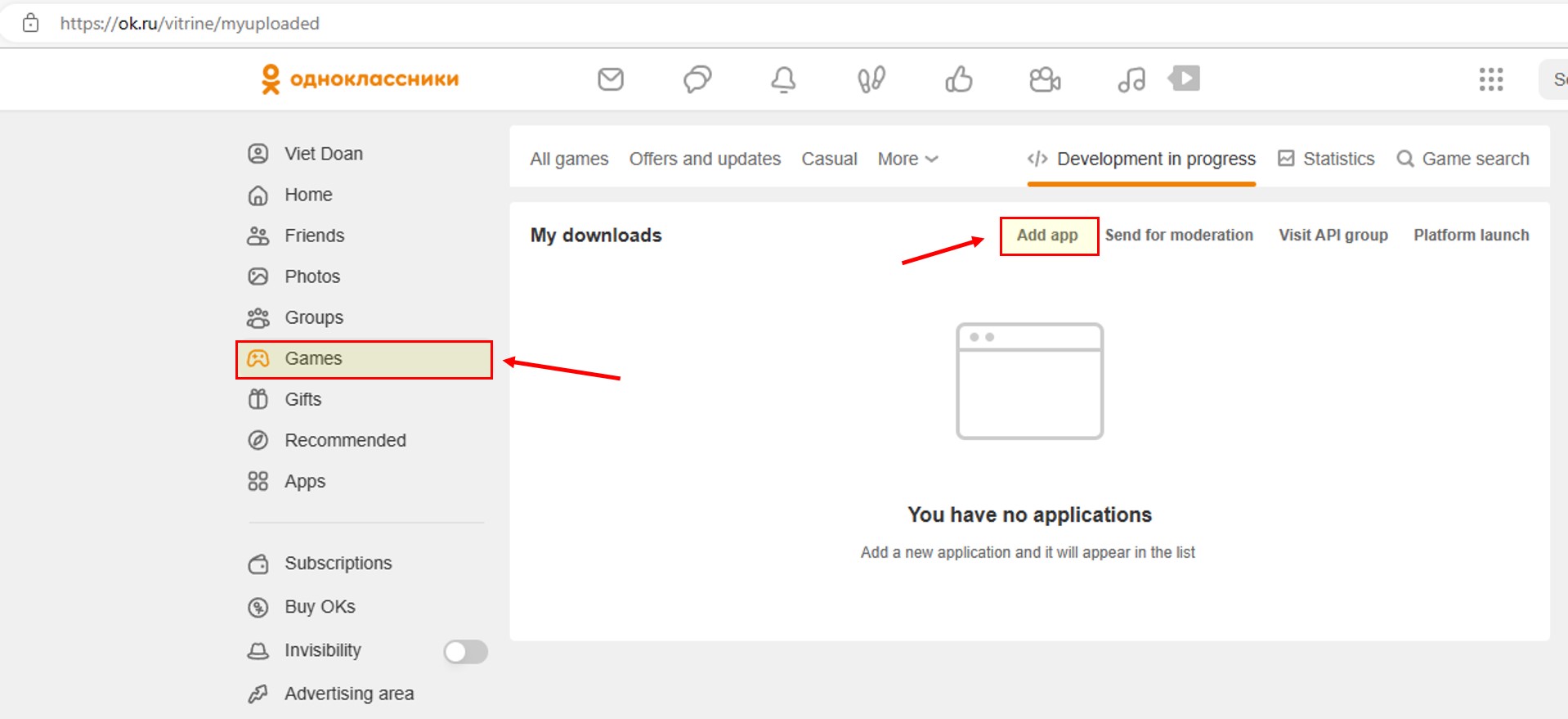
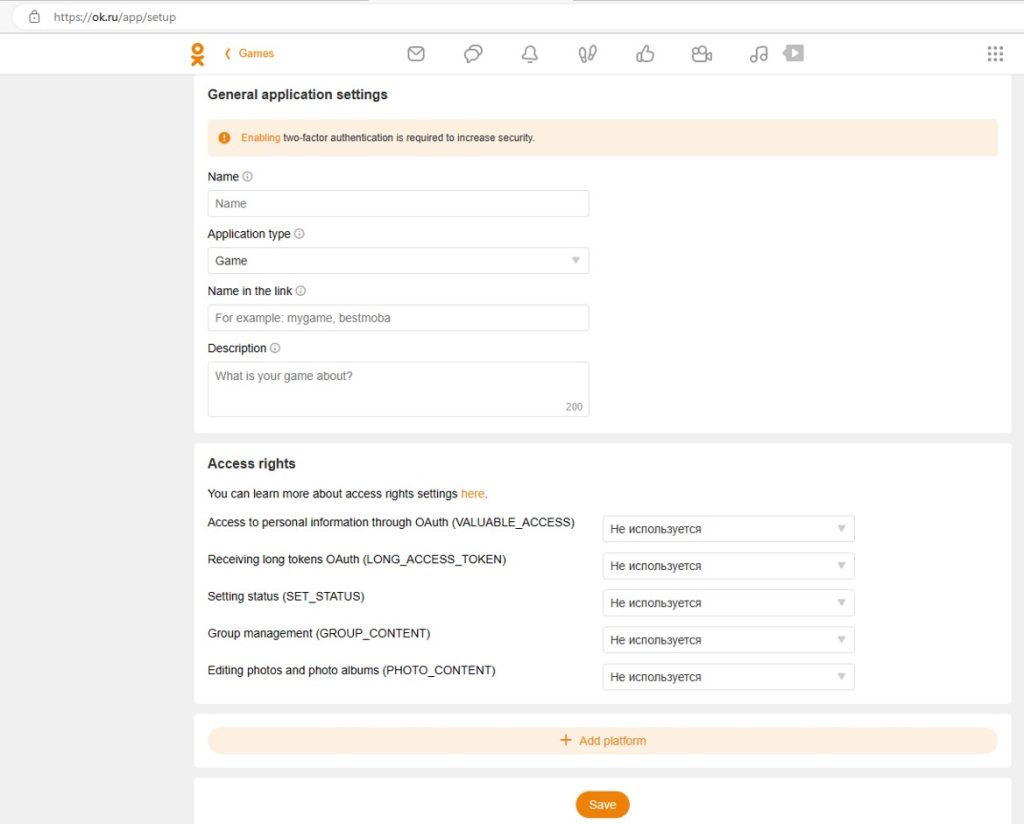
                                      Fill out the form:

                                      • Name: App title -application’s name that will be used in all catalogs, notifications, topics and messages.
                                      • Application type: Game is a game app published in the games section on OK Application – other applications published in the features and services section on OK
                                      • Name in the link: A unique short name is required, Latin characters only without special characters. Short links by name work only for games and applications running on the site. After moderation, your game will be available via this link https://ok.ru/app/gamename
                                      • Description:  Description of the application that may be used for advertising purposes. Maximum 200 characters.

                                      Enabling additional platforms

                                      Depending on what you want from your app following platforms can be additionally enabled for it:

                                      1. OAuth – if the app is going to be used for OAuth authorization, automated posting to your group/user’s feed;
                                      2. Web – if it’s a game/app that will be available for users on ok.ru;
                                      3. Mobile – if it’s a game/app that will be available for users on our mobile platforms – m.ok.ru, apps for android and iOS;

                                      Get approved App

                                      Submit review permissions to can post

                                      To can post to Ok (Odnoklassniki) profile to next send request submit a review to email: [email protected]. After submitting the review you need to wait 1 – 3 days to get approved to use

                                      This is an email form for you:

                                      Subject:

                                      ID приложения: [APPLICATION ID]

                                      Content:

                                      Добрый день!

                                      ID приложения: [APPLICATION ID]

                                      Необходимые разрешения: “VALUABLE_ACCESS”,”PHOTO_CONTENT”,”GROUP_CONTENT”, “VIDEO_CONTENT” ,”LONG_ACCESS_TOKEN”

                                      Описание: Данные права необходимы для публикации контента в группы/страницы/профиль. Так же будет возможность отложенной публикации. В данный момент у нас подтверждены соц сети: FaceBook, VK, Twitter. Поиск контент мы НЕ будет использовать. Клиенты будут загружать свой контент без копирования. Поиск контента реализован только для Instagram.

                                      Если у вас есть какие-то вопросы, или нужно предоставить какие-либо данные, напишите. Спасибо!

                                      Approved App Settings

                                      General application settings

                                      External app settings

                                      Settings for an app in a group

                                      Access rights & Save

                                      Configure Stackposts

                                      OneDrive API

                                      New Registration


                                      Widget

                                      Affiliate

                                      Affiliate Program

                                      Earn passive income by referring new users to the platform

                                      The Affiliate Program allows users to generate ongoing revenue by promoting your platform and referring new paying subscribers. It’s a built-in commission system that tracks referrals, conversions, and payouts automatically.


                                      🎯 How It Works

                                      1. Share & Promote Link
                                        Each user gets a unique Affiliate Link to share with their network. They can share it via email, or social media (Facebook, LinkedIn, Twitter).

                                      2. First Sales & More
                                        When someone signs up and subscribes via the shared link, the referrer earns a commission (e.g., 5%) on every qualifying purchase, for as long as the subscription remains active.

                                      3. Generate Income Effortlessly
                                        Earnings are recurring — as long as referred users stay subscribed, affiliates keep earning.


                                      📊 Your Referral Stats

                                      • Clicks: Total visits to the affiliate link

                                      • Conversions: Number of successful signups and purchases

                                      • Pending: Earnings waiting for approval

                                      • Approved: Earnings ready for withdrawal

                                      • Rejected: Canceled or invalid commissions


                                      💰 Your Balance Panel

                                      Displays:

                                      • Total Paid

                                      • Total Approved

                                      • Rejected Amount

                                      • Current Balance – the amount available to request a withdrawal


                                      🏦 Withdrawal Request

                                      • Input Bank Information and Amount

                                      • Minimum Withdrawal: $10

                                      • Supported payment methods: PayPal, Stripe

                                      • Click Send Request to initiate payout


                                      📋 Payout History

                                      A detailed table that shows:

                                      • Payment ID

                                      • Amount

                                      • Payment Method

                                      • Status (Pending / Approved / Rejected)

                                      • Date

                                      • Notes

                                      Use filters and search to quickly locate transactions.

                                      Setup Node.js Application on CyberPanel/OpenLiteSpeed

                                      Express.js is a web application framework for Node.js. We’ve written quite a few articles on running multiple Node.js based applications in past because OpenLiteSpeed recently had native support to run Node.js based applications without doing any reverse proxy, this gives a great performance improvment.

                                      Today we will specifically see that how we can run Express.js Application on CyberPanel using the feature provided to us by OpenLiteSpeed.

                                      Installation Instructions

                                      Adobe Express API

                                      Get started with your new project

                                      Welcome to your new empty project. To start using Adobe services, add an API, Event, or Plugin ID to your project. For more guidance on projects and the services we offer, view our documentation.

                                      Add an API

                                      Add a REST API to your project to access Adobe services and products. Browse this API list and customize.
                                      Note that many services are only available through paid license or subscription. If you believe you should have access to a disabled service, please contact your Adobe sales representative.

                                      OAuth 2.0 authentication and authorization

                                      With OAuth, your end users can sign in to your integration with their Adobe ID. By using an OAuth token, your integration can access Adobe services or content as the signed-in user. Learn more about OAuth and Adobe.

                                      What kind of application are you trying to integrate with Adobe?

                                      Available Scopes

                                      All Scopes are currently available by default and can’t be deselected at this time. View scope documentation

                                      Connected credentials

                                      Set up your public profile

                                      You’ll need to complete a public profile before you can submit your app or integration for approval. The information from this profile will appear on the consent screen that users will view when using your app.

                                      Developer account management

                                      Manage the public profile and commerce options for your organization.

                                      Submit for approval

                                      Consent screen details

                                      These details will appear on the consent screen that users will view when signing in to use your app or integration. Information from your public profile will also appear on this screen.

                                      If your app processes personal information, include a link to the privacy policy on your app’s website, per the Adobe Developer Agreement.

                                      Approval details

                                      Describe what your app does, to help Adobe review it for approval. Allowing other enterprises to discover your app or integration in the Adobe Admin Console will make it so that the administrators of those enterprises can manage access to it for their users.

                                      Screenshots for approval

                                      Include screenshots that show the full experience of your app or integration, as well as any usage of Adobe branded elements.

                                      Please note that you also don’t need to get the approved API app when you use it with Stackposts 

                                      If you have any questions, issues, or suggestions for this feature, please contact us here. We will answer as soon as possible

                                      Support

                                      🛠️ Support Central

                                      Support Central is your all-in-one ticket and live support system designed to help teams track, resolve, and respond quickly to customer issues.


                                      🔧 Core Features

                                      1. 📝 Submit & Organize Support Tickets

                                      Users can submit tickets by clicking + New Ticket, filling in:

                                      • Category (e.g., Technical, Billing)

                                      • Type (Bug, Request, etc.)

                                      • Subject and Detailed Message

                                      • Optional Labels for internal filtering

                                      Tickets are categorized and tracked with statuses: Open, Resolved, or Closed.


                                      2. 💬 Live Chat Interaction

                                      Support isn’t just asynchronous—you can chat live!

                                      • Agents and users communicate in a real-time chat-like format within each ticket.

                                      • Replies appear instantly in a threaded conversation view.

                                      • This allows for rapid resolution, reducing wait times and boosting satisfaction.

                                      • Supports message formatting for clearer communication.

                                      Think of it as a hybrid between a ticket system and a live support chat.


                                      3. 🔎 Smart Filters & Labels

                                      • Filter tickets by category, label, or status.

                                      • Search by keywords or ticket ID.

                                      • Apply multiple custom labels like Feature Request, Bug, or Account.


                                      4. 📊 Overview & Tracking

                                      • See stats like:

                                        • Total messages

                                        • Last response time

                                        • Status

                                      • Identify unresolved issues quickly.


                                      ✅ Benefits

                                      • Respond to support requests instantly via live chat.

                                      • Organize communication without losing context.

                                      • Great for support teams, SaaS admins, and client success agents.

                                      Bitly API

                                      Configure Bitly

                                      1. Register OAuth application

                                      Click this link to create the Bitly app: https://app.bitly.com/settings/api/oauth/

                                      For documentation on using Bitly OAuth visit the API Documentation

                                      • Application name (required): Please provide a unique name for your application. This value will be displayed to users when they authenticate to Bitly.
                                      • Application link (required): The URL of your application. This value will be displayed to users when they authenticate to Bitly. If your application link is a root domain or a directory (ie, a link that does not end in .html or .php), it must end with a forward slash. Example: http://your-app.com/
                                      • Redirect URIs (required): For multiple, enter one per line. Example:
                                        – https://your-app.com/callback/
                                        – http://dev.your-app.com/redirect.php
                                        – https://yoursite.com/shortlink/bitly (Stackposts)
                                      • Application description: 300 character max

                                      2. Registered OAuth applications

                                      Configure Stackposts

                                      API application for Facebook (Meta)

                                      Creating an API application for Facebook (now Meta) involves several steps within the Meta for Developers platform.1 Here’s a comprehensive guide:

                                      1. Go to the Meta for Developers Website:

                                      2. Log In or Sign Up:

                                      • If you already have a Facebook account, log in using your credentials.
                                      • If you don’t have an account, you’ll need to sign up for one.

                                      3. Access the “My Apps” Dashboard:

                                      Once logged in, hover over the “My Apps” option in the top navigation bar and click on it.

                                      4. Create a New App:

                                      On the “My Apps” dashboard, you’ll see a button that says “+ Add New App” or “Create App”. Click on it.

                                      5. Choose an App Type:

                                      Meta will ask you to choose the type of app you’re building. Select the option that best describes your use case. Common options include:

                                      1. Consumer: For apps that integrate with Facebook login, share content, or access user data for personal use or a small business.
                                      2. Business: For apps that help businesses manage their presence, run ads, or engage with customers on Facebook and Instagram.
                                      3. Gaming: For apps that are games and integrate with Facebook for social features.
                                      4. Apps for Pages: For apps that add functionality to Facebook Pages.

                                      Choose the most appropriate option for your project.

                                      6. Provide App Details:

                                      You’ll be prompted to enter the following details:

                                        • App Display Name: This is the name that will be visible to users when they interact with your app (e.g., during Facebook Login). Choose a clear and descriptive name.
                                        • App Contact Email: Provide a valid email address that Meta can use to contact you regarding your app.

                                      Click on the “Create App ID” button. You might be asked to complete a security check (e.g., CAPTCHA).
                                      7. Set Up Products:

                                      • Once your app is created, you’ll be redirected to the App Dashboard. Here, you’ll see a section labeled “Add Products to Your App”.
                                      • Products represent the specific Facebook and Instagram features you want your app to use (e.g., Facebook Login, Instagram Basic Display, Marketing API).
                                      • Browse the available products and click the “Set Up” button for each product you intend to integrate into your application.

                                      8. Configure Product Settings:

                                      After selecting a product, you’ll need to configure its settings. The specific settings will vary depending on the product. Common configurations include:

                                      • Basic Settings: This section (found under “Settings” in the left sidebar) requires you to provide:
                                          • Privacy Policy URL: A link to your app’s privacy policy. This is mandatory.
                                          • Terms of Service URL: A link to your app’s terms of service (optional but recommended).
                                          • App Icon: Upload an icon for your app.
                                          • Category: Select the category that best describes your app.
                                          • Data Deletion Instructions URL: A URL explaining how users can request deletion of their data collected by your app.
                                      • Facebook Login:
                                          • Valid OAuth Redirect URIs: These are the URLs in your application where Facebook will redirect users after they have logged in. You need to provide the exact URLs.
                                          • Deauthorize Callback URL: An optional URL that Facebook will call when a user deauthorizes your app.
                                      • Instagram Basic Display:
                                          • Valid OAuth Redirect URIs: Similar to Facebook Login, you need to provide the redirect URLs for Instagram authentication.
                                          • Deauthorize Callback URL: An optional URL for Instagram deauthorization callbacks.
                                          • Data Deletion Request Callback URL: A URL where Instagram can notify you of data deletion requests.
                                      • Other Products: Each product will have its own specific configuration requirements. Follow the on-screen instructions carefully.

                                      9. Save Your Changes:

                                      • After configuring the settings for each product, make sure to click the “Save Changes” button at the bottom of the page.

                                      10. Review App Permissions (if applicable):

                                      • Some Facebook APIs require specific permissions to access user data. When you configure a product that needs permissions (e.g., Facebook Login), you’ll need to request these permissions.
                                      • Be mindful of the permissions you request and only ask for what your app truly needs. Over-requesting permissions can lead to your app being rejected during the review process.
                                      • For certain sensitive permissions, you’ll need to go through an App Review process with Meta to demonstrate why your app needs access to that data and how it will be used.

                                      11. Understand App Modes (Development vs. Live):

                                      • When you first create your app, it will be in Development Mode. In this mode, only administrators, developers, and testers of your app can access its features.
                                      • Once your app is ready for public use and you’ve completed any necessary App Review processes, you’ll need to switch your app to Live Mode. You can do this using the toggle switch in the App Dashboard.

                                      12. Get Access Tokens and Use the APIs:

                                      • Once your app is set up and configured, you can start using the APIs. The process for obtaining access tokens will vary depending on the API you’re using (e.g., OAuth 2.0 flow for user authentication).
                                      • Meta provides extensive documentation for each API product, including guides on authentication, making API calls, and handling responses. Refer to the documentation for the specific APIs you are working with.

                                      Key Considerations and Best Practices:

                                      • Read the Documentation: Meta’s developer documentation is crucial. Spend time understanding the specific requirements and limitations of each API you intend to use.
                                      • Follow Meta’s Platform Policies: Ensure your app complies with Meta’s Platform Policies and Developer Terms.15 Violations can lead to your app being restricted or banned.
                                      • Implement Secure Authentication: Handle access tokens and user data securely. Use HTTPS for all communication.
                                      • Handle Errors Gracefully: Implement proper error handling in your application to manage API failures and provide informative feedback to users.
                                      • Test Thoroughly: Test your app extensively in development mode before making it live.
                                      • Stay Updated: Facebook’s APIs and policies can change. Regularly check the Meta for Developers platform for updates and announcements.
                                      • App Review: Be prepared for the App Review process if your app requires access to sensitive user data or certain features. Provide clear and accurate information during the review.

                                      By following these steps and diligently referring to the Meta for Developers documentation, you can successfully create an API application for Facebook (Meta). Remember that the specific steps and configurations will depend on the exact features and functionalities you want to integrate into your application.

                                      OpenAI API

                                      Get an OpenAI access token here: https://platform.openai.com/account/api-keys

                                      Please save this secret key somewhere safe and accessible. For security reasons, you won’t be able to view it again through your OpenAI account. If you lose this secret key, you’ll need to generate a new one.

                                      Composer

                                      Media

                                      You can publish images, and video files for suitable social media sites.

                                      Link

                                      When you insert a link, Stackposts will automatically retrieve the image associated with it and set it as the default image for your posts.

                                      You can’t change the thumbnail image if the social media platform doesn’t support image changes.

                                      Text

                                      Features

                                      When to post

                                      Immediately


                                      Schedule & Repost

                                      1. Interval per post

                                      Interval per post: It refers to the time duration or gap between each individual post shared or published. This setting allows users to specify how much time should pass between consecutive posts.

                                      For instance, setting an interval of 5 minutes per post would mean that after one post is published, the tool will wait for 5 minutes before allowing the next post to be published. This feature helps regulate the frequency and timing of content sharing to maintain a consistent schedule and avoid overwhelming audiences with too many posts in a short period.

                                      2. Repost frequency (day)

                                      Repost frequency (day): It refers to the number of times content is shared or reposted within a specific period, typically measured in days. It indicates how often a particular piece of content (such as a social media post, link, or text) is scheduled or automatically shared again on a platform within a defined time frame.

                                      For example, if the repost frequency is set to “3 days,” it means that after sharing a piece of content, it will be reposted or shared again automatically after every three days.

                                      3. Repost until

                                      Repost until: It refers to the duration or specific endpoint set for the reposting of content. It indicates the time and date until which a particular piece of content will continue to be shared or reposted.

                                      For instance, if a social media scheduling tool has a “repost until” feature and you set it for a date two weeks in the future, the content will be automatically reposted at the designated intervals until that specified date is reached. Once the “repost until” date is reached, the reposting or sharing of that content will cease as per the configured settings.


                                      Open AI

                                      URL Shorteners

                                      Save Caption

                                      Get Caption

                                      Word Counter

                                      Bulk Post

                                      Bulk Post Template File

                                      You have the option to download our bulk post template, which can then be uploaded to your Stackposts platform to activate this feature seamlessly.

                                      Bulk Post Teamplate
                                      Bulk Post Teamplate

                                      Drafts

                                      Schedules

                                      Account Manager

                                      File Manager

                                      Tools

                                      FAQs

                                      Memberships

                                      Plans

                                      Add a new plan

                                      Plan info

                                      Permissions

                                      Enable features that you want to add to your new plan. Some permissions will be invisible because you haven’t purchased them yet. You can buy more modules and features here.

                                      Dashboard

                                      Composer

                                      File Manager

                                      Click the Save button when you create a new plan. Click Save and update subscribers when you update the current plans.

                                      Coupons

                                      Subscriptions

                                      Payments


                                      Install & configure aaPanel

                                      Instagram Auto Post

                                      FAQs

                                      Instagram OTP

                                      It seems after trying to authenticate in Instagram (via logging in) if the OTP is enabled it does not show to authenticate (OTP), it just shows the screen as if nothing happened.

                                      In this case, we recommend that you go to https://www.instagram.com/ to log in to your account and then back to your Stackposts website and add again (turn off: 2-step Security if enabled). Please do not send login too much at the same time.

                                      Users

                                      List users

                                      User roles

                                      It’s available for the extended license only

                                      User report

                                      It’s available for the extended license only


                                      If you have any questionsissues, or suggestions for this feature, please contact us here. We will answer as soon as possible

                                      Install FFMPEG

                                      FFmpeg is one of the best multimedia frameworks that can be used to encode, decode, transcode, mux, demux, record, stream, filter, and play any type of media file. It is a completely free multimedia framework that works on almost all operating systems, including Linux, Mac OS X, Microsoft Windows, the BSDs, Solaris, etc.

                                      Install FFmpeg In Linux

                                      FFmpeg is packaged for most Linux distributions and is available in the default repositories. Here are installation instructions for popular Linux distros.

                                      1. Install FFmpeg on Arch Linux and its derivatives

                                      FFmpeg is available in the default repositories of Arch Linux. You can install it using the command:

                                      $ sudo pacman -S ffmpeg

                                      The latest development version is available in the AUR. , so you can install it using any AUR helpers, for example, Yay.

                                      $ yay -S ffmpeg-git

                                      There is also ffmpeg-full package in AUR, which is built with as many optional features enabled as possible. You can install that too if you want.

                                      $ yay -S ffmpeg-full-git

                                      2. Install FFmpeg on Debian

                                      FFmpeg is available in the default repositories. Open your Terminal and run the following command to install it.

                                      $ sudo apt-get install ffmpeg

                                      3. Install FFmpeg on Ubuntu and its derivatives

                                      In Ubuntu, FFmpeg is available in the official repositories, so you can install it using command:

                                      $ sudo apt-get install ffmpeg

                                      FFmpeg in the official repositories might be bit outdated. To install the most recent version, use the FFmpeg PPA.

                                      $ sudo add-apt-repository ppa:mc3man/trusty-media
                                      $ sudo apt-get update
                                      $ sudo apt-get dist-upgrade

                                      4. Install FFmpeg on Fedora, RHEL, CentOS

                                      FFmpeg can be installed via EPEL and RPM Fusion repositories on RPM-based distributions, such as RHEL, Fedora, CentOS.

                                      First, Add EPEL repository using the command:

                                      $ sudo dnf install epel-release

                                      Add RPM Fusion repository as shown below depending upon the distribution you use:

                                      To enable access to both the free and the nonfree repository use the following command:

                                      Fedora 22 and later:

                                      $ sudo dnf install https://mirrors.rpmfusion.org/free/fedora/rpmfusion-free-release-$(rpm -E %fedora).noarch.rpm https://mirrors.rpmfusion.org/nonfree/fedora/rpmfusion-nonfree-release-$(rpm -E %fedora).noarch.rpm

                                      RHEL 8.x and compatible systems:

                                      $ sudo dnf install --nogpgcheck https://dl.fedoraproject.org/pub/epel/epel-release-latest-8.noarch.rpm
                                      $ sudo dnf install --nogpgcheck https://mirrors.rpmfusion.org/free/el/rpmfusion-free-release-8.noarch.rpm https://mirrors.rpmfusion.org/nonfree/el/rpmfusion-nonfree-release-8.noarch.rpm

                                      RHEL 7.x, CentOS 7.x:

                                      $ sudo yum localinstall --nogpgcheck https://mirrors.rpmfusion.org/free/el/rpmfusion-free-release-7.noarch.rpm https://mirrors.rpmfusion.org/nonfree/el/rpmfusion-nonfree-release-7.noarch.rpm

                                      The above commands will install both free and non-free repositories.

                                      After enabling EPEL and RPM Fusion repositories, run the following command to install FFmpeg:

                                      $ sudo dnf install ffmpeg ffmpeg-devel

                                      Or,

                                      $ sudo yum install ffmpeg ffmpeg-devel

                                      5. Install FFmpeg in openSUSE

                                      Enable Packman repository on your openSUSE system.

                                      If you’re using openSUSE Tumbleweed edition, run the following command to enable Packman repository:

                                      $ sudo zypper addrepo -cfp 90 'https://ftp.gwdg.de/pub/linux/misc/packman/suse/openSUSE_Tumbleweed/' packman

                                      On openSUSE Leap:

                                      $ sudo zypper addrepo -cfp 90 'https://ftp.gwdg.de/pub/linux/misc/packman/suse/openSUSE_Leap_$releasever/' packman

                                      Refresh the repository database:

                                      $ sudo zypper refresh

                                      Finally, install FFmpeg on openSUSE using the command:

                                      $ sudo zypper install --from packman ffmpeg

                                      ! Congratulations! You have successfully installed FFmpeg on your Linux box.

                                      To verify the FFmpeg version, run

                                      $ ffmpeg -version

                                      Sample output:

                                      ffmpeg version 4.4 Copyright (c) 2000-2021 the FFmpeg developers
                                                    built with gcc 11 (GCC)
                                                    configuration: --prefix=/usr --bindir=/usr/bin --datadir=/usr/share/ffmpeg --docdir=/usr/share/doc/ffmpeg --incdir=/usr/include/ffmpeg --libdir=/usr/lib64 --mandir=/usr/share/man --arch=x86_64 --optflags='-O2 -flto=auto -ffat-lto-objects -fexceptions -g -grecord-gcc-switches -pipe -Wall -Werror=format-security -Wp,-D_FORTIFY_SOURCE=2 -Wp,-D_GLIBCXX_ASSERTIONS -specs=/usr/lib/rpm/redhat/redhat-hardened-cc1 -fstack-protector-strong -specs=/usr/lib/rpm/redhat/redhat-annobin-cc1 -m64 -mtune=generic -fasynchronous-unwind-tables -fstack-clash-protection -fcf-protection' --extra-ldflags='-Wl,-z,relro -Wl,--as-needed -Wl,-z,now -specs=/usr/lib/rpm/redhat/redhat-hardened-ld ' --extra-cflags=' -I/usr/include/rav1e' --enable-libopencore-amrnb --enable-libopencore-amrwb --enable-libvo-amrwbenc --enable-version3 --enable-bzlib --disable-crystalhd --enable-fontconfig --enable-frei0r --enable-gcrypt --enable-gnutls --enable-ladspa --enable-libaom --enable-libdav1d --enable-libass --enable-libbluray --enable-libcdio --enable-libdrm --enable-libjack --enable-libfreetype --enable-libfribidi --enable-libgsm --enable-libmp3lame --enable-libmysofa --enable-nvenc --enable-openal --enable-opencl --enable-opengl --enable-libopenjpeg --enable-libopenmpt --enable-libopus --enable-libpulse --enable-librsvg --enable-librav1e --enable-libsmbclient --enable-version3 --enable-libsoxr --enable-libspeex --enable-libsrt --enable-libssh --enable-libsvtav1 --enable-libtheora --enable-libvorbis --enable-libv4l2 --enable-libvidstab --enable-libvmaf --enable-version3 --enable-vapoursynth --enable-libvpx --enable-vulkan --enable-libglslang --enable-libx264 --enable-libx265 --enable-libxvid --enable-libxml2 --enable-libzimg --enable-libzvbi --enable-lv2 --enable-avfilter --enable-avresample --enable-libmodplug --enable-postproc --enable-pthreads --disable-static --enable-shared --enable-gpl --disable-debug --disable-stripping --shlibdir=/usr/lib64 --enable-lto --enable-libmfx --enable-runtime-cpudetect
                                                    libavutil 56. 70.100 / 56. 70.100
                                                    libavcodec 58.134.100 / 58.134.100
                                                    libavformat 58. 76.100 / 58. 76.100
                                                    libavdevice 58. 13.100 / 58. 13.100
                                                    libavfilter 7.110.100 / 7.110.100
                                                    libavresample 4. 0. 0 / 4. 0. 0
                                                    libswscale 5. 9.100 / 5. 9.100
                                                    libswresample 3. 9.100 / 3. 9.100
                                                    libpostproc 55. 9.100 / 55. 9.100
                                                  

                                      To print FFmpeg help section:

                                      $ ffmpeg -h

                                      Display FFmpeg man page:

                                      $ man ffmpeg

                                      Installing FFmpeg on Ubuntu

                                      FFmpeg is a very popular software project, which is a collection of programs and libraries that are used to handle audio and video file conversion, and streams, as well as record other multimedia files.

                                      Step 1: Update the Repository

                                      Update and upgrade the system packages to get the FFmpeg version currently available in the repository. Execute the following command:

                                      sudo apt update && sudo apt upgradeudo apt update && sudo apt upgrade
                                      sudo apt update && sudo apt upgrade terminal output

                                      Hit y to continue when prompted:

                                      Step 2: Install FFmpeg

                                      After upgrading the repository, install FFmpeg by running the following:

                                      sudo apt install ffmpeg

                                      sudo apt install ffmpeg terminal output

                                      It may ask for taking additional disk space for installation, type “Y” and hit the “Enter” button.

                                      Now FFmpeg is installed on your Ubuntu 20.04 LTS system.

                                      Step 3: Check FFmpeg version

                                      The next thing you should do after confirming its installation is, first, check the version of FFmpeg using the command given below:

                                      ffmpeg --version

                                      Step 4: Encoders and Decoders

                                      In order to see/print encoders and decoders available from FFmpeg, type the commands given below:

                                      ffmpeg -encoders

                                      ffmpeg -decoders

                                      You can witness that FFmpeg is installed and working perfectly fine.

                                      Contact Stackposts Team

                                      Social Media Sites

                                      We appreciate your message and we will reply to your message as soon as we’re able.
                                      Please note that our team doesn’t answer issues that are relevant to technical problems.

                                       FacebookFollow News & Updates
                                       Youtube:     Watch the Tutorial & Demo
                                          Email:         [email protected]
                                         WhatsApp: Chat with us now

                                      The developer helps with technical problems

                                      Our dev team will check your case in detail. Please open a ticket here with your purchase codes to fix your technical problems

                                      Report Stackposts Issues

                                      We also provide a form for those who wish to report detailed issues. You can send all your info here.

                                      Open a support ticket

                                      If you don’t see your license on Stackposts.com please follow this guide to enable it:

                                      Please open the ticket here to get support details: https://stackposts.com/support/new_ticket and our dev team will check it all for you.

                                      Please watch this video to learn How to open or renew the support ticket on Stackposts.


                                      Change the storage capacity for each of the packages

                                      How do I change the storage capacity for each of the packages?

                                      How to install Google Analytics in the Stackposts website

                                      Settings / General Settings / Others ==>

                                      Version 7.2.3


                                      How to Get Latest Updates on Stackpost?

                                      What is an Update?

                                      An update is a free download for Stackpost Main Script that provides fixes for features that aren’t working as intended or adds minor software enhancements and compatibility.

                                      Updates are released to address minor bugs discovered in the Script. These small, incremental updates improve the operation of your own platform.

                                      It is wise to install security updates when they are released to ensure your system is as protected as possible against constantly changing threats.

                                      How to Get the Latest Updates on Stackpost?

                                      Please follow the Screenshot below to download updates for your scripts:

                                      1. From your Dashboard, click Plugins in the left menu and select Main Scripts to check all the latest updating scripts.
                                      2. Select your a version update to update it now

                                      Important: Back up all your file before updating to keep safe for script


                                      How to use Package Manager on Stackposts?

                                      In a nutshell, your pricing page is the landing page on your website that lists the different pricing options or tiers available to customers and the benefits and features included in each tier. 

                                      How to use Package Manager on Stackposts?

                                      Create a new package

                                      on the left-side menu click Package manager and click Add new

                                      Set up Free Package Info

                                      • Status:  Click Enable to show on your pricing page.
                                      • Name: Your package name (Free, Standard or Premier,..)
                                      • Description: Overview for this package
                                      • Trial day: Number of days user use it free
                                      • Number of accounts: How many social media accounts users can add to your platform
                                      • Position: Order your packages on the pricing page.

                                      Set up Subscription Package Info

                                      • Status:  Click Enable to show on your pricing page.
                                      • Name: Your package name (Free, Standard or Premier,..)
                                      • Description: Overview for this package
                                      • Price Monthly: The price the user will pay a package for every month
                                      • Price Annually: The price the user will pay a package for every year.
                                      • Number of accounts: How many social media accounts users can add to your platform
                                      • Position: Order your packages on the pricing page.

                                      Select Permissions for Package

                                      Choose all features that will be included in your package and click Enable.

                                      At Account manager, please click enable the social media network you want users to add 

                                      Finally, click Save to publish your packages.

                                      How to Get the Latest Version Stackposts?

                                      Important: Back update all your file before updating to keep safe for script

                                      What is an Update?

                                      An update is a free download for Stackpost Main Script that provides fixes for features that aren’t working as intended or adds minor software enhancements and compatibility.

                                      Updates are released to address minor bugs discovered in the Script. These small, incremental updates improve the operation of your own platform.

                                      It is wise to install security updates when they are released to ensure your system is as protected as possible against constantly changing threats.

                                      How to Get the Latest Version Stackpost?

                                      Please follow the Screenshot below to download updates for your scripts:

                                      1. From your Dashboard, click Plugins in the left menu and select Main Scripts to check all the latest updating scripts.
                                      2. Select your version update to update it now

                                      Important: Back update all your file before updating to keep them safe for script

                                      How to get Support on Stackpost?

                                      Please open the ticket here to get support detail from our developer team.

                                      How to Configure Google Drive Integration?

                                      How to Configure Google Drive Integration in Stackposts?

                                      What is Google Drive?

                                      Google Drive is a cloud-based storage solution that allows you to save files online and access them anywhere from any smartphone, tablet, or computer. 

                                      Some of Google Drive’s other key features:

                                      How to Configure Google Drive Integration in Stackposts?

                                      Click this link to create a Google app: https://console.developers.google.com/projectcreate

                                      Watching this Guide video to get more detail:

                                      How to get Support from the Developer Team?

                                      Please open the ticket here to get support detail from our developer team.

                                      How to use Spintax on Stackposts?

                                      What is Spintax?

                                      The word Spintax comes from the phrase “Spinning Syntax”, and it is a technique often used for producing content on a large scale within a short span of time. The syntax begins with an open curly brace and ends with a closing brace, and each term inside the braces is separated by a delimiter (pipe character).

                                      {word1|word2|word3}

                                      For example, let us try using Spintax in a sentence with different Stackposts items,

                                      You can use Stackposts for {Facebook|Instagram|Twitter}

                                      And at any instance, you would come up with only one of the following results.

                                      • You can use Stackposts for Facebook
                                      • You can use Stackposts for Instagram
                                      • You can use Stackposts for Twitter

                                      How to get Support on Stackpost?

                                      Please open the ticket here to get support detail from our developer team.

                                      Instagram Threads Auto Post

                                      How to use

                                      1. Go to instagram.com or threads.net to log in to your account first and then back to your Stackposts website and add again
                                      2. Turn off: 2-step Security if it is required many times

                                      Changelogs

                                      Changelog updates can include bug fixes, security patches, new features, improvements to existing features, and other changes made to the software product or service.

                                      v1.0.2 Sep 27, 2024

                                      – Update the whole module for Stackposts Main Script v8.2.0

                                      v1.0.1 – Feb 21, 2024

                                      – Fixed: No Profile to Add
                                      – Improved Performance of the module

                                      v1.0.0 – July 16, 2023

                                      – New module

                                      FAQs

                                      TikTok Auto Post

                                      Please see the instructions below

                                      Introduction

                                      TikTok Auto Post Tool is a module for the Stackposts Main script. It allows users to plan and schedule their TikTok content in advance as well as provides a convenient way for you to organize and automate your TikTok posting.

                                      Summary

                                      Used for:  Scheduling and Posting your TikTok content in advance. You can add captions and hashtags, select the date and time you want your video to be published, and manage multiple TikTok accounts if needed. It then takes care of publishing your videos at the specified times, even if you’re not actively using the TikTok app.


                                      You can add captions and hashtags, and select the date and time you want your video to be published even if you’re not actively using the TikTok app.

                                      Best for: Using TikTok Auto Post Tool can be beneficial for content creators, businesses, social media managers, or individuals who want to maintain a consistent posting schedule, plan their content in advance, and optimize their engagement on the platform. It helps save time and effort by streamlining the process of uploading TikTok videos and maximizing their reach.

                                      Maintaining a consistent posting schedule for your content in advance, and optimising your engagement on the platform. Save your time and maximise your reach

                                      Alternative to: Later, Sprout Social, Planoly, and Loomly

                                      Key features

                                      Schedule and Publish: You can create and schedule TikTok posts during your free time, even if you’re not immediately available to publish them. This helps you maintain a regular posting schedule without having to be constantly present on the platform.

                                      Multichannel management: If you manage multiple TikTok accounts, a scheduler simplifies the process by providing a centralized platform to handle all your accounts’ scheduling needs. It saves you from the hassle of logging in and out of different accounts or using separate devices.

                                      Installation Services

                                      Although we have included detailed installation instructions for popular servers, installing tiktok module can be quite intricate as it necessitates configuring an extra domain for the API and installing and configuring Node.js.

                                      As a result, if you require a faster deployment or are unfamiliar with the installation process, we offer additional installation services. All you need to do is purchase a domain and server and provide us with the necessary information, and we will take care of the installation for you.

                                      The installation process should take approximately 24-48 hours, depending on your timezone.

                                      Installation fee

                                      Need assistance with script installation? Our team is here to help. For a fee of $49, we offer a full installation service for Tiktok module. You can pay here

                                      Notes:

                                      Please note that the installation fee covers one successful installation and support during the specified period. If you need to reinstall the script, a new installation package will need to be purchased.

                                      Installation Api Tiktok

                                      Install license

                                      Go to Admin Dashboard/Plugins

                                      Click Install

                                      Enter your Purchase code at the box

                                      Installation Api Domain

                                      Open port 8008

                                      //For Aapanel

                                      //For Plesk

                                      //For WHM


                                      cd /root 

                                      Please see instructions below

                                      To install CSF, perform the following steps:
                                       
                                      Log in to your server as the root user via SSH.
                                       
                                      Run the cd /root command to change to the root directory.
                                      cd /root 
                                       
                                      Run the following command to download CSF:
                                      wget https://download.configserver.com/csf.tgz
                                       
                                      Run the command to decompress the downloaded file.
                                      tar -xzf csf.tgz
                                      Run the command to change directories.
                                      cd csf
                                      To begin the CSF installation, run the 
                                      ./install.cpanel.sh command.nnn 


                                      Installation Api Domain for Ubuntu


                                      Download tiktok_server.zip file

                                      Create api domain and connect them to your Server IP Address

                                      Ex: tiktokapi.yourdomain.com

                                      Please set up SSL for api domain 

                                      Api Domain Configure

                                      For Nginx

                                      Please insert code below into your api Domain

                                               location / {
                                                    proxy_pass http://localhost:8008; #whatever port your app runs on
                                                    proxy_http_version 1.1;
                                                    proxy_set_header Upgrade $http_upgrade;
                                                    proxy_set_header Connection 'upgrade';
                                                    proxy_set_header Host $host;
                                                    proxy_cache_bypass $http_upgrade;
                                                }

                                      For Apache

                                      Insert code below into your api Domain: Please check that you have inserted the code at 2 places as instructed

                                        <Location />
                                             ProxyPass http://127.0.0.1:8008/
                                             ProxyPassReverse http://127.0.0.1:8008/
                                        </Location> 


                                      1/ Create folder “tiktokserver” on folder “/root”

                                      Create a directory in the root folder to upload “tiktok_server.zip”.

                                      To ensure the safety and security of the system, please place the file in the root directory. 

                                      2/ Go to folder “tiktokserver” and then upload & unzip file “tiktok_server.zip”


                                      3/ Config database on file config.js

                                      Important: Set up a common database with Stackposts Main Script, Do not create another database for the module.


                                      4/ Set permissions 775 for folder “node_modules/.bin”

                                      Access Terminal

                                      chmod -R 0755 /root/tiktokserver/node_modules/.bin/
                                      chown root:root .

                                      5/ Install Node JS 16 or Higher

                                      //For Ubuntu

                                      curl -sL https://deb.nodesource.com/setup_16.x | sudo -E bash -
                                      sudo apt install nodejs


                                      6/ Install Playwright & Browser

                                      npx playwright install

                                      7/ Install Libraries

                                      //For Ubuntu

                                      apt-get install libasound2 libdbus-glib-1-2 libgtk-3-dev libevent-2.1-7

                                      8/ Config cronjob

                                      Please create Cron according to the instructions

                                      Cron: Once/minute:

                                      sh -c 'cd /root/tiktokserver && node app'
                                      

                                      /root/tiktok_server: is the path to the tiktok_server.zip installation directory

                                      9/ Activate tiktok server

                                      Run below command to activate tiktok server

                                      cd /root/tiktokserver && node app

                                      Check the working status of the API domain

                                      Please check the link Please check the link https://tiktokapi.yourdomain.com/

                                      Cannot GET /

                                      Tiktok API Configuration & Check Qrcode

                                      Api domain set up correctly Correct setting

                                      https://tiktokapi.yourdomain.com/

                                      Wrong setting

                                      https://tiktokapi.yourdomain.com

                                      http://tiktokapi.yourdomain.com/

                                      tiktokapi.yourdomain.com

                                      and more….


                                      Check qrcode worked

                                      https://yourdomain.com/tiktok_profiles/oauth


                                      You can also set up via ip without running through api domain

                                      Check the working status of the API domain

                                      Please check the link Please check the link http://ip:8008/

                                      Cannot GET /


                                      Tiktok API Configuration & Check Qrcode

                                      Api set up correctly Correct setting

                                      http://ip:8008/


                                      Wrong setting

                                      https://ip:8008

                                      https://ip:8008/

                                      ip:8008

                                      and more….


                                      Check qrcode worked

                                      https://yourdomain.com/tiktok_profiles/oauth


                                      Installation Api server for Centos

                                      With CentOS server, you can only set up Tiktok Api via IP, not via domain

                                      1/ Create folder “tiktokserver” on folder “/root”

                                      2/ Go to folder “tiktokserver” and then upload & unzip file “tiktok_server.zip”

                                      3. Config database on file config.js

                                      Important: Set up a common database with Stackposts Main Script, Do not create another database for the module.

                                      4. Set permissions 775 for folder “node_modules/.bin”

                                      Access Terminal

                                      chmod -R 0755 /root/tiktokserver/node_modules/.bin/
                                      chown root:root .

                                      5/ Install Node JS 16 or Higher

                                      Access Terminal

                                      //For Centos

                                      yum install -y gcc-c++ make 
                                      curl -sL https://rpm.nodesource.com/setup_16.x | sudo -E bash -
                                      sudo yum install nodejs

                                      6/ Install Playwright & Browser

                                      npx playwright install

                                      7/ Install Libraries

                                      yum install alsa-lib-devel dbus-glib-devel gtk3-devel

                                      8/ Config cronjob

                                      Please create Cron according to the instructions

                                      Cron: Once/minute:

                                      * * * * * sh -c 'cd /root/tiktokserver && node app'
                                      

                                      /root/tiktok_server: is the path to the tiktok_server.zip installation directory

                                      Please see the instructions below, instead of setting cronj as above

                                      Select insert on the keyboard to enter cronjob

                                      Select Esc and run the comment “: x” to save

                                      9/ Activate tiktok server

                                      Run below command to activate tiktok server

                                      /root/tiktok_server: is the path to the tiktok_server.zip installation directory

                                      cd /root/tiktokserver && node app


                                      Check the working status of the API domain

                                      Please check the link Please check the link http://ip:8008/

                                      Cannot GET /


                                      Tiktok API Configuration & Check Qrcode

                                      Api set up correctly Correct setting

                                      http://ip:8008/


                                      Wrong setting

                                      https://ip:8008

                                      https://ip:8008/

                                      ip:8008

                                      and more….


                                      Check qrcode worked

                                      http://ip:8008/tiktok_profiles/oauth


                                      Config server domain

                                      After installing Successfull, using Admin Account to login Main Domain and setting your server. Enter you server domain at Tiktok API Configuration on your Main Domain

                                      With aapanel you can setup with tiktokdomain

                                      Important:

                                      Api must be SSL supported

                                      Set enough “/” in Url

                                      With other servers, you need to set up via ip

                                      Important:

                                      Set enough “/” in Url

                                      How to use?

                                      Problems & Solutions

                                      Problems: Instance ID does not exist.

                                      Solutions:

                                      Please replace file tiktok.js and restart nodejs or server
                                      https://drive.google.com/file/d/1lqTaFo9Jft4bUI-39y4KhsievRvZ4I7X/view?usp=sharing

                                      Upgrade version

                                      Please follow the instructions

                                      1. Upgrade Plugin Script

                                      Please go to Plugin and click the Tiktok module upgrade button

                                      2. Upgrade tiktokserver

                                      Step 1: Please download the latest tiktokserver.zip file


                                      Step 2: Extract the tiktokserver.zip file to get the tiktok.js file

                                      Step 3: Replace the tiktok.js file in the tiktokserver folder you installed

                                      Step 4: Restart nodejs to update

                                      Changelog

                                      v1.0.7 Sep 27th, 2024

                                      – Update the whole module for Stackposts Main Script v8.2.0

                                      v.1.0.6 May 26th 2024

                                      – Fixed  Adding Account
                                      – Improved Whole Module Performance

                                      v.1.0.4 Feb 20th 2024

                                      – Fixed QR Code
                                      – Fixed Posting Video
                                      – Fixed  Adding Account
                                      – Improved Whole Module Performance

                                      v.1.0.3 Nov 21st 2023

                                      – Improved Scan QR Code

                                      v.1.0.2 Nov 2nd 2023

                                      – Improved Scan QR Code
                                      – Improved whole module

                                      v1.0.1 Sep 26th 2023

                                      – Fixed Adding Tiktok account
                                      – Improved Posting video feature


                                      Install New Module

                                      Go to Admin Dashboard/Plugins

                                      Click Install

                                      Enter your Purchase code at the box


                                      Facebook Analytics

                                      Main Features

                                      How to use

                                      1. Permissions Requirements

                                      • pages_read_engagement,
                                      • pages_manage_posts,
                                      • pages_show_list,
                                      • business_management

                                      FAQs

                                      FAQs about Facebook Analytics tools

                                      How do I get Facebook analytics?

                                      To gather and evaluate your Facebook analytics, you will require the use of a third-party tool, such as Stackposts or Meta Business Suite. These tools enable you to monitor all of your Facebook metrics, including your views, likes, engagement rate, shares, audience demographics, and more.

                                      By using third-party products, you can obtain valuable insights into the performance of your Facebook content and campaigns, which can help you optimize your marketing strategies and improve your overall results.

                                      Are there tools to analyze Facebook pages?

                                      In 2023, there is a plethora of Facebook analytics tools to choose from when analyzing the performance of your Facebook Page. For example, Stackposts offers a Facebook Analytics tool that can be connected to your Facebook account.

                                      Once connected, these social media analytics tools will gather data on your post performance and audience behavior, allowing you to pinpoint trends and strategies for achieving success on Facebook.

                                      Changelogs

                                      v5.0.2

                                      Updated: September 26th 2024

                                      • Improved the module with Stackposts Main Script

                                      Changelog Facebook Analytics

                                      Version 5.0.1

                                      Version 5.0.1 –  April 11, 2024

                                      – Updated the new Meta Permissions for Facebook Insight features
                                      – Improved the whole module for performance

                                      Version 5.0.0

                                      Version 5.0.0 –  April, 2023

                                      – New module
                                      – Use Facebook API Official
                                      – Improved whole script for performance

                                      Facebook LiveStream

                                      Installation

                                      Installing FFMPEG

                                      Please check your server whether installed FFMPEG or not.

                                      For this module to work fine you need to follow this post to install FFMPEG

                                      https://stackposts.com/docs/detail/21747459/installating-ffmpeg

                                      Please note that our dev team doesn’t support this issue because it’s not relevant to our Script. Please contact your Server/Hosing provider to get help if you need to install FFMPEG.

                                      Permission API

                                      Record a video for Submission

                                      1. You recorded a video for screencast like this:

                                      Submit Form Content

                                      Follow this video to submit a review on Facebook

                                      Our software gets the user’s group information & user can livestream video to their profile, groups and pages where he is admin and owner.

                                      —-

                                      Hi,

                                      Facebook Account Test:
                                      Email: [email protected]
                                      Password: 111222

                                      Account Test Website:
                                      Website: https://yourwebsite.com/
                                      Email: [email protected]
                                      Password: 123456

                                      Please follow by this steps to get how to use this app
                                      1. Login with account test on our system
                                      2. Click menu “Account manager” on sidebar menu
                                      3. On this page click “Add Facebook profile” to add your profile (https://beta.stackcode.co/account_manager)
                                      4. Authorize permissions need to system can working fine
                                      5. Box profile. Select profile to add schedule posts to profile
                                      6. Hover to icon “Facebook” with blue color on sidebar menu and then click on “Livestream” item (https://beta.stackcode.co/facebook_livestream)
                                      7. Select an profile on box list account (left box). Select video and then enter title and captions for post.
                                      8. Click post now to post your post to pages you selected. When post success a box green with text “Content is being published on 1 profiles and 0 profiles unpublished”
                                      9. Go to Facebook pages just posted to checked

                                      Thanks

                                      Changelog

                                      Changelog updates can include bug fixes, security patches, new features, improvements to existing features, and other changes made to the software product or service.

                                      By keeping track of these updates in a changelog, developers and users can easily see what changes have been made to the software and when, which can be useful for troubleshooting, documentation, and other purposes.

                                      v5.0.1 – Sep 26, 2024

                                      – Update the whole module for Stackposts Main Script

                                      version 1.2 – May 19, 2019
                                          - [Improved] Livestream with RTMPS
                                      
                                      version 1.1 – March 22, 2019
                                          - Fixed problem for video not livestream
                                      
                                      version 1.0 – March 07, 2019
                                          - Initial Release

                                      Instagram Auto Activity

                                      FAQs

                                      Frequently Asked Questions

                                      Changelog

                                      Changelog updates can include bug fixes, security patches, new features, improvements to existing features, and other changes made to the software product or service.

                                      By keeping track of these updates in a changelog, developers and users can easily see what changes have been made to the software and when, which can be useful for troubleshooting, documentation, and other purposes.

                                      Version 4.0.1 – Jan 14, 2021
                                         - Improved: Filter
                                         - Improved: Javascript
                                      
                                      Version 3.7 –  Nov 2, 2019
                                          - Improved: Throttled by Instagram because of too many API requests
                                      
                                      Version 3.5 –  Aug 31, 2019
                                         [IMPORTANT: CLEAR CACHE BROWSER AFTER UPDATE]
                                          - Updated: Instagram API
                                          - Fixed: Instagram Avatar not show
                                          - Improved small bugs
                                      
                                      Version 3.4 –  July 24, 2019
                                         [IMPORTANT: CLEAR CACHE AFTER UPDATE]
                                          - Added: Schedule activity options: Run by odd hours, Run by even hours, Run by Alternate 1 and Alternate 2
                                          - Added: Option never stop on activity
                                          - Improved small bugs
                                      
                                      Version 3.2 –  May 29, 2019
                                          - Improved instagram Auto Activity
                                      
                                      Version 3.1 –  April 15, 2019
                                          - Fixed: Stopped activity when occur errors
                                          - Fixed: Unfollow by source (No response from server. Either a connection or configuration error.)
                                          - Fixed: Multi account comment on a post
                                          - Fixed: Duplicate followers
                                          - Fixed: Repost by days don't work
                                      
                                      Version 3.0 –  April 9, 2019
                                          - Fixed: Don't comment the same users
                                          - Fixed: Don't follow the same users
                                          - Fixed: Don't DM the same users
                                          - Fixed: Comment multi times on the same posts
                                          - Fixed: Search and Load locations
                                          - Remove actions on onwer posts
                                          - Fixed: Filter advance not work
                                          - Fixed: Repost caption not save
                                          - Changed "Repost by hour" to Repost by days"
                                          - Remove post can't comment
                                          - Fixed report pages problems
                                          - Improved CSS
                                      
                                      Version 2.2 - December 27, 2018
                                      - Fixed problem for direct message to new followers
                                      - Add repost media by Usernames, Tags, Locations
                                      
                                      Version 2.0 –  November 1, 2018
                                          - [NEW] Added auto repost media feature
                                          - [NEW] Added auto DM (New followers) feature
                                          - Fixed unfollows problem 
                                          - Fixed activity schedules features
                                          - Improved script
                                      
                                          NEW CRON: 
                                         * * * * * wget --spider -O - http://yourwebsite.com/instagram/activity/cron/repost_media >/dev/null 2>&1 
                                      
                                      Version 1.1
                                          - Fixed problem for save activity
                                      
                                      First version 1.0

                                      Instagram Analytics

                                      A key point to note: Instagram Analytics exclusively functions with IG accounts added to Stackposts using the Official API method


                                      You need to check and change your IG account to the Business account first.

                                      Please follow this guide on how to set up a business account on Instagram

                                      Permissions

                                      Permissions for Instagram Analytics

                                      instagram_basic,
                                      instagram_content_publish,
                                      pages_read_engagement,
                                      business_management,
                                      

                                      Changelog

                                      v5.0.2 – Dec 11, 2023

                                      – Improved Instagram analytics with new permissions for Meta API version 18.0

                                      v5.0.1 – Nov 2, 2023

                                      – Improved the whole script

                                      If you have any questions, issues, or suggestions for this feature, please contact us here. We will answer as soon as possible

                                      Instagram Direct Message

                                      Instagram LiveStream

                                      Changelog

                                      Changelog updates can include bug fixes, security patches, new features, improvements to existing features, and other changes made to the software product or service.

                                      By keeping track of these updates in a changelog, developers and users can easily see what changes have been made to the software and when, which can be useful for troubleshooting, documentation, and other purposes.

                                      v5.0.1 – Sep 26th 2024

                                      – Update the whole module for Stackposts Main Script


                                      Version 1.2 –  May 29, 2019
                                          - Fixed: Report PDF on other language
                                      
                                      Version 1.1 –  May 18, 2019
                                          - Improved small bugs
                                      
                                      First version 1.0 - May 7, 2019

                                      Twitter Direct Message

                                      FAQs

                                      Frequently Asked Questions

                                      Changelog

                                      Changelog updates can include bug fixes, security patches, new features, improvements to existing features, and other changes made to the software product or service.

                                      By keeping track of these updates in a changelog, developers and users can easily see what changes have been made to the software and when, which can be useful for troubleshooting, documentation, and other purposes.

                                      Version 5.0.0 – April 19, 2023 
                                      - New module 
                                      - Use API Official 
                                      - Improved script
                                      version 1.1 – Nov 02, 2019
                                          - Fixed problem load inbox
                                      
                                      version 1.0 – Aug 02, 2019
                                          - Initial Release

                                      Twitter Analystics

                                      How to use

                                      You need to add your Twitter Account via the Cookie method to use this module

                                      Twitter Analytics is only available via Twitter Cookie Login

                                      Changelog

                                      Changelog updates can include bug fixes, security patches, new features, improvements to existing features, and other changes made to the software product or service.

                                      v5.0.5 Sep 27, 2024

                                      – Update the whole module for Stackposts Main Script v8.2.0

                                      v5.0.4 Dec 08, 2023

                                      – Fixed Twitter Analytics Error

                                      v5.0.3 July 09 2023

                                      Version 5.0.3 – July 09, 2023 
                                      - Updated Tweeter Cookie Login supported for Analytics
                                      Version 5.0.2 – Jun 20, 2023 
                                      - Updated Twitteer API Official
                                      Version 5.0.1 – May 19, 2023 
                                      - Fixed cronjob
                                      - Improved script
                                      Version 5.0.0 – April 19, 2023 
                                      - New module 
                                      - Use API Official 
                                      - Improved script
                                      First version 1.0 - Sep 7, 2019

                                      Twitter Find Trend Location

                                      FAQs

                                      Frequently Asked Questions

                                      Changelog

                                      Changelog updates can include bug fixes, security patches, new features, improvements to existing features, and other changes made to the software product or service.

                                      By keeping track of these updates in a changelog, developers and users can easily see what changes have been made to the software and when, which can be useful for troubleshooting, documentation, and other purposes.

                                      Version 5.0.0 – April 19, 2023 
                                      - New module 
                                      - Use API Official 
                                      - Improved script
                                      version 1.0 – Sep 11, 2020
                                          - Initial Release

                                      Pinterest Auto Activity

                                      FAQs

                                      Frequently Asked Questions

                                      Changelog

                                      Changelog updates can include bug fixes, security patches, new features, improvements to existing features, and other changes made to the software product or service.

                                      By keeping track of these updates in a changelog, developers and users can easily see what changes have been made to the software and when, which can be useful for troubleshooting, documentation, and other purposes.

                                      version 1.2 – Nov 02, 2019
                                          - Sloved: Stats not working
                                      
                                      version 1.1 – Sep 14, 2019
                                          - Improved small errors
                                      
                                      version 1.0 – Aug 27, 2019
                                          - Initial Release

                                      Pinterest Auto Post

                                      FAQs

                                      FAQs about Pinterest Auto Post

                                      Changelog

                                      Changelog updates can include bug fixes, security patches, new features, improvements to existing features, and other changes made to the software product or service.

                                      By keeping track of these updates in a changelog, developers and users can easily see what changes have been made to the software and when, which can be useful for troubleshooting, documentation, and other purposes.

                                      v5.0

                                      v5.0.2 Sep 27, 2024

                                      – Update the whole module for Stackposts Main Script v8.2.0

                                      v.5.0.1 Aug 11, 2023

                                      – Improved the whole module

                                      v5.0.0

                                      Updated: April 2023

                                      - New module 
                                      - Use Pinterst API Official
                                      - Improved script

                                      v4.0

                                      Version 4.0.2 – Jan 14 2021
                                          - Sloved: Problem login API Unoffical
                                      
                                      Version 3.3 – Oct 27, 2019
                                          - Added option select all for post
                                      
                                      Version 3.2 – Aug 27, 2019
                                          - Fixed small bugs
                                      
                                      Version 3.1 – Aug 12, 2019
                                          - Fixed small bugs
                                      
                                      Version 3.0 – Aug 12, 2019
                                          - Added: Option add Pinterest accounts with Pinterest API Unofficial
                                          - Added: Option add Pinterest accounts with Pinterest App ID & App Secret
                                          - Added: Proxy for Pinterest API Unofficial 
                                          - Fixed small bugs
                                      
                                      Version 2.2 – Jun 24, 2019
                                          - Fixed post multi post
                                          - Added repeat post
                                          - Fixed small bugs
                                      
                                      Version 2.1 –  March 07, 2019
                                          - Fixed problem post image
                                      
                                      Version 2.0 –  January 11, 2019
                                          - Added edit post for schedules post
                                          - Added all in one for post
                                          - Many more small improved
                                      
                                      version 1.0 – May 20, 2018
                                          - Initial Release
                                      - New module 
                                      - Use Facebook API Official
                                      - Improved script

                                      Whatsapp Markteting Tool

                                      Installation

                                      Before you install Waziper, please prepare all things:

                                      • You have to create 1 subdomain (Ex: api.yourdomain.com) and connect them to your Server IP Address

                                      Please see the instructions below

                                      Important Note :

                                      If you are a current client using Version 3.0.0 or earlier, PLEASE READ THIS NOTIFICATION.

                                      Version 5.0 is the most crucial update from Waziper in 2023. As a result, you need to re-install it like fresh on your hosting or server.

                                      Please DO NOT UPGRADE to version 5.0.0 if you want to use version 5.0.0. You can NOT REVERT BACK to the old version when you upgraded to version 5.0.0

                                      Changelog


                                      Version 5.0.9 – 10th Aug 2023

                                      - Many Frontend themes
                                      - New Dashboard
                                      - Improved the whole script

                                      Version 5.0.8 – July 16, 2023

                                      - Fixed Relogin Issue
                                      - Improved the whole script

                                      Version 5.0.7 – July 8, 2023

                                      - Fixed chatbot delay
                                      - Improved the whole script

                                      Version 5.0.5 & 5.0.6 – July 7, 2023

                                      - Fixed Duplicating Message on Bulk
                                      - Fixed Whoop! problem for Bulk
                                      - Fixed Relogin Issue
                                      - Improve chatbot
                                      - Improved the whole script


                                      Version 5.0.4 – June 27, 2023

                                      - Fixed campaign stopped working
                                      - Fixed display mp3, mp4, pdf...
                                      - Fixed unlimited account error
                                      - Fixed Send to number not in the list
                                      - Fixed the error of sending duplicate messages
                                      - Fixed bug sending Mp3 now received as pdf
                                      - Fixed Incomplete response received from application
                                      - Fixed Fix autoresponder incompatibility with chabot
                                      - Send multiple chatbots with the same keywords
                                      - Fixed activation_link link email
                                      - Fixed Janpan/Korean/Chinese Font for invoice export PDF 
                                      - Fixed Email_forgot_password_content template DOESN’T SAVE
                                      - Fixed activation_link link email
                                      - Fixed Caption limitation - Fixed changing language in the user profile 
                                      - Fixed registration statistics for Extended license - Added some fields cannot translate 
                                      - Added Multi languages button in Homepage
                                      - Improved Translation Feature 
                                      - Improved whole script

                                      Version 5.0.3 – May 26, 2023

                                      - Fixed Brazilian WhatsApp Number
                                      - Added Theme Sidebar & Header Light
                                      - Improved the whole script

                                      Version 5.0.2 – May 23, 2023

                                      - Fixed show emojis
                                      - Fixed Send a message to Group
                                      - Fixed upload CSV file
                                      - Fixed Translate language
                                      - Fixed Bitly function
                                      - Fixed bug: “Whoops! We seem to have hit a snag.....”
                                      - Fixed email template
                                      - Fixed Blog links
                                      - Fixed currency error in payment
                                      - Fixed RTL bugs
                                      - Supported Reset message limitation for the user
                                      - Supported Reset the limit of messages monthly automatically
                                      - Supported OGG file
                                      - Supported Internal image editor
                                      - Improved File Manager
                                      - Improved the whole script

                                      Version 5.0.1 – April 26, 2023

                                      - Fixed profile page
                                      - Fixed save language
                                      - Fixed set default language
                                      - Fixed save email template
                                      - Improved Admin Dashboard
                                      - Improved Whatsapp module

                                      Version 5.0.0 – April 24, 2023

                                      - Rotate between Multi-Accounts 
                                      - Random time delays in message delivery 
                                      - Specific days and times 
                                      - Bulk Message Report 
                                      - Single Campaign Report 
                                      - Upload group contact with CSV file 
                                      - Send media messages (videos, images, pdf, hyperlinks...) 
                                      - OpenAI 
                                      - Adobe Express 
                                      – Image editor 
                                      - File Manager: file and folder management. Manage all media for user (Google, Dropbox, OneDrive, Image Editor) - Improved performance


                                      Version 3.0.0 – Aug 30, 2022

                                      - Improved Button Template feature
                                      - Improved List Message Template feature
                                      - Added Campaign report by day
                                      - Added Campaign report by schedule
                                      - Added custom variables for Bulk messaging
                                      - Added spintax for Button Template feature
                                      - Added spintax for the list message Template feature
                                      - Fixed Export participants
                                      - Fixed import group via contact
                                      - Fixed bulk messaging to group
                                      - Improved Chatbot auto stop
                                      - Improved performance

                                      Version 2.0.4 – May 24, 2022

                                      - Added Button Template feature with Permissions on packages
                                      - Added List Message Template feature with Permissions on packages
                                      - Added Import contacts with CSV feature
                                      - Fixed chatbot feature not working when open direct via Whatsapp link
                                      - Fixed dark mode
                                      - Added new permission button & list messsage for Packages
                                      - Added option relogin keep Instance ID
                                      - Improved performance

                                      Version 2.0.0 – Jan 7, 2022

                                      - Release Whatsapp multi-device beta
                                      - Added option edit time post for bulk schedule
                                      - Improved bulk schedule 
                                      - Improved chatbot
                                      - Improved autoresponser
                                      - Improved export member in groups
                                      - Fixed auto reply for status
                                      - Improved performance
                                      - Remove chat live feature because Whatsapp multi-device beta not support

                                      Version 1.0.6 – Nov 2, 2021

                                      - Fixed pause/start bulk schedule
                                      - Fixed scan QR Code
                                      - Improve performance

                                      Version 1.0.5 – Otc 12, 2021

                                      - Fixed problem for send bulk schedule with image
                                      - Fixed problem auto response not send in first message
                                      - Fixed problem pause/play for bulk schedule
                                      - Improved whatsapp server
                                      - Improve performance

                                      Version 1.0.2 – Jul 20, 2021

                                      - Added option auto responser: All, Individual and Group only
                                      - Added option chatbot: All, Individual and Group only
                                      - Added option report for realtime chat
                                      - Added load more chat for Realtime Chat
                                      - Fixed bulk schedule delay
                                      - Fixed chatbot and auto responser send twice messages at the same time
                                      - Fixed Scan QR code cannot login
                                      - Fixed Whatsapp report incorect
                                      - Imporoved realtime chat and loading faster 70%
                                      - Improved whatsapp server
                                      - Improve performance

                                      Version 1.0.1 – Jun 23, 2021

                                      - Improved whatsapp server
                                      - Improved chatbot
                                      - Improve performance

                                      Version 1.0 – Jun 3, 2018

                                      - Initial Release

                                      Introduction

                                      Whatsapp Marketing Tool is an app for Stackposts – Social Marketing Tool. You can’t use it without Stackposts – Social Marketing Tool

                                      WhatsApp Marketing Tool which is one of the products by Stackposts. You can use many of its features such as allowing you to automatically Bulk WhatsApp Sender by seconds to millions of customers, Auto Reply for a first message, Chatbot System with keywords or sentences, Sending all types of file like text, image, video, pdf. Additional, exporting contacts are from groups. It’s not only WhatsApp Marketing Software but also help your business keep and reach more customers.

                                      Whatsapp Marketing Tool helps you send out messages 24-hour on 7 days send out messages 24-hour on 7 days. It not only allows you to send relevant notifications such as appointments, orders, etc. but also interacts with your potential clients as your real person. You just need to purchase one time to get Lifetime Updates. Moreover, you also have 06 free months for support. Don’t Wait! Get it right now!
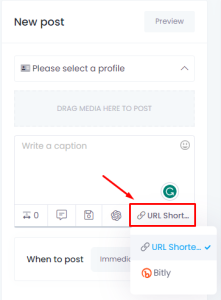
                                      We have important features that you need for a WhatsApp Marketing tool

                                      1. Bulk messaging
                                        Send messages in bulk to multiple recipients at once. This can be useful for sending promotions, announcements, or updates to a large group of customers.
                                      2. Message scheduling
                                        Schedule messages to be sent at a specific time and date
                                      3. Automated responses
                                        Include chatbots or other automated response features that can respond to customer messages automatically. This can help businesses provide quick and efficient customer support.
                                      4. Personalization
                                        Messages with the recipient’s name, location, or other details
                                      5. Multiple Accounts:
                                        Managing multiple WhatsApp accounts via a single platform


                                      Bulk WhatsApp Messages

                                      Send messages in bulk to multiple recipients at once. This can be useful for sending promotions, announcements, or updates to a large group of customers.

                                      1. Rotate between Multi-Accounts

                                      Reduce the risk of account suspension, increase message limits, and test message effectiveness

                                      2. Simple to add a new contact

                                      It can be added manually by entering phone numbers, or it can be imported from a CSV file. It is organized into groups to make it easier to send targeted messages to specific groups of people.

                                      3. Variables in the message

                                      Improve personalization, and relevance, avoid spam filters and increase efficiency.

                                      4. Variety of message types

                                      It’s supported by various media types, such as images, audio, and text. Especially, you can use the Button and List Templates.

                                      5. SpinTax capability

                                      Utilize the SpinTax function to create a list of synonymous words.

                                      6. Random time delays in message delivery

                                      Reduce the risk of being flagged as spam or causing network congestion.
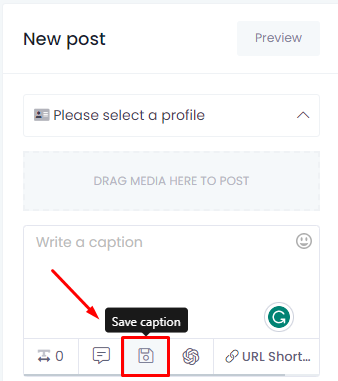
                                      7. Specific days and times
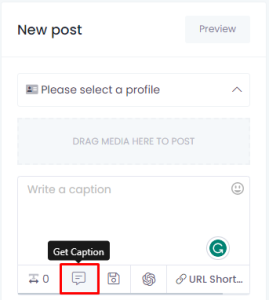
                                      Increase the chances of a message being opened, read, and acted upon by the intended audience. 

                                      8. Save & Schedule campaigns for future delivery

                                      Manage time more efficiently, send messages at targeted times, and maintain consistency in messaging frequency

                                      9. Bulk Message Report

                                      If you are looking to conduct a marketing campaign using messaging, Waziper is one of the best platforms. 

                                      It provides all campaign statistics such as Campaign name, Contact name, min and max second delay, Phone number and the status of them which can help you measure the effectiveness of your campaign.

                                      10. Single Campaign Report

                                      Helping you understand a summary of the campaign report detailing a specified time period, such as start and end time. It supports you make data-driven decisions to drive conversions.


                                      AutoResponder

                                      Send a pre-written message to incoming messages

                                      Autoreply messages can help to improve customer service, maintain a professional image, manage expectations, and increase efficiency in messaging systems.


                                      Chatbots

                                      Communicate with users in a conversational manner

                                      Chatbots can help to improve customer service, reduce costs, maintain consistency, increase engagement and conversion rates, and collect valuable data in messaging systems.


                                      Button Template

                                      Create interactive messages with buttons

                                      Provide interactive buttons for recipients to click on. The buttons can be customized with different text or URLs and can be used to offer a range of actions or options for the recipients to choose from.


                                      List Message Template

                                      Create a list of items or options for customers

                                      Quickly send a list of items to customers without having to type out each item individually. The template can be customized to include relevant information such as product images, descriptions, and prices.


                                      Export Participants

                                      Export a list of all the participants in a specific group

                                      It allows you to download a list of all the participants in a group chat or a broadcast list. This feature is particularly useful for businesses and organizations.


                                      Key Features

                                      • Easy to install and use, mobile responsive UI
                                      • Multiple Whatsapp Accounts at one place
                                      • Send message to number not in contacts
                                      • Send Bulk Messages
                                        1. Rotate between Multi-Accounts
                                        2. Upload group contact with CSV file
                                        3. Variables in the message
                                        4. Variety of message types
                                        5. SpinTax capability
                                        6. Random time delays in message delivery
                                        7. Specific days and times
                                        8. Save & Schedule campaigns for future delivery
                                        9. Bulk Message Report
                                        10. Single Campaign Report
                                      • Send media messages (videos, images, pdf, hyperlinks…)
                                      • Chatbots by keywords (Spintax option)
                                      • Auto reply messages (Spintax, Except contacts)
                                      • Export WhatsApp Group Contacts
                                      • Increase message interaction with buttons and list message.
                                      • File Manager: file and folder management. Manage all media for user (Google, Dropbox, OneDrive, Image Editor)
                                      • Save and get caption: Save all your contents
                                      • Emoji Support
                                      • Dashboard: Report sent successfully or error
                                      • Manage account groups
                                      • Supported SSL
                                      • Automatic timezone

                                      Installation Services

                                      Although we have included detailed installation instructions for popular servers, installing Waziper can be quite intricate as it necessitates configuring an extra domain for the API and installing and configuring Node.js.

                                      As a result, if you require a faster deployment or are unfamiliar with the installation process, we offer additional installation services. All you need to do is purchase a domain and server and provide us with the necessary information, and we will take care of the installation for you.

                                      The installation process should take approximately 24-48 hours, depending on your timezone.

                                      Installation fee

                                      Need assistance with script installation? Our team is here to help. For a fee of $89, we offer a full installation service for WhatsApp. You can pay here

                                      Notes:

                                      Please note that the installation fee covers one successful installation and support during the specified period. If you need to reinstall the script, a new installation package will need to be purchased.

                                      Installation API Domain

                                      Installation API Domain for Aapanel (Nginx)

                                      Download whatsapp_server.zip file

                                      Create Api domain and connect them to your Server IP Address

                                      Ex: api.yourdomain.com

                                      Please set up SSL for Api domain

                                      Please watch the video tutorial

                                      API Domain Configure

                                      Please insert code below into your API Domain

                                               location / {
                                                    proxy_pass http://localhost:8000; #whatever port your app runs on
                                                    proxy_http_version 1.1;
                                                    proxy_set_header Upgrade $http_upgrade;
                                                    proxy_set_header Connection 'upgrade';
                                                    proxy_set_header Host $host;
                                                    proxy_cache_bypass $http_upgrade;
                                                }
                                      

                                      Please watch the video tutorial

                                      Create a directory in the root folder to upload “whatsapp_server.zip”.

                                      To ensure the safety and security of the system, please place the file in the root directory.


                                      Config Database for API Domain

                                      Important: Set up a common database with Stackposts Main Script, Do not create another database for the module.

                                      Install Nodejs version manager 1.6

                                      The current version is fully compatible with nodejs 16 and working smoothly.

                                      Install Cronj

                                      Please create Cron according to the instructions

                                      Cron: Once/minute:

                                      sh -c $(cd /root/wa_server && node app)
                                      

                                      /root/wa_server: is the path to the server.zip installation directory

                                      Open PORT 8000

                                      Please open port 8000 according to instructions

                                      To switch the port to Listening state, you need to complete the following steps:

                                      • Install server domain
                                      • Install Nodejs version manager 1.6
                                      • Install Cronj

                                      Check the working status of the api domain

                                      Please check the link

                                      Please check the link

                                      https://api.yourdomain.com/

                                      {"status":"success","message":"Welcome to WAZIPER"}

                                      Please check the link

                                      https://api.yourdomain.com/get_qrcode

                                      {"status":"error","message":"The Instance ID must be provided for the process to be completed"}


                                      WhatsApp API Configure & Check Qrcode

                                      Api domain set up correctly
                                      Correct setting

                                      https://api.yourdomain.com/

                                      Wrong setting

                                      https://api.yourdomain.com
                                      http://api.yourdomain.com/
                                      api.yourdomain.com

                                      and more….

                                      Set up Cronj according to the daily cycle

                                      sudo kill -9 $(sudo lsof -t -i:8000)     

                                      Installation API Domain for Aapanel ( Apache2)

                                      Download whatsapp_server.zip file and upload to server

                                      Create Api domain and connect them to your Server IP Address

                                      Ex: api.yourdomain.com

                                      Please set up SSL for Api domain Please watch the video tutorial 

                                      API Domain Configure

                                      Insert code below into your API Domain: Please check that you have inserted the code at 2 places as instructed

                                        <Location />
                                             ProxyPass http://127.0.0.1:8000/
                                             ProxyPassReverse http://127.0.0.1:8000/
                                        </Location> 
                                      

                                      Please watch the video tutorial 

                                      Create a directory in the root folder to upload “whatsapp_server.zip”.

                                      To ensure the safety and security of the system, please place the file in the root directory.


                                      Config Database for API Domain

                                      Important: Set up a common database with Stackposts Main Script, Do not create another database for the module.


                                      Install Nodejs version manager 1.6

                                      The current version is fully compatible with nodejs 16 and working smoothly.

                                      Install Cronj

                                      Please create Cron according to the instructions

                                      Cron: Once/minute:

                                      sh -c $(cd /root/wa_server && node app)
                                      

                                      /root/wa_server: is the path to the server.zip installation directory 

                                      Open PORT 8000

                                      Please open port 8000 according to instructions 

                                      To switch the port to Listening state, you need to complete the following steps:

                                      • Install server domain
                                      • Install Nodejs version manager 1.6
                                      • Install Cronj

                                      Check the working status of the api domain

                                      Please check the link

                                      https://api.yourdomain.com/

                                      {"status":"success","message":"Welcome to WAZIPER"}

                                      Please check the link

                                      https://api.yourdomain.com/get_qrcode

                                      {"status":"error","message":"The Instance ID must be provided for the process to be completed"}


                                      WhatsApp API Configure & Check Qrcode

                                      Api domain set up correctly
                                      Correct setting

                                      https://api.yourdomain.com/

                                      Wrong setting

                                      https://api.yourdomain.com
                                      http://api.yourdomain.com/
                                      api.yourdomain.com

                                      and more….


                                      Set up Cronj according to the daily cycle

                                      sudo kill -9 $(sudo lsof -t -i:8000)     


                                      Installation API Domain for Cpanel

                                      Download whatsapp_server.zip

                                      Create Api domain and connect them to your Server IP Address

                                      Please watch the video tutorial

                                      API Domain Configure

                                      Create a directory in the root folder to upload whatsapp_server.zip 

                                      Important: Set up a common database with Stackposts Main Script, Do not create another database for the module.

                                      Please watch the video tutorial

                                      Setup Nodejs

                                      Please watch the video tutorial

                                      Install Application Manager

                                      Please watch the video tutorial

                                      Connect api domain to port 8000

                                      Create file.htaccess and upload to api domain directory

                                      <IfModule mod_rewrite.c>
                                          RewriteEngine On
                                          RewriteCond %{HTTPS} !=on
                                          RewriteCond %{SERVER_PORT} !^8000$
                                          RewriteRule ^ http://%{HTTP_HOST}:8000%{REQUEST_URI} [P,QSA,L]
                                      </IfModule>

                                      Please watch the video tutorial

                                      Check the working status of the api domain

                                      Please check the link

                                      https://api.yourdomain.com/

                                      {"status":"success","message":"Welcome to WAZIPER"}

                                      Please check the link

                                      https://api.yourdomain.com/get_qrcode

                                      {"status":"error","message":"The Instance ID must be provided for the process to be completed"}


                                      WhatsApp API Configure & Check Qrcode

                                      Please watch the video tutorial

                                      Api domain set up correctly
                                      Correct setting

                                      https://api.yourdomain.com/

                                      Wrong setting

                                      https://api.yourdomain.com
                                      http://api.yourdomain.com/
                                      api.yourdomain.com

                                      and more….

                                      Set up Cronj according to the daily cycle

                                      sudo kill -9 $(sudo lsof -t -i:8000)     


                                      Installation API Domain for Plesk

                                      Add api domain

                                      Add api domain and install SSL/TLS Certificate for api.yourdomain.com

                                      Node.js extension – Plesk

                                      The current version is fully compatible with nodejs 16 and working smoothly.

                                      Upload the whatsapp_server.zip file to the server

                                      Install nodejs for api domain

                                      Check the working status of the api domain

                                      Please check the link

                                      https://api.yourdomain.com/

                                      {"status":"success","message":"Welcome to WAZIPER"}

                                      Please check the link

                                      https://api.yourdomain.com/get_qrcode

                                      {"status":"error","message":"The Instance ID must be provided for the process to be completed"}


                                      WhatsApp API Configure & Check Qrcode

                                      Api domain set up correctly
                                      Correct setting

                                      https://api.yourdomain.com/

                                      Wrong setting

                                      https://api.yourdomain.com
                                      http://api.yourdomain.com/
                                      api.yourdomain.com

                                      and more….

                                      Set up Cronj according to the daily cycle

                                      sudo kill -9 $(sudo lsof -t -i:8000)     


                                      Config API domain

                                      After installing Successfull, using Admin Account to login Main Domain and setting your API. 

                                      Enter you API domain at WhatsApp API Configuration on your Main Domain


                                      Important:

                                      Api must be SSL supported

                                      Set enough “/” in Url

                                      Problems & Solutions

                                      Upgrade version

                                      Please check the changelog before updating

                                      Important (September 25, 2024)

                                      We just updated whatsapp_server for qrcode connection failure
                                      Please update as per instructions
                                      https://doc.stackposts.com/docs/waziper/upgrade-version/#server-upgrade-api

                                      Update Script

                                      Go to the plugin and update the php script

                                      Server upgrade (API)

                                      Step 1: Download the latest whatsapp_server.zip file

                                      Please download the file corresponding to your product

                                      Step 2: Backup files config.js. Delete the file in the server folder.

                                      Step 3: Replace all new files in whatsapp_server.zip and Restore files config.js’

                                      Step 4: Adjust the port in the app.js file if you changed it before (default port setting value is 8000)

                                      Step 4: Restart server or nodejs app

                                      Step 5: Clear browser cache

                                      Youtube Auto Post

                                      FAQs

                                      Frequently Asked Questions

                                      Video & Image Sizes

                                      YouTube Community

                                      Community Post Size: 1080×1080 pixels, 360×360 pixels, 480×480 pixels.
                                      Aspect ratio: 1:1
                                      Size: Up to 16MB
                                      File types: JPG, PNG, GIF, or WEBP

                                      YouTube Shorts

                                      YouTube Shorts is a new short-form video experience introduced by YouTube

                                      How long can YouTube Shorts be?

                                      Before we jump into learning how to upload, you must keep these points in mind:

                                      • Video dimensions: The video must be Square or Vertical.
                                      • Video duration: It must be between 15 and 60 seconds.
                                      • Video Title: The title or description must have the hashtag #Shorts. This would help your Shorts to get a better reach and increases the probability of the video appearing in YouTube recommendations.

                                      Summary:

                                      • The maximum duration of a Youtube Shorts video is 60 seconds.
                                      • The ideal duration is between 15 and 60 seconds.

                                      Changelog

                                      Changelog updates can include bug fixes, security patches, new features, improvements to existing features, and other changes made to the software product or service.

                                      v5.0.1 Sep 27, 2024

                                      – Update the whole module for Stackposts Main Script v8.2.0


                                      Version 5.0.0 – April 19, 2023
                                      - New module 
                                      - Use YouTube API Official 
                                      - Improved script
                                      
                                      Version 2.0.1 – Jan 14, 2021
                                          - Added new permissions for Youtube
                                      
                                      Version 1.4 – Oct 27, 2019
                                          - Added option select all for post
                                      
                                      Version 1.3 – Jun 24, 2019
                                          - Fixed post multi post
                                          - Added repeat post
                                          - Fixed small bugs
                                      
                                      version 1.2 – May 08, 2019
                                          - Fixed: Cronjob not working
                                      
                                      version 1.1 – April 15, 2019
                                          - Fixed: Blank page when add youtube accounts
                                      
                                      version 1.0 – May 29, 2019
                                          - Initial Release

                                      Youtube LiveStream

                                      FAQs

                                      Frequently Asked Questions

                                      Changelog

                                      Changelog updates can include bug fixes, security patches, new features, improvements to existing features, and other changes made to the software product or service.

                                      By keeping track of these updates in a changelog, developers and users can easily see what changes have been made to the software and when, which can be useful for troubleshooting, documentation, and other purposes.

                                      version 2.0.2 – Jan 14, 2021
                                         - Fixed: Blank page when add youtube accounts
                                      
                                      version 1.1 – April 15, 2019
                                          - Fixed: Blank page when add youtube accounts
                                      
                                      Version 1.0 – March 29, 2019
                                          - Initial Release

                                      Reddit Auto Post

                                      FAQs

                                      Frequently Asked Questions

                                      Changelog

                                      Changelog updates can include bug fixes, security patches, new features, improvements to existing features, and other changes made to the software product or service.

                                      By keeping track of these updates in a changelog, developers and users can easily see what changes have been made to the software and when, which can be useful for troubleshooting, documentation, and other purposes.

                                      v5.0.2 – Sep 27, 2024

                                      – Update the whole module for Stackposts Main Script v8.2.0

                                      v5.0.1- Aug 9th 2023

                                      v5.0.1- Aug 9th 2023

                                      – Improved the whole script

                                      Version 5.0.0

                                      5.0.0 – April 19, 2023

                                      Version 5.0.0 – April 19, 2023 
                                      - New module 
                                      - Use API Official 
                                      - Improved script
                                      
                                      Version 1.4 – Oct 29, 2019
                                          - Fixed: Can't schedule on publish all
                                      
                                      Version 1.3 – Oct 27, 2019
                                          - Added option select all for post
                                      
                                      Version 1.2 – Aug 31, 2019
                                          - Fixed problem schedule calendar
                                      
                                      Version 1.0 – Jul 16, 2019
                                          - Initial Release

                                      Telegram Auto Post

                                      How to use


                                      FAQs

                                      Frequently Asked Questions

                                      Changelog

                                      Changelog updates can include bug fixes, security patches, new features, improvements to existing features, and other changes made to the software product or service.

                                      v5.0.2 Sep 27, 2024

                                      – Update the whole module for Stackposts Main Script v8.2.0

                                      Version 5.0.2 – Aug 9, 2023

                                      – Improved module performance

                                      Version 5.0.1 – Jul 12, 2023

                                      – Fixed fixed post video

                                      Version 5.0.0 – April 19, 2023
                                      – New module
                                      – Use API Official
                                      – Improved script

                                      Version 1.1 – Oct 27, 2019

                                      – Added option to select all for post

                                      version 1.0 – Jul 07, 2019

                                      – Initial Release

                                      Tumbrl Auto Post

                                      Changelog

                                      Changelog updates can include bug fixes, security patches, new features, improvements to existing features, and other changes made to the software product or service.

                                      v5.0.2 Sep 27, 2024

                                      – Update the whole module for Stackposts Main Script v8.2.0

                                      Version 5.0.1 – Aug 11, 2023

                                      – Improved module

                                      Version 5.0.0 – April 19, 2023

                                      – New module
                                      – Use API Official
                                      – Improved script

                                      Version 5.0.0 – April 19, 2023 
                                      - New module 
                                      - Use API Official 
                                      - Improved script
                                      Version 1.3 – Oct 27, 2019
                                          - Added option select all for post
                                      
                                      Version 1.2 – Jun 24, 2019
                                          - Fixed post multi post
                                          - Added repeat post
                                          - Fixed small bugs
                                      
                                      Version 1.1 – May 29, 2018
                                          - Fixed problem schedule post on Publish All
                                      
                                      version 1.0 – April 30, 2018
                                          - Initial Release

                                      LinkedIn Auto Post

                                      FAQs

                                      Frequently Asked Questions

                                      Changelog

                                      Changelog updates can include bug fixes, security patches, new features, improvements to existing features, and other changes made to the software product or service.

                                      v5.0.7 – Sep 26, 2024

                                      – Update the whole module for Stackposts Main Script

                                      v5.0.5 – Dec 6, 2023

                                      – Fixed Adding profiles, pages for the new API app

                                      v5.0.4 – Aug 11, 2023

                                      – Improved module

                                      v5.0.3 – Jun 28, 2023

                                      Version 5.0.3 – Jun 28, 2023 
                                      - Fixed some Translate Fields
                                      - Improved module
                                      Version 5.0.2 – Jun 22, 2023 
                                      - Fixed Adding Linkedin Profile
                                      Version 5.0.1 – May 23, 2023 
                                      - Fixed Multiple Images Posting
                                      Version 5.0.0 – April 19, 2023 
                                      - New module 
                                      - Use API Official 
                                      - Improved script
                                      Version 3.5 – Jan 14, 2021 
                                          - Sloved: Problem relogin when post company and profile together
                                      
                                      Version 3.5 – Nov 02, 2019
                                          - Sloved: Schedule not post
                                      
                                      Version 3.4 – Oct 27, 2019
                                          - Added option select all for post
                                          - Added post to company pages
                                      
                                      Version 3.3 – Jun 24, 2019
                                          - Fixed post multi post
                                          - Added repeat post
                                          - Fixed small bugs
                                      
                                      Version 3.2 –  May 02, 2019
                                          - Fixed schedule All published not working
                                      
                                      Version 3.1 –  April 19, 2019
                                          - Fixed blank page when add accounts
                                      
                                      Version 3.0 –  April 08, 2019
                                          - New layout
                                          - Add post with Text/Link/Image
                                          - Improved report
                                          - Upgrade Linkedin API 2.0
                                      
                                          IMPORTANT: LINKEDIN API V2 has no longer supported posting on the page.
                                      
                                      Version 2.0 –  January 11, 2019
                                          - Added edit post for schedules post
                                          - Added all in one for post
                                          - Many more small improved
                                      
                                      version 1.1 – May 28, 2018
                                          - Fixed problem on CSS
                                      
                                      version 1.0 – May 26, 2018
                                          - Initial Release

                                      VK Auto Post

                                      FAQs

                                      Frequently Asked Questions

                                      Changelog

                                      Changelog updates can include bug fixes, security patches, new features, improvements to existing features, and other changes made to the software product or service.

                                      By keeping track of these updates in a changelog, developers and users can easily see what changes have been made to the software and when, which can be useful for troubleshooting, documentation, and other purposes.

                                      Version 5.0.3 – July 12, 2023 
                                      - Fixed post to pages, groups, profiles
                                      - Improved module
                                      Version 5.0.2 – July 10, 2023 
                                      - Fixed Adding VK Profiles, pages, groups
                                      - Improved module
                                      Version 5.0.1 – Jun 22, 2023 
                                      - Fixed Adding VK Profile 
                                      - Improved module
                                      Version 5.0.0 – April 19, 2023
                                      - New module 
                                      - Use API Official 
                                      - Improved script
                                      Version 2.2 – Oct 27, 2019
                                          - Added option select all for post
                                      
                                      Version 2.1 – Jun 24, 2019
                                          - Fixed post multi post
                                          - Added repeat post
                                          - Fixed small bugs
                                      
                                      Version 2.0 –  January 11, 2019
                                          - Added edit post for schedules post
                                          - Added all in one for post
                                          - Many more small improved
                                      
                                      version 1.0 – May 20, 2018
                                          - Initial Release

                                      Proxy Manager

                                      How to use it?

                                      There are 2 ways for end-users who can use the proxies.

                                      1. The first one is that end-users can use their own proxies when they add their social accounts.
                                      2. The second is that end users automatically use your proxies system. The proxy manager will randomly assign a proxy for them when they add their social account.

                                      Please follow this guide to add the new proxies. We recommend using the Proxy with port 80 or 8080

                                      Proxy Suggestion

                                      All of you understand that IG is very strict on their platform so we have to use proxies to use the script.

                                      There are many proxy providers so it depends on your side and your IG account which is suitable or not. As a result, we can not recommend exactly the proxy provider but you can try the top proxy companies.

                                      Please check various proxy companies to find the best proxy for you on the internet.

                                      Google Business Profile Auto Post

                                      Problems & Solutions

                                      Quota exceeded for quota metric 'Requests' and limit ' ...

                                      Quota exceeded for quota metric ‘Requests’ and limit ‘Requests per minute’ of service ‘mybusinessaccountmanagement.googleapis.com’


                                      Google My Business API: Standard Quota Request

                                      Complete the following form to request access for Standard level quota for your project via this form link.

                                      Please only submit this form once for your company. Note that it can take up to 2 weeks to process your request.


                                      has not completed the Google verification process

                                      You need to add the account as a test user under the OAuth consent screen:

                                      Follow this guide to get more info.


                                      If you have any questions, issues, or suggestions for this feature, please contact us here. We will answer as soon as possible

                                      Changelog - Google Business Profile

                                      Changelog

                                      v5.0.4 – Sep 26, 2024

                                      – Improved the whole script

                                      v5.0.3 – Mar 10, 2024

                                      – Fixed bug: Image bytes too small

                                      v5.0.2 – Aug 11, 2023

                                      – Improved the whole script

                                      v5.0.1 – Jun 28, 2023

                                      – Fixed Translate Feature
                                      – Improved script

                                      Version 5.0.1 – Jun 28, 2023 
                                      - Fixed Translate Feature
                                      - Improved script
                                      Version 5.0.0 – April 19, 2023 
                                      - New module 
                                      - Use API Official 
                                      - Improved script
                                      Version 1.2 – Oct 27, 2019
                                          - Added option select all for post
                                      
                                      Version 1.1 – Jun 24, 2019
                                          - Fixed post multi post
                                          - Added repeat post
                                          - Fixed small bugs
                                      
                                      version 1.0 – May 20, 2018
                                          - Initial Release

                                      OK Auto Post

                                      FAQs

                                      Frequently Asked Questions

                                      Changelog

                                      Changelog updates can include bug fixes, security patches, new features, improvements to existing features, and other changes made to the software product or service.

                                      v5.0.2 Sep 27, 2024

                                      – Update the whole module for Stackposts Main Script v8.2.0

                                      v5.0.1 Aug 11, 2023

                                      – Improved the whole script

                                      v5.0.0 – April 19, 2023 

                                      Version 5.0.0 – April 19, 2023 
                                      - New module 
                                      - Use API Official 
                                      - Improved script
                                      Version 1.1 – Oct 27, 2019
                                          - Added option select all for post
                                      
                                      version 1.0 – Jul 07, 2019

                                      RSS Feed Auto Post

                                      FAQs

                                      Frequently Asked Questions

                                      Changelog

                                      Changelog updates can include bug fixes, security patches, new features, improvements to existing features, and other changes made to the software product or service.

                                      v5.0.2 Sep 27, 2024

                                      – Update the whole module for Stackposts Main Script v8.2.0

                                      Version 5.0.1 – May 23, 2023 
                                      - Improved performance the module
                                      
                                      Version 5.0.0 – April 19, 2023 
                                      - New module 
                                      - Improved design 
                                      - Improved script
                                      
                                      Version 1.0.2 – Jan 14, 2021
                                      - Improved design
                                      
                                      Version 1.0 – Jun 04, 2020
                                      - Initial Release

                                      Tinder Auto Like

                                      FAQs

                                      Frequently Asked Questions

                                      Changelog

                                      Changelog updates can include bug fixes, security patches, new features, improvements to existing features, and other changes made to the software product or service.

                                      By keeping track of these updates in a changelog, developers and users can easily see what changes have been made to the software and when, which can be useful for troubleshooting, documentation, and other purposes.

                                      Version 5.0.0 – April 19, 2023 
                                      - New module 
                                      - Use API Official 
                                      - Improved script

                                      Team Member

                                      Definition

                                      Team Manager: Who creates a new team and will invite you to the team

                                      Team Member: Who has received an invitation to the team

                                      How to use

                                      1. Configure your Email Server

                                      We recommend you use SMTP of SMTP2GO or Mailgun
                                      https://www.mailgun.com/products/send/smtp/ 

                                      2. Sending Invitations to member

                                      Note: All members must have an account on your website to activate the member role

                                      s

                                      FAQs

                                      Frequently Asked Questions

                                      Changelog

                                      Changelog updates can include bug fixes, security patches, new features, improvements to existing features, and other changes made to the software product or service.

                                      v5.0.2 Sep 27, 2024

                                      – Update the whole module for Stackposts Main Script v8.2.0

                                      v5.0.4 Dec 08, 2023

                                      – Added the Resend Invitation button feature

                                      v5.0.3 Sep 27, 2023

                                      – Fixed Adding more members in Team Member

                                      v5.0.2 – Aug 11, 2023

                                      – Improved module

                                      v5.0.1 – Jun 30, 2023

                                      Version 5.0.1 – Jun 30, 2023 
                                      - Improved Translate Multiple Languages
                                      - Improved script
                                      Version 5.0.0 – April 19, 2023 
                                      - New module 
                                      - Improved script
                                      
                                      Version 1.0 – Jun 10, 2020
                                      - Initial Release
                                      If you have any questions, issues, or suggestions for this feature, please contact us here. We will answer as soon as possible

                                      Coupon Manager

                                      YooMoney Payment

                                      Configure PayPal

                                      What Is PayPal?

                                      PayPal is an electronic commerce company that facilitates payments between parties through online transfers. PayPal allows customers who establish an account on its platform, is connected to a user’s credit card or checking account.

                                      You can understand PayPal with some basic ideas:

                                      • PayPal is an online payment platform that offers individuals and businesses low-cost services.
                                      • PayPal has been its own company since 2015.
                                      • In addition to online payments, PayPal also offers a variety of related services including debit cards for payments, credit card readers for small merchants, and lines of credit.
                                      • PayPal is considered a very secure method of sending payments online.

                                      When you purchase an Extended license Stackposts that you will have PayPal Payment Gateway 

                                      How to Configure PayPal in Stackposts?

                                      Required events: Payment sale completed, Billing subscription cancelled

                                      • Note: This feature is only available for the Extended License

                                      Watching this Guide video to get more detail:

                                      How to get Support from the Developer Team?

                                      Please open the ticket here to get support detail from our developer team.

                                      Configure Stripe

                                      What is Stripe?

                                      Millions of companies of all sizes—from startups to Fortune 500s—use Stripe’s software and APIs to accept payments, send payouts, and manage their businesses online.

                                      Stripe brings together everything that’s required to build websites and apps that accept payments and send payouts globally. Stripe’s products power payments for online and in-person retailers, subscriptions businesses, software platforms and marketplaces, and everything in between.

                                      Business Models Supported by Stripe:

                                      • Ecommerce sites
                                      • Retail online stores
                                      • B2B Platforms
                                      • Software as a service
                                      • B2C Marketplaces 
                                      • Nonprofits and fundraisers 

                                      How to Configure Stripe in Stackposts?

                                      • Note: This feature is only available for the Extended License

                                      Required events:invoice.payment_succeeded, customer.subscription.deleted

                                      Watching this Guide video to get more detail:

                                      How to get Support from the Developer Team?

                                      Please open the ticket here to get support detail from our developer team.

                                      Payfast Payment

                                      Hesabe Payment

                                      Compile FFmpeg with RTMPS for Facebook Live Stream

                                      Facebook announced that “Live Video streams on Pages and Workplace can use the non-encrypted standard RTMP protocol until November 1st, 2019, after which RTMP will no longer be supported”.

                                      On May 1st, 2019, the Real-time Messaging Protocol (RTMP) has been deprecated from the Live API, GoLive Dialog, and Publisher Pages. RTMPS (RTMP over a TLS/SSL connection) will continue to be supported.

                                      Live streaming to facebook need RTMPS, but unfortunately most FFmpeg not enable openssl which need.

                                      Install the dependencies

                                      apt-get -y install build-essential autoconf automake cmake libtool git checkinstall nasm yasm libass-dev libfreetype6-dev libsdl2-dev libtool libva-dev libvdpau-dev libvorbis-dev libxcb1-dev libxcb-shm0-dev libxcb-xfixes0-dev pkg-config texinfo wget zlib1g-dev libchromaprint-dev frei0r-plugins-dev ladspa-sdk libcaca-dev libcdio-paranoia-dev libcodec2-dev libfontconfig1-dev libfreetype6-dev libfribidi-dev libgme-dev libgsm1-dev libjack-dev libmodplug-dev libmp3lame-dev libopencore-amrnb-dev libopencore-amrwb-dev libopenjp2-7-dev libopenmpt-dev libopus-dev libpulse-dev librsvg2-dev librubberband-dev librtmp-dev libshine-dev libsmbclient-dev libsnappy-dev libsoxr-dev libspeex-dev libssh-dev libtesseract-dev libtheora-dev libtwolame-dev libv4l-dev libvo-amrwbenc-dev libvpx-dev libwavpack-dev libwebp-dev libx264-dev libx265-dev libxvidcore-dev libxml2-dev libzmq3-dev libzvbi-dev liblilv-dev libmysofa-dev libopenal-dev opencl-dev gnutls-dev libfdk-aac-dev

                                      Prepare source code

                                      #clone source code (parameter list)
                                      #git clone https://git.ffmpeg.org/ffmpeg.git ffmpeg
                                      #git checkout 4154f89
                                      
                                      wget https://github.com/FFmpeg/FFmpeg/archive/n4.1.3.tar.gz
                                      tar -xvf n4.1.3.tar.gz
                                      
                                      cd FFmpeg-n4.1.3

                                      Configuration

                                      To use RTMPS, module “openssl” is require.

                                      sample 1

                                      ./configure --disable-shared --enable-static --enable-pthreads --enable-gpl --enable-nonfree --enable-libass --enable-libfdk-aac --enable-libfreetype --enable-libmp3lame --enable-libopus --enable-libvorbis --enable-libvpx --enable-libx264 --enable-filters --enable-openssl --enable-runtime-cpudetect --extra-version=patrickz

                                      sample 2

                                      ./configure --disable-shared --enable-static --enable-pthreads --enable-nonfree --enable-version3 --enable-hardcoded-tables --enable-avresample --enable-ffplay --enable-gpl --enable-libmp3lame --enable-libopus --enable-librubberband --enable-libsnappy --enable-libtesseract --enable-libtheora --enable-libvorbis --enable-libvpx --enable-libx264 --enable-libx265 --enable-libxvid --enable-libfontconfig --enable-libfreetype --enable-frei0r --enable-libass --enable-libopencore-amrnb --enable-libopencore-amrwb --enable-libopenjpeg --enable-librtmp --enable-libspeex  --disable-libjack --disable-indev=jack --enable-libsoxr --enable-openssl --enable-runtime-cpudetect --extra-version=patrickz

                                      Build

                                      make
                                      make install

                                      Please note that “make install” may replace (ffmpeg) old one or affect your current version. You can use absolute path (i.e. /root/FFmpeg-n4.1.3/ffmpeg) until you sure that it work as expected.

                                      Try

                                      ./ffmpeg -f lavfi -re -i "life=s=300x200:mold=10:r=25:ratio=0.1:death_color=#C83232:life_color=#00ff00,scale=1200:800:flags=16" -f lavfi -re -i sine=frequency=1000:sample_rate=44100 -pix_fmt yuv420p -c:v libx264 -b:v 1000k -g 30 -keyint_min 120 -profile:v baseline -preset veryfast -c:a aac -b:a 96k  -f flv "rtmps://live-api-s.facebook.com:443/rtmp/{YOUR STREAM KEY}"

                                      I use FFmpeg Filters to simulate as a video source. Don’t forget to change {YOUR STREAM KEY} to your stream key then enter the command.

                                      FFmpeg stream to facebook

                                      If you see a screen as above, seems it work and you could see the incoming video stream on the Facebook Live control panel.

                                      Now you can live streaming to Facebook with RTMPS. Hope you enjoy it. Have a nice day!

                                      —-

                                      Please open the ticket here to get support detail from our developer team.

                                      Regular & Extended Licenses

                                      Differences between Regular and Extended License

                                      The main difference is the regular license is only about FREE distribution (no charge) and the Extended license can SELL (charge) for your END-users.

                                      To understand easily, you should choose the Regular License if your end product is distributed for free, and choose the Extended License if your end product is sold to the end customer.

                                      An extended license helps you build a SaaS website where you can charge your clients via your subscriptions or plans.

                                      Upgrade the regular to the extended license

                                      Contact us here

                                      I am planning to use Stackposts in a product that I will sell. Which license do I need?

                                      You need the Extended License so that you can use our script as SaaS.

                                      I am a commercial entity or run a business. Do I always need an Extended License?

                                      No, just using the item in a commercial setting doesn’t necessarily mean you need an Extended License. You need an Extended License if the end product is sold to end users. If the end product is free, even if you are a commercial enterprise, you only need a Regular License.

                                      Which license do I need for an end product that is only accessible to paying users?

                                      If the end users need to pay to see the end product, you need an Extended License. There can be more than one end user as long as there is only one end product.

                                      Which license do I need for an end product that is free, but has parts some users need to pay to access or make use of?

                                      If the item is used within the free part, the Regular License if fine. If the item is used in a part that requires payment to access or make use of, you need the Extended License.

                                      If I purchase an Extended License, do I get a multi-use, multi-domain, multi-client or developer license?

                                      No. The Extended License is still limited to a single end product, but you can re-sell our scripts as SaaS (Software as a Service).

                                      Do you have a developer license?

                                      No. At this time we don’t have a developer or multi-client license for themes and code items.

                                      If you have any questions, issues, or suggestions for this feature, please contact us here. We will answer as soon as possible

                                      Do I have to download something to use it or is it web based and works like hootsuite?

                                      You need to install the PHP Script on your hosting/server and use it like a Hootsuite.

                                      Are any limits to the number of messages a client can send?

                                      There are no limitations when you use our script and install it on your own server.

                                      When you use our script as SaaS (Extended license) you can set the limitation of messages for your customers via subscriptions, plans or packages.

                                      upgrade the regular to the extended license

                                      Please check this link to learn more information about the extended license for Stackposts Main script.

                                      To upgrade from the regular to the extended version, please:

                                      1. Purchase this item first.
                                      2. Open the ticket here via the upgrade item
                                      3. After payment, please open the ticket with the newly created license and send us the required information so that our dev team can help you upgrade for you.
                                        +Access your Server (WHM, FTP, Cpanel, Aapanel, ..)
                                        +Your website + Admin Account Login

                                      You also need to know the difference between the regular and extended licenses here.

                                      How do I get started with Stackposts?

                                      How can I manage multiple social media accounts?

                                      Using Stackposts social media management tool that allows you to work on all your social profiles from one dashboard. It helps automate scheduling in advance and post content seamlessly.

                                      It also makes collaboration easy by allowing team members to edit posts, and share copy ideas, all from a single tab.

                                      Instagram API Official vs Unofficial Differentials

                                      When you use the Username and Password for logging in. It means you are using an UNOFFICIAL API.

                                      Currently, Instagram Official has more restrictions with Unofficial API, as a result, you will get more security steps when you use Unofficial API.

                                      We recommend that you should use the Official API (Button Login) on your Stackposts script.

                                      Does Stackposts have Installation Services?

                                      When you buy our scripts you will have Documents that help you install by yourself. We do not support Installation with your Server, Hosting, domain issues. If you need our developer team to install the scripts for you, you can hire us with a fee as below:

                                      Stackposts Main Scripts Installation Service

                                      It’s $40 for Stackposts Main Scripts Installation Services.

                                      ==> Completing the payment here.

                                      WhatsApp Module Installation Service

                                      It’s $89 for Full Installation WhatsApp. Please order here!
                                      We recommend UBUNTU Server from CONTABO that will be easier to upgrade later with the minimum specifications for beginning:
                                      – 8GB/ 4CPUs
                                      – 160GB SSD Disk
                                      – 5TB Transfer

                                      Note: Please Do not use VESTACP and HESTIA because Hestia or Vestacp Server will automatically change file Nginx or APACHE config about 1 -2 days for default so the API domain will stop working.

                                      Submit API Apps Services

                                      Price for submitting reviews:
                                      1. Facebook + twitter + Instagram: $120
                                      2. Facebook or Twitter or Instagram: $50
                                      3. Facebook + Twitter: $100
                                      4. Facebook + Instagram: $70
                                      If you want to order please make payment here.

                                      Installing FFmpeg

                                      The price for installing FFmpeg on your server is $30
                                      If you want to order please make payment for us via PayPal / Stripe at [email protected]

                                      Extend Support Time

                                      It’s $30 for 6 months and $55 for 1 year that you can complete the payment via PayPal / Stripe at [email protected]

                                      How to get Support from the Developer Team?

                                      Please open the ticket here to get support detail from our developer team.

                                      If you have any questionsissues, or suggestions for this feature, please leave a comment below. We will answer as soon as possible.

                                      How WhatsApp REST API works

                                      Hello. I want to purchase the WhatsApp extension for stackpost. I have already purchased the stackpost script. But I am unsure, because the webhooks are not working on my current waziper installation and since webhooks are important for what I plan to use it for, I need to know that webhooks will work


                                      Different between Regular & Extended license

                                      The main difference is the regular license is only about FREE distribution (no charge) and the Extended license can SELL (charge) for your END-users.

                                      To understand easily, you should choose the Regular License if your end product is distributed for free, and choose the Extended License if your end product is sold to the end customer.

                                      Is there a mobile app?

                                      No, there is no mobile app. However, Stackposts can work equally well on desktop and mobile devices.

                                      Waziper uses an Official API or not?

                                      Currently, Waziper uses a WhatsApp API client that connects through the WhatsApp Web browser app.

                                      With Waziper no need to buy Official Whatsapp API and install Waziper on your server to create API. API is created and installed on your server. All just need your server to run and no need for third-party.

                                      Recommend SERVER to INSTALL WhatsApp?

                                      WhatsApp Module Installation Service

                                      It’s $89 for Full Installation of WhatsApp. Please order here!
                                      We recommend UBUNTU Server from CONTABO that will be easier to upgrade later with the minimum specifications for beginning:

                                      • 8GB/ 4CPUs
                                      • 160GB SSD Disk
                                      • 5TB Transfer

                                      Note: Please Do not use VESTACP and HESTIA because Hestia or Vestacp Server will automatically change file Nginx or APACHE config about 1 -2 days for default so the API domain will stop working.

                                      After Purchase

                                      /*! elementor - v3.6.7 - 03-07-2022 */ .elementor-heading-title{padding:0;margin:0;line-height:1}.elementor-widget-heading .elementor-heading-title[class*=elementor-size-]>a{color:inherit;font-size:inherit;line-height:inherit}.elementor-widget-heading .elementor-heading-title.elementor-size-small{font-size:15px}.elementor-widget-heading .elementor-heading-title.elementor-size-medium{font-size:19px}.elementor-widget-heading .elementor-heading-title.elementor-size-large{font-size:29px}.elementor-widget-heading .elementor-heading-title.elementor-size-xl{font-size:39px}.elementor-widget-heading .elementor-heading-title.elementor-size-xxl{font-size:59px}

                                      Stackposts – Social Marketing Tool

                                      Go to file index.php and change to the ‘environment’ to ‘production

                                      Error: {"status":"error","message":"There was a temporary problem with your request"}
                                      Error: JS

                                      Please delete file assets/core.js and clear cache on your browser (CTR + SHIFT + R) to solve this problem

                                      Please contact via our email: [email protected] with your purchase codes that we will reset it for you

                                      Please contact via our email: [email protected] with your purchase codes that we will reset it for you

                                      Please contact via our email: [email protected] with your purchase codes that we will upgrade it for you

                                      Your license is regular so your user account cannot automatically activate itself.

                                      Please check these reasons:

                                      1. Your video format: MP4 File
                                      2. Your server/hosting support FFMPEG or not

                                      Our script is still safe for you. 

                                      Please check these guides to get information about this issue:

                                      1. The Chrome browser may display a “Deceptive site ahead” warning when visitors view your site.
                                      2. How To Remove ‘Deceptive Site Ahead’ Warning?

                                      Instagram

                                      At your Stackposts Dashboard following:

                                      • Settings / Social networking settings / Instagram


                                      Your Server/Hosting IP Address may be blocked by IG Official. Please try to use the Proxy to add your IG Account.

                                      Please check these reasons:

                                      1. Your video format: MP4 File
                                      2. Your server/hosting support FFMPEG or not

                                      This is an error from your IG Account. Please wait a few minutes before your try again.
                                      With this case, We recommend you:

                                      1. Go to www.instagram.com to log in to your account and then back to the website and add again
                                      2. Use proxies for this account
                                      3. Do not send login too much at the same time

                                      Please enable this option:

                                      Team Member

                                      This problem for SMTP

                                      You should:

                                      1. Make sure your server enabled PHP Mail function

                                      2. Make sure all your configure SMTP is correct (It will not working if wrong any info)

                                      3. Recommend you use MailGun, SMTP2GO for SMTP service


                                      Updating more…

                                      LinkedIn

                                      Please read this guide to get more information about this issue.

                                      Facebook


                                      To post to groups you are the admin. You need to install an App on your own Group. Follow this post: https://www.facebook.com/help/261149227954100

                                      Google My Business


                                      { "error": { "code": 400, "message": "Request contains an invalid argument.", "errors": [ { "message": "Request contains an invalid argument.", "domain": "global", "reason": "badRequest" } ], "status": "INVALID_ARGUMENT", "details": [ { "@type": "type.googleapis.com/google.mybusiness.v4.ValidationError", "errorDetails": [ { "message": " This API will soon be deprecated. Please migrate all the usages to My Business Account Management API - https://developers.google.com/my-business/reference/accountmanagement/rest" } ] } ] } }

                                      Google is shutting down that API as stated in the error message. They have stated:

                                      Starting April 30, 2022, the following four API methods will return errors with increasing frequency, ramping up to 100% shut down within 30 days.

                                      The old API will soon be deprecated. Please migrate all the usages to My Business Account Management API
                                      https://developers.google.com/my-business/reference/accountmanagement/rest

                                      Before Purchase

                                      If you have any questions, issues, or suggestions for this feature, please leave a comment below.
                                      We will answer as soon as possible.

                                      /*! elementor - v3.6.6 - 08-06-2022 */ .elementor-heading-title{padding:0;margin:0;line-height:1}.elementor-widget-heading .elementor-heading-title[class*=elementor-size-]>a{color:inherit;font-size:inherit;line-height:inherit}.elementor-widget-heading .elementor-heading-title.elementor-size-small{font-size:15px}.elementor-widget-heading .elementor-heading-title.elementor-size-medium{font-size:19px}.elementor-widget-heading .elementor-heading-title.elementor-size-large{font-size:29px}.elementor-widget-heading .elementor-heading-title.elementor-size-xl{font-size:39px}.elementor-widget-heading .elementor-heading-title.elementor-size-xxl{font-size:59px}

                                      Stackposts – Social Marketing Tool


                                      When you buy our scripts you will have Documents that help you install by yourself. We do not support Installation with your Server, Hosting, domain issues. If you need our developer team to install the scripts for you, you can hire us with a fee at this link.

                                      Please open the ticket here to get support detail from our developer team

                                      You also can contact us via email: [email protected]

                                      The main difference is the regular license is only about FREE distribution (no charge) and the Extended license can SELL (charge) for your END-users.

                                      To understand easily, you should choose the Regular License if your end product is distributed for free, and choose the Extended License if your end product is sold to the end customer.

                                      No, there is no mobile app. However, Stackposts can work equally well on desktop and mobile devices.

                                      No, that’s no longer allowed by Facebook’s terms and conditions. You can add and post on Facebook business pages and Facebook groups where you have admin access.

                                      No, you can use Stackposts only for posting on Facebook groups where you are an admin.

                                      The Group Manager allows you to organize the social media accounts connected to your Stackpost into groups. For example, you can organize accounts into client groups (all accounts of a single client into one group) or into social media network groups (all your Facebook pages and groups into one group, for example). Then when scheduling posts, you can choose to schedule on a specific group or groups of accounts instead of selecting all accounts where you want to publish one by one. 

                                      For photos, we support jpg, jpeg, png, and gif. For videos we support mp4.

                                      The Watermark feature allows you to brand all your image content with your company’s logo. The Watermark feature is customizable per social media account. 

                                      Linkedin Module


                                      Yes, you can add and post on you both your LinkedIn personal profile and LinkedIn company page 

                                      Changelog

                                      Version 8

                                      Important Note :

                                      If you are a current client using Version 7.2.3 or earlier, PLEASE READ THIS NOTIFICATION.
                                      Version 8.0 is the most crucial update from Stackposts in 2023. As a result, you need to re-install it like fresh on your hosting or server.
                                      Please DO NOT UPGRADE to version 8.0 if you want to use version 7.2.3. You can NOT REVERT BACK to the old version when you upgraded to version 8.0

                                      Version 8.2.0

                                      Version 8.2.0 – Sep 25, 2024

                                      Summary:
                                      Backup your all website and database before updating the new versions

                                      – Fixed Preview Image
                                      – Fixed Cannot login via username and password IG
                                      – Fixed Bulk Upload
                                      – Fixed Bulk Posts error with webp image
                                      – Fixed Calendar
                                      – Removed Group Posting feature (Meta Official does not support)
                                      – Add new Template
                                      – Improved whole script for performance

                                      Version 8.1.5

                                      Version 8.1.5 – Mar 15, 2024

                                      – Fixed Instagram post story
                                      – Fixed Instagram story post unofficial
                                      – Improved whole script for performance

                                      Version 8.1.4

                                      Version 8.1.4 – Mar 13, 2024

                                      – Fixed get file via Third-party (Unplash, …)
                                      – Fixed schedule list shows wrong date
                                      – Fixed Instagram login: “You’ll need to update Instagram to the latest version before you can use the app”
                                      – Improved File Manager
                                      – Improved whole script for performance

                                      Version 8.1.3

                                      Version 8.1.3 – Jan 26, 2024

                                      – Added AI Generate Content (Include more than 1000 templates in 36 categories)
                                      – Added AWS S3 – Contabo S3 (Cloud Storage Integration)
                                      – Added: Search Media (Images and Video) Features
                                      – Fixed Facebook & Instagram post problems
                                      – Improved File Manager
                                      – Improved whole script for performance

                                      Version 8.1.2

                                      Version 8.1.2 – Jan 17, 2024

                                      – Added new features for OpenAI
                                      – Improved whole script for performance

                                      Version 8.1.1

                                      Version 8.1.1 – Jan 10, 2024

                                      – Added basic feature for AI Composer Auto Post Tools
                                      – Improved Calendar
                                      – Improved Watermark feature
                                      – Improved whole script for performance

                                      Version 8.1.0

                                      Version 8.1.0 – Dec 11, 2023

                                      – Improved Twitter Unofficial API

                                      Version 8.0.9

                                      Version 8.0.9 – Dec 5, 2023

                                      – Added IG first comment supports IG Official & Unofficial
                                      – Added new permissions for Meta API App version 18.0
                                      – Fixed IG posting image PNG type
                                      – Fixed IG Official can post Stories/ Reels
                                      – Fixed IG Unofficial can post Stories/ Reels
                                      – Fixed Interval feature when scheduling the posts
                                      – Improved Twitter Cookie
                                      – Improved Facebook, Instagram and Twitter Posting modules
                                      – Improved the whole script
                                      – Added Quick Menu for end-user
                                      – Fixed Adding Facebook Pages
                                      – Fixed 2 open AI icons on the Pricing page
                                      – Fixed some fields that don’t translate
                                      – Fixed Cannot search Watermark list
                                      – Fixed Google reCaptcha Error
                                      – Fixed Login with Social buttons
                                      – Fixed security vulnerability
                                      – Fixed Cannot Enable Unofficial Facebook Cookie

                                      Version 8.0.8

                                      Version 8.0.8 – Aug 14, 2023

                                      – Fixed error updates
                                      – Fixed Timezone for Signup page
                                      – Improved Translation for new themes

                                      Version 8.0.7

                                      Version 8.0.7 – 10th Aug 2023

                                      – Improved the whole script
                                      – Fixed Adobe crashed layout
                                      – Fixed Instagram Carousel Problem for both official & Unofficial methods
                                      – Fixed some fields dont translate
                                      – Fixed the Dark Theme error
                                      – Fixed Water Mark doesn’t show when Scheduling
                                      – Fixed Network Preview Buttons
                                      – Fixed multiple Language scroll
                                      – Fixed post with same image (flower)
                                      – Added multiple themes for the homepage feature
                                      – Added export language feature

                                      Version 8.0.6

                                      Version 8.0.6 – 09 July 2023

                                      - Improved whole script

                                      Version 8.0.5

                                      Version 8.0.5 – 08 July 2023

                                      - Added Login Twitter cookie
                                      - Added Post Media/Link/Text via Twitter Login Cookie
                                      - Fixed Cannot Add Facebook Group
                                      - Improved File manager
                                      - Improved Account Manager
                                      - Fixed Add Twitter APP for User
                                      - Improved whole script

                                      Version 8.0.4

                                      Version 8.0.4 – 27 Jun 2023

                                      - Fixed Instagram Stories posting an image
                                      - Fixed Janpan/Korean/Chinese Font for invoice export PDF 
                                      - Fixed Email_forgot_password_content template DOESN’T SAVE
                                      - Fixed Caption limitation
                                      - Fixed changing language in the user profile
                                      - Fixed registration statistics for Extended license
                                      - Added some fields cannot translate
                                      - Added Multi languages button in Homepage
                                      - Added Twitter API v2 endpoint
                                      - Added Cookie Login (Unofficial Login) for Facebook/ Instagram
                                      - Added Facebook Profile/Page/Group Login with Cookie
                                      - Added Facebook Profile Posting Media/Text/Link/Story (Cookie Login)
                                      - Added Facebook Page Posting Media/Text/Link/Story (Cookie Login)
                                      - Added Facebook Group Posting to groups as a member (Cookie Login)
                                      - Added Instagram Profile Login with Username and Password
                                      - Improved Translation Feature 
                                      - Improved whole script

                                      Version 8.0.3

                                      Version 8.0.3 – 26 May 2023

                                      - Fixed Instagram Stories
                                      - Fixed Instagram Carousel
                                      - Added Theme Sidebar & Header Light
                                      - Improved whole script

                                      Version 8.0.2

                                      Version 8.0.2 – 23 May 2023

                                      - Fixed Translate language
                                      - Fixed email template
                                      - Fixed Blog links
                                      - Fixed currency error in payment
                                      - Fixed RTL language bugs
                                      - Added Internal image editor
                                      - Added Instagram Posting Story
                                      - Improved File Manager
                                      - Improved whole script

                                      Version 8.0.1

                                      Version 8.0.1 – 26 April 2023

                                      - Fixed profile page
                                      - Fixed save language
                                      - Fixed set default language
                                      - Fixed save email template
                                      - Improved Admin Dashboard

                                      Version 8.0.0

                                      Version 8.0.0 – 24 April 2023

                                      - New 100% UI and UX Design 2023
                                      - Drag and drop images in Composer
                                      - Instagram Reel publishing
                                      - OpenAI integration
                                      - Adobe Express integration
                                      - Creates folder on File Manager
                                      - More periods of time when scheduling
                                      - Bulk schedule social media posts
                                      - End-user can use their own Twitter API App
                                      - Super Admin role (Extended license)
                                      - Lifetime Plan (Extended license)
                                      - Improved script

                                      Version 7.2

                                      Version 7.2.3

                                      Version 7.2.3 – 28 Oct, 2022

                                      - Fixed problem: Requested resource does not exist for Instagram API Unofficial
                                      - Fixed stripe one-time payment
                                      - Improved script

                                      Version 7.2.2

                                      Version 7.2.2 – 5 Mar, 2022

                                      - Fixed post instagram API Offcial
                                      - Improved script

                                      Version 7.2.1

                                      Version 7.2.1 – 20 Jul, 2021

                                      - Fixed post instagram API Offcial
                                      - Improved script

                                      Version 7.2.0

                                      Version 7.2.0 – 30 May, 2021

                                      - Fixed post instagram API Offcial
                                      - Improved script

                                      Version 7.1

                                      Version 7.1.0

                                      Version 7.1.0 – 4 May, 2021

                                      - Improve: Instagram API Unofficial: "Throttled by Instagram because of too many API requests Error"
                                      - Added: Post video feature for Instagram API Official
                                      - Improve: User manager
                                      - Improve: Wimax landing page
                                      - Improve: Multi language
                                      - Added post video via Instagram API Official
                                      - Improve: Facebook page
                                      - Improve: Facebook post
                                      - Improve: Facebook group
                                      - Improve: Twitter post
                                      - Improve: Twitter add account
                                      - Added delete multi account on Account manager page

                                      Version 7.0

                                      Version 7.0.8

                                      Version 7.0.8 – 17 Feb, 2021

                                      - Sloved: Problem for add Language (Please delete file assets/core.js and clear cache on your browser (CTR + SHIFT + R) to make sure all update working fine)
                                      - Added: Welcome email to new user register after activated
                                      - Added: Language menu on Wimax theme landing page
                                      - Sloved: Stripe payment problem (Provide free on Extended License)

                                      Version 7.0.7

                                      Version 7.0.7 – 1 Feb, 2021
                                      – Added: Post & Schedule Photo type thought Instagram API Official feature
                                      – Added: Auto Translate language with one click via Google Translate
                                      – Sloved: Problem with Stripe payment
                                      – Improved: Wimax theme
                                      – Improved: Blog manager (Provide free on Extended License)
                                      – Improved: User manager module
                                      – Sloved: Facebook page permissions fields not save

                                      Version 7.0.6

                                      Version 7.0.6 – 13 Jan, 2021
                                      – Added: New lading page “Wimax”
                                      – Added: Dark theme for backend dashboard
                                      – Added: FAQs module
                                      – Added: Blog module (Provide free on Extended License)
                                      – Added: Facebook API version 9.0
                                      – Sloved: Cannot upload language file
                                      – Sloved: Interval per post not working correct
                                      – Sloved: Prolem payment getway on Stripe
                                      – Sloved: Problem post Instagram Carousel with Watermark
                                      – Improved: File manager
                                      – Improved: Proxy manager
                                      – Improved: User manager
                                      – Improved: Design for Dashboard

                                      Version 7.0.5

                                      Version 7.0.5 – 11 Jun, 2020
                                      – Sloved: Instagram post video problem (Unable to find the necessary “rur” cookie for uploading video)
                                      – Sloved: Edit caption feature
                                      – Sloved: Status user when register from “Banned” to “Inactive”
                                      – Update: Facebook API version 7.0
                                      – Improved: Published All module
                                      – Improved: Account manager module
                                      – Improved: Package manager module
                                      – Improved: Javascript performance and backend loading speed
                                      – Improved: Language

                                      Version 7.0.3 – 04 May, 2020
                                      – Added: Sort image when scheduling post (Drag and Drop)
                                      – Added: Edit caption feature
                                      – Sloved: Status user when register from “Banned” to “Inactive”
                                      – Sloved: Can’t upload video via Dropbox, Onedrive when schedule video post
                                      – Sloved: Caption show for all users
                                      – Sloved: Remove sessions when delete user
                                      – Sloved: Payment symbol not change on pricing page
                                      – Improved: Language

                                      Version 7.0.2 – 16 Apr, 2020
                                      – Sloved: Insragram Carousel not work
                                      – Sloved: Counter caption for instagram comment
                                      – Sloved: Group manager can’t not move on mobile
                                      – Sloved: Language not set default
                                      – Added: Select language via landing page

                                      Version 7.0.1 – 12 Apr, 2020
                                      – Sloved: Can’t upload file via Instagram
                                      – Sloved: Can’t post & schedule
                                      – Sloved: Password save not correct via User manager
                                      – Sloved: Sidebar not work

                                      Version 7.0 – 10 Apr, 2020
                                      – New design and layout for all pages
                                      – New design for Schedule calendar
                                      – Added Instagram IGTV Post feature
                                      – Added: Add location on Twitter post
                                      – Added disable landing page feature
                                      – Added OneDirve for File manager
                                      – Added new notification with Beamer
                                      – Added watermark for each social accounts
                                      – Added User report feature
                                      – Added payment report feature
                                      – Added change date/datetime format feature
                                      – Package manager can manager all modules for now
                                      – And many more change for this update

                                      Version 6.5 – Oct 27, 2019
                                      – Fixed: Can’t add Facebook Accounts
                                      – Fixed: Can’t drag & drop on groups

                                      Version 6.3 – Oct 27, 2019
                                      – Fixed: Can’t add Facebook Accounts

                                      Version 6.2 – Oct 26, 2019
                                      – Added: Option disable landing page
                                      – Added: Option disable GDPR Cookie Consent
                                      – Added: Option select all accounts when schedule posts
                                      – Added: New Datetimepicker for Schedule Post
                                      – Updated: Instagram API version 7.0
                                      – Fixed: Permission from packages for Google Drive and Dropbox
                                      – Fixed: Packages not save when update
                                      – Sloved: Instagram avatar not showing
                                      – Sloved: Facebook Pages and Groups not show with Facebook API Official
                                      – Sloved: Preview not show correct on publish all.

                                      Version 6.1 – Aug 31, 2019
                                      [IMPORTANT: CLEAR CACHE BROWSER AFTER UPDATE]
                                      – Improved: Unknown Error Server on Instagram
                                      – Updated: Instagram API
                                      – Added GDPR Compliant Cookie Consent
                                      – Improved: Design for profile page
                                      – Improved: New design for package page
                                      – Improved: New design for proxies pages
                                      – Improved: New design for custom pages
                                      – Added: option clear cache for Instagram
                                      – Added: Option enable/disable optimize image for instagram post
                                      – Fixed: Instagram Avatar not show
                                      – Improved small bugs

                                      Version 6.0 – July 24, 2019
                                      [IMPORTANT: CLEAR CACHE BROWSER AFTER UPDATE]
                                      – Fixed: Unknown Error Server on Instagram
                                      – Fixed: Edit Instagram Carousel Post
                                      – Improved: Facebook Modules
                                      – Update Instagram API Latest Version

                                      —– PLAN ON NEXT UPDATE———
                                      1. Improve quanlity Image Instagram Posts
                                      2. Improve Instagram API
                                      3. Improve Design
                                      4. Add new features

                                      Version 5.9 – July 24, 2019
                                      [IMPORTANT: CLEAR CACHE BROWSER AFTER UPDATE]
                                      – Fixed: DesignBold Image Editor not save

                                      Version 5.8 – July 24, 2019
                                      [IMPORTANT: CLEAR CACHE AFTER UPDATE]
                                      – Added: Link story feature for Instagram
                                      – Added: Post story close friends features for Instagram
                                      – Added: Notification feature (https://headwayapp.co/)
                                      – Added: DesignBold Image Editor feature
                                      – Improved: Schedule Calendar
                                      – Improved: Image quanlity post for Instagram
                                      – Improved: Dashboard Report
                                      – Improved: Aruba Theme
                                      – Improved: Twitter post
                                      – Improved small bugs

                                      Version 5.7 – June 27, 2019
                                      – Addded: Option show subcription expires on header
                                      – Fixed: Twitter preview not show image
                                      – Fixed: Groups showed on all users
                                      – Fixed: Facebook add account with Facebook For Android/IPhone
                                      – Fixed: Line white on header aruba theme
                                      – Fixed: Show wrong price on Paystack
                                      – Improved: Caption page
                                      – Improved: Instagram caption empty when post
                                      – Improved CSS
                                      – Fixed small bugs

                                      Version 5.6 – June 25, 2019
                                      – Fixed: Group accounts feature show on all users

                                      Version 5.5 – June 25, 2019
                                      – Added: Google Captcha feature when users register
                                      – Added: User repost feature
                                      – Added: New layout for Settings page
                                      – Added: New layout for User manager page
                                      – Added: New layout for Schedule list
                                      – Added: Group accounts feature
                                      – Improved: Calendar schedules
                                      – Improved: File manager not save
                                      – Improved: Template
                                      – Improved: Proxy manager
                                      – Fixed: Post now with multi social accounts
                                      – Fixed: Get video from youtube
                                      – Improved language
                                      – Improved small bugs

                                      Version 5.4 – May 30, 2019
                                      – Fixed problem not load calendar
                                      – Improved language

                                      Version 5.3 – May 29, 2019
                                      – Added repeat post function
                                      – Added new design for Facebook, Instagram and Twitter post
                                      – Fixed sidebar menu not show on IE
                                      – Improved image editor
                                      – Improved Instagram API
                                      – Improved problem “consent required”
                                      – Fixed time post when edit post
                                      – Improved language
                                      – Fixed menu social not show on user account
                                      – Improved small bugs

                                      Version 5.2 – May 19, 2019
                                      – Improved post image to instagram
                                      – Fixed notification show on users not admin
                                      – Improved language
                                      – Improved small bugs

                                      Version 5.1 – May 18, 2019
                                      – Fixed post video to instagram
                                      – Improved language
                                      – Improved small bugs

                                      Version 5.0 – May 17, 2019
                                      – Added Image Editor
                                      – Added notification when have new updates
                                      – Added import/export language on Language module
                                      – Improved report page
                                      – Improved language on site
                                      – Fixed problem unknown server error
                                      – Fixed problem search location
                                      – Fixed image not show on edit page
                                      – Improve login page on Aruba theme suite with Facebook Login
                                      – Fixed small bugs
                                      – Improved Performance

                                      NOTE: Clear cache browser after update,
                                      IMPORTANT: Facebook updated: Not support post to profile for now

                                      Version 4.9 – May 07, 2019
                                      – Fixed schedule calendar duplicate funtion
                                      – Update new JS
                                      – Improved script

                                      Version 4.8 – April 29, 2019
                                      – Fixed problem add instagram account “No configs given”
                                      – Improved Facebook Login button
                                      – Improved speed loading

                                      Version 4.7 – March 29, 2019
                                      – Fixed problem for crash on login page
                                      – Improved Css
                                      – Improved Post all in one

                                      Version 4.4 – March 03, 2019
                                      – Fixed problem for Instagram search media
                                      – Fixed problemd for JS & CSS

                                      Version 4.4 – March 03, 2019
                                      – Fixed small bugs for File manager

                                      Version 4.2 – March 03, 2019
                                      – Fixed small bugs for Facebook Login

                                      Version 4.0 – March 03, 2019
                                      – Improved translate language
                                      – Add post instagram with location
                                      – Improved schedule canlendar
                                      – Improved add instagram account
                                      – Improved module page
                                      – Improved instagram carousel image size
                                      – Fixed Facebook post to Page with Post All in one
                                      – Fixed small bugs

                                      Version 3.3 – January 11, 2019
                                      – Fixed translate language
                                      – Fixed loading on Basic theme
                                      – Improved post all in one

                                      Version 3.2 – January 11, 2019
                                      – Many more small improved

                                      Version 3.1 – January 11, 2019
                                      – Many more small improved

                                      Version 3.0 – January 11, 2019
                                      – Added edit post for schedules post
                                      – Added Facebook API Official
                                      – Added filter for calendar schedules
                                      – Added All in one for post
                                      – Improved pass Instagram challenge required easier
                                      – Added “Login as User” features
                                      – Many more small improved

                                      Version 2.0

                                      Version 2.2

                                      Version 2.2 – October 11, 2018

                                      - Fixed problem for watermark feature
                                      - Fixed problem for Facebook post feature
                                      - Fixed problem for Instagram carousel post feature
                                      - Fixed problem for Twitter post
                                      - Fixed problem for Schedules calendar
                                      - Fixed problem for translate on Aruba template
                                      - Add new auto resize for instagram
                                      - Improved for performance

                                      Version 2.1 – October 9, 2018
                                      – Fixed problem for social login

                                      Version 2.0 – October 8, 2018
                                      – [NEW] Added watermark feature
                                      – [NEW] Added editor image feature
                                      – [NEW] Added custom page module
                                      – [NEW] Added multiple template feature
                                      – [NEW] Added new template ARUBA
                                      – [NEW] Added editor image
                                      – [NEW] Added dark menu sidebar
                                      – [NEW] Added full menu sidebar
                                      – Fixed bug report count posts
                                      – Fixed bug calendar schedules
                                      – Fixed bug translate language
                                      – Fixed bug Facebook post schedules
                                      – Fixed bug small bugs
                                      – Improve a some features

                                      Version 1.0

                                      Version 1.5

                                      Version 1.5 – Agust 14, 2018

                                      - Improve small problem

                                      Version 1.4 – July 26, 2018
                                      – Improved file manager
                                      – Fixed problem upload video instagram
                                      – Fixed problem on calendar
                                      – Fixed problem on schedules calendar
                                      – Update new Instagram API
                                      – Fixed some small errors

                                      Version 1.3 – Jun 12, 2018
                                      – Fixed problem for interval on Facebook post
                                      – Fixed problem for code
                                      – Fixed problem on package
                                      – Fixed problem upload file on Firefox
                                      – Add new see old post feature on schedule calendar
                                      – Add new caption feature
                                      – Add new system proxies feature
                                      – Add new redirect SSL feature
                                      – Add new notification when user expired feature
                                      – Add new embed code feature
                                      – Add new storage size feature on package
                                      – Add new file size feature on package
                                      – Improve file manager

                                      Note: HOW TO UPDATE
                                      Please follow by this image: http://prntscr.com/jo8dq0
                                      We recommend backup all file before get new update

                                      Version 1.2 – May 30, 2018
                                      – Fixed problem login social
                                      – Fixed problem special character on post
                                      – Fixed problem for language
                                      – Fixed problem time post
                                      – Fixed problem proxy on Instagram
                                      – Fixed problem for upload media
                                      – Fixed problem for CSS

                                      Version 1.1 – May 05, 2018
                                      – Improved checkpoint required
                                      – Fixed problem for package
                                      – Fixed problem for Instagram schedules
                                      – Fixed problem for cronjob
                                      – Fixed problem for language
                                      – Fixed problem for install
                                      – Fixed problem for change password
                                      – Fixed problem for forgot password
                                      – Fixed problem for statistics
                                      – Fixed problem for timezone

                                      Version 1.0

                                      Version 1.0 – April 20, 2018

                                      - Initial Release

                                      Stackposts - Social Media Marketing Tool

                                      Updated: Oct 2023

                                      Overview

                                      Are you finding an all-in-one platform to manage your social media presence? There is a fact that 88% of marketers believe that social media positively impacts their profit. This points to the importance of investing in the right platforms for the long-term growth of your business.

                                      Furthermore, 45% of global consumers said that they use social media at least once a month to research prospective products and brands before spending their money. Stackposts will help you that planning and scheduling your posts to analyze and optimize their performance.

                                      What’s the Stackposts?

                                      Stackposts is Social Media Tool or Software and PHP Scripts that you can use to manage your brands or viral business on social networks such as Facebook, Instagram, Twitter, and more.

                                      Stackposts will help you that planning and schedule your posts to analyze and optimize performance on many social media platforms.

                                      It is the best solution for Individuals, Small or Large Companies, Software Companies, and Digital Marketers as well as you can use it as the software-as-a-service (SaaS).

                                      Currently, Stackposts have over 10,000 members in the world and are developing more in 2023

                                      Stackposts will help you manage all social media sites in one place. You can schedule the one content to all sites at the same time which will help you save time to do more things.

                                      Moreover, Stackposts build some automation tools that help you keep in touch with your clients in 24/07 with some scripts such as Instagram Auto Activity, WhatsApp Bulk Sending Messages, Pinterest Auto Activity, and more.

                                      How to use it?

                                      It is very easy to use all the Stackposts Scripts. Because you do need too many technical skills to install, the support team will help you with detailed documentation. There are 2 options for you using Stackposts as below:

                                      Option 1:
                                      Buying the PHP Stackposts Script Standalone and installing it on your own Server

                                      Step 1: Download Stackposts Main Script Other Modules
                                      Step 2:
                                      Installing and Setting up your own server
                                      Step 3: Configuring all settings between your website and your server provider
                                      Step 4: Follow our documentation to configure Step 1 + Step 2 + Step 3
                                      Step 5: You will have your own website to manage all social media in one place and no need to pay anything more

                                      Option 2:
                                      Buying Stackposts Plans using it Monthly or Yearly.

                                      Stackposts recommends you use this website: Socialpostscenter.com which uses our script and customises some basic features and uses Stackposts as their SaaS. You can consider getting subscriptions to use Monthly or Yearly.

                                      Step 1: Purchasing plans which suitable for you
                                      Step 2: Adding an account and using it.

                                      Who uses it?

                                      • Digital Marketer
                                      • Social Media Manager
                                      • Small business
                                      • Larger company
                                      • SEO

                                      FAQs

                                      Stackposts is a one-time payment? No fee monthly

                                      Yes, exactly. You only purchase one time to get the PHP Script with the purchase code and get the latest version forever. No fee monthly!

                                      When you buy any items on Stackposts you will have 6 months free of Support. Our Developer Team will help you check and find out solutions when the script is installed on your Shared Hosting or Server.

                                      What do the Stackposts look like after I install them?

                                      Contact now

                                      If you have any questionsissues, or suggestions for this feature, please contact us here. We will answer as soon as possible

                                      Waziper - WhatsApp Marketing Tool

                                      Do you know that WhatsApp is the most popular messaging app and the second most popular social media network in the world?  With over 1.5 billion users in more than 180 nations using it, most of them will be your customers if you can reach out to them.

                                      What’s Waziper

                                      Waziper is WhatsApp Marketing Software which you can use many of its features such as Auto Bulk Message,  Auto Reply for a first message, Chatbot System with keywords or sentences, Sending a message to WhatsApp numbers that are not in your contact,…

                                      The main features

                                      Currently, Waziper has main functions:

                                      1. Sending BULK MESSAGES
                                        Bulk messages save time, optimize resource use, and are a great tool for business-customer interaction. Random sending message by the minute.
                                      2. Replying Message Automatically
                                        The great way for businesses to fulfill customer support expectations of receiving a prompt response for their chat
                                      3. Chatbot System
                                        Chatbots allow quicker response time to customer queries and faster resolutions
                                      4. Sending a Message to Numbers that are not in the contact
                                        Now you can send WhatsApp messages to numbers without adding it to your contact list or address book
                                      5. Multiple WhatsApp Accounts at one place
                                        You can manage many WhatsApp numbers at one dashboard that is the best place to control and manage all in one easily.
                                      6. Export WhatsApp Group Contacts
                                        Downloading all members in the WhatsApp group by one Click
                                      7. File Manager
                                        The place that helps you upload all images, videos that can be used later for your campaigns.
                                      8. An abundance of features more
                                        • Random sending messages by the minute.
                                        • Send media messages (videos, images, hyperlinks)
                                        • Chatbots by keywords (Spintax option)
                                        • Save and get a caption

                                      How can I use

                                      There are 3 options for you using Waziper as below:

                                      1. Waziper Script Standalone

                                      1. Buying the PHP Waziper Script Standalone and installing it on your own server

                                        • Step 1: Purchasing the Waziper Standonle Scripts (Only Waziper – You CANNOT add more social media modules in the future)
                                        • Step 2: Installing and Setting up your own server
                                        • Step 3: Configuring all settings between your website and your server provider
                                        • Step 4: You can use it and no need to pay anything more

                                      2. WhatsApp Module for Stackposts

                                      2. Buying the PHP Script WhatsApp Module for Stackposts and adding it to your own Main Script.

                                      3. Waziper Plans

                                      3. Buying Waziper Plans using it Monthly or Yearly.

                                        • Step 1: Purchasing Waziper plans which suitable for you
                                        • Step 2: Adding an account and using it.

                                      Contact now

                                      If you have any questions, issues, or suggestions for this feature, please contact us here. We will answer as soon as possible

                                      Roadmap

                                      Planning

                                      1. Social Stream
                                      2. New design Calander Layout (Drop&Drap)
                                      3. Support Manager
                                      4. Stackposts Webhook
                                      5. ShorLink URL
                                      6. Youtube Analytics
                                      7. TikTok Analytics
                                      8. Instagram Auto Activity
                                      9. New Scheduling and Posting modules: Mastodo, Discord, WordPress, Woo, Plurk, Medium, Blogger

                                      If you have any questions, issues, or suggestions for this feature, please contact us here. We will answer as soon as possible

                                      Completed

                                      1. Paytabs Payment: (Launched: March, 2024)
                                        PayTabs serves as a payment gateway catering to regions like the Middle East, North Africa, Asia, and select parts of Europe.
                                      2. PayStack Payment: (Launched: March, 2024)
                                        Paystack is focusing primarily on the African market.
                                      3. AI Composer module
                                      4. AI Generate Content and Image Feature
                                      5. Cloud Storage AWS 3S and Contabo 3S

                                      If you have any questions, issues, or suggestions for this feature, please contact us here. We will answer as soon as possible

                                      Considering

                                        1. Sora: OpenAI’s text-to-video model
                                          Integrating Sora’s text-to-video functionality into Stackposts Main Script could offer users the ability to generate video content directly from text inputs, enhancing the platform’s versatility and appeal.
                                        2. DPO Pay Payment Gateway
                                          African payment gateway
                                        3. PayTabs Payment Gateway
                                          PayTabs is the most famous company in Arab countries


                                      If you have any questions, issues, or suggestions for this feature, please contact us here. We will answer as soon as possible

                                      FAQs - Meta API Apps

                                      Add people to your app

                                      How do you add people to your app?

                                      App roles -> Roles

                                      Add people to your app

                                      Register as a Meta Developer

                                      This document explains how to register as a Meta developer. Once you have registered you will have access to the App Dashboard and all of our products, SDKs, APIs, development tools, and developer documentation.

                                      Register as a Meta developer to gain access to app development tools at this link: https://developers.facebook.com/docs/development/register

                                      Required permission still greyed out some permissions

                                      We can’t manage to add some facebook permissions (the one that are grayed out), although we went through your tutorial. Facebook doesn’t allow creating test users at the moment, and although we did make an API call through the login page to the same data, it is still grayed out some of the required permissions.

                                      Initially, you only need to configure everything and add your personal accounts for posting. After a 24-hour period, permissions will become accessible for submission.

                                      Facebook App – Cannot add test users

                                      From v16.0 Meta is unavailable for Test Users Accounts so you can skip this step.

                                      Tools for Meta Developers

                                      https://developers.facebook.com/tools/debug/

                                      How does the Facebook Crawler work?

                                      You can use the Sharing Debugger to see the information that is used when your website content is shared on Facebook, Messenger and other places. The Batch Invalidator will let you refresh this information for multiple URLs at the same time. Open Graph markup lets you take control over how your website content appears to others. Learn More

                                      The Access Token Debugger lets you see the information associated with a particular access token from someone who’s logged into your app with Facebook.

                                      Unsplash (Search & Get Media Online)

                                      Click this link to create the Unsplash app: https://unsplash.com/oauth/applications/new
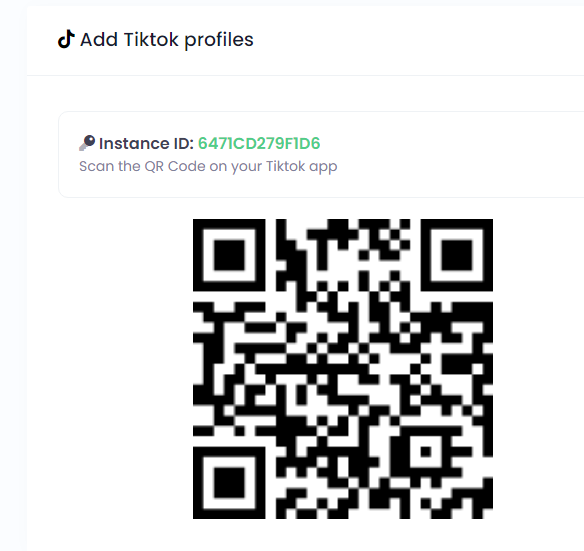
                                      You don’t need to submit an approved API app from Unsplash to use this feature on Stackposts.

                                      If you have any questions, issues, or suggestions for this feature, please contact us here. We will answer as soon as possible

                                      failed to open stream: No such file or directory
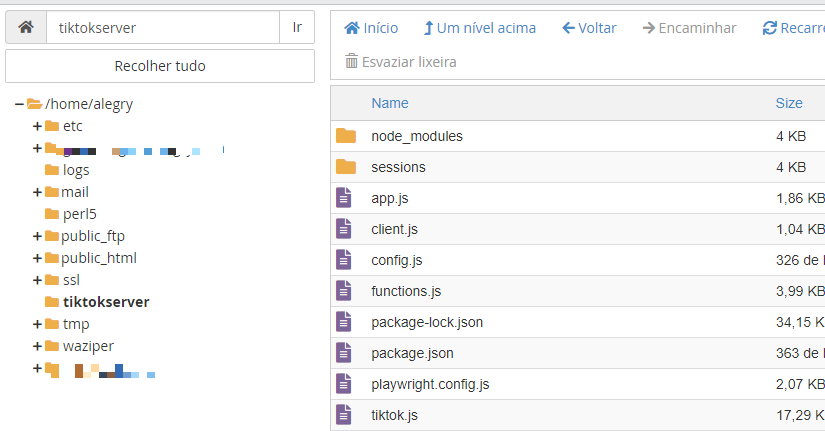
                                      file_put_contents(…): failed to open stream: No such file or directory – Always this problem

                                      This is an issue with your server permission. Please check this guide to get more information about your issue.

                                      Cronjobs

                                      You need to check your cronjobs here: https://yourstackpostswebsite.com/settings/index/crons

                                      1. Cron Task Scheduler in aaPanel

                                      2. Cron Task Scheduler in CPanel

                                      wget -q -O - [link_cron] >/dev/null 2>&1

                                      Example:

                                      wget -q -O - https://yourdomain.com/post/cron >/dev/null 2>&1

                                      3. Cron Task Scheduler on FastPanel

                                      You can add a cron job in FASTPANEL. Open the Control section -> Scheduler.

                                      When using Ispmanager: the Main menu -> Scheduler

                                      Example:

                                      /usr/bin/wget -O /dev/null "https://yourstackposts.com/post/cron"

                                      Landing Page / Homepage

                                      Disable Landing Page

                                      Disable Home Page

                                      Change the content on the Homepage

                                      You can change it in the language for the homepage content.
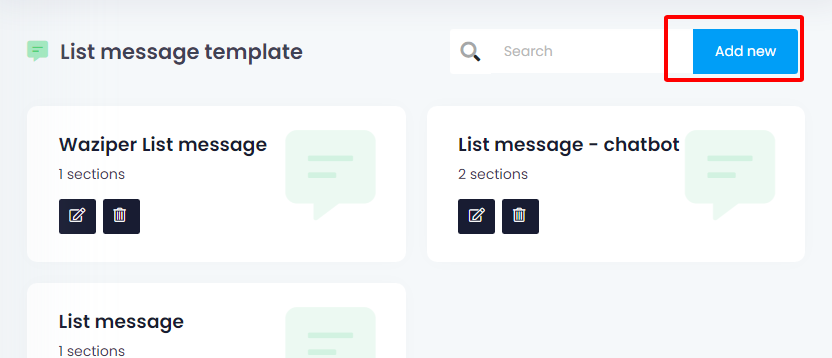
                                       

                                      Error: Call to undefined function CodeIgniter\locale_set_default()

                                      PHP version is required, with the intl extension installed. You must check your server/hosting if it is installed intl extension
                                      Call to undefined function CodeIgniter\locale_set_default()
                                      Call to undefined function CodeIgniter\locale_set_default()


                                      Antimanual

                                      Ask our AI support assistant your questions about our platform, features, and services.

                                      You are offline
                                      Chatbot Avatar
                                      What can I help you with?